Post Syndicated from Aishwariya Khiani original https://aws.amazon.com/blogs/architecture/automate-custom-pii-detection-at-scale-with-amazon-macie-and-step-functions/
Organizations in regulated industries like financial services, insurance, healthcare, and government ingest large volumes of data containing personally identifiable information (PII). Your applications, claims processing systems, partner data feeds, and internal workflows produce files that may include names, addresses, Social Security numbers, and domain-specific identifiers such as policy numbers, member IDs, and medical record numbers.
Identifying and classifying this sensitive data is a compliance imperative. Regulations such as GDPR, HIPAA, CCPA, and PCI DSS require you to know where PII resides, who can access it, and how it is protected. Manual classification does not scale. While Amazon Macie provides managed sensitive-data discovery, there could be formats that standard detection engines do not recognize by default. You can extend the detection capability with custom identifiers unique to your business.
In this post, you learn how to build and deploy an event-driven pipeline that automatically detects PII the moment a file arrives in Amazon Simple Storage Service (Amazon S3). It then extends beyond Macie built-in managed data identifiers by incorporating your own custom identifiers, which can detect organization-specific sensitive data types alongside standard PII.
Solution overview
The solution uses Amazon EventBridge to trigger an AWS Step Functions workflow, which orchestrates Macie classification jobs, including custom data identifiers, and produces compliance reports with zero manual intervention. As each file lands in Amazon S3, the pipeline automatically invokes Macie to scan it using built-in and custom data identifiers, detecting standard and organization-specific PII without manual intervention. It then generates audit-ready reports in both CSV and JSON formats with full timestamps, giving your compliance team the documentation they need. For high-severity findings, the pipeline publishes real-time notifications through Amazon Simple Notification Service (Amazon SNS) so your security team can respond immediately. To maintain clear data lineage throughout the process, the architecture implements a three-bucket pattern. This helps isolate objects by their processing state and ensures that unscanned data never mixes with validated data.
Architecture
This pipeline uses an event-driven architecture built on the following AWS services:
- Amazon S3 – Storage layer organizing data across three buckets that represent each processing state: raw, staged, and scanned.
- Amazon EventBridge – Detects new object uploads and triggers the workflow automatically, without polling.
- AWS Step Functions – Orchestrates the entire scan lifecycle, coordinating each step from job creation through report generation.
- Amazon Macie – Detects PII, scanning objects for sensitive data using both built-in and custom data identifiers.
- AWS Lambda – Supplies the compute logic between orchestration steps from initiating Macie classification jobs, polling job status, parsing findings, generating reports, and moving objects between buckets.
- Amazon SNS – Delivers real-time alerts to notify your team when high-severity findings are detected.
The following figure provides an overview of the solution architecture using the listed services.
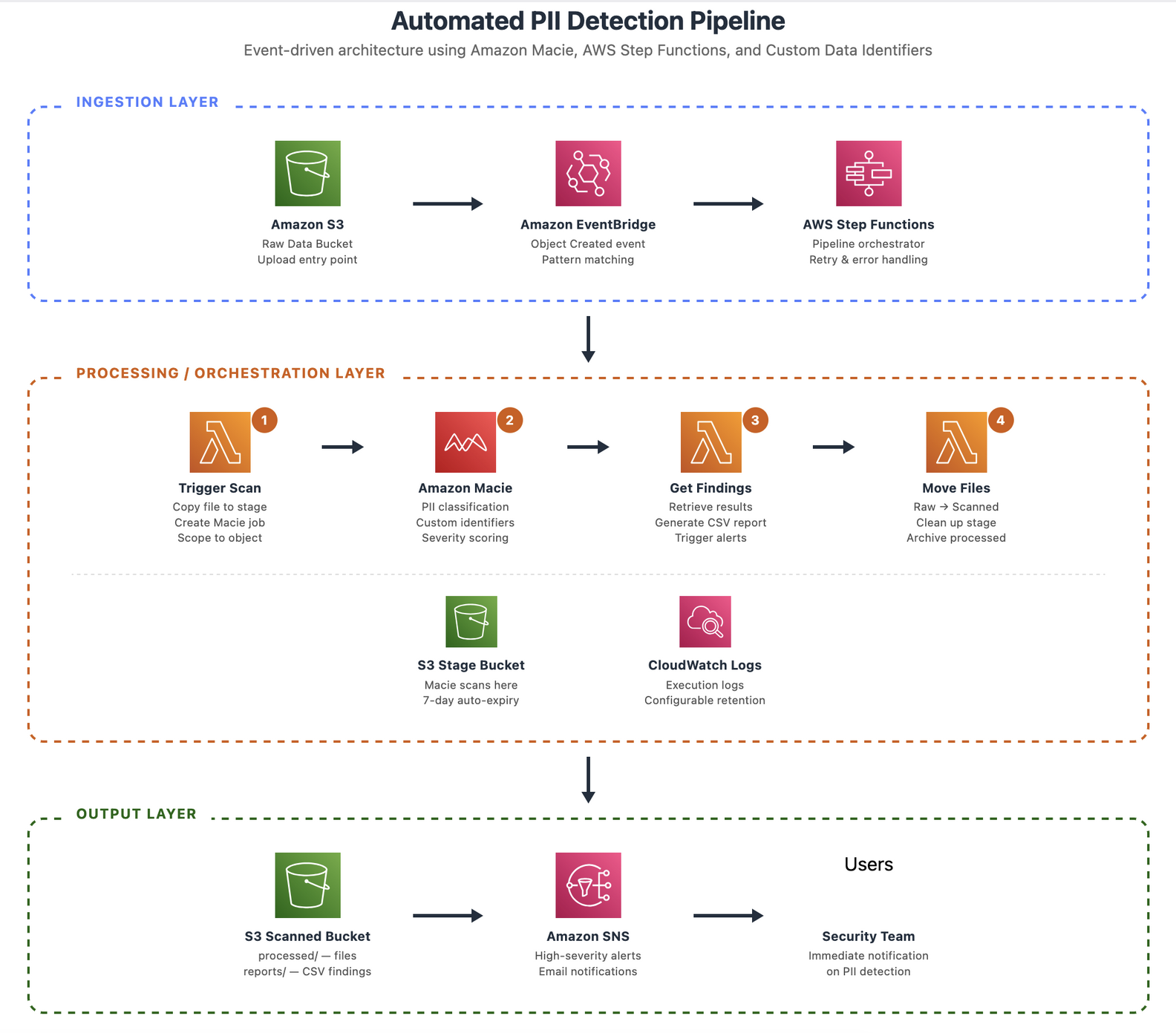
Figure 1 — Architecture overview
Several design decisions shape this architecture. The pipeline creates a dedicated Macie classification job for each object rather than batching, which enables real-time PII detection at the point of ingestion. The three-bucket pattern noted earlier isolates unprocessed data from validated data, with the staging bucket configured to auto-expire objects. Step Functions orchestrates the workflow, using built-in retry logic and wait states to handle asynchronous job execution in Macie. Custom data identifiers extend detection capabilities of Macie to cover domain-specific patterns unique to your organization. Finally, Amazon EventBridge triggers the pipeline instead of native S3 event notifications, providing advanced filtering, support for multiple targets, and cross-account routing.
Walkthrough
In this section, you deploy and configure the automated PII detection pipeline.
Prerequisites
- A sandbox or non-prod AWS account with administrative access.
- AWS Command Line Interface (AWS CLI) v2 installed and configured.
- Amazon Macie should be enabled in your target AWS Region.
- A valid email address for high-severity notifications.
Step 1: Deploy the AWS CloudFormation stack
Download and deploy the complete solution through this sample CloudFormation template.
Option A: Using AWS CLI
Option B: Using AWS Management Console
- Navigate to the AWS CloudFormation console.
- Choose Create stack > With new resources (standard).
- Upload the template, fill in parameters, and submit.
✓ Expected result: Stack reaches CREATE_COMPLETE after 3 to 5 minutes.
The following image shows the sample Create stack parameters and configuration:
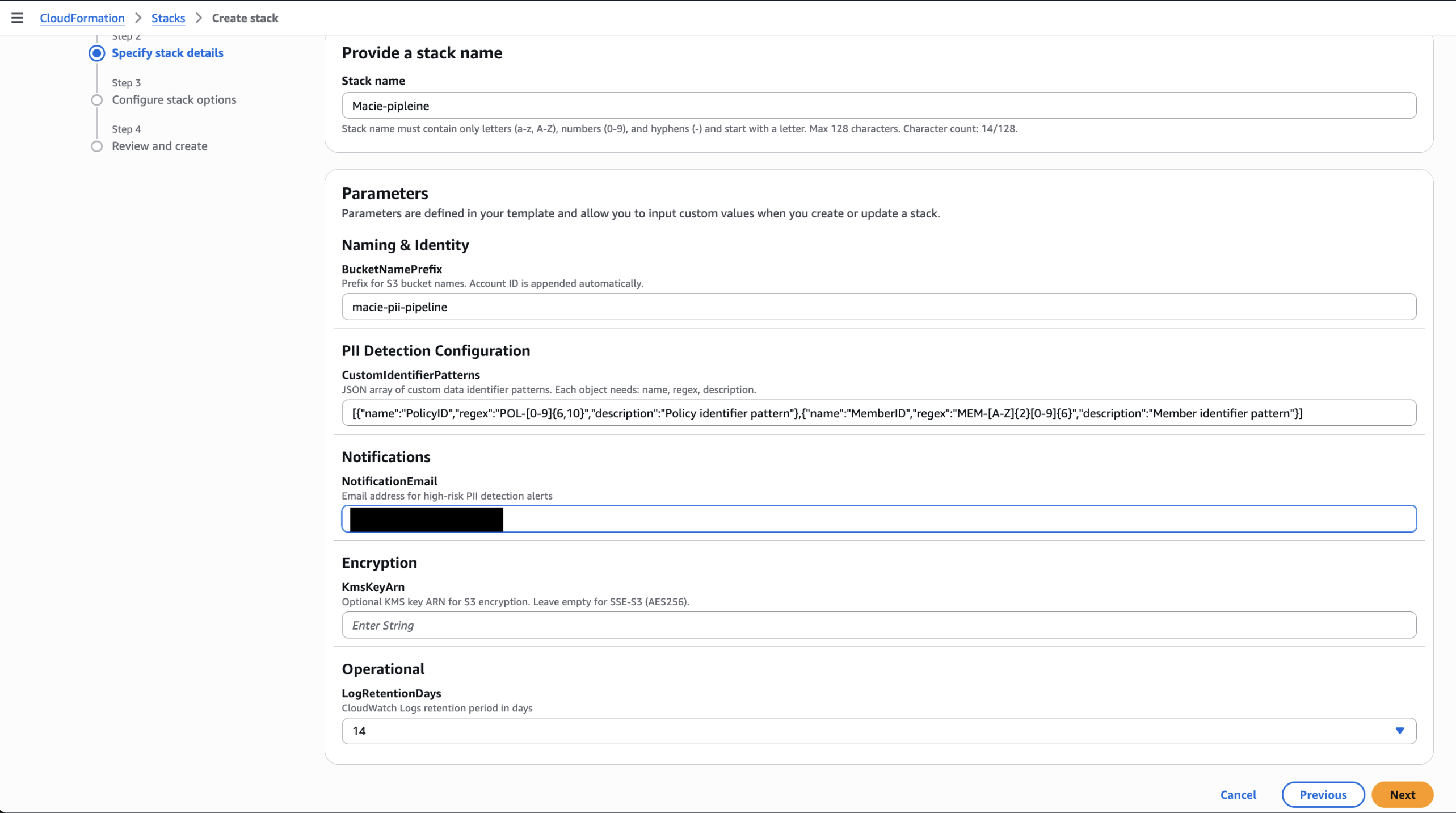
Figure 2 — CloudFormation console showing Create stack configuration page
Step 2: Confirm the Amazon SNS subscription
Open the confirmation email and choose Confirm subscription.
✓ Expected result: Subscription shows Confirmed in Amazon SNS console as demonstrated in the following screenshot
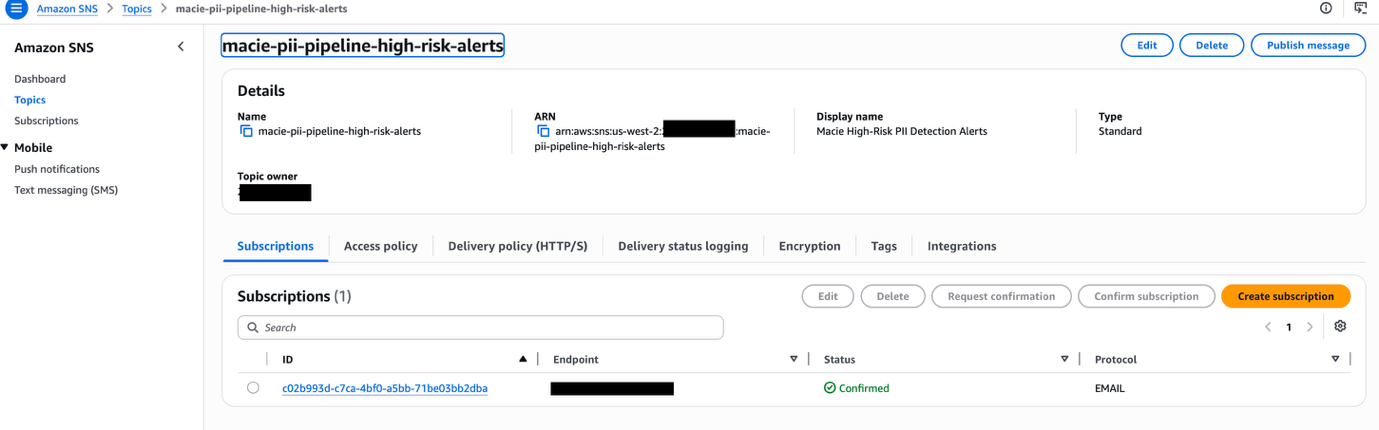
Figure 3 — Amazon SNS confirmed subscription
Step 3: Configure custom data identifiers
The stack automatically provisions custom data identifiers from the CustomIdentifierPatterns parameter you provided during deployment. Verify they exist in the Macie console.
✓ Expected result: Custom identifiers show up on Macie console as demonstrated in the following image
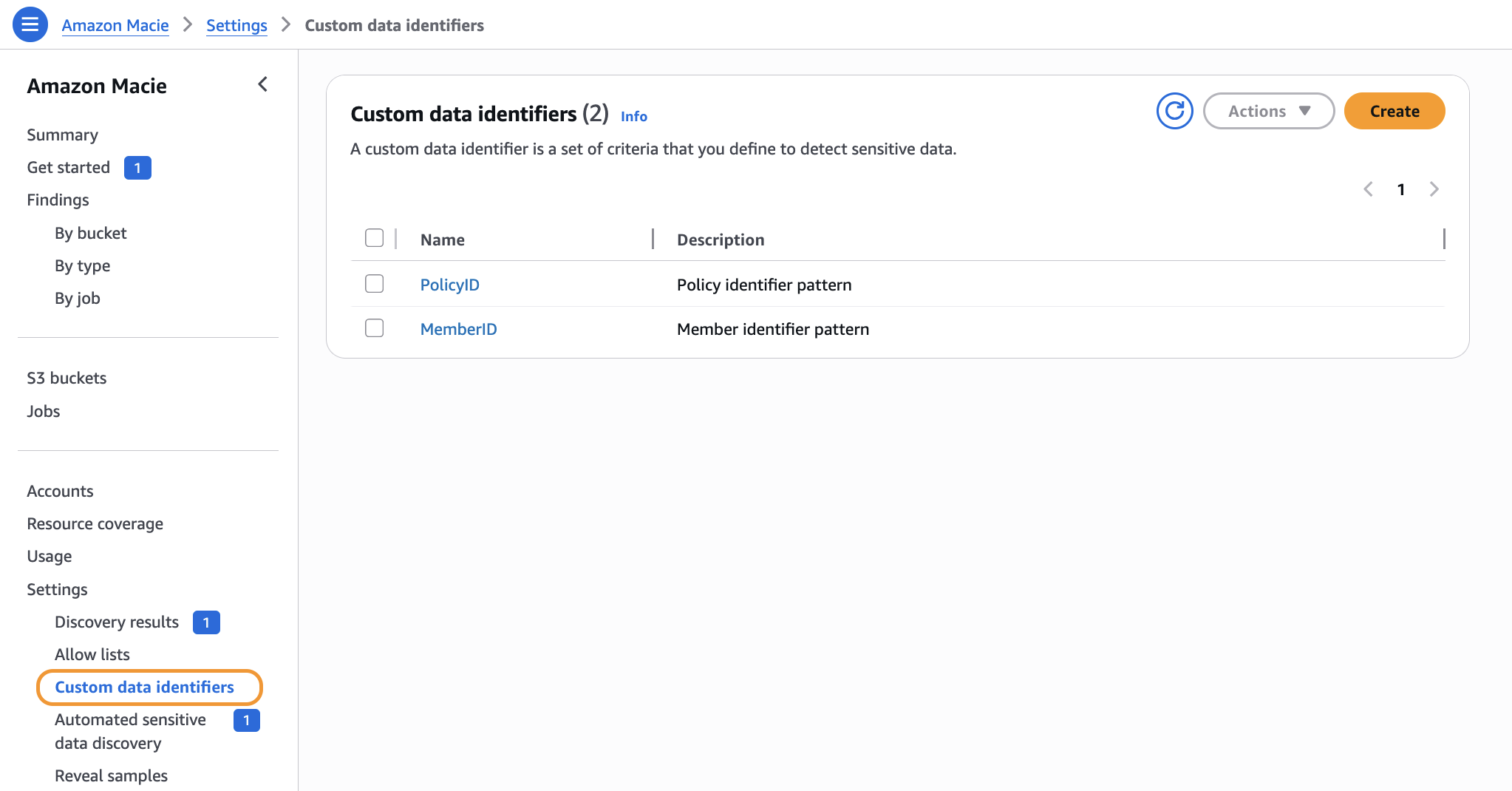
Figure 4 — Custom data identifiers in Macie console
Step 4: Test the pipeline
- Upload a sample file to the raw bucket using the AWS CLI or console.
✓ Expected result: Step Functions execution starts within seconds.
The following image shows the test files copied to the S3 bucket:
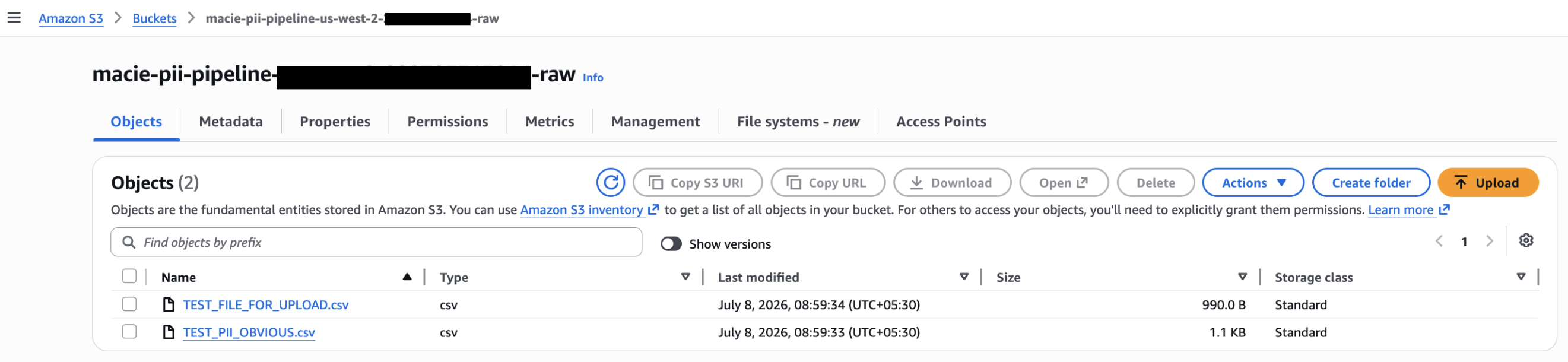
Figure 5 — Test file uploaded to raw bucket
Monitor the pipeline progression
On your Step Functions console > choose state machine > view running operation.
Note: The underlying Macie jobs may take some time to complete. Scan duration varies from job to job. The amount and type of data being scanned, its compression, and the number of data identifiers used all dictate how long a job takes to run. For the example illustrated in this post, jobs took roughly 15–20 minutes to complete. As a best practice, consider enabling S3 AWS CloudTrail data-event logging to audit the PII pipeline.
✓ Expected result: Graph inspector shows active state in blue, completed in green.
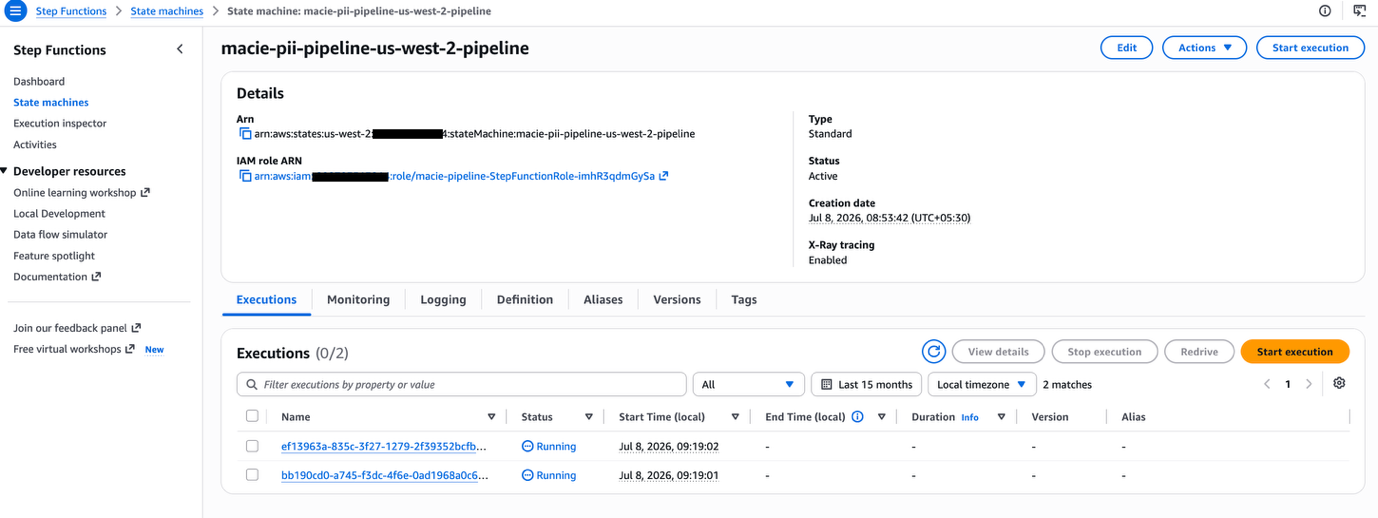
Figure 6 — Step Functions pipeline
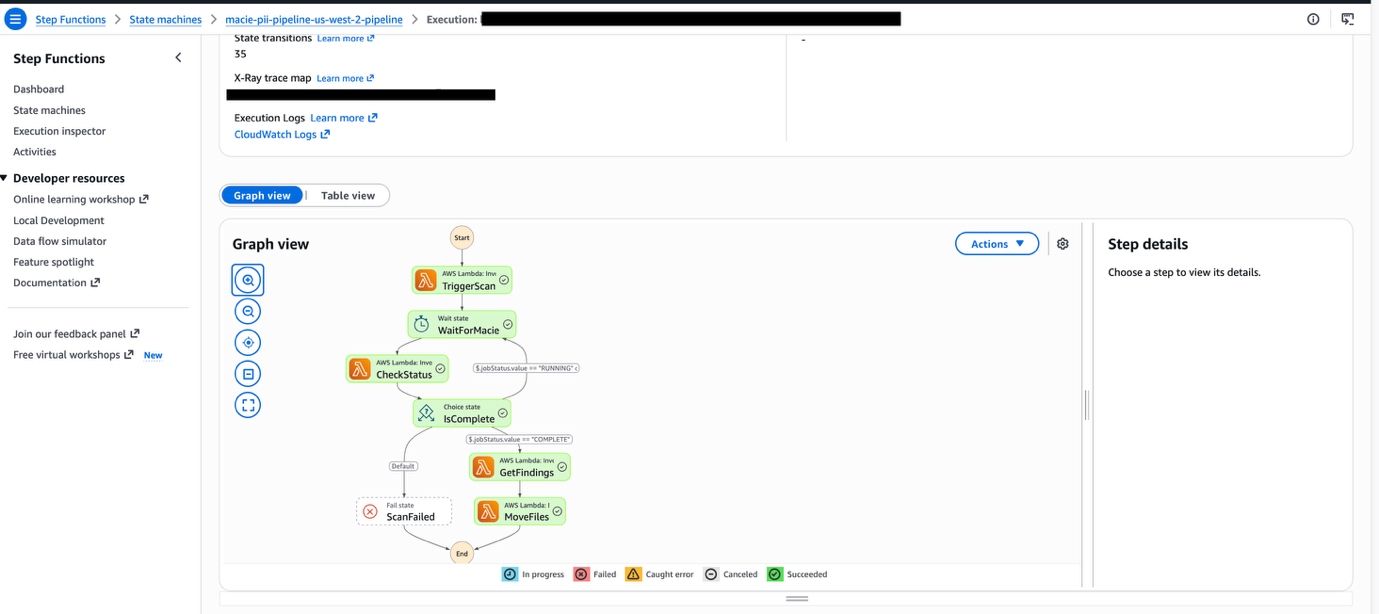
Figure 7 — Step Functions Graph inspector
The Step Functions state machine orchestrates the end-to-end scanning workflow through five sequential states. First, TriggerScan copies newly uploaded objects to a staging bucket and creates a Macie classification job targeting that staged data. Once the job is submitted, the workflow enters WaitForMacie, which pauses execution for 60 seconds to allow the classification job time to process. Next, CheckStatus polls the Macie DescribeClassificationJob API to determine whether the job has completed. When the job finishes, GetFindings retrieves the classification results, generates detailed findings reports, and publishes a notification to an Amazon SNS topic for downstream consumers. Finally, MoveFiles relocates the original object from the raw bucket to a permanent scanned-data location and cleans up the staging copy.
Verify the reports
✓ Expected result: Two timestamped files (CSV + JSON) per scan as shown in the following image
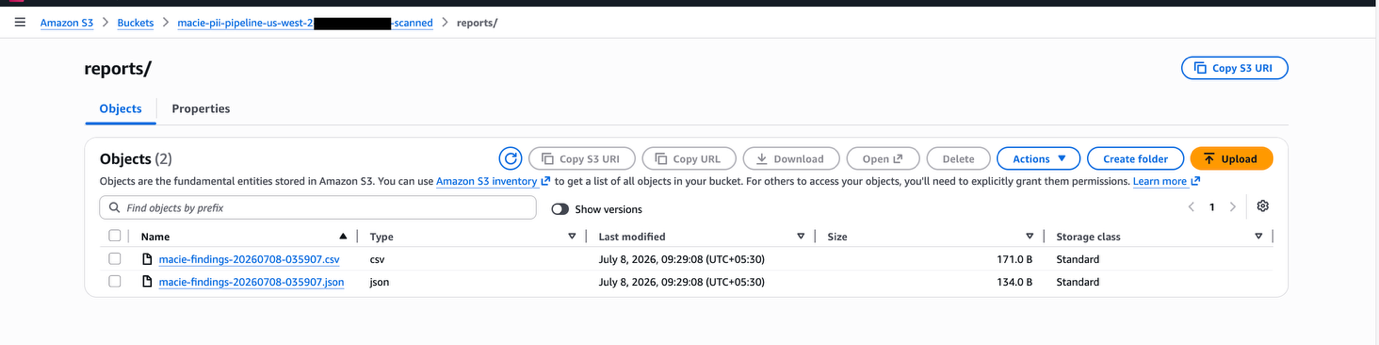
Figure 8 — Reports in scanned bucket
Next, Amazon SNS triggers a notification email to the intended recipients. The following screenshot shows a sample notification.
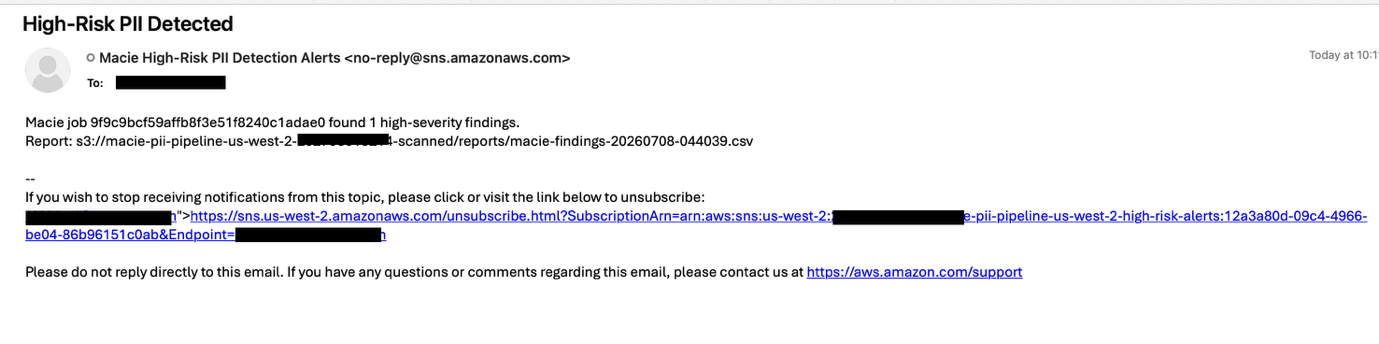
Figure 9 — Amazon SNS notification email
Step 5: Review the data flow
raw bucket → stage bucket → scanned bucket
- Raw bucket – The file is removed after processing (versioning enabled).
- Stage bucket – Auto-expires after seven days.
- Scanned bucket – Contains the processed files and the reports.
The following images show the three sample buckets created as part of this walkthrough.
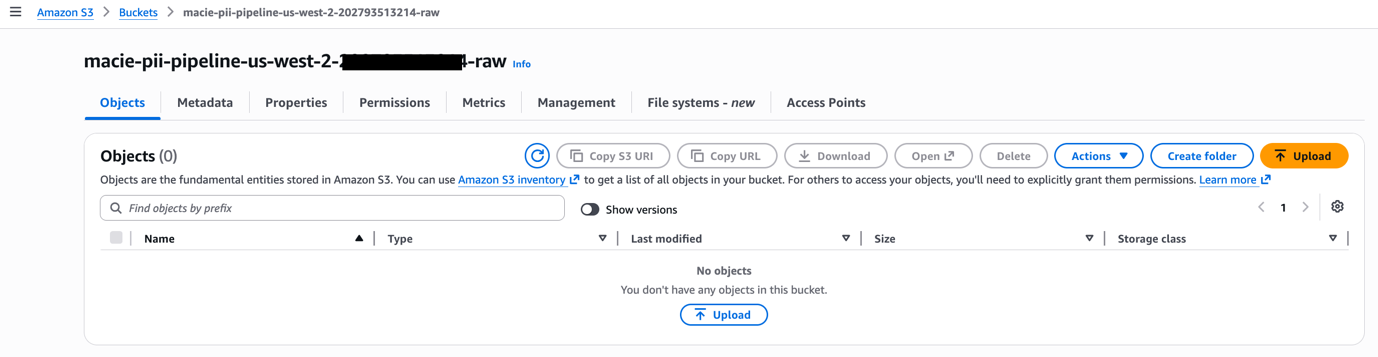
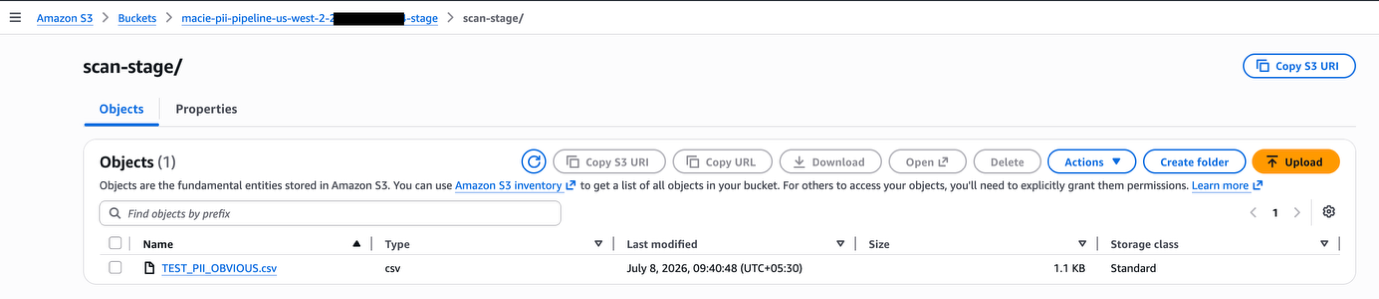
Figure 10 — Three-bucket state after execution
Hardening measures to deploy in production
- For multi-tenant environments, deploy a separate stack per tenant using a distinct
BucketNamePrefixto maintain strict data isolation. - Enable Amazon S3 bucket default encryption with SSE-S3 as default setting or with a customer-managed AWS Key Management Service (AWS KMS) key by passing the
KmsKeyArnparameter. - Configure cross-account Amazon EventBridge rules for data sources spanning multiple accounts.
- Be mindful of Macie quotas for custom data identifiers: up to 10,000 per account, but a maximum of 30 per classification job. Split them across multiple jobs if you need more.
- For high-volume workloads, batch multiple objects into a single Macie classification job to reduce API overhead and stay within the CreateClassificationJob throttle of 0.1 requests per second (one job every 10 seconds). See Macie quotas.
- Enable Amazon S3 AWS CloudTrail events to maintain a complete audit trail of every object access and movement throughout the pipeline.
- Enable Amazon SNS data encryption with SSE-KMS.
Extending this solution
- Data lake integration – Route JSON findings to Amazon Athena or AWS Glue for trend analysis. Build Amazon QuickSight dashboards for PII density visualization.
- Remediation workflows – Extend Step Functions with a remediation branch to quarantine files or revoke access when high-severity PII is found.
- Multi-account environments – Use AWS Organizations and Amazon EventBridge cross-account rules to centralize scanning in a dedicated security account.
- Enhanced security posture – Publish findings to AWS Security Hub for unified security posture management.
- Batch for high-volume – Modify Trigger Scan to batch objects into a single Macie job for cost optimization at scale.
Cleaning up
To avoid ongoing charges, delete all resources created by this solution:
- Empty all S3 buckets created by the stack. CloudFormation cannot delete non-empty buckets.
- Delete the CloudFormation stack.
- Wait for stack deletion to complete.
- Amazon S3 buckets use DeletionPolicy: Retain preventing automatic removal. Delete retained buckets manually.
- Disable Macie if no longer needed (optional).
Conclusion
In this post, we demonstrated building an event-driven pipeline that automatically detects PII in files uploaded to Amazon S3. By combining Macie’s managed classification with custom data identifiers, orchestrated by AWS Step Functions and triggered in real time through Amazon EventBridge, the solution detects both standard and domain-specific sensitive data without manual intervention. The pipeline responds to S3 bucket uploads within seconds, runs each object through the full scan lifecycle, generates timestamped CSV and JSON reports for compliance, and delivers real-time Amazon SNS notifications when high-severity findings are detected.
Getting started
To deploy this solution in your own environment, clone the GitHub repository and follow the step-by-step deployment instructions in the README. This is a non-prod sample code without the listed hardening measures. You can extend the pipeline by adding custom data identifiers for your organization’s unique data formats, configuring cross-account Amazon EventBridge rules for multi-account environments, or batching objects per Macie job to optimize for high-volume workloads.
To learn more, review the Amazon Macie documentation for additional detection capabilities, explore AWS Step Functions best practices for production error handling, and visit the AWS Security Blog for more data protection patterns.