Post Syndicated from Al MS original https://aws.amazon.com/blogs/big-data/announcing-spark-connect-on-amazon-emr-on-ec2-interactive-pyspark-anywhere/
Today, we’re announcing support for Spark Connect on Amazon EMR on EC2 with the AWS runtime for Apache Spark (emr-spark-8.0, Apache Spark 4.0.2 and later). You can now develop and debug PySpark interactively from Amazon SageMaker Unified Studio Data Notebooks or your own IDE, such as Visual Studio Code, PyCharm, Kiro, or Jupyter. Spark runs on a dedicated Amazon EMR on EC2 cluster while your Python runs locally, so you can set breakpoints and inspect a DataFrame against full-size data from your IDE. In SageMaker Unified Studio Data Notebooks, you connect to your cluster, catalog, and AI tools. Production-scale PySpark and SQL run without leaving the studio. Because each session is isolated with its own permissions, your whole team can share one cluster at the same time. This post shows you how to get started with both SageMaker Unified Studio Data Notebooks and your own IDE.
Previously, developing Spark for an Amazon EMR on EC2 cluster meant working in a notebook tied to that cluster, or packaging your code as a job and submitting it before you could see a result. Local code often behaved differently on the cluster because of version and dependency mismatches, and the slow deploy-and-check loop made those differences hard to find. There was no way to attach your own IDE and debugger and inspect a DataFrame mid-transformation. Spark Connect closes that gap: your code runs against the cluster’s own Spark engine while you develop locally, so the environment you debug in is the one that runs your data.
How Spark Connect works on Amazon EMR on EC2
Spark Connect uses a client-server architecture that separates your application code from the Spark engine. The client is a lightweight PySpark library that runs in your notebook or IDE, and it sends DataFrame and SQL operations over a gRPC/TLS connection to a Spark Connect Server on your cluster. The server runs those operations and returns the results to your local session. Your machine does not need Spark installed and does not need to be sized for the workload.
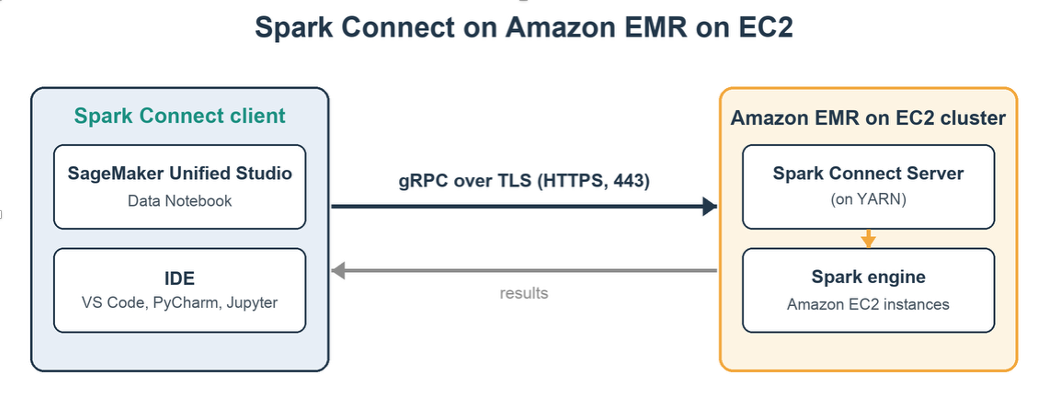
Figure 1: Spark Connect client-server architecture on Amazon EMR on EC2
When you start a session, Amazon EMR launches the Spark Connect Server as a YARN application on your cluster and hands back an endpoint and a short-lived token. There’s no server for you to stand up or manage. Because that server runs on a cluster you already operate, your session inherits the instance types, libraries, bootstrap actions, and Spark configuration you use in production. What you see while debugging is what runs when the same code is scheduled as a batch job, since both use the same cluster and its configuration.
Share one cluster across your team
Now that you can start sessions, a single dedicated cluster can serve your whole team, because each session is a separate resource with its own execution role, tags, and lifecycle. A single cluster supports up to 1,000 concurrent sessions and 1,000 concurrent execution roles. These values are service maximums, not sizing targets. Actual concurrency depends on cluster size and per-session workload. Because interactive sessions are bursty and rarely all active at once, one cluster typically serves a team larger than its peak concurrent-session count. Enable Amazon EMR managed scaling so that capacity tracks demand. If peak concurrency approaches these maximums, or to isolate cost and data access by group, use multiple clusters—for example, one per team, business unit, or environment. Sharing one cluster gives you:
- On-demand Spark without extra clusters — Developers get interactive sessions without provisioning a cluster apiece, which keeps utilization high and removes the cost of idle per-person clusters.
- Consistent environments — Everyone runs the same Spark version, libraries, and security configuration, so results stay consistent, and your platform team patches and monitors one cluster.
- Isolation and attribution — Per-session execution roles and tags keep each person’s work separate, so you can scope data access by session, track cost by user, and stop one session without disturbing anyone else.
- Full visibility and control — View active sessions in the Spark UI, review finished ones in the Spark History Server, and manage them from the Amazon EMR console, API, CLI, or SDK.
Getting started
Getting started with Spark Connect on Amazon EMR on EC2 takes three steps: Create an Amazon EMR cluster with Spark Connect session enabled, start a session, and connect from your IDE or SageMaker Unified Studio Data Notebooks.
Note: In SageMaker Unified Studio, on-demand cluster creation is available for domains that use AWS IAM Identity Center. For domains that use AWS Identity and Access Management (IAM), attach an existing cluster. If your cluster runs in a private subnet, make sure that your network configuration allows connectivity between SageMaker Unified Studio and the cluster endpoint.
Prerequisites
You must have the following prerequisites in place.
- An Amazon EMR cluster running release emr-spark-8.0.0 or later with
SessionEnabledset totrue. - The Spark application is installed on the cluster.
- Python 3.9 or later with
pyspark[connect]installed locally. The PySpark version must match the Spark version on your cluster. - For clusters in private subnets, the Amazon EMR service role must include the
AmazonEMRServicePolicyForSessionsmanaged policy, which grants permissions to create Network Load Balancers and virtual private cloud (VPC) endpoint services in your account. - To use Spark Connect sessions, you need permissions to start and list sessions on the cluster (
elasticmapreduce:StartSession,ListSessions), get session details and endpoints and terminate sessions (elasticmapreduce:GetSession,GetSessionEndpoint,TerminateSession), and pass the execution role to the Amazon EMR service (iam:PassRole).
Working with interactive sessions
To create a session-enabled cluster and connect to it, follow these steps.
To start a Spark Connect session
- Create a cluster with sessions enabled, running emr-spark-8.0.0 or later. The following is a sample command that you can modify for your needs, such as the instance types and counts:
Note: The following steps use the AWS Command Line Interface (AWS CLI) directly. If you develop in SageMaker Unified Studio (Option 1), cluster attachment and session creation are handled for you, so you can skip steps 2 through 6.
- After the cluster reaches the WAITING state, start a session and wait for it to reach IDLE:
Note: For runtime role sessions, add the
--execution-role-arnparameter to the start-session command. - Retrieve the endpoint and token, and build your connection string from the returned Endpoint value rather than hardcoding a host:
The response includes the endpoint URL and an authentication token:
- Install the matching PySpark client and connect. GetSessionEndpoint returns an https:// URL with no port. Build the connection string by converting it to the sc:// scheme and appending :443. Without the port, the PySpark client defaults to 15002, which isn’t reachable. Your Python code runs locally. The SQL and DataFrame operations run on the cluster:
- Run a transformation against full-size data. This groups a DataFrame, writes the result to Amazon Simple Storage Service (Amazon S3), and reads it back:
- When you finish, terminate the session to release cluster resources. Calling spark.stop() only closes the local connection. The session keeps running until you terminate it or it reaches the idle timeout:
- When you’re done with the walkthrough, terminate the cluster you created in step 1 so it stops incurring charges. Terminating the cluster also ends any sessions still running on it:
You can start a Spark Connect session in two ways: from SageMaker Unified Studio or from your own IDE client.
Option 1: Develop in SageMaker Unified Studio Data Notebooks
Amazon SageMaker Unified Studio brings your data, catalogs, and analytics and AI tools into one place, and Amazon EMR on EC2 is now one of the Spark runtimes a Data Notebook can use. When you choose that cluster as the notebook runtime, SageMaker Unified Studio connects to it over Spark Connect. The same runtime then drives both your PySpark and SQL cells, so a single notebook can query the AWS Glue Data Catalog and transform the data without switching tools. The built-in AI assistant generates code and execution plans from natural-language prompts, and the Spark UI shows running work alongside your other runtimes.
To start a session from SageMaker Unified Studio:
- Open a Data Notebook in SageMaker Unified Studio.
- In the Compute panel, do one of the following:
- To create a new cluster, choose Create cluster and configure an Amazon EMR on EC2 cluster.
- To use an existing cluster, choose Attach cluster and select a running Amazon EMR on EC2 cluster.
- Select the cluster as the notebook’s runtime.
- Begin writing PySpark or SQL code in the notebook cells.
For a complete example, open the SageMaker Unified Studio Spark Connect example notebook , which connects a Data Notebook to an Amazon EMR on EC2 cluster and runs PySpark and SQL cells against the AWS Glue Data Catalog.
Watch a walkthrough: Develop in a SageMaker Unified Studio Data Notebook. The preceding steps cover the same workflow, so you can complete it from the notebook without the video.
Option 2: Develop in your own IDE
Use the IDE of your choice, such as Visual Studio Code, PyCharm, Kiro, or a local Jupyter notebook. You debug Spark the way you debug any Python program: set a breakpoint, inspect a variable, and step through your code, all while the Spark work runs on the cluster. Your libraries, source control, and continuous integration and continuous delivery (CI/CD) stay on your local machine, and only your Spark operations are sent to the cluster.
To see this end to end, the following example attaches an IDE to a Spark Connect session and steps through a breakpoint against cluster data.
Open the local IDE Spark Connect example notebook then use the connection steps in the preceding Getting started section to attach your client.
Watch a walkthrough: Develop your own IDE with Spark Connect. The written connection steps in Getting started cover the same workflow, so you can complete it without the video.
Use cases
Spark Connect on Amazon EMR on EC2 supports the following interactive workflows:
- Interactive extract, transform, and load (ETL) development: Build and test pipelines against full-size data on the cluster, then schedule the same transformations as a Spark step on that cluster, where the Spark version, libraries, and configuration already match what you validated.
- Exploratory data analysis and feature engineering: Analyze production-scale data from your notebook or IDE instead of sampled subsets, so you catch data quality issues earlier.
- Notebook-driven analytics in SageMaker Unified Studio: Run PySpark and SQL next to your catalogs and AI tools, switching runtimes per notebook.
- Apache Iceberg lakehouse analytics: Query and manage Iceberg tables through the AWS Glue Data Catalog, with time travel, schema evolution, and partition management.
- Compute standardization: Point interactive development at the same clusters that run your production batch jobs, so development and production share one engine and configuration.
Release information
Spark Connect on Amazon EMR on EC2 is available with the AWS runtime for Apache Spark (emr-spark-8.0, Apache Spark 4.0.2) and later. It’s available in all AWS Regions where Amazon EMR is available, except the AWS GovCloud (US) Regions and the China Regions. The SageMaker Unified Studio experience is available in its supported Regions. There’s no additional charge for Spark Connect. You pay for the Amazon Elastic Compute Cloud (Amazon EC2) instances in your cluster. Because these sessions run on your own clusters, they use the Amazon EMR on EC2 capabilities you already rely on, including AWS Graviton processors for price-performance and your choice of On-Demand, Reserved, AWS Savings Plans, or Spot capacity.
Considerations for the release are as follows:
- The PySpark version that you install locally must match the Apache Spark version on your cluster.
- Spark Connect supports the DataFrame and SQL APIs. RDD-based APIs aren’t supported.
- Authentication tokens expire after 1 hour, and sessions end after a configurable idle timeout (60 minutes by default, up to 24 hours).
- High-availability clusters with multiple primary nodes, Trusted Identity Propagation, and fine-grained access control through AWS Lake Formation aren’t supported for Spark Connect sessions in this release.
Conclusion
Spark Connect on Amazon EMR on EC2 brings interactive, debuggable PySpark development to the clusters you already run. Develop on a SageMaker Unified Studio Data Notebook or in your own IDE, debug against full-size data while the cluster runs the work and share a single cluster across your whole team. To get started, see the Interactive sessions with Spark Connect guide or open a Data Notebook in Amazon SageMaker Unified Studio. To learn more about the service, see the Amazon EMR detail page.