Post Syndicated from Raghu Kuppala original https://aws.amazon.com/blogs/big-data/getting-started-with-apache-iceberg-write-support-in-amazon-redshift-part-3/
Production data is always evolving. Tables gain and lose columns, outgrow their data types, and get re-partitioned as query patterns shift. Multiple engines often need to read the same data. These changes used to mean expensive data rewrites or rebuilt pipelines. Apache Iceberg makes them metadata-only operations, and Amazon Redshift now supports evolving schemas and partitioning layouts through ALTER statements, with no data rewrites and no pipeline rebuilds. You can also create AWS Lake Formation resource links in the catalog of Amazon S3 Tables, a capability of Amazon Simple Storage Service (Amazon S3), for centralized cross-engine governance.
In Part 1, you created Apache Iceberg tables and wrote data directly from Amazon Redshift to your data lake, setting up external schemas, creating tables in both Amazon Simple Storage Service (Amazon S3) and Amazon S3 Tables, and performing INSERT operations with full ACID (Atomicity, Consistency, Isolation, Durability) compliance. In Part 2, you performed DELETE, UPDATE, and MERGE operations to modify data at the row level and synchronize staging and production tables.
In this post, you use the customer and orders datasets from the previous posts to evolve Iceberg table schemas and partitioning with ALTER operations. You also create an AWS Lake Formation resource link in the S3 Tables catalog to share tables with other analytics engines under a single, centralized permission model.
Solution overview
This solution demonstrates ALTER operations for Apache Iceberg tables in Amazon Redshift and Lake Formation resource link creation for the S3 Tables catalog. The walkthrough includes the following key operations:
- ALTER TABLE RENAME COLUMN – Rename existing columns without changing data types or partition specs.
- ALTER TABLE ADD/DROP COLUMN – Add new columns or remove existing columns as metadata-only operations.
- ALTER TABLE ALTER COLUMN – Widen column data types (for example, INT to BIGINT) without rewriting data.
- ALTER TABLE SET TABLE PROPERTIES – Change compression type for future writes.
- ALTER TABLE ADD/DROP/REPLACE PARTITION FIELD – Evolve partition specs without re-partitioning existing data.
- Lake Formation resource link – Create a resource link in the S3 Tables catalog for centralized access governance.
The following diagram shows the end-to-end architecture:
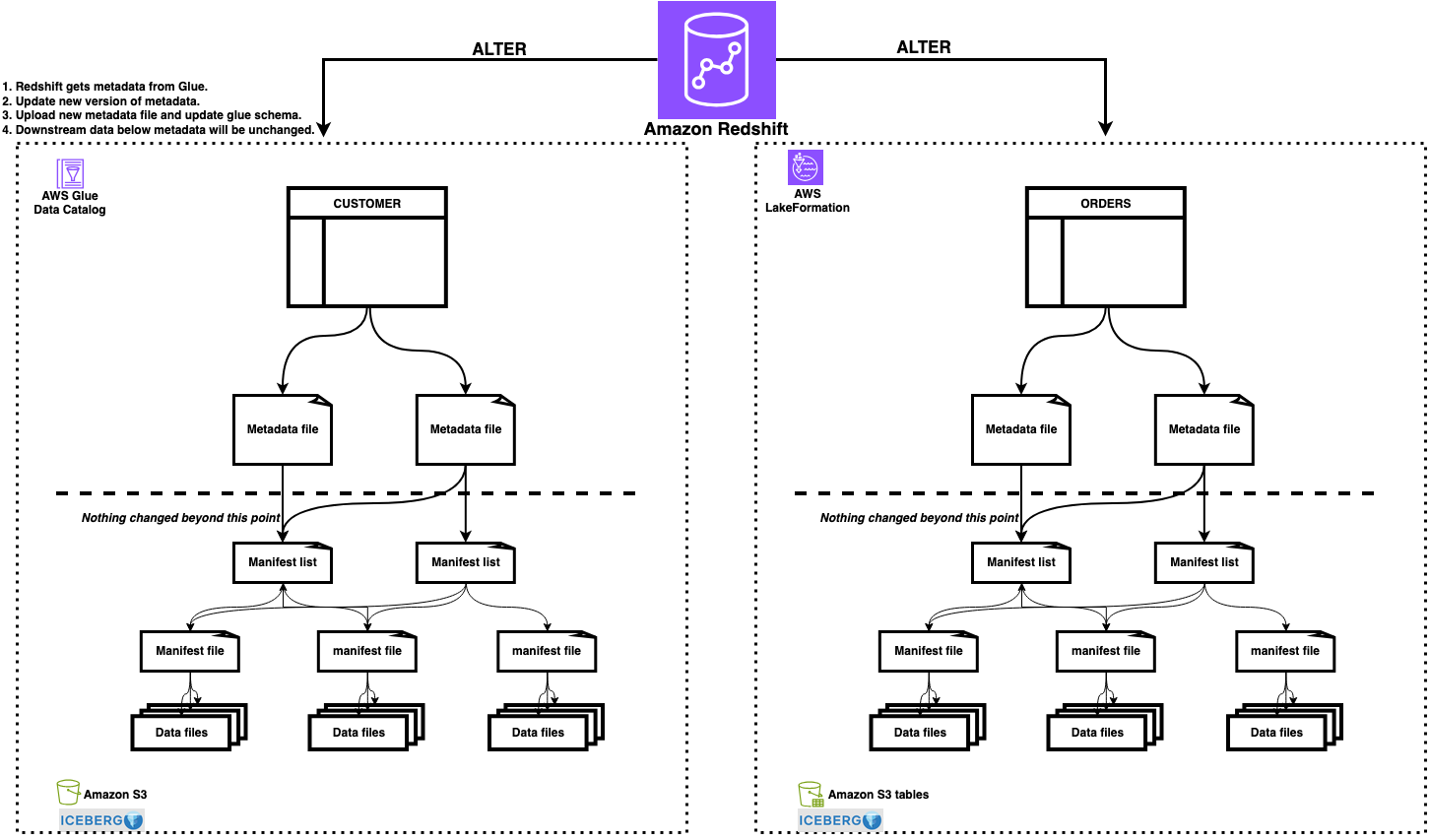
Figure 1: Architecture showing Amazon Redshift performing ALTER operations on Iceberg tables in S3 Tables, with Lake Formation resource links providing access from Amazon Athena and other engines
Prerequisites
Complete the setup from Part 1 and Part 2, including:
- An Amazon Redshift data warehouse (provisioned or Serverless) on patch 201 or higher.
- The AWS Identity and Access Management (IAM) role (
RedshifticebergRole) with permissions for Amazon S3, AWS Glue Data Catalog, and Lake Formation. - The
customertable in a standard Amazon S3 bucket (AWS Glue catalog:customer_db). - The
orderstable in an Amazon S3 table bucket (iceberg-write-blog@s3tablescatalog). - Access to an IAM role that is a Lake Formation data lake administrator.
- AWS Glue Data Catalog integrated with S3 Tables (
s3tablescatalogexists).
Schema evolution with ALTER TABLE
With ALTER TABLE, you can change Iceberg table definitions, including schema, partition specs, and properties, without rewriting stored data. Each operation updates only metadata. The table structure changes instantly while existing data files remain untouched. This helps make schema evolution, partition adjustments, and property updates safe to run on production tables.
Add a column
You can add a new column to an Iceberg table using ALTER TABLE. Each new column is added with a unique field ID that Iceberg uses for column tracking across schema evolution. Existing rows return NULL for the newly added column.
Verify the current schema:
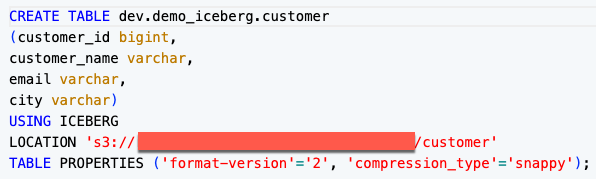
Figure 2: SHOW TABLE output showing the current customer table schema
Add the column:
Verify the schema change:
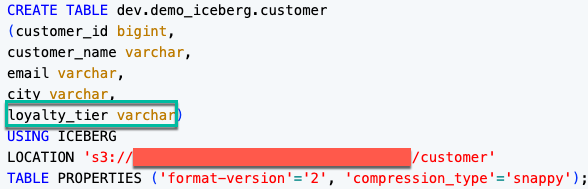
Figure 3: SHOW TABLE output showing the loyalty_tier column added to the schema
The following output shows the new loyalty_tier column as NULL for existing rows:
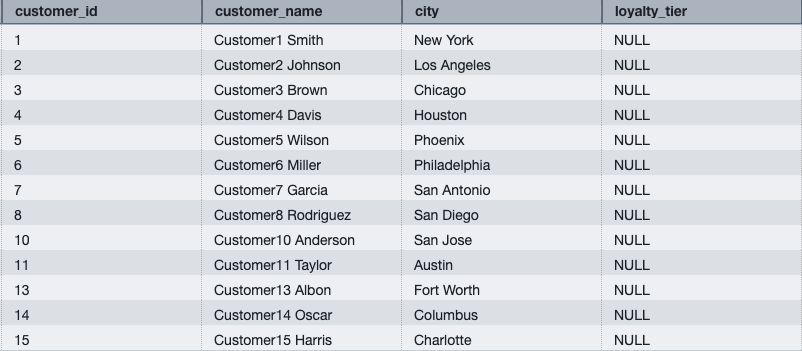
Figure 4: Query results showing loyalty_tier as NULL for existing rows
Populate the new column by aggregating order totals from the orders table in S3 Tables:
The following output shows customer loyalty tiers after the update:
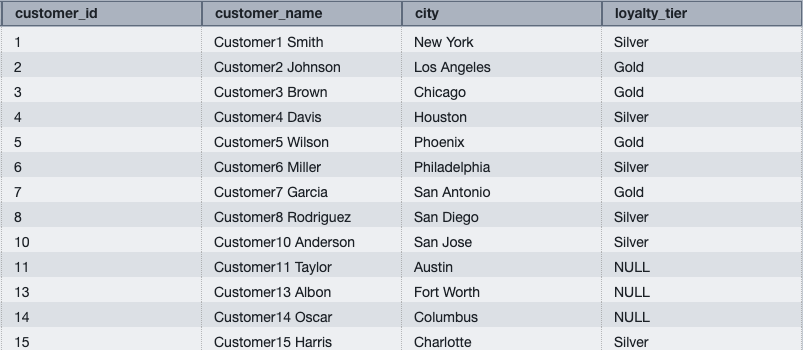
Figure 5: Customer table showing Gold and Silver loyalty tiers
Note: Customer IDs 11, 13, and 15 show NULL for loyalty_tier because they have no matching orders in the orders table.
Drop a column
Remove columns that are no longer needed. The column is removed from the current schema, but data in existing files remains untouched and simply becomes invisible to queries.
Verify the current schema:
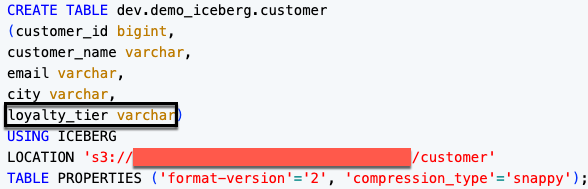
Figure 6: SHOW TABLE output showing the current customer table schema before dropping loyalty_tier
Drop the column:
Verify the schema change:
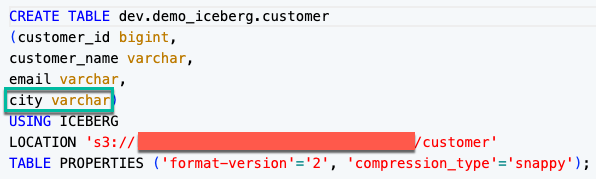
Figure 7: SHOW TABLE output showing the customer table schema after loyalty_tier is dropped
Verify the column is dropped:
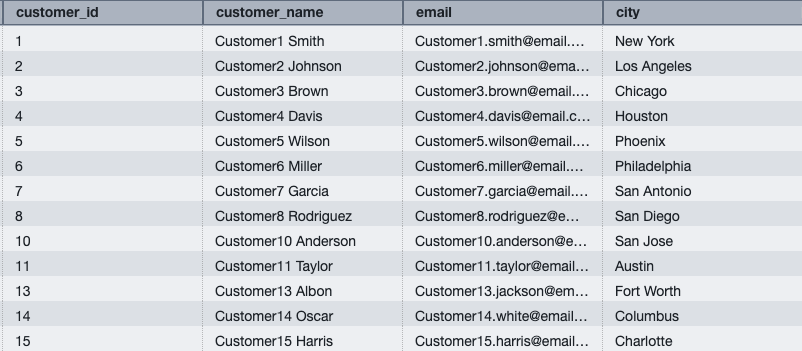
Figure 8: Query results confirming the loyalty_tier column has been dropped
Note: To drop a column used in the current partition spec, first drop or replace the partition field, then drop the column.
Rename a column
Rename a column without affecting data types or partition specs:
The following output confirms the column has been renamed to location:
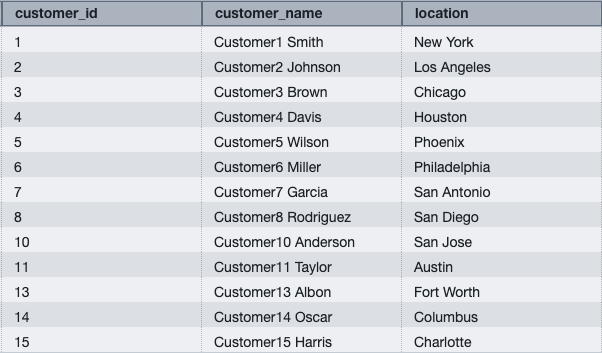
Figure 9: Query results showing the renamed column location
Widen a column type
Widen a column’s data type without rewriting data. This is useful when your data outgrows the original precision, for example when order amounts exceed the original decimal range.
Verify the current column type:
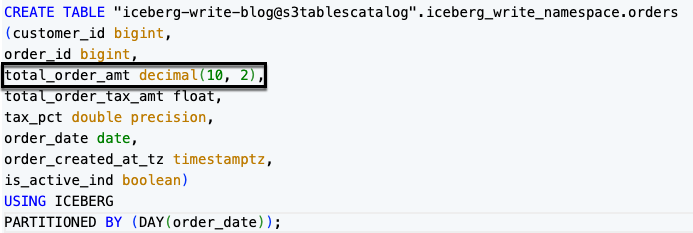
Figure 10: SHOW TABLE output showing total_order_amt as DECIMAL(10,2)
Now run the ALTER to widen the column:
Verify the updated column type:
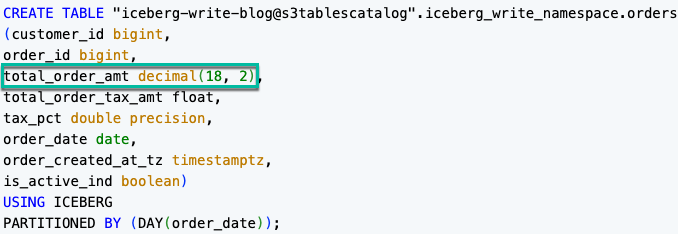
Figure 11: SHOW TABLE output confirming total_order_amt widened to DECIMAL(18,2)
Note: Amazon Redshift supports safe type promotions (for example, INT to BIGINT, FLOAT to DOUBLE, DECIMAL(10,2) to DECIMAL(18,2)). Plan column types accordingly for future growth.
Set table properties
Change the compression type for future writes:
Verify the current compression type:
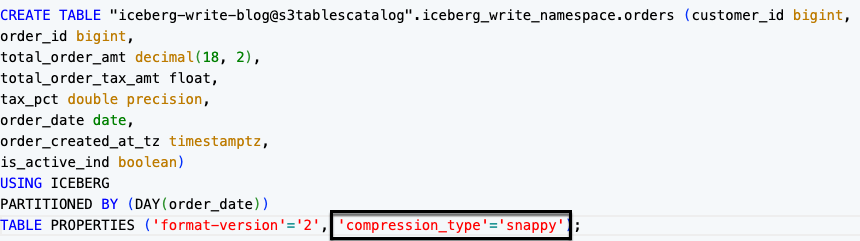
Figure 12: SHOW TABLE output showing the current compression type before the update
Now run the ALTER to change the compression type:
The following SHOW TABLE output confirms the updated compression setting:
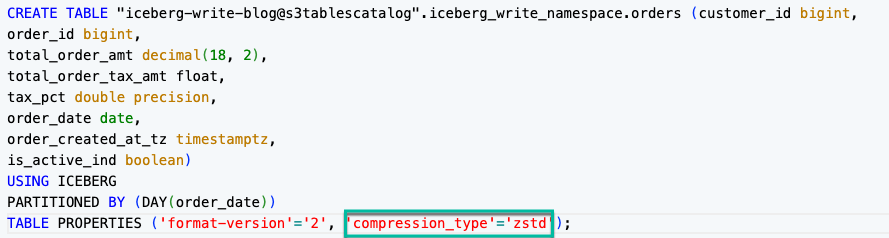
Figure 13: SHOW TABLE output showing compression_type set to zstd
Note: This affects only future writes. Existing data files retain their original compression.
Partition evolution
A powerful feature of Iceberg is partition evolution, the ability to change how a table is partitioned without rewriting existing data. Amazon Redshift writes new data with the updated partition scheme, while existing data remains in the old layout. Query engines handle both layouts transparently.
Adding a partition field
The orders table from Part 1 is partitioned by DAY(order_date). Add an additional bucket partition to distribute data across hash buckets:
Verify the current partition spec:
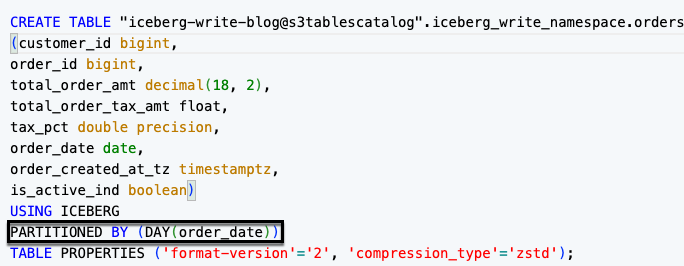
Figure 14: SHOW TABLE output showing the current partition spec before adding a partition field
Add the partition field:
After this change, new data is partitioned by both DAY(order_date) and bucket(16, customer_id), while existing data remains in the original day-only layout.
Verify the updated spec:
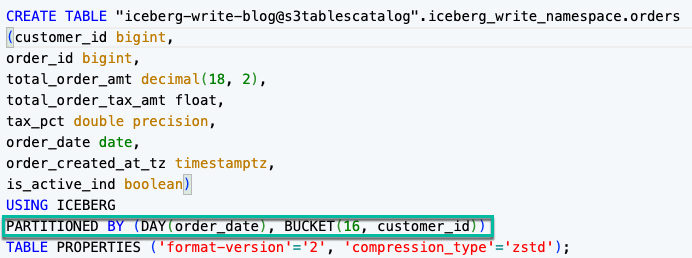
Figure 15: SHOW TABLE output showing the updated partition spec with DAY(order_date) and bucket(16, customer_id)
Replacing a partition field
Instead of separately dropping and adding, use REPLACE PARTITION FIELD as a single atomic operation. This is the recommended approach when swapping one transform for another on the same source column, because it makes the intent explicit and avoids a transient state where the table is unpartitioned between operations.
Verify the current partition spec:
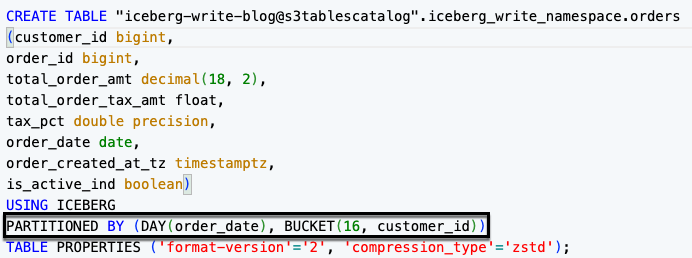
Figure 16: SHOW TABLE output showing the current partition spec with DAY(order_date) and bucket(16, customer_id)
Replace the partition field:
After this change:
- Existing data remains in day-based partition folders.
- Amazon Redshift writes new data into month-based partition folders.
- The query engine reads both layouts transparently.
Confirm the new partition spec:
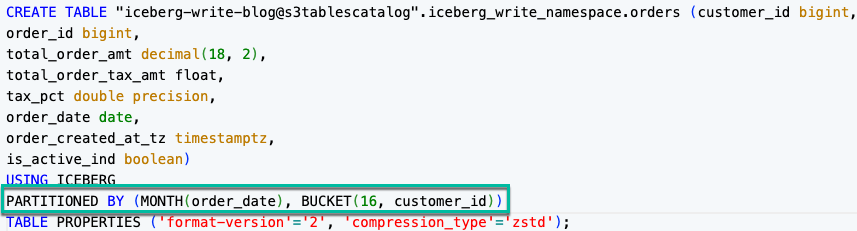
Figure 17: SHOW TABLE output confirming the partition field replaced with MONTH(order_date)
Insert new data and verify that both partition layouts are queryable:
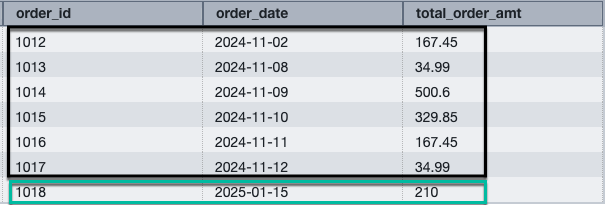
Figure 18: Query results spanning both partition layouts
Converting to a multi-level partition
Iceberg supports multi-level (composite) partition specs, where data is organized by more than one partition field. You can evolve an existing single-level spec into a multi-level spec by adding partition fields one at a time. Each ADD PARTITION FIELD is a lightweight metadata operation, and no data is rewritten.
The orders table is currently partitioned by MONTH(order_date) and bucket(16, customer_id). Add one more partition field to create a three-level spec:
Verify the current partition spec:
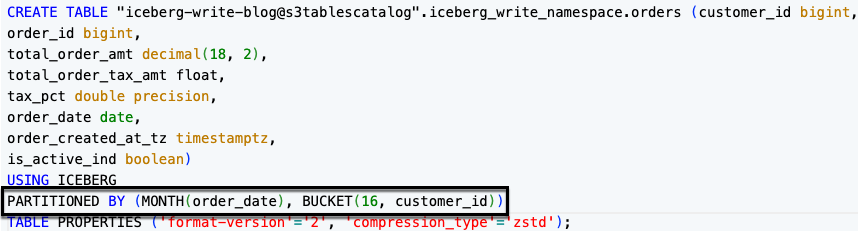
Figure 19: SHOW TABLE output showing the current two-level partition spec of MONTH(order_date) and bucket(16, customer_id)
Add partition field to build the three-level spec:
Verify the new multi-level partition spec:
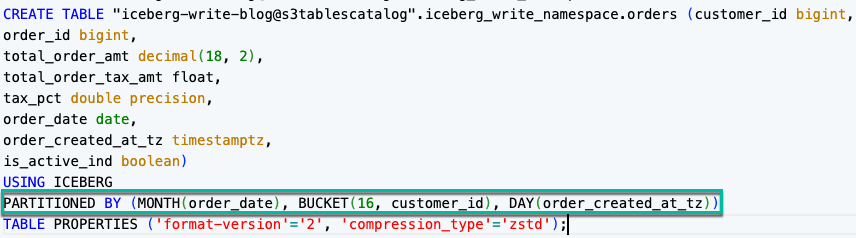
Figure 20: SHOW TABLE output showing the three-level partition spec of MONTH(order_date), bucket(16, customer_id), and day(order_created_at_tz)
After these changes:
- Existing data remains in the original single-level layout (month-based folders).
- Amazon Redshift writes new data into the multi-level layout (month, then bucket, then day folders).
- The query engine reads both layouts transparently.
Dropping partition fields from a multi-level partition
You can also evolve in the other direction by removing partition fields from a multi-level spec to simplify the partition layout. Like adding fields, dropping a partition field is a metadata-only operation and removes one field per statement.
Verify the current multi-level partition spec:
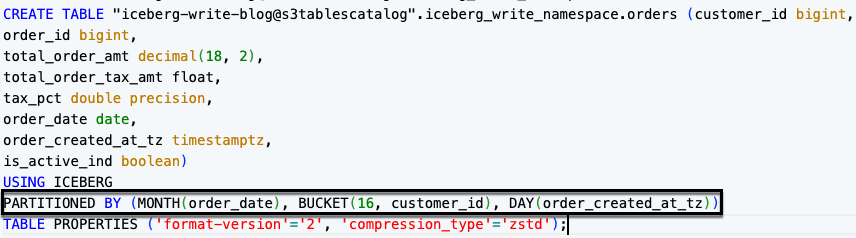
Figure 21: SHOW TABLE output showing the three-level partition spec before dropping fields
Drop the partition fields one at a time:
Verify the table is back to its original single-level spec:
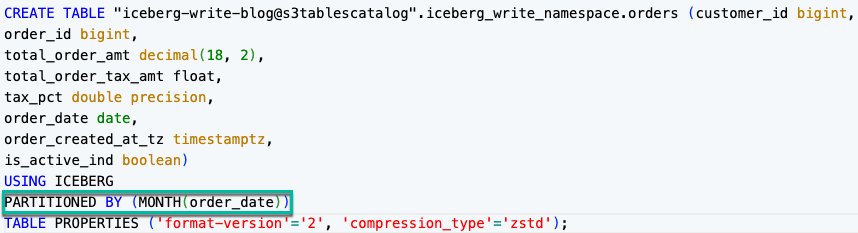
Figure 22: SHOW TABLE output confirming the table is back to a single-level MONTH(order_date) partition spec
After dropping a partition field:
- Data written under the dropped field’s layout stays in place and remains queryable.
- Amazon Redshift writes new data using only the remaining partition fields.
- Queries that filtered on the dropped field still work, but they no longer benefit from partition pruning on that field for newly written data.
Supported partition transforms
The following table lists the partition transforms available for Iceberg tables in Amazon Redshift:
| Partition transform | Syntax example | What it does |
| Year | year(order_date) |
Groups data into yearly partitions based on a date or timestamp column. |
| Month | month(order_date) |
Groups data into monthly partitions based on a date or timestamp column. |
| Day | day(order_date) |
Groups data into daily partitions based on a date or timestamp column. |
| Hour | hour(event_ts) |
Groups data into hourly partitions based on a timestamp column. |
| Bucket | bucket(16, customer_id) |
Distributes data across N hash buckets for even distribution on high-cardinality columns. |
| Truncate | truncate(3, zip_code) |
Truncates column values to a fixed width W for grouping similar values together. |
| Identity | identity(region) |
Partitions by the exact column value with no transformation applied. |
Note: A column that is already part of an existing partition field can’t be used in a new partition field. Drop or replace the existing field first.
Accessing S3 Tables with external schemas
Lake Formation resource links provide cross-engine access to your S3 Tables through centralized governance. You create a resource link in the default AWS Glue Data Catalog that points to your S3 Tables database. Amazon Redshift, Amazon Athena, Amazon EMR, and other engines can then discover and query the tables using a single permission model.
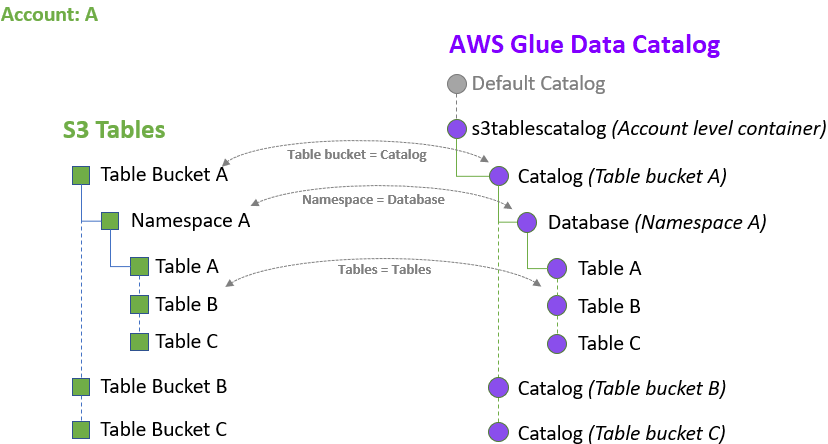
Figure 23: S3 Tables integration with AWS Glue Data Catalog and Lake Formation
For the complete setup walkthrough, including Lake Formation prerequisites, resource link creation, and permission grants, see Optimize Amazon S3 Tables queries with Amazon Redshift. For conceptual details on resource links and S3 Tables catalog integration, see About resource links and Creating an S3 Tables catalog.
The following steps show how to query S3 Tables through a resource link after completing the setup from the referenced blog.
Grant access to the resource link
In the Lake Formation console, the resource link appears as a database named iceberg_write_blog_rl (type: Resource link). To grant access to the resource link:
- In the Lake Formation console, choose Databases.
- Locate
iceberg_write_blog_rl(type: Resource link). - Choose Actions, then Grant.
- Grant DESCRIBE permission to RedshiftIcebergRole.
Create an external schema
With the resource link in place, create an external schema in Amazon Redshift for two-part notation access.
For IAM federated users:
For database users and business intelligence (BI) tools:
Grant access to specific users or roles:
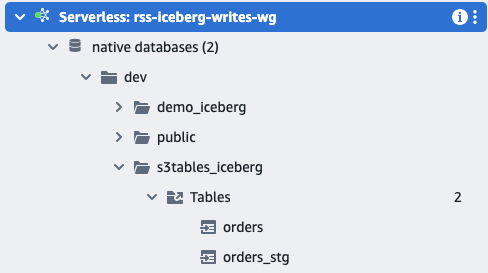
Figure 24: S3 Tables available through an external schema
Query with two-part notation
With the external schema created, query S3 Tables using two-part notation:
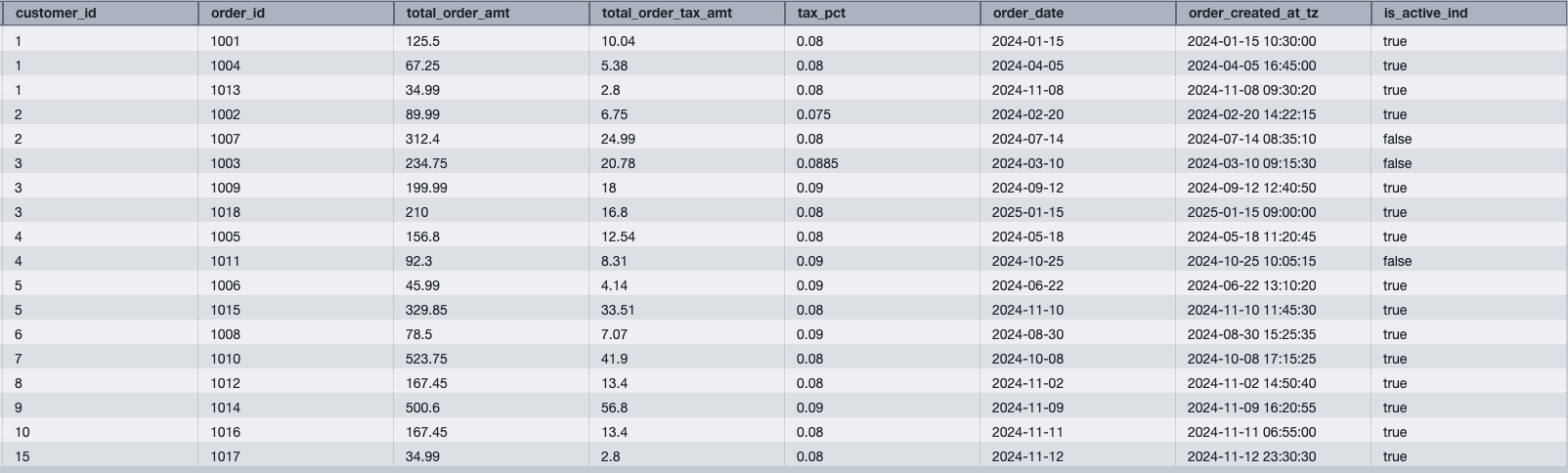
Figure 25: Query results from S3 Tables through an external schema using two-part notation
Access methods comparison
The following table compares the available methods for accessing Iceberg tables in Amazon Redshift:
| Access method | Query syntax | Authentication | Best for |
| S3 Tables three-part notation | "bucket@s3tablescatalog".namespace.table |
IAM federated identity only | Interactive queries in Query Editor v2 with direct catalog access. |
| External schema through resource link | schema_name.table |
Any (IAM role defined in schema) | BI tools, Data API, JDBC/ODBC applications, and shared team access. |
| awsdatacatalog | awsdatacatalog.database.table |
IAM federated identity only | Multi-database access in a single session without creating external schemas. |
Bringing it together
Combine schema evolution with cross-engine access in a single workflow. The following example adds a column to the orders table and immediately queries it through the external schema:
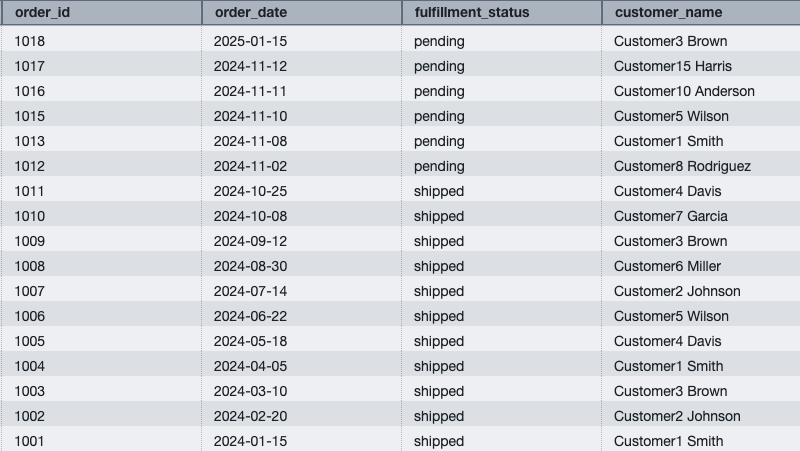
Figure 26: Cross-catalog join showing the evolved schema immediately visible through the external schema
The new column is visible through both the three-part notation and the external schema without any additional configuration, because the schema evolution in Iceberg propagates automatically.
Best practices
- Test ALTER operations in non-production first. While metadata-only, schema changes affect all readers immediately.
- Use REPLACE PARTITION FIELD instead of DROP + ADD. The atomic operation avoids a transient unpartitioned state.
- Monitor partition spec changes with SHOW TABLE. Verify the current spec after any partition evolution.
- Choose partition transforms based on query patterns. Use
month()orday()for time-range filters. Usebucket()for high-cardinality join keys. - Set table properties before bulk loads. Change compression type (
zstdfor better ratios,snappyfor speed) before large INSERT operations. - Run table maintenance after mutations. After performing multiple UPDATE, DELETE, or MERGE operations, run AWS Glue table optimizers to compact deletion files and improve read performance.
- Use Lake Formation for fine-grained access. Column-level and row-level security can be applied through Lake Formation on tables accessed through resource links.
- Grant schema access to specific users or roles. Avoid granting to PUBLIC. Use named IAM roles or database users for least-privilege access.
- Monitor query performance. Use Amazon Redshift query monitoring features to track performance of write operations and optimize partitioning strategies as needed.
Considerations
Keep the following in mind when working with ALTER TABLE and partition evolution on Iceberg tables:
- Plan for metadata-only behavior. ALTER TABLE operations update metadata instantly, and existing data files remain unchanged. All readers see the new schema immediately after the operation completes.
- Drop partition fields before dropping partitioned columns. To remove a column used in the current partition spec, first drop or replace the partition field, then drop the column.
- Use safe type promotions for ALTER COLUMN TYPE. Amazon Redshift supports widening within compatible families (INT to BIGINT, FLOAT to DOUBLE, DECIMAL(10,2) to DECIMAL(18,2)). Plan column types with future growth in mind.
- Account for mixed partition layouts after evolution. Partition evolution doesn’t re-partition existing data. Old files remain in their original layout, and the query engine reads both layouts transparently.
- Use external schemas for database user access. The auto-mounted three-part notation (
"bucket@s3tablescatalog") requires IAM federated authentication. For database users and BI tools, create an external schema with an explicit IAM role. - Use full three-part notation with awsdatacatalog. The USE statement isn’t supported with awsdatacatalog, so always specify the full path.
- Clean up S3 data separately after dropping tables. Dropping an Iceberg table removes only the catalog entry from AWS Glue Data Catalog. Delete the underlying S3 data files separately, or use AWS Glue table optimizers to remove orphaned files.
Clean up
To avoid ongoing charges, run the following:
Conclusion
In this post, you evolved Apache Iceberg table schemas using ALTER TABLE operations. You added, dropped, and renamed columns, widened data types, changed compression, and evolved partition specs, all as metadata-only operations without rewriting data. You also created Lake Formation resource links to provide governed cross-engine access to S3 Tables, and simplified query syntax with external schemas.
This concludes the three-part series on getting started with Apache Iceberg write support in Amazon Redshift:
- Part 1: Create Iceberg tables and perform INSERT operations.
- Part 2: Run DELETE, UPDATE, and MERGE for row-level modifications.
- Part 3: Evolve schemas with ALTER TABLE and add cross-engine access with Lake Formation resource links.
If you have questions or feedback about this series, leave a comment on this post.
Additional resources
- Amazon Redshift Iceberg integration – Complete syntax reference.
- Writing to Apache Iceberg tables – Detailed examples.
- ALTER TABLE for Iceberg – Full ALTER reference.
- Amazon S3 Tables – Managed Iceberg storage.
- AWS Lake Formation – Centralized data governance.
- Optimize S3 Tables queries with Amazon Redshift – Resource links and performance tuning.