Post Syndicated from Gena Gizzi original https://aws.amazon.com/blogs/compute/introducing-ec2-ami-tag-sharing-share-ec2-tags-across-aws-accounts/
Tags are an important and versatile tool on AWS. FinOps teams track costs with them, security teams enforce compliance, and governance teams gate access through attribute-based access control (ABAC).
Tags become especially important as infrastructure management grows more complex across multiple accounts in an organization. Because compute is a common shared resource, many organizations tag their AMIs to track approval status, OS versions, and team. However, when you share an AMI with another AWS account, the tags you attached to it stay behind. The other account sees the image, but tag metadata used to describe it could not be shared.
Until today, the only way to solve this was to build a custom workflow to copy tags into every account the AMI is shared with. Typically created with services such as AWS Simple Notification Service (Amazon SNS) and AWS Lambda, this caused operational burden.
Today, we’re introducing EC2 Tag Sharing, a new feature that AMI owners can use to share tags with any account that has access to the image. Whether an AMI is shared with an account, across an organization, or made public, a shared tag is automatically shared alongside the image by adding the ec2:SharedTag/ prefix to the tag key. Updates also propagate automatically without any need for custom replication workflows. In this post, we walk through how tag sharing works, demonstrate a common use case, and cover considerations and best practices.
How it works
Any tag whose key starts with ec2:SharedTag/ is visible to all AWS accounts the AMI is shared with, and also when the AMI is shared publicly. Tags without the prefix remain private to the account that created them, exactly as they do today.
Only the resource owner can create, modify, or delete tags with the ec2:SharedTag/ prefix. Accounts you share the AMI with can view these tags but cannot change them. They can continue to add their own private tags to a shared AMI.
Shared tags count against the resource owner’s 50-tag-per-resource quota for both shared and private tags. They do not count against the quota of accounts you share the image with. When you copy an AMI that has shared tags, AWS Elastic Compute Cloud (AWS EC2) copies the shared tags to the new image when the --copy-image-tags parameter is included. At launch, tag sharing is supported specifically for AMI resources.
Creating a shared tag (CLI)
To share a tag, create it with the ec2:SharedTag/ prefix on the key name. For example, to share a tag indicating the AMI’s approval status:
You can add multiple shared tags alongside your private tags. In the following example, status and os-version are shared with other accounts. The team tag remains private to the owner.
You can also apply shared tags when you create an AMI from the start, using the --tag-specifications parameter. For example:
Listing all resources with shared tags (CLI)
To see which of your AMIs have shared tags, you can run the following CLI command:
And get an output such as:
You can also receive a similar output using the describe-images command as shown in the following:
Stopping tag sharing
To stop sharing a specific tag, delete the tag with the ec2:SharedTag/ prefix:
If you want to keep the tag private, recreate it without the prefix:
Viewing shared tags as a recipient
When an AMI is shared with your account, you can see the shared tags alongside any tags you’ve added yourself. Figure 1 shows an example of an AMI shared from the original account with both private and shared tags. Figure 2 shows that AMI in the recipient account. The ec2:SharedTag/ prefix in the key name makes it clear which tags came from the owner.
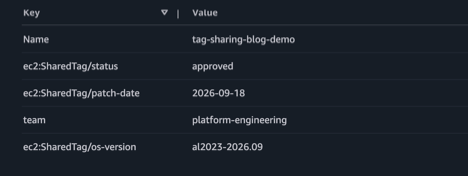
Figure 1: AMI tags in the originating account, showing both private and shared tags
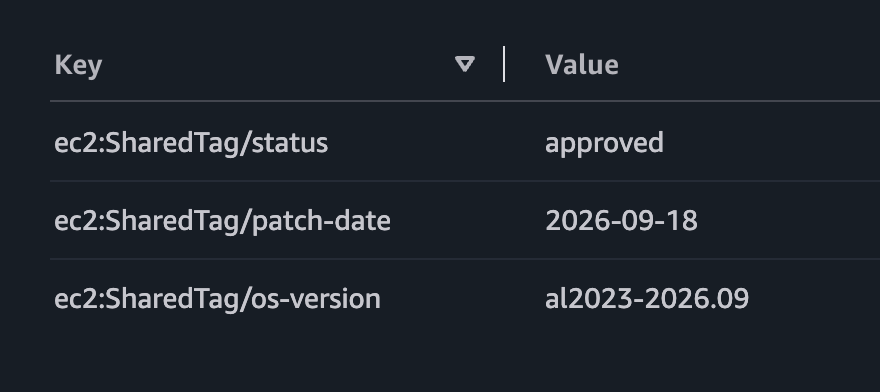
Figure 2: The same AMI in the recipient account, where only the shared tags are visible
As you can see in the preceding figures, the shared tags are visible across both accounts. However, the private tags created in the original account are only visible in the original account.
A common use case: Golden AMIs
Many organizations maintain a central build factory account that produces hardened, security-approved AMIs. These golden images can be shared with hundreds or thousands of workload accounts across an organization. Tags like status=approved or patch-date=2026-09-18 are commonly used by recipient accounts to enforce policies that only allow launches from approved images.
Before tag sharing, the build factory had to replicate tags to every account the AMI is shared with after each AMI publish. A typical workflow looked like this:
- The build factory creates a new AMI and tags it.
- An SNS notification triggers a Lambda function in each account.
- Each Lambda function reads the tag values from the AWS SNS message and calls
CreateTagson the shared AMI in its own account.
Because this runs for every AMI, in every Region, across every account, the number of CreateTags API calls can grow rapidly in concentrated bursts. At that scale, teams risk throttling, failed Lambda invocations, and tag drift when calls silently fail.
With tag sharing, the build factory tags the AMI with the ec2:SharedTag/ prefix. Every account the AMI is shared with sees these tags, without the need for additional pipelines to replicate the tags. When the build factory updates a tag (for example, marking an older image as deprecated), the change is visible across all accounts without any additional API calls.
Considerations
Shared tags are visible to every account with access. We recommend that you do not include personally identifying, confidential, or sensitive information in these tags.
If consuming accounts have ABAC policies that evaluate tags, those policies will also apply to the shared AMI. For example, if a recipient account has a policy that allows ec2:RunInstances only when the AMI has the tag status=approved, and you share that tag by using ec2:SharedTag/status=approved, the policy will deny it.
When you adopt the shared tags model, any action that depends on those tags is controlled by the AMI owner, not by the recipient account. This includes tag-gated instance launches, AWS Identity and Access Management (IAM) and ABAC policy evaluations, and any downstream automation that reads tag values. Because only the owner can create, modify, or delete shared tags, the recipient account cannot change the values its own policies depend on. Before you rely on a shared tag in a policy or workflow, make sure you trust the owner account to set and maintain that value.
As a best practice, apply account-level governance so that you only consume AMIs from providers you trust. With Allowed AMIs, you can define criteria for which AMIs are allowed in your account, for example a list of trusted AMI provider account IDs. Only AMIs that meet the criteria are discoverable and available to launch in your account. To preview the impact before enforcing, start in audit mode.
Conclusion
EC2 Tag Sharing removes the need to build and maintain cross-account tag replication workflows. For organizations that share AMIs, this means less undifferentiated heavy lifting. To get started, add a tag with the ec2:SharedTag/ prefix to a shared AMI in the AWS EC2 console. To learn more, see Tag your AWS EC2 resources in the Amazon EC2 User Guide.