Post Syndicated from Hamza Alfarrash original https://aws.amazon.com/blogs/devops/limit-agent-permissions-and-spend-in-aws-transform-custom/
Engineering teams that own large Java estates face recurring upgrade deadlines. When they hand one of those upgrades to an AI agent, the agent brings its own permissions and its own bill. Consider a central engineering group with a few hundred Java services, several of which run on a Java Development Kit (JDK) version that reaches end of support in two quarters. Upgrading each service by hand means a dependency audit, a javax to jakarta migration, a test framework migration, and a release. The deadline does not move while the team works through the list.
Agents change the arithmetic. An agent upgrades a repository in place, where it runs the build, edits the source, and commits as it goes, and it finishes in minutes a job that takes a developer weeks. Across a few hundred services you don’t sit at a terminal approving each step. You invoke the agent from a pipeline, repository after repository, and an autonomous process with shell access to your source code now runs throughout your estate.
That speed comes with a footprint you must manage. The agent runs shell commands against the code that it’s changing, it uses the AWS credentials in its environment, and it bills you by the agent minute while it works. Before you point it at a few hundred repositories, you decide what permissions the agent holds and how much it can spend. That decision repeats wherever a runtime deadline meets a service count too large to upgrade by hand.
AWS Transform custom provides the agent, and you enforce that decision with three configuration controls. You write a trust allowlist to set which of the agent’s actions run without asking you. You scope an execution identity to limit what the agent can ask the service to do. You also set a cap on agent minutes, which stops a run at the limit you choose, and you configure an account-level alert on cumulative spend across runs. None of the three requires new infrastructure, because you manage each one as configuration, so you can adopt agentic transformation on a schedule you set.
The agent runs transformations through the AWS Transform CLI, either interactively on your machine or non-interactively in a pipeline, so the controls must hold in both places. In this post, we walk through the three controls against a working repository and give the measured result of each one. We show how a real run produced the trust allowlist, why interactive runs and pipeline runs need different controls, and how to scope an execution identity to approved transformations. The complete source code is available in the sample repository.
Unbounded agent risks
An agentic transformation runs as a process on a machine you own, rather than handing you a patch to review, and that footprint carries three distinct risks. The agent can run tools without limit, the identity it runs under can do more than run transformations, and the spend it accrues has no ceiling unless you set one. Each risk needs its own control, and you meet all three on the way to your first fleet-wide upgrade.
Tool execution
The agent works by calling tools. It reads a file, writes a file, runs the build, inspects git history, and commits, and the shell commands among them run with the privileges of whoever started the run. On your first run against one service, each of those calls stops for your approval, and after enough prompts the flag that trusts every tool looks like the obvious way to get through the day. That flag stops the prompts by removing the check behind them, which is the risk. The agent can then run whatever a transformation asks of it, on a machine that holds your source code and your credentials.
Identity
The AWS credentials in your environment decide what the caller can do to the service, and the managed policy that gets a first run working also covers authoring. If an identity can both run a transformation and rewrite its definition, it can also change what runs next time. On a laptop that identity belongs to a person exercising judgment, but in a pipeline it belongs to a role that the rest of the build inherits, and the pipeline is where your other few hundred runs will happen.
Spend
Billing is per agent minute, and the meter runs while the service plans, reasons, analyzes, and edits. A single run on a small service costs little, so the risk isn’t the run you watch but a fleet-wide upgrade of a few hundred automated runs, on a bill nobody reads until the end of the month.
Solution overview
The following diagram shows where each of the three controls intercepts a transformation run.
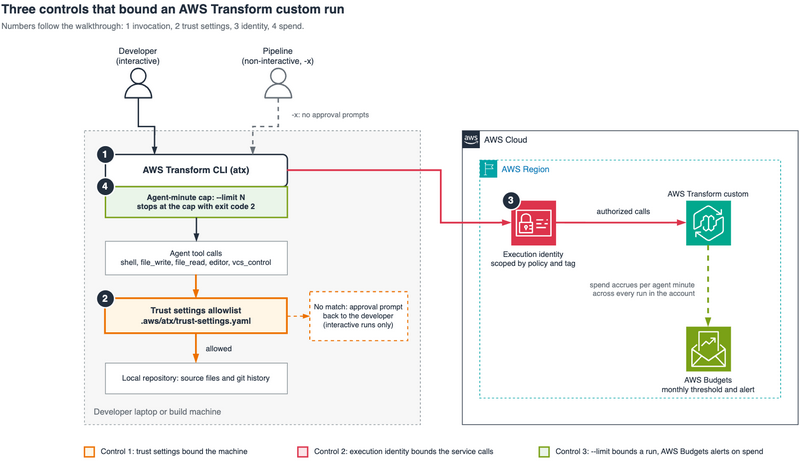
Figure 1: Where each of the three controls intercepts a transformation run
- Invocation: A developer runs the AWS Transform CLI interactively, or a pipeline runs it non-interactively. The two paths carry different controls.
- Trust settings: Before the agent runs a shell command or writes a file, the CLI checks the trust settings file in your home directory. A command that matches the allowlist runs. A command that does not match returns to the person at the terminal as an approval prompt.
- Identity: AWS Transform custom authorizes each call the CLI makes against the AWS Identity and Access Management (IAM) identity in your environment. When you attach the execute-only managed policy and scope it to the transformations you approve, the policy bounds the service actions that the caller can request, including requests that originate from the agent.
- Spend: The run carries an agent-minute cap and stops when it reaches it. Underneath that, an AWS Budgets budget filtered to AWS Transform watches monthly spend across runs and notifies a subscriber at a threshold you set.
Inside a transformation run
AWS/java-version-upgrade is one of the AWS managed transformations, prebuilt and maintained by AWS rather than authored in a customer account. Running atx custom def list shows the AWS managed definitions alongside any custom ones you have created. The definition for this one covers a range of build systems and source and target JDK versions, with dependency modernization that includes Jakarta EE migration, database drivers, object-relational mapping (ORM) frameworks, and updates across the Spring libraries.
The target version is an input rather than a property of the transformation. The definition gives three ways to supply it: interactive chat with the agent, an additionalPlanContext configuration parameter, or a configuration file. We specified the target version in the prompt we gave to atx.
The sample repository is a small Spring Boot REST service with a single endpoint, running on Java 8 and Spring Boot 1.5. It stands in for one of the few hundred services in the opening scenario. The transformation takes it to Java 17 and Spring Boot 3.2, so the javax.servlet and javax.annotation imports become their jakarta equivalents and the JUnit 4 test moves to JUnit 5. We kept the business logic trivial from the beginning so anyone can follow along. If the logic were more complicated, it would introduce a monetary barrier for readers who want to try it themselves, and it would take longer to run.
In a run (AWS Transform CLI 3.10.0), the transformation made 43 tool calls across the sample’s 4 files: 13 shell commands, 11 file writes, 11 file reads, 6 editor operations, and 2 version control operations. Every shell command ran with the permissions of the identity that started the run, inside the working tree of the repository being upgraded. The counts in this post come from this definition and this sample in August and September 2026, so expect different counts on other CLI versions, definitions, and repositories.
The documentation describes multi-step transformations as using Git to commit intermediate steps. In that run, the 2 version control operations produced a single checkpoint commit on the result branch.
Prerequisites
The walkthrough requires the following:
- An AWS account and an AWS Region where AWS Transform custom is available, listed in the getting started guide.
- The AWS Transform CLI and
Node.js22 or later, which the CLI requires. Install the CLI withcurl -fsSL https://transform-cli.awsstatic.com/install.sh | bash, then confirm withatx --version. The confirmation runs in this post used version 3.10.0. - Git, with the sample checked out as a valid repository, because the transformation commits its intermediate steps. On CLI 3.10.0, a run also stopped when the working directory wasn’t a repository, which is behavior we measured rather than a documented requirement.
- JDK 8 to build the sample before the upgrade, JDK 17 after it, and Maven 3.6 or later. The commands in this post were verified on macOS. On Linux, set
JAVA_HOMEto a JDK 8 path directly instead of using the macOS-specific/usr/libexec/java_homehelper. - AWS credentials with permission to call AWS Transform custom. Control 2 covers which policy to attach.
Restricted networks additionally need transform-cli.awsstatic.com, transform-custom.<region>.api.aws, and *.s3.amazonaws.com reachable. The repository README carries the full setup detail.
Control 1: Scope which tools run without asking
This control starts on a laptop, because that is where the allowlist gets built.
Our first run of AWS/java-version-upgrade against the sample repository used AWS Transform CLI 3.9.0 with no trust configuration, and it raised 23 approval prompts across four files. The later runs used 3.10.0, and the CLI version history lists no change to trust settings or approval prompts in that release.
Before the allowlist, you have two options. Either you grant blanket tool trust for the session, which comes with the risk of tool calls you don’t want the agent to make. Or you walk through every prompt carefully, reading what it says and deciding whether you want that tool call to run, which adds to the overall time the agent takes to complete the task.
Across a few hundred repositories, either choice makes the documented shortcut the obvious thing to reach for. The --trust-all-tools flag (-t) approves the tool calls the agent requests without asking.
The middle position is a trust settings file at ~/.aws/atx/trust-settings.yaml. The file is split into three categories. trustedTools covers the tool calls that are allowed automatically. trustedShellCommands are the shell commands you allow the agent to run on its own without prompting you. And alwaysPromptCommands are the commands the agent has to ask you about before executing, in interactive mode. A fourth mechanism sits alongside the file: answering t at an approval prompt trusts that tool for the rest of the session, which the prompt text itself names when it reports that a tool “hasn’t been trusted this session.”
We first made a test run with no trust configuration in place, so we could see which tool calls the agent makes for this specific transformation. We logged each tool call and added the shape of each command to the file, to make it straightforward for you to use. Twenty-three prompts collapse into a short list, because the agent asks for variations of the same few operations.
Rerunning with that first list (CLI 3.10.0) dropped the count from 23 prompts to 3, and all three were the same shape: cd <path> && <command> compounds in the validation phase. The matcher is a full-command-string glob, so JAVA_HOME=* mvn * does not match a string that starts with cd. Command shapes vary between runs, and this one issued a bare mvn during execution and cd ... && mvn during validation, so the shipped file carries both forms. With both forms added, a third run on a clean clone (CLI 3.10.0) reached zero prompts.
The following excerpt shows the shape of the file. The repository copy carries the full set, including the cd-prefixed variants:
Copy the file into place and run the transformation interactively:
The mkdir -p matters on a fresh install, because ~/.aws/atx/ does not exist until the CLI has run at least once.
Patterns match against the full command string, which is why JAVA_HOME=* mvn * is listed separately from mvn *. The validation command pins JDK 8 because Spring Boot 1.5 can’t start its context on later versions, which is what puts that prefix in the run at all.
The alwaysPromptCommands entries are matched against each sub-command in a compound expression rather than against the whole string. In an interactive run, session trust and the --trust-all-tools flag don’t approve a match.
Important: alwaysPromptCommands doesn’t force a prompt in 2 cases.
- A matching trusted pattern takes priority. The documentation states that
trustedShellCommandspatterns match the full command string and take priority over the always-prompt list, so a trailing*spans pipes, semicolons, and&&. In our verification run (CLI 3.10.0), the trusted pattern/usr/libexec/java_home *matched a compound that continued; echo "---" ; ls ..., and the chained tail ran without a prompt. By the same rule,mvn *trustsmvn --version; printf canaryeven withprintf *inalwaysPromptCommands. The file in this post usesmvn *to reach zero prompts on the sample, so narrow that pattern to the Maven goals your builds run before you reuse the file. - Non-interactive mode (
-x) does not enforcealwaysPromptCommands, as the documentation states, so the list has no effect on a pipeline run.
Keep the two lists non-overlapping and the trusted patterns as narrow as the runs allow. The following diagram shows the order in which the CLI evaluates a proposed shell command.
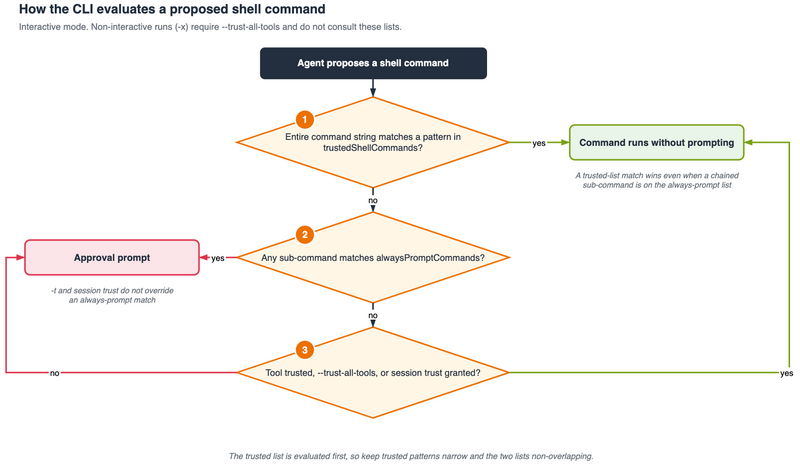
Figure 2: How the CLI evaluates a proposed shell command in interactive mode
With the allowlist in place, a full run of AWS/java-version-upgrade completed with no approval prompts and without blanket trust. The run made 43 tool calls, each one covered by the allowlist or by a built-in trusted tool, with a green build and 2 of 2 tests passing on AWS Transform CLI 3.10.0. This lets us focus on other tasks, and we’re only interrupted when the task finishes or something unexpected comes up. The startup banner on that version also identified six built-in trusted tools: file_read, grep, both transformation-registry tools, document_manager for add operations, and editor for view and find-line operations. Those calls don’t prompt, so a prompt inventory understates the agent’s effective tool surface. Default trust is also scoped by path rather than only by tool. The same file_write tool runs without prompting when it targets the CLI artifacts directory and prompts when it targets the repository.
In a pipeline
The trust settings file governs interactive runs only. On CLI 3.10.0, -x without --trust-all-tools stops before the transformation starts, with the error Must explicitly --trust-all-tools when running in non-interactive mode, which we hit in a test. A pipeline run therefore trusts every tool, and the allowlist has no effect on it. The interactive path does not fit a pipeline either, because without a terminal it stops at the plan approval step and reports Input is not a TTY.
This control therefore belongs on a developer machine. A pipeline needs its boundary somewhere else, and that somewhere else is the next two controls.
Control 2: Separate the identity that runs from the identity that authors
The pipeline from the opening scenario needs an identity, and that identity should run the upgrade and little else.
Three AWS managed policies cover AWS Transform custom, and the split between them is the control. The following table describes each policy at version 4, the current version on September 30, 2026. Check the managed policies page for a later version before you attach one.
| Policy | What it grants | Who gets it |
AWSTransformCustomExecuteTransformations |
Run existing transformations, and read and update campaigns | The pipeline execution role |
AWSTransformCustomManageTransformations |
The preceding, plus authoring: upload and delete transformation packages, manage knowledge items, tag resources | The people or pipelines that author definitions |
AWSTransformCustomFullAccess |
Both of the preceding, reasonable for a first run but wider than a governed setup needs | Nobody, after setup is complete |
The execute-only policy also carries its own iam:CreateServiceLinkedRole statement scoped to the AWS Transform service-linked role, so a first run works without AWSTransformCustomFullAccess even in a fresh account.
Give the pipeline execution role the execute-only policy. Authoring stays with whoever maintains the transformation definitions, so a build step holding that role is not authorized to rewrite the definition that it’s about to run:
Then confirm what the identity holds, rather than what you meant to give it:
The execute-only policy still lets the role run whatever is in the registry. For transformations you publish yourself, you can narrow it further, because transformation packages are AWS resources with Amazon Resource Names (ARNs). The transform-custom:ExecuteTransformation action takes a package resource and supports the aws:ResourceTag condition key. Tag the packages you publish, and scope the role to the tag:
We confirmed the mechanics with the IAM policy simulator: it allows the execute call when the tag is present and returns an implicit deny when the tag is absent. Note the scope of the example, though. The Resource element names packages in your account, and an AWS managed package such as AWS/java-version-upgrade is not a resource in your account, so a role holding only this policy can’t run it. The execute-only managed policy itself grants ExecuteTransformation on Resource "*" for that reason. The practical split is tag-scoping for the definitions you publish, alongside the managed policy’s broader grant for the AWS managed catalog.
The second statement is the limit of this approach. The actions table in the service authorization reference lists no resource type and no condition keys for ConverseStream, so that statement stays at "*". A role scoped to one transformation can still open a conversation with the service.
The broader limit is that IAM bounds the API surface and not the edits. The execute-only policy still authorizes whatever the transformation does to your working tree, because the scope of changes inside a repository is a local filesystem question. That’s what Control 1 is for on a laptop, and what code review of the resulting branch is for in a pipeline.
Control 3: Cap what a run can spend
Now think about the same upgrade from the cost perspective. The fleet-wide upgrade from the opening scenario means a few hundred runs, but you’re constrained by your budget. With the spend control, you can bound the agent minutes used by each run and use the account-level budget to watch cumulative spend across the fleet.
Start with what an agent minute measures. You’re billed per agent minute, but an agent minute is not a wall-clock minute. The two match only while a single agent is running, and AWS Transform can run several agents at once on one task, so each of them accrues its own minutes. Per the AWS Transform pricing page, minutes accrue while the service is actively planning, reasoning, analyzing, or modifying code, and not while it waits on local compilation, tests, or builds.
AWS Cost Explorer recorded 54.0 agent minutes for the discovery run (CLI 3.9.0) and 45.8 agent minutes for the clean-clone confirmation run (CLI 3.10.0). At the published rate of USD $0.035 per agent minute, the confirmation run cost approximately USD $1.60. A 30-agent-minute cap would therefore stop this particular upgrade partway through, which makes it a useful review checkpoint rather than a budget sized for uninterrupted completion. In practice, the number is experimental. It depends on your budget for the task, and it can take multiple iterations at a smaller scale first to get an understanding of the agent minutes your tasks need.
Set the per-run cap with --limit:
We wanted to see what the CLI does when it hits the cap, so we ran the same transformation non-interactively on a scratch clone with --limit 1. On AWS Transform CLI 3.10.0 the run stopped at 1.09 agent minutes, printed Budget limit reached: 1.09 / 1.00 Agent Minutes. Exiting., and returned process exit code 2. The repository was left clean. The exit code is the part we were checking. The web documentation describes the message and the resume path but not an exit code. The CLI --help output on 3.10.0 does state that the run exits with code 2 when the limit is reached, and the run confirmed it. It’s also what turns spend into control flow, because a pipeline can tell a budget stop from a transformation failure. The 0.09-minute overshoot comes from how coarsely the CLI receives usage events, so treat the limit as a close bound rather than an exact fractional-minute cutoff.
The work is preserved. Review the partial result, then resume the same conversation with a higher cap. The trust settings file from Control 1 still governs the resumed interactive session:
A pipeline can handle the bounded stop separately:
Entering /usage during an interactive session reports the accumulated agent minutes without ending the conversation. Minutes persist across an interruption, so when you resume a session after Ctrl+C, the count continues rather than starting over. Per the pricing page, an interrupted transformation can be resumed for up to 24 hours before it’s stopped automatically. We did not test the expiry, so treat that window as documented rather than measured.
The per-run cap says nothing about how many runs start, so back it with an account-level AWS Budgets budget. A budget like the one in this sample sends a notification and does not stop runs, so the next run still starts after the alert. AWS Budgets also updates its data up to 3 times a day, which means a fleet of runs can pass the threshold before the alert arrives. To stop new runs at a threshold, you can configure a budget action that applies an IAM policy or a service control policy (SCP), which this post does not cover.
The sample repository ships a monthly budget of USD $50 filtered to the AWS Transform service, with an alert at 80 percent of actual spend:
Edit the email address in guardrails/notifications.json before running that command, because the file ships a placeholder. To see where the month stands, query AWS Cost Explorer for the same service dimension:
Use the cap to bound each run, and use the budget to find out when the runs together cost more than you planned.
Limits of these controls
Retention is a separate question from permissions. The --do-not-learn flag opts one execution out of lesson extraction for that transformation definition. A different control governs whether your content is used for service improvement, and you configure it as an AI services opt-out policy in AWS Organizations. Neither one changes the fact that the transformation sends code to the service to do the work. Both govern what happens to it afterward.
Retained lessons also reach back into later runs. In the verification run, the agent diffed against a baseline commit carried in from a previous run on the same repository, so a README that we had added by hand between the two runs appeared in the diff, and the validation summary credited the transformation with adding it. Lessons persist repository-specific facts across runs, and on a repository that changes between runs they can misattribute human work to the agent.
The number of commits a run produces is not fixed. The same transformation on the same repository produced two commits on the first run and a single commit on each of the next two, and the commits covered a different set of plan steps each time. Review the result branch with git log and git diff rather than assuming one commit per plan step.
Clean up
The controls in this post are configuration rather than provisioned infrastructure, so there is little to tear down. Delete the budget when you no longer want the alert:
The trust settings file at ~/.aws/atx/trust-settings.yaml and the policy attachments on the execution role are yours to keep or remove. If you also deployed the sample application to AWS to see the upgraded service running, run npx cdk destroy from the infra/ directory. One artifact survives by design. The container image stays in the AWS Cloud Development Kit (AWS CDK) bootstrap repository in Amazon Elastic Container Registry (Amazon ECR), because cdk destroy does not remove bootstrap assets. Storage for it costs about a cent a month, and deleting the image from the cdk-*-container-assets-* repository clears it. Leaving the sample deployed costs roughly USD $13 a month, so tear it down when you’re finished with it.
Conclusion and next steps
You can now put a few hundred upgrades on a schedule, because the execution identity and the agent-minute cap apply to each run wherever it executes. A trust settings allowlist adds a third control on a developer machine. That allowlist took the interactive sample run from 23 approval prompts to zero without blanket tool trust. We built the execution identity from the AWS Transform managed policies in IAM and narrowed it to approved transformations with a resource tag. An AWS Budgets budget and alert on the account backed the agent-minute cap on each run. Because every measurement came from running AWS/java-version-upgrade against the sample repository, you can repeat the runs in your own account before you decide what to change. We ran them in August and September 2026, with the confirmation runs on AWS Transform CLI 3.10.0.
The configuration leaves room to grow. If you publish your own transformation definitions, tag them and scope the execute permission to the tag, which holds a pipeline role to the transformations you have reviewed. And if you run transformations over proprietary repositories, the --do-not-learn flag covers a single execution. An artificial intelligence services opt-out policy in AWS Organizations covers service improvement across the account.
To go further, see the AWS Transform custom user guide for the execution modes and the trust settings reference, the AWS managed policies for AWS Transform for the identity split, and the service authorization reference when you scope a policy to specific transformations. Pricing and the definition of an agent minute are on the AWS Transform pricing page. The complete source code is available in the sample repository.
For more on what these transformations do, see AWS Transform custom: AI-driven Java modernization to reduce tech debt, Automating AWS SDK for Java v1 to v2 upgrades with AWS Transform, and Migrating your Java applications to AWS Graviton using AWS Transform custom.