Post Syndicated from Iskandar Anvarov original https://aws.amazon.com/blogs/devops/restart-ec2-and-on-premises-fleets-faster-with-aws-codedeploy-restart-deployment-mode/
Operators often restart fleets when they need to pick up runtime configuration changes, recover unhealthy processes, or return hosts to a known state. Before RESTART, AWS CodeDeploy customers either redeployed the current revision, repeating completed work, or ran custom scripts outside of CodeDeploy production safeguards. Now there’s a purpose-built option: RESTART deployment mode. It keeps the operation inside CodeDeploy, so you get the same batch sizing, health checks, alarm monitoring, and rollback behavior as a standard deployment.
This new option reapplies the last successful revision to Amazon Elastic Compute Cloud (Amazon EC2) and on-premises in-place deployments. It retains your deployment configurations, lifecycle hooks, Amazon CloudWatch alarm monitoring, rollback settings, and deployment history.
In testing, a fleet restart completed up to 6.1x faster than a standard deployment, turning a multi-minute rollout into tens of seconds.
In this post, we explain how RESTART works, walk through starting a restart deployment from the command line and the CodeDeploy console, and review the safety controls that carry over from a standard deployment.
Why use a CodeDeploy restart?
A restart changes production even when the application revision stays the same. Hosts stop and start, failures reduce fleet capacity, and external configuration errors spread across restarted hosts. Fleet scripts must recreate batch sizing, minimum healthy capacity, validation, alarm monitoring, and audit history. One customer experienced this firsthand. Their restart script restarted hosts in batches with no health checks in between. When a bad configuration left the first batch unable to start, the script never noticed and continued. What should have been a routine restart took down their fleet.
This new deployment mode keeps the operation in CodeDeploy. You configure how the deployment runs with the familiar CreateDeployment API. CodeDeploy still runs your lifecycle hooks, validates the result, and stops after a health or alarm breach. A failed restart stays within the active batch instead of continuing through the fleet.
RESTART also works well as a building block for automated remediation. Point a CloudWatch alarm on a memory or resource-utilization metric at an Amazon EventBridge rule, and have that rule invoke an AWS Lambda function that calls CreateDeployment with deploymentMode: RESTART. Long-running or stateful workloads benefit from periodic recycling. Examples include self-managed Kafka brokers and JVM services with memory growth. This turns that recycling into a managed, self-healing loop instead of a cron job or a manual restart. The following diagram shows the flow:
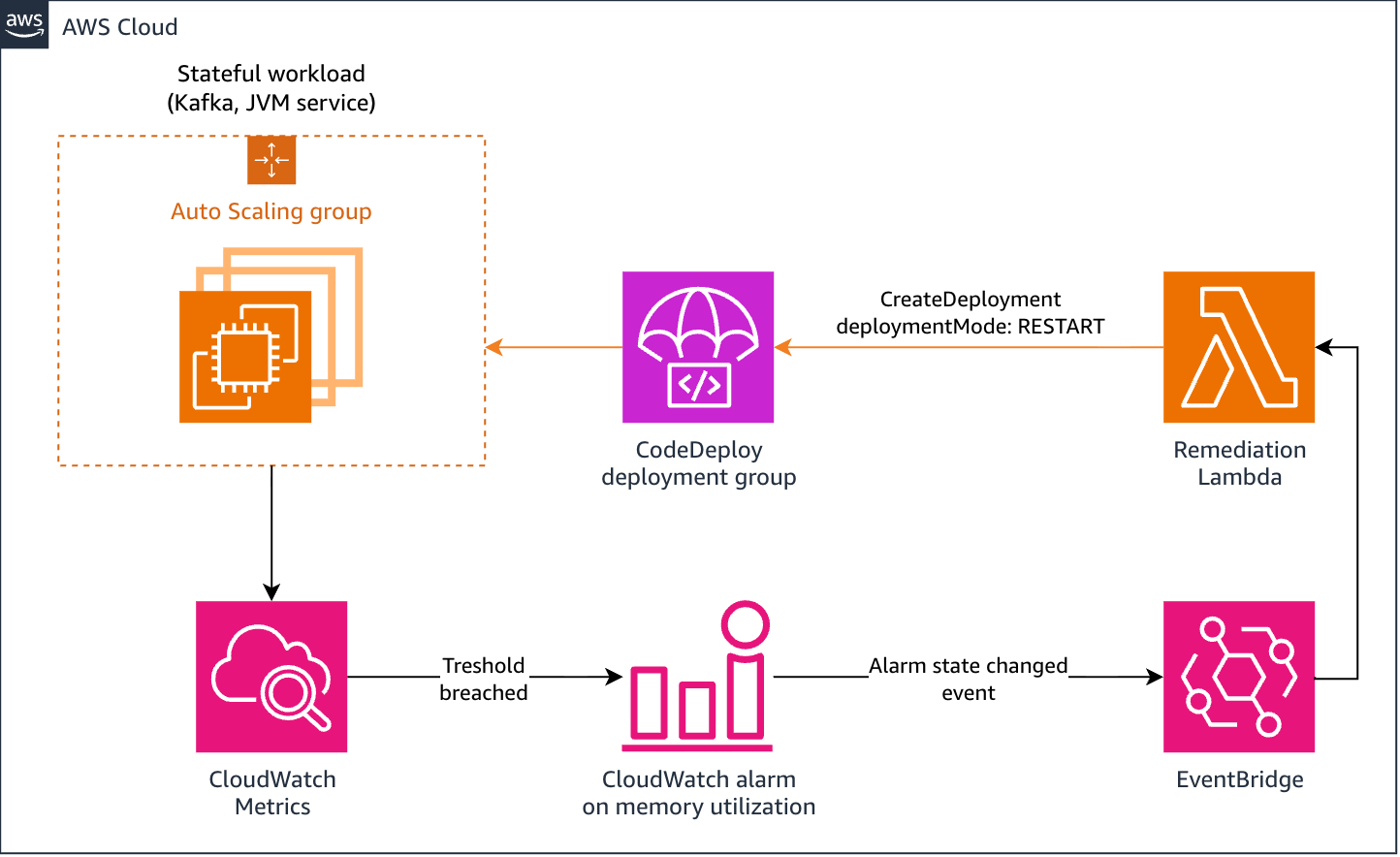
Figure 1: Automated remediation loop using an Amazon CloudWatch alarm, an Amazon EventBridge rule, and an AWS Lambda function to trigger a RESTART deployment
How RESTART works
Set deploymentMode to RESTART on CreateDeployment and provide no revision. CodeDeploy resolves the deployment group’s last successful revision and creates a deployment record.
Each selected host runs:
ApplicationStop → DownloadBundle → BeforeInstall → Install → AfterInstall → ApplicationStart → ValidateService
CodeDeploy agents that support local reuse (from version 2.1.0 onward) use the previous deployment’s archive. DownloadBundle remains in the signed workflow. If the archive is unavailable or invalid, the agent downloads the same pinned revision, covering added or replaced hosts.
Install reapplies the revision and corrects drift in managed files. BeforeInstall, AfterInstall, and ValidateService run as defined in the AppSpec file. Local reuse removes the network transfer, and end-to-end savings vary with revision size, agent version, hooks, fleet size, and deployment configuration.
Performance in feature testing
Feature tests peaked at 6.14x. Tests used m5.large instances, a 1 GB revision, and 10, 50, and 100-host fleets with and without an Application Load Balancer (ALB). Each scenario ran seven times. We discarded the minimum and maximum and report the median of five. Results combine local reuse with omitted traffic control and are not predictive of results for other applications.
At 75 percent minimum healthy, four or five waves saved ALB-backed fleets 397.1 to 424.8 seconds. The 50-host fleet reached 6.14x.
| Host Count | ALB in Front? | Rollout Waves | Standard Deployment Time | Restart Deployment Time | Speedup | Time Saved |
| 10 | Yes | 5 | 526.2s | 129.1s | 4.08x | 397.1s |
| 50 | Yes | 5 | 507.4s | 82.6s | 6.14x | 424.8s |
| 100 | Yes | 4 | 544.5s | 144.7s | 3.76x | 399.8s |
| 10 | No | 5 | 192.4s | 167.8s | 1.15x | 24.6s |
| 50 | No | 5 | 190.5s | 117.2s | 1.63x | 73.3s |
| 100 | No | 4 | 260.8s | 139.6s | 1.87x | 121.2s |
With two-wave HalfAtATime, ALB-backed fleets saved 168.6–185.7 seconds. No-ALB rows isolate local reuse.
| Host Count | ALB in Front? | Standard Deployment Time | Restart Deployment Time | Speedup | Time Saved |
| 10 | Yes | 230.2s | 61.6s | 3.74x | 168.6s |
| 50 | Yes | 276.2s | 90.5s | 3.05x | 185.7s |
| 100 | Yes | 275.2s | 103.9s | 2.65x | 171.3s |
| 10 | No | 133.8s | 37.0s | 3.62x | 96.8s |
| 50 | No | 152.4s | 86.7s | 1.76x | 65.7s |
| 100 | No | 162.7s | 109.1s | 1.49x | 53.6s |
Multi-wave ALB deployments repeated traffic control and saved the most time. These results carry a couple of safety implications to keep in mind.
The safety controls remain familiar
A RESTART deployment uses the controls already configured for the deployment group:
- Deployment configuration: Use
CodeDeployDefault.OneAtATime,CodeDeployDefault.HalfAtATime,CodeDeployDefault.AllAtOnce, or a custom minimum healthy host setting to bound concurrent restarts. - Lifecycle validation: CodeDeploy runs
ValidateServiceon each host before it considers that host healthy. - CloudWatch alarms: CodeDeploy polls the alarms configured on the deployment group and stops the deployment when an alarm enters
ALARM. - Automatic rollback: CodeDeploy applies the deployment group’s automatic rollback configuration for qualifying failures. A rollback can’t reverse an external configuration change, so correct the underlying configuration before retrying.
- Deployment history:
GetDeploymentandListDeploymentsexpose the restart’s status, timestamps, revision, and result for monitoring and audit.
Traffic-control behavior
RESTART doesn’t run the load balancer BlockTraffic and AllowTraffic steps. The host remains registered while its application stops and starts. Treat this as an operational constraint, not as the reason to use RESTART.
For request-serving fleets, make ApplicationStop stop accepting new work and drain in-flight work before the process exits. Select a deployment configuration that preserves enough healthy capacity for the expected restart duration. Pull-based workers stop receiving work when the process stops, but their hooks still need to handle in-flight jobs safely.
Walk through a restart deployment
This section walks through starting a restart deployment from the command line and the CodeDeploy console, and then monitoring its progress.
Prerequisites
- An existing Amazon EC2 or on-premises application and deployment group with at least one successful deployment.
- An AWS Command Line Interface (AWS CLI) or SDK version that supports the
deploymentModerequest field. - CodeDeploy agent version 2.1.0 or newer on target hosts to benefit from local revision reuse. Earlier agents work but fall back to downloading the revision.
Start a restart deployment with the AWS CLI
The following command restarts the fleet with the deployment group’s default deployment configuration:
CodeDeploy returns a deployment ID:
To restart one host at a time, provide a deployment configuration in the request:
Omit --deployment-config-name to use the deployment group’s configured default.
Start a restart deployment on the console
You can also use this feature in the CodeDeploy console. Under Applications, select the deployment group you want to restart and choose Create deployment.
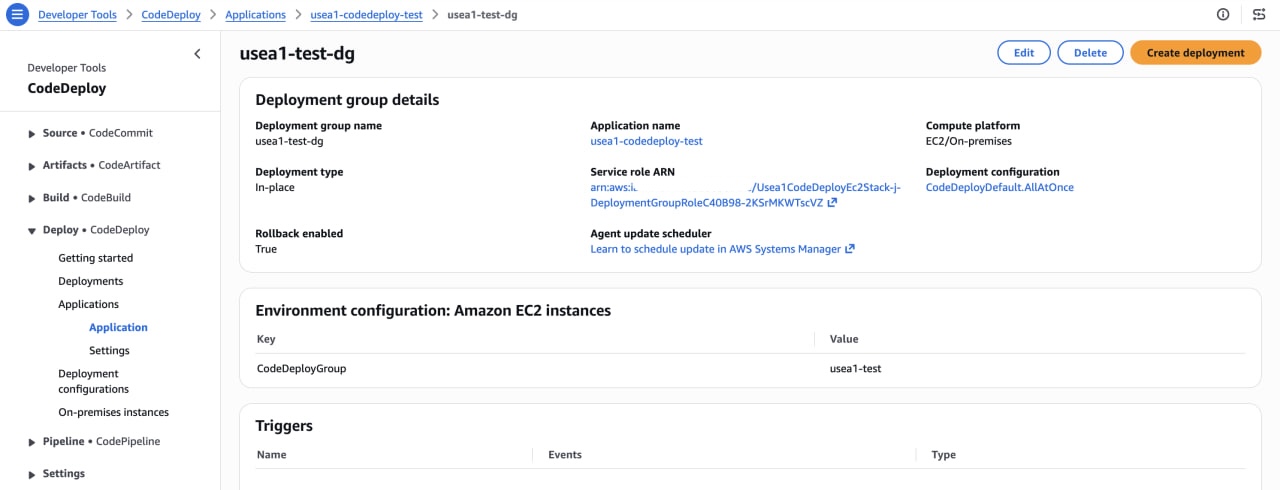
Figure 2: Choosing Create deployment for a deployment group in the CodeDeploy console
For Deployment mode, select Restart, and configure any other settings or overrides on the page (the same options you would set with the AWS CLI).
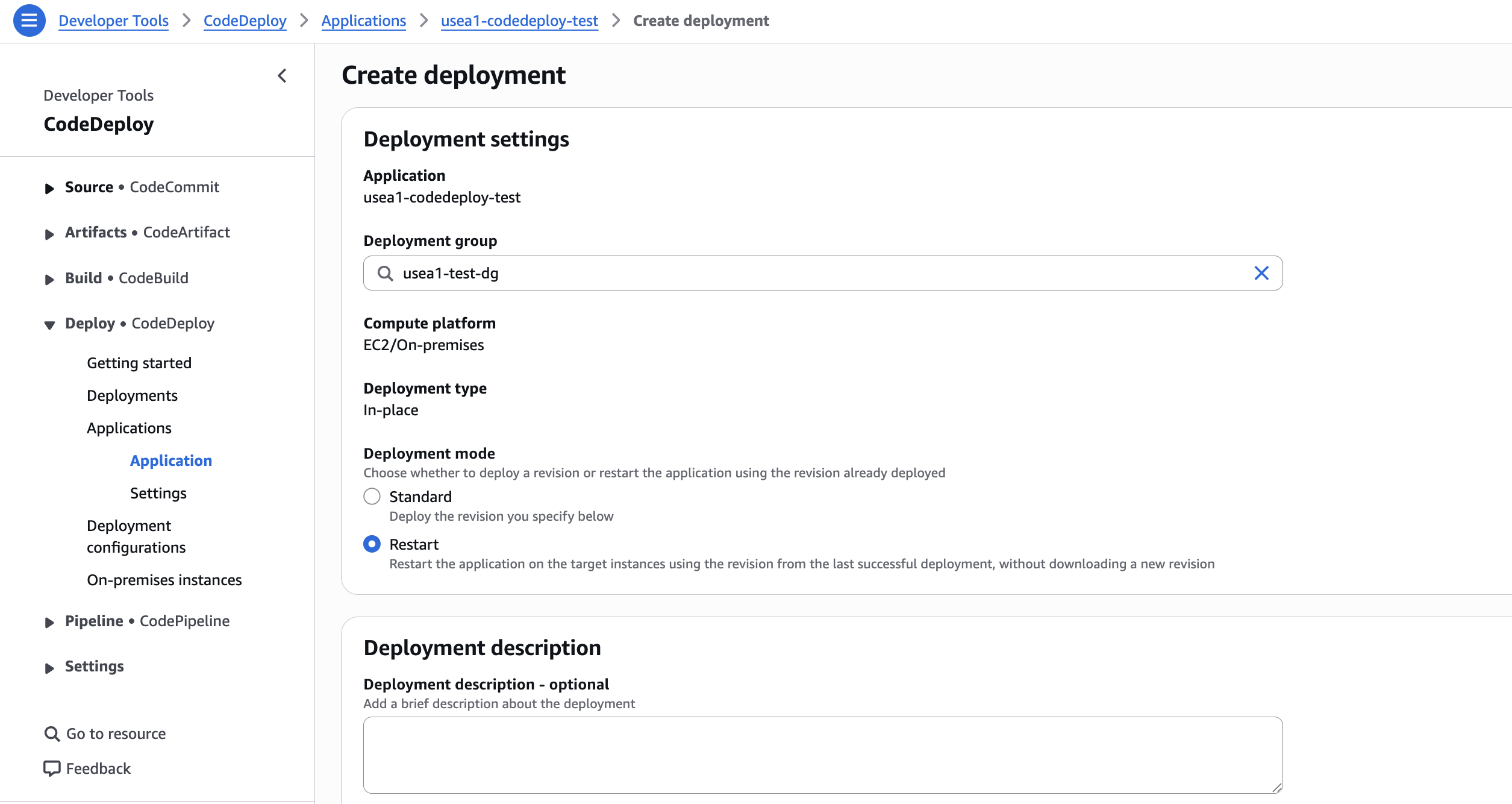
Figure 3: Selecting Restart as the deployment mode on the Create deployment page
Monitor the restart
You can see the status of the deployment on the console, or use the deployment ID with the GetDeployment API or CLI command. For example:
The deployment moves through the standard Created, InProgress, and terminal states. If a lifecycle hook fails, the deployment breaches its minimum healthy host requirement, or a configured alarm enters ALARM, CodeDeploy stops the restart and applies the configured failure behavior.
You can distinguish restart deployments by the deploymentMode field in the GetDeployment API, or visually on the console under Deployment details.
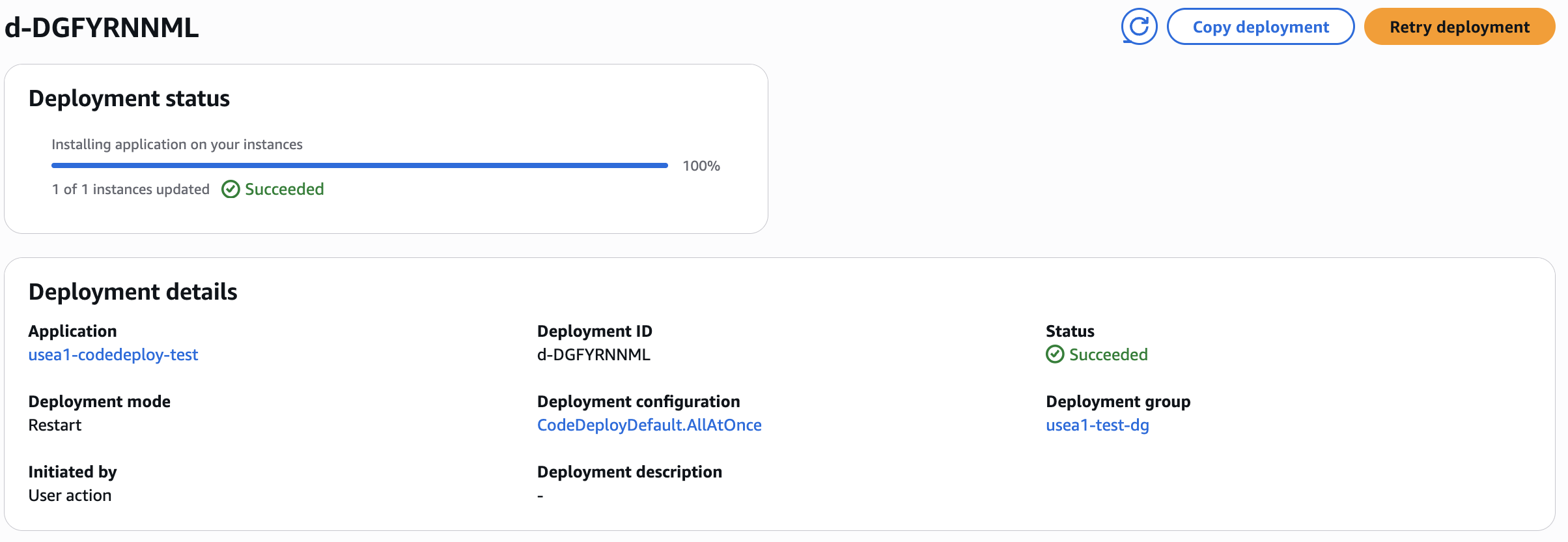
Figure 4: Deployment details showing the deploymentMode field set to RESTART
Handle alarms during incident recovery
If an alarm is already in ALARM state, CreateDeployment still creates the deployment. CodeDeploy then stops it when the deployment workflow observes that alarm during polling. The ignorePollAlarmFailure setting does not ignore an alarm in ALARM. It only controls behavior when CodeDeploy cannot retrieve alarm state.
If an approved incident runbook requires a restart despite the current alarm state, override alarm monitoring for that deployment:
This override disables all deployment-group alarms for that deployment. It requires codedeploy:UpdateDeploymentGroup in addition to the permission to create a deployment. Use it only when your incident process provides another health signal and explicitly authorizes the override. The deployment configuration and lifecycle validation continue to apply.
Request constraints
RESTART has the following constraints:
- It supports EC2 and on-premises in-place deployment groups. It doesn’t support Amazon Elastic Container Service (Amazon ECS) or AWS Lambda deployment groups.
- The deployment group must have a successful revision for CodeDeploy to reapply.
- Don’t provide
revision,s3Location,gitHubLocation, ordeploymentRevisions. CodeDeploy resolves the revision from deployment history. - Don’t combine
RESTARTwithupdateOutdatedInstancesOnly. That option selects hosts that aren’t running the target revision, which conflicts with restarting hosts on the current successful revision.
For exact request validation and error types, see the CreateDeployment API reference.
Conclusion
Restarting a fleet is routine, but it still changes production availability and exposes configuration or process failures. RESTART gives the operation a first-class CodeDeploy path instead of requiring a separate fleet script.
Set deploymentMode to RESTART to reapply the deployment group’s last successful revision. CodeDeploy controls the batch size, runs the lifecycle hooks, validates each host, monitors configured alarms, records the result, and reuses the local revision archive when possible. The operation is faster when the archive is already present, while hosts that need to download it use the normal fallback path.
To get started, review the AWS CodeDeploy documentation and create-deployment CLI reference.