Post Syndicated from Satya Chikkala original https://aws.amazon.com/blogs/big-data/event-driven-pipeline-orchestration-with-amazon-mwaa-and-airflow-3-0/
Data engineering teams running Apache Airflow across multiple AWS accounts face a persistent coordination problem. They have no built-in way to coordinate workflows between their separate Amazon Managed Workflows for Apache Airflow (Amazon MWAA) environments, where each team or business unit manages its own isolated environment. Cross-environment orchestration has traditionally relied on time-based polling, complex custom sensors, or API-based triggers that introduce latency and reliability concerns. The Apache Airflow Datasets feature (introduced in version 2.4) added data-aware scheduling of Directed Acyclic Graphs (DAGs, the workflow definitions that specify tasks and their execution order) within a single Amazon MWAA environment. However, teams running Airflow across multiple accounts still had no way to coordinate workflows between environments.
With Apache Airflow 3.0, now available on Amazon MWAA 3.0, you get event-driven cross-account orchestration that responds to upstream events as they happen, without polling overhead or tight environment coupling. Using Amazon Simple Queue Service (Amazon SQS) as the message broker, Asset Watchers replace polling-based sensors with event-driven triggers. This approach reduces orchestration latency from minutes to seconds and reclaims worker resources previously consumed by polling sensors. It also improves message reliability, because Amazon SQS retains coordination signals even when the consumer environment is temporarily unavailable.
In this post, you learn how to design and deploy cross-account orchestration patterns using asset-based scheduling in Airflow 3.0 with Amazon SQS integration. You learn about Asset Watchers, how to publish asset events from producer DAGs, and how to trigger dependent workflows in downstream Amazon MWAA environments, creating responsive, decoupled pipelines that span multiple accounts.
If you use AI coding assistants to build and deploy infrastructure, the solution repository includes an agent skill built on the Agent Skills standard that encodes the architecture and best practices from this post.
Solution overview
This solution demonstrates a multi-MWAA orchestration architecture where:
- Producer Amazon MWAA Environment (Account A) runs data processing workflows that publish asset events to an Amazon SQS queue when datasets are created or updated.
- Amazon SQS Queue acts as a message broker, decoupling producer and consumer environments.
- Consumer Amazon MWAA Environment (Account B) monitors the Amazon SQS queue using Asset Watchers and automatically triggers downstream DAGs when relevant asset events arrive.
Key benefits
This event-driven approach offers several advantages over traditional polling:
- No more polling overhead: You replace continuous sensor polling with event-driven Asset Watchers that respond as events arrive.
- Near real-time response: Downstream DAGs trigger within seconds rather than waiting for a scheduled polling interval.
- Independent environments: Producer and consumer Amazon MWAA environments have no direct dependencies, so each team can scale and update their environment without affecting the other.
- Reliable message delivery: Amazon SQS provides durable message delivery, even if the consumer environment is temporarily unavailable.
- Clear team ownership: You and your team maintain your own Amazon MWAA environment while still coordinating complex cross-account workflows.
- Faster implementation: Describe requirements in natural language and the agent skill generates deployment-ready producer and consumer DAGs with the best practices from this post built in.
Architecture overview
The following architecture shows how you can connect separate Amazon MWAA environments across AWS accounts so that a completed pipeline in one environment automatically triggers dependent workflows in another, without direct environment coupling or polling overhead.
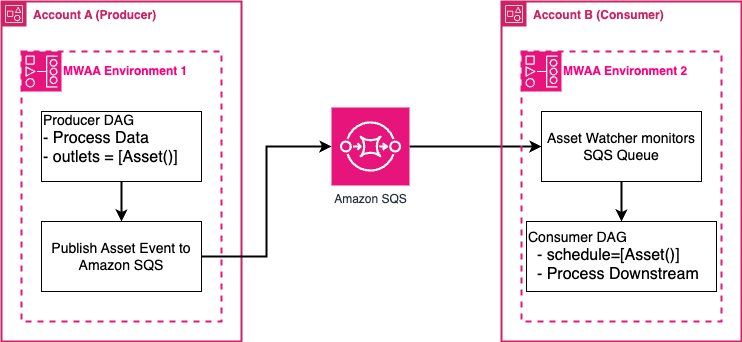
Figure 1: Cross-account event-driven orchestration between Amazon MWAA environments using Amazon SQS
Architecture components
The architecture has four main components. The producer DAG defines assets as outlets and publishes events to an Amazon SQS queue when tasks complete successfully. The Amazon SQS queue acts as a durable message broker between accounts, with AWS Identity and Access Management (IAM) policies granting the producer permission to send messages and the consumer permission to receive them. On the consumer side, an Asset Watcher monitors the queue and updates asset state when messages arrive, which automatically triggers the consumer DAG scheduled on that asset.
Prerequisites
Before implementing this solution, you need:
- Two Amazon MWAA environments running Apache Airflow 3.0 or later, in the same or different AWS accounts. Each environment must have the triggerer component enabled.
- Intermediate knowledge of IAM policies, including cross-account role trust relationships and resource-based policies.
- Intermediate knowledge of Apache Airflow DAG authoring, including Python-based DAG definitions and task operators.
- Basic Python experience (Python 3.8 or later) to read and adapt the provided code samples.
- An Amazon SQS standard queue with cross-account permissions configured (see the Cross-account IAM section).
- AWS Command Line Interface (AWS CLI) configured with credentials that have permission to access both Amazon MWAA environments and the Amazon SQS queue.
- Time to complete: Approximately 90 minutes (following the GitHub repository instructions).
- Estimated cost: Running two Amazon MWAA environments and an Amazon SQS queue will incur AWS charges. Refer to the Amazon MWAA pricing page and Amazon SQS pricing page to estimate costs for your Region and usage. Remember to delete resources when you finish to avoid ongoing charges.
Implementation
The post includes a GitHub repository where you can deploy the solution described in this post. You will follow the implementation steps from setting up Amazon MWAA environments and cross-account Amazon SQS queues to deploying producer and consumer DAGs with Asset Watchers. This post provides the code samples, including the DAG files, IAM policies, and requirements configuration, for demonstration purposes only. Before deploying to production, verify that you conduct thorough testing, security reviews, and validation against the specific requirements and compliance standards.
Considerations
- Asset Watchers run as background processes in the Airflow triggerer, not the scheduler. Verify that the triggerer is healthy and running in consumer Amazon MWAA environment before expecting event-driven DAG triggers. If the triggerer is down, Amazon SQS messages will accumulate in the queue but won’t trigger downstream DAGs until the triggerer recovers. For more information, read the Asset Watchers documentation.
- Amazon SQS messages have a default retention period of 4 days (configurable up to 14 days). If the consumer environment is unavailable for longer than the retention period, messages will be lost. Consider configuring a dead-letter queue to capture messages that fail processing, and adjust the
MessageRetentionPeriodbased on recovery requirements. - Cross-account Amazon SQS access requires both an IAM identity policy on the producer’s execution role and a resource-based policy on the Amazon SQS queue. If either policy is missing or misconfigured, message delivery will silently fail. For guidance on cross-account access patterns, refer to Four ways to grant cross-account access on AWS.
- Set the Amazon SQS
VisibilityTimeouthigher than the expected time for the Asset Watcher to process a message. If the timeout is too short, messages might be redelivered and trigger duplicate DAG runs. Review the Amazon SQS visibility timeout documentation when tuning this value. - Each Amazon MWAA environment has limits on the number of DAGs, triggerers, and concurrent DAG runs. If you plan to scale to multiple Asset Watchers monitoring different Amazon SQS queues, check the current Amazon MWAA quotas before making design decisions.
- Asset URIs must match exactly between the Asset Watcher definition and the consumer DAG’s
scheduleparameter. A mismatch, even in casing or trailing characters, will prevent the consumer DAG from being triggered. Define assets in a single DAG file to avoid inconsistencies. - Pin the provider packages
apache-airflow-providers-amazonandapache-airflow-providers-common-messagingto versions compatible with Airflow. Incompatible versions might cause import errors that prevent the triggerer from starting. Use a constraints file as described in this post to avoid dependency conflicts.
Agent skills
AI coding assistants are most useful when they have context about your specific architecture and constraints, not only general programming patterns. Agent Skills, originally developed by Anthropic and released as a public standard in December 2025, provides a portable format for this need. SKILL.md files encode procedural knowledge, best practices, and workflows so that compatible AI coding agents can discover and apply them on demand. The standard is now supported by Kiro, Strands Agents, Anthropic Claude Code, OpenAI Codex, Cursor, Gemini CLI, and other tools. The solution provided here includes an agent skill (agent-skill/) built on this standard that encodes the cross-account orchestration architecture and operational best practices from this post. When you tell the AI coding assistant something like “Write cross-account Amazon MWAA DAGs for my orders pipeline”, the skill guides the agent through the complete workflow:
- Collecting Amazon SQS queue URL.
- Generating correctly structured producer and consumer DAG files.
- Optionally deploying them to Amazon MWAA environments.
The skill doesn’t require you to provide AWS account IDs or Amazon MWAA environment names upfront. Instead, it auto-discovers your environments by running aws mwaa list-environments and aws sts get-caller-identity using the locally configured AWS CLI credentials, then asks you to confirm which environment is the producer and which is the consumer.
The skill works in two modes:
- Sample mode: Generates the reference producer and consumer DAGs for quick cross-account validation, requiring only the Amazon SQS queue URL as input.
- Custom mode: Adapts the DAG templates to specific business logic. For example, the producer runs an AWS Glue extract, transform, and load (ETL) job and the consumer triggers a data build tool (dbt) model refresh. This mode customizes DAG IDs, task names, schedules, and processing logic while preserving the correct Asset Watcher patterns.
Beyond code generation, the skill includes an auto-deploy flow. This flow discovers existing Amazon MWAA environments, runs pre-flight checks (Amazon Virtual Private Cloud (Amazon VPC) networking, provider versions, triggerer health, and Amazon SQS queue accessibility), uploads DAGs to the correct Amazon Simple Storage Service (Amazon S3) buckets, and verifies end-to-end readiness. Each step that modifies infrastructure requires explicit user confirmation. Also refer to the GitHub repository for instructions on using it.
Best practices
Airflow Asset Watchers with Amazon SQS are not always the right fit. When they are, they introduce operational considerations that differ from sensor-based polling approaches.
This section covers how to choose the right cross-environment orchestration pattern, how to configure the infrastructure that Asset Watchers depend on (IAM, Amazon VPC, dependencies), and how to design producer and consumer DAGs that are reliable in production.
Cross-account IAM
- Producer execution role needs
sqs:SendMessageandsqs:GetQueueUrlscoped to the specific queue ARN to avoidsqs:*. - Amazon SQS queue resource policy must allow the producer role for
sqs:SendMessageand consumer role forsqs:ReceiveMessage,sqs:DeleteMessage,sqs:GetQueueAttributes, andsqs:GetQueueUrl. - Test cross-account access with the AWS CLI before deploying DAGs. Debugging AWS IAM through Airflow task logs is much harder and slower than catching misconfigurations at the CLI level.
- Enable Amazon SQS server-side encryption for production queues.
Triggerer health
- Airflow Asset Watchers run in the triggerer, not the scheduler. Verify triggerer health in the Airflow UI after deploying consumer DAGs.
- The health API can report healthy even when components are broken. Cross-check by verifying Amazon CloudWatch log streams exist for the Triggerer log group.
- Monitor
airflow-<ENV>-TriggererCloudWatch logs forClientError,QueueDoesNotExist, orImportError. - Set Amazon CloudWatch alarms on Amazon SQS
ApproximateNumberOfMessagesVisibleand the depth of your dead-letter queue (DLQ), which captures messages that fail processing after the maximum number of receive attempts. - Pin provider versions with a constraints file to prevent dependency conflicts.
Amazon VPC networking
- Private subnets must route 0.0.0.0/0 to a NAT Gateway. Without it, workers and triggerers silently fail while the web server appears healthy.
- Use two NAT Gateways (one per Availability Zone) for production high availability.
- For private routing mode, use Amazon VPC Endpoints (Amazon S3, Amazon SQS, Amazon CloudWatch Logs, and Amazon Elastic Container Registry (Amazon ECR)) instead of NAT.
- Confirm Amazon CloudWatch log streams exist for Scheduler, Worker, DAGProcessing, and Triggerer. Empty log groups mean containers aren’t running.
- Security group must allow self-referencing inbound traffic and unrestricted outbound.
Dependency management
- Pin provider versions with == and use a constraints file. Unpinned versions break on environment updates.
- Test dependencies locally with MWAA Docker images before deploying.
- Check the
requirements_install_iplog stream after updates. If networking was unavailable at creation, force reinstall with a newrequirements-s3-object-version. - Review pre-installed base packages before adding to
requirements.txtto avoid version conflicts.
Choosing an orchestration pattern
Not every cross-environment dependency warrants an Asset Watcher. Airflow 3.0 offers three main orchestration patterns: Asset Watchers with Amazon SQS, the MwaaTriggerDagRunOperator, and sensor-based polling, each with different trade-offs in response time, coupling, and resource consumption. Use the following table to match your use case to the right pattern before committing to an implementation.
| Pattern | How it works | Response time | Coupling | Occupies a worker? | Good fit | |
| 1 | Asset Watchers + SQS (this post) | Consumer’s triggerer listens on SQS, triggers DAG on message arrival | Seconds | Loose | No | Cross-account pipelines. Fan-out. Independent release cycles |
| 2 | MwaaTriggerDagRunOperator | Producer calls MWAA API to start a DAG in another environment | Seconds | Tight | Yes (with wait_for_completion) |
Same-account one-to-one triggers |
| 3 | Sensors (polling) | Consumer periodically checks for a condition | Poll interval | Medium | Yes (unless deferrable) | Persistent-state conditions. Intra-environment dependencies |
- Avoid wiring persistent-state triggers (for example,
S3KeyTrigger) into Asset Watchers. They fire continuously because the condition never clears.
DAG authoring
- Minimize module-level code. DAG files are re-parsed every cycle, and heavy imports slow the entire parsing loop.
- Design tasks so they produce the same result whether they run once or multiple times (a property called idempotency). Duplicate Amazon SQS messages can occur on retries, so prefer UPSERT (insert or update) over INSERT to avoid duplicate records.
- Keep secrets out of DAG files and message bodies. Use Airflow Connections (
aws_conn_id) instead. - Test DAG imports locally with
python your_dag.pybefore uploading to S3. - Allow time for DAG parsing after S3 upload, or force with
dags reserialize.
Producer DAG design
- Include
dag_id,run_id,logical_date, and dataset-specific context in Amazon SQS messages so consumers can route without calling back. - Use
SqsHookinstead of the rawboto3package. It respectsaws_conn_idand integrates with Airflow logging. - Let publish failures raise so the Airflow retry mechanism handles redelivery.
Consumer DAG design
- Access messages through
triggering_asset_events, not by reading the queue directly. The Asset Watcher has already consumed the Amazon SQS messages. - Validate message payloads defensively. Producers might evolve their schema over time.
- Use conditional asset scheduling (& / |) for complex multi-asset dependencies.
Clean up resources
To avoid ongoing AWS charges, delete the resources you created as part of this solution when you are done. The GitHub repository includes step-by-step cleanup instructions for removing the Amazon SQS queue, Amazon MWAA environments, IAM roles and policies, and Amazon S3 buckets.
Refer to the cleanup instructions in the GitHub repository to remove the provisioned resources.
Conclusion
Asset-based scheduling in Apache Airflow 3.0, with Asset Watchers, gives you a practical way to coordinate workflows across Amazon MWAA environments without polling overhead or tight coupling. By using Amazon SQS as a reliable message broker, you can build responsive, decoupled data pipelines that span multiple Amazon MWAA environments and AWS accounts without the operational overhead of traditional polling mechanisms.
This approach reduces cross-environment orchestration latency from minutes to seconds, replaces custom sensors with declarative asset-based scheduling, and gives you and your team the flexibility to maintain independent Amazon MWAA environments while still coordinating complex workflows. Amazon SQS durable message delivery reduces the risk of lost signals, even during temporary environment outages.
To get started:
- Review the architecture (5 minutes): Open the architecture diagram in the repository and confirm which Amazon MWAA environments will be the producer and which will be the consumer.
- Set up the Amazon SQS queue (15 minutes): Create a cross-account Amazon SQS standard queue and apply the IAM identity and resource-based policies from the Cross-account IAM section. Verify access with the AWS CLI before proceeding.
- Deploy and validate the DAG examples (30 minutes): Copy the producer and consumer DAG snippets from the Implementation section into Amazon MWAA environments, trigger the producer DAG manually, and confirm the consumer DAG runs automatically.
- Run pre-flight checks (20 minutes): Work through the Amazon VPC networking, provider version, and triggerer health checks in the Best Practices section. Confirm Amazon CloudWatch log streams exist for the Triggerer log group before declaring the environment ready.
- Optionally, use the agent skills: If you use an AI coding assistant, install the skill from the repository and describe the business logic in natural language to generate deployment-ready DAGs tailored to your pipeline.
As you scale data operations across multiple accounts and AWS Regions, asset-based scheduling with Asset Watchers provides the foundation for building modern, event-driven data architectures on AWS. Start with basic producer-consumer patterns and gradually evolve to complex multi-asset dependencies as orchestration requirements grow.
For more information, refer to
- Apache Airflow 3 on Amazon MWAA Launch Blog Post.
- Apache Airflow documentation.
- Amazon MWAA User Guide.
- Amazon SQS Documentation.
- AWS IAM cross-account access.
- Amazon CloudWatch monitoring for Amazon MWAA.
- AWS Step Functions for orchestration patterns that require human approval steps or complex branching logic outside Airflow.
- AWS Well-Architected Framework — Data Analytics Lens.
- Amazon MWAA quotas.
- Amazon VPC networking best practices.





 Satya Chikkala is a Solutions Architect at Amazon Web Services. Based in Melbourne, Australia, he works closely with enterprise customers to accelerate their cloud journey. Beyond work, he is very passionate about nature and photography.
 Vijay Velpula is a Data Lake Architect with AWS Professional Services. He assists customers in building modern data platforms by implementing big data and analytics solutions. Outside of his professional responsibilities, Velpula enjoys spending quality time with his family, as well as indulging in travel, hiking, and biking activities.