Post Syndicated from Yukiko Iwazumi original https://aws.amazon.com/blogs/big-data/amazon-s3-tables-with-dbt-iceberg-based-data-transformations-using-aws-glue/
Amazon S3 Tables, a capability of Amazon Simple Storage Service (Amazon S3), deliver a cloud object store with built-in Apache Iceberg support and streamline storing tabular data at scale. When you integrate them with dbt and AWS Glue, you can run SQL-based data transformations with the reliability and performance of a modern lakehouse, bringing software engineering best practices to the data space.
This post demonstrates how to configure and implement dbt transformations using Amazon S3 Tables with the dbt-glue adapter. Starting with version 1.12.4, the dbt-glue adapter adds incremental merge support for S3 Tables, which the patterns in this post build on. We cover the specific configuration requirements for the dbt-glue adapter and practical implementation patterns built on S3 Tables incremental models: the merge strategy to keep the latest state per record and the append strategy to build an audit-friendly change history.
Example scenario
In this walkthrough, we simulate an ecommerce system that tracks customer profiles and their orders. We first run the pipeline against an initial dataset, then simulate an update to the upstream source data and run it again to demonstrate incremental updates.
Our example scenario follows a data pipeline architecture that uses S3 Tables throughout. Raw ecommerce data (customers.csv and orders.csv) lands in a regular S3 bucket as comma-separated values (CSV). dbt then transforms it through two layers of S3 Tables. A staging layer cleanses and standardizes each source, and a mart layer produces analytics-ready dimension and fact tables. You can query the resulting mart data from a variety of analytics and business intelligence (BI) tools such as Amazon Athena and Amazon Quick Sight. In this post, we query it from Athena.
The mart layer demonstrates two incremental strategies side by side: the fact_orders model uses merge to keep the latest state per order, while fact_order_history uses append to accumulate a full change history.
The data pipeline flow looks like the following chart:
The following diagram shows the architecture behind this pipeline: dbt-glue submits each model as a Spark SQL statement to an AWS Glue interactive session, which reads from the raw S3 bucket and writes the staging and mart tables as S3 Tables within the same data lake.
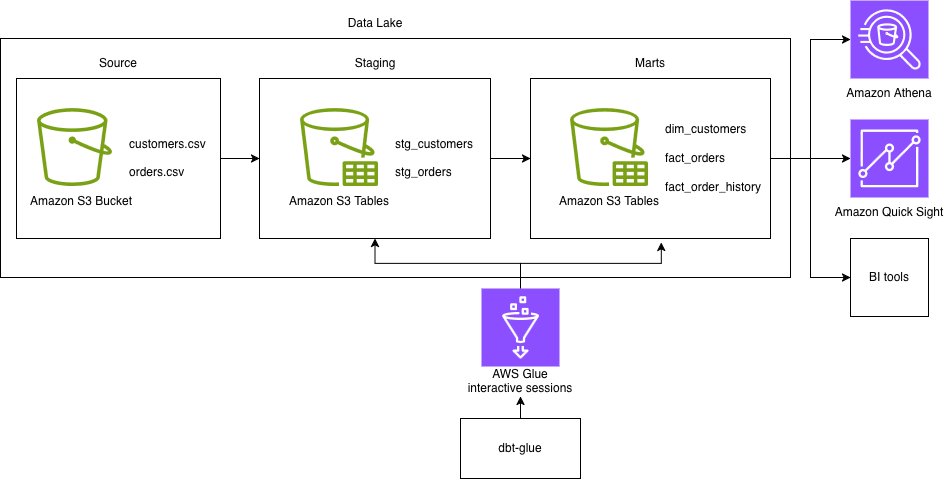
Figure 1: Architecture of the dbt transformation pipeline on Amazon S3 Tables with AWS Glue
Prerequisites
Before you begin, make sure that you have the following prerequisites:
- AWS Account.
- An AWS Identity and Access Management (IAM) role that dbt-glue assumes to run the AWS Glue interactive session, with permissions for AWS Glue, the AWS Glue Data Catalog, Amazon S3, and Amazon S3 Tables. See Setting up IAM permissions for AWS Glue.
- dbt-glue 1.12.4 or later (required for S3 Tables incremental models).
- Python 3.10, 3.11, or 3.12. See the Python compatibility matrix to find supported Python versions for each dbt-core version.
- AWS Glue 6.0 or later.
- AWS Command Line Interface (AWS CLI) version 2.x.
- Integrate Amazon S3 table buckets with AWS analytics services.
Create S3 Tables namespace and AWS Glue databases
In this section, you set up the AWS infrastructure that dbt-glue needs: an S3 table bucket and namespace to hold your dbt models, and an AWS Glue database for your source data.
First, set your environment variables. Replace YOUR_ACCOUNT_ID, YOUR-REGULAR-BUCKET, and YOUR_Glue_Role_ARN with your data:
The DBT_S3_TABLES_BUCKET format is AWS_ACCOUNT_ID:s3tablescatalog/BUCKET_NAME, not an Amazon Resource Name (ARN).
Second, create an S3 table bucket and namespace:
- Create S3 table bucket.
- Create namespace within the table bucket.
Note that the S3 Tables namespace is where the S3 Tables corresponding to your dbt models will be created. This is different from regular S3 buckets. Because the “Integration with AWS analytics services” option for S3 Tables is enabled, creating the namespace automatically creates a corresponding AWS Glue database. Verify that it exists in the next step:
- Verify that the database exists.
Third, create an AWS Glue database for source data tables:
- Create an AWS Glue database for source tables.
Create sample dataset
In this section, you create sample ecommerce data to transform with dbt: two CSV files (customers and orders), upload them to a general purpose S3 bucket, and register them as AWS Glue tables that your dbt models can read from.
Note: All sample data in this post is synthetic. It was generated to mimic realistic patterns for demonstration purposes only and doesn’t represent any real individuals or transactions.
Complete following steps to create a sample dataset:
- Create a directory for sample data and save the following two CSV files:
customers.csv:orders.csv: - Create the bucket for source data if it doesn’t exist, and upload the CSV files to the S3 bucket. Replace
YOUR-SOURCE-DATA-BUCKETwith your bucket name. - Create an AWS Glue database and tables for source data.
Install dbt, the dbt CLI, and the dbt adapter
The dbt CLI is a command-line interface for running dbt projects. It’s free to use and available as an open source project. Before installing dbt-core, make sure your Python version is 3.10, 3.11, or 3.12.
- Install dbt and the dbt CLI with the following code:
For more information, refer to How to install dbt, What is dbt?, Viewpoint, and What version of Python can I use?.
- Install the dbt-glue adapter with the following code:
Note that you need to install dbt-glue 1.12.4 or higher, which adds support for incremental append and merge models on S3 Tables.
Create a dbt project
In this section, you create a new dbt project using dbt init, which generates the standard directory structure (such as models, macros, and tests) that you will populate with the S3 Tables models in the next sections.
- Run the
dbt initcommand to create and initialize a new empty dbt project. - For a project name, enter
dbt_glue_s3_tables. - For a database, choose
[1] glue.
Please ignore dbt_project.yml file [ERROR not found] message as we are going to create it in the next step.
Configure dbt profile
The dbt profile configuration is critical for S3 Tables integration. In this section, you create a dbt profile that connects to AWS Glue Interactive Sessions and configures Spark to read and write S3 Tables through the Iceberg catalog, then validate the connection with dbt debug.
- Create
~/.dbt/profiles.ymlwith the following structure: - Run the following command to validate the configurations:
Expected output is
Connection test: [OK connection ok].
Configure dbt project
The dbt_project.yml configuration determines which models use S3 Tables. Create or update dbt_glue_s3_tables/dbt_project.yml with the following structure:
Create dbt models
In this section, you build out the full model layer: a sources.yml that registers your raw AWS Glue tables, two staging models that clean and prepare the customer and order data, and three mart models that turn those staged data into a dimension table and two fact tables, one using incremental merge and one using incremental append.
First, create sources.yml defines your raw data tables:
- Delete the
examplefolder underdbt_glue_s3_tables/models. This is an example folder created by default and unnecessary now. - Define source tables in
models/sources.ymlwith the following structure:This
sources.ymldefines your raw data tables, so you can reference them with the {{ source() }} function in your models. With this file, you can also define data tests like unique, not_null, and referential integrity checks in one central place.Second, create the staging and mart models. Staging models are where you unpack and transform raw data. Mart models are what downstream consumers actually query.
- Create
models/staging/stg_customers.sql:stg_customers.sqlreads from the raw customers source, applies light cleansing (email normalization, date casting, null filtering), and writes to S3 Tables using an incremental merge oncustomer_idto update existing records rather than duplicating them. - Create
models/staging/stg_orders.sql:stg_orders.sqlreads from the raw orders source, normalizes status to a fixed set of values (defaulting tounknownfor anything unexpected), castsorder_date,total_amount, andupdated_atto their proper types, and derivesorder_yearandorder_monthfor downstream partitioning. - Create
models/marts/dimensions/dim_customers.sql: - Create
models/marts/facts/fact_orders.sql: - Create
models/marts/facts/fact_order_history.sql:
Run the dbt project
Now it’s time to run the dbt project. Complete following steps:
- To run the project dbt, you should be in the project folder:
- Run the dbt command:
This command starts an AWS Glue interactive session, compiles the dbt models, and materializes all five tables (stg_customers, stg_orders, dim_customers, fact_orders, and fact_order_history) in your S3 Tables namespace. The --full-refresh flag rebuilds the incremental models from scratch, so it’s the right choice for the first run.
Query using Amazon Athena
Before testing the incremental merge and append behavior in the next section, confirm what the initial --full-refresh run loaded into the mart tables. Query the target tables.
- In the Athena console, choose the data source and database that correspond to your S3 Tables catalog:
- Catalog:
s3tablescatalog/dbt-glue-s3-tables-bucket. - Database:
dbt_glue_s3_tables.
- Catalog:
- Run the following query to view the data loaded into the
fact_orderstable:The result returns the five order records:
- Run the following query to view the data loaded into the
fact_order_historytable:The result returns the five order history records.
Incremental merge and append on Iceberg table
After the initial --full-refresh run succeeds, verify that the merge and append incremental strategies behave as expected when the source data changes. This demonstrates the row-level update capability that Iceberg on S3 Tables provides.
Update the sample source data
To simulate a real-world scenario where upstream source data changes over time (for example, a customer updating their profile, or new customers signing up), modify customers.csv to include both an update to an existing record and a new record.
-
- Update two CSV files:
customers.csv:
Changes:
-
-
- customer_id=1: email updated to [email protected] (to test the merge UPDATE).
- customer_id=6: new record added (to test the merge INSERT).
-
orders.csv:
Changes:
-
- order_id=1004: status updated from
pendingtocompletedwith a laterupdated_at(to test the merge UPDATE). - order_id=1006: new record added with a later
updated_at, associated with the new customer customer_id=6 (to test both the merge INSERT infact_ordersand the append infact_order_history).
- order_id=1004: status updated from
- Upload the updated files to S3.
Re-run dbt project
- Run the following command.
By running without --full-refresh, dbt runs its normal incremental logic instead of rebuilding the tables from scratch. In the staging layer, stg_customers and stg_orders apply the changes with a MERGE INTO statement that updates customer_id=1 and order_id=1004 in place and inserts customer_id=6 and order_id=1006. Downstream, fact_orders (merge) reflects the 1004 update and the 1006 insert as the latest state, while fact_order_history (append) records both 1004 and 1006 as new history rows.
Verify the results in Amazon Athena
After the re-run completes, use Athena to confirm that the merge and append strategies behaved as expected.
- Run the following query to view the updated data in the
fact_orderstable:fact_ordersreturns 6 rows (one per order), with 1004 nowcompletedand 1006 added. - Run the following query to view the updated data in the
fact_order_historytable:fact_order_historygrows from 5 rows to 7 rows on the second run (the 2 rows whoseupdated_atadvanced: 1004 and 1006). Order 1004 now has two history rows: the originalunknownstatus and the newcompletedstatus.
Clean up
To avoid ongoing charges, clean up the resources you created during this walkthrough. Complete these steps in the specified order to facilitate proper resource deletion.
- Drop the tables dbt created in the S3 Tables namespace.
- Remove the namespace from the table bucket.
- Delete the table bucket.
- Delete the Data Catalog database.
- Delete the data this walkthrough wrote to your S3 bucket: the dbt warehouse data under
s3://<YOUR-REGULAR-BUCKET>/glue/data/and the sample CSV files unders3://<YOUR-REGULAR-BUCKET>/raw/. Leave the bucket itself in place if you use it for other workloads. - (Optional) Remove the local dbt project directory (
dbt_glue_s3_tables) and the samplecustomers.csv/orders.csvfiles.
Conclusion
In this post, we showed how to build an end-to-end dbt transformation pipeline on Amazon S3 Tables with AWS Glue 6.0, using a staging and mart architecture. At the core of this pipeline are incremental models on S3 Tables, which let us transform and maintain data incrementally with SQL. We demonstrated two incremental strategies working together: the merge strategy to keep the latest state per order in fact_orders, and the append strategy to build an audit-friendly change history in fact_order_history.
S3 Tables support in the dbt-glue adapter is currently experimental (as of version 1.12.4) and will continue to evolve in upcoming releases. As with any experimental feature, we recommend thoroughly testing it in your own environment before use.
To learn more, see Amazon S3 Tables and the dbt-glue adapter.