All posts by Manoj Gaddam

Centralized dashboard for monitoring SES identities

Post Syndicated from Manoj Gaddam original https://aws.amazon.com/blogs/messaging-and-targeting/centralized-dashboard-for-monitoring-ses-identities/

Organizations running Amazon Simple Email Service (Amazon SES) across multiple AWS accounts face a common challenge: visibility. When you have dozens or hundreds of accounts sending email, answering basic questions becomes surprisingly difficult:

  • How many SES identities exist across my organization?
  • Which identities are verified and pending?
  • Are there stale or unused identities that should be cleaned up?
  • Which accounts are sending from which domains?
  • Is DKIM properly configured for all sending domains?

Without centralized visibility, security teams can’t audit email-sending capabilities, compliance teams can’t enforce domain policies, and operations teams discover rogue identities only after deliverability issues arise.

This post presents two solutions for building a centralized SES identity dashboard across your AWS Organization. Each collects identity data from all member accounts and presents it through Amazon Athena and Amazon Quick Sight.

  • Option 1: A single AWS Lambda function that scans all accounts sequentially, best for organizations with fewer than 50 accounts.
  • Option 2: An AWS Step Functions state machine with a Map state for parallel execution, best for organizations with 50 or more accounts.

Both solutions provide centralized visibility into your SES posture with minimal member account footprint. You can deploy the option that best suits your needs by following the guidance in this post.

Solution architecture

The following diagram shows the end-to-end scan workflow, from the scheduled trigger through cross-account collection to the Amazon Athena and Amazon Quick Sight presentation layer.
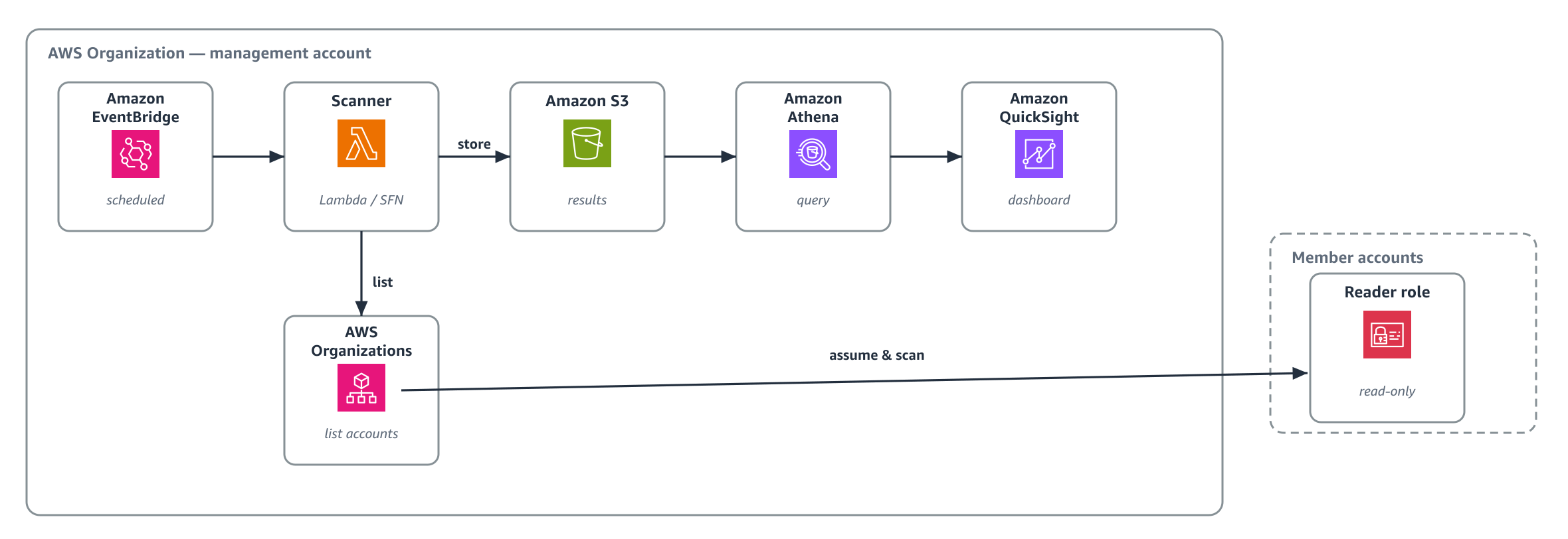
SES identity scan workflow from the scheduled trigger through cross-account collection to Athena and Amazon Quick Sight

Figure 1: End-to-end SES identity scan workflow from the scheduled trigger through cross-account collection to the Athena and Amazon Quick Sight presentation layer

For each identity, the scan collects the attributes Amazon SES reports for that identity: identity name, type (domain or email), verification status, DKIM configuration (signing enabled, status, and current key length), the custom MAIL FROM domain and its status, and whether sending is enabled.

SPF and DMARC are published as DNS records by the domain owner rather than reported by Amazon SES, so they make a natural next layer to add on top of this scan.

Option 1: Single Lambda (fewer than 50 accounts)

A single AWS Lambda function handles the entire scan sequentially, at approximately 30 seconds per account. Because a sequential scan of 50 or more accounts exceeds what one invocation can complete, Option 2 parallelizes the work across accounts.
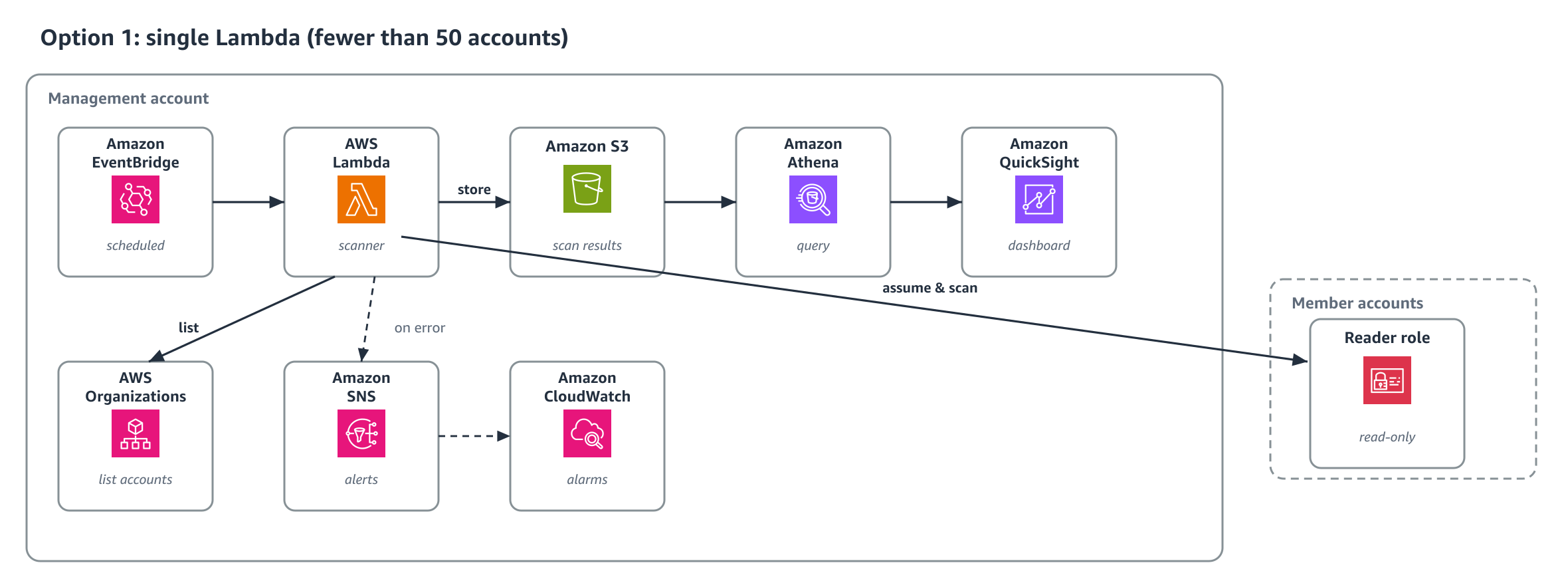
Option 1 architecture using a single Lambda function to scan accounts sequentially

Figure 2: Option 1 architecture using a single Lambda function to scan accounts sequentially

How Option 1 works

  • Amazon EventBridge triggers the scanner Lambda on a daily schedule (configurable).
  • The Lambda calls organizations:ListAccounts to discover all active member accounts.
  • For each account, it calls sts:AssumeRole to assume the SES-Identity-Reader role. The role’s trust policy requires three conditions: the scanner role’s aws:PrincipalArn, your aws:PrincipalOrgID, and a per-deployment external ID passed as a NoEcho parameter. Generate a unique value for this deployment, and don’t reuse a fixed one.
  • Using the assumed credentials, it calls ec2:DescribeRegions to discover enabled Regions, then ses:ListEmailIdentities and ses:GetEmailIdentity in each Region.
  • Results are written to Amazon S3 as JSON Lines, both a timestamped historical path and a latest/ path for Athena.
  • If any accounts or Regions fail, the Lambda records the failures in scans/summary/latest.json and publishes an error summary to Amazon Simple Notification Service (Amazon SNS). If accounts exist but zero identities are collected, the run fails without overwriting scans/latest (the previous good scan is preserved) so the SES-Scanner-Errors alarm fires.
  • Amazon CloudWatch alarm (a missed-run alarm) fires if no successful scan occurs within 25 hours. Additional alarms cover Lambda Errors and dead-letter-queue depth.

Deploying Option 1 in your AWS account

Prerequisites for Option 1:

  • AWS account access with permissions to deploy CloudFormation stacks and StackSets.
  • Your AWS Organization ID (format: o-xxxxxxxxxx).
  • Your management account ID (12 digits).
  • From the repository, you need the ses-reader-role.yaml and ses-scanner-stack.yaml files found in /option-1/.

Step 1: Deploy the cross-account IAM role

Template: option-1-ses-reader-role.yaml

  • Enable trusted access between CloudFormation StackSets and AWS Organizations. This is a one-time prerequisite for service-managed StackSets and is a no-op if already enabled.
  • In the CloudFormation console, this is offered automatically the first time you create a service-managed StackSet. Alternatively, run the following command from the management account: aws organizations enable-aws-service-access --service-principal member.org.stacksets.amazonaws.com
  • Open the AWS CloudFormation console in your management account.
  • Navigate to StackSets and choose Create StackSet.
  • Upload the ses-reader-role.yaml file.
  • Configure the parameters:
    • ManagementAccountId : Your 12-digit management account ID.
    • OrganizationId : Your organization ID (o-xxxxxxxxxx). Restricts assumption to principals in your organization.
    • ExternalId : A unique random secret you generate for this deployment (8–128 chars). Supply the same value to the scanner stack in Step 2. Don’t reuse the sample value.
    • ScannerRoleName : Leave default (SES-Identity-Scanner-Role) unless you renamed the scanner role.
  • Choose Service-managed permissions.
  • Enable Auto-deployment (so new accounts automatically receive the role).
  • Deploy to your organization root (r-xxxx) in a single Region (IAM roles are global).
  • Wait for the operation to show SUCCEEDED for all member accounts.

This deploys a strictly read-only IAM role (SES-Identity-Reader) to all member accounts. The role grants only the SES v2 read actions it uses (ses:ListEmailIdentities, ses:GetEmailIdentity) plus ec2:DescribeRegions, and no write or other permissions.

Step 2: Deploy the scanner stack

Template: option-1-ses-scanner-stack.yaml

  • Open the AWS CloudFormation console in your management account.
  • Choose Create stack, then With new resources (standard).
  • Upload the ses-scanner-stack.yaml file.
  • Configure the parameters:
    • ScheduleExpression : Scan frequency (default: rate(1 day)).
    • OrganizationId : Your organization ID (o-xxxxxxxxxx). Scopes cross-account sts:AssumeRole through an aws:ResourceOrgID condition.
    • ExternalId : The same value you generated in Step 1.
    • AlertEmail : Email address that receives scan-error summaries and CloudWatch alarms.
  • Acknowledge IAM resource creation and choose Submit.
  • Wait for CREATE_COMPLETE.
  • After the stack is created, confirm the SNS subscription in the email sent to AlertEmail. Until you confirm, error notifications and alarms are not delivered.

The stack creates:

  • Two S3 buckets (a scan-results bucket and an access-logs bucket, both versioned, public access blocked, with lifecycle rules including noncurrent-version expiration).
  • A Lambda function (Python 3.12, 512 MB, 15-minute timeout) with an explicit CloudWatch log group (90-day retention).
  • An Amazon EventBridge rule, an SQS dead-letter queue.
  • CloudWatch alarms (missed run, Lambda Errors, DLQ depth).
  • An SNS topic with an email subscription.
  • An enforced encrypted Athena workgroup.
  • An AWS Glue database with table definition for Athena.

Note on data retention: Timestamped historical scans are written under scans/archive/, and both lifecycle rules (expiration and transition to Infrequent Access) are scoped to that prefix. Three pointers are continuously overwritten: scans/latest/, scans/summary/, and athena-results/. These are deliberately excluded from expiration, so the most recent good scan is always preserved, including when a run fails closed.

Step 3: Test the scanner

  • Open the AWS Lambda console.
  • Select the SES-Identity-Scanner-v2 function.
  • Choose Test, create a test event with payload {}, and choose Test.
  • Review the execution result, which should show accounts scanned, total identities found, and any errors.
  • Verify the JSON Lines file exists in your S3 bucket under scans/latest/.

Step 4: Query with Amazon Athena

  • Open the Amazon Athena console.
  • Select the workgroup the stack creates (<stack-name>-ses-identity). It enforces an encrypted results location inside the hardened scan-results bucket, so you do not set a query result location manually.
  • Select the ses_identity_dashboard database.
  • Run the following queries to explore your organization’s SES posture.

Organization summary:

SELECT account_id,
       COUNT(*) as total_identities,
       SUM(CASE WHEN verified THEN 1 ELSE 0 END) as verified_count,
       SUM(CASE WHEN dkim_status = 'SUCCESS' THEN 1 ELSE 0 END) as dkim_configured
FROM ses_identities
GROUP BY account_id
ORDER BY total_identities DESC;

Identities requiring action:

SELECT account_id, region, identity_name, identity_type, dkim_status
FROM ses_identities
WHERE verified = false
   OR (identity_type = 'DOMAIN' AND dkim_status != 'SUCCESS')
ORDER BY account_id;

More queries: option-1-sample-athena-queries.sql

Step 5: Visualize with Amazon Quick Sight

  • Open the Amazon Quick Sight console.
  • Create a new dataset using Amazon Athena as the data source.
  • Select the ses_identities table from the ses_identity_dashboard database.
  • Import the data into SPICE for fast dashboard performance.
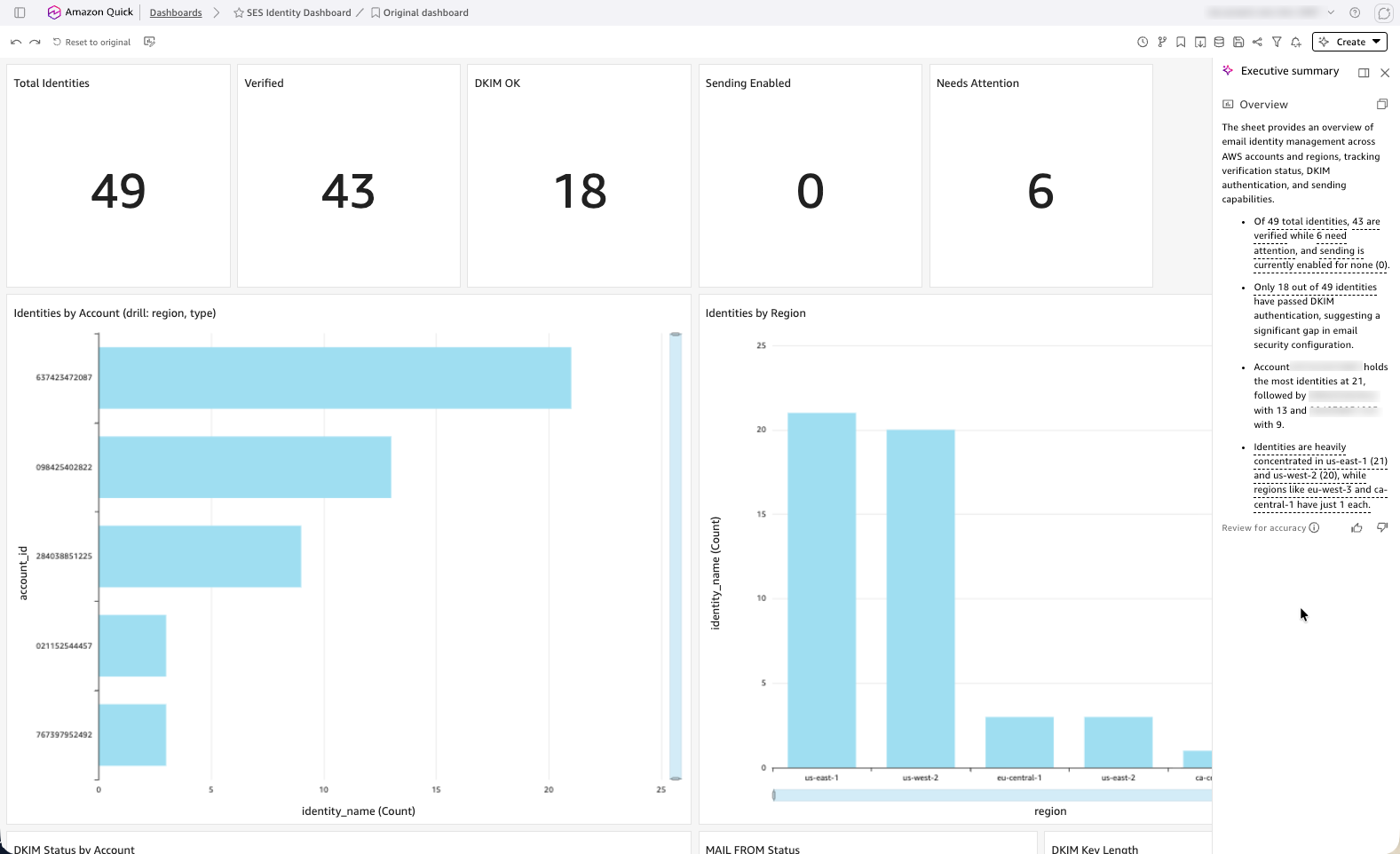
  • Create visualizations: bar chart (identities by account), pie chart (verified and unverified), heat map (identities by Region and account), and a detail table with filters.
  • Schedule SPICE refresh to run after the daily scan completes.
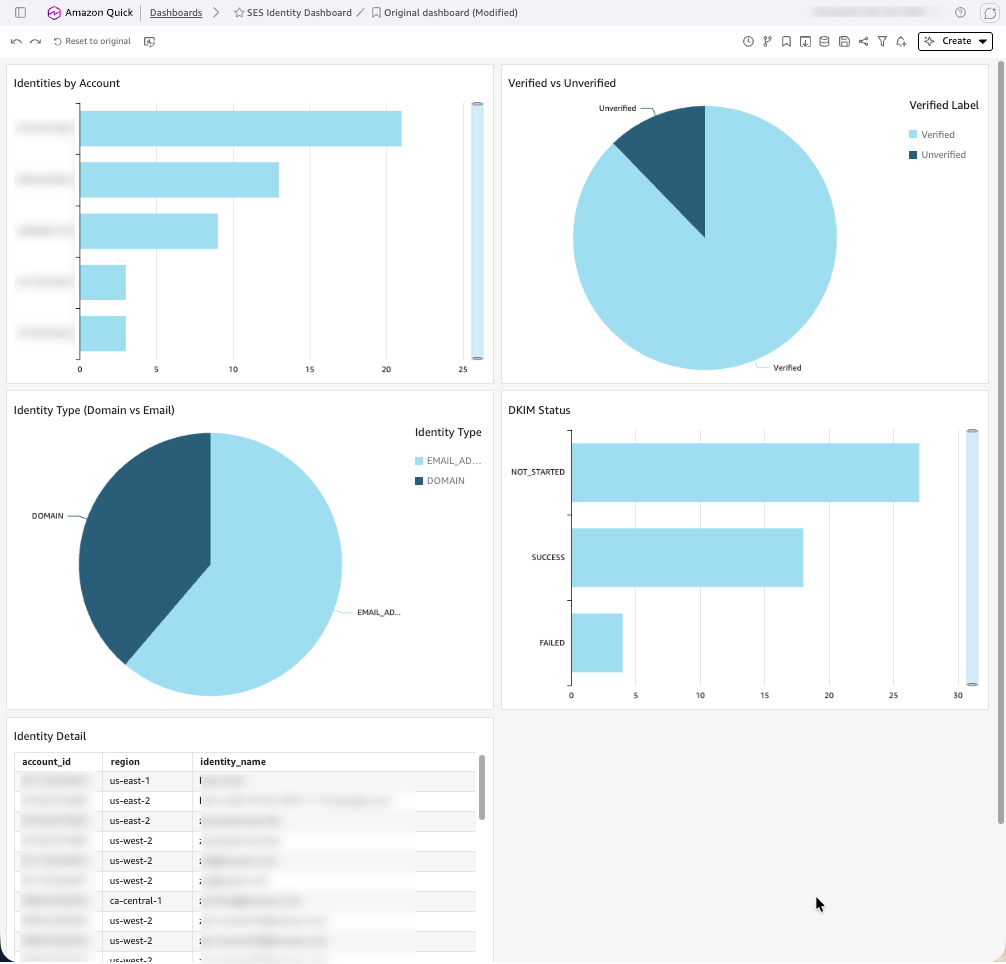
Amazon Quick Sight dashboard showing SES identities by account and verification status Amazon Quick Sight dashboard showing SES identities by Region with a detail table

Option 2: Step Functions with parallel account scanning (50+ accounts)

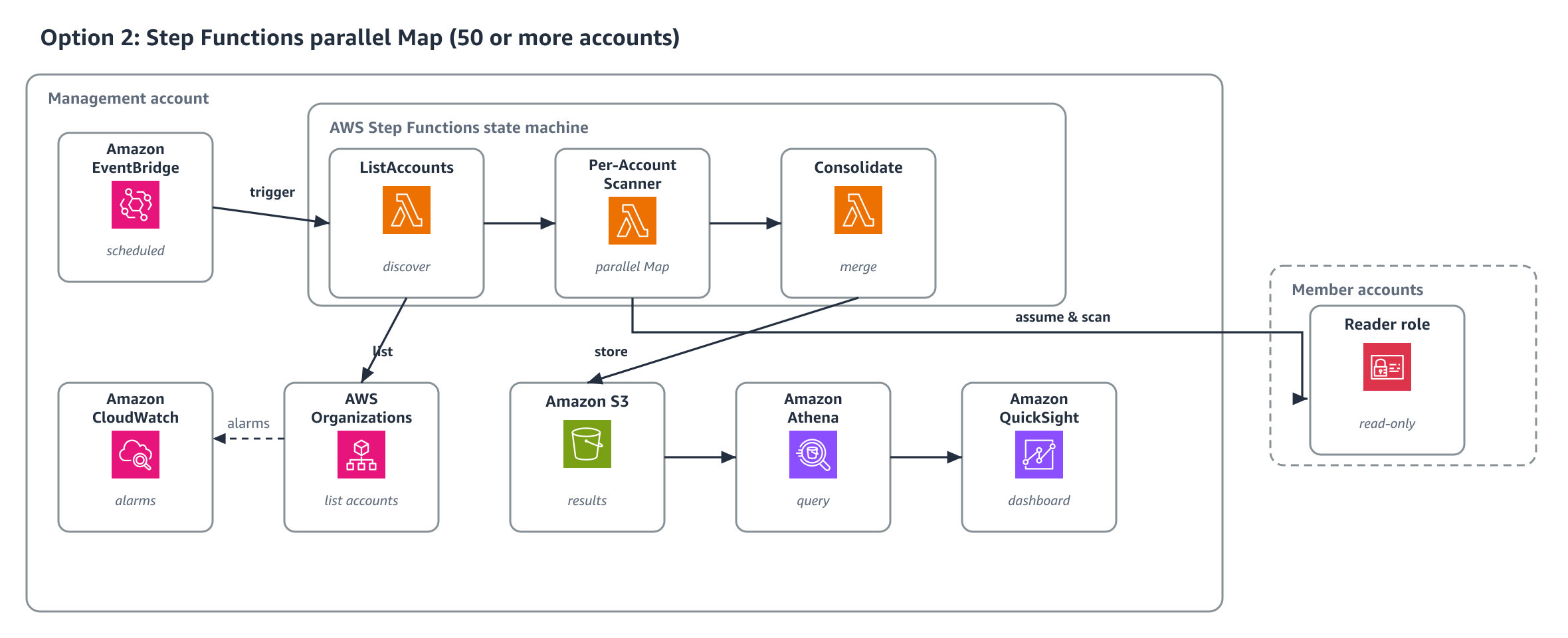
AWS Step Functions with a Map state provides parallel execution. With up to 40 concurrent per-account scans, an estimated 280 accounts complete in roughly 3–5 minutes, with built-in retry logic and per-account error isolation. The template uses an inline Map, which caps concurrency at 40. To scale beyond 40, switch the ItemProcessor mode to DISTRIBUTED. This additionally requires three actions on the state machine plus S3 ItemReader/ResultWriter permissions.

  • states:StartExecution
  • states:DescribeExecution
  • states:StopExecution
Option 2 architecture using a Step Functions state machine with a Map state for parallel account scanning

Figure 3: Option 2 architecture using a Step Functions state machine with a Map state for parallel account scanning

Prerequisites for Option 2:

  • AWS Organizations enabled with a management account (or delegated administrator).
  • Permissions to deploy CloudFormation StackSets across member accounts.
  • Amazon SES configured in one or more member accounts (identities to scan).
  • Console access to AWS CloudFormation, AWS Lambda, Amazon S3, and Amazon Athena.
  • Clone the repository:
git clone https://github.com/aws-samples/sample-SES-Identity-Dashboard.git

How Option 2 works

Refer to Option 2 image for the workflow:

  • Amazon EventBridge triggers the Step Functions state machine on schedule.
  • The ListAccounts Lambda discovers all active organization accounts and returns them as a JSON array.
  • The Map state iterates over the accounts array with MaxConcurrency: 40 (inline Map. Do not raise above 40 without switching to a Distributed Map).
  • Each Per-Account Scanner Lambda receives a single account ID, assumes the reader role, scans all enabled Regions, and writes per-account results to S3. Per-region and per-identity failures are reported in-band rather than silently dropped.
  • The Consolidate Lambda merges all per-account files into a single JSON Lines file at the scans/latest/ path. It also writes latest.json and fails the execution only when zero identities were collected and at least one account, Region, or identity failed. A legitimately empty organization (every account scanned cleanly with no identities) is treated as healthy, and the previous scans/latest/ is preserved when the run fails closed.
  • On any account failure, Step Functions automatically retries (two attempts, 60-second interval, backoff rate 2.0).
  • Failed accounts are captured in the execution output without stopping the scan for other accounts.

The Map state processes up to 40 accounts concurrently. Each per-account Lambda completes in approximately 30 seconds, so 280 accounts finish in 3–5 minutes. State machine logging and AWS X-Ray tracing are enabled. A SES-Scanner-SFN-Execution-Failed alarm covers failed executions. The Step Functions console provides a visual execution history showing exactly which accounts succeeded or failed.

Deploying Option 2 in your AWS account

Template: option-2-ses-scanner-stepfunctions.yaml

  • Confirm the SES-Identity-Reader role is already deployed to all member accounts (Step 1 from Option 1).
  • Open the AWS CloudFormation console in your management account.
  • Upload the ses-scanner-stepfunctions.yaml file.
  • Configure the parameters:
    • OrganizationId : Your organization ID (o-xxxxxxxxxx). Scopes sts:AssumeRole through aws:ResourceOrgID.
    • ExternalId : The same per-deployment secret used by the reader role.
    • AlertEmail : Address subscribed to the alert SNS topic (confirm the subscription email).
    • ScheduleExpression.
    • and optionally MaxConcurrency (default 40. Bounded 1–40 for the inline Map).
  • Acknowledge IAM resource creation and choose Submit.
  • Wait for CREATE_COMPLETE.
  • The Athena table schema, sample queries, and Amazon Quick Sight dashboard configuration are the same as Option 1. Only the AWS Glue database name differs. Option 2 creates ses_identity_dashboard_sfn, while Option 1 uses ses_identity_dashboard. Point your Athena queries and Amazon Quick Sight dataset at ses_identity_dashboard_sfn. Query results are written to the enforced encrypted workgroup <stack-name>-ses-identity-sfn. Select it in the Athena console. The distinct names let both options run in the same account.

Clean up

To remove all resources created by this solution:

  • Delete the scanner CloudFormation stack from your management account.
  • In StackSets, delete all stack instances, then delete the StackSet itself.
  • If you created test SES identities, delete them from the SES console in each account.
  • Empty and delete the S3 bucket if it was not removed by the stack deletion (buckets with objects require manual emptying).

Conclusion

This solution gives your organization a single, centralized view of SES identities across all accounts, deployed in minutes with minimal member account footprint.

Start with Option 1 for immediate value. When your organization grows beyond 50 accounts, deploy Option 2. The data format, Athena queries, and Amazon Quick Sight dashboards remain unchanged. Only the orchestration layer changes.

To get started, clone the repository and deploy Option 1. For more information, see Amazon SES v2 API reference and Amazon Quick Sight User Guide.


About the authors

Manoj Gaddam

Manoj Gaddam

Manoj is a Technical Account Manager at AWS, where he helps enterprise customers architect, operate, and optimize their cloud solutions. He partners with strategic software and technology customers to help them achieve their business and technical goals on AWS. His focus spans analytics, storage, security, and modern compute and container workloads, as well as helping customers explore and adopt AI and generative AI capabilities on AWS. Outside of work, he enjoys traveling and spending time with friends.

Ajinkya Bhoite

Ajinkya Bhoite

Ajinkya is a Senior Cloud Support Engineer at AWS and a Subject Matter Expert in Amazon Simple Email Service (SES) and Amazon S3, where he helps customers untangle their trickiest SES and S3 problems. Away from the cloud, he’s a reader, a runner, and a published novelist, author of the Kindle fiction Shiva Stone: Hampi’s Hidden Treasure.

Mrinal Sorte

Mrinal Sorte

Mrinal is a Technical Account Manager at AWS, where she helps enterprise customers build secure, resilient, and compliant workloads on AWS. Passionate about AI, automation, and security, she actively contributes to AWS technical communities and enjoys sharing knowledge through workshops and enablement sessions. She works backwards from customer objectives to design and implement scalable solutions that drive innovation, reduce risk, and accelerate growth.

Sassan Hajrasooliha

Sassan Hajrasooliha

Sassan is a Senior Specialist AWS Solutions Architect with AWS. He has been working as an IT professional since 2003 and covers diverse technologies from different vendors in the industry. Throughout his career he has helped customers ranging from startups to multinational enterprises and public agencies get the best out of their IT systems for their businesses and missions. At AWS he is focused on Communication Developer Services like SES and EUM, as well as infrastructure migration and modernization.

Streamlining outbound emails with Amazon SES Mail Manager

Post Syndicated from Manoj Gaddam original https://aws.amazon.com/blogs/messaging-and-targeting/streamlining-outbound-emails-with-amazon-ses-mail-manager/

In today’s digital landscape, efficient email management is crucial for businesses of all sizes. Amazon Simple Email Service (Amazon SES) has long been a go-to solution for handling transactional and marketing emails. Through Mail Manager, Amazon SES offers powerful tools to enhance your email infrastructure, particularly for outbound email handling and archiving.

In this post, we explore how Mail Manager can modernize your approach to outbound email management. We’ll dive into the various options available for controlling email flows and archiving all outgoing emails. By the end of this article, you’ll have a clear understanding of how you can use Mail Manager to:

  • Strengthen your email infrastructure
  • Simplify outbound email workflow management
  • Help meet compliance through robust email archiving

In this post, we consider a real-world customer use case from a university where students should receive clean emails free from malware and phishing attempts. Amazon SES Mail Manager provides a comprehensive email pipeline that handles security screening, message archival, and reliable delivery. By implementing this system, the university significantly improved its email infrastructure, helping to ensure that important communications reach students safely and efficiently.

Walkthrough

In this walkthrough, we guide you through the process of configuring Amazon SES Mail Manager with the following components:

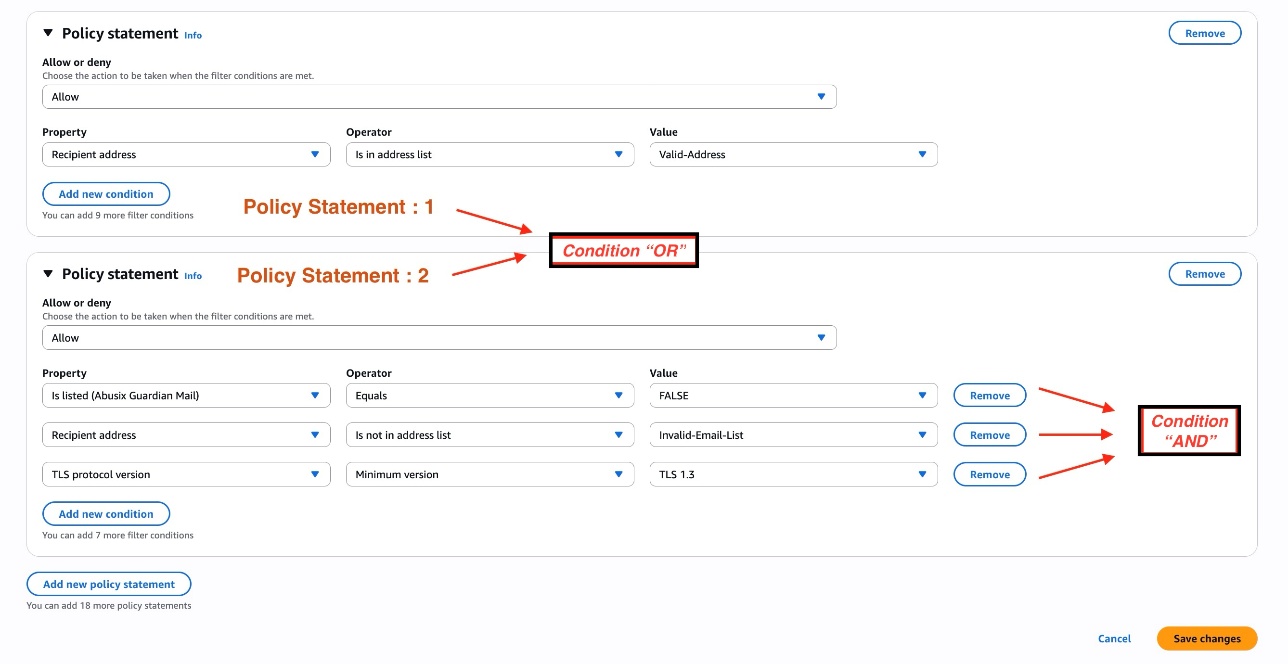
  • Traffic policy: You’ll create a traffic policy designed to help ensure that students receive only clean, secure emails. The default action is set to Deny all, providing a strict baseline. The policy includes two key statements connected by an OR condition. Policy Statement 1 allows emails if the recipient address is in the Valid-Address list. Policy Statement 2 allows emails that meet all of the following conditions: not listed in Abusix Guardian Mail, recipient address is not in the Invalid-Email-List, and uses TLS protocol version 1.3 or higher. This configuration effectively filters potential threats while allowing legitimate communications to reach students’ inboxes, maintaining a secure email environment for the university.
  • Rule set: You’ll create a rule set containing two rules that execute in sequential order:
    • Rule 1: Scan and isolate malicious content: Scans messages and, if the scan fails, stores emails in an Amazon Simple Storage Service (Amazon S3) bucket for further validation and halts sending email.
    • Rule 2: Archive and send clean emails to recipients: Archives all outgoing emails for audit and compliance after passing the security scan and routes emails to recipients.
  • Ingress endpoint: You’ll create a Mail Manager ingress endpoint that will receive, route, and manage emails based on your configured policies and rules.

After setting up these components, you’ll use sample Python code to send an email through the ingress endpoint. To verify functionality, we’ll check the email archive to confirm that all incoming emails are archived for compliance or audit purposes and confirm email is received in the intended inbox. The workflow is shown in the following figure.

Prerequisites

Before beginning, make sure that you have completed domain verification in your desired AWS Region and moved out of the Amazon SES sandbox. Domain verification is a crucial first step that validates your authority to send emails through SES from your domain. In this tutorial, you’ll use a sample Python program to send emails programmatically through an ingress SMTP endpoint. You can run this program either on your local machine or using AWS CloudShell.

You should have:

Before creating traffic policies and rule sets, you will first set up Email Add Ons, and email archiving, and AWS Identity and Access Management (IAM) roles, which will be needed while creating traffic policies and rules.

Step 1: Enable Email Add Ons for Amazon SES Mail Manager

To implement security features such as malicious content scanning in your email workflow, first enable the necessary Email Add Ons:

  1. Open the AWS Management Console for Amazon SES.
  2. Choose Mail Manager and then Email Add Ons.
  3. Select your desired Add Ons:
    • Trend Micro Virus Scanning
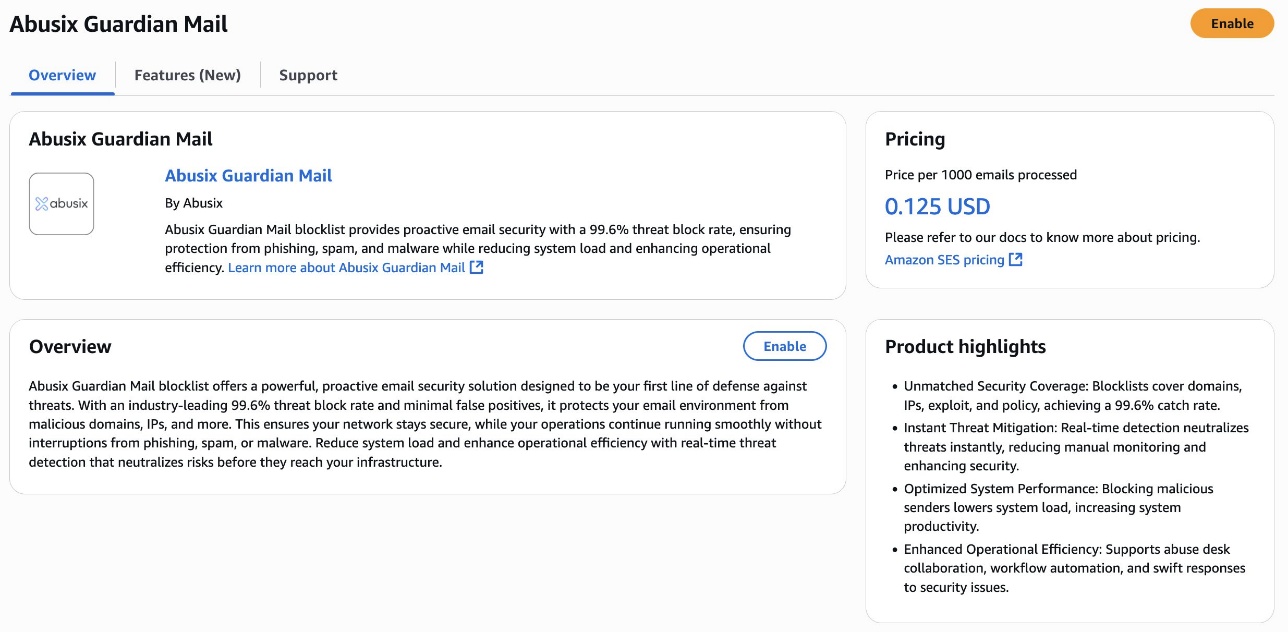
    • Abusix Guardian Mail
    • Spamhaus Domain Block List (DBL)
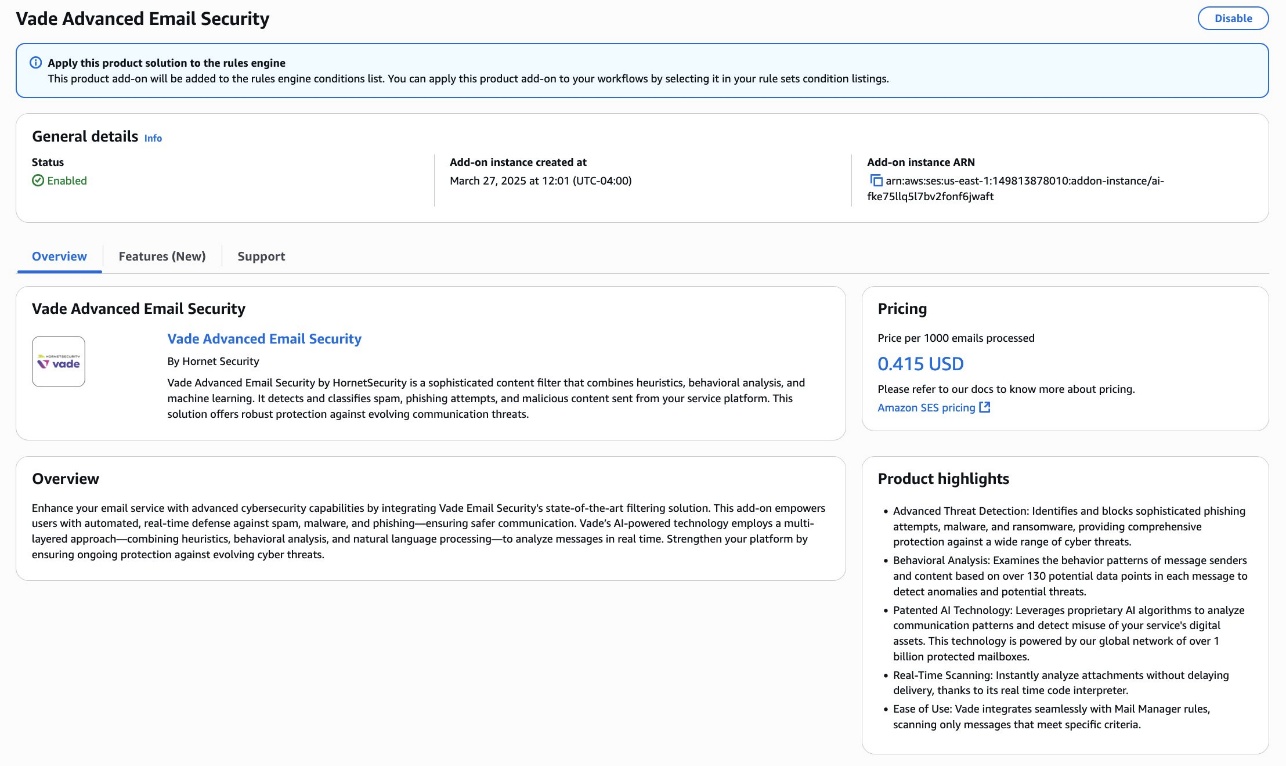
    • Vade Advanced Email Security
  4. Choose Enable.

Important Notes:

  • Email Add Ons are third-party security products integrated with Mail Manager
  • Once subscribed, you can use them in your traffic policies or rule sets

As part of this post, you will be using the Abusix Guardian Mail and Vade Advanced Email Security Add Ons to enhance email security posture. It doesn’t mean you have to use all of them—you can subscribe to the ones that best fit your requirements based on your use case.

Step 2: Configure an email archive for compliance and retention

You will create an email archive to store outgoing messages to use as part of configuring Rule 2. This archive will serve as a repository for outgoing messages.

  1. Navigate to Mail Manager and then to Email Archiving.
  2. Choose Create archive.
  3. Complete the archive configuration:
    1. Enter a unique name in the Archive name field.
    2. (Optional) Select a retention period to override the default of 180 days.
    3. (Optional) Set up encryption by either entering your own AWS Key Management System (AWS KMS) key in the KMS key ARN field or selecting Create new key.
  4. Choose Create archive.
  5. After being created, this archive will store your emails according to the rules you’ll define in the next step.

Step 3: Create and S3 bucket and IAM role for S3 access

When emails fail the Vade security scan, they need to be stored securely for further investigation. In this step, we’ll create an S3 bucket to store these flagged emails and set up the necessary IAM permissions.

  1. Create an S3 bucket to quarantine suspicious and malicious emails identified by the Vade scanner. This bucket will store these emails for further investigation by the security team. Note the bucket name, because you’ll need it in the next step.
  2. Create an IAM role that allows Mail Manager to upload suspicious emails to an S3 bucket. This IAM role will be used in Rule 1 when configuring the Write to S3 rule action for storing emails that fail the security scan.
    1. Go to the IAM console.
    2. Choose Roles and then choose Create role.
    3. For trusted entity, select Custom trust policy and paste the following (replace "XXXXXXXXXXX" with your AWS account ID).
      {
        "Version": "2012-10-17",
        "Statement": [
          {
            "Effect": "Allow",
            "Principal": {
              "Service": "ses.amazonaws.com"
            },
            "Action": "sts:AssumeRole",
            "Condition": {
              "StringEquals": {
                "aws:SourceAccount": "XXXXXXXXXXX"
              },
              "ArnLike": {
                "aws:SourceArn": "arn:aws:ses:us-east-1:XXXXXXXXXXX:mailmanager-rule-set/*"
              }
            }
          }
        ]
      }

    4. Choose Next and create an inline policy with the following permissions (replace "MyDestinationBucketName" with your S3 bucket name).
      {
        "Version": "2012-10-17",
        "Statement": [
          {
            "Sid": "AllowPutObject",
            "Effect": "Allow",
            "Action": ["s3:PutObject"],
            "Resource": ["arn:aws:s3:::MyDestinationBucketName/*"]
          },
          {
            "Sid": "AllowListBucket",
            "Effect": "Allow",
            "Action": ["s3:ListBucket"],
            "Resource": ["arn:aws:s3:::MyDestinationBucketName"]
          }
        ]
      }

    5. Enter a name your role and choose Create role.

Step 4: Create and IAM role permission policy for send to internet rule action

Configure an IAM role that permits Mail Manager to send emails to external domains. This role will be referenced in Rule 2 for delivering validated emails to recipients.

  1. You can either:
    1. Use the same IAM role created in Step 3 and add this policy, or
    2. Create a new IAM role and add the following permission policy (Replace example.com with your verified domain, "XXXXXXXXXXX" with your AWS account ID and my-configuration-set with your configuration set name if applicable).

This policy grants the necessary permissions to send emails to recipients on the internet, which will be used in rule 2 of your rule set.

{
  "Version": "2012-10-17",
  "Statement": [
    {
      "Effect": "Allow",
      "Action": ["ses:SendEmail", "ses:SendRawEmail"],
      "Resource": [
        "arn:aws:ses:us-east-1:XXXXXXXXXXX:identity/",
        "arn:aws:ses:us-east-1:XXXXXXXXXXX:configuration-set/"
      ]
    }
  ]
}
  1. If adding to an existing role:
    • Go to the IAM console and select your role
    • Choose Add permissions and then select Create inline policy.
    • Paste the preceding JSON and choose Review policy.
    • Enter a name for the policy and choose Create policy.
  2. If you create a new role, name it appropriately and choose Create role.

Step 5: Create a traffic policy

Traffic policies serve as security checkpoints for your email infrastructure, controlling which messages can enter your system based on defined security rules. To create a traffic policy that enforces security requirements for your emails:

  1. Open the Amazon SES console.
  2.  Go to Mail Manager and choose Traffic policies.
  3.  Choose Create traffic policy.
  4. Enter a unique name for your policy.
  5. Set Default action to Allow (this handles emails that don’t match any specific rules).
  6. Add policy statements by choosing Add new policy statement:
    1. Choose Deny for emails that don’t meet security requirements.
    2. Add condition: TLS Protocol Version select Less than and then select 1.2.
    3. Add conditions for any Email Add-Ons you’ve subscribed to, such as Spamhaus, Abusix, and so on.)
  7.  Choose Create traffic policy.

Traffic policies are evaluated in a specific sequence:

  1. First, all Deny policy statements are evaluated in order. If any match, the email is immediately blocked and no further evaluation occurs.
  2. If no Deny statements match, all Allow policy statements are evaluated in order. Multiple statements within a policy are connected by OR logic. If any statement matches, the email is allowed.
  3. Within each individual policy statement, multiple conditions are connected by AND logic. All conditions must be true for the statement to match.
  4. If no policy statements match (neither Deny nor Allow), the default action of the traffic policy (either Allow or Deny) is applied.

In this step, you’ll establish a robust policy that enforces strict TLS security protocols while harnessing the power of specialized email security add-ons such as Abusix Guardian Mail to preemptively identify and block potentially harmful messages before they can penetrate your system. In this traffic policy configuration, you’ll create two policy statements that work together to provide security and flexibility:

Default policy statement:

  • Deny-by-default where all email traffic is initially blocked unless explicitly allowed by below policy statements

Policy statement 1:

  • Allows emails if the recipient address is in a list called Valid-Address

Policy statement 2 (with three conditions connected by AND):

  • Must NOT be listed in Abusix Guardian Mail (FALSE condition)
  • The recipient address must NOT be in the Invalid-Email-List
  • The TLS protocol version must be at least TLS 1.3

In basic terms, this policy will allow emails that either:

  • Have recipients from an approved address list, or
  • Meet all three security conditions (not deny-listed, not on the invalid list, and using secure TLS 1.3)

Step 6: Create a rule set

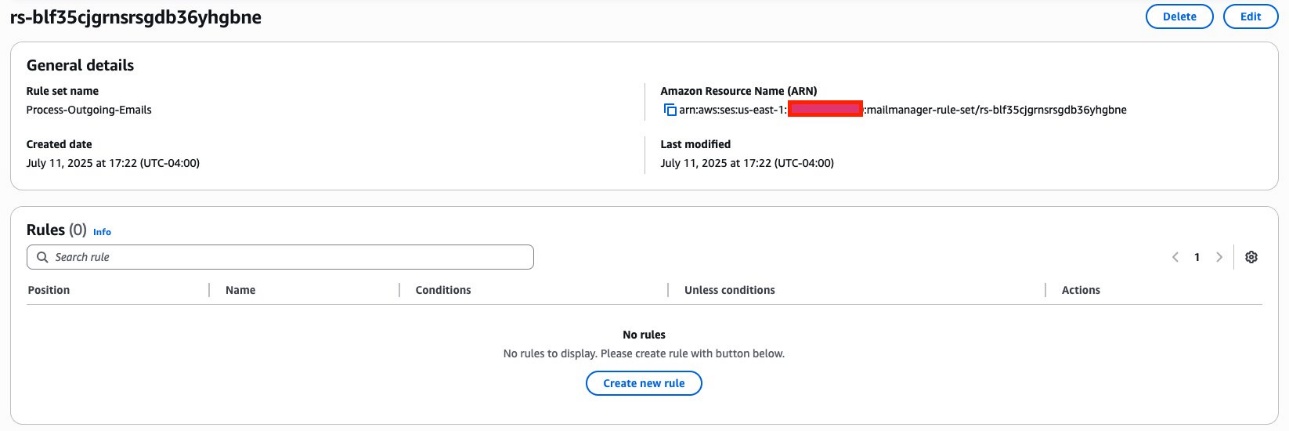
Rule sets define how your emails are processed after they pass through your traffic policy. In this example, the rule set establishes a sequential email processing workflow. First, you will perform email scanning (marking and segregating spam emails while allowing clean ones to proceed) and archiving outgoing messages, then finally delivering clean messages to recipients. To create a rule set:

  1. Open the Amazon SES console.
  2. Go to Mail Manager and choose Rule sets.
  3. Choose Create rule set.
  4. Enter a unique name for your rule set.
  5. On the rule set’s overview page, choose Edit, then choose Create new rule

Step 7: Create rules

After creating your rule set, you’ll need to add rules that define how your emails are processed. Follow these steps to create and configure your rules:

  1. On the rule set’s overview page, choose Edit, then Create new rule.
  2. In the Rule details sidebar, enter a unique name for your rule.
  3. Add conditions or exceptions as needed:
    1. Select Add new condition to specify what messages the rule applies to.
    2. Select EXCEPT in the case of and select Add new exception for exclusions.
  4. Configure actions by choosing Add new action.
    1. For multiple actions, use the up and down arrows to set the execution order.
  5. When finished creating your rules, choose Save rule set to apply your changes.

Rule 1: Scan and isolate malicious content

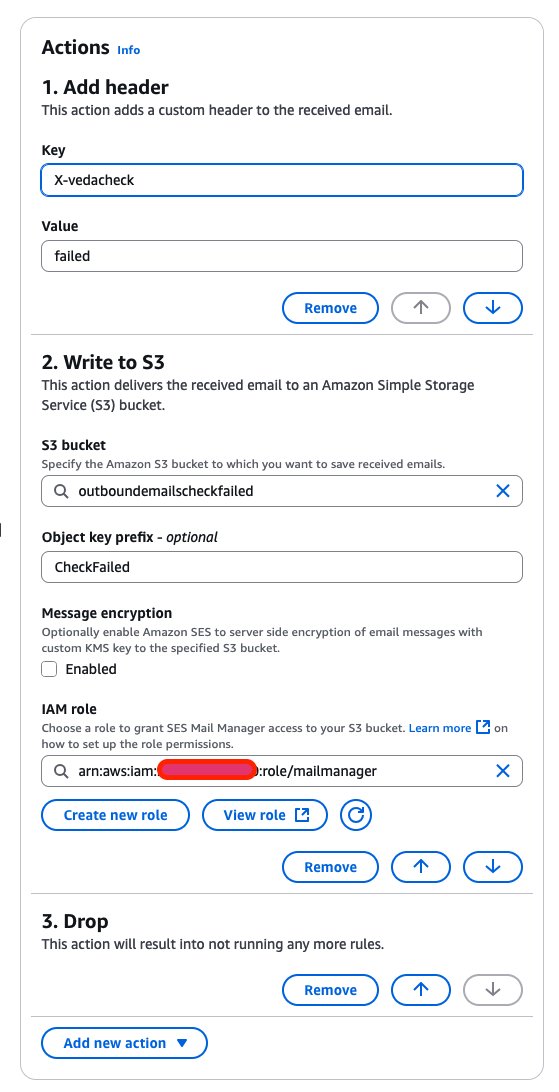
This rule targets emails flagged by Vade Advanced Email Security as potentially harmful. It applies to messages identified as scams, suspect content, phishing attempts, or containing malware. When a message is flagged as malicious, the rule marks it with a custom header, stores a copy in Amazon S3 for investigation, and prevents it from reaching recipients. An exception allows emails with Action required in the subject line to bypass this security check.

Use the following settings to create and configure Rule 1:

  • Rule name: Scan and isolate
  • Conditions:
    • Property: Select Verdict (Vade Advanced Email Security).
    • Operator: Select Equals.
    • Value: Select scam, suspect, phishing, and malware.
  • Actions:
    • Add header: For Key, enter X-vedacheck and for Value, enter failed.
    • Write to S3: Enter the name of an S3 bucket to store the message for investigation.
    • Drop: Stop processing the message.

Rule 2: Archive and send clean emails to recipients

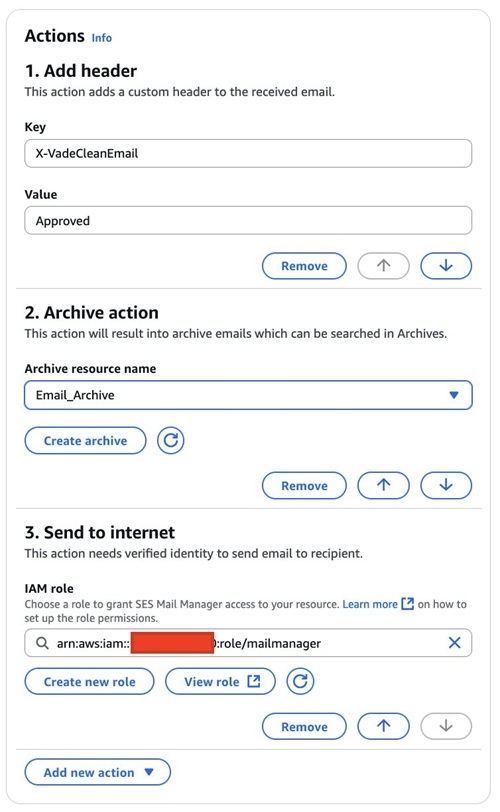
This final rule processes messages that have successfully passed through the previous security checks. With no additional conditions, it forwards clean emails to their intended recipients, completing the secure email delivery workflow for the university’s communication system. Use the following settings to create and configure Rule 2:

  • Rule name: SendEmail
  • Action:
    • Add header: For Key , enter Add X-vedacheck with a Value of Approved.
    • Archive resource name: Select your Mail Manager archive (Email_Archive)
    • Send to internet: Send email to intended recipient.

The workflow makes sure that:

  • All outbound emails are securely archived
  • Each email undergoes scanning
  • Scan results are documented in email headers
  • Clean emails are delivered to their intended recipients

Step 8 : Store password in AWS Secrets Manager for the ingress endpoint

Before creating an ingress endpoint, you need to set up a password in AWS Secrets Manager:

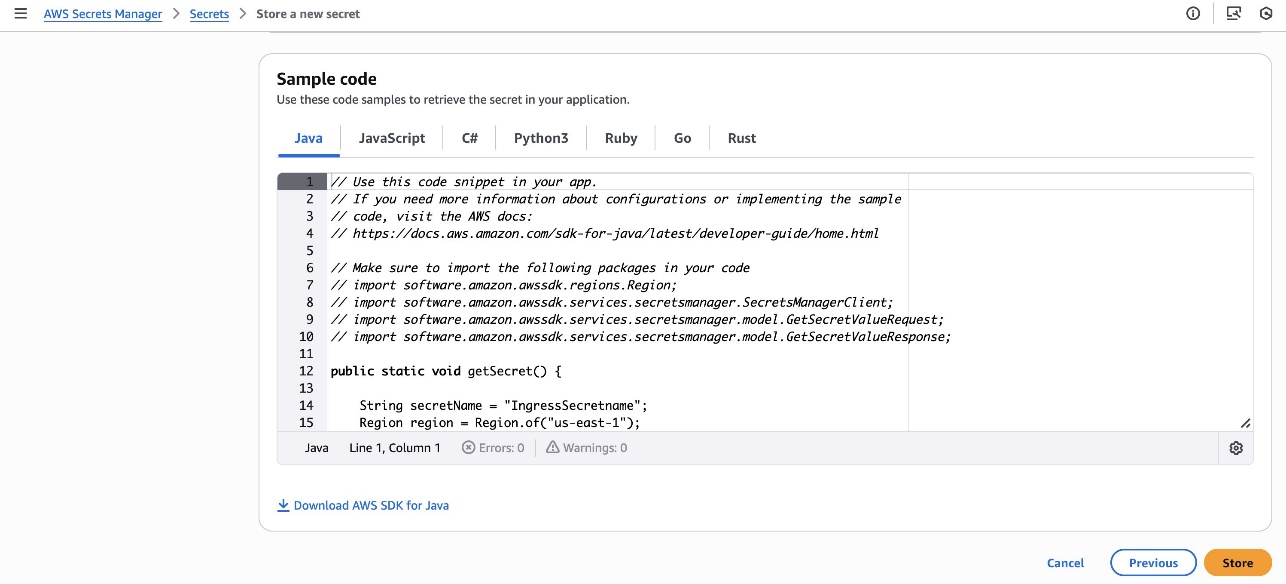
  1. Go to the AWS Secrets Manager console and choose Store a new secret.
  2. Select Other type of secret.
  3. Enter password as the key and your desired password as the value.
  4. For Encryption key: Use a custom KMS key (not AWS managed keys).
    1. KMS customer managed key (CMK) key policy for ingress endpoint. Replace XXXXXXXXXXX with your AWS account ID.
{
    "Effect": "Allow",
    "Principal": {
        "Service": "ses.amazonaws.com"
    },
    "Action": "kms:Decrypt",
    "Resource": "*",
    "Condition": {
        "StringEquals": {
           "kms:ViaService": "secretsmanager.us-east-1.amazonaws.com",
            "aws:SourceAccount": "XXXXXXXXXXX"
        },
        "ArnLike": {
            "aws:SourceArn": "arn:aws:ses:us-east-1:XXXXXXXXXXX:mailmanager-ingress-point/*"
        }
    }
}
  1. Choose Next to proceed
  2. Enter a secret name and choose Edit permissions and update the resource policy. Replace XXXXXXXXXXX with your AWS account ID.
{
    "Version": "2012-10-17",
    "Id": "Id",
    "Statement": [
        {
            "Effect": "Allow",
            "Principal": {
                "Service": "ses.amazonaws.com"
            },
            "Action": "secretsmanager:GetSecretValue",
            "Resource": "*",
            "Condition": {
                "StringEquals": {
                    "aws:SourceAccount": "XXXXXXXXXXX"
                },
                "ArnLike": {
                    "aws:SourceArn": "arn:aws:ses:us-east-1:XXXXXXXXXXX:mailmanager-ingress-point/*"
                }
            }
        }
    ]
}
  1. Choose Next and create your secret

For step-by-step guidance, see the Developer guide for Ingress endpoints.

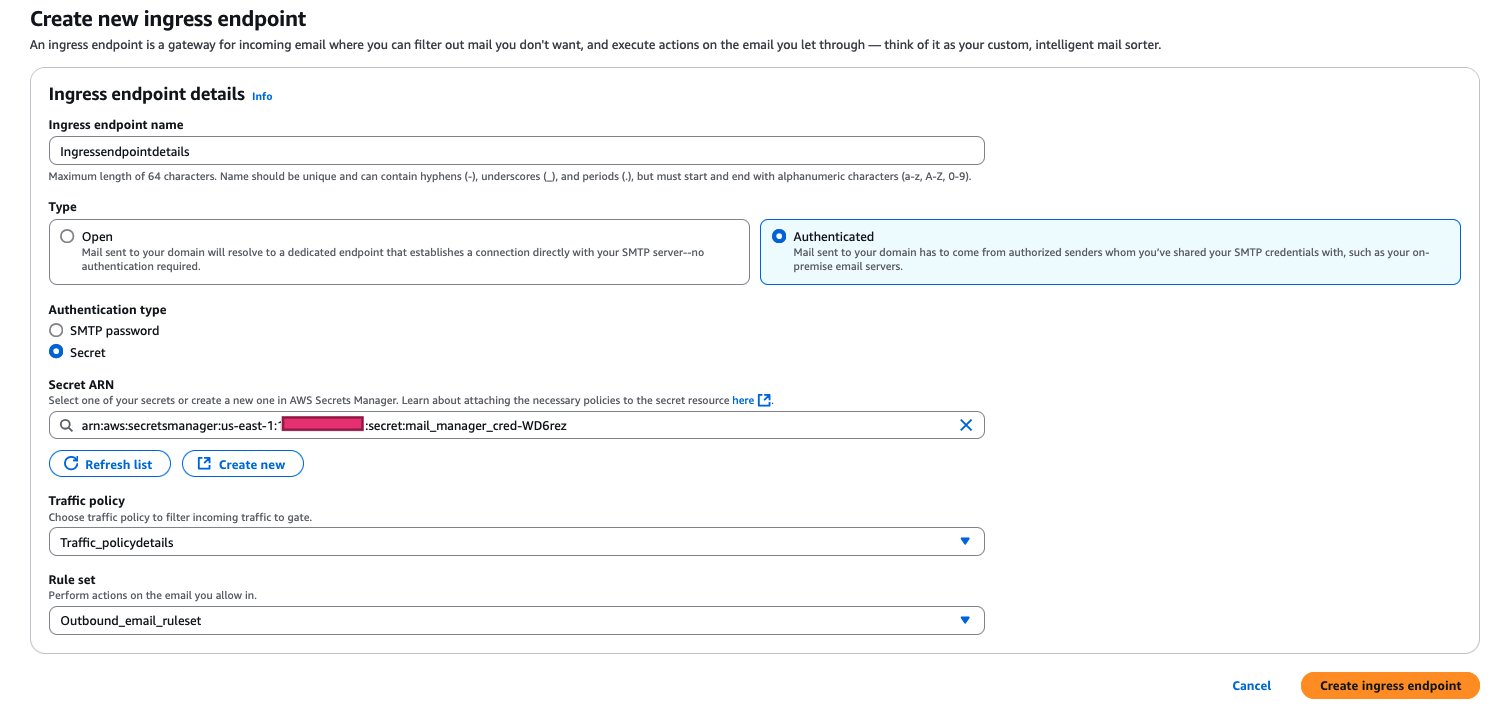
Step 9: Create an authenticated ingress endpoint

Now that you’ve created your traffic policy, rule set, and stored your credentials, you can create the ingress endpoint:

  1. In the Amazon SES console, choose Mail Manager and then choose Ingress endpoints.
  2. Choose Create ingress endpoint.
  3. Configure your endpoint:
    1. Select the Traffic policy you created earlier.
    2. Select the Rule set you created earlier.
    3. Enter a unique name for your endpoint.
    4. For authentication, select the Secret ARN you created in Secrets Manager.
  4. Choose Create ingress endpoint.

After your ingress endpoint is created, note down the following details from the General details section:
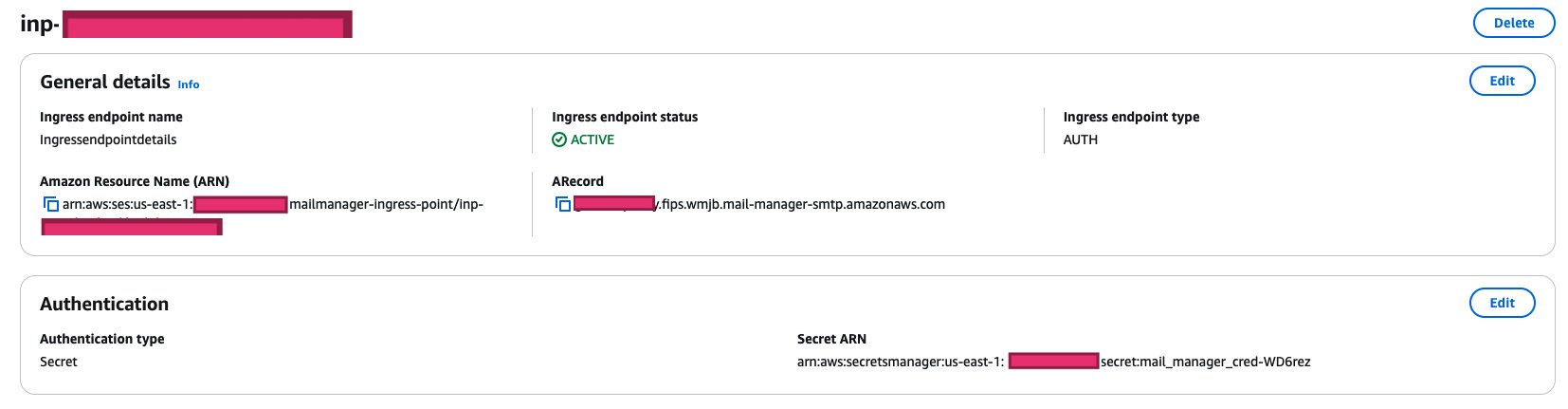
  • Amazon Resource Name (ARN): arn:aws:ses:us-east-1:XXXXXXXXXXX:mailmanager-ingress-point/inp-XXXXXXXXXXXX
  • Username: inp-XXXXXXXXXXXX
  • Host: XXXXXXXXX.fips.wmjb.mail-manager-smtp.amazonaws.com (ARecord)

You’ll need these details when configuring your email client or application to send emails through this endpoint.

Step 10: Send email using an ingress endpoint

The following Python sample code can be executed from your local machine with the appropriate AWS credentials, but for this post you’ll run the script from the AWS CloudShell terminal from within the Amazon SES console. When running the sample Python code, the email will pass through an ingress endpoint and, if all policies are met, the email will be sent to the recipient’s email address.

Running the Python script in CloudShell

  1. Sign in to the console and open CloudShell.
  2. Create the script file and paste the following Python code into the editor.
nano send_email.py
  1. Paste the following Python code:
import smtplib, boto3, json, logging
from email.mime.text import MIMEText
from email.mime.multipart import MIMEMultipart
from botocore.exceptions import ClientError

# Configure logging
logging.basicConfig(level=logging.INFO, format='%(asctime)s - %(levelname)s - %(message)s')
logger = logging.getLogger(__name__)

def get_secret(secret_name, region_name="us-east-1"):
    """Retrieve secret from AWS Secrets Manager"""
    try:
        secrets_client = boto3.session.Session().client('secretsmanager', region_name=region_name)
        logger.info(f"Connecting to AWS Secrets Manager in region {region_name}")
        response = secrets_client.get_secret_value(SecretId=secret_name)
        
        if 'SecretString' in response:
            logger.info("Successfully retrieved credentials from Secrets Manager")
            return json.loads(response['SecretString'])
        else:
            logger.error("No SecretString found in the response")
            raise ValueError("No SecretString found in the response")
    except Exception as e:
        logger.error(f"Error retrieving secret: {str(e)}")
        raise

def send_email(region_name="us-east-1"):
    try:
        # Fetch SMTP credentials from Secrets Manager
        smtp_secrets = get_secret('SES_Ingress_Endpoint_Credentials', region_name)
        
        # SMTP Configuration
        INGRESS_SERVER = 'XXXXXXXXXXX.fips.wmjb.mail-manager-smtp.amazonaws.com'
        INGRESS_PORT = 587
        INGRESS_USERNAME = 'inp-XXXXXXXXXXX'
        INGRESS_PASSWORD = smtp_secrets.get('password')
        
        # Email details
        sender = '[email protected]'
        recipient = '[email protected]'
        subject = 'Sent via SES Mail Manager'
        body = "Successfully passed through SES Mail Manager and Email Archived successfully"
        
        # Create message
        msg = MIMEMultipart()
        msg['From'], msg['To'], msg['Subject'] = sender, recipient, subject
        msg.attach(MIMEText(body, 'plain'))
        
        # Send email
        logger.info(f"Connecting to SMTP server {INGRESS_SERVER}:{INGRESS_PORT}...")
        with smtplib.SMTP(INGRESS_SERVER, INGRESS_PORT) as mail:
            mail.ehlo()
            mail.starttls()
            mail.login(INGRESS_USERNAME, INGRESS_PASSWORD)
            mail.send_message(msg)
            logger.info(f"Email successfully sent to {recipient}")
        
        return {'statusCode': 200, 'message': 'Email sent successfully'}
            
    except Exception as e:
        error_msg = f"Error: {str(e)}"
        logger.error(error_msg)
        return {'statusCode': 500, 'message': error_msg}

if __name__ == "__main__":
    result = send_email("us-east-1")
    print(json.dumps(result, indent=2))
  1. Replace all placeholders
    1. INGRESS_SERVER = XXXXXXXXXXX.fips.wmjb.mail-manager-smtp.amazonaws.com is your ingress endpoint hostname.
    2. INGRESS_PORT = Supported ports: 25, 587
    3. INGRESS_USERNAME = inp-XXXXXXXXXXXX is your ingress endpoint username.
    4. Recipient and sender= [email protected] is your verified sender and recipient email addresses.
  2. Save the file.
  3. Run the script:
python3 send_email.py
  1. Verify the results:
    1. Check the recipient’s inbox for the email.
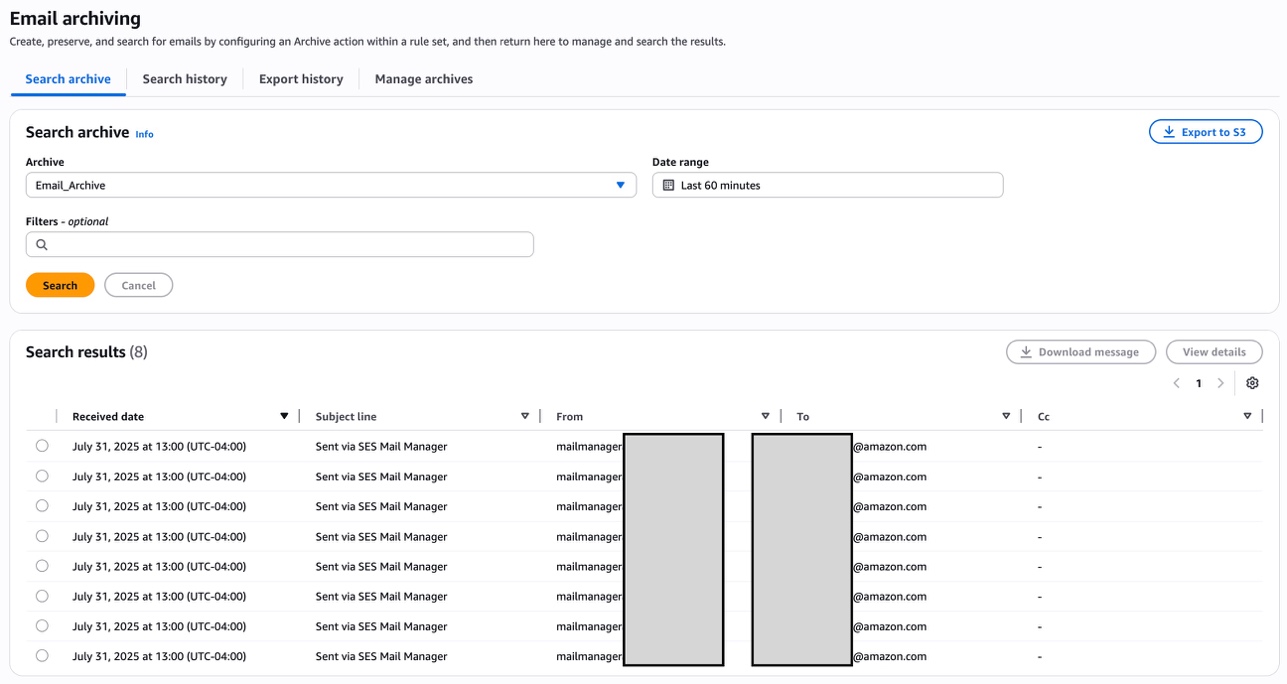
    2. Check the Mail Manager archive to confirm the message was archived.

To search the Mail Manager archive for the specific message sent by the Python script:

  1. Navigate to the Amazon SES console and choose Mail Manager.
  2. Under Email Archiving, choose the Search archive tab.
  3. Under Archive, select the archive you created and choose Search. This should return all the emails you have sent.

Clean up

Clean up your AWS environment by removing all resources created during this walkthrough, including Mail Manager configurations, S3 buckets, secrets, and any associated Lambda functions.

Conclusion

In this post, we’ve demonstrated the implementation of sophisticated traffic policies, multi-layered rule systems, and automated archiving capabilities—all seamlessly integrated into a scalable architecture. The ability of Amazon SES Mail Manager to enforce TLS requirements, conduct email scanning, and maintain searchable archives while providing programmatic access through ingress endpoints makes it an invaluable tool for organizations seeking to modernize their email infrastructure.As businesses continue to rely heavily on email communication, Amazon SES Mail Manager emerges as a powerful ally, helping organizations navigate the complexities of modern digital correspondence while ensuring rock-solid security, seamless compliance, and optimal efficiency.

References:


About the authors