systemd for Administrators, Part XIII

Post Syndicated from Lennart Poettering original https://0pointer.net/blog/projects/systemctl-journal.html

Here’s
the thirteenth installment
of

my ongoing series
on
systemd
for
Administrators:

Log and Service Status

This one is a short episode. One of the most commonly used commands
on a systemd
system is systemctl status which may be used to determine the
status of a service (or other unit). It always has been a valuable
tool to figure out the processes, runtime information and other meta
data of a daemon running on the system.

With Fedora 17 we introduced the
journal
, our new logging scheme that provides structured, indexed
and reliable logging on systemd systems, while providing a certain
degree of compatibility with classic syslog implementations. The
original reason we started to work on the journal was one specific
feature idea, that to the outsider might appear simple but without the
journal is difficult and inefficient to implement: along with the
output of systemctl status we wanted to show the last 10 log
messages of the daemon. Log data is some of the most essential bits of
information we have on the status of a service. Hence it it is an
obvious choice to show next to the general status of the
service.

And now to make it short: at the same time as we integrated the
journal into systemd and Fedora we also hooked up
systemctl with it. Here’s an example output:

$ systemctl status avahi-daemon.service
avahi-daemon.service - Avahi mDNS/DNS-SD Stack
	  Loaded: loaded (/usr/lib/systemd/system/avahi-daemon.service; enabled)
	  Active: active (running) since Fri, 18 May 2012 12:27:37 +0200; 14s ago
	Main PID: 8216 (avahi-daemon)
	  Status: "avahi-daemon 0.6.30 starting up."
	  CGroup: name=systemd:/system/avahi-daemon.service
		  ├ 8216 avahi-daemon: running [omega.local]
		  └ 8217 avahi-daemon: chroot helper

May 18 12:27:37 omega avahi-daemon[8216]: Joining mDNS multicast group on interface eth1.IPv4 with address 172.31.0.52.
May 18 12:27:37 omega avahi-daemon[8216]: New relevant interface eth1.IPv4 for mDNS.
May 18 12:27:37 omega avahi-daemon[8216]: Network interface enumeration completed.
May 18 12:27:37 omega avahi-daemon[8216]: Registering new address record for 192.168.122.1 on virbr0.IPv4.
May 18 12:27:37 omega avahi-daemon[8216]: Registering new address record for fd00::e269:95ff:fe87:e282 on eth1.*.
May 18 12:27:37 omega avahi-daemon[8216]: Registering new address record for 172.31.0.52 on eth1.IPv4.
May 18 12:27:37 omega avahi-daemon[8216]: Registering HINFO record with values 'X86_64'/'LINUX'.
May 18 12:27:38 omega avahi-daemon[8216]: Server startup complete. Host name is omega.local. Local service cookie is 3555095952.
May 18 12:27:38 omega avahi-daemon[8216]: Service "omega" (/services/ssh.service) successfully established.
May 18 12:27:38 omega avahi-daemon[8216]: Service "omega" (/services/sftp-ssh.service) successfully established.

This, of course, shows the status of everybody’s favourite
mDNS/DNS-SD daemon with a list of its processes, along with — as
promised — the 10 most recent log lines. Mission accomplished!

There are a couple of switches available to alter the output
slightly and adjust it to your needs. The two most interesting
switches are -f to enable follow mode (as in tail
-f
) and -n to change the number of lines to show (you
guessed it, as in tail -n).

The log data shown comes from three sources: everything any of the
daemon’s processes logged with libc’s syslog() call,
everything submitted using the native Journal API, plus everything any
of the daemon’s processes logged to STDOUT or STDERR. In short:
everything the daemon generates as log data is collected, properly
interleaved and shown in the same format.

And that’s it already for today. It’s a very simple feature, but an
immensely useful one for every administrator. One of the kind “Why didn’t
we already do this 15 years ago?”.

Stay tuned for the next installment!

Boot & Base OS Miniconf at Linux Plumbers Conference 2012, San Diego

Post Syndicated from Lennart Poettering original https://0pointer.net/blog/projects/lpc2012.html

Linux Plumbers Conference Logo

We are working on putting together a miniconf on
the topic of Boot & Base OS
for the Linux Plumbers Conference 2012 in San
Diego (Aug 29-31). And we need your submission!

Are you working on some exciting project related to Boot and Base OS and
would like to present your work? Then please submit something following
these guidelines
, but please CC Kay Sievers and Lennart Poettering.

I hope that at this point the Linux Plumbers Conference
needs little introduction, so I will spare any further prose on how great and
useful and the best conference ever it is for everybody who works on the plumbing
layer of Linux. However, there’s one conference that will be co-located with
LPC that is still little known, because it happens for the first time: The C Conference, organized by Brandon Philips
and friends. It covers all things C, and they are still looking for more
topics, in a reverse CFP. Please
consider submitting a proposal and registering to the conference!

C
Conference Logo

The Most Awesome, Least-Advertised Fedora 17 Feature

Post Syndicated from Lennart Poettering original https://0pointer.net/blog/projects/multi-seat.html

There’s one feature In the upcoming Fedora 17 release that is
immensly useful but very little known, since its feature page
‘ckremoval’
does not explicitly refer to it in its name: true
automatic multi-seat support for Linux.

A multi-seat computer is a system that offers not only one local
seat for a user, but multiple, at the same time. A seat refers to a
combination of a screen, a set of input devices (such as mice and
keyboards), and maybe an audio card or webcam, as individual local
workplace for a user. A multi-seat computer can drive an entire class
room of seats with only a fraction of the cost in hardware, energy,
administration and space: you only have one PC, which usually has way
enough CPU power to drive 10 or more workplaces. (In fact, even a
Netbook has fast enough to drive a couple of seats!) Automatic
multi-seat
refers to an entirely automatically managed seat setup:
whenever a new seat is plugged in a new login screen immediately
appears — without any manual configuration –, and when the seat is
unplugged all user sessions on it are removed without delay.

In Fedora 17 we added this functionality to the low-level user and
device tracking of systemd, replacing the previous ConsoleKit logic
that lacked support for automatic multi-seat. With all the ground work
done in systemd, udev and the other components of our plumbing layer
the last remaining bits were surprisingly easy to add.

Currently, the automatic multi-seat logic works best with the USB
multi-seat hardware from Plugable
you can buy cheaply on Amazon
(US)
. These devices require exactly zero configuration with the
new scheme implemented in Fedora 17: just plug them in at any time,
login screens pop up on them, and you have your additional
seats. Alternatively you can also assemble your seat manually with a
few easy loginctl
attach
commands, from any kind of hardware you might have lying
around. To get a full seat you need multiple graphics cards, keyboards
and mice: one set for each seat. (Later on we’ll probably have a graphical
setup utility for additional seats, but that’s not a pressing issue we
believe, as the plug-n-play multi-seat support with the Plugable
devices is so awesomely nice.)

Plugable provided us for free with hardware for testing
multi-seat. They are also involved with the upstream development of
the USB DisplayLink driver for Linux. Due to their positive
involvement with Linux we can only recommend to buy their
hardware. They are good guys, and support Free Software the way all
hardware vendors should! (And besides that, their hardware is also
nicely put together. For example, in contrast to most similar vendors
they actually assign proper vendor/product IDs to their USB hardware
so that we can easily recognize their hardware when plugged in to set
up automatic seats.)

Currently, all this magic is only implemented in the GNOME stack
with the biggest component getting updated being the GNOME Display
Manager. On the Plugable USB hardware you get a full GNOME Shell
session with all the usual graphical gimmicks, the same way as on any
other hardware. (Yes, GNOME 3 works perfectly fine on simpler graphics
cards such as these USB devices!) If you are hacking on a different
desktop environment, or on a different display manager, please have a
look at the
multi-seat documentation
we put together, and particularly at
our short piece about writing
display managers
which are multi-seat capable.

If you work on a major desktop environment or display manager and
would like to implement multi-seat support for it, but lack the
aforementioned Plugable hardware, we might be able to provide you with
the hardware for free. Please contact us directly, and we might be
able to send you a device. Note that we don’t have unlimited devices
available, hence we’ll probably not be able to pass hardware to
everybody who asks, and we will pass the hardware preferably to people
who work on well-known software or otherwise have contributed good
code to the community already. Anyway, if in doubt, ping us, and
explain to us why you should get the hardware, and we’ll consider you!
(Oh, and this not only applies to display managers, if you hack on some other
software where multi-seat awareness would be truly useful, then don’t
hesitate and ping us!)

Phoronix has this
story about this new multi-seat
support which is quite interesting and
full of pictures. Please have a look.

Plugable started a Pledge
drive
to lower the price of the Plugable USB multi-seat terminals
further. It’s full of pictures (and a video showing all this in action!), and uses the code we now make
available in Fedora 17 as base. Please consider pledging a few
bucks.

Recently David Zeuthen added
multi-seat support to udisks
as well. With this in place, a user
logged in on a specific seat can only see the USB storage plugged into
his individual seat, but does not see any USB storage plugged into any
other local seat. With this in place we closed the last missing bit of
multi-seat support in our desktop stack.

With this code in Fedora 17 we cover the big use cases of
multi-seat already: internet cafes, class rooms and similar
installations can provide PC workplaces cheaply and easily without any
manual configuration. Later on we want to build on this and make this
useful for different uses too: for example, the ability to get a login
screen as easily as plugging in a USB connector makes this not useful
only for saving money in setups for many people, but also in embedded
environments (consider monitoring/debugging screens made available via
this hotplug logic) or servers (get trivially quick local access to
your otherwise head-less server). To be truly useful in these areas we
need one more thing though: the ability to run a simply getty
(i.e. text login) on the seat, without necessarily involving a
graphical UI.

The well-known X successor Wayland already comes out of the box with multi-seat
support based on this logic.

Oh, and BTW, as Ubuntu appears to be “focussing” on “clarity” in the
“cloud” now ;-), and chose Upstart instead of systemd, this feature
won’t be available in Ubuntu any time soon. That’s (one detail of) the
price Ubuntu has to pay for choosing to maintain it’s own (largely
legacy, such as ConsoleKit) plumbing stack.

Multi-seat has a long history on Unix. Since the earliest days Unix
systems could be accessed by multiple local terminals at the same
time. Since then local terminal support (and hence multi-seat)
gradually moved out of view in computing. The fewest machines these
days have more than one seat, the concept of terminals survived almost
exclusively in the context of PTYs (i.e. fully virtualized API
objects, disconnected from any real hardware seat) and VCs (i.e. a
single virtualized local seat), but almost not in any other way (well,
server setups still use serial terminals for emergency remote access,
but they almost never have more than one serial terminal). All what we
do in systemd is based on the ideas originally brought forward in
Unix; with systemd we now try to bring back a number of the good ideas
of Unix that since the old times were lost on the roadside. For
example, in true Unix style we already started to expose the concept
of a service in the file system (in
/sys/fs/cgroup/systemd/system/), something where on Linux the
(often misunderstood) “everything is a file” mantra previously
fell short. With automatic multi-seat support we bring back support
for terminals, but updated with all the features of today’s desktops:
plug and play, zero configuration, full graphics, and not limited to
input devices and screens, but extending to all kinds of devices, such
as audio, webcams or USB memory sticks.

Anyway, this is all for now; I’d like to thank everybody who was
involved with making multi-seat work so nicely and natively on the
Linux platform. You know who you are! Thanks a ton!

systemd Status Update

Post Syndicated from Lennart Poettering original https://0pointer.net/blog/projects/systemd-update-3.html

It
has been way too long since my last status update on
systemd
. Here’s another short, incomprehensive status update on
what we worked on for systemd since
then.

We have been working hard to turn systemd into the most viable set
of components to build operating systems, appliances and devices from,
and make it the best choice for servers, for desktops and for embedded
environments alike. I think we have a really convincing set of
features now, but we are actively working on making it even
better.

Here’s a list of some more and some less interesting features, in
no particular order:

  1. We added an automatic pager to systemctl (and related tools), similar
    to how git has it.
  2. systemctl learnt a new switch --failed, to show only
    failed services.
  3. You may now start services immediately, overrding all dependency
    logic by passing --ignore-dependencies to
    systemctl. This is mostly a debugging tool and nothing people
    should use in real life.
  4. Sending SIGKILL as final part of the implicit shutdown
    logic of services is now optional and may be configured with the
    SendSIGKILL= option individually for each service.
  5. We split off the Vala/Gtk tools into its own project systemd-ui.
  6. systemd-tmpfiles learnt file globbing and creating FIFO
    special files as well as character and block device nodes, and
    symlinks. It also is capable of relabelling certain directories at
    boot now (in the SELinux sense).
  7. Immediately before shuttding dow we will now invoke all binaries
    found in /lib/systemd/system-shutdown/, which is useful for
    debugging late shutdown.
  8. You may now globally control where STDOUT/STDERR of services goes
    (unless individual service configuration overrides it).
  9. There’s a new ConditionVirtualization= option, that makes
    systemd skip a specific service if a certain virtualization technology
    is found or not found. Similar, we now have a new option to detect
    whether a certain security technology (such as SELinux) is available,
    called ConditionSecurity=. There’s also
    ConditionCapability= to check whether a certain process
    capability is in the capability bounding set of the system. There’s
    also a new ConditionFileIsExecutable=,
    ConditionPathIsMountPoint=,
    ConditionPathIsReadWrite=,
    ConditionPathIsSymbolicLink=.
  10. The file system condition directives now support globbing.
  11. Service conditions may now be “triggering” and “mandatory”, meaning that
    they can be a necessary requirement to hold for a service to start, or
    simply one trigger among many.
  12. At boot time we now print warnings if: /usr
    is on a split-off partition but not already mounted by an initrd
    ;
    if /etc/mtab is not a symlink to /proc/mounts; CONFIG_CGROUPS
    is not enabled in the kernel
    . We’ll also expose this as
    tainted flag on the bus.
  13. You may now boot the same OS image on a bare metal machine and in
    Linux namespace containers and will get a clean boot in both
    cases. This is more complicated than it sounds since device management
    with udev or write access to /sys, /proc/sys or
    things like /dev/kmsg is not available in a container. This
    makes systemd a first-class choice for managing thin container
    setups. This is all tested with systemd’s own systemd-nspawn
    tool but should work fine in LXC setups, too. Basically this means
    that you do not have to adjust your OS manually to make it work in a
    container environment, but will just work out of the box. It also
    makes it easier to convert real systems into containers.
  14. We now automatically spawn gettys on HVC ttys when booting in VMs.
  15. We introduced /etc/machine-id as a generalization of
    D-Bus machine ID logic. See this
    blog story for more information
    . On stateless/read-only systems
    the machine ID is initialized randomly at boot. In virtualized
    environments it may be passed in from the machine manager (with qemu’s
    -uuid switch, or via the container
    interface
    ).
  16. All of the systemd-specific /etc/fstab mount options are
    now in the x-systemd-xyz format.
  17. To make it easy to find non-converted services we will now
    implicitly prefix all LSB and SysV init script descriptions with the
    strings “LSB:” resp. “SYSV:“.
  18. We introduced /run and made it a hard dependency of
    systemd. This directory is now widely accepted and implemented on all
    relevant Linux distributions.
  19. systemctl can now execute all its operations remotely too (-H switch).
  20. We now ship systemd-nspawn,
    a really powerful tool that can be used to start containers for
    debugging, building and testing, much like chroot(1). It is useful to
    just get a shell inside a build tree, but is good enough to boot up a
    full system in it, too.
  21. If we query the user for a hard disk password at boot he may hit
    TAB to hide the asterisks we normally show for each key that is
    entered, for extra paranoia.
  22. We don’t enable udev-settle.service anymore, which is
    only required for certain legacy software that still hasn’t been
    updated to follow devices coming and going cleanly.
  23. We now include a tool that can plot boot speed graphs, similar to
    bootchartd, called systemd-analyze.
  24. At boot, we now initialize the kernel’s binfmt_misc logic with the data from /etc/binfmt.d.
  25. systemctl now recognizes if it is run in a chroot()
    environment and will work accordingly (i.e. apply changes to the tree
    it is run in, instead of talking to the actual PID 1 for this). It also has a new --root= switch to work on an OS tree from outside of it.
  26. There’s a new unit dependency type OnFailureIsolate= that
    allows entering a different target whenever a certain unit fails. For
    example, this is interesting to enter emergency mode if file system
    checks of crucial file systems failed.
  27. Socket units may now listen on Netlink sockets, special files
    from /proc and POSIX message queues, too.
  28. There’s a new IgnoreOnIsolate= flag which may be used to
    ensure certain units are left untouched by isolation requests. There’s
    a new IgnoreOnSnapshot= flag which may be used to exclude
    certain units from snapshot units when they are created.
  29. There’s now small mechanism services for
    changing the local hostname and other host meta data
    , changing
    the system locale and console settings
    and the system
    clock
    .
  30. We now limit the capability bounding set for a number of our
    internal services by default.
  31. Plymouth may now be disabled globally with
    plymouth.enable=0 on the kernel command line.
  32. We now disallocate VTs when a getty finished running (and
    optionally other tools run on VTs). This adds extra security since it
    clears up the scrollback buffer so that subsequent users cannot get
    access to a user’s session output.
  33. In socket units there are now options to control the
    IP_TRANSPARENT, SO_BROADCAST, SO_PASSCRED,
    SO_PASSSEC socket options.
  34. The receive and send buffers of socket units may now be set larger
    than the default system settings if needed by using
    SO_{RCV,SND}BUFFORCE.
  35. We now set the hardware timezone as one of the first things in PID
    1, in order to avoid time jumps during normal userspace operation, and
    to guarantee sensible times on all generated logs. We also no longer
    save the system clock to the RTC on shutdown, assuming that this is
    done by the clock control tool when the user modifies the time, or
    automatically by the kernel if NTP is enabled.
  36. The SELinux directory got moved from /selinux to
    /sys/fs/selinux.
  37. We added a small service systemd-logind that keeps tracks
    of logged in users and their sessions. It creates control groups for
    them, implements the XDG_RUNTIME_DIR
    specification
    for them, maintains seats and device node ACLs and
    implements shutdown/idle inhibiting for clients. It auto-spawns gettys
    on all local VTs when the user switches to them (instead of starting
    six of them unconditionally), thus reducing the resource foot print by
    default. It has a D-Bus interface as well as a
    simple synchronous library interface
    . This mechanism obsoletes
    ConsoleKit which is now deprecated and should no longer be used.
  38. There’s now full, automatic multi-seat support, and this is
    enabled in GNOME 3.4. Just by pluging in new seat hardware you get a
    new login screen on your seat’s screen.
  39. There is now an option ControlGroupModify= to allow
    services to change the properties of their control groups dynamically,
    and one to make control groups persistent in the tree
    (ControlGroupPersistent=) so that they can be created and
    maintained by external tools.
  40. We now jump back into the initrd in shutdown, so that it can
    detach the root file system and the storage devices backing it. This
    allows (for the first time!) to reliably undo complex storage setups
    on shutdown and leave them in a clean state.
  41. systemctl now supports presets, a way for distributions and
    administrators to define their own policies on whether services should
    be enabled or disabled by default on package installation.
  42. systemctl now has high-level verbs for masking/unmasking
    units. There’s also a new command (systemctl list-unit-files)
    for determining the list of all installed unit file files and whether
    they are enabled or not.
  43. We now apply sysctl variables to each new network device, as it
    appears. This makes /etc/sysctl.d compatible with hot-plug
    network devices.
  44. There’s limited profiling for SELinux start-up perfomance built
    into PID 1.
  45. There’s a new switch PrivateNetwork=
    to turn of any network access for a specific service.
  46. Service units may now include configuration for control group
    parameters. A few (such as MemoryLimit=) are exposed with
    high-level options, and all others are available via the generic
    ControlGroupAttribute= setting.
  47. There’s now the option to mount certain cgroup controllers
    jointly at boot. We do this now for cpu and
    cpuacct by default.
  48. We added the
    journal
    and turned it on by default.
  49. All service output is now written to the Journal by default,
    regardless whether it is sent via syslog or simply written to
    stdout/stderr. Both message streams end up in the same location and
    are interleaved the way they should. All log messages even from the
    kernel and from early boot end up in the journal. Now, no service
    output gets unnoticed and is saved and indexed at the same
    location.
  50. systemctl status will now show the last 10 log lines for
    each service, directly from the journal.
  51. We now show the progress of fsck at boot on the console,
    again. We also show the much loved colorful [ OK ] status
    messages at boot again, as known from most SysV implementations.
  52. We merged udev into systemd.
  53. We implemented and documented interfaces to container
    managers
    and initrds
    for passing execution data to systemd. We also implemented and
    documented an
    interface for storage daemons that are required to back the root file
    system
    .
  54. There are two new options in service files to propagate reload requests between several units.
  55. systemd-cgls won’t show kernel threads by default anymore, or show empty control groups.
  56. We added a new tool systemd-cgtop that shows resource
    usage of whole services in a top(1) like fasion.
  57. systemd may now supervise services in watchdog style. If enabled
    for a service the daemon daemon has to ping PID 1 in regular intervals
    or is otherwise considered failed (which might then result in
    restarting it, or even rebooting the machine, as configured). Also,
    PID 1 is capable of pinging a hardware watchdog. Putting this
    together, the hardware watchdogs PID 1 and PID 1 then watchdogs
    specific services. This is highly useful for high-availability servers
    as well as embedded machines. Since watchdog hardware is noawadays
    built into all modern chipsets (including desktop chipsets), this
    should hopefully help to make this a more widely used
    functionality.
  58. We added support for a new kernel command line option
    systemd.setenv= to set an environment variable
    system-wide.
  59. By default services which are started by systemd will have SIGPIPE
    set to ignored. The Unix SIGPIPE logic is used to reliably implement
    shell pipelines and when left enabled in services is usually just a
    source of bugs and problems.
  60. You may now configure the rate limiting that is applied to
    restarts of specific services. Previously the rate limiting parameters
    were hard-coded (similar to SysV).
  61. There’s now support for loading the IMA integrity policy into the
    kernel early in PID 1, similar to how we already did it with the
    SELinux policy.
  62. There’s now an official API to schedule and query scheduled shutdowns.
  63. We changed the license from GPL2+ to LGPL2.1+.
  64. We made systemd-detect-virt
    an official tool in the tool set. Since we already had code to detect
    certain VM and container environments we now added an official tool
    for administrators to make use of in shell scripts and suchlike.
  65. We documented numerous
    interfaces
    systemd introduced.

Much of the stuff above is already available in Fedora 15 and 16,
or will be made available in the upcoming Fedora 17.

And that’s it for now. There’s a lot of other stuff in the git commits, but
most of it is smaller and I will it thus spare you.

I’d like to thank everybody who contributed to systemd over the past years.

Thanks for your interest!

Control Groups vs. Control Groups

Post Syndicated from Lennart Poettering original https://0pointer.net/blog/projects/cgroups-vs-cgroups.html

TL;DR: systemd does not
require the performance-sensitive bits of Linux control groups enabled in the kernel.
However, it does require some non-performance-sensitive bits of the control
group logic.

In some areas of the community there’s still some confusion about Linux
control groups and their performance impact, and what precisely it is that
systemd requires of them. In the hope to clear this up a bit, I’d like to point
out a few things:

Control Groups are two things: (A) a way to hierarchally group and
label processes
, and (B) a way to then apply resource limits
to these groups. systemd only requires the former (A), and not the latter (B).
That means you can compile your kernel without any control group resource
controllers (B) and systemd will work perfectly on it. However, if you in
addition disable the grouping feature entirely (A) then systemd will loudly
complain at boot and proceed only reluctantly with a big warning and in a
limited functionality mode.

At compile time, the grouping/labelling feature in the kernel is enabled by
CONFIG_CGROUPS=y, the individual controllers by CONFIG_CGROUP_FREEZER=y,
CONFIG_CGROUP_DEVICE=y, CONFIG_CGROUP_CPUACCT=y, CONFIG_CGROUP_MEM_RES_CTLR=y,
CONFIG_CGROUP_MEM_RES_CTLR_SWAP=y, CONFIG_CGROUP_MEM_RES_CTLR_KMEM=y,
CONFIG_CGROUP_PERF=y, CONFIG_CGROUP_SCHED=y, CONFIG_BLK_CGROUP=y,
CONFIG_NET_CLS_CGROUP=y, CONFIG_NETPRIO_CGROUP=y. And since (as mentioned) we
only need the former (A), not the latter (B) you may disable all of the latter
options while enabling CONFIG_CGROUPS=y, if you want to run systemd on your
system.

What about the performance impact of these options? Well, every bit of code
comes at some price, so none of these options come entirely for free. However,
the grouping feature (A) alters the general logic very little, it just sticks
hierarchial labels on processes, and its impact is minimal since that is
usually not in any hot path of the OS. This is different for the various
controllers (B) which have a much bigger impact since they influence the resource
management of the OS and are full of hot paths. This means that the kernel
feature that systemd mandatorily requires (A) has a minimal effect on system
performance, but the actually performance-sensitive features of control groups
(B) are entirely optional.

On boot, systemd will mount all controller hierarchies it finds enabled
in the kernel to individual directories below /sys/fs/cgroup/. This is
the official place where kernel controllers are mounted to these days. The
/sys/fs/cgroup/ mount point in the kernel was created precisely for
this purpose. Since the control group controllers are a shared facility that
might be used by a number of different subsystems a few
projects have agreed on a set of rules in order to avoid that the various bits
of code step on each other’s toes when using these directories
.

systemd will also maintain its own, private, controller-less, named control
group hierarchy which is mounted to /sys/fs/cgroup/systemd/. This
hierarchy is private property of systemd, and other software should not try to
interfere with it. This hierarchy is how systemd makes use of the naming and
grouping feature of control groups (A) without actually requiring any kernel
controller enabled for that.

Now, you might notice that by default systemd does create per-service
cgroups in the “cpu” controller if it finds it enabled in the kernel. This is
entirely optional, however. We chose to make use of it by default to even out
CPU usage between system services. Example: On a traditional web server machine
Apache might end up having 100 CGI worker processes around, while MySQL only
has 5 processes running. Without the use of the “cpu” controller this means
that Apache all together ends up having 20x more CPU available than MySQL since
the kernel tries to provide every process with the same amount of CPU time. On
the other hand, if we add these two services to the “cpu” controller in
individual groups by default, Apache and MySQL get the same amount of CPU,
which we think is a good default.

Note that if the CPU controller is not enabled in the kernel systemd will not
attempt to make use of the “cpu” hierarchy as described above. Also, even if it is enabled in the kernel it
is trivial to tell systemd not to make use of it: Simply edit
/etc/systemd/system.conf and set DefaultControllers= to the
empty string.

Let’s discuss a few frequently heard complaints regarding systemd’s use of control groups:

  • systemd mounts all controllers to /sys/fs/cgroup/ even though
    my software requires it at /dev/cgroup/ (or some other place)!
    The
    standardization of /sys/fs/cgroup/ as mount point of the hierarchies
    is a relatively recent change in the kernel. Some software has not been updated
    yet for it. If you cannot change the software in question you are welcome to
    unmount the hierarchies from /sys/fs/cgroup/ and mount them wherever
    you need them instead. However, make sure to leave
    /sys/fs/cgroup/systemd/ untouched.
  • systemd makes use of the “cpu” hierarchy, but it should leave its dirty
    fingers from it!
    As mentioned above, just set the
    DefaultControllers= option of systemd to the empty string.
  • I need my two controllers “foo” and “bar” mounted into one hierarchy,
    but systemd mounts them in two!
    Use the JoinControllers= setting
    in /etc/systemd/system.conf to mount several controllers into a single
    hierarchy.
  • Control groups are evil and they make everything slower! Well,
    please read the text above and understand the difference between
    “control-groups-as-in-naming-and-grouping” (A) and “cgroups-as-in-controllers”
    (B). Then, please turn off all controllers in you kernel build (B) but leave
    CONFIG_CGROUPS=y (A) enabled.
  • I have heard some kernel developers really hate control groups
    and think systemd is evil because it requires them!
    Well, there are a
    couple of things behind the dislike of control groups by some folks.
    Primarily, this is probably caused because the hackers in question do not
    distuingish the naming-and-grouping bits of the control group logic (A) and the
    controllers that are based on it (B). Mainly, their beef is with the latter
    (which systemd does not require, which is the key point I am trying to make in
    the text above), but there are other issues as well: for example, the code of
    the grouping logic is not the most beautiful bit of code ever written by man
    (which is thankfully likely to get better now, since the control groups
    subsystem now has an active maintainer again). And then for some
    developers it is important that they can compare the runtime behaviour of many
    historic kernel versions in order to find bugs (git bisect). Since systemd
    requires kernels with basic control group support enabled, and this is a
    relatively recent feature addition to the kernel, this makes it difficult for
    them to use a newer distribution with all these old kernels
    that predate cgroups. Anyway, the summary is probably that what matters to
    developers is different from what matters to users and
    administrators.

I hope this explanation was useful for a reader or two! Thank you for your time!

Easy image sharing on OS X using Scrup

Post Syndicated from Laurie Denness original https://laur.ie/blog/2012/03/easy-image-sharing-scrup/

Nowadays, people are really into this whole “Skitch” thing, and being able to send images/screenshots to each other quickly. I’d been doing the same thing with TinyGrab for a long time, but I like to host things myself. Yes, TinyGrab has the ability to upload to your own server… but it uses FTP. This was causing me no end of issues, so I sought out something else.

I found Scrup, and I’ve been using it for the last year or so very happily. It’s open source, and has been hanging around on Github for 2 years now. There are some pretty sweet forks of it, including one that has support for a sound on upload completion, and Growl notifications too.

What does Scrup do?

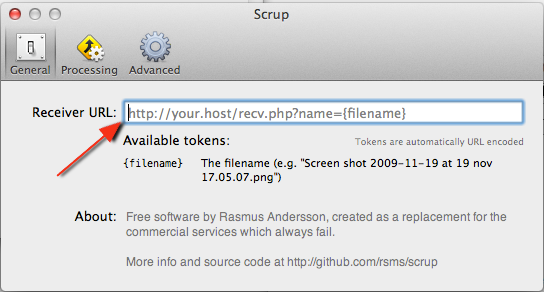
So, you need to share an image, or a screenshot really quickly? Using the standard OS X screenshot features (Command + Shift + 4, and so on), you can hit one button and upload the image to your webserver and put the link to it into your clipboard ready for pasting anywhere.

It does also have the ability to edit the screenshot pre-upload (such as adding arrows to point to important, or awesome things)

What you need

  • A server somewhere with some disk space
  • PHP 5
  • A webserver

How?

  1. Install the Scrup.app onto your Mac. I have a pre-compiled a version with the sound and Growl patch included. You don’t have to use mine, you can compile it yourself using Xcode if you wish. (The source is on github here: https://github.com/rsms/scrup)
  2. Create a folder on your webserver that you want to store your images in. I call mine “grb” (short for “grab”) because I like short URLs. (/var/www/grb/ -> http://laur.ie/grb/)
  3. In that folder, put a script that will receive the files, and then return the URL to where it stored the file. You can view the one I use here (modified from the one that ships with Scrup) which names files something like “1s-euobfpq1xcwos.png” and has no authentication (so make sure you go the security-by-obscurity route of naming the script something random or add auth yourself)
  4. Open Scrup, and point it at your upload script. For example, http://yourhost/grb/receiver.php?name={filename}
  5. Take screenshots! They should get uploaded and you should see a green tick in the menu bar. The URL of the uploaded image should also be in your clipboard, ready for pasting wherever.

The best thing about Scrup is that it has a simple, fast UI for just uploading things quickly, and because it uses a regular HTTP POST, it works on whatever weird internet connection you may be on.


/tmp or not /tmp?

Post Syndicated from Lennart Poettering original https://0pointer.net/blog/projects/tmp.html

A number of Linux distributions have recently switched (or started
switching) to /tmp on tmpfs by default (ArchLinux, Debian among
others). Other distributions have plans/are discussing doing the same (Ubuntu, OpenSUSE).
Since we believe this is a good idea and it’s good to keep the delta between
the distributions minimal we are proposing
the same for Fedora 18, too
. On Solaris a similar change has already been
implemented in 1994 (and other Unixes have made a similar change long ago,
too). Yet, not all of our software is written in a way that it works nicely
together with /tmp on tmpfs.

Another Fedora
feature (for Fedora 17)
changed the semantics of /tmp for many
system services to make them more secure, by isolating the /tmp namespaces of the
various services. Handling of temporary files in /tmp has been
security sensitive since it has been introduced since it traditionally has been
a world writable, shared namespace and unless all user code safely uses randomized file names
it is vulnerable to DoS attacks and worse.

In this blog story I’d like to shed some light on proper usage of
/tmp and what your Linux application should use for what purpose. We’ll not
discuss why /tmp on tmpfs is a good idea, for that refer to the Fedora feature
page
. Here we’ll just discuss what /tmp should be used for and for
what it shouldn’t be, as well as what should be used instead. All that in order
to make sure your application remains compatible with these new features
introduced to many newer Linux distributions.

/tmp is (as the name suggests) an area where temporary files
applications require during operation may be placed. Of course, temporary files
differ very much in their properties:

  • They can be large, or very small
  • They might be used for sharing between users, or be private to users
  • They might need to be persistent across boots, or very volatile
  • They might need to be machine-local or shared on the network

Traditionally, /tmp has not only been the place where actual
temporary files are stored, but some software used to place (and often still
continues to place) communication primitives such as sockets, FIFOs, shared
memory there as well. Notably X11, but many others too. Usage of world-writable
shared namespaces for communication purposes has always been problematic, since
to establish communication you need stable names, but stable names open the
doors for DoS attacks. This can be corrected partially, by establishing
protected per-app directories for certain services during early boot (like we
do for X11), but this only fixes the problem partially, since this only works
correctly if every package installation is followed by a reboot.

Besides /tmp there are various other places where temporary files
(or other files that traditionally have been stored in /tmp) can be
stored. Here’s a quick overview of the candidates:

  • /tmp, POSIX suggests this is flushed as boot, FHS says that files
    do not need to be persistent between two runs of the application. Old files are
    often cleaned up automatically after a time (“aging”). Usually it is
    recommended to use $TMPDIR if it is set before falling back to /tmp
    directly. As mentioned, this is a tmpfs on many Linuxes/Unixes (and most likely
    will be for most soon), and hence should be used only for small files. It’s
    generally a shared namespace, hence the only APIs for using it should be mkstemp(), mkdtemp() (and friends)
    to be entirely safe.[1] Recently, improvements have been made to
    turn this shared namespace into a private namespace (see above), but that doesn’t
    relieve developers from writing secure code that is also safe if /tmp is a shared
    namespace. Because /tmp is no longer necessarily a shared namespace it
    is generally unsuitable as a location for communication primitives. It is
    machine-private and local. It’s usually fully featured (locking, …). This
    directory is world writable and thus available for both privileged and
    unprivileged code.
  • /var/tmp, according to FHS “more persistent” than /tmp,
    and is less often cleaned up (it’s persistent across reboots, for example). It’s not on a tmpfs, but on a real disk, and
    hence can be used to store much larger files. The same namespace problems apply
    as with /tmp, hence also exclusively use
    mkstemp()/mkdtemp() for this directory. It is also
    automatically cleaned up by time. It is machine-private. It’s not necessarily
    fully featured (no locking, …). This directory is world writable and thus
    available for both privileged and unprivileged code. We suggest to also check
    $TMPDIR before falling back to /var/tmp. That way if
    $TMPDIR is set this overrides usage of both /tmp and
    /var/tmp.
  • /run (traditionally /var/run) where privileged daemons
    can store runtime data, such as communication primitives. This is where your
    daemon should place its sockets. It’s guaranteed to be a shared namespace, but
    is only writable by privileged code and hence very safe to use. This file
    system is guaranteed to be a tmpfs and is hence automatically flushed at boots.
    No automatic clean-up is done beyond that. It is machine-private and local. It
    is fully-featured, and provides all functionality the local OS can provide
    (locking, sockets, …).
  • $XDG_RUNTIME_DIR
    where unprivileged user software can store runtime data, such as communication
    primitives. This is similar to /run but for user applications. It’s a
    user private namespace, and hence very safe to use. It’s cleaned up
    automatically at logout and also is cleaned up by time via “aging”. It is
    machine-private and fully featured. In GLib applications use
    g_get_user_runtime_dir() to query the path of this directory.
  • $XDG_CACHE_HOME
    where unprivileged user software can store non-essential data. It’s a private
    namespace of the user. It might be shared between machines. It is not
    automatically cleaned up, and not fully featured (no locking, and so on, due to
    NFS). In GLib applications use g_get_user_cache_dir() to query this
    directory.
  • $XDG_DOWNLOAD_DIR
    where unprivileged user software can store downloads and downloads in progress.
    It should only be used for downloads, and is a private namespace fo the user,
    but might be shared between machines. It is not automatically cleaned up and
    not fully featured. In GLib applications use g_get_user_special_dir()
    to query the path of this directory.

Now that we have introduced the contestants, here’s a rough guide how we
suggest you (a Linux application developer) pick the right directory to use:

  1. You need a place to put your socket (or other communication primitive) and your code runs privileged: use a subdirectory beneath /run. (Or beneath /var/run for extra compatibility.)
  2. You need a place to put your socket (or other communication primitive) and your code runs unprivileged: use a subdirectory beneath $XDG_RUNTIME_DIR.
  3. You need a place to put your larger downloads and downloads in progress and run unprivileged: use $XDG_DOWNLOAD_DIR.
  4. You need a place to put cache files which should be persistent and run unprivileged: use $XDG_CACHE_HOME.
  5. Nothing of the above applies and you need to place a small file that needs no persistency: use $TMPDIR with a fallback on /tmp. And use mkstemp(), and mkdtemp() and nothing homegrown.
  6. Otherwise use $TMPDIR with a fallback on /var/tmp. Also use mkstemp()/mkdtemp().

Note that these rules above are only suggested by us. These rules
take into account everything we know about this topic and avoid problems with
current and future distributions, as far as we can see them. Please consider
updating your projects to follow these rules, and keep them in mind if you
write new code.

One thing we’d like to stress is that /tmp and /var/tmp
more often than not are actually not the right choice for your usecase. There
are valid uses of these directories, but quite often another directory might
actually be the better place. So, be careful, consider the other options, but
if you do go for /tmp or /var/tmp then at least make sure to
use mkstemp()/mkdtemp().

Thank you for your interest!

Oh, and if you now complain that we don’t understand Unix, and that we are
morons and worse, then please read this again, and you might notice that this
is just a best practice guide, not a specification we have written. Nothing that
introduces anything new, just something that explains how things are.

If you want to complain about the tmp-on-tmpfs or
ServicesPrivateTmp feature, then this is not the right place either,
because this blog post is not really about that. Please direct this to
fedora-devel instead. Thank you very much.

Footnotes

[1] Well, or to turn this around: unless you have a PhD in advanced
Unixology and are not using mkstemp()/mkdtemp() but use
/tmp nonetheless it’s very likely you are writing vulnerable
code.

The collective thoughts of the interwebz