Post Syndicated from Zach Mitchell original https://aws.amazon.com/blogs/big-data/ai-assisted-data-development-with-kiro-and-sagemaker-unified-studio/
AI coding assistants are transforming software development, but data engineering presents unique challenges: governed data access, shared compute environments, and compliance controls that are designed to remain in place. How do you bring the power of agentic AI development into a governed data environment? With the AWS Toolkit for Visual Studio Code, you can connect Kiro, VS Code, or Cursor directly to Amazon SageMaker Unified Studio.
When you connect your editor to a SageMaker Unified Studio Space (a cloud-based compute environment inside your project), you get AI-assisted development with your preferred tools while your data governance, project permissions, and compute are managed by SageMaker Unified Studio. Additionally, SageMaker Unified Studio automatically generates steering files (like AGENTS.md) that provide your AI assistant with context about your project environment, so it understands your data and project configuration from the first prompt.
This post demonstrates the integration using Kiro. The same Remote Access connection works with VS Code and Cursor. The post starts by showing what you can do with this integration: using natural language to explore and analyze data in a governed environment. We then walk through the setup so you can try it yourself.
What’s new
With the AWS Toolkit, you can connect Kiro, VS Code, and Cursor to your SageMaker Space over a secure SSH tunnel. No additional extensions or SSH key management required. After the connection is established, your IDE has full access to your Space’s file system, compute, and data services.
Two capabilities make this especially powerful for data work:
- Automatic AI steering – When connecting Kiro to SageMaker Unified Studio, Kiro generates
AGENTS.mdandsmus-context.mdfiles that provide your AI assistant with context about your environment, including project configuration, environment details, and utilities for discovering your data catalog and project structure. Kiro detects these files automatically; other editors can use them as context for their own AI features. - MCP server support – have Kiro discover and configure itself for the Model Context Protocol servers on your remote SageMaker space ( like
smus_localandaws-dataprocessing) to give your agent direct access to your AWS Glue Data Catalog, Amazon Athena queries, and SageMaker Unified Studio project metadata.
The following diagram shows how the components connect:
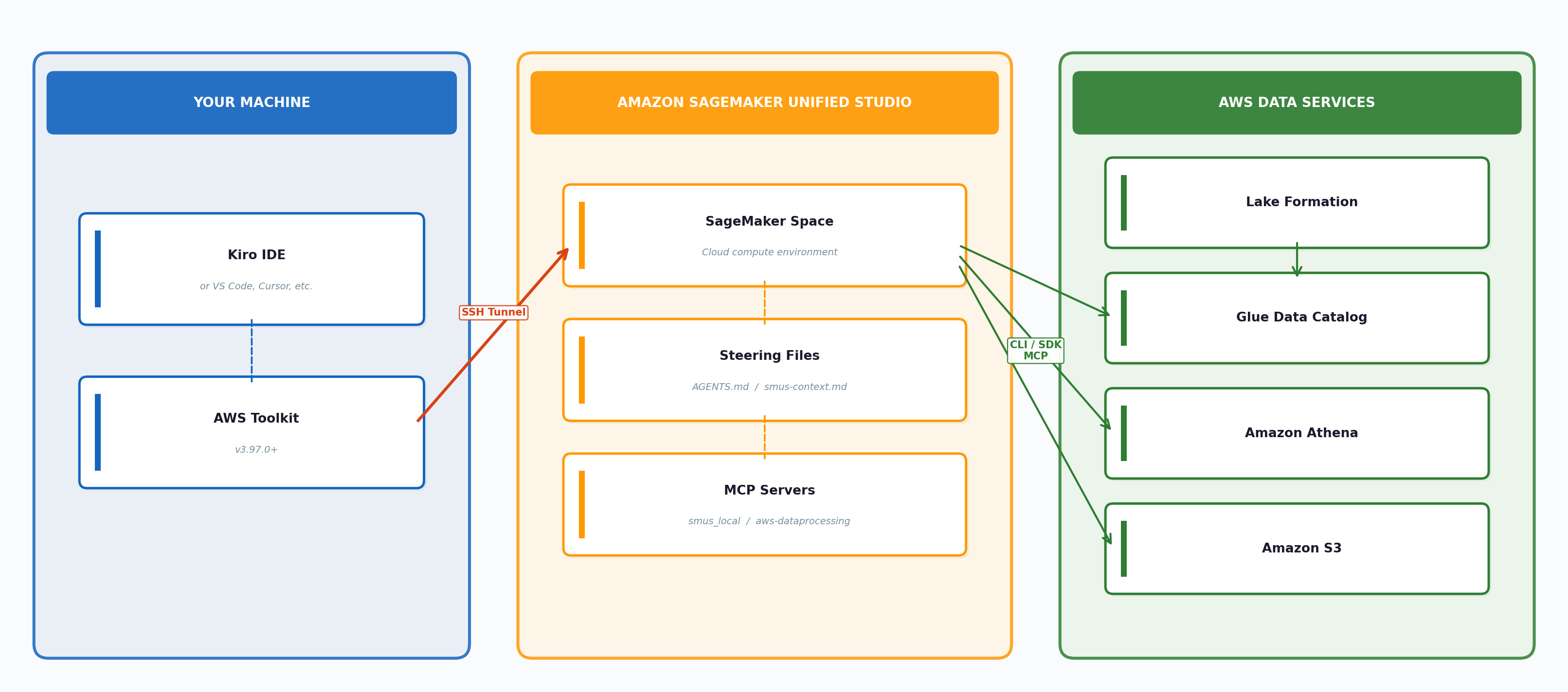
Architecture diagram: How the components connect
See it in action: AI-assisted development with governed data
Before walking through the setup, we explain what you can do with this integration. This walkthrough uses Kiro as the editor. With Kiro connected to a SageMaker Unified Studio Space, MCP servers configured, and steering documents in place, we can use natural language to explore data and build analytics. The AI assistant has all the context it needs to do this well.
Note: Agentic AI output is nondeterministic. The exact code, tool choices, and responses Kiro produces will vary between sessions, even with the same prompt. The following walkthrough shows one representative session. Your experience will differ in the specifics, but the patterns and capabilities demonstrated here are consistent.
Step 1: Explore the data
Start with a simple prompt:
Even with native MCP tools available, Kiro often prefers the AWS Command Line Interface (AWS CLI) and bash to retrieve information. This is expected and typically does not affect the outcome. If you prefer MCP tools for every operation, you can add that preference to a steering document.
Kiro used the sagemaker_studio SDK to discover the catalog:
Then it drilled into the table schema:
Kiro discovered the sagemaker_sample_db.churn dataset, a sample dataset that ships with SageMaker Unified Studio containing 10,000 rows and 21 columns of customer churn data (state, account length, call minutes, service calls, churn flag, and more). Notice that we did not write any of this code. We asked a question in natural language, and Kiro chose the right SDK calls, explored the catalog, and surfaced the results.
Another, more natural way to get the same answer is to ask directly. Prompting “Let us sample the churn table.” yields the same catalog paths and schema output, along with additional metrics like row count and a data sample, all from a single conversational prompt:
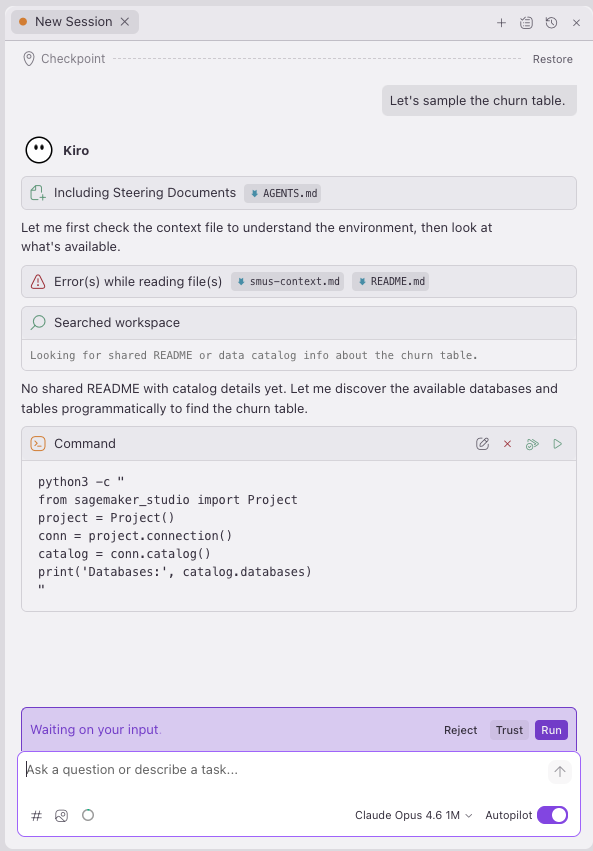
Figure 1 — The sagemaker_sample_db.churn dataset in the catalog
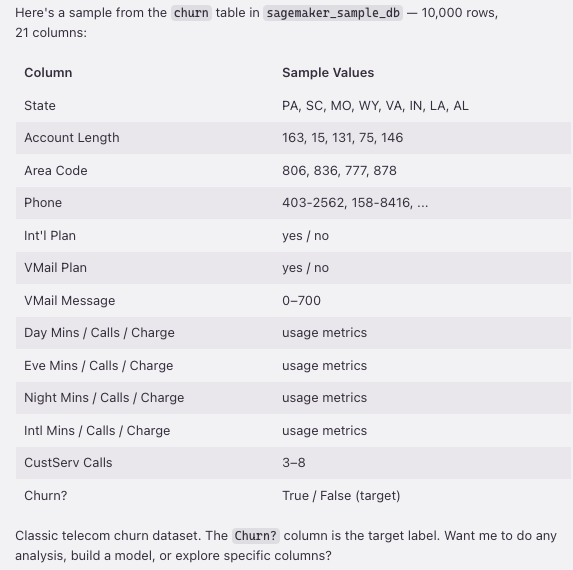
Figure 2 — Churn dataset schema with 21 columns
With the schema and row count in hand, Kiro sampled the data to round out its understanding of the dataset:
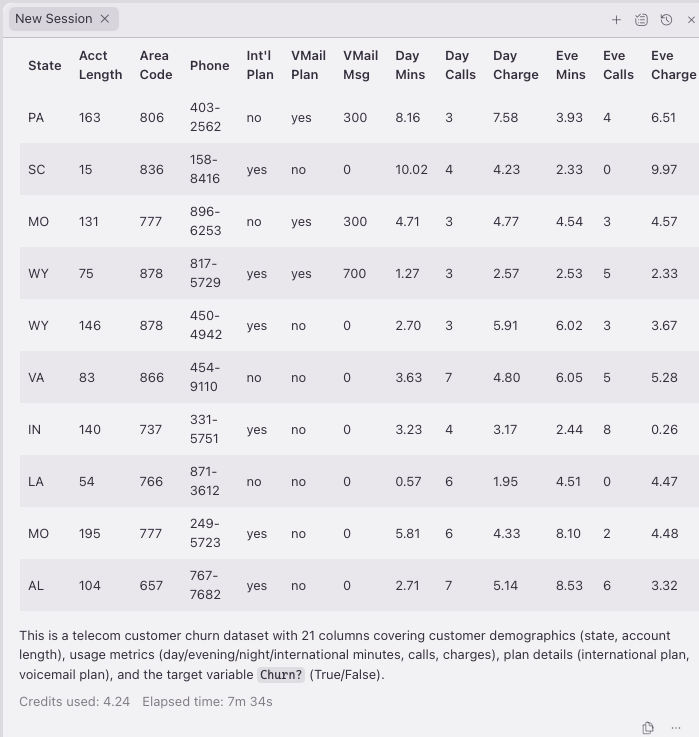
Figure 3 — Comprehensive data sample after Kiro catalog exploration
Step 2: Run analytics with full context
With the data explored, ask Kiro to run a data quality evaluation:
Because Kiro had already explored the catalog and sampled the data, it made smart choices about how to run the analysis. Instead of using PySpark for this 10,000-row table, Kiro used Athena using sqlutils to run the evaluation directly. It produced a thorough data quality report:
- 10,000 rows, 21 columns, zero nulls across all columns. Clean on that front.
- 5,000 duplicate rows (50 percent). Significant, worth investigating before modeling.
- Outliers minimal. Most columns have less than 1 percent outlier rate by IQR.
- Churn is nearly 50/50 split (50.04 percent False, 49.96 percent True). Unusually balanced, indicating synthetic data.
- Clear signal in key features. Churners and non-churners show differences in
day_mins(7.52 vs. 3.52),eve_mins(5.95 vs. 4.11), andvmail_message(175 vs. 278). - State distribution roughly uniform (~2% each),
intl_planandvmail_plannear 50/50.
The key insight here is what Kiro did not do. It did not default to PySpark because the environment supports Spark. Having explored the data first, understanding the table size, column types, and that churn is a proper Boolean (not a string), Kiro independently chose the right engine for the workload and produced correct analytics on the first pass.
Best practice: Explore first, code second
Start every AI-assisted development session with data exploration. Ask your AI assistant to discover your catalog, sample your tables, and understand the schema before asking it to build anything. This single step helps reduce a common source of errors in AI-assisted data work: the LLM making assumptions about data it has not seen.
Exploring your data gives the large language model (LLM) the context it needs to properly help with your project. It saves hallucinations and rework, results in faster development time, and reduces token costs.
Ready to try it yourself? The following sections walk through the full setup: prerequisites, connecting your editor to your SageMaker Space, configuring MCP servers, and working with notebooks.
Prerequisites
Before you begin, make sure you have the following:
- A SageMaker Unified Studio domain and project with at least one project that has a compute environment provisioned (Tooling or ToolingLight). These should come standard with every SageMaker project except those provisioned with the SQL & Gen AI blueprints. If you need to set up SageMaker Unified Studio, see Getting started with Amazon SageMaker Unified Studio.
- A Space with Remote Access enabled. Either a JupyterLab or Code Editor Space works. The instance must have at least 8 GiB of memory (for example,
ml.t3.largeor larger). The defaultml.t3.medium(4 GiB) can’t enable Remote Access. You must upgrade the instance type first, then toggle Remote Access to Enabled in the Configure Space dialog. - A VS Code-compatible editor. Kiro, VS Code, Cursor, or another VS Code-based IDE installed on your local machine. This walkthrough uses Kiro, but the Remote Access connection has been tested with VS Code and Cursor as well.
- AWS Toolkit v4.1.0 or later. Kiro ships with the AWS Toolkit pre-installed. For VS Code and Cursor, install the AWS Toolkit extension and verify your version is 4.1.0 or later (
Cmd+Shift+Xand search for “AWS Toolkit”). - AWS credentials. You must be authenticated in the SageMaker Unified Studio panel of the AWS Toolkit with the same identity (AWS IAM Identity Center or AWS Identity and Access Management (IAM)) that you use to access SageMaker Unified Studio in the browser.
- Network connectivity. Your Space must have internet access (PublicInternetOnly mode, or virtual private cloud (VPC) with a NAT gateway or HTTP proxy that allows VS Code and Open VSX endpoints).
The following screenshots show the SageMaker Unified Studio portal and the Configure Space dialog. Navigate to your project, select your Space, and verify the configuration. Remote Access is disabled when the instance has less than 8 GiB of memory. Select an instance with at least 8 GiB, such as ml.t3.large, then enable Remote Access. This is a one-time configuration per Space.
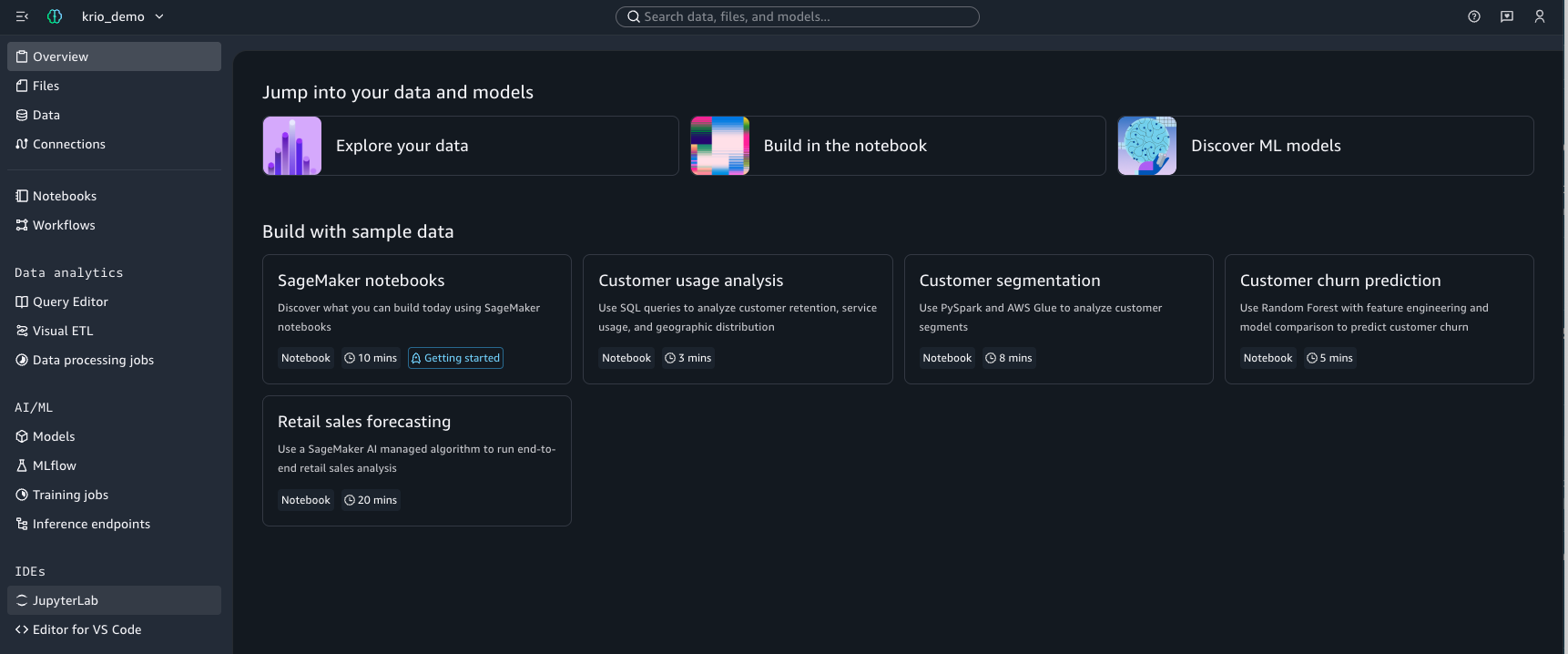
Figure 4 — SMUS project Spaces overview in the portal
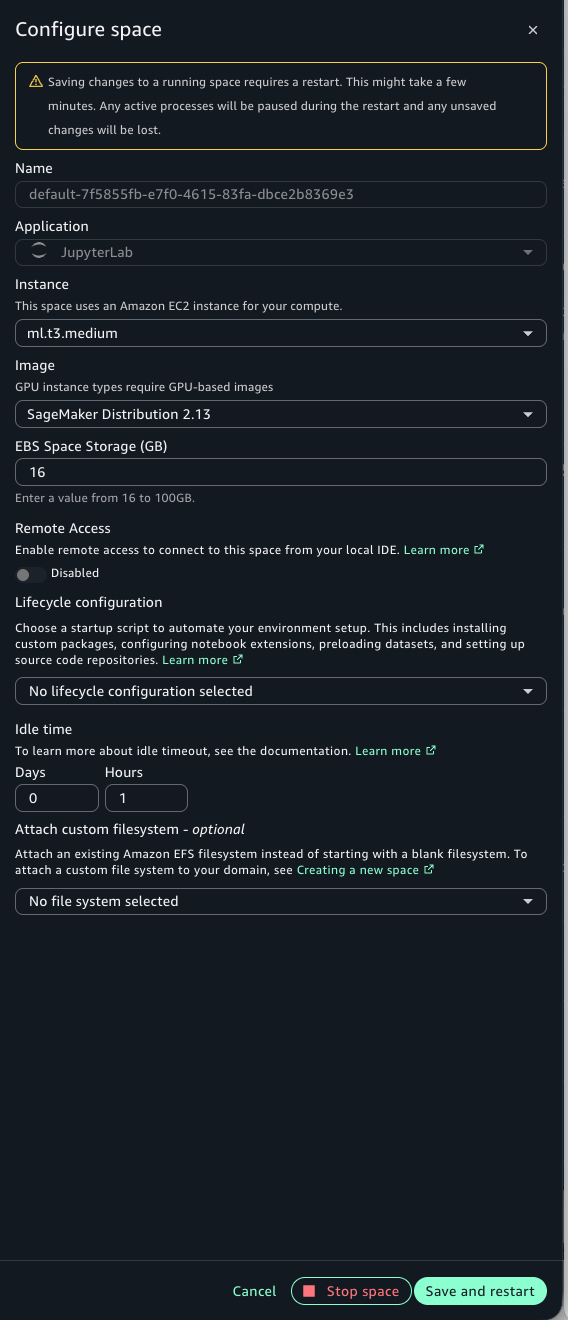
Figure 5 — Configure Space dialog showing instance type selection
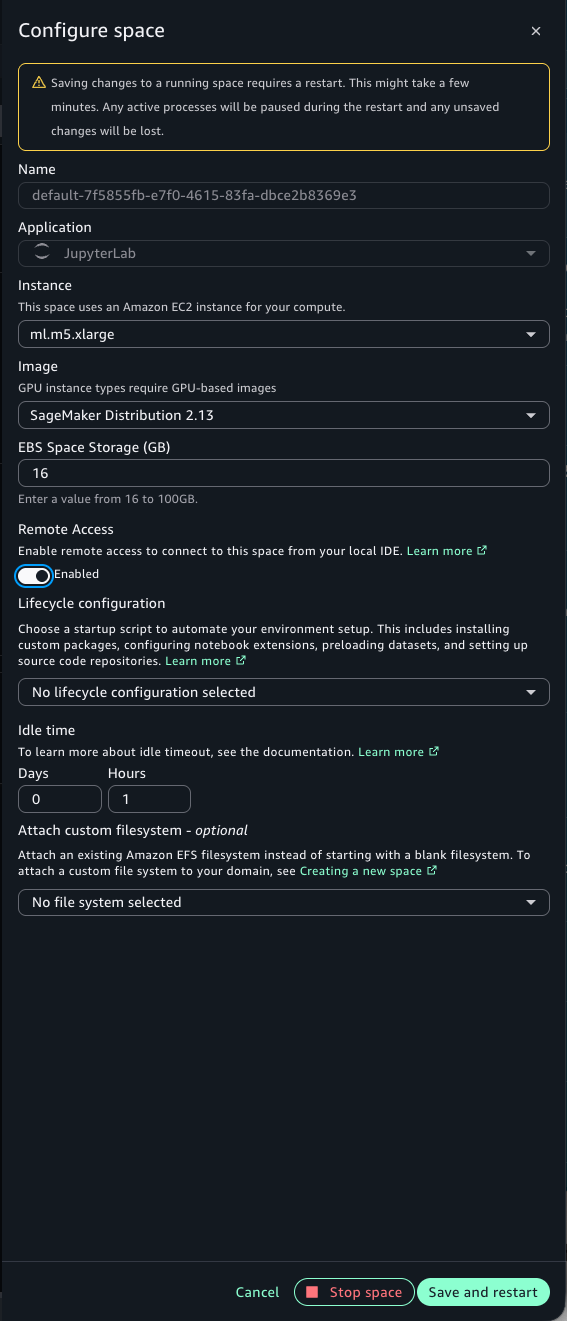
Figure 6 — Enabling Remote Access on a Space with 8 GiB or more
Connecting your editor to your SageMaker Space
There are two ways to connect: directly from the SageMaker Unified Studio portal, or from your local IDE using the AWS Toolkit.
Method 1: Connect from the SageMaker Unified Studio portal
To launch your IDE directly from the portal, navigate to your project’s Code Spaces page, find your Space, and choose Open in to select your editor (Kiro, VS Code, or Cursor):
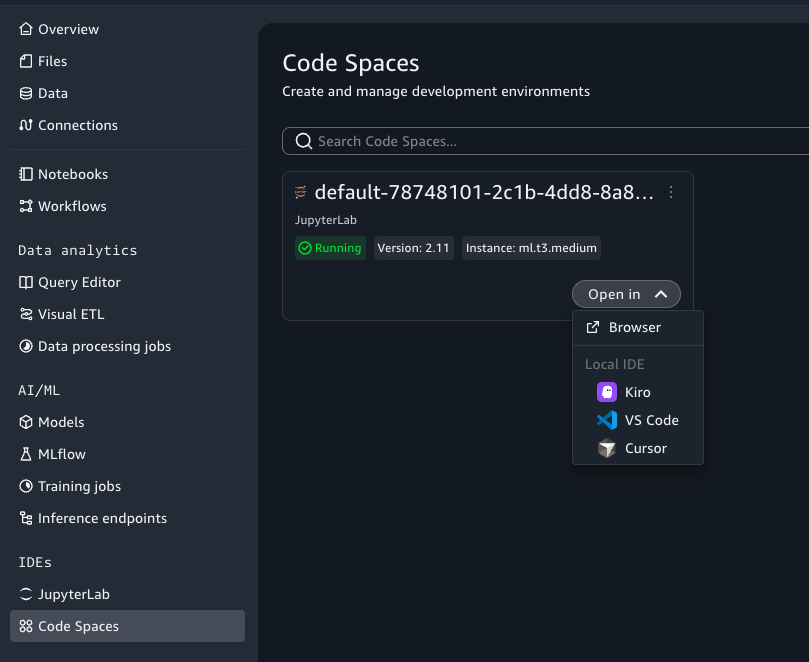
Figure 7 — Open in Local IDE from the Code Spaces list
You can also launch from within a Space’s details page:
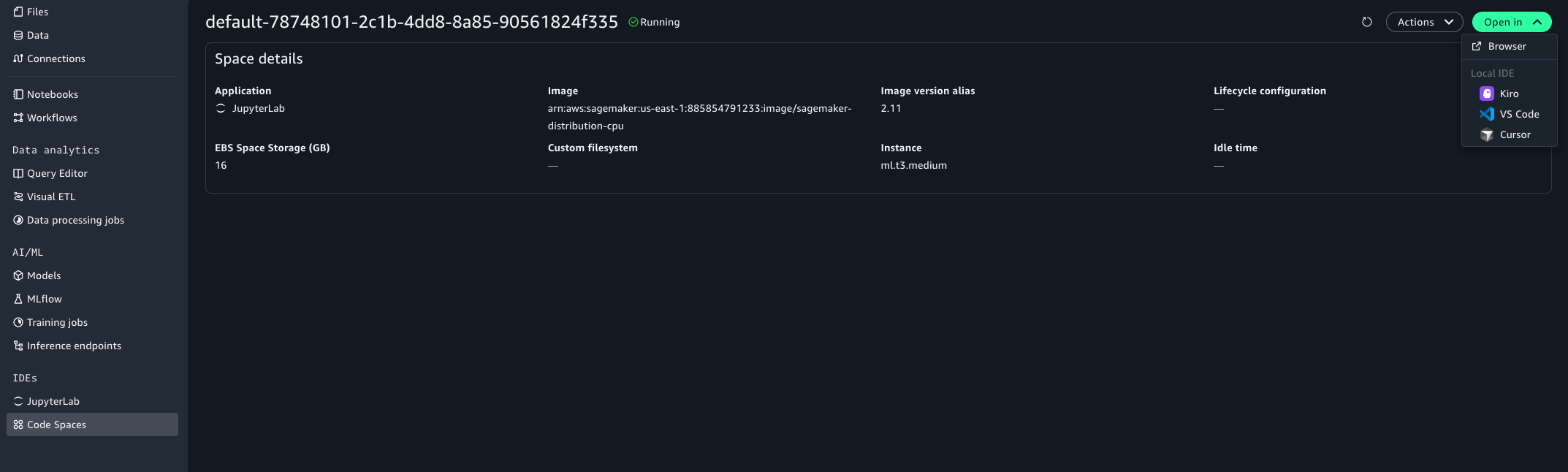
Figure 8 — Open in Local IDE from the Space details page
Or from within the JupyterLab or Code Editor browser environment:
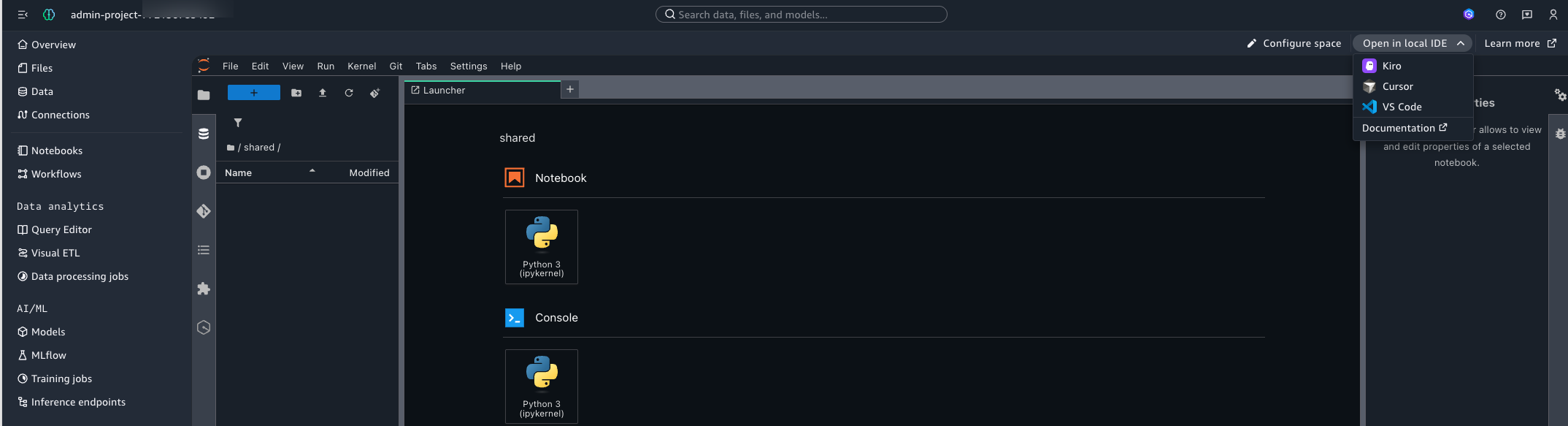
Figure 9 — Open in Local IDE from JupyterLab
Your browser will prompt you to allow opening the IDE. Confirm, and the editor launches with an SSH connection to your Space already established via the AWS Toolkit. No additional configuration is typically required.
Method 2: Connect from your IDE via the AWS Toolkit
- Open your editor on your local machine. Then, in the AWS Toolkit panel, choose Sign in. Authenticate with your IAM Identity Center or IAM credentials, the same identity you use to access SageMaker Unified Studio in the browser. The following screenshots show Kiro, but the steps are the same in VS Code and Cursor.

Figure 10 — AWS Toolkit button in Kiro
Figure 11 — AWS Toolkit panel expanded

Figure 12 — AWS Toolkit Sign in dialog
- Choose your AWS profile. You must have a profile configured in the AWS CLI with the correct account and AWS Region set.
- In the Toolkit panel, browse your SageMaker Unified Studio domains and projects. Select the project that you want to work in.
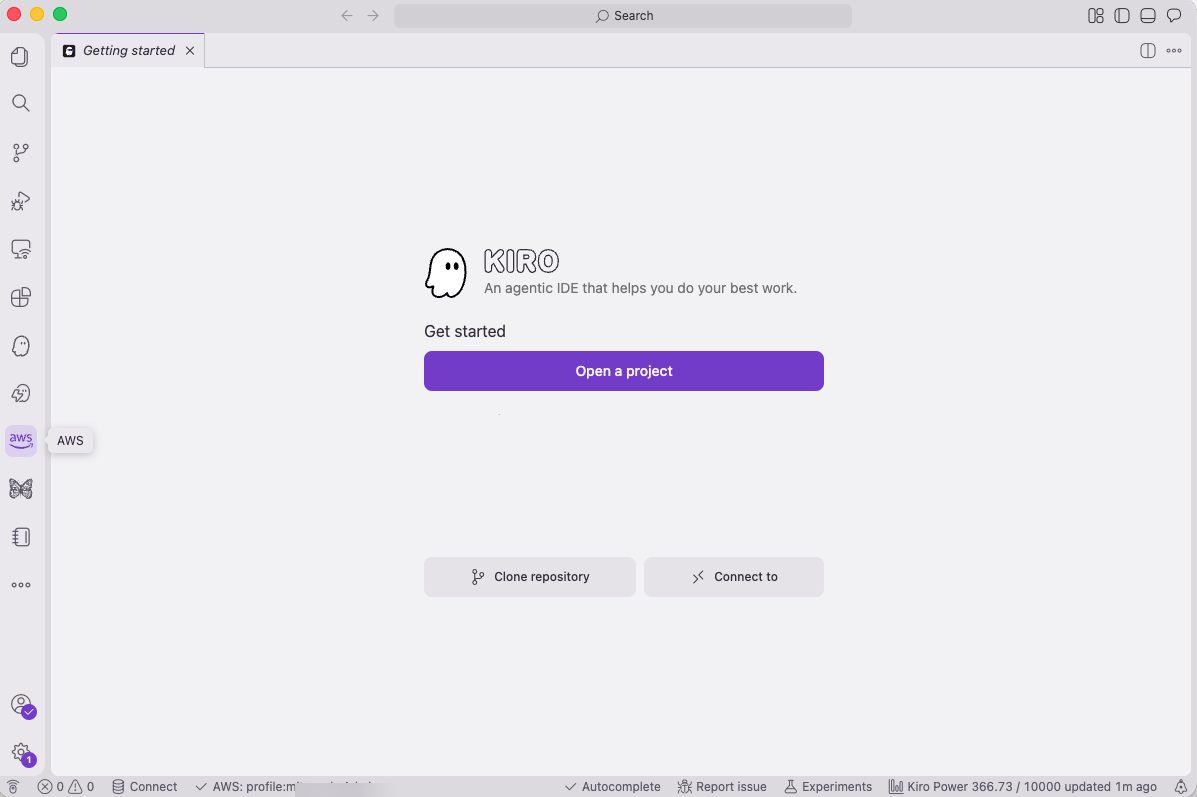
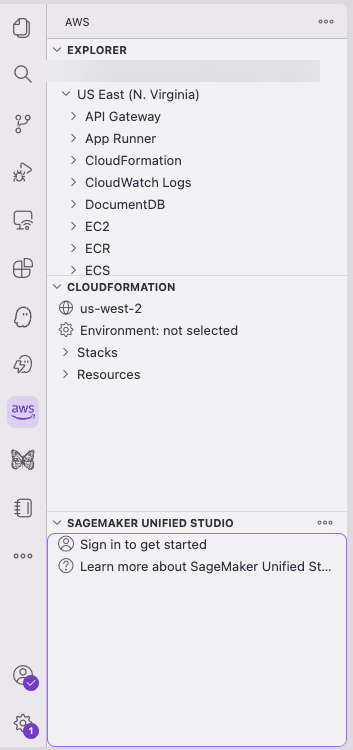
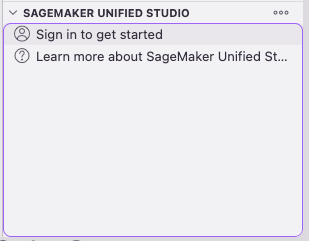
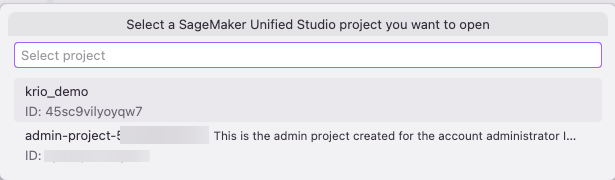
Figure 13 — Browsing SMUS domains and projects in Kiro
Important: The credentials that you use in the AWS Toolkit must match the identity that you use in the SageMaker Unified Studio portal. The Toolkit validates that your identity has access to the Space.
AI steering: How SageMaker Unified Studio pre-seeds AI context
The real value of the feature comes from what you don’t need to do. When connected to Kiro SageMaker Unified Studio automatically generates steering files that guide your AI assistant with project context, so you can focus on building analytics rather than configuring connections. When you open a SageMaker Unified Studio project, SageMaker Unified Studio presents a prompt to create steering files: an AGENTS.md file that references a newly created smus-context.md. These files provide context about your project environment, such as project configuration, environment details, and utilities for discovering your data catalog and project structure. Kiro detects and applies these files automatically; in other editors, you can reference them as context for your AI features.
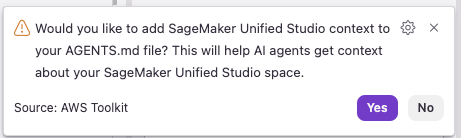
Figure 14 — SMUS popup offering to create steering files
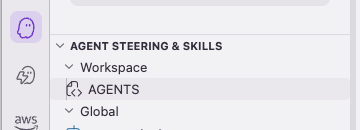
Figure 15 — Generated AGENTS.md and smus-context.md steering files
Without these steering files, your AI assistant would need several back-and-forth prompts to discover what data you have and how to access it. With them, the assistant understands your project from the first prompt: how to discover your databases, how your environment is configured, and what tools are available. The steering files also help properly configure MCP servers, which you set up in the next section.
Exploring your project
After you’re connected, the project structure expands into Data and Compute sections in the sidebar, as it would in the SageMaker Unified Studio portal.
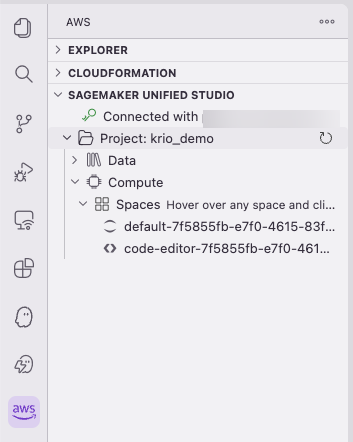
Figure 16 — Project Data and Compute sections in the Kiro sidebar
You can explore your data catalog and S3 buckets directly from the sidebar:
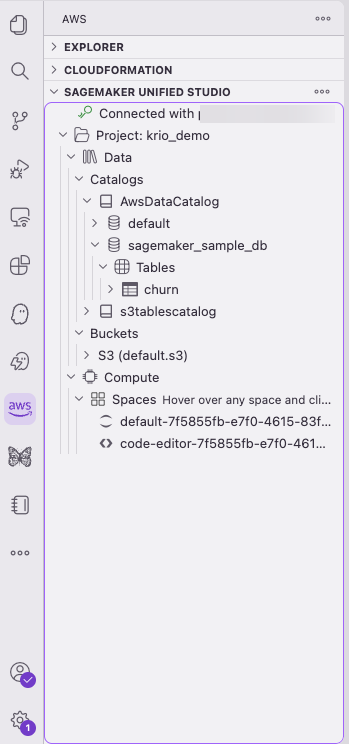
Figure 17 — Exploring the data catalog and S3 buckets from the sidebar
You can also remote into a compatible Space for direct development. Hover over a Space and select the remote icon on the right:
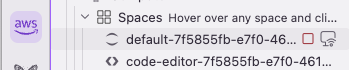
Figure 18 — Remote connection icon on a compatible Space
After a moment, the Space opens in a new Kiro window:
Figure 19 — Space opened in a new Kiro window
You must sign in again, and then trust the authors of the files in the Space:
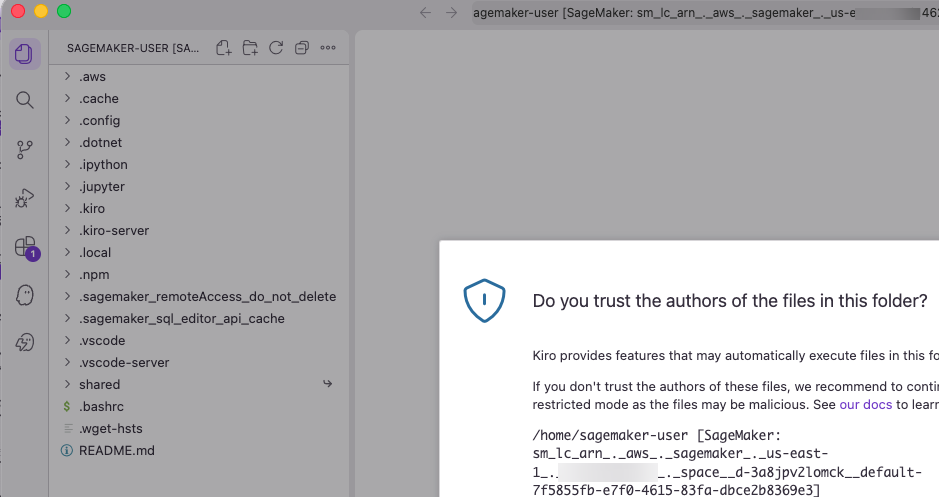
Figure 20 — Trust authors dialog for the Space files
You’re now connected to your Space. The Toolkit works on the Space the way it does locally, except the resources are scoped to the project’s permissions.
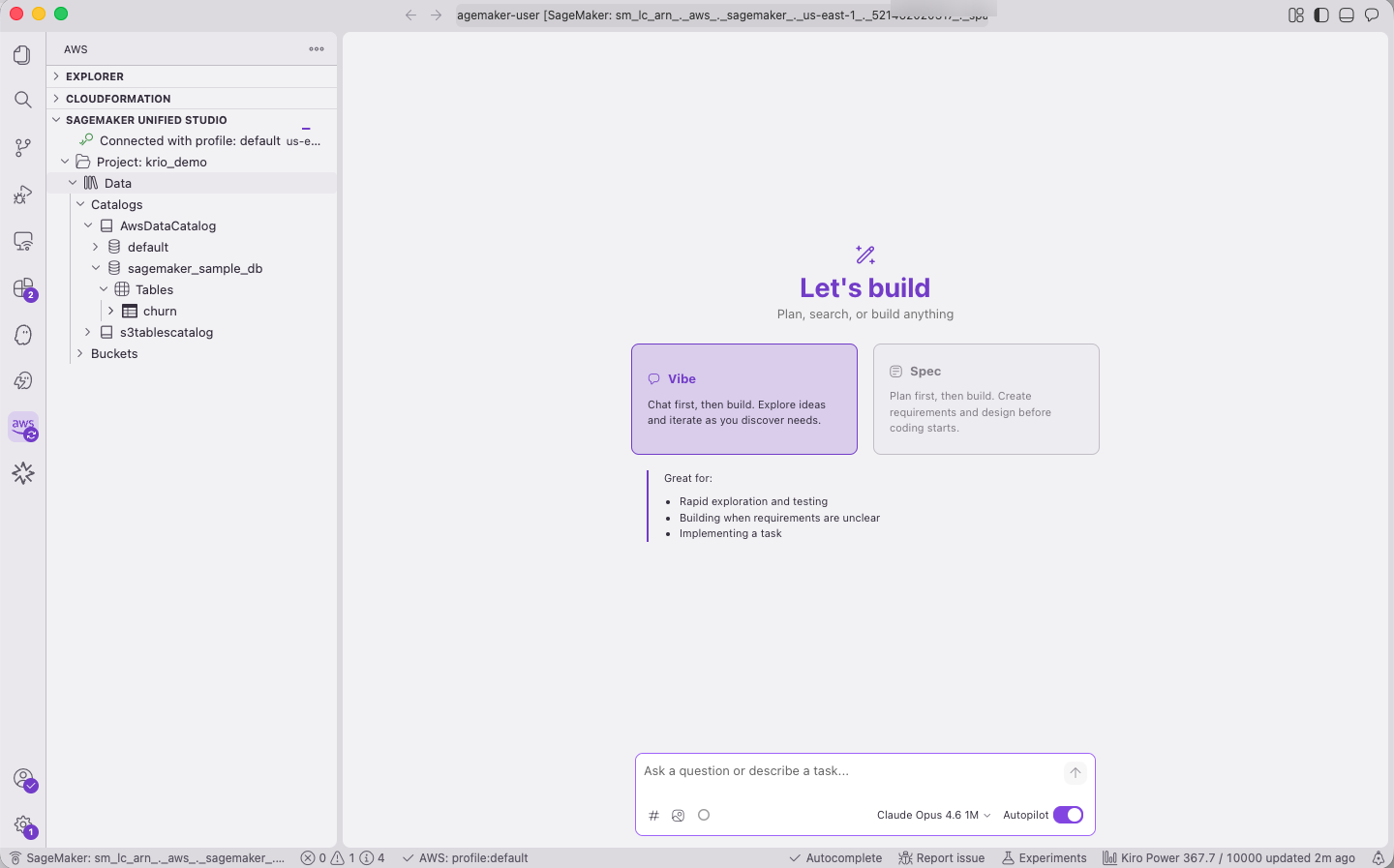
Figure 21 — Connected to the SMUS Space with the Toolkit active
Setting up MCP servers
Before you can use AI-assisted development effectively, you must give Kiro access to your data services through Model Context Protocol (MCP) servers. MCP servers extend the Kiro agent with tools: the ability to query catalogs, run SQL, manage credentials, and more.
Out of the box, Kiro has no MCP servers configured:
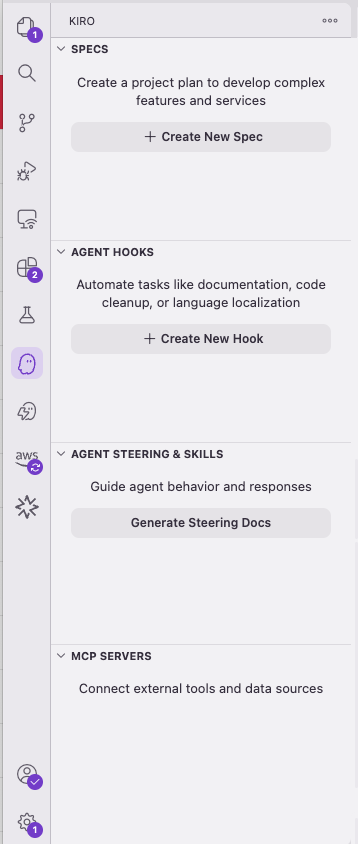
Figure 22 — Kiro MCP servers panel with no servers configured
Prompt Kiro to find and configure the MCP servers that ship pre-installed on your SageMaker Space. Using the steering file context, Kiro located the servers and generated the configuration. If a server fails to connect, select the failed entry and Kiro will suggest fixes. You might need additional prompts to get the smus_spark_upgrade server (a pre-installed MCP server for managing Spark session upgrades) working correctly.
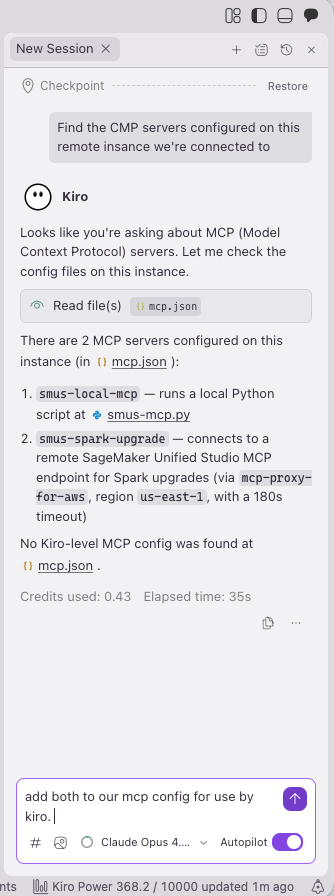
Figure 23 — Kiro discovering and configuring SMUS MCP servers
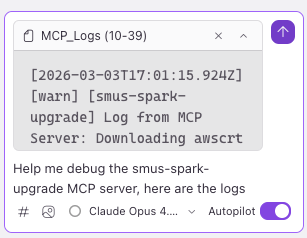
Figure 24 — MCP servers after iterating on configuration fixes
For more deterministic results, you can also configure the MCP servers manually. Here is a sample configuration:
Note: Your MCP configuration might vary depending on your SageMaker Unified Studio environment. Use the preceding configuration as a starting point and let your editor adjust if a server fails to connect.
Next, add the AWS Data Processing MCP server to get catalog information and Athena query capabilities. This isn’t strictly required (Kiro can use Python or AWS CLI for the same tasks), but it gives the agent native tools for catalog and query operations.
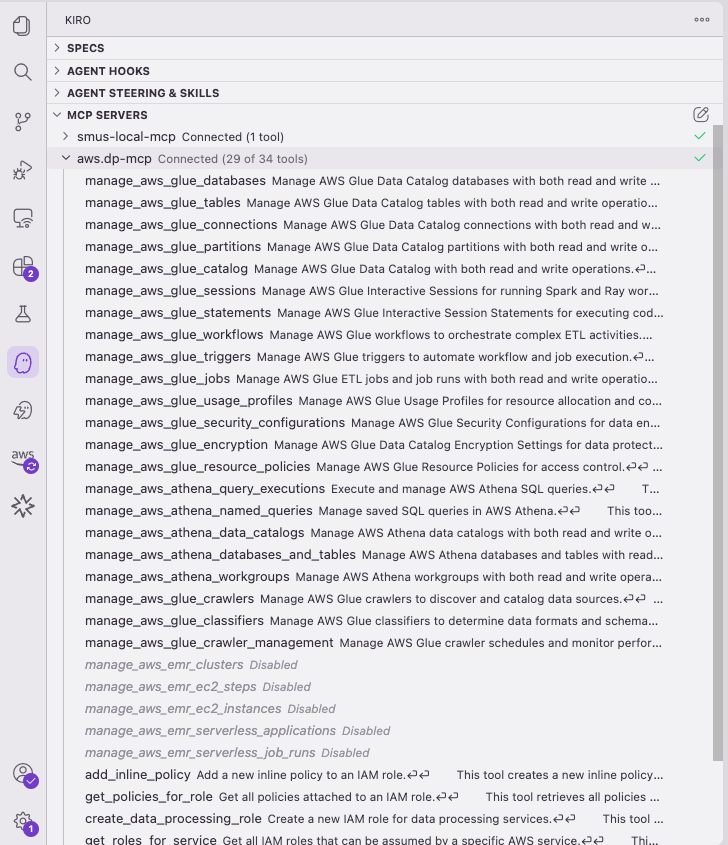
Figure 25 — AWS Data Processing MCP server tools with Amazon EMR tools disabled
You can list the tools that each MCP server provides. Because the AWS Data Processing MCP server includes tools for many services, we recommend disabling tools that you don’t need for a given project to save model context. For this walkthrough, disable the Amazon EMR tools to focus on AWS Glue and Amazon Athena.
Exploring data with notebooks
Kiro supports Jupyter notebooks in your SageMaker Space with the same language and connection selectors that you would find in SageMaker JupyterLab or Code Editor. Open the command palette (Cmd+Shift+P) and create a new Jupyter notebook:
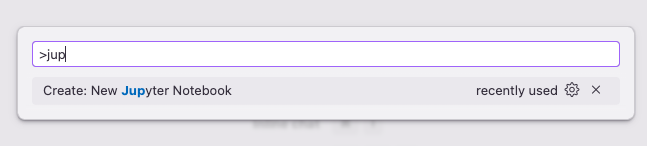
Figure 26 — Command palette to create a new Jupyter notebook
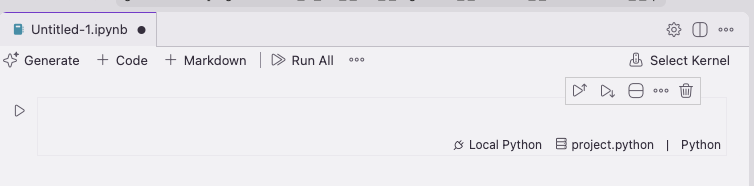
Figure 27 — New Jupyter notebook opened in Kiro with language and connection selectors in a notebook cell
As in SageMaker JupyterLab, you get language and connection selectors in the bottom right of each cell. Choose the connection selector to see your available connections:
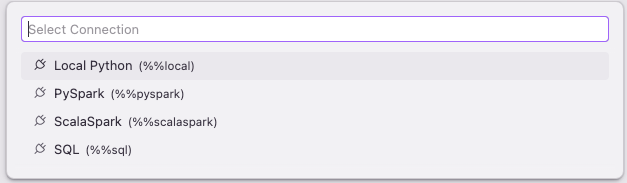
Figure 28 — SageMaker connection selector
Select PySpark to fill in the magic commands for your cell. Write your code (in this case, enter spark and press Shift+Enter) to verify the session starts:
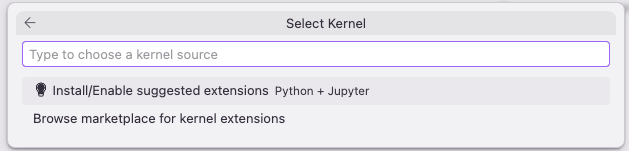
Figure 29 — PySpark magic command and spark verification code
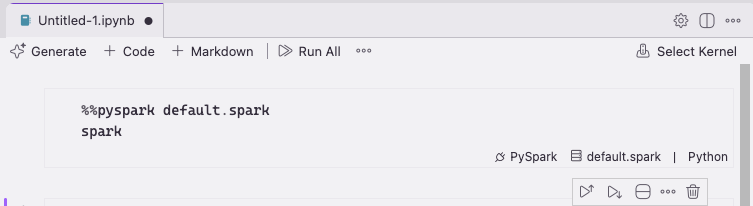
Figure 30 — Running the PySpark cell
If this is your first time using Jupyter with Kiro, you’re prompted to install the Jupyter extension. After it’s installed, select the kernel from Python Environments → Base:
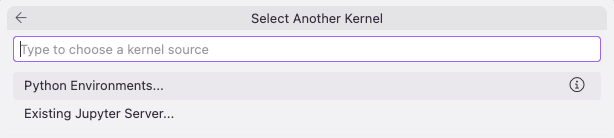
Figure 31 — Jupyter kernel selection prompt
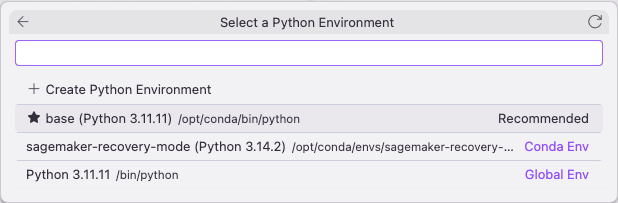
Figure 32 — Selecting the Python kernel from the Base environment
Re-run your cell. After a few moments, AWS Glue provisions a PySpark session:
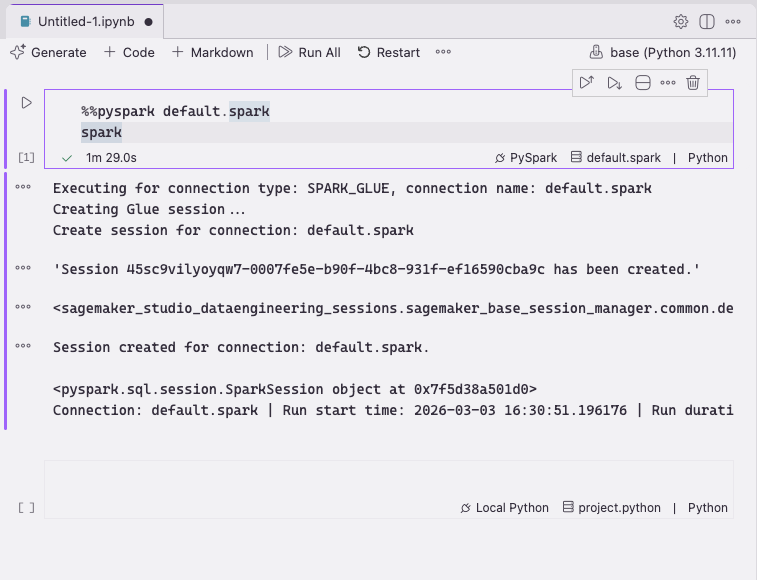
Figure 33 — AWS Glue provisioning a PySpark session in a Jupyter notebook in Kiro
You see results the way you would in JupyterLab in the SageMaker Unified Studio portal:
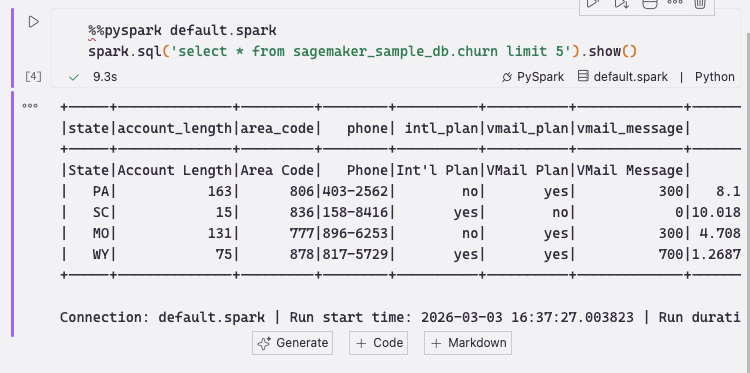
Figure 34 — PySpark code running in a Jupyter notebook in Kiro
The notebook generate button
You will notice a Generate button underneath notebook cells. Let’s test it with a simple prompt:
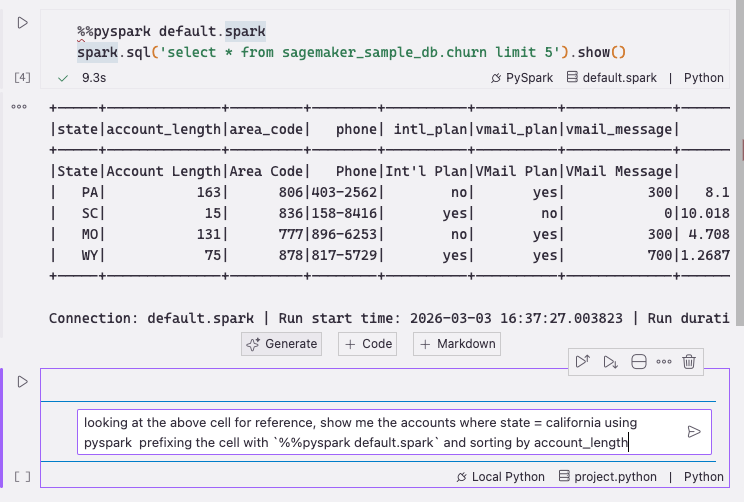
Figure 35 — Using the Generate button with a natural language prompt
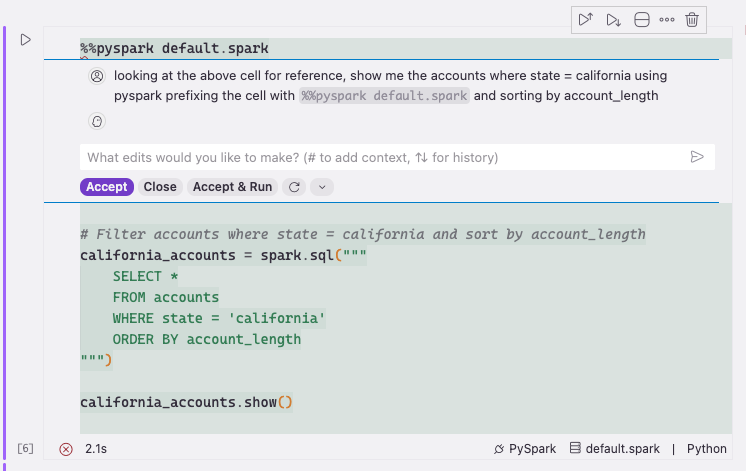
Figure 36 — Generated PySpark code from the prompt
This prompt builder, like other notebook generation features, doesn’t have good context on the surrounding cells. You must be explicit about what you want because it won’t read other code or cells as input.
While the Kiro notebook generate button works for straightforward edits, for serious code generation, we recommend that you use Kiro agent mode. This mode has full project and SageMaker context, as demonstrated in the “See it in action” walkthrough earlier in this post.
What’s happening under the hood
When you connect your editor to a SageMaker Unified Studio Space, the AWS Toolkit extension establishes a secure SSH tunnel between your local IDE and your cloud-based Space.
Key details:
- SSH tunnel. The connection is managed entirely by the AWS Toolkit (v4.1.0+) or VS Code’s built-in SSH extension. No separate Remote SSH extension is needed; the capability is built in.
- File system access. Your editor sees the Space’s persistent storage at
/home/sagemaker-user/, including shared project files and notebooks or scripts you create. - SageMaker Unified Studio steering context. The integration generates
AGENTS.mdandsmus-context.mdfiles that provide your AI assistant with context about your project environment and utilities for understanding your data. This is what makes the assistant effective from the first prompt. - MCP server integration. MCP servers like
smus_local(for project metadata and environment utilities) andaws-dataprocessing(for AWS Glue Data Catalog and Amazon Athena) extend your editor’s AI with direct access to your data services. Your own MCP servers will be equally valuable here. - Credential flow. The Toolkit uses your existing AWS identity (IAM Identity Center or IAM) to authenticate to the Space. No separate SSH keys to manage. The
aws_context_providertool from thesmus_localMCP server handles credential discovery for agent operations.
Best practices
To work effectively with your IDE and SageMaker Unified Studio:
- Explore your data before building. Start every session by asking your AI assistant to discover your catalog, sample your data, and understand the schema. This single step helps reduce the most common source of errors in AI-assisted data work: the LLM making assumptions about data it has not seen. See the “See it in action” walkthrough earlier in this post for a concrete example of the difference this makes.
- Use the SageMaker Unified Studio steering files. When prompted to create
AGENTS.mdandsmus-context.md, accept. These files are the foundation that makes everything else work: environment context, MCP server configuration, and project understanding. Without them, your AI assistant starts from zero on every prompt. Kiro detects these automatically; in other editors, add them as context. - Disable unused MCP tools. The AWS Data Processing MCP server includes tools for AWS Glue, Amazon EMR, Amazon Athena, and more. Disable the services that you’re not using for a given project to save model context and reduce noise.
- Be specific in your prompts. The more detail you give your AI (column names, query patterns you prefer, output formats), the closer the first pass will be. “Run data quality evaluation using Athena SQL” gets you better code than “check my data.”
- Always test interactively first. Whether in notebooks or the terminal, validate code before deploying it. AI agents can iterate quickly, but catching issues in an interactive session is faster than debugging a failed AWS Glue job. Athena PySpark and the SageMaker
sqlutilsandsparkutilspackages are great for this. - Stop your Space when idle. Your Space runs on compute (the same instance types as Code Editor and JupyterLab). If idle, the Space will terminate after 60 minutes and close your remote connection. Close the remote window and reconnect to continue.
Things to know
- Notebook agent mode. For notebook-heavy analytics workflows where you want agentic AI to generate and run cells directly, SageMaker Notebooks with Data Agent in SageMaker Unified Studio is the recommended option today. Current notebook support in local editors covers editing, running, and generating code in individual cells.
- MCP setup takes iteration. Configuring MCP servers may require iteration, especially for servers with complex authentication. Many AI-enabled editors can self-correct when a server fails. For more deterministic results, use the preceding MCP configuration JSON as a starting point rather than relying solely on auto-discovery.
- CLI preference. AI agents often prefer the AWS CLI and bash even when MCP tools are available. This doesn’t affect outcomes, but you can steer your assistant toward MCP tools using a steering document if you prefer consistency.
Security and governance boundaries
A core benefit of this integration is that your existing security and governance controls remain enforced. Your editor connects to your SageMaker Space through a secure SSH tunnel managed by the AWS Toolkit. It does not bypass your organization’s access controls. Data access is governed by the same AWS Lake Formation permissions and IAM Identity Center authentication that apply when you work in the SageMaker Unified Studio portal directly. Your project-level permissions, database grants, and column-level security policies apply consistently whether a query originates from an AI agent, a notebook cell, or the SageMaker console. Data access is governed by the boundaries you define in your SageMaker Unified Studio domain and project configuration.
Clean up
To avoid ongoing charges from billable resources (SageMaker Space compute charges per hour, AWS Glue sessions charge per DPU-hour, Amazon Athena queries charge per TB scanned):
- Stop your Space – In the SageMaker Unified Studio portal, navigate to your project’s Spaces and stop the Space you used for this walkthrough.
- Disconnect: Close the remote connection in your editor (File → Close Remote Connection).
- Verify AWS Glue sessions are terminated – If you ran PySpark queries during this walkthrough, verify that the sessions are stopped. In the SageMaker Unified Studio portal, navigate to Data processing and confirm no active AWS Glue sessions remain. Sessions auto-terminate when the Space stops, but verify to avoid unexpected charges.
- Delete demo resources (optional) – File deletion is permanent and cannot be undone. Back up any work that you want to retain before proceeding. If you created scripts or files during this walkthrough that you no longer need, delete them from
/home/sagemaker-user/. For example, delete any test notebooks, Python scripts, or generated data files. The samplesagemaker_sample_db.churndataset is read-only and doesn’t need cleanup.
Conclusion
This post showed what happens when agentic AI meets governed data, and walked through how to set it up yourself.
Three key insights emerged from this hands-on experience:
- SageMaker Unified Studio steering files transform the developer experience. Your AI assistant is project-aware from the first prompt, understanding your environment and available data without manual setup.
- MCP servers bridge “AI that writes code” with “AI that queries your data”. The
smus_localandaws-dataprocessingservers are essential for effective agentic data work. - The “explore first” pattern pays immediate dividends. When your AI assistant understands your data before writing code, it makes smarter engine choices and produces correct analytics on the first pass.
This integration brings together two capabilities that are stronger together: your IDE handles the AI-assisted coding and iteration, while SageMaker Unified Studio handles data governance, access control, and compute management. You get the productivity of an agentic AI coding assistant without compromising on the controls your organization requires.
To get started, download Kiro, install VS Code or Cursor, and add the AWS Toolkit for Visual Studio Code (v4.1.0 or later). Then visit the Amazon SageMaker Unified Studio documentation and the AWS Data Processing MCP Server to set up your first Space. For related reading, see Speed up delivery of ML workloads using Code Editor in Amazon SageMaker Unified Studio.