All posts by Adam Duffield

Improving network observability with new AWS Outposts racks network metrics

Post Syndicated from Adam Duffield original https://aws.amazon.com/blogs/compute/improving-network-observability-with-new-aws-outposts-racks-network-metrics/

With AWS Outposts racks, you can extend AWS infrastructure, services, APIs, and tools to on-premises locations. Providing performant, stable, and resilient network connections to both the parent AWS Region as well as the local network is essential to maintaining uninterrupted service.

The release of two new Amazon CloudWatch metrics, VifConnectionStatus and VifBgpSessionState, gives you greater visibility into the operational status of the Outpost network connections. In this post, we discuss how to use these metrics to quickly identify network disruptions, using additional data points that can help reduce time to resolution.

Outposts network connectivity overview

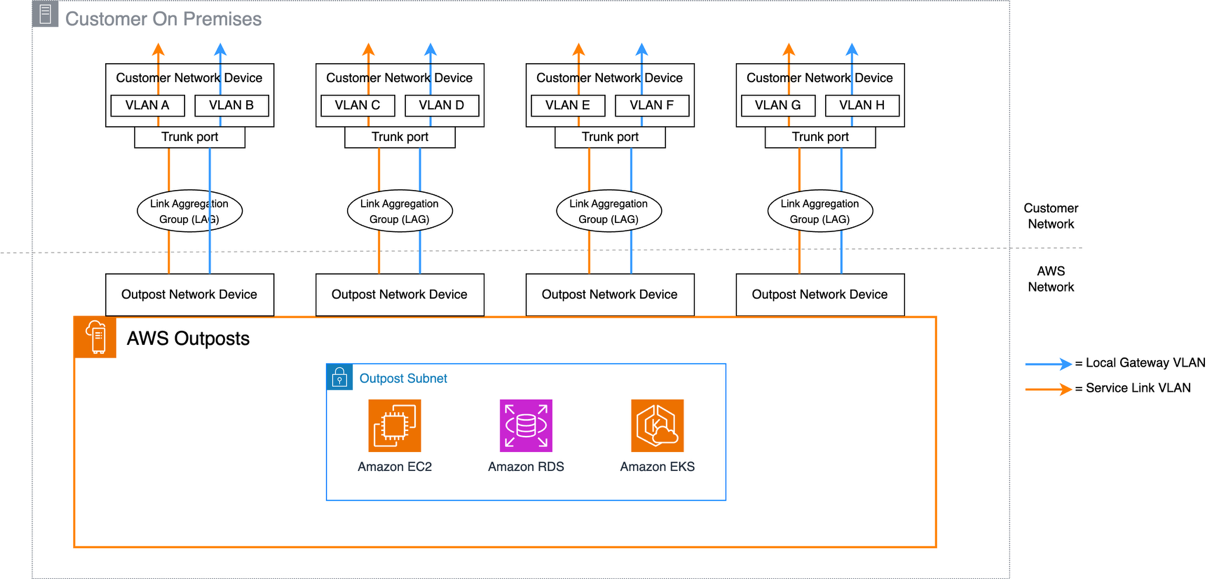
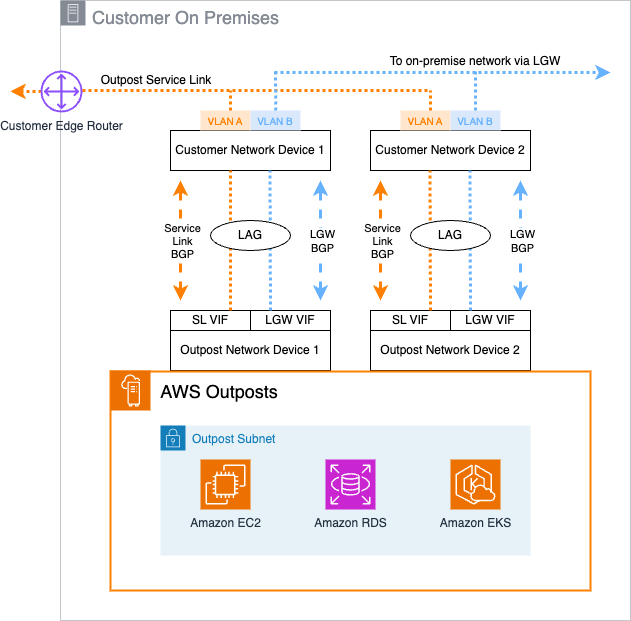
When connecting an Outposts rack to your chosen data center location, network connections are made between the Outpost Networking Devices (ONDs) and Customer Network Devices (CNDs). These network connections support both the Service Link connectivity back to the chosen anchor Region and connectivity to the on-premises local network through the Local Gateway. First-generation Outposts racks include a minimum of two network devices to provide resilience, with second-generation Outposts racks including four network devices.

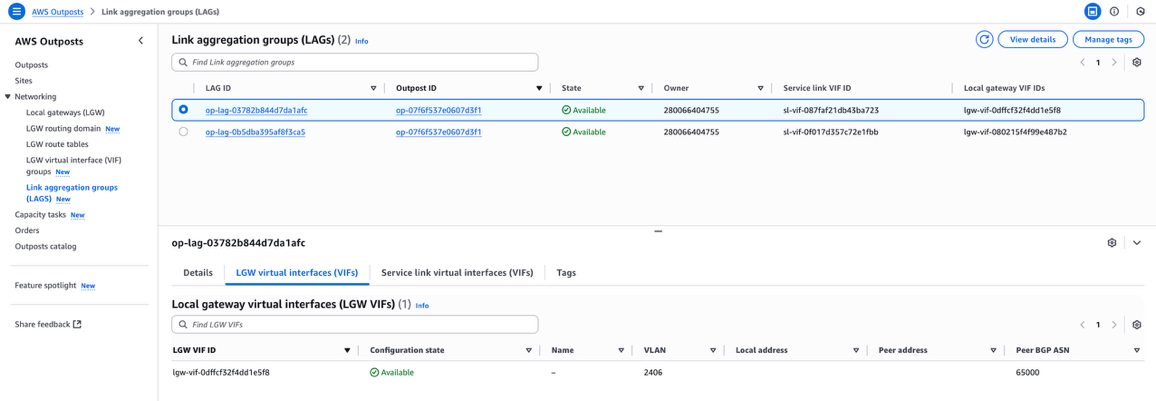
Virtual interfaces (VIFs) are used to establish IP network connectivity between the Outpost and CNDs, using Border Gateway Protocol (BGP) for dynamic routing. You can view the details for these VIFs on the Outposts console by choosing Link aggregation groups (LAGs) in the navigation pane and drilling down to find the specific service link and local gateway VIF information. For each connection between an OND and CND, two BGP sessions are established: one to support service link traffic and the other to support local gateway traffic.

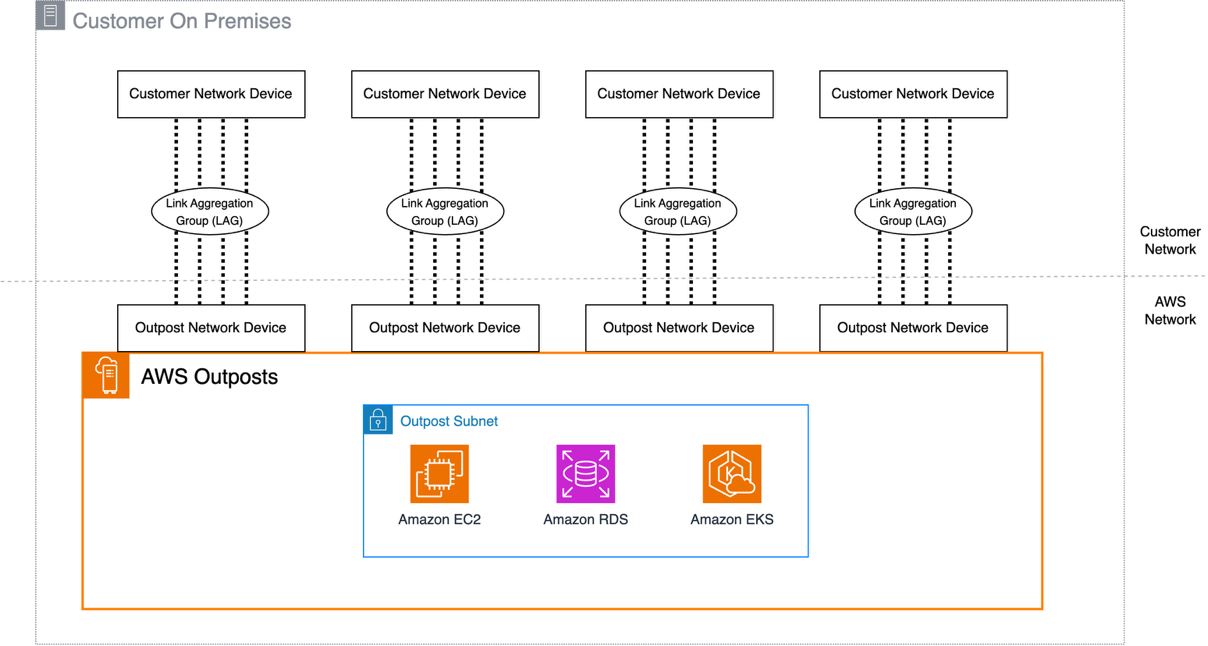
The following diagram shows an example of this connectivity for a first-generation Outposts rack.

Figure 1: First-Generation Outposts Rack network connections

Figure 1: First-Generation Outposts Rack network connections

In this configuration, a total of four VIFs are configured into two link aggregation groups (LAGs): one on each OND for the service link and local gateway VIFs.

Understanding the new CloudWatch metrics for Outposts

Observability into the operational status of Outposts rack, including the status and performance of network connectivity, is important for you to be able to quickly identify and investigate potential issues. With the addition of the VifConnectionStatus and VifBgpSessionState Outposts metrics in CloudWatch, you have greater visibility into the connection status of the Outposts rack to your CNDs. The VifConnectionStatus metric is provided on a per-VIF level, available for both the local gateway and service link VIFs. It provides an indication on the status of the VIF using two possible values:

  • A value of 1 indicates that the VIF is successfully connected to the CND with established BGP sessions and able to transmit traffic
  • A value of 0 indicates that the VIF is not in an operational state due to an underlying issue

The VifBgpSessionState metric goes deeper into the BGP connectivity status between each Outposts VIF and CND. A BGP session can be in one of multiple states, each providing insight into where a potential issue might be. To reflect this, the CloudWatch metric value shown relates to the following BGP states:

  1. IDLE – The initial state; the ONDs are waiting for a start event
  2. Connect – The Outposts rack is waiting for the TCP connection to be complete
  3. Active – The Outposts rack is trying to initiate a TCP connection
  4. OpenSent – The router has sent an OPEN message and is waiting for a response
  5. OpenConfirm – The router has received an OPEN message and is waiting for a KEEPALIVE response
  6. Established – The BGP connection is fully established and the ONDs and CNDs can exchange routing information

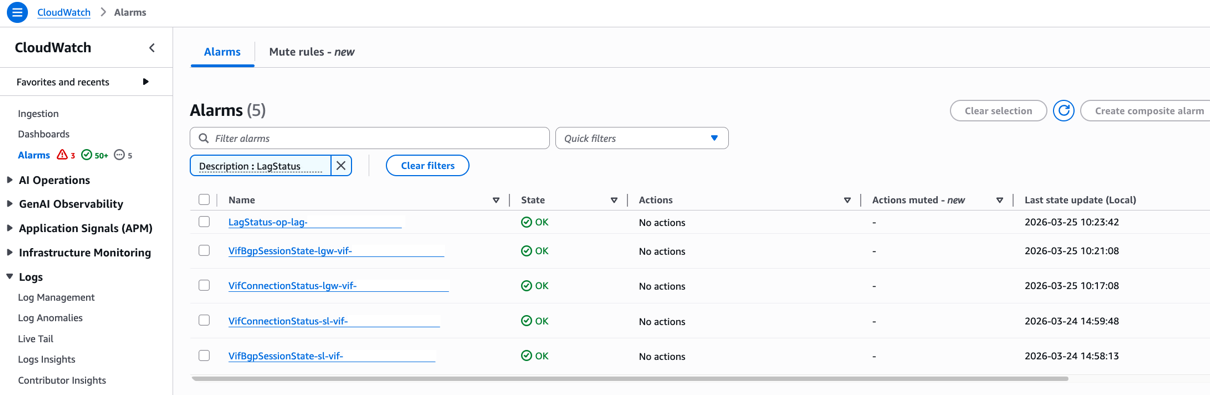
With these metrics now available in CloudWatch, you can configure Amazon CloudWatch alarms to alert when the metric values indicate potential issues. You can combine existing CloudWatch metrics for Outposts racks with these new metrics to give additional context and visibility into network connectivity status.

Using CloudWatch metrics to investigate Outposts network connectivity issues

In the event of network connectivity issues, it’s important to understand how to use these metrics to assist with investigations and understand potential causes when seeing network impairment. To start with, the Configuration state of the VIFs should be checked. For each VIF, there are four possible states:

  • Pending – A VIF is in this state from the time that it is created within a VIF group until the VIF becomes active on the OND
  • Available – A VIF is active on ONDs
  • Deleting – A VIF is in this state immediately after requesting deletion
  • Deleted – A VIF is deleted

To check the state of an individual VIF on the Outposts console, choose Networking followed by Link aggregation groups (LAGS) in the navigation pane. The service link and local gateway VIFs associated with a specific LAG are shown, and when you choose a specific LAG, the configuration state of the associated VIFs are visible.

Figure 2: AWS Outposts console showing VIF configuration details

Figure 2: AWS Outposts console showing VIF configuration details

You can also retrieve these details programmatically. For example, use the following AWS Command Line Interface (AWS CLI) command to specifically check the configuration state of a service link VIF with ID sl-vif-087faf21db43ba723:

aws ec2 describe-service-link-virtual-interfaces \
--service-link-virtual-interface-id sl-vif-087faf21db43ba723
{
    "ServiceLinkVirtualInterfaces": [
        {
            "ServiceLinkVirtualInterfaceId": "sl-vif-087faf21db43ba723",
            "ServiceLinkVirtualInterfaceArn": "arn:aws:ec2:us-west-2:111122223333:service-link-virtual-interface/sl-vif-087faf21db43ba723",
            "OutpostId": "op-07f6f537e0607d3f1",
            "OutpostArn": "arn:aws:outposts:us-west-2:111122223333:outpost/op-07f6f537e0607d3f1",
            "OwnerId": "280066404755",
            "LocalAddress": "XX.XX.XX.XX/XX",
            "PeerAddress": " XX.XX.XX.XX/XX ",
            "PeerBgpAsn": 65000,
            "Vlan": 2006,
            "OutpostLagId": "op-lag-03782b844d7da1afc",
            "Tags": [],
            "ConfigurationState": "available"
        }
    ]
}

After confirming the Configuration state, you can use the VifConnectionStatus metric to determine the network connectivity status of individual VIFs. When operating and processing traffic in a healthy state, the value of this metric is 1. If this value changes to 0, it indicates a connectivity problem for that VIF between the Outpost and CNDs.

To further understand the potential cause of the VifConnectionStatus value, you can use the VifBgpSessionState metric. Under normal operational status, this metric value is 6, indicating that the BGP session is established and traffic can be sent and received. However, if this metric value changes to 1–5, then it is indicative of an issue. To start investigating the cause of this, you should review VIF configuration both on the Outposts console and programmatically. This includes the values set on the OND for VLAN, local and peer addresses, and BGP ASN. These values can be validated against the configuration on your on-premises CNDs if required. Furthermore, you can use the VifBgpSessionState metric value to determine the potential cause:

  • If the value is 1, validate the values for BGP ASN and peer addresses
  • If the value is 2, this might indicate port or IP address issues
  • If the value is 3, this might indicate BGP version mismatches
  • If the value is 4 or 5, this refers to networking path problems

By using a combination of these metrics, you can gain a clearer understanding of the potential network issue without having to engage with AWS or third-party support teams.

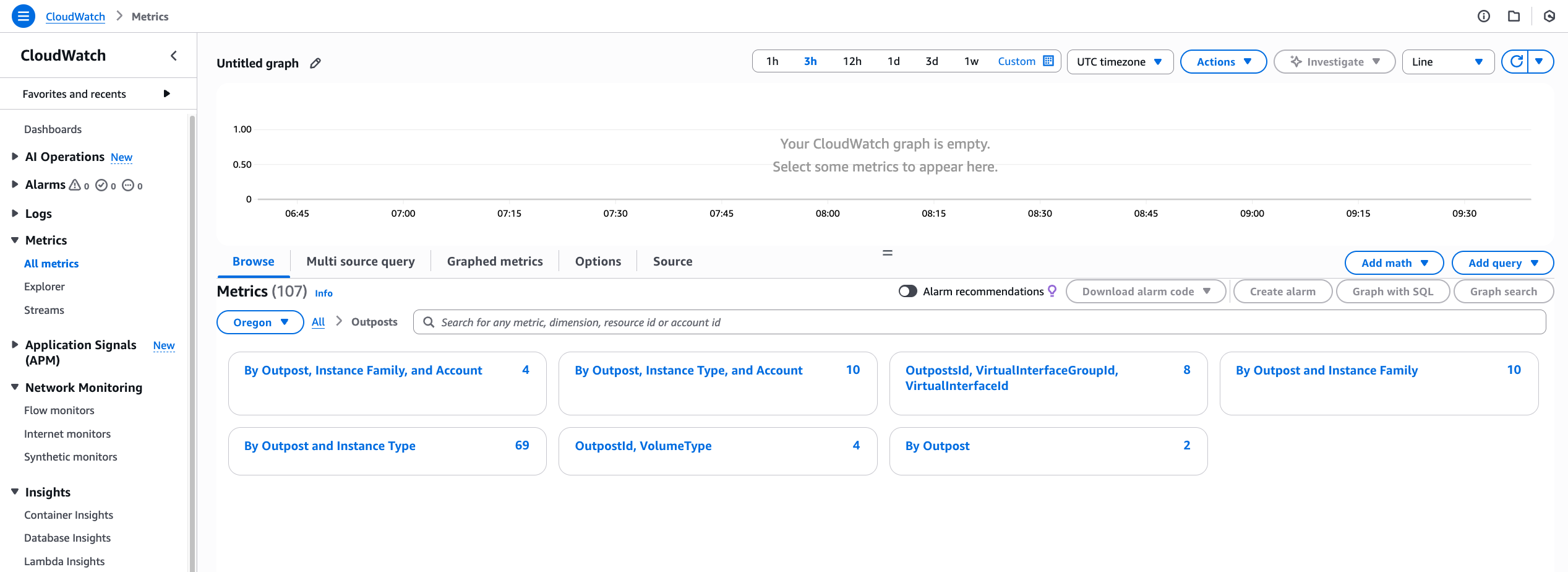
You can view and query these metrics on the CloudWatch console. In the navigation pane, choose All metrics, followed by Outposts under the AWS namespaces section. The Outposts namespace can only be viewed by the Outposts owner account, unless CloudWatch cross-account observability is configured. The new VifConnectionStatus and VifBgpSessionState metrics can be found under the OutpostsID, VirtualInterfaceGroupId, VirtualInterfaceId dimension.
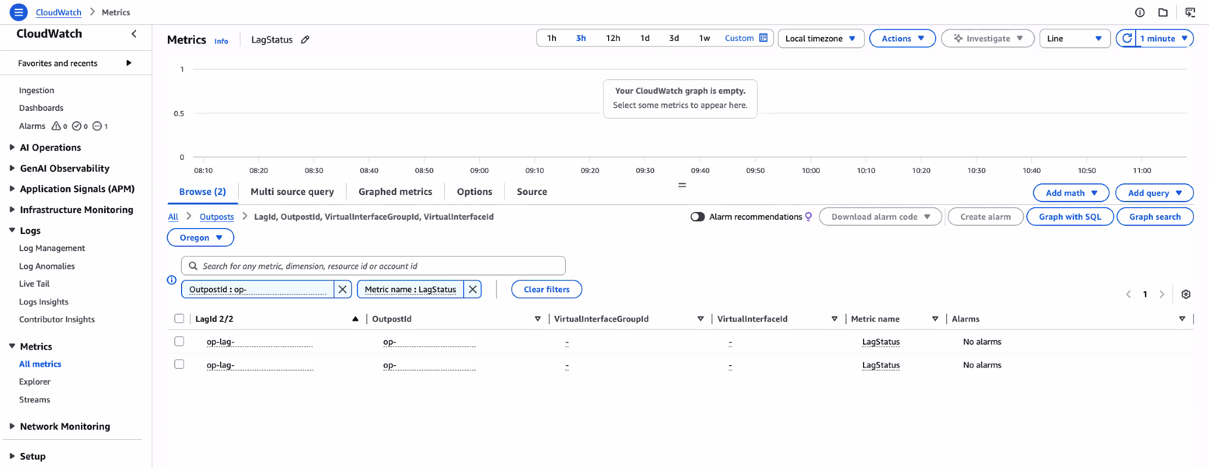
Figure 3: Amazon CloudWatch metrics for AWS Outposts

Figure 3: Amazon CloudWatch metrics for AWS Outposts

For more information on working with metrics, see Metrics in Amazon CloudWatch. For creating alerts based upon these new metrics and their values, refer to Using Amazon CloudWatch alarms.

The resilient design of using multiple ONDs for both service link and local gateway traffic allows workloads to continue to run in the event of connectivity issues for single VIFs. For example, a single service link VIF might report as being down, but the remaining service link VIFs might be unaffected and remain available. In this scenario, the service link itself would remain functional and connected, albeit with potentially lower resilience and capacity. This can be validated throught the ConnectedStatus metric which would have a value of 1.

Conclusion

This post provided details on the newly released CloudWatch metrics for Outposts racks, VifConnectionStatus and VifBgpSessionState, and how you can use them to investigate potential connectivity issues. For more information on Outposts rack networking patterns, see the Networking section of the Outposts High Availability Design and Architecture Considerations whitepaper. For more information about additional CloudWatch metrics that are available, check out the CloudWatch metrics for AWS Outposts documentation for second-generation Outposts racks and first-generation Outposts racks.

Reach out to your AWS account team, or fill out this form to learn more about observability for Outposts.
Maintaining spare capacity during host failures on AWS Outposts with dynamic monitoring

Post Syndicated from Adam Duffield original https://aws.amazon.com/blogs/compute/maintaining-spare-capacity-during-host-failures-on-aws-outposts-with-dynamic-monitoring/

AWS Outposts Rack is a fully managed service that extends AWS infrastructure, services, and APIs to user managed locations. Although you may be used to the seemingly infinite capacity that AWS offers in region, those using Outposts rack for their workloads are limited to the capacity that they order. You will need to closely manage and monitor usage of the available resources as part of capacity management. It is also important to make sure that there is sufficient available capacity in the event of an impactful hardware failure. Although spare capacity is often planned for in the initial Outposts rack configuration order, scaling events and deployments of new workloads can often lead to capacity shortages that only become visible during a failure event.

In this post, we review best practices for capacity management and fault tolerance with Outposts rack followed by an example of how the Outposts API can be used to build an automated monitoring and alerting system to highlight potential resiliency issues.

Planning for failures

The AWS Outposts High Availability Design and Architecture whitepaper discusses the principals of capacity planning within Outposts rack, such as how instance families are mapped to hosts through capacity planning.

When looking to determine resiliency levels, we refer to having N+M capacity, where N represents the number of deployed hosts of a particular instance family (such as C5 or M5), and M represents the number of hosts that can fail while still meeting workload capacity requirements.

The capacity configuration that is applied to each host will impact the necessary recovery process in the event of a failure, depending on the number of configured or running instances. With this in mind, there are three potential recovery scenarios that can apply in the event of a host hardware failure:

  1. Sufficient capacity exists within all instance pools to tolerate the failure of M hosts. This is the most ideal operational position to be in because, in the event of a failure, instances can be recovered to free capacity quickly either through automated features, such as EC2 Auto Scaling groups and instance recovery, or through manual stop/start of the instances.
  2. The required instance type is not available within the available instance pools, however, there is sufficient vCPU available to execute capacity tasks to create the required instance capacity to fulfill the shortfall. As this requires changes to existing capacity, this results in a longer recovery time overall
  3. Insufficient capacity within the Outpost at both the instance pool and vCPU level means that either workloads need to be stopped to fit within the available capacity, or more Outpost hardware needs to be added. This further extends the recovery time for workloads.

Consider the following example of an Outpost configured with four M5 hosts that have been designed with an N+1 resiliency model.

Figure 1: Example configuration with sufficient instance pool capacity

In this example, there are five configured instance pools with the following usages:

Instance size Total instance pool capacity Total free instance pool capacity Max configured instances per host
M5.large 16 6 4
M5.xlarge 8 3 2
M5.2xlarge 8 3 2
M5.4xlarge 8 3 2
M5.8xlarge 4 2 1

For all instance pools, the number of available instances is greater than the maximum number of instances configured on a single host. Therefore, in the event of a failure of any host, instances can be moved to the existing available capacity without any reconfiguration.

We can consider another scenario of running instances on the same set of hosts:

Figure 2: Example configuration with sufficient vCPU capacity

With the usage as shown, four of the configured instance pools have sufficient available capacity. However, the m5.4xlarge instance pool only has one available instance placement, resulting in no tolerance to a single host failure. A single m5 host has a total of 96 vCPU, and in this example the overall capacity of the available slots is 156 vCPU. This means that, with the execution of a capacity task to rebalance the available slots, instances could be restarted after a host failure.

Automating a capacity observability solution

With the release of the capacity task functionality for Outposts, details of instance placement and slot configuration per host are now available within both the AWS Management Console and through the API. With the addition of capacity tasks for Outposts, an automated solution can be created to query this data and provide notifications when the N+M resiliency requirements for your workloads are at risk.

The following diagram shows an example solution to achieve this, with the sample code provided in the AWS Samples GitHub repository. The solution is deployed using an AWS Serverless Application Model (AWS SAM) template.

Figure 3: Sample code architectural diagram

  1. Amazon EventBridge scheduler initiates an AWS Lambda function on a user defined time basis.
  2. The Lambda function evaluates the Outpost rack capacity, creates and updates Amazon CloudWatch alarms, and initiates regular reporting.
  3. An Amazon Simple Notification Service (Amazon SNS) Topic sends the report to user defined endpoints such as email or Slack.
  4. CloudWatch alarms continually monitor for changes to Outpost capacity.
  5. In the event of alarm thresholds being breached, a Lambda function is invoked to send notifications via SNS to the user defined endpoints.

At the core of the solution are two Lambda functions:

Monitoring stack manager: This Lambda function sets up the dynamic monitoring of the desired N+M resiliency level. It achieves this by creating and updating CloudWatch alarms based on the current capacity configuration of the Outposts being monitored, and the capacity usage for each instance family and type. The function generates detailed reports for each Outpost, identifying any potential resiliency issues for each instance family based on the M value that is specified at the time of deployment.

The detailed report, which is issued via the configured SNS topic, starts with an overall summary that clearly details the status of each instance family and the resiliency status.

Figure 4: Resiliency report summary section

Following the overall summary section, a more detailed analysis is provided for each instance family, looking at resiliency from both instance type and vCPU capacity perspectives. As part of this detailed analysis, the level of risk for each capacity pool is provided alongside a review of available instance capacity and suggested mitigation options.

Figure 5: Resiliency report instance pool analysis section

Figure 6: Resiliency report vCPU analysis section

This summary report is generated on every execution of the Monitoring Stack Manager function, with the default configuration that is triggered by the EventBridge Scheduler set to daily.

Process alarm: When the alarm that is configured by the Monitoring Stack Manager Lambda triggers, the Process Alarm Lambda analyzes Outpost capacity, checking for available free vCPUs within the hosts running the affected instance family. Then, a report is sent via SNS to immediately draw attention to the capacity risk, providing guidance if the resiliency risk can be mitigated through the application of an alternate capacity configuration.

Figure 7: Resiliency alarm notification report

Similar to the report generated by the Monitoring Stack Manager function, a more detailed breakdown of the capacity issue is provided that allows for easy identification of any necessary follow up actions. These actions are recommendations for manual resolution of the issue and require you to take action to implement.

When the available capacity returns to a level that matches the N+M resiliency requirements you defined, a further notification report is sent to confirm this, and the alarm is reset.

You may also prefer to integrate notifications into platforms such as Slack or Microsoft Teams. One option for this is to use a Lambda function to rewrite the Amazon SNS notification to publish the message through a Webhook. For more information on this, go to How do I use webhooks to publish Amazon SNS messages to Amazon Chime, Slack, or Microsoft Teams?. Alternatively, for sending messages to Slack, users can use Slack’s email-to-channel integration, which allows Slack to accept email messages and forward them to a Slack channel. For more information, go to Configure Amazon SNS to send messages for alerts to other destinations.

Considerations for deploying this solution

The sample solution provided has been designed to work for users who are operating Outposts at any scale. However, there are some considerations for deploying:

  1. The solution is deployed within the AWS account that owns the Outpost, rather than workload/consumer accounts that might be using Outposts resources through AWS Resource Access Manager (AWS RAM)
  2. The deployment is AWS Region-specific. Therefore, it would need to be deployed in each AWS Region you’re using Outposts in.
  3. Each stack deployment supports dedicated N+M configuration monitoring, allowing you to create separate deployments to match the desired resilience requirements across multiple Outposts.

Cleaning up

Because this solution is implemented through AWS SAM, the only clean up required is to execute the AWS SAM deployment using the cleanup parameter as documented in the code repository readme file.

Conclusion

In this post, we reviewed how to calculate N+M resilience for Outposts rack deployments, and provided a sample solution that can dynamically monitor and report on capacity constraints. Making sure that there is sufficient available capacity within an Outpost rack to tolerate failures is critical to running resilient applications and minimizing any potential downtime. Combining good capacity management practices with service functionality, such as EC2 Auto Scaling, automatic instance recovery, and placement groups, gives you several options to make sure workloads can continue to run even during failure events. If you need any assistance calculating your Outposts rack resiliency, or further information on deploying and running fault tolerant workloads, reach out to your AWS Account team.