Tag Archives: AWS Outposts rack

Announcing AWS Outposts third-party storage integration with Dell and HPE

Post Syndicated from Micah Walter original https://aws.amazon.com/blogs/aws/announcing-aws-outposts-third-party-storage-integration-with-dell-and-hpe/

Since announcing second-generation AWS Outposts racks in April with breakthrough performance and scalability, we’ve continued to innovate on behalf of our customers at the edge of the cloud. Today, we’re expanding AWS Outposts third-party storage integration program to include Dell PowerStore and HPE Alletra Storage MP B10000 systems, joining our list of existing integrations with NetApp on-premises enterprise storage arrays and Pure Storage FlashArray. This program makes it easy for customers to use AWS Outposts with third-party storage arrays through AWS native tooling. The solution integration is particularly important for organizations migrating VMware workloads to AWS who need to maintain their existing storage infrastructure during the transition, and for those who must meet strict data residency requirements by keeping their data on-premises while using AWS services.

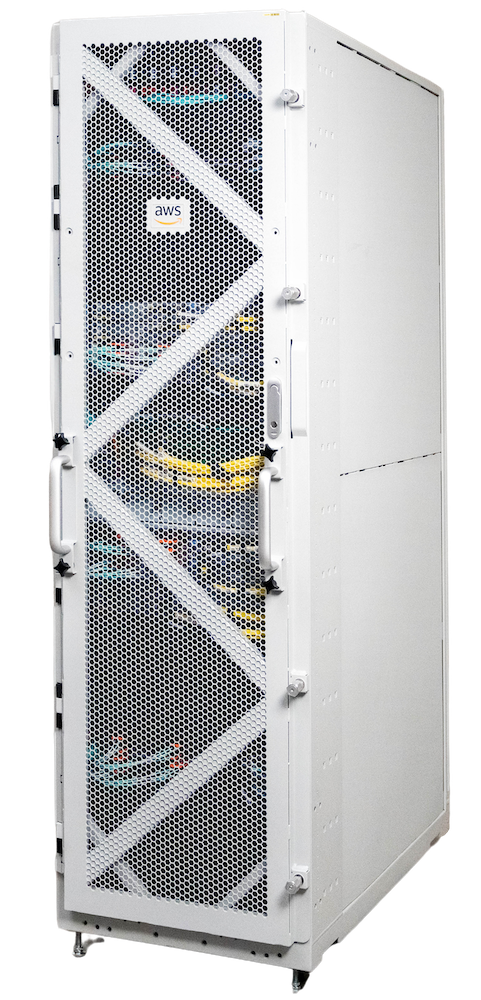
Outposts compute rack_Gen2_front_45This announcement builds upon two significant storage integration milestones we achieved in the past year. In December 2024, we introduced the ability to attach block data volumes from third-party storage arrays to Amazon EC2 instances on Outposts directly through the AWS Management Console. Then in July 2025, we enabled booting Amazon EC2 instances directly from these external storage arrays. Now, with the addition of Dell and HPE, customers have even more choice in how they integrate their on-premises storage investments with AWS Outposts.
Enhanced storage integration capabilities

Our third-party storage integration supports both data and boot volumes, offering two boot methods: iSCSI SANboot and Localboot. The iSCSI SANboot option enables both read-only and read-write boot volumes, while Localboot supports read-only boot volumes using either iSCSI or NVMe-over-TCP protocols. With this comprehensive approach, customers can centrally manage their storage resources while maintaining the consistent hybrid experience that Outposts provides.

Through the Amazon EC2 Launch Instance Wizard in the AWS Management Console, customers can configure their instances to use external storage from any of our supported partners. For boot volumes, we provide AWS-verified AMIs for Windows Server 2022 and Red Hat Enterprise Linux 9, with automation scripts available through AWS Samples to simplify the setup process.

Support for various Outposts configurations

All third-party storage integration features are supported on Outposts 2U servers and both generations of Outposts racks. Support for second-generation Outposts racks means customers can combine the enhanced performance of our latest EC2 instances on Outposts—including twice the vCPU, memory, and network bandwidth—with their preferred storage solutions. The integration works seamlessly with both our new simplified network scaling capabilities and specialized Amazon EC2 instances designed for ultra-low latency and high throughput workloads.

Things to know

Customers can begin using these capabilities today with their existing Outposts deployments or when ordering new Outposts through the AWS Management Console. If you are using third-party storage integration with Outposts servers, you can have either your onsite personnel or a third-party IT provider install the servers for you. After the Outposts servers are connected to your network, AWS will remotely provision compute and storage resources so you can start launching applications. For Outposts rack deployments, the process involves a setup where AWS technicians verify site conditions and network connectivity before the rack installation and activation. Storage partners assist with the implementation of the third-party storage components.

Third-party storage integration for Outposts with all compatible storage vendors is available at no additional charge in all AWS Regions where Outposts is supported. See the FAQs for Outposts servers and Outposts racks for the latest list of supported Regions.

This expansion of our Outposts third-party storage integration program demonstrates our continued commitment to providing flexible, enterprise-grade hybrid cloud solutions, meeting customers where they are in their cloud migration journey. To learn more about this capability and our supported storage vendors, visit the AWS Outposts partner page and our technical documentation for Outposts servers, second-generation Outposts racks, and first-generation Outposts racks. To learn more about partner solutions, check out Dell PowerStore integration with AWS Outposts and HPE Alletra Storage MP B10000 integration with AWS Outposts.

Multi-rack and multiple logical AWS Outposts architecture considerations for resiliency

Post Syndicated from Brianna Rosentrater original https://aws.amazon.com/blogs/compute/multi-rack-and-multiple-logical-aws-outposts-architecture-considerations-for-resiliency/

AWS Outposts rack offers the same Amazon Web Services (AWS) infrastructure, AWS services, APIs, and tools to virtually any on-premises data center or colocation space for a truly consistent hybrid experience. A logical Outpost (hereafter referred to as an Outpost) is a deployment of one or more physically connected Outposts racks managed as a single entity under one Amazon Resource Name (ARN). An Outpost provides a pool of AWS compute and storage capacity at one of your sites as a private extension of an Availability Zone (AZ) in an AWS Region. Several AWS services that support Outposts offer deployment options that improve your workload’s fault tolerance. However, certain Outposts configuration requirements have to be met in order to use them.

In this post, we explore the architecture considerations that come into play when deciding between a multi-rack logical Outposts rack, or using multiple Outposts racks to support your highly available workloads.

Amazon EC2 on AWS Outposts rack

The following sections cover Amazon Elastic Compute Cloud (Amazon EC2) on Outposts rack

Multi-rack logical Outposts

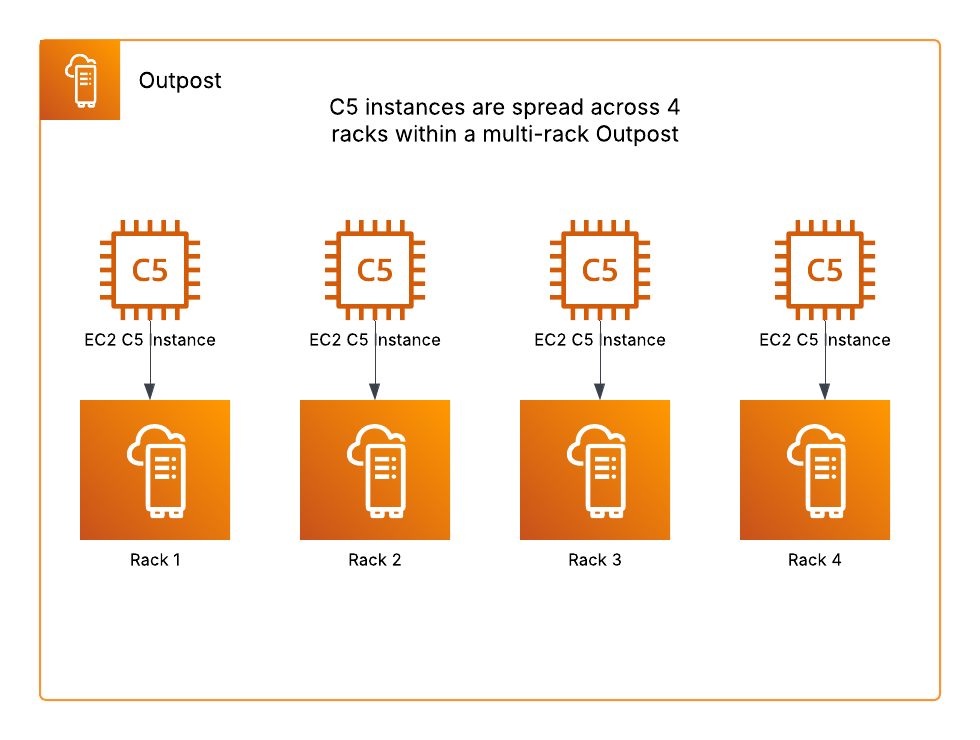
When using a multi-rack logical Outpost, you can use a rack level spread Amazon EC2 placement group. A rack level spread placement group can have as many partitions as you have racks in your Outpost deployment, and this allows you to spread out your instances to improve the fault tolerance of your workloads. In the following example, we have C5 instances in an Amazon EC2 Auto Scaling group that uses a launch template specifying a rack level spread placement group strategy should be used. This multi-rack Outpost has four racks, thus the instances are spread across the four racks as evenly as possible.

Rack level spread EC2 placement group example

Figure 1: Rack level spread Amazon EC2 placement group example

This placement group strategy can make your workloads more resilient to rack or host failures, but it would not be useful in mitigating an AZ failure. EC2 instances on Outposts are statically stable to network disconnects. Therefore, workloads would continue running during an AZ failure, but mutating actions would be unavailable. Read on to see how this strategy can be used with multiple Outposts to create a multi-AZ resilient architecture.

Multiple Outposts racks

If you have more than one logical Outpost in the same Region, we recommend connecting each Outpost to a different AZ. This would allow you to create multi-AZ resilient architectures, and when used in combination with features such as Intra-VPC communication between your Outposts, you can stretch an Amazon EC2 Auto Scaling group across two or more Outposts in the same VPC. If each Outpost is a single rack deployment, then this can be combined with a host level spread placement group specified in your instance launch template. A host level spread placement group can have as many partitions as you have hosts of that instance type in your Outpost, and would improve your workload’s resiliency to host failures.

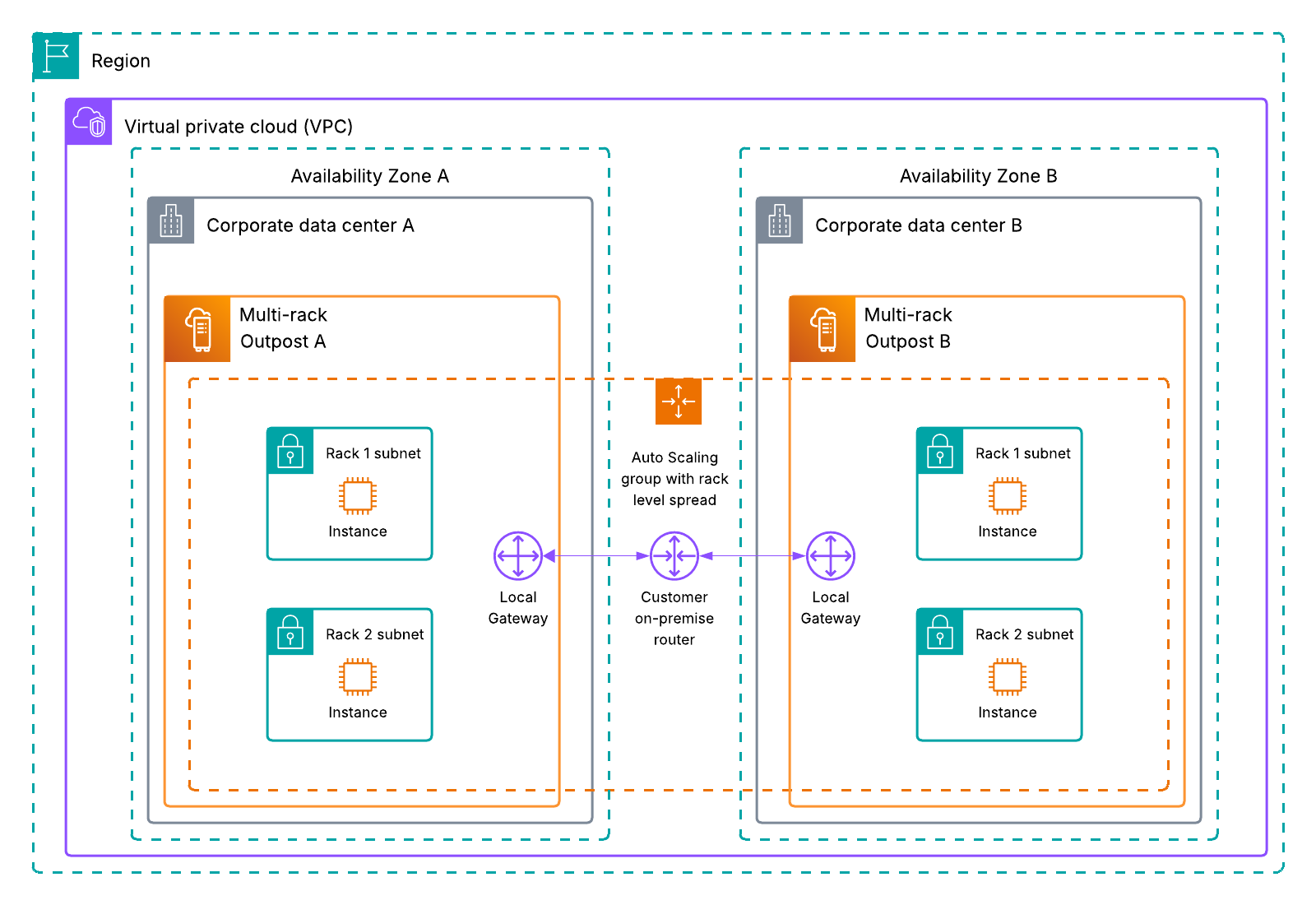
For the highest level of spread and resiliency, consider using multiple multi-rack logical Outposts. This would allow you to use rack level spread placement groups, and intra-VPC communication between Outposts, as shown in the following figure. Having more than one multi-rack Outpost allows you to create application architectures that are resilient toward hardware and AZ level failures by spreading your workload across as many fault domains as possible.

Intra-VPC communication between two multi-rack logical Outposts using an EC2 auto scaling group with rack level spread

Figure 2: Intra-VPC communication between two multi-rack logical Outposts using an Amazon EC2 Auto Scaling group with rack level spread

Amazon RDS on AWS Outposts rack

The following sections cover Amazon Relational Database Service (Amazon RDS) on Outposts rack.

Multi-rack logical Outposts

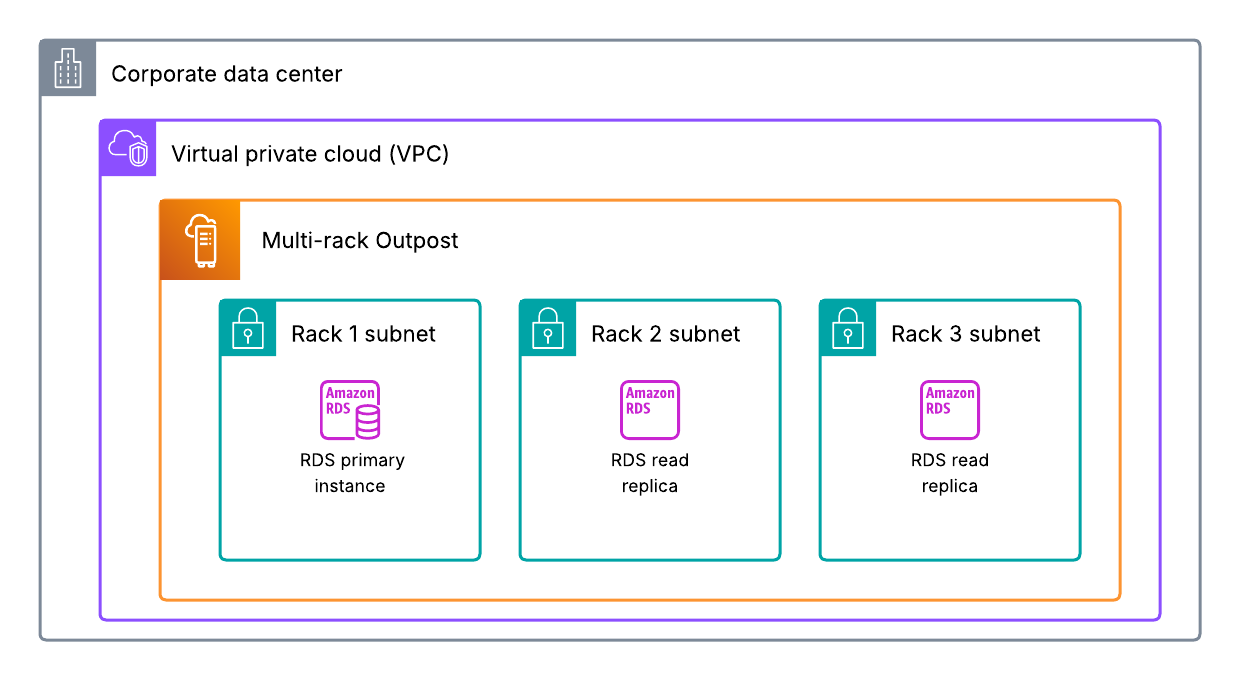
Amazon RDS on Outposts rack supports read replicas, which use the MySQL and PostgreSQL database engines’ built-in asynchronous replication functionality to create a read replica from a source database instance. Read replicas on Amazon RDS on Outposts can be located on the same Outpost or another Outpost in the same VPC as the source database instance, as shown in the following figure. Furthermore, these can be used to scale out beyond the capacity constraints of a single database instance for read-heavy database workloads. They can also be used to maintain a second copy of your database, which can be used in the event of a host failure to improve workload resiliency. The process to promote a read replica to primary must be manually initiated, and your DNS records must be updated to the new primary instance. However, this is a good option to improve database durability if you only have one logical Outpost. Multiple read replicas can be created for a single database instance for added resiliency. You can also create an Amazon RDS read replica for a single rack Outpost to improve your resiliency to host failures. However, having a multi-rack Outpost would allow you to spread your read replica to another rack within your Outpost.

RDS read replicas used with a multi-rack Outpost

Figure 3: Amazon RDS read replicas used with a multi-rack Outpost

Multiple Outposts racks

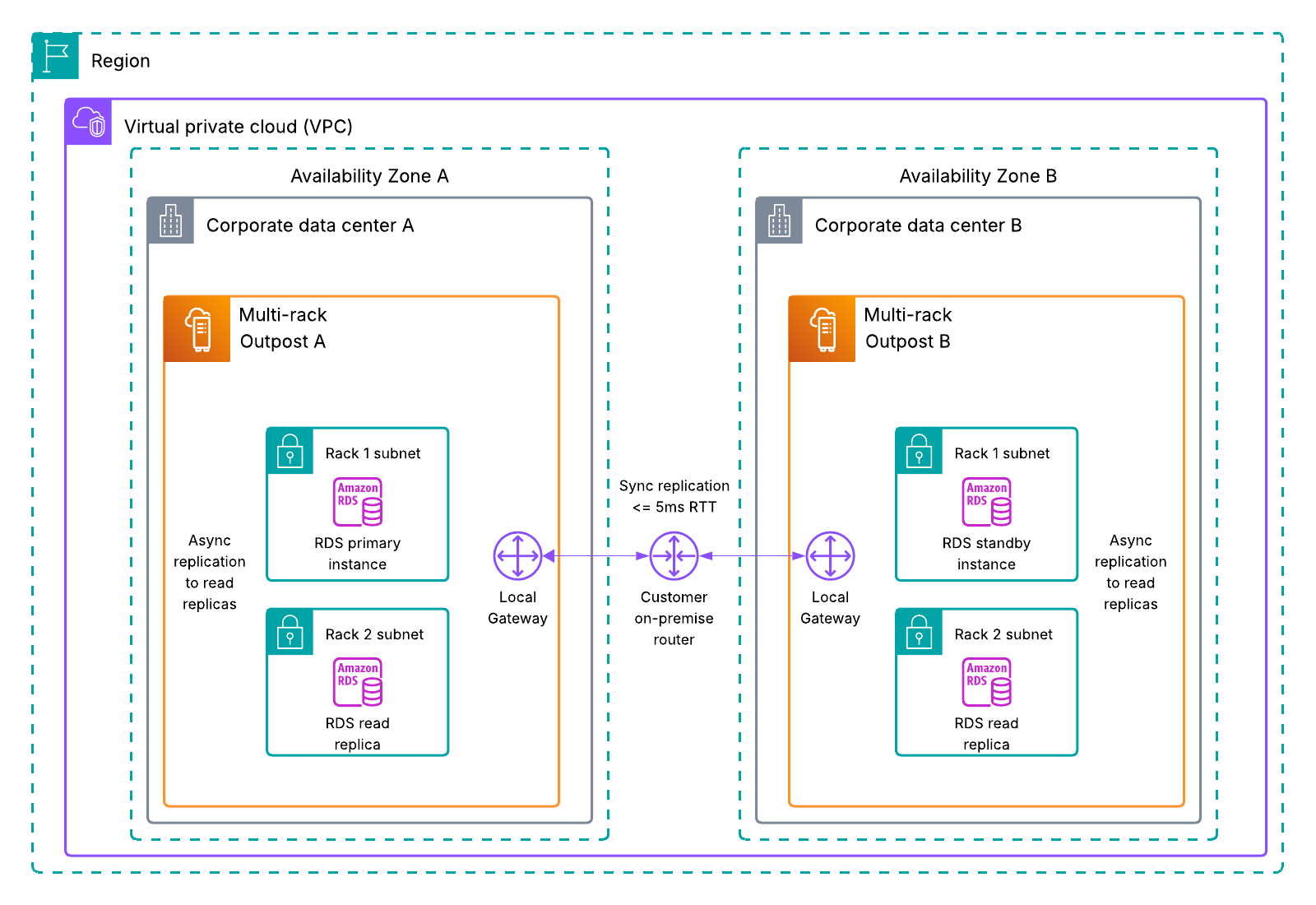
Multi-AZ Amazon RDS deployments are supported on Outposts rack for MySQL and PostgreSQL database instances, as shown in the following figure. Using your Outposts Local Gateway and synchronous data replication, Amazon RDS creates a primary database instance on one Outpost, and maintains a standby database instance on a different Outpost. Failover to a multi-AZ Amazon RDS standby instance is automatic, and the DNS records are also automatically updated as part of the failover process. Using this deployment option protects you from AZ, host, and Outpost failures. You can also use multi-AZ Amazon RDS in combination with read replicas spread across different hosts on the same rack, or across multiple racks if using two multi-rack Outposts to provide more database durability.

Multi-AZ RDS on Outposts using read replicas for added durability.

Figure 4: Multi-AZ Amazon RDS on Outposts using read replicas for added durability

Amazon EKS on Outposts rack

The following sections cover Amazon Elastic Kubernetes Service (Amazon EKS) on Outposts rack.

Multi-rack logical Outposts

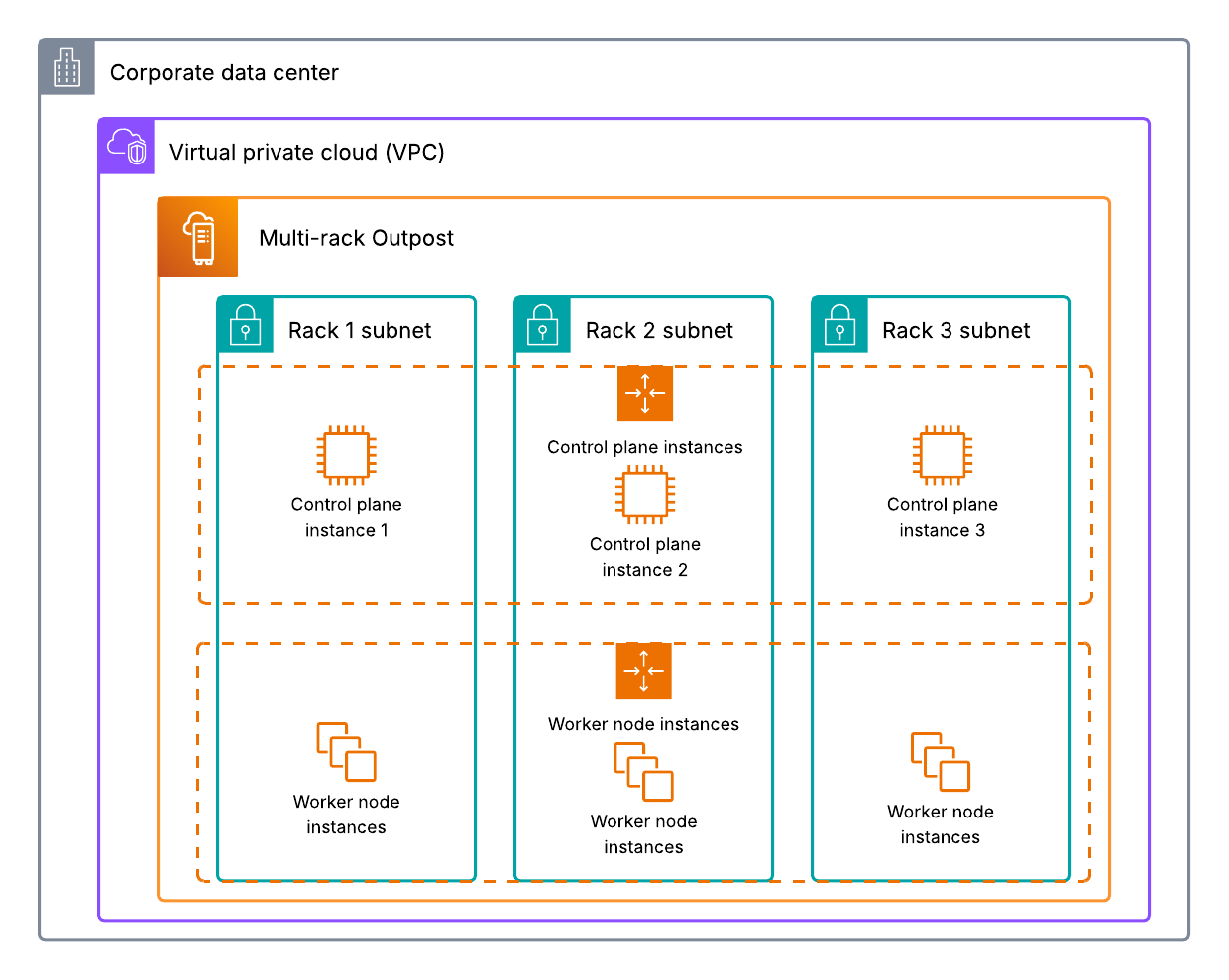
Outposts rack supports two Amazon EKS deployment methods: EKS extended cluster, and EKS local cluster, as shown in the following figure. Go to our documentation for help deciding which method is right for your workload. Using the rack level placement group strategy discussed earlier in this post allows you to spread your EKS instances (worker and control plane depending on the deployment model used) across multiple racks within your Outpost. Amazon EKS control plane instances are automatically replaced in the event of an instance, host, or rack failure, and self-managed worker node instances are typically placed in an Amazon EC2 Auto Scaling group. Therefore, when they’re used with a rack level spread placement group, you can increase your Amazon EKS resiliency and use automation to handle failures.

EKS local cluster with rack level spread placement group and auto scaling

Figure 5: EKS local cluster with rack level spread placement group and auto scaling

Multiple Outposts racks

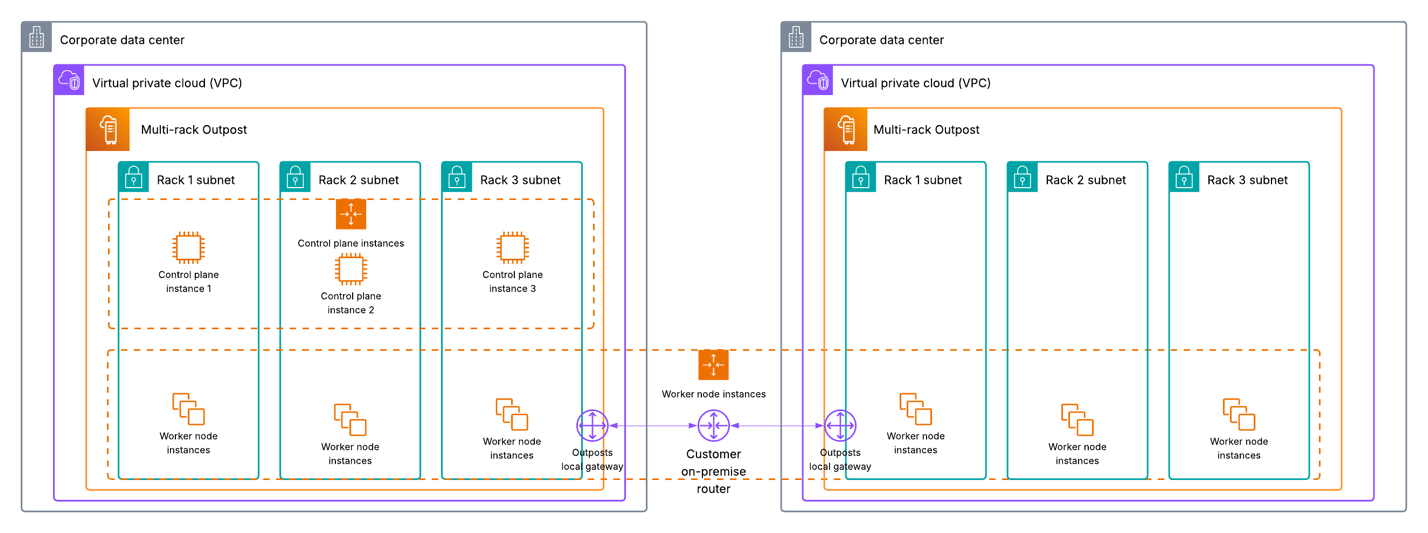
When using multiple Outposts racks, you’re unable to spread EKS control plane instances across two disparate Outposts. Go to Deploy an Amazon EKS cluster across AWS Outposts with Intra-VPC communication for more information on how to stretch an EKS extended cluster across multiple Outposts racks. If EKS local cluster is a requirement for your workload, you could use an external load balancer and deploy one instance of EKS local cluster on each Outpost in an active/active or active/passive configuration, and use the load balancer to direct incoming traffic to each respective EKS cluster. If your EKS cluster is using persistent storage, then you should consider whether each cluster needs access to the other clusters data, and centralized storage or replication should be used if needed.

Alternatively, if you are using EKS local cluster with two single rack Outposts, then you can also choose to only spread your EKS worker node instances across both of your Outposts. Furthermore, you can use host level spread on your primary Outpost to provide host level resiliency for your control plane instances. This would provide some added durability in the event of a host failure, and you could withstand the failure of your secondary Outpost that is only running some of your worker node instances. If you have two multi-rack Outposts, even though you couldn’t spread your control plane instances across Outposts, you can still use a rack level spread placement group to spread them across racks within your primary multi-rack Outpost. This would provide resiliency against instance, host, rack, and AZ level failures, and you could withstand the failure of your secondary multi-rack Outpost that isn’t running your EKS control plane instances as well.

EKS local cluster using two multi-rack Outposts and rack level spread

Figure 6: EKS local cluster using two multi-rack Outposts and rack level spread

Amazon S3 on Outposts rack

The following sections cover Amazon S3 on Outposts rack.

Multi-rack logical Outposts

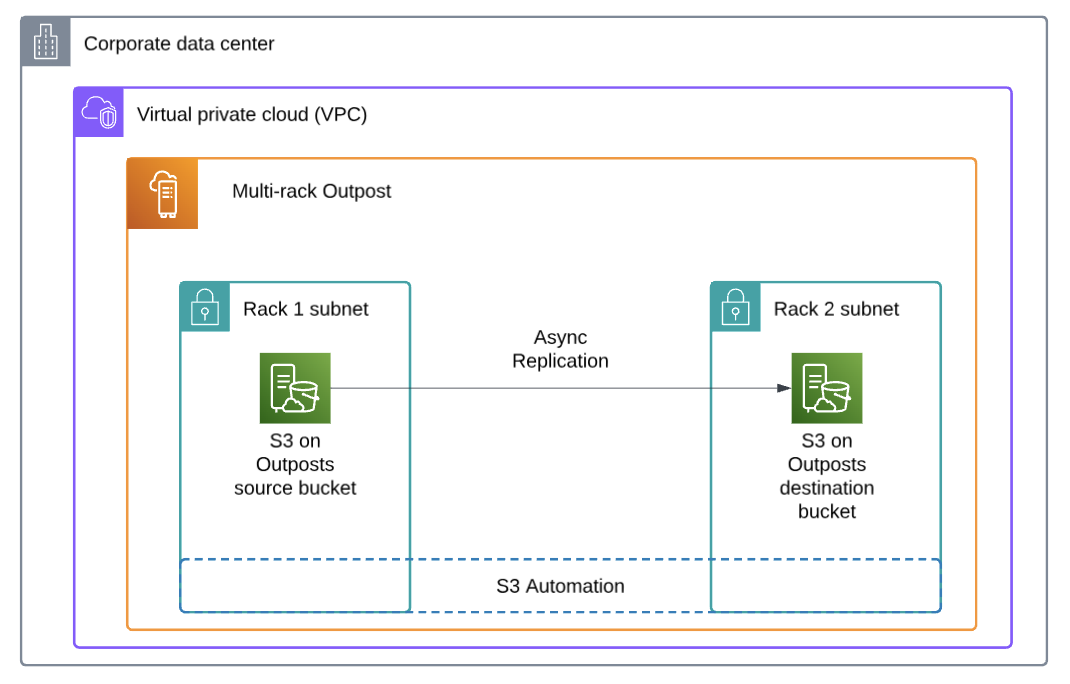
Amazon S3 on Outposts supports object replication, either across distinct Outposts, or between buckets on the same Outpost to help meet data-residency needs. The Outpost or bucket you’re replicating to can be in the same AWS account, or a different account. If you have a multi-rack Outpost, then you can replicate your S3 objects to another bucket on the same Outpost to create a copy of your data locally for added resiliency.

S3 replication between buckets on the same Outpost

Figure 7: Amazon S3 replication between buckets on the same Outpost

Multiple Outposts racks

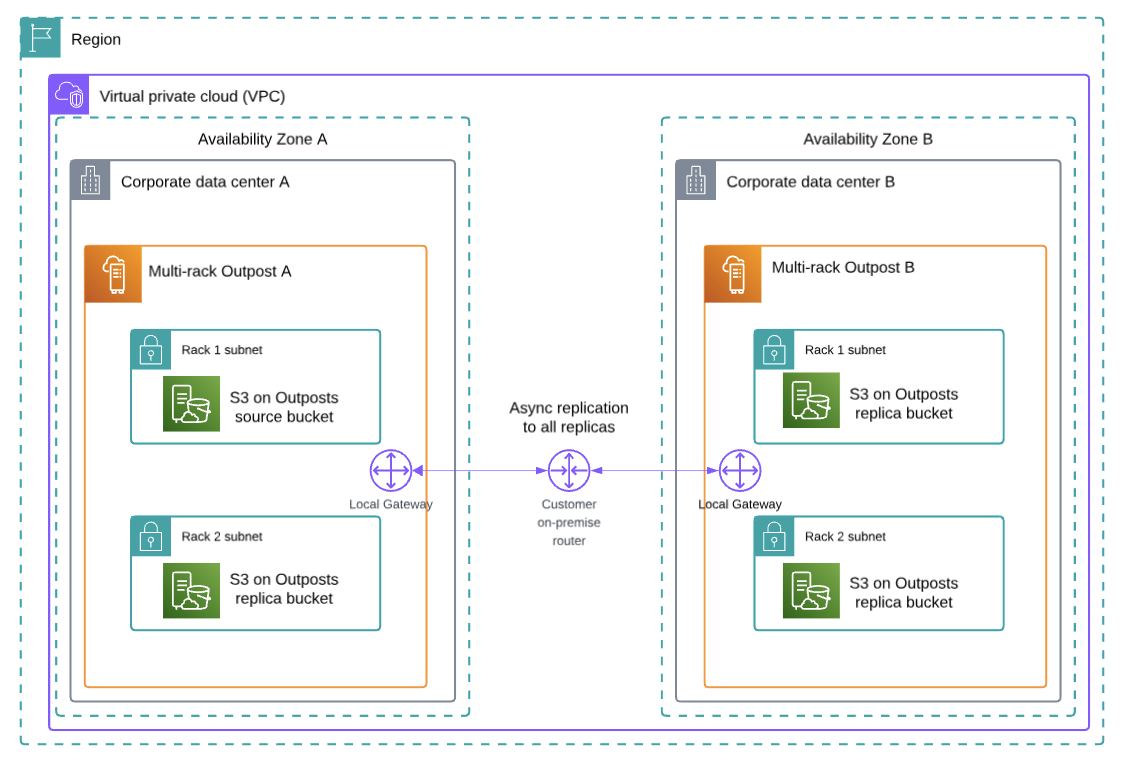
Moreover, if you have multiple Outposts, then you can replicate S3 objects between buckets on each Outpost, as shown in the following figure. Connect each Outpost to a unique AZ to create a multi-AZ resilient architecture, and store a copy of your data on each Outpost. You can combine this with Amazon S3 replication to a bucket on the same Outpost as well, and have multiple replicas managed through Amazon S3 automation for the highest availability. AWS DataSync also supports Amazon S3 on Outposts, and can be used to replicate S3 objects to the Region your Outpost is connected to if you want to store a copy of your data in the cloud, or use Amazon S3 in the Region for data tiering. Refer to Automate data synchronization between AWS Outposts racks and Amazon S3 with AWS DataSync for more information.

S3 replication across two multi-rack Outposts

Figure 8: Amazon S3 replication across two multi-rack Outposts

Further considerations

  • When using multiple Outposts, we recommend connecting each Outpost to a unique availability zone to use multi-AZ deployment options.
  • Outposts are designed to be a connected service, and network outages could cause workflow disruptions. AWS can help you design for continued operations during network outages. We recommend creating a redundant service link connection to support workloads on Outposts with high availability requirements. Go to AWS Direct Connect Resiliency Recommendations for guidance on how to create a highly available service link connection through AWS Direct Connect, and Satellite Resiliency for AWS Outposts.
  • Outposts have a finite amount of compute resources based on the physical configuration chosen, and the logical capacity configuration on your Outpost can be changed at any time using a capacity task. If the Amazon EC2 compute requirements for your workload change over time, then your Outposts capacity configuration can be updated to meet these requirements non-disruptively. Go to Dynamically reconfigure your AWS Outposts capacity using Capacity Tasks for more information.

Conclusion

This post explores the architecture options and considerations for deciding between a multi-rack Outpost, and using multiple Outposts to support your highly available workloads. For more information on how to design highly available architecture patterns for Outposts, go to the AWS Outposts High Availability Design and Architecture Considerations whitepaper. Reach out to your AWS account team, or fill out this form to learn more about Outposts and self-service capacity management.

Improving network observability with new AWS Outposts racks network metrics

Post Syndicated from Adam Duffield original https://aws.amazon.com/blogs/compute/improving-network-observability-with-new-aws-outposts-racks-network-metrics/

With AWS Outposts racks, you can extend AWS infrastructure, services, APIs, and tools to on-premises locations. Providing performant, stable, and resilient network connections to both the parent AWS Region as well as the local network is essential to maintaining uninterrupted service.

The release of two new Amazon CloudWatch metrics, VifConnectionStatus and VifBgpSessionState, gives you greater visibility into the operational status of the Outpost network connections. In this post, we discuss how to use these metrics to quickly identify network disruptions, using additional data points that can help reduce time to resolution.

Outposts network connectivity overview

When connecting an Outposts rack to your chosen data center location, network connections are made between the Outpost Networking Devices (ONDs) and Customer Network Devices (CNDs). These network connections support both the Service Link connectivity back to the chosen anchor Region and connectivity to the on-premises local network through the Local Gateway. First-generation Outposts racks include a minimum of two network devices to provide resilience, with second-generation Outposts racks including four network devices.

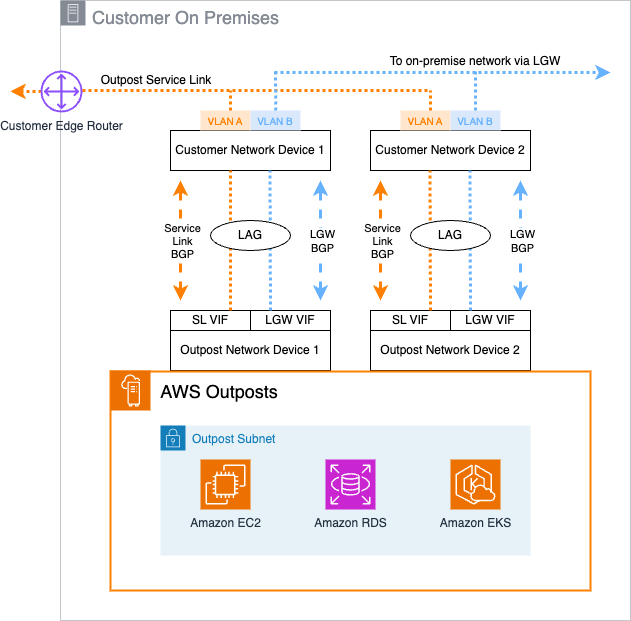
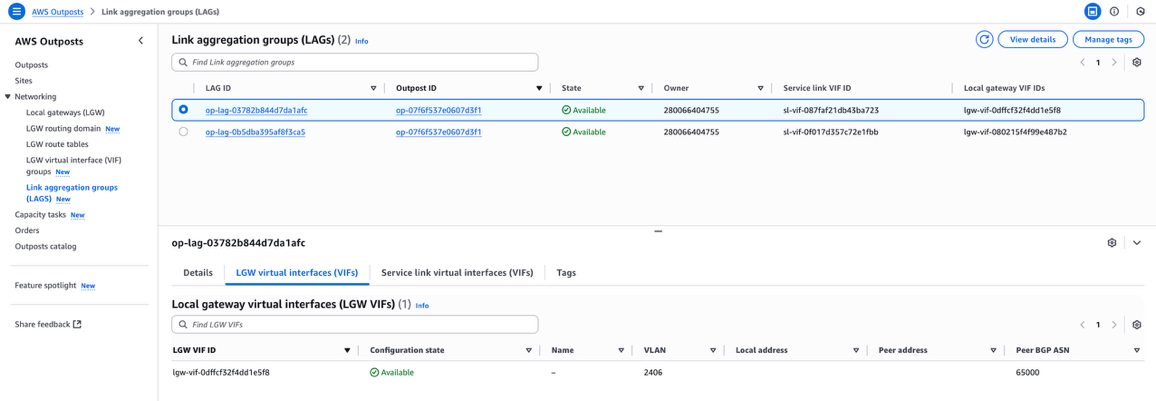
Virtual interfaces (VIFs) are used to establish IP network connectivity between the Outpost and CNDs, using Border Gateway Protocol (BGP) for dynamic routing. You can view the details for these VIFs on the Outposts console by choosing Link aggregation groups (LAGs) in the navigation pane and drilling down to find the specific service link and local gateway VIF information. For each connection between an OND and CND, two BGP sessions are established: one to support service link traffic and the other to support local gateway traffic.

The following diagram shows an example of this connectivity for a first-generation Outposts rack.

Figure 1: First-Generation Outposts Rack network connections

Figure 1: First-Generation Outposts Rack network connections

In this configuration, a total of four VIFs are configured into two link aggregation groups (LAGs): one on each OND for the service link and local gateway VIFs.

Understanding the new CloudWatch metrics for Outposts

Observability into the operational status of Outposts rack, including the status and performance of network connectivity, is important for you to be able to quickly identify and investigate potential issues. With the addition of the VifConnectionStatus and VifBgpSessionState Outposts metrics in CloudWatch, you have greater visibility into the connection status of the Outposts rack to your CNDs. The VifConnectionStatus metric is provided on a per-VIF level, available for both the local gateway and service link VIFs. It provides an indication on the status of the VIF using two possible values:

  • A value of 1 indicates that the VIF is successfully connected to the CND with established BGP sessions and able to transmit traffic
  • A value of 0 indicates that the VIF is not in an operational state due to an underlying issue

The VifBgpSessionState metric goes deeper into the BGP connectivity status between each Outposts VIF and CND. A BGP session can be in one of multiple states, each providing insight into where a potential issue might be. To reflect this, the CloudWatch metric value shown relates to the following BGP states:

  1. IDLE – The initial state; the ONDs are waiting for a start event
  2. Connect – The Outposts rack is waiting for the TCP connection to be complete
  3. Active – The Outposts rack is trying to initiate a TCP connection
  4. OpenSent – The router has sent an OPEN message and is waiting for a response
  5. OpenConfirm – The router has received an OPEN message and is waiting for a KEEPALIVE response
  6. Established – The BGP connection is fully established and the ONDs and CNDs can exchange routing information

With these metrics now available in CloudWatch, you can configure Amazon CloudWatch alarms to alert when the metric values indicate potential issues. You can combine existing CloudWatch metrics for Outposts racks with these new metrics to give additional context and visibility into network connectivity status.

Using CloudWatch metrics to investigate Outposts network connectivity issues

In the event of network connectivity issues, it’s important to understand how to use these metrics to assist with investigations and understand potential causes when seeing network impairment. To start with, the Configuration state of the VIFs should be checked. For each VIF, there are four possible states:

  • Pending – A VIF is in this state from the time that it is created within a VIF group until the VIF becomes active on the OND
  • Available – A VIF is active on ONDs
  • Deleting – A VIF is in this state immediately after requesting deletion
  • Deleted – A VIF is deleted

To check the state of an individual VIF on the Outposts console, choose Networking followed by Link aggregation groups (LAGS) in the navigation pane. The service link and local gateway VIFs associated with a specific LAG are shown, and when you choose a specific LAG, the configuration state of the associated VIFs are visible.

Figure 2: AWS Outposts console showing VIF configuration details

Figure 2: AWS Outposts console showing VIF configuration details

You can also retrieve these details programmatically. For example, use the following AWS Command Line Interface (AWS CLI) command to specifically check the configuration state of a service link VIF with ID sl-vif-087faf21db43ba723:

aws ec2 describe-service-link-virtual-interfaces \
--service-link-virtual-interface-id sl-vif-087faf21db43ba723
{
    "ServiceLinkVirtualInterfaces": [
        {
            "ServiceLinkVirtualInterfaceId": "sl-vif-087faf21db43ba723",
            "ServiceLinkVirtualInterfaceArn": "arn:aws:ec2:us-west-2:111122223333:service-link-virtual-interface/sl-vif-087faf21db43ba723",
            "OutpostId": "op-07f6f537e0607d3f1",
            "OutpostArn": "arn:aws:outposts:us-west-2:111122223333:outpost/op-07f6f537e0607d3f1",
            "OwnerId": "280066404755",
            "LocalAddress": "XX.XX.XX.XX/XX",
            "PeerAddress": " XX.XX.XX.XX/XX ",
            "PeerBgpAsn": 65000,
            "Vlan": 2006,
            "OutpostLagId": "op-lag-03782b844d7da1afc",
            "Tags": [],
            "ConfigurationState": "available"
        }
    ]
}

After confirming the Configuration state, you can use the VifConnectionStatus metric to determine the network connectivity status of individual VIFs. When operating and processing traffic in a healthy state, the value of this metric is 1. If this value changes to 0, it indicates a connectivity problem for that VIF between the Outpost and CNDs.

To further understand the potential cause of the VifConnectionStatus value, you can use the VifBgpSessionState metric. Under normal operational status, this metric value is 6, indicating that the BGP session is established and traffic can be sent and received. However, if this metric value changes to 1–5, then it is indicative of an issue. To start investigating the cause of this, you should review VIF configuration both on the Outposts console and programmatically. This includes the values set on the OND for VLAN, local and peer addresses, and BGP ASN. These values can be validated against the configuration on your on-premises CNDs if required. Furthermore, you can use the VifBgpSessionState metric value to determine the potential cause:

  • If the value is 1, validate the values for BGP ASN and peer addresses
  • If the value is 2, this might indicate port or IP address issues
  • If the value is 3, this might indicate BGP version mismatches
  • If the value is 4 or 5, this refers to networking path problems

By using a combination of these metrics, you can gain a clearer understanding of the potential network issue without having to engage with AWS or third-party support teams.

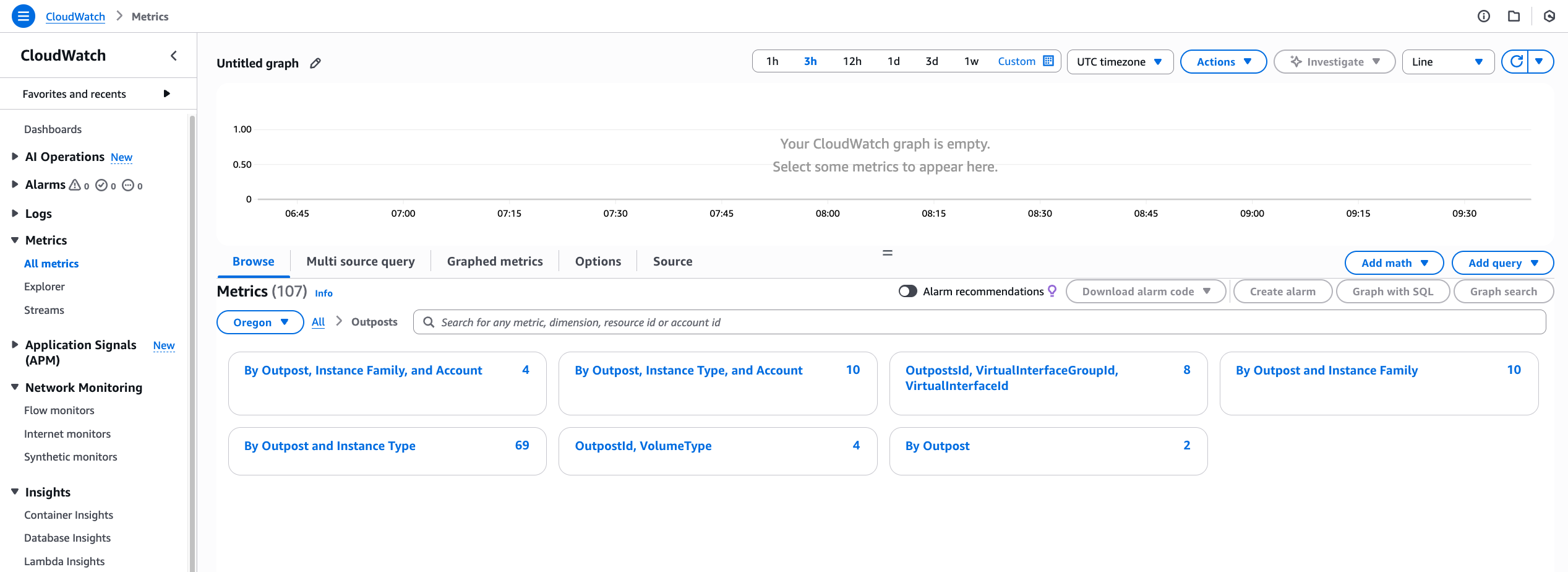
You can view and query these metrics on the CloudWatch console. In the navigation pane, choose All metrics, followed by Outposts under the AWS namespaces section. The Outposts namespace can only be viewed by the Outposts owner account, unless CloudWatch cross-account observability is configured. The new VifConnectionStatus and VifBgpSessionState metrics can be found under the OutpostsID, VirtualInterfaceGroupId, VirtualInterfaceId dimension.

Figure 3: Amazon CloudWatch metrics for AWS Outposts

Figure 3: Amazon CloudWatch metrics for AWS Outposts

For more information on working with metrics, see Metrics in Amazon CloudWatch. For creating alerts based upon these new metrics and their values, refer to Using Amazon CloudWatch alarms.

The resilient design of using multiple ONDs for both service link and local gateway traffic allows workloads to continue to run in the event of connectivity issues for single VIFs. For example, a single service link VIF might report as being down, but the remaining service link VIFs might be unaffected and remain available. In this scenario, the service link itself would remain functional and connected, albeit with potentially lower resilience and capacity. This can be validated throught the ConnectedStatus metric which would have a value of 1.

Conclusion

This post provided details on the newly released CloudWatch metrics for Outposts racks, VifConnectionStatus and VifBgpSessionState, and how you can use them to investigate potential connectivity issues. For more information on Outposts rack networking patterns, see the Networking section of the Outposts High Availability Design and Architecture Considerations whitepaper. For more information about additional CloudWatch metrics that are available, check out the CloudWatch metrics for AWS Outposts documentation for second-generation Outposts racks and first-generation Outposts racks.

Reach out to your AWS account team, or fill out this form to learn more about observability for Outposts.

Maintaining spare capacity during host failures on AWS Outposts with dynamic monitoring

Post Syndicated from Adam Duffield original https://aws.amazon.com/blogs/compute/maintaining-spare-capacity-during-host-failures-on-aws-outposts-with-dynamic-monitoring/

AWS Outposts Rack is a fully managed service that extends AWS infrastructure, services, and APIs to user managed locations. Although you may be used to the seemingly infinite capacity that AWS offers in region, those using Outposts rack for their workloads are limited to the capacity that they order. You will need to closely manage and monitor usage of the available resources as part of capacity management. It is also important to make sure that there is sufficient available capacity in the event of an impactful hardware failure. Although spare capacity is often planned for in the initial Outposts rack configuration order, scaling events and deployments of new workloads can often lead to capacity shortages that only become visible during a failure event.

In this post, we review best practices for capacity management and fault tolerance with Outposts rack followed by an example of how the Outposts API can be used to build an automated monitoring and alerting system to highlight potential resiliency issues.

Planning for failures

The AWS Outposts High Availability Design and Architecture whitepaper discusses the principals of capacity planning within Outposts rack, such as how instance families are mapped to hosts through capacity planning.

When looking to determine resiliency levels, we refer to having N+M capacity, where N represents the number of deployed hosts of a particular instance family (such as C5 or M5), and M represents the number of hosts that can fail while still meeting workload capacity requirements.

The capacity configuration that is applied to each host will impact the necessary recovery process in the event of a failure, depending on the number of configured or running instances. With this in mind, there are three potential recovery scenarios that can apply in the event of a host hardware failure:

  1. Sufficient capacity exists within all instance pools to tolerate the failure of M hosts. This is the most ideal operational position to be in because, in the event of a failure, instances can be recovered to free capacity quickly either through automated features, such as EC2 Auto Scaling groups and instance recovery, or through manual stop/start of the instances.
  2. The required instance type is not available within the available instance pools, however, there is sufficient vCPU available to execute capacity tasks to create the required instance capacity to fulfill the shortfall. As this requires changes to existing capacity, this results in a longer recovery time overall
  3. Insufficient capacity within the Outpost at both the instance pool and vCPU level means that either workloads need to be stopped to fit within the available capacity, or more Outpost hardware needs to be added. This further extends the recovery time for workloads.

Consider the following example of an Outpost configured with four M5 hosts that have been designed with an N+1 resiliency model.

Figure 1: Example configuration with sufficient instance pool capacity

In this example, there are five configured instance pools with the following usages:

Instance size Total instance pool capacity Total free instance pool capacity Max configured instances per host
M5.large 16 6 4
M5.xlarge 8 3 2
M5.2xlarge 8 3 2
M5.4xlarge 8 3 2
M5.8xlarge 4 2 1

For all instance pools, the number of available instances is greater than the maximum number of instances configured on a single host. Therefore, in the event of a failure of any host, instances can be moved to the existing available capacity without any reconfiguration.

We can consider another scenario of running instances on the same set of hosts:

Figure 2: Example configuration with sufficient vCPU capacity

With the usage as shown, four of the configured instance pools have sufficient available capacity. However, the m5.4xlarge instance pool only has one available instance placement, resulting in no tolerance to a single host failure. A single m5 host has a total of 96 vCPU, and in this example the overall capacity of the available slots is 156 vCPU. This means that, with the execution of a capacity task to rebalance the available slots, instances could be restarted after a host failure.

Automating a capacity observability solution

With the release of the capacity task functionality for Outposts, details of instance placement and slot configuration per host are now available within both the AWS Management Console and through the API. With the addition of capacity tasks for Outposts, an automated solution can be created to query this data and provide notifications when the N+M resiliency requirements for your workloads are at risk.

The following diagram shows an example solution to achieve this, with the sample code provided in the AWS Samples GitHub repository. The solution is deployed using an AWS Serverless Application Model (AWS SAM) template.

Figure 3: Sample code architectural diagram

  1. Amazon EventBridge scheduler initiates an AWS Lambda function on a user defined time basis.
  2. The Lambda function evaluates the Outpost rack capacity, creates and updates Amazon CloudWatch alarms, and initiates regular reporting.
  3. An Amazon Simple Notification Service (Amazon SNS) Topic sends the report to user defined endpoints such as email or Slack.
  4. CloudWatch alarms continually monitor for changes to Outpost capacity.
  5. In the event of alarm thresholds being breached, a Lambda function is invoked to send notifications via SNS to the user defined endpoints.

At the core of the solution are two Lambda functions:

Monitoring stack manager: This Lambda function sets up the dynamic monitoring of the desired N+M resiliency level. It achieves this by creating and updating CloudWatch alarms based on the current capacity configuration of the Outposts being monitored, and the capacity usage for each instance family and type. The function generates detailed reports for each Outpost, identifying any potential resiliency issues for each instance family based on the M value that is specified at the time of deployment.

The detailed report, which is issued via the configured SNS topic, starts with an overall summary that clearly details the status of each instance family and the resiliency status.

Figure 4: Resiliency report summary section

Following the overall summary section, a more detailed analysis is provided for each instance family, looking at resiliency from both instance type and vCPU capacity perspectives. As part of this detailed analysis, the level of risk for each capacity pool is provided alongside a review of available instance capacity and suggested mitigation options.

Figure 5: Resiliency report instance pool analysis section

Figure 6: Resiliency report vCPU analysis section

This summary report is generated on every execution of the Monitoring Stack Manager function, with the default configuration that is triggered by the EventBridge Scheduler set to daily.

Process alarm: When the alarm that is configured by the Monitoring Stack Manager Lambda triggers, the Process Alarm Lambda analyzes Outpost capacity, checking for available free vCPUs within the hosts running the affected instance family. Then, a report is sent via SNS to immediately draw attention to the capacity risk, providing guidance if the resiliency risk can be mitigated through the application of an alternate capacity configuration.

Figure 7: Resiliency alarm notification report

Similar to the report generated by the Monitoring Stack Manager function, a more detailed breakdown of the capacity issue is provided that allows for easy identification of any necessary follow up actions. These actions are recommendations for manual resolution of the issue and require you to take action to implement.

When the available capacity returns to a level that matches the N+M resiliency requirements you defined, a further notification report is sent to confirm this, and the alarm is reset.

You may also prefer to integrate notifications into platforms such as Slack or Microsoft Teams. One option for this is to use a Lambda function to rewrite the Amazon SNS notification to publish the message through a Webhook. For more information on this, go to How do I use webhooks to publish Amazon SNS messages to Amazon Chime, Slack, or Microsoft Teams?. Alternatively, for sending messages to Slack, users can use Slack’s email-to-channel integration, which allows Slack to accept email messages and forward them to a Slack channel. For more information, go to Configure Amazon SNS to send messages for alerts to other destinations.

Considerations for deploying this solution

The sample solution provided has been designed to work for users who are operating Outposts at any scale. However, there are some considerations for deploying:

  1. The solution is deployed within the AWS account that owns the Outpost, rather than workload/consumer accounts that might be using Outposts resources through AWS Resource Access Manager (AWS RAM)
  2. The deployment is AWS Region-specific. Therefore, it would need to be deployed in each AWS Region you’re using Outposts in.
  3. Each stack deployment supports dedicated N+M configuration monitoring, allowing you to create separate deployments to match the desired resilience requirements across multiple Outposts.

Cleaning up

Because this solution is implemented through AWS SAM, the only clean up required is to execute the AWS SAM deployment using the cleanup parameter as documented in the code repository readme file.

Conclusion

In this post, we reviewed how to calculate N+M resilience for Outposts rack deployments, and provided a sample solution that can dynamically monitor and report on capacity constraints. Making sure that there is sufficient available capacity within an Outpost rack to tolerate failures is critical to running resilient applications and minimizing any potential downtime. Combining good capacity management practices with service functionality, such as EC2 Auto Scaling, automatic instance recovery, and placement groups, gives you several options to make sure workloads can continue to run even during failure events. If you need any assistance calculating your Outposts rack resiliency, or further information on deploying and running fault tolerant workloads, reach out to your AWS Account team.

Anchoring AWS Outposts servers with AWS Direct Connect

Post Syndicated from Art Baudo original https://aws.amazon.com/blogs/compute/anchoring-aws-outposts-servers-with-aws-direct-connect/

This post is written by Perry Wald, Principal GTM SA, Hybrid Edge, Eric Vasquez Senior SA Hybrid Edge, and Fernando Galves Gen AI Solutions Architect, Outposts

AWS Outposts is a fully managed service that extends AWS infrastructure, services, APIs, and tools to customer premises. Outposts servers launched in 2022, a 1U or 2U rack-mountable host, with the ability to run Amazon Elastic Compute Cloud (Amazon EC2) and Amazon Elastic Container Service (Amazon ECS), as well as other appropriate smaller scale edge services such as AWS IoT Greengrass. This version of Outposts is primarily focused on bringing lower latency, AWS compute capabilities to the edge at many user locations.

During Outposts provisioning, you or AWS creates a service link connection that connects your Outposts server to your chosen AWS Region or home Region. Outposts depends on regional connectivity “to reach out to home,” needing very little in terms of networking. Looking at the network requirements, it needs:

  • DHCP, to assign an IP address and a default gateway
  • Public DNS, to resolve the name of the initial regional endpoint, to allow automated setup, and
  • Internet access, so that when the regional endpoint has been resolved, the Outpost can reach that endpoint. With a minimum of 500 Mbps or and a max of 175 ms round trip latency

User challenges with internet connectivity at the edge

When you order an Outposts server, you are responsible for installing the server. Outposts servers are self-provisioning and need a service link connection between your Outposts and the AWS Region (or home Region). This connection allows for the management of Outposts and the exchange of traffic to and from the AWS Region. Server deployment can be broken down into the following steps: installing the Outposts servers, powering them on, and providing authentication details through a command line. Then, the Outpost servers reach out to the regional endpoint, and provision themselves. Your Outpost status will show as Active when the process has completed, it could take a few hours depending on service link bandwidth.

Although this has been suitable for the vast majority of use cases, there are some locations that can’t provide internet connectivity in their environments. This has mostly been in use cases where there is a strong security reason for not having an internet connection (such as financial services kiosks, small manufacturing facilities, and defense), so as to avoid risks such as DDoS attacks and potential hack attempts, or to meet requirements for receiving an authority to operate (ATO).

These locations either have some form of direct connect, or more commonly have a centralized direct connect link to AWS, and an MPLS network linking all their remote sites to a central one. In both of these scenarios, the requirement is to allow the Outpost servers to resolve and reach the public endpoint for setup, and subsequently the public anchor endpoint for management. This is done without needing to leave the AWS ecosystem, without needing to expose themselves unnecessarily to potential internet threats, and without adding more systems to manage themselves, but rather making use of AWS services.

To meet this requirement, we identified several key things that need to be provided if the user does not have internet connectivity at the remote location, as follows:

  1. DHCP, to provide the Outposts servers with an IP address, default gateway, and DNS servers.
  2. Public DNS access to resolve both the setup endpoint, and when live, the anchor endpoint.
  3. Public internet access, without exposing the user location to potentially harmful traffic from the internet.

Direct Connect VIF options

There are three different types of Virtual Interfaces (VIF) possible to configure on an AWS Direct Connect link:

  • Public VIF: A public VIF can access all AWS public services using public IP addresses.
  • Private VIF: A private VIF should be used to access an Amazon Virtual Private Cloud (Amazon VPC) using private IP addresses.
  • Transit VIF: A transit VIF should be used to access one or more Amazon VPC Transit Gateways associated with Direct Connect gateways.

Transit VIF option

A transit VIF can be used to solve both of these issues. First, a transit VIF deploys an ENI within a VPC (known as an attachment), so that traffic coming from the transit VIF into a VPC can be routed. This is because it follows the rule that, for non-transitive VPC routing, the traffic has to either be sourced or targeted for an ENI in the VPC.

If the traffic is forwarded to a regional VPC through the transit gateway, then it can be forwarded to the internet through an NAT gateway. This is an enhancement of the architecture to use a transit gateway to provide a single egress point for multiple VPCs to the internet. For more information, see Creating a single internet exit point from multiple VPCs Using AWS Transit Gateway. In this case, instead of the transit gateway routing multiple VPCs to the internet, it’s routing to an on-premises connection.

Using a transit gateway to forward traffic to an NAT gateway allows you to provide internet connectivity for the Outposts servers without managing virtual appliances, because NAT gateway provides this as a service. NAT gateways also only allow outbound access, so they provide security against any attempted external access by a bad actor from the internet. This works for Outposts servers since they only need outbound access. Outposts always initiate communication to an anchor or service endpoint, and they never receive communication except as a response.

Architectural diagram showing the use of a Transit VIF and NAT gateway in a Region reaching regional endpoints

Figure 1. Architectural diagram showing the use of a Transit VIF and NAT gateway in a Region reaching regional endpoints

DNS provisioning

Although the preceding architecture solves the challenge of how we provide a path for IP packets to transit between the Outposts servers and the public endpoints needed, it doesn’t solve the issue of resolving DNS names. If the remote site is isolated from the internet, then it has no clear way to resolve DNS.

Amazon Route53 resolver endpoints allow you to deploy an IP address within a VPC subnet, which provides DNS resolution. There are two types of resolver endpoints: outbound and inbound.

Outbound resolver endpoints are used by AWS to send DNS queries to your on-premises DNS servers. Inbound resolver endpoints are used by your DNS servers (and hosts) to resolve addresses within Route 53.

Route 53 can resolve public DNS names, so the Outposts service endpoint outposts.<region-name>.amazonaws.com becomes resolvable by an inbound resolver endpoint.

Configuring the Outposts egress VPC

  1. Set up service link egress VPC, build subnets, deploy a NAT gateway, and transit gateway.
  2. Create Route 53 resolver inbound endpoint.
  3. Configure DHCP on the switch, and make sure that the DNS value matches resolver endpoint.
  4. Configure Transit VIF on the switch, build a BGP peer, and attach to your transit gateway.
  5. Confirm propagation settings on transit gateway and default routes.
  6. Confirm routes on subnets to allow traffic out to the internet, and back to your Outpost servers.
  7. Test name resolution (dig) and https (curl) test to service endpoint.
  8. If needed, install your Outpost servers.

Public VIF option

Using a public VIF allows you to provide an internet connection directly to the on-premises site. In turn, this means you need to implement firewalls and security functions on this connection, adding more layers of operational overhead. A public VIF also means that the on-premises end of the VIF can be accessed by any public IP on the AWS public network, regardless of the instance to which IP is mapped. A public VIF is a public IP endpoint on the AWS public network. You should treat public VIF traffic as internet-based traffic. This can become cumbersome for firewalls teams if they have to allow-list known AWS IP ranges and manage the stateful firewall for a long range of AWS IPs.

Furthermore, even if the user is happy to implement and manage a firewall on the end of that public VIF, there is still a question of how the Outpost would resolve DNS in this setup, and subsequent anchor endpoints. Unless the private network already has DNS resolution to a public DNS, then there are no DNS servers that DHCP can point to in order to allow the Outposts servers to get name resolution. This is because there is no public DNS endpoint within the AWS public network. Traffic from a user’s public VIF can access the AWS public network, but it can’t exit it to other public networks. For example, if the you had configured DHCP to point to one of the well-known DNS servers (such as 8.8.8.8), then, since this DNS servers lives outside of the AWS public network, requests originating from the on-premises side of a public VIF would be dropped as it hit the border of the AWS autonomous system.

The only way for a DNS request to be resolved would be to build a bind forwarding service within a VPC, provide it with a public IP address, and point the DHCP DNS values at this IP address.

This network configuration introduces complexity, and won’t be possible for those with highly regulated workloads. You would need to manage a firewall on-premises, allow a public network to reach the on-premises location, and manage a bind servers setup within a VPC. For these reasons, a public VIF is generally not an option unless the user is already running one, and is familiar with the steps to secure it.

Figure 2. Architectural diagram showing traffic flow using a public VIF and AWS Outposts

Private VIF option

A private VIF whether connected directly to a virtual private gateway (VGW), or through a Direct Connect gateway. VPCs do not support transitive routing. To explain this another way, any traffic following a routing rule in a subnet route table has to either originate from, or be destined for, an IP address (or to be more explicit, an Elastic Network Interface (ENI)) inside that VPC.

Virtual private gateways do not have an ENI associated with them, but are pointed to as a next hop within a subnet routing table. If we take this example and look at what the Outposts servers would be trying to pass as traffic, then it would send a packet with a source address of the Outposts servers, and a destination address of the Outposts service public endpoint (assuming that it could resolve it). When this packet reaches the VPC, then neither the source nor destination address would belong to an ENI within the VPC. Therefore, VPC routing would drop the packet.

Even if there was a routing rule on the subnet pointing the next hop for all traffic to a NAT gateway (ideal for internet egress), the routing still wouldn’t work. This is because the packet from the Outposts servers doesn’t have a destination of the NAT gateway, but instead a destination of the setup endpoint in the internet.

It’s possible to use a combination of ingress routing and transparent proxies to ingest the traffic and pass it to an instance running a proxy service to forward to the internet. However, this adds complexity having to manage and maintain proxy servers. For these reasons, a private VIF is generally not recommended.

Architectural diagram showing VGW and packet drops because of transitive routing not being supported

Figure 3. Architectural diagram showing VGW and packet drops because of transitive routing not being supported

Conclusion

In this post, we discussed architecture patterns you can use to provision your Outposts when public internet connectivity is unavailable. To get started with Outpost servers please visit our Server User Guide. For more information, contact us to learn more.

Implementing network traffic inspection on AWS Outposts rack

Post Syndicated from Art Baudo original https://aws.amazon.com/blogs/compute/implementing-network-traffic-inspection-on-aws-outposts-rack-2/

This post is written by Arun Kumar N C, Technical Account Manager; Debapriyo Jogi, Technical Account Manager; and Ashish Nagaraj, Cloud Support Engineer 2

Organizations are increasingly adopting hybrid cloud architectures that combine the scalability of cloud computing with the control and compliance benefits of on-premises infrastructure. AWS Outposts extends AWS infrastructure, AWS services, APIs, and tools to on-premises locations for workloads that require low latency, local data processing, or data residency. Outposts comes in a variety of form factors, from 42U Outposts racks to 1U and 2U Outposts servers. This post will focus on implementing network traffic inspection on Outposts rack.

Comprehensive security is critical for organizations deploying production workloads on Outposts. Network traffic inspection serves as a crucial security control, protecting against threats while enabling secure communication between different network segments. This post provides guidance on how to implement effective network traffic inspection across your hybrid cloud infrastructure using Outposts rack.

Overview

In the coming sections we will cover strategies for network traffic inspection on Outposts rack, focusing on outbound internet access and communication with on-premises networks. We explore AWS native services and third-party tools, offering a comprehensive overview of your options. We will cover architectural patterns, implementation guides, and best practices to help build a strong security posture for your hybrid cloud environment.

Securing internet-facing applications

Securing internet-facing applications on Outposts requires a robust, multi-layered approach for high availability and comprehensive security. We will explore two key architectural patterns that ensure enterprise-grade security for your workloads below.

Amazon CloudFront with AWS WAF integration

This architecture uses multiple AWS services including AWS Shield and AWS WAF for multi-layered security, Amazon CloudFront for global content delivery, and an Application Load Balancer (ALB) on Outposts for on-premises traffic management. Applications are deployed on Outposts, with CloudFront as the content delivery network. AWS WAF rules on CloudFront protect against web exploits, while the ALB distributes requests to application instances within Outposts.

This diagram illustrates AWS CloudFront with WAF integration connecting AWS cloud services to a customer data center through the internet. The setup includes CloudFront protected by WAF and Shield, EC2 instances in a VPC, and an Outpost deployment in the customer data center with ALB and EC2 instances.

Figure 1 – Amazon CloudFront with AWS WAF integration

  1. User sends a request via web browser or mobile app to access the application.
  2. The request is received by the CloudFront in AWS Edge Location, performing content-based routing.
  3. CloudFront integrates with AWS WAF to filter web traffic and block common attack patterns.
  4. ALB routes it to the appropriate targets.
  5. The application on Outposts processes the request and generates a response.

This flow ensures secure and efficient handling of user requests using both cloud and on-premises resources.

ALB with AWS WAF


This architecture offers more control over traffic routing while using AWS WAF for security. Applications are deployed on Outposts, but the ALB is in the parent Region, as AWS WAF cannot be associated with Outposts ALBs. The regional ALB handles incoming traffic, with AWS WAF providing firewall capabilities. After passing through AWS WAF, traffic is routed to Outposts applications. This configuration allows advanced WAF features but may introduce latency, as traffic must first reach the regional ALB. This trade-off between security and latency should be considered based on application needs.

Note: A critical dependency exists on the service link connection, as application traffic routing relies on the regional ALB. Service link failures will disrupt workload operations, making connection resilience essential for this architecture.

Figure 2 – ALB with AWS WAF

  1. User sends a request via web browser or mobile app for a webpage, API call, or service.
  2. The ALB in the AWS Region receives the request and performs Layer 7 content-based routing.
  3. ALB integrates with AWS WAF for security inspection.
  4. If the request passes, ALB routes it to the appropriate target in Outposts, selecting a specific instance or service.
  5. The application on Outposts processes the request, generates a response, and returns it.
  6. The response travels back through Outposts ALB to the regional ALB, which forwards it to the user’s browser or app.

Inspection between the Outpost subnet and regional subnet

Network traffic inspection between the Outpost and regional subnets is vital for security in hybrid cloud deployments. It makes sure traffic between Outposts and the parent Region complies with security policies and requirements. Two main architectural approaches exist for implementing this inspection:

  1. Using a third-party firewall in the Outpost subnet.
  2. Using AWS Network Firewall in an AWS Region.

Both approaches support various connectivity (service link) options between Outposts and the Region, including AWS Direct Connect.

Using third-party firewall in the Outpost subnet

This architecture uses a third-party firewall in the Outposts subnet, routing all traffic between the Outposts and regio0nal subnets through it. This setup enables local traffic inspection, reducing latency while enforcing security policies before traffic leaves the Outposts.

This diagram illustrates AWS Region and customer data center connected via service-linked VPN. Outpost deployment includes third-party firewall EC2 instance and target EC2 instances in Outpost subnet.

Figure 3 – Third-party firewall in the Outpost subnet

Traffic can originate from either Outposts or AWS regional subnet.

  1. Traffic originating from the Outpost to AWS Region:

a. Traffic is sent to the third-party firewall in the Outpost.
b. The firewall inspects the traffic and applies security policies.
c. If allowed, the firewall forwards traffic to the Region.
d. Traffic travels via service link connectivity (Direct Connect or public internet) to the regional subnet.

  1. Traffic originating from AWS Region to the Outpost:

a. Traffic originates in the regional subnet.
b. Traffic travels via service link connectivity (Direct Connect or public internet).
c. Upon reaching the Outpost, the traffic is sent to the third-party firewall.
d. The firewall inspects packets and applies security policies.
e. If allowed, the firewall forwards traffic to the Outpost subnet destination.

Using AWS Network Firewall in an AWS Region

In this architecture, a Network Firewall is deployed in the regional VPC, routing all traffic between the Outpost and regional subnets through it. This centralized approach ensures consistent policy enforcement with AWS native tools. The firewall inspects all traffic between Outposts and the AWS infrastructure in the Region.

This diagram illustrates AWS Network Firewall in a Region connected to customer data center via service-linked VPN. Includes VPC with Network Firewall, and EC2 in Outpost routing the traffic through the AWS Network Firewall endpoint.

Figure 4 – AWS Network Firewall in an AWS Region

Traffic can originate from either the Outposts subnet or AWS regional subnet.

All traffic is routed to the Network Firewall in the AWS Region.

  1. The firewall applies configured rules, including:
  • Custom rules for specific security needs.
  • Managed AWS rule groups for common threats.
  • Third-party rule groups for specialized protection.
  1. If traffic passes all rules, it is forwarded to its destination (Outpost or Region).
  2. Return traffic follows the same path, all traffic is inspected by the Network Firewall.

Inspection between on-premises and Outposts through Local Gateway

Network traffic inspection between on-premises networks and Outposts via Local Gateway (LGW) is essential for securing hybrid environments. It helps you make sure safe communication is happening between Outposts workloads and on-premises infrastructure.
Two primary architectural approaches are available explained below. The choice depends on infrastructure, security needs, and operational preferences.

Using third-party firewall on Outposts

For more details on implementing network traffic inspection between on-premises networks and Outposts via LGW, refer to Implementing network traffic inspection on AWS Outposts rack.

This post expands on the preceding blog by offering detailed guidance on architectural options and traffic flows for inspecting network traffic between on-premises environments and Outposts via LGW.

Using your on-premises router/firewall

This approach uses the existing firewall capabilities of your on-premises router/firewall. The network is configured to route all traffic between the on-premises environment and Outposts through this router/firewall. The LGW on your Outpost connects directly to your router/firewall, which handles the firewall functions. This setup uses the on-premises security infrastructure and policies, ensuring continuity in security management while integrating Outposts into the broader network security strategy.

Traffic flow:

  1. Traffic originates from on-premises network
  2. Passes through your router with the firewall
  3. Router inspects the traffic
  4. If allowed, traffic is sent to Outposts through the LGW
  5. Outbound inspection to the internet from Outposts instances

Outbound inspection to the internet from Outposts instances

Outbound internet traffic inspection for Outposts instances is useful for security and controlling access to external resources. Three architectural approaches are available for implementing this inspection, which are discussed in the following sections.

Using Customer-Owned IP (CoIP) with on-premises firewall

In this architecture, Outposts instances are assigned Customer-Owned IP (CoIP) addresses, with all outbound internet traffic routed through the on-premises network and firewall. The LGW connects the Outposts environment to the on-premises network. This setup enables organizations to leverage existing on-premises security and internet connectivity while ensuring consistent IP addressing across their hybrid environment.

This diagram illustrates Customer-Owned IP (CoIP) implementation in a customer data center, where Outpost EC2 instances use CoIP addresses, routing through LGW to an on-premises firewall for inspection.

Figure 5 – Customer-Owned IP (CoIP) with on-premises firewall

  1. An Outposts instance with a CoIP address initiates outbound internet traffic.
  2. The traffic is routed to the LGW on the Outpost.
  3. The LGW forwards the traffic to the on-premises network.
  4. The traffic reaches the on-premises firewall and inspects the traffic, applying security policies and rules.
  5. If allowed, the firewall forwards the traffic to the internet through the on-premises connection.
  6. Return traffic follows the reverse path, being inspected by the firewall before reaching the Outposts instance.

Using CoIP with third-party firewalls on Outposts

Using this configuration, you would assign a CoIP addresses to your Outposts instances and deploy a third-party firewall appliance directly on the Outposts rack. Outbound internet traffic from these instances is routed through the local firewall running on EC2 before reaching the internet via the LGW. This approach ensures local traffic inspection while preserving the advantages of CoIP addressing, enabling seamless integration with existing IP management systems.

This diagram illustrates third-party firewalls on Outposts as EC2 instances. Customer data center contains Outpost subnet with EC2 instances using CoIP, connected to LGW. Traffic routes through Customer Edge Router/Firewall before reaching Internet

Figure 6 – CoIP with third-party firewalls on Outposts

  • An Outposts instance with a CoIP address initiates outbound internet traffic.
  • The traffic is routed to the third-party firewall deployed on the Outpost.
  • The firewall performs deep packet inspection, applying security policies and rules.
  • If allowed, the firewall forwards the traffic to the LGW.
  • The LGW sends the traffic to the internet through the on-premises connection.
  • Return traffic follows the reverse path, being inspected by the firewall before reaching the Outposts instance.

Using Internet Gateway (IGW) with Network Firewall in the Region

This architecture provides secure outbound internet access for Outposts workloads by using services in the parent Region. The VPC extends to include the Outposts rack, with internet-bound traffic routed via the service link to the AWS Region. In the Region, the Network Firewall inspects the traffic before forwarding it to the Internet Gateway (IGW) for internet access.

Traffic flow:

  1. Traffic is sent to the parent Region via the service link.
  2. In the Region, traffic is routed to the Network Firewall.
  3. The Network Firewall inspects the traffic and applies rules.
  4. If allowed, traffic is forwarded to the IGW via the NAT Gateway.
  5. The IGW sends the traffic to the internet.
  6. Return traffic follows the reverse path, inspected before reaching Outposts.

Conclusion

Implementing effective network traffic inspection for AWS Outposts requires a strategic approach balancing security, efficiency, and architectural complexity. We’ve explored multiple architectural patterns for implementing network traffic inspection with Outposts rack.

Reach out to your AWS account team or AWS support to learn more about inspection in Outpost.

Migrating your on-premises workloads to AWS Outposts Rack

Post Syndicated from Art Baudo original https://aws.amazon.com/blogs/compute/migrating-your-on-premises-workloads-to-aws-outposts-rack-2/

This post is written by Craig Warburton, Senior Solutions Architect, Hybrid; Sedji Gaouaou, Senior Solutions Architect, Hybrid; and Brian Daugherty, Principal Solutions Architect, Hybrid.

Migrating workloads to AWS Outposts Rack offers you the opportunity to gain the benefits of cloud computing while keeping your data and applications on premises.

For organizations with strict data residency requirements, by deploying AWS infrastructure and services on premises, you can keep sensitive data and mission-critical applications within your own data centers or facilities, helping ensure compliance with data sovereignty laws and regulatory frameworks.

On the other hand, if your organization does not have stringent data residency requirements, you may opt for a hybrid approach, using both Outposts Rack and the AWS Regions. With this flexibility, you can process and store data in the most appropriate location based on factors such as latency, cost optimization, and application requirements.

In this post, we cover options to migrate your workloads to an Outposts Rack, taking into account your specific data residency requirements. We explore strategies, tools, and best practices to enable a successful migration tailored to your organization’s needs.

Overview

AWS has several services to help you migrate and rehost workloads, including AWS Migration Hub, AWS Application Migration Service, AWS Elastic Disaster Recovery. Alternatively, you can use backup and recovery solutions provided by AWS partners.

At AWS, we use the 7 Rs framework to help organizations evaluate and choose the appropriate migration strategy for moving applications and workloads to the AWS Cloud. The 7 Rs represent:

  1. Rehosting (rehost or lift and shift)
  2. Replatforming (lift, tinker, and shift)
  3. Repurchasing (republish or re-vendor)
  4. Refactoring (re-architecting)
  5. Retiring
  6. Retaining (revisit)
  7. Relocating (remigrate).

This post focuses on rehosting and the services available to help rehost on-premises applications to Outposts Rack.

Before getting started with any migration, AWS recommends a three-phase approach to migrating workloads to the cloud (AWS Region or Outposts Rack). The three phases are assess, mobilize, and migrate and modernize.

Figure 1: Diagram showing the three migration phases of assess, mobilize, and migrate and modernize

Figure 1: Diagram showing the three migration phases of assess, mobilize, and migrate and modernize

This post describes the steps that you can take in the migrate and modernize phase. However, the assess and mobilize phases are also critical to allow you to understand what applications are migrated, the dependencies between them, and the planning associated with how and when migration occurs.

Workload migration to Outposts Rack: With staging environment in a Region

After deploying an Outposts Rack to your desired on-premises location, you can perform migrations of on-premises systems and virtual machines using either Application Migration Service and AMI creation or third-party backup and recovery services. Both scenarios are described in the following sections.

Scenario 1: Using Application Migration Service with AMI creation

Application Migration Service is able to lift and shift a large number of physical or virtual servers without compatibility issues, performance disruption, or long cutover windows.

In this scenario, at least one Outposts Rack is deployed on premises with the following prerequisites:

  • An AWS Replication Agent installed on each source server
  • At least one Outposts Rack installed and activated
  • VPC in an AWS Region
  • Staging subnet for staging migrated instances
  • Cutover subnet to validating migrated instances
  • Extended VPC spanning Region to the Outposts Rack
  • Migrated resources subnet where instances will be deployed from AMIs

The following diagram shows the solution architecture including the prerequisites and the on-premises servers that will be migrated to the Outposts Rack.

Figure 2: Architecture diagram showing migration with Application Migration Service

Figure 2: Architecture diagram showing migration with Application Migration Service

Step 1: Outposts Rack configuration

You can work with AWS specialists to size your Outposts for your workload and application requirements. In this scenario, you don’t need additional Outposts Rack capacity for migration because the staging area will be deployed in the Region (see 1 in Figure 2).

Step 2: Prepare Application Migration service

Set up Application Migration Service from the console in the Region to which your Outposts Rack is anchored. If this is your first setup, then choose Get started on the Application Migration Service console. When creating the replication settings template, ensure that your staging area is using subnets in the anchor Region (see 2 in Figure 2).

Step 3: Install the AWS Replication Agent to the source servers or machines

For large migrations, source servers may have a wide variety of operating system versions and may be distributed across multiple data centers. Application Migration Service offers the MGN connector, a feature that allows you to automate running commands on your source environment. Finally, ensure that communication is possible between the agent and Application Migration Service (see 3 in Figure 2).

In the following image, there is an example of deploying the AWS Replication Agent providing the necessary parameters (AWS Region, AWS access key and AWS secret access key).

Figure 2: Architecture diagram showing migration with Application Migration Service

When the AWS Replication Agent is installed, the server is added to the Application Migration Service console. Next, it undergoes the initial syncronization process, which is completed when showing the Ready for testing lifecycle state in the Application Migration Service console.

Step 4: Configure launch settings

Prior to testing or cutting over an instance, you must configure the launch settings by creating Amazon Elastic Compute Cloud (Amazon EC2) launch templates, ensuring that your cutover subnet is selected and that you choose an available instance type (see 4 in Figure 2). The instance type right-sizing feature allows AWS Application Migration Service to launch a test or cutover instance type that best matches the hardware configuration of the source server, by selecting the Basic option, AWS Application Migration Service will launch a test or cutover AWS instance type that best matches the OS, CPU, and RAM of your source server.

Step 5: Install AWS Systems Manager Agent on your cutover instances. When the launch settings are defined, you must activate the post-launch actions for either a specific server or all the servers. You must leave the Install the Systems Manager agent and allow executing actions on launched servers option toggled on in order for post-launch actions to work. Untoggling the option would disallow Application Migration Service to install the AWS Systems Manager Agent on your servers, and post-launch actions would no longer be executed (see 5 in Figure 2).

Figure 3: Post-launch actions on the Application Migration Service console

Figure 3: Post-launch actions on the Application Migration Service console

Step 6: Testing and cutover in Region

When you have configured the launch settings for each source server, you are ready to launch the servers as test instances. Best practice is to test instances before cutover.

Figure 4: Application Migration Service console ready to launch test instances

Figure 4: Application Migration Service console ready to launch test instances

Finally, after completing the testing of all the source servers, you are ready for cutover (see 6 on Figure 2). Prior to launching cutover instances, check that the source servers are listed as Ready for cutover under Migration lifecycle and Healthy under Data replication status.

Figure 5: Application Migration Console ready for cutover

Figure 5: Application Migration Console ready for cutover

To launch the cutover instances, choose the instances you want to cutover and then choose Launch cutover instances under Cutover (see Figure 5). The Application Migration Service console indicates Cutover finalized when the cutover has completed successfully the chosen source servers’ Migration lifecycle column shows the Cutover complete status, the Data replication status column shows Disconnected, and the Next step column shows Mark as archived. The source servers have now been successfully migrated into AWS. You can now archive your source servers that have launched cutover instances.

Step 7: Create a Migration AMI

After migrating all your workloads in the region where the Outposts is anchored to, create Amazon Machine Images (AMI). When you create an AMI from an instance, Amazon EC2 powers down the instance before creating the AMI to make sure that everything on the instance is stopped and in a consistent state during the creation process. If you are confident that your instance is in a consistent state appropriate for AMI creation, you can tell Amazon EC2 not to power down and reboot the instance.

This step can be automated using an existing Post Launch Action.

Step 8: Launch instances on AWS Outposts

The final part is to launch your created AMIs to your Outposts. To identify the EC2 instances configured on your Outpost you can use the following AWS Command Line Interface (AWS CLI):

Outposts get-outpost-instance-types \

–outpost-id op-abcdefgh123456789

The output of this command lists the instance types and sizes configured on your Outpost:

InstanceTypes:

– InstanceType: c5.xlarge

– InstanceType: c5.4xlarge

– InstanceType: r5.2xlarge

– InstanceType: r5.4xlarge

With knowledge of the instance types configured, you can now determine how many of each are available. For example, the following AWS CLI command, which is run on the account that owns the Outpost, lists the number of c5.xlarge instances available for use:

aws cloudwatch get-metric-statistics \

–namespace AWS/Outposts \

–metric-name AvailableInstanceType_Count \

–statistics Average –period 3600 \

–start-time $(date -u -Iminutes -d ‘-1hour’) \

–end-time $(date -u -Iminutes) \

–dimensions \

Name=OutpostId,Value=op-abcdefgh123456789 \

Name=InstanceType,Value=c5.xlarge

This command returns:

Datapoints:

– Average: 10.0

Timestamp: ‘2024-04-10T10:39:00+00:00’

Unit: Count

Label: AvailableInstanceType_Count

The output indicates that there were (on average) 10 c5.xlarge instances available in the specified time period (one hour). Using the same command for the other instance types, you discover that there are also 20 c5.4xlarge, 10 r5.2xlarge, and 6 r5.4xlarge available for use in completing the necessary EC2 launch templates.

Scenario 2: Using partner backup and replication solutions

You may already be using a third-party or AWS Partner solution to create on-premises backups of bare-metal or virtualized systems. These solutions often use local disk-arrays or object stores to create tiered backups of systems covering restore-points going back years, days, or just a few hours or minutes.

These solutions may also have inherent capabilities to restore from these backups directly to the AWS. This enables migration of on-premises systems to EC2 instances deployed to Outposts Rack.

In the scenario illustrated in Figure 6, the partner backup and replication service (BR) creates backups (see 1 in Figure 6) of virtual machines to on-premises disk or object storage repositories. Using the service’s AWS integration, virtual machines can be restored (see 2 in Figure 6) to an EC2 instance deployed on Outposts Rack, which is also on-premises. The restoration may follow a process that uses helper instances and volumes (see 3 in Figure 6) during intermediate steps to create Amazon Elastic Block Store (Amazon EBS) snapshots (see 4 in Figure 6) and then AMIs of the systems being migrated (see 5 in Figure 6), which are ultimately deployed (see 6 in Figure 6) to Outposts Rack.

Figure 6: Architecture diagram of the partner backup and replication scenario

Figure 6: Architecture diagram of the partner backup and replication scenario

When deploying an AMI created from a restored instance you must specify the target VPC and subnet. These should be the VPC being extended to the Outpost and a subnet that has been created in that VPC on the Outpost. You also need to specify an EC2 instance type that is available on the Outpost, which can be discovered using the process described in the previous section.

Workload migration to Outposts Rack using AWS Elastic Disaster Recovery (DRS)

Data residency can be a critical consideration for organizations that collect and store sensitive information, such as personally identifiable information (PII), financial data, or medical records. AWS Elastic Disaster Recovery, supported on Outposts Rack, helps enable seamless replication of on-premises data to Outposts Rack and addresses data residency concerns by keeping data within your on-premises environment, using Amazon EBS and Amazon S3 on Outposts.

In this scenario, an Outpost Rack is deployed on-premises with the following prerequisites:

  • At least one Outposts Rack installed and activated
  • The Outposts Rack must be in Direct VPC Routing (DVR) mode
  • VPC extended to the Outposts Rack containing subnets for staging and target resources
  • Amazon S3 on Outposts (necessary for all Elastic Disaster Recovery replication destinations)
  • An AWS Replication Agent installed on each source server

The following diagram shows the solution architecture and includes the on-premises servers that are migrated from the local network to the Outposts Rack. It also includes the staging VPC used to deploy the replication servers on Outposts Rack, Amazon S3 on Outposts to store the local Amazon EBS snapshots, and the target VPC extended to Outposts Rack.

Figure 7: Architecture diagram for workflow migration to Outposts Rack

Figure 7: Architecture diagram for workflow migration to Outposts Rack

Step 1: Outposts Rack configuration

To use Elastic Disaster Recovery on Outposts Rack, you need to configure both Amazon EBS and Amazon S3 on Outposts to support continuous replication and point-in-time recovery for your workload needs (see 1 in Figure 7). Specifically, you need to size the Amazon EBS and Amazon S3 on Outposts capacity according to your workload capacity requirements and application interdependencies. To do this, you can define dependency groups: each dependency group is a collection of applications and their underlying infrastructure with technical or non-technical dependencies. A 2:1 ratio is recommended for the EBS volumes to be used for near-continuous replication, and a 1:1 ratio is recommended for the Amazon S3 on Outposts ratio for EBS snapshots. For example, to migrate 40 TB of workloads, you need to plan for 80 TB of EBS volumes and 40 TB of Amazon S3 on Outposts capacity.

Step 2: Extend VPC to your Outposts Rack

When your Outpost has been provisioned and is available, extend the necessary Amazon Virtual Private Cloud (Amazon VPC) connection to the Outpost from the Region by creating the desired staging and target subnets (see 2 in Figure 7).

Step 3: Prepare Elastic Disaster Recovery service

Prepare the Elastic Disaster Recovery service from the Console to set the default replication and launch settings. When defining these settings, make sure that the Outposts resources available are chosen for staging and target subnets and instance and storage type (see 3 in Figure 7).

Step 4: Install the AWS Replication Agent to the source servers or machines

The next phase is to install the AWS Replication Agent to the source servers and to make sure that communication is possible between the AWS Replication Agent and your Outposts replication subnet through the Outposts local gateway, which makes sure that replication traffic uses the local network (see 4 in Figure 7).

Step 5: Continuous block-level replication

Staging area resources are automatically created and managed by Elastic Disaster Recovery. When the AWS Replication Agent has been deployed, continuous block-level replication (compressed and encrypted in transit) occurs (see 5 in Figure 7) over the local network.

Step 6: Launch Outposts Rack resources

Finally, migrated instances can now be launched using Outposts Rack resources based on the launch settings defined previously (see 6 in Figure 7).

Conclusion

In this post, you have learned how to migrate your workloads from your on-premises environment to AWS Outposts Rack based on your specific data residency requirements. When you have the flexibility of using AWS Regional services, AWS migration services or partner solutions can be used with infrastructure already in place. If your data must stay on-premises, then using AWS Elastic Disaster Recovery allows you to migrate your data without using Regional services, allowing you to migrate to Outposts Rack without your data leaving the boundary of a certain geographic location.

To learn more about an end-to-end migration and modernization journey, visit the AWS Migration Hub.

Hybrid big data analytics with Amazon EMR on AWS Outposts

Post Syndicated from Shoukat Ghouse original https://aws.amazon.com/blogs/big-data/hybrid-big-data-analytics-with-amazon-emr-on-aws-outposts/

Businesses require powerful and flexible tools to manage and analyze vast amounts of information. Amazon EMR has long been the leading solution for processing big data in the cloud. Amazon EMR is the industry-leading big data solution for petabyte-scale data processing, interactive analytics, and machine learning using over 20 open source frameworks such as Apache Hadoop, Hive, and Apache Spark. However, data residency requirements, latency issues, and hybrid architecture needs often challenge purely cloud-based solutions.

Enter Amazon EMR on AWS Outposts—a groundbreaking extension that brings the power of Amazon EMR directly to your on-premises environments. This innovative service merges the scalability, performance (the Amazon EMR runtime for Apache Spark is 4.5 times more performant than Apache Spark 3.5.1), and ease of Amazon EMR with the control and proximity of your data center, empowering enterprises to meet stringent regulatory and operational requirements while unlocking new data processing possibilities.

In this post, we dive into the transformative features of EMR on Outposts, showcasing its flexibility as a native hybrid data analytics service that allows seamless data access and processing both on premises and in the cloud. We also explore how it integrates smoothly with your existing IT infrastructure, providing the flexibility to keep your data where it best fits your needs while performing computations entirely on premises. We examine a hybrid setup where sensitive data remains locally in Amazon S3 on Outposts and public data in an AWS Regional Amazon Simple Storage Service bucket. This configuration allows you to augment your sensitive on-premises data with cloud data while making sure all data processing and compute runs on-premises in AWS Outposts Racks.

Solution overview

Consider a fictional company named Oktank Finance. Oktank aims to build a centralized data lake to store vast amounts of structured and unstructured data, enabling unified access and supporting advanced analytics and big data processing for data-driven insights and innovation. Additionally, Oktank must comply with data residency requirements, making sure that confidential data is stored and processed strictly on premises. Oktank also needs to enrich their datasets with non-confidential and public market data stored in the cloud on Amazon S3, which means they should be able to join datasets across their on-premises and cloud data stores.

Traditionally, Oktank’s big data platforms tightly coupled compute and storage resources, creating an inflexible system where decommissioning compute nodes could lead to data loss. To avoid this situation, Oktank aims to decouple compute from storage, allowing them to scale down compute nodes and repurpose them for other workloads without compromising data integrity and accessibility.

To meet these requirements, Oktank decides to adopt Amazon EMR on Outposts as their big data analytics platform and Amazon S3 on Outposts as their on-premises data store for their data lake. With EMR on Outposts, Oktank can make sure that all compute occurs on premises within their Outposts rack while still being able to query and join the public data stored in Amazon S3 with their confidential data stored in S3 on Outposts, using the same unified data APIs. For data processing, Oktank can choose from a wide variety of applications available on Amazon EMR. In this post, we use Spark as the data processing framework.

This approach makes sure that all data processing and analytics are performed locally within their on-premises environment, allowing Oktank to maintain compliance with data privacy and regulatory requirements. Simultaneously, by avoiding the need to replicate public data to their on-premises data centers, Oktank reduces storage costs and simplifies their end-to-end data pipelines by eliminating additional data movement jobs.

The following diagram illustrates the high-level solution architecture.

As explained earlier, the S3 on Outposts bucket in the architecture holds Oktank’s sensitive data, which stays on the Outpost in Oktank’s data center while the Regional S3 bucket holds the non-sensitive data.

In this post, to achieve high network performance from the Outpost to the Regional S3 bucket and vice-versa, we also use AWS Direct Connect with a virtual private gateway. This is especially beneficial when you need higher query throughput to the Regional S3 bucket by making sure the traffic is routed through your own dedicated network channel to AWS.

The solution involves deploying an EMR cluster on an Outposts rack. A service link connects AWS Outposts to a Region. The service link is a necessary connection between your Outposts and the Region (or home Region). It allows for the management of the Outposts and the exchange of traffic to and from the Region.

You can also access Regional S3 buckets using this service link. However, in this post, we employ an alternate option to enable the EMR cluster to privately access the Regional S3 bucket through the local gateway. This helps optimize data access from the Regional S3 bucket as traffic is routed through Direct Connect.

To enable the EMR cluster to access Amazon S3 privately over Direct Connect, a route is configured in the Outposts subnet (marked as 2 in the architecture diagram) to direct Amazon S3 traffic through the local gateway. Upon reaching the local gateway, the traffic is routed over Direct Connect (private virtual interface) to a virtual private gateway in the Region. The second VPC (5 in diagram), which includes the S3 interface endpoint, is connected to this virtual private gateway. A route is then added to make sure that traffic can return to the EMR cluster. This setup provides more efficient, higher-bandwidth communication between the EMR cluster and Regional S3 buckets.

For big data processing, we use Amazon EMR. Amazon EMR supports access to local S3 on Outposts with the Apache Hadoop S3A connector from Amazon EMR version 7.0.0 onwards. EMR File System (EMRFS) with S3 on Outposts is not supported. We use EMR Studio notebooks for running interactive queries on the data. We also submit Spark jobs as a step on the EMR cluster. We also use the AWS Glue Data Catalog as the external Hive compatible metastore, which serves as the central technical metadata catalog. The Data Catalog is a centralized metadata repository for all your data assets across various data sources. It provides a unified interface to store and query information about data formats, schemas, and sources. Additionally, we use AWS Lake Formation for access controls on the AWS Glue table. You still need to control the raw files access on the S3 on Outposts bucket with AWS Identity and Access Management (IAM) permissions in this architecture. At the time of writing, Lake Formation can’t directly manage access to data on the S3 on Outposts bucket. Access to the actual data files stored in the S3 on Outposts bucket is managed with IAM permissions.

In the following sections, you will implement this architecture for Oktank. We focus on a specific use case for Oktank Finance, where they maintain sensitive customer stockholding data in a local S3 on Outposts bucket. Additionally, they have publicly available stock details stored in a Regional S3 bucket. Their goal is to explore both the datasets within their on-premises Outpost setup. Additionally, they need to enrich the customer stock holdings data by combining it with the publicly available stock details data.

First, we explore how to access both datasets using an EMR cluster. Then, we demonstrate the process of performing joins between the local and public data. We also demonstrate how to use Lake Formation to effectively manage permissions for these tables. We explore two primary scenarios throughout this walkthrough. In the interactive use case, we demonstrate how users can connect to the EMR cluster and run queries interactively using EMR Studio notebooks. This approach allows for real-time data exploration and analysis. Additionally, we show you how to submit batch jobs to Amazon EMR using EMR steps for automated, scheduled data processing. This method is ideal for recurring tasks or large-scale data transformations.

Prerequisites

Complete the following prerequisite steps:

  1. Have an AWS account and a role with administrator access. If you don’t have an account, you can create one.
  2. Have an Outposts rack installed and running.
  3. Create an EC2 key pair. This allows you to connect to the EMR cluster nodes even if Regional connectivity is lost.
  4. Set up Direct Connect. This is required only if you want to deploy the second AWS CloudFormation template as explained in the following section.

Deploy the CloudFormation stacks

In this post, we’ve divided the setup into four CloudFormation templates, each responsible for provisioning a specific component of the architecture. The templates come with default parameters, which you may need to adjust based on your specific configuration requirements.

Stack1 provisions the network infrastructure on Outposts. It also creates the S3 on Outposts bucket and Regional S3 bucket. It copies the sample data to the buckets to simulate the data setup for Oktank. Confidential data for customer stock holdings is copied to the S3 on Outposts bucket, and non-confidential data for stock details is copied to the Regional S3 bucket.

Stack2 provisions the infrastructure to connect to the Regional S3 bucket privately using Direct Connect. It establishes a VPC with private connectivity to both the regional S3 bucket and the Outposts subnet. It also creates an Amazon S3 VPC interface endpoint to allow private access to Amazon S3. It establishes a virtual private gateway for connectivity between the VPC and Outposts subnet. Lastly, it configures a private Amazon Route 53 hosted zone for Amazon S3, enabling private DNS resolution for S3 endpoints within the VPC. You can skip deploying this stack if you don’t need to route traffic using Direct Connect.

Stack3 provisions the EMR cluster infrastructure, AWS Glue database, and AWS Glue tables. The stack creates an AWS Glue database named oktank_outpostblog_temp and three tables under it: stock_details, stockholdings_info, and stockholdings_info_detailed. The table stock_details contains public information for the stocks, and the data location of this table points to the Regional S3 bucket. The tables stockholdings_info and stockholdings_info_detailed contain confidential information, and their data location is in the S3 on Outposts bucket. It also creates a runtime role named outpostblog-runtimeRole1. A runtime role is an IAM role that you associate with an EMR step, and jobs use this role to access AWS resources. With runtime roles for EMR steps, you can specify different IAM roles for the Spark and the Hive jobs, thereby scoping down access at a job level. This allows you to simplify access controls on a single EMR cluster that is shared between multiple tenants, wherein each tenant can be isolated using IAM roles. This stack also grants the required permissions on the runtime role to grant access on the Regional S3 bucket and the S3 on Outposts bucket. The EMR cluster uses a bootstrap action that runs a script to copy sample data to the S3 on Outposts bucket and the Regional S3 bucket for the two tables.

Stack4 provisions the EMR Studio. We will connect to EMR Studio notebook and interact with the data stored across S3 on Outposts and the Regional S3 bucket. This stack outputs the EMR Studio URL, which you can use to connect to EMR Studio.

Run the preceding CloudFormation stacks in sequence with an admin role to create the solution resources.

Access the data and join tables

To verify the solution, complete the following steps:

  1. On the AWS CloudFormation console, navigate to the Outputs tab of Stack4, which deployed the EMR Studio, and choose the EMR Studio URL.

This will open EMR Studio in a new window.

  1. Create a workspace and use the default options.

The workspace will launch in a new tab.

  1. Connect to the EMR cluster using the runtime role (outpostblog-runtimeRole1).

You are now connected to the EMR cluster.

  1. Choose the File Browser tab and open the notebook while choosing the kernel as PySpark.
    File browser tab
  2. Run the following query in the notebook to read from the stock details table. This table points to public data stored in the Regional S3 bucket.
    spark.sql("select * from oktank_outpostblog_temp.stock_details").show(5)

    Public data stored

  3. Run the following query to read from the confidential data stored in the local S3 on Outposts bucket:
    spark.sql("select * from oktank_outpostblog_temp.stockholdings_info").show(5)

    Confidential data

As highlighted earlier, one of the requirements for Oktank is to enrich the preceding data with data from the Regional S3 bucket.

  1. Run the following query to join the preceding two tables:
    spark.sql("select customerid,sharesheld,purchasedate, a.stockid, b.stockname,b.category,b.currentprice from oktank_outpostblog_temp.stockholdings_info a inner join oktank_outpostblog_temp.stock_details b on a.stockid=b.stockid order by customerid").show(10)

    S3 on Outposts

Control access to tables using Lake Formation

In this post, we also showcase how you can control access to the tables using Lake Formation. To demonstrate, let’s block access to RuntimeRole1 on the stockholdings_info table.

  1. On the Lake Formation console, choose Tables in the navigation pane.
  2. Select the table stockholdings_info and on the Actions menu, choose View to view the current access permissions on this table.
    AWS Lake Formation
  3. Select IAMAllowedPrincipals from the list of principals and choose Revoke to revoke the permission.
    Revoke permissions
  4. Go back to the EMR Studio notebook and rerun the earlier query.
    Data access query fails

Oktank’s data access query fails because Lake Formation has denied permission to the runtime role; you will need to adjust the permissions.

  1. To resolve this issue, return to the Lake Formation console, select the stockholdings_info table, and on the Actions menu, choose Grant.
  2. Assign the necessary permissions to the runtime role to make sure it can access the table.
    Grant permission
  3. Select IAM users and roles and choose the runtime role (outpostblog-runtimeRole1).
    Grant data lake permissions
  4. Choose the table stockholdings_info from the list of tables and for Table permissions, select Select.
    Table permissions
  5. Select All data access and choose Grant.
    Data permissions
  6. Go back to the notebook and rerun the query.
    Rerun the query

The query now succeeds because we granted access to the runtime role connected to the EMR cluster through the EMR Studio notebook. This demonstrates how Lake Formation allows you to manage permissions on your Data Catalog tables.

The previous steps only restrict access to the table in the catalog, not to the actual data files stored in the S3 on Outposts bucket. To control access to these data files, you need to use IAM permissions. As mentioned earlier, Stack3 in this post handles the IAM permissions for the data. For access control on the Regional S3 bucket with Lake Formation, you don’t need to specifically provide IAM permissions on the specific S3 bucket to the roles. Lake Formation manages the Regional S3 bucket access controls for runtime roles. Refer to Introducing runtime roles for Amazon EMR steps: Use IAM roles and AWS Lake Formation for access control with Amazon EMR for detailed guidance on managing access to a Regional S3 bucket with Lake Formation and EMR runtime roles.

Submit a batch job

Next, let’s submit a batch job as an EMR step on the EMR cluster. Before we do that, let’s confirm there is currently no data in the table stockholdings_info_detailed. Run the following query in the notebook:

spark.sql("select * from oktank_outpostblog_temp.stockholdings_info_detailed").show(10)

Submit a batch job
You will not see any data in this table. You can now detach the notebook from the cluster.
You will now insert data in this table using a batch job submitted as an EMR step.

  1. On the EMR console, navigate to the cluster EMROutpostBlog and submit a step.
  2. Choose Spark Application for Type.
  3. Select the py script from the scripts folder in your S3 bucket created by the CloudFormation template.
  4. For Permissions, choose the runtime role (outpostblog-RuntimeRole1).
  5. Choose Add step to submit the job.

Wait for the job to complete. The job inserted data into the stockholdings_info_detailed table. You can rerun the earlier query in the notebook to verify the data:

spark.sql("select * from oktank_outpostblog_temp.stockholdings_info_detailed").show(10)

Verify the data

Clean up

To avoid incurring further charges, delete the CloudFormation stacks.

  1. Before deleting Stack4, run the following shell command (with the %%sh magic command) in the EMR Studio notebook to delete the objects from the S3 on Outposts bucket:
    aws s3api delete-objects --bucket <replace with value of key S3OutpostBucketAccessPointAlias1 from stack 3 output> --delete "$(aws s3api list-object-versions --bucket <replace with value of key S3OutpostBucketAccessPointAlias1 from stack 3 output> --output=json | jq '{Objects: [.Versions[]|{Key:.Key,VersionId:.VersionId}], Quiet: true}')"

    Delete the objects from the S3 on Outposts bucket

  2. Next, manually delete the EMR workspace from the EMR Studio.
  3. You can now delete the stacks, starting with Stack4, Stack3, Stack2, and finally Stack1.

Conclusion

In this post, we demonstrated how to use Amazon EMR on Outposts as a managed big data processing service in your on-premises setup. We explored how you can set up the cluster to access data stored in an S3 on Outposts bucket on premises and also efficiently access data in the Regional S3 bucket with private networking. We also explored Glue Data Catalog as a serverless external Hive metastore and managed access control to the catalog tables using Lake Formation. We accessed the data interactively using EMR Studio notebooks and processed it as a batch job using EMR steps.

To learn more, visit Amazon EMR on AWS Outposts.

For further reading, refer to the following resources:


About the Authors

Shoukat Ghouse is a Senior Big Data Specialist Solutions Architect at AWS. He helps customers around the world build robust, efficient and scalable data platforms on AWS leveraging AWS analytics services like AWS Glue, AWS Lake Formation, Amazon Athena and Amazon EMR.

Fernando Galves is an Outpost Solutions Architect at AWS, specializing in networking, security, and hybrid cloud architectures. He helps customers design and implement secure hybrid environments using AWS Outposts, focusing on complex networking solutions and seamless integration between on-premises and cloud infrastructure.

NEW: Simplifying the use of third-party block storage with AWS Outposts

Post Syndicated from Rachel Zheng original https://aws.amazon.com/blogs/compute/new-simplifying-the-use-of-third-party-block-storage-with-aws-outposts/

This post is written by Kate Sposato, Senior Solutions Architect, EC2 Edge Compute

AWS is excited to announce deeper collaboration with industry-leading storage solutions to streamline the use of third-party storage with AWS Outposts. You can now attach and use external block data volumes from NetApp® on-premises enterprise storage arrays and Pure Storage® FlashArray™ directly from the AWS Management Console.

Outposts is a fully managed service that extends AWS infrastructure, AWS services, APIs, and tools to customer premises. By providing local access to AWS managed infrastructure, Outposts allows you to build and run applications on premises using the same application programming interfaces (APIs) as in AWS Regions. Moreover, this is done while using local compute and storage resources to meet lower latency and local data processing needs. Outposts is available in various rack and server form factors.

Many of you have block storage systems running in your on-premises environments that provide advanced data storage and management features—such as snapshots, replication, and encryption—to protect data integrity and security. There are various uses cases that would predicate you needing to access data through these external volumes backed by external storage systems from an application running in Amazon Elastic Compute Cloud (Amazon EC2) instances on Outposts. These include: regulatory auditing requirements, government and local regulation compliance, high data durability and resiliency requirements, low-latency data access, and migration of on-premises applications that are tightly coupled with existing external storage systems. To make it easier for you to use external volumes with Outposts, AWS has validated a broad range of third-party storage solutions through the AWS Outposts Ready Program. With this program, you can easily identify storage solutions that are tested to run with Outposts.

Today, we are taking our integration with storage solutions from NetApp and Pure Storage to the next level. Outposts now has a simplified and automated way to launch EC2 instances with attached block storage from external infrastructure through the AWS Management Console. The new integration includes automated user script generation and attachment of data volumes to EC2 instances running on 42U Outposts racks and 2U Outposts servers. This integration reduces the friction associated with using the advanced data management and security features of external storage infrastructure in combination with Outposts, allowing you to create a resilient, compliant, and optimized storage and compute infrastructure.

Outposts rack storage and networking overview

Outposts racks support Amazon Elastic Block Store (Amazon EBS) volumes for EC2 instances, which provide persistent local block storage.

EC2 instances running on Outposts racks can access data stored on external block storage arrays over the Outposts local gateway (LGW). An LGW enables connectivity between the Outpost subnets, where EC2 instances run, and the on-premises network. It carries storage traffic between the EC2 instances running on the Outposts rack and the local network. The LGW is created by AWS as part of the Outposts rack installation process. Each Outposts rack supports a single LGW.

The following diagram shows an EC2 instance running on an Outposts rack with an elastic network interface (ENI) and LGW configured for instance connectivity. An external storage array communicates with the EC2 instance running on the Outposts rack through the Outpost network devices (ONDs). Customer Network Devices (CNDs) that connect to EC2 instances running on Outposts racks need to support the following:

  • Link aggregation: connections to the Outposts rack network devices are added to a link aggregation group (LAG).
  • VLANs: Virtual LANs (VLANs) are configured between each Outposts rack TOR device and any customer devices, including data stores.;
  • Dynamic routing: Border Gateway Protocol (BGP) is configured between the CND and the OND for each VLAN. Two total BGP sessions are shown in the following diagram between devices.

Figure 1. Outposts rack and Amazon EC2 networking architecture

Figure 1. Outposts rack and Amazon EC2 networking architecture

Outposts server storage and networking overview

Outposts servers come with internal NVMe SSD-based high-performance instance storage. Similar to AWS Regions, instance storage is allocated directly to the EC2 instance and follows the lifecycle of the instance. For example, if an EC2 instance is terminated, then the instance storage associated with the instance is also deleted. If you want data to persist after the instance is terminated, you can use external storage solutions to complement the instance storage included with Outposts servers.

Outposts servers have a local network interface (LNI). This logical networking component connects the EC2 instances running on the Outposts servers subnet to the on-premises network and allows communication to other on-premises storage, compute, and networking appliances.

To support the Amazon EC2 on Outposts to external storage array integration, an LNI must be created then added to the EC2 instance during instance launch. An LNI can only be created through the AWS Command Line Interface (AWS CLI) or the AWS software development toolkit (SDK) using the following command. The subnet id is the Outposts server subnet and the device index should be unique to the subnet.

aws ec2 modify-subnet-attribute --subnet-id <subnet id> --enable-lni-at-device-index <device index>

In the on-premises network, you must have a Network Interface Card (NIC) at the same device index that you specified when running the preceding CLI command.

Further detailed steps for this workflow are listed in the Outposts server user guide.

When the local network interfaces are enabled on an Outpost subnet, the EC2 instances in the Outpost subnet can be configured to include this LNI in addition to the ENI. The LNI connects to the on-premises network while the ENI connects to the VPC.

The following diagram shows an EC2 instance running on an Outposts server with both an ENI and LNI configured for instance connectivity. There is an external storage array connected to the Outposts server using a CND through NVMe-over-TCP or iSCSI protocol. Figure 2. Outposts server and Amazon EC2 networking architecture

Figure 2. Outposts server and Amazon EC2 networking architecture

Supported operating systems and AWS Support

The rest of this post covers the steps for how to launch an EC2 instance running on an Outposts 2U server or Outposts rack with a connected external block storage volume for local data access from within the EC2 instance. The current release of this feature supports EC2 instances running Microsoft Windows Server 2022 and Red Hat Enterprise Linux 9 (RHEL9) based operating systems.

Support for Outposts and all Outposts integration features, including this one, needs an active AWS Enterprise Support Plan or AWS Enterprise On-Ramp Support Plan. Support for external storage arrays and configurations can be obtained from the respective storage vendor and may need an additional support plan depending on the vendor and the storage solution implemented.

This post assumes you’re familiar with the basic functionality of Outposts servers and Outposts rack. If you would like to learn more about the Outposts family in general, then the user guide, What is AWS Outposts?, is a great place to start.

Solution deployment

The following sections outline the solution deployment.

Prerequisites:

  1. An Outposts 2U server or Outposts rack is provisioned, activated, and connected to the customer network.
  2. A block storage array is connected on the same network and accessible to Outposts subnets.
  3. A block data volume is configured and running on the storage array. The unique identifier for this volume is necessary for launching the EC2 instance on the Outpost. The volume must remain provisioned after initial provisioning on the storage array.
  4. The IP address and port number (optional for iSCSI connections) of the block storage volume, which is necessary for launching the EC2 instance on the Outpost.

Deployment architecture overview

The following deployment architecture shows the workflow attaching an external storage array to an Outpost, launching an EC2 instance through the AWS Management Console, and accessing the data on the external storage array from within the EC2 instance running on the Outpost.Figure 3. Third-party block storage on Outposts architecture overview

Figure 3. Third-party block storage on Outposts architecture overview

Deployment steps for NVMe-over-TCP connections

1. (Prerequisite) If there is no block data volume already running and configured on the compatible storage array, this must be completed in the storage solution’s interface before moving to Step 2.

a. Create an NVMe device, subsystem, and namespace for the block data volume.

b. Optionally, generate a host NQN that is used for the EC2 instance connection, and add it to the allow list for the appropriate subsystems.

c. The following pieces of information are used in later steps:

i. Host NQN: Unique identifier of the EC2 instance for attachment;

ii. Target IP: Address of the connected block volume host;

iii. Target Port Number: Port number of the connected block volume host.

You can learn more about launching and configuring external storage arrays in the Outposts family documentation or in the respective storage array vendor documentation.

2. In the Console, navigate to EC2 Launch Instance Wizard by choosing EC2, Instances, Launch instances.

a. Name the instance and add any desired tags to be applied at launch.

b. Choose the desired, compatible RHEL9 based Amazon Machine Image (AMI) from the list, or choose one from the AWS Marketplace.

c. Choose the desired EC2 Instance type.

d. Expand the Network settings section and select Edit. Choose the VPC and subnet of the target Outpost.

i. Outposts servers only: You must create an LNI in the Advanced Network settings before launching the instance.

e. Expand Advanced network configuration and select Add network device. Continue to add network devices until the Device index is equal to the volume index.

Figure 4. Advanced network configurationFigure 4. Advanced network configuration

f. Expand Configure storage and select Edit next to External storage volumes settings section and choose NVMe/TCP in Storage network protocol.

Figure 5. External storage volumes configuration

g. Enter the HostNQN in the format provided for the NVMe/TCP data volume. Make sure that the HostNQN used has been added to the storage array subsystem allow list.

h. Select Add NVMe/TCP Discovery Controller and enter the IP address and port of the controller from the storage array. Enter 4420 as the Target Port, if the target port is unknown.

i. (Optional) You can add more data volumes that use a different target discovery controller at this time by choosing the Add NVMe/TCP Data Volume button under the Target IP address. Repeat Steps 2.h for each data volume to be attached to the EC2 instance.

j. Expand the Advanced details and provide any additional Amazon EC2 behavior settings as appropriate.

k. At the bottom of the Advanced details section is the automatically generated User data. If you need to manually edit this data, you can do so by selecting Edit at the bottom.

Figure 6. Automatically generated user data file

l. When the configurations are set, choose the Launch instance button in the right-side column.

3. The EC2 Launch Instance Wizard now launches an EC2 instance configured as described on the Outpost and attaches the desired external data volume(s) to the EC2 instance.

4. Applications and users can access the data on the attached external volumes from within the EC2 instance. To verify this:

a. From within the launched EC2 instance, run sudo nvme list

b. The volumes are displayed as /dev/nvme1n1 with the number increasing for each attached volume. Local instance store volumes on Outposts servers and EBS boot volumes on Outposts racks are listed first. External volumes are listed after those with sequentially increasing node numbers.

5. External storage volume and array management, configuration, and backups continue to be managed through the storage vendor-provided toolkit. You can find more information on external storage management in the respective storage array vendor documentation.

Deployment steps for iSCSI connections

1. (Prerequisite) If there is no block data volume already running and configured on the compatible storage array, this must be completed in the storage solution’s interface before moving to Step 2.

a. Create an Initiator group (igroup) and add the Initiator IQN to the igroup. Then map the logical unit number (LUN) to the igroup.

b. Optionally, generate an initiator IQN that is used for the EC2 instance connection, and add it to the allow list for the appropriate subsystems.

c. The following pieces of information are used in later steps:

i. Initiator IQN: Unique identifier of the EC2 instance for attachment;

ii. Target IQNs: Unique identifier of the storage virtual machine (SVM);

iii. Target IP: Address of the connected block volume host;

iv. (Optional) Target Port Number: Port number of the connected block volume host.

You can learn more about launching and configuring external storage arrays in the Outposts family documentation or in the respective storage array vendor documentation.

2. In the Console, navigate to EC2 Launch Instance Wizard by choosing EC2, Instances, Launch instances.

a. Name the instance and add any desired tags to be applied at launch.

b. Choose the desired, compatible RHEL9 or Windows Server 2022 based AMI from the list, or purchase one from the AWS Marketplace.

c. Choose the desired EC2 Instance type.

d. Expand the Network settings section and choose the VPC and subnet of the target Outpost.

i. Outposts servers only: You must create an LNI in the Advanced Network settings before launching the instance.

e. Expand Advanced network configuration and select Add network device. Continue to add network devices until the Device index is equal to the volume index.

Figure 7. Advanced network configurationFigure 7. Advanced network configuration

f. Expand Configure storage and select Edit next to External storage volumes settings section and choose iSCSI in Storage network protocol.

Figure 8. External storage volumes configurationFigure 8. External storage volumes configuration

g. Enter the Initiator IQN for the iSCSI data volume in the format provided. Make sure that the Initiator IQN used has been added to the allow list for the volume.

h. Select Add iSCSI Target and enter the Target IP, Target Port, and Target IQN of the storage array. Enter 4420 for the Target Port, if the target port is unknown.

i. (Optional) You can add additional data volumes with a different Target IQN at this time by selecting the Add iSCSI Target button under the Target IP address. Repeat Steps 2.h for each data volume to be attached to the EC2 instance.

j. Expand the Advanced details and provide any additional Amazon EC2 behavior settings as appropriate.

k. At the bottom of the Advanced details section is the automatically generated User data. If you need to manually edit this data, you can do so by selecting Edit at the bottom.

Figure 9. Automatically generated user data fileFigure 9. Automatically generated user data file

l. When the configurations are set, choose the Launch instance button in the right-side column.

3. The EC2 Launch Instance Wizard now launches an EC2 instance configured as described on the Outpost and attaches the desired external data volume(s) to the EC2 instance.

4. Applications and users can access the data on the attached external volumes from within the EC2 instance. To verify this:

a. From within the launched EC2 instance, run iscsiadm -m session -P3

b. The volumes are displayed as /dev/sd0 with the number increasing for each attached volume.

5. External storage volume and array management, configuration, and backups continue to be managed through the storage vendor-provided toolkit. You can find more information on external storage management in the respective storage array vendor documentation.

Conclusion

This integration offers a streamlined workflow to attach and utilize external block data volumes on Outposts directly through the AWS Management Console, eliminating manual processes. It provides the full benefits of advanced data infrastructure from trusted storage providers in conjunction with the security, reliability, and scalability of AWS managed infrastructure. This helps you accelerate cloud migration with dependencies on third-party storage and realize the full potential of your on-premises data.

To learn more about this integration, visit the NetApp on-premises enterprise storage arrays for AWS Outposts solution page and the Pure Storage FlashArray for AWS Outposts blog post. To discuss your external storage needs with an Outposts expert, submit this form. If you are attending AWS re:Invent 2024, make sure to check out the NetApp booth (booth #1748) and Pure Storage booth (booth #454) to connect with our partner specialists.

Migrating your on-premises workloads to AWS Outposts rack

Post Syndicated from Macey Neff original https://aws.amazon.com/blogs/compute/migrating-your-on-premises-workloads-to-aws-outposts-rack/

This post is written by Craig Warburton, Senior Solutions Architect, Hybrid. Sedji Gaouaou, Senior Solutions Architect, Hybrid. Brian Daugherty, Principal Solutions Architect, Hybrid.

Migrating workloads to AWS Outposts rack offers you the opportunity to gain the benefits of cloud computing while keeping your data and applications on premises.

For organizations with strict data residency requirements, by deploying AWS infrastructure and services on premises, you can keep sensitive data and mission-critical applications within your own data centers or facilities, helping ensure compliance with data sovereignty laws and regulatory frameworks.

On the other hand, if your organization does not have stringent data residency requirements, you may opt for a hybrid approach, using both Outposts rack and the AWS Regions. With this flexibility, you can process and store data in the most appropriate location based on factors such as latency, cost optimization, and application requirements.

In this post, we cover the best options to migrate your workloads to Outposts rack, taking into account your specific data residency requirements. We explore strategies, tools, and best practices to enable a successful migration tailored to your organization’s needs.

Overview

AWS has a number of services to help you migrate and rehost workloads, including AWS Migration Hub, AWS Application Migration Service, AWS Elastic Disaster Recovery. Alternatively, you can use backup and recovery solutions provided by AWS partners.

At AWS, we use the 7 Rs framework to help organizations evaluate and choose the appropriate migration strategy for moving applications and workloads to the AWS Cloud. The 7 Rs represent:

  1. Rehosting (rehost or lift and shift)
  2. Replatforming (lift, tinker, and shift)
  3. Repurchasing (republish or re-vendor)
  4. Refactoring (re-architecting)
  5. Retiring
  6. Retaining (revisit)
  7. Relocating (remigrate).

This post focuses on rehosting and the services available to help rehost on-premises applications to Outposts rack.

Before getting started with any migration, AWS recommends a three-phase approach to migrating workloads to the cloud (AWS Region or Outposts rack). The three phases are assess, mobilize, and migrate and modernize.

Diagram showing the three migration phases of assess, mobilize, and migrate and modernize

Figure 1: Diagram showing the three migration phases of assess, mobilize, and migrate and modernize

This post describes the steps that you can take in the migrate and modernize phase. However, the assess and mobilize phases are also critical to allow you to understand what applications will be migrated, the dependencies between them, and the planning associated with how and when migration will occur.

AWS Migration Hub is a cloud migration service provided by AWS that helps organizations accelerate and simplify the process of migrating workloads to AWS. It provides a unified location to track the progress of application migrations across multiple AWS and partner services. This service can be used to help work through all three phases of migration, and we recommend that you start with this service and complete each phase accordingly. The assess phase should help you identify any applications that require consideration when migrating (including any data residency requirements), and the mobilize phase defines the approach to take.

Workload migration to AWS Outposts rack: With staging environment in an AWS Region

After deploying an Outpost rack to your desired on-premises location, you can perform migrations of on-premises systems and virtual machines using either Application Migration Service or third-party backup and recovery services. Both scenarios are described in the following sections.

Scenario 1: Using AWS Application Migration Service

Application Migration Service is able to lift and shift a large number of physical or virtual servers without compatibility issues, performance disruption, or long cutover windows.

In this scenario, at least one Outpost rack is deployed on premises with the following prerequisites:

  • At least one Outpost rack installed and activated
  • The Outposts rack must be in Direct VPC Routing (DVR) mode
  • VPC in Region containing subnet for staging resources
  • VPC extended to the Outposts rack containing subnet for target resources
  • An AWS Replication Agent installed on each source server

The following diagram shows the solution architecture and includes the on-premises servers that will be migrated from the local network to the Outposts rack. It also includes the staging VPC in Region used to deploy the replication servers, Amazon S3 to store the Amazon EBS snapshots and the target VPC extended to Outposts rack.

Architecture diagram showing migration with Application Migration Service

Figure 2: Architecture diagram showing migration with Application Migration Service

Step 1: Outposts rack configuration

You can work with AWS specialists to size your Outpost for your workload and application requirements. In this scenario, you don’t need additional Outposts rack capacity for the migration because the staging area will be deployed in the Region (see 1 in Figure 2).

Step 2: Prepare Application Migration service

Set up Application Migration Service from the console in the Region your Outposts rack is anchored to. If this is your first setup, choose Get started on the AWS Application Migration Service console. When creating the replication settings template, make sure your staging area is using subnets in the parent Region (see 2 in Figure 2).

Step 3: Install the AWS Replication Agent to the source servers or machines

For large migrations, source servers may have a wide variety of operating system versions and may be distributed across multiple data centers. AWS Application Migration Service offers the MGN connector, a feature that allows you to automate running commands on your source environment. Finally, ensure that communication is possible between the agent and Application Migration Service (see 3 in Figure 2).

In the following image, there is an example of deploying the AWS Replication Agent providing the required parameters (Region, AWS access key and AWS secret access key).

Once the AWS Replication Agent is installed, the server will be added to the AWS Application Migration Service console. Next, it will undergo the initial sync process, which will be completed when showing the Ready for testing lifecycle state in the Application Migration Service console.

Step 4: Configure launch settings

Prior to testing or cutting over an instance, you must configure the launch settings by creating Amazon Elastic Compute Cloud (Amazon EC2) launch templates, ensuring that you select your extended virtual private cloud (VPC) and subnet deployed on Outposts rack and using an appropriate, available instance type (see 4 in Figure 2).

To identify EC2 instances configured on your Outpost, you can use the following AWS Command Line Interface (AWS CLI):

Outposts get-outpost-instance-types \

--outpost-id op-abcdefgh123456789

The output of this command lists the instance types and sizes configured on your Outpost:

InstanceTypes:

- InstanceType: c5.xlarge

- InstanceType: c5.4xlarge

- InstanceType: r5.2xlarge

- InstanceType: r5.4xlarge

With knowledge of the instance types configured, you can now determine how many of each are available. For example, the following AWS CLI command, which is run on the account that owns the Outpost, lists the number of c5.xlarge instances available for use:

aws cloudwatch get-metric-statistics \

--namespace AWS/Outposts \

--metric-name AvailableInstanceType_Count \

--statistics Average --period 3600 \

--start-time $(date -u -Iminutes -d '-1hour') \

--end-time $(date -u -Iminutes) \

--dimensions \

Name=OutpostId,Value=op-abcdefgh123456789 \

Name=InstanceType,Value=c5.xlarge

This command returns:

Datapoints:

- Average: 10.0

  Timestamp: '2024-04-10T10:39:00+00:00'

  Unit: Count

Label: AvailableInstanceType_Count

The output indicates that there were (on average) 10 c5.xlarge instances available in the specified time period (1 hour). Using the same command for the other instance types, you discover that there are also 20 c5.4xlarge, 10 r5.2xlarge, and 6 r5.4xlarge available for use in completing the required EC2 launch templates.

Step 5: Install AWS Systems Manager Agent in your on your target instances

Once the launch settings are defined, you must activate the post-launch actions for either a specific server or all the servers. You must leave the Install the Systems Manager agent and allow executing actions on launched servers option toggled on in order for post-launch actions to work. Untoggling the option would disallow Application Migration Service to install the AWS Systems Manager Agent (SSM Agent) on your servers, and post-launch actions would no longer be executed on them (see 5 in Figure 2).

Post-launch actions on the Application Migration Service console

Figure 3: Post-launch actions on the Application Migration Service console

Step 6: Testing and cutover

Once you have configured the launch settings for each source server, you are ready to launch the servers as test instances. Best practice is to test instances before cutover.

Application Migration Service console ready to launch test instances

Figure 4: Application Migration Service console ready to launch test instances

Finally, after completing the testing of all the source servers, you are ready for cutover (see 6 on Figure 2). Prior to launching cutover instances, check that the source servers are listed as Ready for cutover under Migration lifecycle and Healthy under Data replication status.

Figure 5: Application Migration Console ready for cutover

To launch the cutover instances, select the instances you want to cutover and then select Launch cutover instances under Cutover (see Figure 5).

The AWS Application Migration Service console will indicate Cutover finalized when the cutover has completed successfully, the selected source servers’ Migration lifecycle column will show the Cutover complete status, the Data replication status column will show Disconnected, and the Next step column will show Mark as archived. The source servers have now been successfully migrated into AWS. You can now archive your source servers that have launched cutover instances.

Scenario 2: Using partner backup and replication solutions

You may already be using a third-party or AWS Partner solution to create on-premises backups of bare-metal or virtualized systems. These solutions often use local disk-arrays or object stores to create tiered backups of systems covering restore-points going back years, days, or just a few hours or minutes.

These solutions may also have inherent capabilities to restore from these backups directly to the AWS, enabling migration of on-premises systems to EC2 instances deployed to Outposts rack.

In the scenario illustrated in Figure 6, the partner backup and replication service (BR) creates backups (see 1 in Figure 6) of virtual machines to on-premises disk or object storage repositories. Using the service’s AWS integration, virtual machines can be restored (see 2 in Figure 6) to an EC2 instance deployed on Outposts rack, which is also on premises. The restoration may follow a process that uses helper instances and volumes (see 3 in Figure 6) during intermediate steps to create Amazon Elastic Block Store (Amazon EBS) snapshots (see 4 in Figure 6) and then Amazon Machine Images (AMIs) of the systems being migrated (see 5 in Figure 6), which are ultimately deployed (see 6 in Figure 6) to Outposts rack.

Architecture diagram of the partner backup and replication scenario

Figure 6: Architecture diagram of the partner backup and replication scenario

When performing this type of migration, there will typically be a stage where you are asked to specify parameters defining the target VPC and subnets. These should be the VPC being extended to the Outpost and a subnet that has been created in that VPC on the Outpost. You will also need to specify an EC2 instance type that is available on the Outpost, which can be discovered using the process described in the previous section.

Workload migration to AWS Outposts rack: With staging environment on an AWS Outpost rack

Data residency can be a critical consideration for organizations that collect and store sensitive information, such as personally identifiable information (PII), financial data or medical records. AWS Elastic Disaster Recovery, supported on Outposts rack, helps enable seamless replication of on-premises data to Outposts rack and addresses data residency concerns by keeping data within your on-premises environment, using Amazon EBS and Amazon S3 on Outposts.

In this scenario, an Outpost rack is deployed on premises with the following prerequisites:

  • At least one Outpost rack installed and activated
  • The Outposts rack must be in Direct VPC Routing (DVR) mode
  • VPC extended to the Outposts rack containing subnets for staging and target resources
  • Amazon S3 on Outposts (required for all Elastic Disaster Recovery replication destinations)
  • An AWS Replication Agent installed on each source server.

The following diagram shows the solution architecture and includes the on-premises servers that will be migrated from the local network to the Outposts rack. It also includes the staging VPC used to deploy the replication servers on Outposts rack, Amazon S3 on Outposts to store the local Amazon EBS snapshots and the target VPC extended to Outposts rack.

Figure 7: Architecture diagram for workflow migration to AWS Outposts rack

Step 1: Outposts rack configuration

To use Elastic Disaster Recovery on Outposts rack, you need to configure both Amazon EBS and Amazon S3 on Outposts to support nearly continuous replication and point-in-time recovery for your workload needs (see 1 in Figure 7). Specifically, you need to size Amazon EBS and Amazon S3 on Outposts capacity according to your workload capacity requirements and application interdependencies. To do this, you can define dependency groups–each dependency group is a collection of applications and their underlying infrastructure with technical or non-technical dependencies. A 2:1 ratio is recommended for the EBS volumes to be used for near-continuous replication; a 1:1 ratio is recommended for the Amazon S3 on Outposts ratio for EBS snapshots. For example, to migrate 40 terabytes (TB) of workloads, you need to plan for 80TB of EBS volumes and 40TB of S3 on Outposts capacity.

Step 2: Extend VPC to your Outposts rack

Once your Outpost has been provisioned and is available, extend the required Amazon Virtual Private Cloud (Amazon VPC) connection to the Outpost from the Region by creating the desired staging and target subnets (see 2 in Figure 7).

Step 3: Prepare AWS Elastic Disaster Recovery service

Prepare the AWS Elastic Disaster Recovery service from the AWS console to set the default replication and launch settings. When defining these settings, make sure that the Outposts resources available are chosen for staging and target subnets and instance and storage type (see 3 in Figure 7).

Step 4: Install the AWS Replication Agent to the source servers or machines

The next phase will be to install the AWS Replication Agent to the source servers and to ensure that communication is possible between the replication agent and your Outposts replication subnet through the Outposts local gateway to ensure that replication traffic uses the local network (see 4 in Figure 7).

Step 5: Continuous block-level replication

Staging area resources are automatically created and managed by Elastic Disaster Recovery. Once the AWS Replication Agent has been deployed, continuous block-level replication (compressed and encrypted in transit) will occur (see 5 in Figure 7) over the local network.

Step 6: Launch Outposts rack resources

Finally, migrated instances can now be launched using Outposts rack resources based on the launch settings defined previously (see 6 in Figure 7).

Conclusion

In this post, you have learned how to migrate your workloads from your on-premises environment to Outposts rack based on your specific data residency requirements. When you have the flexibility of using Regional services, AWS migration services or partner solutions can be used with infrastructure already in place. If your data must stay on-premises, using AWS Elastic Disaster Recovery allows you to migrate your data without using Regional services, allowing you to migrate to Outposts rack without your data leaving the boundary of a certain geographic location.

To learn more about an end-to-end migration and modernization journey, visit AWS Migration Hub.

Introducing Intra-VPC Communication Across Multiple Outposts with Direct VPC Routing

Post Syndicated from Macey Neff original https://aws.amazon.com/blogs/compute/introducing-intra-vpc-communication-across-multiple-outposts-with-direct-vpc-routing/

This blog post is written by Jared Thompson, Specialist Solutions Architect, Hybrid Edge.

Today, we announced AWS Outposts rack support for intra-VPC communication across multiple Outposts. You can now add routes in your Outposts rack subnet route table to forward traffic between subnets within the same VPC spanning across multiple Outposts using the Outpost local gateways (LGW). The LGW enables connectivity between your Outpost subnets and your on-premises network. With this enhancement, you can establish intra-VPC instance-to-instance IP communication across Outposts through your on-premise network, via direct VPC routing.

You can take advantage of this enhancement to architect for high availability for your on-premises applications and, at the same time, improve application performance by reducing the latency between application components that are in the same VPC but running on different Outposts.

This post shows you how you can use intra-VPC communication across multiple Outposts to build a Multi-AZ like architecture for your on-premises applications and services by leveraging direct VPC routing.

To clarify a few concepts before we go into the details: Outposts rack is the 42U form factor of the AWS Outposts Family of services. An Outpost is a pool of AWS compute and storage capacity deployed at a customer’s site. An Outpost may comprise of one or more racks connected together at the site.

Overview

Prior to today’s announcement, applications and services running on multiple Outposts were not able to communicate with each other if they were in the same VPC and if the Outpost was configured to use direct VPC routing. To overcome this limitation it was necessary to separate workloads into multiple VPCs and align each VPC with a separate Outpost, or to configure the Outpost local gateway route table to use Customer-owned IP (CoIP) mode. This limitation was because the traffic between two subnets that are in the same VPC but in disparate Outposts was not able to communicate each other through the service link, as it was blocked in the Region. (See the following diagram in Figure 1)

To show how this worked previously, as an example, let’s assume we have a VPC CIDR range of 10.77.0.0/16, and we want to route 10.77.11.0/24 using the local gateway:

When we attempted to apply this change, we would get the following error message:

The destination CIDR block 10.77.11.0/24 is equal or more specific than one of this VPC’s CIDR blocks. This route can target only an interface or an instance.

Because we were not able to specify a more specific route, we were not able to route between these subnets.

Prior to this feature, you could not send traffic to the local gateway, as you could not set a route that was more specific than the VPC's CIDR RangeFigure 1 – Prior to this feature, you could not send traffic to the local gateway, as you could not set a route that was more specific than the VPC’s CIDR Range

Using intra-VPC communication across multiple Outposts with direct VPC routing you can now define routes that are more specific than the local VPC CIDR range and has local gateway as target. This enables you to direct traffic from one subnet to another within the same VPC, using the Outpost’s local gateways (LGW). (See Figure 2)

Two Outpost racks in the same VPC can be configured to communicate over the Outpost local gateways

Figure 2 – Two Outpost racks in the same VPC can be configured to communicate over the Outpost local gateways

With this feature, you can design highly available architectures on the edge with multiple Outpost racks, eliminating the need to use multiple VPCs.

Let’s see it in action!

For this example, we will assume that we have a VPC CIDR of 10.77.0.0/16, Outpost A has a subnet CIDR of 10.77.7.0/24, and Outpost B has a subnet CIDR of 10.77.11.0/24.  By default, resources on these racks will not be able to communicate with each other since the default local route of each route table within the VPC is set to 10.77.0.0/16. If the traffic is on another Outpost, the traffic would be blocked because service link traffic cannot hairpin through the region. We are going to route this traffic across our on-premises infrastructure. (See Figure 3)

This is what our example environment looks like. Note, we have one VPC with two Outpost subnetsFigure 3 –This is what our example environment looks like. Note, we have one VPC with two Outpost subnets

For the purposes of this example, we are going to assume that the Customer WAN (See Figure 3) is already set up to route traffic between Outpost A and Outpost B subnets.  For more information, see Local gateway BGP connectivity in the AWS Outpost documentation.  Additionally, we will want to ensure that our local gateway routing tables are in direct VPC routing mode.

Let’s suppose that we want Instance A (10.77.7.88/24) to reach Instance B (10.77.11.119). We will try this with a ping:We can see that none of our pings worked. Since both of these subnets are on two different Outposts, we will need to configure our subnets to route traffic to each other by using intra-VPC communication across multiple Outposts with direct VPC routing.

To enable traffic between these two private subnets, we will configure the routing table to direct traffic towards the neighboring Outpost Subnet to use the Outpost local gateway, allowing traffic to flow between your on-premises network infrastructure. We do this by specifying a more specific route than the default VPC CIDR range.

1.To accomplish this, we will need to associate our VPC with the Outpost’s local gateway route table on each Outpost. From the console, navigate to AWS Outposts / Local gateway route tables. Find the local gateway route table that is associated with each Outpost, go to the VPC associations tab, and select Associate VPC.

Now that these VPC are associated to the local gateway routing table, we will be able to configure the route tables for these subnets to target the Outpost local gateway.

2. For our 10.77.7.0/24 subnet on Outpost Rack A, we will add a route to our other subnet, 10.77.11.0/24 in the subnet’s routing table. One of the target options is Outpost Local Gateway:

Selecting this option will bring up two options, for each of our local gateways. Be sure to select the correct local gateway ID for Outpost A’s local gateway, which is lgw-008e7656cf09c9c21 for my Outpost Rack A.

3. Do the same for our 10.77.11.0/24 subnet, this time setting a destination of 10.77.7.0/24 via the local gateway ID of Outpost Rack B:

Now that we have our routes updated, let’s try our ping again.

Success! We are now able to reach the other instance over the local gateways. This is because our route tables in the Outposts subnets are forwarding traffic over the local gateway, utilizing our on-premises network infrastructure for the communication backbone.

Availability

Intra-VPC communication across multiple Outposts with direct VPC routing is available in all AWS Regions where Outposts rack is available. Your existing Outposts racks may require an update to enable support for Intra-VPC communication across multiple Outposts. If this feature does not work for you, please contact AWS Support.

Conclusion

Utilizing intra-VPC communication across Outposts with direct VPC routing allows you to route traffic between subnets within the same VPC. This feature will allow traffic to route across different Outposts by utilizing Outposts local gateway and your on-premises network, without needing to divide your infrastructure into multiple VPCs. You can take advantage of this enhancement for your on-premises applications, while improving application performance by reducing latency between application components running on multiple Outposts.