All posts by Neela Kulkarni

dbt and Amazon Redshift Data Sharing: Multi-cluster pipelines without moving a byte

Post Syndicated from Neela Kulkarni original https://aws.amazon.com/blogs/big-data/dbt-and-amazon-redshift-data-sharing-multi-cluster-pipelines-without-moving-a-byte/

fToday’s global, data-driven organizations treat data as an asset and use it across different lines of businesses (LOBs) to drive timely insights and better business decisions. This requires them to share and consume live, consistent data as a single source of truth without copying the data, regardless of where LOB users are located.

With Amazon Redshift, a fast, scalable, secure, and fully managed data warehouse, you can analyze your data using standard SQL. As organizations scale, they often deploy multiple Amazon Redshift clusters to isolate workloads, manage costs independently across teams, or meet data residency requirements across Regions. However, this multi-cluster approach traditionally required complex extract, transform, and load (ETL) pipelines to copy data between clusters, introducing latency and operational overhead. Amazon Redshift Data Sharing solves this problem. You can securely share live, transactionally consistent data from one Amazon Redshift cluster with another across accounts and Regions. The data is never copied or moved between clusters.

As data transformation pipelines grow in complexity across multiple clusters, teams need a way to manage transformations consistently, enforce governance, and maintain lineage across producer and consumer boundaries. With dbt (data build tool), teams can manage data transformation on Amazon Redshift and deploy analytics code following software engineering best practices such as modularity, continuous integration and continuous deployment (CI/CD), and embedded documentation.

dbt Cloud is a hosted service that helps data teams productionize dbt deployments. dbt Cloud offers turnkey support for job scheduling, continuous integration and continuous delivery (CI/CD) integrations, serving documentation, native Git integrations, monitoring and alerting, and an Integrated Development Environment (IDE) all within a web-based UI.

In this post, we discuss how you can set up Amazon Redshift Data Sharing and use dbt Cloud to transform your consumer data for analytics.

Internally, Amazon Redshift Data Sharing works at the namespace level. Each cluster (or Serverless workgroup) has a globally unique namespace identified by a namespace Amazon Resource Name (ARN). A producer creates a datashare object, effectively a named catalog of schemas, tables, and views and grants USAGE on it to one or more consumer namespaces (same account) or accounts (cross-account). The consumer then creates a local database from that datashare and reads live data directly from the producer’s managed storage. Same-account sharing grants to a namespace and takes effect immediately. Cross-account sharing grants to an account and adds an authorization and association handshake. For cross-Region sharing, it also adds data-transfer and latency considerations.

Solution overview

The use case for this solution is near real-time analytics on your data in a data lake with data mesh architecture. Your data from data lake will be loaded into a centralized Amazon Redshift producer data warehouse and the data will be shared to another Amazon Redshift consumer cluster in the same AWS account. Because of the data sharing between producer and consumer, the consumer always reads live data. You can then build business logic with SQL-based dbt models to analyze the data on your consumer cluster.

The following diagram illustrates the solution architecture.

Architecture diagram showing data flowing from an Amazon S3 data lake into a producer Amazon Redshift cluster, shared through a datashare to a consumer cluster where dbt Cloud transforms it and Amazon Quick Sight queries the results

Figure 1: Solution architecture for sharing data from a producer to a consumer Amazon Redshift cluster and transforming it with dbt Cloud

  1. Source objects are loaded from the Amazon Simple Storage Service (Amazon S3) data lake.
  2. AWS Glue or the Amazon Redshift COPY command ingests them into the producer cluster.
  3. The producer shares the schema through a datashare (zero-copy, live data).
  4. dbt Cloud connects over JDBC (5439) through an AWS PrivateLink endpoint.
  5. dbt reads source models from the datashare database and materializes transformed models in the consumer cluster.
  6. Amazon Quick Sight queries the transformed models.

Prerequisites

  • Two Amazon Redshift serverless or provisioned RA3 clusters or the newer RG node types powered by AWS Graviton in the same account as Producer and Consumer clusters. Refer to the AWS Big Data Blog post on automating Amazon Redshift cluster creation on how to automate the process of creating an Amazon Redshift cluster. Note: DC2 and DS2 cluster types do not support data sharing.
  • You have a dbt Cloud account. Sign up for one if you do not have one yet.
  • A database user named dbt_user for dbt Cloud to connect to the cluster.
  • dbt-redshift v1.11+ locally, or dbt Cloud on the Latest release track.
  • dbt Cloud only connects to the consumer. The consumer’s security group must allow inbound TCP 5439 from the dbt Cloud IP addresses for your Region. If your consumer isn’t publicly accessible, connect through AWS PrivateLink or an SSH tunnel through a bastion host instead.
  • For cross-account sharing, the following AWS Identity and Access Management (IAM) data sharing permissions are needed:
    • Producer administrator: redshift:AuthorizeDataShare, redshift:DeauthorizeDataShare.
    • Consumer administrator: redshift:AssociateDataShareConsumer, redshift:DisassociateDataShareConsumer, redshift:RejectDataShare.

Load sample data into your Amazon Redshift data warehouse

  • For the purpose of this walkthrough, we use the sample TICKIT database. Follow the steps in the Amazon Redshift sample database guide to load the sample data into your producer Amazon Redshift data warehouse.

Creating a datashare

A datashare is created on the producer and granted to one or more consumers. You can set it up in the Amazon Redshift console or with SQL. Both produce the same datashare.

Find the namespace IDs

Data sharing grants access by namespace ID, a globally unique identifier for each Serverless namespace or provisioned cluster. You need the consumer’s namespace ID to grant the datashare and the producer’s namespace ID to consume it. Connect to each namespace in Query Editor v2 and run:

SELECT current_namespace;

Note both IDs before you continue. You can also find the ID on the console: on the Namespace configuration page, choose the namespace. The ID appears under General information as Namespace ID.

Amazon Redshift namespace configuration page showing the Namespace ID under General information

Figure 2: Finding the namespace ID on the Amazon Redshift namespace configuration page

In Query Editor v2, connect to the producer workgroup dbtdsproducer and choose the dev database, which holds the tables you’re sharing. Run the following steps as a superuser or as a user with the CREATE DATASHARE privilege.

Query Editor v2 connected to the producer workgroup dbtdsproducer on the dev database

Figure 3: Connecting to the producer workgroup in Query Editor v2

Step 1: Create the datashare

CREATE DATASHARE dbtdsdemo SET PUBLICACCESSIBLE TRUE;

This creates an empty datashare in the dev database. PUBLICACCESSIBLE TRUE lets consumers whose workgroups or clusters are publicly accessible query the datashare. If none of your consumers are publicly accessible, leave this setting out, because the default is FALSE.

Step 2: Add the schema and tables

Before you can share any tables, add the schema that contains them. Adding the schema alone doesn’t share its tables — the consumer sees only the tables you add explicitly, which lets you follow the principle of least privilege and share just what each consumer needs.

ALTER DATASHARE dbtdsdemo ADD SCHEMA dsdemo;
ALTER DATASHARE dbtdsdemo ADD TABLE dsdemo.event, dsdemo.sales, dsdemo.users;

If the consumer should get every table in the schema, including tables you create later, run the following statements instead of ADD TABLE:

ALTER DATASHARE dbtdsdemo ADD ALL TABLES IN SCHEMA dsdemo;
ALTER DATASHARE dbtdsdemo SET INCLUDENEW = TRUE FOR SCHEMA dsdemo;

Use INCLUDENEW = TRUE with care. Any table added to dsdemo afterward is shared automatically, so a table created later — including one that holds sensitive data — becomes available to consumers without a further ALTER DATASHARE. For most workloads, prefer sharing specific tables explicitly.

Step 3: Grant the datashare to the consumer

GRANT USAGE ON DATASHARE dbtdsdemo
  TO NAMESPACE '<consumer-namespace-id>';

Step 4: Verify the datashare

-- What's in the datashare
SELECT share_name, object_type, object_name, include_new
FROM svv_datashare_objects
WHERE share_name = 'dbtdsdemo'
ORDER BY object_type, object_name;
Query Editor v2 showing the datashare objects query returning one schema row and three table rows

Figure 4: Verifying the schema and tables shared in the datashare


-- Who it's shared with
SELECT share_name, consumer_namespace, consumer_account
FROM svv_datashare_consumers
WHERE share_name = 'dbtdsdemo';

You should see one schema row (dsdemo), two table rows (dsdemo.event and dsdemo.sales), and one consumer row with your consumer’s namespace ID.

Query Editor v2 showing the datashare consumers query returning one consumer namespace row

Figure 5: Verifying the consumer namespace that the datashare is shared with

Step 5: Confirm the datashare on the console

Follow these steps to access a datashare from the consumer:

  • Select your Amazon Redshift consumer serverless namespace or cluster from the Amazon Redshift console.
  • Connect to a local database in your consumer cluster.
  • Switch to Datashares tab. You should be able to see the datashares in the Datashares from other namespaces and AWS accounts section.
Amazon Redshift console Datashares tab showing the datashare under Datashares from other namespaces and AWS accounts

Figure 6: Viewing the datashare on the consumer in the Amazon Redshift console Datashares tab

Cross-account sharing

If the consumer is in a different AWS account, the flow needs two more approvals.

First, on the producer, grant the datashare to the consumer’s account ID instead of a namespace:

GRANT USAGE ON DATASHARE dbtdsdemo TO ACCOUNT '<consumer-account-id>';

Next, in the producer account, an administrator authorizes the datashare:

aws redshift authorize-data-share \
  --data-share-arn arn:aws:redshift:<region>:<producer-account-id>:datashare:<producer-namespace-id>/dbtdsdemo \
  --consumer-identifier <consumer-account-id>

Finally, in the consumer account, an administrator associates the datashare with a namespace:

aws redshift associate-data-share-consumer \
  --data-share-arn arn:aws:redshift:<region>:<producer-account-id>:datashare:<producer-namespace-id>/dbtdsdemo \
  --consumer-arn arn:aws:redshift-serverless:<region>:<consumer-account-id>:namespace/<consumer-namespace-id>

For the IAM permissions these commands need, see Prerequisites. For more information, see Sharing data across accounts.

Accessing a datashare from the consumer

Once the producer grants the datashare, the consumer gets live, read-only access to the data in place — queries always return the current version.

Create the consumer database with SQL

In Query Editor v2, connect to the consumer workgroup dbtdsconsumer and choose the dev database.

Step 1: Confirm the datashare is visible

SELECT share_name, share_type, producer_namespace
FROM svv_datashares
WHERE share_name = 'dbtdsdemo';

The result has one row with share_type set to INBOUND and the producer’s namespace ID.

Step 2: Create the database

CREATE DATABASE tickit WITH PERMISSIONS
  FROM DATASHARE dbtdsdemo OF NAMESPACE '<producer-namespace-id>';

WITH PERMISSIONS lets you grant access to individual schemas and tables, the same way as for local objects. For a cross-account datashare, replace OF NAMESPACE '<producer-namespace-id>' with OF ACCOUNT '<producer-account-id>' NAMESPACE '<producer-namespace-id>'.

To query the shared data, connect to a regular database on the consumer, such as dev, and create a consumer database from the datashare. You then reference shared objects with three-part notation, database.schema.table. A single query can join tables in dev with tables in the consumer database.

Step 3: Grant access to the dbt user

In this post, dbt Cloud connects to the consumer as a dedicated database user (dbt_user), not as the admin user. That user needs to read the shared tables and to create schemas and tables in the two local databases where dbt builds models:

GRANT USAGE ON DATABASE tickit TO dbt_user;
GRANT USAGE ON SCHEMA tickit.dsdemo TO dbt_user;
GRANT SELECT ON ALL TABLES IN SCHEMA tickit.dsdemo TO dbt_user;

Step 4: Validate created database

  • Once the database is created, refresh database connections in Query Editor v2. Expand your consumer serverless workgroup or cluster. You should see the consumer database being created with three tables.
Query Editor v2 object tree showing the consumer database with three shared tables

Figure 7: The consumer database and its three shared tables in Query Editor v2

  • Run the following SQL to query the consumer table. Use the database name you entered in Step 4 (Enter the Database name) instead of tickit.
SELECT * FROM tickit.dsdemo.sales;

Transforming your data with dbt Cloud

In this section, you connect dbt Cloud to your Amazon Redshift consumer, set up a project and a managed repository, and build dbt models against the shared data. Let’s begin by creating the connection.

Connect dbt Cloud to Amazon Redshift

  1. From Account settings, choose + New project, and enter a name such as dbt-redshift-datasharing.
  2. For the warehouse, choose Redshift and create a connection:
    • Hostname: your consumer endpoint, for example <workgroup>.<account-id>.<region>.redshift-serverless.amazonaws.com, without a protocol or port.
    • Port: 5439.
    • Database: dev.
dbt Cloud connection settings for a Redshift warehouse with the consumer endpoint, port 5439, and dev database

Figure 8: Consumer endpoint/hostname on cluster workgroup

dbt Cloud connection configuration showing additional Redshift connection settings

Figure 9: Additional Redshift connection settings in dbt Cloud

Configure development and deployment credentials

dbt Cloud keeps credentials separate for each environment:

  • Development credentials are personal and used by the Studio IDE. Set them under Account settings → Credentials → your project.
  • Deployment credentials are used by scheduled jobs and set on the deployment environment’s profile.

For both, enter:

  • Authentication method: Username and password.
  • Username: dbt_user.
  • Password: the password for dbt_user.
  • Schema: the schema where dbt builds your models, such as dbt_ for development or analytics for production. dbt creates this schema in dev.
  • Extended Attribute: datasharing: true.

Choose Test connection. A password authentication failed for user “admin” error means the profile still points to the admin user instead of dbt_user.

dbt Cloud development credentials form with the dbt_user username, schema, and datasharing extended attribute

Figure 10: Entering development credentials in dbt Cloud

Production authentication with IAM

For production, use IAM user authentication. dbt Cloud supports it through the environment’s Extended attributes. On Amazon Redshift Serverless, dbt ignores the user and password fields and authorizes the IAM identity instead. Store the keys as dbt Cloud environment variables prefixed with DBT_ENV_SECRET_ so that they’re masked in logs:

method: iam
region: us-east-2
access_key_id: "{{ env_var('DBT_ENV_SECRET_ACCESS_KEY_ID') }}"
secret_access_key: "{{ env_var('DBT_ENV_SECRET_SECRET_ACCESS_KEY') }}"

Scope the IAM user’s policy to redshift-serverless:GetCredentials on the consumer workgroup and rotate its access keys regularly. For local development and CI runners, store database credentials in AWS Secrets Manager and inject them as environment variables at runtime. Never commit credentials to profiles.yml.

Enable datasharing support

By default, dbt reads metadata from PostgreSQL catalog tables such as pg_tables, pg_views, and information_schema. These only show objects in the database you’re connected to. When your models read from tickit while you’re connected to dev, those metadata queries can’t see the shared objects.

Setting datasharing: true switches the adapter to Amazon Redshift cross-database system views and SHOW commands:

System view What dbt uses it for
SVV_ALL_TABLES Lists tables and views across all databases, including datashare databases
SVV_ALL_COLUMNS Column names and types across databases
SVV_EXTERNAL_SCHEMAS Resolves external schemas that point at other databases

Database users can read these views by default. If you restrict system-view access in your organization, grant SELECT on them to dbt_user.

To turn it on in dbt Cloud for existing environments:

  1. Go to Orchestration → Environments and edit each environment (development and deployment).
  2. Under Extended attributes, add: datasharing: true.
  3. Confirm that the environment is on the Latest release track.

For local dbt users, here’s the sample profiles.yml block:

redshift_datasharing:
  target: dev
  outputs:
    dev:
      type: redshift
      host: <consumer-endpoint>
      port: 5439
      dbname: dev  # regular database, not the datashare database
      user: "{{ env_var('DBT_USER') }}"
      password: "{{ env_var('DBT_PASSWORD') }}"
      schema: dbt_<your_name>
      datasharing: true   # cross-database metadata through SVV_* views

Set up a dbt Cloud managed repository

When you develop in dbt Cloud, you can use Git to version control your code. For the purpose of this post, you will use dbt Cloud-hosted managed repository.

To set up a managed repository:

  • Under “Setup a repository”, select Managed.
  • Enter a name for your repo such as dbt-redshift-workshop.
  • Choose Create. It will take a few seconds for your repository to be created and imported.
dbt Cloud managed repository setup with a repository name entered

Figure 11: Setting up a dbt Cloud managed repository

  • Once you see the “Successfully imported repository,” choose Continue.
dbt Cloud confirmation that the managed repository was successfully imported

Figure 12: Confirmation that the managed repository imported successfully

  • Choose Start developing in the Studio. In a new managed repository, choose Initialize dbt project, then Commit and sync with the message initial commit. Then choose Create branch and name the branch add-redshift-models.

Build your models

With the connection and repository in place, you can now define the dbt models that transform the shared data. The following steps configure the project, choose a materialization, declare the datashare as a source, and build the staging and reporting models. Open the project in Studio on dbt Cloud account.

Configure the project

Open dbt_project.yml and replace the models block at the bottom of the file. The key under models: must match the name: at the top of the file. A newly initialized project uses dbt_ds_demo.

models:
    dbt_ds_demo:
      staging:
        +materialized: table
        +tags: ['staging', 'datashare']
        +meta: {owner: 'analytics-eng'}
      dept_finance:
        +materialized: table
        +database: analytics
        +tags: ['finance', 'reporting']
  on-run-end:
    - "{{ log('dbt run completed for ' ~ target.name, info=true) }}"

Choose a materialization

Regular views can’t reference datashare objects on the consumer. Amazon Redshift rejects them with “External tables are not supported in views,” so dbt’s default view materialization fails on any model that selects from the datashare. You have these options:

Materialization When to use it with datashare sources
table Safe default. The data is copied into dev at build time, so downstream models and BI queries don’t depend on the datashare at query time.
incremental Large or frequently updated tables. Processes only new rows by using unique_key and a timestamp filter.
view with bind=false Creates a late-binding view (WITH NO SCHEMA BINDING). It’s always live and stores nothing, but Amazon Redshift resolves the shared objects each time you query the view.
ephemeral Lightweight intermediate logic that gets inlined into downstream models and isn’t stored.

This walkthrough uses table for both the staging and finance models.

Declare the datashare as a source

Create the staging and dept_finance folders under models. In staging, create sources.yml:

version: 2

sources:
  - name: ds
    description: "Consumer database created from the datashare (zero-copy from the producer)."
    database: tickit        # the database you created from the datashare
    schema: dsdemo          # the schema you added to the datashare
    tables:
      - name: event
        config:
          loaded_at_field: starttime
          freshness:
            warn_after: {count: 1, period: hour}
            error_after: {count: 24, period: hour}
        columns:
          - name: eventid
            data_tests: [not_null, unique]
      - name: sales
        config:
          loaded_at_field: saletime
          freshness:
            warn_after: {count: 1, period: hour}
            error_after: {count: 24, period: hour}
        columns:
          - name: salesid
            data_tests: [not_null, unique]

Create the staging models

Create staging_event.sql and copy the following code to build event model:

with source as (
    -- List columns explicitly to protect against upstream schema drift
    select eventid, venueid, catid, dateid, eventname, starttime
    from {{ source('ds', 'event') }}
)
select
    eventid::integer        as eventid,
    venueid::smallint       as venueid,
    catid::smallint         as catid,
    dateid::smallint        as dateid,
    eventname::varchar(200) as eventname,
    starttime::timestamp    as starttime,
    current_timestamp       as etl_load_timestamp
from source

Create staging_sales.sql and copy following SQL to create sales model.

with store_source as (
    select salesid, listid, sellerid, buyerid, eventid, dateid,
           qtysold, pricepaid, commission, saletime
    from {{ source('ds', 'sales') }}
)
select
    salesid::integer         as salesid,
    'store'                  as salestype,
    listid::integer          as listid,
    sellerid::integer        as sellerid,
    buyerid::integer         as buyerid,
    eventid::integer         as eventid,
    dateid::smallint         as dateid,
    qtysold::smallint        as qtysold,
    pricepaid::decimal(8,2)  as pricepaid,
    commission::decimal(8,2) as commission,
    saletime::timestamp      as saletime,
    current_timestamp        as etl_load_timestamp
from store_source

Create the finance reporting models

These models are written to the analytics database because of the +database setting in dbt_project.yml.

In dept_finance, create rpt_finance_qtr_total_sales_by_event.sql:

select
    date_part('year', a.saletime)    as year,
    date_part('quarter', a.saletime) as quarter,
    b.eventname,
    count(a.salesid)  as sales_made,
    sum(a.pricepaid)  as sales_revenue,
    sum(a.commission) as staff_commission,
    -- NULLIF returns NULL instead of failing when revenue is zero
    round(sum(a.commission) / nullif(sum(a.pricepaid), 0), 4) as commission_pcnt
from {{ ref('staging_sales') }} a
left join {{ ref('staging_event') }} b on a.eventid = b.eventid
group by year, quarter, b.eventname

Create rpt_finance_qtr_top_event_by_sales.sql:

select *
from (
    select
        *,
        -- ROW_NUMBER() returns exactly 3 events per quarter.
        -- To keep tied events, use RANK(), which can return more than 3 rows.
        row_number() over (partition by year, quarter order by sales_revenue desc) as row_num
    from {{ ref('rpt_finance_qtr_total_sales_by_event') }}
)
where row_num <= 3

Run and verify

In the IDE command bar, run:

dbt build
dbt Studio showing dbt_project.yml edits and a dbt build succeeded notification

Figure 13: Running dbt build in dbt Studio

In Query Editor v2 on the Amazon Redshift console, refresh the consumer. You should see new dbt schema and tables created as shown in the following figure:

Query Editor v2 object tree showing the new dbt schemas and tables created on the consumer

Figure 14: The new dbt schemas and tables created on the consumer

SELECT * FROM analytics.dbt_<your_name>.rpt_finance_qtr_total_sales_by_event;
SELECT * FROM analytics.dbt_<your_name>.rpt_finance_qtr_top_event_by_sales ORDER BY year, quarter, row_num;

Commit your changes

Under Version Control, choose Commit and sync, and enter a message such as Add consumer datashare models. Then choose Merge this branch to main or open a pull request if you connected GitHub.

Conclusion

In this post, we showed you how to set up Amazon Redshift Data Sharing between two clusters and use dbt Cloud to transform consumer-side data into analytics-ready models. Beyond convenience, this architecture delivers concrete benefits for a production analytics platform. The Amazon Redshift multiversion concurrency control (MVCC) model gives consumers transactionally consistent reads of live producer data. The zero-copy sharing model removes duplicate Amazon S3 storage and the ETL that would otherwise move data between clusters. And dbt maintains a single lineage graph that spans the producer and consumer boundary, so governance and documentation stay coherent across cluster ownership lines.

The combination of Amazon Redshift Data Sharing and dbt Cloud lets teams build high-performing data pipelines that use live, transactionally consistent data without the overhead of data copying — enabling near real-time analytics with clean separation of producer and consumer workloads.

Clean up

To avoid ongoing charges, remove the resources you created for this walkthrough once you are done:

-- On the producer, revoke and drop the datashare
DROP DATASHARE <datashareName>;

-- On the consumer, drop the database created from the datashare
DROP DATABASE <database>;

Then delete or pause the producer and consumer Amazon Redshift Serverless workgroups (or provisioned clusters) you provisioned for the walkthrough.

# Delete the workgroup (and its namespace)
aws redshift-serverless delete-workgroup --workgroup-name <name>
aws redshift-serverless delete-namespace --namespace-name <name>

Delete the dbt Cloud project if it is no longer needed. Deleting test clusters prevents ongoing compute and storage charges.

About the authors

Neela Kulkarni

Neela Kulkarni

Neela is a Senior Solutions Architect at Amazon Web Services (AWS). She primarily serves independent software vendors (ISVs), helping them build and scale solutions in the Data, Analytics, and Generative AI space by providing architectural guidance and best-practice recommendations for new and existing workloads.

Raza Hafeez

Raza Hafeez

Raza is a Senior Product Manager for Amazon Analytics services. He has 15+ years of experience building and optimizing enterprise data platforms and is passionate about making cloud analytics accessible and cost-effective for customers of all sizes.

Use SAML with Amazon Cognito to support a multi-tenant application with a single user pool

Post Syndicated from Neela Kulkarni original https://aws.amazon.com/blogs/security/use-saml-with-amazon-cognito-to-support-a-multi-tenant-application-with-a-single-user-pool/

Amazon Cognito is a customer identity and access management solution that scales to millions of users. With Cognito, you have four ways to secure multi-tenant applications: user pools, application clients, groups, or custom attributes. In an earlier blog post titled Role-based access control using Amazon Cognito and an external identity provider, you learned how to configure Cognito authentication and authorization with a single tenant. In this post, you will learn to configure Cognito with a single user pool for multiple tenants to securely access a business-to-business application by using SAML custom attributes. With custom-attribute–based multi-tenancy, you can store tenant identification data like tenantName as a custom attribute in a user’s profile and pass it to your application. You can then handle multi-tenancy logic in your application and backend services. With this approach, you can use a unified sign-up and sign-in experience for your users. To identify the user’s tenant, your application can use the tenantName custom attribute.

One Cognito user pool for multiple customers

Customers like the simplicity of using a single Cognito user pool for their multi-customer application. With this approach, your customers will use the same URL to access the application. You will set up each new customer by configuring SAML 2.0 integration with the customer’s external identity provider (IdP). Your customers can control access to your application by using an external identity store, such as Google Workspace, Okta, or Active Directory Federation Service (AD FS), in which they can create, manage, and revoke access for their users.

After SAML integration is configured, Cognito returns a JSON web token (JWT) to the frontend during the user authentication process. This JWT contains attributes your application can use for authorization and access control. The token contains claims about the identity of the authenticated user, such as name and email. You can use this identity information inside your application. You can also configure Cognito to add custom attributes to the JWT, such as tenantName.

In this post, we demonstrate the approach of keeping a mapping between a user’s email domain and tenant name in an Amazon DynamoDB table. The DynamoDB table will have an emailDomain field as a key and a corresponding tenantName field.

Cognito architecture

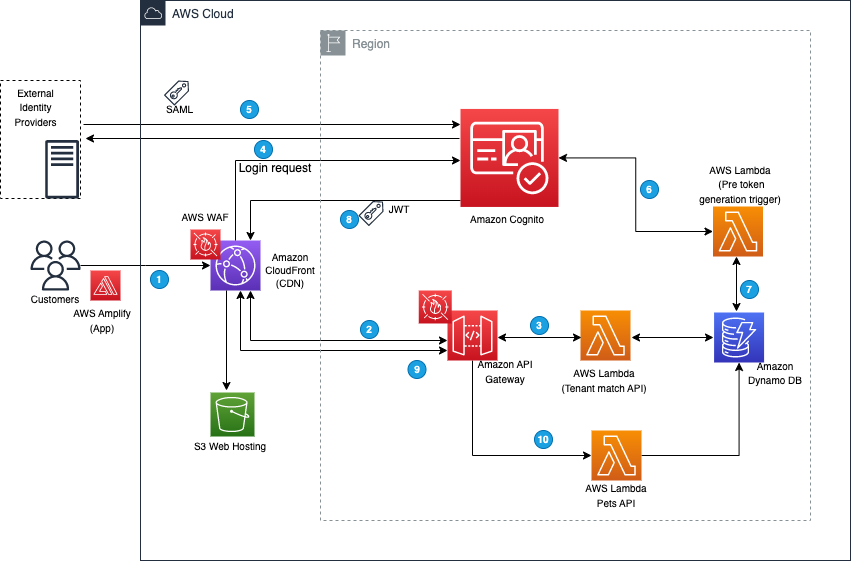
To illustrate how this works, we’ll start with a demo application that was introduced in the earlier blog post. The demo application is implemented by using Amazon Cognito, AWS Amplify, Amazon API Gateway, AWS Lambda, Amazon DynamoDB, Amazon Simple Storage Service (Amazon S3), and Amazon CloudFront to achieve a serverless architecture. This architecture is shown in Figure 1.

Figure 1: Demo application architecture

Figure 1: Demo application architecture

The workflow that happens when you access the web application for the first time using your browser is as follows (the numbered steps correspond to the numbered labels in the diagram):

  1. The client-side/frontend of the application prompts you to enter the email that you want to use to sign in to the application.
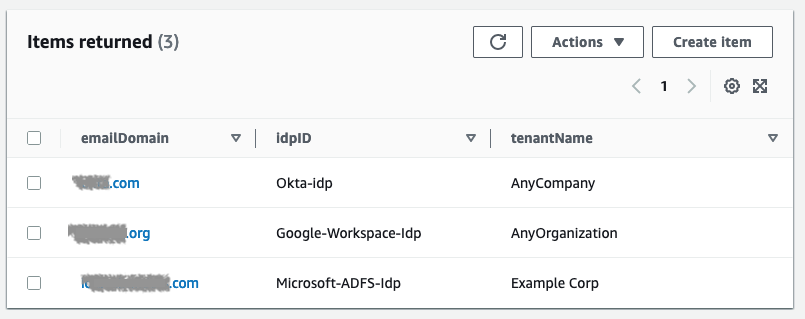
  2. The application invokes the Tenant Match API action through API Gateway, which, in turn, calls the Lambda function that takes the email address as an input and queries it against the DynamoDB table with the email domain. Figure 2 shows the data stored in DynamoDB, which includes the tenant name and IdP ID. You can add additional flexibility to this solution by adding web client IDs or custom redirect URLs. For the purpose of this example, we are using the same redirect URL for all tenants (the client application).
    Figure 2: DynamoDB tenant table

    Figure 2: DynamoDB tenant table

  3. If a matching record is found, the Lambda function returns the record to the AWS Amplify frontend application.
  4. The client application uses the IdP ID from the response and passes it to Cognito for federated login. Cognito then reroutes the login request to the corresponding IdP. The AWS Amplify frontend application then redirects the browser to the IdP.
  5. At the IdP sign-in page, you sign in with a valid user account (for example, [email protected] or [email protected]). After you sign in successfully, a SAML response is sent back from the IdP to Cognito.

    You can review the SAML content by using the instructions in How to view a SAML response in your browser for troubleshooting, as shown in Figure 3.

    Figure 3: SAML content

    Figure 3: SAML content

  6. Cognito handles the SAML response and maps the SAML attributes to a just-in-time user profile. The SAML groups attributes is mapped to a custom user pool attribute named custom:groups.
  7. To identify the tenant, additional attributes are populated in the JWT. After successful authentication, a PreTokenGeneration Lambda function is invoked, which reads the mapped custom:groups attribute value from SAML, parses it, and converts it to an array. After that, the function parses the email address and captures the domain name. It then queries the DynamoDB table for the tenantName name by using the email domain name. Finally, the function sets the custom:domainName and custom:tenantName attributes in the JWT, as shown following.
    "email": "[email protected]" ( Standard existing profile attribute )
    New attributes:
    "cognito:groups": [.                           
    "pet-app-users",
    "pet-app-admin"
    ],
    "custom:tenantName": "AnyCompany"
    "custom:domainName": "anycompany.com"

    This attribute conversion is optional and demonstrates how you can use a PreTokenGeneration Lambda invocation to customize your JWT token claims, mapping the IdP groups to the attributes your application recognizes. You can also use this invocation to make additional authorization decisions. For example, if user is a member of multiple groups, you may choose to map only one of them.

  8. Amazon Cognito returns the JWT tokens to the AWS Amplify frontend application. The Amplify client library stores the tokens and handles refreshes. This token is used to make calls to protected APIs in Amazon API Gateway.
  9. API Gateway uses a Cognito user pools authorizer to validate the JWT’s signature and expiration. If this is successful, API Gateway passes the JWT to the application’s Lambda function (also referred to as the backend).
  10. The backend application code reads the cognito:groups claim from the JWT and decides if the action is allowed. If the user is a member of the right group, then the action is allowed; otherwise the action is denied.

Implement the solution

You can implement this example application by using an AWS CloudFormation template to provision your cloud application and AWS resources.

To deploy the demo application described in this post, you need the following prerequisites:

  1. An AWS account.
  2. Familiarity with navigating the AWS Management Console or AWS CLI.
  3. Familiarity with deploying CloudFormation templates.

To deploy the template

  • Choose the following Launch Stack button to launch a CloudFormation stack in your account.

    Select this image to open a link that starts building the CloudFormation stack

    Note: The stack will launch in the N. Virginia (us-east-1) Region. To deploy this solution into other AWS Regions, download the solution’s CloudFormation template from GitHub, modify it, and deploy it to the selected Region.

The stack creates a Cognito user pool called ExternalIdPDemoPoolXXXX in the AWS Region that you have specified. The CloudFormation Outputs field contains a list of values that you will need for further configuration.

IdP configuration

The next step is to configure your IdP. Each IdP has its own procedure for configuration, but there are some common steps you need to follow.

To configure your IdP

  1. Provide the IdP with the values for the following two properties:
    • Single sign on URL / Assertion Consumer Service URL / ACS URL (for this example, https://<CognitoDomainURL>/saml2/idpresponse)
    • Audience URI / SP Entity ID / Entity ID: (For this example, urn:amazon:cognito:sp:<yourUserPoolID>)
  2. Configure the field mapping for the SAML response in the IdP. Map the first name, last name, email, and groups (as a multi-value attribute) into SAML response attributes with the names firstName, lastName, email, and groups, respectively.
    • Recommended: Filter the mapped groups to only those that are relevant to the application (for example, by a prefix filter). There is a 2,048-character limit on the custom attribute, so filtering helps avoid exceeding the character limit, and also helps avoid passing irrelevant information to the application.
  3. In each IdP, create two demo groups called pet-app-users and pet-app-admins, and create two demo users, for example, [email protected] and [email protected], and then assign one to each group, respectively.

To illustrate, we set up three different IdPs to represent three different tenants. Use the following links for instructions on how to configure each IdP:

You will need the metadata URL or file from each IdP, because you will use this to configure your user pool integration. For more information, see Integrating third-party SAML identity providers with Amazon Cognito user pools.

Cognito configuration

After your IdPs are configured and your CloudFormation stack is deployed, you can configure Cognito.

To configure Cognito

  1. Use your browser to navigate to the Cognito console, and for User pool name, select the Cognito user pool.
    Figure 4: Select the Cognito user pool

    Figure 4: Select the Cognito user pool

  2. On the Sign-in experience screen, on the Federated identity provider sign-in tab, choose Add identity provider.
  3. Choose SAML for the sign-in option, and then enter the values for your IdP. You can either upload the metadata XML file or provide the metadata endpoint URL. Add mapping for the attributes as shown in Figure 5.
    Figure 5: Attribute mappings for the IdP

    Figure 5: Attribute mappings for the IdP

    Upon completion you will see the new IdP displayed as shown in Figure 6.

    Figure 6: List of federated IdPs

    Figure 6: List of federated IdPs

  4. On the App integration tab, select the app client that was created by the CloudFormation template.
    Figure 7: Select the app client

    Figure 7: Select the app client

  5. Under Hosted UI, choose Edit. Under Identity providers, select the Identity Providers that you want to set up for federated login, and save the change.
    Figure 8: Select identity providers

    Figure 8: Select identity providers

API gateway

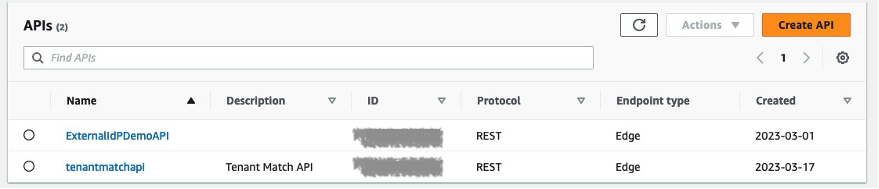
The example application uses a serverless backend. There are two API operations defined in this example, as shown in Figure 9. One operation gets tenant details and the other is the /pets API operation, which fetches information on pets based on user identity. The TenantMatch API operation will be run when you sign in with your email address. The operation passes your email address to the backend Lambda function.

Figure 9: Example APIs

Figure 9: Example APIs

Lambda functions

You will see three Lambda functions deployed in the example application, as shown in Figure 10.

Figure 10: Lambda functions

Figure 10: Lambda functions

The first one is GetTenantInfo, which is used for the TenantMatch API operation. It reads the data from the TenantTable based on the email domain and passes the record back to the application. The second function is PreTokenGeneration, which reads the mapped custom:groups attribute value, parses it, converts it to an array, and then stores it in the cognito:groups claim. The second Lambda function is invoked by the Cognito user pool after sign-in is successful. In order to customize the mapping, you can edit the Lambda function’s code in the index.js file and redeploy. The third Lambda function is added to support the Pets API operation.

DynamoDB tables

You will see three DynamoDB tables deployed in the example application, as shown in Figure 11.

Figure 11: DynamoDB tables

Figure 11: DynamoDB tables

The TenantTable table holds the tenant details where you must add the mapping between the customer domain and the IdP ID setup in Cognito. This approach can be expanded to add more flexibility in case you want to add custom redirect URLs or Cognito app IDs for each tenant. You must create entries to correspond to the IdPs you have configured, as shown in Figure 12.

Figure 12: Tenant IdP mappings table

Figure 12: Tenant IdP mappings table

In addition to TenantTable, there is the ExternalIdPDemo-ItemsTable table, which holds the data related to the Pets application, based on user identity. There is also ExternalIdPDemo-UsersTable, which holds user details like the username, last forced sign-out time, and TTL required for the application to manage the user session.

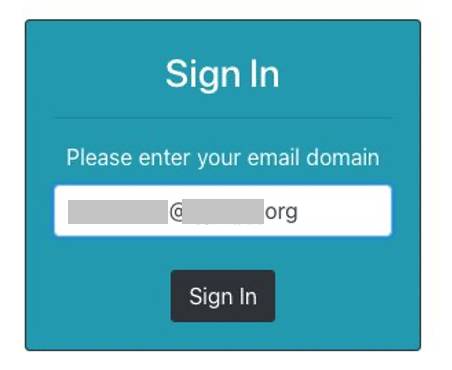
You can now sign in to the example application through each IdP by navigating to the application URL found in the CloudFormation Outputs section, as shown in Figure 13.

Figure 13: Cognito sign-in screen

Figure 13: Cognito sign-in screen

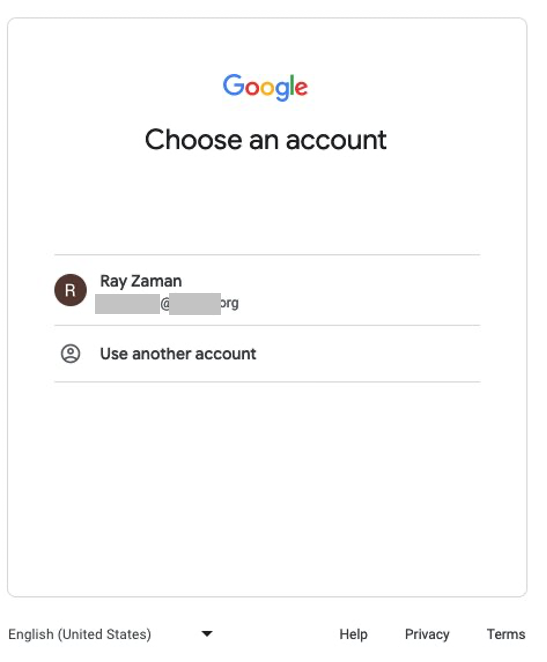
You will be redirected to the IdP, as shown in Figure 14.

Figure 14: Google Workspace sign-in screen

Figure 14: Google Workspace sign-in screen

The AWS Amplify frontend application parses the JWT to identify the tenant name and provide authorization based on group membership, as shown in Figure 15.

Figure 15: Application home screen upon successful sign-in

Figure 15: Application home screen upon successful sign-in

If a different user logs in with a different role, the AWS Amplify frontend application provides authorization based on specific content of the JWT.

Conclusion

You can integrate your application with your customer’s IdP of choice for authentication and authorization and map information from the IdP to the application. By using Amazon Cognito, you can normalize the structure of the JWT token that is used for this process, so that you can add multiple IdPs, each for a different tenant, through a single Cognito user pool. You can do all this without changing application code. The native integration of Amazon API Gateway with the Cognito user pools authorizer streamlines your validation of the JWT integrity, and after the JWT has been validated, you can use it to make authorization decisions in your application’s backend. By following the example in this post, you can focus on what differentiates your application, and let AWS do the undifferentiated heavy lifting of identity management for your customer-facing applications.

For the code examples described in this post, see the amazon-cognito-example-for-multi-tenant code repository on GitHub. To learn more about using Cognito with external IdPs, see the Amazon Cognito documentation. You can also learn to build software as a service (SaaS) application architectures on AWS. If you have any questions about Cognito or any other AWS services, you may post them to AWS re:Post.

If you have feedback about this post, submit comments in the Comments section below. If you have questions about this post, start a new thread on the AWS Security, Identity, & Compliance re:Post or contact AWS Support.

Want more AWS Security news? Follow us on Twitter.

Ray Zaman

Ray Zaman

A Principal Solutions Architect with AWS, Ray has over 30 years of experience helping customers in finance, healthcare, insurance, manufacturing, media, petrochemical, pharmaceutical, public utility, retail, semiconductor, telecommunications, and waste management industries build technology solutions.

Neela Kulkarni

Neela Kulkarni

Neela is a Solutions Architect with Amazon Web Services. She primarily serves independent software vendors in the Northeast US, providing architectural guidance and best practice recommendations for new and existing workloads. Outside of work, she enjoys traveling, swimming, and spending time with her family.

Yuri Duchovny

Yuri Duchovny

Yuri is a New York–based Solutions Architect specializing in cloud security, identity, and compliance. He supports cloud transformations at large enterprises, helping them make optimal technology and organizational decisions. Prior to his AWS role, Yuri’s areas of focus included application and networking security, DoS, and fraud protection. Outside of work, he enjoys skiing, sailing, and traveling the world.

Abdul Qadir

Abdul Qadir

Abdul is an AWS Solutions Architect based in New Jersey. He works with independent software vendors in the Northeast US and helps customers build well-architected solutions on the AWS Cloud platform.