All posts by Sotaro Hikita

Accelerate lightweight analytics using PyIceberg with AWS Lambda and an AWS Glue Iceberg REST endpoint

Post Syndicated from Sotaro Hikita original https://aws.amazon.com/blogs/big-data/accelerate-lightweight-analytics-using-pyiceberg-with-aws-lambda-and-an-aws-glue-iceberg-rest-endpoint/

For modern organizations built on data insights, effective data management is crucial for powering advanced analytics and machine learning (ML) activities. As data use cases become more complex, data engineering teams require sophisticated tooling to handle versioning, increasing data volumes, and schema changes across multiple data sources and applications.

Apache Iceberg has emerged as a popular choice for data lakes, offering ACID (Atomicity, Consistency, Isolation, Durability) transactions, schema evolution, and time travel capabilities. Iceberg tables can be accessed from various distributed data processing frameworks like Apache Spark and Trino, making it a flexible solution for diverse data processing needs. Among the available tools for working with Iceberg, PyIceberg stands out as a Python implementation that enables table access and management without requiring distributed compute resources.

In this post, we demonstrate how PyIceberg, integrated with the AWS Glue Data Catalog and AWS Lambda, provides a lightweight approach to harness Iceberg’s powerful features through intuitive Python interfaces. We show how this integration enables teams to start working with Iceberg tables with minimal setup and infrastructure dependencies.

PyIceberg’s key capabilities and advantages

One of PyIceberg’s primary advantages is its lightweight nature. Without requiring distributed computing frameworks, teams can perform table operations directly from Python applications, making it suitable for small to medium-scale data exploration and analysis with minimal learning curve. In addition, PyIceberg is integrated with Python data analysis libraries like Pandas and Polars, so data users can use their existing skills and workflows.

When using PyIceberg with the Data Catalog and Amazon Simple Storage Service (Amazon S3), data teams can store and manage their tables in a completely serverless environment. This means data teams can focus on analysis and insights rather than infrastructure management.

Furthermore, Iceberg tables managed through PyIceberg are compatible with AWS data analytics services. Although PyIceberg operates on a single node and has performance limitations with large data volumes, the same tables can be efficiently processed at scale using services such as Amazon Athena and AWS Glue. This enables teams to use PyIceberg for rapid development and testing, then transition to production workloads with larger-scale processing engines—while maintaining consistency in their data management approach.

Representative use case

The following are common scenarios where PyIceberg can be particularly useful:

  • Data science experimentation and feature engineering – In data science, experiment reproducibility is crucial for maintaining reliable and efficient analyses and models. However, continuously updating organizational data makes it challenging to manage data snapshots for important business events, model training, and consistent reference. Data scientists can query historical snapshots through time travel capabilities and record important versions using tagging features. With PyIceberg, they can receive these benefits in their Python environment using familiar tools like Pandas. Thanks to Iceberg’s ACID capabilities, they can access consistent data even when tables are being actively updated.
  • Serverless data processing with Lambda – Organizations often need to process data and maintain analytical tables efficiently without managing complex infrastructure. Using PyIceberg with Lambda, teams can build event-driven data processing and scheduled table updates through serverless functions. PyIceberg’s lightweight nature makes it well-suited for serverless environments, enabling simple data processing tasks like data validation, transformation, and ingestion. These tables remain accessible for both updates and analytics through various AWS services, allowing teams to build efficient data pipelines without managing servers or clusters.

Event-driven data ingestion and analysis with PyIceberg

In this section, we explore a practical example of using PyIceberg for data processing and analysis using NYC yellow taxi trip data. To simulate an event-driven data processing scenario, we use Lambda to insert sample data into an Iceberg table, representing how real-time taxi trip records might be processed. This example will demonstrate how PyIceberg can streamline workflows by combining efficient data ingestion with flexible analysis capabilities.

Imagine your team faces several requirements:

  • The data processing solution needs to be cost-effective and maintainable, avoiding the complexity of managing distributed computing clusters for this moderately-sized dataset.
  • Analysts need the ability to perform flexible queries and explorations using familiar Python tools. For example, they might need to compare historical snapshots with current data to analyze trends over time.
  • The solution should have the ability to expand to be more scalable in the future.

To address these requirements, we implement a solution that combines Lambda for data processing with Jupyter notebooks for analysis, both powered by PyIceberg. This approach provides a lightweight yet robust architecture that maintains data consistency while enabling flexible analysis workflows. At the end of the walkthrough, we also query this data using Athena to demonstrate compatibility with multiple Iceberg-supporting tools and show how the architecture can scale.

We walk through the following high-level steps:

  1. Use Lambda to write sample NYC yellow taxi trip data to an Iceberg table on Amazon S3 using PyIceberg with an AWS Glue Iceberg REST endpoint. In a real-world scenario, this Lambda function would be triggered by an event from a queuing component like Amazon Simple Queue Service (Amazon SQS). For more details, see Using Lambda with Amazon SQS.
  2. Analyze table data in a Jupyter notebook using PyIceberg through the AWS Glue Iceberg REST endpoint.
  3. Query the data using Athena to demonstrate Iceberg’s flexibility.

The following diagram illustrates the architecture.

Overall Architecture

When implementing this architecture, it’s important to note that Lambda functions can have multiple concurrent invocations when triggered by events. This concurrent invocation might lead to transaction conflicts when writing to Iceberg tables. To handle this, you should implement an appropriate retry mechanism and carefully manage concurrency levels. If you’re using Amazon SQS as an event source, you can control concurrent invocations through the SQS event source’s maximum concurrency setting.

Prerequisites

The following prerequisites are necessary for this use case:

Set up resources with AWS CloudFormation

You can use the provided CloudFormation template to set up the following resources:

Complete the following steps to deploy the resources:

  1. Choose Launch stack.

  1. For Parameters, pyiceberg_lambda_blog_database is set by default. You can also change the default value. If you change the database name, remember to replace pyiceberg_lambda_blog_database with your chosen name in all subsequent steps. Then, choose Next.
  2. Choose Next.
  3. Select I acknowledge that AWS CloudFormation might create IAM resources with custom names.
  4. Choose Submit.

Build and run a Lambda function

Let’s build a Lambda function to process incoming records using PyIceberg. This function creates an Iceberg table called nyc_yellow_table in the database pyiceberg_lambda_blog_database in the Data Catalog if it doesn’t exist. It then generates sample NYC taxi trip data to simulate incoming records and inserts it into nyc_yellow_table.

Although we invoke this function manually in this example, in real-world scenarios, this Lambda function would be triggered by actual events, such as messages from Amazon SQS. When implementing real-world use cases, the function code must be modified to receive the event data and process it based on the requirements.

We deploy the function using container images as the deployment package. To create a Lambda function from a container image, build your image on CloudShell and push it to an ECR repository. Complete the following steps:

  1. Sign in to the AWS Management Console and launch CloudShell.
  2. Create a working directory.
mkdir pyiceberg_blog
cd pyiceberg_blog
  1. Download the Lambda script lambda_function.py.
aws s3 cp s3://aws-blogs-artifacts-public/artifacts/BDB-5013/lambda_function.py .

This script performs the following tasks:

  • Creates an Iceberg table with the NYC taxi schema in the Data Catalog
  • Generates a random NYC taxi dataset
  • Inserts this data into the table

Let’s break down the essential parts of this Lambda function:

  • Iceberg catalog configuration – The following code defines an Iceberg catalog that connects to the AWS Glue Iceberg REST endpoint:
# Configure the catalog
catalog_properties = {
   "type": "rest",
   "uri": f"https://glue.{region}.amazonaws.com/iceberg",
   "s3.region": region,
   "rest.sigv4-enabled": "true",
   "rest.signing-name": "glue",
   "rest.signing-region": region
}
catalog = load_catalog(**catalog_properties)
  • Table schema definition – The following code defines the Iceberg table schema for the NYC taxi dataset. The table includes:
    • Schema columns defined in the Schema
    • Partitioning by vendorid and tpep_pickup_datetime using PartitionSpec
    • Day transform applied to tpep_pickup_datetime for daily record management
    • Sort ordering by tpep_pickup_datetime and tpep_dropoff_datetime

When applying the day transform to timestamp columns, Iceberg automatically handles date-based partitioning hierarchically. This means a single day transform enables partition pruning at the year, month, and day levels without requiring explicit transforms for each level. For more details about Iceberg partitioning, see Partitioning.

# Table Definition
schema = Schema(
    NestedField(field_id=1, name="vendorid", field_type=LongType(), required=False),
    NestedField(field_id=2, name="tpep_pickup_datetime", field_type=TimestampType(), required=False),
    NestedField(field_id=3, name="tpep_dropoff_datetime", field_type=TimestampType(), required=False),
    NestedField(field_id=4, name="passenger_count", field_type=LongType(), required=False),
    NestedField(field_id=5, name="trip_distance", field_type=DoubleType(), required=False),
    NestedField(field_id=6, name="ratecodeid", field_type=LongType(), required=False),
    NestedField(field_id=7, name="store_and_fwd_flag", field_type=StringType(), required=False),
    NestedField(field_id=8, name="pulocationid", field_type=LongType(), required=False),
    NestedField(field_id=9, name="dolocationid", field_type=LongType(), required=False),
    NestedField(field_id=10, name="payment_type", field_type=LongType(), required=False),
    NestedField(field_id=11, name="fare_amount", field_type=DoubleType(), required=False),
    NestedField(field_id=12, name="extra", field_type=DoubleType(), required=False),
    NestedField(field_id=13, name="mta_tax", field_type=DoubleType(), required=False),
    NestedField(field_id=14, name="tip_amount", field_type=DoubleType(), required=False),
    NestedField(field_id=15, name="tolls_amount", field_type=DoubleType(), required=False),
    NestedField(field_id=16, name="improvement_surcharge", field_type=DoubleType(), required=False),
    NestedField(field_id=17, name="total_amount", field_type=DoubleType(), required=False),
    NestedField(field_id=18, name="congestion_surcharge", field_type=DoubleType(), required=False),
    NestedField(field_id=19, name="airport_fee", field_type=DoubleType(), required=False),
)

# Define partition spec
partition_spec = PartitionSpec(
    PartitionField(source_id=1, field_id=1001, transform=IdentityTransform(), name="vendorid_idenitty"),
    PartitionField(source_id=2, field_id=1002, transform=DayTransform(), name="tpep_pickup_day"),
)

# Define sort order
sort_order = SortOrder(
    SortField(source_id=2, transform=DayTransform()),
    SortField(source_id=3, transform=DayTransform())
)

database_name = os.environ.get('GLUE_DATABASE_NAME')
table_name = os.environ.get('ICEBERG_TABLE_NAME')
identifier = f"{database_name}.{table_name}"

# Create the table if it doesn't exist
location = f"s3://pyiceberg-lambda-blog-{account_id}-{region}/{database_name}/{table_name}"
if not catalog.table_exists(identifier):
    table = catalog.create_table(
        identifier=identifier,
        schema=schema,
        location=location,
        partition_spec=partition_spec,
        sort_order=sort_order
    )
else:
    table = catalog.load_table(identifier=identifier)
  • Data generation and insertion – The following code generates random data and inserts it into the table. This example demonstrates an append-only pattern, where new records are continuously added to track business events and transactions:
# Generate random data
records = generate_random_data()
# Convert to Arrow Table
df = pa.Table.from_pylist(records)
# Write data using PyIceberg
table.append(df)
  1. Download the Dockerfile. It defines the container image for your function code.
aws s3 cp s3://aws-blogs-artifacts-public/artifacts/BDB-5013/Dockerfile .
  1. Download the requirements.txt. It defines the Python packages required for your function code.
aws s3 cp s3://aws-blogs-artifacts-public/artifacts/BDB-5013/requirements.txt .

At this point, your working directory should contain the following three files:

  • Dockerfile
  • lambda_function.py
  • requirements.txt
  1. Set the environment variables. Replace <account_id> with your AWS account ID:
export AWS_ACCOUNT_ID=<account_id>
  1. Build the Docker image:
docker build --provenance=false -t localhost/pyiceberg-lambda .

# Confirm built image
docker images | grep pyiceberg-lambda
  1. Set a tag to the image:
docker tag localhost/pyiceberg-lambda:latest ${AWS_ACCOUNT_ID}.dkr.ecr.${AWS_REGION}.amazonaws.com/pyiceberg-lambda-repository:latest
  1. Log in to the ECR repository created by AWS CloudFormation:
aws ecr get-login-password --region ${AWS_REGION} | docker login --username AWS --password-stdin ${AWS_ACCOUNT_ID}.dkr.ecr.${AWS_REGION}.amazonaws.com
  1. Push the image to the ECR repository:
docker push ${AWS_ACCOUNT_ID}.dkr.ecr.${AWS_REGION}.amazonaws.com/pyiceberg-lambda-repository:latest
  1. Create a Lambda function using the container image you pushed to Amazon ECR:
aws lambda create-function \
--function-name pyiceberg-lambda-function \
--package-type Image \
--code ImageUri=${AWS_ACCOUNT_ID}.dkr.ecr.${AWS_REGION}.amazonaws.com/pyiceberg-lambda-repository:latest \
--role arn:aws:iam::${AWS_ACCOUNT_ID}:role/pyiceberg-lambda-function-role-${AWS_REGION} \
--environment "Variables={ICEBERG_TABLE_NAME=nyc_yellow_table, GLUE_DATABASE_NAME=pyiceberg_lambda_blog_database}" \
--region ${AWS_REGION} \
--timeout 60 \
--memory-size 1024
  1. Invoke the function at least five times to create multiple snapshots, which we will examine in the following sections. Note that we are invoking the function manually to simulate event-driven data ingestion. In real world scenarios, Lambda functions will be automatically invoked with event-driven fashion.
aws lambda invoke \
--function-name arn:aws:lambda:${AWS_REGION}:${AWS_ACCOUNT_ID}:function:pyiceberg-lambda-function \
--log-type Tail \
outputfile.txt \
--query 'LogResult' | tr -d '"' | base64 -d

At this point, you have deployed and run the Lambda function. The function creates the nyc_yellow_table Iceberg table in the pyiceberg_lambda_blog_database database. It also generates and inserts sample data into this table. We will explore the records in the table in later steps.

For more detailed information about building Lambda functions with containers, see Create a Lambda function using a container image.

Explore the data with Jupyter using PyIceberg

In this section, we demonstrate how to access and analyze the data stored in Iceberg tables registered in the Data Catalog. Using a Jupyter notebook with PyIceberg, we access the taxi trip data created by our Lambda function and examine different snapshots as new records arrive. We also tag specific snapshots to retain important ones, and create new tables for further analysis.

Complete the following steps to open the notebook with Jupyter on the SageMaker AI notebook instance:

  1. On the SageMaker AI console, choose Notebooks in the navigation pane.
  2. Choose Open JupyterLab next to the notebook that you created using the CloudFormation template.

notebook list

  1. Download the notebook and open it in a Jupyter environment on your SageMaker AI notebook.

upload notebook

  1. Open uploaded pyiceberg_notebook.ipynb.
  2. In the kernel selection dialog, leave the default option and choose Select.

select kernel

From this point forward, you will work through the notebook by running cells in order.

Connecting Catalog and Scanning Tables

You can access the Iceberg table using PyIceberg. The following code connects to the AWS Glue Iceberg REST endpoint and loads the nyc_yellow_table table on the pyiceberg_lambda_blog_database database:

import pyarrow as pa
from pyiceberg.catalog import load_catalog
import boto3

# Set AWS region
sts = boto3.client('sts')
region = sts._client_config.region_name

# Configure catalog connection properties
catalog_properties = {
    "type": "rest",
    "uri": f"https://glue.{region}.amazonaws.com/iceberg",
    "s3.region": region,
    "rest.sigv4-enabled": "true",
    "rest.signing-name": "glue",
    "rest.signing-region": region
}

# Specify database and table names
database_name = "pyiceberg_lambda_blog_database"
table_name = "nyc_yellow_table"

# Load catalog and get table
catalog = load_catalog(**catalog_properties)
table = catalog.load_table(f"{database_name}.{table_name}")

You can query full data from the Iceberg table as an Apache Arrow table and convert it to a Pandas DataFrame.

scan table

Working with Snapshots

One of the important features of Iceberg is snapshot-based version control. Snapshots are automatically created whenever data changes occur in the table. You can retrieve data from a specific snapshot, as shown in the following example.

working with snapshots

# Get data from a specific snapshot ID
snapshot_id = snapshots.to_pandas()["snapshot_id"][3]
snapshot_pa_table = table.scan(snapshot_id=snapshot_id).to_arrow()
snapshot_df = snapshot_pa_table.to_pandas()

You can compare the current data with historical data from any point in time based on snapshots. In this case, you are comparing the differences in data distribution between the latest table and a snapshot table:

# Compare the distribution of total_amount in the specified snapshot and the latest data.
import matplotlib.pyplot as plt

plt.figure(figsize=(4, 3))
df['total_amount'].hist(bins=30, density=True, label="latest", alpha=0.5)
snapshot_df['total_amount'].hist(bins=30, density=True, label="snapshot", alpha=0.5)
plt.title('Distribution of total_amount')
plt.xlabel('total_amount')
plt.ylabel('relative Frequency')
plt.legend()
plt.show()

matplotlib graph

Tagging snapshots

You can tag specific snapshots with an arbitrary name and query specific snapshots with that name later. This is useful when managing snapshots of important events.

In this example, you query a snapshot specifying the tag checkpointTag. Here, you are using the polars to create a new DataFrame by adding a new column called trip_duration based on existing columns tpep_dropoff_datetime and tpep_pickup_datetime columns:

# retrive tagged snapshot table as polars data frame
import polars as pl

# Get snapshot id from tag name
df = table.inspect.refs().to_pandas()
filtered_df = df[df["name"] == tag_name]
tag_snapshot_id = filtered_df["snapshot_id"].iloc[0]

# Scan Table based on the snapshot id
tag_pa_table = table.scan(snapshot_id=tag_snapshot_id).to_arrow()
tag_df = pl.from_arrow(tag_pa_table)

# Process the data adding a new column "trip_duration" from check point snapshot.
def preprocess_data(df):
    df = df.select(["vendorid", "tpep_pickup_datetime", "tpep_dropoff_datetime", 
                    "passenger_count", "trip_distance", "fare_amount"])
    df = df.with_columns(
        ((pl.col("tpep_dropoff_datetime") - pl.col("tpep_pickup_datetime"))
         .dt.total_seconds() // 60).alias("trip_duration"))
    return df

processed_df = preprocess_data(tag_df)
display(processed_df)
print(processed_df["trip_duration"].describe())

processed-df

Create a new table from the processed DataFrame with the trip_duration column. This step illustrates how to prepare data for potential future analysis. You can explicitly specify the snapshot of the data that the processed data is referring to by using a tag, even if the underlying table has been changed.

# write processed data to new iceberg table
account_id = sts.get_caller_identity()["Account"] 

new_table_name = "processed_" + table_name
location = f"s3://pyiceberg-lambda-blog-{account_id}-{region}/{database_name}/{new_table_name}"

pa_new_table = processed_df.to_arrow()
schema = pa_new_table.schema
identifier = f"{database_name}.{new_table_name}"

new_table = catalog.create_table(
                identifier=identifier,
                schema=schema,
                location=location
            )
            
# show new table's schema
print(new_table.schema())
# insert processed data to new table
new_table.append(pa_new_table)

Let’s query this new table made from processed data with Athena to demonstrate the Iceberg table’s interoperability.

Query the data from Athena

  1. In the Athena query editor, you can query the table pyiceberg_lambda_blog_database.processed_nyc_yellow_table created from the notebook in the previous section:
SELECT * FROM "pyiceberg_lambda_blog_database"."processed_nyc_yellow_table" limit 10;

query with athena

By completing these steps, you’ve built a serverless data processing solution using PyIceberg with Lambda and an AWS Glue Iceberg REST endpoint. You’ve worked with PyIceberg to manage and analyze data using Python, including snapshot management and table operations. In addition, you ran the query using another engine, Athena, which shows the compatibility of the Iceberg table.

Clean up

To clean up the resources used in this post, complete the following steps:

  1. On the Amazon ECR console, navigate to the repository pyiceberg-lambda-repository and delete all images contained in the repository.
  2. On the CloudShell, delete working directory pyiceberg_blog.
  3. On the Amazon S3 console, navigate to the S3 bucket pyiceberg-lambda-blog-<ACCOUNT_ID>-<REGION>, which you created using the CloudFormation template, and empty the bucket.
  4. After you confirm the repository and the bucket are empty, delete the CloudFormation stack pyiceberg-lambda-blog-stack.
  5. Delete the Lambda function pyiceberg-lambda-function that you created using the Docker image.

Conclusion

In this post, we demonstrated how using PyIceberg with the AWS Glue Data Catalog enables efficient, lightweight data workflows while maintaining robust data management capabilities. We showcased how teams can use Iceberg’s powerful features with minimal setup and infrastructure dependencies. This approach allows organizations to start working with Iceberg tables quickly, without the complexity of setting up and managing distributed computing resources.

This is particularly valuable for organizations looking to adopt Iceberg’s capabilities with a low barrier to entry. The lightweight nature of PyIceberg allows teams to begin working with Iceberg tables immediately, using familiar tools and requiring minimal additional learning. As data needs grow, the same Iceberg tables can be seamlessly accessed by AWS analytics services like Athena and AWS Glue, providing a clear path for future scalability.

To learn more about PyIceberg and AWS analytics services, we encourage you to explore the PyIceberg documentation and What is Apache Iceberg?


About the authors

Sotaro Hikita is a Specialist Solutions Architect focused on analytics with AWS, working with big data technologies and open source software. Outside of work, he always seeks out good food and has recently become passionate about pizza.

Shuhei Fukami is a Specialist Solutions Architect focused on Analytics with AWS. He likes cooking in his spare time and has become obsessed with making pizza these days.

Manage concurrent write conflicts in Apache Iceberg on the AWS Glue Data Catalog

Post Syndicated from Sotaro Hikita original https://aws.amazon.com/blogs/big-data/manage-concurrent-write-conflicts-in-apache-iceberg-on-the-aws-glue-data-catalog/

In modern data architectures, Apache Iceberg has emerged as a popular table format for data lakes, offering key features including ACID transactions and concurrent write support. Although these capabilities are powerful, implementing them effectively in production environments presents unique challenges that require careful consideration.

Consider a common scenario: A streaming pipeline continuously writes data to an Iceberg table while scheduled maintenance jobs perform compaction operations. Although Iceberg provides built-in mechanisms to handle concurrent writes, certain conflict scenarios—such as between streaming updates and compaction operations—can lead to transaction failures that require specific handling patterns.

This post demonstrates how to implement reliable concurrent write handling mechanisms in Iceberg tables. We will explore Iceberg’s concurrency model, examine common conflict scenarios, and provide practical implementation patterns of both automatic retry mechanisms and situations requiring custom conflict resolution logic for building resilient data pipelines. We will also cover the pattern with automatic compaction through AWS Glue Data Catalog table optimization.

Common conflict scenarios

The most frequent data conflicts occur in several specific operational scenarios that many organizations encounter in their data pipelines, which we discuss in this section.

Concurrent UPDATE/DELETE on overlapping partitions

When multiple processes attempt to modify the same partition simultaneously, data conflicts can arise. For example, imagine a data quality process updating customer records with corrected addresses while another process is deleting outdated customer records. Both operations target the same partition based on customer_id, leading to potential conflicts because they’re modifying an overlapping dataset. These conflicts are particularly common in large-scale data cleanup operations.

Compaction vs. streaming writes

A classic conflict scenario occurs during table maintenance operations. Consider a streaming pipeline ingesting real-time event data while a scheduled compaction job runs to optimize file sizes. The streaming process might be writing new records to a partition while the compaction job is attempting to combine existing files in the same partition. This scenario is especially common with Data Catalog table optimization, where automatic compaction can run concurrently with continuous data ingestion.

Concurrent MERGE operations

MERGE operations are particularly susceptible to conflicts because they involve both reading and writing data. For instance, an hourly job might be merging customer profile updates from a source system while a separate job is merging preference updates from another system. If both jobs attempt to modify the same customer records, they can conflict because each operation bases its changes on a different view of the current data state.

General concurrent table updates

When multiple transactions occur simultaneously, some transactions might fail to commit to the catalog due to interference from other transactions. Iceberg has mechanisms to handle this scenario, so it can adapt to concurrent transactions in many cases. However, commits can still fail if the latest metadata is updated after the base metadata version is established. This scenario applies to any type of updates on an Iceberg table.

Iceberg’s concurrency model and conflict type

Before diving into specific implementation patterns, it’s essential to understand how Iceberg manages concurrent writes through its table architecture and transaction model. Iceberg uses a layered architecture to manage table state and data:

  • Catalog layer – Maintains a pointer to the current table metadata file, serving as the single source of truth for table state. The Data Catalog provides the functionality as the Iceberg catalog.
  • Metadata layer – Contains metadata files that track table history, schema evolution, and snapshot information. These files are stored on Amazon Simple Storage Service (Amazon S3).
  • Data layer – Stores the actual data files and delete files (for Merge-on-Read operations). These files are also stored on Amazon S3.

The following diagram illustrates this architecture.

This architecture is fundamental to Iceberg’s optimistic concurrency control, where multiple writers can proceed with their operations simultaneously, and conflicts are detected at commit time.

Write transaction flow

A typical write transaction in Iceberg follows these key steps:

  1. Read current state. In many operations (like OVERWRITE, MERGE, and DELETE), the query engine needs to know which files or rows are relevant, so it reads the current table snapshot. This is optional for operations like INSERT.
  2. Determine the changes in transaction, and write new data files.
  3. Load the table’s latest metadata, and determine which metadata version is used as the base for the update.
  4. Check if the change prepared in Step 2 is compatible with the latest table data in Step 3. If the check failed, the transaction must stop.
  5. Generate new metadata files.
  6. Commit the metadata files to the catalog. If the commit failed, retry from Step 3. The number of retries depends on the configuration.

The following diagram illustrates this workflow.

Iceberg write transaction flow

Conflicts can occur at two critical points:

  • Data update conflicts – During validation when checking for data conflicts (Step 4)
  • Catalog commit conflicts – During the commit when attempting to update the catalog pointer (Step 6)

When working with Iceberg tables, understanding the types of conflicts that can occur and how they’re handled is crucial for building reliable data pipelines. Let’s examine the two primary types of conflicts and their characteristics.

Catalog commit conflicts

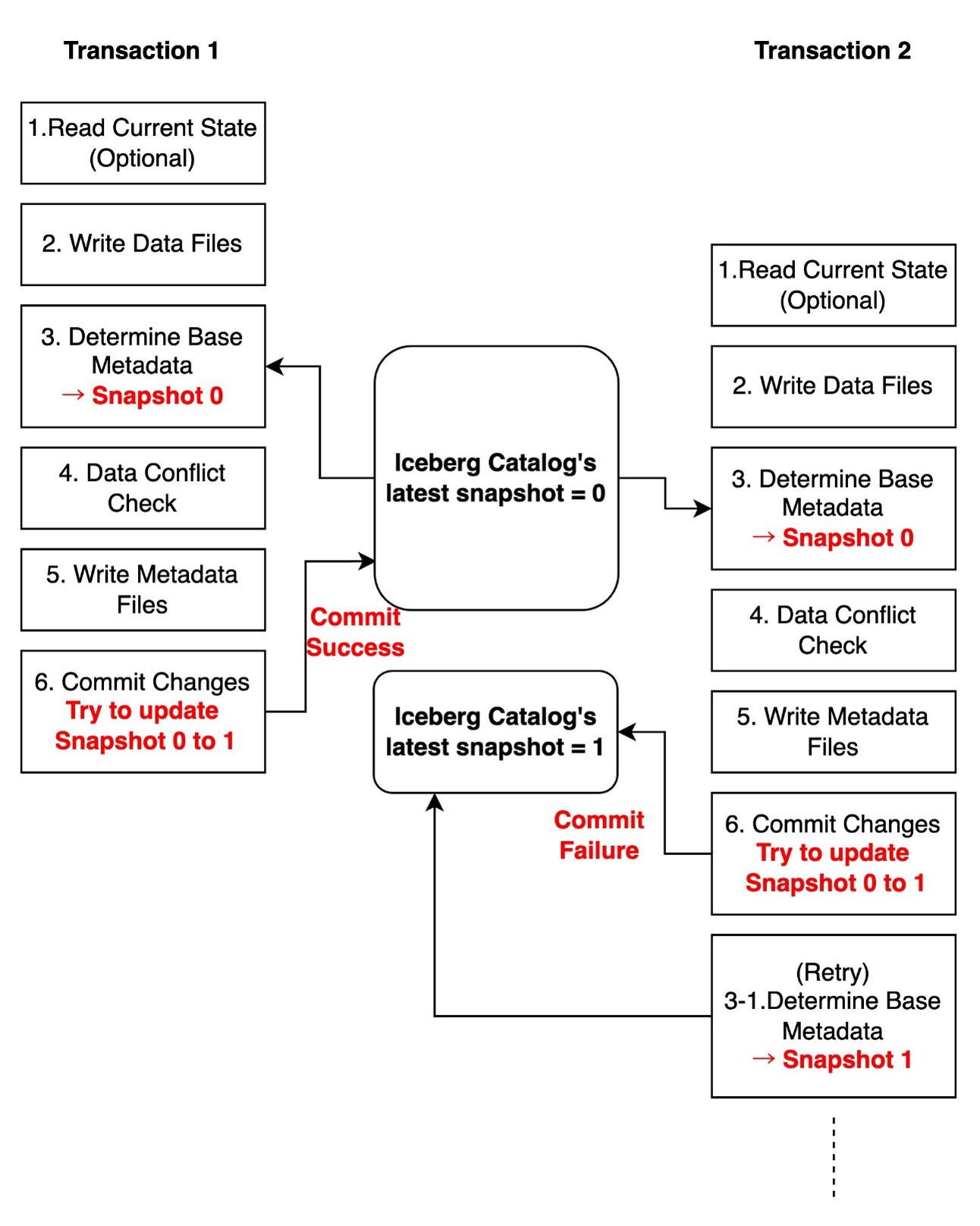
Catalog commit conflicts occur when multiple writers attempt to update the table metadata simultaneously. When a commit conflict occurs, Iceberg will automatically retry the operation based on the table’s write properties. The retry process only repeats the metadata commit, not the entire transaction, making it both safe and efficient. When the retries fail, the transaction fails with CommitFailedException.

In the following diagram, two transactions run concurrently. Transaction 1 successfully updates the table’s latest snapshot in the Iceberg catalog from 0 to 1. Meanwhile, transaction 2 attempts to update from Snapshot 0 to 1, but when it tries to commit the changes to the catalog, it finds that the latest snapshot has already been changed to 1 by transaction 1. As a result, transaction 2 needs to retry from Step 3.

Catalog commit conflicts1

These conflicts are typically transient and can be automatically resolved through retries. You can optionally configure write properties controlling commit retry behavior. For more detailed configuration, refer to Write properties in the Iceberg documentation.

The metadata used when reading the current state (Step 1) and the snapshot used as base metadata for updates (Step 3) can be different. Even if another transaction updates the latest snapshot between Steps 1 and 3, the current transaction can still commit changes to the catalog as long as it passes the data conflict check (Step 4). This means that even when computing changes and writing data files (Step 1 to 2) take a long time, and other transactions make changes during this period, the transaction can still attempt to commit to the catalog. This demonstrates Iceberg’s intelligent concurrency control mechanism.

The following diagram illustrates this workflow.

Catalog commit conflicts2

Data update conflicts

Data update conflicts are more complex and occur when concurrent transactions attempt to modify overlapping data. During a write transaction, the query engine checks consistency between the snapshot being written and the latest snapshot according to transaction isolation rules. When incompatibility is detected, the transaction fails with a ValidationException.

In the following diagram, two transactions run concurrently on an employee table containing id, name, and salary columns. Transaction 1 attempts to update a record based on Snapshot 0 and successfully commits this change, making the latest snapshot version 1. Meanwhile, transaction 2 also attempts to update the same record based on Snapshot 0. When transaction 2 initially scanned the data, the latest snapshot was 0, but it has since been updated to 1 by transaction 1. During the data conflict check, transaction 2 discovers that its changes conflict with Snapshot 1, resulting in the transaction failing.

data conflict

These conflicts can’t be automatically retried by Iceberg’s library because when data conflicts occur, the table’s state has changed, making it uncertain whether retrying the transaction would maintain overall data consistency. You need to handle this type of conflict based on your specific use case and requirements.

The following table summarizes how different write patterns have varying likelihood of conflicts.

Write Pattern Catalog Commit Conflict (Automatically retryable) Data Conflict (Non-retryable)
INSERT (AppendFiles) Yes Never
UPDATE/DELETE with Copy-on-Write or Merge-on-Read (OverwriteFiles) Yes Yes
Compaction (RewriteFiles) Yes Yes

Iceberg table’s isolation levels

Iceberg tables support two isolation levels: Serializable and Snapshot isolation. Both provide a read consistent view of the table and ensure readers see only committed data. Serializable isolation guarantees that concurrent operations run as if they were performed in some sequential order. Snapshot isolation provides weaker guarantees but offers better performance in environments with many concurrent writers. Under snapshot isolation, data conflict checks can pass even when concurrent transactions add new files with records that potentially match its conditions.

By default, Iceberg tables use serializable isolation. You can configure isolation levels for specific operations using table properties:

tbl_properties = {
    'write.delete.isolation-level' = 'serializable',
    'write.update.isolation-level' = 'serializable',
    'write.merge.isolation-level' = 'serializable'
}

You must choose the appropriate isolation level based on your use case. Note that for conflicts between streaming ingestion and compaction operations, which is one of the most common scenarios, snapshot isolation does not provide any additional benefits to the default serializable isolation. For more detailed configuration, see IsolationLevel.

Implementation patterns

Implementing robust concurrent write handling in Iceberg requires different strategies depending on the conflict type and use case. In this section, we share proven patterns for handling common scenarios.

Manage catalog commit conflicts

Catalog commit conflicts are relatively straightforward to handle through table properties. The following configurations serve as initial baseline settings that you can adjust based on your specific workload patterns and requirements.

For frequent concurrent writes (for example, streaming ingestion):

tbl_properties = {
    'commit.retry.num-retries': '10',
    'commit.retry.min-wait-ms': '100',
    'commit.retry.max-wait-ms': '10000',
    'commit.retry.total-timeout-ms': '1800000'
}

For maintenance operations (for example, compaction):

tbl_properties = {
    'commit.retry.num-retries': '4',
    'commit.retry.min-wait-ms': '1000',
    'commit.retry.max-wait-ms': '60000',
    'commit.retry.total-timeout-ms': '1800000'
}

Manage data update conflicts

For data update conflicts, which can’t be automatically retried, you need to implement a custom retry mechanism with proper error handling. A common scenario is when stream UPSERT ingestion conflicts with concurrent compaction operations. In such cases, the stream ingestion job should typically implement retries to handle incoming data. Without proper error handling, the job will fail with a ValidationException.

We show two example scripts demonstrating a practical implementation of error handling for data conflicts in Iceberg streaming jobs. The code specifically catches ValidationException through Py4JJavaError handling, which is essential for proper Java-Python interaction. It includes exponential backoff and jitter strategy by adding a random delay of 0–25% to each retry interval. For example, if the base exponential backoff time is 4 seconds, the actual retry delay will be between 4–5 seconds, helping prevent immediate retry storms while maintaining reasonable latency.

In this example, we create a scenario with frequent MERGE operations on the same records by using 'value' as a unique identifier and artificially limiting its range. By applying a modulo operation (value % 20), we constrain all values to fall within 0–19, which means multiple updates will target the same records. For instance, if the original stream contains values 0, 20, 40, and 60, they will all be mapped to 0, resulting in multiple MERGE operations targeting the same record. We then use groupBy and max aggregation to simulate a typical UPSERT pattern where we keep the latest record for each value. The transformed data is stored in a temporary view that serves as the source table in the MERGE statement, allowing us to perform UPDATE operations using 'value' as the matching condition. This setup helps demonstrate how our retry mechanism handles ValidationExceptions that occur when concurrent transactions attempt to modify the same records.

The first example uses Spark Structured Streaming using a rate source with a 20-second trigger interval to demonstrate the retry mechanism’s behavior when concurrent operations cause data conflicts. Replace <database_name> with your database name, <table_name> with your table name, amzn-s3-demo-bucket with your S3 bucket name.

import time
import random
from pyspark.sql import SparkSession
from py4j.protocol import Py4JJavaError
from pyspark.sql.functions import max as max_

CATALOG = "glue_catalog"
DATABASE = "<database_name>"
TABLE = "<table_name>"
BUCKET = "amzn-s3-demo-bucket"

spark = SparkSession.builder \
    .appName("IcebergUpsertExample") \
    .config(f"spark.sql.catalog.{CATALOG}", "org.apache.iceberg.spark.SparkCatalog") \
    .config("spark.sql.extensions","org.apache.iceberg.spark.extensions.IcebergSparkSessionExtensions") \
    .config(f"spark.sql.catalog.{CATALOG}.io-impl","org.apache.iceberg.aws.s3.S3FileIO") \
    .config("spark.sql.defaultCatalog", CATALOG) \
    .config(f"spark.sql.catalog.{CATALOG}.type", "glue") \
    .getOrCreate()
    
spark.sql(f"""
    CREATE TABLE IF NOT EXISTS {DATABASE}.{TABLE} (
        timestamp TIMESTAMP,
        value LONG
    )
    USING iceberg
    LOCATION 's3://{BUCKET}/warehouse'
""")

def backoff(attempt):
    """Exponential backoff with jitter"""
    exp_backoff = min(2 ** attempt, 60)
    jitter = random.uniform(0, 0.25 * exp_backoff)
    return exp_backoff + jitter

def is_validation_exception(java_exception):
    """Check if exception is ValidationException"""
    cause = java_exception
    while cause is not None:
        if "org.apache.iceberg.exceptions.ValidationException" in str(cause.getClass().getName()):
            return True
        cause = cause.getCause()
    return False

def upsert_with_retry(microBatchDF, batchId):
    max_retries = 5
    attempt = 0
    
    # Use a narrower key range to intentionally increase updates for the same value in MERGE
    transformedDF = microBatchDF \
        .selectExpr("timestamp", "value % 20 AS value") \
        .groupBy("value") \
        .agg(max_("timestamp").alias("timestamp"))
        
    view_name = f"incoming_data_{batchId}"
    transformedDF.createOrReplaceGlobalTempView(view_name)
    
    while attempt < max_retries:
        try:
            spark.sql(f"""
                MERGE INTO {DATABASE}.{TABLE} AS t
                USING global_temp.{view_name} AS i
                ON t.value = i.value
                WHEN MATCHED THEN
                  UPDATE SET
                    t.timestamp = i.timestamp,
                    t.value     = i.value
                WHEN NOT MATCHED THEN
                  INSERT (timestamp, value)
                  VALUES (i.timestamp, i.value)
            """)
            
            print(f"[SUCCESS] Batch {batchId} processed successfully")
            return
            
        except Py4JJavaError as e:
            if is_validation_exception(e.java_exception):
                attempt += 1
                if attempt < max_retries:
                    delay = backoff(attempt)
                    print(f"[RETRY] Batch {batchId} failed with ValidationException. "
                          f"Retrying in {delay} seconds. Attempt {attempt}/{max_retries}")
                    time.sleep(delay)
                else:
                    print(f"[FAILED] Batch {batchId} failed after {max_retries} attempts")
                    raise

# Sample streaming query setup
df = spark.readStream \
    .format("rate") \
    .option("rowsPerSecond", 10) \
    .load()

# Start streaming query
query = df.writeStream \
    .trigger(processingTime="20 seconds") \
    .option("checkpointLocation", f"s3://{BUCKET}/checkpointLocation") \
    .foreachBatch(upsert_with_retry) \
    .start()

query.awaitTermination()

The second example uses GlueContext.forEachBatch available on AWS Glue Streaming jobs. The implementation pattern for the retry mechanism remains the same, but the main differences are the initial setup using GlueContext and how to create a streaming DataFrame. Although our example uses spark.readStream with a rate source for demonstration, in actual AWS Glue Streaming jobs, you would typically create your streaming DataFrame using glueContext.create_data_frame.from_catalog to read from sources like Amazon Kinesis or Kafka. For more details, see AWS Glue Streaming connections. Replace <database_name> with your database name, <table_name> with your table name, amzn-s3-demo-bucket with your S3 bucket name.

import time
import random
from py4j.protocol import Py4JJavaError
from pyspark.context import SparkContext
from awsglue.context import GlueContext
from pyspark.sql import SparkSession
from pyspark.sql.functions import max as max_

CATALOG = "glue_catalog"
DATABASE = "<database_name>"
TABLE = "<table_name>"
BUCKET = "amzn-s3-demo-bucket"

spark = SparkSession.builder \
    .appName("IcebergUpsertExample") \
    .config(f"spark.sql.catalog.{CATALOG}", "org.apache.iceberg.spark.SparkCatalog") \
    .config("spark.sql.extensions","org.apache.iceberg.spark.extensions.IcebergSparkSessionExtensions") \
    .config(f"spark.sql.catalog.{CATALOG}.io-impl","org.apache.iceberg.aws.s3.S3FileIO") \
    .config("spark.sql.defaultCatalog", CATALOG) \
    .config(f"spark.sql.catalog.{CATALOG}.type", "glue") \
    .getOrCreate()

sc = spark.sparkContext
glueContext = GlueContext(sc)

spark.sql(f"""
    CREATE TABLE IF NOT EXISTS {DATABASE}.{TABLE} (
        timestamp TIMESTAMP,
        value LONG
    )
    USING iceberg
    LOCATION 's3://{BUCKET}/warehouse'
""")

def backoff(attempt):
    exp_backoff = min(2 ** attempt, 60)
    jitter = random.uniform(0, 0.25 * exp_backoff)
    return exp_backoff + jitter

def is_validation_exception(java_exception):
    cause = java_exception
    while cause is not None:
        if "org.apache.iceberg.exceptions.ValidationException" in str(cause.getClass().getName()):
            return True
        cause = cause.getCause()
    return False

def upsert_with_retry(batch_df, batchId):
    max_retries = 5
    attempt = 0
    transformedDF = batch_df.selectExpr("timestamp", "value % 20 AS value") \
                           .groupBy("value") \
                           .agg(max_("timestamp").alias("timestamp"))
                           
    view_name = f"incoming_data_{batchId}"
    transformedDF.createOrReplaceGlobalTempView(view_name)
    
    while attempt < max_retries:
        try:
            spark.sql(f"""
                MERGE INTO {DATABASE}.{TABLE} AS t
                USING global_temp.{view_name} AS i
                ON t.value = i.value
                WHEN MATCHED THEN
                  UPDATE SET
                    t.timestamp = i.timestamp,
                    t.value     = i.value
                WHEN NOT MATCHED THEN
                  INSERT (timestamp, value)
                  VALUES (i.timestamp, i.value)
            """)
            print(f"[SUCCESS] Batch {batchId} processed successfully")
            return
        except Py4JJavaError as e:
            if is_validation_exception(e.java_exception):
                attempt += 1
                if attempt < max_retries:
                    delay = backoff(attempt)
                    print(f"[RETRY] Batch {batchId} failed with ValidationException. "
                          f"Retrying in {delay} seconds. Attempt {attempt}/{max_retries}")
                    time.sleep(delay)
                else:
                    print(f"[FAILED] Batch {batchId} failed after {max_retries} attempts")
                    raise

# Sample streaming query setup
streaming_df = spark.readStream \
    .format("rate") \
    .option("rowsPerSecond", 10) \
    .load()

# In actual Glue Streaming jobs, you would typically create a streaming DataFrame like this:
"""
streaming_df = glueContext.create_data_frame.from_catalog(
    database = "database",
    table_name = "table_name",
    transformation_ctx = "streaming_df",
    additional_options = {
        "startingPosition": "TRIM_HORIZON",
        "inferSchema": "false"
    }
)
"""

glueContext.forEachBatch(
    frame=streaming_df,
    batch_function=upsert_with_retry,
    options={
        "windowSize": "20 seconds",
        "checkpointLocation": f"s3://{BUCKET}/checkpointLocation"
    }
)

Minimize conflict possibility by scoping your operations

When performing maintenance operations like compaction or updates, it’s recommended to narrow down the scope to minimize overlap with other operations. For example, consider a table partitioned by date where a streaming job continuously upserts data for the latest date. The following is the example script to run the rewrite_data_files procedure to compact the entire table:

# Example of broad scope compaction
spark.sql("""
   CALL catalog_name.system.rewrite_data_files(
       table => 'db.table_name'
   )
""")

By narrowing the compaction scope with a date partition filter in the where clause, you can avoid conflicts between streaming ingestion and compaction operations. The streaming job can continue to work with the latest partition while compaction processes historical data.

# Narrow down the scope by partition
spark.sql("""
    CALL catalog_name.system.rewrite_data_files(
        table => 'db.table_name',
        where => 'date_partition < current_date'
    )
""")

Conclusion

Successfully managing concurrent writes in Iceberg requires understanding both the table architecture and various conflict scenarios. In this post, we explored how to implement reliable conflict handling mechanisms in production environments.

The most critical concept to remember is the distinction between catalog commit conflicts and data conflicts. Although catalog commit conflicts can be handled through automatic retries and table properties configuration, data conflicts require careful implementation of custom handling logic. This becomes particularly important when implementing maintenance operations like compaction, where using the where clause in rewrite_data_files can significantly minimize conflict potential by reducing the scope of operations.

For streaming pipelines, the key to success lies in implementing proper error handling that can differentiate between conflict types and respond appropriately. This includes configuring suitable retry settings through table properties and implementing backoff strategies that align with your workload characteristics. When combined with well-timed maintenance operations, these patterns help build resilient data pipelines that can handle concurrent writes reliably.

By applying these patterns and understanding the underlying mechanisms of Iceberg’s concurrency model, you can build robust data pipelines that effectively handle concurrent write scenarios while maintaining data consistency and reliability.


About the Authors

Sotaro Hikita is an Analytics Solutions Architect. He supports customers across a wide range of industries in building and operating analytics platforms more effectively. He is particularly passionate about big data technologies and open source software.

Noritaka Sekiyama is a Principal Big Data Architect on the AWS Glue team. He works based in Tokyo, Japan. He is responsible for building software artifacts to help customers. In his spare time, he enjoys cycling with his road bike.

Use open table format libraries on AWS Glue 5.0 for Apache Spark

Post Syndicated from Sotaro Hikita original https://aws.amazon.com/blogs/big-data/use-open-table-format-libraries-on-aws-glue-5-0-for-apache-spark/

Open table formats are emerging in the rapidly evolving domain of big data management, fundamentally altering the landscape of data storage and analysis. These formats, exemplified by Apache Iceberg, Apache Hudi, and Delta Lake, addresses persistent challenges in traditional data lake structures by offering an advanced combination of flexibility, performance, and governance capabilities. By providing a standardized framework for data representation, open table formats break down data silos, enhance data quality, and accelerate analytics at scale.

As organizations grapple with exponential data growth and increasingly complex analytical requirements, these formats are transitioning from optional enhancements to essential components of competitive data strategies. Their ability to resolve critical issues such as data consistency, query efficiency, and governance renders them indispensable for data- driven organizations. The adoption of open table formats is a crucial consideration for organizations looking to optimize their data management practices and extract maximum value from their data.

In earlier posts, we discussed AWS Glue 5.0 for Apache Spark. In this post, we highlight notable updates on Iceberg, Hudi, and Delta Lake in AWS Glue 5.0.

Apache Iceberg highlights

AWS Glue 5.0 supports Iceberg 1.6.1. We highlight its notable updates in this section. For more details, refer to Iceberg Release 1.6.1.

Branching

Branches are independent lineage of snapshot history that point to the head of each lineage. These are useful for flexible data lifecycle management. An Iceberg table’s metadata stores a history of snapshots, which are updated with each transaction. Iceberg implements features such as table versioning and concurrency control through the lineage of these snapshots. To expand an Iceberg table’s lifecycle management, you can define branches that stem from other branches. Each branch has an independent snapshot lifecycle, allowing separate referencing and updating.

When an Iceberg table is created, it has only a main branch, which is created implicitly. All transactions are initially written to this branch. You can create additional branches, such as an audit branch, and configure engines to write to them. Changes on one branch can be fast-forwarded to another branch using Spark’s fast_forward procedure.

The following diagram illustrates this setup.

To create a new branch, use the following query:

ALTER TABLE glue_catalog.<database_name>.<table_name> CREATE BRANCH <branch_name>;

After creating a branch, you can run queries on the data in the branch by specifying branch_<branch_name>. To write data to a specific branch, use the following query:

INSERT INTO glue_catalog.<database_name>.<table_name>.branch_<branch_name>
    VALUES (1, 'a'), (2, 'b');

To query a specific branch, use the following query:

SELECT * FROM glue_catalog.<database_name>.<table_name>.branch_<branch_name>;

You can run the fast_forward procedure to publish the sample table data from the audit branch into the main branch using the following query:

CALL glue_catalog.system.fast_forward(
    table => 'db.table',
    branch => 'main',
    to => 'audit')

Tagging

Tags are logical pointers to specific snapshot IDs, useful for managing important historical snapshots for business purposes. In Iceberg tables, new snapshots are created for each transaction, and you can query historical snapshots using time travel queries by specifying either a snapshot ID or timestamp. However, because snapshots are created for every transaction, it can be challenging to distinguish the important ones. Tags help address this by allowing you to point to specific snapshots with arbitrary names.

For example, you can set event tag for snapshot 2 with the following code:

ALTER TABLE glue_catalog.db.sample CREATE TAG `event` AS OF VERSION 2

You can query to the tagged snapshot by using the following code:

SELECT * FROM glue_catalog.<database_name>.<table_name>.tag_<tagname>;

Lifecycle management with branching and tagging

Branching and tagging are useful for flexible table maintenance with the independent snapshot lifecycle management configuration. When data changes in an Iceberg table, each modification is preserved as a new snapshot. Over time, this creates multiple data files and metadata files as changes accumulate. Although these files are essential for Iceberg features like time travel queries, maintaining too many snapshots can increase storage costs. Additionally, they can impact query performance due to the overhead of handling large amounts of metadata. Therefore, organizations should plan regular deletion for snapshots no longer needed.

The AWS Glue Data Catalog addresses these challenges through its managed storage optimization feature. Its optimization job automatically deletes snapshots based on two configurable parameters: the number of snapshots to retain and the maximum days to keep snapshots. Importantly, you can set independent lifecycle policies for both branches and tagged snapshots.

For branches, you can control the maximum days to keep the snapshot and the minimum number of snapshots that must be retained, even if they’re older than the maximum age limit. This setting is independent for each branch.

For example, to keep snapshots 7 days and keep at least 10 snapshots, run the following query:

ALTER TABLE glue_catalog.db.sample CREATE BRANCH audit WITH SNAPSHOT RETENTION 7 DAYS 10 SNAPSHOTS

Tags act as permanent references to specific snapshots of your data. Without setting an expiration time, tagged snapshots persist indefinitely and prevent optimization jobs from cleaning up the associated data files. You can set a time limit for how long to keep a reference when you create it.

For example, to keep snapshots tagged with event for 360 days, run the following query:

ALTER TABLE glue_catalog.db.sample CREATE TAG event RETAIN 360 DAYS

This combination of branching and tagging capabilities enables flexible snapshot lifecycle management that can accommodate various business requirements and use cases. For more information about the Data Catalog’s automated storage optimization feature, refer to The AWS Glue Data Catalog now supports storage optimization of Apache Iceberg tables.

Change log view

The create_changelog_view Spark procedure helps track table modifications by generating a comprehensive change history view. It captures all data alterations, from insert to updates and deletions. This makes it simple to analyze how your data has evolved and audit changes over time.

The change log view created by the create_changelog_view procedure contains all the information about changes, including the modified record content, type of operation performed, order of changes, and the snapshot ID where the change was committed. In addition, it can show the original and modified versions of records by passing designated key columns. These selected columns typically serve as distinct identifiers or primary keys that uniquely identify each record. See the following code:

CALL glue_catalog.system.create_changelog_view(
    table => 'db.test',
    identifier_columns => array('id')
)

By running the procedure, the change log view test_changes is created. When you query the change log view using SELECT * FROM test_changes, you can obtain the following output, which includes the history of record changes in the Iceberg table.

The create_changelog_view procedure helps you monitor and understand data changes. This feature proves valuable for many use cases, including change data capture (CDC), monitoring audit records, and live analysis.

Storage partitioned join

Storage partitioned join is a join optimization technique provided by Iceberg, which enhances both read and write performance. This feature uses existing storage layout to eliminate expensive data shuffles, and significantly improves query performance when joining large datasets that share compatible partitioning schemes. It operates by taking advantage of the physical organization of data on disk. When both datasets are partitioned using a compatible layout, Spark can perform join operations locally by directly reading matching partitions, completely avoiding the need for data shuffling.

To enable and optimize storage partitioned joins, you need to set the following Spark config properties through SparkConf or an AWS Glue job parameter. The following code lists the properties for the Spark config:

spark.sql.sources.v2.bucketing.enabled=true
spark.sql.sources.v2.bucketing.pushPartValues.enabled=true
spark.sql.requireAllClusterKeysForCoPartition=false
spark.sql.adaptive.enabled=false
spark.sql.adaptive.autoBroadcastJoinThreshold=-1
spark.sql.iceberg.planning.preserve-data-grouping=true

To use an AWS Glue job parameter, set the following:

  • Key: --conf
  • Value: spark.sql.sources.v2.bucketing.enabled=true --conf
    spark.sql.sources.v2.bucketing.pushPartValues.enabled=true --conf
    spark.sql.requireAllClusterKeysForCoPartition=false --conf
    spark.sql.adaptive.enabled=false --conf
    spark.sql.adaptive.autoBroadcastJoinThreshold=-1 --conf
    spark.sql.iceberg.planning.preserve-data-grouping=true

The following examples compare sample physical plans obtained by the EXPLAIN query, with and without storage partitioned join. In these plans, both tables product_review and customer have the same bucketed partition keys, such as review_year and product_id. When storage partitioned join is enabled, Spark joins the two tables without a shuffle operation.

The following is a physical plan without storage partitioned join:

== Physical Plan ==
AdaptiveSparkPlan isFinalPlan=false
+- Project [review_year#915L, product_id#920]
+- SortMergeJoin [review_year#915L, product_id#906], [review_year#929L, product_id#920], Inner
:- Sort [review_year#915L ASC NULLS FIRST, product_id#906 ASC NULLS FIRST], false, 0
: +- Exchange hashpartitioning(review_year#915L, product_id#906, 16), ENSURE_REQUIREMENTS, [plan_id=359]
: +- BatchScan glue_catalog.db.product_review[...]
+- Sort [review_year#929L ASC NULLS FIRST, product_id#920 ASC NULLS FIRST], false, 0
+- Exchange hashpartitioning(review_year#929L, product_id#920, 16), ENSURE_REQUIREMENTS, [plan_id=360]
+- BatchScan glue_catalog.db.customer[...]

The following is a physical plan with storage partitioned join:

== Physical Plan ==
(3) Project [review_year#1301L, product_id#1306]
+- (3) SortMergeJoin [review_year#1301L, product_id#1292], [review_year#1315L, product_id#1306], Inner
    :- (1) Sort [review_year#1301L ASC NULLS FIRST, product_id#1292 ASC NULLS FIRST], false, 0
    : +- (1) ColumnarToRow
    : +- BatchScan glue_catalog.db.product_review[...]
+- (2) Sort [review_year#1315L ASC NULLS FIRST, product_id#1306 ASC NULLS FIRST], false, 0
+- (2) ColumnarToRow
+- BatchScan glue_catalog.db.customer[...]

In this physical plan, we don’t see the Exchange operation that is present in physical plan without storage partitioned join. This indicates that no shuffle operation will be performed.

Delta Lake highlights

AWS Glue 5.0 supports Delta Lake 3.2.1. We highlight its notable updates in this section. For more details, refer to Delta Lake Release 3.2.1.

Deletion vectors

Deletion vectors are a feature in Delta Lake that implements a merge-on-read (MoR) paradigm, providing an alternative to the traditional copy-on-write (CoW) approach. This feature fundamentally changes how DELETE, UPDATE, and MERGE operations are processed in Delta Lake tables. In the CoW paradigm, modifying even a single row requires rewriting entire Parquet files. With deletion vectors, changes are recorded as soft deletes, allowing the original data files to remain untouched while maintaining logical consistency. This approach results in improved write performance.

When deletion vectors are enabled, changes are recorded as soft deletes in a compressed bitmap format during write operations. During read operations, these changes are merged with the base data. Additionally, changes recorded by deletion vectors can be physically applied by rewriting files to purge soft deleted data using the REORG command.

To enable deletion vectors, set the table parameter to delta.enableDeletionVectors = 'true'.

When deletion vector is enabled, you can confirm the deletion vector file is created. The file is highlighted in the following screenshot.

MoR with deletion vectors is especially useful in scenarios requiring efficient write operations to tables with frequent updates and data scattered across multiple files. However, you should consider the read overhead required to merge these files. For more information, refer to What are deletion vectors?

Optimized writes

Delta Lake’s optimized writes feature addresses the small file problem, a common performance challenge in data lakes. This issue typically occurs when numerous small files are created through distributed operations. When reading data, processing many small files creates substantial overhead due to extensive metadata management and file handling.

The optimized writes feature solves this by combining multiple small writes into larger, more efficient files before they are written to disk. The process redistributes data across executors before writing and colocates similar data within the same partition. You can control the target file size using the spark.databricks.delta.optimizeWrite.binSize parameter, which defaults to 512 MB. With optimized writes enabled, the traditional approach of using coalesce(n) or repartition(n) to control output file counts becomes unnecessary, because file size optimization is handled automatically.

To enable deletion vectors, set the table parameter to delta.autoOptimize.optimizeWrite = 'true'.

The optimized writes feature isn’t enabled by default, and you should be aware of potentially higher write latency due to data shuffling before files are written to the table. In some cases, combining this with auto compaction can effectively address small file issues. For more information, refer to Optimizations.

UniForm

Delta Lake Universal Format (UniForm) introduces an approach to data lake interoperability by enabling seamless access to Delta Lake tables through Iceberg and Hudi. Although these formats differ primarily in their metadata layer, Delta Lake UniForm bridges this gap by automatically generating compatible metadata for each format alongside Delta Lake, all referencing a single copy of the data. When you write to a Delta Lake table with UniForm enabled, UniForm automatically and asynchronously generates metadata for other formats.

Delta UniForm allows organizations to use the most suitable tool for each data workload while operating on a single delta lake-based data source. UniForm is read-only from an Iceberg and Hudi perspective, and some features of each format are not available. For more details about limitations, refer to Limitations. To learn more about how to use UniForm on AWS, visit Expand data access through Apache Iceberg using Delta Lake UniForm on AWS.

Apache Hudi highlights

AWS Glue 5.0 supports Hudi 0.15.0. We highlight its notable updates in this section. For more details, refer to Hudi Release 0.15.0.

Record Level Index

Hudi provides indexing mechanisms to map record keys to their corresponding file locations, enabling efficient data operations. To use these indexes, you first need to enable the metadata table using MoR by setting hoodie.metadata.enable=true in your table parameters. Hudi’s multi-modal indexing feature allows it to store various types of indexes. These indexes give you the flexibility to add different index types as your needs evolve.

Record Level Index enhances both write and read operations by maintaining precise mappings between record keys and their corresponding file locations. This mapping enables quick determination of record locations, reducing the number of files that need to be scanned during data retrieval.

During the write workflow, when new records arrive, Record Level Index tags each record with location information if it exists in any file group. This tagging process realizes efficient update operations by directly reducing write latency. For the read workflow, Record Level Index eliminates the need to scan through all files by enabling writers to quickly locate files containing specific data. By tracking which files contain which records, Record Level Index accelerates queries, particularly when performing exact matches on record key columns.

To enable Record Level Index, set the following table parameters:

hoodie.metadata.enable = 'true'
hoodie.metadata.record.index.enable = 'true'
hoodie.index.type = 'RECORD_INDEX'

When Record Level Index is enabled, the record_index partition is created on the metadata table storing indexes, as shown in the following screenshot.

For more information, refer to Record Level Index: Hudi’s blazing fast indexing for large-scale datasets on Hudi’s blog.

Auto generated keys

Traditionally, Hudi required explicit configuration of primary keys for every table. Users needed to specify the record key field using the hoodie.datasource.write.recordkey.field configuration. This requirement sometimes posed challenges for datasets lacking natural unique identifiers, such as in log ingestion scenarios.

With auto generated primary keys, Hudi now offers the flexibility to create tables without explicitly configuring primary keys. When you omit the hoodie.datasource.write.recordkey.field configuration, Hudi automatically generates efficient primary keys that optimize compute, storage, and read operations while maintaining uniqueness requirements. For more details, refer to Key Generation.

CDC queries

In some use cases like streaming ingestion, it’s important to track all changes for the records that belong to a single commit. Although Hudi has provided the incremental query that enables you to obtain a set of records that changed between a start and end commit time, it doesn’t contain before and after images of records. Instead, a CDC query in Hudi allows you to capture and process all mutating operations, including inserts, updates, and deletes, making it possible to track the complete evolution of data over time.

To enable CDC queries, set the table parameter to hoodie.table.cdc.enabled = 'true'.

To perform a CDC query, set the following query option:

cdc_read_options = {
    'hoodie.datasource.query.incremental.format': 'cdc',
    'hoodie.datasource.query.type': 'incremental',
    'hoodie.datasource.read.begin.instanttime': 0
}

spark.read.format("hudi"). \
    options(**cdc_read_options). \
    load(basePath).show()

The following screenshot shows a sample output from a CDC query. In the op column, we can see which operation was performed on each record. The output also displays the before and after images of the modified records.

This feature is currently available for CoW tables; MoR tables are not yet supported at the time of writing. For more information, refer to Change Data Capture Query.

Conclusion

In this post, we discussed the key upgrades on Iceberg, Delta Lake, and Hudi in AWS Glue 5.0. You can take advantage of the new version right away by creating new jobs and transferring your current ones to use the enhanced features.


About the Authors

Sotaro Hikita is an Analytics Solutions Architect. He supports customers across a wide range of industries in building and operating analytics platforms more effectively. He is particularly passionate about big data technologies and open source software.

Noritaka Sekiyama is a Principal Big Data Architect on the AWS Glue team. He works based in Tokyo, Japan. He is responsible for building software artifacts to help customers. In his spare time, he enjoys cycling with his road bike.

Introducing AWS Glue Data Catalog automation for table statistics collection for improved query performance on Amazon Redshift and Amazon Athena

Post Syndicated from Sotaro Hikita original https://aws.amazon.com/blogs/big-data/introducing-aws-glue-data-catalog-automation-for-table-statistics-collection-for-improved-query-performance-on-amazon-redshift-and-amazon-athena/

The AWS Glue Data Catalog now automates generating statistics for new tables. These statistics are integrated with the cost-based optimizer (CBO) from Amazon Redshift Spectrum and Amazon Athena, resulting in improved query performance and potential cost savings.

Queries on large datasets often read extensive amounts of data and perform complex join operations across multiple datasets. When a query engine like Redshift Spectrum or Athena processes the query, the CBO uses table statistics to optimize it. For example, if the CBO knows the number of distinct values in a table column, it can choose the optimal join order and strategy. These statistics must be collected beforehand and should be kept up to date to reflect the latest data state.

Previously, the Data Catalog has supported collecting table statistics used by the CBO for Redshift Spectrum and Athena for tables with Parquet, ORC, JSON, ION, CSV, and XML formats. We introduced this feature and its performance benefits in Enhance query performance using AWS Glue Data Catalog column-level statistics. Additionally, the Data Catalog also has supported Apache Iceberg tables. We’ve also covered this in detail in Accelerate query performance with Apache Iceberg statistics on the AWS Glue Data Catalog.

Previously, creating statistics for Iceberg tables in the Data Catalog required you to continuously monitor and update configurations for your tables. You had to do undifferentiated heavy lifting to do the following:

  • Discover new tables with specific data table formats (such as Parquet, JSON, CSV, XML, ORC, ION) and specific transactional data table formats such as Iceberg and their individual bucket paths
  • Determine and set up compute tasks based on scan strategy (sampling percentage and schedules)
  • Configure AWS Identity and Access Management (IAM) and AWS Lake Formation roles for specific tasks to provide specific Amazon Simple Storage Service (Amazon S3) access, Amazon CloudWatch logs, AWS Key Management Service (AWS KMS) keys for CloudWatch encryption, and trust policies
  • Set up event notification systems to understand changes in data lakes
  • Set up specific optimizer configuration-based query performance and storage improvement strategies
  • Set up a scheduler or build your own event-based compute tasks with setup and teardown

Now, the Data Catalog lets you generate statistics automatically for updated and created tables with a one-time catalog configuration. You can get started by selecting the default catalog on the Lake Formation console and enabling table statistics on the table optimization configuration tab. As new tables are created, the number of distinct values (NDVs) are collected for Iceberg tables, and additional statistics such as the number of nulls, maximum, minimum, and average length are collected for other file formats such as Parquet. Redshift Spectrum and Athena can use the updated statistics to optimize queries, using optimizations such as optimal join order or cost-based aggregation pushdown. The AWS Glue console provides you visibility into the updated statistics and statistics generation runs.

Now, data lake administrators can configure weekly statistics collection across all databases and tables in their catalog. When the automation is enabled, the Data Catalog generates and updates column statistics for all columns in the tables on a weekly basis. This job analyzes 20% of records in the tables to calculate statistics. These statistics can be used by Redshift Spectrum and Athena CBO to optimize queries.

Furthermore, this new feature provides the flexibility to configure automation settings and scheduled collection configurations at the table level. Individual data owners can override catalog-level automation settings based on specific requirements. Data owners can customize settings for individual tables, including whether to enable automation, collection frequency, target columns, and sampling percentage. This flexibility allows administrators to maintain an optimized platform overall, while enabling data owners to fine-tune individual table statistics.

In this post, we discuss how the Data Catalog automates table statistics collection and how you can use it to enhance your data platform’s efficiency.

Enable catalog-level statistics collection

The data lake administrator can enable catalog-level statistics collection on the Lake Formation console. Complete the following steps:

  1. On the Lake Formation console, choose Catalogs in the navigation pane.
  2. Select the catalog that you want to configure, and choose Edit on the Actions menu.

  1. Select Enable automatic statistics generation for the tables of the catalog and choose an IAM role. For the required permissions, see Prerequisites for generating column statistics.
  2. Choose Submit.

You can also enable catalog-level statistics collection through the AWS Command Line Interface (AWS CLI):

aws glue update-catalog --cli-input-json '{
    "name": "123456789012",
    "catalogInput": {
        "description": "Updating root catalog with role arn",
        "catalogProperties": {
            "customProperties": {
                "ColumnStatistics.RoleArn": "arn:aws:iam::123456789012:role/service-role/AWSGlueServiceRole",
                "ColumnStatistics.Enabled": "true"
            }
        }
    }
}'

The command calls the AWS Glue UpdateCatalog API, which takes in a CatalogProperties structure that expects the following key-value pairs for catalog-level statistics:

  • ColumnStatistics.RoleArn – The IAM role Amazon Resource Name (ARN) to be used for all jobs triggered for catalog-level statistics
  • ColumnStatistics.Enabled – A Boolean value indicating whether the catalog-level settings are enabled or disabled

Callers of UpdateCatalog must have UpdateCatalog IAM permissions and be granted ALTER on CATALOG permissions on the root catalog if using Lake Formation permissions. You can call the GetCatalog API to verify the properties that are set to your catalog properties. For the required permissions used by the role passed, see Prerequisites for generating column statistics.

By following these steps, catalog-level statistics collection is enabled. AWS Glue then automatically updates statistics for all columns in each table, sampling 20% of records on a weekly basis. This allows data lake administrators to effectively manage the data platform’s performance and cost-efficiency.

View automated table-level settings

When catalog-level statistics collection is enabled, when an Apache Hive table or Iceberg table is created or updated using the AWS Glue CreateTable or UpdateTable APIs through the AWS Glue console, AWS SDK, or AWS Glue crawlers, an equivalent table level setting is created for that table.

Tables with automatic statistics generation enabled must follow one of following properties:

  • HIVE table formats such as Parquet, Avro, ORC, JSON, ION, CSV, and XML
  • Apache Iceberg table format

After a table has been created or updated, you can confirm that a statistics collection setting has been set by checking the table description on the AWS Glue console. The setting should have the Schedule property set as Auto and Statistics configuration set as Inherited from catalog. Any table setting with the following settings is automatically triggered by AWS Glue internally.

The following is an image of a Hive Table where catalog-level statistics collection has been applied and statistics have been collected:

The following is an image of a Iceberg Table where catalog-level statistics collection has been applied and statistics have been collected:

Configure table-level statistics collection

Data owners can customize statistics collection at the table level to meet specific needs. For frequently updated tables, statistics can be refreshed more often than weekly. You can also specify target columns to focus on those most commonly queried.

Moreover, you can set what percentage of table records to use when calculating statistics. Therefore, you can increase this percentage for tables that need more precise statistics, or decrease it for tables where a smaller sample is sufficient to optimize costs and statistics generation performance.

These table-level settings can override the catalog-level settings previously described.

To configure table-level statistics collection on AWS Glue console, complete the following steps:

  1. On the AWS Glue console, choose Databases under Data Catalog in the navigation pane.
  2. Choose a database to view all available tables (for example, optimization_test).
  3. Choose the table to be configured (for example, catalog_returns).
  4. Go to Column statistics and choose Generate on schedule.
  5. In the Schedule section, choose the frequency from Hourly, Daily, Weekly, Monthly and Custom (cron expression). In this example, for Frequency, choose Daily.
  6. For Start time, enter 06:43 in UTC.

  1. For Column options, select All columns.
  2. For IAM role, choose an existing role, or create a new role. For the required permissions, see Prerequisites for generating column statistics.

  1. Under Advanced configuration, for Security configuration, optionally choose your security configuration to enable at-rest encryption on the logs pushed to CloudWatch.
  2. For Sample rows, enter 100 as the percentage of rows to sample.
  3. Choose Generate statistics.

In the table description on the AWS Glue console, you can confirm that a statistics collection job has been scheduled for the specified date and time.

By following these steps, you have configured table-level statistics collection. This allows data owners to manage table statistics based on their specific requirements. Combining this with catalog-level settings by data lake administrators enables securing a baseline for optimizing the entire data platform while flexibly addressing individual table requirements.

You can also create a column statistics generation schedule through the AWS CLI:

aws glue create-column-statistics-task-settings \
  --database-name 'database_name' \
  --table-name table_name \
  --role 'arn:aws:iam::123456789012:role/stats-role' \
  --schedule 'cron(8 0-5 14 * * ?)' \
  --column-name-list 'col-1' \
  --catalog-id '123456789012' \
  --sample-size '10.0' \
  --security-configuration 'test-security'

The required parameters are database-name, table-name, and role. You can also include optional parameters such as schedule, column-name-list, catalog-id, sample-size, and security-configuration. For more information, see Generating column statistics on a schedule.

Conclusion

This post introduced a new feature in the Data Catalog that enables automated statistics collection at the catalog level with flexible per-table controls. Organizations can effectively manage and maintain up-to-date column-level statistics. By incorporating these statistics, CBO in both Redshift Spectrum and Athena can optimize query processing and cost-efficiency.

Try out this feature for your own use case, and let us know your feedback in the comments.


About the Authors

Sotaro Hikita is an Analytics Solutions Architect. He supports customers across a wide range of industries in building and operating analytics platforms more effectively. He is particularly passionate about big data technologies and open source software.

Noritaka Sekiyama is a Principal Big Data Architect on the AWS Glue team. He works based in Tokyo, Japan. He is responsible for building software artifacts to help customers. In his spare time, he enjoys cycling with his road bike.

Kyle Duong is a Senior Software Development Engineer on the AWS Glue and AWS Lake Formation team. He is passionate about building big data technologies and distributed systems.

Sandeep Adwankar is a Senior Product Manager at AWS. Based in the California Bay Area, he works with customers around the globe to translate business and technical requirements into products that enable customers to improve how they manage, secure, and access data.

Accelerate query performance with Apache Iceberg statistics on the AWS Glue Data Catalog

Post Syndicated from Sotaro Hikita original https://aws.amazon.com/blogs/big-data/accelerate-query-performance-with-apache-iceberg-statistics-on-the-aws-glue-data-catalog/

Today, we are pleased to announce a new capability for the AWS Glue Data Catalog: generating column-level aggregation statistics for Apache Iceberg tables to accelerate queries. These statistics are utilized by cost-based optimizer (CBO) in Amazon Redshift Spectrum, resulting in improved query performance and potential cost savings.

Apache Iceberg is an open table format that provides the capability of ACID transactions on your data lakes. It’s designed to process large analytics datasets and is efficient for even small row-level operations. It also enables useful features such as time-travel, schema evolution, hidden partitioning, and more.

AWS has invested in service integration with Iceberg to enable Iceberg workloads based on customer feedback. One example is the AWS Glue Data Catalog. The Data Catalog is a centralized repository that stores metadata about your organization’s datasets, making the data visible, searchable, and queryable for users. The Data Catalog supports Iceberg tables and tracks the table’s current metadata. It also allows automatic compaction of individual small files produced by each transactional write on tables into a few large files for faster read and scan operations.

In 2023, the Data Catalog announced support for column-level statistics for non-Iceberg tables. That feature collects table statistics used by the query engine’s CBO. Now, the Data Catalog expands this support to Iceberg tables. The Iceberg table’s column statistics that the Data Catalog generates are based on Puffin Spec and stored on Amazon Simple Storage Service (Amazon S3) with other table data. This way, various engines supporting Iceberg can utilize and update them.

This post demonstrates how column-level statistics for Iceberg tables work with Redshift Spectrum. Furthermore, we showcase the performance benefit of the Iceberg column statistics with the TPC-DS dataset.

How Iceberg table’s column statistics works

AWS Glue Data Catalog generates table column statistics using the Theta Sketch algorithm on Apache DataSketches to estimate the number of distinct values (NDV) and stores them in Puffin file.

For SQL planners, NDV is an important statistic to optimize query planning. There are a few scenarios where NDV statistics can potentially optimize query performance. For example, when joining two tables on a column, the optimizer can use the NDV to estimate the selectivity of the join. If one table has a low NDV for the join column compared to the other table, the optimizer may choose to use a broadcast join instead of a shuffle join, reducing data movement and improving query performance. Moreover, when there are more than two tables to be joined, the optimizer can estimate the output size of each join and plan the efficient join order. Furthermore, NDV can be used for various optimizations such as group by, distinct, and count query.

However, calculating NDV continuously with 100% accuracy requires O(N) space complexity. Instead, Theta Sketch is an efficient algorithm that allows you to estimate the NDV in a dataset without needing to store all the distinct values on memory and storage. The key idea behind Theta Sketch is to hash the data into a range between 0–1, and then select only a small portion of the hashed values based on a threshold (denoted as θ). By analyzing this small subset of data, the Theta Sketch algorithm can provide an accurate estimate of the NDV in the original dataset.

Iceberg’s Puffin file is designed to store information such as indexes and statistics as a blob type. One of the representative blob types that can be stored is apache-datasketches-theta-v1, which is serialized values for estimating the NDV using the Theta Sketch algorithm. Puffin files are linked to a snapshot-id on Iceberg’s metadata and are utilized by the query engine’s CBO to optimize query plans.

Leverage Iceberg column statistics through Amazon Redshift

To demonstrate the performance benefit of this capability, we employ the industry-standard TPC-DS 3 TB dataset. We compare the query performance with and without Iceberg column statistics for the tables by running queries in Redshift Spectrum. We have included the queries used in this post, and we recommend trying your own queries by following the workflow.

The following is the overall steps:

  1. Run AWS Glue Job that extracts TPS-DS dataset from Public Amazon S3 bucket and saves them as an Iceberg table in your S3 bucket. AWS Glue Data Catalog stores those tables’ metadata location. Query these tables using Amazon Redshift Spectrum.
  2. Generate column statistics: Employ the enhanced capabilities of AWS Glue Data Catalog to generate column statistics for each tables. It generates puffin files storing Theta Sketch.
  3. Query with Amazon Redshift Spectrum: Evaluate the performance benefit of column statistics on query performance by utilizing Amazon Redshift Spectrum to run queries on the dataset.

The following diagram illustrates the architecture.

To try this new capability, we complete the following steps:

  1. Set up resources with AWS CloudFormation.
  2. Run an AWS Glue job to create Iceberg tables for the 3TB TPC-DS dataset in your S3 bucket. The Data Catalog stores those tables’ metadata location.
  3. Run queries on Redshift Spectrum and note the query duration.
  4. Generate Iceberg column statistics for Data Catalog tables.
  5. Run queries on Redshift Spectrum and compare the query duration with the previous run.
  6. Optionally, schedule AWS Glue column statistics jobs using AWS Lambda and an Amazon EventBridge

Set up resources with AWS CloudFormation

This post includes a CloudFormation template for a quick setup. You can review and customize it to suit your needs. Note that this CloudFormation template requires a region with at least 3 Availability Zones. The template generates the following resources:

  • A virtual private cloud (VPC), public subnet, private subnets, and route tables
  • An Amazon Redshift Serverless workgroup and namespace
  • An S3 bucket to store the TPC-DS dataset, column statistics, job scripts, and so on
  • Data Catalog databases
  • An AWS Glue job to extract the TPS-DS dataset from the public S3 bucket and save the data as an Iceberg table in your S3 bucket
  • AWS Identity and Access Management (AWS IAM) roles and policies
  • A Lambda function and EventBridge schedule to run the AWS Glue column statistics on a schedule

To launch the CloudFormation stack, complete the following steps:

  1. Sign in to the AWS CloudFormation console.
  2. Choose Launch Stack.
  3. Choose Next.
  4. Leave the parameters as default or make appropriate changes based on your requirements, then choose Next.
  5. Review the details on the final page and select I acknowledge that AWS CloudFormation might create IAM resources.
  6. Choose Create.

This stack can take around 10 minutes to complete, after which you can view the deployed stack on the AWS CloudFormation console.

Run an AWS Glue job to create Iceberg tables for the 3TB TPC-DS dataset

When the CloudFormation stack creation is complete, run the AWS Glue job to create Iceberg tables for the TPC-DS dataset. This AWS Glue job extracts the TPC-DS dataset from the public S3 bucket and transforms the data into Iceberg tables. Those tables are loaded into your S3 bucket and registered to the Data Catalog.

To run the AWS Glue job, complete the following steps:

  1. On the AWS Glue console, choose ETL jobs in the navigation pane.
  2. Choose InitialDataLoadJob-<your-stack-name>.
  3. Choose Run.

This AWS Glue job can take around 30 minutes to complete. The process is complete when the job processing status shows as Succeeded.

The AWS Glue job creates tables storing the TPC-DS dataset in two identical databases: tpcdsdbnostats and tpcdsdbwithstats. The tables in tpcdsdbnostats will have no generated statistics, and we use them as reference. We generate statistics on tables in tpcdsdbwithstats. Confirm the creation of those two databases and underlying tables on the AWS Glue console. At this time, those databases hold the same data and there are no statistics generated on the tables.

Run queries on Redshift Spectrum without statistics

In the previous steps, you set up a Redshift Serverless workgroup with the given RPU (128 by default), prepared the TPC-DS 3TB dataset in your S3 bucket, and created Iceberg tables (which currently don’t have statistics).

To run your query in Amazon Redshift, complete the following steps:

  1. Download the Amazon Redshift queries.
  2. In the Redshift query editor v2, run the queries listed in the Redshift Query for tables without column statistics section in the downloaded file redshift-tpcds-sample.sql.
  3. Note the query runtime of each query.

Generate Iceberg column statistics

To generate statistics on the Data Catalog tables, complete the following steps:

  1. On the AWS Glue console, choose Databases under Data Catalog in the navigation pane.
  2. Choose the tpcdsdbwithstats database to view all available tables.
  3. Select any of these tables (for example, call_center).
  4. Go to Column statistics – new and choose Generate statistics.
  5. Keep the default options:
    1. For Choose columns, select Table (All columns).
    2. For Row sampling options, select All rows.
    3. For IAM role, choose AWSGluestats-blog-<your-stack-name>.
  6. Choose Generate statistics.

You’ll be able to see status of the statistics generation run as shown in the following screenshot.

After you generate the Iceberg table column statistics, you should be able to see detailed column statistics for that table.

Following the statistics generation, you will find an <id>.stat file in the AWS Glue table’s underlying data location in Amazon S3. This file is a Puffin file that stores the Theta Sketch data structure. Query engines can use this Theta Sketch algorithm to efficiently estimate the NDV when operating on the table, which helps optimize query performance.

Reiterate the previous steps to generate statistics for all tables, such as catalog_sales, catalog_returns, warehouse, item, date_dim, store_sales, customer, customer_address, web_sales, time_dim, ship_mode, web_site, and web_returns. Alternatively, you can manually run the Lambda function that instructs AWS Glue to generate column statistics for all tables. We discuss the details of this function later in this post.

After you generate statistics for all tables, you can assess the query performance for each query.

Run queries on Redshift Spectrum with statistics

In the previous steps, you set up a Redshift Serverless workgroup with the given RPU (128 by default), prepared the TPC-DS 3TB dataset in your S3 bucket, and created Iceberg tables with column statistics.

To run the provided query using Redshift Spectrum on the statistics tables, complete the following steps:

  1. In the Redshift query editor v2, run the queries listed in Redshift Query for tables with column statistics section in the downloaded file redshift-tpcds-sample.sql.
  2. Note the query runtime of each query.

With Redshift Serverless 128 RPU and the TPC-DS 3TB dataset, we conducted sample runs for 10 selected TPC-DS queries where NDV information was expected to be beneficial. We ran each query 10 times. The results shown in the following table are sorted by the percentage of the performance improvement for the queries with column statistics.

TPC-DS 3T Queries Without Column Statistics With Column Statistics Performance Improvement (%)
Query 16 305.0284 51.7807 489.1
Query 75 398.0643 110.8366 259.1
Query 78 169.8358 52.8951 221.1
Query 95 35.2996 11.1047 217.9
Query 94 160.52 57.0321 181.5
Query 68 14.6517 7.4745 96
Query 4 217.8954 121.996 78.6
Query 72 123.8698 76.215 62.5
Query 29 22.0769 14.8697 48.5
Query 25 43.2164 32.8602 31.5

The results demonstrated clear performance benefits ranging from 31.5–489.1%.

To dive deep, let’s explore query 16, which showed the highest performance benefit:

TPC-DS Query 16:

select
   count(distinct cs_order_number) as "order count"
  ,sum(cs_ext_ship_cost) as "total shipping cost"
  ,sum(cs_net_profit) as "total net profit"
from
   "awsdatacatalog"."tpcdsdbwithstats"."catalog_sales" cs1
  ,"awsdatacatalog"."tpcdsdbwithstats"."date_dim"
  ,"awsdatacatalog"."tpcdsdbwithstats"."customer_address"
  ,"awsdatacatalog"."tpcdsdbwithstats"."call_center"
where
    d_date between '2000-2-01' 
    and dateadd(day, 60, cast('2000-2-01' as date))
    and cs1.cs_ship_date_sk = d_date_sk
    and cs1.cs_ship_addr_sk = ca_address_sk
    and ca_state = 'AL'
    and cs1.cs_call_center_sk = cc_call_center_sk
    and cc_county in ('Dauphin County','Levy County','Luce County','Jackson County',
                    'Daviess County')
and exists (select *
            from "awsdatacatalog"."tpcdsdbwithstats"."catalog_sales" cs2
            where cs1.cs_order_number = cs2.cs_order_number
            and cs1.cs_warehouse_sk <> cs2.cs_warehouse_sk)
and not exists(select *
               from "awsdatacatalog"."tpcdsdbwithstats"."catalog_returns" cr1
               where cs1.cs_order_number = cr1.cr_order_number)
order by count(distinct cs_order_number)
limit 100;

You can compare the difference between the query plans with and without column statistics with the ANALYZE query.

The following screenshot shows the results without column statistics.

The following screenshot shows the results with column statistics.

You can observe some notable differences as a result of using column statistics. At a high level, the overall estimated cost of the query is significantly reduced, from 20633217995813352.00 to 331727324110.36.

The two query plans chose different join strategies.

The following is one line included in the query plan without column statistics:

XN Hash Join DS_DIST_BOTH (cost45365031.50 rows=10764790749 width=44)
" Outer Dist Key: ""outer"".cs_order_number"
Inner Dist Key: volt_tt_61c54ae740984.cs_order_number
" Hash Cond: ((""outer"".cs_order_number = ""inner"".cs_order_number) AND (""outer"".cs_warehouse_sk = ""inner"".cs_warehouse_sk))"

The following is the corresponding line in the query plan with column statistics:

XN Hash Join DS_BCAST_INNER (cost=307193250965.64..327130154786.68 rows=17509398 width=32)
" Hash Cond: ((""outer"".cs_order_number = ""inner"".cs_order_number) AND (""outer"".cs_warehouse_sk = ""inner"".cs_warehouse_sk))"

The query plan for the table without column statistics used DS_DIST_BOTH when joining large tables, whereas the query plan for the table with column statistics chose DS_BCAST_INNER. The join order has also changed based on the column statistics. Those join strategy and join order changes are mainly driven by more accurate join cardinality estimations, which are possible with column statistics, and result in a more optimized query plan.

Schedule AWS Glue column statistics Runs

Maintaining up-to-date column statistics is crucial for optimal query performance. This section guides you through automating the process of generating Iceberg table column statistics using Lambda and EventBridge Scheduler. This automation keeps your column statistics up to date without manual intervention.

The required Lambda function and EventBridge schedule are already created through the CloudFormation template. The Lambda function is used to invoke the AWS Glue column statistics run. First, complete the following steps to explore how the Lambda function is configured:

  1. On the Lambda console, choose Functions in the navigation pane.
  2. Open the function GlueTableStatisticsFunctionv1.

For a clearer understanding of the Lambda function, we recommend reviewing the code in the Code section and examining the environment variables under Configuration.

As shown in the following code snippet, the Lambda function invokes the start_column_statistics_task_run API through the AWS SDK for Python (Boto3) library.

Next, complete the following steps to explore how the EventBridge schedule is configured:

  1. On the EventBridge console, choose Schedules under Scheduler in the navigation pane.
  2. Locate the schedule created by the CloudFormation console.

This page is where you manage and configure the schedules for your events. As shown in the following screenshot, the schedule is configured to invoke the Lambda function daily at a specific time—in this case, 08:27 PM UTC. This makes sure the AWS Glue column statistics runs on a regular and predictable basis.

Clean up

When you have finished all the above steps, remember to clean up all the AWS resources you created using AWS CloudFormation:

  1. Delete the CloudFormation stack.
  2. Delete S3 bucket storing the Iceberg table for the TPC-DS dataset and the AWS Glue job script.

Conclusion

This post introduced a new feature in the Data Catalog that enables you to create Iceberg table column-level statistics. The Iceberg table stores Theta Sketch, which can be used to estimate NDV efficiently in a Puffin file. The Redshift Spectrum CBO can use that to optimize the query plan, resulting in improved query performance and potential cost savings.

Try out this new feature in the Data Catalog to generate column-level statistics and improve query performance, and let us know your feedback in the comments section. Visit the AWS Glue Catalog documentation to learn more.


About the Authors

Sotaro Hikita is a Solutions Architect. He supports customers in a wide range of industries, especially the financial industry, to build better solutions. He is particularly passionate about big data technologies and open source software.

Noritaka Sekiyama is a Principal Big Data Architect on the AWS Glue team. He is responsible for building software artifacts to help customers. In his spare time, he enjoys cycling with his new road bike.

Kyle Duong is a Senior Software Development Engineer on the AWS Glue and AWS Lake Formation team. He is passionate about building big data technologies and distributed systems.

Kalaiselvi Kamaraj is a Senior Software Development Engineer with Amazon. She has worked on several projects within the Amazon Redshift query processing team and currently focusing on performance-related projects for Redshift data lakes.

Sandeep Adwankar is a Senior Product Manager at AWS. Based in the California Bay Area, he works with customers around the globe to translate business and technical requirements into products that enable customers to improve how they manage, secure, and access data.