All posts by Jonathan Wong

Leverage Amazon Q Developer and AWS Chatbot within Slack

Post Syndicated from Jonathan Wong original https://aws.amazon.com/blogs/devops/leverage-amazon-q-developer-and-aws-chatbot-within-slack/

The release of Amazon Q Developer and its ability to be integrated into AWS Chatbot allows users who use Microsoft Teams or Slack to stay within their communication platform and interact with a conversational generative artificial intelligence (AI) AWS expert.

Amazon Q Developer is a conversational generative AI chatbot that provides AWS assistance in the form of best practices, documentation, and answers your AWS related questions. AWS Chatbot is a service that lets you interact with AWS services directly from your communications platform such as Microsoft Teams, Amazon Chime, or Slack. Users can ask Q about best practices, building solutions, troubleshooting issues, and more, creating a productive and collaborative environment. Users can also interface with Chatbot to run AWS CLI commands or open support cases all within Slack.

In this post, we show you how you can leverage Q Developer and Chatbot in your Slack workspace by highlighting a number of use cases along with solution screenshots that can enhance a company’s AWS productivity. We will also showcase an architecture diagram, detailing the flow of actions and the use of different services. To learn more about how to implement Q Developer and Chatbot in Slack, refer to this documentation.

Disclaimer: The information and solutions provided by Q Developer are based on patterns from AWS-related data and best practices. While we strive to offer accurate and helpful guidance, please note that the suggestions may not always be fully accurate or applicable to every situation. It is essential to conduct additional research and verify the information with official AWS documentation or consult with AWS support before implementing any recommendations. Always use your judgment and consider the specific requirements of your environment when making decisions based on AI-generated advice.

Leveraging Q Developer and Chatbot

Q Developer and Chatbot serve a wide range of personas across an organization, catering to both AWS-savvy users and those with limited cloud expertise. Software engineers, for instance, can leverage Q Developer to quickly locate documentation, troubleshoot issues, or find best practices, streamlining their workflow. Security engineers can interact with Chatbot to monitor incidents and receive real-time alerts. Even non-technical users, like project managers or operations staff, can benefit from these tools without needing deep cloud knowledge. Together, these tools enhance productivity and collaboration across the company, regardless of technical expertise.

Use Cases

The use cases section is split into two categories, one for Q Developer, and the other for Chatbot. Both services provide unique abilities to interact with AWS to get the response you are looking for and can be accessed by sending a message to @aws on Slack. Q Developer allows users to ask questions in natural language and responds back with a response and a list of sources. Chatbot allows users to open support cases and to run a number of AWS CLI commands for services such as S3, Lambda, and CloudWatch.

Q Developer Use Cases

Q Developer is a versatile tool designed to assist teams for a number of AWS related use cases. In this post, we will focus on training and onboarding, troubleshooting issues, and implementing AWS best practices.

Training and Onboarding

Benefit: Q Developer can act as a virtual learning assistant, providing personalized training and learning paths for users based on their role, skill level, and current projects. It helps team members stay updated with the latest AWS features and best practices, enhances their skills, and ensures that they can leverage AWS services effectively and efficiently. By offering targeted resources, Q Developer supports continuous learning and helps users prepare for AWS certifications or new roles.

Use Case: AWS Beginner Recommendations. When a new employee joins the team, Q Developer can help them get up to speed by suggesting beginner-level tutorials and essential AWS concepts based on the team’s current tech stack and projects.

The conversation covers recommendations for resources to learn more about AWS, including AWS Documentation, AWS Training and Certification, AWS Blogs and Community, and AWS re:Invent and other events.

Figure 1 – AWS Beginner Recommendations

Use Case: Certification Guidance. An employee aims to get another AWS certification. They can ask Q Developer to provide a structured learning path with recommended courses, study guides, whitepapers, and practice exams to prepare effectively.

The conversation discusses a structured learning path to prepare for the AWS Machine Learning Specialty Certification, covering topics like the AWS Certified Cloud Practitioner certification, the AWS Certified Machine Learning - Specialty certification, and recommended study materials and practices.

Figure 2 – Certification Guidance

Troubleshooting Issues

Benefit: Q Developer provides targeted troubleshooting guidance, helping users to diagnose and resolve issues efficiently. By leveraging AWS service documentation, best practices, and community discussions, Q Developer reduces the time spent on searching for solutions and allows users to focus on resolving issues faster. This improves operational efficiency and minimizes downtime or disruptions.

Use Case: Optimization Recommendations. A developer is facing an issue with running their application on EC2 during peak hours and is looking for recommendations to diagnose the issue.

The conversation provides recommendations to address performance issues with an EC2 instance, including EBS volume configuration, network optimization, system optimization, and cost-effective solutions.

Figure 3 – Optimizations Recommendations

Use Case: Service Troubleshooting. An engineer is working on configuring API Gateway with their application but receives a 504 Gateway Timeout error. Q Developer can look up HTTP response codes for specific services and recommend a plan to tackle the issue.

The conversation discusses troubleshooting a 504 Gateway Timeout error with an API Gateway, providing steps to check CloudWatch logs, review the Lambda function, optimize the Lambda function's performance, and implement client-side retry logic.

Figure 4 – Service Troubleshooting

Best Practices

Benefit: Q Developer provides access to AWS best practices, ensuring that users can build, manage, and maintain their cloud infrastructure effectively. By adhering to best practices, users can optimize their applications for performance, security, scalability, and cost-efficiency. Q Developer helps users stay informed about evolving best practices for using AWS services, ensuring their deployments are up-to-date and compliant with industry standards.

Use Case: Designing Resilient Architectures. A solutions architect is designing a new application on AWS and wants to ensure it’s highly available and fault-tolerant. By asking Q Developer for best practices, they can receive guidance on a number topics including region selection, software, architecture, and deployment strategies to maximize uptime and reliability.

The conversation covers best practices for designing a highly available and fault-tolerant application on AWS, including region selection, alignment to demand, software and architecture, data management, hardware and services, process and culture, deployment strategies, and monitoring and logging.

Figure 5 – Designing Resilient Architectures

Use Case: Deploying Applications for Operational Excellence. An engineer is looking for best practices to deploy an application onto AWS Elastic Beanstalk. Q Developer can assist with providing specific tips for the job that conforms with AWS’ operational excellence pillar found in the AWS Well-Architected Framework.

Recommends several best practices such as choosing the right deployment policy, using rolling updates, implementing auto scaling, and optimizing for content delivery.

Figure 6 – Operational Excellence

Chatbot Use Cases

Chatbot can be used to run AWS CLI commands, open support cases, and more within Slack. To learn more about how to get started with these commands, please visit Chatbot’s documentation and refer to this AWS Blog for additional information.

Using Chatbot and Q Developer Together

We can use Chatbot and Q Developer together to provide clarity in situations where an organization receives alerts on their Slack channel. For example, you can configure Chatbot to receive notifications using Amazon Simple Notification Service based off of rules set up within Amazon EventBridge and it will be delivered directly into your Slack channel. Given that an organization can have many types of notifications enabled for their AWS services, there may be times where the message that is being sent to Slack can be confusing and not well understood. You can take the message provided to you from the notification and provide that as context to Q Developer to help you dive deep into the situation and help figure out next steps. To learn more about setting up notifications and having them be sent to your Slack, please refer to this documentation.

Notification from Chatbot on Slack indicating to the user that there is an issue.

Figure 7 – Chatbot Error Notification

Q to address the issue, such as verifying the instance's health, ensuring the Auto Scaling group's configuration is correct, and reviewing the instance's configuration.

Figure 8 – Q Developer Deep Dive into Chatbot Notification

Architecture Diagram

Diagram illustrating the flow of information between a user, Slack Workspace, AWS Chatbot, and an Amazon Q Developer.

Figure 9 – Solution Overview 

  1. A user logs into Slack and can either ask a question, run AWS command(s), or open a support case.
  2. Slack sends the request to Chatbot which then validates that it can be processed from the channel role and associated guardrail policies, both of which are setup through AWS Identity and Access Management. If the request follows the Chatbot use case(s), we can disregard step 3 and move to step 4.
  3. The request is forwarded to Q Developer where it is processed and formulates a response which is then sent back to Chatbot. Chatbot will then relay the response back to Slack which is displayed to the user.
  4. Logs are captured from the original message and the response and can be located within Amazon CloudWatch


Next Steps

Refer to these AWS documentation links that cover how to get started with setting up Q Developer and Chatbot in Slack. It is important to follow the order of the listed documents and to adhere to each of the steps listed to be able to get started with using the solution.

Integration Steps

  • Setting up AWS Chatbot
    1. AWS Chatbot Getting Started documentation outlines the steps to set up AWS Chatbot for interacting with AWS infrastructure. It covers steps such as setting up an AWS account, configuring IAM permissions, and setting up Amazon SNS topics for notifications.
  • Configuring Slack with Chatbot
    1. This documentation shows how to integrate AWS Chatbot with Slack, enabling AWS notifications and interactions in Slack channels. It covers Slack client and channel configuration and testing notifications from AWS services to Slack. Once completed with setting up Slack with Chatbot, refer back to the main Chatbot documentation where you can additional links on monitoring AWS services, customizing Chatbot and performing CLI commands on the lefthand side.
  • Setting up Q Developer with Chatbot
    1. After following the previous documentation steps,you can now integrate Amazon Q Developer with AWS Chatbot in Slack, allowing users to ask questions about AWS services directly in chat. It includes IAM role setup with managed policies and necessary configuration steps. Once completed, this will allow you to use Q Developer through Chatbot’s interface on Slack.

Conclusion

This post highlights how using Q Developer and Chatbot within Slack can boost productivity for a number of use cases. Individuals, teams, and organizations can use these two services’ capabilities to navigate the intricacies of AWS, troubleshoot ongoing issues, and provide real-time guidance all without leaving the familiarity of Slack.

Jonathan Wong

Jonathan Wong is a Solutions Architect at AWS assisting with initiatives within Strategic Accounts. He is passionate about solving customer challenges and has been exploring emerging technologies to accelerate innovation.

Use Amazon Athena to query data stored in Google Cloud Platform

Post Syndicated from Jonathan Wong original https://aws.amazon.com/blogs/big-data/use-amazon-athena-to-query-data-stored-in-google-cloud-platform/

As customers accelerate their migrations to the cloud and transform their businesses, some find themselves in situations where they have to manage data analytics in a multi-cloud environment, such as acquiring a company that runs on a different cloud provider. Customers who use multi-cloud environments often face challenges in data access and compatibility that can create blockades and slow down productivity.

When managing multi-cloud environments, customers must look for services that address these gaps through features providing interoperability across clouds. With the release of the Amazon Athena data source connector for Google Cloud Storage (GCS), you can run queries within AWS to query data in Google Cloud Storage, which can be stored in relational, non-relational, object, and custom data sources, whether that be Parquet or comma-separated value (CSV) format. Athena provides the connectivity and query interface and can easily be plugged into other AWS services for downstream use cases such as interactive analysis and visualizations. Some examples include AWS data analytics services such as AWS Glue for data integration, Amazon QuickSight for business intelligence (BI), as well as third-party software and services from AWS Marketplace.

This post demonstrates how to use Athena to run queries on Parquet or CSV files in a GCS bucket.

Solution overview

The following diagram illustrates the solution architecture.

The Athena Google Cloud Storage connector uses both AWS and Google Cloud Platform (GCP), so we will be referencing both cloud providers in the architecture diagram.

We use the following AWS services in this solution:

  • Amazon Athena – A serverless interactive analytics service. We use Athena to run queries on data stored on Google Cloud Storage.
  • AWS Lambda – A serverless compute service that is event driven and manages the underlying resources for you. We deploy a Lambda function data source connector to connect AWS with Google Cloud Provider.
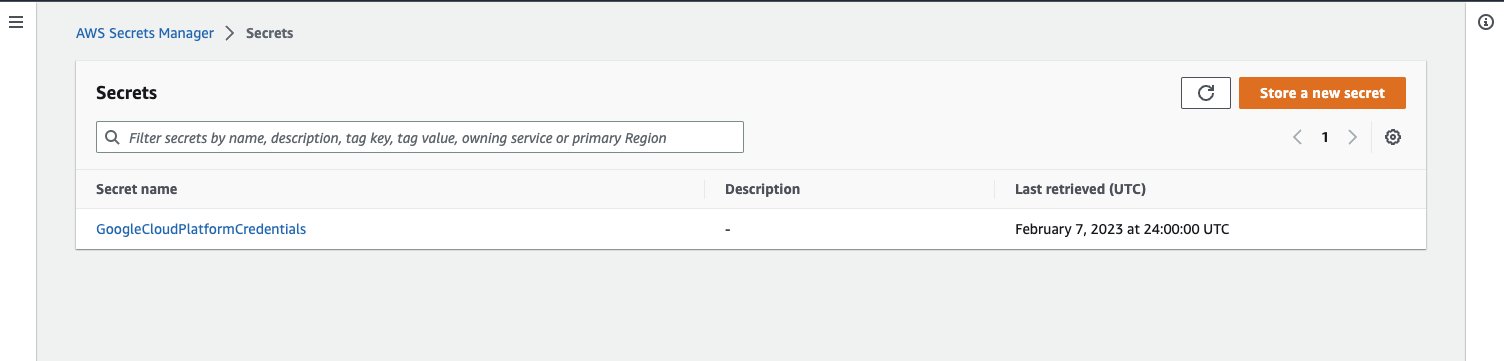
  • AWS Secrets Manager – A secrets management service that helps protect access to your applications and services. We reference the secret in Secrets Manager in the Lambda function so we can run a query on AWS and it can access the data stored on Google Cloud Provider.
  • AWS Glue – A serverless data analytics service for data discovery, preparation, and integration. We create an AWS Glue database and table to point to the correct bucket and files within Google Cloud Storage.
  • Amazon Simple Storage Service (Amazon S3) – An object storage service that stores data as objects within buckets. We create an S3 bucket to store data that exceeds the Lambda function’s response size limits.

The Google Cloud Platform portion of the architecture contains a few services as well:

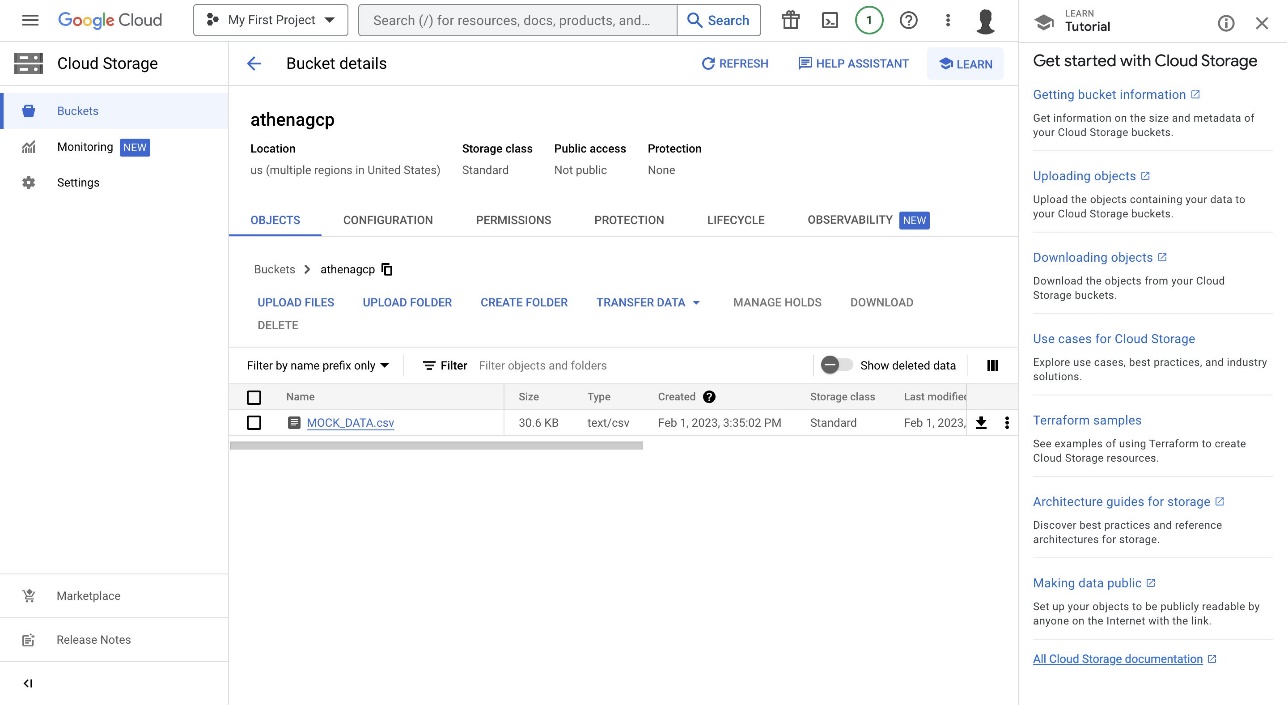
  • Google Cloud Storage – A managed service for storing unstructured data. We use Google Cloud Storage to store data within a bucket that will be used in a query from Athena, and we upload a CSV file directly to the GCS bucket.
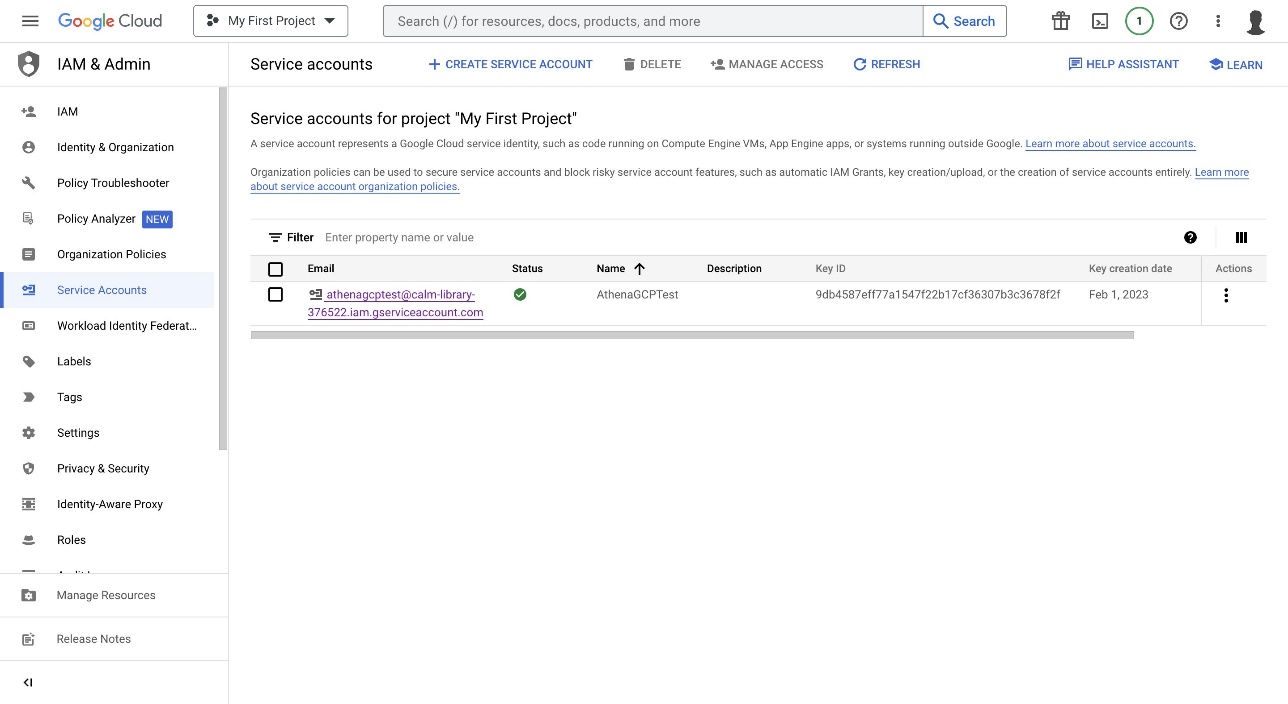
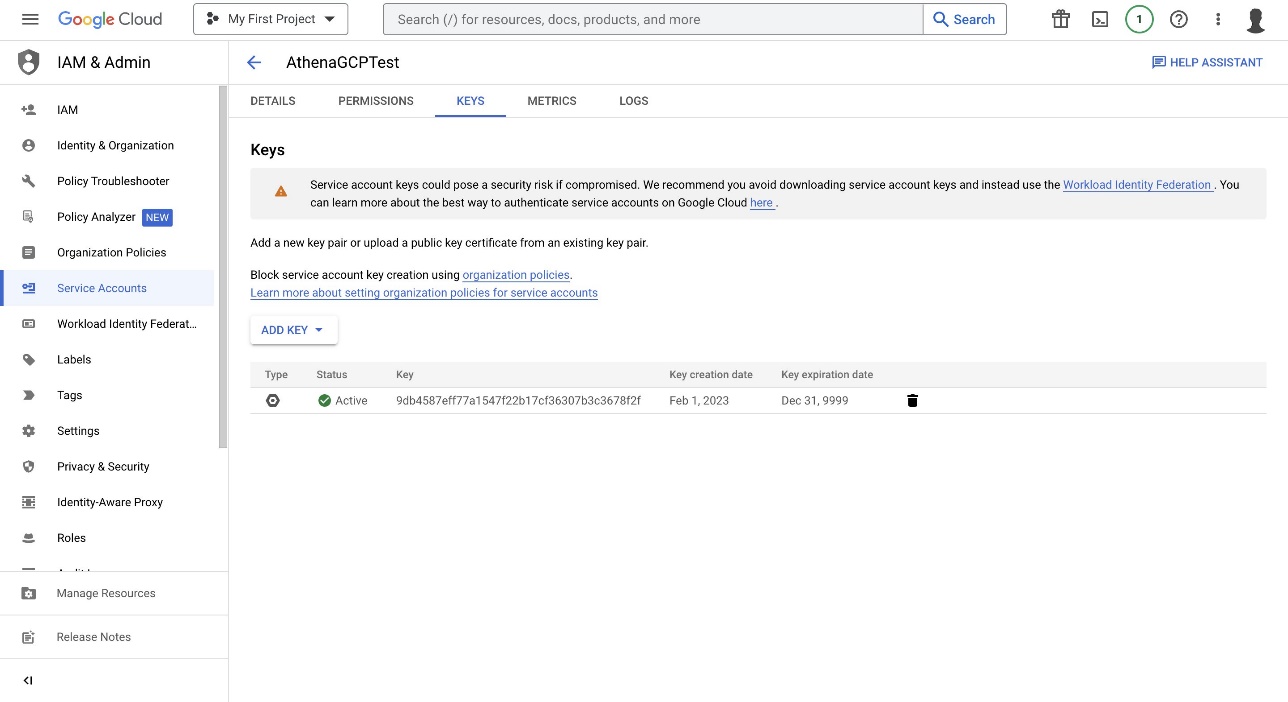
  • Google Cloud Identity and Access Management (IAM) – The central source to control and manage visibility for cloud resources. We use Google Cloud IAM to create a service account and generate a key that will allow AWS to access GCP. We create a key with the service account, which is uploaded to Secrets Manager.

Prerequisites

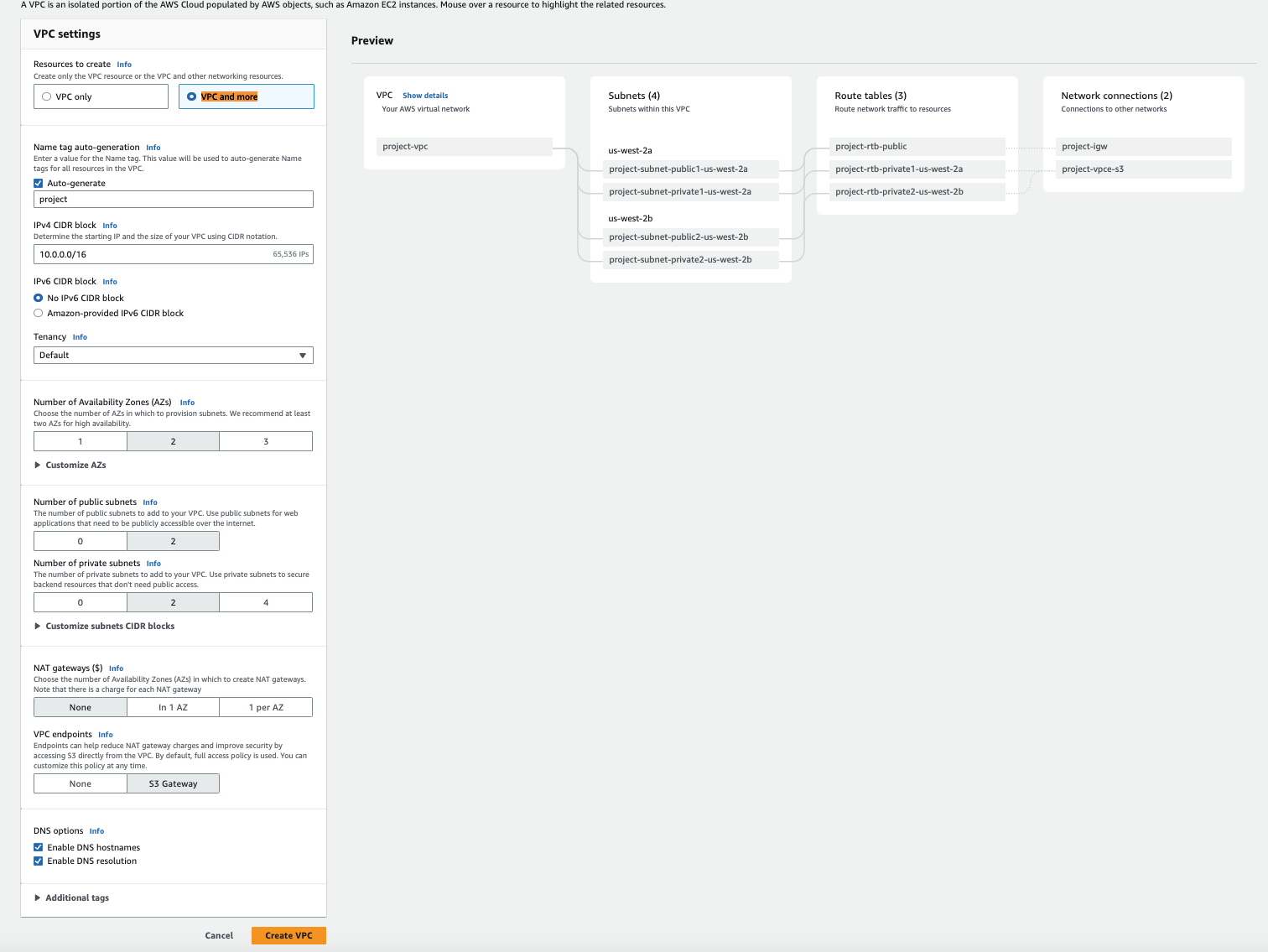
For this post, we create a VPC and security group that will be used in conjunction with the GCP connector. For complete steps, refer to Creating a VPC for a data source connector. The first step is to create the VPC using Amazon Virtual Private Cloud (Amazon VPC), as shown in the following screenshot.

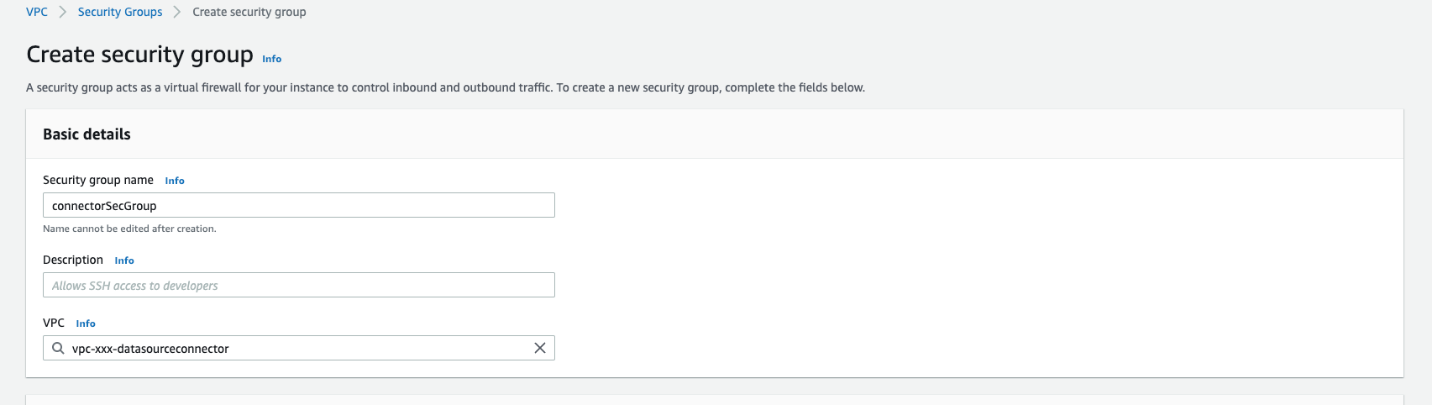
Then we create a security group for the VPC, as shown in the following screenshot.

For more information about the prerequisites, refer to Amazon Athena Google Cloud Storage connector. Additionally, there are tables that highlight the specific data types that can be used such as CSV and Parquet files. There are also required permissions to run the solution.

Google Cloud Platform configuration

To begin, you must have either CSV or Parquet files stored within a GCS bucket. To create the bucket, refer to Create buckets. Make sure to note the bucket name—it will be referenced in a later step. After you create the bucket, upload your objects to the bucket. For instructions, refer to Upload objects from a filesystem.

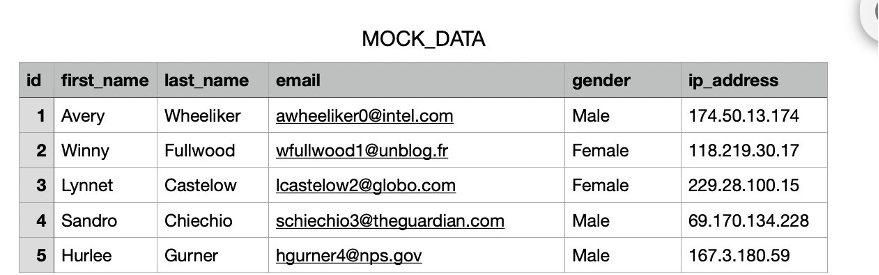
The CSV data used in this example came from Mockaroo, which generated random test data as shown in the following screenshot. In this example, we use a CSV file, but you can also use Parquet files.

Additionally, you must create a service account to generate a key pair within Google Cloud IAM, which will be uploaded to Secrets Manager. For full instructions, refer to Create service accounts.

After you create the service account, you can create a key. For instructions, refer to Create and delete service account keys.

AWS configuration

Now that you have a GCS bucket with a CSV file and a generated JSON key file from Google Cloud Platform, you can proceed with the rest of the steps on AWS.

  1. On the Secrets Manager console, choose Secrets in the navigation pane.
  2. Choose Store a new secret and specify Other type of secret.
  3. Provide the GCP generated key file content.

The next step is to deploy the Athena Google Cloud Storage connector. For more information, refer to Using the Athena console.

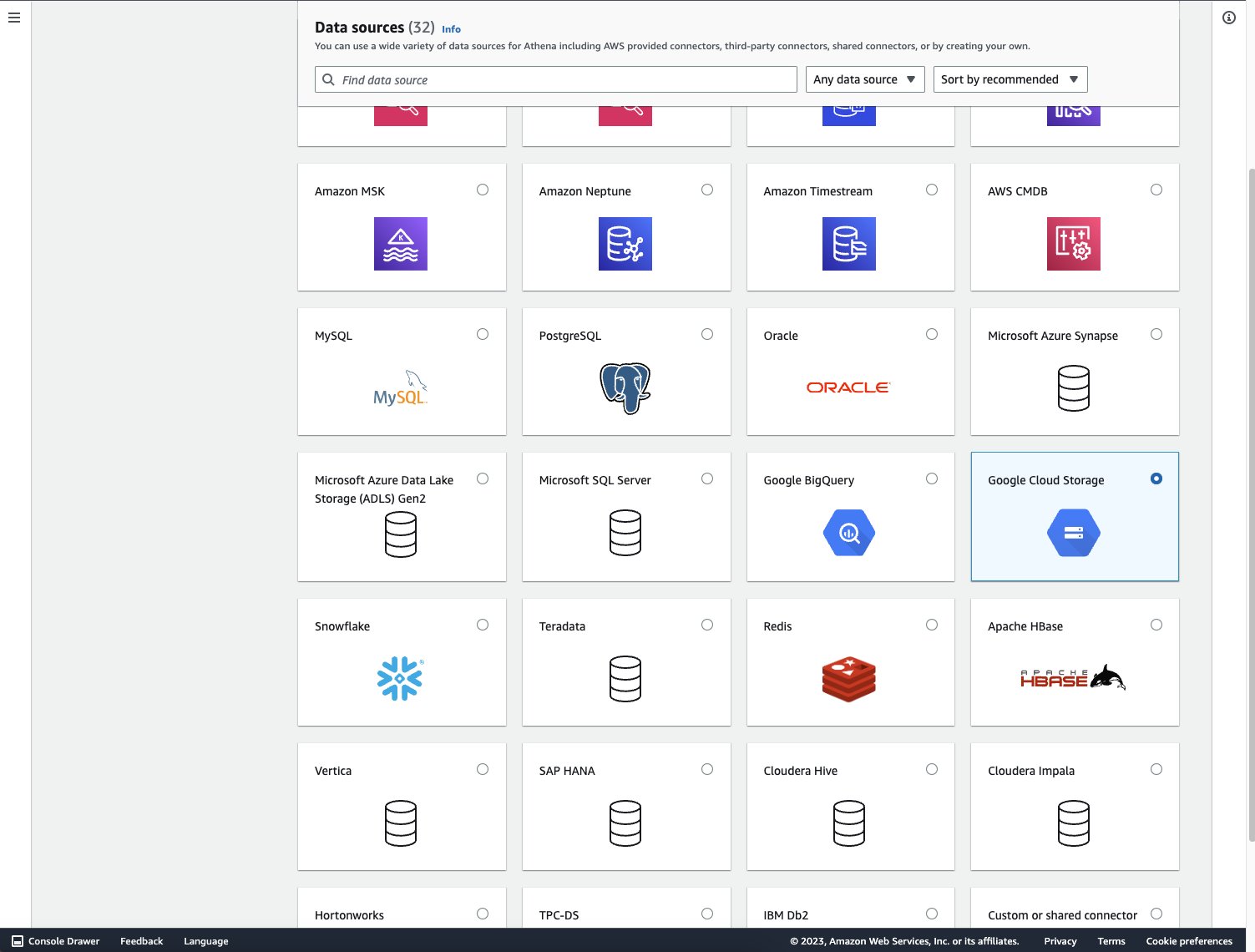
  1. On the Athena console, add a new data source.
  2. Select Google Cloud Storage.

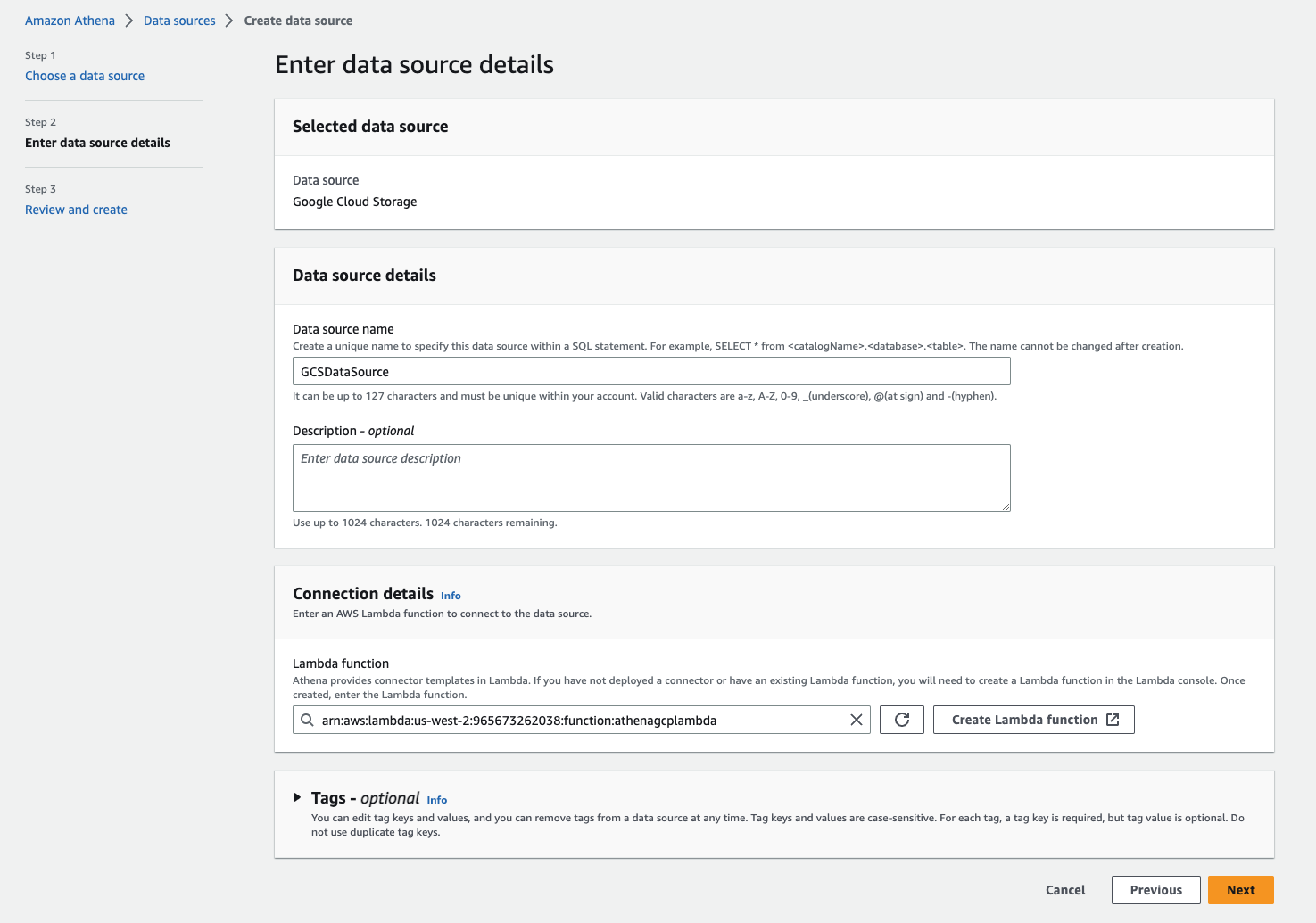
  1. For Data source name, enter a name.
  2. For Lambda function, choose Create Lambda function to be redirected to the Lambda console.

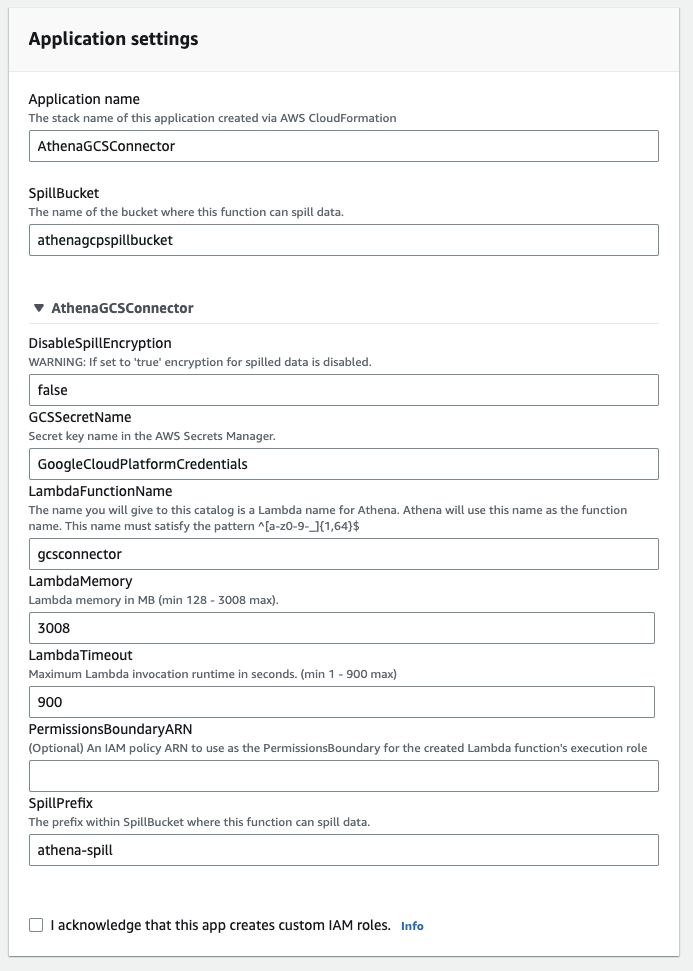
  1. In the Application settings section, enter the information for Application name, SpillBucket, GCSSecretName, and LambdaFunctionName.

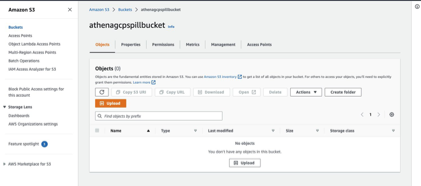
  1. You also have to create an S3 bucket to reference the S3 spill bucket parameter in order to store data that exceeds the Lambda function’s response size limits. For more information, refer to Create your first S3 bucket.

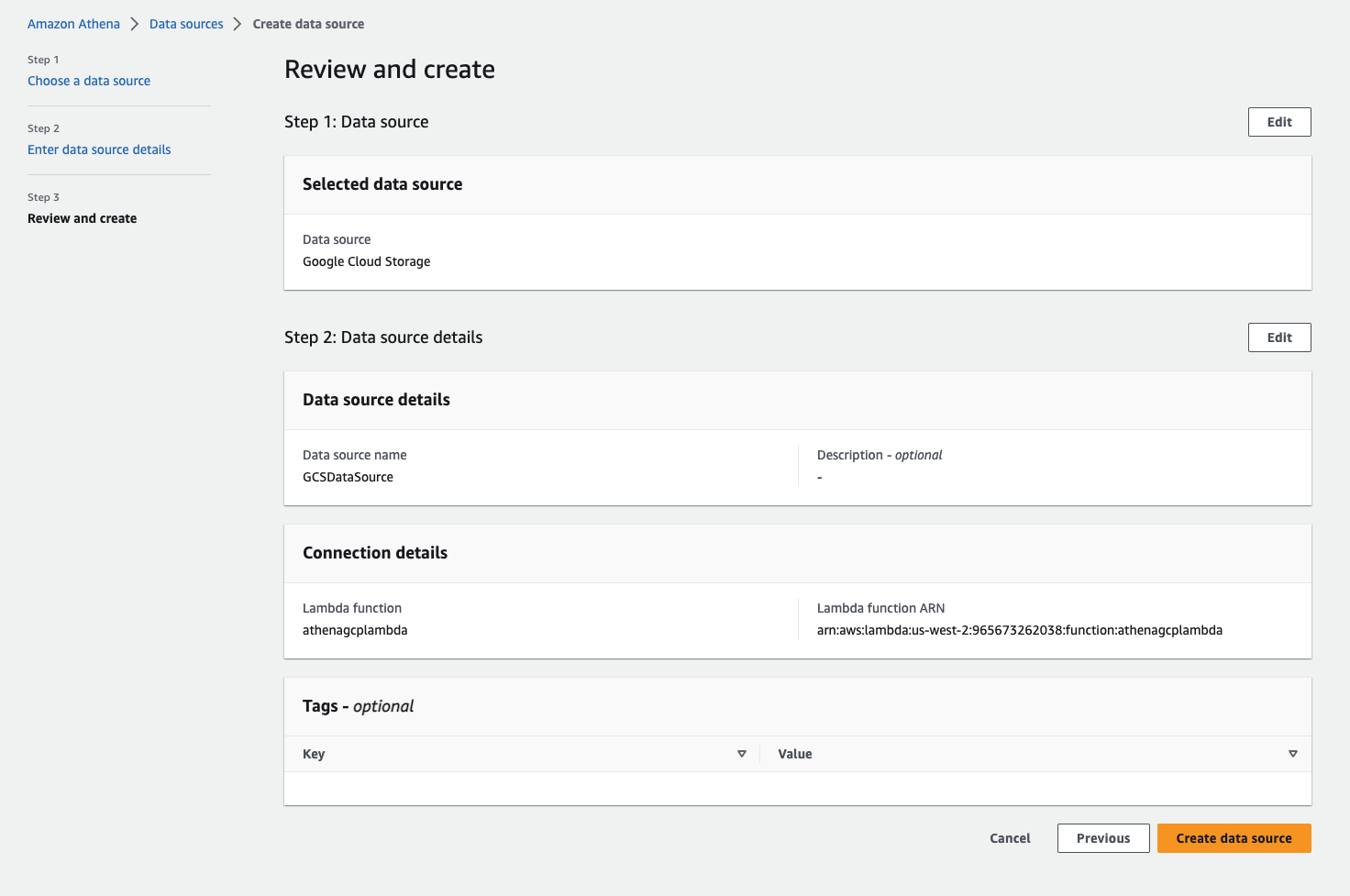
After you provide the Lambda function’s application settings, you’re redirected to the Review and create page.

  1. Confirm that these are the correct fields and choose Create data source.

Now that the data source connector has been created, you can connect Athena to the data source.

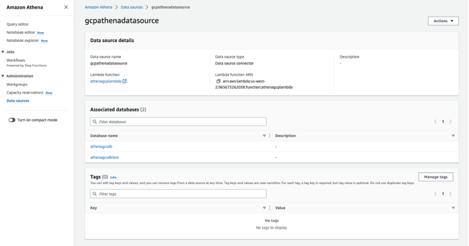
  1. On the Athena console, navigate to the data source.
  2. Under Data source details, choose the link for the Lambda function.

You can reference the Lambda function to connect to the data source. As an optional step and for validation, the variables that were put into the Lambda function can be found within the Lambda function’s environment variables on the Configuration tab.

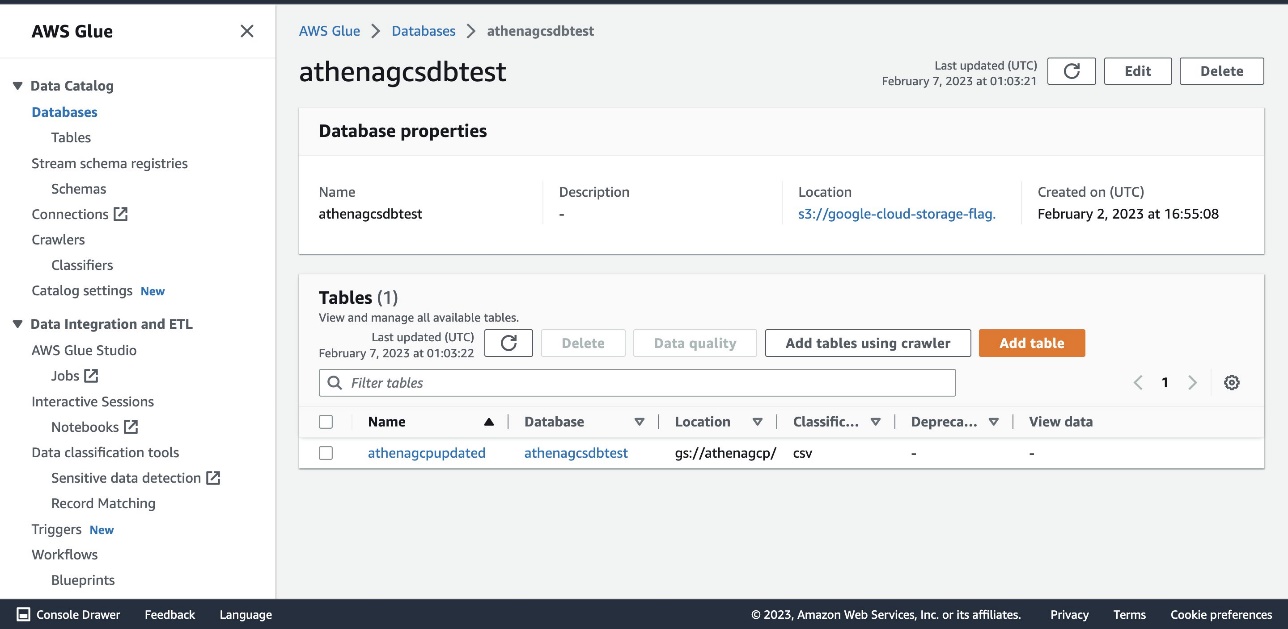
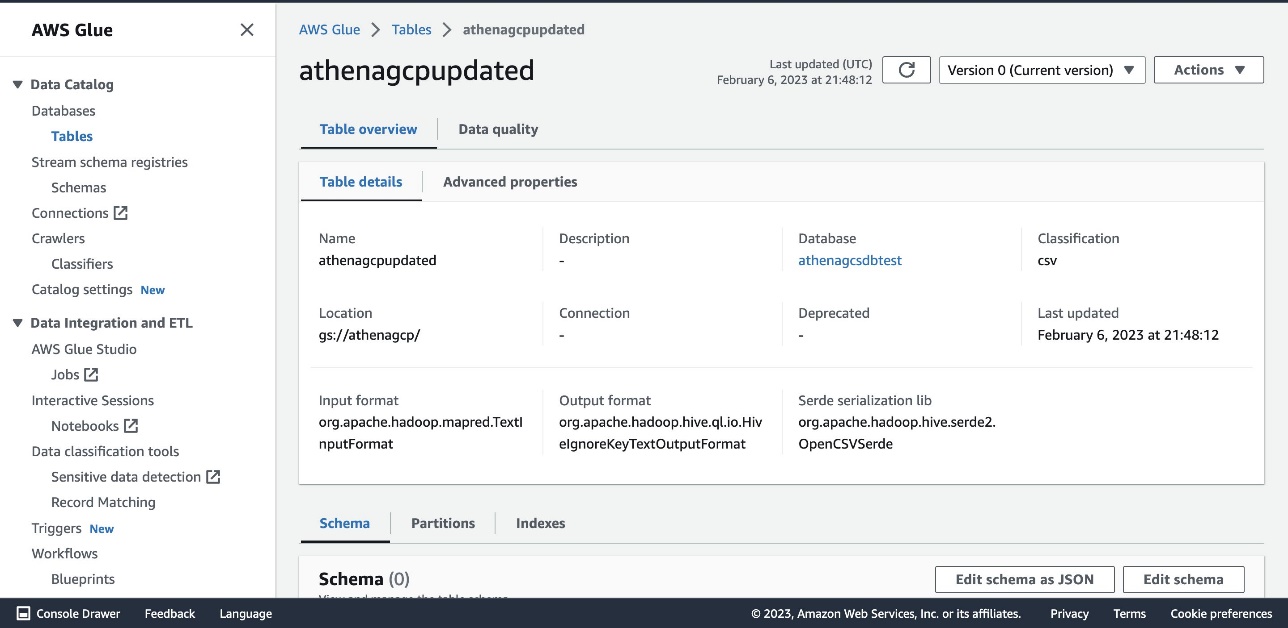
  1. Because the built-in GCS connector schema inference capability is limited, it’s recommended to create an AWS Glue database and table for your metadata. For instructions, refer to Setting up databases and tables in AWS Glue.

The following screenshot shows our database details.

The following screenshot shows our table details.

Query the data

Now you can run queries on Athena that will access the data stored on Google Cloud Storage.

  1. On the Athena console, choose the correct data source, database, and table within the query editor.
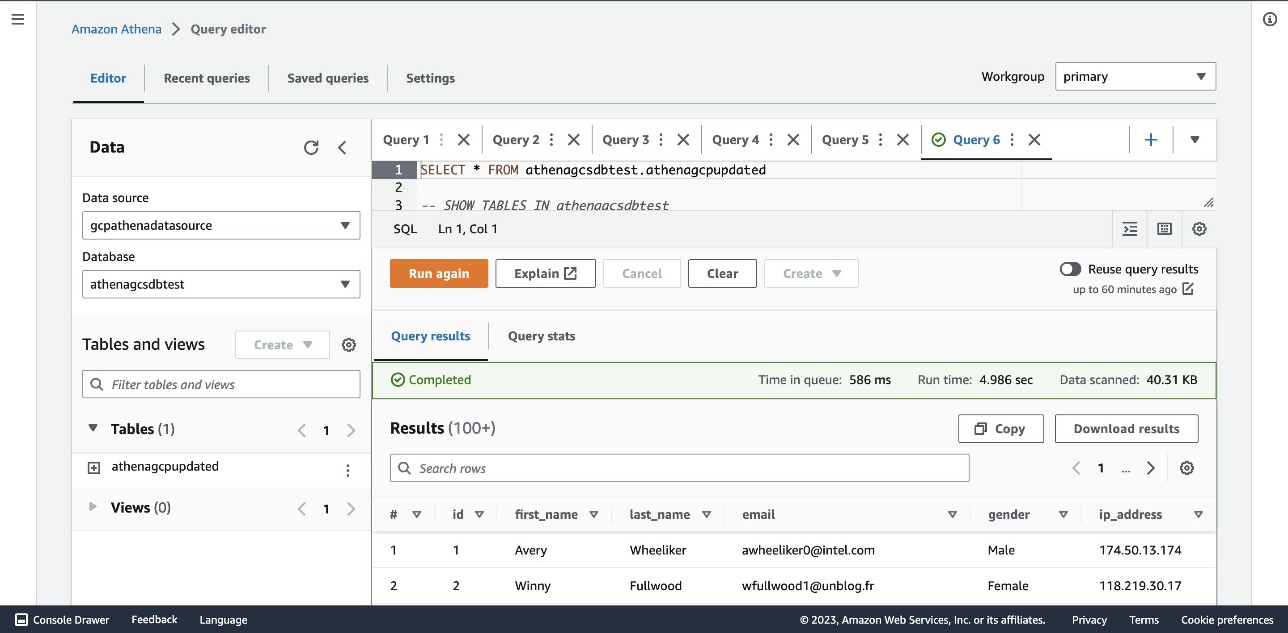
  2. RunSELECT * FROM [AWS Glue Database name].[AWS Glue Table name]in the query editor.

As shown in the following screenshot, the results will be from the bucket on Google Cloud Storage.

The data that is stored on Google Cloud Platform can be accessed through AWS and used for many use cases, such as performing business intelligence, machine learning, or data science. Doing so can help unblock developers and data scientists so they can efficiently provide results and save time.

Clean up

Complete the following steps to clean up your resources:

  1. Delete the provisioned bucket in Google Cloud Storage.
  2. Delete the service account under IAM & Admin.
  3. Delete the secret GCP credentials in Secrets Manager.
  4. Delete the S3 spill bucket.
  5. Delete the Athena connector Lambda function.
  6. Delete the AWS Glue database and table.

Troubleshooting

If you receive a ROLLBACK_COMPLETE state and “can not be updated error” when creating the data source in Lambda, go to AWS CloudFormation, delete the CloudFormation stack, and try recreating it.

If the AWS Glue table doesn’t appear in the Athena query editor, verify that the data source and database values are correctly selected in the Data pane on the Athena query editor console.

Conclusion

In this post, we saw how you can minimize the time and effort required to access data on Google Cloud Platform and use it efficiently on AWS. Using the data connector helps organizations become multi-cloud agnostic and helps accelerate business growth. Additionally, you can build out BI applications with the discoveries, relationships, and insights found when analyzing the data, which can further your organization’s data analysis process.


About the Author

Jonathan Wong is a Solutions Architect at AWS assisting with initiatives within Strategic Accounts. He is passionate about solving customer challenges and has been exploring emerging technologies to accelerate innovation.