All posts by Ryan Yanchuleff

Streamline Development with New Amazon Q Developer Agents

Post Syndicated from Ryan Yanchuleff original https://aws.amazon.com/blogs/devops/streamline-development-with-new-amazon-q-developer-agents/

As software development continues to evolve at a rapid pace, developers are constantly seeking tools that can streamline their workflow, improve code quality, and boost productivity. Amazon Web Services (AWS) has answered this call with the introduction of powerful new AI agents for Amazon Q Developer.

AI-powered agents transform the way developers approach documentation, unit testing, and code reviews. Agents are autonomous software programs that can interact with their environment, gather data, and use that data to perform tasks independently to achieve pre-defined goals. They are rational, making informed decisions based on their perceptions and data to optimize performance. AI agents can bring benefits like improved productivity, reduced costs, better decision-making, and enhanced customer experience. Amazon Q Developer has three new agents: /doc, /test, and /review. In this post, we’ll explore each of them in a bit more detail and talk about how you can incorporate them into your daily development workflow.

The first agent released for Amazon Q Developer was the software developer agent launched last year. The /dev agent allows you to generate new code or make code changes directly within your IDE to implement new features or fix issues in your projects. Simply provide a description of the task you want to accomplish, and Q Developer will analyze select context from your current codebase to generate the necessary code changes. Q Developer can help you build new AWS applications or update existing ones, providing a step-by-step summary of the changes it’s making and allowing you to easily accept or reject the proposed modifications. Q Developer has the ability to handle everything from creating new API endpoints to optimizing database queries, the /dev feature is a must-try tool for any developer working on anything from simple to complex tasks.

In the coming sections, let’s dive into how we can put these new agents to use with an application use case.

Prerequisites

To begin using Amazon Q Developer, the following are required:

Note: Amazon Q Developer supports additional IDEs such as Eclipse and Visual Studio Pro, but only the those listed above have agent support enabled.

Application Overview

You are a software engineer at a technology firm and have been tasked to develop documentation, integrate unit tests and enhance security posture of the application shown below. The application uses serverless architecture with Amazon API Gateway, AWS Lambda and Amazon DynamoDB services and implements RESTful APIs in Python.

Simple architectural diagram demonstrating the use of Amazon API Gateway, Amazon DynamoDB, and multiple AWS Lambda functions to service the routes.

We have learned that Q Developer’s new documentation, test, and security scanning agents can assist with the application software development lifecycle (SDLC). SDLC is a flywheel with several stages such as Planning and Research, Coding, Documentation, Testing, Build and Deploy, Operations and Maintenance.

With the new Q Developer agents, let’s see how we can put these into practice with the above application as part of the SDLC.

Documentation Generation (/doc)

Creating and maintaining application documentation is often one of the most time-consuming and frequently overlooked aspects of software development. Detailed documentation empowers team members and stakeholders about code, design, and architecture. It enhances readability, facilitates rapid onboarding to accelerate new feature and functionality development and streamlines SDLC tasks. The introduction of the /doc agent in Amazon Q Developer makes this process both easier and faster. Amazon Q Developer can now automatically generate new README files at any level of your project by analyzing the code in your selected folder or review code changes and recommend corresponding updates to existing documentation. Additionally, developers can leverage natural language to request specific modifications to their files to include custom summarizations, making the entire process more intuitive and user-friendly. These capabilities help reduce the burden on development teams while maintaining accurate and up-to-date project documentation as teams operate the applications.

The above application doesn’t have a detailed README and the following example shows how you can leverage /doc agent of Q Developer in Visual Studio Code (VS Code) IDE to help generate detailed documentation for the application codebase.

Prompt:

/doc Create a README

Short animation of the /doc agent creating a README document

Best practices when using Q Developer /doc agent:

  • For large repositories, consider requesting documentation by targeting specific directories for documentation.
  • Maintain well-commented and organized code with good naming conventions to improve the quality of generated documentation.
  • Be specific when describing desired changes to your README.

Note: The /doc feature supports various file types, including .template files, requirements.txt, package.json, tsconfig.json, Dockerfile, and more. It’s important to note that there are quotas in place, such as a maximum existing README size of 15 KB and a code project size limit of 200 MB uncompressed or 50 MB compressed.

Unit Test Generation (/test)

Test driven development is a common SDLC best practice. Part of it is Unit testing, which is a cornerstone for maintaining code quality. Unit testing helps catch bugs early on and minimize tech debt. However, the process of writing comprehensive tests has traditionally demanded significant time and effort from development teams. The new /test agent in Amazon Q Developer is a groundbreaking solution that automates the testing process and enables developers to channel more energy into feature development and problem solving. The tool comes equipped with several powerful capabilities that streamline the testing workflow. It automatically identifies necessary test cases, generates appropriate mocks and stubs for isolated testing scenarios, and produces test code based on the identified cases. Currently supporting both Java and Python projects, the feature seamlessly integrates with popular development environments including VS Code and JetBrains IDEs, making it an invaluable asset for modern development teams looking to enhance their testing practices while maximizing productivity.

With the new Q Developer /test agent, you can generate unit tests by specifying section of code such as class, function or method and also highlight code to generate tests within the IDE. In the following example, you can see the use of /test agent to generate unit tests for open Python file (add_item.py) that adds new items to the DynamoDB table.

Prompt:

/test generate unit tests for the lambda_handler method that is adding items to dynamodb table

Short animation of the /test agent generating a test file

Using Amazon Q Developer /test agent to generate unit tests

/test invoked within the IDE

Using Amazon Q Developer Generate Tests within IDE from code selection to develop unit tests

Note: The Q Developer agent for unit tests supports Java and Python projects in VS Code and JetBrains IDEs. see Language and framework support for unit test generation with /test. The /test feature handles various special cases, such as unsupported languages or frameworks, non-public methods in Java, and reaching monthly usage limits. It’s designed to provide a smooth user experience with helpful guidance throughout the process.

Enhancing Code Quality and Security (/review)

Code reviews have become an indispensable part of maintaining high standards in software development, and Amazon Q Developer’s new /review feature is transforming this critical process with powerful AI-driven code analysis. This innovative tool brings comprehensive code analysis capabilities right to your fingertips, enabling development teams to identify and address potential issues before they evolve into serious problems. Users can benefit from continuous code scanning that works seamlessly as they write, while receiving detailed issue reports complete with clear explanations and actionable recommendations. The feature even goes a step further by offering in-place code fixes, making it easier than ever to implement necessary improvements directly within your code.

The /review feature’s security detection capabilities cover a range of potential issues, ensuring thorough code analysis across multiple dimensions. Q Developer /review feature performs static application security testing (SAST) to identify security vulnerabilities, implements secrets detection to prevent the exposure of sensitive information, and analyzes infrastructure as code (IaC) files for potential issues. This essentially shifting security further left in the SDLC enabling developers to detect security vulnerabilities early in the development cycle before code gets committed to the repository thus improving overall security posture and code quality. Additionally, the tool evaluates code quality factors that might affect maintainability and efficiency, assesses potential deployment risks, and conducts software composition analysis (SCA) for third-party code. This comprehensive approach to code review helps development teams maintain high-quality, secure, and efficient codebases while significantly streamlining the review process.

In the below example, you can see how you can leverage /review feature to perform code scanning across the entire application workspace that includes both application python code and infrastructure terraform code and subsequently remediate it. Optionally, you can also choose to scan active opened files in the IDE.

Prompt:

/review

Short animation of the /review agent generating prioritized list of issues

Note: The /review feature maintains quotas to ensure optimal performance, with limits on input artifact size and source code size for both auto reviews and full project scans. More details can be found here

Conclusion

The innovative agents in Amazon Q Developer – /doc, /test, and /review – directly address some of the most challenging and time-intensive aspects of the development lifecycle, from documentation management to testing and code review. By automating crucial tasks like README creation or maintenance, unit test generation, and comprehensive code analysis, development teams can significantly enhance their productivity while maintaining high standards of code quality and security. The ability to catch potential issues early and streamline development lifecycle empowers teams to work more efficiently and effectively than ever before. However, it’s crucial to remember that these AI-powered features are designed to complement rather than replace human expertise – they serve as intelligent assistants that augment developers’ capabilities while still relying on their professional judgment to ensure optimal project outcomes. These tools stand as prime examples of how AI can be leveraged to overcome traditional development challenges while enabling teams to focus on what matters most: creating exceptional software. Embrace these new features, and take your development process to the next level with Amazon Q Developer. To learn more about Amazon Q Developer and explore innovative ways of accelerating software development refer to the Q Developer documentation. These agents are part of Q Developer’s expansive free tier of features, you can get started with them today!

Ryan Yanchuleff

Ryan is a Senior Specialist Solutions Architect for the Worldwide Specialist Organization focused on all things Generative AI. He has a passion for helping startups build new solutions to realize their ideas and has built more than a few startups himself. When he’s not playing with technology, he enjoys spending time with his wife and two kids and working on his next home renovation project.

Janardhan Molumuri

Janardhan Molumuri is a Principal Technical Leader at AWS. He has over two decades of Engineering leadership experience advising customers on Cloud Adoption strategies and emerging technologies including generative AI. He has passion for speaking, writing, and enjoys exploring technology trends to solve problems at scale.

Generating Accurate Git Commit Messages with Amazon Q Developer CLI Context Modifiers

Post Syndicated from Ryan Yanchuleff original https://aws.amazon.com/blogs/devops/generating-accurate-git-commit-messages-with-amazon-q-developer-cli-context-modifiers/

Writing clear and concise Git commit messages is crucial for effective version control and collaboration. However, when working with complex projects or codebases, providing additional context can be challenging. In this blog post, we’ll explore how to leverage Amazon Q Developer to analyze our code changes for us and produce meaningful commit messages for Git.

Amazon Q is the most capable generative AI-powered assistant for accelerating software development and leveraging companies’ internal data. It assists developers and IT professionals with all their tasks—from coding, testing, and upgrading applications, to diagnosing errors, performing security scanning and fixes, and optimizing AWS resources. Amazon Q Developer has advanced, multistep planning and reasoning capabilities that can transform (for example, perform Java version upgrades) and implement new features generated from developer requests. Q Developer is available in the IDE, the AWS Console, and on the command line interface (CLI).

Overview of solution

With the Amazon Q Developer CLI, you can engage in natural language conversations, ask questions, and receive responses from Amazon Q Developer, all from your terminal’s command-line interface. One of the powerful features of the Amazon Q Developer CLI is its ability to integrate contextual information from your local development environment. A context modifier in the Amazon Q CLI is a special keyword that allows you to provide additional context to Amazon Q from your local development environment. This context helps Amazon Q better understand the specific use case you’re working on and provide more relevant and accurate responses.

The Amazon Q CLI supports three context modifiers:

  • @git: This modifier allows you to share your Git repository status with Amazon Q, including the current branch, staged and unstaged changes, and commit history.
  • @env: By using this modifier, you can provide Amazon Q with your local shell environment variables, which can be helpful for understanding your development setup and configuration.
  • @history: This modifier enables you to share your recent shell command history with Amazon Q, giving it insights into your actions and the context in which you’re working

By using these context modifiers, you can enhance Amazon Q’s understanding of your specific use case, enabling it to provide more relevant and context-aware responses tailored to your local development environment.

Now let’s dive deeper into how we can use the @git context modifier to craft better Git commit messages. By incorporating the @git context modifier, you can provide additional details about the changes made to your Git repository, such as the affected files, branches, and other Git-related metadata. This not only improves code comprehension but also facilitates better collaboration within your team. We’ll walk through practical examples and best practices, equipping you with the knowledge to take your Git commit messages to the next level using the @git context modifier.

Prerequisites

For this walkthrough, you should have the following prerequisites:

  • A code base versioned with git
  • Amazon Q Developer CLI (OSX only): Install the Amazon Q Developer CLI by following the instructions provided in the Amazon Q Developer documentation. This may involve downloading and installing a package or using a package manager like pip or npm.
  • Amazon Q Developer Subscription: Subscribe to the Amazon Q Developer service. This can be done through the AWS Management Console or by following the instructions in the Amazon Q Developer documentation.

Walkthrough

  1. Open a terminal and navigate to the directory that contains your git project
  2. From within your project directory, run the git status command to view which files have been modified or added since your last commit. Any untracked files (new files) will appear in red, and modified files will be shown in green.

    Git Status Command Prompt Output

    Figure 1 – git status execution from within your project director

  3. Use the git add command to stage the files you want to commit. For example, git add app.py requirements.txt perm_policies/explicit_dependencies_stack.py will stage the specific files, or git add . will add all modified and untracked files in the current directory recursively.
  4. After staging your files, use the q chat command to generate commit message using the @git context modifier. From within the Q Developer Chat context, attach @git to the end of your prompt to engage the context modifier.

    Q Chat CLI conversation to generate a git commit message with @git

    Figure 2 – Amazon Q chat interaction using @git context modifier to generate a commit message

  5. Copy the generated commit message and exit Amazon Q Developer chat
  6. Commit your changes using `git commit”
  7. Paste your commit message in default editor to create a new commit with the staged changes.

    Git Commit command using the Q Generated Commit Message

    Figure 3 – paste copied git commit message

  8. Finally, use `git push` to upload your local commits to the remote repository, allowing others to access your changes.

Conclusion

In this post, we looked at how to maximize your productivity by using Amazon Q Developer. Using the @git context modifier in Amazon Q Developer CLI enables you to enrich your Git commit messages with relevant details about the changes made to your codebase. Clear and informative commit messages are essential for effective collaboration and code maintenance. By leveraging this powerful feature, you can provide valuable context, such as affected files, branches, and other Git metadata, making it easier for team members to understand the scope and purpose of each commit.

To continue improving your software lifecycle management (SLCM) you can also check out other Amazon Q Developer capabilities, such as code analysis, debugging, and refactoring suggestions. Finally, stay tuned for upcoming Amazon Q Developer features and enhancements that could further streamline your development processes.
Learn more and get started with the Amazon Q Developer Free Tier.

About the authors

Marco Frattallone, Sr. TAM, AWS Enterprise Support

Marco Frattallone is a Senior Technical Account Manager at AWS focused on supporting Partners. He works closely with Partners to help them build, deploy, and optimize their solutions on AWS, providing guidance and leveraging best practices. Marco is passionate about technology and helps Partners stay at the forefront of innovation. Outside work, he enjoys outdoor cycling, sailing, and exploring new cultures.

Ryan Yanchuleff, Sr. Specialist SA, WWSO Generative AI

Ryan is a Senior Specialist Solutions Architect for the Worldwide Specialist Organization focused on all things Generative AI. He has a passion for helping startups build new solutions to realize their ideas and has built more than a few startups himself. When he’s not playing with technology, he enjoys spending time with his wife and two kids and working on his next home renovation project.

Implementing Identity-Aware Sessions with Amazon Q Developer

Post Syndicated from Ryan Yanchuleff original https://aws.amazon.com/blogs/devops/implementing-identity-aware-sessions-with-amazon-q-developer/

“Be yourself; everyone else is already taken.”
-Oscar Wilde

In the real world as in the world of technology and authentication, the ability to understand who we are is important on many levels. In this blog post, we’ll look at how the ability to uniquely identify ourselves in the AWS console can lead to a better overall experience, particularly when using Amazon Q Developer. We explore the features that become available to us when Q Developer can uniquely identify our sessions in the console and match them with our subscriptions and resources. We’ll look at how we can accomplish this goal using identity-aware sessions, a capability now available with AWS IAM Identity Center. Finally, we’ll walk through the steps necessary to enable it in your AWS Organization today.

Amazon Q Developer is a generative AI-powered assistant for software development. Accessible from multiple contexts including the IDE, the command line, and the AWS Management Console, the service offers two different pricing tiers: free and Pro. In this post, we’ll explore how to use Q Developer Pro in the AWS Console with identity-aware sessions. We’ll also explore the recently introduced ability to chat about AWS account resources within the Q Developer Chat window in the AWS Console to inquire about resources in an AWS account when identity-aware sessions are enabled.

Connecting your corporate source of identities to IAM Identity Center creates a shared record of your workforce and users’ group associations. This allows AWS applications to interact with one another efficiently on behalf of your users because they all reference this shared record of attributes. As a result, users have a consistent, continuous experience across AWS applications. Once your source of identities is connected to IAM Identity Center, your identity provider administrator can decide which users and groups will be synchronized with Identity Center. Your Amazon Q Developer administrator sees these synchronized users and groups only within Amazon Q Developer and can assign Q Developer Pro subscriptions to them.

User Identity in the AWS Console

To access the AWS Console, you must first obtain an IAM session – most commonly by using Identity Center Access Portal, IAM federation, or IAM (or root) users. Users can also use IAM Identity Center or a third party federated login mechanism. In this post, we’ll be using Microsoft Entra ID, but many other providers are available. Of all these options, however, only logging in with IAM Identity Center provides us with enough context to uniquely identity the user automatically by default. Identity-aware sessions will make this work.

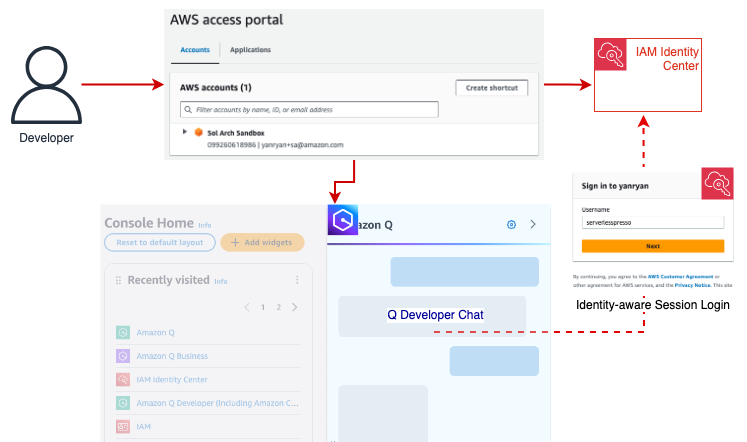
Using Q Developer with a direct IAM Identity Center connection

Figure 1: Logging into an AWS account via the IAM Identity Center enables Q Developer to match the user with an active Pro subscription.

To meet customers where they are and allow them to build on their existing configurations, IAM Identity Center includes a mechanism that allows users to obtain an identity-aware session to access Q in the Console, regardless of how they originally logged in to the Console.

Let’s look at a real-world example to explore how this might work. Let’s assume our organization is currently using Microsoft Entra ID alongside AWS Organizations to federate our users into AWS accounts. This grants them access to the AWS console for accounts in our AWS Organization and enables our users to be assigned IAM roles and permissions. While secure, this access method does not allow Q Developer to easily associate the user with their Entra ID identity and to match them to a Q Developer subscription.

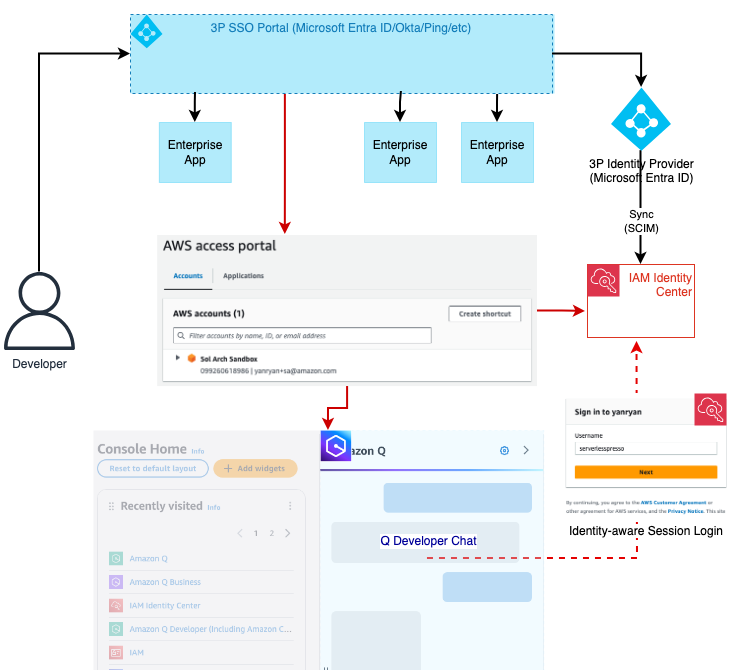
Using Q Developer with a 3P Identity Provider and IAM Identity Center

Figure 2: Using Entra ID, the user is federated into the AWS account and assumes an IAM role without further context in the console. Q Developer can obtain that context by authenticating the user with identity-aware sessions. This process is first attempted manually before prompting the user for credentials

To provide identity-aware sessions to these users, we can enable IAM Identity Center for the Organization and integrate it with our Entra ID instance. This allows us to sync our users and groups from Entra ID and assign them to subscriptions in our AWS Applications such as Amazon Q Developer.

We then go one step further and enable identity-aware sessions for our Identity Center instance. Identity-aware sessions allow Amazon Q to access user’s unique identifier in Identity Center so that it can then look up a user’s subscription and chat history. When the user opens the Console Chat, Q Developer checks whether the current IAM session already includes a valid identity-aware context. If this context is not available, Q will then verify the account is part of an Organization and has an IAM Identity Center instance with identity-aware sessions enabled. If so, it will prompt the user to authenticate with IAM Identity Center. Otherwise, the chat will throw an error.

With a valid Q Developer Pro subscription now verified, the user’s interactions with the Q Chat window will include personalization such as access to prior chat history, the ability to chat about AWS account resources, and higher request limits for multiple capabilities included with Q Developer Pro. This will persist with the user for the duration of their AWS Console session.

Configuring Identity-Aware Sessions

Identity-aware sessions are only available for instances of IAM Identity Center deployed at the AWS Organization level. (Account-level instances of IAM Identity Center do not support this feature). Once IAM Identity Center is configured, the option to enable Identity-aware sessions needs to be manually selected. (NOTE: This is a one-way door option which, once enabled, cannot be disabled. For more information about prerequisites and considerations for this feature, you can review the documentation here.)

To begin, verify that you have enabled AWS Organizations across your accounts. Once you have completed this, you are ready to enable IAM Identity Center and enable identity-aware sessions. The steps below should be completed by a member of your infrastructure administration team.

For customers who already have an Organization-based instance of IAM Identity Center configured, skip to Step 4 below. For those organizations who would like to read more about IAM Identity Center before completing the following steps, you can find details in the documentation available here.

Walkthrough

  1. From within the management account or security account configured in your AWS Configuration, access the AWS Console and navigate to the AWS IAM Identity Center in the region where you wish to deploy your organization’s Identity Center instance.
  2. Choose the “Enable” option where you will be presented with an option to setup Identity Center at the Organization level or as a single account instance. Choose the “Enable with AWS Organizations” to have access to identity-aware sessions.

Choose the IAM Identity Center Context - Organization vs Account

  1. After Identity Center has been enabled, navigate to the “Settings” page from the left-hand navigation menu. Note that under the “Details” section, the “Identity-aware sessions” option is currently marked as “Disabled”.

IAM Identity Center General Settings - Identity-Aware Sessions disabled by default

  1. Choose the “Enable” option from the Details section or select it from the blue prompt below the Details section.

Identity-Aware Info Prompt allows users to enable

  1. Choose “Enable” from the popup box that appears to confirm your choice.

Identity-Aware Confirmation Prompt

  1. Once IAM Identity Center is enabled and Identity-aware sessions are enabled, you can then proceed by either creating a user manually in Identity Center to log in with, or by connecting your Identity Center instance to a third-party provider like Entra ID, Ping, or Okta. For more information on how to complete this process, please see the documentation for the various third-party providers available.
  2. If you don’t have Q Developer enabled, you will want to do so now. From within the AWS Console, using the search bar navigate to the Amazon Q Developer service. As a best practice, we recommend configuring Q Developer in your management account.

Amazon Q Developer Home Screen - Control panel to add subscriptions

  1. Begin by clicking the “Subscribe to Amazon Q” button to enable Q Developer in your account. You will see a green check denoting that Q has successfully been paired with IAM Identity Center.

Amazon Q Developer Paired with IAM Identity Center - Info Notice

  1. Choose “Subscribe” to enable Q Developer Pro.

Amazon Q Developer Pro Subscription Info Panel

  1. Enable Q Developer Pro in the popup prompt

Amazon Q Developer Pro Confirmation

  1. From here, you can then assign users and groups from the Q Developer prompt or you may assign them from within the IAM Identity Center using the Amazon Q Application Profile.

IAM Identity Center - Q Developer Profile for Managed Applications

  1. Once your users and groups have been assigned, they are now able to begin using Q Developer in both the AWS account console and their individual IDE’s.

Why Use Q Developer Pro?

In this final section, we’ll explore the benefits of using Amazon Q Developer Pro. There are three main areas of benefit:

Chat History

Q Developer Pro can store your chat history and restore it from previous sessions each time you begin. This enables you to develop a context within the chat about things that are relevant to your interests and in turn inform the feedback you receive from Q going forward.

Chat about your AWS account resources

Q Developer Pro can leverage your IAM permissions to make requests regarding resources and costs associated with your account (assuming you have the appropriate policies). This enables you to inquire about certain resources deployed in a given region, or ask questions about cost such as the overall EC2 spend in a given period of time.

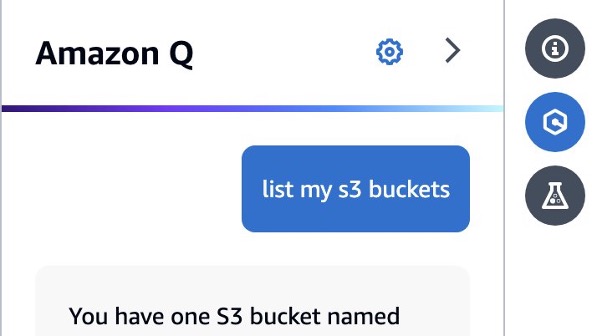
Sample Q Developer Chat Question

Figure 4: From the Q Chat panel, you can inquire about resources deployed in your account. (This capability requires you to have the necessary permissions to view information about the requested resource.)

Personalization

Identity-aware sessions also enable you to benefit from custom settings in your Q Chat. For example, you can enable cross-region access for your Q Chat sessions which enable you to ask questions about resources in the current region but also all other regions in your account.

Conclusion

As a new feature of IAM Identity Center, identity-aware sessions enable an AWS Console user to access their Q Developer Pro subscription in the Q Chat panel. This provides them with richer conversations with Q Developer about their accounts and maintains those conversations over time with stored chat history. Enabling this feature involves no additional cost and only a single setting change in a configured IAM Identity Center organization instance. Once made, users will be able to benefit from the full feature set of Amazon Q Developer regardless of how they log into the account.

About the author

Ryan Yanchuleff, Sr. Specialist SA – WWSO Generative AI

Ryan is a Senior Specialist Solutions Architect for the Worldwide Specialist Organization focused on all things Generative AI. He has a passion for helping startups build new solutions to realize their ideas and has built more than a few startups himself. When he’s not playing with technology, he enjoys spending time with his wife and two kids and working on his next home renovation project.