All posts by Arielle Olache

Waiting Room adds multi-host and path coverage, unlocking broader protection and multilingual setups

Post Syndicated from Arielle Olache original http://blog.cloudflare.com/multihost-waiting-room/


Waiting Room adds multi-host and path coverage, unlocking broader protection and multilingual setups

Waiting Room adds multi-host and path coverage, unlocking broader protection and multilingual setups

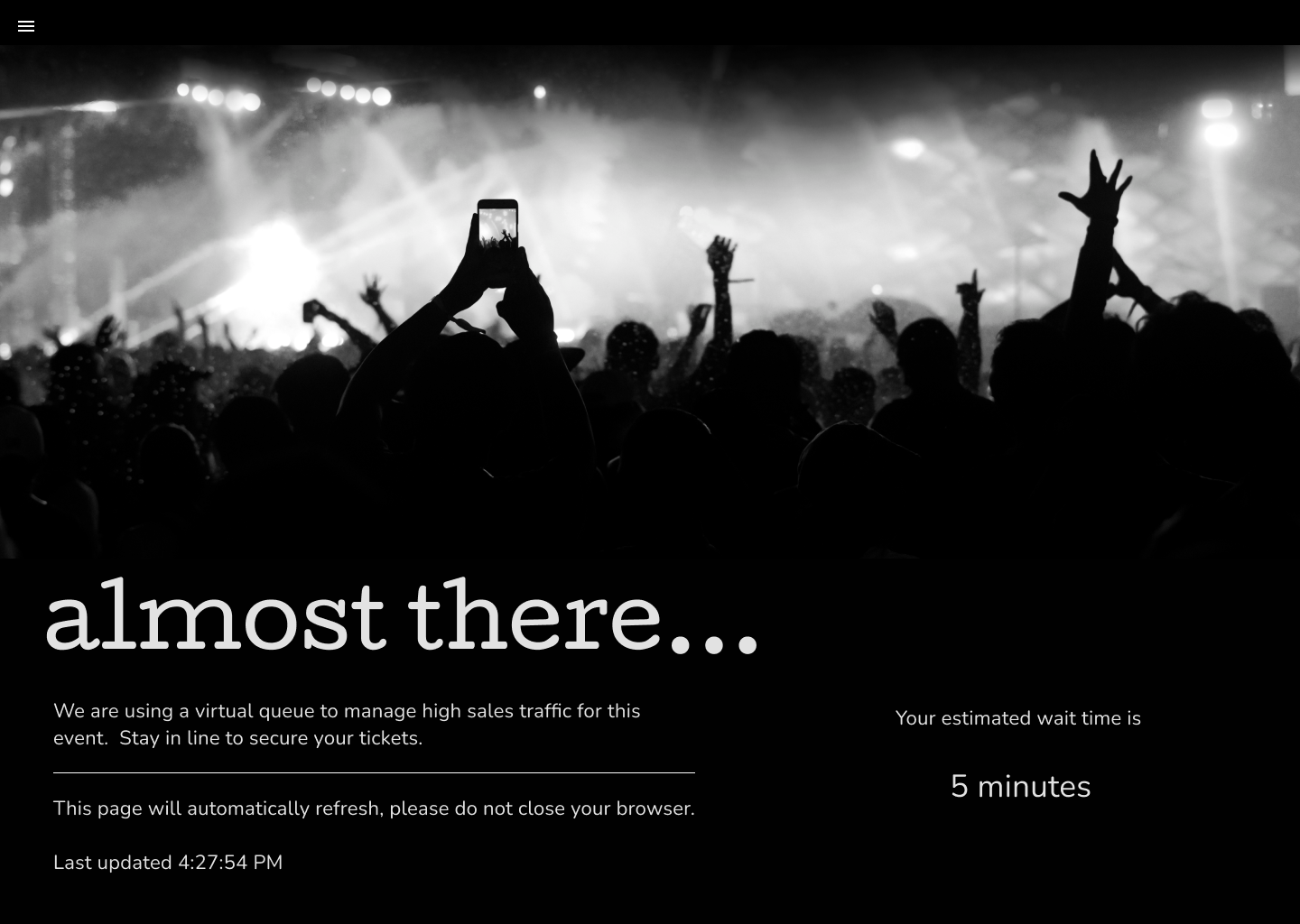
Cloudflare Waiting Room protects sites from overwhelming traffic surges by placing excess visitors in a fully customizable virtual waiting room, admitting them dynamically as spots become available. Instead of throwing error pages or delivering poorly-performing site pages, Waiting Room empowers customers to take control of their end-user experience during unmanageable traffic surges.

Waiting Room adds multi-host and path coverage, unlocking broader protection and multilingual setups

A key decision customers make when setting up a waiting room is what pages it will protect. Before now, customers could select one hostname and path combination to determine what pages would be covered by a waiting room. Today, we are thrilled to announce that Waiting Room now supports coverage of multiple hostname and path combinations with a single waiting room, giving customers more flexibility and offering broader site coverage without interruptions to end-user flows. This new capability is available to all Enterprise customers with an Advanced Purchase of Waiting Room.

Waiting Room site placement

As part of the simple, no-coding-necessary process for deploying a waiting room, customers specify a hostname and path combination to indicate which pages are covered by a particular waiting room. When a site visitor makes a preliminary request to that hostname and path or any of its subpaths, they will be issued a waiting room cookie and either be admitted to the site or placed in a waiting room if the site is at capacity.

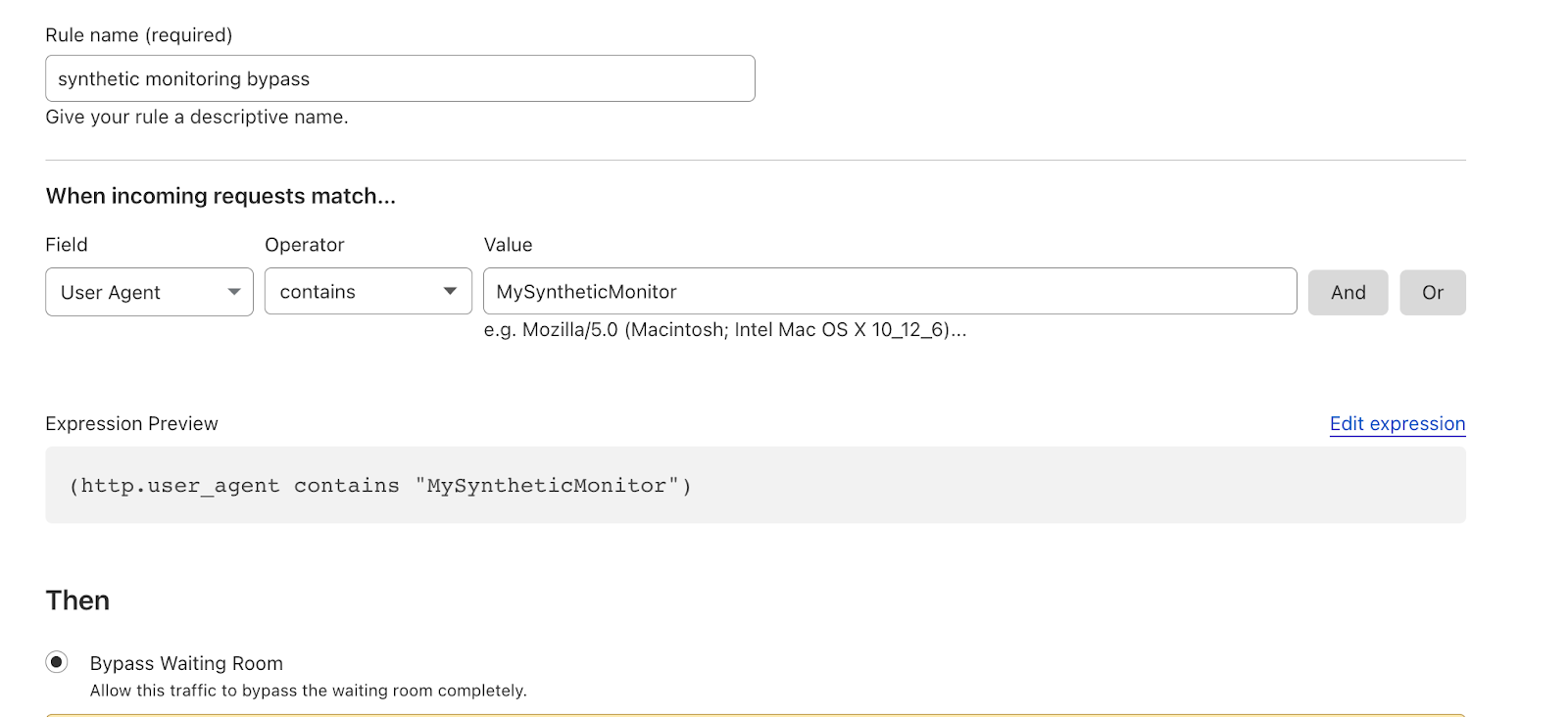
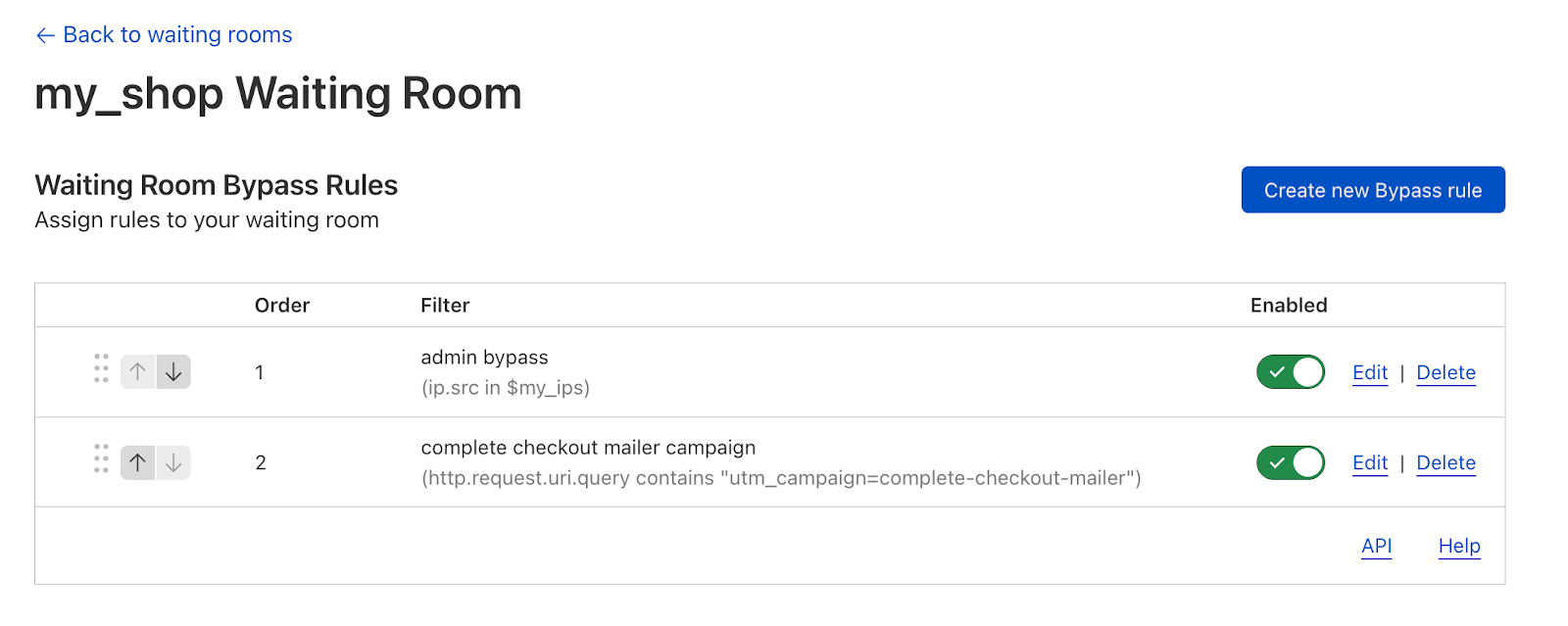
Last year, we added Waiting Room Bypass Rules, giving customers many options for creating exceptions to this hostname and path coverage. This unlocked capabilities such as User Agent Bypassing, geo-targeting, URL exclusions, and administrative IP bypassing. It also allowed for some added flexibility regarding which pages a waiting room would apply to on a customer’s site by adding the ability to exclude URLs, paths, and query strings. While this update allowed for greater specificity regarding which traffic should be gated by Waiting Room, it didn’t offer the broader coverage that many customers still needed to protect greater portions of their sites with a single waiting room.

Why customers needed broader Waiting Room coverage

Let’s review some simple yet impactful examples of why this broader coverage option was important for our customers. Imagine you have an online store, example.com, and you want to ensure that a single waiting room covers the entire customer journey — from the homepage, to product browsing, to checkout. Many sites would delineate these steps in the flow using paths: example.com/, example.com/shop/product1, example.com/checkout. Because Waiting Room assumes an implied wildcard at the end of a waiting room’s configured path, this use case was already satisfied for these sites. Thus, placing a waiting room at example.com/ would cover all the URLs associated with every step of this customer journey. In this setup, once a site visitor has passed the waiting room, they would not be re-queued at any step in their user flow because they are still using the same waiting room’s cookie, which indicates to Waiting Room that they are the same user between URLs.

However, many sites delineate different steps of this type of shopping flow using subdomains instead of or as well as paths. For example, many sites will have their checkout page on a different subdomain, such as checkout.example.com. Before now, if a customer had this site structure and wanted to protect their entire site with a single waiting room, they would have needed to deploy a waiting room at example.com/ and another at checkout.example.com/. This option was not ideal for many customers because a site visitor could be queued at two different parts of the same customer journey. This is because the waiting room at checkout.example.com/ would count the same visitor as a different user than the waiting room covering example.com/.

That said, there are cases where it is wise to separate waiting rooms on a single site. For example, a ticketing website could place a waiting room at its apex domain (example.com) and distinct waiting rooms with pre-queues on pages for specific events (example.com/popular_artist_tour). The waiting room set at example.com/ ensures that the main point of entry to the site does not get overwhelmed and crash when ticket sales for any one event open. The waiting room placed on the specific event page ensures that traffic for a single event can start queuing ahead of the event without impacting traffic going to other parts of the site.

Ultimately, whether a customer wants one or multiple waiting rooms to protect their site, we wanted to give our customers the flexibility to deploy Waiting Room however was best for their use cases and site structure. We’re thrilled to announce that Waiting Room now supports multi-hostname and path coverage with a single waiting room!

Getting started with multi-host and path coverage

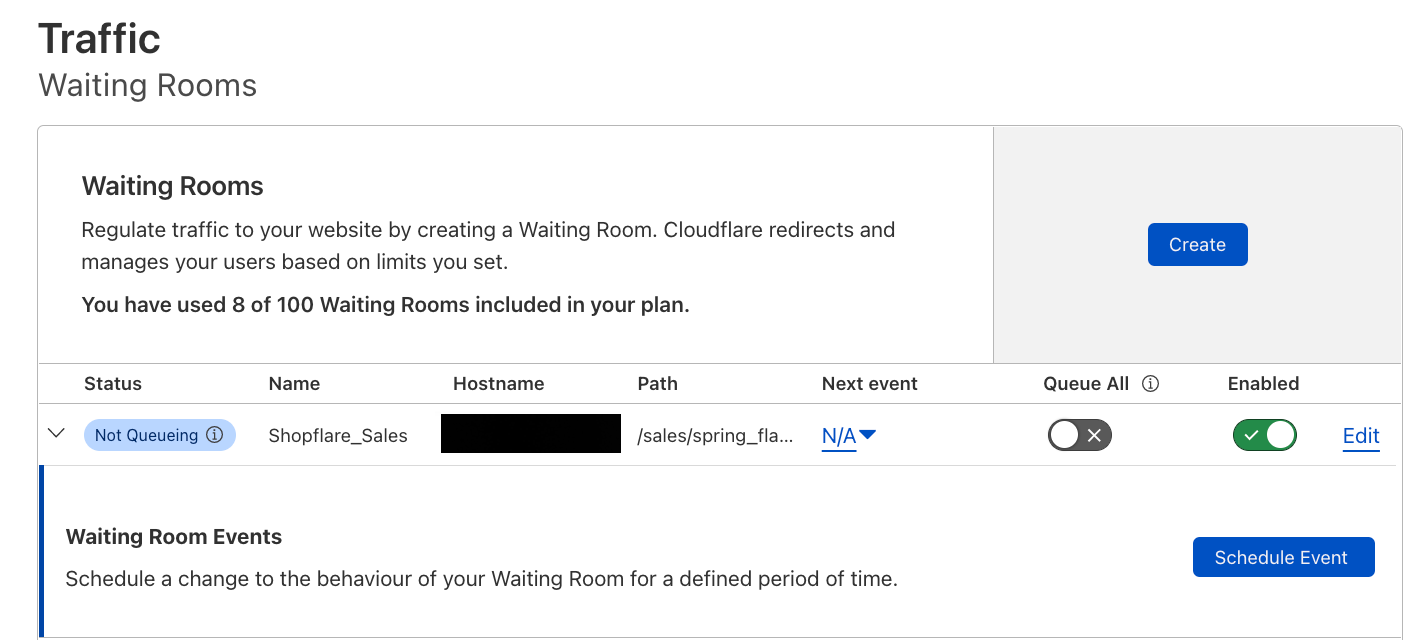
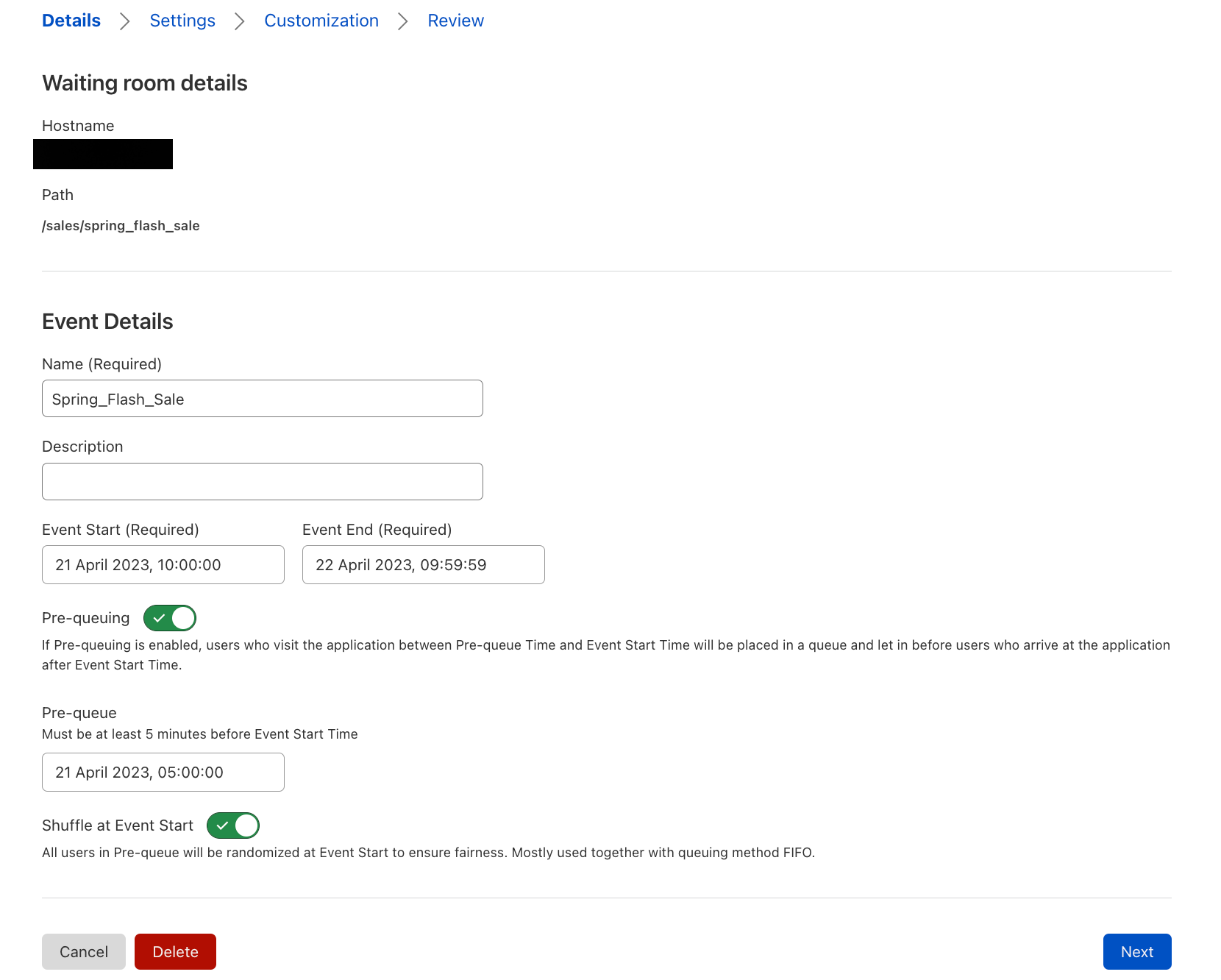
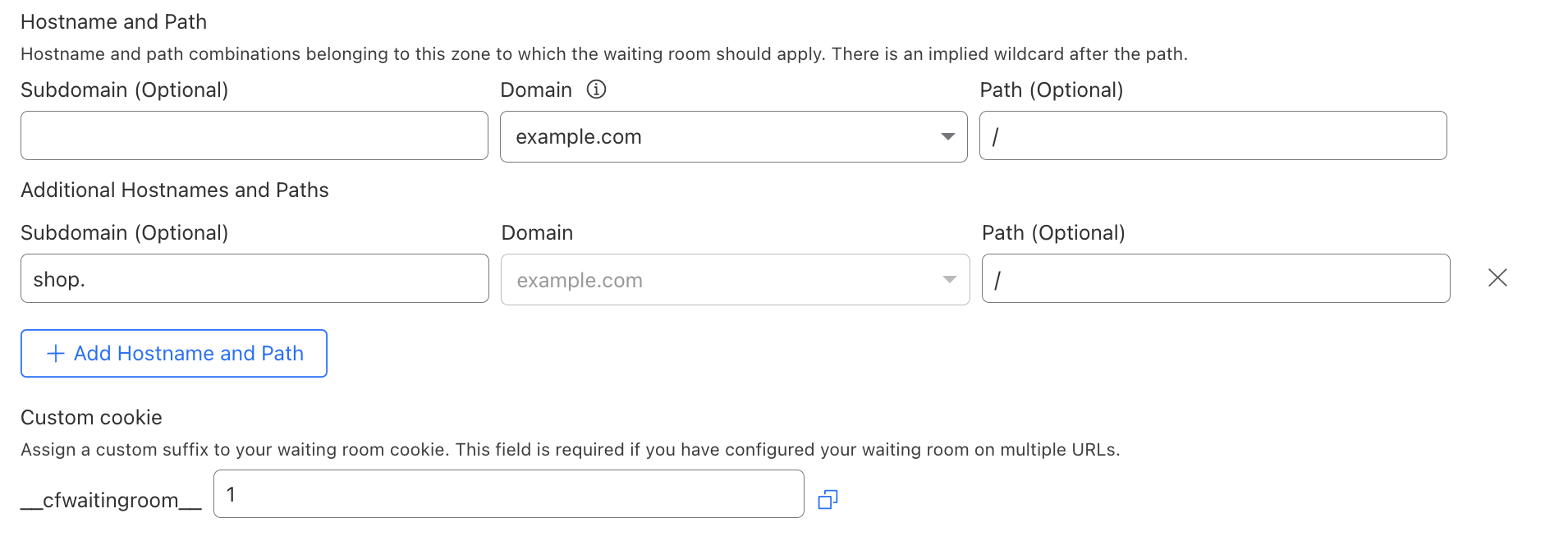
Customers can now configure a waiting room on multiple hostname and path combinations — or routes — belonging to the same zone. To do so, navigate to Traffic > Waiting Room and select Create. The name of your domain will already be populated. To add additional routes to your waiting room configuration, select Add Hostname and Path. You can then enter another hostname and path to be covered by the same waiting room. Remember, there is an implied wildcard after each path. Therefore, creating a waiting room for each URL you want your waiting room to cover is unnecessary. Only create additional routes for URLs that wouldn’t be covered by the other hostname and path combinations you have already entered.
Waiting Room adds multi-host and path coverage, unlocking broader protection and multilingual setups

When deploying a waiting room that covers multiple hostname and path combinations, you must create a unique cookie name for this waiting room (more on that later!). Then, proceed with the same workflow as usual to deploy your waiting room.

Deploying a multi-language waiting room

A frequent customer request was the ability to cover a multi-language site with a single waiting room — offering different text per language while counting all site traffic toward the same waiting room limits. There are various ways a site can be structured to delineate between different language options, but the two most common are either by subdomain or path. For a site that uses path delineation, this could look like example.com/en and example.com/es for English and Spanish, respectively. For a site using subdomain delineation, this could look like en.example.com/ and es.example.com/. Before multihost Waiting Room coverage, the subdomain variation would not have been able to be covered by a single waiting room.

Waiting Room’s existing configuration options already supported the path variation. However, this was only true if the customer wanted to gate the entire site, which they could do by placing the waiting room at example.com/. Many e-commerce customers asked for the ability to gate different high-demand product pages selling the same product but with different language options. For instance, consider example.com/en/product_123 and example.com/es/product_123, where the customer wants the same waiting room and traffic limits to cover both URLs. Before now, this would not have been possible without some complex bypass rule logic.

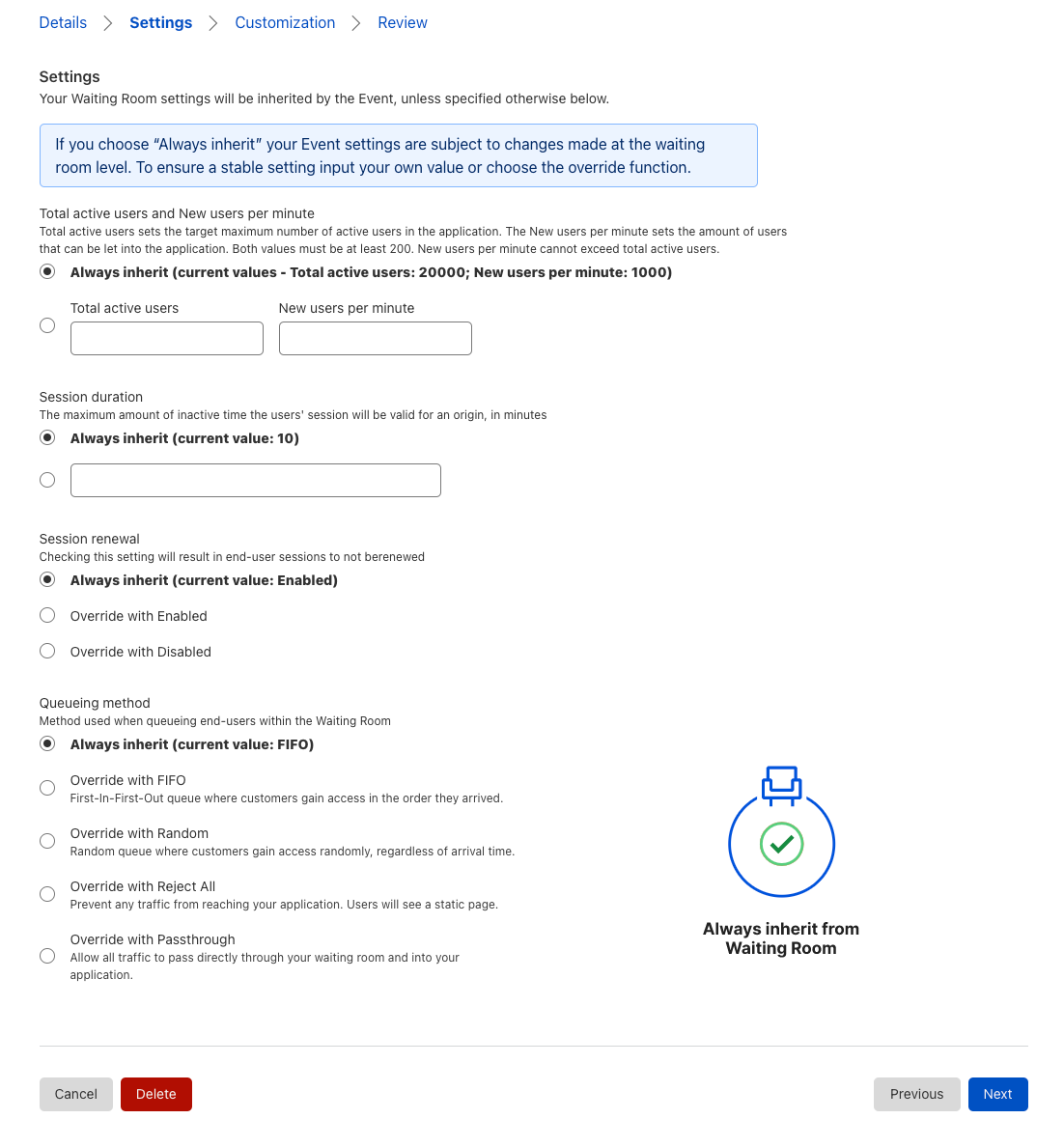
Now, customers can deploy a waiting room that accommodates either the subdomain or path approach to structuring a multi-language site. The only remaining step is setting up your waiting room to serve different languages when a user is queued in a waiting room. This can be achieved by constructing a template that reads the URL to determine the locale and define the appropriate translations for each of the locales within the template.

Here is an example of a template that determines the locale from the URL path, and renders the translated text:

<!DOCTYPE html>
<html>
  <head>
    <title>Waiting Room powered by Cloudflare</title>
  </head>
  <body>
    <section>
      <h1 id="inline-msg">
        You are now in line.
      </h1>
      <h1 id="patience-msg">
        Thank you for your patience.
      </h1>
    </section>
    <h2 id="waitTime"></h2>

    <script>
      var locale = location.pathname.split("/")[1] || "en";
      var translations = {
        "en": {
          "waittime_60_less": "Your estimated wait time is {{waitTime}} minute.",
          "waittime_60_greater": "Your estimated wait time is {{waitTimeHours}} hours and {{waitTimeHourMinutes}} minutes.",
          "inline-msg": "You are now in line.",
          "patience-msg": "Thank you for your patience.",
        },
        "es": {
          "waittime_60_less": "El tiempo de espera estimado es {{waitTime}} minuto.",
          "waittime_60_greater": "El tiempo de espera estimado es {{waitTimeHours}} de horas y {{waitTimeHourMinutes}} minutos.",
          "inline-msg": "Ahora se encuentra en la fila de espera previa.",
          "patience-msg": "Gracias por su paciencia.",
        }
      };

      {{#waitTimeKnown}}
      var minutes = parseInt( {{waitTime}} , 10);
      var time = document.getElementById('waitTime');

      if ( minutes < 61) {
        time.innerText = translations[locale]["waittime_60_less"]
      } else {
        time.innerText = translations[locale]["waittime_60_greater"]
      }
      {{/waitTimeKnown}}

      // translate template text for each of the elements with “id” suffixed with “msg”
      for (const msg of ["inline-msg", "patience-msg"]) {
        const el = document.getElementById(msg);
        if (el == null) continue;
        el.innerText = translations[locale][msg];
      }
    </script>
  </body>
</html>

Here’s how the template works: given a site distinguishes different locales with various paths such as /en/product_123 or /es/product_123 in the <script /> body after the rendering the page, the locale is extracted from the location.pathname via locale = location.pathname.split(“/”)[1]. If there isn’t a locale specified within the translations object we default it to “en”. For example, if a user visits example.com/product_123, then by default render the English text template.

Similarly, in order to support a multi-language waiting room for sites that delineate site structure via subdomain, it would only require you to update how you extract the locale from the URL. Instead of looking at the pathname we look at the hostname property of the window.location object like locale = location.hostname.split(“.”)[0], given, we have site structure as following: en.example.com, es.example.com.

The above code is a pared down example of starter templates we have added to our developer documentation, which we have included to make it easier for you to get started with a multi-language waiting room. You can download these templates and edit them to have the look and feel aligned with your site and with the language options your site offers.
Waiting Room adds multi-host and path coverage, unlocking broader protection and multilingual setups
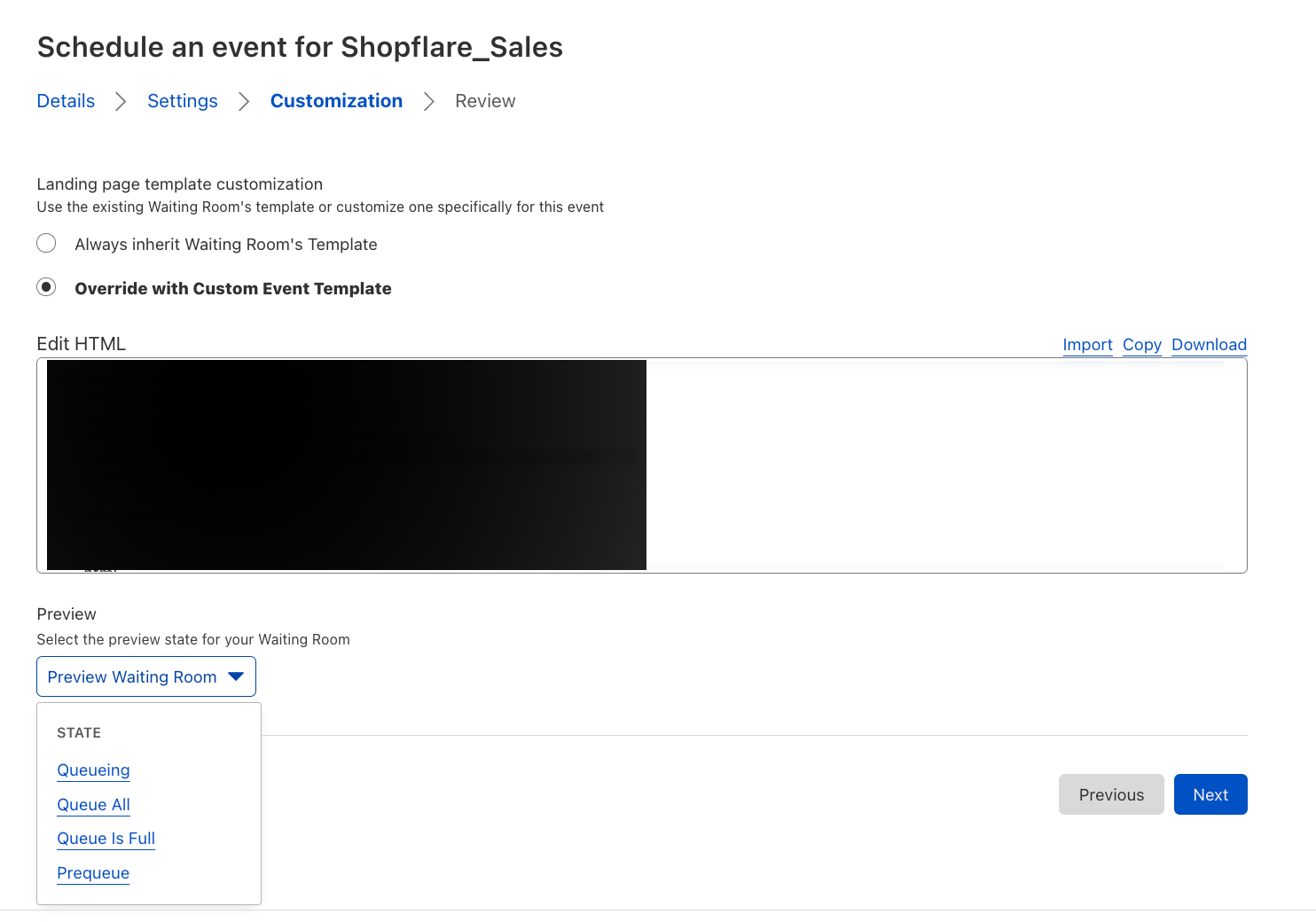
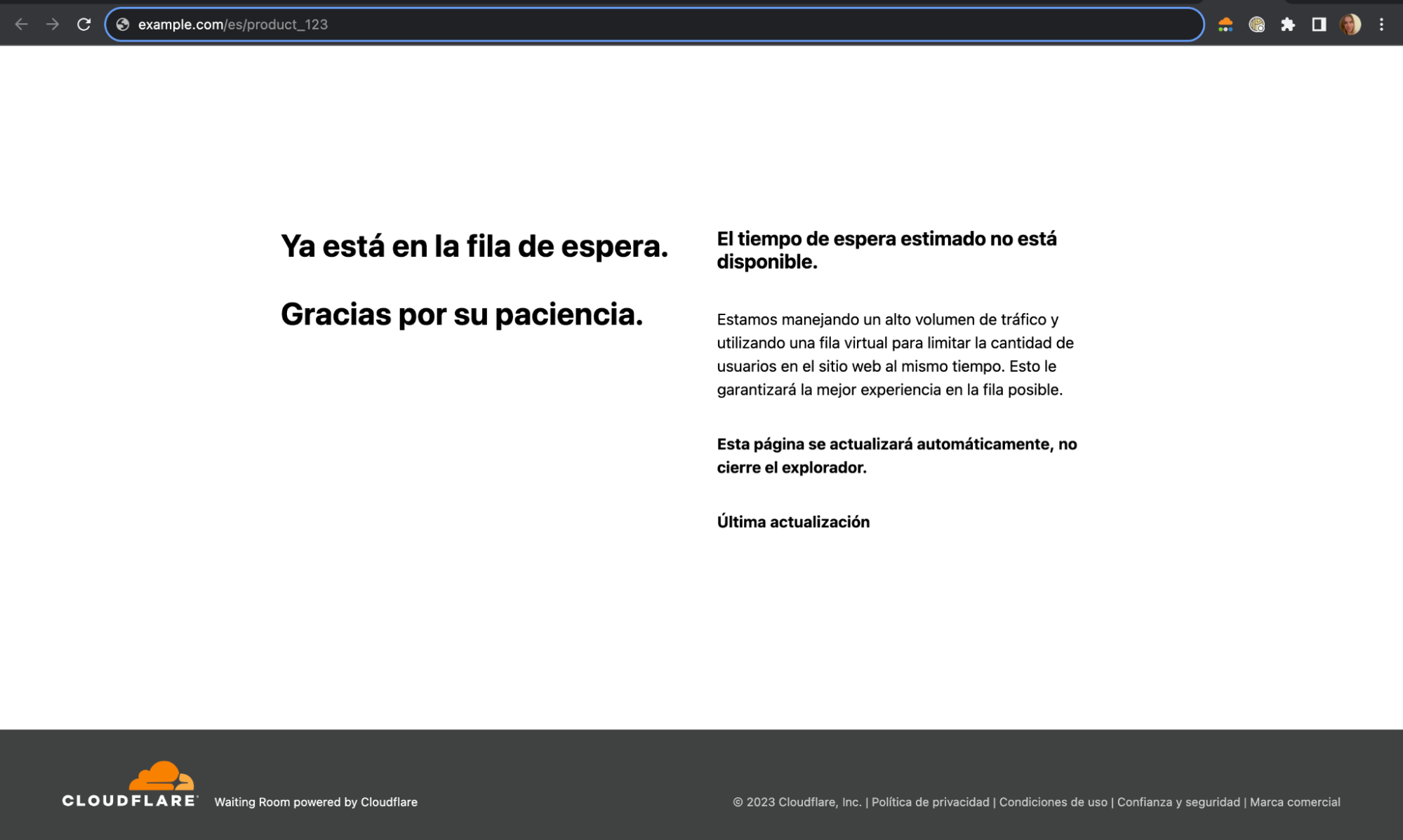
This is an example of the starter template provided in dev docs. This waiting room is in Queue-all mode and displays the Spanish text when the user visits example.com/es/product_123.

These templates can further be expanded to include other languages by adding translations to the `translations` object for each of the locales. Thus, a single template is able to serve multiple languages depending on whatever the locale the site is being served as either via subdomain or path.

How we handle cookies with a multihostname and path waiting room

The waiting room assigns a __cfwaitingroom cookie to each user to manage the state of the user that determines the position of the user in line among other properties needed to make the queueing decisions for the user. Traditionally, for a single hostname and path configuration it was trivial to just set the cookie as __cfwaitingroom=[cookie-value]; Domain=example.com; Path=/es/product_123. This ensured that when the page refreshed it would send us the same Waiting Room cookie for us to examine and update. However, this became non-trivial when we wanted to share the same cookie across different subdomain or path combinations, for example, on example.com/en/product_123.

Approaches to setting multiple cookies

There were two approaches that we brainstormed and evaluated to allow the sharing of the cookie for the same waiting room.

The first approach we considered was to issue multiple Set-Cookie headers in the HTTP response. For example, in the multi-language example above, we could issue the following in the response header:

Set-Cookie: __cfwaitingroom=[cookie-value]…Domain=example.com; Path=/en/product_123 …
Set-Cookie: __cfwaitingroom=[cookie-value]...Domain=example.com; Path=/es/product_123 …

This approach would allow us to handle the multiple hostnames and paths for the same waiting room. However, it does not present itself as a very scalable solution. Per RFC6265, there isn’t a strict limit defined in the specification, browsers have their own implementation-specific limits. For example, Chrome allows the response header to grow up to 256K bytes before throwing the transaction with ERR_RESPONSE_HEADERS_TOO_BIG. Additionally, in this case, the response header would grow proportionally to the number of unique hostname and path combinations, and we would be redundantly repeating the same cookie value N (where N is the number of additional routes) number of times. While this approach would have allowed us to effectively handle a bounded list of hostname and path combinations that need to be set, it was not ideal for cases where we can expect more than a handful routes for a particular site.

The second approach that we considered and chose to move forward with was to set the cookie on the apex domain (or the most common subdomain). In other words, we would figure out the most common subdomain from the list of routes and use that as the domain. Similarly, for the paths, this would entail determining the least common prefix from the list of paths and use that as the value to be set on the path attribute. For example, consider a waiting room with the following two routes configured, a.example.com/shoes/product_123 and b.example.com/shoes/product_456.

To determine the domain that would be set for the cookie, we can see that example.com is the most common subdomain among the list of domains. Applying the most common subdomain algorithm, we would get example.com as the domain. Applying the least common prefix algorithm on the set of paths, /shoes/product_123 and /shoes/product_456, we would get /shoes as the path. Thus, the set-cookie header would be the following:

Set-Cookie: … __cfwaitingroom=[cookie-value]; Domain=example.com; Path=/shoes …

Now, when a visitor accesses any of the pages covered by this waiting room, we can guarantee Waiting Room receives the right cookie and there will only be Set-Cookie included in the response header.

However, we are still not there yet. Although we are able to identify the common subdomain (or apex domain) and common path prefix, there would still be a problem if routes from one waiting room would overlap with another waiting room. For example, say we configure two waiting rooms for the same site where we are selling our special shoes:

Waiting Room A
    a.example.com/shoes/product_123
    b.example.com/shoes/product_456

Waiting Room B
    c.example.com/shoes/product_789
    d.example.com/shoes/product_012

If we apply the same algorithm as described above, we would get the same domain and path properties set for the two cookies. For Waiting Room A, the domain would be example.com and the path would be /shoes. Similarly, for Waiting Room B, the most common subdomain would also be example.com and least common path prefix would be /shoes. This would effectively prevent us from distinguishing the two cookies and route the visitor to the right waiting room. In order to solve the issue of overlapping cookie names, we introduced the requirement of setting a custom suffix that is unique to the customer’s zone. This is why it is required to provide a custom cookie suffix when configuring a waiting room that covers multiple hostnames or paths. Therefore, if Waiting Room A was assigned cookie suffix “a” and Waiting Room B was assigned cookie suffix “b”, the two Set-Cookie definitions would look like the following:

Waiting Room A

Set-Cookie: __cfwaitingroom_a=[cookie-value]; Domain=example.com; Path=/shoes

Waiting Room B

Set-Cookie: __cfwaitingroom_b=[cookie-value]; Domain=example.com; Path=/shoes

When a visitor makes a request to any pages where the two different waiting rooms are configured, Waiting Room can distinguish and select which cookie corresponds to the given request and use this to determine which waiting room’s settings apply to that user depending on where they are on the site.

With the addition of multihost and multipath Waiting Room coverage, we’re thrilled to offer more flexible options for incorporating Waiting Room into your site, giving your visitors the best experience possible while protecting your site during times of high traffic. Make sure your site is always protected from traffic surges. Try out Waiting Room today or reach out to us to learn more about the Advanced Waiting Room!
Waiting Roomは、マルチホストとパスのカバレッジを拡充し、より広範な保護と多言語セットアップを実現できる製品です

Post Syndicated from Arielle Olache original http://blog.cloudflare.com/ja-jp/multihost-waiting-room-ja-jp/


Cloudflare Waiting Roomは、完全にカスタマイズ可能な仮想待機室に過剰なウェブ訪問者を配置し、空き枠ができると動的にこれを受け入れることにより、急激なトラフィック急増からサイトを保護します。Waiting Roomにより、管理しきれないトラフィック急増時にエラーページを表示したりパフォーマンスの低いサイトページを配信したりするのではなく、エンドユーザーエクスペリエンスをコントロールできるようにします。

貴社サイトの待機室のルック&フィールのカスタマイズも可能となっており、エンドユーザーエクスペリエンスの向上にお役立ていただけます。

待機室を設定する際、保護の対象となるページの決定が重要になります。これまでは、ホスト名とパスの組み合わせを1つ選び、待機室の対象となるページを決めることができました。今日、Waiting Roomsでは、単一の待機室で複数のホスト名とパスの組み合わせに対応できるようになりました。これにより、お客様にはより多くの柔軟性がもたらされ、エンドユーザーのフローを中断することなく、より広範なサイトカバレッジを提供できるようになりました。この新機能は、「Waiting Rooms」のアドバンスをご利用のすべてのEnterprise契約のお客様にご利用いただけます。

Waiting Roomsのサイトでの設置

シンプルかつコーディング不要の待機室のデプロイプロセスでは、ホスト名とパスの組み合わせを指定し、特定の待機室がカバーするページを指定します。Web訪問者がそのホスト名とパス、またはそのサブパスに予備リクエストを行うと、待機室クッキーが発行され、サイトへの入場が許可されるか、もしくはサイトの容量が足りない場合、待機室に導きます。

昨年、当社は Waiting Roomのバイパスルール機能を追加し、ホスト名とパスカバレッジの例外を設けるための多くの選択肢をお客様に提供しました。これにより、ユーザーエージェントバイパス、ジオターゲティング、URL除外、管理用IPバイパスなどの機能が活用できるようになりました。また、URL、パス、クエリ文字列を除外する機能を追加することで、顧客サイト上で待機室を適用するページの設定の柔軟性を高めることとなりました。このアップデートにより、Waiting Roomによってゲートされるべきトラフィックをより具体化できるようになった一方、カバレッジは狭いままで多くの顧客が単一の待機室でサイトの大部分を保護することはできませんでした。

顧客がよりカバレッジのWaiting Roomsを必要とした理由

幅広いカバレッジを持つ製品機能が顧客にとって重要であった理由について、簡単ではあるもののインパクトのある例をいくつか挙げてみます。example.comというオンラインストアがあるとします。単一の待機室で、ホームページから商品閲覧、チェックアウトまで、顧客の利用体験全体をカバーできるようにしたいと考えたとします。多くのサイトでは、フロー内のこれらのステップを次のようにパスを用いて指定します:「example.com/, example.com/shop/product1、 example.com/checkout」。Waiting Roomは設定されたパスの最後にワイルドカードを想定するため、これらのサイトではこのユースケースはすでに十分なものでした。したがって、example.com/に待機室を設置すれば、この顧客利用体験のあらゆる段階で関連することになるすべてのURLをカバーすることができました。このセットアップでは、一度待機室を通過したWeb訪問者は、Waiting Roomに対し同一のユーザーであることをURL間の遷移の際に明示する同一待機室のクッキーを使用しているため、ユーザーフローのどのステップでも再キューされなおすことはありません。

しかし、多くのサイトでは、パスの代わりもしくはパスと併せサブドメインを使い、この種のショッピングフローの各段階を区切っています。例えば、多くのサイトでは、チェックアウトページをcheckout.example.comのような別のサブドメインに置いています。以前は、このようなサイト構造を持つ顧客がサイト全体を単一の待機室で保護する場合、example.com/ に待機室をデプロイし、checkout.example.com/に別の待機室を配置する必要がありました。このやり方は、多くの顧客にとって理想的なものではありませんでした。あるサイトのWeb訪問者が、同じ顧客利用体験の2つの異なる部分でキューに入れられる可能性があったからです。これは、checkout.example.com/の待機室がexample.com/をカバーするのではなく、Web訪問者を別のユーザーとして同じカウントすることが理由です。

とはいえ、1つのサイトで待機室を分けた方が賢明な場合もあります。例えば、チケット販売Webサイトは、そのエイペックスドメイン(example.com)に待機室を置くことができます。 また、特定のイベント(example.com/popular_artist_tour)のページでは、プレキューを持つ個別の待機室を設定しています。example.com/に設定された待機室は、あるイベントのチケット販売が開始されたときに、サイトへの主要な入り口が圧倒されてクラッシュすることがないようにします。 特定のイベントページに置かれた待機室は、サイトの他の部分に行くトラフィックに影響を与えることなく、単一のイベントのためのトラフィックがイベントの前にキューを開始できることを保証します。

最終的には、顧客がサイトの保護に1つまたは複数の待機室を望むかどうかにかかわらず、当社は顧客がユースケースとサイト構造に最適な待機室をデプロイする柔軟性を提供したいと考えました。今回、Waiting Roomが単一の待機室で複数のホスト名とパスカバレッジに対応できるようになったことを発表できることを大変うれしく思います。

マルチホストとパスカバレッジの始め方

今回、同じゾーンに属する複数のホスト名とパスの組み合わせ(またはルート)に待機室を設定できるようになりました。Traffic > 待機室を開き、Create(作成)を選択します。ドメイン名は、すでに入力されています。待機室設定にさらにルートを追加するには、Add Hostname and Path(ホスト名とパスの追加)を選択します。次に、同じ待機室にカバーさせる別のホスト名とパスを入力してください。各パスの最後はワイルドカード扱いとなります。そのため、待機室にカバーさせたいURLごとに待機室を作成する必要はありません。すでに入力した他のホスト名とパスの組み合わせではカバーできないURLに対してのみ、追加ルートを作成してください。

Add Hostname and Path(ホスト名とパスを追加)を選択し、複数のホスト名とパスの組み合わせを待機室に追加します。

複数のホスト名とパスの組み合わせをカバーする待機室をデプロイする場合、この待機室用にユニークなクッキー名を作成する必要があります(詳細は後述します)。その後、普段と同じワークフローで待機室をデプロイしてください。

多言語待機室のデプロイ

多言語サイトを1つの待機室でカバーできること、つまり言語ごとに異なるテキストを提供しながら、すべてのサイトトラフィックを同じ待機室の制限にカウントできることは、お客様からよく寄せられていた要望でした。異なる言語オプションを区別するためにサイトを構成する方法はいろいろある中、最も一般的なのはサブドメインかパスによる方法です。パス区切りが使われているサイトでは、example.com/enやexample.com/esのようになります。それぞれ英語とスペイン語に対応するものです。サブドメイン区分を使用するサイトでは、en.example.com/、およびes.example.com/のようになります。マルチホスト待機室がカバーする以前は、サブドメインのバリエーションは単一の待機室ではカバーできませんでした。

Waiting Roomの既存の設定オプションでは、すでにパスのバリエーションに対応していました。しかし、これは顧客がサイト全体をゲートしたい場合にのみ、example.com/に待機室を置くことで可能でした。多くのeコマースのお客様から、同じ商品を販売する需要の高い商品ページを異なる言語オプションでゲート表示できるようにしてほしいという要望がよせられていました。例えば、example.com/en/product_123、および example.com/es/product_123の両方のURLをカバーするために同じ待機室とトラフィック制限が望まれていました。これまでは、複雑なバイパスルールのロジックがなければそれは不可能でした。

今では、お客様は多言語サイトの構成のために、サブドメインまたはパスのアプローチのいずれかに対応する待機室をデプロイできるようになりました。残る唯一のステップは、ユーザーが待機室にキューイングされているときに異なる言語を提供するように待機室を設定することです。これは、URLを読み込んでロケールを決定し、テンプレート内で各ロケールに適切な翻訳を定義するテンプレートを構築することで実現できます。

以下は、URLパスからロケールを決定し、翻訳されたテキストを表示するテンプレートの例です:

<!DOCTYPE html>
<html>
  <head>
    <title>Waiting Room powered by Cloudflare</title>
  </head>
  <body>
    <section>
      <h1 id="inline-msg">
        You are now in line.
      </h1>
      <h1 id="patience-msg">
        Thank you for your patience.
      </h1>
    </section>
    <h2 id="waitTime"></h2>

    <script>
      var locale = location.pathname.split("/")[1] || "en";
      var translations = {
        "en": {
          "waittime_60_less": "Your estimated wait time is {{waitTime}} minute.",
          "waittime_60_greater": "Your estimated wait time is {{waitTimeHours}} hours and {{waitTimeHourMinutes}} minutes.",
          "inline-msg": "You are now in line.",
          "patience-msg": "Thank you for your patience.",
        },
        "es": {
          "waittime_60_less": "El tiempo de espera estimado es {{waitTime}} minuto.",
          "waittime_60_greater": "El tiempo de espera estimado es {{waitTimeHours}} de horas y {{waitTimeHourMinutes}} minutos.",
          "inline-msg": "Ahora se encuentra en la fila de espera previa.",
          "patience-msg": "Gracias por su paciencia.",
        }
      };

      {{#waitTimeKnown}}
      var minutes = parseInt( {{waitTime}} , 10);
      var time = document.getElementById('waitTime');

      if ( minutes < 61) {
        time.innerText = translations[locale]["waittime_60_less"]
      } else {
        time.innerText = translations[locale]["waittime_60_greater"]
      }
      {{/waitTimeKnown}}

      // translate template text for each of the elements with “id” suffixed with “msg”
      for (const msg of ["inline-msg", "patience-msg"]) {
        const el = document.getElementById(msg);
        if (el == null) continue;
        el.innerText = translations[locale][msg];
      }
    </script>
  </body>
</html>

テンプレートの仕組みは、次のようなものになります:ページのレンダリング後、`<script />` 内で `/en/product_123` や `/es/product_123`などさまざまなパスでロケールを区別しているサイトがある場合、ロケールは `location.pathname` から `locale = location.pathname.split(“/”)[1]` にて抽出されます。`translations`オブジェクトにロケールが指定されていない場合は、デフォルトで “en “になります。例えば、ユーザーがexample.com/product_123にアクセスした場合、デフォルトでは英語のテキストテンプレートがレンダリングされます。

同様に、サブドメインでサイト構造を切り分けているサイトで多言語待機室をサポートするには、URLからロケールを抽出する方法を更新するだけで済みます。`pathname`を見る代わりに、`window.location` の `hostname` プロパティの`locale = location.hostname.split(“.”)[0]` などのオブジェクトなどを見ます。この場合、en.example.com、es.example.comなどのサイト構造となっています。

上記のコードは、多言語待機室の構築を始めやすくできるよう当社で用意した開発者向けドキュメントに記載したスターターテンプレートの抜粋です。これらのテンプレートをダウンロードし、貴社サイトおよび貴社サイトが提供する言語オプションに沿ったルック&フィールに仕上がるよう、編集できます。

開発者ドキュメントで提供されているスターターテンプレートの例を引用しました。この待機室はキュー・オールモードで、ユーザーがexample.com/es/product_123にアクセスするとスペイン語のテキストを表示します。

これらのテンプレートは、それぞれのロケールに対して `translations` オブジェクトに翻訳を追加することで、さらに他の言語を含めて拡張できます。このように、ひとつのテンプレートで、サブドメインやパスを介してサイトが提供されるロケールに応じ複数の言語を提供できます。

複数のマルチホスト名とパスを持つ待機室でのクッキーの扱い方

待機室は 各ユーザに `__cfwaitingroom` クッキーを割り当て、そのユーザの状態を管理します。このクッキーは、ユーザーのキューの決定を行うために必要な他のプロパティに合わせてユーザーのキューを決定します。従来は、単一のホスト名とパスの設定には、クッキーを `__cfwaitingroom=[cookie-value]; Domain=example.com; Path=/es/product_123` と設定するだけで済みました。これにより、ページが再読み込みされた際、同じ待機室クッキーが送信され、それを調べて更新することができました。しかし、例えば `example.com/en/product_123`のように、異なるサブドメインやパスの組み合わせで同じクッキーを共有したいとき、これは簡単ではありませんでした。

複数のクッキーを設定するためのアプローチ

同じ待機室のクッキーを共有できるようにするために、当社ではブレインストーミングを行い、2つのアプローチを評価しました。

当社が考えた最初のアプローチは、HTTPレスポンスに複数の `Set-Cookie` ヘッダーを発行することでした。例えば、上記の多言語の例では、レスポンスヘッダーに次のように書くことができます:

Set-Cookie: __cfwaitingroom=[cookie-value]…Domain=example.com; Path=/en/product_123 …
Set-Cookie: __cfwaitingroom=[cookie-value]...Domain=example.com; Path=/es/product_123 …

この方法を使えば、同じ待機室に対して複数のホスト名とパスを扱うことができます。しかし、スケーラブルなソリューションとは言えません。 RFC6265ごとに、仕様で定義された厳密な制限はなく、ブラウザはその実装に固有の制限を持っています。例えば、ChromeではERR_RESPONSE_HEADERS_TOO_BIGでトランザクションを投げる前に、レスポンスヘッダが 256Kバイトまでの拡大を許容します。さらに、この場合、レスポンスヘッダは一意なホスト名とパスの組み合わせの数に比例して大きくなり、同じクッキー値 N(N は追加ルートの数)を何回も冗長に繰り返すことになります。このアプローチは、設定される必要があるホスト名とパスの組み合わせの限定されたリストを効果的に扱うことを可能にするものの、特定のサイトに対して相当数のルートが予想されるケースには理想的ではありませんでした。

当社が検討し最終的に採用することとなった2つ目のアプローチは、エイペックスドメイン(または最も共通するサブドメイン)にクッキーを設定することでした。つまり、ルーティングのリストから最も共通するサブドメインを割り出し、それをドメインとして使うのです。同様に、パスの場合、パスのリストから共有する最小のプレフィックスを決定し、それをpath属性に設定する値として使用することになります。例えば、a.example.com/shoes/product_123、および b.example.com/shoes/product_456の2つのルーティングが設定された待機室を考えてみましょう。

クッキーに設定されるドメインを決定するに当たり、ドメインのリストの中で `example.com` が最も共通するサブドメインであることがわかります。最も共通するサブドメインアルゴリズムを適用すると、ドメインとして `example.com` が得られます。パスの集合である `/shoes/product_123` と `/shoes/product_456` に対して最小共通接頭辞アルゴリズムを適用すると、パスとして `/shoes` が得られます。したがって、set-cookieヘッダーは次のようになります:

Set-Cookie: … __cfwaitingroom=[cookie-value]; Domain=example.com; Path=/shoes …

これで、Web訪問者がこの待機室がカバーするページのいずれかにアクセスするとき、Waiting Roomが正しいクッキーを受け取り、応答ヘッダーに Set-Cookie のみが含まれるようにできます。

しかし、当社はまだここまで到達できていません。共通のサブドメイン(またはエイペックスドメイン)と共通のパスプレフィックスを識別することはできても、ある待機室からのルーティングが別の待機室と重なってしまうと、まだ残る問題があります。例えば、特別な靴を販売している同じサイトに2つの待機室を設定するとします:

Waiting Room A
    a.example.com/shoes/product_123
    b.example.com/shoes/product_456

Waiting Room B
    c.example.com/shoes/product_789
    d.example.com/shoes/product_012

前述と同じアルゴリズムを適用すれば、2つのクッキーに同じドメインとパスのプロパティが設定されることになります。待機室Aの場合、ドメインは `example.com`、パスは`/shoes` となります。同様に、待機室Bでは、最も共通するサブドメインは同じくexample.comとなり、最も共通していないパスの接頭辞は `/shoes` となります。これにより、2つのクッキーを効果的に区別することができなくなり、Web訪問者を正しい待機室に導くことができなくなります。重複するクッキーネームの問題を解決するために、お客様のゾーンに固有のカスタムサフィックスを設定する要件を導入しました。これが、複数のホスト名やパスをカバーする待機室を設定する際、カスタムクッキーサフィックスの提供が必要な理由となります。したがって、待機室Aにクッキー接尾辞 “a “を、待機室Bにクッキー接尾辞 “b “を割り当てた場合、2つの `Set-Cookie` の定義は以下のようになります:

Waiting Room A

Set-Cookie: __cfwaitingroom_a=[cookie-value]; Domain=example.com; Path=/shoes

Waiting Room B

Set-Cookie: __cfwaitingroom_b=[cookie-value]; Domain=example.com; Path=/shoes

Web訪問者が、2つの異なる待機室が設定されたページにリクエストを行うと、待機室は指定されたリクエストに対応するクッキーを区別して選択し、これを用いて、ユーザーがサイト上のどこにいるかに応じ、そのユーザーに適用される待機室の設定を決定します。

Waiting Roomがマルチホストとマルチパス対応となったことで、お客様のサイトにWaiting Roomを組み込むための柔軟な選択肢を提供できるようになりました。これにより、Web訪問者に可能な限り優れたエクスペリエンスを提供しながら、トラフィックの多い時間帯にサイトを保護できるようになりました。 お客様のサイトは、トラフィックの急増から常に保護されることになります。Waiting Roomをさっそくお試しいただき、またWaiting Roomアドバンスの詳細について当社へのお問い合わせをお待ちしています。

Waiting Room ajoute la prise en charge d'hôtes et de chemins d'accès multiples, offrant une protection plus étendue et des configurations multilingues

Post Syndicated from Arielle Olache original http://blog.cloudflare.com/fr-fr/multihost-waiting-room-fr-fr/


Cloudflare Waiting Room protège les sites contre les surcharges liées aux pics de trafic en transférant l’excédent de visiteurs vers une salle d’attente virtuelle, entièrement personnalisable, dans laquelle les visiteurs sont admis dynamiquement, au fur et à mesure que des places se libèrent. Au lieu d’afficher des pages d’erreur ou de proposer une expérience insatisfaisante de l’affichage des pages du site, Waiting Room permet aux clients de prendre le contrôle de l’expérience de leurs utilisateurs finaux pendant les pics de trafic ingérables.

Personnalisez l'apparence et la fonctionnalité de votre salle d'attente afin d'améliorer l'expérience des utilisateurs finaux !
L’une des principales décisions que prennent les clients lors de la configuration d’une salle d’attente consiste à sélectionner les pages que protégera celle-ci. Jusqu’à présent, les clients pouvaient sélectionner un nom d’hôte et un chemin d’accès lors de la désignation des pages protégées par une instance de Waiting Room. Aujourd’hui, nous sommes ravis d’annoncer que Waiting Room propose désormais la prise en charge de combinaisons de noms d’hôtes et de chemins d’accès multiples pour une salle d’attente unique, offrant ainsi aux clients davantage de flexibilité et une prise en charge plus étendue des sites, sans interruption des flux des utilisateurs finaux.Cette nouvelle fonctionnalité est accessible à tous les clients Enterprise ayant préacheté Waiting Room.

Ajout d’un site dans Waiting Room

Le déploiement d’une salle d’attente est une procédure simple et sans codage, durant laquelle les clients spécifient une combinaison de nom d’hôte et de chemin d’accès afin de désigner les pages prises en charge par une salle d’attente particulière. Lorsqu’un visiteur du site transmet une requête préliminaire à ce nom d’hôte et ce chemin d’accès ou l’un de ses sous-chemins, il reçoit un cookie correspondant à la salle d’attente et est ensuite admis sur le site ou transféré vers une salle d’attente, si le site est saturé.

L’année dernière, nous avons ajouté la fonctionnalité Waiting Room Bypass Rules, qui offre aux clients de nombreuses options permettant de créer des exceptions à cette prise en charge des noms d’hôtes et des chemins d’accès. Cette fonctionnalité a débloqué des capacités telles que le contournement d’agent utilisateur, le ciblage par géolocalisation, les exclusions d’URL et le contournement d’adresses IP d’administration. Elle a également offert davantage de flexibilité au regard de la prise en charge par Waiting Room des pages du site d’un client en ajoutant la possibilité d’exclure des URL, des chemins d’accès et des chaînes de requête. Si cette mise à jour a permis de mieux définir le trafic devant être filtré par Waiting Room, elle n’offrait néanmoins pas la prise en charge étendue que recherchaient encore de nombreux clients pour protéger de plus vastes pans de leurs sites avec une salle d’attente unique.

Pourquoi les clients avaient besoin d’une prise en charge plus étendue par Waiting Room

Examinons quelques exemples simples, mais pertinents, des raisons pour lesquelles cette option de prise en charge étendue était importante pour nos clients. Imaginons que vous ayez une boutique en ligne, example.com, et que vous souhaitiez vous assurer qu’une salle d’attente unique couvre l’ensemble du parcours du client – de la page d’accueil jusqu’à la navigation sur les produits, puis au paiement. De nombreux sites emploient les chemins pour délimiter ces étapes au sein du flux : example.com/, example.com/shop/product1, example.com/payment. Puisque Waiting Room suppose qu’un caractère générique implicite est présent à la fin du chemin d’accès configuré pour une salle d’attente, ce scénario d’utilisation était déjà pris en charge pour ces sites. Ainsi, la configuration d’une salle d’attente à l’adresse example.com/ permettrait de couvrir toutes les URL associées à chaque étape du parcours du client. Dans cette configuration, lorsqu’un visiteur consultant le site avait traversé la salle d’attente, il ne réintégrait pas la file d’attente à une étape ultérieure de son parcours d’utilisateur, car il disposait toujours du même cookie correspondant à la salle d’attente, qui indique à Waiting Room qu’il s’agit d’un même utilisateur parcourant les différentes URL.

Cependant, de nombreux sites utilisent des sous-domaines à la place des chemins d’accès, ou conjointement à ceux-ci, pour délimiter les différentes étapes de ce type de parcours d’achat. Par exemple, la page de paiement de nombreux sites se trouve sur un sous-domaine différent, comme payment.example.com. Jusqu’à présent, si un client disposait de cette structure de site et souhaitait protéger l’ensemble de son site avec une salle d’attente unique, il devait configurer une première salle d’attente à l’adresse example.com/, et une deuxième salle d’attente à l’adresse payment.example.com/. Cette option était peu pratique pour de nombreux clients, car un visiteur pouvait se retrouver ajouté à une file d’attente à deux endroits différents du même parcours client. En effet, la salle d’attente de payment.example.com/ compterait le même visiteur comme un autre utilisateur de celui de la salle d’attente couvrant example.com/.

Cela étant dit, dans certains cas, il est judicieux de séparer les salles d’attente couvrant un même site. Par exemple, un site web de billetterie pourrait déployer une salle d’attente sur son domaine racine (example.com), puis déployer des salles d’attente distinctes avec des pré-files d’attente sur les pages consacrées à des événements spécifiques (example.com/popular_artist_tour). La salle d’attente de la page example.com/ permet d’éviter que le principal point d’accès au site ne soit submergé par les requêtes et que le site devienne inaccessible lors de l’ouverture de la vente de billets pour un événement donné. La salle d’attente placée sur la page de l’événement spécifique assure que le trafic correspondant à un événement particulier puisse être mis en file d’attente avant l’événement, sans toutefois affecter le trafic affluant vers d’autres parties du site.

En fin de compte, peu importe qu’un client souhaite déployer une ou plusieurs salles d’attente pour protéger son site : nous souhaitions offrir à chaque client la possibilité de déployer Waiting Room de la manière la plus adaptée à ses scénarios d’utilisation et sa structure de site. Nous sommes ravis d’annoncer que Waiting Room offre désormais la prise en charge de noms d’hôtes et de chemins d’accès multiples dans une salle d’attente unique !

Découvrir la prise en charge d’hôtes et de chemins d’accès multiples

Les clients peuvent désormais configurer une salle d’attente avec plusieurs combinaisons de noms d’hôtes et de chemins (ou d’itinéraires) appartenant à une même zone. Pour cela, accédez à Trafic > Waiting Room, puis sélectionnez Create (Créer). Le nom de votre domaine sera déjà renseigné. Pour ajouter des itinéraires supplémentaires à la configuration de votre salle d’attente, sélectionnez Add Hostname (Ajouter un nom d’hôte), puis Path (Chemin d’accès). Vous pouvez ensuite saisir un autre nom d’hôte et un autre chemin d’accès qui seront couverts par la même salle d’attente. N’oubliez pas qu’un caractère générique implicite est inclus après chaque chemin d’accès ; il n’est donc pas nécessaire de créer une salle d’attente pour chaque URL que vous souhaitez couvrir. Créez uniquement des itinéraires supplémentaires pour les URL qui ne seraient pas couvertes par les autres combinaisons de noms d’hôtes et de chemins d’accès que vous avez déjà spécifiées.

Pour ajouter plusieurs combinaisons de noms d'hôtes et de chemins d'accès à votre salle d'attente, sélectionnez Add Hostname and Path (Ajouter un nom d'hôte et un chemin d'accès

Lorsque vous déployez une salle d’attente couvrant plusieurs combinaisons de noms d’hôtes et de chemins d’accès, vous devez créer un nom de cookie unique pour cette salle d’attente (nous y reviendrons plus tard). Ensuite, appliquez le même flux de travail que d’habitude pour déployer votre salle d’attente.

Déployer une salle d’attente multilingue

Une demande fréquemment formulée par nos clients était la possibilité de couvrir un site multilingue avec une salle d’attente unique, en proposant des textes différents dans chaque langue, tout en comptabilisant l’ensemble du trafic du site dans les limites de la même salle d’attente. Il existe plusieurs façons de structurer un site pour à délimiter les différentes options linguistiques ; toutefois, les deux approches les plus courantes sont la délimitation par sous-domaine ou par chemin d’accès. Pour un site qui utilise la délimitation par chemin d’accès, cela pourrait se présenter ainsi : example.com/en et example.com/es pour l’anglais et l’espagnol, respectivement. Pour un site utilisant la délimitation par sous-domaine, la configuration pourrait être la suivante : en.example.com/ et es.example.com/. Avant la prise en charge d’hôtes multiples par Waiting Room, la variation des sous-domaines n’aurait pas pu être couverte par une salle d’attente unique.

Les options de configuration existantes de Waiting Room prenaient déjà en charge les variations de chemin d’accès. Cependant, cela n’était vrai que si le client souhaitait couvrir l’ensemble du site, ce qui était réalisable en en plaçant la salle d’attente à l’adresse example.com/. De nombreux clients dans le secteur de l’e-commerce ont demandé la possibilité de couvrir différentes pages de produits très demandées, proposant le même produit, avec des options linguistiques différentes. Par exemple, prenons le cas de example.com/en/product_123 et de example.com/es/product_123. Pour ces pages, le client souhaite couvrir les deux URL avec la même salle d’attente et des limites de trafic identiques. Jusqu’à présent, cela n’aurait pas été possible sans configurer une logique complexe basée sur des règles de contournement.

Désormais, toutefois, les clients peuvent déployer une salle d’attente couvrant, au choix, l’approche basée sur les sous-domaines ou les chemins d’accès pour structurer un site multilingue. L’unique étape restante consiste à configurer votre salle d’attente afin qu’elle puisse servir différentes langues lorsqu’un utilisateur est transféré vers une salle d’attente. Pour cela, vous pouvez développer un modèle lisant l’URL afin de déterminer les paramètres régionaux, puis définir les traductions appropriées pour chaque langue dans le modèle.

Voici un exemple de modèle qui détermine les paramètres régionaux à partir du chemin d’accès de l’URL, puis affiche le texte traduit :

<!DOCTYPE html>
<html>
  <head>
    <title>Waiting Room powered by Cloudflare</title>
  </head>
  <body>
    <section>
      <h1 id="inline-msg">
        You are now in line.
      </h1>
      <h1 id="patience-msg">
        Thank you for your patience.
      </h1>
    </section>
    <h2 id="waitTime"></h2>

    <script>
      var locale = location.pathname.split("/")[1] || "en";
      var translations = {
        "en": {
          "waittime_60_less": "Your estimated wait time is {{waitTime}} minute.",
          "waittime_60_greater": "Your estimated wait time is {{waitTimeHours}} hours and {{waitTimeHourMinutes}} minutes.",
          "inline-msg": "You are now in line.",
          "patience-msg": "Thank you for your patience.",
        },
        "es": {
          "waittime_60_less": "El tiempo de espera estimado es {{waitTime}} minuto.",
          "waittime_60_greater": "El tiempo de espera estimado es {{waitTimeHours}} de horas y {{waitTimeHourMinutes}} minutos.",
          "inline-msg": "Ahora se encuentra en la fila de espera previa.",
          "patience-msg": "Gracias por su paciencia.",
        }
      };

      {{#waitTimeKnown}}
      var minutes = parseInt( {{waitTime}} , 10);
      var time = document.getElementById('waitTime');

      if ( minutes < 61) {
        time.innerText = translations[locale]["waittime_60_less"]
      } else {
        time.innerText = translations[locale]["waittime_60_greater"]
      }
      {{/waitTimeKnown}}

      // translate template text for each of the elements with “id” suffixed with “msg”
      for (const msg of ["inline-msg", "patience-msg"]) {
        const el = document.getElementById(msg);
        if (el == null) continue;
        el.innerText = translations[locale][msg];
      }
    </script>
  </body>
</html>

Voici comment fonctionne le modèle : puisqu’un site distingue différents paramètres régionaux avec différents chemins tels que `/en/product_123` ou `/es/product_123` dans le corps `<script />` après avoir effectué le rendu de la page, le paramètre régional est extrait de `location.pathname` via `locale = location.pathname.split(“/”)[1]`. Si aucune langue n’est spécifiée dans l’objet `translations`, la valeur par défaut est « en ». Par exemple, si un utilisateur consulte le site example.com/product_123, par défaut, le site affiche le rendu du modèle de texte anglais.

De même, pour prendre en charge une salle d’attente multilingue pour les sites délimitant la structure du site par sous-domaine, il suffirait de modifier la manière dont le paramètre régional est extrait de l’URL. Au lieu d’examiner `pathname`, nous examinons la propriété `hostname` de l’objet `window.location` (par exemple, `locale = location.hostname.split(“.”)[0]`),étant donné que la structure de notre site est la suivante : en.example.com, es.example.com.

Le code présenté ci-dessus est un exemple réduit des modèles de démarrage que nous avons ajoutés à notre documentation pour développeurs afin de faciliter la configuration d’une salle d’attente multilingue. Vous pouvez télécharger ces modèles et les modifier afin d’adapter leur apparence et leur fonctionnalité à votre site et aux options linguistiques proposées par celui-ci.

Il s’agit d’un exemple du modèle de démarrage fourni dans la documentation pour développeurs. Cette salle d’attente est configurée pour mettre tous les utilisateurs en file d’attente et affiche le texte en espagnol lorsque l’utilisateur consulte la page example.com/es/product_123.

Ces modèles peuvent être étendus pour inclure d’autres langues en ajoutant des traductions à l’objet `translations` pour chacun des paramètres régionaux. Un modèle unique peut ainsi servir plusieurs langues en fonction des paramètres régionaux définis pour le site, qu’il s’agisse d’un sous-domaine ou d’un chemin d’accès.

Comment nous gérons les cookies avec une salle d’attente couvrant plusieurs noms d’hôtes et chemins d’accès

La salle d’attente alloue à chaque utilisateur un cookie `__cfwaitingroom` permettant de gérer son état ; ce cookie détermine la position de l’utilisateur dans la file d’attente, ainsi que d’autres propriétés nécessaires pour prendre les décisions de mise en file d’attente. Traditionnellement, pour une configuration comportant un nom d’hôte et un chemin d’accès uniques, il était extrêmement simple de définir le cookie comme ceci : `__cfwaitingroom=[cookie-value]; Domain=example.com; Path=/es/product_123`. Ainsi, lorsque la page était actualisée, elle transmettait le même cookie Waiting Room, nous permettant de l’examiner et de le mettre à jour. Toutefois, cette procédure devenait beaucoup moins simple lorsque nous voulions partager le même cookie pour différentes combinaisons de sous-domaines ou de chemins d’accès, par exemple, `example.com/en/product_123`.

Approches de la configuration de plusieurs cookies

Nous avons envisagé et évalué deux approches permettant le partage du cookie pour une même salle d’attente.

La première approche que nous avons envisagée consistait à insérer plusieurs en-têtes `Set-Cookie` dans la réponse HTTP. Par exemple, dans l’exemple multilingue ci-dessus, nous pourrions ajouter les indications suivantes dans l’en-tête de la réponse :

Set-Cookie: __cfwaitingroom=[cookie-value]…Domain=example.com; Path=/en/product_123 …
Set-Cookie: __cfwaitingroom=[cookie-value]...Domain=example.com; Path=/es/product_123 …

Cette approche nous permettrait de gérer plusieurs noms d’hôtes et chemins d’accès pour une même salle d’attente. Cependant, elle ne constitue pas une solution très évolutive. Conformément à RFC6265, aucune limite stricte n’est définie dans la spécification ; les navigateurs comportent des limites particulières, spécifiques à l’implémentation. Par exemple, Chrome accepte une taille d’en-tête de 256 K octets avant de renvoyer l’erreur ERR_RESPONSE_HEADERS_TOO_BIG pour la transaction. Par ailleurs, dans ce cas, la taille de l’en-tête de réponse augmenterait proportionnellement au nombre de combinaisons uniques de noms d’hôtes et de chemins d’accès et, de manière redondante, nous répéterions N fois (où N représente le nombre d’itinéraires supplémentaires) la même valeur de cookie. Cette approche nous aurait permis de gérer efficacement une liste restreinte de combinaisons de noms d’hôtes et de chemins d’accès à définir ; toutefois, elle n’était pas idéale dans les situations où un site particulier comportait plus qu’un nombre limité d’itinéraires.

La deuxième approche à laquelle nous avons réfléchi, et que nous avons choisie, consistait à placer le cookie sur le domaine racine (ou le sous-domaine le plus courant). En d’autres termes, nous déterminons le sous-domaine le plus courant à partir de la liste des itinéraires, et nous l’utilisons comme domaine. De manière similaire, pour les chemins d’accès, il s’agirait de déterminer le préfixe le moins commun à partir de la liste des chemins d’accès et de l’utiliser comme valeur à définir par l’attribut de chemin d’accès. Prenons l’exemple d’une salle d’attente pour laquelle les deux itinéraires suivants ont été configurés : a.example.com/shoes/product_123 et b.example.com/shoes/product_456.

Pour déterminer le domaine défini pour le cookie, nous voyons que `example.com` est le sous-domaine le plus courant parmi la liste des domaines. L’application de l’algorithme du sous-domaine le plus courant renverrait le domaine `example.com` ; en revanche, l’application de l’algorithme du préfixe le moins courant à l’ensemble de chemins d’accès `/shoes/product_123` et `/shoes/product_456` renverrait le chemin d’accès `/shoes`. Par conséquent, l’en-tête Set-Cookie serait le suivant :

Set-Cookie: … __cfwaitingroom=[cookie-value]; Domain=example.com; Path=/shoes …

Désormais, lorsqu’un visiteur accède à l’une des pages couvertes par cette salle d’attente, nous pouvons garantir que Waiting Room reçoit le bon cookie et que l’en-tête de la réponse contiendra uniquement `Set-Cookie`.

Cependant, la configuration n’est pas encore terminée. Bien que nous soyons en mesure d’identifier le sous-domaine commun (ou domaine racine) et le préfixe de chemin d’accès commun, un problème demeurerait si les itinéraires correspondant à une salle d’attente étaient identiques à ceux définis pour une autre salle d’attente. Par exemple, supposons que nous configurions deux salles d’attente pour un même site, sur lequel nous vendons nos chaussures spéciales :

Salle d’attente A
    a.example.com/shoes/product_123
    b.example.com/shoes/product_456

Salle d’attente B
    c.example.com/shoes/product_789
    d.example.com/shoes/product_012

Si nous appliquons le même algorithme que celui décrit ci-dessus, nous obtiendrons les mêmes propriétés de domaine et de chemin d’accès pour les deux cookies. Pour la salle d’attente A, le domaine serait `example.com` et le chemin d’accès serait `/shoes`. De même, pour la salle d’attente B, le sous-domaine le plus courant serait également example.com, et le préfixe de chemin d’accès le moins courant serait `/shoes`. Concrètement, ceci nous empêcherait de distinguer les deux cookies et de rediriger le visiteur vers la salle d’attente correcte. Afin de résoudre le problème du chevauchement des noms de cookies, nous avons introduit la nécessité de définir un suffixe personnalisé unique pour la zone du client. C’est pourquoi il est nécessaire de spécifier un suffixe de cookie personnalisé lors de la configuration d’une salle d’attente couvrant plusieurs noms d’hôtes ou chemins d’accès. Par conséquent, si la salle d’attente A reçoit le suffixe de cookie « a » et la salle d’attente B le suffixe de cookie « b », les deux définitions de `Set-Cookie` se présenteront comme ceci :

Salle d’attente A

Set-Cookie: __cfwaitingroom_a=[cookie-value]; Domain=example.com; Path=/shoes

Salle d’attente B

Set-Cookie: __cfwaitingroom_b=[cookie-value]; Domain=example.com; Path=/shoes

Lorsqu’un visiteur transmet une requête à une page pour laquelle ces deux salles d’attente différentes sont configurées, Waiting Room peut distinguer et sélectionner le cookie correspondant à la requête transmise et l’utiliser pour déterminer les paramètres de la salle d’attente applicables à cet utilisateur en fonction de l’endroit où il se trouve sur le site.

Avec l’ajout de la prise en charge de plusieurs hôtes et chemins d’accès par Waiting Room, nous sommes ravis de proposer des options plus flexibles pour l’incorporation de Waiting Room sur votre site, et ainsi, d’offrir à vos visiteurs la meilleure expérience possible, tout en protégeant votre site pendant les périodes d’affluence. Assurez-vous que votre site est toujours protégé contre les pics de trafic. Essayez dès aujourd’hui Waiting Room ou contactez-nous pour en savoir plus sur la solution Advanced Waiting Room.

Waiting Room añade la cobertura de múltiples hosts y rutas de acceso, y ofrece así una protección más amplia y configuraciones multilingües

Post Syndicated from Arielle Olache original http://blog.cloudflare.com/es-es/multihost-waiting-room-es-es/


Cloudflare Waiting Room protege los sitios contra las sobrecargas vinculadas a los picos de tráfico, colocando el exceso de visitantes en una sala de espera virtual, completamente personalizable, donde son admitidos dinámicamente a medida que se liberan plazas. En lugar de mostrar páginas de error o entregar páginas del sitio con un bajo rendimiento, Waiting Room permite a los clientes tomar el control de su experiencia de usuario final durante los picos de tráfico inmanejables.

Personaliza el aspecto de tu sala de espera para mejorar la experiencia del usuario final.

Una decisión clave que toman los clientes al configurar una sala de espera es acerca de qué páginas protegerán. Hasta ahora, los clientes podían seleccionar una sola combinación de nombre de host y ruta de acceso para determinar las páginas cubiertas por una sala de espera. Hoy nos complace anunciar que Waiting Room ahora ofrece compatibilidad con varias combinaciones de nombres de host y rutas de acceso con una sola sala de espera, y ofrece así a los clientes más flexibilidad y una cobertura más amplia del sitio sin interrupciones de los flujos de los usuarios finales. Esta nueva funcionalidad está disponible para todos los clientes Enterprise con una versión Advanced de Waiting Room.

Colocación de un sitio en Waiting Room

Durante la implementación de una sala de espera, un proceso sencillo y que no requiere codificación, los clientes especifican una combinación de nombre de host y ruta de acceso para indicar las páginas cubiertas por una sala de espera determinada. Cuando un visitante del sitio realiza una solicitud preliminar a ese nombre de host y esa ruta de acceso o a cualquiera de sus rutas de acceso secundarias, recibe una cookie correspondiente a la sala de espera y entonces se admite en el sitio o bien, si el sitio está saturado, se coloca en una sala de espera.

El año pasado añadimos la funcionalidad Waiting Room Bypass Rules, que ofrece a los clientes muchas opciones para crear excepciones a esta cobertura de nombre de host y ruta de acceso. Esta funcionalidad ha desbloqueado funciones como la omisión de agente de usuario, el filtrado por geolocalización, las exclusiones de URL y la omisión administrativa de direcciones IP. Asimismo, ha mejorado la flexibilidad en lo referente a las páginas a las que se debe aplicar una sala de espera en el sitio de un cliente, al añadir la posibilidad de excluir URL, rutas de acceso y cadenas de consulta. Aunque esta actualización permitió una mayor especificidad acerca del tráfico que debe filtrar Waiting Room, no ofrecía la cobertura más amplia que aún necesitaban muchos clientes para proteger áreas más extensas de sus sitios con una sola sala de espera.

Por qué los clientes necesitaban una cobertura más amplia de Waiting Room

Analicemos algunos ejemplos sencillos pero adecuados de por qué esta opción de una cobertura más amplia era importante para nuestros clientes. Imagina que tienes una tienda en línea, example.com, y quieres asegurarte de que una sola sala de espera cubre todo el recorrido del cliente, desde la página inicial a la navegación por los productos, y finalmente a la validación del pedido. Muchos sitios utilizan rutas de acceso para definir estos pasos en el flujo: example.com/, example.com/shop/product1, example.com/checkout. Puesto que Waiting Room supone que existe un comodín implícito al final de la ruta de acceso configurada para una sala de espera, este caso de uso ya estaba cubierto para estos sitios. Por lo tanto, la configuración de una sala de espera en la dirección example.com/ permitirá cubrir todas las URL asociadas con cada uno de los pasos de este recorrido del cliente. En esta configuración, una vez que un visitante del sitio entraba en la sala de espera, no se volvía a poner en cola en ningún otro paso del flujo del usuario, ya que seguía utilizando la misma cookie correspondiente a la sala de espera, lo que indica a Waiting Room que se trata del mismo usuario en distintas URL.

No obstante, muchos sitios utilizan subdominios en lugar de, o además de, rutas de acceso para definir distintos pasos de este tipo de flujo de compra. Por ejemplo, la página de validación del pedido de muchos sitios estará en un subdominio distinto, por ejemplo, checkout.example.com. Hasta ahora, si un cliente tenía esta estructura de sitio y quería proteger todo su sitio con una sola sala de espera, necesitaba implementar una sala de espera en la dirección example.com/ y otra en la dirección checkout.example.com/. Esta opción no era idónea para muchos clientes, puesto que un visitante del sitio podía encontrarse puesto en cola en dos lugares distintos del mismo recorrido de cliente. Esto se debe a que la sala de espera en la dirección checkout.example.com/ contabilizaría el mismo visitante como un usuario distinto que el de la sala de espera que cubre el sitio example.com/.

Dicho esto, en algunos casos es recomendable separar las salas de espera que cubren un solo sitio. Por ejemplo, un sitio web de venta de entradas podría implementar una sala de espera en su dominio raíz (example.com) y distintas salas de espera con pre-colas de espera en páginas dedicadas a eventos específicos (example.com/popular_artist_tour). La sala de espera definida en la página example.com/ garantiza que el punto de acceso principal al sitio no se sobrecargue y deje de estar accesible al abrir la venta de entradas para un evento específico. La sala de espera definida en la página dedicada al evento específico garantiza que el tráfico correspondiente a un evento determinado se pueda empezar a poner en cola de espera antes del evento sin afectar al tráfico que se dirige a otros lugares del sitio.

En definitiva, independientemente de si un cliente desea tener una o varias salas de espera para proteger su sitio, queríamos ofrecer a nuestros clientes la flexibilidad de implementar Waiting Room de la forma que se ajustara mejor a sus casos de uso y a su estructura del sitio. Nos complace anunciar que Waiting Room ahora admite la cobertura de varios nombres de host y rutas de acceso con una sola sala de espera.

Cómo empezar a utilizar la cobertura de varios hosts y rutas de acceso

Ahora los clientes pueden configurar una sala de espera en varias combinaciones de nombres de host y ruta (o rutas) de acceso correspondientes a la misma zona. Para ello, ve a Tráfico > Waiting Room y selecciona Create (Crear). El nombre de tu dominio ya estará rellenado. Para añadir reglas adicionales a la configuración de tu sala de espera, selecciona Add Hostname and Path (Añadir nombre de host y ruta de acceso). A continuación, puedes especificar otro nombre de host y ruta de acceso que desees que cubra la misma sala de espera. Recuerda que hay un comodín implícito al final de cada ruta de acceso. Por lo tanto, es innecesario crear una sala de espera para cada URL que desees que cubra tu sala de espera. Crea solo rutas de acceso adicionales para las URL que no estén cubiertas por las combinaciones de nombres de host y rutas de acceso que ya hayas especificado.

Añade varias combinaciones de nombres de host y rutas de acceso a tu sala de espera seleccionando Add Hostname and Path (Añadir nombre de host y ruta de acceso).

Al implementar una sala de espera que cubra varias combinaciones de nombres de host y rutas de acceso, debes crear un nombre de cookie exclusivo para esa sala de espera (más información más adelante). A continuación, continúa con el mismo flujo de trabajo de la forma habitual para implementar tu sala de espera.

Implementación de una sala de espera multilingüe

Los clientes nos han solicitado a menudo la posibilidad de cubrir un sitio multilingüe con una sola sala de espera, y ofrecer así texto específico para cada idioma al mismo tiempo que se contabiliza todo el tráfico del sitio en los mismos límites de la sala de espera. Hay varios métodos para estructurar un sitio a fin de definir las distintas opciones lingüísticas. Sin embargo, los dos más habituales son por subdominio o por ruta de acceso. Para un sitio que utilice la definición por ruta de acceso, podría presentarse así: example.com/en y example.com/es para inglés y español, respectivamente. Para un sitio que utilice la definición por subdominio, podría presentarse así: en.example.com/ y es.example.com/. Antes de que Waiting Room ofreciera la cobertura de varios hosts, la variación por subdominio no podría haber estado cubierta por una única sala de espera.

Las opciones de configuración existentes de Waiting Room ya admitían la variación por ruta de acceso. Sin embargo, esto solo era cierto si el cliente quería filtrar todo el sitio, lo que podía hacer definiendo la sala de espera en la página example.com/. Muchos clientes de comercio electrónico han solicitado la posibilidad de filtrar distintas páginas de productos con alta demanda que ofrecen el mismo producto pero con distintas opciones de idioma. Por ejemplo, considera example.com/en/product_123 y example.com/es/product_123, donde el cliente desea utilizar la misma sala de espera y aplicar los mismos límites de tráfico para cubrir ambas URL. Hasta ahora, esto no habría sido posible sin alguna compleja lógica de reglas de omisión.

Ahora, los clientes pueden implementar una sala de espera que se ajuste al método elegido de estructuración de un sitio multilingüe, ya sea por subdominio o por ruta de acceso. Para terminar, solo debes configurar tu sala de espera para que entregue distintos idiomas cuando un usuario se ponga en cola en una sala de espera. Para ello, puedes crear una plantilla que lea la URL a fin de determinar los parámetros de idioma y definir las traducciones adecuadas para cada idioma en la plantilla.

A continuación se muestra un ejemplo de una plantilla que determina los parámetros de idioma de la ruta de acceso de la URL, y que presenta el texto traducido:

<!DOCTYPE html>
<html>
  <head>
    <title>Waiting Room powered by Cloudflare</title>
  </head>
  <body>
    <section>
      <h1 id="inline-msg">
        You are now in line.
      </h1>
      <h1 id="patience-msg">
        Thank you for your patience.
      </h1>
    </section>
    <h2 id="waitTime"></h2>

    <script>
      var locale = location.pathname.split("/")[1] || "en";
      var translations = {
        "en": {
          "waittime_60_less": "Your estimated wait time is {{waitTime}} minute.",
          "waittime_60_greater": "Your estimated wait time is {{waitTimeHours}} hours and {{waitTimeHourMinutes}} minutes.",
          "inline-msg": "You are now in line.",
          "patience-msg": "Thank you for your patience.",
        },
        "es": {
          "waittime_60_less": "El tiempo de espera estimado es {{waitTime}} minuto.",
          "waittime_60_greater": "El tiempo de espera estimado es {{waitTimeHours}} de horas y {{waitTimeHourMinutes}} minutos.",
          "inline-msg": "Ahora se encuentra en la fila de espera previa.",
          "patience-msg": "Gracias por su paciencia.",
        }
      };

      {{#waitTimeKnown}}
      var minutes = parseInt( {{waitTime}} , 10);
      var time = document.getElementById('waitTime');

      if ( minutes < 61) {
        time.innerText = translations[locale]["waittime_60_less"]
      } else {
        time.innerText = translations[locale]["waittime_60_greater"]
      }
      {{/waitTimeKnown}}

      // translate template text for each of the elements with “id” suffixed with “msg”
      for (const msg of ["inline-msg", "patience-msg"]) {
        const el = document.getElementById(msg);
        if (el == null) continue;
        el.innerText = translations[locale][msg];
      }
    </script>
  </body>
</html>

La plantilla funciona de la forma siguiente: si un sitio distingue entre distintos parámetros de idioma con distintas rutas de acceso, como /en/product_123 o /es/product_123 en el cuerpo <script /> después de representar la página, el parámetro de idioma se extrae de location.pathname mediante locale = location.pathname.split(“/”)[1]. Si no se ha especificado ningún parámetro de idioma en el objeto `translations`, por defecto utilizamos “en”. Por ejemplo, si un usuario visita example.com/product_123, por defecto se representa la plantilla con el texto en inglés.

De la misma forma, para admitir una sala de espera multilingüe correspondiente a sitios que definen la estructura del sitio por subdominio, únicamente deberías actualizar cómo extraer el parámetro de idioma de la URL. En lugar de comprobar `pathname`, comprobamos la propiedad `hostname` del objeto `window.location` como `locale = location.hostname.split(“.”)[0]`, nuestra estructura del sitio será la siguiente: en.example.com, es.example.com.

El código anterior es un ejemplo simplificado de las plantillas iniciales que hemos añadido a nuestra documentación para desarrolladores. Las hemos incluido para que te sea más fácil empezar a utilizar una sala de espera multilingüe. Puedes descargar estas plantillas y editarlas para que su aspecto se ajuste a tu sitio y a las opciones de idioma que este ofrece.

Se trata de un ejemplo de la plantilla inicial proporcionada en los documentos para desarrolladores. Esta sala de espera está configurada para poner a todos los usuarios en cola de espera y muestra el texto en español cuando el usuario visita example.com/es/product_123.

Estas plantillas se pueden ampliar para incluir otros idiomas añadiendo las traducciones al objeto `translations` para cada uno de los idiomas. De esta forma, una única plantilla puede entregar varios idiomas, en función del parámetro de idioma que se aplique al sitio, ya sea por subdominio o por ruta de acceso.

Cómo gestionamos las cookies con una sala de espera que cubre varios nombres de host y rutas de acceso

La sala de espera asigna una cookie __cfwaitingroom a cada usuario para gestionar el estado del usuario, la cual determina la posición del usuario en la cola de espera, así como otras propiedades necesarias para decidir acerca de la colocación en cola de espera vinculadas al usuario. Tradicionalmente, para una configuración de un único nombre de host y ruta de acceso, era muy sencillo definir simplemente la cookie como __cfwaitingroom=[cookie-value]; Domain=example.com; Path=/es/product_123. Esto garantizaba que cuando se renovará la página nos enviaría la misma cookie de Waiting Room para que la analizáramos y actualizáramos. Sin embargo, dejó de ser sencillo cuando quisimos compartir la misma cookie en distintas combinaciones de subdominios o rutas de acceso, por ejemplo, en example.com/en/product_123.

Métodos para establecer varias cookies

Consideramos y evaluamos dos métodos para permitir el uso compartido de la cookie para la misma sala de espera.

El primer método que consideramos era emitir varios encabezados Set-Cookie en la respuesta HTTP. En el ejemplo multilingüe anterior, por ejemplo, podríamos añadir lo siguiente en el encabezado de la respuesta:

Set-Cookie: __cfwaitingroom=[cookie-value]…Domain=example.com; Path=/en/product_123 …
Set-Cookie: __cfwaitingroom=[cookie-value]...Domain=example.com; Path=/es/product_123 …

Este método nos permitiría gestionar los varios nombres de host y rutas de acceso para la misma sala de espera. Sin embargo, no se presenta como una solución escalable. La especificación RFC6265 no define ningún límite estricto, pero los navegadores aplican sus propios límites según cada implementación. Por ejemplo, Chrome permite que el encabezado de la respuesta tenga hasta 256 Kbytes antes de devolver un error ERR_RESPONSE_HEADERS_TOO_BIG para la transacción. Además, en este caso, el encabezado de la respuesta crecería proporcionalmente al número de combinaciones de nombres de host y rutas de acceso exclusivas, y estaríamos repitiendo de forma redundante el mismo valor de cookie N número de veces (donde N es el número de rutas adicionales). Aunque este enfoque nos habría permitido gestionar eficazmente una lista limitada de combinaciones de nombres de host y rutas de acceso que sería necesario establecer, no era idóneo para aquello casos donde se espera un número mayor de rutas para un sitio determinado.

El segundo enfoque que hemos considerado, y con el que decidimos seguir adelante, consistía en establecer la cookie en el dominio raíz (o el subdominio más habitual). En otras palabras, buscaríamos el subdominio más habitual en la lista de rutas y lo utilizaríamos como dominio. De la misma forma, en el caso de las rutas, esto implicaría determinar el prefijo menos habitual de la lista de rutas y utilizarlo como el valor que se debe establecer en el atributo path. Por ejemplo, considera una sala de espera con las siguientes dos rutas configuradas, a.example.com/shoes/product_123 y b.example.com/shoes/product_456.

Para determinar el dominio que se establecería para la cookie, podemos observar que example.com es el subdominio más habitual en la lista de dominios. Al aplicar el algoritmo de subdominio más habitual, obtendríamos example.com como subdominio. Al aplicar el algoritmo de prefijo menos habitual en el conjunto de rutas de acceso, /shoes/product_123 y /shoes/product_456, obtendríamos /shoes como ruta de acceso. Por lo tanto, el encabezado set-cookie sería el siguiente:

Set-Cookie: … __cfwaitingroom=[cookie-value]; Domain=example.com; Path=/shoes …

Ahora, cuando un visitante accede a cualquiera de las páginas cubiertas por esta sala de espera, podemos garantizar que Waiting Room recibe la cookie adecuada y que solo se habrá incluido Set-Cookie en el encabezado de la respuesta.

Sin embargo, aún no hemos terminado. Aunque podemos identificar el subdominio habitual (o dominio raíz) y el prefijo de ruta de acceso común, aún tendríamos un problema si las rutas desde una sala de espera se solaparan con las de otra sala de espera. Por ejemplo, supongamos que configuramos dos salas de espera para el mismo sitio donde vendemos nuestro calzado especial:

Sala de espera A
    a.example.com/shoes/product_123
    b.example.com/shoes/product_456

Sala de espera B
    c.example.com/shoes/product_789
    d.example.com/shoes/product_012

Si aplicamos el mismo algoritmo tal como hemos descrito anteriormente, se establecerían las mismas propiedades de dominio y ruta de acceso para ambas cookies. Para la sala de espera A, el dominio sería example.com y la ruta de acceso sería /shoes. De la misma forma, para la sala de espera B, el subdominio más habitual también sería example.com y el prefijo de ruta de acceso menos habitual sería be /shoes. Esto nos evitaría eficazmente distinguir ambas cookies y dirigiría al visitante a la sala de espera adecuada. Para resolver el problema del solapamiento de los nombres de cookie, hemos añadido el requisito de definir un sufijo personalizado exclusivo para la zona del cliente. Por este motivo, es necesario proporcionar un sufijo de cookie personalizado al configurar una sala de espera que cubra varios nombres de host y rutas de acceso. Por lo tanto, si se ha asignado a la sala de espera A el sufijo de cookie “a” y a la sala de espera B el sufijo de cookie “b”, las dos definiciones de Set-Cookie serán las siguientes:

Sala de espera A

Set-Cookie: __cfwaitingroom_a=[cookie-value]; Domain=example.com; Path=/shoes

Sala de espera B

Set-Cookie: __cfwaitingroom_b=[cookie-value]; Domain=example.com; Path=/shoes

Cuando un visitante envía una solicitud a una página donde hay configuradas dos salas de espera distintas, Waiting Room puede distinguir y seleccionar la cookie correspondiente a esa solicitud específica y utilizarla para determinar qué ajustes de sala de espera son aplicables a ese usuario, en función de dónde se encuentre en el sitio.

Con la adición de la cobertura de varios host y rutas de acceso a Waiting Room, nos complace ofrecerte opciones para que puedas incorporar Waiting Room en tu sitio con mayor flexibilidad, proporcionando así a tus visitantes la mejor experiencia posible, al mismo tiempo que proteges tu sitio durante periodos de mucho tráfico. Asegúrate de que tu sitio esté siempre protegido contra los picos de tráfico. Prueba ya Waiting Room o ponte en contacto con nosotros para saber más sobre la versión Advanced de Waiting Room.

Understand the impact of your waiting room’s settings with Waiting Room Analytics

Post Syndicated from Arielle Olache original http://blog.cloudflare.com/understand-the-impact-of-your-waiting-rooms-settings-with-waiting-room-analytics/

Understand the impact of your waiting room’s settings with Waiting Room Analytics

Understand the impact of your waiting room’s settings with Waiting Room Analytics

In January 2021, we gave you a behind-the-scenes look at how we built Waiting Room on Cloudflare’s Durable Objects. Today, we are thrilled to announce the launch of Waiting Room Analytics and tell you more about how we built this feature. Waiting Room Analytics offers insights into end-user experience and provides visualizations of your waiting room traffic. These new metrics enable you to make well-informed configuration decisions, ensuring an optimal end-user experience while protecting your site from overwhelming traffic spikes.

If you’ve ever bought tickets for a popular concert online you’ll likely have been put in a virtual queue. That’s what Waiting Room provides. It keeps your site up and running in the face of overwhelming traffic surges. Waiting Room sends excess visitors to a customizable virtual waiting room and admits them to your site as spots become available.

While customers have come to rely on the protection Waiting Room provides against traffic surges, they have faced challenges analyzing their waiting room’s performance and impact on end-user flow. Without feedback about waiting room traffic as it relates to waiting room settings, it was challenging to make Waiting Room configuration decisions.

Up until now, customers could only monitor their waiting room's status endpoint to get a general idea of waiting room traffic. This endpoint displays the current number of queued users, active users on the site, and the estimated wait time shown to the last user in line.

Understand the impact of your waiting room’s settings with Waiting Room Analytics

The status endpoint is still a great tool for at a glance understanding of the near real-time status of a waiting room. However, there were many questions customers had about their waiting room that were either difficult or impossible to answer using the status endpoint, such as:

  • How long did visitors wait in the queue?
  • What was my peak number of visitors?
  • How long was the pre-queue for my online event?
  • How did changing my waiting room's settings impact wait times?

Today, Waiting Room is ready to answer those questions and more with the launch of Waiting Room Analytics, available in the Waiting Room dashboard to all Business and Enterprise plans! We will show you the new waiting room metrics available and review how these metrics can help you make informed decisions about your waiting room's settings. We'll also walk you through the unique challenge of how we built Waiting Room Analytics on our distributed network.

How Waiting Room settings impact traffic

Before covering the newly available Waiting Room metrics, let's review some key settings you configure when creating a waiting room. Understanding these settings is essential as they directly impact your waiting room's analytics, traffic, and user experience.

When configuring a waiting room, you will first define traffic limits to your site by setting two values–Total active users and New users per minute. Total active users is a target threshold for how many simultaneous users you want to allow on the pages covered by your waiting room. Waiting Room will kick in as traffic ramps up to keep active users near this limit. The other value which will control the volume of traffic allowed past your waiting room is New users per minute. This setting defines the target threshold for the maximum rate of user influx to your application. Waiting Room will kick in when the influx accelerates to keep this rate near your limits. Queuing occurs when traffic is at or near your New users per minute or Total active users target values.

The two other settings which will impact your traffic flow and user wait times are Session duration and session renewal. The session duration setting determines how long it takes for end-user sessions to expire, thereby freeing up spots on your site. If you enable session renewal, users can stay on your site as long as they want, provided they make a request once every session_duration minutes. If you disable session renewal, users' sessions will expire after the duration you set for session_duration has run out. After the session expires, the user will be issued a new waiting room cookie upon their next request. If there is active queueing, this user will be placed in the back of the queue. Otherwise, they can continue browsing for another session_duration minutes.

Let's walk through the new analytics available in the Waiting Room dashboard, which allows you to see how these settings can impact waiting room throughput, how many users get queued, and how long users wait to enter your site from the queue.

Waiting Room Analytics in the dash

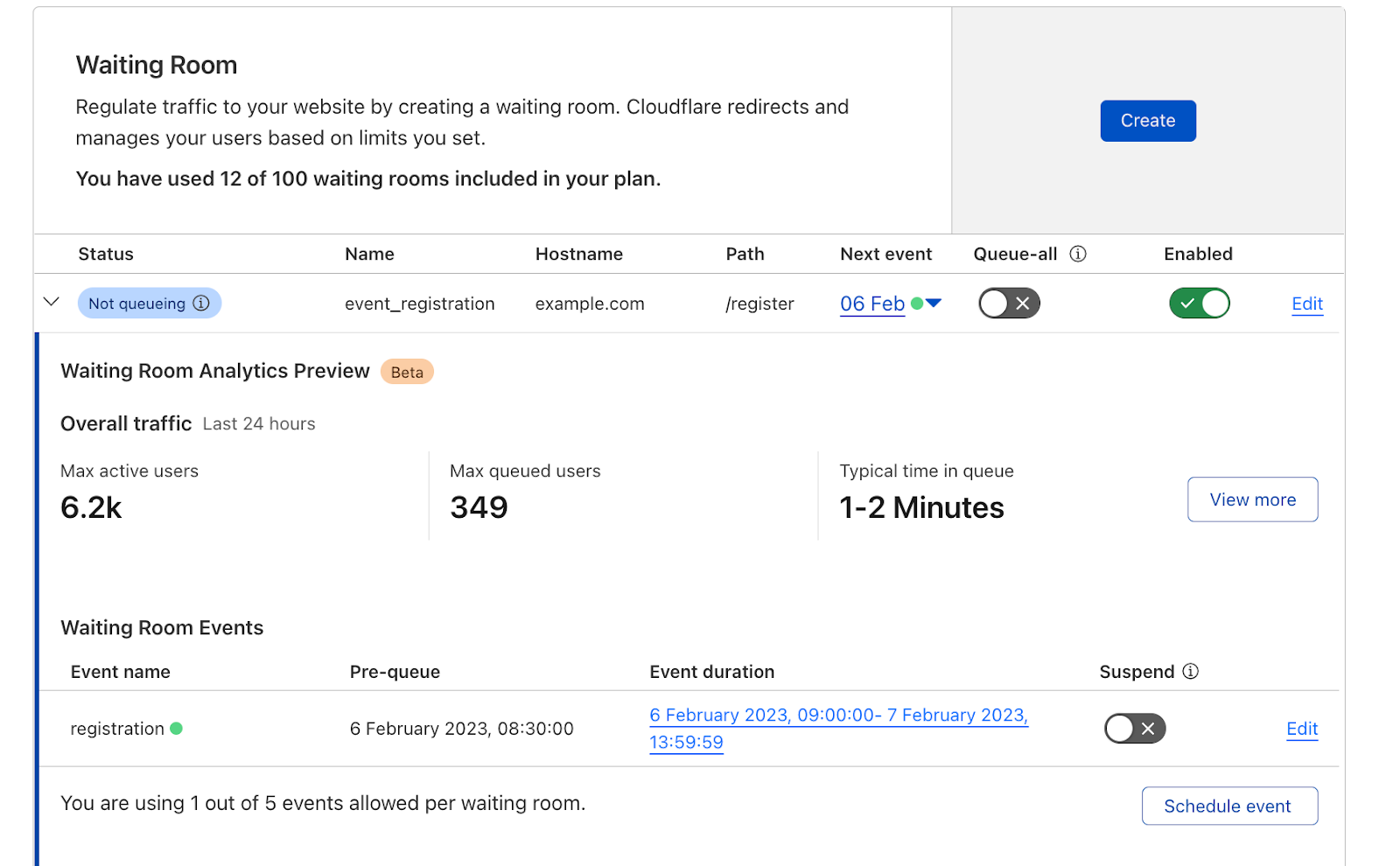
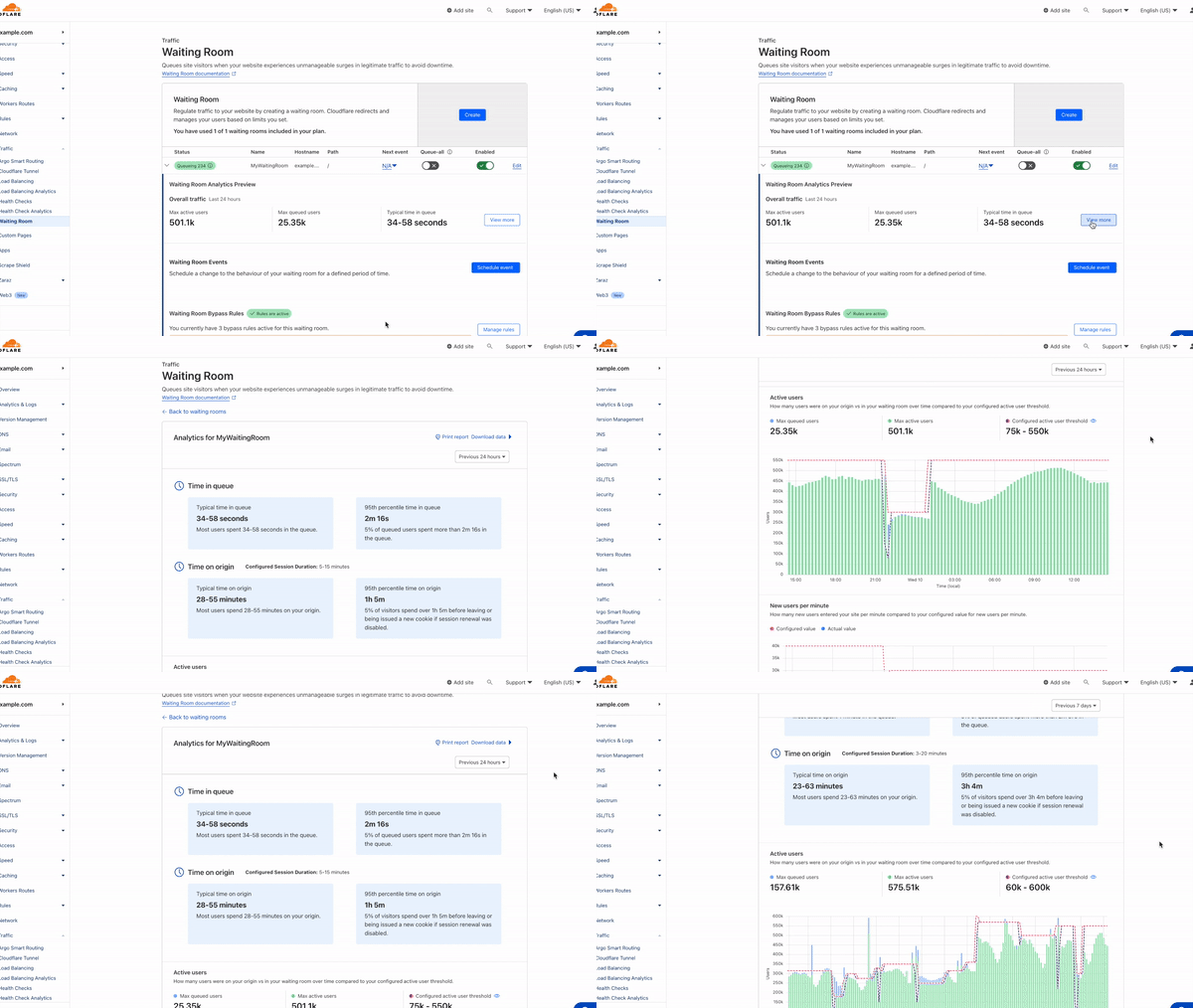
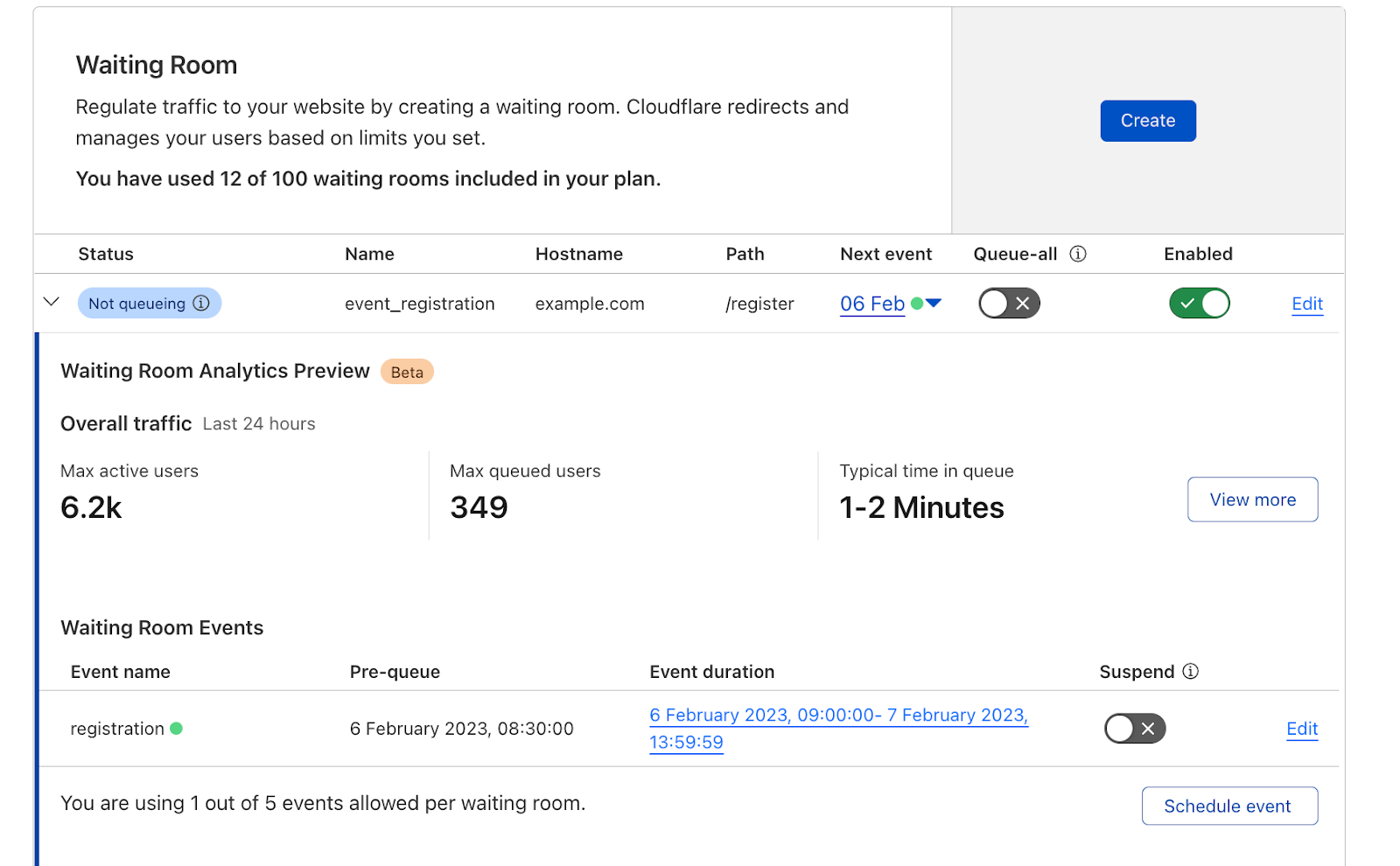
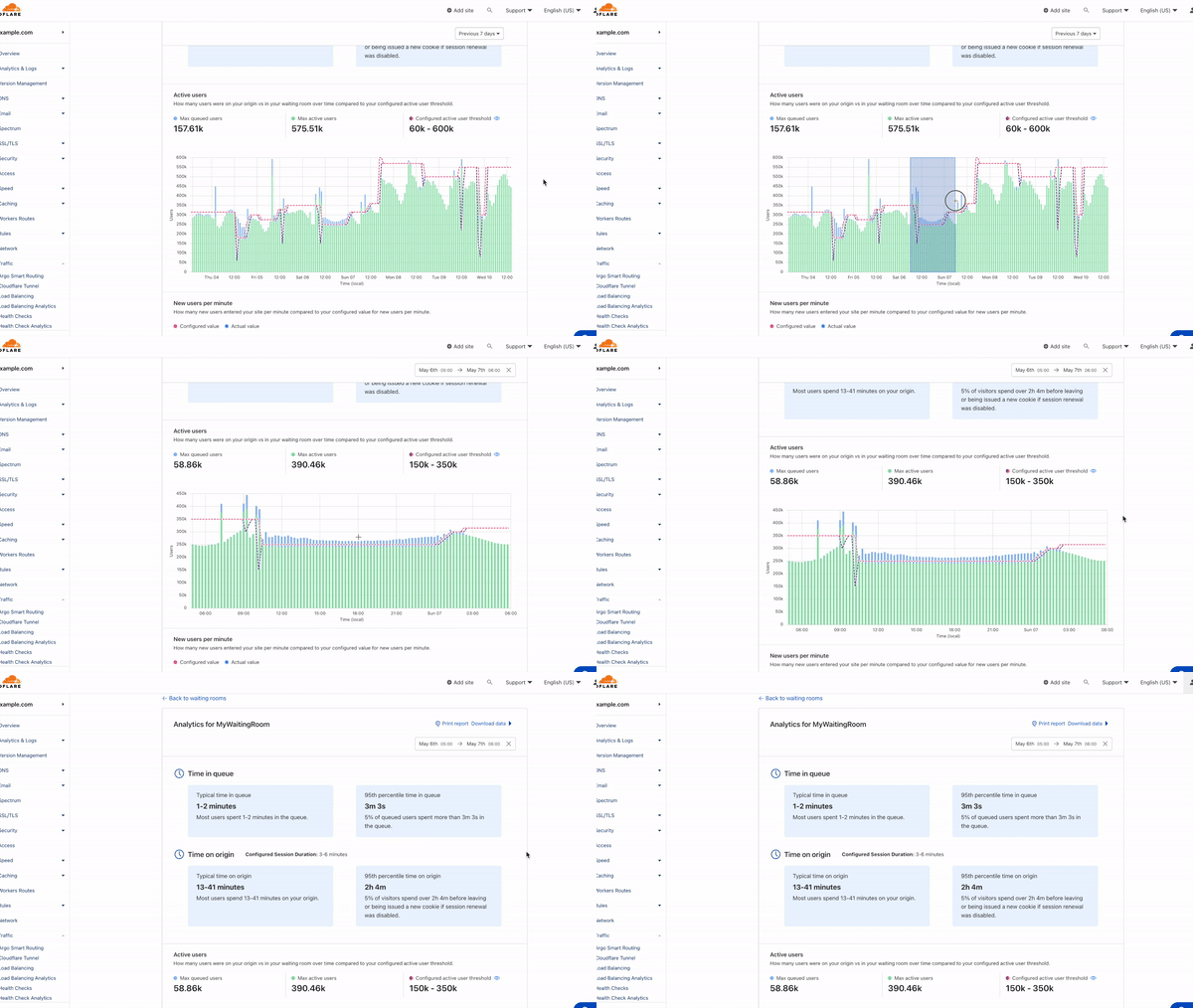
To access metrics for a waiting room, navigate to the Waiting Room dashboard, where you can find pre-built visualizations of your waiting room traffic. The dashboard offers at-a-glance metrics for the peak waiting room traffic over the last 24 hours.

Understand the impact of your waiting room’s settings with Waiting Room Analytics

To dig deeper and analyze up to 30 days of historical data, open your waiting room's analytics by selecting View more.

Understand the impact of your waiting room’s settings with Waiting Room Analytics

Alternatively, we've made it easy to hone in on analytics for a past waiting room event (within the last 30 days). You can automatically open the analytics dashboard to a past event's exact start and end time, including the pre-queueing period by selecting the blue link in the events table.

Understand the impact of your waiting room’s settings with Waiting Room Analytics

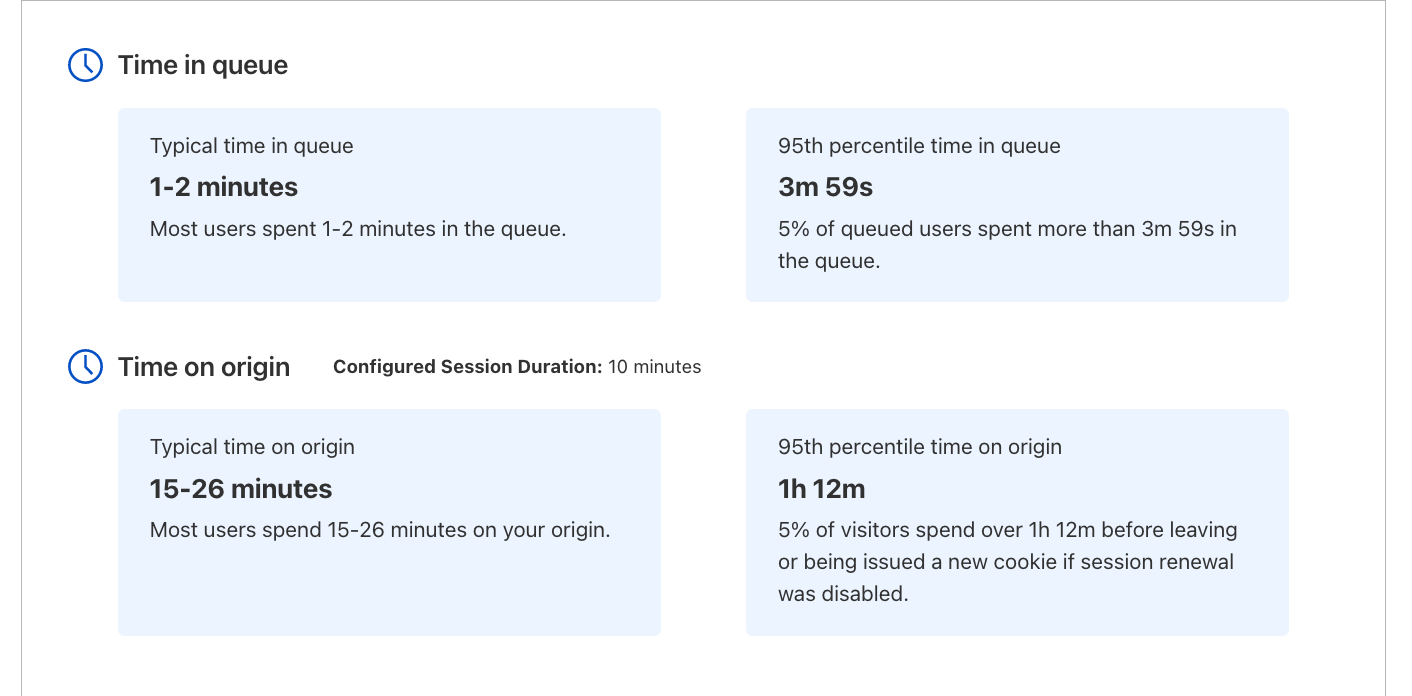
User insights

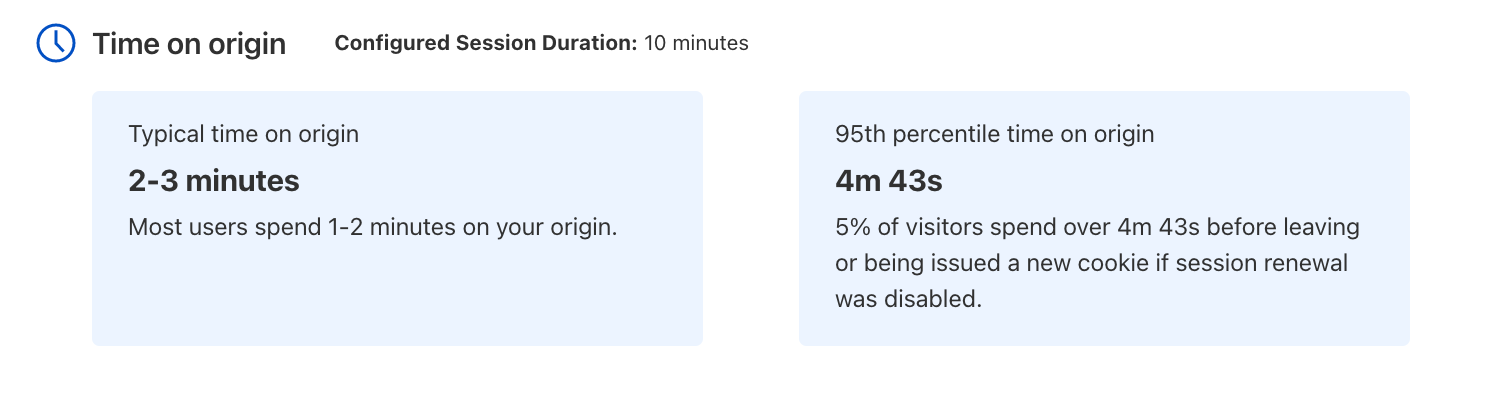
The first two metrics–Time in queue and Time on origin–provide insights into your end-users' experience and behavior.  The time in queue values help you understand how long queued users waited before accessing your site over the time period selected. The time on origin values shed light on end-user behavior by displaying an estimate of the range of time users spend on your site before leaving. If session renewal is disabled, this time will max out at session_duration and reflect the time at which users are issued a new waiting room cookie. For both metrics, we provide time for both the typical user, represented by a range of the 50th and 75th percentile of users, as well as for the top 5% of users who spend the longest in the queue or on your site.

Understand the impact of your waiting room’s settings with Waiting Room Analytics

If session renewal is disabled, keeping an eye on Time on origin values is especially important. When sessions do not renew, once a user's session has expired, they are given a new waiting room cookie upon their next request. The user will be put at the back of the line if there is active queueing. Otherwise, they will continue browsing, but their session timer will start over and your analytics will never show a Time on origin greater than your configured session duration, even if individual users are on your site longer than the session duration. If session renewal is disabled and the typical time on origin is close to your configured session duration, this could be an indicator you may need to give your users more time to complete their journey before putting them back in line.

Analyze past waiting room traffic

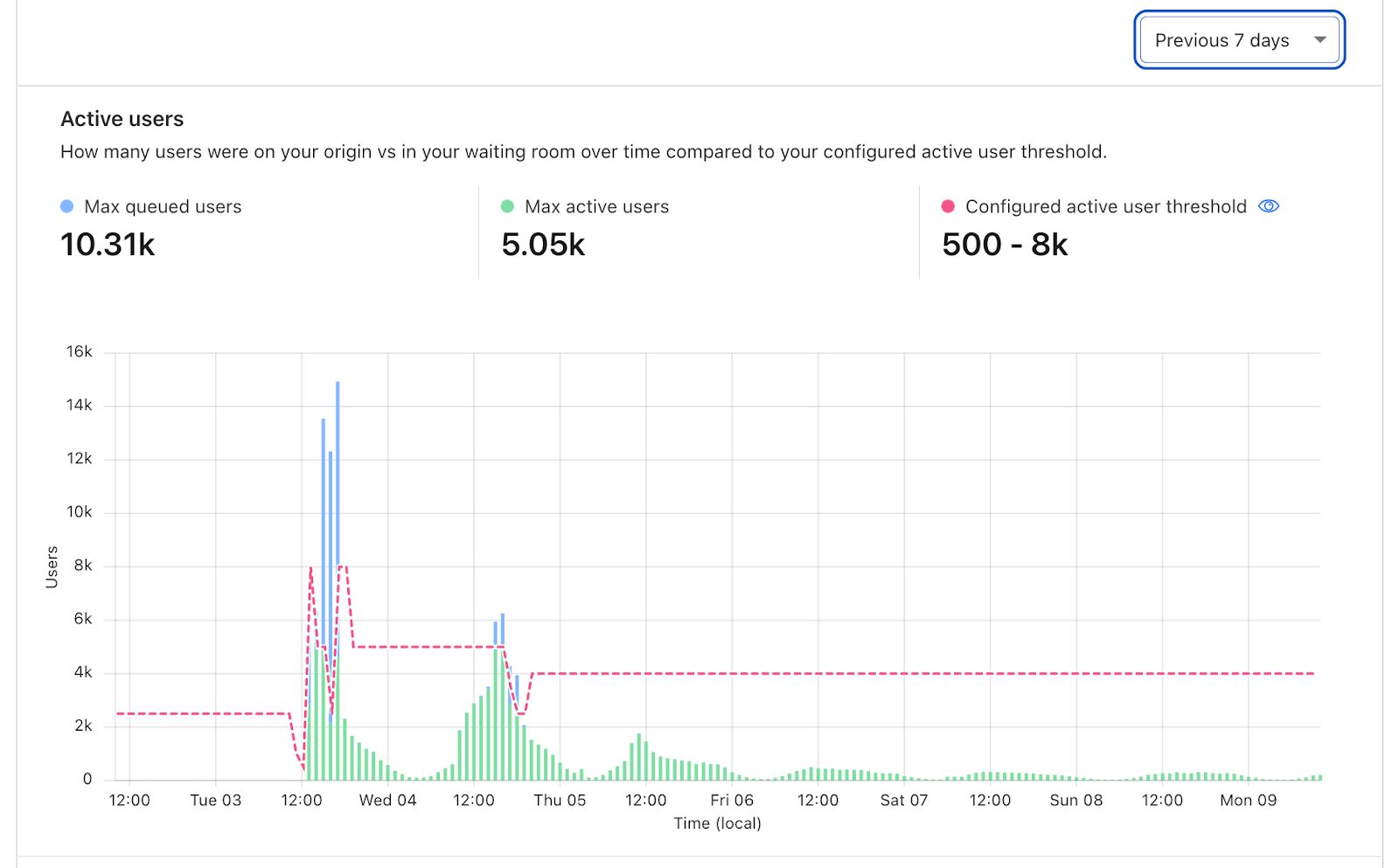
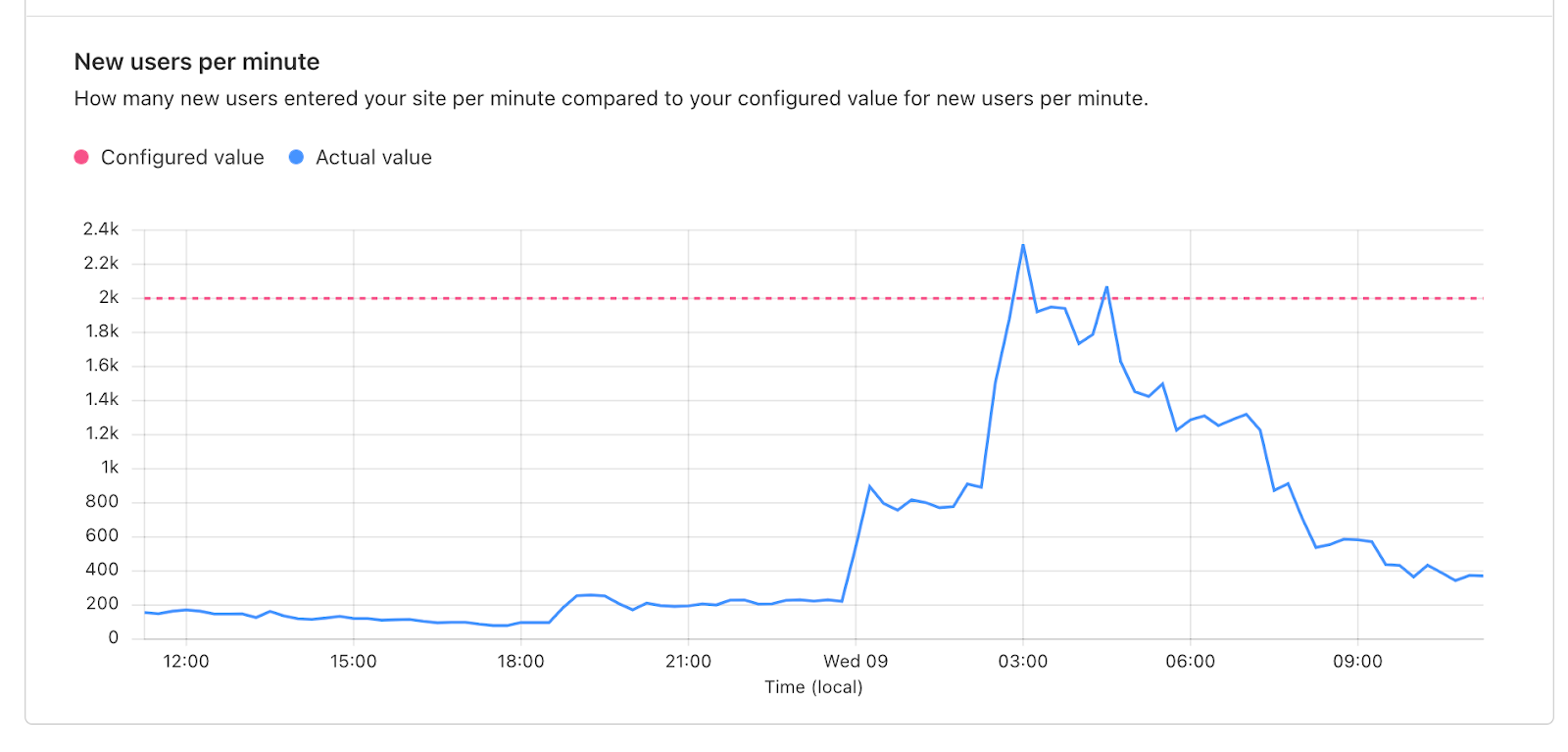
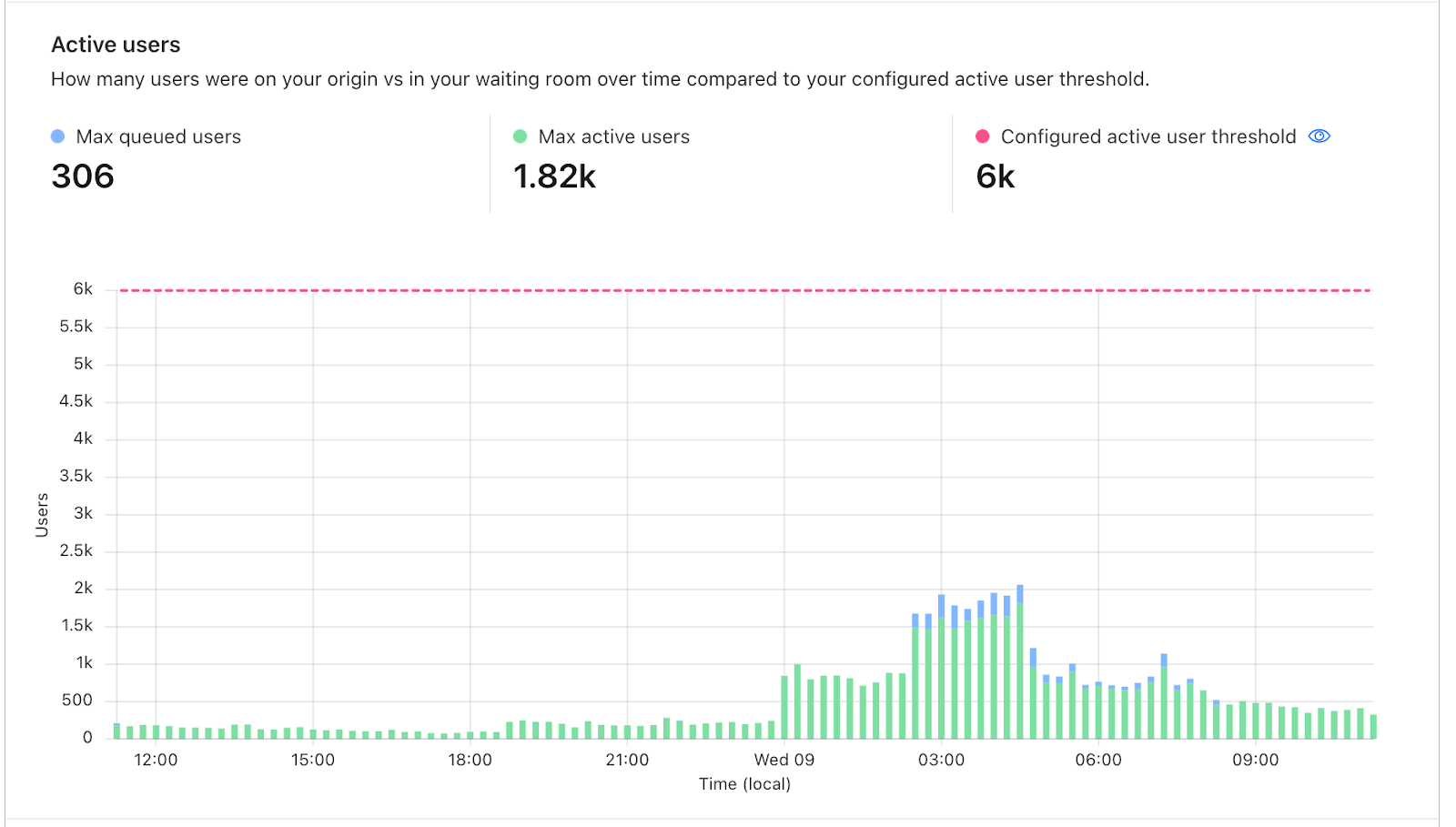
Scrolling down the page, you will find visualizations of your user traffic compared to your waiting room's target thresholds for Total active users and New users per minute. These two settings determine when your waiting room will start queueing as traffic increases. The Total active users setting controls the number of concurrent users on your site, while the New users per minute threshold restricts the flow rate of users onto your site.

Understand the impact of your waiting room’s settings with Waiting Room Analytics
To zoom in on a time period, you can drag your cursor from the left to the right of the time period you are interested in and the other graphs, in addition to the insights will update to reflect this time period.

On the Active users graph, each bar represents the maximum number of queued users stacked on top of the maximum number of users on your site at that point in time. The example below shows how the waiting room kicked in at different times with respect to the active user threshold. The total length of the bar illustrates how many total users were either on the site or waiting to enter the site at that point in time, with a clear divide between those two values where the active user threshold kicked in. Hover over any bar to display a tooltip with the exact values for the period you are interested in.

Understand the impact of your waiting room’s settings with Waiting Room Analytics
Easily identify peak traffic and when waiting room started queuing to protect your site from a traffic surge.

Below the Active users chart is the New users per minute graph, which shows the rate of users entering your application per minute compared to your configured threshold. Make sure to review this graph to identify any surges in the rate of users to your application that may have caused queueing.

Understand the impact of your waiting room’s settings with Waiting Room Analytics
The New users per minute graph helps you identify peaks in the rate of users entering your site which triggered queueing.
Understand the impact of your waiting room’s settings with Waiting Room Analytics
This graph shows queued user and active user data from the same time period as the spike seen in New users per minute graph above. When analyzing your waiting room’s metrics, be sure to review both graphs to understand which Waiting Room traffic setting triggered queueing and to what extent.

Adjusting settings with Waiting Room Analytics

By leveraging the insights provided by the analytics dashboard, you can fine-tune your waiting room settings while ensuring a safe and seamless user experience. A common concern for customers is longer than desired wait times during high traffic periods. We will walk through some guidelines for evaluating peak traffic and settings’ adjustments that could be made.

Identify peak traffic. The first step is to identify when peak traffic occurred. To do so, zoom out to 30 days or some time period inclusive of a known high traffic event. Reviewing the graph, locate a period of time where traffic peaked and use your cursor to highlight from the left to right of the peak. This will zoom in to that time period, updating all other values on the analytics page.

Evaluate wait times. Now that you have honed in on the time period of peak traffic, review the Time in queue metric to analyze if the wait times during peak traffic were acceptable. If you determine that wait times were significantly longer than you had anticipated, consider the following options to reduce wait times for your next traffic peak.

Decrease session duration when session renewal is enabled. This is a safe option as it does not increase the allowed load to your site. By decreasing this duration, you decrease the amount of time it takes for spots to open up as users go idle. This is a good option if your customer journey is typically request heavy, such as a checkout flow. For other situations, such as video streaming or long-form content viewing, this may not be a good option as users may not make frequent requests even though they are not actually idle.

Disable session renewal.  This option also does not increase the allowed load to your site. Disabling session renewal means that users will have session_duration minutes to stay on the site before being put back in the queue. This option is popular for high demand events such as product drops, where customers want to give as many users as possible a fair chance to participate and avoid inventory hoarding. When disabling session renewal, review your waiting room’s analytics to determine an appropriate session duration to set.

The Time on origin values will give you an idea of how long users need before leaving your site. In the example below, the session duration is set to 10 minutes but even the users who spend the longest only spend around 5 minutes on the site. With the session renewal disabled, this customer could reduce wait times by decreasing the session duration to 5 minutes without disruption to most users, allowing for more users to get access.

Understand the impact of your waiting room’s settings with Waiting Room Analytics

Adjust Total active users or New users per minute settings. Lastly, you can decrease wait times by increasing your waiting room’s traffic limits–Total active users or New users per minute. This is the most sure-fire way to reduce wait times but it also requires more consideration. Before increasing either limit, you will need to evaluate if it is safe to do so and make small, iterative adjustments to these limits, monitoring certain signals to ensure your origin is still able to handle the load. A few things to consider monitoring as you adjust settings are origin CPU usage and memory utilization, and increases in 5xx errors which can be reviewed in Cloudflare’s Web Analytics tab. Analyze historical traffic patterns during similar events or periods of high demand. If you observe that previous traffic surges were successfully managed without site instability or crashes, it provides a strong signal that you can consider increasing waiting room limits.

Utilize the Active user chart as well as the New users per minute chart to determine which limit is primarily responsible for triggering queuing so that you know which limit to adjust. After considering these signals and making adjustments to your waiting room’s traffic limits, closely monitor the impact of these changes using the waiting room analytics dashboard. Continuously assess the performance and stability of your site, keeping an eye on server metrics and user feedback.

How we built Waiting Room Analytics

At Cloudflare, we love to build on top of our own products. Waiting Room is built on Workers and Durable Objects. Workers have the ability to auto-scale based on the request rate. They are built using isolates enabling them to spin up hundreds or thousands of isolates within 5 milliseconds without much overhead. Every request that goes to an application behind a waiting room, goes to a Worker.

We optimized the way in which we track end users visiting the application while maintaining their position in the queue. Tracking every user individually would incur more overhead in terms of maintaining state, consuming more CPU & memory. Instead, we decided to divide the users into buckets based on the timestamp of the first request made by the end user. For example, all the users who visited a waiting room between 00:00:00 and 00:00:59 for the first time are assigned to the bucket 00:00:00. Every end user gets a unique encrypted cookie on the first request to the waiting room. The contents of the cookie keep getting updated based on the status of the users in the queue. Once the end user is accepted to the origin, we set the cookie expiry to session_duration minutes, which can be set in the dashboard, from the last request timestamp. In the cookie we track the timestamp of when the end user joined the queue which is used in the calculation of time waited in queue.

Collection of metrics in a distributed environment

Understand the impact of your waiting room’s settings with Waiting Room Analytics
a

In a distributed environment, the challenge when building out analytics is to collect data from multiple nodes and aggregate them. Each worker running at every data center sees user requests and needs to report metrics based on those to another coordinating service at every data center. The data aggregation could have been done in two ways.

i) Writing data from every worker when a request is received
In this design, every worker that receives a request is responsible for reporting the metrics. This would enable us to write the raw data to our analytics pipeline. We would not have the overhead of aggregating the data before writing. This would mean that we would write data for every request, but Waiting Room configurations are minute based and every user is put into a bucket based on the timestamp of the first request. All our configurations are minute and user based and the data written from workers is not related to time or user.

ii) Using the existing aggregation pipeline
Waiting Room is designed in such a way that we do not track every request, instead we group users into buckets based on the first time we saw them. This is tracked in the cookie that is issued to the user when they make the first request. In the current system, the data reported by the workers is sent upstream to the data center coordinator which is responsible for aggregating the data seen from all the workers for that particular data center. This aggregated data is then further processed and sent upstream to the global Durable Object which aggregates the data from all the other data centers. This data is used for making decisions whether to queue the user or to send them to the origin.

We decided to use the existing pipeline that is used for Waiting Room routing for analytics. Data aggregated this way provides more value to customers as it matches the model we use for routing decisions. Therefore, customers can see directly how changing their settings affects waiting room behavior. Also, it is an optimization in terms of space. Instead of writing analytics data per request, we are writing a pre-processed and aggregated analytics log every minute. This way the data is much less noisy.

Understand the impact of your waiting room’s settings with Waiting Room Analytics
This diagram depicts that multiple workers from different locations receive requests and talk to the data center coordinators respectively which aggregate data and report the aggregated keys upstream to the Global Durable Object. The Global Durable Objects further aggregate all the keys received from the data center coordinators to compute a global aggregate key.

Histograms

The metrics available via Cloudflare’s GraphQL API are a combination of configured values set by the customer when creating a waiting room and values that are computed based on traffic seen by a waiting room. Waiting Room aggregates data every minute for each metric based on the requests it sees. While some metrics like new users per minute, total active users are counts and can be pre-processed and aggregated with a simple summation, metrics like time on origin and total time waited in queue cannot simply be added together into a single metric.

For example, there could be users who waited in the queue for four minutes and there could be a new user who joined the queue two minutes ago. However, if we simply sum these two data points, it would not make sense because six minutes would be an incorrect representation of the total time waited in the queue. Therefore, to capture this value more accurately, we store the data in a histogram. This enables us to represent the typical case (50th percentile) and the approximate worst case (in this case 95th percentile) for that metric.

Intuitively, we decided to store time on origin and total time waited in queue into a histogram distribution so that we would be able to represent the data and calculate quantiles precisely. We used Hdr Histogram – A High Dynamic Range Histogram for recording the data in histograms. Hdr Histograms are scalable and we were able to record dynamic numbers of values with auto-resizing without inflating CPU, memory or introducing latency. The time to record a value in the Hdr Histograms range from 3-6 nanoseconds. Querying and recording values can be done in constant time. Two histogram data structures can simply be added together into a bigger histogram. Also, the histograms can be compressed and encoded/decoded into base64 strings. This enabled us to scalably pass the data structure within our internal services for further aggregation.

The memory footprint of hdr histograms is constant and depends on the size of the bucket, precision and range of the histogram. The size of the bucket we use is the default 32 bits bucket size. The precision of the histogram is set to include up to three significant digits. The histogram has a dynamic range of values enabled through the use of the auto-resize functionality. However, to ensure efficient data storage, a limit of 5,000 recorded points per minute has been imposed. Although this limit was chosen arbitrarily, it has proven to be adequate for storing data points transmitted from the workers to the Durable Objects on a minute-by-minute basis.

The requests to the website behind a Waiting Room go to a Cloudflare data center that is close to their location. Our workers from around the world record values in the histogram which is compressed and sent to the data center Durable Object periodically. The histograms from multiple workers are uncompressed and aggregated into a single histogram per data center. The resulting histogram is compressed and sent upstream to the Global Durable objects where the histograms from all data centers receiving traffic are uncompressed and aggregated. The resulting histogram is the final data structure which is used for statistical analysis. We directly query the aggregated histogram for the quantile values. The histogram objects were instantiated once at the start of the service, they were reset after every successful sync with the upstream service.

Writing data to the pipeline

The global Durable Object aggregates all the metrics, computes quantiles and sends the data to a worker which is responsible for analytics reporting. This worker reads data from Workers KV in order to get the Waiting Room configurations. All the metrics are aggregated into a single analytics message. These messages are written every minute to Clickhouse. We leveraged an internal version of Workers Analytics Engine in order to write the data. This allowed us to quickly write our logs to Clickhouse with minimum interactions with all the systems involved in the pipeline.

We write analytics events from the runtime in the form of blobs and doubles with a specific schema and the event data gets written to a Clickhouse cluster. We extract the data into a Clickhouse view and apply ABR to facilitate fast queries at any timescale. You can expand the time range to vary from 30 minutes to 30 days without any lag. ABR adaptively chooses the resolution of data based on the query. For example, it would choose a lower resolution for a long time range and vice versa. As of now, the analytics data is available in the Clickhouse table for 30 days, implying that you can not query data older than 30 days in the dashboard as well.

Sampling

Waiting Room Analytics samples the data in order to effectively run large queries while providing consistent response times. Indexing the data on Waiting Room id has enabled us to run quicker and more efficient scans, however we still need to elegantly handle unbounded data. To tackle this we use Adaptive Bit Rate which enables us to write the data at multiple resolutions (100%, 10%, 1%…) and then read the best resolution of the data. The sample rate “adapts” based on how long the query takes to run. If the query takes too long to run in 100% resolution, the next resolution is picked and so on until the first successful result. However, since we pre-process and aggregate data before writing to the pipeline, we expect 100% resolution of data on reads for shorter periods of time (up to 7 days). For a longer time range, the data will be sampled.

Get Waiting Room Analytics via GraphQL API

Lastly, to make metrics available to customers and to the Waiting Room dashboard, we exposed the analytics data available in Clickhouse via GraphQL API.

If you prefer to build your own dashboards or systems based on waiting room traffic data, then Waiting Room Analytics via GraphQL API is for you. Build your own custom dashboards using the GraphQL framework and use a GraphQL client such as GraphiQL to run queries and explore the schema.

The Waiting Room Analytics dataset can be found under the Zones Viewer as waitingRoomAnalyticsAdaptive and waitingRoomAnalyticsAdaptiveGroups. You can filter the dataset per zone, waiting_room_id and the request time period, see the dataset schema under ZoneWaitingRoomAnalyticsAdaptive. You can order the data by ascending or descending order of the metric values.

You can explore the dimensions under waitingRoomAnalyticsAdaptiveGroups that can be used to group the data based on time, Waiting Room id and so on. The "max", “min”, “avg”, “sum” functions give the maximum, minimum, average and sum values of a metric aggregated over a time period. Additionally, there is a function called "avgWeighted" that calculates the weighted average of the metric. This approach is used for metrics stored in histograms, such as the time spent on the origin and total time waited. Instead of using a simple average, the weighted average is computed to provide a more accurate representation. This approach takes into account the distribution and significance of different data points, ensuring a more precise analysis and interpretation of the metric.

For example, to evaluate the weighted average for time spent on origin, the value of total active users is used as a weight. To better illustrate this concept, let’s consider an example. Imagine there is a website behind a Waiting Room and we want to evaluate the average time spent on the origin over a certain time period, let’s say an hour. During this hour, the number of active users on the website fluctuates. At some points, there may be more users actively browsing the site while at other times the number of active users might decrease. To calculate the weighted average for the time spent on the origin, we take into account the number of total active users at each instant in time. The rationale behind this is that the more users are actively using the website, the more representative their time spent on origin becomes in relation to the overall user activity.

By incorporating the total active users as weights in the calculation, we give more importance to the time spent on the origin during periods when there are more users actively engaging with the website. This provides a more accurate representation of the average time spent on the origin, accounting for variations in user activity throughout the designated time period.

The value of new users per minute is used as a weight to compute the weighted average for total time waited in queue. This is because when we talk about the total time weighted in the queue, the value of new users per minute for that instant in time takes importance as it signifies the number of users that joined the queue and certainly went into the origin.

You can apply these aggregation functions to the list of metrics exposed under each function. However, if you just want the logs per minute for a time period, rather than the breakdown of the time period (minute, fifteen minutes, hours), you can remove the datetime dimension from the query. For a list of sample queries to get you started, refer to our dev docs.

Below is a query to calculate the average, maximum and minimum of total active users, estimated wait time, total queued users and session duration every fifteen minutes. It also calculates the weighted average of time spent in queue and time spent on origin. The query is done on the zone level. The response is obtained in a JSON format.

Following is an example query to find the weighted averages of time on origin (50th percentile) and total time waited (90th percentile) for a certain period and aggregate this data over one hour.

{
 viewer {
   zones(filter: {zoneTag: "example-zone"}) {
     waitingRoomAnalyticsAdaptiveGroups(limit: 10, filter: {datetime_geq: "2023-03-15T04:00:00Z", datetime_leq: "2023-03-15T04:45:00Z", waitingRoomId: "example-waiting-room-id"}, orderBy: [datetimeHour_ASC]) {
       avgWeighted {
         timeOnOriginP50
         totalTimeWaitedP90
       }
       dimensions {
         datetimeHour
       }
     }

Sample Response

{
  "data": {
    "viewer": {
      "zones": [
        {
          "waitingRoomAnalyticsAdaptiveGroups": [
            {
              "avgWeighted": {
                "timeOnOriginP50": 83.83,
                "totalTimeWaitedP90": 994.45
              },
              "dimensions": {
                "datetimeHour": "2023-05-24T04:00:00Z"
              }
            }
          ]
        }
      ]
    }
  },
  "errors": null
}

You can find more examples in our developer documentation.
Waiting Room Analytics is live and available to all Business and Enterprise customers and we are excited for you to explore it! Don’t have a waiting room set up? Make sure your site is always protected from unexpected traffic surges. Try out Waiting Room today!

Introducing Waiting Room Bypass Rules

Post Syndicated from Arielle Olache original https://blog.cloudflare.com/waiting-room-bypass-rules/

Introducing Waiting Room Bypass Rules

Introducing Waiting Room Bypass Rules

Leveraging the power and versatility of Cloudflare’s Ruleset Engine, Waiting Room now offers customers more fine-tuned control over their waiting room traffic. Queue only the traffic you want to with Waiting Room Bypass Rules, now available to all Enterprise customers with an Advanced Purchase of Waiting Room.

Customers depend on Waiting Room for always-on protection from unexpected and overwhelming traffic surges that would otherwise bring their site down. Waiting Room places excess users in a fully customizable virtual waiting room, admitting new visitors dynamically as spots become available on a customer’s site. Instead of throwing error pages or delivering poorly-performing site pages, Waiting Room empowers customers to take control of their end-user experience during unmanageable traffic surges.

Introducing Waiting Room Bypass Rules
Take control of your customer experience with a fully customizable virtual waiting room

Additionally, customers use Waiting Room Event Scheduling to manage user flow and ensure reliable site performance before, during, and after online events such as product restocks, seasonal sales, and ticket sales. With Event Scheduling, customers schedule changes to their waiting rooms’ settings and custom queuing page ahead of time, with options to pre-queue early arrivers and offload event traffic from their origins after the event has concluded.

As part of the simple, no-coding-necessary process for deploying a waiting room, customers specify a hostname and path combination, which defines the location of their waiting room on their site. When a site visitor makes a preliminary request to that hostname and path or any of its subpaths, they will be issued a waiting room cookie and placed in the queue if the waiting room is queuing at that time.

The hostname and path approach to defining the placement of a waiting room is intuitive and makes it easy to deploy a waiting room to a site. But, many customers needed more granular control over what traffic and parts of their site their waiting room did or did not cover under a waiting room’s configured hostname and path. Use cases for allowing specific traffic to bypass a waiting room were varied.

Examples included allowing internal administrators site access at all times, never blocking internal user agents performing operations like synthetic monitoring, not applying waiting room to specific subpaths or query strings, or queuing only traffic from certain countries. Given the diversity of our customers’ requests to exclude traffic from a waiting room’s coverage, we built a bypass feature that gave customers the versatility necessary to deploy waiting rooms aligned with their existing site architecture and use cases. With the release of Event Scheduling, Waiting Room customers could queue when they wanted to; now, we are excited to announce that customers now have more flexibility to queue who and where they want to with Waiting Room Bypass Rules.

Who gets queued is up to you

Waiting Room Bypass Rules allow customers to write expressions that define what traffic should bypass their waiting room. A waiting room will not apply to incoming requests matching conditions based on one or more available fields, like IP address, URI path, query string, and country. Bypass rules supersede all Waiting Room features; even in Queue-all mode, event pre-queuing, or any other waiting room state, traffic matching your enabled rules’ expressions will never be queued or issued a waiting room cookie. Waiting Room rules are created via the Waiting Room API or the Waiting Room dashboard using a familiar rule management interface found throughout the Cloudflare dashboard. Waiting Room rules are managed at the individual waiting room level for precise control over each waiting room’s traffic.

Introducing Waiting Room Bypass Rules
Use the familiar rule builder found throughout the Cloudflare dashboard to define which traffic should bypass your waiting room.
Introducing Waiting Room Bypass Rules
Manage bypass rules at the individual waiting room level for precise control over each waiting room’s traffic coverage.

Built with the Ruleset Engine

We love building Cloudflare products on top of Cloudflare products; we knew that the versatility we wanted to offer to our customers with regard to what traffic a waiting room should apply to would best be achieved by integrating with Cloudflare’s powerful Ruleset Engine. The Ruleset Engine provides the infrastructure for many of our highly customizable products, such as the new Origin Rules feature and our WAF Managed Rulesets, by providing a unified way to represent the concept of “rules” and an easy-to-integrate software library for consistently executing those rules. This allows all sorts of Cloudflare products to provide extremely similar rules capabilities, with the same language for defining conditions (which can grow quite complex!) and very similar APIs.

We’ve even found that some of Waiting Room’s product functionality can be best implemented on top of the Ruleset Engine; earlier this year we migrated some select core Waiting Room logic into the Ruleset Engine, implemented as rulesets that we now transparently deploy to every zone with a waiting room. This newly migrated implementation has been running for months, and the flexibility of the Ruleset Engine will make certain future Waiting Room features easier than ever to build.

The Ruleset Engine works on two major concepts: rulesets and rules. A ruleset is a list of rules that the engine executes in order. A rule consists of a condition and an action, with the action being executed if the condition evaluates to “true”.

Under the hood, when you create the first rule for a waiting room, we create a hidden ruleset attached to that waiting room. We put together a ruleset of our own which runs on every request to your zone, dispatching to your custom ruleset if a request matches the attached waiting room. This all sounds somewhat complicated, but don’t worry. You simply manage rules at the individual waiting room level, while we abstract away the complexity of the underlying rulesets.

The Waiting Room Bypass action’s core implementation is quite simple: when the condition on one of your bypass rules is true for a request, the bypass action simply clears the flag on the request that would have told the waiting room code to kick in. This way, the bypass action ensures that Waiting Room doesn’t touch your request and the request doesn’t affect your waiting room’s statistics or queuing.

Bypass rules in action

Creating a bypass rule is easy and requires no coding or application changes. Let’s walk through a couple of real-world scenarios to demonstrate how easy it is to deploy a bypass rule from the Waiting Room dashboard or API.

Set up an Administrative IP Bypass Rule via the Waiting Room Dashboard

As mentioned before, many customers wanted to ensure that their site administrators and other internal employees–which they identify by IP address–could access their site at all times, regardless of a waiting room’s queueing status. Allowing unrestricted access to specific internal employees is especially important before online events when customers pre-queue early site visitors ahead of an event’s start time. Without the ability to bypass the waiting room before the event starts, internal employees could not review their event pages in a production environment, adding friction and uncertainty to their review process. Let’s see how we can fix that with a Waiting Room bypass rule.

Before setting up your administrator bypass rule, you can create an IP list if you have more than a handful of IPs you’d like to bypass your waiting room. Then, you will need to configure a waiting room from the Waiting Room dashboard. From that waiting room’s expanded view, navigate to Manage rules, where you can create, disable, and delete rules for a waiting room.

Introducing Waiting Room Bypass Rules
Once you have created your waiting room, from that waiting room’s expanded view, select Manage rules to create Waiting Room bypass rules.

Using the rule builder, give your rule a descriptive name and build your expression. To build an expression for this example, we will select “IP Source Address” from the Field drop-down, “is in list” from the Operator drop-down, and then select the name of the IP list we created earlier.  Once we’ve built the expression, we can either save this rule as a draft and deploy it later or save the rule and deploy it now.

Introducing Waiting Room Bypass Rules
Allow site administrators to bypass your waiting room by creating a Waiting Room bypass rule via the Waiting Room dashboard.

Once saved, the rule will appear on this waiting room’s rules management page along with all other rules for this waiting room. All requests for which this rule’s expression evaluates to true will bypass the waiting room. Thus, any user with an IP address from this managed list will never be queued when this rule is enabled.

Introducing Waiting Room Bypass Rules
Enable or disabled Waiting Room rules from an individual waiting room’s rule management dashboard.

For added oversight, there are indicators on the Waiting Room dashboard that clearly signal if a waiting room has any bypass rules enabled. Now that we have deployed the admin bypass rule, we can see from the Waiting Room table that there is an active rule for this waiting room.

Introducing Waiting Room Bypass Rules
Easily glean which waiting rooms have bypass rules active from the Waiting Room table.

Bypass rules via the Waiting Room API – path bypass example

Another common customer request now achievable using Waiting Room Bypass Rules is path exclusions. As mentioned previously, a waiting room applies to all requests hitting the hostname and path combination of the configured waiting room and any URLs under that path. For many Waiting Room customers, there were specific URLs, paths, or query strings that they did not want a waiting room to apply to under their configured hostname and path. There are various reasons why a customer would want to make exceptions like this but let’s consider the following use case to illustrate the utility of bypassing specific parts of a site or application.

Consider a movie ticketing platform that wants to protect its ticketing web application from purchasing surges due to blockbuster releases. They create a waiting room to cover their ticketing web app by placing it at ticketing.example.com/. After tickets are purchased, the ticketing platform sends movie-goers an email or a text which links back to a URL under ticketing.example.com/. The URL the user receives via text or email is: ticketing.example.com/myaccount/mobiletickets/userverified?ticketid=<ticketID>

This link opens a page in the user’s mobile browser containing a QR code that the movie theater will scan in place of a physical ticket. They want to ensure that the waiting room does not apply to customers trying to open their mobile tickets.

To do this, they would create the following bypass rule via the Waiting Room API as follows:

With a waiting room already configured at ticketing.example.com/, use the following API call to create a bypass rule:

curl -X POST \"https://api.cloudflare.com/client/v4/zones/<ZONE_ID>/waiting_rooms/<ROOM_ID>/rules" \-H "Authorization: Bearer <API_TOKEN>" \
-d '{    
"description": "ticket holders bypass waiting room",    
"expression": "ends_with(http.request.uri.path, \"/userverified\")  
 "action": "bypass_waiting_room"
}'

Let’s break down this call. First, there is the URL, which needs to be populated with the zone id and the waiting room id. Then we pass our API token in the Authorization header. This call will create a new Waiting Room rule that will be added after any existing rules for this waiting room.

Within the body of the call, first define an optional description parameter. Give the rule an optional description to indicate the purpose of the rule for easy reference later.

"description": "ticket holders bypass waiting room"

Next, write the expression, which defines the exact traffic which should bypass the waiting room. In this example, customers using the direct link sent via text should bypass the waiting room. These direct links end with the path userverified so create an ends_with condition.

"expression": "ends_with(http.request.uri.path, \"/userverified\")

When creating a bypass rule for path, query string, or URLs, make sure to include in the expression exclusions for subrequests that load assets on the pages covered by a waiting room. Let’s assume in this example we are hosting assets on a different subdomain not covered by the waiting room. Therefore, we do not need to include these subrequests in the expression.

Lastly, set the action parameter to bypass_waiting_room to indicate that this traffic should bypass the waiting room and deploy the rule. This customer’s waiting room now covers precisely the parts of their application they want to cover. Their waiting room will protect their web application from ticket purchasing traffic while ensuring that customers who need to display their mobile tickets at the movie theater can do so reliably without being placed in a Waiting Room queue.

With the addition of Waiting Room Bypass Rules, customers now have more flexibility to deploy waiting rooms on their terms, to cover exactly the traffic they want. For more on Waiting Room Bypass Rules and Waiting Room, check out our developer documentation.

Not using Cloudflare yet? Start now with our Business plan which includes one basic Waiting Room or contact us about our advanced Waiting Room with Event Scheduling, Customized Templates, and Waiting Room Bypass Rules available on our Enterprise plan.

Waiting Room Event Scheduling protects your site during online events

Post Syndicated from Arielle Olache original https://blog.cloudflare.com/waiting-room-event-scheduling/

Waiting Room Event Scheduling protects your site during online events

Waiting Room Event Scheduling protects your site during online events

You’ve got big plans for your ecommerce strategy in the form of online events — seasonal sales, open registration periods, product drops, ticket sales, and more. With all the hype you’ve generated, you’ll get a lot of site traffic, and that’s a good thing! With Waiting Room Event Scheduling, you can protect your servers from being overloaded during your event while delivering a user experience that is unique to the occasion and consistent with your brand. Available now to enterprise customers with an advanced Waiting Room subscription, Event Scheduling allows you to plan changes to your waiting room’s settings and custom queueing page ahead of time, ensuring flawless execution of your online event.

More than always-on protection

We launched Waiting Room to protect our customers’ servers during traffic spikes. Waiting Room sends excess visitors to a virtual queue during traffic surges, letting visitors in dynamically as spots become available on your site. By automatically queuing traffic that exceeds your site’s capacity, Waiting Room protects your origin servers and your customer experience. Additionally, the Waiting Room’s queuing page can be customized to match the look and feel of your site so that your users never feel as though they have left your application, ensuring a seamless customer experience.

While many of our customers use Waiting Room as an always-on failsafe against potential traffic spikes, some customers use Waiting Room to manage traffic during time-boxed online events. While these events can undoubtedly result in traffic spikes that Waiting Room safeguards against, they present unique challenges for our customers.

In the lifecycle of an online event, various stages of the event generally require the settings of a waiting room to be updated. While each customer’s event requirements are unique, consider the following customer use cases. To prevent a mad rush to a landing page that could overwhelm their site ahead of an event, some customers want to queue early arrivers in the days or hours leading up to the event. During an event, some customers want to impose stricter limits on how long visitors have to browse and complete transactions to ensure that as many visitors as possible get a fair chance to partake. After an event has concluded, many customers want to offload event traffic, blocking access to the event pages while informing users that the event has ended.

For each of these scenarios, our customers want to communicate expectations to their users and customize the look and feel of their queuing page to ensure a seamless, on-brand user experience. Combine all the use cases in the example above into one timeline, and you’ve got at least three event stages that would require waiting room settings and queuing pages to be updated, all with perfect timing.

Waiting Room Event Scheduling protects your site during online events

While these use cases were technically feasible with Waiting Room, they required on-the-spot updates to its configuration settings. This strategy was not ideal or practical when customers needed to be absolutely sure their waiting room would update in lockstep with the timeline of their event. In short, many customers needed to schedule changes to the behavior of their waiting room ahead of time. We built Event Scheduling to give our customers flexibility and control over when and how their waiting room settings change, ensuring that these changes will happen automatically as planned.

Introducing Waiting Room Event Scheduling

With Event Scheduling, you can schedule cascading changes to your waiting room ahead of time as discrete events. For each waiting room event, you can customize traffic thresholds, session duration, queuing method, and the content and styling of your queuing page. Refer to the Create Event API documentation, for a complete list of customizable event settings.

New Queuing Methods

Giving our customers the ability to schedule changes to a waiting room’s settings is a game-changer for customers with event-based Waiting Room requirements, but we didn’t stop there. We’ve also added two new queueing methods — Reject and Passthrough — to give our customers more options for controlling user flow before, during and after their online events.

In the example where customers wanted to offload site traffic after an event, the Reject queuing method would do just that! A waiting room with the Reject queuing method configured will offload traffic from your site, presenting users with a static, fully customizable HTML page. Conversely, the Passthrough queuing method allows all visitors unrestricted access to your site. Unlike simply disabling your waiting room to achieve this, Passthrough has the advantage of being scheduled to turn on or off ahead of time and providing user traffic stats through the Waiting Room status endpoint.

Waiting Room Event Scheduling protects your site during online events

If you prefer to have the waiting room in a completely passive state, having the waiting room on and configured with the Passthrough queueing method allows you to turn on Queue All quickly. Queue All places all new site visitors in a queue, which is a life-saver in the case of unexpected site downtime or any other crisis. Before deactivating Queue All, you can see how many users are waiting to enter your site. Queue All also overrides any active waiting room event, giving you authoritative, fast control in an emergency.

Waiting Room Event Scheduling protects your site during online events

Event Pre-queuing

As part of an event’s configuration, you can also enable a pre-queue, a virtual holding area for visitors that arrive at your event before its start time. Pre-queues add extra protection against traffic spikes that can cause your site to crash.

To illustrate how, imagine your customer is a devoted fan trying to get tickets to their favorite band’s upcoming concert. Ticket sales open in one hour, so they visit your sales page about ten minutes before sales open. There is a static landing page on your site where the ticket sales page will be. The fan starts refreshing the page in the minutes leading up to the start time, hoping to get access as soon as sales open. Now multiply that one hopeful concert-goer by many thousands of fans, and before your sale has even begun, your site is already overwhelmed and at risk of crashing. Having a pre-queue in place protects your site from this type of user activity that has the potential to overwhelm your site at a time when stakes are very high for your brand. And with the ability to fully customize the pre-queuing page, you can still generate the same excitement you would have with your event’s landing page.

Taking it a step further, you can elect to shuffle the pre-queue, randomly assigning users who reach your application during the pre-queue period a place in line when the event starts. If your event uses the First in First Out queuing method, randomizing your pre-queue can help promote fairness, especially if your pre-queuing period spans many time zones. Like the Random queuing method, implementing a randomized pre-queue neutralizes the advantage customers in earlier time zones have to grab a place in line ahead of the event’s start time. Ultimately, fairness for your event is unique to you and your customers’ perspectives and needs. With the order of entry options available for both the pre-queue and overflow queuing during your event, you have control over managing fairness of entry to align with your unique requirements.

Creating a waiting room event

Similarly to configuring a waiting room, scheduling events with Waiting Room is incredibly easy and requires no coding or application changes. You will first need to have a baseline waiting room configured. Then, you can schedule events for this waiting room from the Waiting Room dashboard. In the event creation workflow, you’ll indicate when you would like the event to start and end and configure an optional pre-queue.

Waiting Room Event Scheduling protects your site during online events

Unless specified otherwise, your event will always inherit the configuration settings of its associated waiting room. That way, you only need to update the waiting room settings that you would like to change for the duration of the event. You can optionally create a queuing page for your users that is unique to the event and preview what your event queuing page will look like in different queuing states and browsers, ensuring that your end-user’s experience doesn’t result in garbled CSS or broken looking pages!

Before saving your event, you will be able to review your waiting room and event settings side by side, making it easy to verify how the behavior of your waiting room will change for the duration of the event.

Waiting Room Event Scheduling protects your site during online events

Once created, your event will appear in the Waiting Room dashboard nested under its associated waiting room. The date of each waiting room’s next event is indicated in the dashboard’s default view so that you can tell at a glance if any waiting room’s settings may change due to an upcoming event. You can expand each waiting room’s row to list upcoming events and associated durations. Additionally, if an event is live, a green dot will appear next to this date, adding extra assurance that it has kicked in.

Waiting Room Event Scheduling protects your site during online events

Event Scheduling in action

Tying it all together, let’s walk through a real-world scenario to demonstrate the versatility and practicality of Event Scheduling. In this example, we have a major women’s fashion retailer, let’s call them Shopflare, with an upcoming flash sale. A flash sale is an online sales event that is different from a regular sale in that it lasts for a brief time and offers substantial discounts or limited stock. Often, retailers target a specific audience using marketing campaigns in the days leading up to a flash sale.

In our example, Shopflare’s marketing team plans to send an email campaign to a set of target customers, promoting their Spring Flash Sale, where they will be offering free shipping and 40% off on their freshest spring arrivals for one day only! How could Shopflare use Waiting Room and Event Scheduling to help this sales event go off without a hitch?

Preparing for the flash sale

One week before the sale, Shopflare’s web team creates a landing page with a countdown for their spring flash sale at example.com/sales/spring_flash_sale. They place a waiting room at this URL with a First In First Out queuing method and their desired traffic thresholds to allow traffic while ensuring their site remains performant. They then send an email campaign to their target audience directly linking to the sale’s landing page. With their baseline waiting room in place, early traffic to the URL will not overwhelm their site. Shopflare’s team also prepares for the upcoming sale by scheduling two cascading waiting room events ahead of time. Let’s review Shopflare’s flash sale requirements related to Waiting Room and review the steps they would take with Event Scheduling to satisfy them.

Pre-queueing and event overflow queuing

A few hours before the sale starts, Shopflare wants to allow shoppers to start “lining up” to secure a spot ahead of those who arrive after the event start time. They want to create a lottery for these early arrivers, randomly assigning them a place in line when the sale starts to mitigate the advantage that customers from earlier time zones have to secure a spot in line. To do this, they would create an event for the waiting room they have already configured.

Waiting Room Event Scheduling protects your site during online events

The event creation workflow consists of four main steps: Details, Settings, Customization, and Review. On the Details page of the event creation workflow, they would enter their sale start and end times, set the start time of the pre-queue and enable “Shuffle at Event Start” to create a randomized pre-queue.

Waiting Room Event Scheduling protects your site during online events

While the sale is in progress, Shopflare wants an overflow queue to protect their site from being overwhelmed by traffic in excess of their waiting room limits, letting these users in First in First Out when spots open up on their site. Since their underlying waiting room is already configured with the traffic thresholds they want to enforce for the duration of the event, they would simply leave the Settings page of the event creation workflow unchanged and proceed to Customization.

Waiting Room Event Scheduling protects your site during online events

On the Customization step, Shopflare will create a custom queuing experience for their sale by uploading a custom HTML template that contains the HTML for both their pre-queueing page and their overflow queue.

Waiting Room Event Scheduling protects your site during online events

Shopflare wants their pre-queuing page to get shoppers excited about the beginning of the sale. They ensure it is branded and unique to the flash sale while setting clear expectations for shoppers. For their overflow queue, they want the same look and feel of their pre-queueing page, with updated messaging that gives shoppers an estimated wait time and explains the reason for queuing. Check out the two sample queuing pages below to see how they create a unique and informative experience for their queued customers in both the pre-queue and overflow queue.

Waiting Room Event Scheduling protects your site during online events

Sale conclusion

Once the sale has ended, Shopflare wants to allow active shoppers a five-minute grace period to complete their purchases without admitting any more new visitors. For 48 hours post-sale, they would like to present all visitors with a static page letting them know the sale has concluded while providing a redirect link back to their homepage. To achieve this, Shopflare would create another event for the baseline waiting room that starts when the previous event ends without a pre-queue enabled.

Waiting Room Event Scheduling protects your site during online events

To offload all new site traffic after the sale has ended while giving active shoppers a five-minute grace period, from the Settings page of the event creation workflow, they would set session duration to five minutes, disable session renewal and select the Reject All queuing method.

Waiting Room Event Scheduling protects your site during online events

Once again, on the Customization tab, they would elect to override the underlying waiting room template with a custom event template and upload their custom Reject page HTML. They would then Review and save their event and it will appear along with their previously created event in the Waiting Room dashboard.

Waiting Room Event Scheduling protects your site during online events

And that’s it! With their waiting room events in place, Shopflare can rest assured that their site will be protected and that their customers have an on-brand and transparent shopping experience on the big day. Each customer and online event is unique. However, you choose to manage your user traffic for your online event, Event Scheduling for Cloudflare Waiting Rooms offers the options necessary to deliver a stellar and fair user experience while protecting your application during your online event. We can’t wait to support you in your next online event!

For more on Event Scheduling and Waiting Room, check out our developer documentation.


We protect entire corporate networks, help customers build Internet-scale applications efficiently, accelerate any website or Internet application, ward off DDoS attacks, keep hackers at bay, and can help you on your journey to Zero Trust.

Visit 1.1.1.1 from any device to get started with our free app that makes your Internet faster and safer.To learn more about our mission to help build a better Internet, start here. If you’re looking for a new career direction, check out our open positions.