All posts by Charishma Makineni

Build cross-account streaming pipelines with the Amazon Kinesis Producer Library and Kinesis Client Library

Post Syndicated from Charishma Makineni original https://aws.amazon.com/blogs/big-data/build-cross-account-streaming-pipelines-with-the-amazon-kinesis-producer-library-and-kinesis-client-library/

Organizations use real-time streaming to act on data the moment it arrives. They detect fraud, personalize customer experiences, and respond to infrastructure events, all within milliseconds. Amazon Kinesis Data Streams ingests and processes millions of records per second with sub-second latency. With multi-account deployment, you can enforce strict security boundaries, satisfy regulatory requirements, and contain scope using Amazon Kinesis Data Streams. This approach still delivers the high-throughput performance that streaming pipelines require. Realizing these benefits, however, requires configuring producers and consumers to operate across account boundaries. This involves coordinating AWS Identity and Access Management (IAM) policies, encryption keys, and monitoring across accounts, which can extend delivery timelines.

This post addresses that complexity directly. We first examine the common architectural patterns for producing and consuming data from Amazon Kinesis Data Streams across multiple AWS accounts. This post has a detailed walkthrough of the most isolated configuration, in which the producer, the stream, and the consumer each reside in a separate AWS account. This illustrates the best practices for enterprise-scale streaming with maximum security isolation.

Amazon Kinesis Data Streams integrates directly with services such as AWS Lambda, Amazon Data Firehose, and Amazon Managed Service for Apache Flink. Granting cross-account access to other service is usually done through Kinesis resource policies. However, many enterprise workloads run on custom applications. Two open source libraries let these applications produce and consume streams:

Amazon Kinesis Producer Library (KPL) – Writes records to a Kinesis data stream at high throughput. KPL aggregates multiple user records into a single Kinesis record to maximize shard utilization. It retries failed records with exponential backoff. It also publishes per-instance Amazon CloudWatch metrics for operational visibility.

Kinesis Client Library (KCL) – Consumes and processes records from a Kinesis data stream. KCL 3.5 discovers shards automatically and coordinates leases through Amazon DynamoDB. It checkpoints progress so that a failed worker resumes from the last saved position. It performs graceful lease handover during resharding. It also balances shard assignments across workers to distribute load evenly.

Both libraries support Java. KCL also supports other languages through the MultiLangDaemon. This walkthrough uses both libraries.

Challenges enterprises face with multi-account streaming

Large enterprises commonly encounter the following challenges when building cross-account streaming architectures:

  • Account boundary enforcement: Producers (app teams) and consumers (analytics teams) sit in separate accounts for isolation and cost attribution. Access is denied by default, so each path is granted explicitly. The producer needs write access to a stream it does not own, the consumer needs read access to that foreign stream, and encrypted streams add AWS Key Management Service (AWS KMS) key access on both sides.
  • Cross-account access has policy complexity and requires coordinating three policies across accounts: a resource-based policy on the stream, identity-based policies on producers and consumers, and AWS KMS key sharing for encrypted streams.
  • Encryption across boundaries: Streams encrypted with AWS managed keys cannot be shared cross-account. Customer managed AWS KMS keys are required.
  • Monitoring across accounts: Amazon CloudWatch metrics for producer throughput, stream utilization, and consumer lag live in different accounts, requiring cross-account observability.

Cross-account deployment patterns

The following table illustrates common permutations of KPL, Kinesis data stream, and KCL placement across accounts:

Pattern KPL (Producer) Kinesis data stream KCL (Consumer)
All-in-one account Account A Account A Account A
Cross-account Consumer Account A Account A Account B
Cross-account Producer Account A Account B Account B
Full separation Account A Account B Account C

Each pattern requires specific IAM configurations. The full-separation pattern (Account A to Account B to Account C) demonstrates the most complex scenario and is what we walk through in the following sections.

Solution architecture

Our reference implementation deploys three AWS accounts:

  • Account A (Producer): Runs the KPL application on Amazon Elastic Compute Cloud (Amazon EC2). Assumes a cross-account IAM role in Account B to write records.
  • Account B (Stream): Owns the Kinesis data stream. Hosts a cross-account IAM role for the producer (Account A) and a resource-based policy granting read access to the consumer (Account C). Also pre-registers an Enhanced Fan-Out consumer shared with Account C through a consumer resource policy. The stream is encrypted with a customer managed AWS KMS key shared with both accounts.
  • Account C (Consumer): Runs the KCL 3.5 application with its own DynamoDB lease table and CloudWatch metrics. It reads the cross-account stream directly through a resource-based policy (no role assumption). The policy authorizes GetRecords, GetShardIterator, DescribeStream, and ListShards. Enhanced Fan-Out (EFO) is supported for dedicated 2 MB/s per-shard throughput and ~70 ms latency. It uses SubscribeToShard, which must be authorized separately, and Account B must pre-register the EFO consumer and share the consumer ARN.

How the cross-account access works

Producer path (Account A to B):

  1. The KPL app runs with KPLProducerRole (Account A EC2 instance profile).
  2. At startup it calls sts:AssumeRole on KinesisProducerCrossAccountRole in Account B (with external ID).
  3. The assumed temporary credentials are used for Kinesis PutRecords calls.
  4. CloudWatch metrics are published to Account A using local instance profile credentials.

Consumer path (Account C to B):

  1. The KCL app runs with KCLConsumerRole (Account C EC2 instance profile).
  2. It calls Kinesis GetRecords using its local credentials (KCLConsumerRole).
  3. The stream’s resource-based policy in Account B authorizes the request.
  4. DynamoDB lease tables and CloudWatch metrics use the local KCLConsumerRole credentials (Account C).

The following figure shows how cross-account access works.
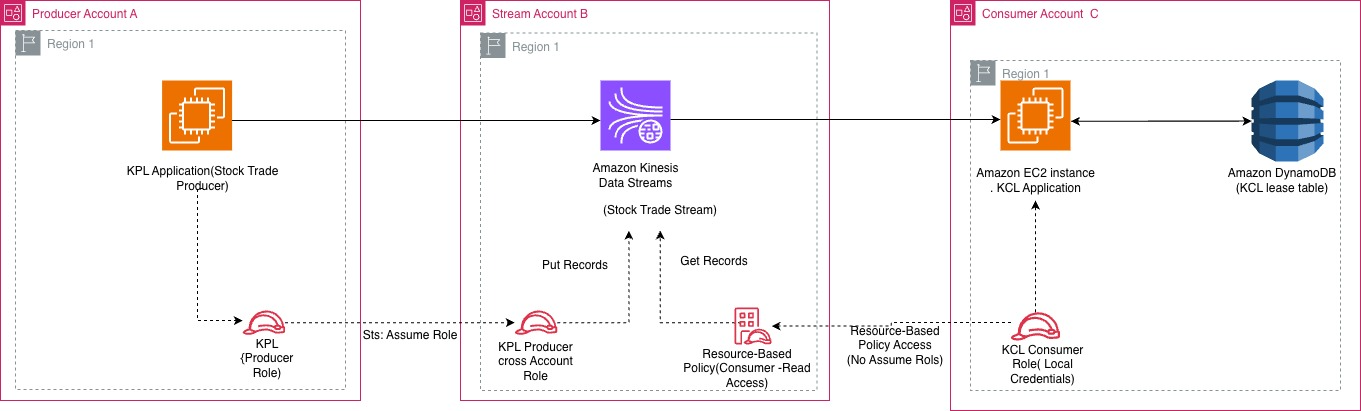
Architecture diagram showing the producer in Account A assuming a role into the Kinesis data stream in Account B, and the consumer in Account C reading through a resource-based policy, with a shared customer managed AWS KMS key

Figure 1: Cross-account streaming architecture across the producer, stream, and consumer accounts

Deployment walkthrough

The solution is deployed using AWS CloudFormation templates across three accounts. Clone the repository from GitHub and follow these steps:

Prerequisites

  1. Three AWS accounts (Producer, Stream, Consumer) with AWS Command Line Interface (AWS CLI) configured.
  2. AWS CLI v2 installed with named profiles for each account.
  3. Java 11+ and Maven installed (for building KPL and KCL applications).
  4. Clone the repository: git clone https://github.com/aws-samples/sample-kinesis-cross-account-kpl-kcl.git.

Step 1: Deploy the stream stack (Account B: Stream Account)

Deploy the CloudFormation template that creates the Kinesis data stream, customer managed AWS KMS key, cross-account producer role, resource-based consumer policy, and pre-registered EFO consumer. Navigate to the cloudformation/ directory.

  1. Deploy:
    aws cloudformation deploy \
      --template-file cloudformation/stream-account-stack.yaml \
      --stack-name kinesis-cross-account-stream \
      --parameter-overrides \
      ProducerAccountId=<ACCOUNT_A_ID> \
      ConsumerAccountId=<ACCOUNT_C_ID> \
      --capabilities CAPABILITY_NAMED_IAM \
      --profile <account-b-profile>

  2. Note the stack outputs: StreamArn, KMSKeyArn, ProducerCrossAccountRoleArn, and EFOConsumerArn. These are needed for the next steps.

The following screenshot shows the CloudFormation output for the deployed stream stack.
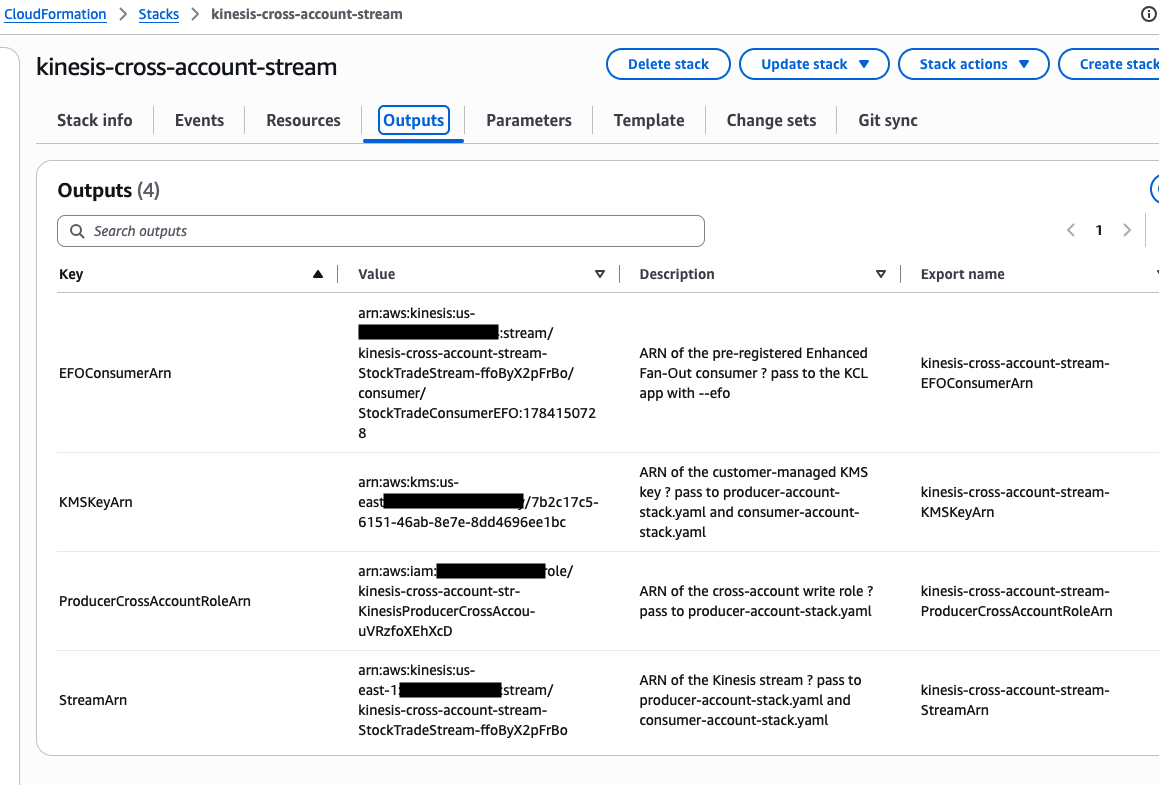
CloudFormation console showing the stream stack outputs, including StreamArn, KMSKeyArn, ProducerCrossAccountRoleArn, and EFOConsumerArn

Figure 2: CloudFormation outputs for the stream stack

Step 2: Deploy the producer stack (Account A: Producer Account)

The KPL handles the following for your producer application:

  • Aggregation – Packs multiple user records into one Kinesis record (up to 1 MB) to maximize shard utilization.
  • Retries – Retries failed puts with exponential backoff to absorb transient throttling.
  • Rate limiting – Tracks shard limits and adjusts send rates to prevent ProvisionedThroughputExceededException.
  • Metrics – Publishes per-instance CloudWatch metrics (buffering time, record age, errors).

Deploy the CloudFormation template that creates the KPL application infrastructure and cross-account IAM role:

  1. Deploy:
    aws cloudformation deploy \
      --template-file cloudformation/producer-account-stack.yaml \
      --stack-name kinesis-cross-account-producer \
      --parameter-overrides \
      ProducerCrossAccountRoleArn=<ProducerCrossAccountRoleArn from Step 1> \
      StreamArn=<StreamArn from Step 1> \
      KMSKeyArn=<KMSKeyArn from Step 1> \
      --capabilities CAPABILITY_NAMED_IAM \
      --profile <account-a-profile>

  2. Connect to the EC2 instance through AWS Systems Manager, clone the repository, then build and run.

The following screenshot shows the output for the producer CloudFormation stack.
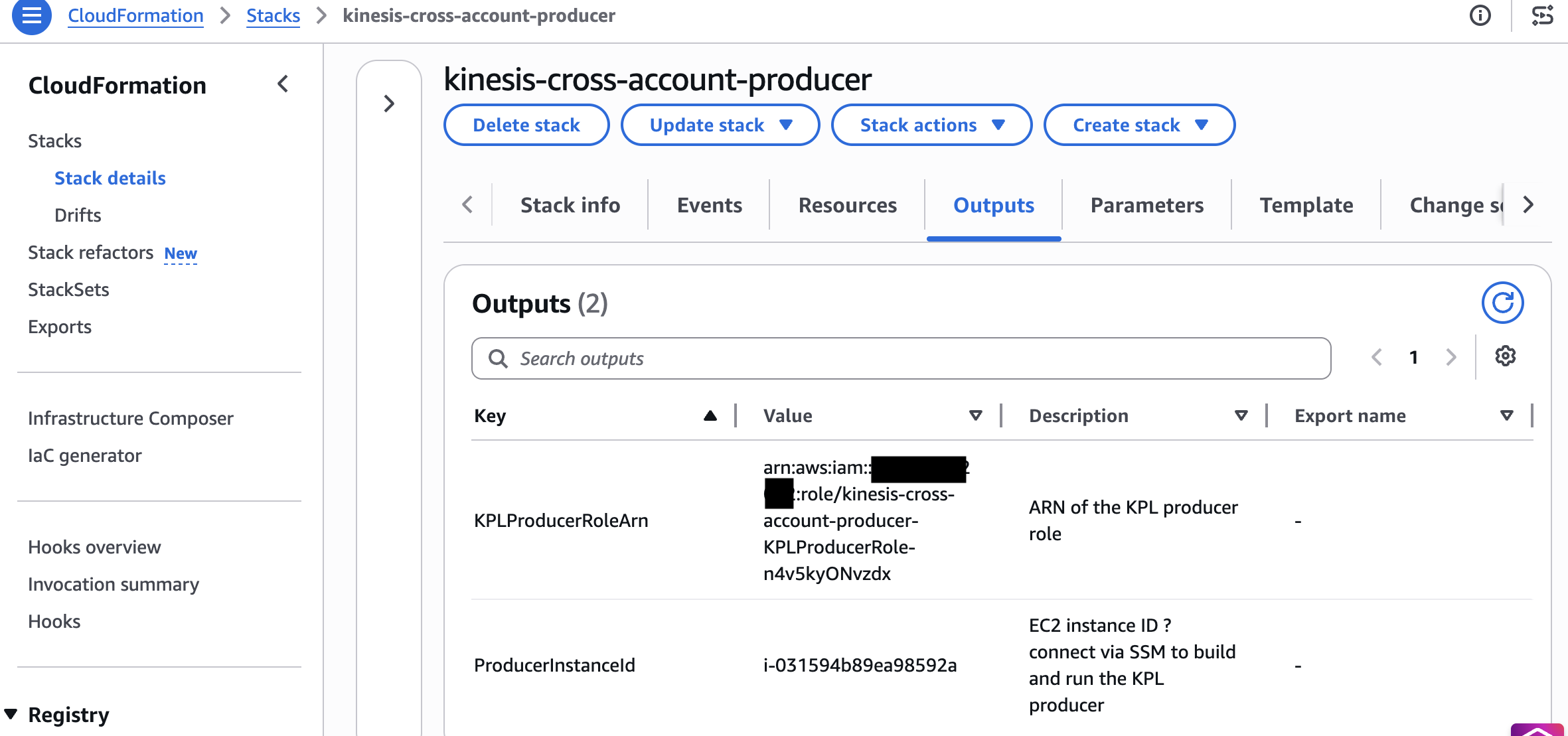
CloudFormation console showing the producer stack deployment outputs

Figure 3: CloudFormation outputs for the producer stack

Step 3: Deploy the consumer stack (Account C: Consumer Account)

KCL 3.5 handles the following for your consumer application:

  • Graceful lease handover – Transfers shard leases during resharding without duplicate processing.
  • Load balancing – Distributes shards evenly across workers and rebalances when workers join or leave.
  • Checkpointing – Persists progress in DynamoDB so a failed worker resumes from its last checkpoint.
  • Enhanced Fan-Out – Supports SubscribeToShard for dedicated per-shard throughput when you pass an EFO consumer ARN.

Deploy the CloudFormation template that creates the KCL application infrastructure, DynamoDB lease table permissions, and Kinesis read permissions:

  1. Deploy:
    aws cloudformation deploy \
      --template-file cloudformation/consumer-account-stack.yaml \
      --stack-name kinesis-cross-account-consumer \
      --parameter-overrides \
      StreamArn=<StreamArn from Step 1> \
      EFOConsumerArn=<EFOConsumerArn from Step 1> \
      KMSKeyArn=<KMSKeyArn from Step 1> \
      --capabilities CAPABILITY_NAMED_IAM \
      --profile <account-c-profile>

  2. Connect to the EC2 instance through Systems Manager, clone the repository, then build and run.

The following screenshot shows the output for the consumer CloudFormation stack.
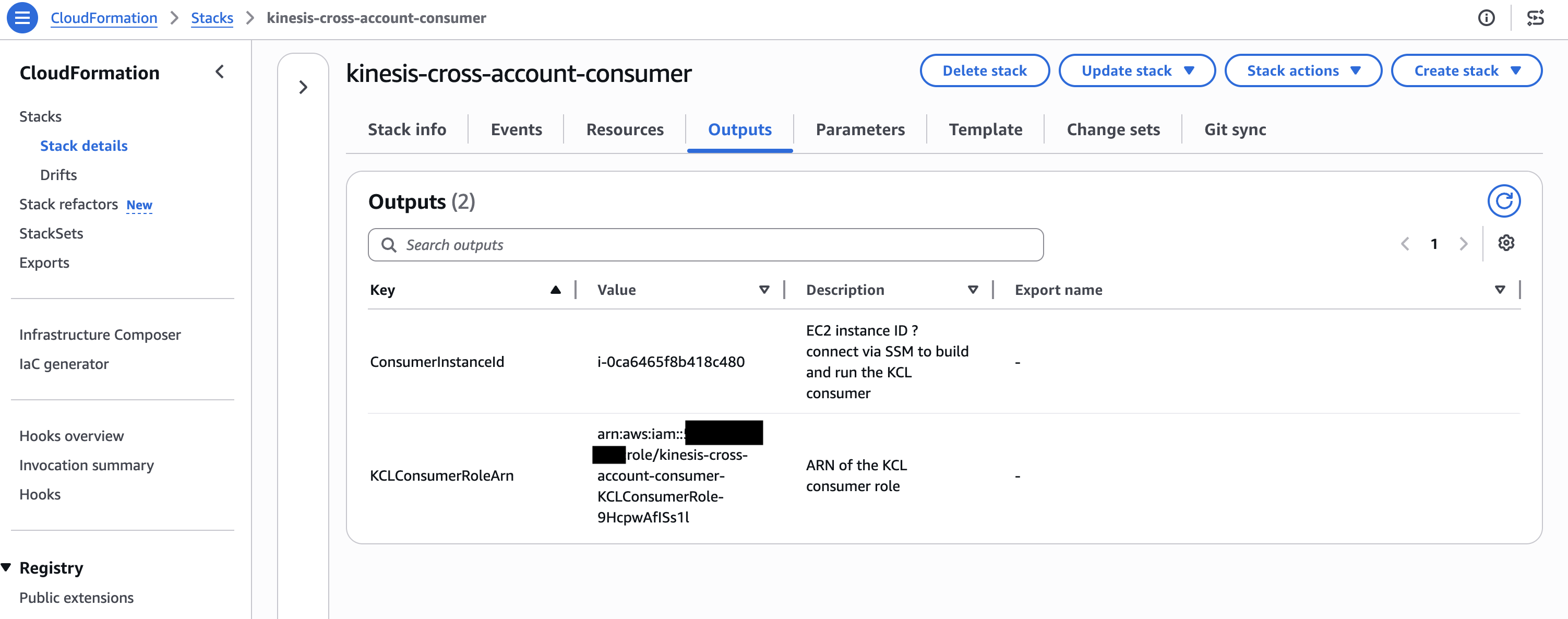
CloudFormation console showing the consumer stack deployment outputs

Figure 4: CloudFormation outputs for the consumer stack

Testing end-to-end data flow

After all three stacks are deployed, start the applications to verify end-to-end cross-account streaming:

Start the KPL producer (Account A)

Connect to the producer EC2 instance through Session Manager, then run CrossAccountKPLProducer. The application assumes the cross-account role, connects to the Kinesis data stream in Account B, and begins publishing aggregated records:

aws ssm start-session --target <ProducerInstanceId> --profile <account-a-profile>

# On the instance:
git clone https://github.com/aws-samples/sample-kinesis-cross-account-kpl-kcl.git
cd sample-kinesis-cross-account-kpl-kcl/producer
mvn clean package -q
java -jar target/cross-account-kpl-producer-1.0.jar <StreamArn> <region> <ProducerCrossAccountRoleArn>
Producer application logs showing aggregated records being published to the Kinesis data stream in Account B

Figure 5: KPL producer publishing aggregated records to the cross-account stream

Start the KCL consumer (Account C)

Connect to the consumer EC2 instance through Session Manager, then run CrossAccountKCLConsumer. The KCL application uses its local credentials, and the stream’s resource-based policy authorizes read access without role assumption:

aws ssm start-session --target <ConsumerInstanceId> --profile <account-c-profile>

# On the instance:
git clone https://github.com/aws-samples/sample-kinesis-cross-account-kpl-kcl.git
cd sample-kinesis-cross-account-kpl-kcl/consumer
mvn clean package -q
java -jar target/cross-account-kcl-consumer-1.0.jar <StreamArn> <region> StockTradeConsumer

To use Enhanced Fan-Out (dedicated 2 MB/s per consumer, approximately 70 ms latency), pass --efo with the pre-registered consumer ARN:

java -jar target/cross-account-kcl-consumer-1.0.jar <StreamArn> <region> StockTradeConsumerEFO --efo <EFOConsumerArn>

Note: With resource-based policies, KCL cannot auto-register stream consumers cross-account. The stream owner (Account B) pre-registers the consumer through CloudFormation, and you pass the resulting EFOConsumerArn.

The following screenshot shows the KCL consumer logs after the consumer has started.

KCL consumer logs showing the consumer has started and is reading records from the cross-account stream

Figure 6: KCL consumer startup logs

Verify in CloudWatch (Account B: Stream metrics)

In the stream-owning account, verify the IncomingRecords and GetRecords.Success metrics in Amazon CloudWatch to confirm records are flowing end to end across all three accounts.

The following screenshot shows the CloudWatch metrics for the stream.
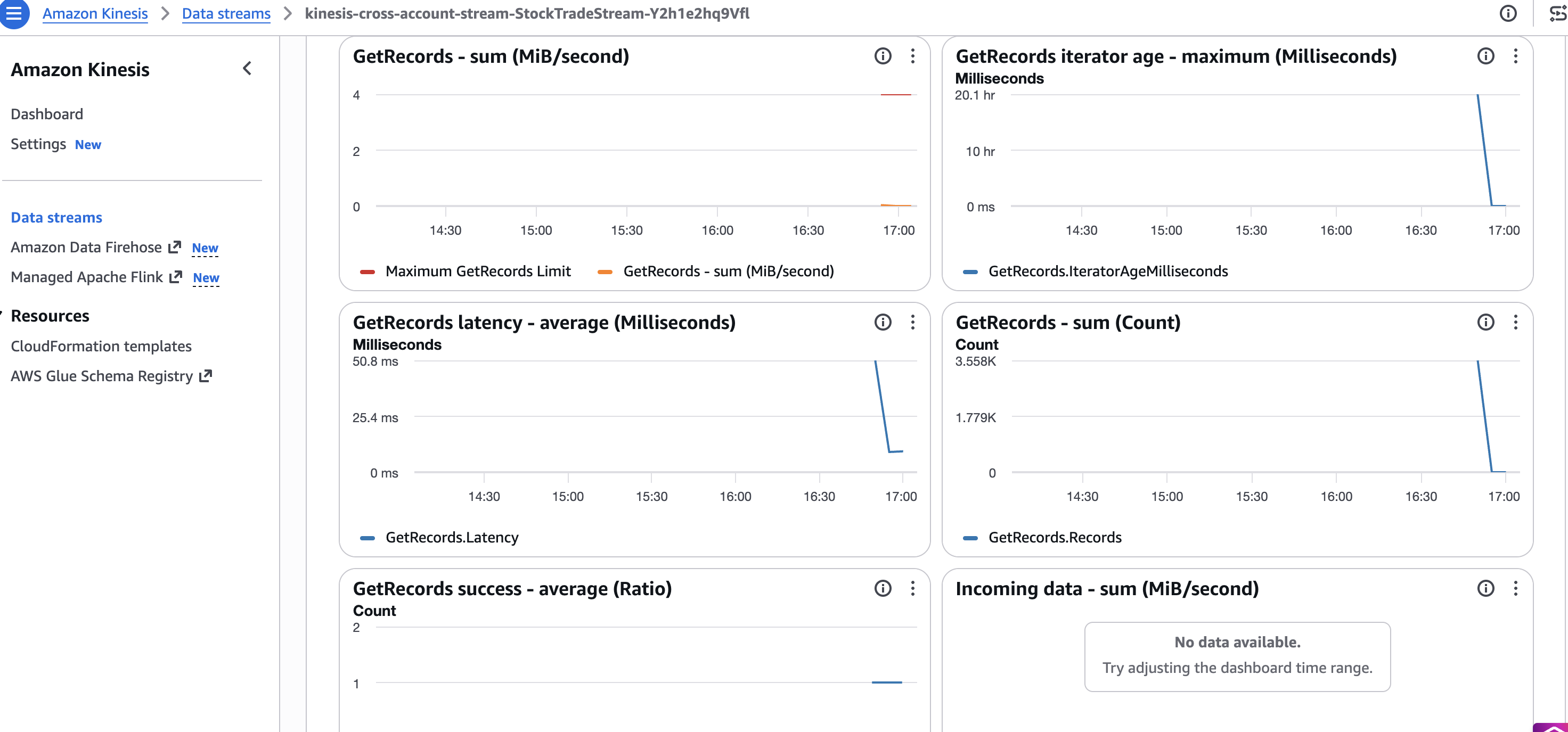
Amazon CloudWatch showing IncomingRecords and GetRecords.Success metrics confirming end-to-end data flow

Figure 7: CloudWatch metrics confirming records flow end to end across all three accounts

Key considerations

  • Use stream ARN, not stream name: Cross-account KCL configuration must reference the full stream ARN. Stream names resolve only within the owning account.
  • AWS KMS key sharing is mandatory for encrypted streams: AWS managed keys can’t be shared. Create a customer managed key and add cross-account key policies.
  • Minimum library versions: KCL 2.5.3+ or KCL 1.15.0+ is required for resource-based policy support. For best performance and cost, use KCL 3.5.
  • Enhanced Fan-Out works cross-account: The stream owner must pre-register the consumer and attach a resource policy to the consumer ARN (SubscribeToShard, DescribeStreamConsumer). Pass the consumer ARN to KCL with --efo. Auto-registration does not work cross-account with resource policies.

Clean up

To avoid ongoing charges, delete the CloudFormation stacks in reverse deployment order:

  1. Consumer Account (Account C): Delete the kinesis-cross-account-consumer stack.
  2. Producer Account (Account A): Delete the kinesis-cross-account-producer stack.
  3. Stream Account (Account B): Delete the kinesis-cross-account-stream stack.

This removes all CloudFormation-managed resources across the three accounts, including the Kinesis data stream, customer managed AWS KMS key, IAM roles, and EC2 instances. Stack deletion typically completes within 5–10 minutes per account.

Note: The DynamoDB tables created by KCL at runtime (StockTradeConsumer, StockTradeConsumer-WorkerMetricStats, StockTradeConsumer-CoordinatorState, and the corresponding StockTradeConsumerEFO-* tables if you ran the EFO consumer) are not managed by CloudFormation and must be deleted manually from Account C.

Common errors in cross-account

  • AccessDenied on AssumeRole (producer): Account B’s role trust policy is missing Account A’s principal or the external ID doesn’t match.
  • AccessDenied on reads despite the resource policy (consumer): Granted on the stream but not on the consumer’s own identity policy. Cross-account needs both.
  • AWS KMS AccessDenied: The key policy in the stream account does not grant the foreign producer or consumer GenerateDataKey/Decrypt.
  • EFO failures: Resource policy missing SubscribeToShard, or the EFO consumer was not pre-registered or shared.
  • Expired temporary credentials (producer): Long-running KPL must refresh assumed-role credentials, not assume once at startup.

What’s new in KPL and KCL

Kinesis Client Library (KCL) 3.5: The newest minor version of KCL introduces a streamlined single-table format and leader-driven migration paths for high-scale stream processing applications. KCL 3.5 consolidates all internal tracking (including worker leases, coordinator states, and resource utilization metrics) into a single unified Amazon DynamoDB table, rather than spreading data across multiple tables. This translates directly into lower baseline AWS database costs, reduced operational complexity, and simpler IAM cross-account permission models for enterprise stream consumer fleets.

Kinesis Client Library (KCL) 3.0: The latest major version of KCL introduces graceful load balancing and reduced compute costs for stream processing applications. KCL 3.0 dynamically assigns shards based on actual CPU and memory utilization rather than distributing them evenly across workers. As a result, you can process the same streaming volume with fewer compute instances. This translates directly into lower infrastructure spend for cross-account architectures where consumer fleets must be right-sized.

Kinesis Client Library (KCL) 2.5.3+: Added native support for cross-account access through resource-based policies, so KCL consumers can read from streams in other accounts without complex IAM role chaining. For KCL 1.x users, version 1.15.0 or higher is required for cross-account support.

Kinesis Producer Library (KPL) 1.x: KPL continues to provide high-throughput, batched record aggregation with automatic retries. When used cross-account, KPL assumes an IAM role in the stream-owning account to publish records, using AWS Security Token Service (AWS STS) for temporary credential exchange.

Conclusion

In this post, we demonstrated how to build a cross-account streaming pipeline using Amazon Kinesis Data Streams with KPL and KCL deployed across three separate AWS accounts. With this pattern, you can maintain security isolation, cost attribution, and operational independence while processing real-time data at scale. The resource-based policy model introduced for Kinesis Data Streams simplifies cross-account access without complex IAM role chaining, and KCL’s intelligent load balancing helps you right-size consumer compute regardless of deployment topology.

The solution code is available in the sample-kinesis-cross-account-kpl-kcl repository on GitHub. Clone it, customize it for your account structure, and deploy a cross-account streaming pipeline with maximum security isolation.


About the authors

Charishma Makineni

Charishma Makineni

Charishma is a Sr. Specialist Solutions Architect for streaming at AWS. She helps customers build real-time streaming architectures using services like Amazon Kinesis Data Streams and Amazon Managed Streaming for Apache Kafka (Amazon MSK). Outside of work, Charishma enjoys being outdoors, gardening, and reading.

Chinmayi Narasimhadevara

Chinmayi Narasimhadevara

Chinmayi is a Solutions Architect for Data and Analytics, focused on Generative AI, at Amazon Web Services. She has over 20 years of experience in information technology and helps AWS customers build advanced, highly scalable, and performant data foundations for their GenAI and analytics workloads.

Pratik Patel

Pratik Patel

Pratik is a Sr. Technical Account Manager and streaming analytics specialist. He works with AWS customers and provides ongoing support and technical guidance to help plan and build solutions using best practices and proactively keep customers’ AWS environments operationally healthy.

Priyanka Chaudhary

Priyanka Chaudhary

Priyanka is a Senior Solutions Architect at AWS. She is specialized in data lake and analytics services and helps many customers in this area. As a Solutions Architect, she plays a crucial role in guiding strategic customers through their cloud journey by designing scalable and secure cloud solutions. Outside of work, she loves spending time with friends and family, watching movies, and traveling.

Streamline AWS WAF log analysis with Apache Iceberg and Amazon Data Firehose

Post Syndicated from Charishma Makineni original https://aws.amazon.com/blogs/big-data/streamline-aws-waf-log-analysis-with-apache-iceberg-and-amazon-data-firehose/

Organizations are rapidly expanding their digital presence, creating opportunities to serve customers better through web applications. AWS WAF logs play a vital role in this expansion by enabling organizations to proactively monitor security, enforce compliance, and strengthen application defense. AWS WAF log analysis is essential across many industries, including banking, retail, and healthcare, each needing to deliver secure digital experiences.

To optimize their security operations, organizations are adopting modern approaches that combine real-time monitoring with scalable data analytics. They are using data lake architectures and Apache Iceberg to efficiently process large volumes of security data while minimizing operational overhead. Apache Iceberg combines enterprise reliability with SQL simplicity when working with security data stored in Amazon Simple Storage Service (Amazon S3), enabling organizations to focus on security insights rather than infrastructure management.

Apache Iceberg enhances security analytics through several key capabilities. It seamlessly integrates with various AWS services and analysis tools while supporting concurrent read-write operations for simultaneous log ingestion and analysis. Its time travel feature enables thorough security forensics and incident investigation, and its schema evolution support allows teams to adapt to emerging security patterns without disrupting existing workflows. These capabilities make Apache Iceberg an ideal choice for building robust security analytics solutions. However, organizations often struggle when building their own solutions to deliver data to Apache Iceberg tables. These include managing complex extract, transform, and load (ETL) processes, handling schema validation, providing reliable delivery, and maintaining custom code for data transformations. Teams must also build resilient error handling, implement retry logic, and manage scaling infrastructure—all while maintaining data consistency and high availability. These challenges take valuable time away from analyzing security data and deriving insights.

To address these challenges, Amazon Data Firehose provides real-time data delivery to Apache Iceberg tables within seconds. Firehose delivers high reliability across multiple Availability Zones while automatically scaling to match throughput requirements. It is fully managed and requires no infrastructure management or custom code development. Firehose delivers streaming data with configurable buffering options that can be optimized for near-zero latency. It also provides built-in data transformation, compression, and encryption capabilities, along with automatic retry mechanisms to provide reliable data delivery. This makes it an ideal choice for streaming AWS WAF logs directly into a data lake while minimizing operational overhead.

In this post, we demonstrate how to build a scalable AWS WAF log analysis solution using Firehose and Apache Iceberg. Firehose simplifies the entire process—from log ingestion to storage—by allowing you to configure a delivery stream that delivers AWS WAF logs directly to Apache Iceberg tables in Amazon S3. The solution requires no infrastructure setup and you pay only for the data you process.

Solution overview

To implement this solution, you first configure AWS WAF logging to capture web traffic information. This captures detailed information about traffic analyzed by the web access control lists (ACLs). Each log entry includes the request timestamp, detailed request information, and rule matches that were triggered. These logs are continuously streamed to Firehose in real time.

Firehose writes these logs into an Apache Iceberg table, which is stored in Amazon S3. When Firehose delivers data to the S3 table, it uses the AWS Glue Data Catalog to store and manage table metadata. This metadata includes schema information, partition details, and file locations, enabling seamless data discovery and querying across AWS analytics services.

Finally, security teams can analyze data in the Apache Iceberg tables using various AWS services, including Amazon Redshift, Amazon Athena, Amazon EMR, and Amazon SageMaker. For this demonstration, we use Athena to run SQL queries against the security logs.

The following diagram illustrates the solution architecture.


The implementation consists of four steps:

  1. Deploy the base infrastructure using AWS CloudFormation.
  2. Create an Apache Iceberg table using an AWS Glue notebook.
  3. Create a Firehose stream to handle the log data.
  4. Configure AWS WAF logging to send data to the Apache Iceberg table through the Firehose stream.

You can deploy the required resources into your AWS environment in the US East (N. Virginia) AWS Region using a CloudFormation template. This template creates an S3 bucket for storing AWS WAF logs, an AWS Glue database for the Apache Iceberg tables, and the AWS Identity and Access Management (IAM) roles and policies needed for the solution.

Prerequisites

Before you get started, make sure you have the following prerequisites:

  • An AWS account with access to the US East (N. Virginia) Region
  • AWS WAF configured with a web ACL in the US East (N. Virginia) Region

If you don’t have AWS WAF set up, refer to the AWS WAF Workshop to create a sample web application with AWS WAF.

AWS WAF logs use case-sensitive field names (like httpRequest and webaclId). For successful log ingestion, this solution uses the Apache Iceberg API through an AWS Glue job to create tables—this is a reliable approach that preserves the exact field names from the AWS WAF logs. Although AWS Glue crawlers and Athena DDLs offer convenient ways to create Apache Iceberg tables, they convert mixed-case column names to lowercase, which can affect AWS WAF log processing. By using an AWS Glue job with the Apache Iceberg API, case-sensitivity of column names is preserved, providing proper mapping between AWS WAF log fields and table columns.

Deploy the CloudFormation stack

Complete the following steps to deploy the solution resources with AWS CloudFormation:

  1. Sign in to the AWS CloudFormation console.
  2. Choose Launch Stack.
    Launch Cloudformation Stack
  3. Choose Next.
  4. For Stack name, leave as WAF-Firehose-Iceberg-Stack.
  5. Under Parameters, specify whether AWS Lake Formation permissions are to be used for the AWS Glue tables.
  6. Choose Next.

  1. Select I acknowledge that AWS CloudFormation might create IAM resources with custom names and choose Next.


  1. Review the deployment and choose Submit.


The stack takes several minutes to deploy. After the deployment is complete, you can review the resources created by navigating to the Resources tab on the CloudFormation stack.

Create an Apache Iceberg table

Before setting up the Firehose delivery stream, you must create the destination Apache Iceberg table in the Data Catalog. This is done using AWS Glue jobs and the Apache Iceberg API, as discussed earlier. Complete the following steps to create an Apache Iceberg table:

  1. On the AWS Glue console, choose Notebooks under ETL jobs in the navigation pane.


  1. Choose Notebook option under Create job.


  1. Under Options, select Start fresh.
  2. For IAM role, choose WAF-Firehose-Iceberg-Stack-GlueServiceRole-*.
  3. Choose Create notebook.

  1. Enter the following configuration command in the notebook to configure the Spark session with Apache Iceberg extensions. Be sure to update the configuration for sql.catalog.glue_catalog.warehouse to the S3 bucket created by the CloudFormation template.
%%configure
{
    "--conf": "spark.sql.extensions=org.apache.iceberg.spark.extensions.IcebergSparkSessionExtensions --conf spark.sql.catalog.glue_catalog=org.apache.iceberg.spark.SparkCatalog --conf spark.sql.catalog.glue_catalog.warehouse=s3://<S3BucketName>/waflogdata --conf spark.sql.catalog.glue_catalog.catalog-impl=org.apache.iceberg.aws.glue.GlueCatalog --conf spark.sql.catalog.glue_catalog.io-impl=org.apache.iceberg.aws.s3.S3FileIO",
    "--datalake-formats": "iceberg"
}

  1. Enter the following SQL in the AWS Glue notebook to create the Apache Iceberg table:
# Note: This code uses Glue version 5.0 (as of April 2024)
# Please check AWS Glue release notes for the latest version and update accordingly:
# https://docs.aws.amazon.com/glue/latest/dg/release-notes.html
# To update: Change the %glue_version parameter below to the latest version

%idle_timeout 2880
%glue_version 5.0
%worker_type G.1X
%number_of_workers 5

import sys
from awsglue.transforms import *
from awsglue.utils import getResolvedOptions
from pyspark.context import SparkContext
from awsglue.context import GlueContext
from awsglue.job import Job
from pyspark.conf import SparkConf

sc = SparkContext.getOrCreate()
glueContext = GlueContext(sc)
spark = glueContext.spark_session
job = Job(glueContext)

spark.sql(""" CREATE TABLE glue_catalog.waf_logs_db.firehose_waf_logs(
  `timestamp` bigint,
  `formatVersion` int,
  `webaclId` string,
  `terminatingRuleId` string,
  `terminatingRuleType` string,
  `action` string,
  `terminatingRuleMatchDetails` array <
                                    struct <
                                        conditiontype: string,
                                        sensitivitylevel: string,
                                        location: string,
                                        matcheddata: array < string >
                                          >
                                     >,
  `httpSourceName` string,
  `httpSourceId` string,
  `ruleGroupList` array <
                      struct <
                          rulegroupid: string,
                          terminatingrule: struct <
                                              ruleid: string,
                                              action: string,
                                              rulematchdetails: array <
                                                                   struct <
                                                                       conditiontype: string,
                                                                       sensitivitylevel: string,
                                                                       location: string,
                                                                       matcheddata: array < string >
                                                                          >
                                                                    >
                                                >,
                          nonterminatingmatchingrules: array <
                                                              struct <
                                                                  ruleid: string,
                                                                  action: string,
                                                                  overriddenaction: string,
                                                                  rulematchdetails: array <
                                                                                       struct <
                                                                                           conditiontype: string,
                                                                                           sensitivitylevel: string,
                                                                                           location: string,
                                                                                           matcheddata: array < string >
                                                                                              >
                                                                   >,
                                                                  challengeresponse: struct <
                                                                            responsecode: string,
                                                                            solvetimestamp: string
                                                                              >,
                                                                  captcharesponse: struct <
                                                                            responsecode: string,
                                                                            solvetimestamp: string
                                                                              >
                                                                    >
                                                             >,
                          excludedrules: string
                            >
                       >,
`rateBasedRuleList` array <
                         struct <
                             ratebasedruleid: string,
                             limitkey: string,
                             maxrateallowed: int
                               >
                          >,
  `nonTerminatingMatchingRules` array <
                                    struct <
                                        ruleid: string,
                                        action: string,
                                        rulematchdetails: array <
                                                             struct <
                                                                 conditiontype: string,
                                                                 sensitivitylevel: string,
                                                                 location: string,
                                                                 matcheddata: array < string >
                                                                    >
                                                             >,
                                        challengeresponse: struct <
                                                            responsecode: string,
                                                            solvetimestamp: string
                                                             >,
                                        captcharesponse: struct <
                                                            responsecode: string,
                                                            solvetimestamp: string
                                                             >
                                          >
                                     >,
  `requestHeadersInserted` array <
                                struct <
                                    name: string,
                                    value: string
                                      >
                                 >,
  `responseCodeSent` string,
  `httpRequest` struct <
                    clientip: string,
                    country: string,
                    headers: array <
                                struct <
                                    name: string,
                                    value: string
                                      >
                                 >,
                    uri: string,
                    args: string,
                    httpversion: string,
                    httpmethod: string,
                    requestid: string
                      >,
  `labels` array <
               struct <
                   name: string
                     >
                >,
  `CaptchaResponse` struct <
                        responsecode: string,
                        solvetimestamp: string,
                        failureReason: string
                          >,
  `ChallengeResponse` struct <
                        responsecode: string,
                        solvetimestamp: string,
                        failureReason: string
                        >,
  `ja3Fingerprint` string,
  `overSizeFields` string,
  `requestBodySize` int,
  `requestBodySizeInspectedByWAF` int
)
USING iceberg
TBLPROPERTIES ("format-version"="2")
""")
job.commit()

  1. Navigate to the Data Catalog and waf_logs_db database to confirm the table firehose_waf_logs is created.

Create a Firehose stream

Complete the following steps to create a Firehose stream:

  1. On the Data Firehose console, choose Create Firehose stream.

  1. Choose Direct PUT for Source and Apache Iceberg Tables for Destination.

  1. For Firehose stream name, enter aws-waf-logs-firehose-iceberg-1.
  1. In the Destination settings section, enable Inline parsing for routing information. Because we’re sending all records to one table, specify the destination database and table names:
    1. For Database expression, enter "waf_logs_db".
    2. For Table expression, enter "firehose_waf_logs".

Make sure to include double quotation marks to use the literal value for the database and table name. If you don’t use double quotation marks, Firehose assumes that this is a JSON query expression and will attempt to parse the expression when processing your stream and fail. Firehose can also route to different Apache Iceberg Tables based on the content of the data. For more information, refer to Route incoming records to different Iceberg Tables.

  1. For S3 backup bucket, enter the S3 bucket created by the CloudFormation template.
  2. For S3 backup bucket error output prefix, enter error/events-1/.

  1. Under Advanced settings, select Enable server-side encryption for source records in Firehose stream.

  1. For Existing IAM roles, choose the role that starts with WAF-Firehose-Iceberg-stack-FirehoseIAMRole-*, created by the CloudFormation template.
  2. Choose Create Firehose stream.

Configure AWS WAF logs to the Firehose stream

Complete the following steps to configure AWS WAF logs to the Firehose stream.

  1. On the AWS WAF console, choose Web ACLs in the navigation pane.

  1. Choose your web ACL.
  2. On the Logging and metrics tab, choose Enable.

  1. For Amazon Data Firehose stream, choose the stream aws-waf-logs-firehose-iceberg-1.
  2. Choose Save.

Query and analyze the logs

You can query the data you’ve written to your Apache Iceberg tables using different processing engines, such as Apache Spark, Apache Flink, or Trino. In this example, we use Athena to query AWS WAF logs data stored in Apache Iceberg tables. Complete the following steps:

  1. On the Athena console, choose Settings in the top right corner.
  2. For Location of query result, enter the S3 bucket created by the CloudFormation template

s3://<S3BucketName>/athena/

  1. Enter the AWS account ID for Expected bucket owner and choose save.

  1. In the query editor, in Tables and views, choose the options menu next to firehose_waf_logs and choose Preview Table.

You should be able to see the AWS WAF logs in the Apache Iceberg tables by using Athena.

The following are some additional useful example queries:

  • Identify potential attack sources by analyzing blocked IP addresses:
-- Top 10 blocked IP addresses
SELECT httpRequest.clientip, COUNT() as block_count
FROM waf_logs_db.firehose_waf_logs
WHERE action = 'BLOCK'
GROUP BY httpRequest.clientip
ORDER BY block_count DESC
LIMIT 10;
  • Monitor attack patterns and trends over time:
-- Rate of blocked requests over time
SELECT DATE_TRUNC('hour', FROM_UNIXTIME(timestamp/1000)) as hour,
       COUNT() as request_count
FROM waf_logs_db.firehose_waf_logs
WHERE action = 'BLOCK'
GROUP BY DATE_TRUNC('hour', FROM_UNIXTIME(timestamp/1000))
ORDER BY hour;

Apache Iceberg table optimization

Although Firehose enables efficient streaming of AWS WAF logs into Apache Iceberg tables, the nature of streaming writes can result in many small files being created. This is because Firehose delivers data based on its buffering configuration, which can lead to suboptimal query performance. To address this, regular table optimization is recommended.

There are two recommended table optimization approaches:

  • Compaction – Data compaction merges small data files to reduce storage usage and improve read performance. Data files are merged and rewritten to remove obsolete data and consolidate fragmented data into larger, more efficient files.
  • Storage optimization – You can manage storage overhead by removing older, unnecessary snapshots and their associated underlying files. Additionally, this includes periodically deleting orphan files to maintain efficient storage utilization and optimal query performance.

These optimizations can be implemented using either the Data Catalog or Athena.

Table optimization using the Data Catalog

The Data Catalog provides automatic table optimization features. Within the table optimization feature, you can configure specific optimizers for compaction, snapshot retention, and orphan file deletion. A table optimization schedule can be managed and status can be monitored from the AWS Glue console.

Table optimization using Athena

Athena supports manual optimization through SQL commands. The OPTIMIZE command rewrites small files into larger files and applies file compaction:

OPTIMIZE waf_logs_db.firehose_waf_logs REWRITE DATA USING BIN_PACK 

The VACUUM command removes old snapshots and cleans up expired data files:

ALTER TABLE waf_logs_db.firehose_waf_logs SET TBLPROPERTIES (
  'vacuum_max_snapshot_age_seconds'='259200'
)
VACUUM waf_logs_db.firehose_waf_logs

You can monitor the table’s optimization status using the following query:

SELECT * FROM "waf_logs_db"."firehose_waf_logs$files"

Clean up

To avoid future charges, complete the following steps:

  1. Empty the S3 bucket.
  2. Delete the CloudFormation stack.
  3. Delete the Firehose stream.
  4. Disable AWS WAF logging.

Conclusion

In this post, we demonstrated how to build an AWS WAF log analytics pipeline using Firehose to deliver AWS WAF logs to Apache Iceberg tables on Amazon S3. The solution handles large-scale AWS WAF log processing without requiring complex code or infrastructure management. Although this post focused on Apache Iceberg tables as the destination, Data Firehose also seamlessly integrates with Amazon S3 tables. To optimize your tables for querying, Amazon S3 Tables continuously performs automatic maintenance operations, such as compaction, snapshot management, and unreferenced file removal. These operations increase table performance by compacting smaller objects into fewer, larger files.

To get started with your own implementation, try the solution in your AWS account and explore the following resources for additional features and best practices:


About the Authors

Charishma Makineni is a Senior Technical Account Manager at AWS. She provides strategic technical guidance for Independent Software Vendors (ISVs) to build and optimize solutions on AWS. She specializes in Big Data and Analytics technologies, helping organizations optimize their data-driven initiatives on AWS.

Phaneendra Vuliyaragoli is a Product Management Lead for Amazon Data Firehose at AWS. In this role, Phaneendra leads the product and go-to-market strategy for Amazon Data Firehose.