All posts by Cody Penta

IAM Roles Anywhere with an external certificate authority

Post Syndicated from Cody Penta original https://aws.amazon.com/blogs/security/iam-roles-anywhere-with-an-external-certificate-authority/

AWS Identity and Access Management Roles Anywhere allows you to use temporary Amazon Web Services (AWS) credentials outside of AWS by using X.509 Certificates issued by your certificate authority (CA). Faraz Angabini goes deep into using IAM Roles Anywhere in his blog post Extend AWS IAM roles to workloads outside of AWS with IAM Roles Anywhere. In this blog post, I take a step back from his post and first define what public key infrastructure (PKI) is and help you set one up for use for IAM Roles Anywhere.

I focus on setting up local PKI for testing purposes by building a basic, minimal certificate authority using openssl. I chose openssl as it’s a standard industry tool for cryptography and is often installed by default on many operating systems. However, you can achieve similar results in a simpler manner using open source tools such as cfssl. In this blog post, we create a local PKI for non-production use cases only for the sake of brevity and to focus more on understanding the core fundamentals. As I go along, I’ll point out what I left out and where to find more information.

Overview

The overall flow of this blog is as follows, there’s some new terminology, so please use this as a map to refer to as you read along to understand the flow. If you’re taking cornell notes, now would be the right time to write key words you see below such as key, certificate, end-entity certificate, certificate authority, CA, trust, IAM Roles Anywhere, and others that pop out to you.

  1. Explain the concepts of keys and certificates and their uses.
  2. Using what you learn about keys and certificates, create a CA.
  3. Import your certificate authority into IAM Roles Anywhere and establish trust between your certificate authority and IAM Roles Anywhere.
  4. Create an end-entity certificate.
  5. Exchange your end-entity certificate for IAM credentials using IAM Roles Anywhere.

Background

IAM Roles Anywhere is compatible with existing PKIs, and for demonstration purposes, you’ll create local infrastructure using openssl to get a deep understanding of the terminology and concepts. Existing PKIs such as AWS Certificate Manager (ACM) and third-party certificate authority services often abstract and simplify this process. With that being said, you have to start somewhere, so let’s start with a key.

What exactly is a key? The National Institute of Standards and Technology (NIST) defines a key as “a parameter used in conjunction with a cryptographic algorithm that determines the specific operation of that algorithm,” which is a formal way of saying for anything you would put inside the key parameter in a function like encrypt(key, data)decrypt(key, data), or sign(key, data). The definition cleverly avoids defining the key by its structure—such as, “It’s a sequence of 256 truly random bits” — as that’s not always the case. For example, in asymmetric encryption you have two keys. One key is private and should not, under any circumstances, be shared outside of your control; while another key is public and can be safely shared with the outside world. To illustrate this, let’s look at actual commands to generate keys:

openssl genpkey -out private.key \
    -algorithm RSA \
    -pkeyopt rsa_keygen_bits:2048 # 2048 minimum key size for RSA, later we use 4096

NOTE: The key is printed in PKCS#8 format, which is a file format for the private key along with some metadata

You can inspect this key with:

cat private.key
-----BEGIN PRIVATE KEY-----
MIIEvgIBADANBgkqhkiG9w0BAQEFAASCBKgwggSkAgEAAoIBAQC/BWpcJqlVDJkC
wr+qrwEgNPSpXM2iSQQAfjS81pll4I5yp//7lm1UqKeBTbaYp9rVec1uzKQrw3xt
...36 lines removed for brevity
mx2sovZyFB7Xe4/99TGLQuHTtgLYYVEN/iFtvsbjPjR7X+R76GWPLdUFdRes0gPo
dlsfnsVKVkUUJKZy0Y2nOrwb2gNSUd/NjcgV9XHEW4y+Sclk/EkdAML1d3aGM0VQ
AaLL8xb75To0VqSQPW12URJM
-----END PRIVATE KEY-----

The public key is embedded inside the private key and you can even pull the public part from the private key.

openssl pkey -in private.key -pubout -out public.key

And like the private key, you can inspect it:

cat public.key
-----BEGIN PUBLIC KEY-----
MIIBIjANBgkqhkiG9w0BAQEFAAOCAQ8AMIIBCgKCAQEAvwVqXCapVQyZAsK/qq8B
IDT0qVzNokkEAH40vNaZZeCOcqf/+5ZtVKingU22mKfa1XnNbsykK8N8bSY9J4r5
f9DVDN8YmRh1+YEYB8pkFTjZBuz158F9GVRK9r/6Lr2Ft0RAinGiN4LoO+V++Ofk
LITgB0rqMk1UH8XyUJwHkS5btr5M7v7zudiQiUDW4vRpWTJ/I4mb9Y2brMfMxJpg
nJ0ni1pm8Yz8zcVjFklvkdtQD+wx4DXf4/7o2EDBNPc1gW+9gIpCI1h5TMwXWURH
lY9cM03SqKwj6SzHxRdOjcMC1Zie3+8OKr1HYpMT0AIM85T3q1iUif8s0TQ3Mk9o
jQIDAQAB
-----END PUBLIC KEY-----

While you must keep your private key a secret, you can openly share your public key. You can even copy the key multiple times and rename each copy to designate an individual whom you would hand the public key out to.

cp public.key alice-public.key
cp public.key bob-public.key

ls
alice-public.key bob-public.key  private.key  public.key

Now here’s the most critical question that I cannot stress enough:

Who owns these keys?

Does the server that generated this private key own it? Do I, as the author of this blog, own it? Does Amazon, as the company, own this private key?

What about the public keys? Who exactly is Alice (alice-public.key)? Who is Bob (bob-public.key)? How are Bob and Alice different if they have the same public key? These are all rhetorical questions you should be asking yourself when working with cryptographic keys. It helps answer who is responsible for this key and ultimately any data encrypted/unencrypted with that key.

At its core, public key infrastructure (PKI) can be explained as assigning an identity to someone or something and using cryptographic keys to ensure that identity can be verified. In the case of internal PKIs, the someone or something is often a hierarchy of assets belonging to your company. For example, a flow could be:

  • Your company
    • Your company’s business unit
      • business unit servers
      • business unit load balancers
      • business unit clients
    • Another business unit

Step 1: Set up a root certificate authority

You need to start somewhere, right? To get a publicly trusted identity, you often need to go through a certificate management service like AWS Certificate Manager (ACM) or a third-party vendor. These vendors go through several audits with operating system providers to have their identity trusted on the operating system itself. For example, on MacOS, you can open the Keychain Access app, go to System Roots, and look at the Certificates tab to see identities that are managed on your behalf.

In this use case with IAM Roles Anywhere, you don’t have to worry about interacting with operating system providers, because you’re creating your own internal PKI—your own internal identity. You do this by creating a certificate authority.

But hold on now, what exactly is a certificate authority? For that matter, what is a certificate?

A certificate is a wrapper around a public key that assigns metadata to an entity. Remember how you can copy the public key and just rename it to alice-public.key? You’ll need a little more metadata than that but the concept is the same. Examples of metadata include “Who are you?” “Who gave you this key?” “When should this key expire?” “Here is what you’re allowed to use this key for,” and various other attributes. As you can imagine, you don’t want just anybody to provide you this type of metadata. You want trusted authorities to assign or validate that metadata for you, and so the term certificate authorities. Certificate authorities also sign these certificates using a digital signing algorithm such as RSA so that consumers of these certificates can verify that the metadata inside hasn’t been tampered with.

You want to be the certificate authority within your own internal network. So how do you go about doing that? Turns out, you’ve already completed the most critical step: creating a private key. By creating a cryptographically strong, random private key, you can assert that whoever owns this private key, represents our company. You can do so because it’s highly improbable that anyone could guess or brute-force this key. However, that means every mechanism you use to protect this private key is critical.

Remember though, you need an identity, and simply naming your private key anycompany.private.key and public key usecase.public.key isn’t ideal. It’s not ideal because you need a lot more metadata than a file name. You need metadata like you would have in the earlier certificate example. You need a certificate that represents your certificate authority, a sort of ID for your root certificate. To facilitate that, there’s a field in certificates called IsCA that’s either true or false. Meaning whether or not a certificate is simply a certificate or a certificate authority is determined by a flag inside the certificate. We’ll start by writing out an openssl configuration file that is used throughout multiple certificate management commands.

NOTE: What’s the difference between a root certificate and a root certificate authority? You can think of a root certificate authority as a person who stamps other certificates. This person themselves needs an ID card. That ID card is the root certificate.

# NOTE: Examples derived from Ivans Ristic's Github
# https://github.com/ivanr/bulletproof-tls
# You may also use `man ca` at the CLI for more examples

# Basic Info about the CA
[default]
name                    = root-ca
domain_suffix           = example.com
default_ca              = ca_default
name_opt                = utf8,esc_ctrl,multiline,lname,align

[ca_dn]
countryName             = "US"
organizationName        = "Any Company Corp"
commonName              = "internal.anycompany.com"

# How the CA Should operate
[ca_default]
home                    = root-ca
database                = $home/db/index
serial                  = $home/db/serial
certificate             = $home/$name.crt
private_key             = $home/private/$name.key
RANDFILE                = $home/private/random
new_certs_dir           = $home/certs
unique_subject          = no
copy_extensions         = none
default_days            = 3650
default_md              = sha256
policy                  = policy_c_o_match

[policy_c_o_match]
countryName             = match
stateOrProvinceName     = optional
organizationName        = match
organizationalUnitName  = optional
commonName              = supplied
emailAddress            = optional

# Configuration for `req` command
[req]
default_bits            = 4096
encrypt_key             = yes
default_md              = sha256
utf8                    = yes
string_mask             = utf8only
prompt                  = no
distinguished_name      = ca_dn
req_extensions          = ca_ext

[ca_ext]
basicConstraints        = critical,CA:true
keyUsage                = critical,keyCertSign
subjectKeyIdentifier    = hash
# create-root-ca.sh
mkdir -p root-ca/certs   # New Certificates issued are stored here
mkdir -p root-ca/db      # Openssl managed database
mkdir -p root-ca/private # Private key dir for the CA

chmod 700 root-ca/private
touch root-ca/db/index

# Give our root-ca a unique identifier
openssl rand -hex 16 > root-ca/db/serial

# Create the certificate signing request
openssl req -new \
  -config root-ca.conf \
  -out root-ca.csr \
  -keyout root-ca/private/root-ca.key

# Sign our request
openssl ca -selfsign \
  -config root-ca.conf \
  -in root-ca.csr \
  -out root-ca.crt \
  -extensions ca_ext

But there are a few things I have to point out:

  • Most certificates start their lives as a certificate signing request (CSR). They contain most of the data an actual certificate does and only become a certificate when signed either by the same entity that created it (self-signed certificate) or by another entity (external certificate authority). This is why you see openssl req followed by openssl ca -selfsign.
  • Everything under root-ca/ must now be protected, especially anything generated under root-ca/private/.
  • I skipped quite a few steps for the sake of brevity, including creating a subordinate certificate authority and keeping the root certificate authority offline, as well as adding a certificate revocation list and Online Certificate Status Protocol (OSCP) capabilities. These can be their own book and I would instead recommend reading Bulletproof TLS and PKI by Ivan Ristic. In this post, I include the bare minimum to import a certificate and get started with IAM Roles Anywhere. As a side note, if you’re importing a certificate from a certificate authority managed outside of AWS, it should come with these capabilities as well.

It’s good practice to inspect the actual root-ca.crt that was returned to you.

openssl x509 -in root-ca.crt -text -noout

Note: If you want to inspect and compare the root-ca.crt with the certificate signing request root-ca.csr, you can use openssl req -text -noout -verify -in root-ca.csr.

What you look for in the following output are that fields such as Subject, Public-Key Algorithm, and the CA:TRUE flag are set and correspond to the configuration you passed in earlier. Additional things to look for are Issuer (yourself since it’s self-signed), and Key Usage (what the public key included in the certificate is allowed to be used for).

Certificate:
    Data:
        Version: 3 (0x2)
        Serial Number:
            95:77:30:1a:1b:bc:ce:70:f3:e7:ff:1c:12:d2:01:c7
        Signature Algorithm: sha256WithRSAEncryption
        Issuer: C = US, O = Any Company Corp, CN = internal.anycompany.com
        Validity
            Not Before: Jul 5 20:52:33 2023 GMT
            Not After : Jul 2 20:52:33 2033 GMT
        Subject: C = US, O = Any Company Corp, CN = internal.anycompany.com
        Subject Public Key Info:
            Public Key Algorithm: rsaEncryption
                Public-Key: (4096 bit)
                ...
        X509v3 extensions:
            X509v3 Basic Constraints: critical
                CA:TRUE
            X509v3 Key Usage: critical
                Certificate Sign
            ...
    Signature Algorithm: sha256WithRSAEncryption
    Signature Value:
        ...

Now why is this certificate especially important? This is your root certificate. When you’re asked “Does this certificate belong to your company?” this is the certificate that you must use in order to prove that it belongs to your company, including any certificates derived from this root certificate (remember, you can have a hierarchy) and also end-entity certificates (shown later). All certificates derived from this root certificate are cryptographically linked to it through a digital signing algorithm that combines hashing and encryption to sign the certificate (the example above uses sha256WithRSAEncryption).

With your root CA successfully set up, it’s time to integrate it with IAM Roles Anywhere.

Step 2: Set up IAM Roles Anywhere

Step 1: Set up a root certificate authority (root CA) was a prerequisite for using IAM Roles Anywhere. Remember, you set up all this infrastructure to eventually use it. In step 2, you start going through how to effectively use the root CA you set up to issue AWS credentials outside of the AWS ecosystem.

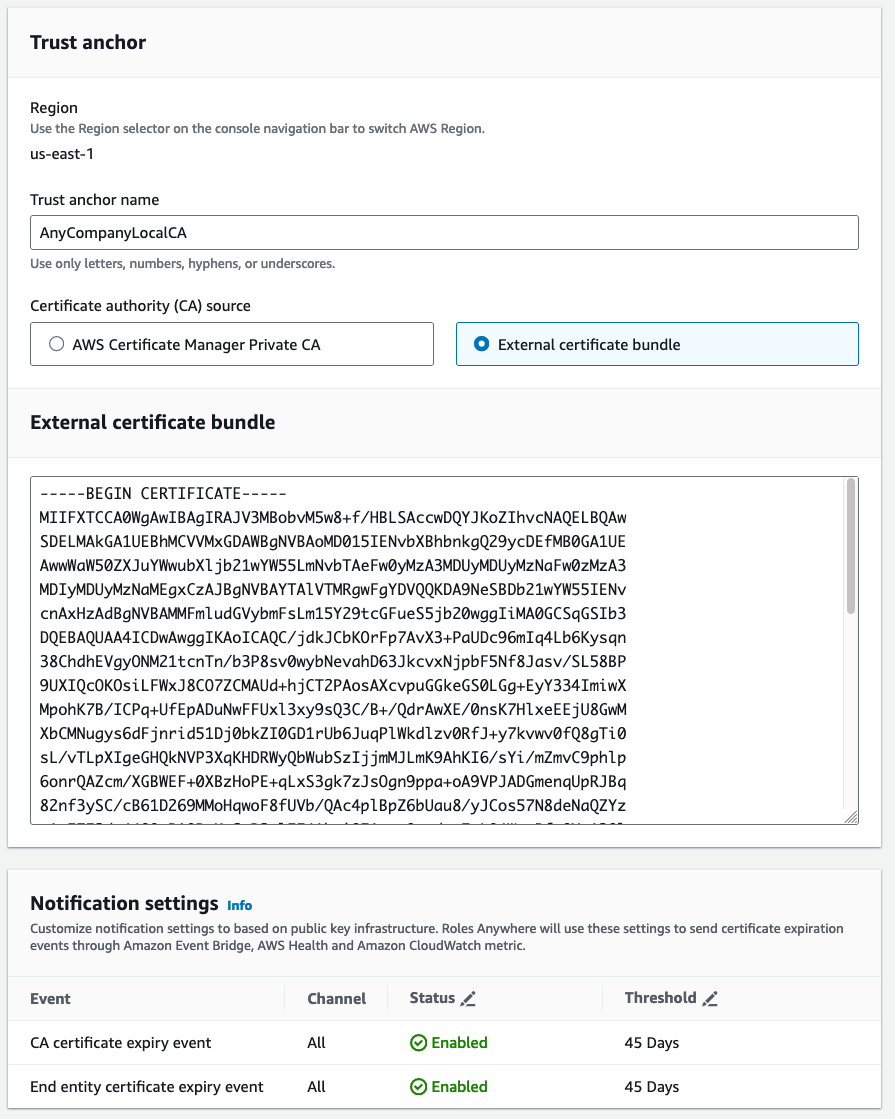
But before you do that, you must bind the IAM Roles Anywhere service to your private certificate authority (private CA). You do this by setting up a trust between the two. When you set up trust between two things, you’re essentially saying “I don’t have the information to verify this is a valid request, so I’m going to trust that the downstream component (in this case, your private CA) knows this information.” Another way of saying it is “if the private CA says it’s good, then it’s a valid request”. You can set up this trust with your newly created root CA by copying the encoded section of your root-ca.crt in the IAM Roles Anywhere console.

To set up the trust

  1. Go the the IAM Roles Anywhere console.
  2. Under External certificate bundle, paste the encoded section of your root-ca.crt.
  3. Submit the form.
tail -n 31 root-ca.crt
-----BEGIN CERTIFICATE-----
MIIFXTCCA0WgAwIBAgIRAJV3MBobvM5w8+f/HBLSAccwDQYJKoZIhvcNAQELBQAw
SDELMAkGA1UEBhMCVVMxGDAWBgNVBAoMD015IENvbXBhbnkgQ29ycDEfMB0GA1UE
...lines removed for brevitity
iCmHNvGCkBMBo08PLPuynuY69IJCdbjv6iudspBQDdu9aYNPF8BWR3dsTjPpsbOw
ef33wuHiCj4nH96wCrSmPoIUfc4UEp7eZiS0A9xHw8TkT5Uzyq9ZThSaTqBZfojD
zGtnpprPTg/lCHDmoTbGmrOp9ByWU3qQUK7ZtzxSjhjT
-----END CERTIFICATE-----
Figure 1: Use the console to set up a trust between IAM Roles Anywhere and the private CA

Figure 1: Use the console to set up a trust between IAM Roles Anywhere and the private CA

What you just set up is a trust anchor, which is a representation of your certificate authority inside of IAM Roles Anywhere. With this trust anchor in place, you can start tying in IAM roles to your authentication. Let’s start with something simple but practical, imagine an on-premises virtual machine (VM) that needs to have read access to Amazon Simple Storage Service (Amazon S3). Not only that, but it must have read only access to a specific folder in Amazon S3 and only that folder.

The first thing you need to do is create an IAM role that trusts IAM Roles Anywhere. But you need to be more specific than that. You need to create a role that trusts IAM Roles Anywhere only when the certificate presented to IAM Roles Anywhere contains the common name MyOnpremVM. If this is unclear, that’s okay, after you have all of the prerequisites set up, you’ll walk through the entire process step by step. The following is the trust section in an IAM policy that can be created in the IAM console.

{
    "Version": "2012-10-17",
    "Statement": [
        {
            "Effect": "Allow",
            "Principal": {
                "Service": [
                    "rolesanywhere.amazonaws.com"
                ]
            },
            "Action": [
              "sts:AssumeRole",
              "sts:TagSession",
              "sts:SetSourceIdentity"
            ],
            "Condition": {
              "ArnEquals": {
                "aws:SourceArn": [
                  "arn:aws:rolesanywhere:us-east-1:111222333444:trust-anchor/d5302884-5212-4f8d-9b17-24be63a5ae85"
                ]
              },
              "StringEquals": {
                "aws:PrincipalTag/x509Subject/CN": "MyOnpremVM"
              }
            }
        }
    ]
}

The second thing you need to create is the actual Amazon S3 permissions:

{
    "Version": "2012-10-17",
    "Statement": [
        {
            "Sid": "ListObjectsInBucket",
            "Effect": "Allow",
            "Action": "s3:ListBucket",
            "Resource": "arn:aws:s3:::DOC-EXAMPLE-BUCKET",
            "Condition": {
                "StringLike": {
                    "s3:prefix": [
                        "MyOnPremVM/*"
                    ]
                }
            }
        },
        {
            "Effect": "Allow",
            "Action": "s3:*",
            "Resource": [
                "arn:aws:s3:::DOC-EXAMPLE-BUCKET/MyOnPremVM",
                "arn:aws:s3:::DOC-EXAMPLE-BUCKET/MyOnPremVM/*"
            ]
        }
    ]
}

Note: There are other certificate fields you might want to key off as well. See Trust policy in the documentation for more examples.

The last thing to do before moving on is to tie a set of roles to a profile. You can think of it as a container of multiple possible roles with the ability to further restrict them using session policies. Note that you use the role ARN for the S3 role you just created.

aws rolesanywhere create-profile --name DefaultProfile --role-arns arn:aws:iam::111222333444:role/RolesAnywhereS3Role
{
    "profile": {
        "createdAt": "2023-05-01T22:29:36.088864+00:00",
        "createdBy": "arn:aws:sts::111222333444:assumed-role/<role-name>",
        "durationSeconds": 3600,
        "enabled": false,
        "name": "DefaultProfile",
        "profileArn": "arn:aws:rolesanywhere:us-east-1:111222333444:profile/2845dde5-9c82-480d-a6a6-f61240e42d4a",
        "profileId": "2845dde5-9c82-480d-a6a6-f61240e42d4a",
        "roleArns": [
            "arn:aws:iam::111222333444:role/RolesAnywhereS3"
        ],
        "updatedAt": "2023-05-01T22:29:36.088864+00:00"
    }
}

Profiles are created disabled by default, you can enable them later as needed. You could also enable a profile on creation by using the --enabled flag, but I want to highlight the ability to create it as disabled and then enabled it later for awareness. This becomes relevant in cases when you need to disable access, such as during a security event. Use the following command to enable the profile after creating it:

aws rolesanywhere enable-profile --profile-id 2845dde5-9c82-480d-a6a6-f61240e42d4a

Now that all your infrastructure is in place, it’s time to provision an end-entity certificate and assume the role you created earlier.

Creating an end-entity certificate

The first thing you must do is obtain an end-entity certificate. This is called end-entity because a certificate can have an entire chain of certificates that are linked together. The end-entity certificate is at the end of the chain, which commonly represents individual entities, and so the term end-entity certificate.

Similar to how you set up your root certificate, it’s mostly a two-step process. You first create a certificate signing request and then ask someone to sign it (or sign it yourself). You can create a certificate signing request for your on-premises VM with:

# Make your private key specific to your client machine
openssl genpkey -out client.key \
  -algorithm RSA \
  -pkeyopt rsa_keygen_bits:2048
  
# Using your newly generated private key make a certificate signing request
openssl req -new -key client.key -out client.csr

# You'll be presented an interactive session to enter details for the CSR
You are about to be asked to enter information that will be incorporated
into your certificate request.
What you are about to enter is what is called a Distinguished Name or a DN.
There are quite a few fields but you can leave some blank
For some fields there will be a default value,
If you enter '.', the field will be left blank.
-----
Country Name (2 letter code) [XX]:US
State or Province Name (full name) []:WA
Locality Name (eg, city) [Default City]:Seattle
Organization Name (eg, company) [Default Company Ltd]:Any Company Corp
Organizational Unit Name (eg, section) []:Sales
Common Name (eg, your name or your server's hostname) []:MyOnpremVM
Email Address []:

Please enter the following 'extra' attributes
to be sent with your certificate request
A challenge password []:
An optional company name []:

As always, let’s inspect the certificate we made.

openssl req -text -noout -verify -in client.csr

The client name (common name (CN) in the certificate) is what’s most important here, after all this is how we uniquely identify this specific VM.

Certificate Request:
    Data:
        Version: 0 (0x0)
        Subject: C=US, ST=WA, L=Seattle, O=Any Company Corp, OU=Sales, CN=MyOnpremVM
        Subject Public Key Info:
            Public Key Algorithm: rsaEncryption
                Public-Key: (4096 bit)
                Modulus:
                    00:ae:d0:ab:2d:20:2d:44:b5:36:ad:de:dd:23:ac:
                    ...32 lines removed for brevity
                    89:98:ef:b6:86:bf:c2:16:08:55:2d:5e:45:af:24:
                    17:45:cb
                Exponent: 65537 (0x10001)
        Attributes:
            a0:00
    Signature Algorithm: sha256WithRSAEncryption
         08:b4:86:66:14:1f:03:12:0b:36:15:42:2b:ae:56:7b:ba:99:
         ...27 lines removed for brevity
         00:bb:06:88:6b:c7:c2:53

Signing an end-entity certificate

Now that you have your certificate signing request, the certificate must be signed. Let’s have your private root CA that you created in Step 1 sign this certificate.

NOTE: You might have to move your root-ca.crt file into whatever $home is inside of your root-ca.conf file before running the following command.

openssl ca \
  -config root-ca.conf \
  -in client.csr \
  -out client.crt \
  -extensions client_ext

You’ll be asked to manually verify the certificate you’re about to sign. The key things you need to pay attention to for the purposes of IAM Roles Anywhere are:

  • Common Name because that’s how permissions and to what S3 bucket are decided.
  • Key usage specifies Digital Signature, and basic constraints specify CA:FALSE. Both are required to work with IAM Roles Anywhere.
Certificate:
    Data:
        Version: 1 (0x0)
        Serial Number:
            95:77:30:1a:1b:bc:ce:70:f3:e7:ff:1c:12:d2:01:c8
        Issuer:
            countryName               = US
            organizationName          = Any Company Corp
            commonName                = internal.anycompany.com
        Validity
            Not Before: Jul  6 14:46:49 2023 GMT
            Not After : Jul  3 14:46:49 2033 GMT
        Subject:
            countryName               = US
            stateOrProvinceName       = WA
            organizationName          = Any Company Corp
            organizationalUnitName    = Sales
            commonName = MyOnpremVM
        Subject Public Key Info:
            Public Key Algorithm: rsaEncryption
                Public-Key: (2048 bit)
                ...
        X509v3 extensions:
            ...
            X509v3 Basic Constraints: critical
                CA:FALSE
            X509v3 Key Usage: critical
                Digital Signature
            ...
Certificate is to be certified until Jul  3 14:46:49 2033 GMT (3650 days)
Sign the certificate? [y/n]:

After verification, you can commit the certificate to the local database and move on to the next step.

Swapping an end-entity certificate for AWS credentials

Now it’s time for the moment of truth. To review, you have:

  1. Created a local CA
  2. Uploaded the CA certificate into IAM Roles Anywhere and created a trust anchor
  3. Created an IAM role that trusts IAM Roles Anywhere, which in turn trusts your CA certificate
  4. Created an end-entity certificate for a specific server that has been signed by your CA

It’s time to swap this certificate for IAM credentials.

The API you call to swap credentials is CreateSession for IAM Roles Anywhere. This API serves as a wrapper around STS AssumeRole but requires that you pass in certificate information first. You, as the end user, don’t directly call this API. Instead, you use the IAM Roles Anywhere credential helper.

You can get the binary for this helper using the following example command (for Linux).

NOTE: The URL in the example uses version 1.0.4 of the credential helper as there isn’t a latest path. Verify that you’re getting the latest version using the table found inside of IAM roles anywhere documentation.

curl https://rolesanywhere.amazonaws.com/releases/1.0.4/X86_64/Linux/aws_signing_helper --output aws_signing_helper

Then use the credential helper tool to successfully swap for AWS credentials.

NOTE: You pass in the private key, but the private key doesn’t leave the host, it’s used to sign the request to CreateSession. See the signing process to learn more. The signing process is also why you use the credentials helper instead of making a call directly to CreateSession.

./aws_signing_helper credential-process \
  --certificate client.crt \
  --private-key client.key \
  --role-arn arn:aws:iam::111222333444:role/RolesanywhereS3Role \
  --trust-anchor-arn arn:aws:rolesanywhere:us-east-1:111222333444:trust-anchor/d5302884-5212-4f8d-9b17-24be63a5ae85
  --profile-arn arn:aws:rolesanywhere:us-east-1:111222333444:profile/e341077c-4ee6-48e8-8d05-d900eb26b367
{
 "Version":1,
 "AccessKeyId":"ASIAEXAMPLEID",
 "SecretAccessKey":"wWPZTXfKdp8UF6HDpfbTEboEXAMPLESECRETKEY",
 "SessionToken":"IQoJb3JpZ2luX2VjEK///EXAMPLESESSIONTOKEN",
 "Expiration":"2023-05-01T23:37:10Z"
}

You can write the command you just ran into your AWS Config file instead of manually parsing the JSON response into environment variables, or run the serve command to set up a local credential-serving endpoint that’s compatible with the AWS SDK and AWS Command Line Interface (AWS CLI).

./aws_signing_helper serve \
  --certificate client.crt \
  --private-key client.key \
  --role-arn arn:aws:iam::111222333444:role/RolesanywhereS3Role \
  --trust-anchor-arn arn:aws:rolesanywhere:us-east-1:111222333444:trust-anchor/d5302884-5212-4f8d-9b17-24be63a5ae85 \
  --profile-arn arn:aws:rolesanywhere:us-east-1:111222333444:profile/e341077c-4ee6-48e8-8d05-d900eb26b367 \
  & # Start the process in the background

Then export the AWS_EC2_METADATA_SERVICE_ENDPOINT environment variable to point the AWS SDKs and AWS CLI to a local mock EC2 metadata endpoint instead of the endpoint normally found inside EC2 instances.

export AWS_EC2_METADATA_SERVICE_ENDPOINT=http://127.0.0.1:9911/

Then finally, confirm that you assumed the right role with:

aws sts get-caller-identity
{
    "UserId": "AROARIEKBWA5HJMA7JDOJ:00bd58e6934d37bf2c3e19afb4c8cac58c",
    "Account": "111222333444",
    "Arn": "arn:aws:sts::111222333444:assumed-role/RolesAnywhereS3/00bd58e6934d37bf2c3e19afb4c8cac58c"
}

And from here, you can use the AWS CLI or SDKs to make calls into AWS with the permissions you set up. For example, test your permissions by writing an object to Amazon S3 at a location you should be able to write to and a location you shouldn’t be.

# Failure case
aws s3 cp client.crt s3://DOC-EXAMPLE-BUCKET/notme/client.crt
upload failed: ./client.crt to s3://DOC-EXAMPLE-BUCKET/notme/client.crt An error occurred (AccessDenied) when calling the PutObject operation: Access Denied
# Passing Case
aws s3 cp client.crt s3://DOC-EXAMPLE-BUCKET/MyOnPremVM/client.crt
upload: ./client.crt to s3://DOC-EXAMPLE-BUCKET/MyOnPremVM/client.crt

Conclusion

To summarize, I started off this blog post discussing core concepts related to public key infrastructure. I talked about the purpose of keys (being improbable to guess) and certificates (tying an identity to a key, among other important concepts such as digital signing). I then discussed and showed you how to create a local certificate authority (CA), then use that CA to vend out end-entity certificates. Finally, you learned how to establish a trust relationship between your CA and IAM Roles Anywhere to allow IAM Roles Anywhere to verify end-entity certificates and exchange them with AWS credentials.

I encourage you to explore any other openssl commands and scenarios you can imagine. For example, how would you use this information to handle two different fleets of VMs, each with their own unique set of permissions? Another avenue to explore would be using cfssl instead of openssl to create a CA or using a provider such as AWS Private Certificate Authority. You can use an AWS account to try AWS Private Certificate Authority with a 30-day trial. See AWS Private CA Pricing to learn more.

 
If you have feedback about this post, submit comments in the Comments section below. If you have questions about this post, contact AWS Support.

Want more AWS Security news? Follow us on Twitter.

Cody Penta

Cody Penta

Cody Penta is a Solutions Architect at Amazon Web Services and is based out of Charlotte, NC. He has a focus in security and CDK, and enjoys solving the really difficult problems in the technology world. Off the clock, he loves relaxing in the mountains, coding personal projects, and gaming.

Field Notes: Building Multi-Region and Multi-Account Tools with AWS Organizations

Post Syndicated from Cody Penta original https://aws.amazon.com/blogs/architecture/field-notes-building-multi-region-and-multi-account-tools-with-aws-organizations/

It’s common to start with a single AWS account when you are beginning your cloud journey with AWS. Running operations such as creating, reading, updating, and deleting resources in a single AWS account can be straightforward with AWS application program interfaces (APIs). Because an organization grows, so does their account strategy, often splitting workloads across multiple accounts. Fortunately, AWS customers can use AWS Organizations to group these accounts into logical units, also known as organizational units (OUs), to apply common policies and deploy standard infrastructure. However, this will result in an increased difficulty to run an API against all accounts, moreover, every Region that account could use. How does an organization answer these questions:

  • What is every Amazon FSx backup I own?
  • How can I do an on-demand batch job that will apply to my entire organization?
  • What is every internet access point across my organization?

This blog post shows us how we can use Organizations, AWS Single Sign-On (AWS SSO), AWS CloudFormation StackSets, and various AWS APIs to effectively build multi-account and multi-region tools that can address use cases like the ones above.

Running an AWS API sequentially across hundreds of accounts—potentially, many Regions—could take hours, depending on the API you call. An important aspect we will cover throughout this solution is the importance of concurrency for these types of tools.

Overview of solution

For this solution, we have created a fictional organization called Tavern that is set up with multiple organizational units (OUs), accounts, and Regions, to reflect a real-world scenario.

Figure 1. Organization configuration example

Figure 1. Organization configuration example

We will set up a user with multi-factor authentication (MFA) enabled so we can sign-in and access an admin user in the root account. Using this admin user, we will deploy a stack set across the organization that enables this user to assume limited permissions into each child account.

Next, we will use the Go programming language because of its native concurrency capabilities. More specifically, we will implement the pipeline concurrency pattern to build a multi-account and multi-region tool that will run APIs across our entire AWS footprint.

Additionally, we will add two common edge cases:

  • We block mass API actions to an account in a suspended OU (not pictured) and the root account.
  • We block API actions in disabled regions.

This will show us how to implement robust error handling in equally powerful tooling.

 Walkthrough

Let us separate the solution into distinct steps:

  • Create an automation user through AWS SSO.
    • This user can optionally be an IAM user or role assumed into by a third-party identity provider (such as, Azure Active Directory). Note the ARN of this identity because that is the key piece of information we will use for crafting a policy document.
  • Deploy a CloudFormation stack set across the organization that enables this user to assume limited access into each account.
    • For this blog post, we will deploy an organization-wide role with `ec2:DescribeRouteTables` permissions. Feel free to expand or change the permission set based on the type of tool you build.
  • Using Go, AWS Command Line Interface (CLI) v2, and AWS SDK for Go v2:
    1. Authenticate using AWS SSO.
    2. List every account in the organization.
    3. Assume permissions into that account.
    4.  Run an API across every Region in that account.
    5. Aggregate results for every Region.
    6. Aggregate results for every account.
    7. Report back the result.

For additional context, review this GitHub repository that contains all code and assets for this blog post.

Prerequisites

For this walkthrough, you should have the following prerequisites:

  • Multiple AWS accounts
  • AWS Organizations
  • AWS SSO (optional)
  • AWS SDK for Go v2
  • AWS CLI v2
  • Go programming knowledge (preferred), especially Go’s concurrency model
  • General programming knowledge

Create an automation user in AWS SSO

The first thing we need to do is create an identity to sign into. This can either be an AWS Identity and Access Management (IAM) user, an IAM role integrated with a third-party identity provider, or—in this case—an AWS SSO user.

  1. Log into the AWS SSO user console.
  2. Press Add user button.
  3. Fill in the appropriate information.
Figure 2.AWS SSO create user

Figure 2. AWS SSO create user

  1. Assign the user to the appropriate group. In this case, we will assign this user to AWSControlTowerAdmins.
Figure 3.Assigning SSO user to a group

Figure 3. Assigning SSO user to a group

  1. Verify the user was created. (Optionally: enable MFA).
Figure 4.Verifying User Creation and MFA

Figure 4. Verifying User Creation and MFA

Deploy a stack set across your organization

To effectively run any API across the organization, we need to deploy a common role that our AWS SSO user can assume across every account. We can use AWS CloudFormation StackSets to deploy this role at scale.

  1. Write the IAM role and associated policy document. The following is an example AWS Cloud Development Kit (AWS CDK) code for such a role. Note that orgAccount, roleName, and ssoUser in the below code will have to be replaced with your own values.
    const role = new iam.Role(this, 'TavernAutomationRole', {
      roleName: 'TavernAutomationRole',
      assumedBy: new iam.ArnPrincipal(`arn:aws:sts::${orgAccount}:assumed-role/${roleName}/${ssoUser}`),
    })
    role.addToPolicy(new PolicyStatement({
      actions: ['ec2:DescribeRouteTables'],
      resources: ['*']
    }))
  1. Log into the CloudFormation StackSets console.
  2. Press Create StackSet button.
  3. Upload the CloudFormation template containing the common role to be deployed to the organization by the preferred method.
  4. Specify name and optional description.
  5. Add any standard organization tags, and choose Service-managed permissions option.
  6. Choose Deploy to organization, and decide whether to disable or enable automatic deployment and appropriate account removal behavior. For this blog post, we choose to enable automatic deployment and accounts should remove the stack with removed from the target OU.
  7. For Specify regions, choose US East (N.Virginia). Note, because this stack contains only an IAM role, and IAM is a global service, region choice has no effect.
  8. For Maximum concurrent accounts, choose Percent, and enter 100 (this stack is not dependent on order).
  9. For Failure tolerance, choose Number, and enter 5, account deployment failures before a total rollback happens.
  10. For Region Concurrency, choose Sequential.
  11. Review your choices, note the deployment target (should be r-*), and acknowledge that CloudFormation might create IAM resources with custom names.
  12. Press the Submit button to deploy the stack.

Configure AWS SSO for the AWS CLI

To use our organization tools, we must first configure AWS SSO locally. With the AWS CLI v2, we can run:

aws configure sso

To configure credentials:

  1. Run the preceding command in your terminal.
  2. Follow the prompted steps.
    1. Specify your AWS SSO Start URL:
    2. AWS SSO Region:
  1. Authenticate through the pop-up browser window.
  2. Navigate back to the CLI, and choose the root account (this is where our principle for IAM originates).
  3. Specify the default client region.
  4. Specify the default output format.

Note the CLI profile name. Regardless if you choose to go with the autogenerated one or the custom one, we need this profile name for our upcoming code.

Start coding to utilize the AWS SSO shared profile

After AWS SSO is configured, we can start coding the beginning part of our multi-account tool. Our first step is to list every account belonging to our organization.

var (
    stsc    *sts.Client
    orgc    *organizations.Client
    ec2c    *ec2.Client
    regions []string
)

// init initializes common AWS SDK clients and pulls in all enabled regions
func init() {
    cfg, err := config.LoadDefaultConfig(context.TODO(), config.WithSharedConfigProfile("tavern-automation"))
    if err != nil {
        log.Fatal("ERROR: Unable to resolve credentials for tavern-automation: ", err)
    }

    stsc = sts.NewFromConfig(cfg)
    orgc = organizations.NewFromConfig(cfg)
    ec2c = ec2.NewFromConfig(cfg)

    // NOTE: By default, only describes regions that are enabled in the root org account, not all Regions
    resp, err := ec2c.DescribeRegions(context.TODO(), &ec2.DescribeRegionsInput{})
    if err != nil {
        log.Fatal("ERROR: Unable to describe regions", err)
    }

    for _, region := range resp.Regions {
        regions = append(regions, *region.RegionName)
    }
    fmt.Println("INFO: Listing all enabled regions:")
    fmt.Println(regions)
}

// main constructs a concurrent pipeline that pushes every account ID down
// the pipeline, where an action is concurrently run on each account and
// results are aggregated into a single json file
func main() {
    var accounts []string

    paginator := organizations.NewListAccountsPaginator(orgc, &organizations.ListAccountsInput{})
    for paginator.HasMorePages() {
        resp, err := paginator.NextPage(context.TODO())
        if err != nil {
            log.Fatal("ERROR: Unable to list accounts in this organization: ", err)
        }

        for _, account := range resp.Accounts {
            accounts = append(accounts, *account.Id)
        }
    }
    fmt.Println(accounts)

Implement concurrency into our code

With a slice of every AWS account, it’s time to concurrently run an API across all accounts. We will use some familiar Go concurrency patterns, as well as fan-out and fan-in.

// ... continued in main

    // Begin pipeline by calling gen with a list of every account
    in := gen(accounts...)

    // Fan out and create individual goroutines handling the requested action (getRoute)
    var out []<-chan models.InternetRoute
    for range accounts {
        c := getRoute(in)
        out = append(out, c)
    }

    // Fans in and collect the routing information from all go routines
    var allRoutes []models.InternetRoute
    for n := range merge(out...) {
        allRoutes = append(allRoutes, n)
    }

In the preceding code, we called a gen() function that started construction of our pipeline. Let’s take a deeper look into this function.

// gen primes the pipeline, creating a single separate goroutine
// that will sequentially put a single account id down the channel
// gen returns the channel so that we can plug it in into the next
// stage
func gen(accounts ...string) <-chan string {
    out := make(chan string)
    go func() {
        for _, account := range accounts {
            out <- account
        }
        close(out)
    }()
    return out
}

We see that gen just initializes the pipeline, and then starts pushing account ID’s down the pipeline one by one.

The next two functions are where all the heavy lifting is done. First, let’s investigate `getRoute()`.

// getRoute queries every route table in an account, including every enabled region, for a
// 0.0.0.0/0 (i.e. default route) to an internet gateway
func getRoute(in <-chan string) <-chan models.InternetRoute {
    out := make(chan models.InternetRoute)
    go func() {
        for account := range in {
            role := fmt.Sprintf("arn:aws:iam::%s:role/TavernAutomationRole", account)
            creds := stscreds.NewAssumeRoleProvider(stsc, role)

            for _, region := range regions {
                localCfg := aws.Config{
                    Region:      region,
                    Credentials: aws.NewCredentialsCache(creds),
                }

                localEc2Client := ec2.NewFromConfig(localCfg)

                paginator := ec2.NewDescribeRouteTablesPaginator(localEc2Client, &ec2.DescribeRouteTablesInput{})
                for paginator.HasMorePages() {
                    resp, err := paginator.NextPage(context.TODO())
                    if err != nil {
                        fmt.Println("WARNING: Unable to retrieve route tables from account: ", account, err)
                        out <- models.InternetRoute{Account: account}
                        close(out)
                        return
                    }

                    for _, routeTable := range resp.RouteTables {
                        for _, r := range routeTable.Routes {
                            if r.GatewayId != nil && strings.Contains(*r.GatewayId, "igw-") {
                                fmt.Println(
                                    "Account: ", account,
                                    " Region: ", region,
                                    " DestinationCIDR: ", *r.DestinationCidrBlock,
                                    " GatewayId: ", *r.GatewayId,
                                )
    
                                out <- models.InternetRoute{
                                    Account:         account,
                                    Region:          region,
                                    Vpc:             routeTable.VpcId,
                                    RouteTable:      routeTable.RouteTableId,
                                    DestinationCidr: r.DestinationCidrBlock,
                                    InternetGateway: r.GatewayId,
                                }
                            }
                        }
                    }
                }
            }

        }
        close(out)
    }()
    return out
}

A couple of key points to highlight are as follows:

for account := range in

When iterating over a channel, the current goroutine blocks, meaning we wait here until we get an account ID passed to us before continuing. We’ll keep doing this until our upstream closes the channel. In our case, our upstream closes the channel once it pushes every account ID down the channel.

role := fmt.Sprintf("arn:aws:iam::%s:role/TavernAutomationRole", account)
creds := stscreds.NewAssumeRoleProvider(stsc, role)

Here, we can reference our existing role that we deployed to every account and assume into that role with AWS Security Token Service (STS).

for _, region := range regions {

Lastly, when we have credentials into that account, we need to iterate over every region in that account to ensure we are capturing the entire global presence.

These three key areas are how we build organization-level tools. The remaining code is calling the desired API and delivering the result down to the next stage in our pipeline, where we merge all of the results.

// merge takes every go routine and "plugs" it into a common out channel
// then blocks until every input channel closes, signally that all goroutines
// are done in the previous stage
func merge(cs ...<-chan models.InternetRoute) <-chan models.InternetRoute {
    var wg sync.WaitGroup
    out := make(chan models.InternetRoute)

    output := func(c <-chan models.InternetRoute) {
        for n := range c {
            out <- n
        }
        wg.Done()
    }

    wg.Add(len(cs))
    for _, c := range cs {
        go output(c)
    }

    go func() {
        wg.Wait()
        close(out)
    }()
    return out
}

At the end of the main function, we take our in-memory data structures representing our internet entry points and marshal it into a JSON file.

    // ... continued in main

    savedRoutes, err := json.MarshalIndent(allRoutes, "", "\t")
    if err != nil {
        fmt.Println("ERROR: Unable to marshal internet routes to JSON: ", err)
    }
    ioutil.WriteFile("routes.json", savedRoutes, 0644)

With the code in place, we can run the code with `go run main.go` inside of your preferred terminal. The command will generate results like the following:

    // ... routes.json
    {
        "Account": "REDACTED",
        "Region": "eu-north-1",
        "Vpc": "vpc-1efd6c77",
        "RouteTable": "rtb-1038a979",
        "DestinationCidr": "0.0.0.0/0",
        "InternetGateway": "igw-c1b125a8"
    },
    {
        "Account": " REDACTED ",
        "Region": "eu-north-1",
        "Vpc": "vpc-de109db7",
        "RouteTable": "rtb-e042ce89",
        "DestinationCidr": "0.0.0.0/0",
        "InternetGateway": "igw-cbd457a2"
    },
    // ...

Cleaning up

To avoid incurring future charges, delete the following resources:

  • Stack set through the CloudFormation console
  • AWS SSO user (if you created one)

Conclusion

Creating organization tools that answer difficult questions such as, “show me every internet entry point in our organization,” are possible using Organizations APIs and CloudFormation StackSets. We also learned how to use Go’s native concurrency features to build these tools that scale across hundreds of accounts.

Further steps you might explore include:

  • Visiting the Github Repo to capture the full picture.
  • Taking our sequential solution for iterating over Regions and making it concurrent.
  • Exploring the possibility of accepting functions and interfaces in stages to generalize specific pipeline features.

Thanks for taking the time to read, and feel free to leave comments.

Field Notes provides hands-on technical guidance from AWS Solutions Architects, consultants, and technical account managers, based on their experiences in the field solving real-world business problems for customers.

Build a real-time streaming analytics pipeline with the AWS CDK

Post Syndicated from Cody Penta original https://aws.amazon.com/blogs/big-data/build-a-real-time-streaming-analytics-pipeline-with-the-aws-cdk/

A recurring business problem is achieving the ability to capture data in near-real time to act upon any significant event close to the moment it happens. For example, you may want to tap into a data stream and monitor any anomalies that need to be addressed immediately rather than during a nightly batch. Building these types of solutions from scratch can be complex; you’re dealing with configuring a cluster of nodes as well as onboarding the application to utilize the cluster. Not only that, but maintaining, patching, and upgrading these clusters takes valuable time and effort away from business-impacting goals.

In this post, we look at how we can use managed services such as Amazon Kinesis to handle our incoming data streams while AWS handles the undifferentiated heavy lifting of managing the infrastructure, and how we can use the AWS Cloud Development Kit (AWS CDK) to provision, build, and reason about our infrastructure.

Overview of architecture

The following diagram illustrates our real-time streaming data analytics architecture.

real-time streaming data analytics architecture

This architecture has two main modules, a hot and a cold module, both of which build off an Amazon Kinesis Data Streams stream that receives end-user transactions. Our hot module has an Amazon Kinesis Data Analytics app listening in on the stream for any abnormally high values. If an anomaly is detected, Kinesis Data Analytics invokes our AWS Lambda function with the abnormal payload. The function fans out the payload to Amazon Simple Notification Service (Amazon SNS), which notifies anybody subscribed, and stores the abnormal payload into Amazon DynamoDB for later analysis by a custom web application.

Our cold module has an Amazon Kinesis Data Firehose delivery stream that reads the raw data off of our stream, compresses it, and stores it in Amazon Simple Storage Service (Amazon S3) to later run complex analytical queries against our raw data. We use the higher-level abstractions that the AWS CDK provides to help onboard and provision the necessary infrastructure to start processing the stream.

Before we begin, a quick note about the levels of abstraction the AWS CDK provides. The AWS CDK revolves around a fundamental building block called a construct. These constructs have three abstraction levels:

  • L1 – A one-to-one mapping to AWS CloudFormation
  • L2 – An intent-based API
  • L3 – A high-level pattern

You can mix these levels of abstractions, as we see in the upcoming code.

Solution overview

We can accomplish this architecture with a series of brief steps:

  1. Start a new AWS CDK project.
  2. Provision a root Kinesis data stream.
  3. Construct our cold module with Kinesis Data Firehose and Amazon S3.
  4. Construct our hot module with Kinesis Data Analytics, Lambda, and Amazon SNS.
  5. Test the application’s functionality.

Prerequisites

For this walkthrough, you should have the following prerequisites:

Start a new AWS CDK project

We can bootstrap an AWS CDK project by installing the AWS CDK CLI tool through our preferred node dependency manager.

  1. In your preferred terminal, install the AWS CDK CLI tool.
    1. For npm, run npm install -g aws-cdk.
    2. For Yarn, run yarn global add aws-cdk .
  2. Make a project directory with mkdir <project-name>.
  3. Move into the project with cd <project-name>.
  4. With the CLI tool installed, run cdk init app --language [javascript|typescript|java|python|csharp|go].
    1. For this post, we use Typescript (cdk init app --language typescript).

Following these steps builds the initial structure of your AWS CDK project.

Provision a root Kinesis data stream

Let’s get started with the root stream. We use this stream as a baseline to build our hot and cold modules. For this root stream, we use Kinesis Data Streams because it provides us the capability to capture, process, and store data streams in a reliable and scalable manner. Making this stream with the AWS CDK is quite easy. It’s one line of code:

    // rootStream is a raw kinesis stream in which we build other modules on top of.
    const rootStream = new kinesis.Stream(this, 'RootStream')

It’s only one line because the AWS CDK has a concept of sensible defaults. If we want to override these defaults, we explicitly pass in a third argument, commonly known as props:

    // rootStream is a raw kinesis stream in which we build other modules on top of.
    const rootStream = new kinesis.Stream(this, 'RootStream', {
      encryption: StreamEncryption.KMS
    })

Construct a cold module with Kinesis Data Firehose and Amazon S3

Now that our data stream is defined, we can work on our first objective, the cold module. This module intends to capture, buffer, and compress the raw data flowing through this data stream into an S3 bucket. Putting the raw data in Amazon S3 allows us to run a plethora of analytical tools on top of it to build data visualization dashboards or run ad hoc queries.

We use Kinesis Data Firehose to buffer, compress, and load data streams into Amazon S3, which serves as a data store to persist streaming data for later analysis.

In the following AWS CDK code, we plug in Kinesis Data Firehose to our stream and configure it appropriately to load data into Amazon S3. One crucial prerequisite we need to address is that services don’t talk to each other without explicit permission. So, we have to first define the IAM roles our services assume to communicate with each other along with the destination S3 bucket.

    // S3 bucket that will serve as the destination for our raw compressed data
    const rawDataBucket = new s3.Bucket(this, "RawDataBucket", {
      removalPolicy: cdk.RemovalPolicy.DESTROY, // REMOVE FOR PRODUCTION
      autoDeleteObjects: true, // REMOVE FOR PRODUCTION
    })

    const firehoseRole = new iam.Role(this, 'firehoseRole', {
        assumedBy: new iam.ServicePrincipal('firehose.amazonaws.com')
    });

    rootStream.grantRead(firehoseRole)
    rootStream.grant(firehoseRole, 'kinesis:DescribeStream')
    rawDataBucket.grantWrite(firehoseRole)

iam.Role is an L2 construct with a higher-level concept of grants. Grants abstract IAM policies to simple read and write mechanisms with the ability to add individual actions, such as kinesis:DescribeStream, if the default read permissions aren’t enough. The grant family of functions allows us to strike a delicate balance between least privilege and code maintainability. Now that we have the appropriate permission, let’s define our Kinesis Data Firehose delivery stream.

By default, the AWS CDK tries to protect you from deleting valuable data stored in Amazon S3. For development and POC purposes, we override the default with cdk.RemovalPolicy.DESTROY to appropriately clean up leftover S3 buckets:

    const firehoseStreamToS3 = new kinesisfirehose.CfnDeliveryStream(this, "FirehoseStreamToS3", {
      deliveryStreamName: "StreamRawToS3",
      deliveryStreamType: "KinesisStreamAsSource",
      kinesisStreamSourceConfiguration: {
        kinesisStreamArn: rootStream.streamArn,
        roleArn: firehoseRole.roleArn
      },
      s3DestinationConfiguration: {
        bucketArn: rawDataBucket.bucketArn,
        bufferingHints: {
          sizeInMBs: 64,
          intervalInSeconds: 60
        },
        compressionFormat: "GZIP",
        encryptionConfiguration: {
          noEncryptionConfig: "NoEncryption"
        },
    
        prefix: "raw/",
        roleArn: firehoseRole.roleArn
      },
    })

    // Ensures our role is created before we try to create a Kinesis Firehose
    firehoseStreamToS3.node.addDependency(firehoseRole)

The Cfn prefix is a good indication that we’re working with an L1 construct (direct mapping to AWS CloudFormation). Because we’re working at a lower-level API, we should be aware of the following:

  • It’s lengthier because there’s no such thing as sensible defaults
  • We’re passing in Amazon Resource Names (ARNs) instead of resources themselves
  • We have to ensure resources provision in the proper order, hence the addDependency() function call

Because of the differences between working with L1 and L2 constructs, it’s best to minimize interactions between them to avoid confusion. One way of doing so is defining an L2 construct yourself, if the project timeline allows it. A template can be found on GitHub.

A general guideline for being explicit about what construct depends on others, like the preceding example, is to recognize where you ask for ARNs. ARNs are only available after a resource is provisioned. Therefore, you need to ensure that resource is created before using it elsewhere.

That’s it! We’ve constructed our cold pipeline! Now let’s work on the hot module.

Construct a hot module with Kinesis Data Analytics, Amazon SNS, Lambda, and DynamoDB

In the previous section, we constructed a cold pipeline to capture the raw data in its entirety for ad hoc visualizations and analytics. The purpose of the hot module is to listen to the data stream for any abnormal values as data flows through it. If an odd value is detected, we should log it and alert stakeholders. For our use case, we define “abnormal” as an unusually high transaction (over 9000).

Databases, and often what appears at the end of architecture diagrams, usually appear first in AWS CDK code. It allows upstream components to reference downstream values. For example, the database’s name is needed first before we can provision a Lambda function that interacts with that database.

Let’s start provisioning the web app, DynamoDB table, SNS topic, and Lambda function:

    // The DynamoDB table that stores anomalies detected by our kinesis analytic app
    const abnormalsTable = new dynamodb.Table(this, 'AbnormalityTable', {
      partitionKey: { name: 'transactionId', type: dynamodb.AttributeType.STRING },
      sortKey: { name: 'createdAt', type: dynamodb.AttributeType.STRING },
      removalPolicy: cdk.RemovalPolicy.DESTROY // REMOVE FOR PRODUCTION
    })

    // TableViewer is a high level demo construct of a web app that will read and display values from DynamoDB
    const tableViewer = new TableViewer(this, 'TableViewer', {
      title: "Real Time High Transaction Table",
      table: abnormalsTable,
      sortBy: "-createdAt"
    })

    // SNS Topic that alerts anyone subscribed to an anomaly detected by the kinesis analytic application 
    const abnormalNotificationTopic = new sns.Topic(this, 'AbnormalNotification', {
      displayName: 'Abnormal detected topic'
    });
    abnormalNotificationTopic.addSubscription(new snssub.EmailSubscription('[email protected]'))

    // Lambda function that reads output from our kinesis analytic app and fans out to the above SNS and DynamoDB table
    const fanoutLambda = new lambda.Function(this, "LambdaFanoutFunction", {
      runtime: lambda.Runtime.PYTHON_3_8,
      handler: 'fanout.handler',
      code: lambda.Code.fromAsset('lib/src'),
      environment: {
        TABLE_NAME: abnormalsTable.tableName,
        TOPIC_ARN: abnormalNotificationTopic.topicArn
      }
    })
    abnormalNotificationTopic.grantPublish(fanoutLambda)
    abnormalsTable.grantReadWriteData(fanoutLambda)

In the preceding code, we define our DynamoDB table to store the entire abnormal transaction and a table viewer construct that reads our table and creates a public web app for end-users to consume. We also want to alert operators when an abnormality is detected. We can do this by constructing an SNS topic with a subscription to [email protected]. This email could be your team’s distro. Lastly, we define a Lambda function that serves as the glue between our upcoming Kinesis Data Analytics application, the DynamoDB table and SNS topic. The following is the actual code inside the Lambda function:

"""fanout.py reads from kinesis analytic output and fans out to SNS and DynamoDB."""

import base64
import json
import os
from datetime import datetime

import boto3

ddb = boto3.resource("dynamodb")
sns = boto3.client("sns")


def handler(event, context):
    payload = event["records"][0]["data"]
    data_dump = base64.b64decode(payload).decode("utf-8")
    data = json.loads(data_dump)

    table = ddb.Table(os.environ["TABLE_NAME"])

    item = {
        "transactionId": data["transactionId"],
        "name": data["name"],
        "city": data["city"],
        "transaction": data["transaction"],
        "bankId": data["bankId"],
        "createdAt": data["createdAt"],
        "customEnrichment": data["transaction"] + 500,  # Everyone gets an extra $500 woot woot
        "inspectedAt": str(datetime.now())
    }

    # Best effort, Kinesis Analytics Output is "at least once" delivery, meaning this lambda function can be invoked multiple times with the same item
    # We can ensure idempotency with a condition expression
    table.put_item(
        Item=item,
        ConditionExpression="attribute_not_exists(inspectedAt)"
    )
    sns.publish(
        TopicArn=os.environ["TOPIC_ARN"],
        Message=json.dumps(item)
    )

    return {"statusCode": 200, "body": json.dumps(item)}

We don’t have much to code when using managed services such as Kinesis Data Streams, Kinesis Data Firehose, Kinesis Data Analytics, and Amazon SNS. In this case, we take the output of our Kinesis Data Analytics application and simply copy it to our DynamoDB table, and publish a message to our SNS topic. Both follow the standard pattern of initiating a client and calling the appropriate API with the payload. Speaking of the payload, let’s move upstream to the actual Kinesis Data Analytics app. See the following code:

const streamToAnalyticsRole = new iam.Role(this, 'streamToAnalyticsRole', {
      assumedBy: new iam.ServicePrincipal('kinesisanalytics.amazonaws.com')
    });

    streamToAnalyticsRole.addToPolicy(new iam.PolicyStatement({
      resources: [
        fanoutLambda.functionArn,
        rootStream.streamArn,
      ],
      actions: ['kinesis:*', 'lambda:*'] 
    }));

Although we can use the grant* API in this scenario, we wanted to show the alternative if you come across an L2 construct that doesn’t have the grant feature yet. The addToPolicy() function is more familiar to those who had worked with IAM before, where you define what resources and what actions on those resources you wish for whoever is the trusted entity to take. As for the actual Kinesis Data Analytics application, see the following code:

const thresholdDetector = new kinesisanalytics.CfnApplication(this, "KinesisAnalyticsApplication", {
      applicationName: 'abnormality-detector',
      applicationCode: fs.readFileSync(path.join(__dirname, 'src/app.sql')).toString(),
      inputs: [
        {
          namePrefix: "SOURCE_SQL_STREAM",
          kinesisStreamsInput: {
            resourceArn: rootStream.streamArn,
            roleArn: streamToAnalyticsRole.roleArn
          },
          inputParallelism: { count: 1 },
          inputSchema: {
            recordFormat: {
              recordFormatType: "JSON",
              mappingParameters: { jsonMappingParameters: { recordRowPath: "$" } }
            },
            recordEncoding: "UTF-8",
            recordColumns: [
              {
                name: "transactionId",
                mapping: "$.transactionId",
                sqlType: "VARCHAR(64)"
              },
              {
                  name: "name",
                  mapping: "$.name",
                  sqlType: "VARCHAR(64)"
              },
              {
                  name: "age",
                  mapping: "$.age",
                  sqlType: "INTEGER"
              },
              {
                  name: "address",
                  mapping: "$.address",
                  sqlType: "VARCHAR(256)"
              },
              {
                  name: "city",
                  mapping: "$.city",
                  sqlType: "VARCHAR(32)"
              },
              {
                  name: "state",
                  mapping: "$.state",
                  sqlType: "VARCHAR(32)"
              },
              {
                  name: "transaction",
                  mapping: "$.transaction",
                  sqlType: "INTEGER"
              },
              {
                  name: "bankId",
                  mapping: "$.bankId",
                  sqlType: "VARCHAR(32)"
              },
              {
                  name: "createdAt",
                  mapping: "$.createdAt",
                  sqlType: "VARCHAR(32)"
              }
            ]
          }
        }
      ]
    })
    thresholdDetector.node.addDependency(streamToAnalyticsRole)


    const thresholdDetectorOutput = new kinesisanalytics.CfnApplicationOutput(this, 'AnalyticsAppOutput', {
      applicationName: 'abnormality-detector',
      output: {
        name: "DESTINATION_SQL_STREAM",
        lambdaOutput: {
          resourceArn: fanoutLambda.functionArn,
          roleArn: streamToAnalyticsRole.roleArn
        },
        destinationSchema: {
          recordFormatType: "JSON"
        }
      }
    })
    thresholdDetectorOutput.node.addDependency(thresholdDetector)

The AWS CDK code is similar to the way we defined our Kinesis Data Firehose delivery stream because both CfnApplication and CfnApplicationOutput are L1 constructs. There is one subtle difference here and a core benefit of using the AWS CDK even for L1 constructs: for application code, we can read in a file and render it as a string. This mechanism allows us to separate application code from infrastructure code vs. having both in a single CloudFormation template file. The following is the SQL code we wrote:

CREATE OR REPLACE STREAM "DESTINATION_SQL_STREAM" 
(
    "transactionId"     varchar(64),
    "name"              varchar(64),
    "age"               integer,
    "address"           varchar(256),
    "city"              varchar(32),
    "state"             varchar(32),
    "transaction"       integer,
    "bankId"            varchar(32),
    "createdAt"         varchar(32)
);
CREATE OR REPLACE PUMP "STREAM_PUMP" AS INSERT INTO "DESTINATION_SQL_STREAM"
SELECT STREAM "transactionId", "name", "age", "address", "city", "state", "transaction", "bankId", "createdAt"
    FROM "SOURCE_SQL_STREAM_001"
    WHERE "transaction" > 9000;

That’s it! Now we move on to deployment and testing.

Deploy and test our architecture

To deploy our AWS CDK code, we can open up a terminal at the root of the AWS CDK project and run cdk deploy. The AWS CDK outputs a list of security-related changes that you can either confirm with a yes or no.

When the AWS CDK finishes deploying, it outputs the data stream name and the Amazon CloudFront URL to our web application. Open the CloudFront URL, the Amazon S3 console (specifically the bucket that our AWS CDK provisioned), and the Python file at scripts/producer.py. The following is the content of that Python file:

"""Producer produces fake data to be inputted into a Kinesis stream."""

import json
import time
import uuid
import random
from datetime import datetime
from pprint import pprint

import boto3

from faker import Faker

# This boots up the kinesis analytic application so you don't have to click "run" on the kinesis analytics console
try:
    kinesisanalytics = boto3.client("kinesisanalyticsv2", region_name="us-east-1")
    kinesisanalytics.start_application(
        ApplicationName="abnormality-detector",
        RunConfiguration={
            'SqlRunConfigurations': [
                {
                    'InputId': '1.1',
                    'InputStartingPositionConfiguration': {
                        'InputStartingPosition': 'NOW'
                    }
                },
            ]
        }
    )
    print("Giving 30 seconds for the kinesis analytics application to boot")
    time.sleep(30)
except kinesisanalytics.exceptions.ResourceInUseException:
    print("Application already running, skipping start up step")

rootSteamName = input("Please enter the stream name that was outputted from cdk deploy - (StreamingSolutionWithCdkStack.RootStreamName): ")
kinesis = boto3.client("kinesis", region_name="us-east-1")
fake = Faker()

# Base table, GUID with transaction key, GSI with a bank id (of 5 notes) pick one of the five bank IDs. Group by bank ID. sorted by etc

banks = []
for _ in range(10):
    banks.append(fake.swift())

while True:
    payload = {
        "transactionId": str(uuid.uuid4()),
        "name": fake.name(),
        "age": fake.random_int(min=18, max=85, step=1),
        "address": fake.address(),
        "city": fake.city(),
        "state": fake.state(),
        "transaction": fake.random_int(min=1000, max=10000, step=1),
        "bankId": banks[random.randrange(0, len(banks))],
        "createdAt": str(datetime.now()),
    }
    response = kinesis.put_record(
        StreamName=rootSteamName, Data=json.dumps(payload), PartitionKey="abc"
    )
    pprint(response)
    time.sleep(1)

The Python script is relatively rudimentary. We take the data stream name as input, construct a Kinesis client, construct a random but realistic payload using the popular faker library, and send that payload to our data stream.

We can run this script by running Python scripts/producer.py. It boots up our Kinesis Data Analytics application if it hasn’t started already and prompts you for the data stream name. After you enter the name and press Enter, you should start seeing Kinesis’s responses in your terminal.

Make sure to use python3 instead of python if your default Python command defaults to version 2. You can check your version by entering python --version in your terminal.

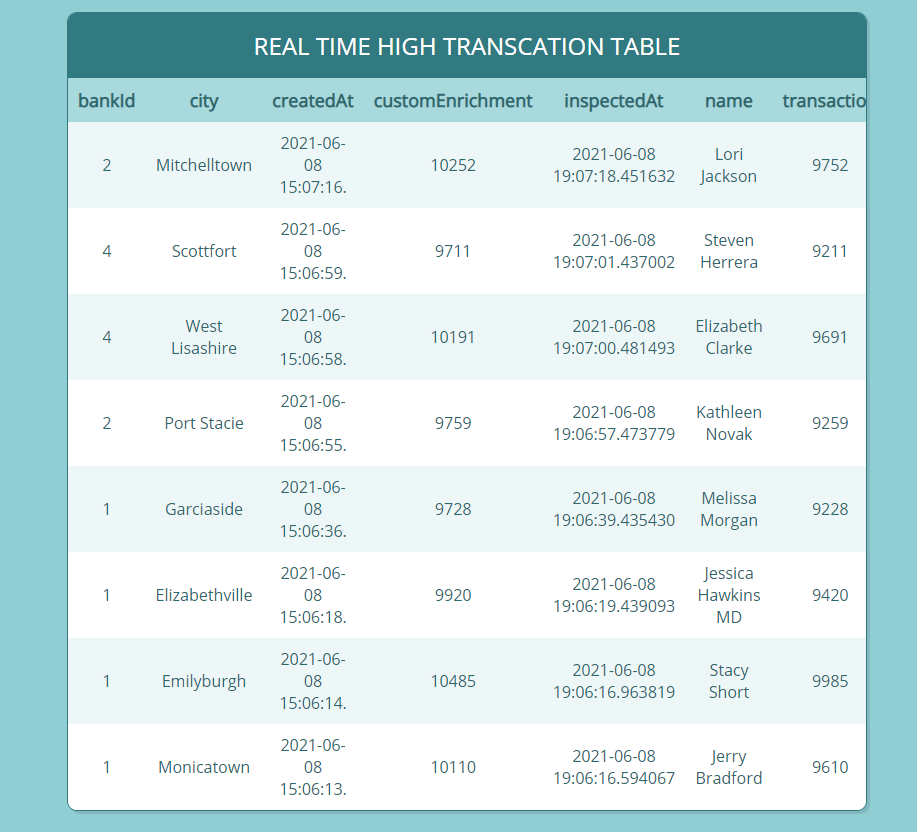
Leave the script running until it randomly generates a couple of high transactions. After they’re generated, you can visit the web app’s URL and see table entries for all anomalies there (as in the following screenshot).

By this time, Kinesis Data Firehose has buffered and compressed raw data from the stream and put it in Amazon S3. You can visit your S3 bucket and see your data landing inside the destination path.

Clean up

To clean up any provisioned resources, you can run cdk destroy inside the AWS CDK project and confirm the deletion, and the AWS CDK takes care of cleaning up all the resources.

Conclusion

In this post, we built a real-time application with a secondary cold path that gathers raw data for ad hoc analysis. We used the AWS CDK to provision the core managed services that handle the undifferentiated heavy lifting of a real-time streaming application. We then layered our custom application code on top of this infrastructure to meet our specific needs and tested the flow from end to end.

We covered key code snippets in this post, but if you’d like to see the project in its entirety and deploy the solution yourself, you can visit the AWS GitHub samples repo .


About the Authors

Cody Penta is a Solutions Architect at Amazon Web Services and is based out of Charlotte, NC. He has a focus in security and CDK and enjoys solving the really difficult problems in the technology world. Off the clock, he loves relaxing in the mountains, coding personal projects, and gaming.


Michael Hamilton is a Solutions Architect at Amazon Web Services and is based out of Charlotte, NC. He has a focus in analytics and enjoys helping customers solve their unique use cases. When he’s not working, he loves going hiking with his wife, kids, and their German shepherd.