All posts by Kenny Johnson

Zero Trust controls for your SaaS applications

Post Syndicated from Kenny Johnson original https://blog.cloudflare.com/access-saas-integrations/
Zero Trust controls for your SaaS applications

Zero Trust controls for your SaaS applications

Most teams start that journey by moving the applications that lived on their private networks into this Zero Trust model. Instead of a private network where any user on the network is assumed to be trusted, the applications that use Cloudflare Access now check every attempt against the rules you create. For your end users, this makes these applications just feel like regular SaaS apps, while your security teams have full control and logs.

However, we kept hearing from teams that wanted to use their Access control plane to apply consistent security controls to their SaaS apps, and consolidate logs from self-hosted and SaaS in one place.

We’re excited to give your team the tools to solve that challenge. With Access in front of your SaaS applications, you can build Zero Trust rules that determine who can reach your SaaS applications in the same place where your rules for self-hosted applications and network access live. To make that easier, we are launching guided integrations with the Amazon Web Services (AWS) management console, Zendesk, and Salesforce. In just a few minutes, your team can apply a Zero Trust layer over every resource you use and ensure your logs never miss a request.

How it works

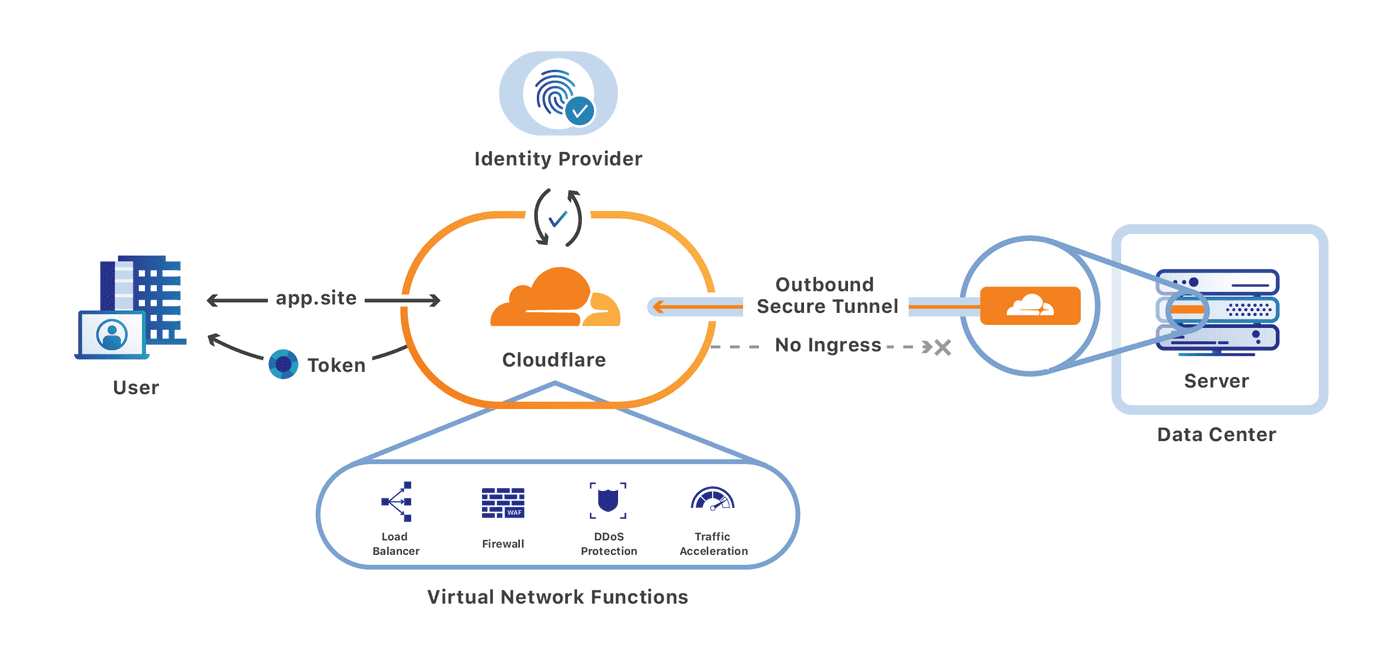
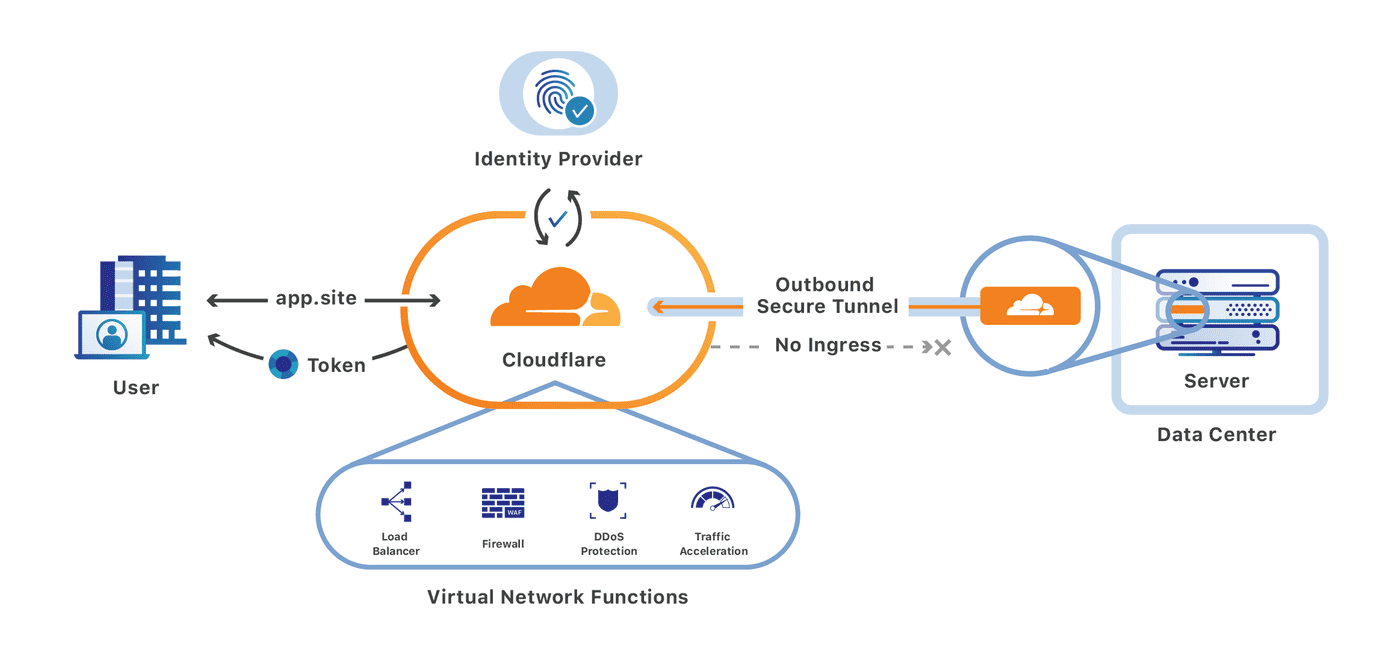
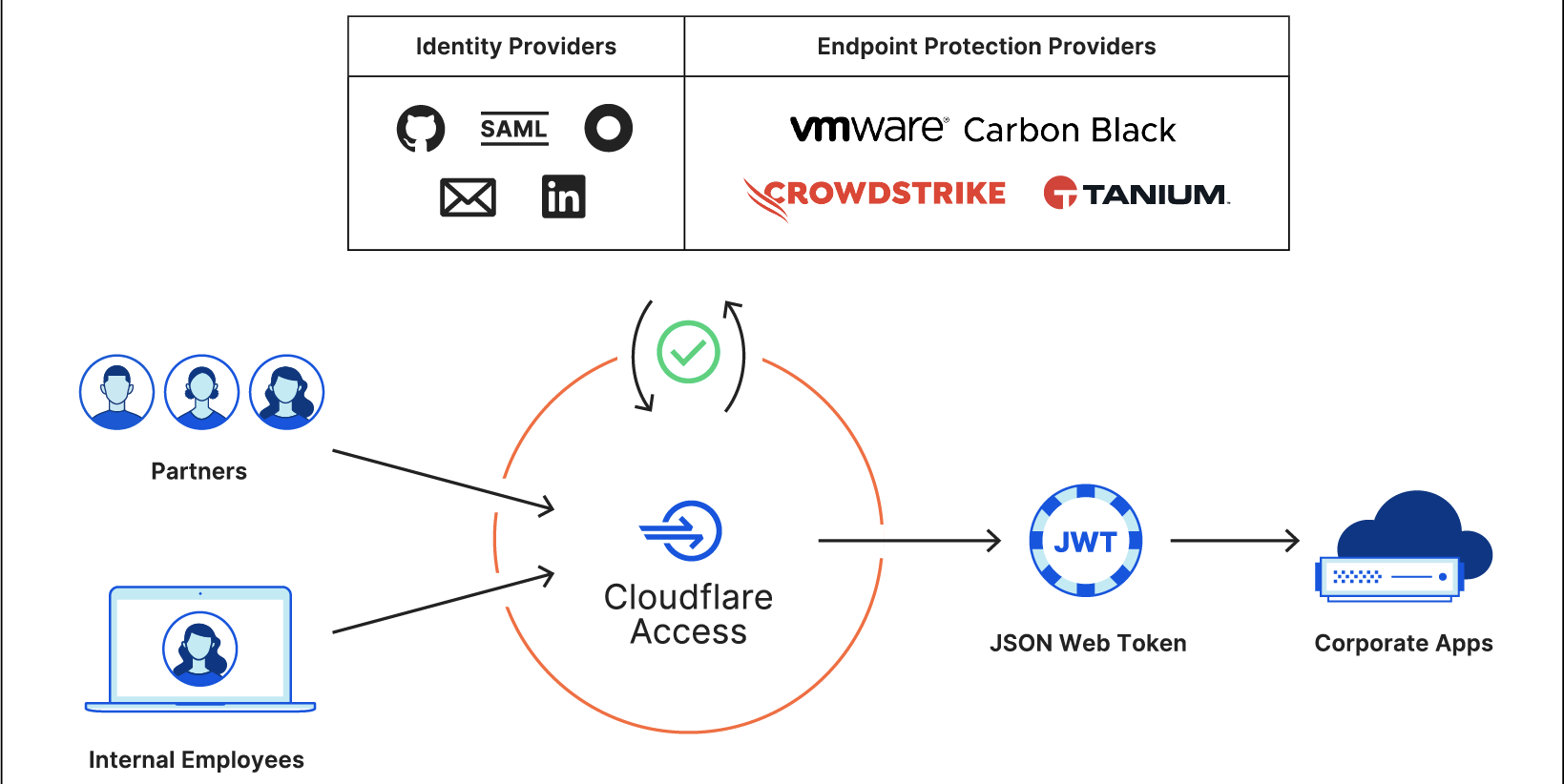
Cloudflare Access secures applications that you host by becoming the authoritative DNS for the application itself. All DNS queries, and subsequent HTTP requests, hit Cloudflare’s network first. Once there, Cloudflare can apply the types of identity-aware and context-driven rules that make it possible to move to a Zero Trust model. Enforcing these rules in our network means your application doesn’t need to change. You can secure it on Cloudflare, integrate your single sign-on (SSO) provider and other systems like Crowdstrike and Tanium, and begin building rules.
Zero Trust controls for your SaaS applications

SaaS applications pose a different type of challenge. You do not control where your SaaS applications are hosted — and that’s a big part of the value. You don’t need to worry about maintaining the hardware or software of the application.

However, that also means that your team cannot control how users reach those resources. In most cases, any user on the Internet can attempt to log in. Even if you incorporate SSO authentication or IP-based allowlisting, you might not have the ability to add location or device rules. You also have no way to centrally capture logs of user behavior on a per-request basis. Logging and permissions vary across SaaS applications — some are quite granular while others have non-existent controls and logging.

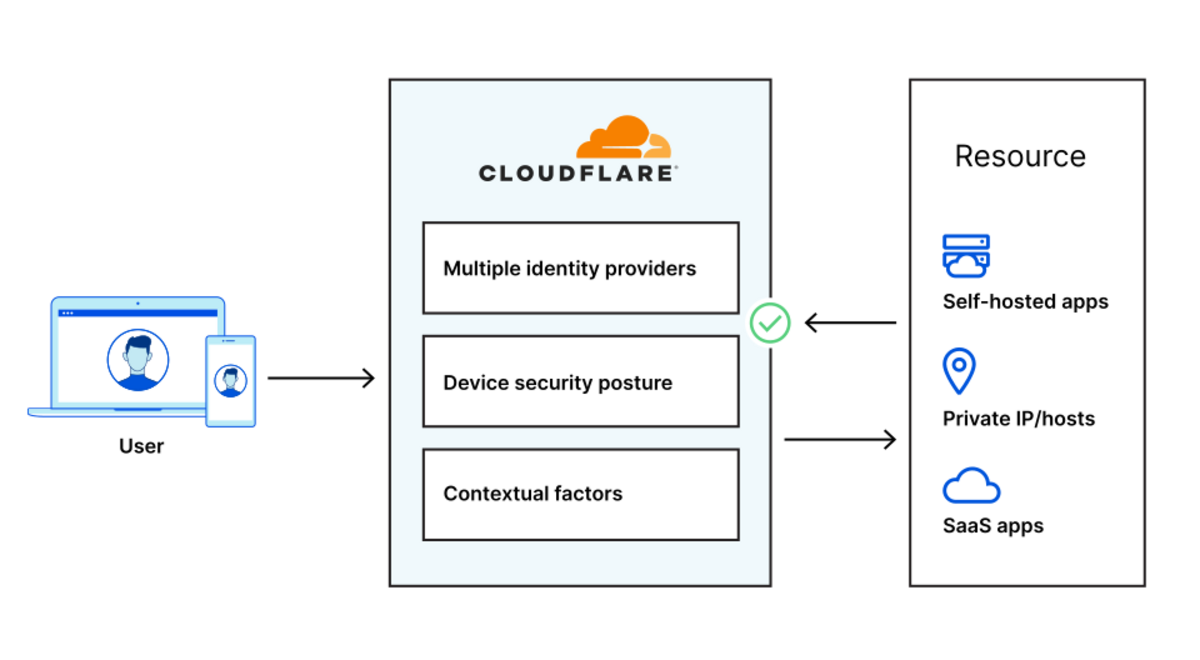
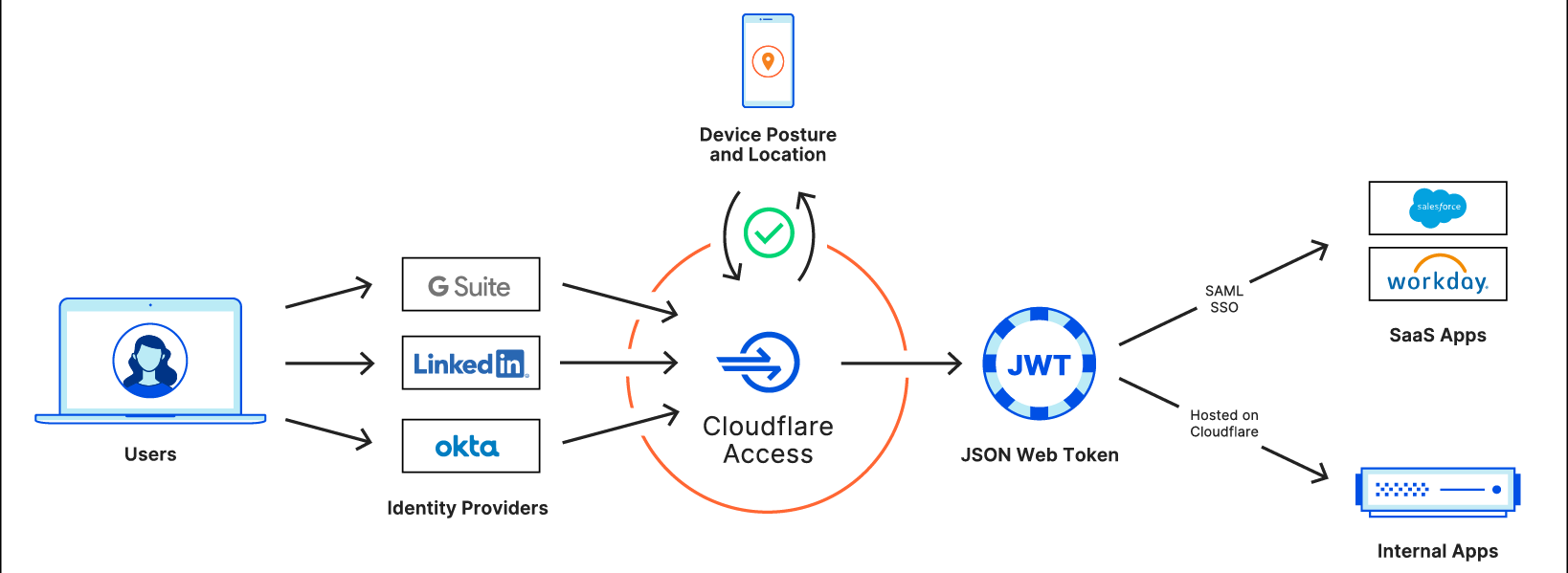
Cloudflare Access for SaaS solves that problem by injecting Zero Trust checks into the SSO flow for any application that supports SAML authentication. When users visit your SaaS application and attempt to log in, they are redirected through Cloudflare and then to your identity provider. They authenticate with your identity provider and are sent back to Cloudflare, where we layer on additional rules like device posture, multi factor method, and country of login. If the user meets all the requirements, Cloudflare converts the user’s authentication with your identity provider into a SAML assertion that we send to the SaaS application.
Zero Trust controls for your SaaS applications

We built support for SaaS applications by using Workers to take the JWT and convert its content into SAML assertions that are sent to the SaaS application. The application thinks that Cloudflare Access is the identity provider, even though we’re just aggregating identity signals from your SSO provider and other sources into the JWT, and sending that summary to the app via SAML. All of this leverages Cloudflare’s global network and ensures users do not see a performance penalty.

Enforcing managed devices and Gateway for SaaS applications

COVID-19 made it commonplace for employees to work from anywhere and, more concerning, from any device. Many SaaS applications contain sensitive data that should only be accessed with a corporately managed device. A benefit of SaaS tools is that they’re readily available from any device, it’s up to security administrators to enforce which devices can be used to log in.

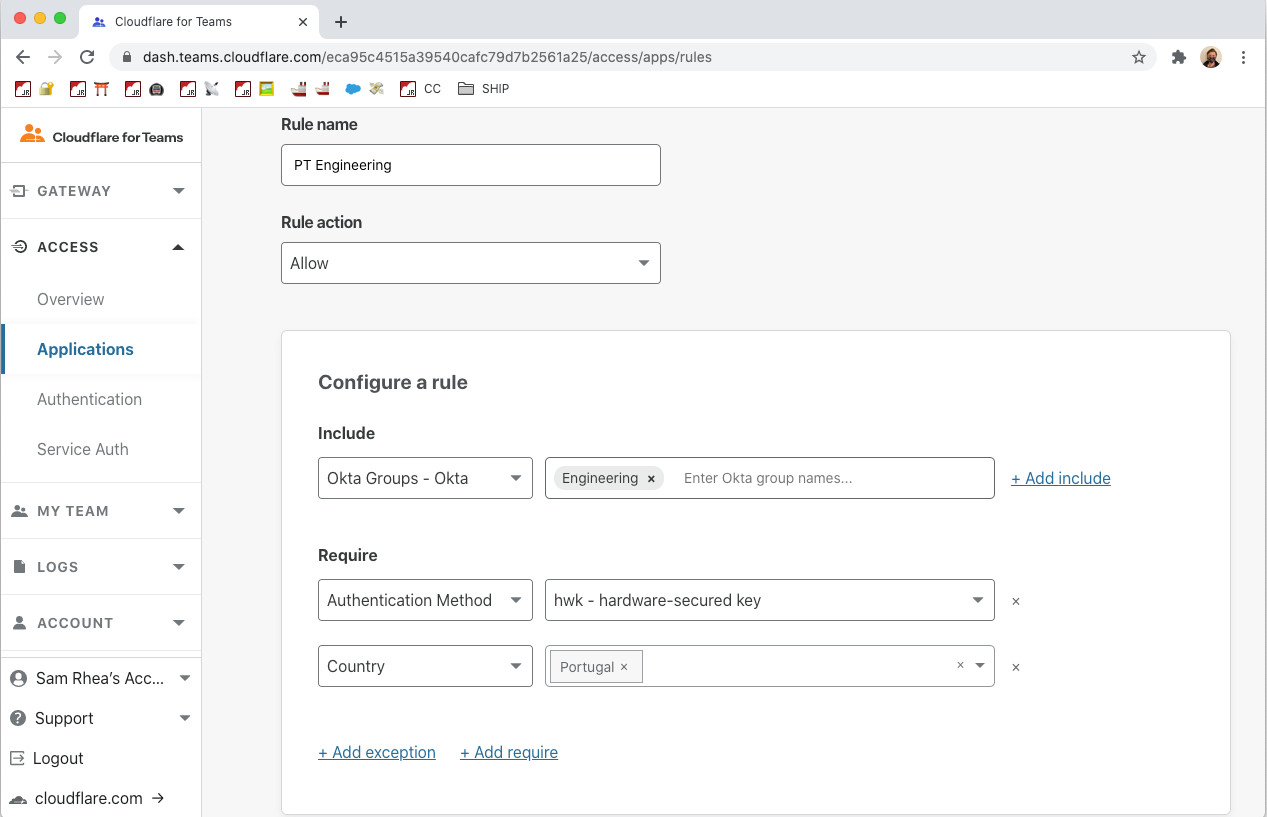
Once Access for SaaS has been configured as the SSO provider for SaaS applications, policies that verify a device can be configured. You can then lock a tool like Salesforce down to only users with a device that has a known serial number, hard auth key plugged in, an up to date operating system and much more.

Zero Trust controls for your SaaS applications

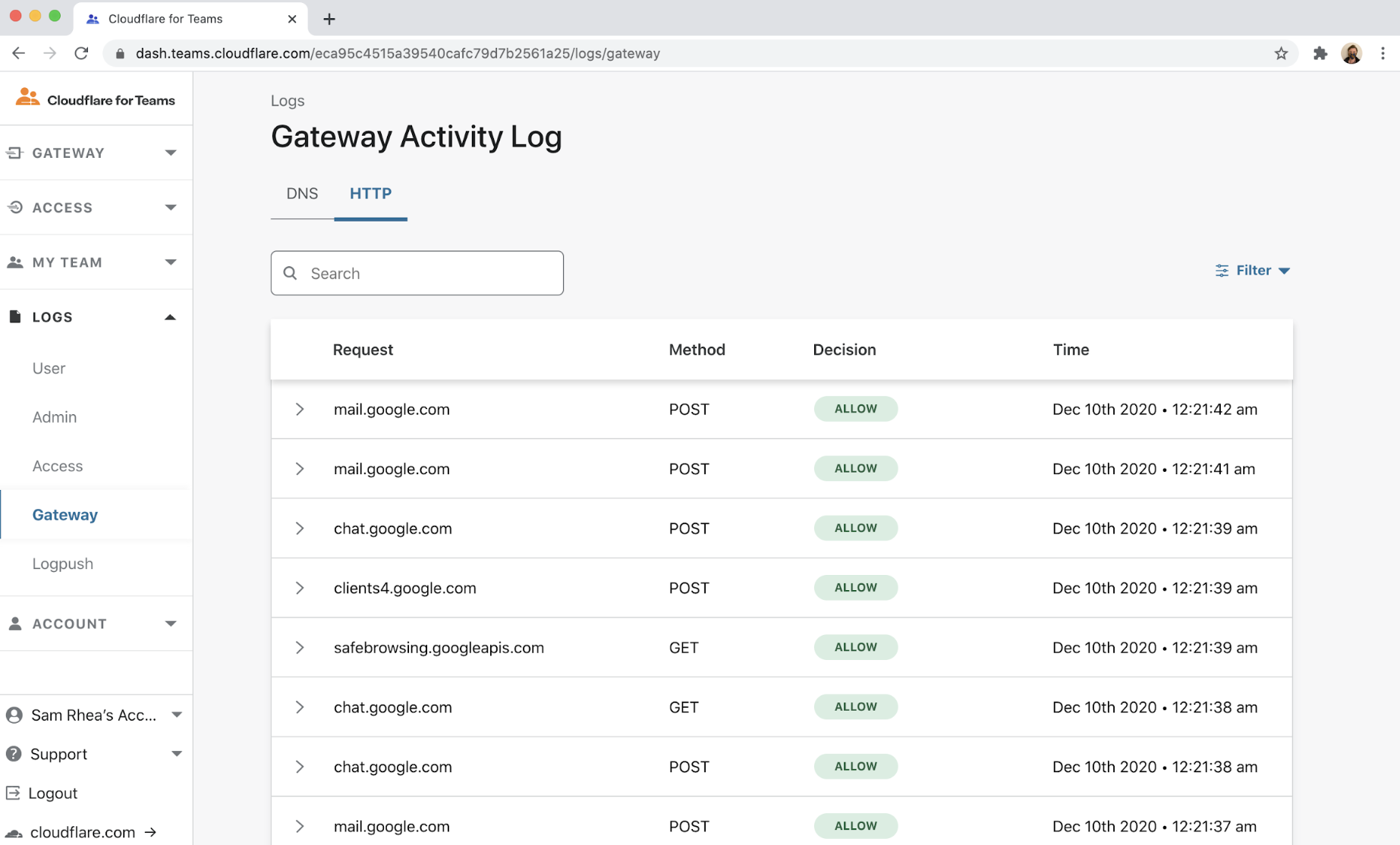
Cloudflare Gateway keeps your users and data safe from threats on the Internet by filtering Internet-bound connections that leave laptops and offices. Gateway gives administrators the ability to block, allow, or log every connection and request to SaaS applications.

However, users are connecting from personal devices and home WiFi networks, potentially bypassing Internet security filtering available on corporate networks. If users have their password and MFA token, they can bypass security requirements and reach into SaaS applications from their own, unprotected devices at home.
Zero Trust controls for your SaaS applications

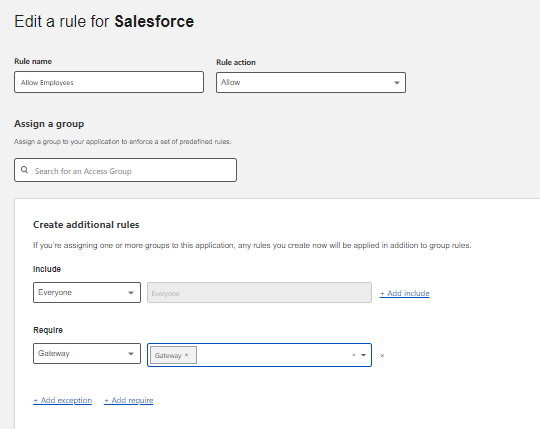
To ensure traffic to your SaaS apps only connects over Gateway-protected devices, Cloudflare Access will add a new rule type that requires Gateway when users login to your SaaS applications. Once enabled, users will only be able to connect to your SaaS applications when they use Cloudflare Gateway. Gateway will log those connections and provide visibility into every action within SaaS apps and the Internet.

Getting started and what’s next

It’s easy to get started with setting up Access for SaaS application. Visit the Cloudflare for Teams Dashboard and follow one of our published guides.

We will make it easier to protect SaaS applications and will soon be supporting configuration via metadata files. We will also continue to publish SaaS app specific integration guides. Are there specific applications you’ve been trying to integrate? Let us know in the community!
Browser VNC with Zero Trust Rules

Post Syndicated from Kenny Johnson original https://blog.cloudflare.com/browser-vnc-with-zero-trust-rules/

Browser VNC with Zero Trust Rules

Browser VNC with Zero Trust Rules

Starting today, we’re excited to share that you can now shift another traditional client-driven use case to a browser. Teams can now provide their users with a Virtual Network Computing (VNC) client fully rendered in the browser with built-in Zero Trust controls.

Like the SSH flow, this allows users to connect from any browser on any device, with no client software needed. The feature runs in every one of our data centers in over 200 cities around the world, bringing the experience closer to your end users. We also built the experience using Cloudflare Workers, to offer nearly instant start times. In the future we will support full auditability of user actions in their VNC and SSH sessions.

A quick refresher on VNC

VNC is a desktop sharing platform built on top of the Remote Frame Buffer protocol that allows for a GUI on any server. It is built to be platform-independent and provides an easy way for administrators to make interfaces available to users that are less comfortable with a command-line to work with a remote machine. Or to complete work better suited for a visual interface.

In my case, the most frequent reason I use VNC is to play games that have compatibility issues. Using a virtual machine to run a Windows Server was much cheaper than buying a new laptop.

In most business use cases, VNC isn’t used to play games, it’s driven by security or IT management requirements. VNC can be beneficial to create a “clean room” style environment for users to interact with secure information that cannot be moved to their personal machine.

How VNC is traditionally deployed

Typically, VNC deployments require software to be installed onto a user’s machine. This software allows a user to establish a VNC connection and render the VNC server’s GUI. This comes with challenges of operating system compatibility (remember how VNC was supposed to be platform independent?), security, and management overhead.

Managing software like a VNC viewer typically requires Mobile Device Management (MDM) software or users making individual changes to their machines. This is further complicated by contractors and external users requiring access via VNC.

Challenges with VNC deployments

VNC is often used to create an environment for a user to interact with sensitive data. However, it can be very difficult to monitor when a user makes a connection to a VNC server and then what they do during their session, without significant network configuration.

On top of the security concerns, software installed on a user’s machine, like a VNC viewer, is generally difficult to manage — think compatibility issues with operating systems, security updates, and many other problems.

Unlike SSH, where the majority of servers and clients predominantly use OpenSSH, there are numerous commercial and free VNC servers / clients in various states of quality and cost.

We wanted to fix this!

It was time for Browser VNC

One major challenge of rendering a GUI is latency — if a user’s mouse or keystrokes are slow, the experience is almost unusable. Using Cloudflare Tunnel, we can deliver the VNC connection at our edge, meaning we’re less than <50 ms away from 99% of Internet users.

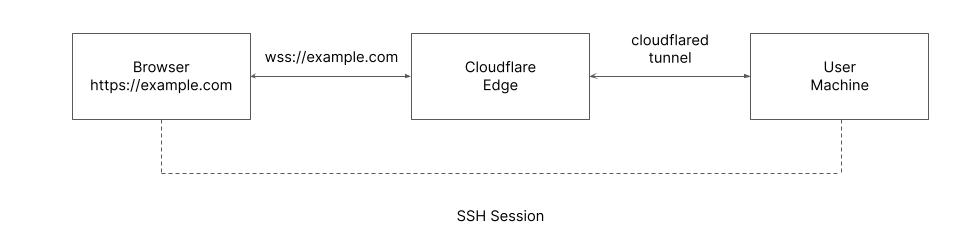
To do this we built a full VNC viewer implementation that runs in a web browser. Something like this would normally require running a server-side TCP → WebSocket proxy (eg. websockify since TCP connections are not natively supported in browsers today). Since we already have exactly this with cloudflared + Cloudflare Tunnel, we can connect to existing TCP tunnels and provide an entirely in-browser VNC experience. Because the server-side proxy happens at the TCP level, the VNC session is end-to-end encrypted between the web client and the VNC server within your network.

Browser VNC with Zero Trust Rules

Once we establish a connection, we use noVNC to render any VNC server natively in the browser.

All of this is delivered using Cloudflare Workers. We were able to build this entire experience on our serverless platform to render the VNC experience at our edge.

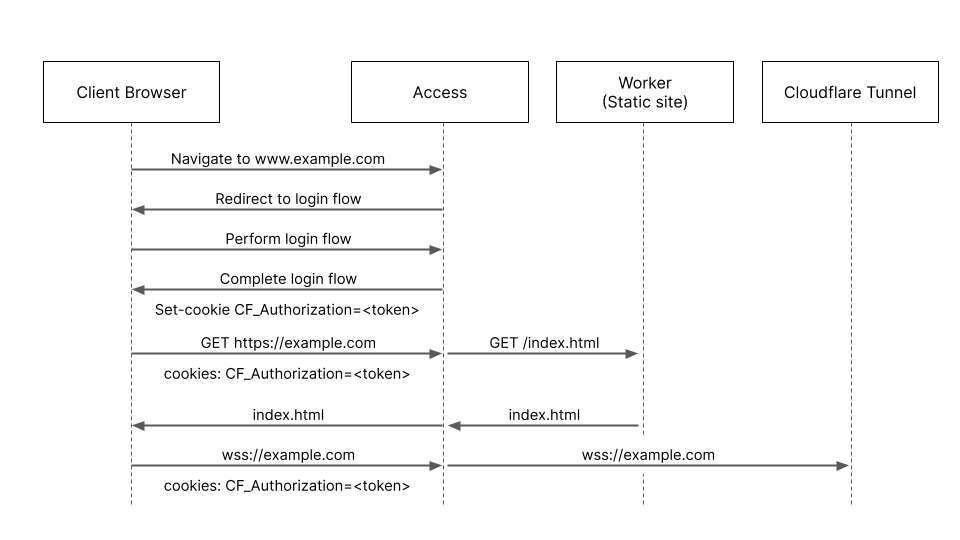
The final step is to authenticate the traffic going to the Tunnel established with your VNC server. For this, we can use Cloudflare Access, as it allows us to verify a user’s identity and enforce additional security checks. Once a user is properly authenticated, they are presented with a cookie that is then checked on every request made to the VNC server.

Browser VNC with Zero Trust Rules

And then a user can use their VNC terminal!

Browser VNC with Zero Trust Rules

Why Browser Based is the future

First and foremost, a browser-based experience is straightforward for users. All they need is an Internet connection and URL to access their SSH and VNC instances. Previously they needed software like a puTTY client and RealVNC.

Legacy applications, including VNC servers, serve as another attack vector for malicious users because they are difficult to monitor and keep patched with security updates. VNC based in the browser means that we can push security updates instantly. As well as taking advantage of built-in security features of modern browsers (e.g. chromium sandboxing).

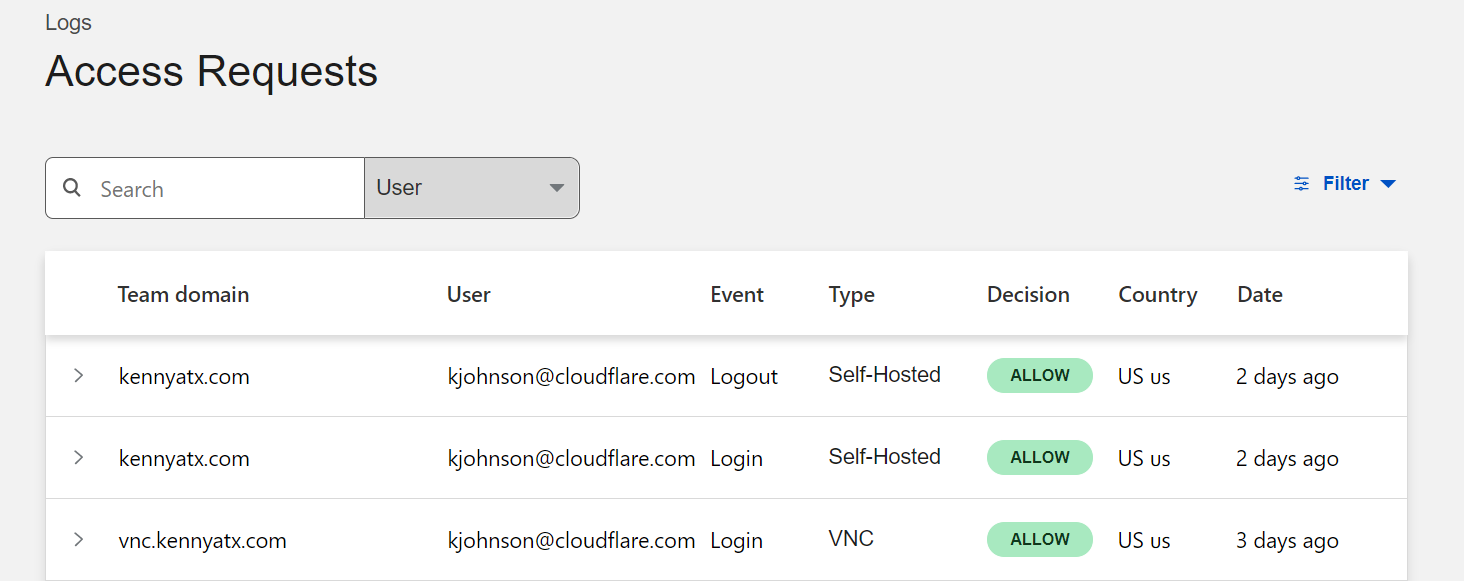
Visibility is another major improvement. In future releases, we will support screen recording and network request logging to provide detailed information on exactly what was completed during a VNC session. We already provide clear logs on any time a user accesses their VNC or SSH server via the browser.

Browser VNC with Zero Trust Rules

We’re just getting started!

Browser VNC is available now in every Cloudflare for Teams plan. You can get started for up to 50 users at no cost here.

Soon we’ll be announcing our plans to support additional protocols only available in on-prem deployments. Let us know in the Community if there are particular protocols you would like us to consider!

If you have questions about getting started, feel free to post in the community. If you would like to get started today, follow our step-by-step tutorial.

Introducing Zero Trust Private Networking

Post Syndicated from Kenny Johnson original https://blog.cloudflare.com/private-networking/

Introducing Zero Trust Private Networking

Starting today, you can build identity-aware, Zero Trust network policies using Cloudflare for Teams. You can apply these rules to connections bound for the public Internet or for traffic inside a private network running on Cloudflare. These rules are enforced in Cloudflare’s network of data centers in over 200 cities around the world, giving your team comprehensive network filtering and logging, wherever your users work, without slowing them down.

Last week, my teammate Pete’s blog post described the release of network-based policies in Cloudflare for Teams. Your team can now keep users safe from threats by limiting the ports and IPs that devices in your fleet can reach. With that release, security teams can now replace even more security appliances with Cloudflare’s network.

We’re excited to help your team replace that hardware, but we also know that those legacy network firewalls were used to keep private data and applications safe in a castle-and-moat model. You can now use Cloudflare for Teams to upgrade to a Zero Trust networking model instead, with a private network running on Cloudflare and rules based on identity, not IP address.

To learn how, keep reading or watch the demo below.

Deprecating the castle-and-moat model

Private networks provided security by assuming that the network should trust you by virtue of you being in a place where you could physically connect. If you could enter an office and connect to the network, the network assumed that you should be trusted and allowed to reach any other destination on that network. When work happened inside the closed walls of offices, with security based on the physical door to the building, that model at least offered some basic protections.

That model fell apart when users left the offices. Even before the pandemic sent employees home, roaming users or branch offices relied on virtual private networks (VPNs) to punch holes back into the private network. Users had to authenticate to the VPN but, once connected, still had the freedom to reach almost any resource. With more holes in the firewall, and full lateral movement, this model became a risk to any security organization.

However, the alternative was painful or unavailable to most teams. Building network segmentation rules required complex configuration and still relied on source IPs instead of identity. Even with that level of investment in network segmentation, organizations still had to trust the IP of the user rather than the user’s identity.

These types of IP-based rules served as band-aids while the rest of the use cases in an organization moved into the future. Resources like web applications migrated to models that used identity, multi-factor authentication, and continuous enforcement while networking security went unchanged.

But private networks can be great!

There are still great reasons to use private networks for applications and resources. It can be easier and faster to create and share something on a private network instead of waiting to create a public DNS and IP record.

Also, IPs are more easily discarded and reused across internal networks. You do not need to give every team member permission to edit public DNS records. And in some cases, regulatory and security requirements flat out prohibit tools being exposed publicly on the Internet.

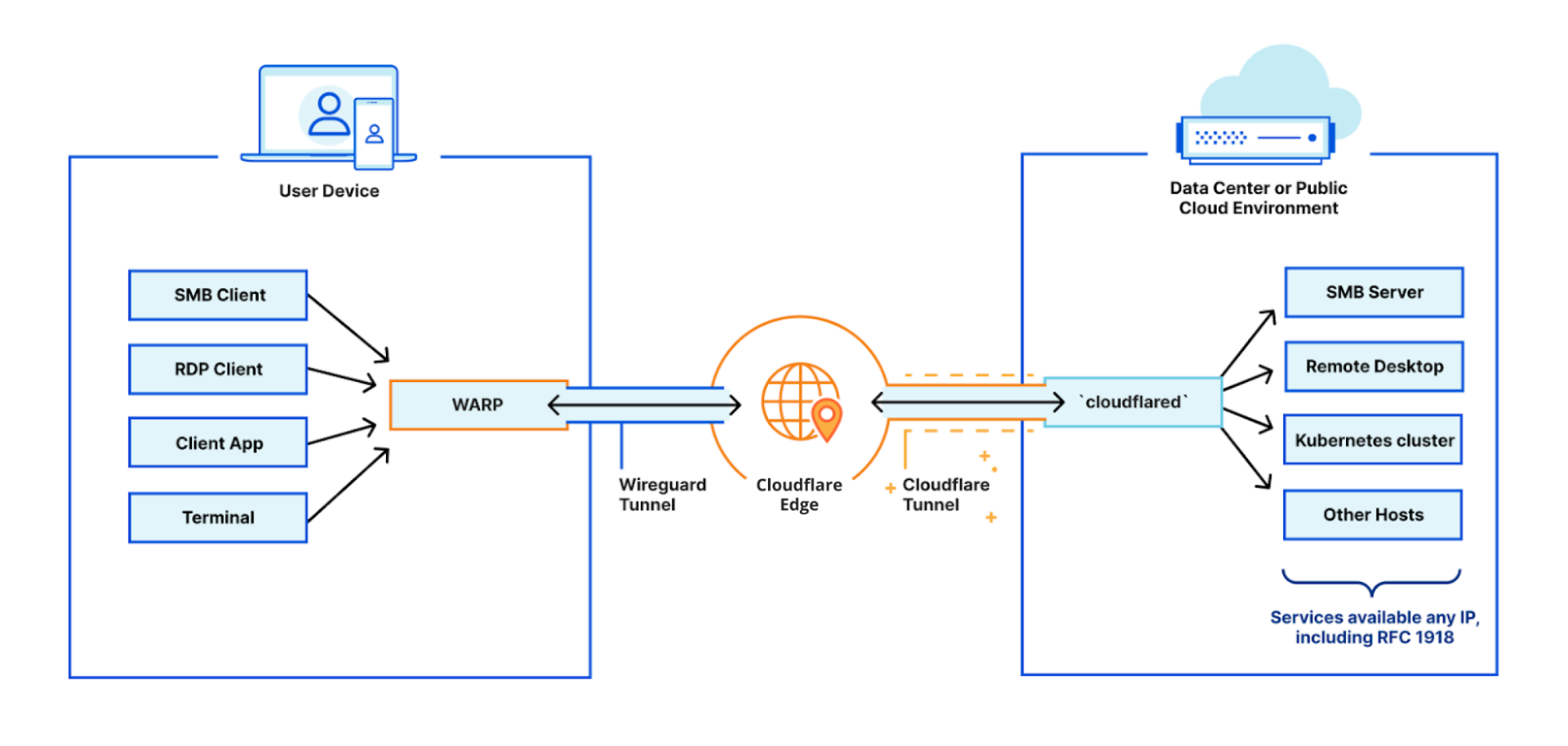
Private networks should not disappear, but the usability and security compromises they require should stay in the past. Two months ago, we announced the ability to build a private network on Cloudflare. This feature allows your team to replace VPN appliances and clients with a network that has a point of presence in over 200 cities around the world.

Introducing Zero Trust Private Networking
Zero Trust rules are enforced on the Cloudflare edge

While that release helped us address the usability compromises of a traditional VPN, today’s announcement handles the security compromises. You can now build identity-based, Zero Trust policies inside that private network. This means that you can lock down specific CIDR ranges or IP addresses based on a user’s identity, group, device or network. You can also control and log every connection without additional hardware or services.

How it works

Cloudflare’s daemon, cloudflared, is used to create a secure TCP tunnel from your network to Cloudflare’s edge. This tunnel is private and can only be accessed by connections that you authorize. On their side, users can deploy Cloudflare WARP on their machines to forward their network traffic to Cloudflare’s edge — this allows them to hit specific private IP addresses. Since Cloudflare has 200+ data centers across the globe, all of this occurs without any traffic backhauls or performance penalties.

With today’s release, we now enforce in-line network firewall policies as well. All traffic arriving to Cloudflare’s edge will be evaluated by the Layer 4 firewall. So while you can choose to enable or disable the Layer 7 firewall or bypass HTTP inspection for a given domain, all TCP traffic arriving to Cloudflare will traverse the Layer 4 firewall. Network-level policies will allow you to match traffic that arrives from (or is destined to) data centers, branch offices, and remote users based on the following traffic criteria:

  • Source IP address or CIDR in the header
  • Destination IP address or CIDR in the header
  • Source port or port range in the header
  • Destination port or port range in the header

With these criteria in place, you can enforce identity-aware policies down to a specific port across your entire network plane.

Get started with Zero Trust networking

There are a few things you’ll want to have configured before building your Zero Trust private network policies (we cover these in detail in our previous private networking post):

  • Install cloudflared on your private network
  • Route your private IP addresses to Cloudflare’s edge
  • Deploy the WARP client to your users’ machines

Once the initial setup is complete, this is how you can configure your Zero Trust network policies on the Teams Dashboard:

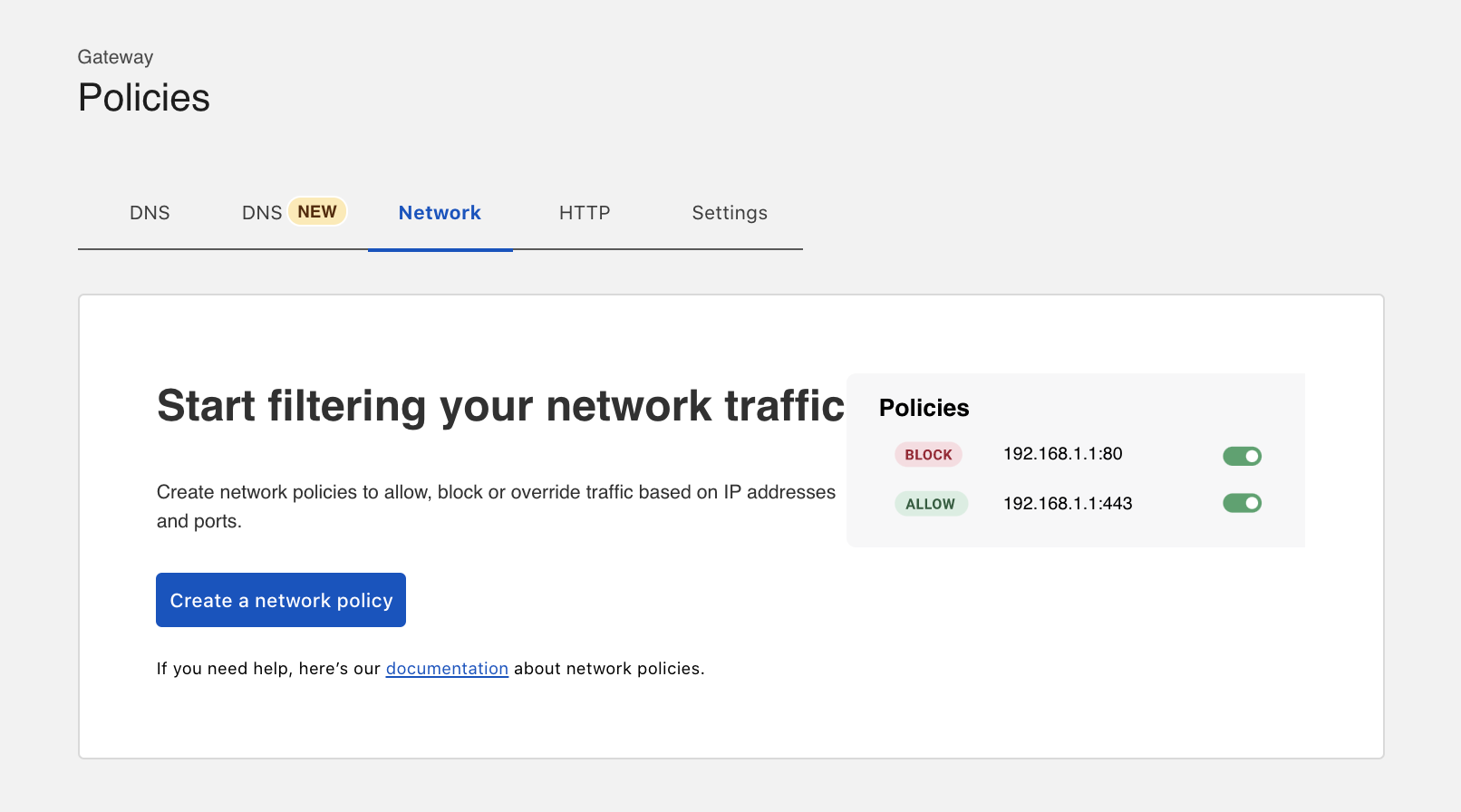
1. Create a new network policy in Gateway.

Introducing Zero Trust Private Networking

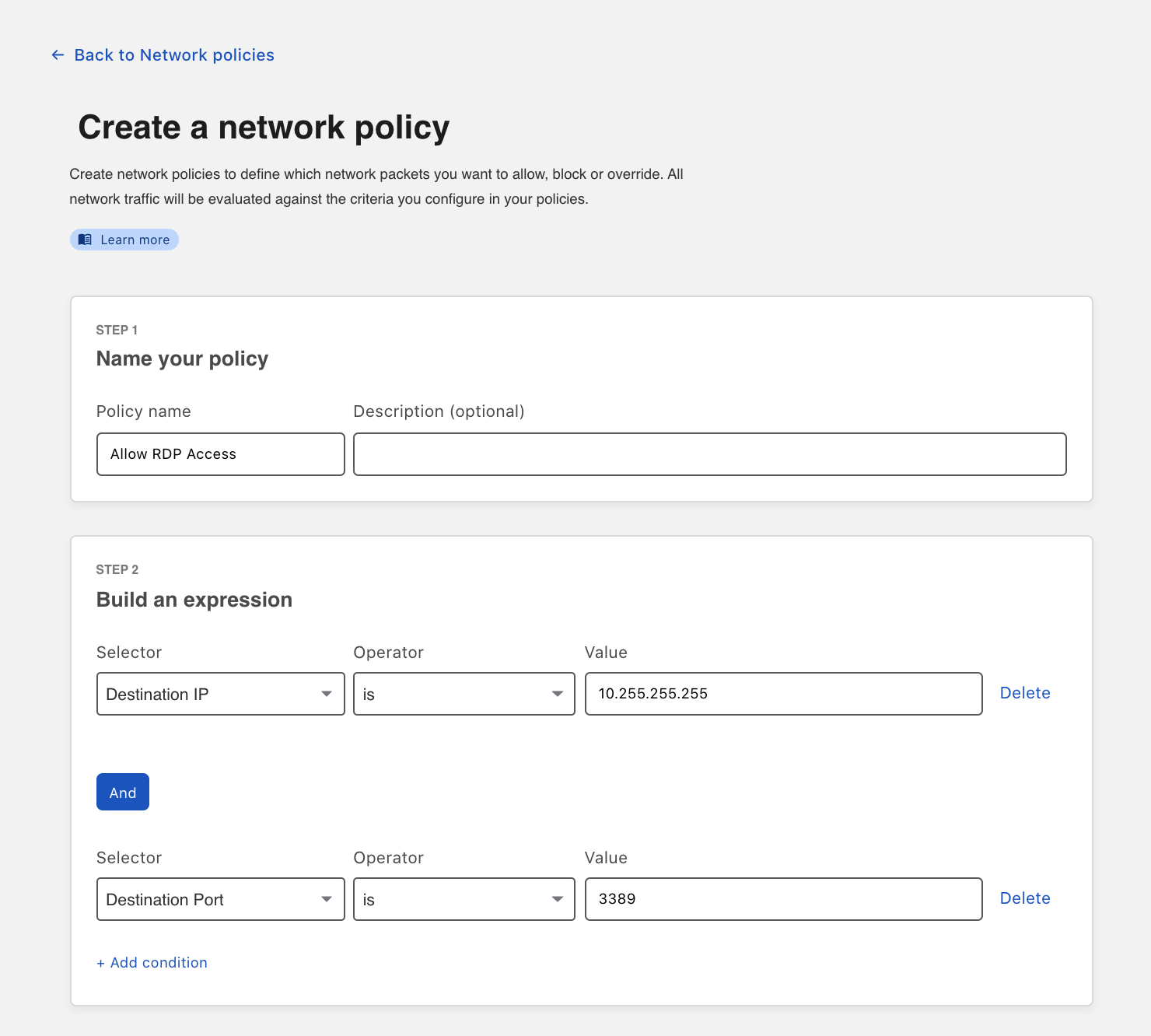
2. Specify the IP and Port combination you want to allow access to. In this example, we are exposing an RDP port on a specific private IP address.

Introducing Zero Trust Private Networking

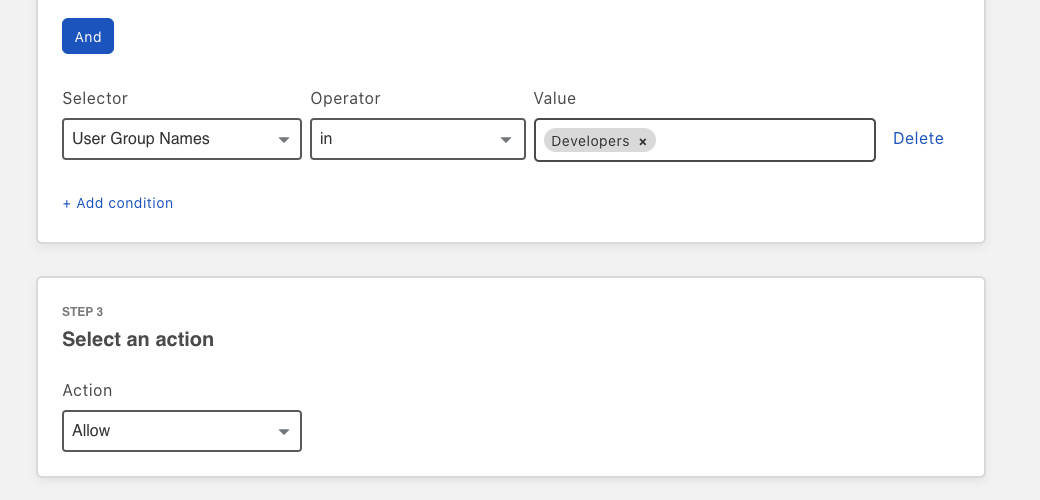
3. Add any desired identity policies to your network policy. In this example, we have limited access to users in a “Developers” group specified in the identity provider.

Introducing Zero Trust Private Networking

Once this policy is configured, only users in the specific identity group running the WARP client will be able to access applications on the specified IP and port combination.

And that’s it. Without any additional software or configuration, we have created an identity-aware network policy for all of my users that will work on any machine or network across the world while maintaining Zero Trust. Existing infrastructure can be securely exposed in minutes not hours or days.

What’s Next

We want to make this even easier to use and more secure. In the coming months, we are planning to add support for Private DNS resolution, Private IP conflict management and granular session control for private network policies. Additionally, for now this flow only works for client-to-server (WARP to cloudflared) connections. Coming soon, we’ll introduce support for east-west connections that will allow teams to connect cloudflared and other parts of Cloudflare One routing.

Getting started is easy — open your Teams Dashboard and follow our documentation.

Integrating Cloudflare Gateway and Access

Post Syndicated from Kenny Johnson original https://blog.cloudflare.com/integrating-cloudflare-gateway-and-access/

Integrating Cloudflare Gateway and Access

We’re excited to announce that you can now set up your Access policies to require that all user traffic to your application is filtered by Cloudflare Gateway. This ensures that all of the traffic to your self-hosted and SaaS applications is secured and centrally logged. You can also use this integration to build rules that determine which users can connect to certain parts of your SaaS applications, even if the application does not support those rules on its own.

Stop threats from returning to your applications and data

We built Cloudflare Access as an internal project to replace our own VPN. Unlike a traditional private network, Access follows a Zero Trust model. Cloudflare’s edge checks every request to protected resources for identity and other signals like device posture (i.e., information about a user’s machine, like Operating system version, if antivirus is running, etc.).

By deploying Cloudflare Access, our security and IT teams could build granular rules for each application and log every request and event. Cloudflare’s network accelerated how users connected. We launched Access as a product for our customers in 2018 to share those improvements with teams of any size.

Integrating Cloudflare Gateway and Access

Over the last two years, we added new types of rules that check for hardware security keys, location, and other signals. However, we were still left with some challenges:

  • What happened to devices before they connected to applications behind Access? Were they bringing something malicious with them?
  • Could we make sure these devices were not leaking data elsewhere when they reached data behind Access?
  • Had the credentials used for a Cloudflare Access login been phished elsewhere?
Integrating Cloudflare Gateway and Access

We built Cloudflare Gateway to solve those problems. Cloudflare Gateway sends all traffic from a device to Cloudflare’s network, where it can be filtered for threats, file upload/download, and content categories.

Administrators deploy a lightweight agent on user devices that proxies all Internet-bound traffic through Cloudflare’s network. As that traffic arrives in one of our data centers in 200 cities around the world, Cloudflare’s edge inspects the traffic. Gateway can then take actions like prevent users from connecting to destinations that contain malware or block the upload of files to unapproved locations.

With today’s launch, you can now build Access rules that restrict connections to devices that are running Cloudflare Gateway. You can configure Cloudflare Gateway to run in always-on mode and ensure that the devices connecting to your applications are secured as they navigate the rest of the Internet.

Log every connection to every application

In addition to filtering, Cloudflare Gateway also logs every request and connection made from a device. With Gateway running, your organization can audit how employees use SaaS applications like Salesforce, Office 365, and Workday.

Integrating Cloudflare Gateway and Access

However, we’ve talked to several customers who share a concern over log integrity — “what stops a user from bypassing Gateway’s logging by connecting to a SaaS application from a different device?” Users could type in their password and use their second factor authentication token on a different device — that way, the organization would lose visibility into that corporate traffic.

Today’s release gives your team the ability to ensure every connection to your SaaS applications uses Cloudflare Gateway. Your team can integrate Cloudflare Access, and its ruleset, into the login flow of your SaaS applications. Cloudflare Access checks for additional factors when your users log in with your SSO provider. By adding a rule to require Cloudflare Gateway be used, you can prevent users from ever logging into a SaaS application without connecting through Gateway.

Build data control rules in SaaS applications

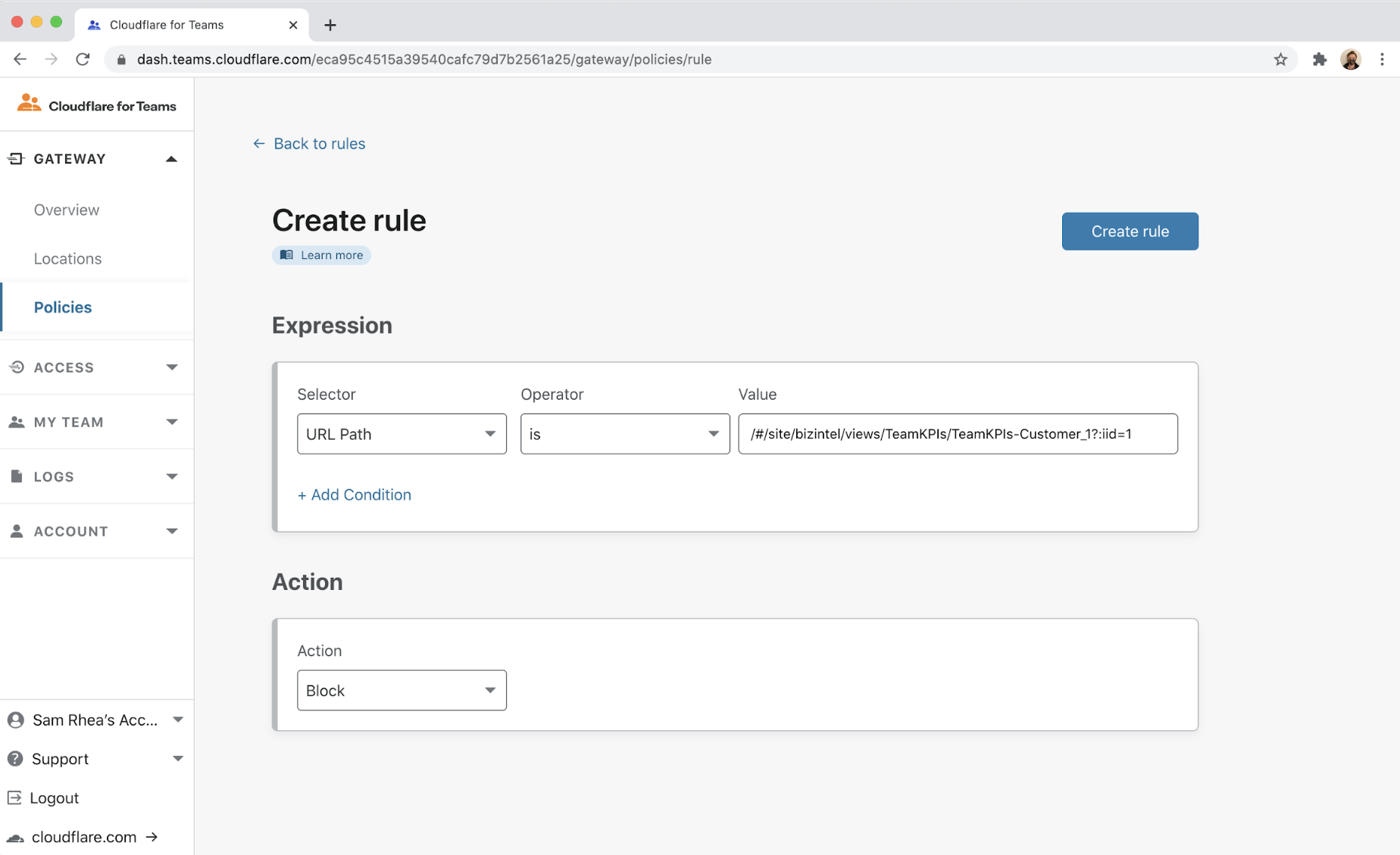
One other challenge we had internally at Cloudflare is that we lacked the ability to add user-based controls in some of the SaaS applications we use. For example, a team member connecting to a data visualization application had access to dashboards created by other teams, that they shouldn’t have access to.

We can use Cloudflare Gateway to solve that problem. Gateway provides the ability to restrict certain URLs to groups of users; this allows us  to add rules that only let specific team members reach records that live at known URLs.

Integrating Cloudflare Gateway and Access

However, if someone is not using Gateway, we lose that level of policy control. The integration with Cloudflare Access ensures that those rules are always enforced. If users are not running Gateway, they cannot login to the application.

What’s next?

You can begin using this feature in your Cloudflare for Teams account today with the Teams Standard or Teams enterprise plan. Documentation is available here to help you get started.

Want to try out Cloudflare for Teams? You can sign up for Teams today on our free plan and test Gateway’s DNS filtering and Access for up to 50 users at no cost.