All posts by Roshith Alankandy

How to manage migration of hsm1.medium CloudHSM clusters to hsm2m.medium

Post Syndicated from Roshith Alankandy original https://aws.amazon.com/blogs/security/how-to-manage-migration-of-hsm1-medium-cloudhsm-clusters-to-hsm2m-medium/

On August 20, 2024, we announced the general availability of the new AWS CloudHSM instance type hsm2m.medium (hsm2). This new type comes with additional features compared to the previous AWS CloudHSM instance type, hsm1.medium (hsm1), such as support for Federal Information Processing Standard (FIPS) 140-3 Level 3, the ability to run clusters in non-FIPS mode, increased storage capacity of 16,666 total keys, and support for mutual transport layer security (mTLS) between the client and CloudHSM.

The hsm1 instance type is reaching end-of-life and will be unavailable for service on December 1, 2025. See the hsm1 deprecation notification.

To address this, starting April 2025, AWS will attempt to automatically migrate existing hsm1 clusters to hsm2. During the migration, the hsm1 cluster will operate in limited-write mode.

If you want to use automatic migration and can accommodate restrictions on operations during the migration, make sure that your environment meets the prerequisites for automatic migration.

If you want to manage the migration yourself, you can do so before the automatic migration begins. In this post, we provide a few options for migration so you can choose the method that’s best for your situation and available resources.

To help facilitate high availability during migration, you can use a blue/green deployment strategy. If high availability isn’t a priority, there are two approaches: one where write operations are restricted and a second where you incur some downtime on operations. We also cover different use cases based on the operations performed during migration and provide rollback strategies.

Important considerations

When planning a migration to hsm2, consider the following:

  • Backup: We recommend keeping a backup of hsm1 until you have confirmed that all the required keys have been migrated to hsm2. You can configure a CloudHSM backup retention policy to manage backups.

    Note: CloudHSM doesn’t delete a cluster’s last backup. See Configuring AWS CloudHSM backup retention policy for more information. You can also share the CloudHSM backups with other AWS accounts as described in Working with shared backups.

  • Availability and rollback: This post presents two main migration approaches. One that preserves availability but might become complex depending on the type of keys used and operations performed during the migration period. The other approach is less complicated but might impact availability for a short time. Choose the migration process based on your availability requirements.
  • Blue/Green strategy: You can use a blue/green deployment strategy using an enterprise-specific method or a CloudHSM multi-cluster configuration.

    Note: Multi-cluster configuration is supported for CloudHSM CLI, JCE, and PKCS11.

  • Client SDK version: Instance type hsm2 is compatible only with Client SDK version 5.9.0 and later. Upgrade your client SDK before starting migration. We recommend using the latest version.
  • Deprecated algorithms: Make sure you’re not using any deprecated algorithms. You won’t be able to migrate to an hsm2 cluster using backup if you’re using any deprecated algorithms. If you’re using 3DES, you can continue to use it in hsm2 non-FIPS clusters only. See How to migrate 3DES keys from a FIPS to a non-FIPS AWS CloudHSM cluster.
  • Known issues: See the known issues with hsm2 to amend your tests and metrics as needed after migration.

Limited availability

There are two options: customer triggered and customer managed. Choose the approach that best fits your requirements. Note that for both options, you need to satisfy the migration criteria. See Prerequisites for migrating to hsm2m.medium.

Customer triggered

You can trigger migration of your hsm1 cluster from the AWS Management Console for CloudHSM or the AWS Command Line Interface (AWS CLI), and AWS will manage the migration process. Follow the detailed steps in Migrating from hsm1.medium to hsm2m.medium. This approach is suitable if you don’t perform frequent write operations such as creating or deleting users or keys. During the migration, the hsm1 cluster enters limited-write mode where write operations will be rejected until migration is complete. Write operations performed by your application, if any, will fail during the migration. Read operations remain unaffected. If a rollback is required, it will be managed by AWS. If necessary, you can roll back the migration within 24 hours of starting it. The customer triggered migration process is straightforward because no configuration changes are required. If your application requires write operations during migration you can follow the customer managed option.

Customer managed

This approach is suitable if you can schedule a brief downtime to perform migration. For this process, you create a new hsm2 cluster using the latest hsm1 backup. After you add the same number of HSMs to the hsm2 cluster as are in the hsm1 cluster, stop the application, reconfigure the CloudHSM client library to hsm2, and restart the application.

  • Create an hsm2 cluster from backup: CloudHSM makes periodic backups of your cluster at least once every 24 hours. If you need a more recent backup, follow the steps in Cluster backups in AWS CloudHSM to trigger a backup. If you created a backup retention policy when you created the cluster, that will determine how long the backups are retained before being purged. The default is 90 days.

    After you have identified the backup, create an hsm2 cluster from the CloudHSM console or AWS CLI. For the console, choose HSM type hsm2m.medium and Cluster source as Restore cluster from existing backup and choose the designated backup of hsm1.

  • Update cluster for high availability: The new hsm2 cluster will have only one HSM instance. You can now add the same number of instances as hsm1 to this cluster. See adding an HSM to CloudHSM cluster. Based on your workload, add more HSMs to the cluster to ensure high availability. This is a good time to review the cluster to be sure that it follows best practices.
  • Reconfigure client SDKs: During the maintenance window, stop your application that is integrated with the CloudHSM client SDK, reconfigure the appropriate client SDK to talk to the new hsm2 cluster, and then restart the application. See Bootstrap the Client SDK to reconfigure the SDKs. An alternative to stopping and reconfiguring existing applications is to launch a new application instance with the CloudHSM client configured to talk to hsm2 and decommission the old application instance.
  • Monitor the application: Monitor your application’s health metrics and logs to verify that operations run against the new hsm2 cluster are successful. If you see increased errors, you can roll back to the hsm1 cluster and contact AWS Support for assistance.
  • Rollback: You can roll back by reconfiguring your application to communicate with the hsm1 cluster, similar to how you configured your application to talk to the hsm2 cluster.
  • Delete the hsm1 cluster: After you’re satisfied with your new hsm2 cluster, you can delete the hsm1 cluster to reduce costs. This action will create a backup that will be retained—CloudHSM doesn’t delete a cluster’s last backup.

High availability

If you need your CloudHSM cluster to be highly available during migration, AWS recommends that you follow the blue/green deployment methodology. The fundamental idea behind blue/green deployment is to shift traffic between two identical environments that are running different versions of a service or application. The blue environment represents the current version serving production traffic—the hsm1 cluster. The green environment is staged in parallel, running a different version of the service—an hsm2 cluster. After the green environment is ready and tested, production traffic is redirected from blue to green. If problems are identified, you can roll back by reverting traffic back to the blue environment.

We discuss two blue/green approaches in this post. Approach 1 uses a load balancer to route traffic between the blue and green configurations. Approach 2 uses CloudHSM multi-cluster configuration and requires application code changes. Each has pros and cons in terms of effort and cost.

If you have already implemented a multi-cluster configuration in your application, you can follow Approach 2; otherwise, we recommend Approach 1.

A few important things to keep in mind when you implement either of these approaches.

  • You need to create the hsm2 cluster from the hsm1 backup as described in Customer managed.
  • If you need to support write operations during migration, you will need to run additional processes to make sure the data is in sync between the blue and green clusters. See Use cases to learn about different scenarios and plan accordingly.

Approach 1

For this approach, you create two separate but identical client environments. One environment (blue) runs the current application and the client SDK that connects to the hsm1 cluster. The other environment (green) runs the same application with the client SDK configured to talk to the hsm2 cluster. You then use a load balancer—such as Application Load Balancer (ALB)—to selectively route traffic between blue and green using the weighted target groups routing feature of ALB or an equivalent feature in your load balancer.

You can start by directing a small percentage of your application traffic to green. When you’re confident that green is performing well and is stable, shift traffic to green and shut down blue.

Figure 1: Blue/green migration architecture

Figure 1: Blue/green migration architecture

The following are the steps of the migration architecture shown in Figure 1:

  1. Create an hsm2 cluster from an hsm1 backup as described in Customer managed. Make sure you create the new cluster in the same Availability Zones as the existing CloudHSM cluster. This will be your green environment.
  2. Spin up new application instances in the green environment and configure them to connect to the new hsm2 cluster.
  3. Add the new client instances to a new target group for the ALB.
  4. Next, use the weighted target groups routing feature of ALB to route traffic to the newly configured environment.
    1. Each target group weight is a value from 0 to 999. Requests that match a listener rule with weighted target groups are distributed to these target groups based on their weights.
    2. For more information, see Fine-tuning blue/green deployments on application load balancer.

You can follow the canary deployment pattern to roll out an hsm2 cluster integrated application to a subset of users before making it widely available while the hsm1 integrated application serves most of the users. To start, you can configure blue target group with a weight of 90 and green with 10; the ALB will route 90 percent of the traffic to the blue target group and 10 percent to green.

Monitor applications to verify that operations to green are successful (see Monitoring). After you’re satisfied with the response from green, you can update the weights to 0 and 100 for blue and green to completely switch over to green and then shut down blue.

For alternate approaches, such as DNS weighted distribution, see Blue/Green Deployments on AWS

Approach 2

This approach uses a single application environment that talks to both the hsm1 and hsm2 clusters. To shift traffic between blue and green environments, you will use the CloudHSM multi-cluster configuration, which allows a single client SDK to communicate with two or more CloudHSM clusters. Your application code needs to be modified to communicate with both blue and green clusters. In this post, we use a JCE SDK multi-cluster configuration, shown in Figure 2 that follows.

Figure 2: Multi-cluster migration architecture

Figure 2: Multi-cluster migration architecture

The solution uses the basic blue/green deployment steps using a multi-cluster configuration and is designed for common use cases based on the type of CloudHSM operations performed during migration. We also cover how keys can be synchronized between the blue and green clusters and how to roll back.

Create an hsm2 cluster from an hsm1 backup

As described in Customer managed, create an hsm2 cluster from an hsm1 backup. Make sure you create the new cluster in the same Availability Zones as the existing CloudHSM cluster. This will be your green environment.

Modify the application to talk to both blue and green

In this step, you modify the application to use multi-cluster configuration to talk to both blue and green. When using a multi-cluster configuration, you need to configure the CloudHSM provider in the code instead of using the default config file.

In the application code, instantiate two providers: providerHsm1 pointing to blue cluster and providerHsm2 pointing to green cluster. Then update the business logic to switch traffic between blue and green using these providers.

  • Instantiate providers as shown in the following example. See Connecting to multiple clusters with CloudHSM CLI for a detailed explanation. Replace the following:
    • <hsmCAFilePath>: File path to hsm1 trust anchor certificate that you used to initialize the cluster.
    • <hsm1ClusterID>: The unique cluster ID of the hsm1 cluster.
    • <hsm2ClusterID>: The unique cluster ID of the hsm2 cluster.
    CloudHsmProviderConfig hsm1Config = CloudHsmProviderConfig.builder() 
    .withCluster( 
    CloudHsmCluster.builder() 
    .withHsmCAFilePath(<hsmCAFilePath>)
    .withClusterUniqueIdentifier("<hsm1ClusterID>")
    .withServer(CloudHsmServer.builder().withHostIP(hsm1HostName).build()) 
    .build()) 
    .build();
    CloudHsmProvider providerHsm1 = new CloudHsmProvider(hsm1Config);
    
       if (Security.getProvider(provider1.getName()) == null) {.  
                     Security.addProvider(provider1);
         }
    
    CloudHsmProviderConfig hsm2Config = CloudHsmProviderConfig.builder() 
    .withCluster( 
    CloudHsmCluster.builder() 
    .withHsmCAFilePath(<hsmCAFilePath>)
    .withClusterUniqueIdentifier("<sm2ClusterID>")
    .withServer(CloudHsmServer.builder().withHostIP(hsm2HostName).build()) 
    .build()) 
    .build();
    
    CloudHsmProvider providerHsm2 = new CloudHsmProvider(hsm2Config);
    
    if (Security.getProvider(provider2.getName()) == null) { 
                  Security.addProvider(provider2);
    }
    

  • Direct operations to blue and green using the respective providers.
    Cipher cipher1 = Cipher.getInstance("AES/GCM/NoPadding", providerHsm1);
    
    Cipher cipher2 = Cipher.getInstance("AES/GCM/NoPadding", providerHsm2);
    

Switch to green and shut down blue

Monitor the application to verify that operations on green are successful. See the Monitoring section. Once you are satisfied with response from green, you can update the application code to completely switch over to green.

Monitoring

During migration to hsm2, it’s important to monitor your application to confirm it’s working as expected and roll back if you notice increased errors. You can use your application logs and the CloudHSM client SDK logs to monitor the application.

Note: There are some known issues with hsm2 that will be fixed in future releases. See Known issues for AWS CloudHSM hsm2m.medium instances for a list of current known issues and their resolution status.

Use cases

Depending on the type of operations you perform on your CloudHSM cluster during migration, you need to run additional processes to make sure the data is in sync between the blue and green clusters. This will help avoid the split-brain scenario where blue and green clusters are in an inconsistent state if a write operation is performed during migration.

Read-only operations

During migration, if you only need to perform read operations—meaning you aren’t creating token keys—then the data between the clusters will be consistent. You can switch over to green completely following the blue/green-deployment methodology in Approach 1 or Approach 2.

Create/delete operations

If token keys need to be created during migration, the blue and green clusters need to be synchronized to make sure that read operations to the clusters are successful.

  • Write to blue: Initially, create operations can be directed to blue and read operations to both blue and green. In this case, the newly created keys need to be replicated to green. You can use the CloudHSM CLI key replicate command to synchronize keys. See Replicate keys.
  • Write to green: After you gain confidence in the read capability of the green cluster, you could begin swapping over the application to do write operations against the green cluster. In this case, if you’re still reading from both blue and green, you can replicate keys to blue using the CloudHSM CLI key replicate. See Replicate keys.

Replicate keys

Keys can be replicated between CloudHSM clusters that are created from the same backup using CloudHSM CLI with multi-cluster configuration.

Step 1: Configure multi-cluster:

Add blue and green clusters to the multi-cluster configuration. See Connecting to multiple clusters with CloudHSM CLI.

Step 2: Replicate keys from source to destination

Make sure that key owners and users that the key is shared with exist in the destination. Also, the crypto user or admin performing the operation needs to sign in to both clusters.

Run the key replicate command to replicate the keys from blue to green or vice versa as shown in the following example.

  • List keys in hsm1:
    crypto_user@cluster-<hsm1ClusterID> > key list --cluster-id cluster-<hsm1ClusterID>
    

  • List keys in hsm2:
    crypto-user@cluster-<hsm1ClusterID> > key list --cluster-id cluster-<hsm2ClusterID>
    

  • Replicate keys:
    crypto_user@cluster-<hsm1ClusterID> > key replicate \
    --filter attr.label=example-aes-2 \
    --source-cluster-id cluster-<hsm1ClusterID> \
    --destination-cluster-id cluster-<hsm2ClusterID>
    

Rollback

The complexity of a rollback will depend on the stage of the migration and what keys were created. Normally, whether it’s during the migration or after, if you aren’t using hsm2-specific features such as new key attributes, then the rollback is straightforward. During the migration, if a rollback is needed, you can point your application back toward the hsm1 cluster. Through this approach, reads and writes will revert to happening on just the hsm1 and the rollback will be complete. If you created keys in only hsm2, you can replicate them back to hsm1.

The other scenario for a rollback is if you cannot replicate keys back to the hsm1 cluster. This can happen if you have fully migrated your application to hsm2 and have created more than 3,300 keys (the limit for hsm1) or are using hsm2-specific features. In this scenario, you need to make application changes to return to a multi-cluster setup where reads are performed against both hsm1 and hsm2 clusters (in case the keys exist in only hsm2), but write operations happen solely on the hsm1. In this case, the recommendation is to continue talking to both clusters and keep them in sync until non-replicable keys are no longer needed and the cluster can be scaled back down.

Conclusion

In this post, we described strategies to migrate a hsm1.medium CloudHSM cluster to hsm2m.medium. We explored commonly used blue/green deployments and AWS CloudHSM provided options. We also explored common use cases, steps to avoid common pitfalls, and rollback options.

If you have feedback about this post, submit comments in the Comments section below. If you have questions about this post, contact AWS Support.
Roshith Alankandy

Roshith is a Security Consultant at AWS, based in Australia. He helps customers accelerate their cloud adoption journey with security, risk, and compliance guidance and specializes in cryptography. When not working, he enjoys spending time with his family and playing football.

How to migrate 3DES keys from a FIPS to a non-FIPS AWS CloudHSM cluster

Post Syndicated from Roshith Alankandy original https://aws.amazon.com/blogs/security/how-to-migrate-3des-keys-from-a-fips-to-a-non-fips-aws-cloudhsm-cluster/

On August 20, 2024, we announced the general availability of the new AWS CloudHSM hardware security module (HSM) instance type hsm2m.medium, referred to in this post as hsm2. This new type comes with additional features compared to the previous CloudHSM instance type hsm1.medium (hsm1). The new features include the following:

In this blog post, I walk you through the steps to securely migrate Triple Data Encryption Algorithm (Triple DES or 3DES) keys from your hsm1 CloudHSM cluster to a new hsm2 cluster running in non-FIPS mode, without using backups.

CloudHSM and 3DES keys

On January 1, 2024, the National Institute of Standards and Technology (NIST) withdrew Special Publication 800-67 Revision 2. This means that 3DES is no longer a FIPS-approved block cipher for applying cryptographic protection (that is, encryption, key wrapping, and generation of Message Authentication Codes (MACs)).

Customers that don’t use 3DES can migrate keys to an hsm2 cluster by creating an hsm2 cluster running in FIPS mode from an hsm1 backup. For more information, see Creating AWS CloudHSM clusters from backups.

For customers that use 3DES keys in their workloads for applying cryptographic protection, AWS recommends that you do the following:

  • Migrate your 3DES workloads to Advanced Encryption Standard (AES), which is a FIPS-approved, modern symmetric block cipher
  • If you use 3DES for payment processing, consider migrating your workloads to the AWS Payment Cryptography service

However, if migrating to a different encryption algorithm or cryptography service isn’t feasible and you intend to continue to use 3DES, you can use an hsm2 cluster running in non-FIPS mode to manage your 3DES keys and take advantage of the new hsm2 benefits.

Note that moving to a non-FIPS CloudHSM cluster might change your compliance posture. If a regulatory standard or certification requires you to run FIPS-compliant cryptographic modules, this move might impact you. When you create a non-FIPS cluster, the underlying FIPS-certified HSM will be configured to run in non-FIPS mode. Give careful consideration to these issues before you move to a non-FIPS CloudHSM cluster. For details on what certification and compliance requirements apply to hsm1 and hsm2, see AWS CloudHSM cluster modes and HSM types.

Normally you can migrate keys from an existing CloudHSM cluster to a new one by creating the new cluster from an existing backup. But you cannot migrate keys to a non-FIPS hsm2 cluster by using an hsm1 cluster backup. This is because CloudHSM doesn’t allow you to change compliance modes from FIPS to non-FIPS. However, there is an alternate way to migrate keys between CloudHSM clusters without using backups. In the following solution guidance, I show you how to use an RSA-AES wrap mechanism to migrate keys without exposing the key material in plaintext outside the CloudHSM boundaries. The RSA-AES mechanism provides the benefit of migrating large-sized keys while avoiding the payload size limitation typically associated with asymmetric RSA key pairs.

Solution overview

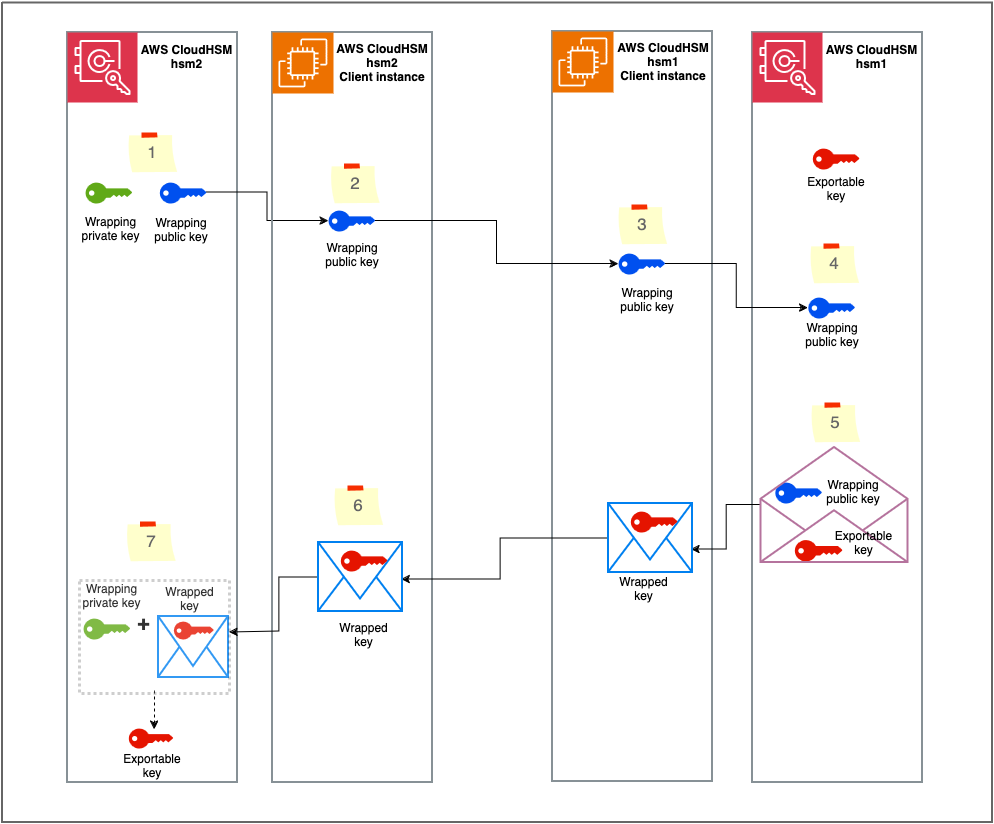
The solution uses CloudHSM CLI to run the key migration commands against the source and target CloudHSM clusters. Figure 1 provides a summary of the steps involved in the solution.

Figure 1: Solution overview

Figure 1: Solution overview

The workflow is as follows:

  1. Generate the RSA wrapping key pair on CloudHSM hsm2.
  2. Export the RSA public key to the hsm2 CloudHSM client instance.
  3. Move the RSA public key to the CloudHSM hsm1 client instance.
  4. Import the RSA public key into CloudHSM hsm1.
  5. Wrap the designated key using the imported RSA public key.
  6. Move the wrapped key to the CloudHSM hsm2 client instance.
  7. Unwrap the key into CloudHSM hsm2 with the RSA private key.

Although the steps in this post are specific to CloudHSM CLI, the same procedure can be used with other CloudHSM SDKs such as the Java Cryptographic Extension (JCE) and the PKCS #11 library. With JCE, the RSAWrappingRunner example code demonstrates how to wrap and unwrap keys by using the RSA-AES mechanism. Similarly, with PKCS #11, the rsa_wrapping.c example code demonstrates how to wrap and unwrap keys by using RSA-AES.

Important considerations

There are a few important things that you need to keep in mind when migrating cryptographic keys:

  • Exportable keys – This solution only works for exportable keys (keys with the attribute extractable set to “true”). If non-extractable keys need to be migrated, you must rotate them: Generate a new key on the CloudHSM hsm2 cluster, use the old key from hsm1 to decrypt the data, and then use the new key in hsm2 to re-encrypt the data. If possible, use advanced keys like AES for re-encryption.
  • Key ownership – When a key is migrated to a new cluster, the crypto user who unwraps the key becomes the key owner. You need to have a plan to make sure the appropriate crypto users are migrating keys and the applications that rely on those keys are updated with the right crypto user credentials. You can also share the unwrapped keys with the appropriate crypto users after migration. This helps to prevent the availability of your applications from being impacted due to the key migration. You can use one of the following strategies to manage key ownership during migration:
    • The recommended strategy is to first create the required crypto users in the hsm2 cluster by using CloudHSM CLI and then use each user to migrate the required keys they currently own in hsm1. You can either create separate wrapping key pairs per crypto user or have one wrapping key pair that is shared with required crypto users to migrate their keys.
    • Another strategy is to employ one crypto user to migrate the required keys and then share the migrated keys with the appropriate crypto users after migration. Note that shared keys have limitations such that the recipient crypto user cannot modify or share the key.
  • Key attributes – When a key is migrated, only the attributes that are specified during the unwrap operation are set on the key. Make sure to identify the key attributes from hsm1 and set them on the key when unwrapping to hsm2. Note that some attributes like extractable can only be set while the key is being created or unwrapped, but that others can be set after creation by using the key set-attribute See Key attributes for CloudHSM CLI for a list of attributes and when can they be set. You can use the CloudHSM CLI key list command with the verbose argument to list keys owned by a crypto user, along with the attributes of those keys. Additionally, you can use unwrap templates to specify attributes that must be set while unwrapping. Note that this feature is only supported by the PKCS #11 SDK.
  • HSM backup – It is recommended to keep a backup of hsm1 until you have confirmed that all the required keys have been migrated to hsm2. You can configure a CloudHSM backup retention policy to manage backups. Note that CloudHSM doesn’t delete a cluster’s last backup. See Configuring AWS CloudHSM backup retention policy for more information. You can also share the CloudHSM backups with other AWS accounts as described in Working with shared backups.

Prerequisites

You need to have the following prerequisites in place to implement the solution:

  1. An active CloudHSM hsm1 cluster with at least one active HSM.
  2. The credentials of crypto users in hsm1 who are the owners of the keys that need to be migrated.
  3. An Amazon Elastic Compute Cloud (Amazon EC2) instance with CloudHSM CLI installed and configured to connect to the CloudHSM cluster. For instructions on how to configure and connect the client instance, see Getting started with AWS CloudHSM.
  4. An active CloudHSM hsm2 cluster with at least one active HSM and a valid crypto user As I mentioned in the Key ownership notes, make sure to create crypto users in hsm2 who will own the migrated keys.
  5. A second EC2 instance with CloudHSM CLI installed and configured to connect to the hsm2 cluster. For instructions on how to configure and connect the client instance, see Getting started with AWS CloudHSM.
  6. A list of exportable keys with their attributes that you want to migrate from hsm1. You can use the key list command with the verbose argument to list the keys owned by a crypto user. The output will contain the key attributes, including label, extractable, and key-type. You can also pass the filter argument to the command to list specific keys based on label or key-type, such as 3des. The CloudHSM CLI command to list 3DES keys with their attributes is as follows:
    key list --filter attr.key-type=3des --verbose

    As I mentioned in the Key attributes note, some attributes like extractable can only be set while the key is being created or unwrapped, but others can be set after creation using the key set-attribute command.

Note the following:

  • You can configure CloudHSM CLI to connect to multiple clusters. You can use a single EC2 instance with CloudHSM CLI to migrate keys from one cluster to another, provided that you can set up a network path to both clusters from the client instance.
  • You can run CloudHSM CLI commands using a bash script or similar by running the commands in interactive mode.

Step 1: Generate the RSA wrapping key pair on hsm2

The first step in the solution is to create a wrapping key pair on your new CloudHSM hsm2 cluster by using CloudHSM CLI. The public key from the key pair will be used to wrap and the private key to unwrap. Label the key pair accordingly and note down the labels.

Note: As mentioned in the Key ownership notes, choose an appropriate strategy to migrate the keys. The crypto user who generates the wrapping key pair in this step or with whom this key pair is shared will be required to unwrap the key in the final step.

To generate the RSA wrapping key pair:

  1. Sign in to your hsm2 client instance that has CloudHSM CLI installed. Run the following command to use CloudHSM CLI in interactive mode, as described in Getting started with CloudHSM Command Line Interface (CLI):
    /opt/cloudhsm/bin/cloudhsm-cli interactive 

  2. Sign in with your crypto user credential. Make sure to replace <CryptoUserName> with your own information and supply your password when prompted.
    login --username <CryptoUserName> --role crypto-user

  3. Run the following key generate-asymmetric-pair rsa command to create an RSA key pair. Make sure to replace <rsa_wrapping_key_label> and <rsa_unwrapping_key_label> with your own labels for the public and private key that are being generated. Note down the public and private key labels because this data is required in the following steps.
    key generate-asymmetric-pair rsa \
    --public-label <rsa_wrapping_key_label> \
    --private-label <rsa_unwrapping_key_label> \
    --modulus-size-bits 2048 \
    --public-exponent 65537 \
    --public-attributes wrap=true \
    --private-attributes unwrap=true

  4. (Optional) You can list the keys by filtering using the label, as described in Using CloudHSM CLI to filter keys:
    key list --filter attr.label=<rsa_unwrapping_key>

Step 2: Export the RSA public key to the hsm2 client instance

In this step, you export the RSA public key from hsm2 to the EC2 instance file system.

To export the RSA public key to the hsm2 client instance:

  1. Run the following key generate-file command to export the RSA public key you created in the previous step. Make sure to replace <file_path> and <rsa_wrapping_key_label> with your own data. You noted down the public key label in the previous step. The exported RSA public key bytes are written in PEM format into the <file_path> you provide.
    key generate-file \
    --encoding pem \
    --path <file_path> \
    --filter attr.label=<rsa_wrapping_key_label>

Step 3: Move the RSA public key to the hsm1 client instance

Now you need to copy the exported public key PEM file from the hsm2 client instance to the hsm1 client instance. You can use your enterprise file transfer solution or secure copy protocol (SCP). However, if you’ve configured CloudHSM CLI to connect to both hsm1 and hsm2 clusters by using the connect to multiple clusters feature, you can skip this step.

Step 4: Import the RSA public key to hsm1

In this step, you import the RSA public key that was copied to the hsm1 client instance into the hsm1 cluster.

On the hsm1 client instance, sign in to CloudHSM CLI as a crypto user. Run the following key import pem command to import the public key. Replace the <file_path> and <rsa_wrapping_key_label> with your own values for the public key PEM file path and label, respectively.

key import pem \
--path <file_path> \
--label <rsa_wrapping_key_label> \
--key-type-class rsa-public
--attributes wrap=true

Step 5: Wrap the key using the imported RSA public key

In this step, you wrap the key that you have identified as part of the prerequisites from hsm1. Note that only the crypto user who owns the key can wrap it out. Therefore, you need to sign in to CloudHSM CLI on hsm1 as that crypto user.

Run the following key wrap rsa-aes command to wrap the key out. Make sure to replace <exportable_key_label> and <rsa_wrapping_key_label> with your own values for the label of the key being wrapped out and the wrapping RSA public key, respectively.

key wrap rsa-aes \
--payload-filter attr.label=<exportable_key_label> \
--wrapping-filter attr.label=<rsa_wrapping_key_label>
--hash-function sha256 \
--mgf mgf1-sha256 \
--path <path_to_the_wrapped_binary_file>

The wrapped key data, in binary format, is saved on the file system at the file path specified in the --path argument. Note down the key type of the wrapped key. This value will be required in step 7 while unwrapping.

Step 6: Move the wrapped key to the hsm2 client instance

Copy the wrapped binary key from the hsm1 client instance to the hsm2 client instance using the same method that you used in Step 3. Note down the file path to the copied file.

Step 7: Unwrap the wrapped key to the hsm2 cluster using the RSA private key

In this step, you unwrap the wrapped key into hsm2 using the RSA private key associated with the RSA public key that was used to wrap the key. You noted down the RSA private key label in Step 1 and the key type in Step 5. There are some important points to keep in mind before unwrapping:

  1. The crypto user who created the wrapping key pair in step 1, or with whom the wrapping key pair is shared, must sign in to CloudHSM CLI to run the unwrap command.
  2. As mentioned in the prerequisites section, some of the key attributes can only be set during creation. Make sure you have a list of attributes that you want to set on the key.

Run the following key unwrap rsa-aes command to unwrap the key into hsm2. Make sure to replace these command arguments with your own values:

<key_type_of_wrapped_key>: The key type of the wrapped key, for example, AES, 3DES.

<label_of_unwrapped_key>: The label for the new unwrapped key. Choose an appropriate label to identify the key.

<rsa_unwrapping_key_label>: The RSA private key label from step 1.

<path_to_the_wrapped_binary_file>: The path to the wrapped key binary file from Step 6.

<list_of_attributes_for_unwrapped>: A space-separated list of key attributes in the form KEY_ATTRIBUTE_NAME=KEY_ATTRIBUTE_VALUE for the unwrapped key. This is optional.

key unwrap rsa-aes \
--key-type-class <key_type_of_wrapped_key> \
--label <label_of_unwrapped_key>\
--filter attr.label=<rsa_unwrapping_key_label> \
--hash-function sha256 \
--mgf mgf1-sha256 \
--data-path <path_to_the_wrapped_binary_file> \
--attributes <list_of_attributes_for_unwrapped>

(Optional) Step 8: Update the attributes of the unwrapped key

If you didn’t set all the required attributes while unwrapping the key, you can update the key attributes key now by using the key set-attribute command.

Test whether your 3DES key was migrated successfully

In symmetric cryptography, the same key is used for encryption and decryption. 3DES is a symmetric key algorithm. To verify that your migrated 3DES key functions the same in hsm2, you can do the following test:

  1. Encrypt a simple message by using the 3DES key in hsm1 to create ciphertext
  2. Decrypt the ciphertext by using the migrated 3DES key in hsm2 to obtain plaintext

The decrypted plaintext should match the original message.

You can use the CloudHSM
JCE or
PKCS #11 SDKs to run the test. With JCE, the
DESedeECBEncryptDecryptRunner example code demonstrates how to
encrypt and
decrypt using a 3DES key. Similarly, for PKCS #11, the
des_ecb.c example code demonstrates how to encrypt and decrypt using a 3DES key.

Conclusion

In this blog post, you learned how to migrate cryptographic keys from a CloudHSM hsm1 cluster to an hsm2 cluster by using CloudHSM CLI. We recommend that you migrate keys using a backup whenever possible, but you can use the approach described in this post in cases where using a backup isn’t possible.

Although this post focused on migrating keys between CloudHSM hsm1 and hsm2, you can use the same methodology to migrate keys between many AWS CloudHSM cluster pairs. The methodology can also be extended to other CloudHSM SDKs, like JCE and PKCS #11, to automate the migration process.

To migrate keys from on-premises or other non AWS HSMs to AWS CloudHSM, you can also apply the same principle of wrap and unwrap.

 
If you have feedback about this post, submit comments in the Comments section below. If you have questions about this post, contact AWS Support.
 

Roshith Alankandy
Roshith Alankandy

Roshith is a Security Consultant at AWS, based in Australia. He helps customers accelerate their cloud adoption journey with security, risk, and compliance guidance and specializes in cryptography. When not working, he enjoys spending time with his family and playing football.