All posts by Vinod Jayendra

Use Apache Airflow workflows to orchestrate data processing on Amazon SageMaker Unified Studio

Post Syndicated from Vinod Jayendra original https://aws.amazon.com/blogs/big-data/use-apache-airflow-workflows-to-orchestrate-data-processing-on-amazon-sagemaker-unified-studio/

Orchestrating machine learning pipelines is complex, especially when data processing, training, and deployment span multiple services and tools. In this post, we walk through a hands-on, end-to-end example of developing, testing, and running a machine learning (ML) pipeline using workflow capabilities in Amazon SageMaker, accessed through the Amazon SageMaker Unified Studio experience. These workflows are powered by Amazon Managed Workflows for Apache Airflow (Amazon MWAA).

While SageMaker Unified Studio includes a visual builder for low-code workflow creation, this guide focuses on the code-first experience: authoring and managing workflows as Python-based Apache Airflow DAGs (Directed Acyclic Graphs). A DAG is a set of tasks with defined dependencies, where each task runs only after its upstream dependencies are complete, promoting correct execution order and making your ML pipeline more reproducible and resilient.We’ll walk through an example pipeline that ingests weather and taxi data, transforms and joins datasets, and uses ML to predict taxi fares—all orchestrated using SageMaker Unified Studio workflows.

If you prefer a simpler, low-code experience, see Orchestrate data processing jobs, querybooks, and notebooks using visual workflow experience in Amazon SageMaker.

Solution overview
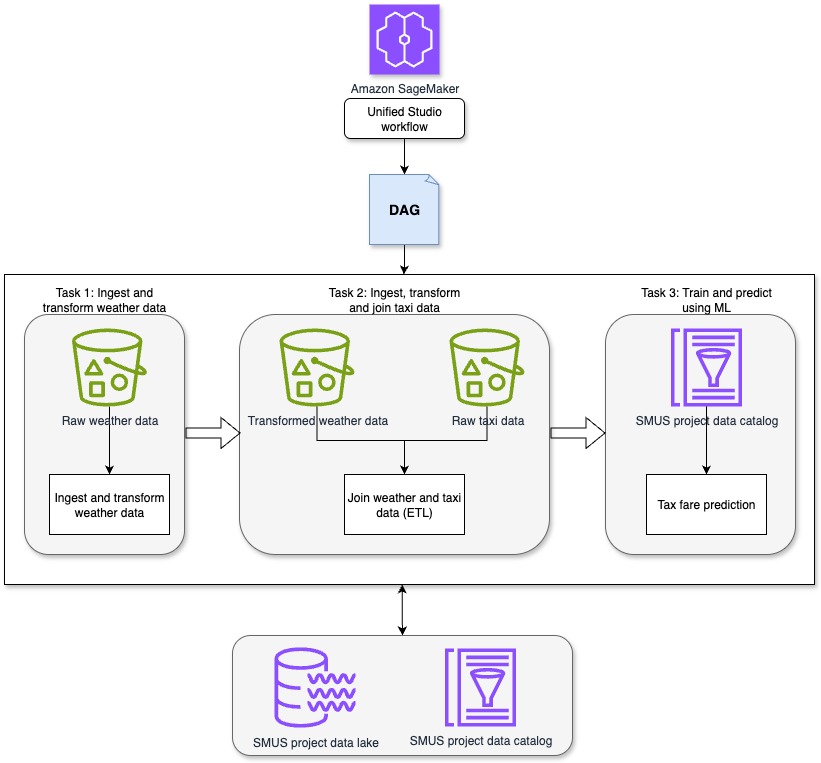
This solution demonstrates how SageMaker Unified Studio workflows can be used to orchestrate a complete data-to-ML pipeline in a centralized environment. The pipeline runs through the following sequential tasks, as shown in the preceding diagram.

  • Task 1: Ingest and transform weather data: This task uses a Jupyter notebook in SageMaker Unified Studio to ingest and preprocess synthetic weather data. The synthetic weather dataset includes hourly observations with attributes such as time, temperature, precipitation, and cloud cover. For this task, the focus is on time, temperature, rain, precipitation, and wind speed.
  • Task 2: Ingest, transform and join taxi data: A second Jupyter notebook in SageMaker Unified Studio ingests the raw New York City taxi ride dataset. This dataset includes attributes such as pickup time, drop-off time, trip distance, passenger count, and fare amount. The relevant fields for this task include pickup and drop-off time, trip distance, number of passengers, and total fare amount. The notebook transforms the taxi dataset in preparation for joining it with the weather data. After transformation, the taxi and weather datasets are joined to create a unified dataset, which is then written to Amazon S3 for downstream use.
  • Task 3: Train and predict using ML: A third Jupyter notebook in SageMaker Unified Studio applies regression techniques to the joined dataset to create a model to determine how attributes of the weather and taxi data such as rain and trip distance impact taxi fares and create a fare prediction model. The trained model is then used to generate fare predictions for new trip data.

This unified approach enables orchestration of extract, transform, and load (ETL) and ML steps with full visibility into the data lifecycle and reproducibility through governed workflows in SageMaker Unified Studio.

Prerequisites

Before you begin, complete the following steps:

  1. Create a SageMaker Unified Studio domain: Follow the instructions in Create an Amazon SageMaker Unified Studio domain – quick setup
  2. Sign in to your SageMaker Unified Studio domain: Use the domain you created in Step 1 sign in. For more information, see Access Amazon SageMaker Unified Studio.
  3. Create a SageMaker Unified Studio project: Create a new project in your domain by following the project creation guide. For Project profile, select All capabilities.

Set up workflows

You can use workflows in SageMaker Unified Studio to set up and run a series of tasks using Apache Airflow to design data processing procedures and orchestrate your querybooks, notebooks, and jobs. You can create workflows in Python code, test and share them with your team, and access the Airflow UI directly from SageMaker Unified Studio. It provides features to view workflow details, including run results, task completions, and parameters. You can run workflows with default or custom parameters and monitor their progress. Now that you have your SageMaker Unified Studio project set up, you can build your workflows.

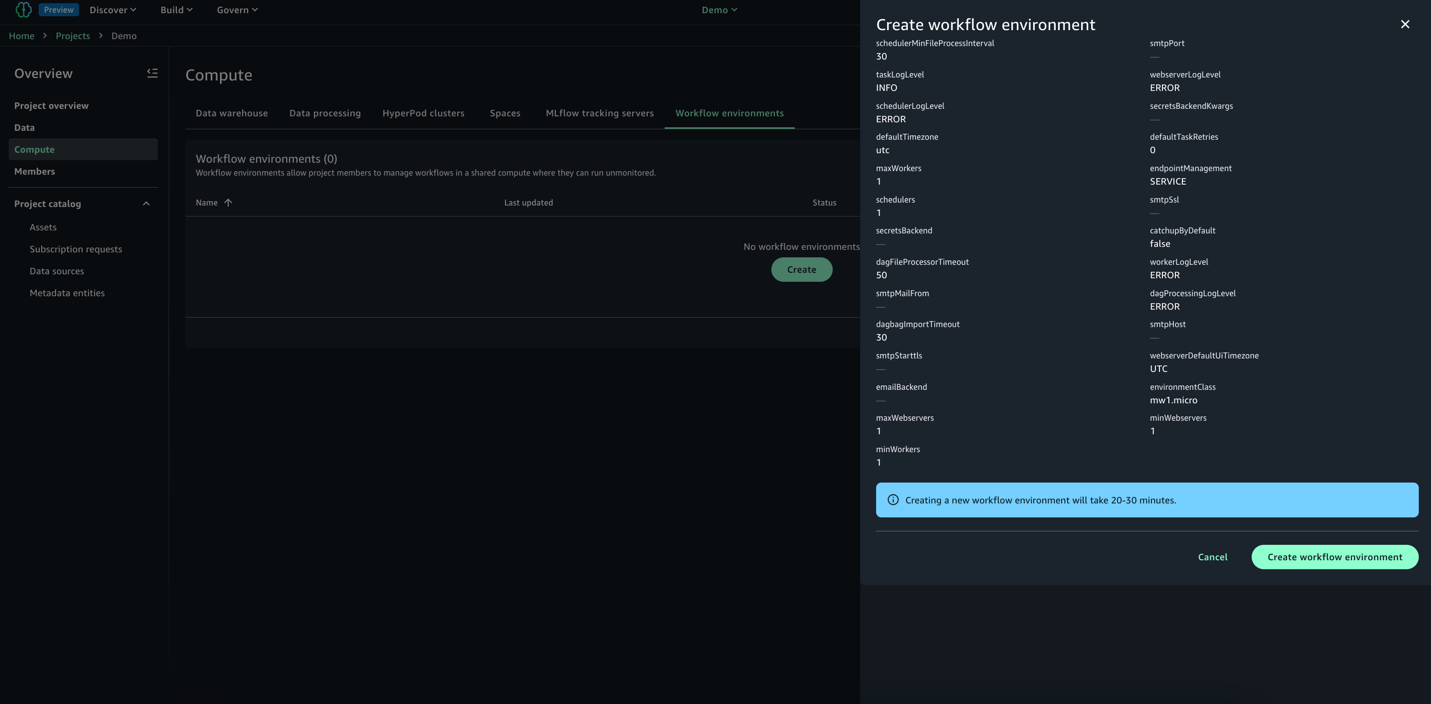
  1. In your SageMaker Unified Studio project, navigate to the Compute section and select Workflow environment.
  2. Choose Create environment to set up a new workflow environment.
  3. Review the options and choose Create environment. By default, SageMaker Unified Studio creates an mw1.micro class environment, which is suitable for testing and small-scale workflows. To update the environment class before project creation, navigate to Domain and select Project Profiles and then All Capabilities and go to OnDemand Workflows blueprint deployment settings. By using these settings, you can override default parameters and tailor the environment to your specific project requirements.
Develop workflows

You can use workflows to orchestrate notebooks, querybooks, and more in your project repositories. With workflows, you can define a collection of tasks organized as a DAG that can run on a user-defined schedule.To get started:

  1. Download Weather Data Ingestion, Taxi Ingest and Join to Weather, and Prediction notebooks to your local environment.
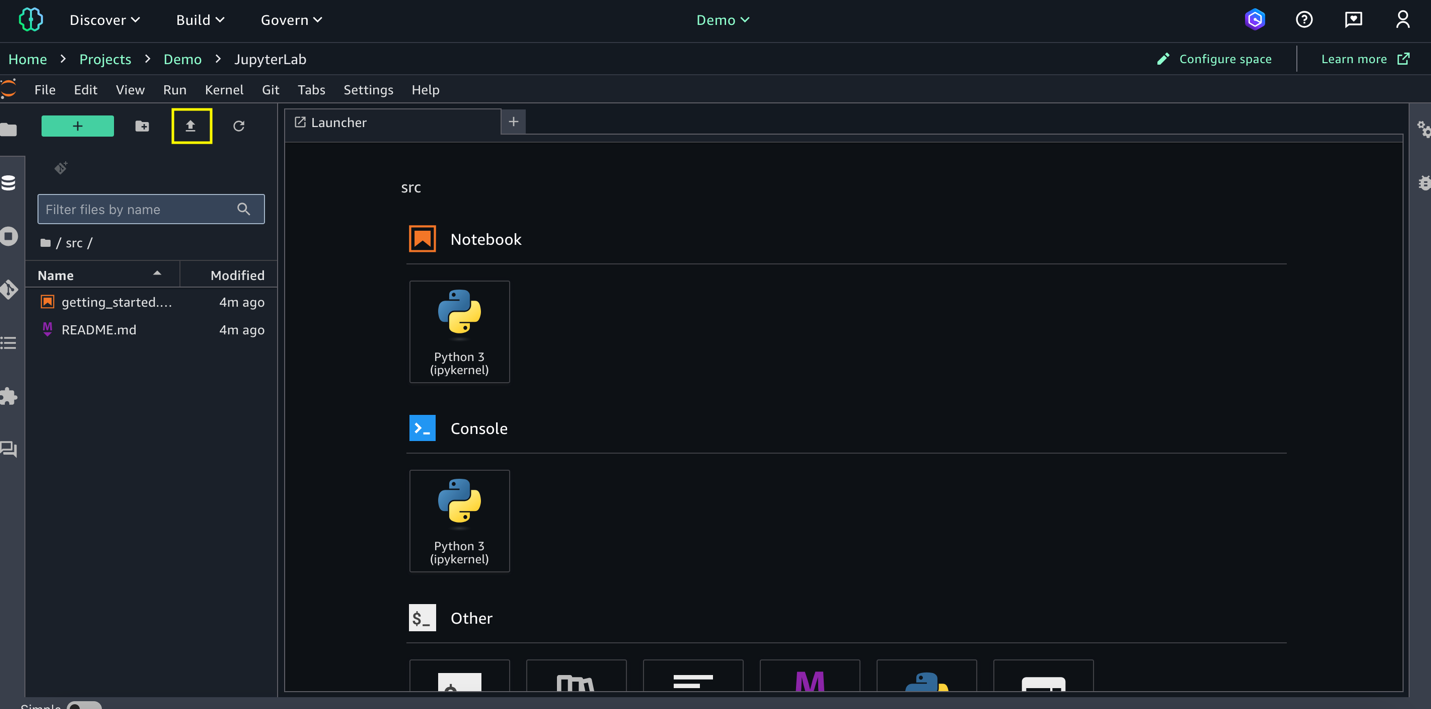
  2. Go to Build and select JupyterLab; choose Upload files and import the three notebooks you downloaded in the previous step.
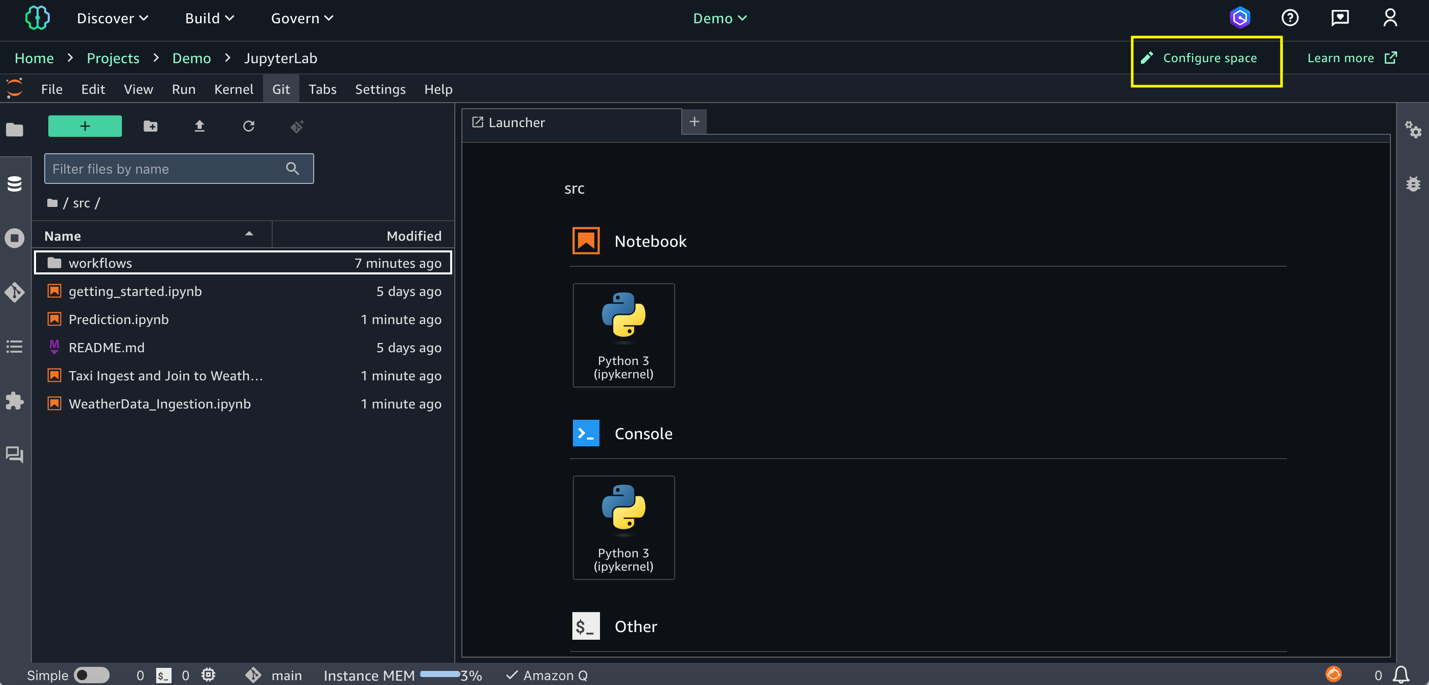
  1. Configure your SageMaker Unified Studio space: Spaces are used to manage the storage and resource needs of the relevant application. For this demo, configure the space with an ml.m5.8xlarge instance
    1. Choose Configure Space in the right-hand corner and stop the space.
    2. Update instance type to ml.m5.8xlarge and start the space. Any active processes will be paused during the restart, and any unsaved changes will be lost. Updating the workspace might take a take few minutes.
  2. Go to Build and select Orchestration and then Workflows.
  3. Select the down arrow (▼) next to Create new workflow. From the dropdown menu that appears, select Create in code editor.
  4. In the editor, create a new Python file named multinotebook_dag.py under src/workflows/dags. Copy the following DAG code, which implements a sequential ML pipeline that orchestrates multiple notebooks in SageMaker Unified Studio. Replace <REPLACE-OWNER> with your username. Update NOTEBOOK_PATHS to match your actual notebook locations.
from airflow.decorators import dag
from airflow.utils.dates import days_ago
from workflows.airflow.providers.amazon.aws.operators.sagemaker_workflows import NotebookOperator

WORKFLOW_SCHEDULE = '@daily'

NOTEBOOK_PATHS = [
'<REPLACE FULL PATH FOR Weather_Data_Ingestion.ipynb>',
'<REPLACE FULL PATH FOR Taxi_Weather_Data_Collection.ipynb>',
'<REPLACE FULL PATH FOR Prediction.ipynb>'
]

default_args = {
    'owner': '<REPLACE-OWNER>',
}

@dag(
    dag_id='workflow-multinotebooks',
    default_args=default_args,
    schedule_interval=WORKFLOW_SCHEDULE,
    start_date=days_ago(2),
    is_paused_upon_creation=False,
    tags=['MLPipeline'],
    catchup=False
)
def multi_notebook():
    previous_task = None

    for idx, notebook_path in enumerate(NOTEBOOK_PATHS, 1):
        current_task = NotebookOperator(
            task_id=f"Notebook{idx}task",
            input_config={'input_path': notebook_path, 'input_params': {}},
            output_config={'output_formats': ['NOTEBOOK']},
            wait_for_completion=True,
            poll_interval=5
        )

        # Ensure tasks run sequentially
        if previous_task:
            previous_task >> current_task

        previous_task = current_task  # Update previous task

multi_notebook()

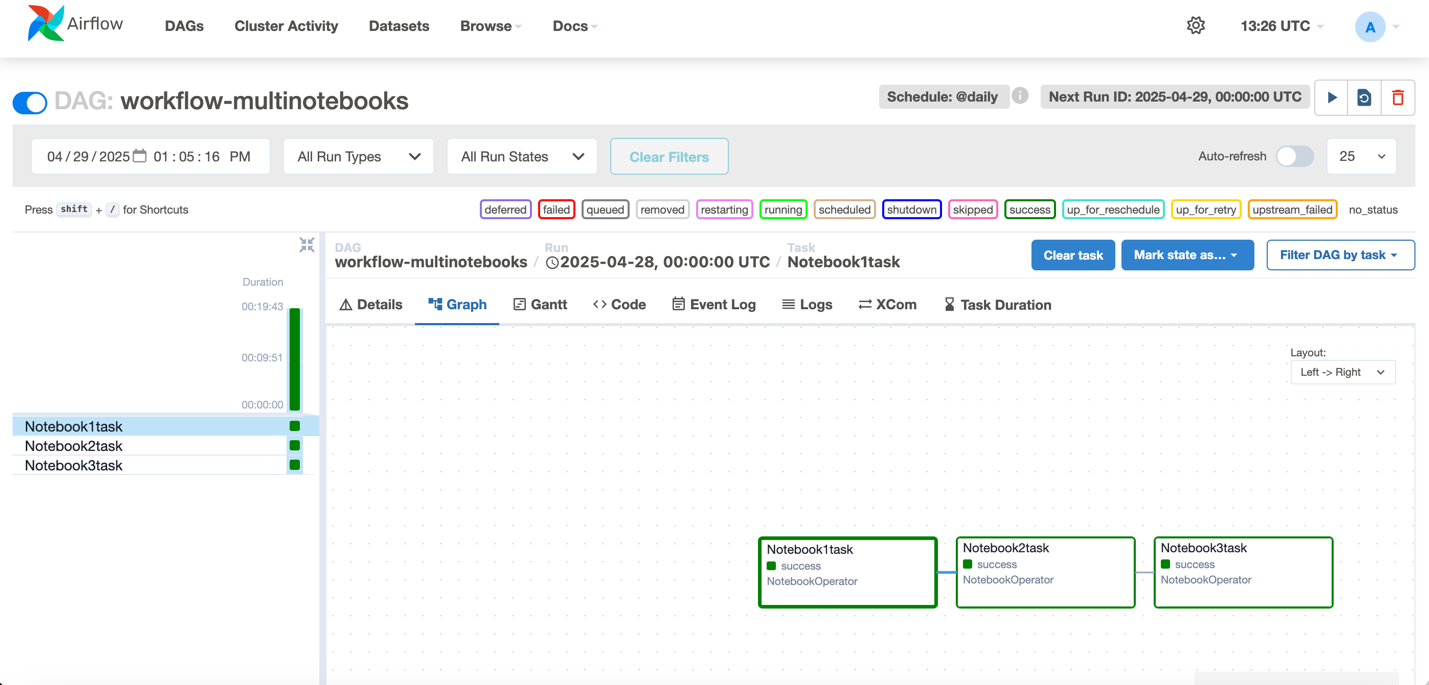
The code uses the NotebookOperator to execute three notebooks in order: data ingestion for weather data, data ingestion for taxi data, and the trained model created by combining the weather and taxi data. Each notebook runs as a separate task, with dependencies to help ensure that they execute in sequence. You can customize with your own notebooks. You can modify the NOTEBOOK_PATHS list to orchestrate any number of notebooks in their workflow while maintaining sequential execution order.

The workflow schedule can be customized by updating WORKFLOW_SCHEDULE (for example: '@hourly', '@weekly', or cron expressions like ‘13 2 1 * *’) to match your specific business needs.

  1. After a workflow environment has been created by a project owner, and once you’ve saved your workflows DAG files in JupyterLab, they are automatically synced to the project. After the files are synced, all project members can view the workflows you have added in the workflow environment. See Share a code workflow with other project members in an Amazon SageMaker Unified Studio workflow environment.

Test and monitor workflow execution

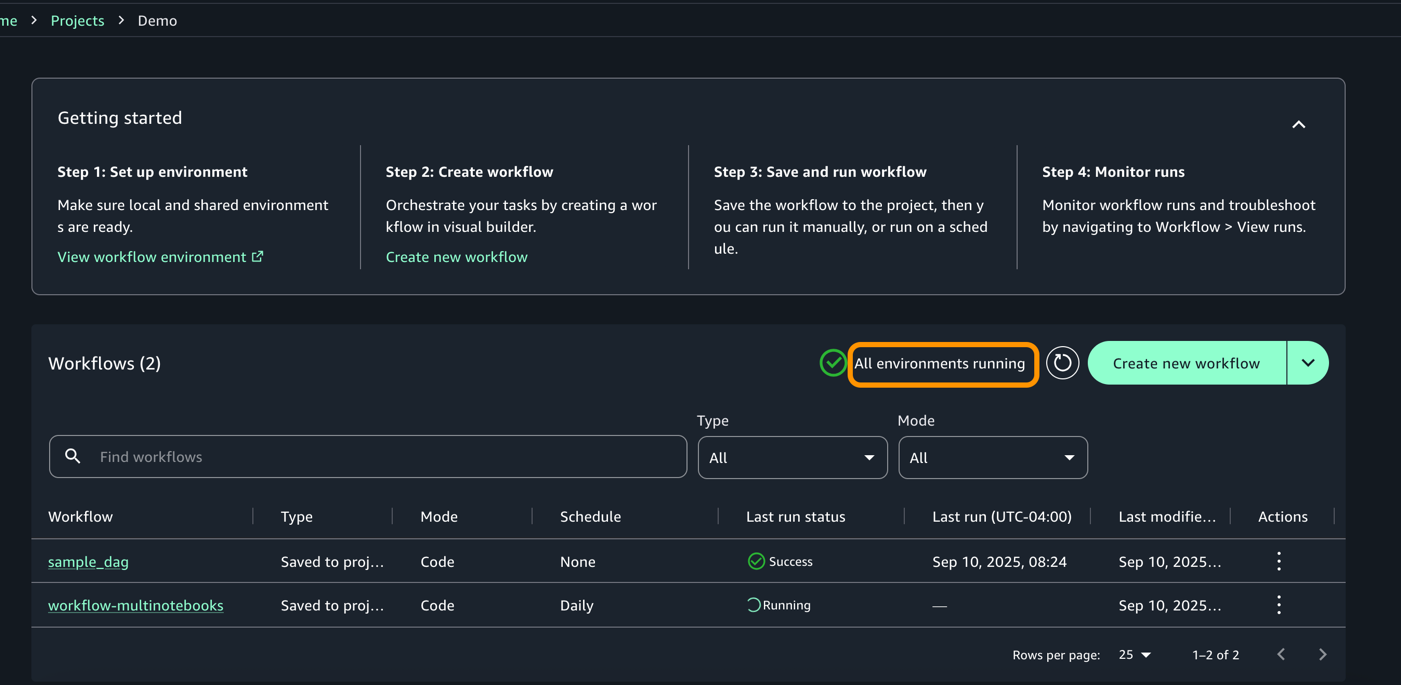
  1. To validate your DAG, Go to Build > Orchestration > Workflows. You should now see the workflow running in Local Space based on the Schedule.
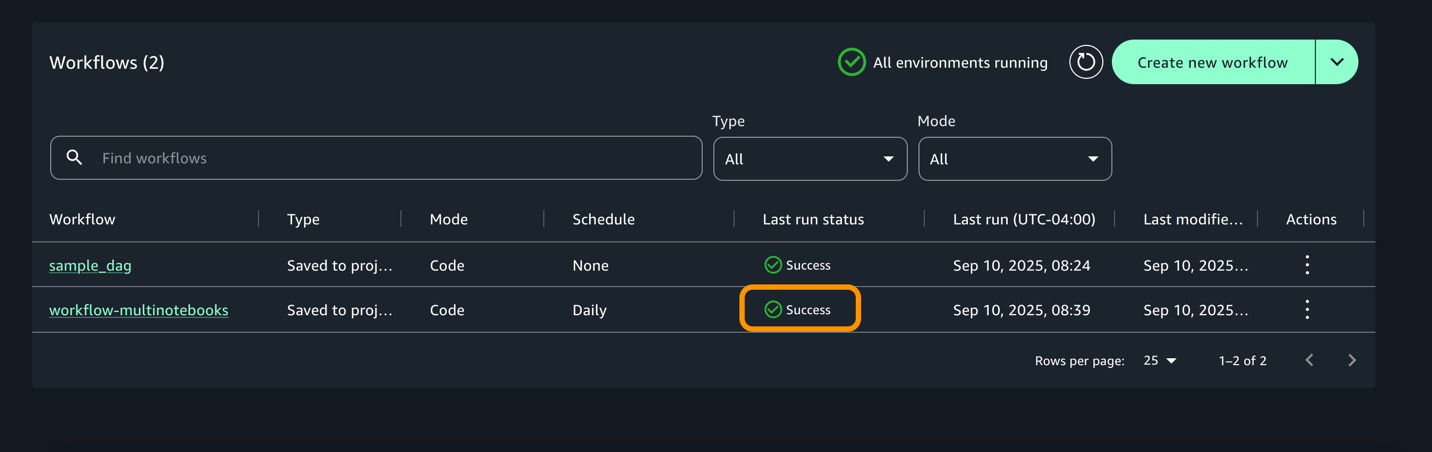
  1. Once the execution completes, workflow would change to success start as shown below.
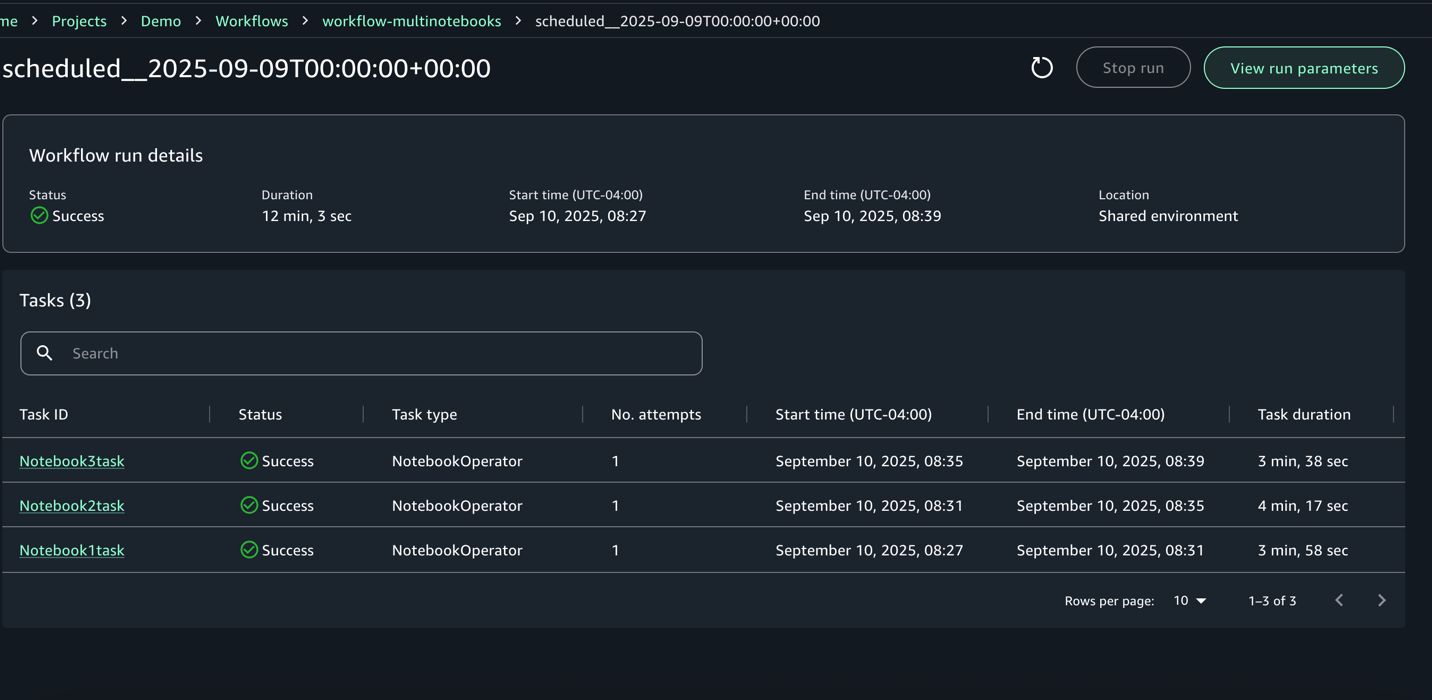
  1. For each execution, you can zoom in to get a detailed workflow run details and task logs
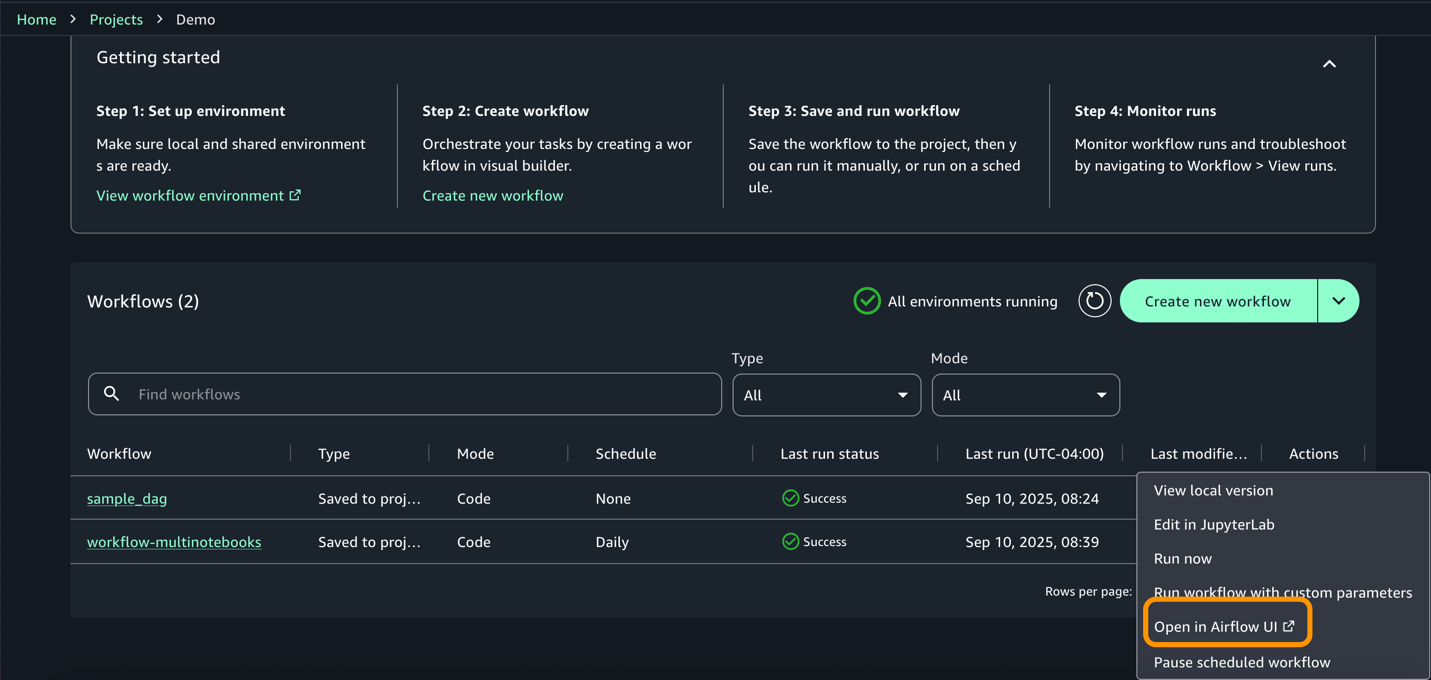
  1. Access the airflow UI from actions for more information on the dag and execution.
Results

The model’s output is written to the Amazon Simple Storage Service (Amazon S3) output folder as shown the following figure. These results should be evaluated for correctness of fit, prediction accuracy, and the consistency of relationships between variables. If any results appear unexpected or unclear, it is important to review the data, engineering steps, and model assumptions to verify that they align with the intended use case.
Clean up

To avoid incurring additional charges associated with resources created as part of this post, make sure you delete the items created in the AWS account for this post.

  1. The SageMaker domain
  2. The S3 bucket associated with the SageMaker domain

Conclusion

In this post, we demonstrated how you can use Amazon SageMaker to build powerful, integrated ML workflows that span the full data and AI/ML lifecycle. You learned how to create an Amazon SageMaker Unified Studio project, use a multi-compute notebook to process data, and use the built-in SQL editor to explore and visualize results. Finally, we showed you how to orchestrate the entire workflow within the SageMaker Unified Studio interface.

SageMaker offers a comprehensive set of capabilities for data practitioners to perform end-to-end tasks, including data preparation, model training, and generative AI application development. When accessed through SageMaker Unified Studio, these capabilities come together in a single, centralized workspace that helps eliminate the friction of siloed tools, services, and artifacts.

As organizations build increasingly complex, data-driven applications, teams can use SageMaker, together with SageMaker Unified Studio, to collaborate more effectively and operationalize their AI/ML assets with confidence. You can discover your data, build models, and orchestrate workflows in a single, governed environment.

To learn more, visit the Amazon SageMaker Unified Studio page.


About the authors

Suba Palanisamy

Suba Palanisamy

Suba is a Enterprise Support Lead, helping customers achieve operational excellence on AWS. Suba is passionate about all things data and analytics. She enjoys traveling with her family and playing board games.

Sean Bjurstrom

Sean Bjurstrom

Sean is a Enterprise Support Lead in ISV accounts at Amazon Web Services, where he specializes in Analytics technologies and draws on his background in consulting to support customers on their analytics and cloud journeys. Sean is passionate about helping businesses harness the power of data to drive innovation and growth. Outside of work, he enjoys running and has participated in several marathons.

Vinod Jayendra

Vinod Jayendra

Vinod is a Enterprise Support Lead in ISV accounts at Amazon Web Services, where he helps customers in solving their architectural, operational, and cost optimization challenges. With a particular focus on Serverless & Analytics technologies, he draws from his extensive background in application development to deliver top-tier solutions. Beyond work, he finds joy in quality family time, embarking on biking adventures, and coaching youth sports team.

Kamen Sharlandjiev

Kamen Sharlandjiev

Kamen is a Senior Worldwide Specialist SA, Big Data expert. He’s on a mission to make life easier for customers who are facing complex data integration and orchestration challenges. His secret weapon? Fully managed AWS services that can get the job done with minimal effort. Follow Kamen on LinkedIn to keep up to date with the latest MWAA and AWS Glue features and news!

Prepare and load Amazon S3 data into Teradata using AWS Glue through its native connector for Teradata Vantage

Post Syndicated from Vinod Jayendra original https://aws.amazon.com/blogs/big-data/prepare-and-load-amazon-s3-data-into-teradata-using-aws-glue-through-its-native-connector-for-teradata-vantage/

In this post, we explore how to use the AWS Glue native connector for Teradata Vantage to streamline data integrations and unlock the full potential of your data.

Businesses often rely on Amazon Simple Storage Service (Amazon S3) for storing large amounts of data from various data sources in a cost-effective and secure manner. For those using Teradata for data analysis, integrations through the AWS Glue native connector for Teradata Vantage unlock new possibilities. AWS Glue enhances the flexibility and efficiency of data management, allowing companies to seamlessly integrate their data, regardless of its location, with Teradata’s analytical capabilities. This new connector eliminates technical hurdles related to configuration, security, and management, enabling companies to effortlessly export or import their datasets into Teradata Vantage. As a result, businesses can focus more on extracting meaningful insights from their data, rather than dealing with the intricacies of data integration.

AWS Glue is a serverless data integration service that makes it straightforward for analytics users to discover, prepare, move, and integrate data from multiple sources for analytics, machine learning (ML), and application development. With AWS Glue, you can discover and connect to more than 100 diverse data sources and manage your data in a centralized data catalog. You can visually create, run, and monitor extract, transform, and load (ETL) pipelines to load data into your data lakes.

Teradata Corporation is a leading connected multi-cloud data platform for enterprise analytics, focused on helping companies use all their data across an enterprise, at scale. As an AWS Data & Analytics Competency partner, Teradata offers a complete cloud analytics and data platform, including for Machine Learning.

Introducing the AWS Glue native connector for Teradata Vantage

AWS Glue provides support for Teradata, accessible through both AWS Glue Studio and AWS Glue ETL scripts. With AWS Glue Studio, you benefit from a visual interface that simplifies the process of connecting to Teradata and authoring, running, and monitoring AWS Glue ETL jobs. For data developers, this support extends to AWS Glue ETL scripts, where you can use Python or Scala to create and manage more specific data integration and transformation tasks.

The AWS Glue native connector for Teradata Vantage allows you to efficiently read and write data from Teradata without the need to install or manage any connector libraries. You can add Teradata as both the source and target within AWS Glue Studio’s no-code, drag-and-drop visual interface or use the connector directly in an AWS Glue ETL script job.

Solution overview

In this example, you use AWS Glue Studio to enrich and upload data stored on Amazon S3 to Teradata Vantage. You start by joining the Event and Venue files from the TICKIT dataset. Next, you filter the results to a single geographic region. Finally, you upload the refined data to Teradata Vantage.

The TICKIT dataset tracks sales activity for the fictional TICKIT website, where users buy and sell tickets online for sporting events, shows, and concerts. In this dataset, analysts can identify ticket movement over time, success rates for sellers, and best-selling events, venues, and seasons.

For this example, you use AWS Glue Studio to develop a visual ETL pipeline. This pipeline will read data from Amazon S3, perform transformations, and then load the transformed data into Teradata. The following diagram illustrates this architecture.

Solution Overview

By the end of this post, your visual ETL job will resemble the following screenshot.

Visual ETL Job Flow

Prerequisites

For this example, you should have access to an existing Teradata database endpoint with network reachability from AWS and permissions to create tables and load and query data.

AWS Glue needs network access to Teradata to read or write data. How this is configured depends on where your Teradata is deployed and the specific network configuration. For Teradata deployed on AWS, you might need to configure VPC peering or AWS PrivateLink, security groups, and network access control lists (NACLs) to allow AWS Glue to communicate with Teradata overt TCP. If Teradata is outside AWS, networking services such as AWS Site-to-Site VPN or AWS Direct Connect may be required. Public internet access is not recommended due to security risks. If you choose public access, it’s safer to run the AWS Glue job in a VPC behind a NAT gateway. This approach enables you to allow list only one IP address for incoming traffic on your network firewall. For more information, refer to Infrastructure security in AWS Glue.

Set up Amazon S3

Every object in Amazon S3 is stored in a bucket. Before you can store data in Amazon S3, you must create an S3 bucket to store the results. Complete the following steps:

  1. On the Amazon S3 console, choose Buckets in the navigation pane.
  2. Choose Create bucket.
  3. For Name, enter a globally unique name for your bucket; for example, tickit8530923.
  4. Choose Create bucket.
  5. Download the TICKIT dataset and unzip it.
  6. Create the folder tickit in your S3 bucket and upload the allevents_pipe.txt and venue_pipe.txt files.

Configure Teradata connections

To connect to Teradata from AWS Glue, see Configuring Teradata Connection.

You must create and store your Teradata credentials in an AWS Secrets Manager secret and then associate that secret with a Teradata AWS Glue connection. We discuss these two steps in more detail later in this post.

Create an IAM role for the AWS Glue ETL job

When you create the AWS Glue ETL job, you specify an AWS Identity and Access Management (IAM) role for the job to use. The role must grant access to all resources used by the job, including Amazon S3 (for any sources, targets, scripts, driver files, and temporary directories) and Secrets Manager. For instructions, see Configure an IAM role for your ETL job.

Create table in Teradata

Using your preferred database tool, log in to Teradata. Run the following code to create the table in Teradata where you will load your data:

CREATE MULTISET TABLE test.tickit, FALLBACK
   (venueid varchar(25),
    venuename varchar(100),
    venuecity varchar(100),
    venuestate varchar(25),
    venueseats varchar(25),
    eventid varchar(25),
    catid varchar(25),
    dateid varchar(25),
    eventname varchar(100),
    starttime varchar(100))
    NO PRIMARY INDEX
;

Store Teradata login credentials

An AWS Glue connection is a Data Catalog object that stores login credentials, URI strings, and more. The Teradata connector requires Secrets Manager for storing the Teradata user name and password that you use to connect to Teradata.

To store the Teradata user name and password in Secrets Manager, complete the following steps:

  1. On the Secrets Manager console, choose Secrets in the navigation pane.
  2. Choose Store a new secret.
  3. Select Other type of secret.
  4. Enter the key/value USER and teradata_user, then choose Add row.
  5. Enter the key/value PASSWORD and teradata_user_password, then choose Next.

Teradata Secrets Manager Configuration

  1. For Secret name, enter a descriptive name, then choose Next.
  2. Choose Next to move to the review step, then choose Store.

Create the Teradata connection in AWS Glue

Now you’re ready to create an AWS Glue connection to Teradata. Complete the following steps:

  1. On the AWS Glue console, choose Connections under Data Catalog in the navigation pane.
  2. Choose Create connection.
  3. For Name, enter a name (for example, teradata_connection).
  4. For Connection type¸ choose Teradata.
  5. For Teradata URL, enter jdbc:teradata://url_of_teradata/database=name_of_your_database.
  6. For AWS Secret, choose the secret with your Teradata credentials that you created earlier.

Teradata Connection access

Create an AWS Glue visual ETL job to transform and load data to Teradata

Complete the following steps to create your AWS Glue ETL job:

  1. On the AWS Glue console, under ETL Jobs in the navigation pane, choose Visual ETL.
  2. Choose Visual ETL.
  3. Choose the pencil icon to enter a name for your job.

We add venue_pipe.txt as our first dataset.

  1. Choose Add nodes and choose Amazon S3 on the Sources tab.

Amazon S3 source node

  1. Enter the following data source properties:
    1. For Name, enter Venue.
    2. For S3 source type, select S3 location.
    3. For S3 URL, enter the S3 path to venue_pipe.txt.
    4. For Data format, choose CSV.
    5. For Delimiter, choose Pipe.
    6. Deselect First line of source file contains column headers.

S3 data source properties

Now we add allevents_pipe.txt as our second dataset.

  1. Choose Add nodes and choose Amazon S3 on the Sources tab.
  2. Enter the following data source properties:
    1. For Name, enter Event.
    2. For S3 source type, select S3 location.
    3. For S3 URL, enter the S3 path to allevents_pipe.txt.
    4. For Data format, choose CSV.
    5. For Delimiter, choose Pipe.
    6. Deselect First line of source file contains column headers.

Next, we rename the columns of the Venue dataset.

  1. Choose Add nodes and choose Change Schema on the Transforms tab.
  2. Enter the following transform properties:
    1. For Name, enter Rename Venue data.
    2. For Node parents, choose Venue.
    3. In the Change Schema section, map the source keys to the target keys:
      1. col0: venueid
      2. col1: venuename
      3. col2: venuecity
      4. col3: venuestate
      5. col4: venueseats

Rename Venue data ETL Transform

Now we filter the Venue dataset to a specific geographic region.

  1. Choose Add nodes and choose Filter on the Transforms tab.
  2. Enter the following transform properties:
    1. For Name, enter Location Filter.
    2. For Node parents, choose Venue.
    3. For Filter condition, choose venuestate for Key, choose matches for Operation, and enter DC for Value.

Location Filter Settings

Now we rename the columns in the Event dataset.

  1. Choose Add nodes and choose Change Schema on the Transforms tab.
  2. Enter the following transform properties:
    1. For Name, enter Rename Event data.
    2. For Node parents, choose Event.
    3. In the Change Schema section, map the source keys to the target keys:
      1. col0: eventid
      2. col1: e_venueid
      3. col2: catid
      4. col3: dateid
      5. col4: eventname
      6. col5: starttime

Next, we join the Venue and Event datasets.

  1. Choose Add nodes and choose Join on the Transforms tab.
  2. Enter the following transform properties:
    1. For Name, enter Join.
    2. For Node parents, choose Location Filter and Rename Event data.
    3. For Join type¸ choose Inner join.
    4. For Join conditions, choose venueid for Location Filter and e_venueid for Rename Event data.

Join Properties

Now we drop the duplicate column.

  1. Choose Add nodes and choose Change Schema on the Transforms tab.
  2. Enter the following transform properties:
    1. For Name, enter Drop column.
    2. For Node parents, choose Join.
    3. In the Change Schema section, select Drop for e_venueid .

Drop column properties

Next, we load the data into the Teradata table.

  1. Choose Add nodes and choose Teradata on the Targets tab.
  2. Enter the following data sink properties:
    1. For Name, enter Teradata.
    2. For Node parents, choose Drop column.
    3. For Teradata connection, choose teradata_connection.
    4. For Table name, enter schema.tablename of the table you created in Teradata.

Data sink properties Teradata

Lastly, we run the job and load the data into Teradata.

  1. Choose Save, then choose Run.

A banner will display that the job has started.

  1. Choose Runs, which displays the status of the job.

The run status will change to Succeeded when the job is complete.

Run Status

  1. Connect to your Teradata and then query the table the data was loaded to it.

The filtered and joined data from the two datasets will be in the table.

Filtered and joined data result

Clean up

To avoid incurring additional charges caused by resources created as part of this post, make sure you delete the items you created in the AWS account for this post:

  • The Secrets Manager key created for the Teradata credentials
  • The AWS Glue native connector for Teradata Vantage
  • The data loaded in the S3 bucket
  • The AWS Glue Visual ETL job

Conclusion

In this post, you created a connection to Teradata using AWS Glue and then created an AWS Glue job to transform and load data into Teradata. The AWS Glue native connector for Teradata Vantage empowers your data analytics journey by providing a seamless and efficient pathway for integrating your data with Teradata. This new capability in AWS Glue not only simplifies your data integration workflows but also opens up new avenues for advanced analytics, business intelligence, and machine learning innovations.

With the AWS Teradata Connector, you have the best tool at your disposal for simplifying data integration tasks. Whether you’re looking to load Amazon S3 data into Teradata for analytics, reporting, or business insights, this new connector streamlines the process, making it more accessible and cost-effective.

To get started with AWS Glue, refer to Getting Started with AWS Glue.


About the Authors

Kamen Sharlandjiev is a Sr. Big Data and ETL Solutions Architect and AWS Glue expert. He’s on a mission to make life easier for customers who are facing complex data integration challenges. His secret weapon? Fully managed, low-code AWS services that can get the job done with minimal effort and no coding. Follow Kamen on LinkedIn to keep up to date with the latest AWS Glue news!

Sean Bjurstrom is a Technical Account Manager in ISV accounts at Amazon Web Services, where he specializes in analytics technologies and draws on his background in consulting to support customers on their analytics and cloud journeys. Sean is passionate about helping businesses harness the power of data to drive innovation and growth. Outside of work, he enjoys running and has participated in several marathons.

Vinod Jayendra is an Enterprise Support Lead in ISV accounts at Amazon Web Services, where he helps customers solve their architectural, operational, and cost-optimization challenges. With a particular focus on serverless technologies, he draws from his extensive background in application development to help customers build top-tier solutions. Beyond work, he finds joy in quality family time, embarking on biking adventures, and coaching youth sports teams.

Doug Mbaya is a Senior Partner Solution architect with a focus in analytics and machine learning. Doug works closely with AWS partners and helps them integrate their solutions with AWS analytics and machine learning solutions in the cloud.