Tag Archives: AWS Outposts servers

Powering generative AI/ML solutions with AWS Outposts Servers at Edge locations

Post Syndicated from Art Baudo original https://aws.amazon.com/blogs/compute/powering-generative-ai-ml-solutions-with-aws-outposts-servers-at-edge-locations/

This post is written by Brian Daugherty, Principal Solutions Architect, Leonardo Queirolo, Senior Cloud Support Engineer, and Reet Kundu, Senior Cloud Support Engineer

Powering generative AI/ML solutions with AWS Outposts Servers at Edge locations

Many organizations are vigorously pursuing generative AI initiatives in the Amazon Web Services (AWS) cloud today because generative AI drive advances in productivity, efficiency, and innovation.

However, for some organizations, industries, and use-cases, there is a compelling need to deploy generative AI not only in the cloud, but also at the edge due to factors such as application latency and proximity to critical data.

AWS Outposts can help these organizations address this need by extending AWS services to the edge, such as generative AI services, while maintaining the same tooling and orchestration capabilities found in AWS Regions.

Industrial and manufacturing use-cases are a primary focus of AWS Outposts Servers, which can be deployed on-premises to minimize latency and make sure of stable connectivity between orchestration and control applications such as Manufacturing Execution Systems (MES) or Supervisory, Control, and Data Acquisition (SCADA) systems and the industrial processes they control.

This post explores how to use Outposts Servers to power generative AI solutions at the edge. The example use-case demonstrates real-time anomaly detection for industrial processes and an edge-based human machine interface including a small language model (SLM) with Retrieval-Augmented Generation (RAG) to guide operators on best practices for problem resolution. Although the use case is specific, the tools and methods can be applied to many other edge generative AI use cases.

For a hands-on experience to implement this solution using Outposts Servers, fill out this form with your contact information and we will get back to you with lab access. A detailed step-by-step guide to develop the hands-on example is available in this link.

Architecture overview

As depicted in the following diagram, the solution is distributed in three modules. The first module (1) guides you to establish low-latency, local connectivity to an MQTT broker within the same on-premises network as your lab Amazon Elastic Compute Cloud (Amazon EC2) instance. You configure essential AWS infrastructure (Amazon S3, AWS Secrets Manager, AWS Identity and Access Management (IAM)) to manage the deployment, authentication, and permissions of AWS IoT Greengrass components. You deploy a component to the existing Greengrass core device on your lab EC2 instance to retrieve synthetic Arduino sensor data from the broker using its Local Network Interface (LNI).
Figure 1 – Architectural diagram of the solution to perform low-latency, local inference through generative AI and ML models running on Outposts Servers

Figure 1 – Architectural diagram of the solution to perform low-latency, local inference through generative AI and ML models running on Outposts Servers

In the second module (2), you deploy a component that detects anomalies in sensor data in real-time. This component runs on the Outposts Server EC2 instance hosting the AWS IoT Greengrass core device, performing inference directly at the edge. You use synthetic Arduino sensor data to generate anomalies and observe them being detected by the model. You configure an IoT rule to send the anomaly count to the Amazon CloudWatch Dashboard in the Region. This provides centralized monitoring, while making sure that the raw data and any sensitive data remains processed locally at the edge where latency and connectivity are assured.

In the third module (3), you deploy a comprehensive edge computing solution to enhance operational visibility and decision-making capabilities at the local level. The solution includes a local dashboard that provides a real-time telemetry to display raw sensor data and detect anomalies. A Virtual Assistant is integrated with SLM to provide context-aware response from the factory data and forecasting capability to predict future anomaly trends.

Outposts Server

Outposts Servers provide fully managed AWS infrastructure, services, APIs, and tools for edge use-cases . Two form factors are available: 1U servers are AWS Graviton based, and 2U servers are third-generation Intel Xeon Scalable processor based.

Enabling anomaly detection at the edge

Outposts Servers allow local sensor data processing for low-latency anomaly detection and resilience against external connectivity issues, as shown in the following figure. The example uses synthetic Arduino devices with gyroscope sensors data, simulating industrial sensors sending data to an MQTT Broker on an EC2 instance in the Outposts Server. Gyroscope data is used in various monitoring systems, such as motion control systems, orientation detection, stability, and balance mechanism. The Lab EC2 instance fetches sensor data through the MQTT client and processes it using a machine learning (ML) model for anomaly detection.

Figure 2 – Architectural diagram showing data flow from Arduino sensors through MQTT broker and EC2 on Outposts Server to perform local inference

Figure 2 – Architectural diagram showing data flow from Arduino sensors through MQTT broker and EC2 on Outposts Server to perform local inference

Outposts server LNI

Local communication between synthetic Arduino sensor data, MQTT broker, and the Lab EC2 instance uses LNI, providing Layer 2 presence on the local network. The setup necessitates creating an Elastic Network Interface (ENI) on an Outposts subnet with the LNI enabled, attaching it to the Lab EC2 Instance, and verifying connectivity through the MQTT Broker’s LNI IP using the command ping -c 5 <MQTT_BROKER_LNI_IP> . This enables direct, low-latency communication between components crucial for this edge computing scenario.

AWS IoT Greengrass

AWS IoT Greengrass is an open source edge runtime and cloud service for device software management and deployment supported on Outposts Server. This hybrid approach combines the benefits of edge computing with centralized management, such as:

  • Centralized artifact management: store and version component artifacts in Amazon S3, enabling consistent deployment across multiple edge locations.
  • Secure configuration: use Secrets Manager to handle sensitive information and credentials unique to each edge location.
  • Fleet monitoring: use CloudWatch for centralized monitoring and logging across your distributed edge deployment.
  • Automated updates: deploy software updates and model improvements across your edge fleet through AWS IoT Greengrass component management.

AWS IoT Greengrass components, such as the one used for the anomaly detection, can be deployed to EC2 instances running on Outposts Servers. After configuring the Lab EC2 instance with Greengrass, you can download components from an S3 bucket. The first component deploys a subscriber for receiving synthetic Arduino sensor data through MQTT broker configuration, as shown in the following configuration line.

{
    "broker": "<MQTT_BROKER_LNI_IP>",
    "port": 1883,
    "client_id": "OutpostsServerMLEdge_<workshop-id>",
    "sensor_name": "ArduinoSensor_<arduino-id>",
    "topic": "arduino/ArduinoSensor_<arduino-id>/3-axis-rotation",
    "thing_name": "OutpostsServerMLEdge_Sub",
    "mqttauth_creds": "<ARN_SECRET_MQTT_CREDENTIALS>"
}

The second component is the Anomaly Detector artifact that processes sensor data in real-time, detects anomalies using a pre-trained model, and sends anomaly counts to AWS IoT Core. Key components include:

  • edge_application.py: script for processing sensor data, performing local inference using pre-trained model in ONNX format, and publishing anomaly counts to AWS IoT Core. It is used for local inference, so that the raw data is not exposed outside the Edge location.
  • model: directory storing “arduino.onnx”, a pre-trained Autoencoder model for anomaly detection.
  • statistics: directory storing the values of different statistical functions (for example, mean and standard deviation) from the training phase and used by edge_application.py for inference.
  • functions: directory storing the code of the functions, such as the code to publish to the AWS IoT Core.

After deployment of subscriber and detector components, the Lab EC2 instance processes synthetic gyroscope data from Arduino sensors, detecting anomalies during X, Y, or Z axis movement:

Real-time Dashboard showing sensor data and anomaly count

Real-time anomaly detection results from gyroscope sensor data across X, Y, and Z axes.

Building upon the foundation of Outposts Server, Local Network Interface (LNI), and AWS IoT Greengrass, this solution extends beyond anomaly detection to deliver comprehensive edge AI capabilities. These core components work together to enable advanced generative AI applications at the edge, as demonstrated in the following sections.

Edge generative AI applications with Outposts Server

The solution demonstrates the implementation of key edge generative AI capabilities:

  • Contextual virtual assistance: providing on-site personnel with AI-powered guidance and troubleshooting using local operational data, SOPs, and technical documentation.
  • Predictive insights: using foundational models (FMs) to forecast future trends based on historical data, enabling proactive planning and optimization.
  • Real-time operational dashboard: integrating sensor data visualization with AI-powered insights and forecasts in a unified local interface that maintains operations during connectivity interruptions.

1. Contextual virtual assistance at the edge

The solution implements the virtual assistant through an AWS IoT Greengrass component. The following is a snippet from the component recipe showing the key configuration parameters:

{
    "ComponentConfiguration": {
        "DefaultConfiguration": {
            // Workshop defaults, SLM runs locally on same EC2 instance
            "SLM_endpoint": "http://localhost:8080",  
            "embedding_model": "all-MiniLM-L6-v2",    
            "knowledge_base_directory": "Factory_Data" 
        }
    }
    // Additional component recipe configurations...
}

Although the solution demonstrates a streamlined setup with the SLM running on the same EC2 instance as the AWS IoT Greengrass component, the architecture enables flexible deployment options through the SLM_endpoint configuration. Organizations can:

  • Deploy the SLM on a dedicated resource in their on-premises network (for example "http://<LNI-IP-DEDICATED-RESOURCE>:8080")
  • Use existing hardware infrastructure accessible through LNI
  • Scale SLM compute resources independently from the AWS IoT Greengrass component
  • Maintain low-latency communication through local network interfaces

The implementation showcases a streamlined approach to RAG at the edge through three main components:

Knowledge base management: the solution uses Amazon S3 for document storage (PDFs, Markdown, text) with automatic edge deployment through AWS IoT Greengrass. Alternatively, you can also choose to store the documents in a local storage. A vector database, such as ChromaDB, handles local vector storage and similarity search, enabling efficient knowledge base updates with centralized control.

Flexible query processing: the implementation provides a streamlined interface for RAG management, allowing users to load site-specific knowledge bases and switch between basic SLM and RAG-enhanced responses with local context:

if prompt := st.chat_input("Question"):
if "db" in st.session_state:
        prompt = augmentPrompt(prompt, st.session_state["db"])
response = getStreamingAnswer(prompt, SLM_MODEL_ENDPOINT)

Modular SLM integration: The solution uses a standardized chat completion API, which allows for integration with different SLM deployments while maintaining a consistent interface across the edge fleet:

def getStreamingAnswer(question: str, endpoint: str):    
    chat_template = '<|user|>\n{input} <|end|>\n<|assistant|>'
    payload = {
        'messages': [{'content': f'{chat_template.format(input=question)}'}],
        'stream': True
    }
    SLM_URL = endpoint + '/v1/chat/completions'

This flexible architecture can be adapted for many industrial use-cases where latency and proximity to local data-sources and processes are critical.

2. Predictive insights using local models

The solution demonstrates forecasting capabilities using Chronos, a small and efficient time series forecasting model that can run entirely at the edge. The following solution implementation shows how to process historical data and generate predictions using Chronos on the AWS IoT Greengrass component deployed on Outposts Server:

# Load Chronos model locally on the Outposts Server
pipeline = ChronosPipeline.from_pretrained(
    "amazon/chronos-t5-small",
    device_map="cpu",
    torch_dtype=torch.bfloat16,
)
# Generate forecasts with confidence intervals
def predict_anomaly_count_data():
    forecast = pipeline.predict(
        context = torch.tensor(df["total_anomalies"]),
        prediction_length = pred_length,
        num_samples = n_samples,
        top_k = 50,
        top_p = 1.0,
    )
    
    # Calculate confidence bounds
    low, median, high = np.quantile(forecast[0].numpy(), [0.1, 0.5, 0.9], axis=0)

Although the solution uses sample data for the demonstration, this architecture allows organizations to process complex, real-time data at each edge location. Companies can choose to upload only aggregated metrics to CloudWatch or Amazon QuickSight for fleet monitoring and BI analysis, making sure that sensitive raw data remains secure at the edge.

3. Real-time operational dashboard

The solution showcases a resilient monitoring solution where all inter-component communication occurs within the local network and processing happens on the Outposts server, making sure of full functionality during external network interruptions. The dashboard is accessible through the LNI of the Outposts server, allowing local clients to maintain access through the LNI IP address even when connectivity to the Region is lost.

Through a unified interface, the dashboard provides:

  • Real-time visualization of sensor readings
  • Anomaly detection results from the local ML component
  • AI-powered insights from the local SLM
  • Trend forecasting from the Chronos model

Real-time Dashboard showing sensor data and anomaly count

Real-time Dashboard showing sensor data and anomaly count

Virtual Assistant leveraging Factory Data to provide contextualized answers

Virtual Assistant leveraging Factory Data to provide contextualized answers

Chronos forecasting anomaly count based on historical data

Chronos forecasting anomaly count based on historical data

Conclusion

The implementation demonstrates how AWS Outposts Server enables organizations to use both traditional ML and advanced generative AI capabilities at the edge for a variety of industrial and manufacturing use-cases where low-latency and proximity to sensitive or real-time data are business- and process-critical.

To get started with AWS Outposts and explore use cases like this edge AI solution, fill out this form and our team will contact you with lab access and additional guidance. For a detailed walkthrough of this specific edge AI example, refer to this step-by-step guide. For more information about AWS Outposts Server, see the AWS Outposts Server User Guide.

Anchoring AWS Outposts servers with AWS Direct Connect

Post Syndicated from Art Baudo original https://aws.amazon.com/blogs/compute/anchoring-aws-outposts-servers-with-aws-direct-connect/

This post is written by Perry Wald, Principal GTM SA, Hybrid Edge, Eric Vasquez Senior SA Hybrid Edge, and Fernando Galves Gen AI Solutions Architect, Outposts

AWS Outposts is a fully managed service that extends AWS infrastructure, services, APIs, and tools to customer premises. Outposts servers launched in 2022, a 1U or 2U rack-mountable host, with the ability to run Amazon Elastic Compute Cloud (Amazon EC2) and Amazon Elastic Container Service (Amazon ECS), as well as other appropriate smaller scale edge services such as AWS IoT Greengrass. This version of Outposts is primarily focused on bringing lower latency, AWS compute capabilities to the edge at many user locations.

During Outposts provisioning, you or AWS creates a service link connection that connects your Outposts server to your chosen AWS Region or home Region. Outposts depends on regional connectivity “to reach out to home,” needing very little in terms of networking. Looking at the network requirements, it needs:

  • DHCP, to assign an IP address and a default gateway
  • Public DNS, to resolve the name of the initial regional endpoint, to allow automated setup, and
  • Internet access, so that when the regional endpoint has been resolved, the Outpost can reach that endpoint. With a minimum of 500 Mbps or and a max of 175 ms round trip latency

User challenges with internet connectivity at the edge

When you order an Outposts server, you are responsible for installing the server. Outposts servers are self-provisioning and need a service link connection between your Outposts and the AWS Region (or home Region). This connection allows for the management of Outposts and the exchange of traffic to and from the AWS Region. Server deployment can be broken down into the following steps: installing the Outposts servers, powering them on, and providing authentication details through a command line. Then, the Outpost servers reach out to the regional endpoint, and provision themselves. Your Outpost status will show as Active when the process has completed, it could take a few hours depending on service link bandwidth.

Although this has been suitable for the vast majority of use cases, there are some locations that can’t provide internet connectivity in their environments. This has mostly been in use cases where there is a strong security reason for not having an internet connection (such as financial services kiosks, small manufacturing facilities, and defense), so as to avoid risks such as DDoS attacks and potential hack attempts, or to meet requirements for receiving an authority to operate (ATO).

These locations either have some form of direct connect, or more commonly have a centralized direct connect link to AWS, and an MPLS network linking all their remote sites to a central one. In both of these scenarios, the requirement is to allow the Outpost servers to resolve and reach the public endpoint for setup, and subsequently the public anchor endpoint for management. This is done without needing to leave the AWS ecosystem, without needing to expose themselves unnecessarily to potential internet threats, and without adding more systems to manage themselves, but rather making use of AWS services.

To meet this requirement, we identified several key things that need to be provided if the user does not have internet connectivity at the remote location, as follows:

  1. DHCP, to provide the Outposts servers with an IP address, default gateway, and DNS servers.
  2. Public DNS access to resolve both the setup endpoint, and when live, the anchor endpoint.
  3. Public internet access, without exposing the user location to potentially harmful traffic from the internet.

Direct Connect VIF options

There are three different types of Virtual Interfaces (VIF) possible to configure on an AWS Direct Connect link:

  • Public VIF: A public VIF can access all AWS public services using public IP addresses.
  • Private VIF: A private VIF should be used to access an Amazon Virtual Private Cloud (Amazon VPC) using private IP addresses.
  • Transit VIF: A transit VIF should be used to access one or more Amazon VPC Transit Gateways associated with Direct Connect gateways.

Transit VIF option

A transit VIF can be used to solve both of these issues. First, a transit VIF deploys an ENI within a VPC (known as an attachment), so that traffic coming from the transit VIF into a VPC can be routed. This is because it follows the rule that, for non-transitive VPC routing, the traffic has to either be sourced or targeted for an ENI in the VPC.

If the traffic is forwarded to a regional VPC through the transit gateway, then it can be forwarded to the internet through an NAT gateway. This is an enhancement of the architecture to use a transit gateway to provide a single egress point for multiple VPCs to the internet. For more information, see Creating a single internet exit point from multiple VPCs Using AWS Transit Gateway. In this case, instead of the transit gateway routing multiple VPCs to the internet, it’s routing to an on-premises connection.

Using a transit gateway to forward traffic to an NAT gateway allows you to provide internet connectivity for the Outposts servers without managing virtual appliances, because NAT gateway provides this as a service. NAT gateways also only allow outbound access, so they provide security against any attempted external access by a bad actor from the internet. This works for Outposts servers since they only need outbound access. Outposts always initiate communication to an anchor or service endpoint, and they never receive communication except as a response.

Architectural diagram showing the use of a Transit VIF and NAT gateway in a Region reaching regional endpoints

Figure 1. Architectural diagram showing the use of a Transit VIF and NAT gateway in a Region reaching regional endpoints

DNS provisioning

Although the preceding architecture solves the challenge of how we provide a path for IP packets to transit between the Outposts servers and the public endpoints needed, it doesn’t solve the issue of resolving DNS names. If the remote site is isolated from the internet, then it has no clear way to resolve DNS.

Amazon Route53 resolver endpoints allow you to deploy an IP address within a VPC subnet, which provides DNS resolution. There are two types of resolver endpoints: outbound and inbound.

Outbound resolver endpoints are used by AWS to send DNS queries to your on-premises DNS servers. Inbound resolver endpoints are used by your DNS servers (and hosts) to resolve addresses within Route 53.

Route 53 can resolve public DNS names, so the Outposts service endpoint outposts.<region-name>.amazonaws.com becomes resolvable by an inbound resolver endpoint.

Configuring the Outposts egress VPC

  1. Set up service link egress VPC, build subnets, deploy a NAT gateway, and transit gateway.
  2. Create Route 53 resolver inbound endpoint.
  3. Configure DHCP on the switch, and make sure that the DNS value matches resolver endpoint.
  4. Configure Transit VIF on the switch, build a BGP peer, and attach to your transit gateway.
  5. Confirm propagation settings on transit gateway and default routes.
  6. Confirm routes on subnets to allow traffic out to the internet, and back to your Outpost servers.
  7. Test name resolution (dig) and https (curl) test to service endpoint.
  8. If needed, install your Outpost servers.

Public VIF option

Using a public VIF allows you to provide an internet connection directly to the on-premises site. In turn, this means you need to implement firewalls and security functions on this connection, adding more layers of operational overhead. A public VIF also means that the on-premises end of the VIF can be accessed by any public IP on the AWS public network, regardless of the instance to which IP is mapped. A public VIF is a public IP endpoint on the AWS public network. You should treat public VIF traffic as internet-based traffic. This can become cumbersome for firewalls teams if they have to allow-list known AWS IP ranges and manage the stateful firewall for a long range of AWS IPs.

Furthermore, even if the user is happy to implement and manage a firewall on the end of that public VIF, there is still a question of how the Outpost would resolve DNS in this setup, and subsequent anchor endpoints. Unless the private network already has DNS resolution to a public DNS, then there are no DNS servers that DHCP can point to in order to allow the Outposts servers to get name resolution. This is because there is no public DNS endpoint within the AWS public network. Traffic from a user’s public VIF can access the AWS public network, but it can’t exit it to other public networks. For example, if the you had configured DHCP to point to one of the well-known DNS servers (such as 8.8.8.8), then, since this DNS servers lives outside of the AWS public network, requests originating from the on-premises side of a public VIF would be dropped as it hit the border of the AWS autonomous system.

The only way for a DNS request to be resolved would be to build a bind forwarding service within a VPC, provide it with a public IP address, and point the DHCP DNS values at this IP address.

This network configuration introduces complexity, and won’t be possible for those with highly regulated workloads. You would need to manage a firewall on-premises, allow a public network to reach the on-premises location, and manage a bind servers setup within a VPC. For these reasons, a public VIF is generally not an option unless the user is already running one, and is familiar with the steps to secure it.

Figure 2. Architectural diagram showing traffic flow using a public VIF and AWS Outposts

Private VIF option

A private VIF whether connected directly to a virtual private gateway (VGW), or through a Direct Connect gateway. VPCs do not support transitive routing. To explain this another way, any traffic following a routing rule in a subnet route table has to either originate from, or be destined for, an IP address (or to be more explicit, an Elastic Network Interface (ENI)) inside that VPC.

Virtual private gateways do not have an ENI associated with them, but are pointed to as a next hop within a subnet routing table. If we take this example and look at what the Outposts servers would be trying to pass as traffic, then it would send a packet with a source address of the Outposts servers, and a destination address of the Outposts service public endpoint (assuming that it could resolve it). When this packet reaches the VPC, then neither the source nor destination address would belong to an ENI within the VPC. Therefore, VPC routing would drop the packet.

Even if there was a routing rule on the subnet pointing the next hop for all traffic to a NAT gateway (ideal for internet egress), the routing still wouldn’t work. This is because the packet from the Outposts servers doesn’t have a destination of the NAT gateway, but instead a destination of the setup endpoint in the internet.

It’s possible to use a combination of ingress routing and transparent proxies to ingest the traffic and pass it to an instance running a proxy service to forward to the internet. However, this adds complexity having to manage and maintain proxy servers. For these reasons, a private VIF is generally not recommended.

Architectural diagram showing VGW and packet drops because of transitive routing not being supported

Figure 3. Architectural diagram showing VGW and packet drops because of transitive routing not being supported

Conclusion

In this post, we discussed architecture patterns you can use to provision your Outposts when public internet connectivity is unavailable. To get started with Outpost servers please visit our Server User Guide. For more information, contact us to learn more.

Migrating your on-premises workloads to AWS Outposts Rack

Post Syndicated from Art Baudo original https://aws.amazon.com/blogs/compute/migrating-your-on-premises-workloads-to-aws-outposts-rack-2/

This post is written by Craig Warburton, Senior Solutions Architect, Hybrid; Sedji Gaouaou, Senior Solutions Architect, Hybrid; and Brian Daugherty, Principal Solutions Architect, Hybrid.

Migrating workloads to AWS Outposts Rack offers you the opportunity to gain the benefits of cloud computing while keeping your data and applications on premises.

For organizations with strict data residency requirements, by deploying AWS infrastructure and services on premises, you can keep sensitive data and mission-critical applications within your own data centers or facilities, helping ensure compliance with data sovereignty laws and regulatory frameworks.

On the other hand, if your organization does not have stringent data residency requirements, you may opt for a hybrid approach, using both Outposts Rack and the AWS Regions. With this flexibility, you can process and store data in the most appropriate location based on factors such as latency, cost optimization, and application requirements.

In this post, we cover options to migrate your workloads to an Outposts Rack, taking into account your specific data residency requirements. We explore strategies, tools, and best practices to enable a successful migration tailored to your organization’s needs.

Overview

AWS has several services to help you migrate and rehost workloads, including AWS Migration Hub, AWS Application Migration Service, AWS Elastic Disaster Recovery. Alternatively, you can use backup and recovery solutions provided by AWS partners.

At AWS, we use the 7 Rs framework to help organizations evaluate and choose the appropriate migration strategy for moving applications and workloads to the AWS Cloud. The 7 Rs represent:

  1. Rehosting (rehost or lift and shift)
  2. Replatforming (lift, tinker, and shift)
  3. Repurchasing (republish or re-vendor)
  4. Refactoring (re-architecting)
  5. Retiring
  6. Retaining (revisit)
  7. Relocating (remigrate).

This post focuses on rehosting and the services available to help rehost on-premises applications to Outposts Rack.

Before getting started with any migration, AWS recommends a three-phase approach to migrating workloads to the cloud (AWS Region or Outposts Rack). The three phases are assess, mobilize, and migrate and modernize.

Figure 1: Diagram showing the three migration phases of assess, mobilize, and migrate and modernize

Figure 1: Diagram showing the three migration phases of assess, mobilize, and migrate and modernize

This post describes the steps that you can take in the migrate and modernize phase. However, the assess and mobilize phases are also critical to allow you to understand what applications are migrated, the dependencies between them, and the planning associated with how and when migration occurs.

Workload migration to Outposts Rack: With staging environment in a Region

After deploying an Outposts Rack to your desired on-premises location, you can perform migrations of on-premises systems and virtual machines using either Application Migration Service and AMI creation or third-party backup and recovery services. Both scenarios are described in the following sections.

Scenario 1: Using Application Migration Service with AMI creation

Application Migration Service is able to lift and shift a large number of physical or virtual servers without compatibility issues, performance disruption, or long cutover windows.

In this scenario, at least one Outposts Rack is deployed on premises with the following prerequisites:

  • An AWS Replication Agent installed on each source server
  • At least one Outposts Rack installed and activated
  • VPC in an AWS Region
  • Staging subnet for staging migrated instances
  • Cutover subnet to validating migrated instances
  • Extended VPC spanning Region to the Outposts Rack
  • Migrated resources subnet where instances will be deployed from AMIs

The following diagram shows the solution architecture including the prerequisites and the on-premises servers that will be migrated to the Outposts Rack.

Figure 2: Architecture diagram showing migration with Application Migration Service

Figure 2: Architecture diagram showing migration with Application Migration Service

Step 1: Outposts Rack configuration

You can work with AWS specialists to size your Outposts for your workload and application requirements. In this scenario, you don’t need additional Outposts Rack capacity for migration because the staging area will be deployed in the Region (see 1 in Figure 2).

Step 2: Prepare Application Migration service

Set up Application Migration Service from the console in the Region to which your Outposts Rack is anchored. If this is your first setup, then choose Get started on the Application Migration Service console. When creating the replication settings template, ensure that your staging area is using subnets in the anchor Region (see 2 in Figure 2).

Step 3: Install the AWS Replication Agent to the source servers or machines

For large migrations, source servers may have a wide variety of operating system versions and may be distributed across multiple data centers. Application Migration Service offers the MGN connector, a feature that allows you to automate running commands on your source environment. Finally, ensure that communication is possible between the agent and Application Migration Service (see 3 in Figure 2).

In the following image, there is an example of deploying the AWS Replication Agent providing the necessary parameters (AWS Region, AWS access key and AWS secret access key).

Figure 2: Architecture diagram showing migration with Application Migration Service

When the AWS Replication Agent is installed, the server is added to the Application Migration Service console. Next, it undergoes the initial syncronization process, which is completed when showing the Ready for testing lifecycle state in the Application Migration Service console.

Step 4: Configure launch settings

Prior to testing or cutting over an instance, you must configure the launch settings by creating Amazon Elastic Compute Cloud (Amazon EC2) launch templates, ensuring that your cutover subnet is selected and that you choose an available instance type (see 4 in Figure 2). The instance type right-sizing feature allows AWS Application Migration Service to launch a test or cutover instance type that best matches the hardware configuration of the source server, by selecting the Basic option, AWS Application Migration Service will launch a test or cutover AWS instance type that best matches the OS, CPU, and RAM of your source server.

Step 5: Install AWS Systems Manager Agent on your cutover instances. When the launch settings are defined, you must activate the post-launch actions for either a specific server or all the servers. You must leave the Install the Systems Manager agent and allow executing actions on launched servers option toggled on in order for post-launch actions to work. Untoggling the option would disallow Application Migration Service to install the AWS Systems Manager Agent on your servers, and post-launch actions would no longer be executed (see 5 in Figure 2).

Figure 3: Post-launch actions on the Application Migration Service console

Figure 3: Post-launch actions on the Application Migration Service console

Step 6: Testing and cutover in Region

When you have configured the launch settings for each source server, you are ready to launch the servers as test instances. Best practice is to test instances before cutover.

Figure 4: Application Migration Service console ready to launch test instances

Figure 4: Application Migration Service console ready to launch test instances

Finally, after completing the testing of all the source servers, you are ready for cutover (see 6 on Figure 2). Prior to launching cutover instances, check that the source servers are listed as Ready for cutover under Migration lifecycle and Healthy under Data replication status.

Figure 5: Application Migration Console ready for cutover

Figure 5: Application Migration Console ready for cutover

To launch the cutover instances, choose the instances you want to cutover and then choose Launch cutover instances under Cutover (see Figure 5). The Application Migration Service console indicates Cutover finalized when the cutover has completed successfully the chosen source servers’ Migration lifecycle column shows the Cutover complete status, the Data replication status column shows Disconnected, and the Next step column shows Mark as archived. The source servers have now been successfully migrated into AWS. You can now archive your source servers that have launched cutover instances.

Step 7: Create a Migration AMI

After migrating all your workloads in the region where the Outposts is anchored to, create Amazon Machine Images (AMI). When you create an AMI from an instance, Amazon EC2 powers down the instance before creating the AMI to make sure that everything on the instance is stopped and in a consistent state during the creation process. If you are confident that your instance is in a consistent state appropriate for AMI creation, you can tell Amazon EC2 not to power down and reboot the instance.

This step can be automated using an existing Post Launch Action.

Step 8: Launch instances on AWS Outposts

The final part is to launch your created AMIs to your Outposts. To identify the EC2 instances configured on your Outpost you can use the following AWS Command Line Interface (AWS CLI):

Outposts get-outpost-instance-types \

–outpost-id op-abcdefgh123456789

The output of this command lists the instance types and sizes configured on your Outpost:

InstanceTypes:

– InstanceType: c5.xlarge

– InstanceType: c5.4xlarge

– InstanceType: r5.2xlarge

– InstanceType: r5.4xlarge

With knowledge of the instance types configured, you can now determine how many of each are available. For example, the following AWS CLI command, which is run on the account that owns the Outpost, lists the number of c5.xlarge instances available for use:

aws cloudwatch get-metric-statistics \

–namespace AWS/Outposts \

–metric-name AvailableInstanceType_Count \

–statistics Average –period 3600 \

–start-time $(date -u -Iminutes -d ‘-1hour’) \

–end-time $(date -u -Iminutes) \

–dimensions \

Name=OutpostId,Value=op-abcdefgh123456789 \

Name=InstanceType,Value=c5.xlarge

This command returns:

Datapoints:

– Average: 10.0

Timestamp: ‘2024-04-10T10:39:00+00:00’

Unit: Count

Label: AvailableInstanceType_Count

The output indicates that there were (on average) 10 c5.xlarge instances available in the specified time period (one hour). Using the same command for the other instance types, you discover that there are also 20 c5.4xlarge, 10 r5.2xlarge, and 6 r5.4xlarge available for use in completing the necessary EC2 launch templates.

Scenario 2: Using partner backup and replication solutions

You may already be using a third-party or AWS Partner solution to create on-premises backups of bare-metal or virtualized systems. These solutions often use local disk-arrays or object stores to create tiered backups of systems covering restore-points going back years, days, or just a few hours or minutes.

These solutions may also have inherent capabilities to restore from these backups directly to the AWS. This enables migration of on-premises systems to EC2 instances deployed to Outposts Rack.

In the scenario illustrated in Figure 6, the partner backup and replication service (BR) creates backups (see 1 in Figure 6) of virtual machines to on-premises disk or object storage repositories. Using the service’s AWS integration, virtual machines can be restored (see 2 in Figure 6) to an EC2 instance deployed on Outposts Rack, which is also on-premises. The restoration may follow a process that uses helper instances and volumes (see 3 in Figure 6) during intermediate steps to create Amazon Elastic Block Store (Amazon EBS) snapshots (see 4 in Figure 6) and then AMIs of the systems being migrated (see 5 in Figure 6), which are ultimately deployed (see 6 in Figure 6) to Outposts Rack.

Figure 6: Architecture diagram of the partner backup and replication scenario

Figure 6: Architecture diagram of the partner backup and replication scenario

When deploying an AMI created from a restored instance you must specify the target VPC and subnet. These should be the VPC being extended to the Outpost and a subnet that has been created in that VPC on the Outpost. You also need to specify an EC2 instance type that is available on the Outpost, which can be discovered using the process described in the previous section.

Workload migration to Outposts Rack using AWS Elastic Disaster Recovery (DRS)

Data residency can be a critical consideration for organizations that collect and store sensitive information, such as personally identifiable information (PII), financial data, or medical records. AWS Elastic Disaster Recovery, supported on Outposts Rack, helps enable seamless replication of on-premises data to Outposts Rack and addresses data residency concerns by keeping data within your on-premises environment, using Amazon EBS and Amazon S3 on Outposts.

In this scenario, an Outpost Rack is deployed on-premises with the following prerequisites:

  • At least one Outposts Rack installed and activated
  • The Outposts Rack must be in Direct VPC Routing (DVR) mode
  • VPC extended to the Outposts Rack containing subnets for staging and target resources
  • Amazon S3 on Outposts (necessary for all Elastic Disaster Recovery replication destinations)
  • An AWS Replication Agent installed on each source server

The following diagram shows the solution architecture and includes the on-premises servers that are migrated from the local network to the Outposts Rack. It also includes the staging VPC used to deploy the replication servers on Outposts Rack, Amazon S3 on Outposts to store the local Amazon EBS snapshots, and the target VPC extended to Outposts Rack.

Figure 7: Architecture diagram for workflow migration to Outposts Rack

Figure 7: Architecture diagram for workflow migration to Outposts Rack

Step 1: Outposts Rack configuration

To use Elastic Disaster Recovery on Outposts Rack, you need to configure both Amazon EBS and Amazon S3 on Outposts to support continuous replication and point-in-time recovery for your workload needs (see 1 in Figure 7). Specifically, you need to size the Amazon EBS and Amazon S3 on Outposts capacity according to your workload capacity requirements and application interdependencies. To do this, you can define dependency groups: each dependency group is a collection of applications and their underlying infrastructure with technical or non-technical dependencies. A 2:1 ratio is recommended for the EBS volumes to be used for near-continuous replication, and a 1:1 ratio is recommended for the Amazon S3 on Outposts ratio for EBS snapshots. For example, to migrate 40 TB of workloads, you need to plan for 80 TB of EBS volumes and 40 TB of Amazon S3 on Outposts capacity.

Step 2: Extend VPC to your Outposts Rack

When your Outpost has been provisioned and is available, extend the necessary Amazon Virtual Private Cloud (Amazon VPC) connection to the Outpost from the Region by creating the desired staging and target subnets (see 2 in Figure 7).

Step 3: Prepare Elastic Disaster Recovery service

Prepare the Elastic Disaster Recovery service from the Console to set the default replication and launch settings. When defining these settings, make sure that the Outposts resources available are chosen for staging and target subnets and instance and storage type (see 3 in Figure 7).

Step 4: Install the AWS Replication Agent to the source servers or machines

The next phase is to install the AWS Replication Agent to the source servers and to make sure that communication is possible between the AWS Replication Agent and your Outposts replication subnet through the Outposts local gateway, which makes sure that replication traffic uses the local network (see 4 in Figure 7).

Step 5: Continuous block-level replication

Staging area resources are automatically created and managed by Elastic Disaster Recovery. When the AWS Replication Agent has been deployed, continuous block-level replication (compressed and encrypted in transit) occurs (see 5 in Figure 7) over the local network.

Step 6: Launch Outposts Rack resources

Finally, migrated instances can now be launched using Outposts Rack resources based on the launch settings defined previously (see 6 in Figure 7).

Conclusion

In this post, you have learned how to migrate your workloads from your on-premises environment to AWS Outposts Rack based on your specific data residency requirements. When you have the flexibility of using AWS Regional services, AWS migration services or partner solutions can be used with infrastructure already in place. If your data must stay on-premises, then using AWS Elastic Disaster Recovery allows you to migrate your data without using Regional services, allowing you to migrate to Outposts Rack without your data leaving the boundary of a certain geographic location.

To learn more about an end-to-end migration and modernization journey, visit the AWS Migration Hub.

Architecting for seamless on-premises connectivity with AWS Outposts servers

Post Syndicated from aostan original https://aws.amazon.com/blogs/compute/architecting-for-seamless-on-premises-connectivity-with-aws-outposts-servers/

This post is written by Mark Nguyen, Principal Solutions Architect, AWS and Ryan Fillis, Solutions Architect, AWS.

AWS Outposts brings native AWS services, infrastructure, and operating models to virtually any data center, co-location space, or on-premises facility. Deploying Outposts servers in your environment necessitates additional considerations regarding local network connectivity and Amazon Elastic Compute Cloud (Amazon EC2) instance networking. This post demonstrates the scalability of Outposts servers through automation and the deployment of Amazon EC2 network interfaces. This reduces the number of manual steps required to configure an Outposts server.

This post details physically connecting your servers to your Local Area Network (LAN) and the networking options available for EC2 instances running on Outposts. We cover the physical cabling options, virtual networking components such as VPCs and subnets, and walkthrough an example setup for an EC2 instance with a user-data script to route traffic locally over your on-premises network.

This post assumes that you have some familiarity with Outposts servers. If you would like a general refresher, observe What is AWS Outposts. For more information about how to provision your Outposts server, see Installing an AWS Outposts server.

Basic Amazon EC2 networking using a single interface

When launching an EC2 instance on an Outposts server a single interface is created for network connectivity. This default setting, depicted in the following diagram, is the most direct method for your instance to communicate externally.

Figure 1 Simple network connectivity on an Outposts server

Figure 1: Simple network connectivity on an Outposts server

When deploying an EC2 instance to an Outposts server, there are certain differences in using the default Elastic Network Interface (ENI) as compared to deploying in an AWS Region. Understanding these differences is critical before modifying the network configuration, which you do in the next step.

ENI differentiators between Outposts servers and the Region:

  • Primary interface: The primary interface is an ENI. This ENI is associated to a subnet within a VPC. This VPC is extended from the Region to the Outposts server.
  • IP address configuration: The primary network interface within the guest operating system (OS) of the EC2 instance must be configured to obtain an IP address through DHCP. The assigned IP address is from the IP address range of the VPC subnet associated with the Outposts server.
  • Security group: A security group is associated with the ENI. This security group falls within the VPC that is extended from the Region. The user must apply appropriate access control rules to permit access to the EC2 instance. You may reuse security groups that already exist within the VPC.
  • Outbound traffic: By default, an EC2 instance uses its ENI to direct outbound traffic toward the VPC subnet. Traffic flows according to the routing table associated with the Outposts server’s VPC subnet.
  • Inbound traffic: If you’re only using an ENI, then traffic destined to EC2 instances on Outposts servers must traverse through the service link. In the preceding diagram, the user communicates with the EC2 instance over the internet. Traffic from the internet reaches the Region through the Internet Gateway of the VPC. Then, the VPC forwards the traffic to the appropriate subnet of the Outposts server (through the service link) and reaches the EC2 instance. The user must configure the necessary VPC components (Internet Gateway and associated routing table entries) for internet connectivity.
  • Local network connectivity: There is no local network connectivity using the ENI. For local network connectivity, see the next section where we discuss the Outposts server Local Network Interface (LNI).

Local network connectivity for EC2 instances

Outposts servers allow you to communicate through the Local Network Interface (LNI) in addition to the ENI. The LNI is a logical networking component that connects the Amazon EC2 instances in your Outposts subnet to your on-premises network.

The Outposts server EC2 instance local communications characteristics:

  • Local network traffic needs the use of an LNI.
  • The subnets on Outposts servers must be enabled for LNIs. This is done by entering the following command:

aws ec2 modify-subnet-attribute \

--subnet-id subnet-1a2b3c4d \

--enable-lni-at-device-index 1

  • IP address assignment for the LNI can be DHCP or static.
  • You can’t apply VPC security groups to the LNI. To control traffic on the LNI, you can use an OS based firewall, external on-premises firewall, or other security devices.
  • Amazon CloudWatch metrics are produced for each LNI.
  • Outposts servers don’t tag VLAN traffic. If VLAN tags are needed, then the network interface settings inside the guest OS must apply the VLAN tags. Multiple VLAN interfaces can exist within the same LNI (in this case you would be using the LNI as a VLAN trunk).
  • Local traffic bandwidth performance depends on the instance type. The larger the instance type, the higher performance the throughput of the LNI. The maximum throughput is 10 Gbps.
  • EC2 instances that communicate locally always have at least two interfaces: one ENI and one or more LNIs. Therefore, the instance OS’s routing table must be configured based on the desired traffic behavior.

Example configuration: Local traffic for EC2 instance on Outposts server

Figure 2 Example scenario topology

Figure 2: Example scenario topology

In the example scenario, we want to launch an Amazon Linux 2023 instance and route all default traffic through the local network. Eth0 is the primary interface (ENI) and is used for traffic towards the Region. Eth1 is the LNI and is used for all other traffic. A user-data script is used to make the necessary routing changes at launch.

Here is a sample user-data script. These commands run as root so there is no need to prepend each command with sudo.

User data script (my_userdata.txt):

#!/bin/bash 
route add -net 172.31.0.0/16 gw 172.31.239.1 
route del default gw 172.31.239.1 
cp -RL /run/systemd/network/* /etc/systemd/network/ 
echo -e '\n[Route]\nDestination=172.31.0.0/16\nGateway=172.31.239.1\nGatewayOnLink=yes' >> /etc/systemd/network/70-ens5.network 
sed -i -e 's/UseGateway=true/UseGateway=false/g' /etc/systemd/network/70- ens5.network.d/eni.conf

We can break down this script to observe the intent of each command:

route add -net 172.31.0.0/16 gw 172.31.239.1 
route del default gw 172.31.239.1

When an instance is launched on Outposts server, the instance automatically has a default route that points toward the VPC through the ENI. In the example scenario, the desired configuration is to have all default traffic go through the LNI toward our on-premises LAN, not through the ENI. To accomplish this routing behavior for the ENI, we have to add a route toward the VPC and remove the default route. The first line adds a route through the VPC (172.31.0.0/16), using 172.31.239.1 as the gateway. The second line removes the default route that uses 172.31.239.1 (via the ENI) as the gateway.

Traffic not destined for the VPC routes through the LNI. This includes all local traffic and internet-bound traffic. The local network’s DHCP server provides a default-gateway in its DHCP lease. Therefore, there is already a default route assigned to the LNI. This steers any traffic without a more specific route, including internet traffic, toward the LNI.

Next, the user-data script makes the network settings persistent after reboot. The procedure varies depending on your OS. In the case of Amazon Linux 2023, it uses systemd-networkd.

cp -RL /run/systemd/network/* /etc/systemd/network/

This command copies the configuration files from the /run/systemd/network/ folder to /etc/systemd/network/. The configuration files in the /etc/systemd/network/ folder override the default settings and load during boot. The next is step is to modify the newly copied network configuration files.

echo -e '\n[Route] \nDestination=172.31.0.0/16 \nGateway=172.31.239.1 \nGatewayOnLink=yes' >> /etc/systemd/network/70-ens5.network

In this case the ENI is ens5. This line appends the static route section to the 70-ens5.network configuration file. This makes the static route added earlier in the script (route add -net 172.31.0.0/16 gw 172.31.239.1) persistent across reboots.

sed -i -e 's/UseGateway=true/UseGateway=false/g' /etc/systemd/network/70- ens5.network.d/eni.conf

Next, the user-script edits the configuration file, eni.conf, such that the default route isn’t used for the ENI at bootup. This is accomplished using sed to search and replace true with false for the UseGateway parameter.

Launching an instance with ENI and LNI

Now that the user-data script has been created, use the AWS Command Line Interface (AWS CLI) to launch an EC2 instance:

aws ec2 run-instances \
--image-id ami-051f8a213df8bc089 \
--count 1 \
--instance-type c6id.xlarge \
--key-name my_key \
--user-data file://my_userdata.txt \
--network-interfaces '[ \
  { "DeviceIndex":0, "SubnetId":"subnet-0ca6abe6b34adfcce", "Groups": ["sg-0a9f8c2200c0a56f1"] }, \
  { "DeviceIndex":1, "SubnetId":"subnet-0ca6abe6b34adfcce", "Groups": ["sg-0a9f8c2200c0a56f1"] }]' \
--tag-specifications '[{ "ResourceType":"instance","Tags":[ \
  { "Key":"Name", "Value":"server1" } ] }]'

We can break down the parameters used in the preceding command:

--image-id ami-051f8a213df8bc089 \

This specifies the Amazon Machine Image (AMI) ID. ami-051f8a213df8bc089 is the AMI ID for Amazon Linux 2023 in us-east-1.

--count 1 \

This specifies how many EC2 instances to launch. You can launch multiple at the same time.

--instance-type c6id.xlarge

This specifies the instance type. By default, Outposts 2U servers are slotted with the c6id.8xlarge instance type and Outposts 1U servers are slotted with the c6gd.8xlarge instance type. You can adjust the slotting assignment during the ordering process or you can change the slotting assignment later by using the Self-service Capacity Management feature for AWS Outposts.

--key-name my_key

This specifies the public RSA key that is added to your EC2 instance. This key must already be defined in the same Region of your AWS account.

--user-data file://my_userdata.txt

This specifies the filename that contains your user-data script (that was created previously).

{ "DeviceIndex":0, "SubnetId":"subnet-0ca6abe6b34adfcce", "Groups": ["sg-0a9f8c2200c0a56f1"] }, \

{ "DeviceIndex":1, "SubnetId":"subnet-0ca6abe6b34adfcce", "Groups": ["sg-0a9f8c2200c0a56f1"] }]' \

This specifies the network interface configuration. By default, a single network interface, the ENI, is created. This example calls for a second interface for the LNI. DeviceIndex:0 is for the ENI and doesn’t change. DeviceIndex:1 is for the LNI, which we defined when we enabled LNI for the subnet (--enable-lni-at-device-index 1). The SubnetId refers to the subnet that was created on the Outposts server. If you want to deploy to a different Outposts server, then change the SubnetId. Groups refer to the security group that you would like assigned to the ENI. Security groups aren’t supported for the LNI, thus the security group specified for DeviceIndex:1 is only to comply with the command syntax check. A security group will not be applied to the LNI.

--tag-specifications '[{ "ResourceType":"instance","Tags":[ \

{ "Key":"Name", "Value":"server1" } ] }]'

This assigns a name to the EC2 instance, which in this case is server1.

Conclusion

AWS Outposts servers allow you to run native AWS services on-premises by providing local compute. This supports workloads with low latency and data residency requirements through on-premises processing.

Although Outposts servers integrate seamlessly with the AWS cloud, there are some unique networking considerations when deploying in your data center environment. Amazon EC2 instances on the Outposts server can route traffic over the AWS global network, but you can also enable Local Network Interfaces (LNIs) to directly access your on-premises networks.

In this post we’ve demonstrated using user-data scripts during instance launch to automate hybrid cloud networking flows tailored to your requirements. With proper planning, you can use the benefits of consistent AWS services and tooling while maintaining connectivity to your existing on-premises infrastructure.

Ready to get started with hybrid cloud networking on Outposts servers? Check out the Outposts server documentation and best practices guide to begin planning your on-premises deployment.

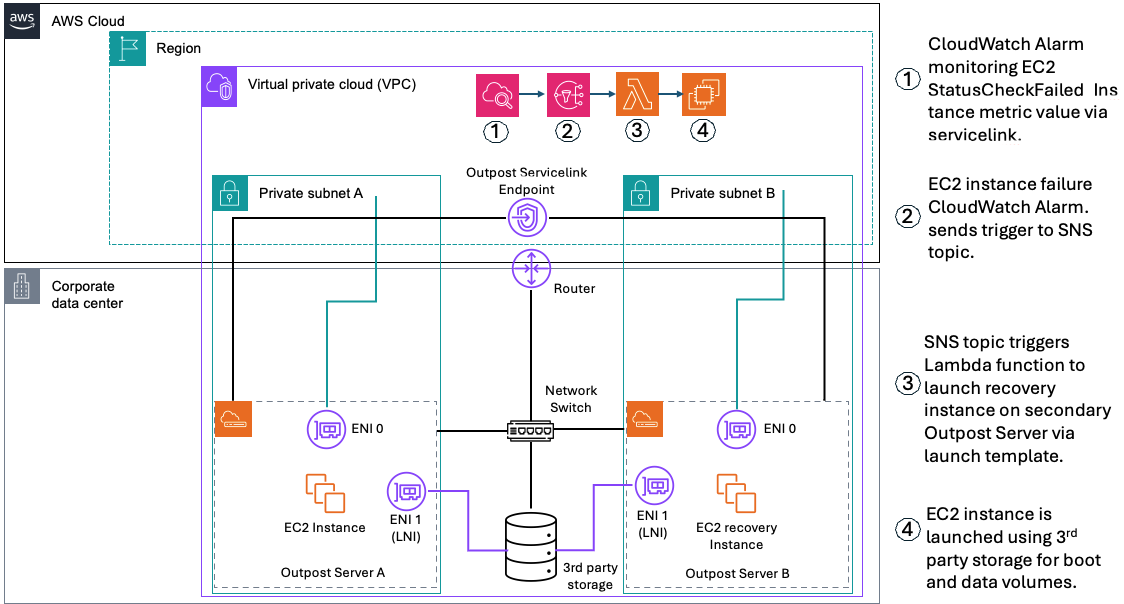
NEW: Simplifying the use of third-party block storage with AWS Outposts

Post Syndicated from Rachel Zheng original https://aws.amazon.com/blogs/compute/new-simplifying-the-use-of-third-party-block-storage-with-aws-outposts/

This post is written by Kate Sposato, Senior Solutions Architect, EC2 Edge Compute

AWS is excited to announce deeper collaboration with industry-leading storage solutions to streamline the use of third-party storage with AWS Outposts. You can now attach and use external block data volumes from NetApp® on-premises enterprise storage arrays and Pure Storage® FlashArray™ directly from the AWS Management Console.

Outposts is a fully managed service that extends AWS infrastructure, AWS services, APIs, and tools to customer premises. By providing local access to AWS managed infrastructure, Outposts allows you to build and run applications on premises using the same application programming interfaces (APIs) as in AWS Regions. Moreover, this is done while using local compute and storage resources to meet lower latency and local data processing needs. Outposts is available in various rack and server form factors.

Many of you have block storage systems running in your on-premises environments that provide advanced data storage and management features—such as snapshots, replication, and encryption—to protect data integrity and security. There are various uses cases that would predicate you needing to access data through these external volumes backed by external storage systems from an application running in Amazon Elastic Compute Cloud (Amazon EC2) instances on Outposts. These include: regulatory auditing requirements, government and local regulation compliance, high data durability and resiliency requirements, low-latency data access, and migration of on-premises applications that are tightly coupled with existing external storage systems. To make it easier for you to use external volumes with Outposts, AWS has validated a broad range of third-party storage solutions through the AWS Outposts Ready Program. With this program, you can easily identify storage solutions that are tested to run with Outposts.

Today, we are taking our integration with storage solutions from NetApp and Pure Storage to the next level. Outposts now has a simplified and automated way to launch EC2 instances with attached block storage from external infrastructure through the AWS Management Console. The new integration includes automated user script generation and attachment of data volumes to EC2 instances running on 42U Outposts racks and 2U Outposts servers. This integration reduces the friction associated with using the advanced data management and security features of external storage infrastructure in combination with Outposts, allowing you to create a resilient, compliant, and optimized storage and compute infrastructure.

Outposts rack storage and networking overview

Outposts racks support Amazon Elastic Block Store (Amazon EBS) volumes for EC2 instances, which provide persistent local block storage.

EC2 instances running on Outposts racks can access data stored on external block storage arrays over the Outposts local gateway (LGW). An LGW enables connectivity between the Outpost subnets, where EC2 instances run, and the on-premises network. It carries storage traffic between the EC2 instances running on the Outposts rack and the local network. The LGW is created by AWS as part of the Outposts rack installation process. Each Outposts rack supports a single LGW.

The following diagram shows an EC2 instance running on an Outposts rack with an elastic network interface (ENI) and LGW configured for instance connectivity. An external storage array communicates with the EC2 instance running on the Outposts rack through the Outpost network devices (ONDs). Customer Network Devices (CNDs) that connect to EC2 instances running on Outposts racks need to support the following:

  • Link aggregation: connections to the Outposts rack network devices are added to a link aggregation group (LAG).
  • VLANs: Virtual LANs (VLANs) are configured between each Outposts rack TOR device and any customer devices, including data stores.;
  • Dynamic routing: Border Gateway Protocol (BGP) is configured between the CND and the OND for each VLAN. Two total BGP sessions are shown in the following diagram between devices.

Figure 1. Outposts rack and Amazon EC2 networking architecture

Figure 1. Outposts rack and Amazon EC2 networking architecture

Outposts server storage and networking overview

Outposts servers come with internal NVMe SSD-based high-performance instance storage. Similar to AWS Regions, instance storage is allocated directly to the EC2 instance and follows the lifecycle of the instance. For example, if an EC2 instance is terminated, then the instance storage associated with the instance is also deleted. If you want data to persist after the instance is terminated, you can use external storage solutions to complement the instance storage included with Outposts servers.

Outposts servers have a local network interface (LNI). This logical networking component connects the EC2 instances running on the Outposts servers subnet to the on-premises network and allows communication to other on-premises storage, compute, and networking appliances.

To support the Amazon EC2 on Outposts to external storage array integration, an LNI must be created then added to the EC2 instance during instance launch. An LNI can only be created through the AWS Command Line Interface (AWS CLI) or the AWS software development toolkit (SDK) using the following command. The subnet id is the Outposts server subnet and the device index should be unique to the subnet.

aws ec2 modify-subnet-attribute --subnet-id <subnet id> --enable-lni-at-device-index <device index>

In the on-premises network, you must have a Network Interface Card (NIC) at the same device index that you specified when running the preceding CLI command.

Further detailed steps for this workflow are listed in the Outposts server user guide.

When the local network interfaces are enabled on an Outpost subnet, the EC2 instances in the Outpost subnet can be configured to include this LNI in addition to the ENI. The LNI connects to the on-premises network while the ENI connects to the VPC.

The following diagram shows an EC2 instance running on an Outposts server with both an ENI and LNI configured for instance connectivity. There is an external storage array connected to the Outposts server using a CND through NVMe-over-TCP or iSCSI protocol. Figure 2. Outposts server and Amazon EC2 networking architecture

Figure 2. Outposts server and Amazon EC2 networking architecture

Supported operating systems and AWS Support

The rest of this post covers the steps for how to launch an EC2 instance running on an Outposts 2U server or Outposts rack with a connected external block storage volume for local data access from within the EC2 instance. The current release of this feature supports EC2 instances running Microsoft Windows Server 2022 and Red Hat Enterprise Linux 9 (RHEL9) based operating systems.

Support for Outposts and all Outposts integration features, including this one, needs an active AWS Enterprise Support Plan or AWS Enterprise On-Ramp Support Plan. Support for external storage arrays and configurations can be obtained from the respective storage vendor and may need an additional support plan depending on the vendor and the storage solution implemented.

This post assumes you’re familiar with the basic functionality of Outposts servers and Outposts rack. If you would like to learn more about the Outposts family in general, then the user guide, What is AWS Outposts?, is a great place to start.

Solution deployment

The following sections outline the solution deployment.

Prerequisites:

  1. An Outposts 2U server or Outposts rack is provisioned, activated, and connected to the customer network.
  2. A block storage array is connected on the same network and accessible to Outposts subnets.
  3. A block data volume is configured and running on the storage array. The unique identifier for this volume is necessary for launching the EC2 instance on the Outpost. The volume must remain provisioned after initial provisioning on the storage array.
  4. The IP address and port number (optional for iSCSI connections) of the block storage volume, which is necessary for launching the EC2 instance on the Outpost.

Deployment architecture overview

The following deployment architecture shows the workflow attaching an external storage array to an Outpost, launching an EC2 instance through the AWS Management Console, and accessing the data on the external storage array from within the EC2 instance running on the Outpost.Figure 3. Third-party block storage on Outposts architecture overview

Figure 3. Third-party block storage on Outposts architecture overview

Deployment steps for NVMe-over-TCP connections

1. (Prerequisite) If there is no block data volume already running and configured on the compatible storage array, this must be completed in the storage solution’s interface before moving to Step 2.

a. Create an NVMe device, subsystem, and namespace for the block data volume.

b. Optionally, generate a host NQN that is used for the EC2 instance connection, and add it to the allow list for the appropriate subsystems.

c. The following pieces of information are used in later steps:

i. Host NQN: Unique identifier of the EC2 instance for attachment;

ii. Target IP: Address of the connected block volume host;

iii. Target Port Number: Port number of the connected block volume host.

You can learn more about launching and configuring external storage arrays in the Outposts family documentation or in the respective storage array vendor documentation.

2. In the Console, navigate to EC2 Launch Instance Wizard by choosing EC2, Instances, Launch instances.

a. Name the instance and add any desired tags to be applied at launch.

b. Choose the desired, compatible RHEL9 based Amazon Machine Image (AMI) from the list, or choose one from the AWS Marketplace.

c. Choose the desired EC2 Instance type.

d. Expand the Network settings section and select Edit. Choose the VPC and subnet of the target Outpost.

i. Outposts servers only: You must create an LNI in the Advanced Network settings before launching the instance.

e. Expand Advanced network configuration and select Add network device. Continue to add network devices until the Device index is equal to the volume index.

Figure 4. Advanced network configurationFigure 4. Advanced network configuration

f. Expand Configure storage and select Edit next to External storage volumes settings section and choose NVMe/TCP in Storage network protocol.

Figure 5. External storage volumes configuration

g. Enter the HostNQN in the format provided for the NVMe/TCP data volume. Make sure that the HostNQN used has been added to the storage array subsystem allow list.

h. Select Add NVMe/TCP Discovery Controller and enter the IP address and port of the controller from the storage array. Enter 4420 as the Target Port, if the target port is unknown.

i. (Optional) You can add more data volumes that use a different target discovery controller at this time by choosing the Add NVMe/TCP Data Volume button under the Target IP address. Repeat Steps 2.h for each data volume to be attached to the EC2 instance.

j. Expand the Advanced details and provide any additional Amazon EC2 behavior settings as appropriate.

k. At the bottom of the Advanced details section is the automatically generated User data. If you need to manually edit this data, you can do so by selecting Edit at the bottom.

Figure 6. Automatically generated user data file

l. When the configurations are set, choose the Launch instance button in the right-side column.

3. The EC2 Launch Instance Wizard now launches an EC2 instance configured as described on the Outpost and attaches the desired external data volume(s) to the EC2 instance.

4. Applications and users can access the data on the attached external volumes from within the EC2 instance. To verify this:

a. From within the launched EC2 instance, run sudo nvme list

b. The volumes are displayed as /dev/nvme1n1 with the number increasing for each attached volume. Local instance store volumes on Outposts servers and EBS boot volumes on Outposts racks are listed first. External volumes are listed after those with sequentially increasing node numbers.

5. External storage volume and array management, configuration, and backups continue to be managed through the storage vendor-provided toolkit. You can find more information on external storage management in the respective storage array vendor documentation.

Deployment steps for iSCSI connections

1. (Prerequisite) If there is no block data volume already running and configured on the compatible storage array, this must be completed in the storage solution’s interface before moving to Step 2.

a. Create an Initiator group (igroup) and add the Initiator IQN to the igroup. Then map the logical unit number (LUN) to the igroup.

b. Optionally, generate an initiator IQN that is used for the EC2 instance connection, and add it to the allow list for the appropriate subsystems.

c. The following pieces of information are used in later steps:

i. Initiator IQN: Unique identifier of the EC2 instance for attachment;

ii. Target IQNs: Unique identifier of the storage virtual machine (SVM);

iii. Target IP: Address of the connected block volume host;

iv. (Optional) Target Port Number: Port number of the connected block volume host.

You can learn more about launching and configuring external storage arrays in the Outposts family documentation or in the respective storage array vendor documentation.

2. In the Console, navigate to EC2 Launch Instance Wizard by choosing EC2, Instances, Launch instances.

a. Name the instance and add any desired tags to be applied at launch.

b. Choose the desired, compatible RHEL9 or Windows Server 2022 based AMI from the list, or purchase one from the AWS Marketplace.

c. Choose the desired EC2 Instance type.

d. Expand the Network settings section and choose the VPC and subnet of the target Outpost.

i. Outposts servers only: You must create an LNI in the Advanced Network settings before launching the instance.

e. Expand Advanced network configuration and select Add network device. Continue to add network devices until the Device index is equal to the volume index.

Figure 7. Advanced network configurationFigure 7. Advanced network configuration

f. Expand Configure storage and select Edit next to External storage volumes settings section and choose iSCSI in Storage network protocol.

Figure 8. External storage volumes configurationFigure 8. External storage volumes configuration

g. Enter the Initiator IQN for the iSCSI data volume in the format provided. Make sure that the Initiator IQN used has been added to the allow list for the volume.

h. Select Add iSCSI Target and enter the Target IP, Target Port, and Target IQN of the storage array. Enter 4420 for the Target Port, if the target port is unknown.

i. (Optional) You can add additional data volumes with a different Target IQN at this time by selecting the Add iSCSI Target button under the Target IP address. Repeat Steps 2.h for each data volume to be attached to the EC2 instance.

j. Expand the Advanced details and provide any additional Amazon EC2 behavior settings as appropriate.

k. At the bottom of the Advanced details section is the automatically generated User data. If you need to manually edit this data, you can do so by selecting Edit at the bottom.

Figure 9. Automatically generated user data fileFigure 9. Automatically generated user data file

l. When the configurations are set, choose the Launch instance button in the right-side column.

3. The EC2 Launch Instance Wizard now launches an EC2 instance configured as described on the Outpost and attaches the desired external data volume(s) to the EC2 instance.

4. Applications and users can access the data on the attached external volumes from within the EC2 instance. To verify this:

a. From within the launched EC2 instance, run iscsiadm -m session -P3

b. The volumes are displayed as /dev/sd0 with the number increasing for each attached volume.

5. External storage volume and array management, configuration, and backups continue to be managed through the storage vendor-provided toolkit. You can find more information on external storage management in the respective storage array vendor documentation.

Conclusion

This integration offers a streamlined workflow to attach and utilize external block data volumes on Outposts directly through the AWS Management Console, eliminating manual processes. It provides the full benefits of advanced data infrastructure from trusted storage providers in conjunction with the security, reliability, and scalability of AWS managed infrastructure. This helps you accelerate cloud migration with dependencies on third-party storage and realize the full potential of your on-premises data.

To learn more about this integration, visit the NetApp on-premises enterprise storage arrays for AWS Outposts solution page and the Pure Storage FlashArray for AWS Outposts blog post. To discuss your external storage needs with an Outposts expert, submit this form. If you are attending AWS re:Invent 2024, make sure to check out the NetApp booth (booth #1748) and Pure Storage booth (booth #454) to connect with our partner specialists.

Providing durable storage for AWS Outpost servers using AWS Snowcone

Post Syndicated from Macey Neff original https://aws.amazon.com/blogs/compute/providing-durable-storage-for-aws-outpost-servers-using-aws-snowcone/

This blog post is written by Rob Goodwin, Specialist Solutions Architect, Secure Hybrid Edge. 

With the announcement of AWS Outposts servers, you now have a streamlined means to deploy AWS Cloud infrastructure to regional offices using the 1 rack unit (1U) or 2 rack unit (2U) Outposts servers where the 42U AWS Outposts rack wasn’t an economical or physical fit.

This post discusses how you can use AWS Snowcone to provide persistent storage for AWS Outposts servers in the case of Amazon Elastic Compute Cloud (Amazon EC2) instance termination or if the Outposts server fails. In this post, we show:

  1. How to leverage the built-in features of Snowcone to provide persistent storage to an EC2 instance.
  2. Optionally replicate the data back to an AWS Region with AWS DataSync. Replicating data back to an AWS Region with DataSync allows for a seamless way to copy data offsite to improve resiliency. Furthermore, it allows the ability to leverage regional AWS Services for machine learning (ML) training.

Background

Outposts servers ship with internal NVMe SSD instance storage. Just like in the Regions, instance storage is allocated directly to the EC2 instance and tied to the lifecycle of the instance. This means that if the EC2 instance is terminated, then the data associated with the instance is deleted. In the event you want data to persist after the instance is terminated, you must use operating system (OS) functions to save and back up to other media or save your data to an external network attached storage or file system.

Mounting an external file system to an EC2 instance is not a new concept in AWS. Using Amazon Elastic File System (Amazon EFS), you can mount the EFS file system to EC2 instance(s).

This architecture may look similar to the following diagram:

AWS VPC showing EC2 Instances mounting Amazon EFS in the Region

Figure 1: AWS VPC showing EC2 Instances mounting Amazon EFS in the Region

In this architecture, EC2 instances are using Amazon EFS for a shared file system.

A main use case for Outposts servers is to deploy applications closer to an end user for quicker response times. If we move our application to the Outposts server to improve the response time to the end user, then we could still use Amazon EFS as a shared file system. However, the latency to read the file system over the service link may affect application performance.

There are third-party network attached storage systems available that could work with Outposts servers. However, Snowcone provides the built-in service of DataSync to replicate data back to the Region and is ideal where physical space and power are limited.

By leveraging Snowcone, we can provide persistent and durable network attached storage external to the Outposts server along with a means to replicate data to and from an AWS Region. Snowcone is a small, rugged, and secure device offering edge computing, data storage, and data transfer.

Solution overview

In this solution, we combine multiple AWS services to provide a durable environment. We use Snowcone as our Network File System (NFS) mount point and leverage the built-in DataSync Agent to replicate the bucket on the Snowcone back to an Amazon Simple Storage Service (Amazon S3) bucket in-Region.

When EC2 instances are launched on the Outposts server, we map the NFS mount point from the Snowcone into the file system of a Linux host through the Outposts server’s Logical Network Interface (LNI). For a Windows system, using the NFS Client for Windows, we can map a drive letter to the NFS mount point as well. The following diagram illustrates this.

EC2 instances on Outposts server attaching to the NFS mount on Snowcone with DataSync replicating data back to Amazon S3 in the AWS Region

Figure 2: EC2 instances on Outposts server attaching to the NFS mount on Snowcone with DataSync replicating data back to Amazon S3 in the AWS Region

Prerequisites

To deploy this solution, you must:

  1. Have the Outposts server installed and authorized.
    1. The Outposts server must be fully capable of launching an EC2 instance and being able to communicate through the LNI to local network resources.
  2. Have an AWS Snowcone ordered, connected to the local network, and unlocked.
    1. To make sure that NFS is available, the job type must be either Import into Amazon S3 or Export from Amazon S3, as shown in the following figure.
    1. Figure 3: Screenshot of Job Type when ordering Snow devices
  3. Have a local client with AWS OpsHub installed.
    1. You can use an instance launched on the Outposts server to configure the Snowcone if:
      1. ·       The LNI is connected on the instance
      2. ·       The Snowcone is on the network

Steps to activate

  1. Configure NFS on the Snowcone manually.
    1. Either statically assign the IP address, or if you’re using DHCP, create an IP reservation to make sure that the NFS mount is consistent. In the following figure, we use 10.0.0.32 as a static IP assigned to the NFS Mount.
  2. (Optional) Start the DataSync Agent on the Snowcone.
    1. We assume that the Snowcone has access to the internet in the same way the Outposts server does. Configure the Agent, and then enable tasks. The Agent is used to replicate data from the Snowcone to the Region or from the Region to the Snowcone. The tasks that are created in this step enable replication.
  3. Launch the EC2 instance (either a. or b.)
    1. a.      Using a Linux OS – When launching an instance on the Outposts server to attach to the NFS mount, make sure that the LNI is configured when launching the instance. In the User data section, enter the commands shown in the following figure to mount the NFS file system from the Snowcone.Screenshot of User Data section within the Amazon EC2 Launch Wizard

Figure 5: Screenshot of User Data section within the Amazon EC2 Launch Wizard

#!/bin/bash
sudo mkdir /var/snowcone
sudo mount -t nfs SNOW-NFS-IP:/buckets /var/snowcone
sudo sh -c “echo ’ SNOW-NFS-IP:/buckets /var/snowcone nfs defaults 0 0’ >> /etc/fstab”

In this OS, we create a directory and then mount the NFS file system to that directory. The echo is used to place the mount into fstab to make sure that the mount is persistent if the instance is rebooted.

  1. b        Windows OS – The AMI being used during the launch must include the NFS client. The client is required to mount the NFS. When launching an instance on the Outposts server to attach to the NFS mount, make sure that the LNI is configured when launching the instance. In the User data section, enter the commands shown in the following figure to mount the NFS from the Snowcone as a drive letter.

A screenshot of User Data section of Amazon EC2 Launch wizard with commands to mount NFS to the Windows File System

Figure 6: A screenshot of User Data section of Amazon EC2 Launch wizard with commands to mount NFS to the Windows File System

<powershell>
NET USE Z: \\SNOW-NFS-IP\buckets -P
</powershell> 

The NET USE command maps the Z: drive to the NFS mount, and the -P makes it persistent between reboots.

This solution also works with Snowball Edge Storage Optimized. When ordering the Snowball Edge, choose NFS based data transfer for the storage type.

Screenshot of Select the storage type for the Snowball Edge

Figure 4: Screenshot of Select the storage type for the Snowball Edge

Conclusion

In this post, we examined how to mount NFS file systems in Snowcone to EC2 instances running on Outposts servers. We also covered starting DataSync Agent on Snowcone to enable data transfer from the edge to an AWS Region. By pairing these services together, you can build persistent and durable storage external to the Outposts servers and replicate your data back to the AWS Region.

If you want to learn more about how to get started with Outposts servers, my colleague Josh Coen and I have published a video series on this topic. The demo series shows you how to unbox an Outposts server, activate the Outposts server, and what you can do with your Outposts server after it is activated. Make sure to check it out!