Tag Archives: SAP on AWS

Accelerate your Automation for SAP on AWS Operations using Amazon Q Developer

Post Syndicated from Bidwan Baruah original https://aws.amazon.com/blogs/devops/accelerate-your-automation-for-sap-on-aws-operations-using-amazon-q-developer/

Based on discussions with several SAP on AWS customers, we have discovered that the number of SAP administration or operational task requirements often exceed the capacity of the available team. Due to lack of time, resources, and heavy focus on operations, strategic initiatives like digital transformations often remain unaddressed. Although 1P and 3P automation solutions are available, many organizations do not adopt them, due to cost, internal processes, complexities associated with managing multiple-vendor tooling, etc. While some SAP BASIS teams have successfully automated some tasks, the level of effort and skill set to develop custom scripts is not widely available, in some cases due to a skills gap or insufficient knowledge in scripting. In this blog post we will use Amazon Q Developer, a generative AI coding assistant, and use natural language to create SAP operational automation in a more productive fashion.

Walkthrough

Amazon Q Developer acts as a bridge between logical comprehension and practical coding implementation. It enables SAP BASIS administrators to translate their operational understanding into code by interpreting their logic, articulated in natural language. This approach allows us to accelerate the development process of automation scripts, democratizing script development to a broader base of infrastructure and application administrators. In this case, Amazon Q provides coding suggestions by converting natural English language explanations of logic into operational code, such as an automation script for the operational activity (e.g., Start and Stop of SAP).

The solution is orchestrated in two stages:

  • Administrators use Q Developer using natural language to formulate a shell script to perform start and stop operations on a single Amazon EC2 instance.
  • Q Developer validates inputs, assessment of system installation, and execution of start/stop commands.

Prerequisites

For the walkthrough, we are using VS Codium for our integrated development environment (IDE) with the latest Amazon Q Developer extension installed. However, you may use any of the supported IDEs.

Prior to starting, it may be important to model the entire workflow. For example, the script may need a number of conditions, checks, and logical considerations. However, for the purposes of our scenario, we focus on three specific conditions, checks, and logical processes. For your specific use case, we recommend incorporating additional logical steps, if needed.

The script we will write has 3 arguments in order to Start/Stop the SAP System.

  • The SAP System ID (SID)
  • The SAP Instance Number
  • The command ‘start’ or ‘stop’ – will start or stop the SAP system.

To run the script the command should look like the example below:

scriptname.sh <SID> <InstanceNumber> <start/stop>

There are also four conditions, checks, and logic blocks in the script,

  1. First, check if the command has 3 arguments.  If any are missing, the system will not be able to perform the intended action.
  2. Second, check if the SAP system (SID) we are trying to manage is available in the current EC2 instance.
  3. Third, the SAP Instance Number is checked in the current EC2 instance.
  4. Lastly, the script needs to tell the system which command to run, based on the third argument (e.g., start or stop).

Important: Comments in Shell scripts start with a ‘#’ sign, and the arguments are indicated by a ‘$<n>’ format; n being the sequence number of the argument. So, in our case:

<SID> : $1
<InstanceNumber> : $2
<start/stop> : $3

Now that we have established the structure of how to call the script and what arguments we are going to pass, lets write the comments in English to get code recommendations from Amazon Q.

Getting Started

1.     In VS Codium, create a ‘New File’ for our script. Assign a file name and make sure the file extension ends with a ‘.sh’ (e.g., startstopsap.sh).

Below is an example of the comments we used for our logic. Copy paste this into the file.

Info: The first line #!/bin/bash tells the system to execute the script using the Bash shell. The rest of the lines tell what the script needs to check, the logic it needs to follow and the commands it needs to run.

#!/bin/bash 
#This is a script that is going to start and stop an SAP instance based on the given inputs to the script
#The script will receive 3 inputs. <SID> <InstanceNumber> <start/stop>
#If the script did not get 3 inputs, the script will fail with showing the usage guidance. 
#Check if the file "/usr/sap/sapservices" exists. If not, fail.
#We will check if the given SID is installed in this server by searching the SID in the file "/usr/sap/sapservices"  If it does not exist, fail, otherwise continue. 
#Then we will check if the given instance number is installed in this server by searching the Instance Number in the file "/usr/sap/sapservices”. If it does not exist, fail, otherwise continue. 
#If all conditions met, check the third output and if it's start, start the sap system using "sapcontrol -nr InstanceNumber -function Start"
#If all conditions met, see the third output and if it's stop, stop the sap system using "sapcontrol -nr InstanceNumber -function Stop"
#Then wait for 2 minutes for the stop command to complete (if stop)
#Remove the ipcs (if stop) by the command “cleanipc InstanceNumber remove” 
#If the third input is not start or stop, fail.
#End the script.

2.     Type #Check Input and press Enter, Q will start making code suggestions. If it does not, you can manually invoke suggestions with ‘Option+C’ on Mac or ‘Alt+C’ on Windows.
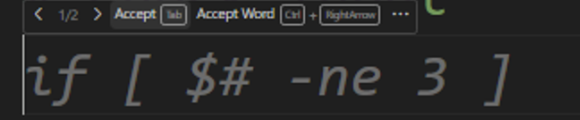
Figure 1 – Amazon Q Developer Suggestions

3.     To accept suggested code, either press ‘Tab’ or click on ‘Accept’.

The ‘< 1/2 >’ means that there are two suggestions and you may accept the one that is most appropriate for the scenario. Toggle between the suggestions using right and left arrows on your keyboard.

We will accept the code and then press Enter to move to the next line. As soon as you press the Enter key, the next line of code will be suggested.

Important: Amazon Q Developer is non-deterministic, which means that code suggestions produced may be different from what is shown in the blog.  If the suggestions look different for you, you can use the arrows on your keyboard to toggle between recommendations, as shown below.

4.     Accept the next block of code and eventually close the IF loop.  Press Enter.
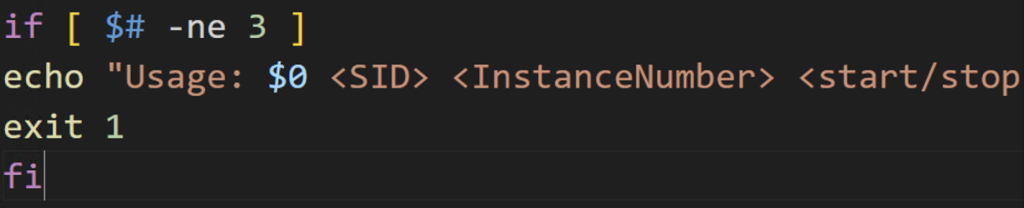
Figure 2 – Reviewing Suggestions

5.     Based on comments in the file, Q should should have enough context to suggest what needs to be done next. The script should check if the /usr/sap/sapservices file exists.

Figure 3 – Checking dependencies

6.     Once you accept the code, Q will propose the next lines. Keep accepting the appropriate lines of code until all required sections are completed.  Once the script is ready, it should look similar to what is depicted below.  Save the script.
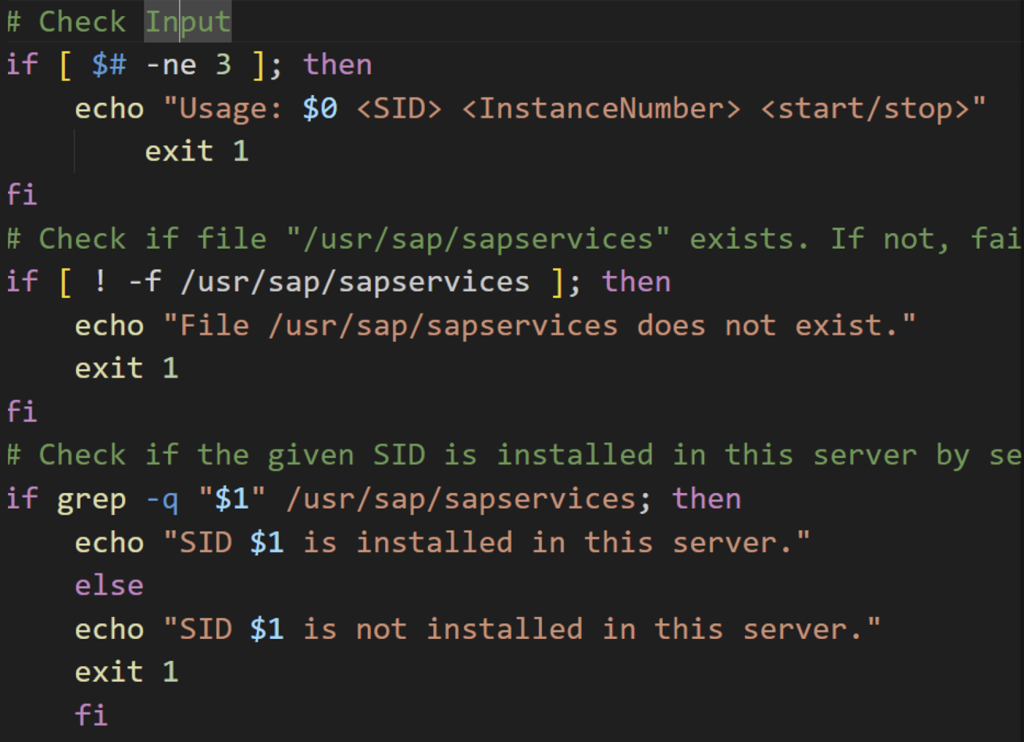
Figure 4 – First part of the script
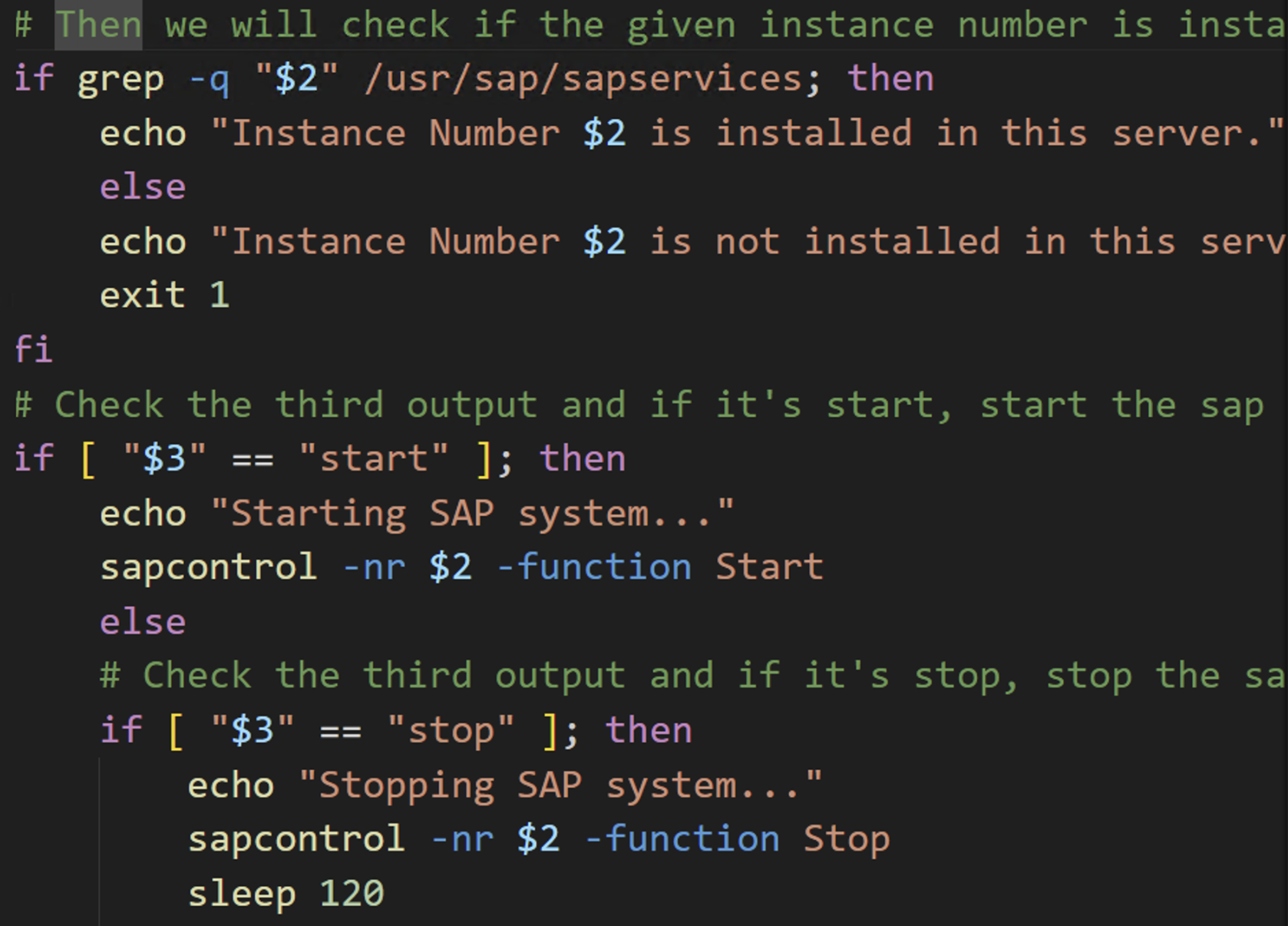
Figure 5 – Second part of the script
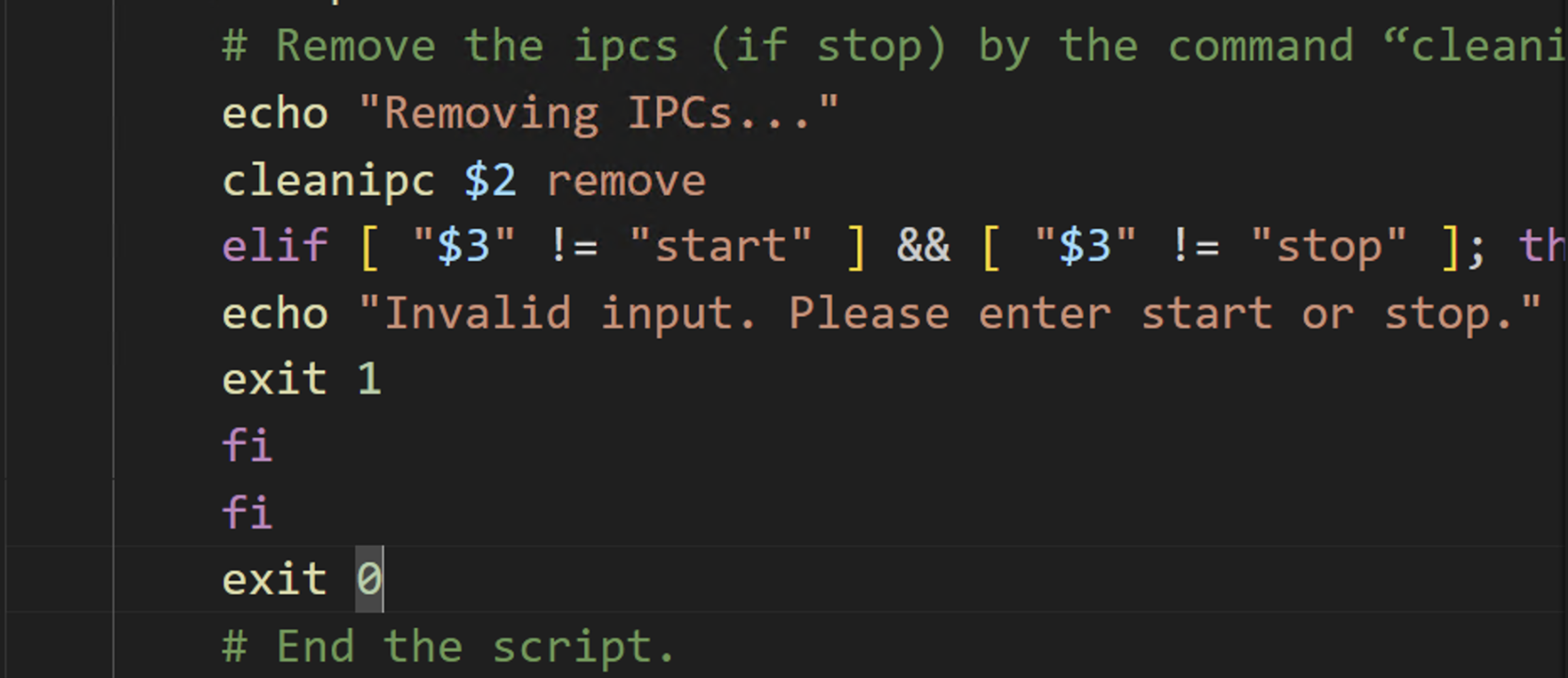
Figure 6 – Third part of the script

7.     Go to the EC2 instance hosting SAP and use your local text editor (e.g., vi) to create a file with the  “.sh” file extension. Let’s say the file is named SAPStopStart.sh

8.     Paste the contents of the code from your file in the IDE.

9.     Save the file and add execute permissions to the file by running chmod +x SAPStopStart.sh

10.   To run the script, use the appropriate arguments as shown below.

SAPStopStart.sh <SID> <InstanceNumber> <start/stop>
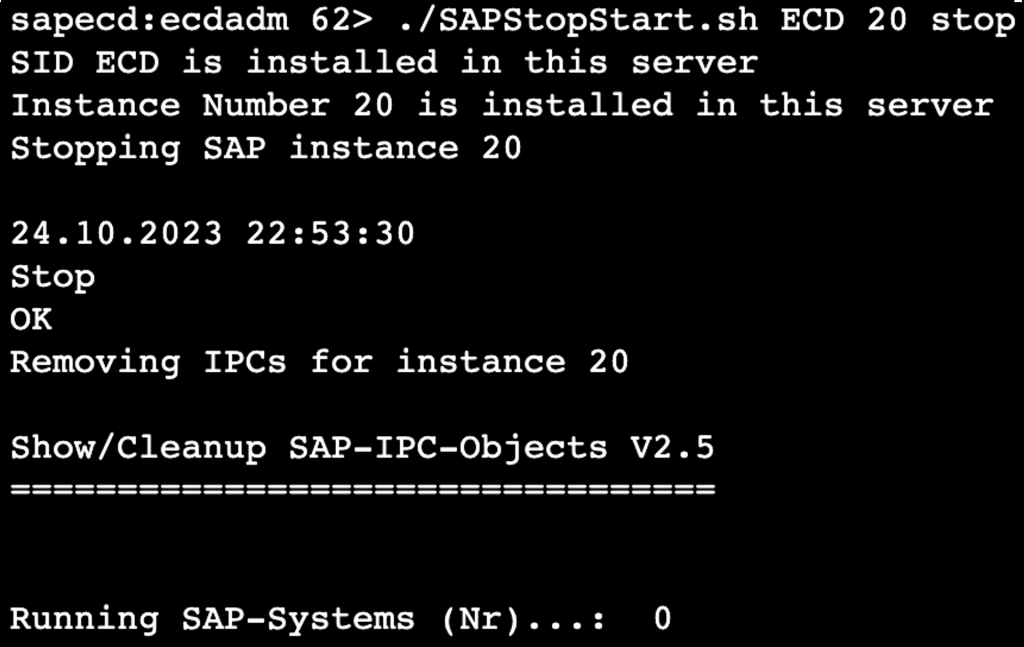

Figure 7 – Running the script

Conclusion

Although in this blog post we used a simple example of starting and stopping an SAP system, Amazon Q Developer can be extended to a broader spectrum of SAP operational scenarios. Q Developer’s capabilities can be used to harness a broad range of SAP-related use cases, such as kernel patching, database patching, and beyond. In addition to code suggestions, Q Developer offers a security scanning feature, which can be used for fortifying application security. Amazon Q Developer is available in Pro and Free Tiers and does not require an AWS Account to get started.  For the purpose of this blog, we used the Amazon Q Developer Free Tier.  To learn more about Amazon Q Developer, click to go to its product page.
AWS Migration Hub Orchestrator – New Migration Orchestration Capability with Customizable Workflow Templates

Post Syndicated from Channy Yun original https://aws.amazon.com/blogs/aws/aws-migration-hub-orchestrator-new-migration-orchestration-capability-with-customizable-workflow-templates/

You can migrate any workload from an on-premises environment to AWS. The key to a successful migration to AWS is a well-thought-out plan, informative tools, prior migration experience, and a quality implementation. Every step along the way, you can use AWS’s years of experience to build your organizational, operational, and technical capabilities so that you can gain business benefits faster.

In 2017, we introduced AWS Migration Hub, a single location for cloud migration and modernization, giving you the tools you need to accelerate and simplify your journey with AWS. With Migration Hub, you can discover or import your on-premises server details, build a migration strategy with right-sizing recommendations, track migrations across multiple tools in a simple dashboard, and refactor your applications incrementally in any AWS Region.

Today we announce the general availability of AWS Migration Hub Orchestrator, providing predefined and customizable workflow templates that offer a prescribed set of migration tasks, migration tools, automation opportunities, and tracking your progress in one place.

With Migration Hub Orchestrator, you can reduce the migration costs and time by removing many of the manual tasks involved in migrating large-scale enterprise applications, managing dependencies between different tools, and providing visibility into the migration progress. Also, Migration Hub Orchestrator enables customers to customize the templates and add additional steps to suit their workflow needs. At this launch, Migration Hub Orchestrator supports the migrations of SAP NetWeaver-based applications with HANA databases and the rehosting of any applications using AWS Application Migration Service (AWS MGN).

AWS Migration Hub Orchestrator – Getting Started
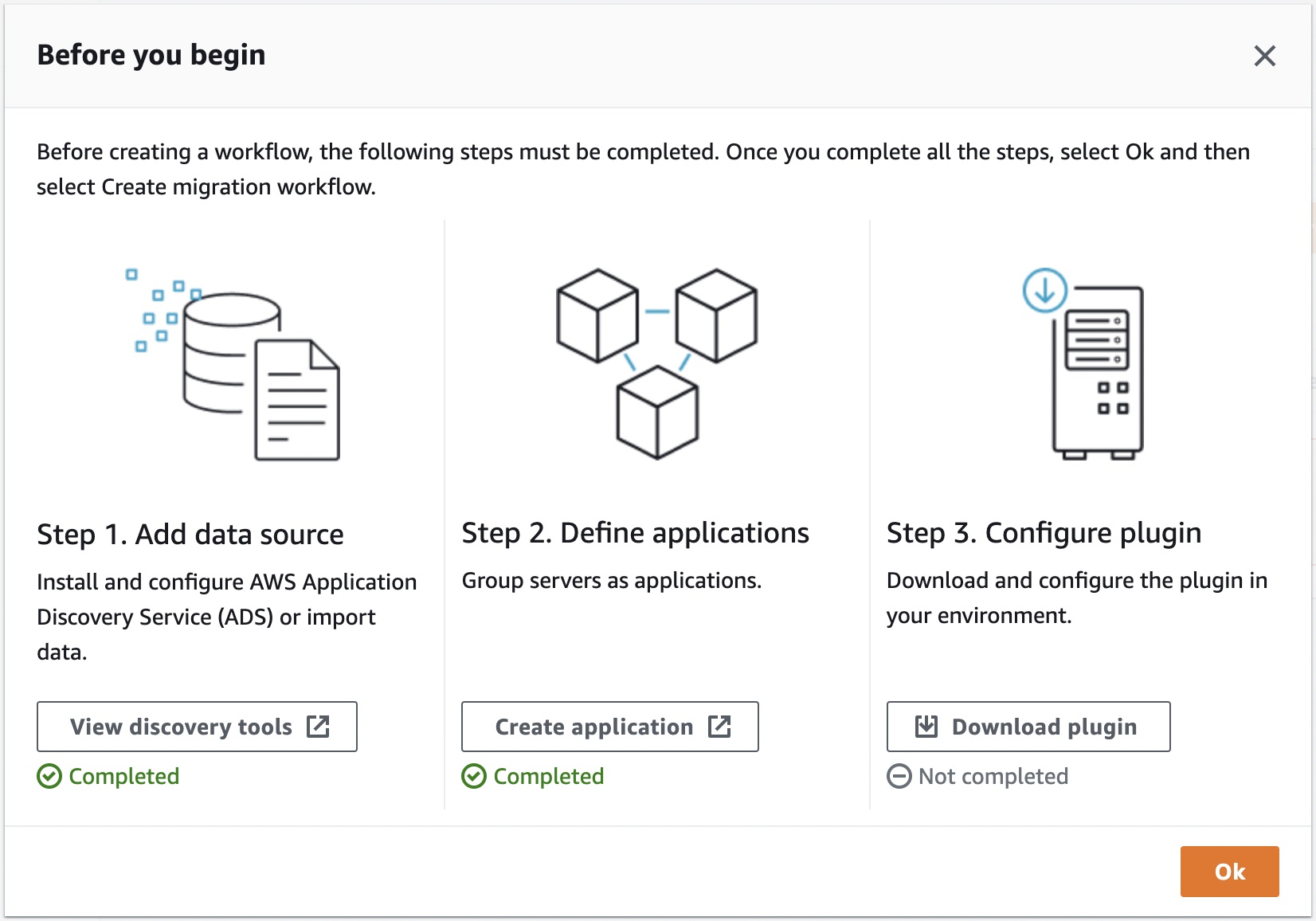
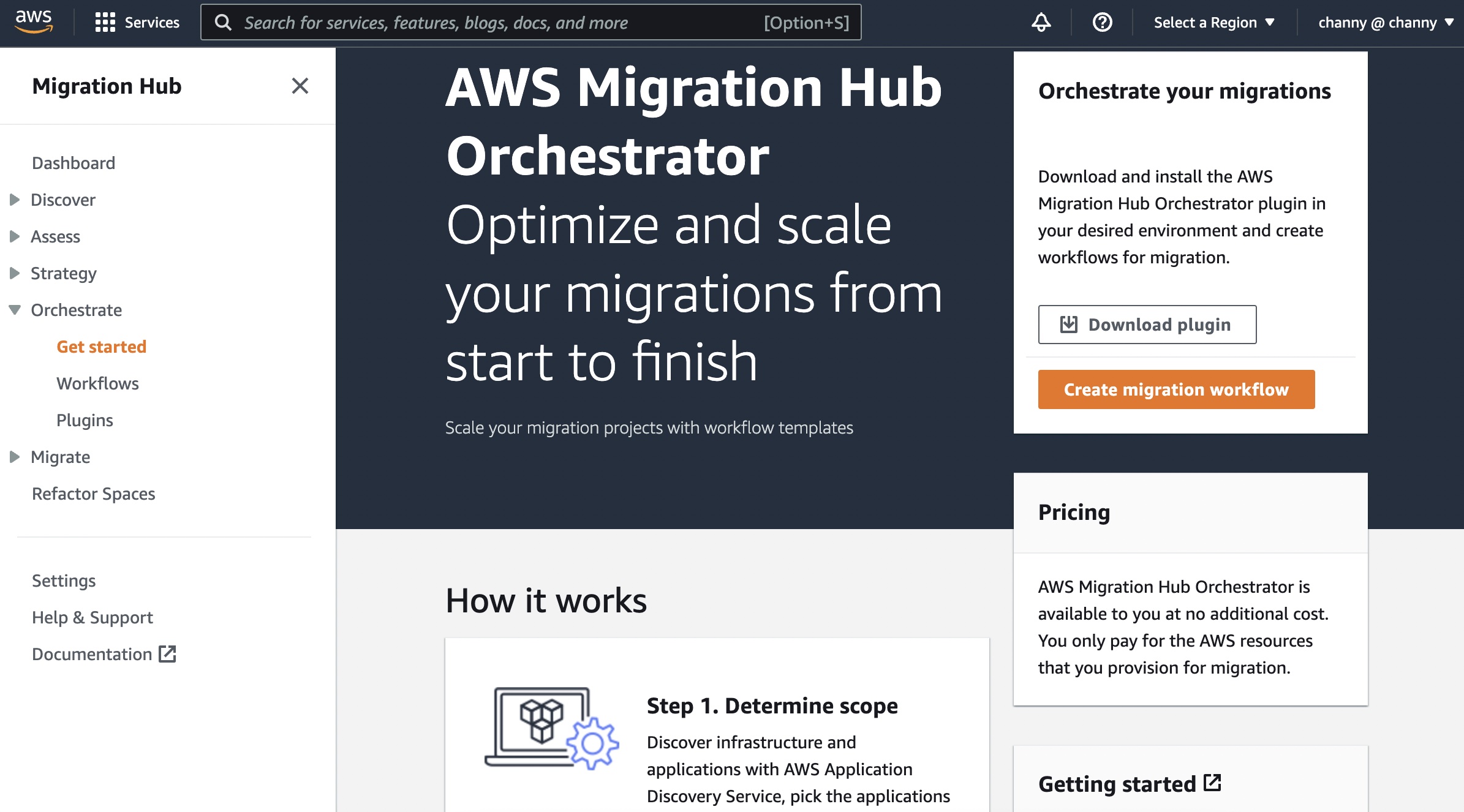
To get started with AWS Migration Hub Orchestrator, choose Get started to create a new migration workflow in the Migration Hub console.

To create a new workflow, you need to add data sources from your on-premises servers and applications using the AWS discovery tools, group your servers as applications, and download and configure the plugin in your environment. This plugin requires a one-time agentless setup in your source environment.

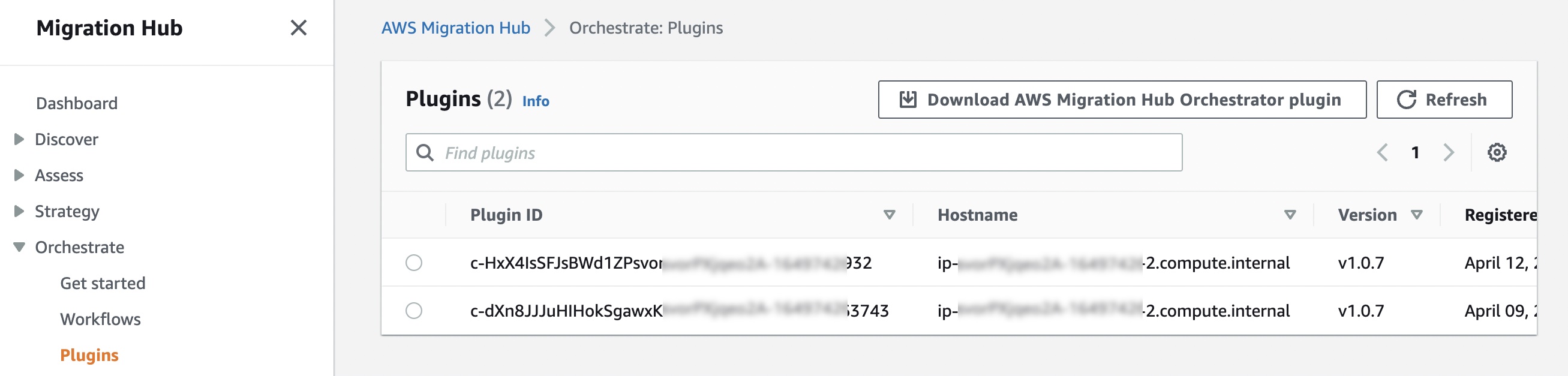
You can install this plugin as a virtual machine in your VMware vCenter Server environment using the AWS-provided Open Virtualization Archive (OVA) file. Migration Hub Orchestrator uses the plug-in to automatically run migration tasks on the source systems while executing the workflow, such as installing AWS MGN agents on source systems. You can see registered plugins in the Plugins menu.

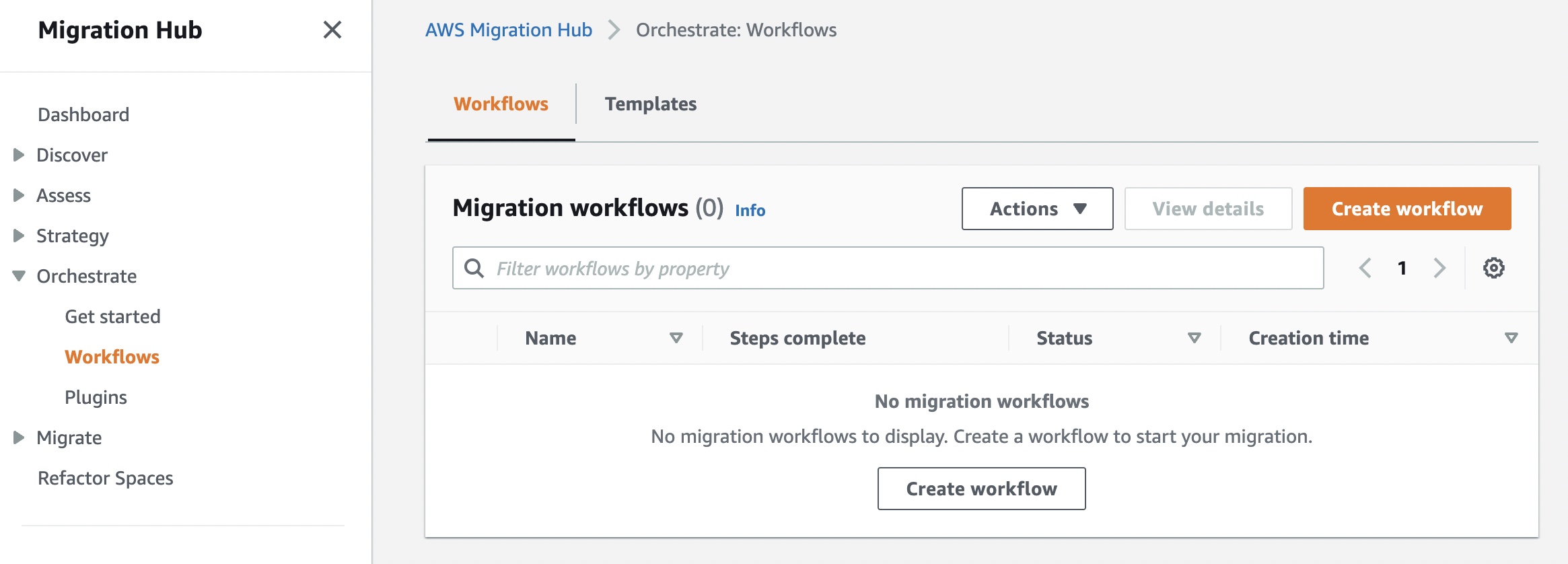
After completing the prerequisites for Migration Hub Orchestrator setup, you can begin configuring a workflow with your chosen template by clicking the Create workflow button in the Workflows menu.

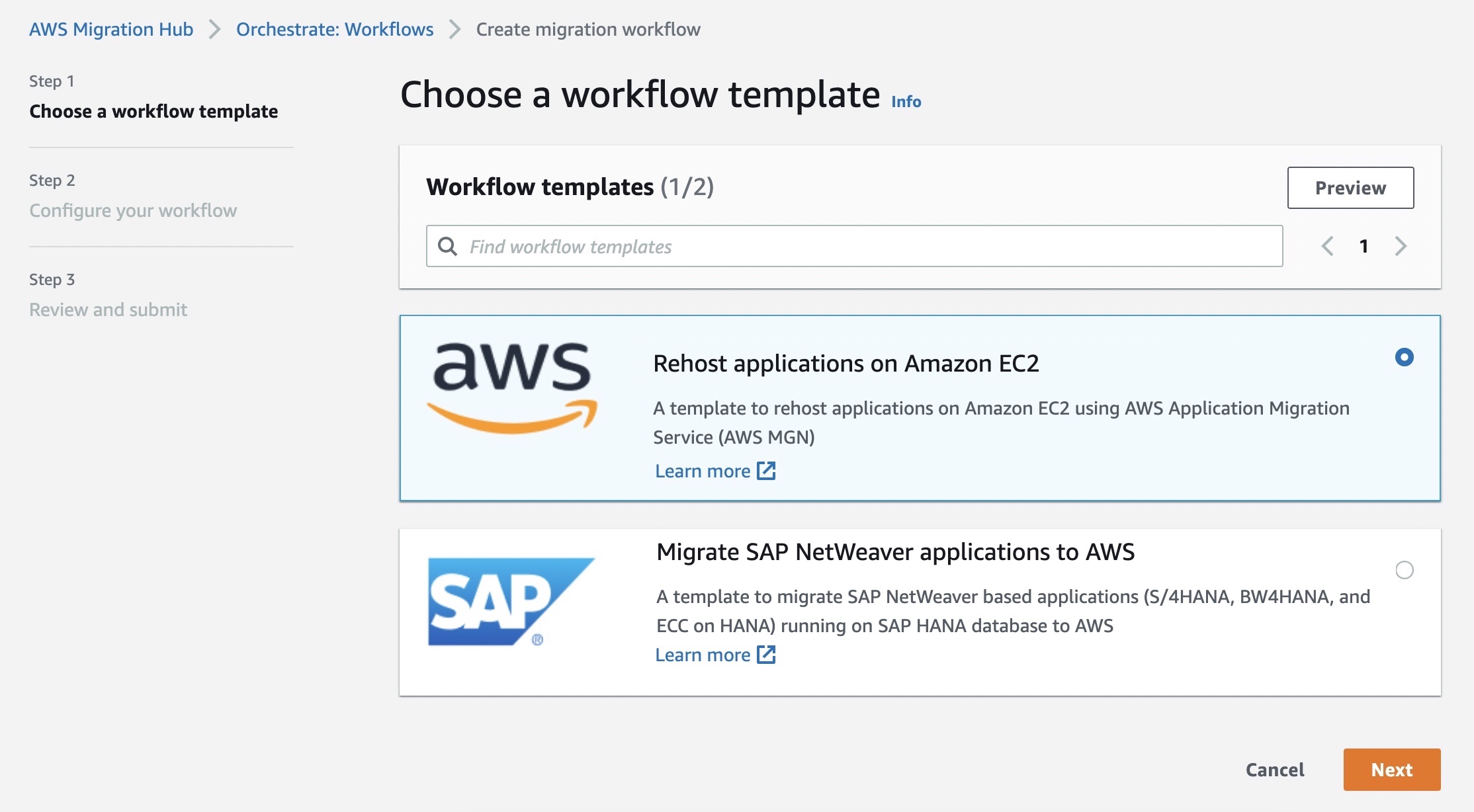
Choose a workflow template, either Rehost applications on Amazon EC2 or Migrate SAP NetWeaver applications to AWS. This workflow template is a playbook of migration workflow specifications: 1) the step-by-step migration workflow and dependencies, 2) migration services, solutions, or scripts required to automate the migration step, and 3) the required input parameters, such as source virtual machine and application settings, target system settings, replication settings, and cutover requirements for the migration.

To configure your workflow to rehost applications on Amazon EC2 in the next step, enter a name for your workflow, select your application to migrate, configure the source environment, and, optionally, add a description and tags.

When you choose a workflow template for migrating an SAP application, provide source SAP application information. As part of the workflow execution, the service will guide you to deploy the target SAP environment using AWS Launch Wizard, extract application info from the newly deployed stack and migrates the application using an SAP and HANA database-specific replication mechanism like HANA System Replication (HSR).

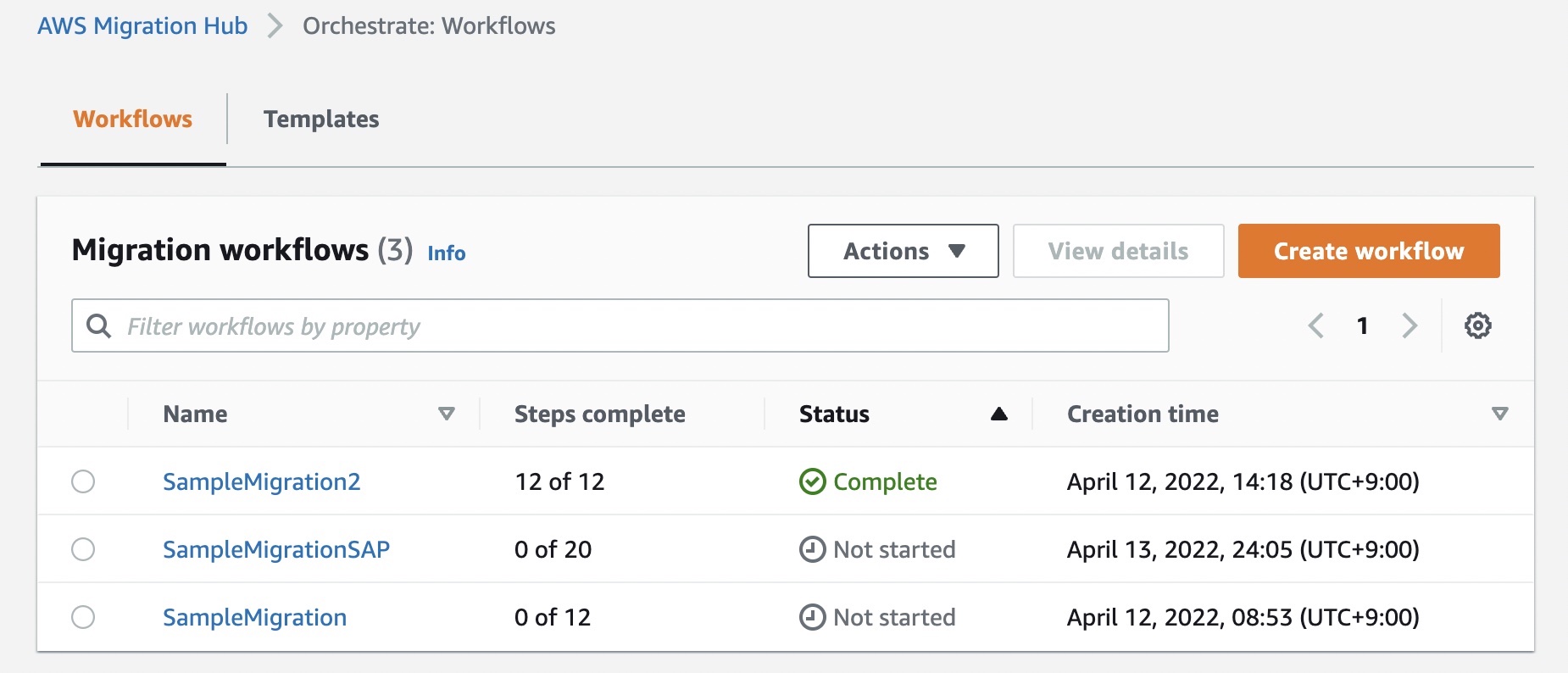
Select  Review and submit in the Step 3 Configure your workflow, it takes several minutes to create your workflow. You can confirm the list of migration workflows.

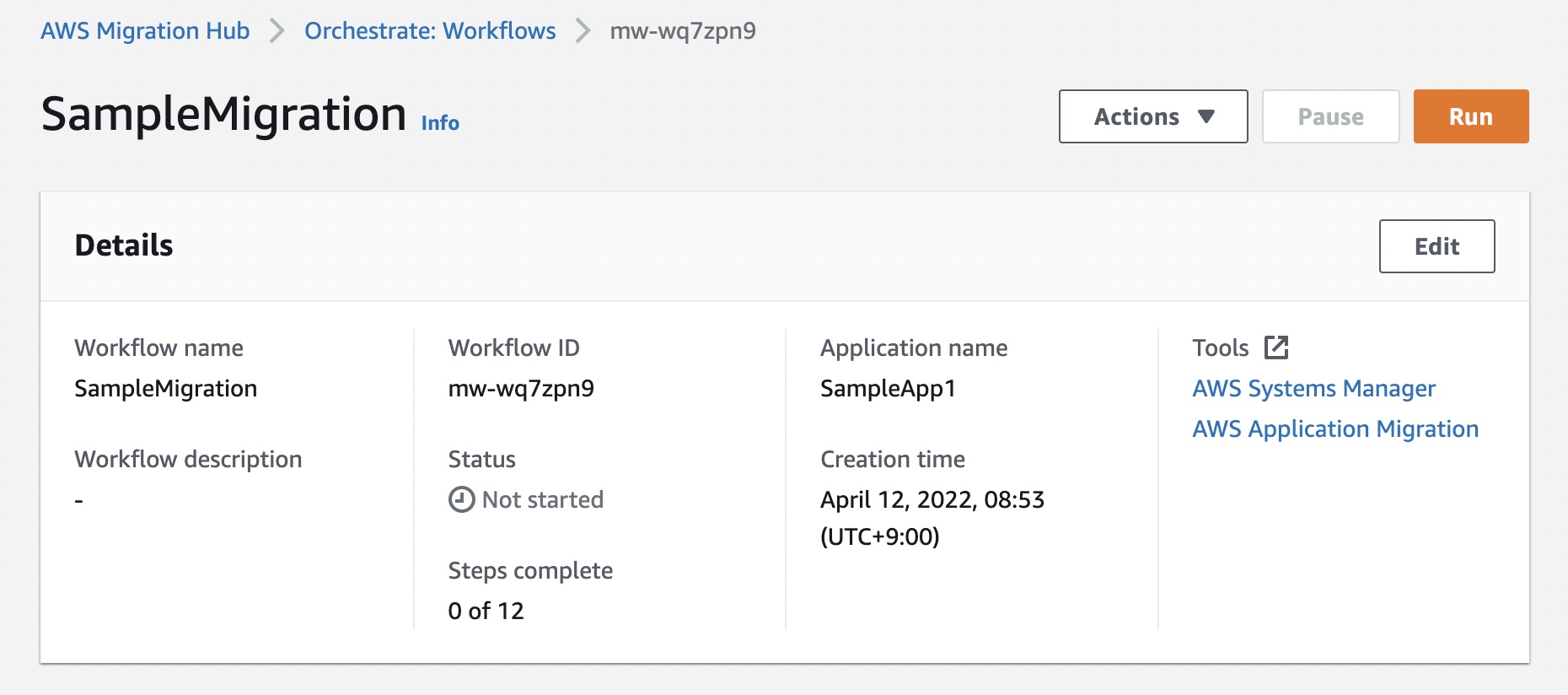
Choose one of the migration workflows not started yet and select the Run button to migrate your application with each step in the general rehosting process. It takes several minutes to finish the migration. AWS Migration Hub Orchestrator also allows you to pause, resume, or delete your workflows.

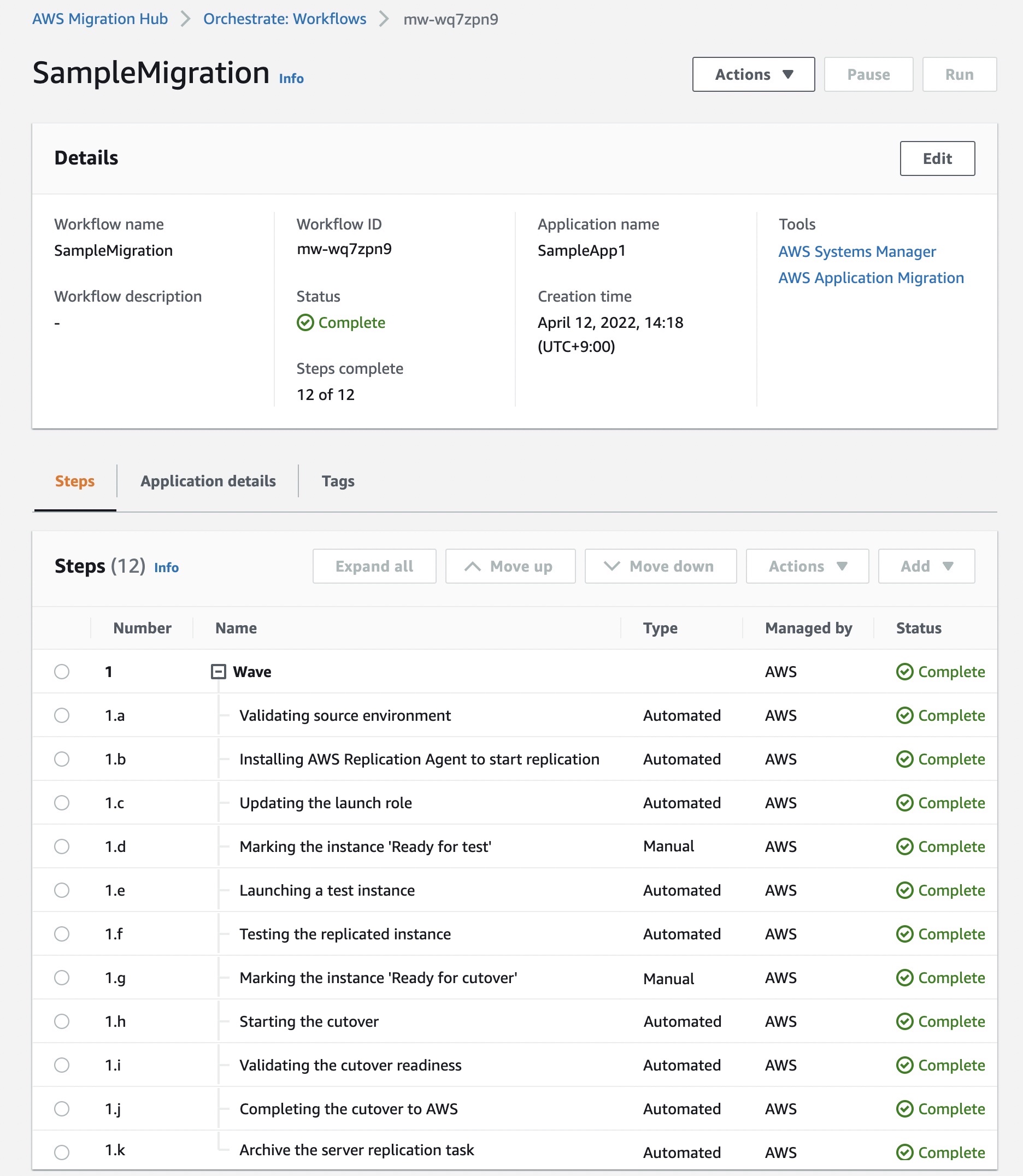
After the completion of migration, you can verify the status of each migration step, from validating the source environment to completing the cutover to AWS.

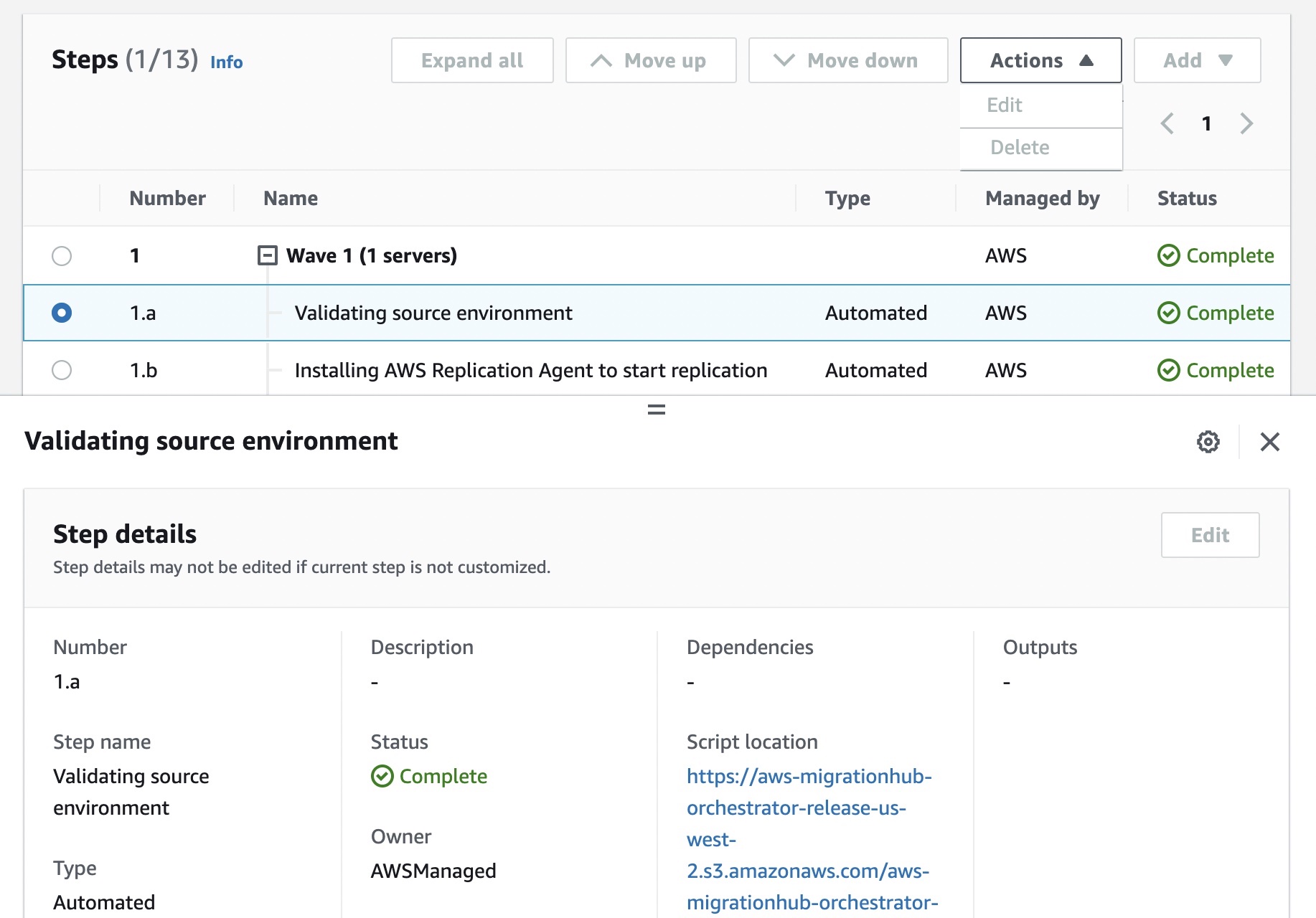
When you select one of the steps, you can check the details of each step transparently.

Also, you can customize your workflow by adding your own steps, dependencies, and automations to address the needs of your specific use cases. Use the Add option to add steps and specify the custom script that you want to run on the source or destination server as part of that step.

For example, you can perform additional migration readiness checks, change configurations of the target environment, and perform post-migration tests using your own automation scripts. You can also add manual steps as part of the workflow as required.

In the case of the SAP application migration, it includes each migration step in several categories, from validating connectivity to the source server to the cutover to AWS.

As you now know, AWS Migration Orchestrator simplifies the complex migration process that often involves multiple teams and tools by automating the manual tasks involved in migrating large-scale enterprise applications managing dependencies between different tools and providing visibility of migration progress in one place.

We plan to add support for more migration and modernization workflows to reduce the migration costs and time to complete the migration.

Troubleshooting Migration Orchestration
AWS Migration Hub Orchestrator stores the output and logs of steps in S3 bucket under your account. These logs can be used to troubleshoot issues or examine the output of a step. For the tasks that are blocked in the dependent migration service, you can also access the consoles of those services for additional troubleshooting.

Migration Hub Orchestrator is integrated with AWS CloudTrail, a service that provides a record of actions taken by a user, role, or an AWS service to capture all API calls for Migration Hub Orchestrator as events.

If you have more than one AWS account, you can use AWS Organizations in Migration Hub Orchestrator from any member account or organizational unit in your company.

Now Available
AWS Migration Hub Orchestrator is now generally available, and you can use it in all AWS Regions where AWS Migration Hub is available. There is no additional cost for using Migration Hub Orchestrator, and you only pay for the AWS resources that you provision for the migration. To learn more, see the product page.

If you are looking for a Migration Partner to support your cloud adoption, visit the AWS Migration Hub Partners page. Please send feedback to AWS re:Post for Migration Hub or through your usual AWS support contacts.

– Channy

New – Amazon EC2 X2idn and X2iedn Instances for Memory-Intensive Workloads with Higher Network Bandwidth

Post Syndicated from Channy Yun original https://aws.amazon.com/blogs/aws/new-amazon-ec2-x2idn-and-x2iedn-instances-for-memory-intensive-workloads-with-higher-network-bandwidth/

In 2016, we launched Amazon EC2 X1 instances designed for large-scale and in-memory applications in the cloud. The price per GiB of RAM for X1 instances is among the lowest. X1 instances are ideal for high performance computing (HPC) applications and running in-memory databases like SAP HANA and big data processing engines such as Apache Spark or Presto.

The following year, we launched X1e instances with up to 4 TiB of memory designed to run SAP HANA and other memory-intensive, in-memory applications. These instances are certified by SAP to run production environments of the next-generation Business Suite S/4HANA, Business Suite on HANA (SoH), Business Warehouse on HANA (BW), and Data Mart Solutions on HANA on the AWS Cloud.

Today, I am happy to announce the general availability of Amazon EC2 X2idn/X2iedn instances, built on the AWS Nitro system and featuring the third-generation Intel Xeon Scalable (Ice Lake) processors with up to 50 percent higher compute price performance than comparable X1 instances. These improvements result in up to 45 percent higher SAP Application Performance Standard (SAPS) performance than comparable X1 instances.

You might have noticed that we’re now using the “i” suffix in the instance type to specify that the instances are using an Intel processor, “e” in the memory-optimized instance family to indicate extended memory, “d” with local NVMe-based SSDs that are physically connected to the host server, and “n” to support higher network bandwidth up to 100 Gbps.

X2idn instances enable up to 2 TiB of memory, while X2iedn instances enable up to 4 TiB of memory. X2idn and X2iedn instances also support 100 Gbps of network performance with hardware-enabled VPC encryption and support 80 Gbps of Amazon EBS bandwidth and 260k IOPs with EBS-encrypted volumes.

Instance Name vCPUs RAM (GiB) Local NVMe SSD Storage (GB) Network Bandwidth (Gbps) EBS-Optimized Bandwidth (Gbps)
x2idn.16xlarge 64 1024 1 x 1900 Up to 50 Up to 40
x2idn.24xlarge 96 1536 1 x 1425 75 60
x2idn.32xlarge 128 2048 2 x 1900 100 80
x2iedn.xlarge 4 128 1 x 118 Up to 25 Up to 20
x2iedn.2xlarge 8 256 1 x 237 Up to 25 Up to 20
x2iedn.4xlarge 16 512 1 x 475 Up to 25 Up to 20
x2iedn.8xlarge 32 1024 1 x 950 25 20
x2iedn.16xlarge 64 2048 1 x 1900 50 40
x2iedn.24xlarge 96 3072 2 x 1425 75 60
x2iedn.32xlarge 128 4096 2 x 1900 100 80

X2idn instances are ideal for running large in-memory databases such as SAP HANA. All of the X2idn instance sizes are certified by SAP for production HANA and S/4HANA workloads. In addition, X2idn instances are ideal for memory-intensive and latency-sensitive workloads such as Apache Spark and Presto, and for generating real-time analytics, processing giant graphs using Neo4j or Titan, or creating enormous caches.

X2iedn instances are optimized for applications that seek high memory to vCPU ratio and deliver the highest memory capacity per vCPU among all virtualized EC2 instance types. X2iedn is suited to run high-performance databases (such as Oracle DB, SQL server) and in-memory workloads (such as SAP HANA, Redis). Workloads that are sensitized to per-core licensing, such as Oracle DB, greatly benefit from the higher memory per vCPU (32GB:1vCPU) offered by X2iedn. X2iedn allows you to optimize licensing costs because it provides customers the same memory at half the number of vCPU compared to X2idn.

These instances offer the same amount of local storage as in X1/X1e, up to 3.8 TB, but the local storage in X2idn/X2iedn is NVMe-based, which will offer an order of magnitude lower latency compared to SATA SSDs in X1/X1e.

Things to Know
Here are some fun facts about the X2idn and X2iedn instances:

Optimizing CPU—You can disable Intel Hyper-Threading Technology for workloads that perform well with single-threaded CPUs, like some HPC applications.

NUMA—You can make use of non-uniform memory access (NUMA) on X2idn and X2iedn instances. This advanced feature is worth exploring if you have a deep understanding of your application’s memory access patterns.

Available Now
X2idn instances are now available in the US East (N. Virginia), Asia Pacific (Mumbai, Singapore, Tokyo), Europe (Frankfurt, Ireland) Regions.

X2iedn instances are now available in the US East (Ohio, N. Virginia), US West (Oregon), Asia Pacific (Singapore, Tokyo), Europe (Frankfurt, Ireland) Regions.

You can use On-Demand Instances, Reserved Instances, Savings Plan, and Spot Instances. Dedicated Instances and Dedicated Hosts are also available.

To learn more, visit our EC2 X2i Instances page, and please send feedback to AWS re:Post for EC2 or through your usual AWS Support contacts.

Channy