All posts by Biswanath Mukherjee

Orchestrating big data processing with AWS Step Functions Distributed Map

Post Syndicated from Biswanath Mukherjee original https://aws.amazon.com/blogs/compute/orchestrating-big-data-processing-with-aws-step-functions-distributed-map/

Developers seek to process and enrich semi-structured big data datasets with durably orchestrated network-based workflows. For example, during quarterly earnings season, finance organizations run thousands of market simulations simultaneously to provide timely insights for scenario planning or risk management—these workloads require coordination between raw datasets and on-premise servers to provide the latest market information.

AWS Step Functions is a visual workflow service capable of orchestrating over 14,000 API actions from over 220 AWS services to build distributed applications. Now, Step Functions Distributed Map streamlines big data dataset transformation by processing Amazon Athena data manifest and Parquet files directly. Using its Distributed Map feature, you can process large scale datasets by running concurrent iterations across data entries in parallel. In Distributed mode, the Map state processes the items in the dataset in iterations called child workflow executions. You can specify the number of child workflow executions that can run in parallel. Each child workflow execution has its own, separate execution history from that of the parent workflow. By default, Step Functions runs 10,000 parallel child workflow executions in parallel.

Distributed Map can process AWS Athena data manifest and Parquet files directly, eliminating the need for custom pre-processing. You also now have visibility into your Distributed Map usage with new Amazon CloudWatch metrics: Approximate Open Map Runs Count, Open Map Run Limit, and Approximate Map Runs Backlog Size.

In this post, you’ll learn how to use AWS Step Functions Distributed Map to process Athena data manifest and Parquet files through a step-by-step demonstration.

This post is part of a series of post about AWS Step Functions Distributed Map:

Use case: IoT sensor data processing

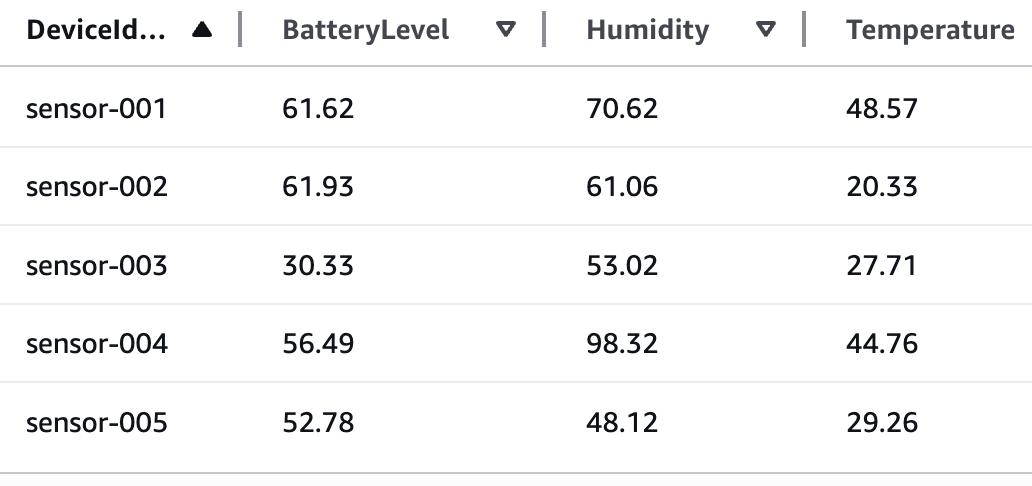
You’ll build a sample application that demonstrates processing IoT sensor data in Parquet format using Step Functions Distributed Map. These Parquet data files and a manifest file containing the list of the data files are exported from Athena. The data temperature, humidity, and lbattery level from different devices. The following table shows sample of sensor data:

Example IoT sensor data

Example IoT sensor data

Your objective is to use the Athena data manifest file, get the list of Parquet files, and iterate over the data in the files to detect anomalies and also stream the processed data through Amazon Kinesis Data Firehose to an Amazon S3 bucket for further analytics using Athena queries. Following is the criteria to detect anomaly:

  • Low battery conditions: less than 20%
  • Humidity anomalies: more than 95% or less than 5%
  • Temperature spikes: more than 35°C or less than -10°C

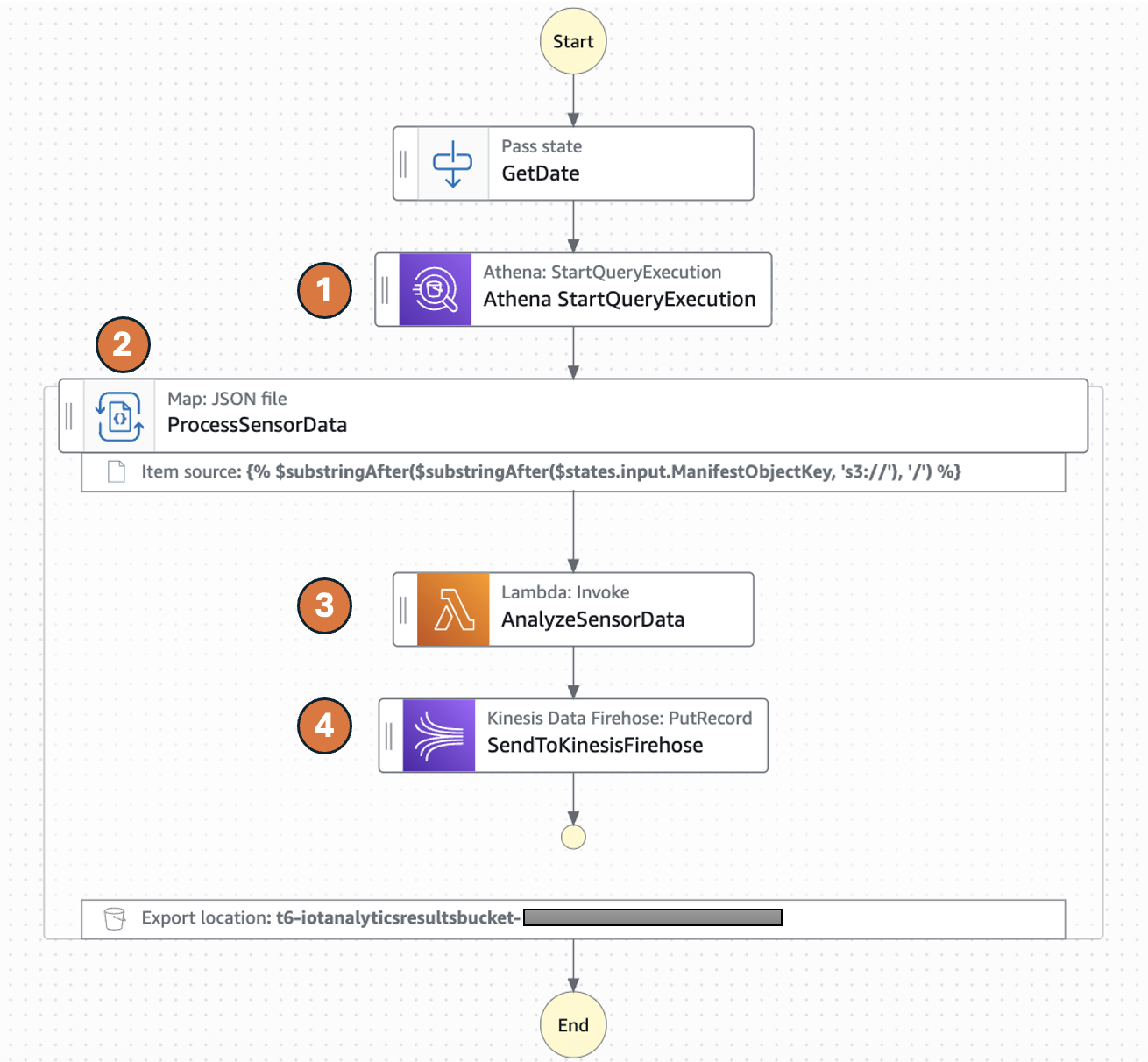
The following diagram represents the AWS Step Functions state machine:

Parquet files processing workflow

Parquet files processing workflow

  1. The Distributed Map runs an Athena query which generates Parquet data files and an Athena manifest file (csv). The manifest file contains the list of Parquet data files.
  2. Distributed Map processes these Parquet data files in parallel using child workflow executions. You can control the number of child workflow executions that can run in parallel using MaxConcurrency parameter. See Step Functions service quotas to learn more about concurrency limits.
  3. Each child workflow execution invokes an AWS Lambda function to process the respective Parquet file. The Lambda function processes individual sensor readings and detects anomalies according to the preceeding logic and returns a processed sensor data summary response.
  4. The child workflow sends the summary response record to Amazon Kinesis firehose stream which stores the results in a specified Amazon S3 results bucket.

The following Athena Start QueryExecution state runs an UNLOAD query to generate data files in Parquet format and a manifest file in CSV. The output will be stored in the S3 bucket specified in the UNLOAD query and the manifest file will be stored in the S3 bucket configured for the Athena workgroup.

{
  "QueryLanguage": "JSONata",
  "States": {
	   "Athena StartQueryExecution": {
	    "Type": "Task",
	        "Resource": "arn:aws:states:::athena:startQueryExecution.sync",
	        "Arguments": {
		"QueryString": "UNLOAD (WRITE_YOUR_SELECT_QUERY_HERE) TO 'S3_URI_FOR_STORING_DATA_OBJECT' WITH (format = 'JSON')",
		"WorkGroup": "primary"
	},
	"Output": {
	"ManifestObjectKey": "{% $join([$states.result.QueryExecution.ResultConfiguration.OutputLocation, '-manifest.csv']) %}"
},
“Next”: “Next State”
…
}

The following ItemReader is configured to use a manifest type of “ATHENA_DATA” with “PARQUET” data input.

{
  "QueryLanguage": "JSONata",
  "States": {
    ...
    "Map": {
        ...
        "ItemReader": {
        	"Resource": "arn:aws:states:::s3:getObject",
   	"ReaderConfig": {
      		"ManifestType": "ATHENA_DATA",
      		"InputType": "PARQUET"
   	},
   	"Arguments": {
      		"Bucket":"Bucket": "{% $split($substringAfter($states.input.ManifestObjectKey, 's3://'), '/')[0] %}",,
      		"Key": "{% $substringAfter($substringAfter($states.input.ManifestObjectKey, 's3://'), '/') %}"
   	}
	    },
        ...
    }
}

Additional supported InputType options are CSV and JSONL. All objects referenced in a single manifest file must have the same InputType format. You specify the Amazon S3 bucket location of Athena manifest CSV file under Arguments.

The context object contains information in a JSON structure about your state machine and execution. Your workflows can reference the context object in a JSONata expression with $states.context.

Within a Map state, the Context object includes the following data:

"Map": {
   "Item": {
      "Index" : Number,
      "Key"   : "String", // Only valid for JSON objects
      "Value" : "String",
      "Source": "String"
   }
}

For each Map state iteration, Index contains the index number for the array item that is being currently processed, Key is available only when iterating over JSON objects, Value contains the array item being processed, and Source contains one of the following:

  • For state input, the value will be : STATE_DATA
  • For Amazon S3 LIST_OBJECTS_V2 with Transformation=NONE, the value will show the S3 URI for the bucket. For example: S3://amzn-s3-demo-bucket.
  • For all the other input types, the value will be the Amazon S3 URI. For example: S3://amzn-s3-demo-bucket/object-key.

Using this newly introduced Source field in the context object, you can connect the child executions with the source object.

Prerequisites

Set up the state machine and sample data

Run the following steps to deploy the Step Functions state machine.

  1. Clone the GitHub repository in a new folder and navigate to the project root folder.
    git clone https://github.com/aws-samples/sample-stepfunctions-athena-manifest-parquet-file-processor.git
    cd sample-stepfunctions-athena-manifest-parquet-file-processor

  2. Run the following command to install required Python dependencies for the Lambda function.
    python3 -m venv .venv
    source .venv/bin/activate
    python3 -m pip install -r requirements.txt

  3. Build the application.
    sam build

  4. Deploy the application
    sam deploy --guided

  5. Enter the following details:
    • Stack name: The CloudFormation stack name (for example, sfn-parquet-file-processor)
    • AWS Region: A supported AWS Region (for example, us-east-1)
    • Keep rest of the components to default values.

    Note the outputs from the AWS SAM deploy. You will use them in the subsequent steps.

  6. Run the following command to generate sample data in csv format and upload it to an S3 bucket. Replace <IoTDataBucketName> with the value from sam deploy ouptut.
    python3 scripts/generate_sample_data.py <IoTDataBucketName>

Create the Athena database and tables

Before you can run queries, you must set up an Athena database and table for your data.

  1. From Amazon Athena console, navigate to workgoups, select the workgroup named “primary”. Select Edit from Actions. In the query result configuration section, select the options as follows:
    1. Management of query results – select customer managed
    2. Location of query results – enter s3://<IoTDataBucketName>. Replace <IoTDataBucketName> with the value from sam deploy output.
    3. Choose Save to save the changes to the workgroup
  2. Select Query editor tab and run the following commands to create database and tables
    CREATE DATABASE `iotsensordata`;

  3. Create an Athena table in database iotsensordata that references the S3 bucket containing the raw sensor data. In this case it will be <IoTDataBucketName>. Replace <IoTDataBucketName> with the value from sam deploy output.
    CREATE EXTERNAL TABLE IF NOT EXISTS `iotsensordata`.`iotsensordata` 
    (`deviceid` string, 
    `timestamp` string,
    `temperature` double,
    `humidity` double,
    `batterylevel` double,
    `latitude` double,
    `longitude` double
    )
    ROW FORMAT SERDE 'org.apache.hadoop.hive.serde2.lazy.LazySimpleSerDe'
    WITH SERDEPROPERTIES ('field.delim' = ',')
    STORED AS INPUTFORMAT 'org.apache.hadoop.mapred.TextInputFormat' OUTPUTFORMAT 'org.apache.hadoop.hive.ql.io.HiveIgnoreKeyTextOutputFormat'
    LOCATION 's3://<IoTDataBucketName>/daily-data/'
    TBLPROPERTIES (
     'classification' = 'csv',
     'skip.header.line.count' = '1'
    );

  4. Create an Athena table in database iotsensordata that references the S3 bucket having the analytics results streamed from Kinesis Data Firehose. Replace <IoTAnalyticsResultsBucket> with value from sam deploy output. And replace <year> with the current year (e.g 2025).
    CREATE EXTERNAL TABLE IF NOT EXISTS iotsensordata.iotsensordataanalytics (deviceid string, analysisDate string, readingTimestamp string, readingsCount int, metrics struct< temperature: double, humidity: double, batterylevel: double, latitude: double, longitude: double >, anomalies array <string>, anomalyCount int, healthStatus string, timestamp string )
    ROW FORMAT SERDE 'org.openx.data.jsonserde.JsonSerDe'
    WITH SERDEPROPERTIES ( 'ignore.malformed.json' = 'FALSE', 'dots.in.keys' = 'FALSE', 'case.insensitive' = 'TRUE'
    )
    STORED AS INPUTFORMAT 'org.apache.hadoop.mapred.TextInputFormat' OUTPUTFORMAT 'org.apache.hadoop.hive.ql.io.HiveIgnoreKeyTextOutputFormat'
    LOCATION 's3://<IoTAnalyticsResultsBucket>/<year>/'
    TBLPROPERTIES ('classification' = 'json', 'typeOfData'='file');

Start your state machine

Now that you have data ready and Athena set up for queries, start your state machine to retrieve and process the data.

  1. Run the following command to start execution of the Step Functions. Replace the <StateMachineArn> and <IoTDataBucketName> with the value from sam deploy output..
    aws stepfunctions start-execution \
      --state-machine-arn <StateMachineArn> \
      --input '{ "IoTDataBucketName": "<IoTDataBucketName>"}'

    The Step Functions state machine has the Athena StartQueryExecution state which has an UNLOAD query that generates the sensor data files in a parquet format and a manifest file in CSV format. The manifest will have 5 rows referencing the 5 parquet files. The state machine will process these 5 parquet files in one map run.

  2. Run the following command to get the details of the execution. Replace the executionArn from the previous command.
    aws stepfunctions describe-execution --execution-arn <executionArn>

  3. After you see the status SUCCEEDED, run the following command from Athena query editor to check the processed output from Kinesis Data Firehose that was streamed to S3 bucket referenced by the Athena table created in step 4 of the preceding section.
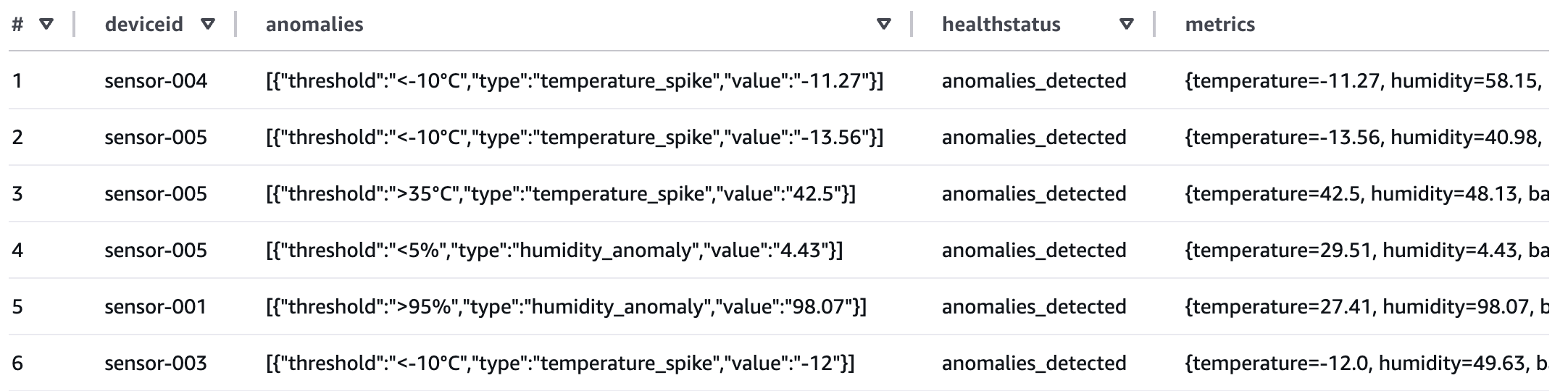
    SELECT * FROM iotsensordata.iotsensordataanalytics WHERE anomalycount = 1;

If any of the sensor data exceeds the thresholds, the healthstatus attribute will be set to “anomalies_detected”. The workflow produced a summary table of metadata which you can now query for reporting.

Output from Athena Query Editor

Review workflow performance

Using the following observability metrics, you can review key performance behavior of your data processing workflow.
The AWS/States namespace includes the following new metrics for all Step Functions Map Runs.

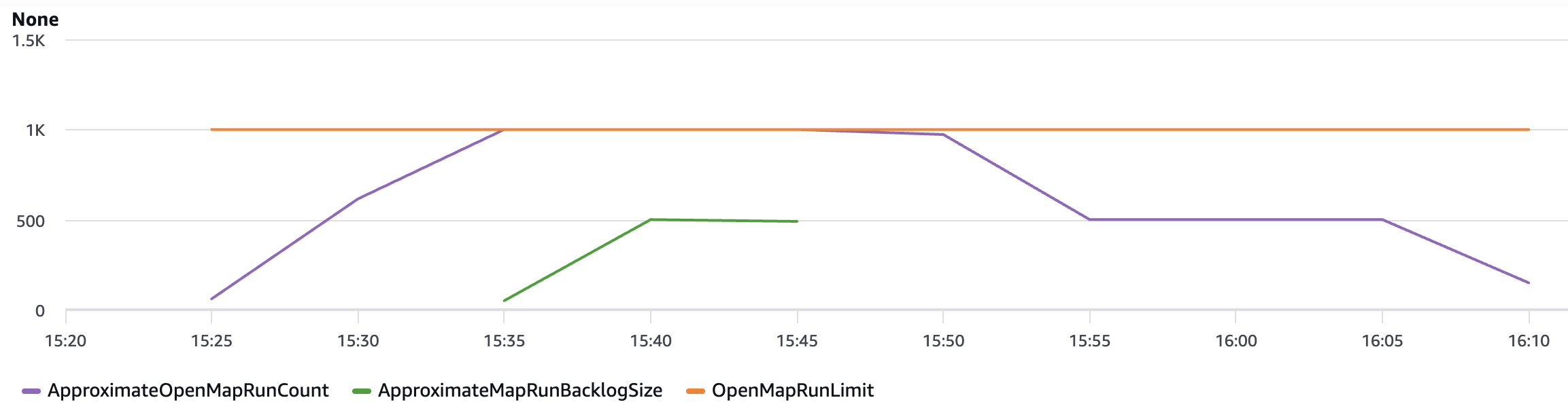
  • OpenMapRunLimit: This is the maximum number of open Map Runs allowed in the AWS account. The default value is 1,000 runs and is a hard limit. For more information, see Quotas related to accounts.
  • ApproximateOpenMapRunCount: This metric tracks the approximate number of Map Runs currently in progress within an account. Configuring an alarm on this metric using the Maximum statistic with a threshold of 900 or higher can help you take proactive action before reaching the OpenMapRunLimit of 1,000. This metric enables operational teams to implement preventive measures, such as staggering new executions or optimizing workflow concurrency, to maintain system stability and prevent backlog accumulation.
  • ApproximateMapRunBacklogSize: This metric shows up when the ApproximateOpenMapRunCount has reached 1,000 and there are backlogged Map Runs waiting to be executed. Backlogged Map Runs wait at the MapRunStarted event until the total number of open Map Runs is less than the quota.

The following graph shows an example of these new metrics. Use the maximum statistic to visualize these metrics. ApproximateMapRunBacklogSize metrics appear after accounts start getting throttled on the OpenMapRunLimit limit. The OpenMapRun (orange line) is the account hard limit of 1,000 shown as a static line. The ApproximateOpenMapRunCount (violet line) is the current number of active OpenMap runs. The ApproximateMapRunBacklogSize (green line) indicates the map runs waiting in backlog to be processed. When the ApproximateOpenMapRunCount is lower than 1000 (OpenMapRun limit) there are no map runs in backlog. However, when the count reaches the OpenMapRun limit, the backlog of map runs starts to build up. After the active runs complete, the backlog will start to drain out and new runs will begin execution.

Graphed metrics from Amazon CloudWatch

Graphed metrics from Amazon CloudWatch

Clean up

To avoid costs, remove all resources created for this post once you’re done. From the Athena query editor, run the following commands:

DROP TABLE `iotsensordata`.`iotsensordata`;
DROP TABLE `iotsensordata`.`iotsensordataanalytics`;
DROP DATABASE `iotsensordata`;

Run the following commands from the AWS CLI after replacing the <placeholder> variable to delete the resources you deployed for this post’s solution:

aws s3 rm s3://<IoTDataBucketName> --recursive
aws s3 rm s3://<IoTAnalyticsResultsBucketName> --recursive
sam delete

Conclusion

With this update, Distributed Map now supports additional data inputs, so you can orchestrate large-scale analytics and ETL workflows. You can now process Amazon Athena data manifest and Parquet files directly, eliminating the need for custom pre-processing. You also now have visibility into your Distributed Map usage with the following metrics: Approximate Open Map Runs Count, Open Map Run Limit, and Approximate Map Runs Backlog Size.

New input sources for Distributed Map are available in all commercial AWS Regions where AWS Step Functions is available. For a complete list of AWS Regions where Step Functions is available, see the AWS Region Table. The improved observability of your Distributed Map usage with new metrics is available in all AWS Regions. To get started, you can use the Distributed Map mode today in the AWS Step Functions console. To learn more, visit the Step Functions developer guide.

For more serverless learning resources, visit Serverless Land.

Optimizing nested JSON array processing using AWS Step Functions Distributed Map

Post Syndicated from Biswanath Mukherjee original https://aws.amazon.com/blogs/compute/optimizing-nested-json-array-processing-using-aws-step-functions-distributed-map/

When you’re working with large datasets, you’ve likely encountered the challenge of processing complex JSON structures in your automated workflows. You need to preprocess arrays within nested JSON objects before you can run parallel processing on them. Extracting data used to require custom code and extra processing steps, delaying you from building your core application logic.

With AWS Step Functions Distributed Map, you can process large datasets with concurrent iterations of workflow steps across data entries. Using the enhanced ItemsPointer feature of Distributed Maps, you can extract array data directly from JSON objects stored in Amazon S3. Alternatively, for JSON object as state input, you can use Items (JSONata) or ItemsPath (JSONPath). With this enhancement you can point directly to arrays nested within JSON structures, eliminating the need for custom preprocessing of your data. With ItemsPointer, Items, and ItemsPath you can select the nested array data and simplify your workflows.

In this post, we explore how to optimize processing array data embedded within complex JSON structures using AWS Step Functions Distributed Map. You’ll learn how to use ItemsPointer to reduce the complexity of your state machine definitions, create more flexible workflow designs, and streamline your data processing pipelines—all without writing additional transformation code or AWS Lambda functions.

This post is part of a series of post about AWS Step Functions Distributed Map:

Use case: e-commerce product data enrichment

In this e-commerce use case example, you’ll build a sample application that demonstrates processing of product inventory data for an e-commerce application using AWS Step Functions Distributed Map. The application receives a JSON file from an upstream application containing an array of product information. The Step Functions workflow reads the JSON file containing product data from an S3 bucket and iterates over the array to enrich each product data in the array.

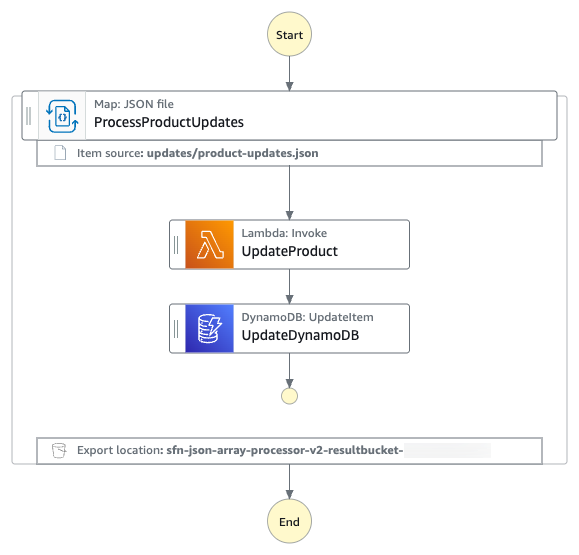
The following diagram presents the AWS Step Functions state machine.

JSON array processing workflow

JSON array processing workflow

The JSON array is processed using the following workflow:

  1. The state machine reads the product-updates.json file from an input S3 bucket. The file contains a JSON array of products.
  2. The Distributed Map state in the state machine, selects the JSON array node using ItemsPointer and iterates over the JSON array.
  3. For each of the items within the array, the state machine invokes a Lambda function for data enrichment. The Lambda function adds product stock and price information to the product data.
  4. The state machine saves the updated product data in an Amazon DynamoDB table.
  5. Finally, the state machine uploads the execution metadata into an output S3 bucket. See limits related to state machine executions and task executions.

MaxConcurrency can be configured to specify the number of child workflow executions in a Distributed Map that can run in parallel. If not specified, then Step Functions doesn’t limit concurrency and runs 10,000 parallel child workflow executions.

You can read a JSON file from a S3 bucket using ItemReader and its sub-fields. If the JSON file, from the S3 bucket, contains a nested object structure, you can select the specific node with your data set with an ItemsPointer. For example, the following input JSON file:

{
  "version": "2024.1",
  "timestamp": "2025-09-26T10:49:36.646197",
  "productUpdates": {
    "items": [
      {
        "productId": "PROD-001",
        "name": "Wireless Headphones",
        "price": 79.99,
        "stock": 150,
        "category": "Electronics"
      },
      {
        "productId": "PROD-002",
        "name": "Smart Watch",
        "category": "Electronics"
      },
      …
    ]
  }
}

The following JSONata-based workflow configuration extracts a nested list of products from productUpdates/items:

"ItemReader": {
   "Resource": "arn:aws:states:::s3:getObject",
   "ReaderConfig": {
      "InputType": "JSON",
      "ItemsPointer": "/productUpdates/items"
   },
   "Arguments": {
      "Bucket": "amzn-s3-demo-bucket",
      "Key": "updates/product-updates.json"
   }
}

For JSONPath-based workflow note that Arguments is replaced with Parameters:

"ItemReader": {
   "Resource": "arn:aws:states:::s3:getObject",
   "ReaderConfig": {
      "InputType": "JSON",
      "ItemsPointer": "/productUpdates/items"
   },
   "Arguments": {
      "Bucket": "amzn-s3-demo-bucket",
      "Key": "updates/product-updates.json"
   }
}

The ItemReader field is not needed when your dataset is JSON data from a previous step. ItemsPointer is only applicable when the input JSON objects read from an S3 bucket. If you are using JSON as state input to a Distributed Map, then you can use the ItemsPath (for JSONPath) or Items (for JSONata) field to specify a location in the input that points to JSON array or object used for iterations.

Prerequisite

To use Step Functions Distributed Map, verify you have:

Set up and run the workflow

Run the following steps to deploy the Step Functions state machine.

  1. Clone the GitHub repository in a new folder and navigate to the project folder.
    git clone https://github.com/aws-samples/sample-stepfunctions-json-array-processor.git
    cd sample-stepfunctions-json-array-processor

  2. Run the following commands to deploy the application.
    sam deploy --guided

    Enter the following details:

    • Stack name: Stack name for CloudFormation (for example, stepfunctions-json-array-processor)
    • AWS Region: A supported AWS Region (for example, us-east-1)
    • Accept all other default values.

    The outputs from the sam deploy will be used in the subsequent steps.

  3. Run the following command to generate product-updates.json file containing a nested JSON array of sample products and upload the product-updates.json file to the input S3 bucket. Replace InputBucketName with the value from sam deploy output.
    python3 scripts/generate_sample_data.py <InputBucketName>

  4. Run the following command to start execution of the Step Functions workflow. Replace the StateMachineArn with the value from sam deploy output.
    aws stepfunctions start-execution \
      --state-machine-arn <StateMachineArn> \
      --input '{}'

    The state machine reads the input product-updates.json file and invokes a Lambda function to update the database for every product in the array after adding price and stock information. The execution metadata is also uploaded into the results bucket.

Monitor and verify results

Run the following steps to monitor and verify the test results.

  1. Run the following command to get the details of the execution. Replace executionArn with your state machine ARN.
    aws stepfunctions describe-execution --execution-arn <executionArn>

    Wait until the status shows SUCCEEDED.

  2. Run the following commands to validate the processed output from ProductCatalogTableName DynamoDB table. Replace the value ProductCatalogTableName with the value from sam deploy output.
    aws dynamodb scan --table-name <ProductCatalogTableName>

  3. Check that the DynamoDB table contains the enriched product data including price and stock attributes. Example output:
    {
        "Items": [
            {
                "ProductId": {
                    "S": "PROD-005"
                },
                "lastUpdated": {
                    "S": "2025-10-07T20:33:34.507Z"
                },
                "stock": {
                    "N": "129"
                },
                "price": {
                    "N": "139.25"
                }
            },
            {
                "ProductId": {
                    "S": "PROD-003"
                },
                "lastUpdated": {
                    "S": "2025-10-07T20:33:34.576Z"
                },
                "stock": {
                    "N": "471"
                },
                "price": {
                    "N": "40.92"
                }
            },
    	      …
        ],
        "Count": 5,
        "ScannedCount": 5,
        "ConsumedCapacity": null
    }

Clean up

To avoid costs, remove all resources you’ve created while following along with this post.

Run the following command after replacing the <placeholder> variable to delete the resources you deployed for this post’s solution:

aws s3 rm s3://<InputBucketName> --recursive
aws s3 rm s3://<ResultBucketName> --recursive
sam delete

Conclusion

In this post, you learned how to use Step Functions Distributed Map for extracting array data natively from JSON objects stored in a S3 bucket. By removing custom data extraction code, you can simplify the processing of your large-scale parallel workloads. With ItemsPointer you can extract array data within JSON files stored in a S3 bucket , and with Items(JSONata) or ItemsPath (JSONPath), you can extract arrays from complex JSON state input, adding flexibility to your workflow designs.

New input sources for Distributed Map are available in all commercial AWS Regions where AWS Step Functions is available. For a complete list of AWS Regions where Step Functions is available, see the AWS Region Table. To get started, you can use the Distributed Map mode today in the AWS Step Functions console. To learn more, visit the Step Functions developer guide.

For more serverless learning resources, visit Serverless Land.

Processing Amazon S3 objects at scale with AWS Step Functions Distributed Map S3 prefix

Post Syndicated from Biswanath Mukherjee original https://aws.amazon.com/blogs/compute/processing-amazon-s3-objects-at-scale-with-aws-step-functions-distributed-map-s3-prefix/

If you’re building large scale enterprise applications, you’ve likely faced the complexities of processing large volumes of data files. Whether you’re analyzing your application logs, processing customer data files, or transforming machine learning datasets, you know the complexity involved in orchestrating workflows. You’ve probably written nested workflows and additional custom code to process objects from Amazon Simple Storage Service (Amazon S3) buckets.

With AWS Step Functions Distributed Map, you can process large scale datasets by running concurrent iterations of workflow steps across data entries in parallel, achieving massive scale with simplified management.

With the new prefix-based iteration feature and LOAD_AND_FLATTEN transformation parameter for Distributed Map, your workflows can now iterate over S3 objects under a specified prefix using S3ListObjectsV2 to process their contents in a single Map state, avoiding nested workflows and reducing operational complexity.

In this post, you’ll learn how to process Amazon S3 objects at scale with the new AWS Step Functions Distributed Map S3 prefix and transformation capabilities.

Use case: Application log processing and summarization

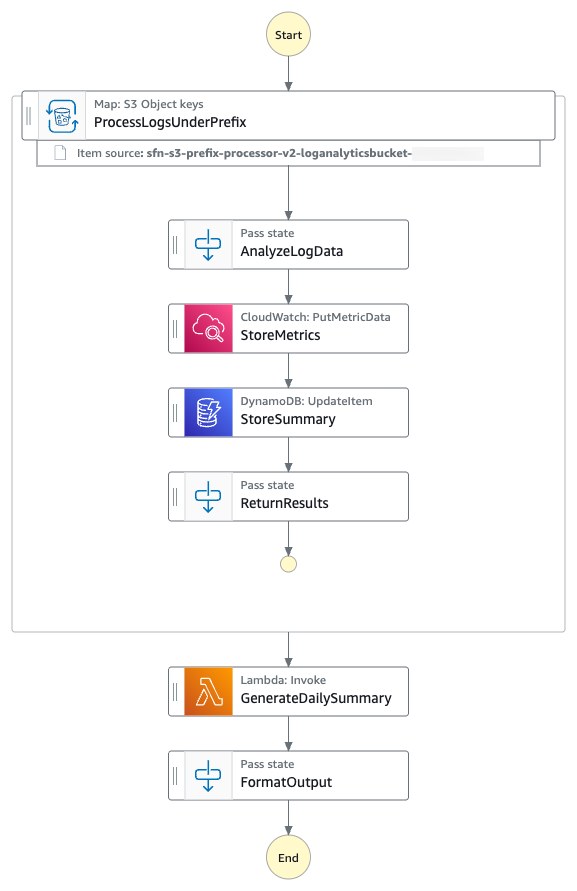
You’ll build a sample Step Functions state machine that demonstrates processing of all the log files from the given S3 prefix using a Distributed Map. You’ll analyze all the log files to build a summary INFO, WARNING and ERROR messages in the log file on hourly basis. The following diagram presents the AWS Step Functions state machine:

Log files processing workflow

Log files processing workflow

  1. The state machine iterates over all the log files from the specified S3 prefix using S3 ListObjectsV2 and process them using AWS Step Functions Distributed Map.
  2. For each log file entry, the state machine puts hourly ErrorCount metric into Amazon CloudWatch.
  3. The state machine then stores hourly metrics count in a Amazon DynamoDB table.
  4. The state machine then invokes an AWS Lambda function to perform metrics aggregation.

The following is an example of the parameters in an ItemReader configured to iterate over the content of S3 objects using S3 ListObjectsV2.

{
  "QueryLanguage": "JSONata",
  "States": {
    ...
    "Map": {
        ...
        "ItemReader": {
            "Resource": "arn:aws:states:::s3:listObjectsV2",
            "ReaderConfig": {
                // InputType is required if Transformation is LOAD_AND_FLATTEN. Use one of the given values
                "InputType": "CSV | JSON | JSONL | PARQUET",
                // Transformation is OPTIONAL and defaults to NONE if not present
                "Transformation": "NONE | LOAD_AND_FLATTEN" 
            },
            "Arguments": {
                "Bucket": "amzn-s3-demo-bucket1",
                "Prefix": "{% $states.input.PrefixKey %}"
            }
        },
        ...
    }
}

With the LOAD_AND_FLATTEN option, your state machine will do the following:

  1. Read the actual content of each object listed by the Amazon S3 ListObjectsV2 call.
  2. Parse the content based on InputType (CSV, JSON, JSONL, Parquet).
  3. Create items from the file contents (rows/records) rather than metadata.

We recommend including a trailing slash on your prefix. For example, if you select data with a prefix of folder1, your state machine will process both folder1/myData.csv and folder10/myData.csv. Using folder1/ will strictly process only one folder. All of the objects listed by prefix need to be in the same data format. For example, if you are selecting InputType as JSONL, your S3 prefix should contain only JSONL files and not a mix of other types.

The context object is an internal JSON structure that is available during an execution. The context object contains information about your state machine and execution. Your workflows can reference the context object in a JSONata expression with $states.context.

Within a Map state, the context object includes the following data:

"Map": {
   "Item": {
      "Index" : Number,
      "Key"   : "String", // Only valid for JSON objects
      "Value" : "String",
      "Source": "String"
   }
}

For each Map iteration, the Index contains the index number for the array item that is being currently processed.

A Key is only available when iterating over JSON objects. Value contains the array item being processed. For example, for the following input JSON object, Names will be assigned to Key and {"Bob", "Cat"} will be assigned to Value.

{
	"Names": {"Bob", "Cat"}
} 

Source contains one of the following:

  • For state input: STATE_DATA
  • For Amazon S3 LIST_OBJECTS_V2 with Transformation=NONE, the value will show the S3 URI for the bucket. For example: S3://amzn-s3-demo-bucket1
  • For all the other input types, the value will be the Amazon S3 URI. For example: S3://amzn-s3-demo-bucket1/object-key

Using LOAD_AND_FLATTEN and the Source field, you can connect child executions to their sources.

Prerequisites

Set up and run the workflow

Run the following steps to deploy and test the Step Functions state machine.

  1. Clone the GitHub repository in a new folder and navigate to the project folder.
    git clone https://github.com/aws-samples/sample-stepfunctions-s3-prefix-processor.git
    cd sample-stepfunctions-s3-prefix-processor

  2. Run the following commands to deploy the application.
    sam deploy --guided

  3. Enter the following details:
    • Stack name: Stack name for CloudFormation (for example, stepfunctions-s3-prefix-processor)
    • AWS Region: A supported AWS Region (for example, us-east-1)
    • Accept all other default values.

    The outputs from the AWS SAM deploy will be used in the subsequent steps.

  4. Run the following command to generate sample log files.
    python3 scripts/generate_logs.py

  5. Run the following to upload the log files to the S3 bucket with the /logs/daily prefix. Replace amzn-s3-demo-bucket1 with the value from the sam deploy output.
    aws s3 sync logs/ s3://amzn-s3-demo-bucket1/logs/ --exclude '*' --include '*.log'

  6. Run the following command to execute the Step Functions workflow. Replace the StateMachineArn with the value from the sam deploy output.
    aws stepfunctions start-execution \
      --state-machine-arn <StateMachineArn> \
      --input '{}'

    The Step Function state machine iterates over all the log files with the S3 prefix /logs/daily and processes them in parallel. The workflow updates the metrics in CloudWatch, stores hourly metrics count in DynamoDB, then invokes an AWS Lambda function to aggregate the metrics.

Monitor and verify results

Run the following steps to monitor and verify the test results.

  1. Run the following command to get the details of the execution. Replace executionArn with your state machine ARN.
    aws stepfunctions describe-execution --execution-arn <executionArn>

  2. When the status shows SUCCEEDED, run the following commands to check the processed output from the LogAnalyticsSummaryTableName DynamoDB table. Replace the value LogAnalyticsSummaryTableName with the value from the sam deploy output.
    aws dynamodb scan --table-name <LogAnalyticsSummaryTableName>

  3. Check that hourly ERROR, WARN, and INFO logs statistics are saved in the DynamoDB table. The following is a sample output:
    {
        "Items": [
            {
                "ProcessingTime": {
                    "S": "2025-10-07T23:45:10.790Z"
                },
                "WarningCount": {
                    "N": "2"
                },
                "HourOfDay": {
                    "S": "13"
                },
                "TotalRecords": {
                    "N": "5"
                },
                "ErrorCount": {
                    "N": "3"
                },
                "InfoCount": {
                    "N": "0"
                },
                "HourKey": {
                    "S": "2025-10-08 13"
                }
            },
            {
                "ProcessingTime": {
                    "S": "2025-10-07T23:45:07.456Z"
                },
                "WarningCount": {
                    "N": "3"
                },
                "HourOfDay": {
                    "S": "09"
                },
                "TotalRecords": {
                    "N": "6"
                },
                "ErrorCount": {
                    "N": "2"
                },
                "InfoCount": {
                    "N": "1"
                },
                "HourKey": {
                    "S": "2025-10-08 09"
                }
            },
            …
    ],
        "Count": 24,
        "ScannedCount": 24,
        "ConsumedCapacity": null
    }

  4. Run the following command to check the output of the Step Functions state machine execution output.
    aws stepfunctions describe-execution --execution-arn <executionArn> --query 'output' --output text

    The following is a sample output:

    {
      "Summary": {
        "date": "2025-10-08",
        "totalErrors": 50,
        "totalWarnings": 41,
        "totalRecords": 133,
        "hourlyBreakdown": {
          "00": {
            "errors": 1,
            "warnings": 3,
            "records": 5
          },
          "01": {
            "errors": 1,
            "warnings": 1,
            "records": 5
          },
          "02": {
            "errors": 2,
            "warnings": 3,
            "records": 5
          },
          "03": {
            "errors": 3,
            "warnings": 2,
            "records": 7
          },
    …
    …
        "generatedAt": "2025-10-08T05:19:05.603889"
      }
    }

    The output of the Step Functions state machine shows the daily summary insights of the log files created by the Lambda function.

Clean up

To avoid costs, remove all resources created for this post once you’re done. Run the following command after replacing amzn-s3-demo-bucket1 with your own bucket name to delete the resources you deployed for this post’s solution:

aws s3 rm s3://amzn-s3-demo-bucket1 --recursive
sam delete
rm -rf logs/

Conclusion

In this post, you learned how AWS Step Functions Distributed Map can use prefix-based iteration with LOAD_AND_FLATTEN transformation to read and process multiple data objects from Amazon S3 buckets directly. You no longer need one step to process object metadata and another to load the data objects. Loading and flatting in one step is particularly valuable for data processing pipelines, batch operations, and event-driven architectures where objects are continually added to S3 locations. By eliminating the need to maintain object manifests, you can build more resilient, dynamic data processing workflows with less code and fewer moving parts.

New input sources for Distributed Map are available in all commercial AWS Regions where AWS Step Functions is available. To get started, you can use the Distributed Map mode today in the AWS Step Functions console. To learn more, visit the Step Functions developer guide.

For more serverless learning resources, visit Serverless Land.

Zero downtime blue/green deployments with Amazon API Gateway

Post Syndicated from Biswanath Mukherjee original https://aws.amazon.com/blogs/compute/zero-downtime-blue-green-deployments-with-amazon-api-gateway/

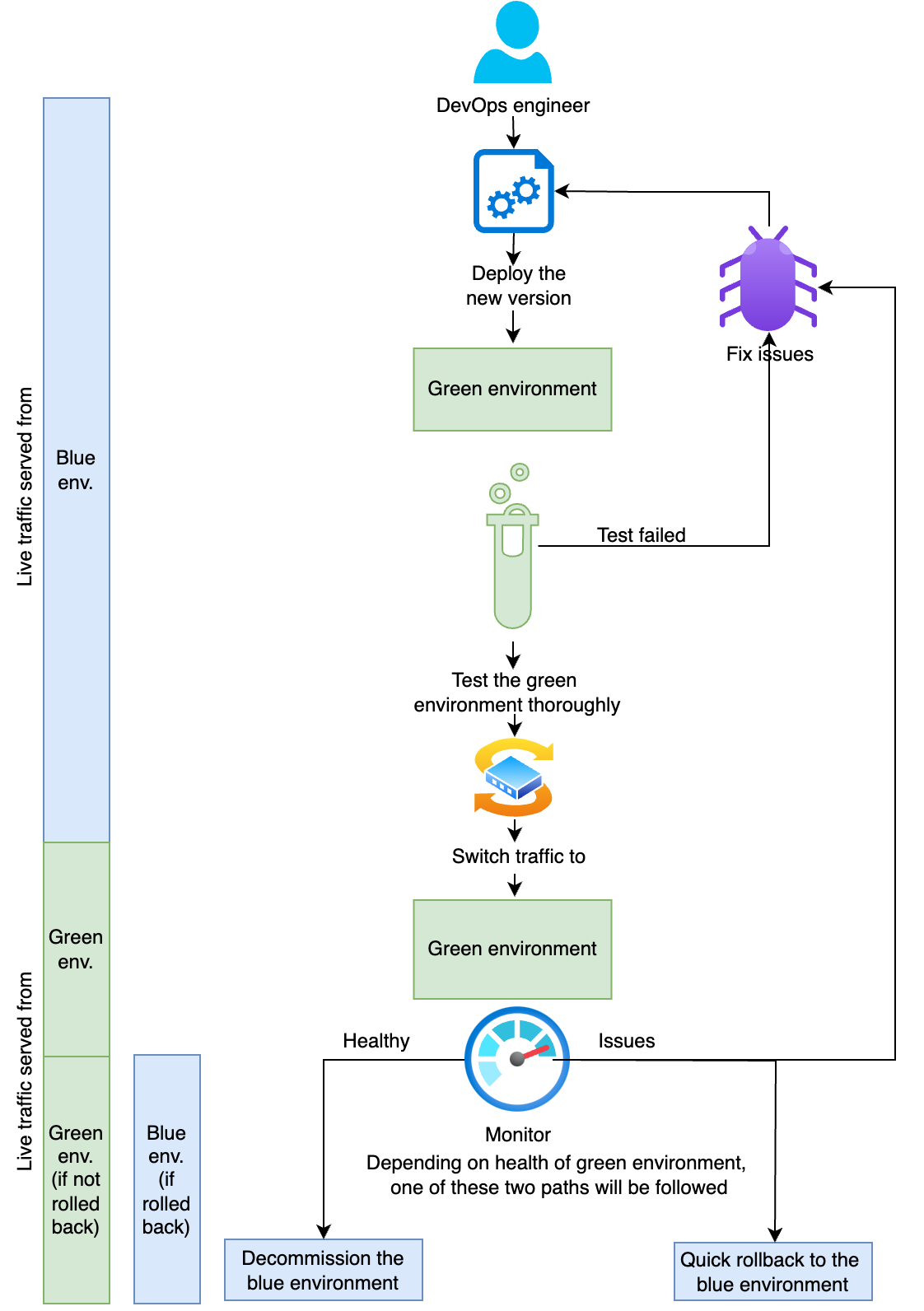
Modern applications require deployment strategies that minimize downtime and reduce risk. Blue/green deployment is a strategy that reduces downtime and risk by running two identical production environments called “blue” and “green”. At any given time, only one environment serves live production traffic while the other remains idle. This strategy provides immediate fallback to the previous stable version if issues arise after the new deployment. Let’s say a company is deploying a new version of its application. The following diagram shows the blue/green deployment strategy they are using.

Complete blue/green deployment strategy, including testing, monitoring, and conditional rollback procedures

As shown in the preceding diagram, current production traffic is served by the blue environment. During deployment of the new version of the application, the following sequence of activities happens:

  1. Deploy the new version of the application: Deploy the new version to the green environment.
  2. Test thoroughly: Test the new version in the green environment by invoking the API invoke URL from API Gateway. This does not affect production traffic, which continues to be served by the blue environment.
  3. Switch traffic: After you have thoroughly tested the green environment, redirect all production traffic from the blue to the green environment.
  4. Monitor and take any necessary action: Continue to monitor the green environment as it serves production traffic. Keep the blue environment ready for immediate rollback to the previous stable version, in case any issues arise in the green environment. At this point, one of two possible outcomes happens:
    1. If you identify any issues with the green environment in production, roll back to the previous stable version of the blue environment and fix the green environment before retrying.
    2. If you observe no issues with the green environment, decommission the blue environment. The green environment is now the new blue environment, the environment with stable production version of the application serving live traffic.

In this post, you learn how to implement blue/green deployments by using Amazon API Gateway for your APIs. For this post, we use AWS Lambda functions on the backend. However, you can follow the same strategy for other backend implementations of the APIs. All the required infrastructure is deployed by using AWS Serverless Application Model (AWS SAM).

Solution overview

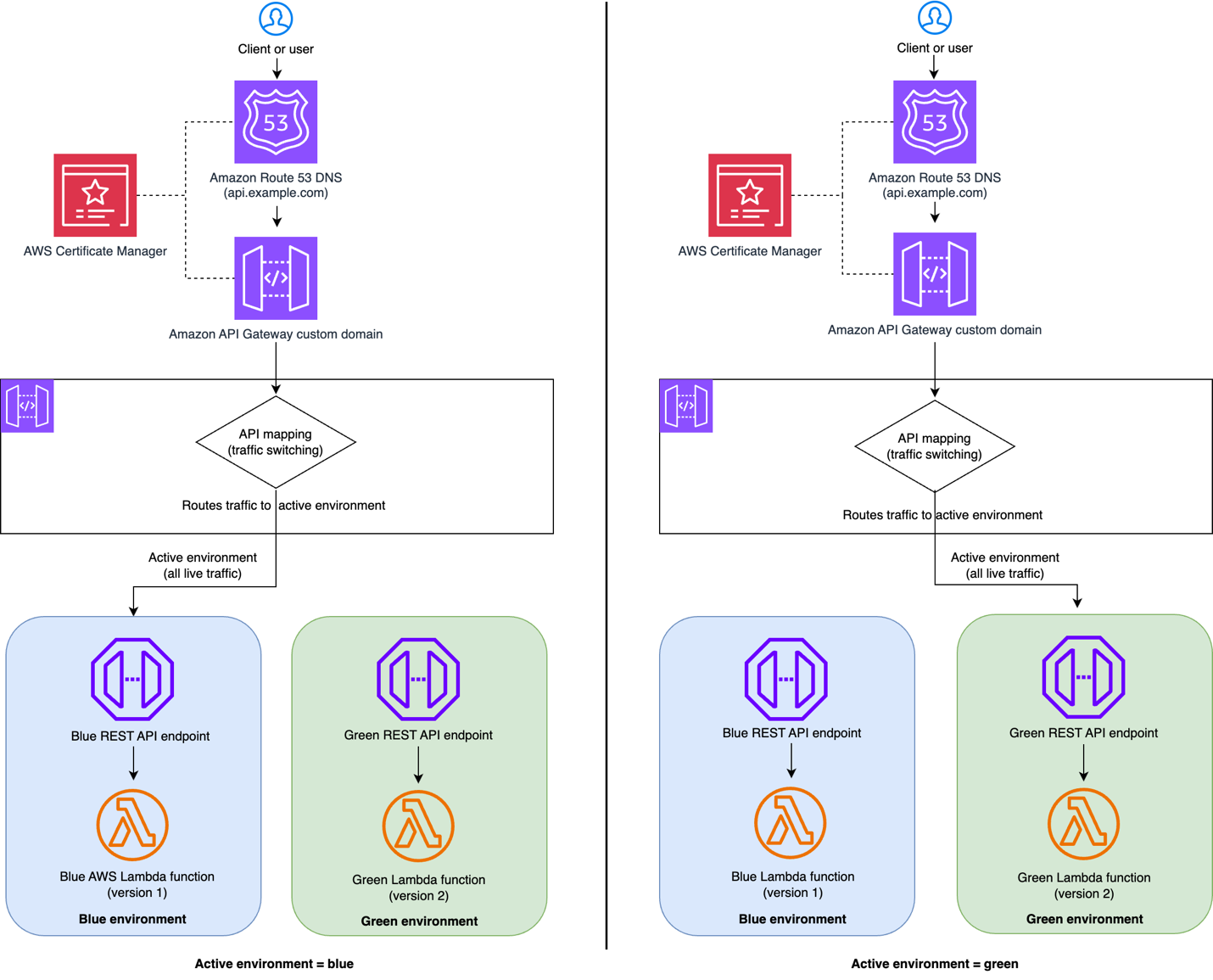
As you follow along with this post, you will implement the following blue/green deployment architecture by using API Gateway custom domain API mapping. You use API mappings to connect API stages to a custom domain name. After you create a domain name and configure DNS records, you use API mappings to send traffic to your APIs through your custom domain name.

AWS serverless architecture showing blue /green deployment using Amazon API Gateway custom domain

As shown in the preceding diagram, the blue/green deployment architecture includes four primary AWS services – Amazon Route 53, Amazon API Gateway, AWS Lambda functions, and AWS Certificate Manager (ACM). When you send a request to the API, the Route 53 resolves the domain to the API Gateway custom domain. API Gateway handles HTTPS termination by using a configured ACM certificate. API Gateway examines the incoming request path and headers to route the request to the active environment.

You first set up the blue environment along with the Route 53 DNS configuration, API Gateway custom domain mapping, ACM and test it with Route 53 URL. This is your production environment serving live traffic. After that, deploy a new version of the application in the green environment and test it by invoking the API invoke URL from API Gateway while live traffic is still being served from the blue environment. Then, switch the traffic from the blue environment to the green environment by using API Gateway custom domain API mapping. This ensures that there is no change in the external (client-facing) API custom domain URL. Live traffic is now served by the green environment. If you observe any issues during this time, you can quickly roll back to the blue environment and fix the green environment. If the green environment is stable, you can decommission the blue environment.

This post uses two separate regional API endpoints to simulate blue/green environments and traffic routing between them but you can this same architectural pattern using single API endpoint with two stages representing blue and green environments.

Prerequisites

Complete the following prerequisites before you start setting up the solution:

Set up and test the solution

Note that this is a sample project to understand the concept and not for direct usage in production. The sample project contains three APIs.

  • Health GET API to know the current health of the environment and which environment the request was served from.
  • Pets GET API to get the list of available pets.
  • Order POST API to place a pet order.

Follow the steps below to setup blue/green deployment and test it.

  1. Clone the repository and navigate to the directory (all commands run from here)
    Clone the GitHub repository in a new folder and navigate to the stacks folder.

    git clone https://github.com/aws-samples/sample-blue-green-deployment-with-api-gateway.git
    cd sample-blue-green-deployment-with-api-gateway/stacks

  2. Deploy the blue environment
    You will first setup the blue environment. Run the following commands to deploy the blue environment:

    sam build -t blue-stack.yaml
    sam deploy -g -t blue-stack.yaml

    Enter the following details:

    • Stack name: The CloudFormation stack name (for example, blue-green-api-blue)
    • AWS Region: A supported AWS Region (for example, us-east-1)
    • BlueLambdaFunction has no authentication. Is this okay?: y
    • SAM configuration file: blue-samconfig.toml

    Keep everything else set to their default values. You will use the SAM deploy output for the subsequent steps. Going forward, you can run the following command to deploy the blue environment resources:

    sam build -t blue-stack.yaml
    sam deploy -t blue-stack.yaml --config-file blue-samconfig.toml

  3. Test the blue environment

    Run the following commands to test the blue environment after replacing ApiEndpoint with BlueApiEndpoint from the SAM deploy output in each case. First, test Health check API to know the health of the environment. Run the following command.

    curl --request GET \ 
    --url https://<ApiEndpoint>/health

    Sample response:

    {
      "status": "healthy", 
      "environment": "blue", 
      "version": "v1.0.0", 
      "timestamp": "2025-09-05T13:11:11.248267Z"
    }

    Second, test the pets GET API request to get the list of available pets. Run the following command.

    curl --request GET \ 
    --url https://<ApiEndpoint>/pets

    Sample response:

    {
      "environment": "blue",
      "version": "v1.0.0",
      "pets": [
        {
          "id": 1,
          "name": "Buddy",
          "category": "dog",
          "status": "available"
        },
        {
          "id": 2,
          "name": "Whiskers",
          "category": "cat",
          "status": "available"
        },
        {
          "id": 3,
          "name": "Charlie",
          "category": "bird",
          "status": "pending"
        }
      ]
    }

    Now, test create order POST API to place an order for a pet:

    curl --request POST \
      --url https://<ApiEndpoint>/orders \
      --header 'content-type: application/json' \
      --data '{
      "id": 1,
      "name": "Buddy"
    }'

    Expected response:

    {
      "confirmationNumber": "ORD-3251C0F4", 
      "environment": "blue",
      "version": "v1.0.0",
      "timestamp": "2025-09-05T13:16:04.703666Z", 
      "data": 
      {
        "id": 1, 
        "name": "Buddy", 
        "status": "ordered"
      }
    }
    

    Check that the response contains the environment attribute set to blue and the version attribute set to v1.0.0

  4. Deploy API Gateway custom domain pointing to the blue environment

    Run the following commands to deploy Amazon API Gateway custom domain with API mapping pointing to the blue environment created in the previous step.

    sam build -t custom-domain-stack.yaml
    sam deploy -g -t custom-domain-stack.yaml

    Enter the following details:

    • Stack name: (for example, blue-green-api-custom-domain)
    • AWS Region: A supported AWS Region (for example, us-east-1)
    • PublicHostedZoneId: The Route 53 public hosted zone ID (for example, ABXXXXXXXXXXXXXXXXXYZ)
    • CustomDomainName: The Route 53 domain name (for example, api.example.com)
    • CertificateArn: The ACM certificate ARN (for example, arn:aws:acm:us-east-1:123456789012:certificate/abc123)
    • ActiveApiId: The value of the BlueApiId output from the blue-stack deployment
    • ActiveApiStage: The value of the BlueApiStage output from the blue-stack deployment
    • SAM configuration file: custom-domain-samconfig.toml

    Keep everything else to their default values. You will use the SAM deploy output for the subsequent steps. At this point the production (live) traffic is routed to blue environment.

  5. Test the production (live) traffic which is routed to blue environment

    Follow the test method mentioned in step 3 to test the production environment, but replace ApiEndpoint with CustomDomainUrl. Check that the production environment response contains the environment attribute set to blue and the version attribute set to v1.0.0

  6. Deploy the green environment

    You will now deploy the v2.0.0 of the application on green environment. Run the following commands to deploy the green environment:

    sam build -t green-stack.yaml
    sam deploy -g -t green-stack.yaml

    Enter the following details:

    • Stack name: (for example, blue-green-api-green)
    • AWS Region: Select the same Region as the blue environment (for example, us-east-1)
    • GreenLambdaFunction has no authentication. Is this okay?: y
    • SAM configuration file: green-samconfig.toml

    Keep everything else to default values. You will use the SAM deploy output for the subsequent steps. Going forward, you can run the following commands to deploy the green environment.

    sam build -t green-stack.yaml
    sam deploy -t green-stack.yaml --config-file green-samconfig.toml
    

  7. Test the green environment
    Follow the test method shown in step 3 to test the production environment, but replace ApiEndpoint with GreenApiEndpoint. Validate that the response contains the environment attribute set to green and the version attribute set to v2.0.0
  8. Switch the live traffic to the green environment
    Run the following command to switch live traffic to the green environment:

    sam deploy -g -t custom-domain-stack.yaml  --config-file custom-domain-samconfig.toml

    Enter the following details:

    • Stack name: Keep it as it is.
    • AWS Region: Keep it as it is.
    • PublicHostedZoneId: Keep it as it is.
    • CustomDomainName: Keep it as it is.
    • CertificateArn: Keep it as it is.
    • ActiveApiId: The value of GreenApiEndpoint output from the green-stack deployment
    • ActiveApiStage: The value of GreenApiStage output from the green-stack deployment
    • SAM configuration file: Keep it as it is.

    Keep everything else at their default values.

  9. Test the production environment (now green) again

    Follow the test method shown in step 3 to test the production environment (now green) again, and be sure to replace ApiEndpoint with CustomDomainUrl from SAM deploy output. Validate that the response now contains the environment attribute set to green and the version attribute set to v2.0.0. Note that it may take a minute or two for the change to be seen due to local DNS caching, during this time some of the traffic may be still served from the blue environment. After switching the live traffic to the green environment, if there is an issue, you can switch the live traffic back to the blue environment and fix the green environment. Depending on whether you need to roll back to the previous stable blue environment or decommission the blue environment when you no longer need it, follow either step 10 or 11.

  10. (Option 1) Roll back to the blue environment, if necessary
    Run the following command to roll back to the blue environment, if necessary.

    sam deploy -g -t custom-domain-stack.yaml  --config-file custom-domain-samconfig.toml

    Enter the following details:

    • Stack name: Keep it as it is.
    • AWS Region: Keep it as it is.
    • PublicHostedZoneId: Keep it as it is.
    • CustomDomainName: Keep it as it is.
    • CertificateArn: Keep it as it is.
    • ActiveApiId: Value of BlueApiEndpoint output from the blue-stack deployment.
    • ActiveApiStage: The value of BlueApiStage output from the blue-stack deployment.
    • SAM configuration file: Keep it as it is.

    Keep everything else to their default values. Live traffic is switched to the blue environment. You can confirm that by following step 3.

  11. (Option 2) Decommission the blue environment when you no longer need it
    Run the following command to decommission (delete) the blue environment when you no longer need it. Replace blue-stack-name with your blue deployment stack name:

    sam delete --stack-name <blue-stack-name> --no-prompts

Clean up

To avoid costs, remove all resources created along this post once you’re done.

Run the following command after replacing the <placeholder> variables to delete the resources you deployed for this post’s solution:

# Delete all stacks (in reverse order)
# Delete custom domain
sam delete --stack-name <api-custom-domain-stack-name> --no-prompts
# Delete green stack
sam delete --stack-name <green-stack-name> --no-prompts
# Delete blue stack, if already not deleted in step 10
sam delete --stack-name <blue-stack-name> --no-prompts

Conclusion

Blue/green deployments with API Gateway provide a robust, scalable solution for zero-downtime deployments that deliver significant technical and operational advantages. This post’s solution architecture enables traffic switching at the API Gateway level while maintaining complete isolation between the blue and green environments to prevent interference. The solution offers immediate rollback capabilities for quick issue resolution and supports comprehensive testing through production-like validation before any traffic switching occurs.

Following this solution you can build a solid foundation for production blue/green deployments for your serverless microservice architecture that maintains the flexibility to adapt to your specific requirements while ensuring reliability, scalability, and operational excellence. To learn more about serverless architectures see Serverless Land.