All posts by Chris Morris

How to configure and verify ACM certificates with trust stores

Post Syndicated from Chris Morris original https://aws.amazon.com/blogs/security/how-to-configure-and-verify-acm-certificates-with-trust-stores/

In this post, we show how to configure customer trust stores to work with public certificates issued through AWS Certificate Manager (ACM). Organizations can encounter challenges when configuring trust stores for ACM certificates and incorrect trust store configuration can lead to SSL/TLS errors and application downtime. While most modern web browsers and operating systems trust ACM certificates by default, understanding how this trust is established and verifying proper configuration is important for IT professionals and developers. We also describe the relationship between public certificates issued through ACM and Amazon Trust Services. Whether you’re developing applications that connect to endpoints using ACM certificates or managing systems with customer trust stores that need to trust ACM certificates, this guide will provide you with insight regarding ACM certificate trust.

Background

ACM is a managed service that you can use to provision, manage, and deploy public and private SSL/TLS certificates. When you visit a website over HTTPS that has an ACM certificate, most modern web browsers will show a Connection is secure message in the address bar. This indicates that the web browser trusted the certificate. ACM certificates are trusted by popular browsers such as Chrome, Firefox, and Safari because they are issued by Amazon Trust Services, a public certificate authority (CA) managed by Amazon, whose root CA certificates are included by default in most web browsers’ and operating systems’ trust stores.

What is a trust store?

Web browsers, devices, and applications trust a collection of certificates known as CA certificates. These collections of CA certificates are called trust stores. Most often, the CA certificates in a trust store are root CA certificates. Root CA certificates are CA certificates that act as the foundation of trust. It’s best practice that root CAs issue intermediate CA certificates, which then issue end-entity certificates to minimize interaction with the root CA. When navigating to a website protected with HTTPS using a web browser, the website will present the end-entity certificate and the certificate chain. The certificate chain is a series of certificates, each issued by the next, leading back to a root CA certificate. The web browser will then check the end-entity certificate. It will make sure it’s derived from a root certificate that is in its trust store. It is important to note that trust store configurations can vary depending on the web browser, device or application.

Amazon Trust Services

Amazon Trust Services is a publicly trusted CA that is managed by Amazon. Amazon Trust Services root CA certificates are included in the trust stores of most web browsers and operating systems. As shown in Figure 1, when you request a public ACM certificate through DNS, Email, or HTTP validation, it will be issued by one of the multiple intermediate CAs that Amazon manages. These intermediate CAs are issued by one of the five Amazon Trust Services root CAs. Therefore, by trusting the Amazon Trust Services root CAs, you will be trusting ACM certificates. It’s important to note that ACM uses a dynamic intermediate CA model. This means you cannot predict which specific intermediate CA will issue an ACM certificate. The issuing intermediate CA is selected dynamically from a group of intermediate CAs at the time of certificate issuance. This means that the intermediate CA that issues ACM certificates is non-deterministic. In summary, we recommend customer trust stores include the five Amazon Trust Services root CA certificates. This includes Amazon Root CA 1, Amazon Root CA 2, Amazon Root CA 3, Amazon Root CA 4 and Starfield Services Root Certificate Authority – G2.
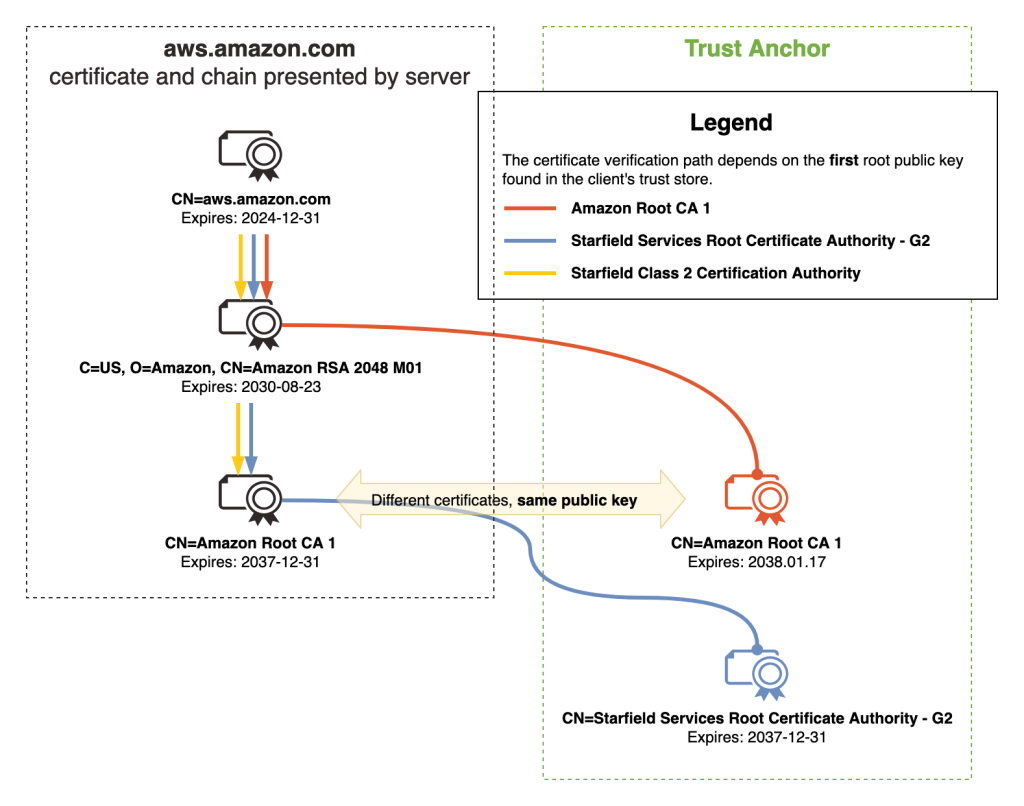
Figure 1 – ACM certificate chain

Figure 1 – ACM certificate chain

Best practices

To help establish reliable HTTPS connections to endpoints using ACM certificates, we recommend that your trust stores include the five Amazon root CAs.

Distinguished name of Amazon root CA SHA-256 hash of subject public key information URL to root CA certificate in DER or PEM format
CN=Amazon Root CA
1,O=Amazon,C=US
fbe3018031f9586bcbf41727e417b7d1c45c2f47f93be372a17b96b50757d5a2 DER, PEM
CN=Amazon Root CA
2,O=Amazon,C=US
7f4296fc5b6a4e3b35d3c369623e364ab1af381d8fa7121533c9d6c633ea2461 DER, PEM
CN=Amazon Root CA
3,O=Amazon,C=US
36abc32656acfc645c61b71613c4bf21c787f5cabbee48348d58597803d7abc9 DER, PEM
CN=Amazon Root CA
4,O=Amazon,C=US
f7ecded5c66047d28ed6466b543c40e0743abe81d109254dcf845d4c2c7853c5 DER, PEM
CN=Starfield Services Root Certificate Authority – G2,O=Starfield Technologies\, Inc.,L=Scottsdale,ST=Arizona,C=US 2b071c59a0a0ae76b0eadb2bad23bad4580b69c3601b630c2eaf0613afa83f92 DER, PEM

Adding the five Amazon root CAs provide maximum compatibility for trusting ACM certificates. If you must use certificate pinning in your application, we recommend that you pin to the public key of the mentioned root CAs.

While addressing the best practices, it is important to review how trust stores should not be configured.

Don’t limit your trust stores to only the intermediate CA certificates that issue ACM certificates. Examples of such intermediate CAs include Amazon RSA 2048 M01, Amazon RSA 2048 M02, Amazon RSA 2048 M03. Adding only these intermediate CA certificates to your trust store will introduce risk to your application. This is because of the dynamic intermediate CA (ICA) model. When an ACM certificate is issued or when it’s renewed, it will be from one of the many intermediate CAs. Furthermore, they are non-deterministic. If an ACM certificate was first issued by Amazon RSA 2048 M01, there is no guarantee that it will renew from that same intermediate CA.

In summary, here are the best practices for trusting ACM certificates.

How do I verify that the Amazon root CAs are in my trust store?

As mentioned in the previous section, most modern web browsers and operating systems already include the five Amazon root CAs in their respective trust stores by default. It’s still recommended to verify that the Amazon root CAs are installed correctly. It’s important to note that many applications have different trust store locations. For example, an application might use the Windows trust store location—Trusted Root Certification Authorities—as its trust store or it might use a PEM trust store in a custom directory. This is why we recommend that you review your application’s trust store documentation.

To verify, check your system’s trust store for existing Amazon root CA certificates. If they are not present, you can proceed with adding the five Amazon root CA certificates.

Windows: Check for the Amazon root CAs in Windows operating systems (GUI)

  1. Press Windows + R, enter certmgr.msc , then press Enter.
  2. Go to Trusted Root Certification Authorities and choose Certificates.
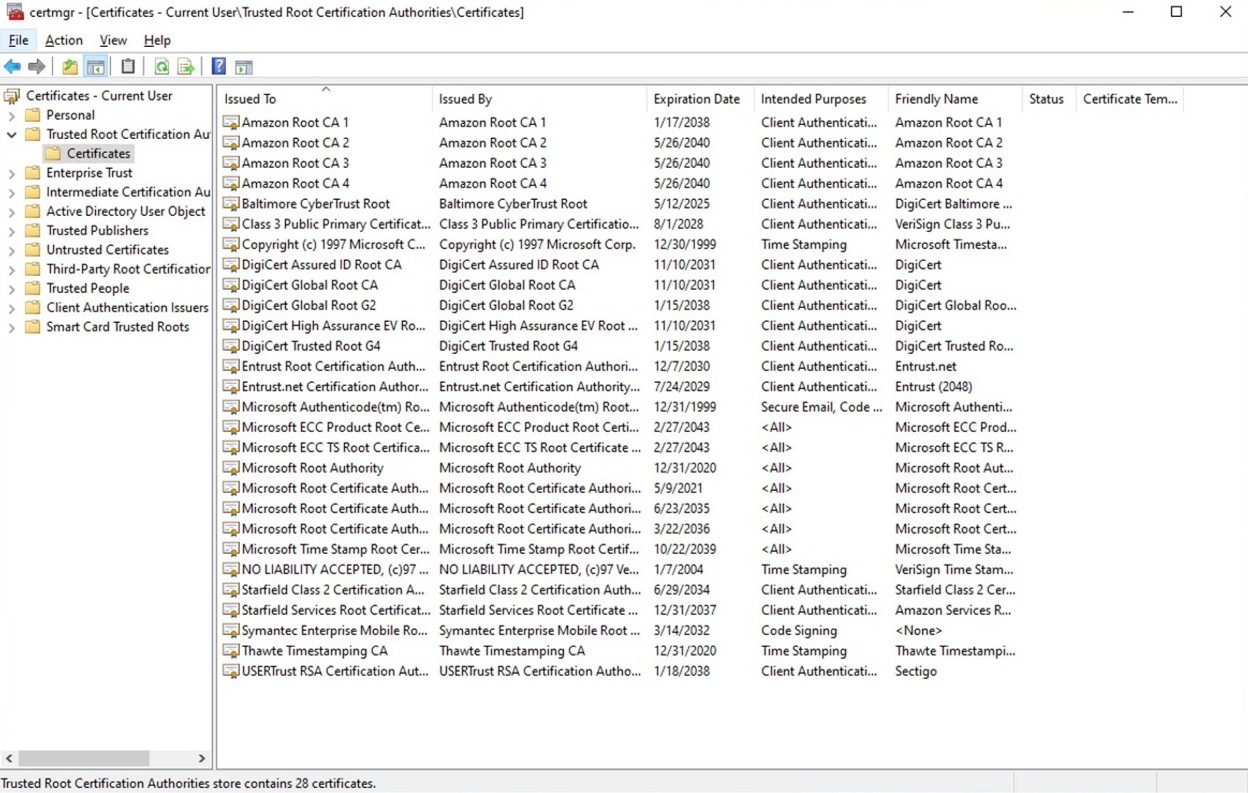
Figure 2: Windows certificate store: Trusted Root Certification Authorities

Figure 2: Windows certificate store: Trusted Root Certification Authorities

Check for the Amazon root CAs in Windows operating systems (CLI)

You can use Powershell to check for the Amazon root CAs. Use the certutil command.

  • Open Windows Powershell and use the following certutil commands. These will search for the five Amazon root CAs.
> certutil -store AuthRoot | findstr /i "Amazon" 
Issuer: CN=Amazon Root CA 4, O=Amazon, C=US 
Subject: CN=Amazon Root CA 4, O=Amazon, C=US 
Issuer: CN=Amazon Root CA 1, O=Amazon, C=US 
Subject: CN=Amazon Root CA 1, O=Amazon, C=US 
Issuer: CN=Amazon Root CA 2, O=Amazon, C=US 
Subject: CN=Amazon Root CA 2, O=Amazon, C=US 
Issuer: CN=Amazon Root CA 3, O=Amazon, C=US 
Subject: CN=Amazon Root CA 3, O=Amazon, C=US

> certutil -store AuthRoot | findstr /i "Starfield Services Root Certificate Authority - G2" 
Issuer: CN=Starfield Services Root Certificate Authority - G2, O=Starfield Technologies, Inc., L=Scottsdale, S=Arizona, C=US
Subject: CN=Starfield Services Root Certificate Authority - G2, O=Starfield Technologies, Inc., L=Scottsdale, S=Arizona, C=US

Add Amazon root CAs to the default trust store using the UI

Download each Amazon Trust Services root CA. You can select the DER or PEM versions.

  1. Open Certmgr: Press Windows + R, enter certmgr.msc, and press Enter.
  2. Add to the trusted root:
    1. Choose Trusted Root Certification Authorities.
    2. Right-click Certificates.
    3. Select All Tasks and choose Import.
    4. Follow the Certificate Import Wizard:
      1. Choose Next.
      2. Browse to the root CA certificate file location. You might need to select All Files(*.*) to view the root CA certificate files.
      3. Select Place all certificates in the following store.
      4. Verify Trusted Root Certification Authorities is selected and choose Next.
      5. Choose Finish.

Add Amazon root CAs to the default trust store using the CLI

  1. Download each Amazon Trust Services root CA. You can select the DER or PEM versions.
  2. In Powershell, add a CA certificate to AuthRoot using certutil.
    > certutil -addstore AuthRoot AmazonRootCA1.cer
  3. In Powershell, verify that the certificate has been added.
    > certutil -store AuthRoot | findstr /i "Amazon"

Amazon Linux 2023: Check for the Amazon root CAs in default trust store

The following is the default location for the system trust store in Amazon Linux 2023:

/etc/pki/tls/certs/ca-bundle.crt

1. Using OpenSSL, search for Amazon root CA certificates in the ca-bundle.crt bundle:

openssl crl2pkcs7 -nocrl -certfile /etc/pki/tls/certs/ca-bundle.crt | openssl pkcs7 -print_certs -noout | grep -i "Amazon\|Starfield Services" 

subject=C=US, O=Amazon, CN=Amazon Root CA 1 
issuer=C=US, O=Amazon, CN=Amazon Root CA 1 
subject=C=US, O=Amazon, CN=Amazon Root CA 2 
issuer=C=US, O=Amazon, CN=Amazon Root CA 2 
subject=C=US, O=Amazon, CN=Amazon Root CA 3 
issuer=C=US, O=Amazon, CN=Amazon Root CA 3 
subject=C=US, O=Amazon, CN=Amazon Root CA 4 
issuer=C=US, O=Amazon, CN=Amazon Root CA 4 
subject=C=US, ST=Arizona, L=Scottsdale, O=Starfield Technologies, Inc., CN=Starfield Services Root Certificate Authority - G2 
issuer=C=US, ST=Arizona, L=Scottsdale, O=Starfield Technologies, Inc., CN=Starfield Services Root Certificate Authority - G2

To add the Amazon root CAs to the default trust store

1. Navigate to the following directory for adding CA certificates
$ cd /etc/pki/ca-trust/source/anchors/

2. Using cURL, download each Amazon Trust Services root CA in the preceding folder. Do this for each of the Amazon root CAs replacing the name of the PEM file as needed.

$ sudo curl -O
https://www.amazontrust.com/repository/AmazonRootCA1.pem

3. Add the root CAs by updating the system trust store.
$ sudo update-ca-trust extract

4. Verify that the bundle has been updated with OpenSSL.
$ openssl crl2pkcs7 -nocrl -certfile /etc/pki/tls/certs/ca-bundle.crt | openssl pkcs7 -print_certs -noout | grep -i "Amazon\|Starfield Services"

Java: Check for the Amazon root CAs in a Java trust store (Java Keystore)

Many custom Java applications use Java Keystore (JKS) as a trust store. You can use the keytool CLI tool to verify if the Amazon root CAs exist in your JKS trust store.

keytool -list -keystore custom_truststore.jks -storepass mypassword

Keystore type: PKCS12
Keystore provider: SUN

Your keystore contains 5 entries

amazonrootca1, Jun 27, 2025, trustedCertEntry, Certificate fingerprint (SHA-256): 8E:CD:E6:88:4F:3D:87:B1:12:5B:A3:1A:C3:FC:B1:3D:70:16:DE:7F:57:CC:90:4F:E1:CB:97:C6:AE:98:19:6E 
amazonrootca2, Jun 27, 2025, trustedCertEntry, Certificate fingerprint (SHA-256): 1B:A5:B2:AA:8C:65:40:1A:82:96:01:18:F8:0B:EC:4F:62:30:4D:83:CE:C4:71:3A:19:C3:9C:01:1E:A4:6D:B4 
amazonrootca3, Jun 27, 2025, trustedCertEntry, Certificate fingerprint (SHA-256): 18:CE:6C:FE:7B:F1:4E:60:B2:E3:47:B8:DF:E8:68:CB:31:D0:2E:BB:3A:DA:27:15:69:F5:03:43:B4:6D:B3:A4 
amazonrootca4, Jun 27, 2025, trustedCertEntry, Certificate fingerprint (SHA-256): E3:5D:28:41:9E:D0:20:25:CF:A6:90:38:CD:62:39:62:45:8D:A5:C6:95:FB:DE:A3:C2:2B:0B:FB:25:89:70:92 
starfieldg2, Jun 27, 2025, trustedCertEntry, Certificate fingerprint (SHA-256): 56:8D:69:05:A2:C8:87:08:A4:B3:02:51:90:ED:CF:ED:B1:97:4A:60:6A:13:C6:E5:29:0F:CB:2A:E6:3E:DA:B5

The output should show the Amazon root CAs listed as “trustedCertEntry” with those exact certificate fingerprints.

To add the Amazon root CAs to a Java trust store (Java Keytool)

1. Download each Amazon Trust Services root CA in PEM or DER format. Use the PowerShell command Invoke-WebRequest if you’re using Windows, or use cURL if you’re using a Linux-based operating system or MacOS.

> Invoke-WebRequest -Uri "https://www.amazontrust.com/repository/AmazonRootCA1.pem" -OutFile "AmazonRootCA1.pem"

$ curl -O https://www.amazontrust.com/repository/AmazonRootCA1.pem

2. Import the Amazon root CAs to the trust store—custom_truststore.jks. Replace changeit with your JKS password. Do this command for each of the Amazon root CAs, replacing the name of the root CA as needed.

$ keytool -importcert -alias "AmazonRootCA1" -file "AmazonRootCA1.pem" -keystore custom_truststore.jks -storepass changeit -trustcacerts -noprompt

Test your trust store configuration

After you have set up your trust store with the five Amazon root CA certificates, you can perform tests to confirm that the installed root CAs are correctly providing trust. Remember that your custom application might be sourcing its trust from a store other than the stores mentioned in this article. For custom applications, we recommend checking your testing documentation.

PEM

For operating systems or applications that use PEM certificate bundles, such as Amazon Linux 2023, you can use OpenSSL or cURL to test. For additional test URLs, see the Amazon Trust Services website. Replace CAbundle.pem with your certificate bundle.

$ openssl s_client -connect valid.rootca1.demo.amazontrust.com:443 -CAfile CAbundle.pem

$ curl -iv --cacert CAbundle.pem https://valid.rootca1.demo.amazontrust.com

Windows

Because Windows doesn’t use PEM certificate bundles, but a trust store in certmgr called Trusted Root Certification Authorities, you can use PowerShell to test.

1. Copy the following PowerShell script and save it in a file named ssl-connect.ps1.


param (
[string]$url = "https://valid.rootca1.demo.amazontrust.com"
)

$sslStream = $null
$tcpClient = $null

try {
$uri = [System.Uri]$url
$hostname = $uri.Host
$port = if ($uri.Port -eq -1) { 443 } else { $uri.Port }

# Connect to the server
$tcpClient = New-Object System.Net.Sockets.TcpClient
$tcpClient.Connect($hostname, $port)

# Define the certificate validation callback
$callback = {
param($sender, $certificate, $chain, $sslPolicyErrors)

Write-Host "Server Certificate:`nSubject : $($certificate.Subject)`nIssuer : $($certificate.Issuer)`n"

Write-Host "Certificate Chain:"
foreach ($c in $chain.ChainElements) {
Write-Host ("Subject : {0}`nIssuer : {1}`nThumbprint : {2}`n" -f
$c.Certificate.Subject,
$c.Certificate.Issuer,
$c.Certificate.Thumbprint)
}


if ($sslPolicyErrors -eq 'None') {
Write-Host "Certificate is valid and trusted."
} else {
Write-Host "Certificate error(s): $sslPolicyErrors"
}

return $true
}

# Create the SSL stream using the callback
$sslStream = New-Object System.Net.Security.SslStream($tcpClient.GetStream(), $false, $callback)

# Initiate TLS handshake
$sslStream.AuthenticateAsClient($hostname)
}
catch {
Write-Host "ERROR: $($_.Exception.Message)"
}
finally {
if ($sslStream) { $sslStream.Dispose() }
if ($tcpClient) { $tcpClient.Close() }
}

2. Run the PowerShell script with the following command:

  • > .\ssl-connect.ps1

You can test with the other test URLs by passing them in -url:

  • > .\ssl-connect.ps1 -url https://s3.amazonaws.com

3. After running the command, you should see the subject and issuer of the end-entity certificate and the full trust chain, including the intermediate CA and root CA. If the command returns Certificate is valid and trusted, the certificate is trusted. If it returns an error with Certificate error, the error should tell you what went wrong.

Java

To test your Java applications that use JKS as a trust store, you can make HTTPS connections to endpoints that use Amazon Trust Services certificates.

1. Copy the Java code and name the file SSLTester.java.

  • In the code, you can replace the urls variable with additional URLs to test HTTPS. See the Amazon Trust Services website for additional test URLs.
  • Update your_keystore.jks and your password with your JKS file path and password.
import javax.net.ssl.SSLContext; 
import javax.net.ssl.TrustManagerFactory; 
import java.io.FileInputStream; 
import java.net.URL; 
import java.security.KeyStore;
import java.security.cert.Certificate; 
import java.security.cert.X509Certificate; 

public class SSLTester {
     public static void main(String[] args) {
         // Enable revocation checking
         System.setProperty("com.sun.net.ssl.checkRevocation", "true");
         System.setProperty("com.sun.security.enableCRLDP", "true");   
         System.setProperty("com.sun.security.enableAIAcaIssuer", "true");
         // Define your HTTPS URLs here
         String[] urls = {
              "https://valid.rootca1.demo.amazontrust.com/",  // Use an Amazon Trust Services Valid test URL (Example: https://valid.rootca1.demo.amazontrust.com/)
              "https://revoked.rootca1.demo.amazontrust.com/", // Use an Amazon Trust Services Revoked test URL (Example: https://revoked.rootca1.demo.amazontrust.com/)
              "https://expired.rootca1.demo.amazontrust.com/", // Use an Amazon Trust Services Expired test URL (Example: https://expired.rootca1.demo.amazontrust.com/)
              "https://ec2.amazonaws.com" // AWS Service Endpoint
		  };
          String keystorePath = "your_keystore.jks"; // Define your .jks file
          String keystorePassword = "your password"; // Pass your keystore password

          try {
             // Load the JKS
             KeyStore trustStore = KeyStore.getInstance("JKS");
             FileInputStream fis = new FileInputStream(keystorePath);
             trustStore.load(fis, keystorePassword.toCharArray());
             fis.close();

             // Initialize TrustManagerFactory with JKS
             TrustManagerFactory tmf = 
TrustManagerFactory.getInstance(TrustManagerFactory.getDefaultAlgorithm());
             tmf.init(trustStore);
            // Initialize SSLContext
            SSLContext sslContext =
SSLContext.getInstance("TLS");
             sslContext.init(null, tmf.getTrustManagers(), null);

             // Test SSL connections to URLs
             for (String urlStr : urls) {
                 System.out.println("Testing URL: " + urlStr);
                 try {
                     URL url = new URL(urlStr);
                     javax.net.ssl.HttpsURLConnection conn = (javax.net.ssl.HttpsURLConnection) url.openConnection();                    conn.setSSLSocketFactory(sslContext.getSocketFactory());
                     conn.connect();

                     // Get server certificate
                     Certificate[] certs = 
conn.getServerCertificates();
                     for (Certificate cert : certs) {
                         if (cert instanceof X509Certificate) {
                             X509Certificate x509Cert = (X509Certificate) cert;
                             System.out.println("Certificate: " + x509Cert.getSubjectDN());
                         }
                     }
                     System.out.println("Connection successful for " + urlStr);
                     conn.disconnect();
                 } catch (Exception e) {
                     System.err.println("Failed for " + urlStr + ": " + e.getMessage());
                 }
             }
         } catch (Exception e) {
             e.printStackTrace();
         }
     }
 }

2. After you save the file, compile it and run.

javac SSLTester.java
java SSLTester.java

3. Check the output after it’s finished running.

  • For Valid URLs, you should see Connection successful:
  • Connection successful for https://valid.rootca1.demo.amazontrust.com/

  • For Revoked URLs, you should see Certificate has been revoked:
  • failed: java.security.cert.CertPathValidatorException: Certificate has been revoked, reason: UNSPECIFIED

  • For Expired URLs, you should see Validity check failed:

Failed for https://expired.rootca1.demo.amazontrust.com/: PKIX path validation failed: java.security.cert.CertPathValidatorException: validity check failed

Conclusion

When your web browser, device, or application performs HTTPS connections, it validates the certificate presented by the server using its trust store. A trust store is a collection of trusted CA certificates, primarily consisting of root CA certificates. When trusting endpoints using public certificates issued through ACM, best practice recommends installing the five Amazon Trust Services root CA certificates into your trust store. Be aware that trusting only the Amazon Trust Services intermediate CA certificates, such as Amazon RSA 2048 M01 and Amazon RSA 2048 M02, increases your application’s risk for outages. This is because of the non-deterministic nature of the dynamic intermediate CA (ICA) model. It’s worth noting that trust store configurations can vary across different applications. Furthermore, applications can also source their trust store from different locations. For example, you can have a Java application hosted on a Windows-based operating system that sources its trust store from a Java Keystore (JKS) file rather than the default Windows trust store location Trusted Root Certification Authorities. This means that you should thoroughly test your application after installing the Amazon Trust Services root CA certificates in your trust store. This will help to sustain reliable HTTPS connections to endpoints using ACM certificates.


If you have feedback about this post, submit comments in the Comments section below. If you have questions about this post, contact AWS Support.

Chris Morris

Chris Morris

Chris is a Sr. Cloud Support Engineer at AWS. He specializes in a variety of security topics, including cryptography and data protection. He focuses on helping AWS customers use AWS security services to strengthen their security posture in the cloud. Public key infrastructure and key management are some of his favorite security topics.

Feng Chen

Feng Chen

Feng is an AWS Cloud Support Engineer based in Melbourne, Australia. He specializes in AWS security services, with deep expertise in ACM, IAM, and AWS Identity Center. He is passionate about helping customers protect their cloud infrastructure. He is also an AWS Golden Jacket owner with all AWS certifications.

Nikhil Kalra

Nikhil Kalra

Nikhil is an AWS Cloud Support Engineer based in Hyderabad, India. He is a subject matter expert in AWS Certificate Manager with expertise in core security services such as Amazon Cognito and IAM. Holding the prestigious AWS Certified Security Specialty certification, he is committed to helping customers implement robust security solutions and protect their cloud infrastructure.

How to issue use-case bound certificates with AWS Private CA

Post Syndicated from Chris Morris original https://aws.amazon.com/blogs/security/how-to-issue-use-case-bound-certificates-with-aws-private-ca/

In this post, we’ll show how you can use AWS Private Certificate Authority (AWS Private CA) to issue a wide range of X.509 certificates that are tailored for specific use cases. These use-case bound certificates have their intended purpose defined within the certificate components, such as the Key Usage and Extended Key usage extensions. We will guide you on how you can define your usage by applying your required Key Usage and Extended Key usage values with the IssueCertificate API operation.

Background

With the AWS Private CA service, you can build your own public key infrastructure (PKI) in the AWS Cloud and issue certificates to use within your organization. Certificates issued by AWS Private CA support both the Key Usage and Extended Key Usage extensions. By using these extensions with specific values, you can bind the usage of a given certificate to a particular use case during creation. Binding certificates to their intended use case, such as SSL/TLS server authentication or code signing, provides distinct security benefits such as accountability and least privilege.

When you define certificate usage with specific Key Usage and Extended Key Usage values, this helps your organization understand what purpose a given certificate serves and the use case for which it is bound. During audits, organizations can inspect their certificate’s Key Usage and Extended Key Usage values to determine the certificate’s purpose and scope. This not only provides accountability regarding a certificate’s usage, but also a level of transparency for auditors and stakeholders. Furthermore, by using these extensions with specific values, you will follow the principle of least privilege. You can grant least privilege by defining only the required Key Usage and Extended Key Usage values for your use case. For example, if a given certificate is going to be used only for email protection (S/MIME), you can assign only that extended key usage value to the certificate.

Certificate templates and use cases

In AWS Private CA, the Key Usage and Extended Key Usage extensions and values are specified by using a configuration template, which is passed with the IssueCertificate API operation. The base template provided by AWS handles the most common certificate use cases, such as SSL/TLS server authentication or code signing. However, there are additional use cases for certificates that are not defined in base templates. To issue certificates for these use cases, you can pass blank certificate templates in your IssueCertificate requests, along with your required Key Usage and Extended Key usage values.

Such use cases include, but are not limited to the following:

  • Certificates for SSL/TLS
    • Issue certificates with an Extended Key Usage value of Server Authentication, Client Authentication, or both.
  • Certificates for email protection (S/MIME)
    • Issue certificates with an Extended Key Usage value of E-mail Protection
  • Certificates for smart card authentication (Microsoft Smart Card Login)
    • Issue certificates with an Extended Key Usage value of Smart Card Logon
  • Certificates for document signing
    • Issue certificates with an Extended Key Usage value of Document Signing
  • Certificates for code signing
    • Issue certificates with an Extended Key Usage value of Code Signing
  • Certificates that conform to the Matter connectivity standard

If your certificates require less-common extended key usage values not defined in the AWS documentation, you can also pass object identifiers (OIDs) to define values in Extended Key Usage. OIDs are dotted-string identifiers that are mapped to objects and attributes. OIDs can be defined and passed with custom extensions using API passthrough. You can also define OIDs in a CSR (certificate signing request) with a CSR passthrough template. Such uses include:

  • Certificates that require IPSec or virtual private network (VPN) related extensions
    • Issue certificates with Extended Key Usage values:
      • OID: 1.3.6.1.5.5.7.3.5 (IPSEC_END_SYSTEM)
      • OID: 1.3.6.1.5.5.7.3.6 (IPSEC_TUNNEL)
      • OID: 1.3.6.1.5.5.7.3.7 (IPSEC_USER)
  • Certificates that conform to the ISO/IEC standard for mobile driving license (mDL)
    • Pass the ISO/IEC 18013-5 OID reserved for mDL DS: 1.0.18013.5.1.2 by using custom extensions.

It’s important to note that blank certificate templates aren’t limited to just end-entity certificates. For example, the BlankSubordinateCACertificate_PathLen0_APICSRPassthrough template sets the Basic constraints parameter to CA:TRUE, allowing you to issue a subordinate CA certificate with your own Key Usage and Extended Key Usage values.

Using blank certificate templates

When you browse through the AWS Private CA certificate templates, you may see that base templates don’t allow you to define your own Key Usage or Extended Key Usage extensions and values. They are preset to the extensions and values used for the most common certificate types in order to simplify issuing those types of certificates. For example, when using EndEntityCertificate/V1, you will always get a Key Usage value of Critical, digital signature, key encipherment and an Extended Key Usage value of TLS web server authentication, TLS web client authentication. The following table shows all of the values for this base template.

EndEntityCertificate/V1
X509v3 parameter Value
Subject alternative name [Passthrough from certificate signing request (CSR)]
Subject [Passthrough from CSR]
Basic constraints CA:FALSE
Authority key identifier [Subject key identifier from CA certificate]
Subject key identifier [Derived from CSR]
Key usage Critical, digital signature, key encipherment
Extended key usage TLS web server authentication, TLS web client authentication
CRL distribution points [Passthrough from CA configuration]

When you look at blank certificate templates, you will see that there is more flexibility. For one example of a blank certificate template, BlankEndEntityCertificate_APICSRPassthrough/V1, you can see that there are fewer predefined values compared to EndEntityCertificate/V1. You can pass your own values for Extended Key Usage and Key Usage.

BlankEndEntityCertificate_APICSRPassthrough/V1
X509v3 parameter Value
Subject alternative name [Passthrough from API or CSR]
Subject [Passthrough from API or CSR]
Basic constraints CA:FALSE
Authority key identifier [Subject key identifier from CA certificate]
Subject key identifier [Derived from CSR]
CRL distribution points

Note: CRL distribution points are included in the template only if the CA is configured with CRL generation enabled.

[Passthrough from CA configuration or CSR]

To specify your desired extension and value, you must pass them in the IssueCertificate API call. There are two ways of doing so: the API Passthrough and CSR Passthrough templates.

  • API Passthrough – Extensions and their values defined in the IssueCertificate parameter APIPassthrough are copied over to the issued certificate.
  • CSR Passthrough – Extensions and their values defined in the CSR are copied over to the issued certificate.

To accommodate the different ways of passing these values, there are three varieties of blank certificate templates. If you would like to pass extensions defined only in your CSR file to the issued certificate, you can use the BlankEndEntityCertificate_CSRPassthrough/V1 template. Similarly, if you would like to pass extensions defined only in the APIPassthrough parameter, you can use the BlankEndEntityCertificate_APIPassthrough/V1 template. Finally, if you would like to use a combination of extensions defined in both the CSR and APIPassthrough, you can use the BlankEndEntityCertificate_APICSRPassthrough/V1 template. It’s important to remember these points when choosing your template:

  • The template definition will always have the higher priority over the values specified in the CSR, regardless of what template variety you use. For example, if the template contains a Key Usage value of digital signature and your CSR file contains key encipherment, the certificate will choose the template definition digital signature.
  • API passthrough values are only respected when you use an API passthrough or APICSR passthrough template. CSR passthrough is only respected when you use a CSR passthrough or APICSR passthrough template. When these sources of information are in conflict (the CSR contains the same extension or value as what’s passed in API passthrough), a general rule usually applies: For each extension value, the template definition has highest priority, followed by API passthrough values, followed by CSR passthrough extensions. Read more about the template order of operations in the AWS documentation.

How to issue use-case bound certificates in the AWS CLI

To get started issuing certificates, you must have appropriate AWS Identity and Access Management (IAM) permissions as well as an AWS Private CA in an “Active” status. You can verify if your private CA is active by running the aws acm-pca list-certificate-authorities command from the AWS Command Line Interface (CLI). You should see the following:

"Status": "ACTIVE"

After verifying the status, make note of your private CA Amazon Resource Name (ARN).

To issue use-case bound certificates, you must use the Private CA API operation IssueCertificate.

In the AWS CLI, you can call this API by using the command issue-certificate. There are several parameters you must pass with this command:

  • (--certificate-authority-arn) – The ARN of your private CA.
  • (--csr) – The CSR in PEM format. It must be passed as a blob , like fileb://.
  • (--validity) – Sets the “Not After” date (expiration date) for the certificate.
  • (--signing-algorithm) – The signing algorithm to be used to sign the certificate. The value you choose must match the algorithm family of the private CA’s algorithm (RSA or ECDSA). For example, if the private CA uses RSA_2048, the signing algorithm must be an RSA variant, like SHA256WITHRSA.

    You can check your private CA’s algorithm family by referring to its key algorithm. The command aws acm-pca describe-certificate-authority will show the corresponding KeyAlgorithm value.

  • (--template-arn) – This is where the blank certificate template is defined. The template should be an AWS Private CA template ARN. The full list of AWS Private CA template ARNs are shown in the AWS documentation.

We’ll now demonstrate how to issue use-case bound end-entity certificates by using blank end-entity certificate templates. We will issue two different certificates. One will be bound for email protection, and one will be bound for smart card authentication. Email protection and smart card authentication certificates have specific Extended Key Usage values which are not defined by any base template. We’ll use CSR passthrough to issue the smart card authentication certificate and use API passthrough to issue the email protection certificate.

The certificate templates that we will use are:

  • For CSR passthrough: BlankEndEntityCertificate_CSRPassthrough/V1
  • For API Passthrough: BlankEndEntityCertificate_APIPassthrough/V1

Important notes about this demo:

  • These commands are for demo purposes only. Depending on your specific use case, email protection certificates and smart card authentication certificates may require different extensions than what’s shown in this demo.
  • You will be generating RSA 2048 private keys. Private keys need to be protected and stored properly and securely. For example, encrypting private keys or storing private keys in a hardware security module (HSM) are some methods of protection that you can use.
  • We will be using the OpenSSL command line tool, which is installed by default on many operating systems such as Amazon Linux 2023. If you don’t have this tool installed, you can obtain it by using the software distribution facilities of your organization or your operating system, as appropriate.

Use API passthrough

We will now demonstrate how to issue a certificate that is bound for email protection. We’ll specify Key Usage and Extended Key Usage values, and also a subject alternative name through API passthrough. The goal is to have these extensions and values in the email protection certificate.

Extensions:

	X509v3 Key Usage: critical
	Digital Signature, Key Encipherment
	X509v3 Extended Key Usage:
	E-mail Protection
	X509v3 Subject Alternative Name:
	email:[email protected]

To issue a certificate bound for email protection

  1. Use the following command to create your keypair and CSR with OpenSSL. Define your distinguished name in the OpenSSL prompt.
    openssl req -out csr-demo-1.csr -new -newkey rsa:2048 -nodes -keyout private-key-demo-1.pem

  2. Use the following command to issue an end-entity certificate specifying the EMAIL_PROTECTION extended key usage value, the Digital Signature and Key Encipherment Key Usage values, and the subject alternative name [email protected]. We will use the Rfc822Name subject alternative name type, because the value is an email address.

    Make sure to replace the data in arn:aws:acm-pca:<region>:<accountID>:certificate-authority/11111111-1111-1111-1111-111111111111 with your private CA ARN, and adjust the signing algorithm according to your private CA’s algorithm. Assuming my PCA is type RSA, I am using SHA256WITHRSA.

    aws acm-pca issue-certificate --certificate-authority-arn arn:aws:acm-pca:<region>:<accountID>:certificate-authority/11111111-1111-1111-1111-111111111111 --csr fileb://csr-demo-1.csr --template-arn arn:aws:acm-pca:::template/BlankEndEntityCertificate_APIPassthrough/V1 --signing-algorithm "SHA256WITHRSA" --validity Value=365,Type="DAYS" --api-passthrough "Extensions={ExtendedKeyUsage=[{ExtendedKeyUsageType="EMAIL_PROTECTION"}],KeyUsage={"DigitalSignature"=true,"KeyEncipherment"=true},SubjectAlternativeNames=[{Rfc822Name="[email protected]"}]}"

     If the command is successful, then the ARN of the issued certificate is shown as the result:

    {
        "CertificateArn": "arn:aws:acm-pca:us-east-1:<accountID>:certificate-authority/11111111-1111-1111-1111-111111111111/certificate/123465789123456789"
    }

  3. Proceed to the Retrieve the Certificate section of this post to retrieve the certificate and certificate chain PEM from the CertificateArn.

Use CSR passthrough

We’ll now demonstrate how to issue a certificate that is bound for smart card authentication. We will specify Key Usage, Extended Key Usage, and subject alternative name extensions and values through CSR passthrough. The goal is to have these values in the smart card authentication certificate.

Extensions:

	X509v3 Key Usage: critical
	Digital Signature
	X509v3 Extended Key Usage:
	TLS Web Client Authentication, Microsoft Smartcard Login
	X509v3 Subject Alternative Name:
	othername: UPN::[email protected]

We’ll generate our CSR by requesting these specific extensions and values with OpenSSL. When we call IssueCertificate, the CSR passthrough template will acknowledge the requested extensions and copy them over to the issued certificate.

To issue a certificate bound for smart card authentication

  1. Use the following command to create the private key.
    openssl genpkey -algorithm RSA -pkeyopt rsa_keygen_bits:2048 -out private-key-demo-2.pem

  2. Create a file called openssl_csr.conf to define the distinguished name and the requested CSR extensions.

    Following is an example of OpenSSL configuration file content. You can copy this configuration to the openssl_csr.conf file and adjust the values to your requirements. You can find further reference on the configuration in the OpenSSL documentation.

    [ req ]
    default_bits = 2048
    prompt = no
    default_md = sha256
    req_extensions = my_req_ext
    distinguished_name = dn
    
    #Specify the Distinguished Name
    [ dn ]
    countryName                     = US
    stateOrProvinceName             = VA 
    localityName                    = Test City
    organizationName                = Test Organization Inc
    organizationalUnitName          = Test Organization Unit
    commonName                      = john_doe
    
    
    #Specify the Extensions
    [ my_req_ext ]
    keyUsage = critical, digitalSignature
    extendedKeyUsage = clientAuth, msSmartcardLogin 
    
    #UPN OtherName OID: "1.3.6.1.4.1.311.20.2.3". Value is ASN1-encoded UTF8 string
    subjectAltName = otherName:msUPN;UTF8:[email protected] 

    In this example, you can specify your Key Usage and Extended Key Usage values in the [ my_req_ext ] section of the configuration. In the extendedKeyUsage line, you may also define extended key usage OIDs, like 1.3.6.1.4.1.311.20.2.2. Possible values are defined in the OpenSSL documentation.

  3. Create the CSR, defining the configuration file.
    openssl req -new -key private-key-demo-2.pem -out csr-demo-2.csr -config openssl_csr.conf

  4. (Optional) You can use the following command to decode the CSR to make sure it contains the information you require.
    openssl req -in csr-demo-2.csr -noout  -text

    The output should show the requested extensions and their values, as follows.

    	X509v3 Key Usage: critical
    	Digital Signature
    	X509v3 Extended Key Usage:
    	TLS Web Client Authentication, Microsoft Smartcard Login
    	X509v3 Subject Alternative Name:
    	othername: UPN:: <your_user_here>

  5. Issue the certificate by using the issue-certificate command. We will use a CSR passthrough template so that the requested extensions and values in the CSR file are copied over to the issued certificate.

    Make sure to replace the data in arn:aws:acm-pca:us-east-1:<accountID>:certificate-authority/11111111-1111-1111-1111-111111111111 with your private CA ARN and adjust the signing algorithm and validity to for your use case. Assuming my PCA is type RSA, I am using SHA256WITHRSA.

    aws acm-pca issue-certificate --certificate-authority-arn arn:aws:acm-pca:us-east-1:<accountID>:certificate-authority/11111111-1111-1111-1111-111111111111 --csr fileb://csr-demo-2.csr --template-arn arn:aws:acm-pca:::template/BlankEndEntityCertificate_CSRPassthrough/V1 --signing-algorithm "SHA256WITHRSA" --validity Value=365,Type="DAYS"

    If the command is successful, then the ARN of the issued certificate is shown as the result:

    {
        "CertificateArn": "arn:aws:acm-pca:us-east-1:<accountID>:certificate-authority/11111111-1111-1111-1111-111111111111/certificate/123465789123456789"
    }

Retrieve the certificate

After using issue-certificate with API passthrough or CSR passthrough, you can retrieve the certificate material in PEM format. Use the get-certificate command and specify the ARN of the private CA that issued the certificate, as well as the ARN of the certificate that was issued:

aws acm-pca get-certificate --certificate-arn arn:aws:acm-pca:us-east-1:<accountID>:certificate-authority/11111111-1111-1111-1111-111111111111/certificate/123465789123456789 --certificate-authority-arn arn:aws:acm-pca:us-east-1:<accountID>:certificate-authority/11111111-1111-1111-1111-111111111111 --output text

You can use the --query command with the AWS CLI to get the certificate and certificate chain in separate files.

Certificate

aws acm-pca get-certificate --certificate-authority-arn  arn:aws:acm-pca:us-east-1:<accountID>:certificate-authority/11111111-1111-1111-1111-111111111111 --certificate-arn arn:aws:acm-pca:us-east-1:<accountID>:certificate-authority/11111111-1111-1111-1111-111111111111/certificate/123465789123456789 --output text --query Certificate > certfile.pem

Certificate chain

aws acm-pca get-certificate --certificate-authority-arn  arn:aws:acm-pca:us-east-1:<accountID>:certificate-authority/11111111-1111-1111-1111-111111111111 --certificate-arn arn:aws:acm-pca:us-east-1:<accountID>:certificate-authority/11111111-1111-1111-1111-111111111111/certificate/123465789123456789 --output text --query CertificateChain > certchain.pem

After you retrieve the certificate, you can decode it with the openssl x509 command. This will allow you to view the details of the certificate, including the extensions and values that you defined.

openssl x509 -in certfile.pem -noout -text

Conclusion

In AWS Private CA, you can implement the security benefits of accountability and least privilege by defining the usage of your certificates. The Key Usage and Extended Key Usage values define the usage of your certificates. Many certificate use cases require a combination of Key Usage and Extended Key Usage values, which cannot be defined with base certificate templates. Some examples include document signing, smart card authentication, and mobile driving license (mDL) certificates. To issue certificates for these specific use cases, you can use blank certificate templates with the IssueCertificate API call. In addition to the blank certificate template, you must also define the specific combination of Key Usage and Extended Key Usage values through CSR passthrough, API passthrough, or both.

If you have feedback about this post, submit comments in the Comments section below. If you have questions about this post, contact AWS Support.

Want more AWS Security news? Follow us on Twitter.

Chris Morris

Chris Morris

Chris is a Cloud Support Engineer at AWS. He specializes in a variety of security topics, including cryptography and data protection. He focuses on helping AWS customers effectively use AWS security services to strengthen their security posture in the cloud. Public key infrastructure and key management are some of his favorite security topics.

Vishal Jakharia

Vishal Jakharia

Vishal is a Cloud Support Engineer based in New Jersey, USA. Having expertise in security services and he loves to work with customer to troubleshoot the complex issues. He helps customers migrate and build secure scalable architecture on the AWS Cloud.