Tag Archives: AWS Private Certificate Authority

AWS Private Certificate Authority now supports partitioned CRLs

Post Syndicated from Kartik Bhatnagar original https://aws.amazon.com/blogs/security/aws-private-certificate-authority-now-supports-partitioned-crls/

Public Key Infrastructure (PKI) is essential for securing and establishing trust in digital communications. As you scale your digital operations, you’ll issue and revoke certificates. Revoking certificates is useful especially when employees leave, migrate to a new certificate authority hierarchy, meet compliance, and respond to security incidents. Use the Certificate Revocation List (CRL) or Online Certificate Status Protocol (OCSP) method to track revoked certificates. You can use Amazon Web Services (AWS) Private Certificate Authority (AWS Private CA) to create a certificate authority (CA), which publishes revocation information through these methods so that systems can verify certificate validity.

As enterprises continue to scale their operations, they face limitations when using complete CRLs to issue and revoke more than 1 million certificates. The workaround of increasing CRL file sizes isn’t viable, because many applications can’t process large CRL files (with some needing a 1 MB maximum). Furthermore, alternative solutions like OCSP may be rejected by major trust stores and browser vendors due to privacy concerns and compliance requirements. These constraints significantly impact your ability to scale PKI infrastructure efficiently while maintaining security and compliance standards.

Feature release: Addressing challenges

AWS Private CA addresses these challenges with partitioned CRLs, which enable the issuance and revocation of up to 100 million certificates per CA. This feature distributes revocation information across multiple smaller, manageable CRL partitions, each maintaining a maximum size of 1 MB for more effective application compatibility. At the time of issuance, certificates are automatically bound to specific CRL partitions through a critical Issuer Distribution Point (IDP) extension, which contains a unique URI identifying the partition. Validation works by comparing the CRL URI in the certificate’s CRL Distribution Point (CDP) extension against the CRL’s IDP extension, which provides accurate certificate validation.

Partitioned CRL provides automatic scaling of certificate issuance limits from 1M to 100M certificates per CA, support for both new and existing CAs, flexible configuration options for CRL naming and paths, backward compatibility by preserving existing complete CRL functionality while offering partitioned CRL as an optional feature, and compliance with industry standards such as RFC5280 while maintaining security and operational efficiency.

Configuring Partitioned CRLs in AWS Private CA

You can configure Partitioned CRLs for existing CAs in AWS Private CA by using the following steps.

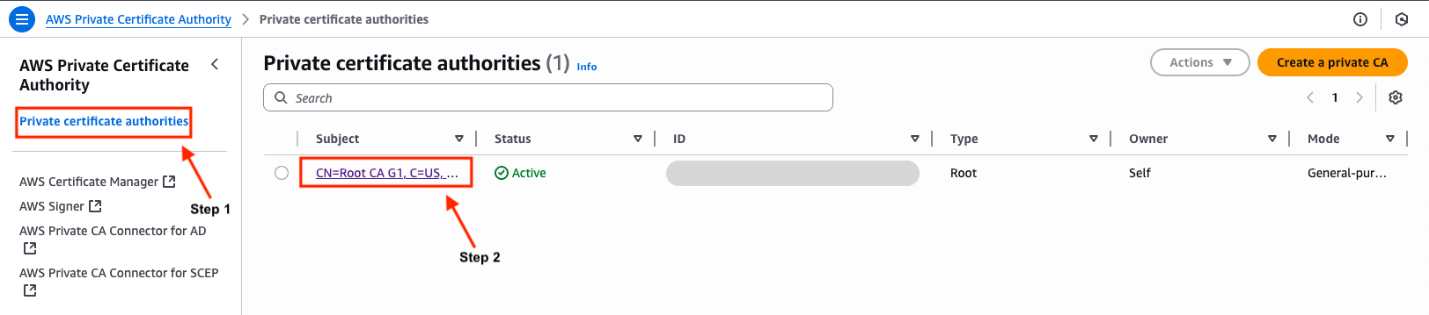
  1. Choose Private certificate authorities in the left navigation bar.
  2. Choose the hyperlink in the Subject column that is your CA to go into its details.

    Note: Verify that you are in the correct AWS Region.

    Figure 1: Certificate Authority selection

    Figure 1: Certificate Authority selection

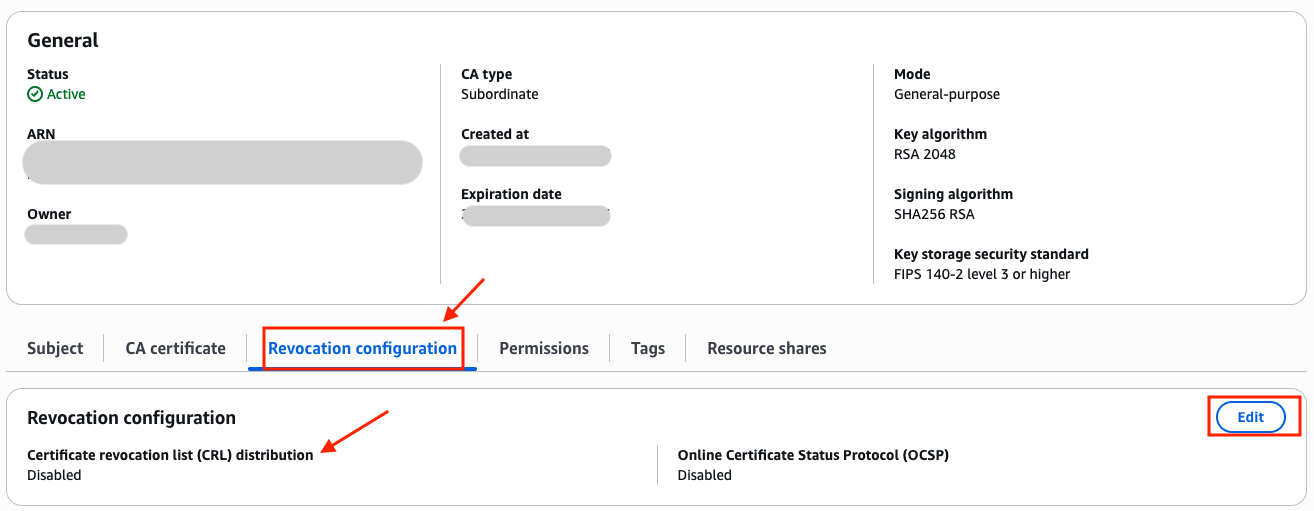
  3. Choose the Revocation configuration tab and you should observe the CRL distribution enabled or disabled. If it is disabled, then you should enable it in the next steps.
    Figure 2: Certification Authority general configuration information

    Figure 2: Certification Authority general configuration information

  4. Choose Edit.
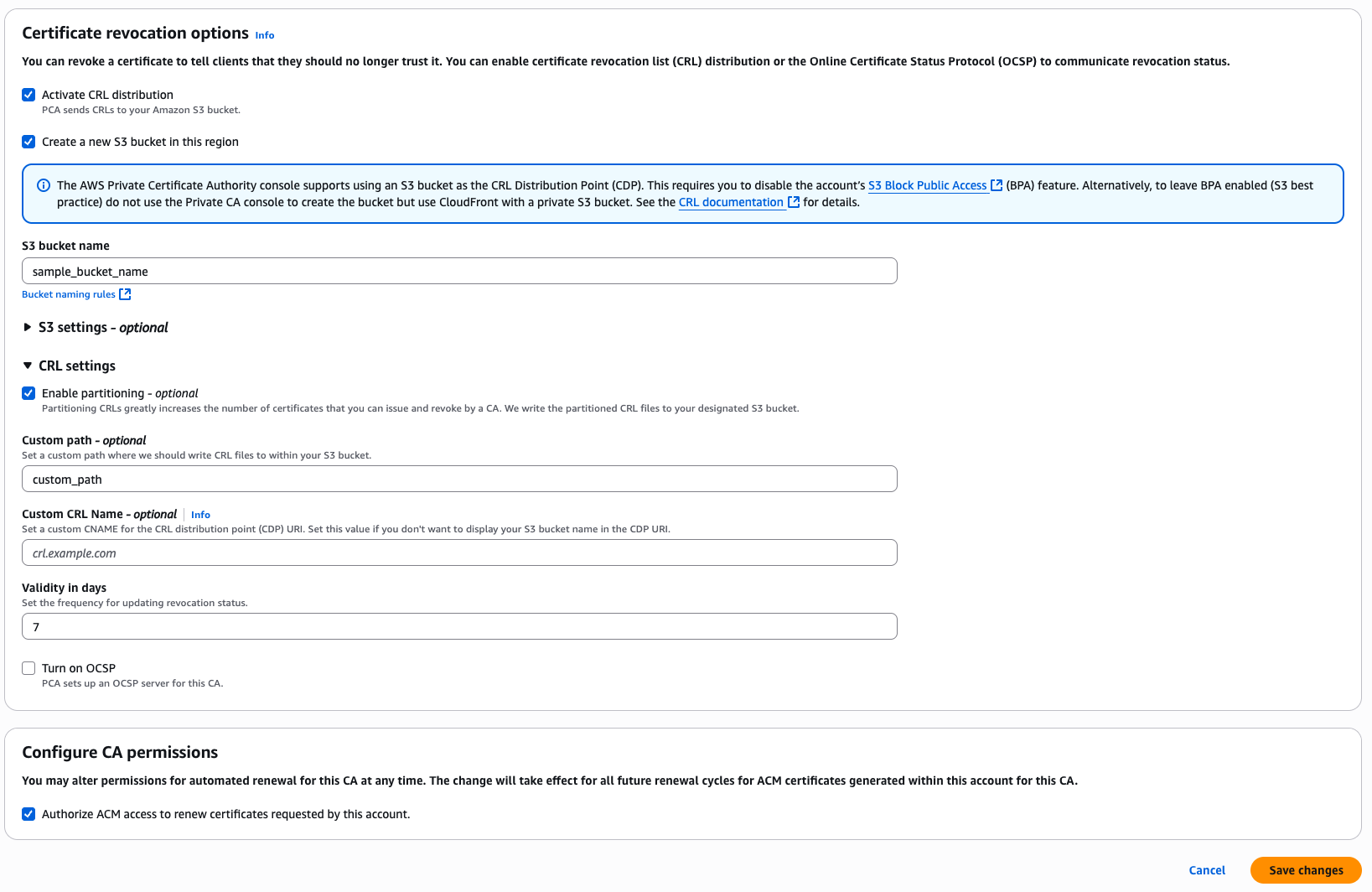
  5. Check the checkbox of Activate CRL distribution.

    If CRL distribution was enabled already, then skip to step 7.

  6. Under S3 bucket URI, choose an existing bucket from the list. You can observe detailed steps listed in Step 6 of the instructions in Create a private CA in AWS Private CA.

    You must verify that BPA is disabled for the account and for the bucket, and you must manually attach a policy to it before you can begin generating CRLs. Use one of the policy patterns described in Access policies for CRLs in Amazon S3. For more information, go to Adding a bucket policy using the Amazon S3 console.

  7. Expand CRL settings for more configuration options.
  8. Check the Enable partitioning checkbox to enable partitioning of CRLs. This creates a partitioned CRL.

    If you don’t enable partitioning, then a complete CRL is created and your CA is subject to the limit of 1M issued or revoked certificates. For more information, go to AWS Private CA quotas.

    Figure 3: Certificate revocation options

    Figure 3: Certificate revocation options

  9. Choose Save changes.
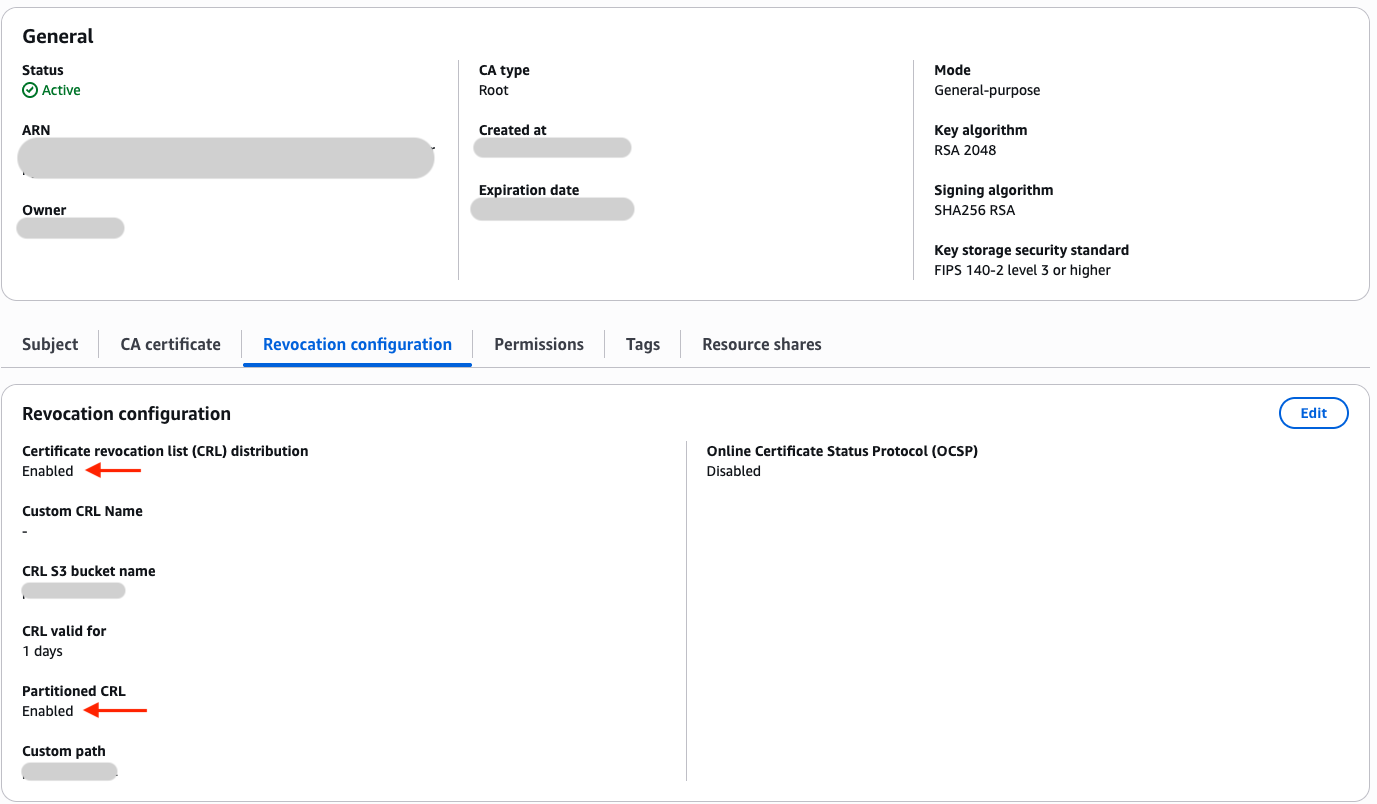
  10. CRL distribution shows as enabled with partitioned CRLs. The limit of 1M automatically updates to 100M per CA.
    Figure 4: Certificate revocation configuration

    Figure 4: Certificate revocation configuration

Conclusion

The AWS Private CA partitioned CRLs can deliver substantial benefits across multiple dimensions. From a security perspective, the feature maintains certificate validation while supporting comprehensive revocation capabilities for up to 100M certificates per CA. Therefore, you can respond effectively to security incidents or key compromises. Operationally, it reduces CA rotation, lessening administrative overhead and streamlining PKI management. Furthermore, maintaining CRL partition sizes at 1 MB provides broad compatibility with applications while supporting automated partition management. Moreover, this makes it particularly valuable when you need scalable, standards-compliant certificate management. Regarding compliance, you can use the feature to comply with multiple industry requirements: it supports WebTrust principles and criteria and ETSI TSP standards, maintains compatibility with RFC5280, aligns with browser trust store requirements for both CRL and OCSP support, and provides the flexibility needed for emerging standards such as Matter.

Lastly, you can maximize the value of your general purpose or short-lived CA while all certificates remain revocable by enabling Partitioned CRL for no added charge on top of AWS Private CA and Amazon Simple Storage Service (Amazon S3).

Start creating your CA in AWS Private CA using AWS Management Console.

If you have feedback about this post, submit comments in the Comments section below.

Kartik Bhatnagar

Kartik Bhatnagar

Kartik is a San Francisco-based Solutions Architect at AWS, specializing in data security. With experience serving both startups and enterprises across fintech, healthcare, and media industries as a DevOps Engineer and Systems Architect, he helps customers design secure, scalable AWS solutions. Off-duty, he enjoys cricket, tennis, food hopping, and hiking.

How to update CRLs without public access using AWS Private CA

Post Syndicated from Rochak Karki original https://aws.amazon.com/blogs/security/how-to-update-crls-without-public-access-using-aws-private-ca/

Certificates and the hierarchy of trust they create are the backbone of a secure infrastructure. AWS Private Certificate Authority is a highly available certificate authority (CA) that you can use to create private CA hierarchies, secure your applications and devices with private certificates, and manage certificate lifecycles.

A certificate revocation list (CRL) is a file that contains a signed list of certificates revoked before their scheduled expiration date. Certificates can be revoked for a variety of reasons, including unintended key exposure, or because of discontinued use.

AWS Private CA writes CRLs to an Amazon Simple Storage Service (Amazon S3) bucket that you specify. CRLs are public, fully qualified domain names (FQDNs), but you might have requirements for a CRL that is only accessible internally to your organization, or you might have security standards that require all S3 buckets to have Amazon S3 block public access enabled.

The recommended practice for S3 buckets is to enable Block Public Access, which enables only authorized and authenticated AWS accounts to have access to a bucket and its contents. However, because some public key infrastructure (PKI) clients retrieve CRLs across the public internet, a workaround might be necessary to serve CRLs without requiring authenticated client access to an S3 bucket. One recommended solution is to use Amazon CloudFront to provide access to the CRL. This will likely be the best solution for most customers. Our documentation specifically highlights CloudFront as the recommended implementation path. However, you might not be able to use CloudFront or might need another option.

You might need a solution where the CRL lookups don’t traverse the public internet. In this post, we go over two different approaches to achieve this.

Option 1: Relocate CRLs to an internally accessible location

By default, AWS Private CA writes CRLs to an S3 bucket that you specify. This solution consists of moving the CRL to a separate location that is internally accessible to your TLS clients, but not accessible via the public internet such as an on-premises server. A CRL distribution point (CDP) is a link that points to the location of the CRL where revoked certificates appear. However, when private certificates are generated by AWS Certificate Manager (ACM), the CDP universal resource identifiers (URI) in the certificates point by default to the S3 bucket initially specified.

This solution uses a custom CNAME in the CDP to indicate, during certificate generation, the location where the CRL will ultimately be located.

The steps in the solution are as follows:

  1. Select the S3 bucket where the CRL will be stored.
  2. Issue a certificate through the CA with a custom CNAME.
  3. Create an AWS Lambda function that moves the CRL file from the S3 bucket to another specified location.
  4. Create an Amazon Simple Notification Service (Amazon SNS) notification that alerts a user to the success metric of the CRL generation event.

Prerequisites:

For this walkthrough, you must have the following resources ready to use:

  1. An AWS account with:
    • An AWS Identity and Access Management (IAM) role with permissions for Amazon S3, ACM Private CA, Amazon EventBridge, and Lambda
    • An ACM private CA root and subordinate CA configured in the same AWS Region
    • An S3 bucket for the CRL with permissions that allow the AWS Private CA service principal to PutObject, PutObjectACL, GetBucketACL and GetBucketLocation (see the following example bucket policy)
{     
    "Version": "2012-10-17",     
    "Statement": [         
        {             
            "Effect": "Allow",             
            "Principal": {                 
                "Service": "acm-pca.amazonaws.com"             
            },             
            "Action": [                 
                "s3:PutObject",                 
                "s3:PutObjectAcl",                 
                "s3:GetBucketAcl",                 
                "s3:GetBucketLocation"             
            ],             
            "Resource": [                 
                "arn:aws:s3:::<name-of-bucket>/*",                 
                "arn:aws:s3:::<name-of-bucket>"             
            ],             
            "Condition": {                 
                "StringEquals": {                     
                    "aws:SourceAccount": "<account-num-here>",                     
                    "aws:SourceArn": "<subordinate-ca-arn-here>"                 
                }             
            }         
        }     
    ] 
}

2. AWS Command Line Interface (AWS CLI) configured

Deploy:

With the prerequisites in place, you’re ready to deploy the first solution.

To enable CRL distribution:

  1. Use your account to sign in to the AWS Management Console for AWS Private Certificate Authority.
  2. Select the name of your subordinate CA. This should take you to another page with more details.
  3. Scroll down and choose the Revocation configuration tab.
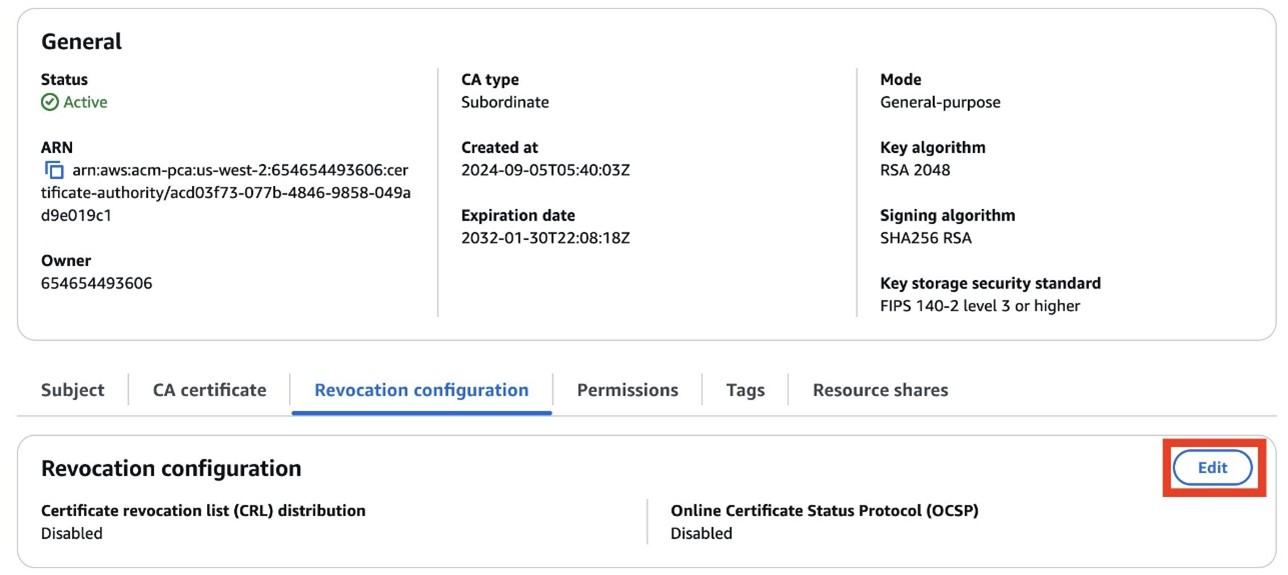
  4. Choose Edit on the top right.
  5. Figure 1: Edit the revocation configuration

    Figure 1: Edit the revocation configuration

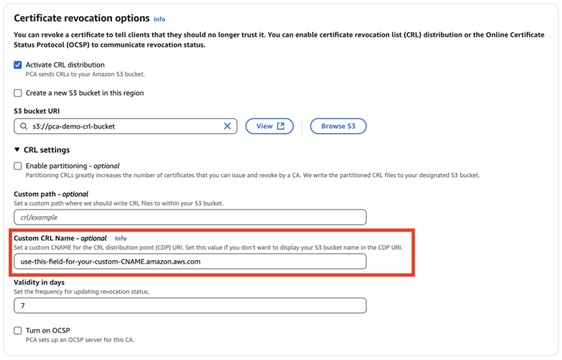
  6. Select Activate CRL distribution. Select the CRL S3 bucket you created prior to the walkthrough.
  7. Figure 2: Enter a name for your CRL

    Figure 2: Enter a name for your CRL

  8. Modify the CDP by expanding the CRL settings dropdown. In the Custom CRL Name field, enter the URL where you will eventually move the CRL. This should be a place that is accessible by your internal organization, but not accessible externally. If you use partitioned CRLs, select the Enable partitioning checkbox. To learn more about CRL partitioning, see Plan your AWS Private CA certificate revocation method.
  9. Choose Save changes.

To create an SNS topic and Lambda function:

  1. Go to the Amazon SNS console.
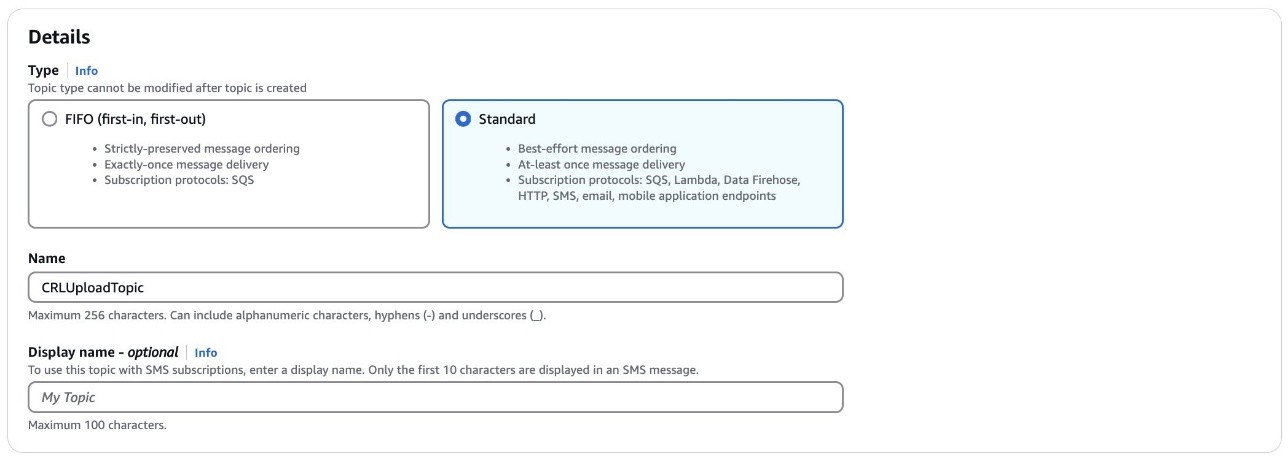
  2. Create a standard SNS topic. Leave all options as default and subscribe an appropriate email to the topic.
  3. Figure 3: Create an SNS topic

    Figure 3: Create an SNS topic

  4. Go to the Lambda console.
  5. Choose Create Function.
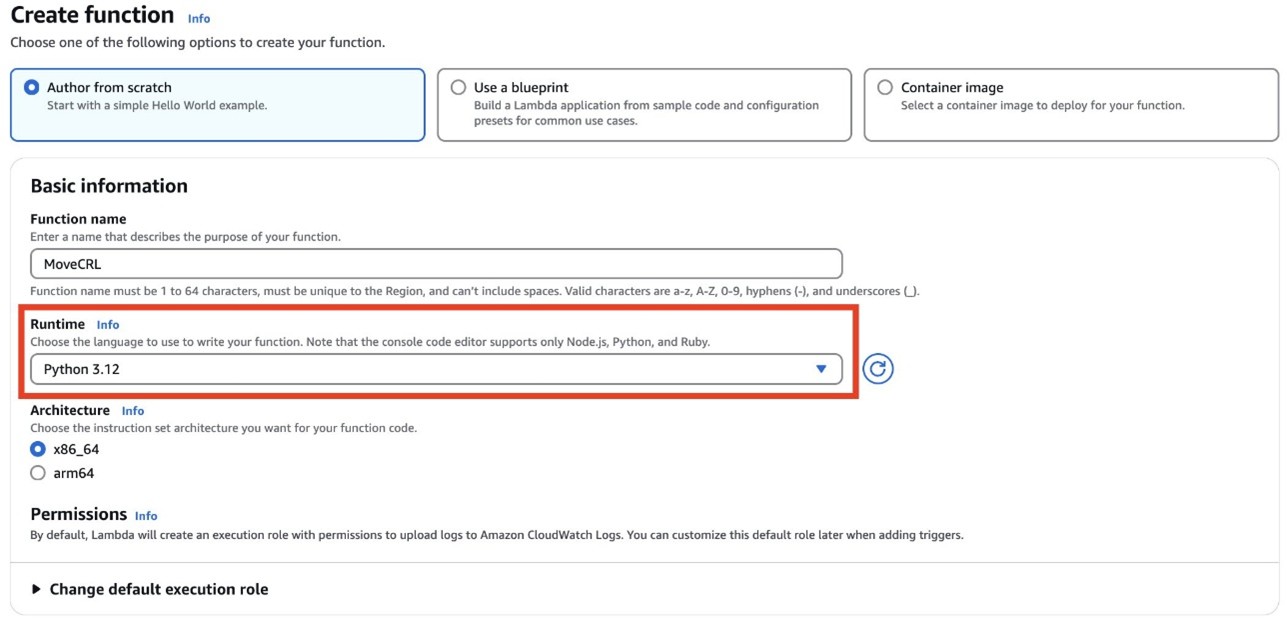
  6. Enter a name for your function. Under Runtime, select Python 3.12 from the dropdown.
  7. Figure 4: Create a Lambda function

    Figure 4: Create a Lambda function

  8. Verify that the role associated with your Lambda function has permissions to get objects from the S3 bucket where AWS Private CA places the CRL (set when you configured the revocation details for the CA), copy objects in Amazon S3, then put objects in an S3 bucket (or wherever the new CRL distribution point specified in the certificate custom CNAME will be—for example, an internal-only accessible location), and publish to an Amazon SNS topic. The Lambda function also checks the success metric of a CRL generation event. If the event fails, an SNS topic will notify an admin. If the event is successful, a copy of the CRL in the original S3 bucket is created in the new specified location and an SNS topic will notify an admin.

Example code (Python 3.13):

import boto3 
import json 

def lambda_handler(event, context):     
	#create a s3 client     
	s3 = boto3.client('s3')          

	#create a sns client     
	sns = boto3.client('sns')     
    topicArn = "<sns-topic-arn-here>”     
    
    #get name of the CA from the CW event     
    caID = event['resources'][0].split('/')[-1]          
    status = event['detail']['result']     
    if status == 'success':              
    	
        source = '<ORIGINS3BUCKET>'         
        destination = '<DESTINATION-S3BUCKET>'         
        #See below note for more clarification on S3 CRL paths         
        folder = 'crl/'         
        file = caID + '.crl'         
        key = folder + file              
        
        try:             
        	copySource = {                 
            	'Bucket': source,                 
                'Key': key             
           	}                      
            
            s3.copy_object(                 
            	CopySource=copySource,                 
                Bucket=destination,                 
                Key=file             
          	)             
            response = sns.publish(                 
            	TopicArn=<sns-topicArn>,                 
                Message=f'Successfully moved {key} from {source} to {destination} in {caID}',                 
                Subject="CRL Upload Success"             
          	)                      
            
            return {                 
            	'statusCode': 200,                 
                'body': json.dumps(f'Successfully moved {key} from {source} to {destination} in {caID}')             
          	}                  
    	
        except s3.exceptions.NoSuchKey:             
        	response = sns.publish(                 
            	TopicArn=<sns-topicArn>,                 
                Message=f"Object {key} not found in {source}",                 
                Subject='CRL Upload Failure'             
          	)             
            return {                 
            	'statusCode': 404,                 
                'body': json.dumps(f'Object {key} not found in {source}')             
          	}                  
   		except Exception as e:             
    		print(e)             
        	response = sns.publish(                 
        		TopicArn=<sns-topicArn>,                 
            	Message=f'Error moving object: {str(e)}',                 
            	Subject='Failure Uploading CRL'             
     		)             
			return {                 
    			'statusCode': 500,                 
        		'body': json.dumps(f'Error moving object: {str(e)}')             
  			}     
    else:         
    	response = sns.publish(                 
        		TopicArn=<sns-topicArn>,                 
            	Message=f'Certificate Authority {caID} CRL creation {status}',                 
            	Subject='CRL Upload Failure'             
     		)         
        return {             
        	'statusCode': 200,             
            'body': json.dumps(f'Certificate Authority {caID} CRL creation {status}')         
      	}

Note: By default, the non-partitioned CRL path in S3 is <s3-bucket-name>/crl/<CA-ID>.crl. If you used a custom path, modify the path name to the CRL accordingly. Alternatively, if using partitioned CRLs, the path changes to <s3-bucket-name>/crl/<CA-ID>/<partition_GUID>.crl; in that case, you can loop over each file in the <CA-ID> path to achieve the same effect.

To create an EventBridge that deploys your Lambda function:

  1. Go to the EventBridge console. Under Buses, select Rules.
  2. Choose Create Rule.
  3. Enter a name for your rule. Under Rule Type, select Rule with an Event Pattern and choose Next.
  4. Under Events, select AWS events or EventBridge partner events as the Event Source.
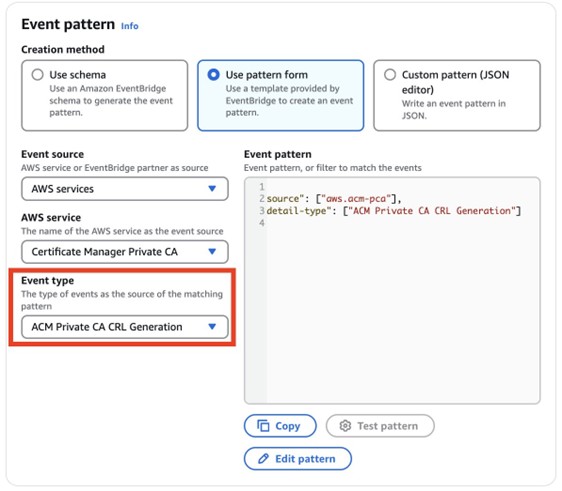
  5. For the Event pattern, select Use pattern form. For the Event source, select AWS services. For Event Type, select ACM Private CA CRL Generation.
Figure 5: Configure the event pattern

Figure 5: Configure the event pattern

  1. Choose Next.
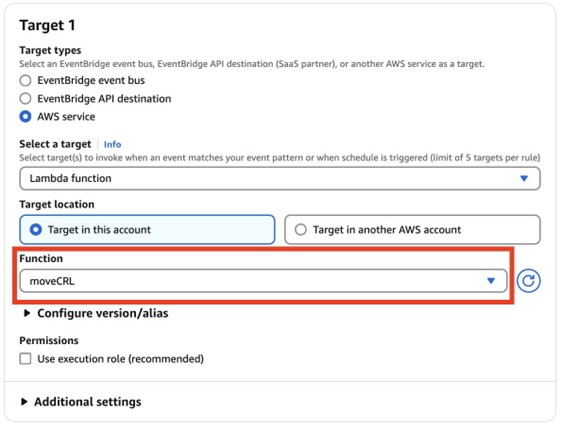
  2. Under Target types, choose AWS Service, and then select Lambda function from the Select a target dropdown and select the function that you created earlier.
  3. Figure 6: Select the Lambda function as the target

    Figure 6: Select the Lambda function as the target

  4. Choose Next. Review your topic, then choose Update rule.
  5. To test the success of the Lambda function:

    1. To test the EventBridge topic, create and revoke a certificate. You can do this using the AWS CLI by getting the serial number of a certificate using openSSL:
      openssl x509 -in cert.pem -noout -serial
    2. Use the following command to revoke the certificate:
      aws acm-pca revoke-certificate —certificate-authority-arn <CA ARN> \ —certificate-serial <SERIAL NUMBER RETURNED IN STEP 1> --revocation-reason “UNSPECIFIED”
    3. To make sure that the Lambda function is triggered, wait 5–30 minutes. Check CloudTrail to make sure that RevokeCertificate was called, then monitor the CloudWatch log of the Lambda function. You should also get a notification message from your SNS topic.
    4. You have now successfully moved your CRL to a new location.

    Option 2: Implement Private CRL Access Through AWS Private CA

    This solution provides private Certificate CRL access within AWS Private CA, avoiding the need for public internet exposure. The design centers on establishing root and subordinate CAs with CRL functionality enabled within a dedicated S3 bucket, combined with a private network infrastructure using Gateway VPC endpoints and private subnets. Security is enforced through an S3 bucket policy that accomplishes three critical objectives:

    • Authorizing essential AWS Private CA permissions
    • Constraining CRL access to a designated Gateway VPC endpoint
    • Explicitly blocking access attempts from other sources.

    The solution includes private DNS zone configuration for proper resolution and can be verified through access testing confirming successful CRL retrieval from private VPC instances while making sure that requests from public instances are denied, maintaining a strictly private PKI.

    1. Create a root CA and subordinate CA with CRL enabled
    2. Configure a dedicated S3 bucket for CRL storage
    3. Issue private certificates through ACM
    4. Set up a VPC with private subnets
    5. Configure a Gateway VPC endpoint for Amazon S3
    6. Set up route tables for local traffic only
    7. Implement an S3 bucket policy with specific permissions
    8. Configure private DNS resolution
    9. Set up access controls through VPC endpoints
    10. Test private access from within the VPC
    11. Verify that public access is blocked

    Prerequisites for CRL solution 2

    For this walkthrough, you must have the following resources available:

    Deploy CRL solution 2

    With the prerequisites in place, you’re ready to use the console and AWS CLI to deploy the solution.

    To deploy the solution:

    1. Go to the AWS Private Certificate Authority console.
    2. In the navigation pane, choose Create a Private CA.
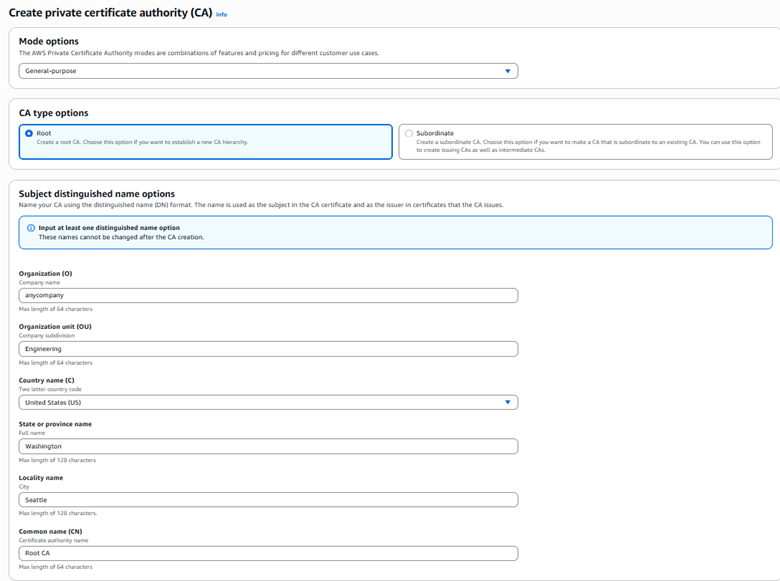
      1. Under Mode options, select General-purpose.
      2. For CA type options, select root.
      3. For the Subject distinguished name options: Fill in at least one of the subject distinguished name options: Organization(O), Organization unit (OU), Country(C), State, Locality name, and Common name (CN).
        Figure 7: Create a private CA (root)

        Figure 7: Create a private CA (root)

      4. Select Key algorithm options, for example, RSA 2046.
      5. Under Certificate revocation options, select Activate CRL Distribution, and select or create an S3 bucket for CRL storage.
      6. Under Pricing, select the checkbox to acknowledge pricing and then select Create CA.
    Figure 8: Configure a private CA (root)

    Figure 8: Configure a private CA (root)

    3. After creating a root CA, repeat all of step 2 to create a subordinate CA, selecting
    Subordinate CA under
    CA options (step 2-b). When completed, both the root CA and subordinate CA will be visible on the Private certificate authority page.

    Figure 9: View of root CA and subordinate CA

    Figure 9: View of root CA and subordinate CA

    With the root CA and subordinate CA in place, the next step is to create a VPC gateway endpoint for S3 access to enable private network communication.

    To create a VPC gateway endpoint:

    1. Go to the Amazon VPC console
    2. In the left navigation pane, select Endpoints, and choose Create Endpoint.
    3. Configure the Gateway VPC endpoint settings:
      1. Enter a descriptive name for your endpoint (optional).
      2. Type: Select AWS services.
      3. Services: Select the service name com.amazonaws.[region].s3 from the list.
      4. Type: Verify that Gateway is selected (automatically chosen for Amazon S3).
      5. VPC: Choose the VPC where you want to create the endpoint.
      6. Route tables: Select the route tables associated with the subnets that need Amazon S3 access.
      7. Policy: Select Full Access or create a custom policy to restrict access to specific S3 buckets or actions.
      8. Review your configuration and choose Create endpoint.
    Figure 10: Gateway VPC endpoint configuration

    Figure 10: Gateway VPC endpoint configuration

    1. Create two private subnets:
      1. In the Amazon VPC console, choose Subnets and then Create subnet.
      2. Select your VPC and enter the subnet details (name, Availability Zone, and CIDR block).
      3. Repeat for the second subnet in a different Availability Zone.
    2. Configure route tables:
      1. Navigate to Route Tables and choose Create route table.
      2. Create and name two route tables for your private subnets.
      3. Associate each route table with its corresponding private subnet.
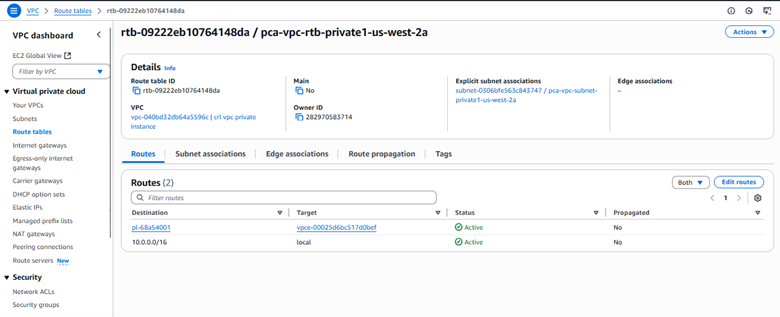
      4. Make sure that each route table contains only local routes (VPC CIDR).
      5. Remove any routes for internet access (0.0.0.0/0).
    Figure 11: Private route table configuration

    Figure 11: Private route table configuration

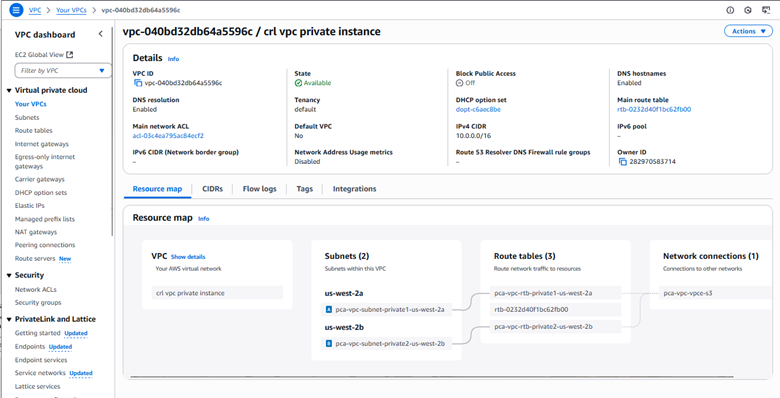
    1. You can see now see under Resource Map that the Gateway VPC endpoint provides secure access to Amazon S3 resources within the private network.
    Figure 12: VPC private instance configuration

    Figure 12: VPC private instance configuration

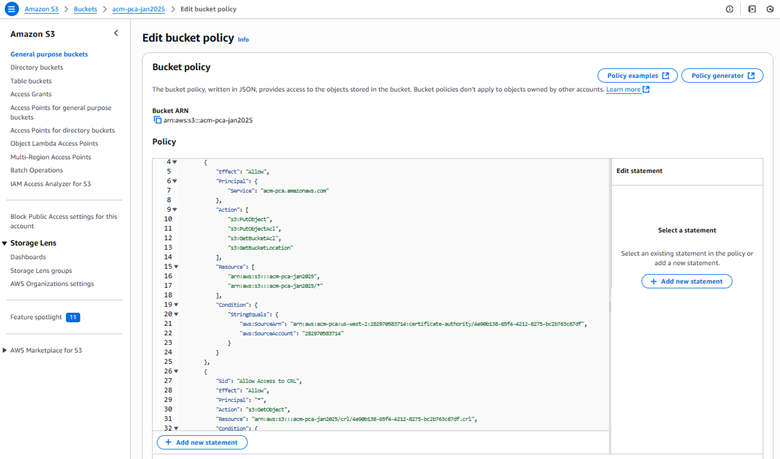
    1. Use the following example code to implement a bucket policy that enforces the following key security controls:
      • Grant AWS Private CA the necessary permissions for certificate management.
      • Restrict CRL access exclusively through the specified VPC endpoint.
      • Explicitly deny GetObject requests not originating from the designated Gateway VPC endpoint.
    Figure 13: S3 bucket policy

    Figure 13: S3 bucket policy

    The following is an example S3 bucket policy for private CA CRL access with VPC endpoint restrictions:

    {     
        "Version": "2012-10-17",     
        "Statement": [         
            {             
                "Effect": "Allow",             
                "Principal": {                 
                    "Service": "acm-pca.amazonaws.com"             
                    },             
                "Action": [                 
                    "s3:PutObject",                 
                    "s3:PutObjectAcl",                 
                    "s3:GetBucketAcl",                 
                    "s3:GetBucketLocation"             
                ],             
                "Resource": [                 
                    "<arn:aws:s3:::BUCKET_NAME>",                 
                    "<arn:aws:s3:::BUCKET_NAME>/"           
                ],           
                "Condition": {               
                    "StringEquals": {                   
                        "aws:SourceArn": "<arn:aws:acm-pca:REGION:ACCOUNT_ID:certificate-authority/CA_ID>",                   
                        "aws:SourceAccount": "<ACCOUNT_ID>"               
                        }           
                }       
            },       
            {           
                "Sid": "Allow Access to CRL",           
                "Effect": "Allow",            
                "Principal": "",             
                "Action": "s3:GetObject",             
                "Resource": "<arn:aws:s3:::BUCKET_NAME/crl/CA_ID.crl>",             
                "Condition": {                 
                    "StringEquals": {                     
                        "aws:SourceVpce": "<VPCE_ID>"                 
                        }             
                }         
            },         
            {             
                "Sid": "Access-to-specific-VPCE-only",             
                "Effect": "Deny",             
                "Principal": "",            
                "Action": "s3:GetObject",           
                "Resource": [               
                    "<arn:aws:s3:::BUCKET_NAME>",               
                    "<arn:aws:s3:::BUCKET_NAME>/"             
                ],             
                "Condition": {                 
                    "StringNotEquals": {                     
                        "aws:SourceVpce": "<VPCE_ID>"                 
                        }             
                }         
            }     
        ] 
    }

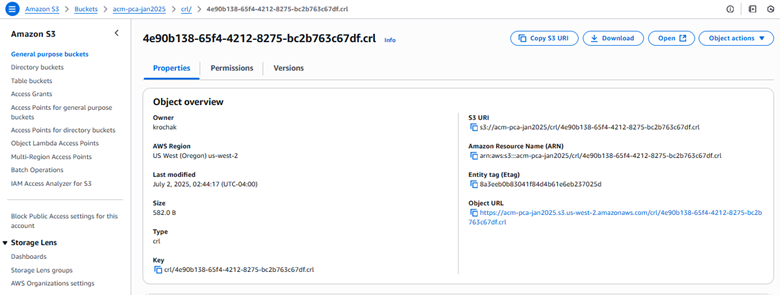
    Figure 14: S3 bucket CRL properties

    Figure 14: S3 bucket CRL properties

    Create a private hosted zone:

    1. Go to the Route 53 console.
    2. In the left navigation pane, choose Hosted zones.
    3. Choose Create hosted zone.
    4. Configure the following:
      1. Domain name: Enter s3.amazonaws.com
      2. Description: (optional) enter Private hosted zone for S3 CRL endpoint
      3. Type: Select Private hosted zone.
      4. VPC: For Region, select your VPC’s Region; for VPC ID, select your VPC from the dropdown list.
    5. Choose Create hosted zone.

    Create a record set:

    1. Inside your new private hosted zone:
      1. Choose Create record.
      2. Select Simple routing policy.
      3. Choose Next.
    2. Configure record:
      1. Record name: Enter your S3 bucket name.
      2. Record type: Select A – Routes traffic to an IPv4 address.
      3. Alias: Toggle Yes.
      4. Route traffic to: Select Alias to S3 website endpoint.
      5. Region: Select your Region.
      6. S3 endpoint: Select from dropdown list.
      7. TTL: Leave as default (300 seconds).
    3. Choose Create record.
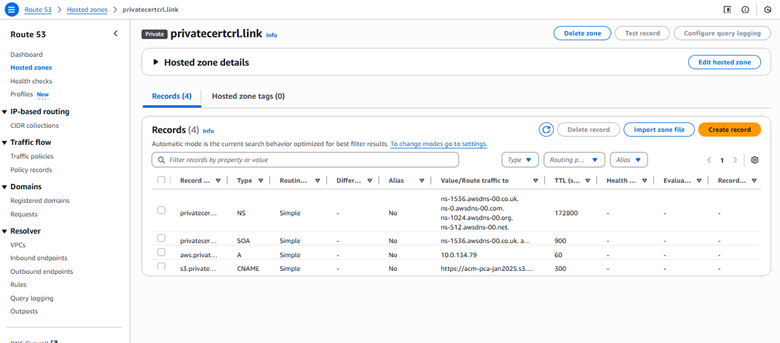
    Figure 15: Hosted zone details

    Figure 15: Hosted zone details

    Verify configuration:

    1. Go to the Amazon EC2 console and choose Launch instance.
    2. Select Amazon Linux 2.
    3. Choose Instance Type.
    4. Select you VPC and subnet.
    5. Under Network settings, select Create security group, then choose Allow SSH traffic from and enter your IP address.
    6. Choose Launch instance.
    7. After the instance is launched, select the instance and choose Connect.
    8. Select EC2 Instance Connect and choose Connect.

    Test the solution

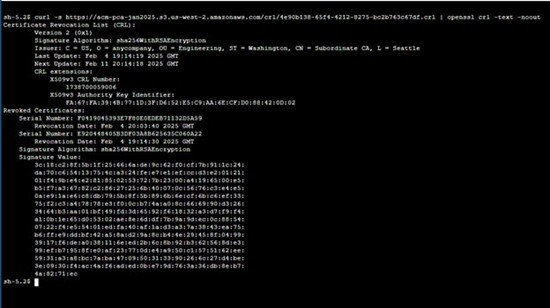
    To test private access from an EC2 instance within your private VPC, verify CRL access using:
    curl -s https://<bucket-name>.s3.<region>.amazonaws.com/crl/<certificate-id>.crl | openssl crl -text -noout

    If successful, the command completes the following steps, as shown in Figure 16:

    1. Retrieves the CRL from Amazon S3
    2. Decodes it using OpenSSL
    3. Displays comprehensive CRL information including issuer details, update timestamps, revoked certificate list, signature algorithm, and other metadata
    Figure 16: Public access verification

    Figure 16: Public access verification

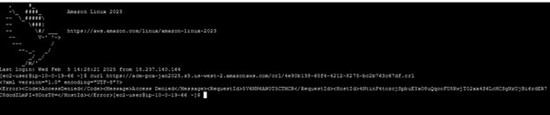
    To validate your security controls, attempt access from a public EC2 instance using the following command:
    curl https://<bucket-name>.s3.<region>.amazonaws.com/crl/<certificate-id>.crl

    This should fail, receiving an access denied error confirming that the CRL cannot be accessed from the public internet, as shown in Figure 17.

    Figure 17: Access denied error confirming that the CRL cannot be accessed from the public internet

    Figure 17: Access denied error confirming that the CRL cannot be accessed from the public internet

    Conclusion

    In this post, we walked you through two solutions that you can use to make your CRLs accessible to your internal organization, but not publicly available. First, we showed you how to configure a custom CNAME in your CRL distribution point and deploy Lambda functions to automatically copy each newly generated CRL from the default S3 bucket into a private S3 store.

    Next, we showed you a VPC architecture that uses an Amazon S3 VPC gateway endpoint, tightly scoped bucket policies, and private Route 53 DNS zones to make sure that CRL retrieval is confined to your VPC. We also covered the essential IAM and bucket policies that your clients need to access those CRLs securely. You can get started with setting up this solution on AWS Private CA today.

    If you have feedback about this post, submit comments in the Comments section below. If you have questions about this post, start a new thread on the AWS Certificate Manager forum or contact AWS Support.

Rochak Karki

Rochak Karki

Rochak is a Security Specialist Solutions Architect at AWS, focusing on threat detection, incident response, and data protection helping customers build secure environments. Rochak is a US Army veteran and holds a Bachelor of Science in Engineering from the University of Wyoming. Outside of work, he enjoys spending time with family and friends, hiking, and traveling.

Cheryl Wang

Cheryl is an Associate Security Solutions Architect at AWS based in the SF Bay Area. Cheryl is passionate about cybersecurity and helping customers improve their security infrastructure. She holds a B.A. in Computer Science from Wellesley College. Outside of work, she enjoys writing and playing guzheng.

Automating AWS Private CA audit reports and certificate expiration alerts

Post Syndicated from Santosh Vallurupalli original https://aws.amazon.com/blogs/security/automating-aws-private-ca-audit-reports-and-certificate-expiration-alerts/

Today’s organizations rely heavily on secure and reliable communication channels and digital certificates play a crucial role in securing internal and external-facing infrastructure by establishing trust and enabling encrypted communication. While public certificates are commonly used to secure internet applications, many organizations prefer private certificates for internal resources to maintain confidentiality and enable custom configurations that public certificates don’t support. AWS Private Certificate Authority (AWS Private CA) offers a comprehensive solution to create and manage private certificate hierarchies within an organization’s public key infrastructure (PKI). AWS handles the heavy lifting of certificate authority (CA) management, allowing organizations to issue certificates for various use cases, including creating encrypted communication channels, authenticating clients, and cryptographically signing code. These certificates remain trusted within the organization, helping to ensure internal security without exposing them to the public internet.

AWS Certificate Manager (ACM) and AWS Private CA provide robust tools to issue and manage certificates seamlessly within AWS. However, as workloads evolve—spanning cloud native microservices, containerized environments, and hybrid edge deployments—the default certificate configurations might not meet every need. For instance, private TLS certificates requested using ACM come with a fixed 13-month validity period, which ACM tracks and renews automatically. But what if your organization requires certificates with custom validity periods such as short-lived certificates for ephemeral containers or certificates with extended durations for your on-premises systems? This is a common scenario for enterprises using modern architectures. You can gain significant advantages by creating and updating your certificates through AWS Command Line Interface (AWS CLI) or AWS SDKs. These powerful tools offer enhanced flexibility and integrate seamlessly with existing workflows.

Taking this efficiency even further, you can optimize your certificate management by bypassing the AWS Management Console, using the AWS CLI or SDK to generate certificates programmatically through their custom PKI pipelines.

You can use this automation-friendly approach to maintain full control over your certificate lifecycle, though it’s worth noting that ACM doesn’t inherently track the expiration of certificates that are issued using the acm-pca:IssueCertificate API, and aren’t requested using ACM. Lack of oversight on certificate expiration can lead to operational disruptions and compromise the accessibility of your applications. The AWS Private CA offers a powerful option to address this gap: the Generate audit report optionThis option produces a detailed report of the certificates issued by your certificate hierarchy—including their expiration dates—regardless of how they were generated. However, with organizations managing vast numbers of certificates across multiple certificate hierarchies, manual report generation and review becomes impractical and unsustainable.

In this blog post, we guide you through a custom automation workflow that harnesses AWS Private CA audit reports to monitor certificate expirations proactively. The solution uses Amazon EventBridge, AWS Lambda, Amazon Simple Storage Service (Amazon S3), Amazon Simple Notification Service (Amazon SNS), and AWS Security Hub to generate daily reports, review them for expiring certificates, notify stakeholders, and generate log findings for centralized visibility. We’ve also included an AWS CloudFormation template to deploy this solution in your AWS environments, complete with step-by-step instructions. This approach can help ensure that you stay ahead of certificate expirations.

The challenge: Certificate management beyond the defaults

To understand why this solution matters, let’s explore the evolving needs of certificate management.

Certificates requested using ACM that are issued by your private CA through the console default to a 13-month validity period; a reasonable middle ground for many workloads. ACM tracks these certificates, monitors their expiration, and even automates renewals. This hands-off approach works well for standard cloud applications, but modern IT environments are rarely standard because of the diverse requirements of real-world use cases.

Consider these real-world examples:

  • Short-lived certificates: in containerized environments running on EKS or Amazon Elastic Container Service (Amazon ECS) certificates with validity periods of a few hours or days are increasingly common. Service meshes like Istio or Linkerd rely on short-lived certificates to secure pod-to-pod communication, reducing the threat surface if a key is compromised. A 13-month certificate might not be optimal for this use case.
  • Long-lived certificates: On the other hand, some workloads—often found in traditional or resource-constrained environments—benefit from certificates with extended validity periods. For instance, systems deployed in locations with unreliable or restricted network access might require longer-lived certificates to minimize the challenges of frequent renewals, which could disrupt operations or require manual intervention. Likewise, infrastructures running critical applications with minimal automation might lean towards multi-year certificates to reduce the administrative burden and maintain consistent security over time. In such cases, long-lived certificates offer a dependable solution, balancing security needs with operational simplicity and minimizing the frequency of maintenance tasks.

To address these needs, many organizations turn to their own continuous integration and delivery (CI/CD) pipelines and custom automation using AWS Private CA and ACM. Using AWS CLI or SDKs, you can use AWS Private CA to issue certificates that have custom validity periods tailored to their workload requirements.

Extending certificate monitoring beyond ACM integrated services

Even if certificates aren’t requested using ACM, you can optionally re-import the certificates into ACM. After the certificates have been imported, ACM begins tracking and monitoring them. However, you have the flexibility to decide which certificates to import. Certificates that aren’t imported into ACM will not be tracked by the service. These certificates won’t appear in the ACM console, their expiration events won’t trigger Amazon CloudWatch Logs and managed renewals of these certificates aren’t supported by ACM.

Without a centralized view, you must manually monitor expiration dates, a task that quickly becomes unmanageable as certificate volume grows. An expired certificate can lead to downtime (for example, a load balancer rejecting traffic). This is where the ability to generate an audit report from AWS Private CA can help you. It provides a comprehensive list of all the certificates issued by your CA, including serial numbers, issuance dates, and expiration dates. However, generating this report manually using the console and reviewing it daily isn’t scalable.

In the following section, we show you how to set up a more scalable, automated solution that will notify you when certificates need to be renewed.

Prerequisites

For this walkthrough, you need to have the following:

  • An AWS account
  • A private CA from AWS Private CA
  • An externally created certificate imported into ACM

Solution overview

This audit generation solution provides an automated, scalable, and integrated approach to generating and analyzing audit reports for certificates issued by AWS Private CA. It uses AWS services to monitor certificate statuses, detect impending expirations, and notify administrators while integrating findings into Security Hub for centralized security monitoring. The solution helps ensure timely awareness of expiring certificates; enhancing compliance and operational security.

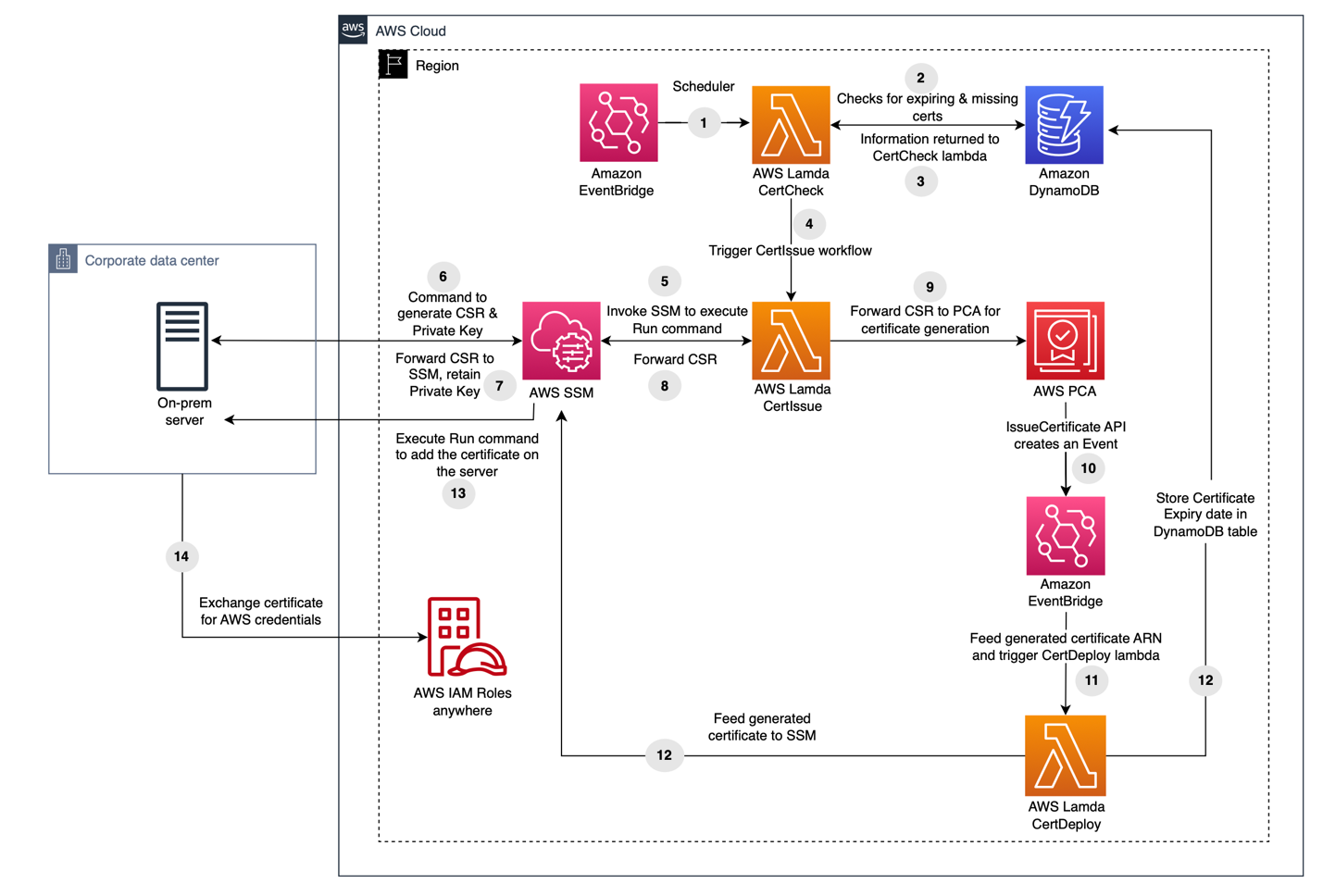
The following figure shows the solution architecture. The process begins with an EventBridge rule (PCAReportRule) that triggers the audit report generation on a user-defined schedule (for example: daily). This rule invokes the first of the two Lambda functions: PCAauditReportLambdaGenerator. This function interacts with the AWS boto3 SDK to generate an audit report, capturing details of issued certificates. The report is formatted as a CSV file (with optional JSON support configurable in the Lambda function) and stored in a designated S3 bucket. To simulate expiration alerts for demonstration purposes, certificates can be issued with a validity period of less than 30 days, as opposed to the default 13-month validity of AWS Private CA certificates.

Figure 1: Solution architecture

Figure 1: Solution architecture

After the audit report is uploaded to the S3 bucket, an S3:PutObject event notification triggers the second Lambda function, PCAAuditReportLambdaProcessor. This function downloads the most recent report, parses the data in the CSV file, and analyzes the details to identify certificates that are expiring within the 30-day threshold. Upon identifying expiring certificates, the function sends a consolidated notification using an Amazon SNS topic PCASNSTopic, which supports subscriptions such as an email or an optional Amazon Simple Queue Service (Amazon SQS) queue for further processing. Simultaneously, the function integrates findings into Security Hub, providing a centralized view of expiring certificates for compliance tracking and security monitoring.

The architecture is deployed using a CloudFormation template, automating the setup of the core components—EventBridge, Lambda functions, an S3 bucket, an SNS topic, and Security Hub integration—into a cohesive system. Security Hub serves as a cloud security posture management service that provides organizations with a consolidated view of their security alerts and compliance status across your AWS accounts. It functions as a central dashboard where security data from various sources and AWS services is aggregated, enabling automatic assessment of resources against established security standards while helping teams prioritize security concerns throughout their environment. This design helps ensure scalability, flexibility, and minimal manual intervention, enabling users to modify the Lambda functions to support additional report formats (such as JSON) or adjust notification thresholds as required. It’s also worth noting that you can generate a report every 30 minutes.

Deploy the solution

With the prerequisites in place and an understanding of the architecture, you’re ready to deploy and test the automation workflow and run an audit report on-demand.

Deploy the CloudFormation template

  1. To get started, clone the following GitHub repo.
    ~ $ curl -O https://aws-security-blog-content.s3.us-east-1.amazonaws.com/public/sample/2526-monitor-private-ca-issued-certificates-aws-private-certificate-authority-eventbridge/ACM-PCA-Monitoring-cfn.yml  
    
    ~ $ ls 
    ACM-PCA-Monitoring-cfn.yml
    

    The ACM-PCA-Monitoring-cfn.yml CloudFormation template includes the following parameters, which allow you to customize the deployment:

    • CertificateAuthorityArn: The Amazon Resource Name (ARN) (<ARN_of_your_PrivateCA>) of your pre-existing private CA for which the audit report is generated.
    • S3BucketName: A new S3 bucket (<Name_of_s3_bucket>) where the audit report will be stored.
    • EventBridgeRuleName: The name of the EventBridge rule (<Name_of_EventBridgeRule>) to trigger the Lambda function (default value: PCAReportRule).
    • CronJobExpression: A cron expression (<Frequency_of_running_evaluation>) to define the schedule for report generation (default value: cron(0 21 * * ? *)).
    • SNSName: The name of a new Amazon SNS topic (<Name_of_SNS_Topic>) for expiration alerts (default value: PCASNSTopic).
    • SQSName: The name of a new Amazon SQS queue (<Name_of_SQS>) for expiration alerts (default value PCASQS).
    • EmailAddress: The email address for receiving notifications (<Email_to_Receive_alerts>).
    • CertificateExpirationThreshold: The threshold value in days (<Expiration_threshold_in_days>) to monitor for your certificate’s expiration (default value: 30).
  2. Run the following command to create the CloudFormation stack. Stack creation will take 2–3 minutes to complete.
    aws cloudformation create-stack \
    --stack-name PCAMonitoringWorkflow \
    --template-body file://ACM-PCA-Monitoring-cfn.yml \
    --capabilities CAPABILITY_NAMED_IAM \
    --parameters '[
        {"ParameterKey": "CertificateAuthorityArn", "ParameterValue": "<ARN_of_your_PrivateCA>"},
        {"ParameterKey": "S3BucketName", "ParameterValue": "<Name_of_s3_bucket>"},
        {"ParameterKey": "EventBridgeRuleName", "ParameterValue": "<Name_of_EventBridgeRule>"},
        {"ParameterKey": "CronJobExpression", "ParameterValue": "<Frequency_of_running_evaluation>"},
        {"ParameterKey": "SNSName", "ParameterValue": "<Name_of_SNS_Topic>"},
        {"ParameterKey": "SQSName", "ParameterValue": "<Name_of_SQS>"},
        {"ParameterKey": "EmailAddress", "ParameterValue": "<Email_to_Receive_alerts>"},
        {"ParameterKey": "CertificateExpirationThreshold", "ParameterValue": "<Expiration_threshold_in_days>"}
    ]'


  3. When stack creation is complete, you’ll get an email asking you to confirm your subscription to the specified SNS topic from the previous step.
    Figure 2: Sample notification email sent by Amazon SNS

    Figure 2: Sample notification email sent by Amazon SNS

Test the automation workflow

  1. Test the automation workflow by creating a private certificate that will trigger your expiration alert system. To do this, you’ll generate a private certificate using your private CA with an intentionally short expiration period. The certificate should expire before the threshold you set in the CloudFormation template (the default is 30 days). For example, if you kept the default 30-day threshold, the following code will generate a certificate that expires in 20 days, which should trigger the notification system:
    #Generate a Private Key
    ~ $ % openssl genrsa -out private-key.pem 2048
    
    #List the private key
    ~ $ % ls 
    private-key.pem
    
    #Generate a Certificate Signing Request (CSR)
    ~ $ % openssl req -new -key private-key.pem -out csr.pem -subj "/C=US/ST=Ohio/L=Columbus/O=MyOrg/OU=IT/CN=mydomain.com"
    
    
    #Issue a Certificate
    ~ $ % aws acm-pca issue-certificate --certificate-authority-arn <specify_arn_of_PrivateCA> --csr "$(cat csr.pem | base64 | tr -d '\n')" --signing-algorithm "SHA256WITHRSA" --validity Value=20,Type="DAYS"
    
    {
     "CertificateArn": "arn:aws:acm-pca:us-east-2:XXXXXX:certificate-authority/7574de75-e5fd-47d0-a4e2-3afc3c0ba4b3/certificate/87980cc7a1cca819dd9082e6cd360c65"
    }
    
    
    #Retrieve the Issued Certificate
    ~ $ % aws acm-pca get-certificate --certificate-authority-arn <specify_arn_of_PrivateCA> --certificate-arn <specify_arn_of_Certificate_generated_above> --output text > certificate.pem
    

Note: You’ll receive alerts for all certificates that are approaching expiration, even for certificates that are requested using ACM, which support managed renewal. You can compare the ARN of the expiring certificate to your list of requested certificates in the ACM console, or to the results of the acm:ListCertificates API.

With the audit report infrastructure deployed and a test certificate created within your expiration threshold, the next step is to trigger the automation workflow to generate and process the audit report.

Run an audit report on-demand

To test the EventBridge rule PCAReportRule, you’ll temporarily modify it to run every 30 minutes. When you’re done testing, you can revert it back to the original scheduled that you specified in the CloudFormation template parameters.

  1. In the Amazon EventBridge console, choose Rules in the navigation pane. Select PCAReportRule and then choose Edit rule.
  2. Select Define schedule.
    1. Under Schedule pattern, select A schedule that runs at a regular rate…
    2. Under Rate expression, for Value enter 30, and for Unit, select Minutes.
    3. Choose Next.
    Figure 3: Edit the schedule of PCAReportRule for the test

    Figure 3: Edit the schedule of PCAReportRule for the test

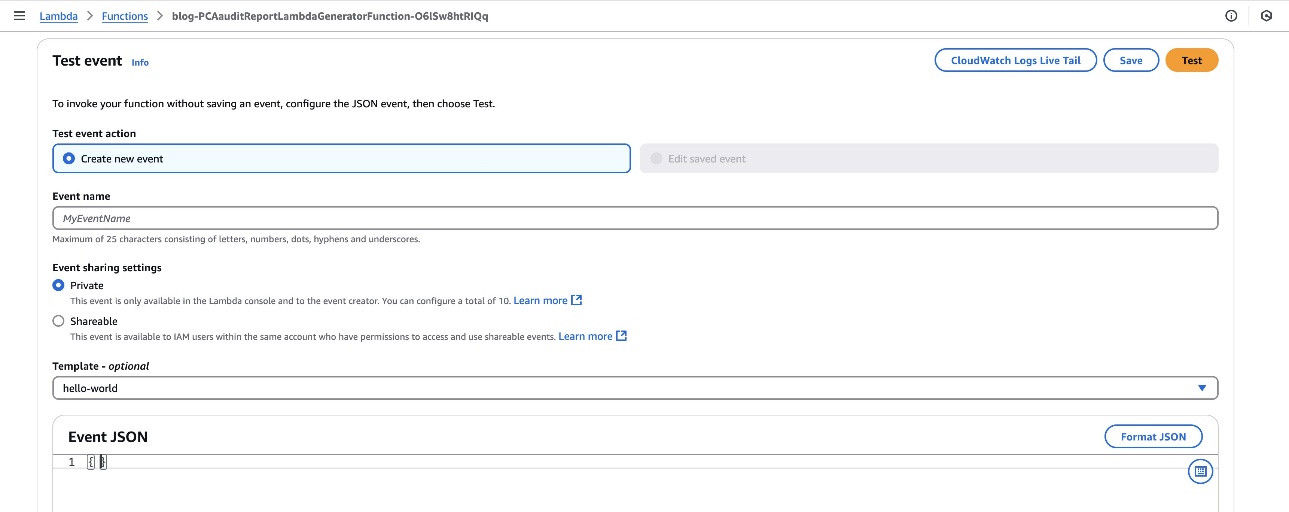
  3. For an immediate test, you can also trigger this workflow from the Lambda console.
    1. In the Lambda console, choose Functions in the navigation pane, and then select the PCAauditReportLambdaGenerator Lambda function.
    2. Choose the Test tab, leave the default values for the Event JSON.
    3. Choose Test at the top of the window.
    Figure 4: Use the console to trigger a test

    Figure 4: Use the console to trigger a test

  4. This Lambda function generates an AWS Private CA audit report and saves it to the specified S3 bucket at the audit-report prefix. To verify this, navigate to the Amazon S3 console and choose Buckets from the navigation pane.
  5. Select the bucket that you created when you ran the CloudFormation template and verify the reports in the audit-report folder.
    Figure 5: The audit report is saved to the specified S3 bucket

    Figure 5: The audit report is saved to the specified S3 bucket

  6. When an audit report is uploaded to the S3 bucket, it automatically triggers the PCAAuditReportLambdaProcessor Lambda function through S3 event notifications. The function analyzes the audit report to identify any certificates approaching expiration. If certificates are found that will expire within the specified threshold (30 days by default), the function automatically creates detailed findings in Security Hub for tracking and monitoring purposes. These findings include important details such as the certificate ARN, expiration date, and severity level.
  7. Because you created a test certificate that expires in 20 days (which is within the test threshold), the automation workflow will detect this and generate corresponding findings in Security Hub. To see the results go to the Security Hub console and choose Findings in the navigation pane.
    Figure 6: View the audit report findings in Security Hub

    Figure 6: View the audit report findings in Security Hub

  8. After creating Security Hub findings, the Lambda function sends detailed certificate expiration alerts through Amazon SNS. You’ll receive an email notification at the address you provided in the CloudFormation parameters. The email will contain important information about the certificates approaching expiration, including their ARNs and exact expiration dates. Here’s an example of the email notification format
    Figure 7: Sample notification email sent by Amazon SNS

    Figure 7: Sample notification email sent by Amazon SNS

Conclusion

Certificate management is crucial for maintaining security across modern workloads, and AWS Private CA plays a vital role in issuing certificates with custom validity periods. The solution in this post delivers a robust, automated approach to certificate lifecycle management by seamlessly integrating several AWS services.

The solution combines Amazon EventBridge for scheduled execution of audit reports, AWS Lambda for automated processing and analysis, Amazon S3 for secure storage of audit reports, Amazon SNS for immediate notification delivery, and AWS Security Hub for centralized monitoring and tracking. This powerful integration creates a comprehensive automation workflow that actively monitors certificate expirations and provides timely alerts across your cloud, hybrid, and edge deployments.

By implementing this CloudFormation template, you can:

  • Automate the generation and processing of AWS Private CA audit reports at scheduled intervals
  • Receive immediate notifications when certificates approach their expiration threshold
  • Maintain centralized visibility through detailed Security Hub findings
  • Track certificate lifecycles across your entire infrastructure
  • Help ensure compliance with organizational security policies
  • Minimize the risk of service disruptions due to expired certificates

The solution transforms traditional certificate management from a manual, error-prone process into a streamlined, automated workflow. It provides security teams with the tools they need to proactively manage certificate lifecycles, maintain compliance requirements, and respond quickly to potential certificate-related issues. The automated notifications and centralized monitoring through Security Hub help ensure that no certificate expiration goes unnoticed, allowing teams to take timely action before service disruptions occur.

The result is a scalable, reliable system that simplifies certificate management and strengthens your organization’s overall security posture through consistent monitoring and proactive management of certificate lifecycles.

If you have feedback about this post, submit comments in the Comments section below.

Santosh Vallurupalli

Santosh Vallurupalli

Santosh is a Sr. Solutions Architect at AWS. Santosh specializes in networking, containers, and migrations and enjoys helping customers in their journey of cloud adoption and building Cloud Native solutions for challenging issues. When not working, he likes traveling, watching Formula1 and watching “The Office” in repeat mode.

Manthan Raval

Manthan Raval

Manthan is a Principal Solutions Architect at AWS specializing in the gaming industry, where he helps customers architect secure, high-performance, scalable cloud solutions. Manthan works closely with gaming companies to transform their operations through cloud innovation. He has guided numerous organizations in their cloud transformation journeys, developing robust architectures that drive business value. He shares his knowledge through public speaking, technical workshops, and customer education sessions across the globe.

How to build a CA hierarchy across multiple AWS accounts and Regions for global organization

Post Syndicated from Jiaqing Xue original https://aws.amazon.com/blogs/security/how-to-build-a-ca-hierarchy-across-multiple-aws-accounts-and-regions-for-global-organization/

Building a certificate authority (CA) hierarchy using AWS Private Certificate Authority has been made simple in Amazon Web Services (AWS); however, the CA tree will often reside in one AWS Region in one account. Many AWS customers run their businesses in multiple Regions using multiple AWS accounts and have described the process of creating a CA hierarchy to reflect their organizational structure as complex. This blog post guides you through building a two-level CA hierarchy with CAs in multiple Regions and in multiple accounts.

Certificates, like those provided through AWS Private CA, are usually used to establish encrypted network connections to meet security requirements of an organization’s data, such as database connections. For example, a software as a service (SaaS) company headquartered in Singapore that offers managed database services to users across multiple Regions, such as Oregon (us-west-2), Singapore (ap-southeast-1), and Tokyo (ap-northeast-1). To comply with the regulatory requirements of various countries and Regions, the company needs to build a CA hierarchy with a root CA located in Singapore and subordinate CAs distributed globally.

Another example is a large manufacturing company selling millions of Internet of Things (IoT) devices globally that needs to issue certificates to those devices for identity, authentication, and secure network connections. Different device types or business requirements are handled by different teams that have their own independent AWS accounts within the organization. To meet the certificate policy requirements (such as key length, validity period, and so on) for different types of devices, preserve business flexibility, and control the blast radius of risks, these teams use their own CAs to issue certificates. A customer like this needs a CA hierarchy that aligns with its organizational structure. Subordinate CAs should be deployed to the AWS accounts in different business departments, with each department managing its own subordinate CAs. Each device, or end-entity, typically requires a unique certificate, but the number of private certificates each CA will issue is 1,000,000 by default. Because this number is easy to exceed in a mass-production scenario, a CA hierarchy with multiple subordinate CAs can help mitigate this limitation.

In a CA hierarchy, the root CA is responsible for issuing certificates to subordinate CAs, and subordinate CAs are responsible for issuing end-entity certificates. Because the root CA is the root of the trust chain, loss of trust in this CA can mean that the end-entity certificates it issued will become invalid. Therefore, it’s recommended to place the root CA in a dedicated account and apply strict access control and auditing on its usage. We also recommend you strictly limit the scope of use of the root CA. For more best practices, see AWS Private CA best practices and Designing a CA hierarchy.

Key concepts: Certificate template

In AWS Private CA, when you use AWS Command Line Interface (AWS CLI) or AWS APIs to issue a certificate, you need to supply the certificate template Amazon Resource Name (ARN) to specify the X509v3 parameters of the certificate. A certificate template defines what type of certificates can be issued and allows CA administrators to control what certificates are issued and with what attributes. If you provide no ARN, AWS Private CA will automatically apply the EndEntityCertificate/V1 template to issue an end-entity certificate.

AWS Private CA offers certificate templates that encapsulate best practices for the basic constraint values in X509v3 parameters of certificates. For example, if it’s an end-entity certificate, the cA value of Basic constraints in the parameter is False; if issuing a CA certificate, it is necessary to set the cA value in the parameter to True and set the pathLenConstraint according to the level of the CA using this certificate in the CA hierarchy.

When issuing certificates, you must select the appropriate certificate template based on the certificate’s intended purpose. For more information about certificate templates, see Understanding certificate templates.

Journey of a two-level CA hierarchy

Now that you understand the core concepts of a CA hierarchy, we will show you how to use two CAs located in different accounts and different Regions to establish a CA hierarchy and use the subordinate CA to issue an end-entity certificate associated with a web application. In the example, you will create two CAs: one in the Oregon (us-west-2) Region acting as the root CA and the other one in the Singapore (ap-southeast-1) Region acting as the subordinate CA.

The following figure shows what you will build:

Figure 1: Architecture of a two-level CA hierarchy

Figure 1: Architecture of a two-level CA hierarchy

Prerequisites

You need the following prerequisites to build and implement the solution in this post.

  1. Designate two different AWS accounts for creating the hierarchy. In this example, we use one called Root CA account and the another called Subordinate CA account.
  2. Verify that you can sign in to AWS CloudShell in the Root CA account, and verify that your console user or role has the AWS Identity and Access Management (IAM) policy AWSCertificateManagerPrivateCAFullAccess associated or has permissions to create CAs and issue certificates in AWS Private CA.
  3. Verify that you have access to a role in the Subordinate CA account that has appropriate permissions to create CAs in AWS Private CA, issue certificates using AWS Certificate Manager (ACM), and create an Application Load Balancer (ALB) for a sample web application.

Build the hierarchy

With the prerequisites in place, you can start building the hierarchy, including the:

  • Root CA
  • Subordinate CA
  • Subordinate CA certificate
  • End-entity certificate

To build the root CA

  1. In the AWS Management Console of the root CA account, go to AWS Private CA and make sure that you are in the Oregon (us-west-2) Region.
  2. Create a CA according to this guide. Select Root in the CA type options to indicate that it’s a root CA.

    Figure 2: Create root CA

    Figure 2: Create root CA

  3. After creation, the CA will be in Pending certificate status. Finish configuring your CA by choosing Actions and selecting Install CA certificate.

    Figure 3: Root CA in pending certificate status

    Figure 3: Root CA in pending certificate status

  4. The root CA will change to Active status.

    Figure 4: Root CA in active status

    Figure 4: Root CA in active status

To build the subordinate CA

  1. To build the subordinate CA, sign in to your second account designated for this and make sure your Region is different than that of the root CA. For this example, I’m creating this in the Singapore (ap-southeast-1) Region. Similar to the root CA, create a CA in the console and select Subordinate as the CA type options.

    Figure 5: Create a subordinate CA

    Figure 5: Create a subordinate CA

  2. As with the root CA, the subordinate CA is in the Pending certificate state, so you need to install the certificate for it.

    Figure 6: Subordinate CA in pending certificate status

    Figure 6: Subordinate CA in pending certificate status

To issue the subordinate CA certificate

In a CA hierarchy, the certificate of the subordinate CA must be issued by the higher-level CA, which in this case is the root CA. To configure the subordinate CA to be Active, you need to get the certificate signing request (CSR) of the subordinate CA and use the root CA to sign it and issue a certificate for it.

  1. Remaining within the Subordinate CA account, get the CSR of the subordinate CA for signing. In the details page of the subordinate CA, open the Install subordinate CA certificate page by choosing Actions and selecting Install CA certificate, the CSR will be displayed when you select External private CA as the CA type. Export this to a file called sub-ca.csr on your local machine.

    Although the subordinate CA was managed by AWS Private CA, it will be considered as an external private CA because it’s in a different account and a different Region from the root CA.

    Figure 7: Details page of Install subordinate CA certificate

    Figure 7: Details page of Install subordinate CA certificate

  2. In the example scenario, you want the subordinate CA to only issue certificates directly to end-entities, so its certificate must be signed using the SubordinateCACertificate_PathLen0/V1 template on the root CA. This encodes a limitation into the CA that declares that the subordinate CA cannot sign a CSR for another CA.

    To do this, switch to the Root CA account and use CloudShell to run commands with the AWS CLI. Recreate the file sub-ca.csr using a text editor within CloudShell, and then use the following command to issue subordinate CA certificate. Replace the root-ca-arn with the ARN of the root CA you created previously:

    aws acm-pca issue-certificate --region us-west-2 \
      --certificate-authority-arn <root-ca-arn> \
      --csr file://sub-ca.csr \
      --signing-algorithm SHA256WITHRSA \
      --template-arn arn:aws:acm-pca:::template/SubordinateCACertificate_PathLen0/V1 \
     --validity Value=5,Type=YEARS

    The output looks like the following. Note the CertificateArn that is returned, because it will be used as <sub-ca-certificate-arn> in the following steps:

    {
        "CertificateArn": "<sub-ca-certificate-arn>"
    }

  3. Remaining in the Root CA account, export the subordinate CA’s certificate and certificate chain. Store the text that is returned from the CLI in a file on your local machine for later use in the Subordinate CA account. Replace the <root-ca-arn> and <sub-ca-certificate-arn> with the actual values.
    1. Export the subordinate CA’s certificate:
      aws acm-pca get-certificate --region us-west-2 --certificate-authority-arn <root-ca-arn> --certificate-arn <sub-ca-certificate-arn> --query “Certificate” --output text

    2. Export the subordinate CA’s certificate chain:
      aws acm-pca get-certificate --region us-west-2 --certificate-authority-arn <root-ca-arn> --certificate-arn <sub-ca-certificate-arn> --query “CertificateChain” --output text

  4. Switching back to the Subordinate CA account, import the subordinate CA’s certificate and root certificate chain to activate the subordinate CA. On the install subordinate CA certificate, choose Actions and select Install CA certificate.
    1. Use the exported certificate from the previous step to fill in the certificate body.
    2. Use the exported certificate chain from the previous step to fill in the certificate chain.
    3. Choose Confirm and install.

      Figure 8: Import certificate and certificate chain to the subordinate CA

      Figure 8: Import certificate and certificate chain to the subordinate CA

  5. Now, the subordinate CA is in Active status.

    Figure 9: Subordinate CA in active status

    Figure 9: Subordinate CA in active status

To validate the end-entity certificate

Now that you have established a two-level CA hierarchy, you can issue an end-entity certificate and deploy a web application in the Subordinate CA account. Use a web browser to view the web application and validate the CA hierarchy.

  1. Go to the AWS Certificate Manager console of the subordinate CA account and request a private certificate. In the Certificate authority details section, select the subordinate CA that was previously built.

    Figure 10: Issue certificate using subordinate CA in ACM

    Figure 10: Issue certificate using subordinate CA in ACM

  2. Deploy a sample web application behind an Application Load Balancer (ALB) in the Subordinate CA account. This sample web application uses a feature of the ALB listener that returns a fixed response without needing to configure backend compute resources. Configure the listener to use the certificate issued in the previous step to handle HTTPS traffic.

    Figure 11: Details of the ALB

    Figure 11: Details of the ALB

  3. Check the hierarchical relationship of CAs by visiting the web application and viewing the certificate details in your web browser.

    Figure 12: Certificate details in the web browser

    Figure 12: Certificate details in the web browser

From this image, you can see that the certificate trust chain of the CA hierarchy has been established successfully. The end-entity certificate (on the left) was issued by the CA Example Corp SG L2 CA, which you can identify from its Issuer Name. In the middle is the certificate of Example Corp SG L2 CA, and its issuer is Example Corp Root CA. You can see the certificate of Example Corp Root CA on the right, which is the root CA, and its Issuer Name is itself. When the subject and issuer attributes match, this is indicative of a root CA.

Conclusion

In this post, we showed you how to build a CA hierarchy solution across AWS accounts and Regions, using AWS Private CA. Using this as a guide, you can build a complex CA hierarchy to help meet your global business security and compliance requirements.

Read more

If you have feedback about this post, submit comments in the Comments section below. If you have questions about this post, start a new thread on the AWS Private Certificate Authority re:Post or contact AWS Support.

Jiaqing Xue

Jiaqing Xue
Jiaqing is a Solutions Architect at AWS. He focuses on helping customers build more secure, modern applications on AWS. In his spare time, he enjoys coding.

Patrick Palmer

Patrick Palmer
Patrick is a Principal Security Specialist Solutions Architect. He helps customers around the world use AWS services in a secure manner and specializes in cryptography. When not working, he enjoys spending time with his growing family and playing video games.

Xinran Liu

Xinran Liu
Xinran is a Solutions Architect at AWS. Edge computing and DevOps are his areas of interest. He has 14 years of experience leading large-scale engineering projects with expertise in designing and managing both on-premises and cloud-based infrastructures.

Matt Yu

Matt Yu
Matt is a Security Solutions Architect at AWS, responsible for providing customers with end-to-end cloud security solutions. He has extensive experience in identity and access management, threat detection, and cloud security protection.

How to issue use-case bound certificates with AWS Private CA

Post Syndicated from Chris Morris original https://aws.amazon.com/blogs/security/how-to-issue-use-case-bound-certificates-with-aws-private-ca/

In this post, we’ll show how you can use AWS Private Certificate Authority (AWS Private CA) to issue a wide range of X.509 certificates that are tailored for specific use cases. These use-case bound certificates have their intended purpose defined within the certificate components, such as the Key Usage and Extended Key usage extensions. We will guide you on how you can define your usage by applying your required Key Usage and Extended Key usage values with the IssueCertificate API operation.

Background

With the AWS Private CA service, you can build your own public key infrastructure (PKI) in the AWS Cloud and issue certificates to use within your organization. Certificates issued by AWS Private CA support both the Key Usage and Extended Key Usage extensions. By using these extensions with specific values, you can bind the usage of a given certificate to a particular use case during creation. Binding certificates to their intended use case, such as SSL/TLS server authentication or code signing, provides distinct security benefits such as accountability and least privilege.

When you define certificate usage with specific Key Usage and Extended Key Usage values, this helps your organization understand what purpose a given certificate serves and the use case for which it is bound. During audits, organizations can inspect their certificate’s Key Usage and Extended Key Usage values to determine the certificate’s purpose and scope. This not only provides accountability regarding a certificate’s usage, but also a level of transparency for auditors and stakeholders. Furthermore, by using these extensions with specific values, you will follow the principle of least privilege. You can grant least privilege by defining only the required Key Usage and Extended Key Usage values for your use case. For example, if a given certificate is going to be used only for email protection (S/MIME), you can assign only that extended key usage value to the certificate.

Certificate templates and use cases

In AWS Private CA, the Key Usage and Extended Key Usage extensions and values are specified by using a configuration template, which is passed with the IssueCertificate API operation. The base template provided by AWS handles the most common certificate use cases, such as SSL/TLS server authentication or code signing. However, there are additional use cases for certificates that are not defined in base templates. To issue certificates for these use cases, you can pass blank certificate templates in your IssueCertificate requests, along with your required Key Usage and Extended Key usage values.

Such use cases include, but are not limited to the following:

  • Certificates for SSL/TLS
    • Issue certificates with an Extended Key Usage value of Server Authentication, Client Authentication, or both.
  • Certificates for email protection (S/MIME)
    • Issue certificates with an Extended Key Usage value of E-mail Protection
  • Certificates for smart card authentication (Microsoft Smart Card Login)
    • Issue certificates with an Extended Key Usage value of Smart Card Logon
  • Certificates for document signing
    • Issue certificates with an Extended Key Usage value of Document Signing
  • Certificates for code signing
    • Issue certificates with an Extended Key Usage value of Code Signing
  • Certificates that conform to the Matter connectivity standard

If your certificates require less-common extended key usage values not defined in the AWS documentation, you can also pass object identifiers (OIDs) to define values in Extended Key Usage. OIDs are dotted-string identifiers that are mapped to objects and attributes. OIDs can be defined and passed with custom extensions using API passthrough. You can also define OIDs in a CSR (certificate signing request) with a CSR passthrough template. Such uses include:

  • Certificates that require IPSec or virtual private network (VPN) related extensions
    • Issue certificates with Extended Key Usage values:
      • OID: 1.3.6.1.5.5.7.3.5 (IPSEC_END_SYSTEM)
      • OID: 1.3.6.1.5.5.7.3.6 (IPSEC_TUNNEL)
      • OID: 1.3.6.1.5.5.7.3.7 (IPSEC_USER)
  • Certificates that conform to the ISO/IEC standard for mobile driving license (mDL)
    • Pass the ISO/IEC 18013-5 OID reserved for mDL DS: 1.0.18013.5.1.2 by using custom extensions.

It’s important to note that blank certificate templates aren’t limited to just end-entity certificates. For example, the BlankSubordinateCACertificate_PathLen0_APICSRPassthrough template sets the Basic constraints parameter to CA:TRUE, allowing you to issue a subordinate CA certificate with your own Key Usage and Extended Key Usage values.

Using blank certificate templates

When you browse through the AWS Private CA certificate templates, you may see that base templates don’t allow you to define your own Key Usage or Extended Key Usage extensions and values. They are preset to the extensions and values used for the most common certificate types in order to simplify issuing those types of certificates. For example, when using EndEntityCertificate/V1, you will always get a Key Usage value of Critical, digital signature, key encipherment and an Extended Key Usage value of TLS web server authentication, TLS web client authentication. The following table shows all of the values for this base template.

EndEntityCertificate/V1
X509v3 parameter Value
Subject alternative name [Passthrough from certificate signing request (CSR)]
Subject [Passthrough from CSR]
Basic constraints CA:FALSE
Authority key identifier [Subject key identifier from CA certificate]
Subject key identifier [Derived from CSR]
Key usage Critical, digital signature, key encipherment
Extended key usage TLS web server authentication, TLS web client authentication
CRL distribution points [Passthrough from CA configuration]

When you look at blank certificate templates, you will see that there is more flexibility. For one example of a blank certificate template, BlankEndEntityCertificate_APICSRPassthrough/V1, you can see that there are fewer predefined values compared to EndEntityCertificate/V1. You can pass your own values for Extended Key Usage and Key Usage.

BlankEndEntityCertificate_APICSRPassthrough/V1
X509v3 parameter Value
Subject alternative name [Passthrough from API or CSR]
Subject [Passthrough from API or CSR]
Basic constraints CA:FALSE
Authority key identifier [Subject key identifier from CA certificate]
Subject key identifier [Derived from CSR]
CRL distribution points

Note: CRL distribution points are included in the template only if the CA is configured with CRL generation enabled.

[Passthrough from CA configuration or CSR]

To specify your desired extension and value, you must pass them in the IssueCertificate API call. There are two ways of doing so: the API Passthrough and CSR Passthrough templates.

  • API Passthrough – Extensions and their values defined in the IssueCertificate parameter APIPassthrough are copied over to the issued certificate.
  • CSR Passthrough – Extensions and their values defined in the CSR are copied over to the issued certificate.

To accommodate the different ways of passing these values, there are three varieties of blank certificate templates. If you would like to pass extensions defined only in your CSR file to the issued certificate, you can use the BlankEndEntityCertificate_CSRPassthrough/V1 template. Similarly, if you would like to pass extensions defined only in the APIPassthrough parameter, you can use the BlankEndEntityCertificate_APIPassthrough/V1 template. Finally, if you would like to use a combination of extensions defined in both the CSR and APIPassthrough, you can use the BlankEndEntityCertificate_APICSRPassthrough/V1 template. It’s important to remember these points when choosing your template:

  • The template definition will always have the higher priority over the values specified in the CSR, regardless of what template variety you use. For example, if the template contains a Key Usage value of digital signature and your CSR file contains key encipherment, the certificate will choose the template definition digital signature.
  • API passthrough values are only respected when you use an API passthrough or APICSR passthrough template. CSR passthrough is only respected when you use a CSR passthrough or APICSR passthrough template. When these sources of information are in conflict (the CSR contains the same extension or value as what’s passed in API passthrough), a general rule usually applies: For each extension value, the template definition has highest priority, followed by API passthrough values, followed by CSR passthrough extensions. Read more about the template order of operations in the AWS documentation.

How to issue use-case bound certificates in the AWS CLI

To get started issuing certificates, you must have appropriate AWS Identity and Access Management (IAM) permissions as well as an AWS Private CA in an “Active” status. You can verify if your private CA is active by running the aws acm-pca list-certificate-authorities command from the AWS Command Line Interface (CLI). You should see the following:

"Status": "ACTIVE"

After verifying the status, make note of your private CA Amazon Resource Name (ARN).

To issue use-case bound certificates, you must use the Private CA API operation IssueCertificate.

In the AWS CLI, you can call this API by using the command issue-certificate. There are several parameters you must pass with this command:

  • (--certificate-authority-arn) – The ARN of your private CA.
  • (--csr) – The CSR in PEM format. It must be passed as a blob , like fileb://.
  • (--validity) – Sets the “Not After” date (expiration date) for the certificate.
  • (--signing-algorithm) – The signing algorithm to be used to sign the certificate. The value you choose must match the algorithm family of the private CA’s algorithm (RSA or ECDSA). For example, if the private CA uses RSA_2048, the signing algorithm must be an RSA variant, like SHA256WITHRSA.

    You can check your private CA’s algorithm family by referring to its key algorithm. The command aws acm-pca describe-certificate-authority will show the corresponding KeyAlgorithm value.

  • (--template-arn) – This is where the blank certificate template is defined. The template should be an AWS Private CA template ARN. The full list of AWS Private CA template ARNs are shown in the AWS documentation.

We’ll now demonstrate how to issue use-case bound end-entity certificates by using blank end-entity certificate templates. We will issue two different certificates. One will be bound for email protection, and one will be bound for smart card authentication. Email protection and smart card authentication certificates have specific Extended Key Usage values which are not defined by any base template. We’ll use CSR passthrough to issue the smart card authentication certificate and use API passthrough to issue the email protection certificate.

The certificate templates that we will use are:

  • For CSR passthrough: BlankEndEntityCertificate_CSRPassthrough/V1
  • For API Passthrough: BlankEndEntityCertificate_APIPassthrough/V1

Important notes about this demo:

  • These commands are for demo purposes only. Depending on your specific use case, email protection certificates and smart card authentication certificates may require different extensions than what’s shown in this demo.
  • You will be generating RSA 2048 private keys. Private keys need to be protected and stored properly and securely. For example, encrypting private keys or storing private keys in a hardware security module (HSM) are some methods of protection that you can use.
  • We will be using the OpenSSL command line tool, which is installed by default on many operating systems such as Amazon Linux 2023. If you don’t have this tool installed, you can obtain it by using the software distribution facilities of your organization or your operating system, as appropriate.

Use API passthrough

We will now demonstrate how to issue a certificate that is bound for email protection. We’ll specify Key Usage and Extended Key Usage values, and also a subject alternative name through API passthrough. The goal is to have these extensions and values in the email protection certificate.

Extensions:

	X509v3 Key Usage: critical
	Digital Signature, Key Encipherment
	X509v3 Extended Key Usage:
	E-mail Protection
	X509v3 Subject Alternative Name:
	email:[email protected]

To issue a certificate bound for email protection

  1. Use the following command to create your keypair and CSR with OpenSSL. Define your distinguished name in the OpenSSL prompt.
    openssl req -out csr-demo-1.csr -new -newkey rsa:2048 -nodes -keyout private-key-demo-1.pem

  2. Use the following command to issue an end-entity certificate specifying the EMAIL_PROTECTION extended key usage value, the Digital Signature and Key Encipherment Key Usage values, and the subject alternative name [email protected]. We will use the Rfc822Name subject alternative name type, because the value is an email address.

    Make sure to replace the data in arn:aws:acm-pca:<region>:<accountID>:certificate-authority/11111111-1111-1111-1111-111111111111 with your private CA ARN, and adjust the signing algorithm according to your private CA’s algorithm. Assuming my PCA is type RSA, I am using SHA256WITHRSA.

    aws acm-pca issue-certificate --certificate-authority-arn arn:aws:acm-pca:<region>:<accountID>:certificate-authority/11111111-1111-1111-1111-111111111111 --csr fileb://csr-demo-1.csr --template-arn arn:aws:acm-pca:::template/BlankEndEntityCertificate_APIPassthrough/V1 --signing-algorithm "SHA256WITHRSA" --validity Value=365,Type="DAYS" --api-passthrough "Extensions={ExtendedKeyUsage=[{ExtendedKeyUsageType="EMAIL_PROTECTION"}],KeyUsage={"DigitalSignature"=true,"KeyEncipherment"=true},SubjectAlternativeNames=[{Rfc822Name="[email protected]"}]}"

     If the command is successful, then the ARN of the issued certificate is shown as the result:

    {
        "CertificateArn": "arn:aws:acm-pca:us-east-1:<accountID>:certificate-authority/11111111-1111-1111-1111-111111111111/certificate/123465789123456789"
    }

  3. Proceed to the Retrieve the Certificate section of this post to retrieve the certificate and certificate chain PEM from the CertificateArn.

Use CSR passthrough

We’ll now demonstrate how to issue a certificate that is bound for smart card authentication. We will specify Key Usage, Extended Key Usage, and subject alternative name extensions and values through CSR passthrough. The goal is to have these values in the smart card authentication certificate.

Extensions:

	X509v3 Key Usage: critical
	Digital Signature
	X509v3 Extended Key Usage:
	TLS Web Client Authentication, Microsoft Smartcard Login
	X509v3 Subject Alternative Name:
	othername: UPN::[email protected]

We’ll generate our CSR by requesting these specific extensions and values with OpenSSL. When we call IssueCertificate, the CSR passthrough template will acknowledge the requested extensions and copy them over to the issued certificate.

To issue a certificate bound for smart card authentication

  1. Use the following command to create the private key.
    openssl genpkey -algorithm RSA -pkeyopt rsa_keygen_bits:2048 -out private-key-demo-2.pem

  2. Create a file called openssl_csr.conf to define the distinguished name and the requested CSR extensions.

    Following is an example of OpenSSL configuration file content. You can copy this configuration to the openssl_csr.conf file and adjust the values to your requirements. You can find further reference on the configuration in the OpenSSL documentation.

    [ req ]
    default_bits = 2048
    prompt = no
    default_md = sha256
    req_extensions = my_req_ext
    distinguished_name = dn
    
    #Specify the Distinguished Name
    [ dn ]
    countryName                     = US
    stateOrProvinceName             = VA 
    localityName                    = Test City
    organizationName                = Test Organization Inc
    organizationalUnitName          = Test Organization Unit
    commonName                      = john_doe
    
    
    #Specify the Extensions
    [ my_req_ext ]
    keyUsage = critical, digitalSignature
    extendedKeyUsage = clientAuth, msSmartcardLogin 
    
    #UPN OtherName OID: "1.3.6.1.4.1.311.20.2.3". Value is ASN1-encoded UTF8 string
    subjectAltName = otherName:msUPN;UTF8:[email protected] 

    In this example, you can specify your Key Usage and Extended Key Usage values in the [ my_req_ext ] section of the configuration. In the extendedKeyUsage line, you may also define extended key usage OIDs, like 1.3.6.1.4.1.311.20.2.2. Possible values are defined in the OpenSSL documentation.

  3. Create the CSR, defining the configuration file.
    openssl req -new -key private-key-demo-2.pem -out csr-demo-2.csr -config openssl_csr.conf

  4. (Optional) You can use the following command to decode the CSR to make sure it contains the information you require.
    openssl req -in csr-demo-2.csr -noout  -text

    The output should show the requested extensions and their values, as follows.

    	X509v3 Key Usage: critical
    	Digital Signature
    	X509v3 Extended Key Usage:
    	TLS Web Client Authentication, Microsoft Smartcard Login
    	X509v3 Subject Alternative Name:
    	othername: UPN:: <your_user_here>

  5. Issue the certificate by using the issue-certificate command. We will use a CSR passthrough template so that the requested extensions and values in the CSR file are copied over to the issued certificate.

    Make sure to replace the data in arn:aws:acm-pca:us-east-1:<accountID>:certificate-authority/11111111-1111-1111-1111-111111111111 with your private CA ARN and adjust the signing algorithm and validity to for your use case. Assuming my PCA is type RSA, I am using SHA256WITHRSA.

    aws acm-pca issue-certificate --certificate-authority-arn arn:aws:acm-pca:us-east-1:<accountID>:certificate-authority/11111111-1111-1111-1111-111111111111 --csr fileb://csr-demo-2.csr --template-arn arn:aws:acm-pca:::template/BlankEndEntityCertificate_CSRPassthrough/V1 --signing-algorithm "SHA256WITHRSA" --validity Value=365,Type="DAYS"

    If the command is successful, then the ARN of the issued certificate is shown as the result:

    {
        "CertificateArn": "arn:aws:acm-pca:us-east-1:<accountID>:certificate-authority/11111111-1111-1111-1111-111111111111/certificate/123465789123456789"
    }

Retrieve the certificate

After using issue-certificate with API passthrough or CSR passthrough, you can retrieve the certificate material in PEM format. Use the get-certificate command and specify the ARN of the private CA that issued the certificate, as well as the ARN of the certificate that was issued:

aws acm-pca get-certificate --certificate-arn arn:aws:acm-pca:us-east-1:<accountID>:certificate-authority/11111111-1111-1111-1111-111111111111/certificate/123465789123456789 --certificate-authority-arn arn:aws:acm-pca:us-east-1:<accountID>:certificate-authority/11111111-1111-1111-1111-111111111111 --output text

You can use the --query command with the AWS CLI to get the certificate and certificate chain in separate files.

Certificate

aws acm-pca get-certificate --certificate-authority-arn  arn:aws:acm-pca:us-east-1:<accountID>:certificate-authority/11111111-1111-1111-1111-111111111111 --certificate-arn arn:aws:acm-pca:us-east-1:<accountID>:certificate-authority/11111111-1111-1111-1111-111111111111/certificate/123465789123456789 --output text --query Certificate > certfile.pem

Certificate chain

aws acm-pca get-certificate --certificate-authority-arn  arn:aws:acm-pca:us-east-1:<accountID>:certificate-authority/11111111-1111-1111-1111-111111111111 --certificate-arn arn:aws:acm-pca:us-east-1:<accountID>:certificate-authority/11111111-1111-1111-1111-111111111111/certificate/123465789123456789 --output text --query CertificateChain > certchain.pem

After you retrieve the certificate, you can decode it with the openssl x509 command. This will allow you to view the details of the certificate, including the extensions and values that you defined.

openssl x509 -in certfile.pem -noout -text

Conclusion

In AWS Private CA, you can implement the security benefits of accountability and least privilege by defining the usage of your certificates. The Key Usage and Extended Key Usage values define the usage of your certificates. Many certificate use cases require a combination of Key Usage and Extended Key Usage values, which cannot be defined with base certificate templates. Some examples include document signing, smart card authentication, and mobile driving license (mDL) certificates. To issue certificates for these specific use cases, you can use blank certificate templates with the IssueCertificate API call. In addition to the blank certificate template, you must also define the specific combination of Key Usage and Extended Key Usage values through CSR passthrough, API passthrough, or both.

If you have feedback about this post, submit comments in the Comments section below. If you have questions about this post, contact AWS Support.

Want more AWS Security news? Follow us on Twitter.

Chris Morris

Chris Morris

Chris is a Cloud Support Engineer at AWS. He specializes in a variety of security topics, including cryptography and data protection. He focuses on helping AWS customers effectively use AWS security services to strengthen their security posture in the cloud. Public key infrastructure and key management are some of his favorite security topics.

Vishal Jakharia

Vishal Jakharia

Vishal is a Cloud Support Engineer based in New Jersey, USA. Having expertise in security services and he loves to work with customer to troubleshoot the complex issues. He helps customers migrate and build secure scalable architecture on the AWS Cloud.

Migrate your Windows PKI from Microsoft Active Directory Certificate Services to AWS Private CA Connector for Active Directory

Post Syndicated from Axel Larsson original https://aws.amazon.com/blogs/security/migrate-your-windows-pki-from-microsoft-active-directory-certificate-services-to-aws-private-ca-connector-for-active-directory/

When you migrate your Windows environment to Amazon Web Services (AWS), you might need to address certificate management for computers and users in your Active Directory domain. Today, Windows administrators commonly use Active Directory Certificate Services (AD CS) to support this task. In this post, we will show you how to migrate AD CS to AWS Private Certificate Authority by using the AWS Private CA Connector for Active Directory.

AWS Private CA provides a highly available private certificate authority (CA) service without the upfront investment and ongoing maintenance costs of operating your own private CA. Using the APIs that AWS Private CA provides, you can create and deploy private certificates programmatically. You also have the flexibility to create private certificates for applications that require custom certificate lifetimes or resource names. With AWS Private CA, you can create your own CA hierarchy and issue certificates for authenticating internal users, computers, applications, services, servers, and devices and for signing computer code.

Use cases for certificate services that integrate with Active Directory

AD CS is commonly used in enterprise environments because it integrates certificate management with Active Directory authentication, authorization, and policy management. A common use case for AD CS is certificate auto-enrollment. Using AD Group Policies, you can configure certificates to automatically be created for users as they log in to the domain, or you can configure computer certificates, which are associated with each workstation or server that joins the domain. You can then use these certificates for authentication or digital signature purposes. A common use case is for authentication of devices to protected networks, such as wired networks that require 802.1x authentication or wireless networks that are protected by WPA2/3 with EAP-TLS authentication. Auto-enrolled computer and user certificates are also commonly used to authenticate VPN connections.

In addition to certificate auto-enrollment, AD CS also integrates with Active Directory to publish certificate information directly to the user and computer objects in Active Directory. In this way, you can integrate the lifecycle management of the certificates directly into your existing processes for managing the lifecycle of AD users and computers that are joined to the domain.

Options to deploy certificate services that integrate with Active Directory on AWS

To migrate your Windows environment to the cloud, you probably want to retain the capabilities of a CA that integrates with Active Directory. Although you can migrate AD CS directly to AWS and run it on an Amazon Elastic Compute Cloud (Amazon EC2) instance running Windows, we will show you how to use AWS Private CA with the Connector for AD to provide an Active Directory integrated CA that offers the benefits of AD CS without the need to manage AD CS or hardware security modules (HSMs).

Why migrate your on-premises CA to AWS Private CA?

Migrating AD CS to AWS Private CA has several benefits. With AWS Private CA, you get simplified certificate management, eliminating the need for an on-premises CA infrastructure and reducing operational complexity. AWS Private CA provides a managed service, reducing the operational burden and providing high availability and scalability. Additionally, it integrates with other AWS services, so it’s simpler to manage and deploy certificates across your infrastructure. The centralized management, enhanced security features, and simplified workflows in AWS Private CA can streamline certificate issuance and renewal processes, enabling you to more efficiently achieve your security goals.

AWS manages the underlying infrastructure, which can help reduce costs, and automation features help prevent disruptions that expired certificates could cause. AWS Private CA operates as a Regional service with an SLA of 99.9% availability. For environments that require the highest level of availability, you can deploy CAs in multiple AWS Regions by following the guidance on redundancy and disaster recovery in the documentation.

AWS Private CA Connector for AD extends the certificate management of Private CA to AD environments. With the Connector for AD, you can use Private CA to issue certificates for AD users and computers joined to your domain. This includes integration with Windows Group Policy for certificate autoenrollment.

How do I migrate to the Connector for AD?

Transitioning from an existing AD CS server to the Connector for AD involves several steps.

Assessment and planning

Before you begin, identify the use cases for your existing AD CS server and how certificates are issued. In this post, we focus on certificates that are auto-enrolled by using a Group Policy, but you might have other use cases where you must manually enroll certificates by using the Web Enrollment server or APIs. These might include use cases for signing software packages or web server certificates for intranet applications. Start by creating a certificate inventory from your existing AD CS server.

To create a certificate inventory from your existing AD CS server

  1. In the Microsoft CA console, select Issued Certificates.
  2. From the Action menu, select Export List.
     
    Figure 1: Export a list of existing certificates

    Figure 1: Export a list of existing certificates

This produces a CSV file of the certificates that the server issued. To determine which certificates were created as part of an auto-enrollment policy and to identify special cases that require manual attention, sort this file by Certificate Template.

Set up AWS Private CA and the Connector for AD

To complete the initial setup of the Connector for AD, see Getting started with AWS Private CA Connector for Active Directory. When you complete the setup, you can start transitioning enrollment to the new CA.

Configure trust for the new CA

Depending on where you put the new private CA in your organization’s public key infrastructure (PKI) hierarchy, you might want to make sure that its certificate is imported into all of the client trust stores before you issue new certificates using the CA. For Windows devices, creation of the Connector for AD imports the CA certificate into Active Directory, and automatically distributes it to the trust stores of domain-joined computers.

For non-Windows devices, you need to evaluate other use cases for issued certificates on the network and follow vendor instructions for updating trust stores. For example, if you use client certificates for wired 802.1x and Wi-Fi Protected Access (WPA) enterprise authentication, you need to import the new root CA certificate into the trust stores of the RADIUS servers that you use for authentication.

Export the CA certificate

The next step is to export the certificate by using the AWS Management Console.

To export the certificate

  1. Open the AWS Private CA console.
  2. Navigate to your private CA.
  3. Choose the CA certificate tab.
  4. Select Export certificate body to a file.

    For import into an Active Directory Group Policy Object (GPO), name the exported file with a .cer file extension.


    Figure 2: Export the CA certificate

    Figure 2: Export the CA certificate

Transition certificate enrollment to the new CA

After you configure AWS Private CA and the Connector for AD and update your trust stores as necessary, you can begin to transition certificate enrollment to the new CA. In Active Directory domains, certificates are typically created automatically by using an auto-enrollment Group Policy. To migrate enrollment to your new CA, you need to configure certificate templates with the appropriate properties to match your requirements, assign permissions to the templates, and configure the Group Policy to point the enrollment client on Windows devices to the new CA.

Configure certificate templates

Certificate templates define the enrollment policy on a CA. An Active Directory CA only issues certificates that conform to the templates that you have configured. Using the certificate inventory that you collected from your existing AD CS server, you should have a list of certificate templates that are in active use in your environment and that you need to replicate in the Connector for AD.

Start by noting the properties of these certificate templates on your existing AD CS server.

To note the properties of the certificate templates

  1. Open the Certificate Authority console on your AD CS server.
  2. Navigate to the Certificate Templates folder.
  3. From the Action menu, select Manage. This opens the Certificate Templates console, which shows a list of the certificate templates available in Active Directory.
     
    Figure 3: Identify certificate templates

    Figure 3: Identify certificate templates

  4. For each certificate that is in active use, open it and take note of its settings, particularly the following:
    • Template name, validity period, and renewal period from the General tab.
    • Certificate recipient compatibility from the Compatibility tab.
    • Certificate purpose and associated checkboxes in addition to whether a private key is allowed to be exported from the Request Handling tab.
    • Cryptography settings from the Cryptography tab.
    • The extensions configured from the Extensions tab.
    • Settings for certificate subject and subject alternate name from the Subject Name tab.
    • Review the Security tab for the list of Active Directory users and groups that have Enroll or AutoEnroll permissions. The other permission settings, which control which AD principals have the ability to modify or view the template itself, don’t apply to AWS Private CA because IAM authorization is used for these purposes.
       
      Figure 4: Certificate template properties

      Figure 4: Certificate template properties

After you gather the configuration details for the certificate templates that are in active use, you need to configure equivalent templates within the Connector for AD.

To configure templates in the Connector for AD

  1. Open the AWS Private CA console.
  2. Navigate to Private CA Connector for AD.
  3. Select your connector.
  4. In the Templates section, choose Create template.
     
    Figure 5: Certificate template configuration in the Connector for AD

    Figure 5: Certificate template configuration in the Connector for AD

  5. You can then begin configuring your certificate template by using the settings that you obtained from your existing AD CS server. For a complete description of the settings that are available in the certificate template, see Creating a connector template.
     
    Figure 6: Certificate template settings

    Figure 6: Certificate template settings

  6. Assign permissions to the template.

    You must manually enter the Active Directory Security Identifier (SID) of the user or group that you are assigning the Enroll or Auto-enroll permission to. For instructions on how to use PowerShell to obtain the SID of an Active Directory object, see Managing AD groups and permissions for templates.

    We recommend that you initially assign your certificate templates to a small test group that contains a set of Active Directory computers or users that will be used to test the new CA. When you are confident that the new CA issues certificates correctly, you can modify the permissions to include the full set of Active Directory user and computer groups that were assigned to the template on your original AD CS server.

Configure Group Policy for automatic certificate enrollment

With the Connector for AD configured with the required certificate templates, you are ready to configure the AD Group Policy to enable automatic enrollment of user and computer certificates. We suggest that you start with a test organizational unit (OU) in Active Directory, where you can put user and computer objects to make sure that enrollment is working properly. The existing AD CS server and the Connector for AD can continue to coexist until you are ready to replace the certificates.

In this example, you configure a new Group Policy object that is linked to an OU called Test OU, where you will place computer objects for testing.

To configure a new Group Policy object

  1. Within the Group Policy object, locate the settings for controlling enrollment under Computer Configuration  > Policies > Windows Settings > Security Settings > Public Key Policies.
     
    Figure 7: Active Directory Group Policy Editor

    Figure 7: Active Directory Group Policy Editor

  2. Configure the Certificate Services Client – Certificate Enrollment Policy to point clients at the URL of the Connector for AD:
    1. Set the Configuration Model to Enabled.
    2. Add a new item to the Certificate enrollment policy list.
       
      Figure 8: Certificate Services Client Group Policy settings

      Figure 8: Certificate Services Client Group Policy settings

  3. Enter the URL of your connector and leave the Authentication mode set to Windows Integrated. Then choose Validate.

    Note: You can find the URL of your connector in the AWS Private CA Connector for AD console under Certificate enrollment policy server endpoint.

    Figure 9: Connector details

    Figure 9: Connector details

  4. After you save your configuration, remove the Active Directory Enrollment Policy from the list so that the Group Policy only references the Connector for AD. A completed configuration will look similar to the following:
     
    Figure 10: Certificate services client settings with Active Directory enrollment policy removed

    Figure 10: Certificate services client settings with Active Directory enrollment policy removed

  5. From within the Group Policy editor, open the Certificate Services Client – Auto-enrollment policy to configure auto-enrollment of computer certificates. Set Configuration Model to Enabled, and select the following:
    • Renew expired certificates, update pending certificates, and remove revoked certificates
    • Update certificates that use certificate templates
       
      Figure 11: Certificate Services client auto-enrollment policy settings

      Figure 11: Certificate Services client auto-enrollment policy settings

After you configure the Group Policy, computers in OUs that the Group Policy is linked to will start automatically enrolling certificates by using AWS Private CA, subject to the permissions defined on the certificate templates. To review the progress of certificate enrollment, use private CA audit reports.

When you complete testing and gain confidence in your certificate roll-out, extend the scope of the GPO and Active Directory permissions on the certificate templates to cover additional users and computers.

Revocation and decommissioning

You can continue to review the Private CA audit reports to confirm progress with auto-enrollment of certificates from the new CA. If you have computers that infrequently connect to the network, this can take some time. As part of this process, address your use cases that aren’t covered by auto-enrollment, which you identified from your initial certificate inventory. These might include web server certificates for internal applications or code-signing certificates for distributing software packages. You can issue replacement certificates for these use cases by using the AWS Private CA APIs or CLI without depending on the Active Directory integration. For more information, see Issuing private end-entity certificates.

After the required certificates have been enrolled and you have confirmed that the services that depend upon those certificates are functioning correctly, it’s time to revoke issued certificates and decommission your existing AD CS server. Microsoft provides detailed documentation for properly revoking certificates and decommissioning an Enterprise CA, including clean-up of related AD objects.

Conclusion

In this post, we covered some use cases for Active Directory integrated certificate management in Windows environments and introduced the new AWS Private CA Connector for Active Directory. AWS Private CA and the Connector for AD can help you reduce operational overhead, enabling you to simplify the process of provisioning certificates while maintaining the Active Directory integration that you are accustomed to in a Microsoft AD CS environment. You learned how to evaluate your existing Microsoft CA and migrate to AWS Private CA with the Connector for AD, with a specific focus on auto-enrollment of certificates, which is commonly used in enterprise environments for device and end-user authentication.

To learn more about the services described in the post, see the documentation for Connector for AD, AWS Private CA , CA best practices and AWS Directory Services. You can get started creating CAs in AWS Private CA by using the console.

If you have feedback about this post, submit comments in the Comments section below. If you have questions about this post, start a new thread on the AWS Certificate Manager re:Post or contact AWS Support.

Author

Axel Larsson

Axel is a Principal Solutions Architect at AWS based in the greater New York City area. He supports FinTech customers and is passionate about helping them to establish a secure and compliant foundation on AWS to accelerate their business outcomes. Outside of work, he is an avid tinkerer and enjoys experimenting with home automation.

Jean-Pierre Roux

Jean-Pierre Roux

Jean-Pierre is a Senior Security Consultant who has earned recognition as an ACM subject matter expert. With a specialized focus on the financial services industry, JP helps clients globally to securely use AWS services while aligning with regulatory standards. Outside of work, he enjoys activities such as surfing and gaming, and quality time with family and friends.

De’Shedric Boler

De’Shedric Boler

De’Shedric is a Senior Solutions Architect at AWS. He is part of the account team that supports enterprise customers in their cloud transformation journeys. Passionate about technology, he enjoys helping customers use technology to solve their business challenges.

Bubonke Matandela

Bubonke Matandela

Bubonke is a Professional Services Consultant at AWS based in South Africa, with an interest in security, risk, and governance to assist customers with their AWS Security journeys in the cloud. Outside of work, he enjoys spending time in the kitchen creating hearty dishes.

New report released – Centralized Trust for Decentralized Uses: Revisiting Private Certificate Authorities

Post Syndicated from Katie Collins original https://aws.amazon.com/blogs/security/new_report_released_centralized_trust_for_decentralized_uses/

Amazon Web Services (AWS) is excited to announce the availability of a new sponsored report from S&P Global Market Intelligence 451 Research, Centralized Trust for Decentralized Uses: Revisiting Private Certificate Authorities. We heard from customers actively seeking centralized management solutions for multi-cloud environments and worked with 451 Research, a technology research solution that provides a holistic view of opportunities and risks across the enterprise technology landscape, to dive into this topic.

In the report, 451 Research highlights the need for centralized trust as organizations build applications across multiple cloud providers, local infrastructure, and distributed hosting environments. For security practitioners familiar with certificate authorities (CAs), this report looks at some of the wider business implications of using cryptographic certificates to establish trust in highly decentralized and dynamic environments.

451 Research explains how decentralized architectures, including technologies such as Kubernetes, service meshes, and Internet of Things (IoT) networks, are fueling the need to modernize the legacy approach to CAs. The growing adoption of cloud native solutions from a multitude of vendors leads to a greater decentralization of applications. According to the survey Voice of the Enterprise: DevOps, Developer Experience 2023, 59% of respondent companies have architected more than 50% of their applications with cloud-native technologies.

Organizations and developers can use the report to consider the following:

For more information, read the full report Centralized Trust for Decentralized Uses: Revisiting Private Certificate Authorities. You can also learn more about how to create private certificates to identify resources and protect data with AWS Private Certificate Authority.

 
If you have feedback about this post, submit comments in the Comments section below. If you have questions about this post, contact AWS Support.

Want more AWS Security news? Follow us on Twitter.

Katie Collins

Katie Collins

Katie is a Product Marketing Manager in AWS Security, where she brings her enthusiastic curiosity to deliver products that drive value for customers. Her experience also includes product management at both startups and large companies. With a love for travel, Katie is always eager to visit new places while enjoying a great cup of coffee.

Rushir Patel

Rushir Patel

Rushir is a Senior Security Specialist at AWS, focused on data protection and cryptography services. His goal is to make complex topics simple for customers and help them adopt better security practices. Before joining AWS, he worked in security product management at IBM and Bank of America.

Set up AWS Private Certificate Authority to issue certificates for use with IAM Roles Anywhere

Post Syndicated from Chris Sciarrino original https://aws.amazon.com/blogs/security/set-up-aws-private-certificate-authority-to-issue-certificates-for-use-with-iam-roles-anywhere/

Traditionally, applications or systems—defined as pieces of autonomous logic functioning without direct user interaction—have faced challenges associated with long-lived credentials such as access keys. In certain circumstances, long-lived credentials can increase operational overhead and the scope of impact in the event of an inadvertent disclosure.

To help mitigate these risks and follow the best practice of using short-term credentials, Amazon Web Services (AWS) introduced IAM Roles Anywhere, a feature of AWS Identity and Access Management (IAM). With the introduction of IAM Roles Anywhere, systems running outside of AWS can exchange X.509 certificates to assume an IAM role and receive temporary IAM credentials from AWS Security Token Service (AWS STS).

You can use IAM Roles Anywhere to help you implement a secure and manageable authentication method. It uses the same IAM policies and roles as within AWS, simplifying governance and policy management across hybrid cloud environments. Additionally, the certificates used in this process come with a built-in validity period defined when the certificate request is created, enhancing the security by providing a time-limited trust for the identities. Furthermore, customers in high security environments can optionally keep private keys for the certificates stored in PKCS #11-compatible hardware security modules for extra protection.

For organizations that lack an existing public key infrastructure (PKI), AWS Private Certificate Authority allows for the creation of a certificate hierarchy without the complexity of self-hosting a PKI.

With the introduction of IAM Roles Anywhere, there is now an accompanying requirement to manage certificates and their lifecycle. AWS Private CA is an AWS managed service that can issue x509 certificates for hosts. This makes it ideal for use with IAM Roles Anywhere. However, AWS Private CA doesn’t natively deploy certificates to hosts.

Certificate deployment is an essential part of managing the certificate lifecycle for IAM Roles Anywhere, the absence of which can lead to operational inefficiencies. Fortunately, there is a solution. By using AWS Systems Manager with its Run Command capability, you can automate issuing and renewing certificates from AWS Private CA. This simplifies the management process of IAM Roles Anywhere on a large scale.

In this blog post, we walk you through an architectural pattern that uses AWS Private CA and Systems Manager to automate issuing and renewing x509 certificates. This pattern smooths the integration of non-AWS hosts with IAM Roles Anywhere. It can help you replace long-term credentials while reducing operational complexity of IAM Roles Anywhere with certificate vending automation.

While IAM Roles Anywhere supports both Windows and Linux, this solution is designed for a Linux environment. Windows users integrating with Active Directory should check out the AWS Private CA Connector for Active Directory. By implementing this architectural pattern, you can distribute certificates to your non-AWS Linux hosts, thereby enabling them to use IAM Roles Anywhere. This approach can help you simplify certificate management tasks.

Architecture overview

Figure 1: Architecture overview

Figure 1: Architecture overview

The architectural pattern we propose (Figure 1) is composed of multiple stages, involving AWS services including Amazon EventBridge, AWS Lambda, Amazon DynamoDB, and Systems Manager.

  1. Amazon EventBridge Scheduler invokes a Lambda function called CertCheck twice daily.
  2. The Lambda function scans a DynamoDB table to identify instances that require certificate management. It specifically targets instances managed by Systems Manager, which the administrator populates into the table.
  3. The information about the instances with no certificate and instances requiring new certificates due to expiry of existing ones is received by CertCheck.
  4. Depending on the certificate’s expiration date for a particular instance, a second Lambda function called CertIssue is launched.
  5. CertIssue instructs Systems Manager to apply a run command on the instance.
  6. Run Command generates a certificate signing request (CSR) and a private key on the instance.
  7. The CSR is retrieved by Systems Manager, the private key remains securely on the instance.
  8. CertIssue then retrieves the CSR from Systems Manager.
  9. CertIssue uses the CSR to request a signed certificate from AWS Private CA.
  10. On successful certificate issuance, AWS Private CA creates an event through EventBridge that contains the ID of the newly issued certificate.
  11. This event subsequently invokes a third Lambda function called CertDeploy.
  12. CertDeploy retrieves the certificate from AWS Private CA and invokes Systems Manager to launch Run Command with the certificate data and updates the certificate’s expiration date in the DynamoDB table for future reference.
  13. Run Command conducts a brief test to verify the certificate’s functionality, and upon success, stores the signed certificate on the instance.
  14. The instance can then exchange the certificate for AWS credentials through IAM Roles Anywhere.

Additionally, on a certificate rotation failure, an Amazon Simple Notification Service (Amazon SNS) notification is delivered to an email address specified during the AWS CloudFormation deployment.

The solution enables periodic certificate rotation. If a certificate is nearing expiration, the process initiates the generation of a new private key and CSR, thus issuing a new certificate. Newly generated certificates, private keys, and CSRs replace the existing ones.

With certificates in place, they can be used by IAM Roles Anywhere to obtain short-term IAM credentials. For more details on setting up IAM Roles Anywhere, see the IAM Roles Anywhere User Guide.

Costs

Although this solution offers significant benefits, it’s important to consider the associated costs before you deploy. To provide a cost estimate, managing certificates for 100 hosts would cost approximately $85 per month. However, for a larger deployment of 1,100 hosts with the Systems Manager advanced tier, the cost would be around $5937 per month. These pricing estimates include the rotation of certificates six times a month.

AWS Private CA in short-lived mode incurs a monthly charge of $50, and each certificate issuance costs $0.058. Systems Manager Hybrid Activation standard has no additional cost for managing fewer than 1,000 hosts. If you have more than 1,000 hosts, the advanced plan must be used at an approximate cost of $5 per host per month. DynamoDB, Amazon SNS, and Lambda costs should be under $5 per month per service for under 1000 hosts. For environments with over 1,000 hosts, it might be worthwhile to explore other options of machine to machine authentication or another option for distributing certificates.

Please note that the estimated pricing mentioned here is specific to the us-east-1 AWS Region and can be calculated for other regions using the AWS Pricing Calculator.

Prerequisites

You should have several items already set up to make it easier to follow along with the blog.

Enabling Systems manager hybrid activation

To create a hybrid activation, follow these steps:

  1. Open the AWS Management Console for Systems Manager, go to Hybrid activations and choose Create an Activation.
    Figure 2: Hybrid activation page

    Figure 2: Hybrid activation page

  2. Enter a description [optional] for the activation and adjust the Instance limit value to the maximum you need, then choose Create activation.
    Figure 3: Create hybrid activation

    Figure 3: Create hybrid activation

  3. This gives you a green banner with an Activation Code and Activation ID. Make a note of these.
    Figure 4: Successful hybrid activation with activation code and ID

    Figure 4: Successful hybrid activation with activation code and ID

  4. Install the AWS Systems Manager Agent (SSM Agent) on the hosts to be managed. Follow the instructions for the appropriate operating system. In the example commands, replace <activation-code>, <activation-id>, and <region> with the activation code and ID from the previous step and your Region. Here is an example of commands to run for an Ubuntu host:
    mkdir /tmp/ssm
    
    curl https://s3.amazonaws.com/ec2-downloads-windows/SSMAgent/latest/debian_amd64/amazon-ssm-agent.deb -o /tmp/ssm/amazon-ssm-agent.deb
    
    sudo dpkg -i /tmp/ssm/amazon-ssm-agent.deb
    
    sudo service amazon-ssm-agent stop
    
    sudo -E amazon-ssm-agent -register -code "<activation-code>" -id "<activation-id>" -region <region> 
    
    sudo service amazon-ssm-agent start
    

You should see a message confirming the instance was successfully registered with Systems Manager.

Note: If you receive errors during Systems Manager registration about the Region having invalid characters, verify that the Region is not in quotation marks.

Deploy with CloudFormation

We’ve created a Git repository with a CloudFormation template that sets up the aforementioned architecture. An existing S3 bucket is required for CloudFormation to upload the Lambda package.

To launch the CloudFormation stack:

  1. Clone the Git repository that contains the CloudFormation template and the Lambda function code.
    git clone https://github.com/aws-samples/aws-privateca-certificate-deployment-automator.git
    

  2. cd into the directory created by Git.
    cd aws-privateca-certificate-deployment-automator
    

  3. Launch the CloudFormation stack within the cloned Git directory using the cf_template.yaml file, replacing <DOC-EXAMPLE-BUCKET> with the name of your S3 bucket from the prerequisites.
    aws cloudformation package --template-file cf_template.yaml --output-template-file packaged.yaml --s3-bucket <DOC-EXAMPLE-BUCKET>
    

Note: These commands should be run on the system you plan to use to deploy the CloudFormation and have the Git and AWS CLI installed.

After successfully running the CloudFormation package command, run the CloudFormation deploy command. The template supports various parameters to change the path where the certificates and keys will be generated. Adjust the paths as needed with the parameter-overrides flag, but verify that they exist on the hosts. Replace the <email> placeholder with one that you want to receive alerts for failures. The stack name must be in lower case.

aws cloudformation deploy --template packaged.yaml --stack-name ssm-pca-stack --capabilities CAPABILITY_NAMED_IAM --parameter-overrides SNSSubscriberEmail=<email>

The available CloudFormation parameters are listed in the following table:

Parameter Default value Use
AWSSigningHelperPath /root Default path on the host for the AWS Signing Helper binary
CACertPath /tmp Default path on the host the CA certificate will be created in
CACertValidity 10 Default CA certificate length in years
CACommonNam ca.example.com Default CA certificate common name
CACountry US Default CA certificate country code
CertPath /tmp Default path on the host the certificates will be created in
CSRPath /tmp Default path on the host the certificates will be created in
KeyAlgorithm RSA_2048 Default algorithm use to create the CA private key
KeyPath /tmp Default path on the host the private keys will be created in
OrgName Example Corp Default CA certificate organization name
SigningAlgorithm SHA256WITHRSA Default CA signing algorithm for issued certificates

After the CloudFormation stack is ready, manually add the hosts requiring certificate management into the DynamoDB table.

You will also receive an email at the email address specified to accept the SNS topic subscription. Make sure to choose the Confirm Subscription link as shown in Figure 5.

Figure 5: SNS topic subscription confirmation

Figure 5: SNS topic subscription confirmation

Add data to the DynamoDB table

  1. Open the AWS Systems Manager console and select Fleet Manager.
  2. Choose Managed Nodes and copy the Node ID value. The node ID value in the Fleet Manager as shown in Figure 6 will be the host ID to be used in a subsequent step.
    Figure 6: Systems Manager Node ID

    Figure 6: Systems Manager Node ID

  3. Open the DynamoDB console and select Dashboard and then Tables in the left navigation pane.
    Figure 7: DynamoDB menu

    Figure 7: DynamoDB menu

  4. Select the certificates table.
    Figure 8: DynamoDB tables

    Figure 8: DynamoDB tables

  5. Choose Explore table items and then choose Create item.
  6. Enter the node ID as a value for the hostID attribute as copied in step 2.
    Figure 9: DynamoDB table hostID attribute creation

    Figure 9: DynamoDB table hostID attribute creation

Additional string attributes listed in the following table can be added to the item to specify paths for the certificates on a per host basis. If these attributes aren’t created, either the default paths or overrides in the CloudFormation parameters will be used.

Additional supported attributes Use
certPath Path on the host the certificate will be created in
keyPath Path on the host the private key will be created in
signinghelperPath Path on the host for the AWS Signing Helper binary
cacertPath Path on the host the CA certificate will be created in

The CertCheck Lambda function created by the CloudFormation template runs twice daily to verify that the certificates for these hosts are kept up to date. If necessary, you can use the Lambda invoke command to run the Lambda function on-demand.

aws lambda invoke --function-name CertCheck-Trigger --cli-binary-format raw-in-base64-out response.json

The certificate expiration and serial number metadata are stored in the DynamoDB table certificate. Select the certificates table and choose Explore table items to view the data.

Figure 10: DynamoDB table item with certificate expiration and serial for a host

Figure 10: DynamoDB table item with certificate expiration and serial for a host

Validation

To validate successful certificate deployment, you should find four files in the location specified in the CloudFormation parameter or DynamoDB table attribute, as shown in the following table.

File Use Location
{host}.crt The certificate containing the public key, signed by AWS Private CA. certPath attribute in DynamoDB. Otherwise, default specified by the certPath CF parameter.
ca_chain_certificate.crt The certificate chain including intermediates from AWS Private CA. cacertPath attribute in DynamoDB. Otherwise, default specified by the CACertPath CF parameter.
{host}.key The private key for the certificate. keyPath attribute in DynamoDB. Otherwise, default specified by the KeyPath CF parameter.
{host}.csr The CSR used to generate the signed certificate. Default specified by the CSRPath CF parameter.

These certificates can now be used to configure the host for IAM Roles Anywhere. See Obtaining temporary security credentials from AWS Identity and Access Management Roles Anywhere for using the signing helper tool provided by IAM Roles Anywhere. The signing helper must be installed on the instance for the validation to work. You can pass the location of the signing helper as a parameter to the CloudFormation template.

Note: As a security best practice, it’s important to use permissions and ACLs to keep the private key secure and restrict access to it. The automation will create and set the private key with chmod 400 permissions. Chmod command is used to change the permission for a file or directory. Chmod 400 permission will allow owner of the file to read the file while restricting others from reading, writing, or running the file.

Revoke a certificate

AWS Private CA also supports generating a certificate revocation list (CRL), which can be imported to IAM Roles Anywhere. The CloudFormation template automatically sets up the CRL process between AWS Private CA and IAM Roles Anywhere.

Figure 11: Certificate revocation process

Figure 11: Certificate revocation process

Within 30 minutes after revocation, AWS Private CA generates a CRL file and uploads it to the CRL S3 bucket that was created by the CloudFormation template. Then, the CRLProcessor Lambda function receives a notification through EventBridge of the new CRL file and passes it to the IAM Roles Anywhere API.

To revoke a certificate, use the AWS CLI. In the following example, replace <certificate-authority-arn>, <certificate-serial>, and<revocation-reason> with your own information.

aws acm-pca revoke-certificate --certificate-authority-arn <certificate-authority-arn> --certificate-serial <certificate-serial> --revocation-reason <revocation-reason>

The AWS Private CA ARN can be found in the Cloudformation stack outputs under the name PCAARN. The certificate serial number are listed in the DynamoDB table for each host as previously mentioned. The revocation reasons can be one of these possible values:

  • UNSPECIFIED
  • KEY_COMPROMISE
  • CERTIFICATE_AUTHORITY_COMPROMISE
  • AFFILIATION_CHANGED
  • SUPERSEDED
  • CESSATION_OF_OPERATION
  • PRIVILEGE_WITHDRAWN
  • A_A_COMPROMISE

Revoking a certificate won’t automatically generate a new certificate for the host. See Manually rotate certificates.

Manually rotate certificates

The certificates are set to expire weekly and are rotated the day of expiration. If you need to manually replace a certificate sooner, remove the expiration date for the host’s record in the DynamoDB table (see Figure 12). On the next run of the Lambda function, the lack of an expiration date will cause the certificate for that host to be replaced. To immediately renew a certificate or test the rotation function, remove the expiration date from the DynamoDB table and run the following Lambda invoke command. After the certificates have been rotated, the new expiration date will be listed in the table.

aws lambda invoke --function-name CertCheck-Trigger --cli-binary-format raw-in-base64-out response.json

Conclusion

By using AWS IAM Roles Anywhere, systems outside of AWS can use short-term credentials in the form of x509 certificates in exchange for AWS STS credentials. This can help you improve your security in a hybrid environment by reducing the use of long-term access keys as credentials.

For organizations without an existing enterprise PKI, the solution described in this post provides an automated method of generating and rotating certificates using AWS Private CA and AWS Systems Manager. We showed you how you can use Systems Manager to set up a non-AWS host with certificates for use with IAM Roles Anywhere and ensure they’re rotated regularly.

Deploy this solution today and move towards IAM Roles Anywhere to remove long term credentials for programmatic access. For more information, see the IAM Roles Anywhere blog article or post your queries on AWS re:Post.

If you have feedback about this post, submit comments in the Comments section below. If you have questions about this post, start a new thread on IAM re:Post or contact AWS Support.

Want more AWS Security how-to content, news, and feature announcements? Follow us on Twitter.

Chris Sciarrino

Chris Sciarrino

Chris is a Senior Solutions Architect and a member of the AWS security field community based in Toronto, Canada. He works with enterprise customers helping them design solutions on AWS. Outside of work, Chris enjoys spending his time hiking and skiing with friends and listening to audiobooks.

Ravikant Sharma/>

Ravikant Sharma

Ravikant is a Solutions Architect based in London. He specializes in cloud security and financial services. He helps Fintech and Web3 startups build and scale their business using AWS Cloud. Prior to AWS, he worked at Citi Singapore as Vice President – API management, where he played a pivotal role in implementing Open API security frameworks and Open Banking regulations.

Rahul Gautam

Rahul Gautam

Rahul is a Security and Compliance Specialist Solutions Architect based in London. He helps customers in adopting AWS security services to meet and improve their security posture in the cloud. Before joining the SSA team, Rahul spent 5 years as a Cloud Support Engineer in AWS Premium Support. Outside of work, Rahul enjoys travelling as much as he can.

How to enforce DNS name constraints in AWS Private CA

Post Syndicated from Isaiah Schisler original https://aws.amazon.com/blogs/security/how-to-enforce-dns-name-constraints-in-aws-private-ca/

In March 2022, AWS announced support for custom certificate extensions, including name constraints, using AWS Certificate Manager (ACM) Private Certificate Authority (CA). Defining DNS name constraints with your subordinate CA can help establish guardrails to improve public key infrastructure (PKI) security and mitigate certificate misuse. For example, you can set a DNS name constraint that restricts the CA from issuing certificates to a resource that is using a specific domain name. Certificate requests from resources using an unauthorized domain name will be rejected by your CA and won’t be issued a certificate.

In this blog post, I’ll walk you step-by-step through the process of applying DNS name constraints to a subordinate CA by using the AWS Private CA service.

Prerequisites

You need to have the following prerequisite tools, services, and permissions in place before following the steps presented within this post:

  1. AWS Identity and Access Management (IAM) permissions with full access to AWS Certificate Manager and AWS Private CA. The corresponding AWS managed policies are named AWSCertificateManagerFullAccess and AWSCertificateManagerPrivateCAFullAccess.
  2. AWS Command Line Interface (AWS CLI) 2.9.13 or later installed.
  3. Python 3.7.15 or later installed.
  4. Python’s package manager, pip, 20.2.2 or later installed.
  5. An existing deployment of AWS Private CA with a root and subordinate CA.
  6. The Amazon Resource Names (ARN) for your root and subordinate CAs.
  7. The command-line JSON processor jq.
  8. The Git command-line tool.
  9. All of the examples in this blog post are provided for the us-west-2 AWS Region. You will need to make sure that you have access to resources in your desired Region and specify the Region in the example commands.

Retrieve the solution code

Our GitHub repository contains the Python code that you need in order to replicate the steps presented in this post. There are two methods for cloning the repository provided, HTTPS or SSH. Select the method that you prefer.

To clone the solution repository using HTTPS

  • Run the following command in your terminal.
    git clone https://github.com/aws-samples/aws-private-ca-enforce-dns-name-constraints.git

To clone the solution repository using SSH

  • Run the following command in your terminal.
    git clone [email protected]:aws-samples/aws-private-ca-enforce-dns-name-constraints.git

Set up your Python environment

Creating a Python virtual environment will allow you to run this solution in a fresh environment without impacting your existing Python packages. This will prevent the solution from interfering with dependencies that your other Python scripts may have. The virtual environment has its own set of Python packages installed. Read the official Python documentation on virtual environments for more information on their purpose and functionality.

To create a Python virtual environment

  1. Create a new directory for the Python virtual environment in your home path.
    mkdir ~/python-venv-for-aws-private-ca-name-constraints

  2. Create a Python virtual environment using the directory that you just created.
    python -m venv ~/python-venv-for-aws-private-ca-name-constraints

  3. Activate the Python virtual environment.
    source ~/python-venv-for-aws-private-ca-name-constraints/bin/activate

  4. Upgrade pip to the latest version.
    python -m pip install --upgrade pip

To install the required Python packages

  1. Navigate to the solution source directory. Make sure to replace <~/github> with your information.
    cd <~/github>/aws-private-ca-name-constraints/src/

  2. Install the necessary Python packages and dependencies. Make sure to replace <~/github> with your information.
    pip install -r <~/github>/aws-private-ca-name-constraints/src/requirements.txt

Generate the API passthrough file with encoded name constraints

This step allows you to define the permitted and excluded DNS name constraints to apply to your subordinate CA. Read the documentation on name constraints in RFC 5280 for more information on their usage and functionality.

The Python encoder provided in this solution accepts two arguments for the permitted and excluded name constraints. The -p argument is used to provide the permitted subtrees, and the -e argument is used to provide the excluded subtrees. Use commas without spaces to separate multiple entries. For example: -p .dev.example.com,.test.example.com -e .prod.dev.example.com,.amazon.com.

To encode your name constraints

  1. Run the following command, and update <~/github> with your information and provide your desired name constraints for the permitted (-p) and excluded (-e) arguments.
    python <~/github>/aws-private-ca-name-constraints/src/name-constraints-encoder.py -p <.dev.example.com,.test.example.com> -e <.prod.dev.example.com>

  2. If the command runs successfully, you will see the message “Successfully Encoded Name Constraints” and the name of the generated API passthrough JSON file. The output of Permitted Subtrees will show the domain names you passed with the -p argument, and Excluded Subtrees will show the domain names you passed with the -e argument in the previous step.
    Figure 1: Command line output example for name-constraints-encoder.py

    Figure 1: Command line output example for name-constraints-encoder.py

  3. Use the following command to display the contents of the API passthrough file generated by the Python encoder.
    cat <~/github>/aws-private-ca-name-constraints/src/api_passthrough_config.json | jq .

  4. The contents of api_passthrough_config.json will look similar to the following screenshot. The JSON object will have an ObjectIdentifier key and value of 2.5.29.30, which represents the name constraints OID from the Global OID database. The base64-encoded Value represents the permitted and excluded name constraints you provided to the Python encoder earlier.
    Figure 2: Viewing contents of api_passthrough_config.json

    Figure 2: Viewing contents of api_passthrough_config.json

Generate a CSR from your subordinate CA

You must generate a certificate signing request (CSR) from the subordinate CA to which you intend to have the name constraints applied. Otherwise, you might encounter errors when you attempt to install the new certificate with name constraints.

To generate the CSR

  1. Update and run the following command with your subordinate CA ARN and Region. The ARN is something that uniquely identifies AWS resources, similar to how your home address tells the mail person where to deliver the mail. In this case, the ARN is the unique identifier for your subordinate CA that tells the command which subordinate CA it’s interacting with.
    aws acm-pca get-certificate-authority-csr \
    --certificate-authority-arn <arn:aws:acm-pca:us-west-2:111111111111:certificate-authority/cdd22222-2222-2f22-bb2e-222f222222ab> \
    --output text \
    --region <us-west-2> > ca.csr 

  2. View your subordinate CA’s CSR.
    openssl req -text -noout -verify -in ca.csr

  3. The following screenshot provides an example output for a CSR. Your CSR details will be different; however, you should see something similar. Look for verify OK in the output and make sure that the Subject details match your subordinate CA. The subject details will provide the country, state, and city. The details will also likely contain your organization’s name, organizational unit or department name, and a common name for the subordinate CA.
    Figure 3: Reviewing CSR content using openssl

    Figure 3: Reviewing CSR content using openssl

Use the root CA to issue a new certificate with the name constraints custom extension

This post uses a two-tiered certificate authority architecture for simplicity. However, you can use the steps in this post with a more complex multi-level CA architecture. The name constraints certificate will be generated by the root CA and applied to the intermediary CA.

To issue and download a certificate with name constraints

  1. Run the following command, making sure to update the argument values in red italics with your information. Make sure that the certificate-authority-arn is that of your root CA.
    • Note that the provided template-arn instructs the root CA to use the api_passthrough_config.json file that you created earlier to generate the certificate with the name constraints custom extension. If you use a different template, the new certificate might not be created as you intended.
    • Also, note that the validity period provided in this example is 5 years or 1825 days. The validity period for your subordinate CA must be less than that of your root CA.
    aws acm-pca issue-certificate \
    --certificate-authority-arn <arn:aws:acm-pca:us-west-2:111111111111:certificate-authority/111f1111-ba1b-1111-b11d-11ce1a11afae> \
    --csr fileb://ca.csr \
    --signing-algorithm <SHA256WITHRSA> \
    --template-arn arn:aws:acm-pca:::template/SubordinateCACertificate_PathLen0_APIPassthrough/V1 \
    --api-passthrough file://api_passthrough_config.json \
    --validity Value=<1825>,Type=<DAYS> \
    --region <us-west-2>

  2. If the issue-certificate command is successful, the output will provide the ARN of the new certificate that is issued by the root CA. Copy the certificate ARN, because it will be used in the following command.
    Figure 4: Issuing a certificate with name constraints from the root CA using the AWS CLI

    Figure 4: Issuing a certificate with name constraints from the root CA using the AWS CLI

  3. To download the new certificate, run the following command. Make sure to update the placeholders in red italics with your root CA’s certificate-authority-arn, the certificate-arn you obtained from the previous step, and your region.
    aws acm-pca get-certificate \
    --certificate-authority-arn <arn:aws:acm-pca:us-west-2:111111111111:certificate-authority/111f1111-ba1b-1111-b11d-11ce1a11afae> \
    --certificate-arn <arn:aws:acm-pca:us-west-2:11111111111:certificate-authority/111f1111-ba1b-1111-b11d-11ce1a11afae/certificate/c555ced55c5a55aaa5f555e5555fd5f5> \
    --region <us-west-2> \
    --output json > cert.json

  4. Separate the certificate and certificate chain into two separate files by running the following commands. The new subordinate CA certificate is saved as cert.pem and the certificate chain is saved as cert_chain.pem.
    cat cert.json | jq -r .Certificate > cert.pem 
    cat cert.json | jq -r .CertificateChain > cert_chain.pem

  5. Verify that the certificate and certificate chain are valid and configured as expected.
    openssl x509 -in cert.pem -text -noout
    openssl x509 -in cert_chain.pem -text -noout

  6. The x509v3 Name Constraints portion of cert.pem should match the permitted and excluded name constraints you provided to the Python encoder earlier.
    Figure 5: Verifying the X509v3 name constraints in the newly issued certificate using openssl

    Figure 5: Verifying the X509v3 name constraints in the newly issued certificate using openssl

Install the name constraints certificate on the subordinate CA

In this section, you will install the name constraints certificate on your subordinate CA. Note that this will replace the existing certificate installed on the subordinate CA. The name constraints will go into effect as soon as the new certificate is installed.

To install the name constraints certificate

  1. Run the following command with your subordinate CA’s certificate-authority-arn and path to the cert.pem and cert_chain.pem files you created earlier.
    aws acm-pca import-certificate-authority-certificate \
    --certificate-authority-arn <arn:aws:acm-pca:us-west-2:111111111111:certificate-authority/111f1111-ba1b-1111-b11d-11ce1a11afae> \
    --certificate fileb://cert.pem \
    --certificate-chain fileb://cert_chain.pem 

  2. Run the following command with your subordinate CA’s certificate-authority-arn and region to get the CA’s status.
    aws acm-pca describe-certificate-authority \
    --certificate-authority-arn <arn:aws:acm-pca:us-west-2:111111111111:certificate-authority/cdd22222-2222-2f22-bb2e-222f222222ab> \
    --region <us-west-2> \
    --output json

  3. The output from the previous command will be similar to the following screenshot. The CertificateAuthorityConfiguration and highlighted NotBefore and NotAfter fields in the output should match the name constraints certificate.
    Figure 6: Verifying subordinate CA details using the AWS CLI

    Figure 6: Verifying subordinate CA details using the AWS CLI

Test the name constraints

Now that your subordinate CA has the new certificate installed, you can test to see if the name constraints are being enforced based on the certificate you installed in the previous section.

To request a certificate from your subordinate CA and test the applied name constraints

  1. To request a new certificate, update and run the following command with your subordinate CA’s certificate-authority-arn, region, and desired certificate subject in the domain-name argument.
    aws acm request-certificate \
    --certificate-authority-arn <arn:aws:acm-pca:us-west-2:111111111111:certificate-authority/cdd22222-2222-2f22-bb2e-222f222222ab> \
    --region <us-west-2> \
    --domain-name <app.prod.dev.example.com>

  2. If the request-certificate command is successful, it will output a certificate ARN. Take note of this ARN, because you will need it in the next step.
  3. Update and run the following command with the certificate-arn from the previous step and your region to get the status of the certificate request.
    aws acm describe-certificate \
    --certificate-arn <arn:aws:acm:us-west-2:11111111111:certificate/f11aa1dc-1111-1d1f-1afd-4cb11111b111> \
    --region <us-west-2>

  4. You will see output similar to the following screenshot if the requested certificate domain name was not permitted by the name constraints applied to your subordinate CA. In this example, a certificate for app.prod.dev.example.com was rejected. The Status shows “FAILED” and the FailureReason indicates “PCA_NAME_CONSTRAINTS_VALIDATION”.
    Figure 7: Verifying the status of the certificate request using the AWS CLI describe-certificate command

    Figure 7: Verifying the status of the certificate request using the AWS CLI describe-certificate command

Conclusion

In this blog post, you learned how to apply and test DNS name constraints in AWS Private CA. For additional information on this topic, review the AWS documentation on understanding certificate templates and instructions on how to issue a certificate with custom extensions using an APIPassthrough template. If you prefer to use code in Java language format, see Activate a subordinate CA with the NameConstraints extension.

If you have feedback about this post, submit comments in the Comments section below. If you have questions about this post, start a new thread on the AWS Security, Identity, & Compliance re:Post or contact AWS Support.

Want more AWS Security news? Follow us on Twitter.
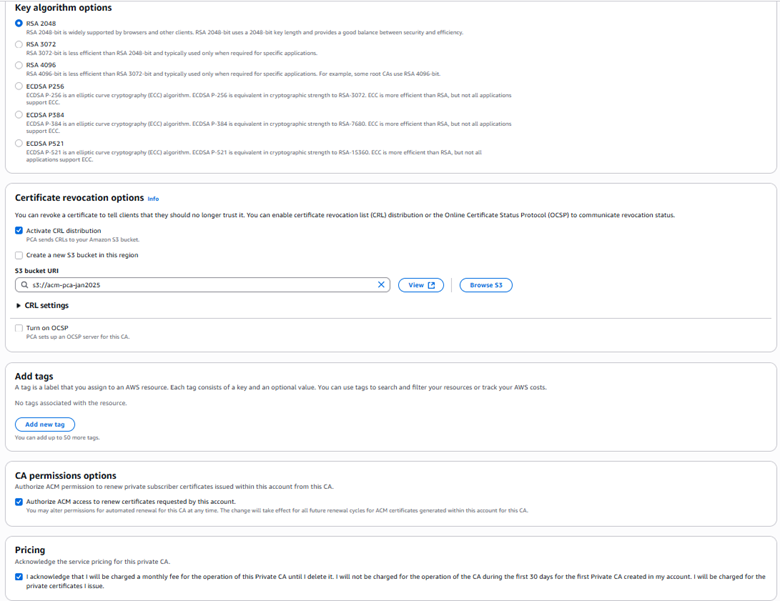
Isaiah Schisler

Isaiah Schisler

Isaiah is a Security Consultant with AWS Professional Services. He’s an Air Force Veteran and currently helps organizations secure their cloud environments. He is passionate about security and automation.

Raul Radu

Raul Radu

Raul is a Senior Security Consultant with AWS Professional Services. He helps organizations secure their AWS environments and workloads in the cloud. He is passionate about privacy and security in a connected world.

How to enforce multi-party approval for creating Matter-compliant certificate authorities

Post Syndicated from Ram Ramani original https://aws.amazon.com/blogs/security/how-to-enforce-multi-party-approval-for-creating-matter-compliant-certificate-authorities/

Customers who build smart home devices using the Matter protocol from the Connectivity Standards Alliance (CSA) need to create and maintain digital certificates, called device attestation certificates (DACs), to allow their devices to interoperate with devices from other vendors. DACs must be issued by a Matter device attestation certificate authority (CA). The CSA mandates multi-party approval for creating Matter compliant CAs. You can use AWS Private CA to create your Matter device attestation CA, which will store two important certificates: the product attestation authority (PAA) and product attestation intermediate (PAI) certificate. The PAA is the root CA that signs the PAI; the PAI is the intermediate CA that issues DACs. In this blog post, we will show how to implement multi-party approval for creation of these two certificates within AWS Private CA.

The CSA allows the use of delegated service providers (DSP) to provide you with public key infrastructure (PKI) services to create your Matter device attestation CA. You can use AWS Private CA as a DSP to create a Matter device attestation CA to issue DACs.

You should carefully plan to implement and demonstrate compliance with the Matter PKI Certificate Policy (CP) requirements when you issue Matter certificates by using the CA infrastructure services provided by AWS Private CA. Matter PKI CP is not just a technical standard; it also covers people, processes, and technology. For information about the requirements to comply with the Matter PKI CP and a reference list of acronyms, see the Matter PKI Compliance Guide. In this blog post, we address one of the Matter requirements for technical security controls for implementing multi-party approval for the creation of PAA and PAI certificates

Note: The solution presented in this post uses AWS Systems Manager Change Manager, a capability of AWS Systems Manager, for demonstrating multi-party approval as required by the Matter CP for the creation of the PAA and PAI. Additionally, the solution also uses AWS Systems Manager documents (SSM documents), which contain the code to automate the creation of PAA and PAI DAC certificates.

Implementing multi-party approval: Personas and IAM roles

For the process of achieving the multi-party approval required for Matter compliance, we will use the following human personas:

  • Jane Doe and Paulo Santos as the two approvers responsible for signing off on the creation of PAA and PAI.
  • Shirley Rodriguez as the persona responsible for setting up the prerequisite infrastructure and creating the change template that governs the multi-party approval process and specifying the human personas who are authorized to approve change requests.
  • Richard Roe as the persona responsible for reviewing and approving change template changes made by Shirley Rodriguez, to verify the separation of duties.

AWS offers support for identity federation to enable federated single sign-on (SSO). This allows users to sign into the AWS Management Console or call AWS API operations by using the credentials of an IAM role. To establish a secure authentication and authorization model, we highly recommend that you map the identities of the human personas to IAM roles.

As a prerequisite, Shirley Rodriguez will create the following AWS Identity and Access Management (IAM) roles that support the multi-party approval operations:

  • TmpltReview-Role — Richard Roe will assume this role to review and approve changes to the change template that is used to run the SSM document to create the matter CAs.
  • CreatePAA-Role and CreatePAI-Role — Clone the solution GitHub repository and create the roles by using the policies from the repository:
    • CreatePAA-Role — This role is assumed by the AWS Systems Manager service to create the PAA.
    • CreatePAI-Role — This role is assumed by the AWS Systems Manager service to create the PAI.
  • MatterCA-Admin-1 and MatterCA-Admin-2 — Jane Doe will use the MatterCA-Admin-1 role, while Paulo Santos will use the MatterCA-Admin-2 role. These individuals will serve as the two approvers for the multi-party approval process.

Note: It’s important that one person cannot approve an action by themselves. If a person is allowed to assume the MatterCA-Admin-1 role, they must not be allowed to assume the MatterCA-Admin-2 role also. If the same person can assume both roles, then that person can bypass the requirement for two different people to approve.

To create the IAM roles

  1. Create IAM roles MatterCA-Admin-1 and MatterCA-Admin-2, and attach the following AWS-managed policies:
  2. You should configure the trust relationship to allow Jane Doe to use the Matter-CA-Admin-1-Role and Paulo Santos to use the Matter-CA-Admin-2-Role for the multi-party approval process. This is intended to restrict Jane Doe and Paulo Santos from assuming each other’s roles. Use the following policy as a guide, and make sure to replace <AccountNumber> and <Role_Name> with your own information, depending on the federated identity models that you have chosen.
    {
    
        "Version": "2012-10-17",
        "Statement": [
            {
                "Effect": "Allow",
                "Principal": {
                    "AWS": "aws:PrincipalARN":"arn:aws:iam::<AccountNumber>:role/<Role-Name>"
                },
                "Action": "sts:AssumeRole"
            }
        ]
    }
  3. Create the IAM role TmpltReview-Role, and attach the following policies.
    • AmazonSSMReadOnlyAccess
    • Attach the following custom inline policy to enable review and approval of the change template.
    {
        "Version": "2012-10-17",
        "Statement": [
            {
                "Sid": "TemplateReviewer",
                "Effect": "Allow",
                "Action": "ssm:UpdateDocumentMetadata",
                "Resource": "*"
            }
        ]
    }
  4. Modify the trust relationship to allow only Richard Roe to use the role, as shown in the following policy. Make sure to replace <AccountNumber> and <Role-Name> with your own information.
    {
        "Version": "2012-10-17",
        "Statement": [
            {
                "Effect": "Allow",
                "Principal": {
                    "AWS":"aws:PrincipalARN":"arn:aws:iam::<AccountNumber>:role/<Role-Name>"
                },
                "Action": "sts:AssumeRole"
            }
        ]
    }
  5. Create the IAM role CreatePAA-Role, which will be used by the AWS Systems Manager change template to run the SSM document to create PAA.
    1. Attach the following inline policy to the CreatePAA-Role.
      {
          "Version": "2012-10-17",
          "Statement": [
              {
                  "Effect": "Allow",
                  "Action": [
                      "acm-pca:ImportCertificateAuthorityCertificate",
                      "acm-pca:IssueCertificate",
                      "acm-pca:CreateCertificateAuthority",
                      "acm-pca:GetCertificate",
                      "acm-pca:GetCertificateAuthorityCsr",
                      "acm-pca:DescribeCertificateAuthority"
                  ],
                  "Resource": "*"
              }
          ]
      }
    2. Modify the trust relationship for CreatePAA-Role to allow only the AWS Systems Manager service to assume this role, as shown following.
      {
      
      
          "Version": "2012-10-17",
          "Statement": [
              {
                  "Effect": "Allow",
                  "Principal": {
                      "Service": "ssm.amazonaws.com"
                  },
                  "Action": "sts:AssumeRole",
                  "Condition": {}
              }
          ]
  6. Create the IAM role CreatePAI-Role, which will be used by the change template to run the SSM document to create the PAI certificate.
    1. Attach the following policy as an inline policy on the CreatePAI-Role.
      {
          "Version": "2012-10-17",
          "Statement": [
              {
                  "Effect": "Allow",
                  "Action": [
                      "acm-pca:ImportCertificateAuthorityCertificate",
                      "acm-pca:CreateCertificateAuthority",
                      "acm-pca:GetCertificateAuthorityCsr",
                      "acm-pca:DescribeCertificateAuthority"
                  ],
                  "Resource": "*"
              },
              {
                  "Effect": "Allow",
                  "Action": [
                      "acm-pca:GetCertificateAuthorityCertificate",
                      "acm-pca:GetCertificate",
                      "acm-pca:IssueCertificate"
                  ],
                  "Resource": “*”
              }
          ]
      }
  7. Modify the trust relationship for CreatePAI-Role to allow only AWS Systems Manager to assume this role, as shown following.
    {
        "Version": "2012-10-17",
        "Statement": [
            {
                "Effect": "Allow",
                "Principal": {
                    "Service": "ssm.amazonaws.com"
                },
                "Action": "sts:AssumeRole",
                "Condition": {}
            }
        ]
    }
    

Preventive security controls recommended for this solution

We recommend that you apply the following security controls for this solution:

  • Dedicate an AWS account to this solution – It is important that the only users who can perform actions on the PAA and PAI are the users in this account. By deploying these items in a dedicated AWS account, you limit the number of users who might have elevated privileges, but don’t have cause to use those privileges here.
  • SCPs (service control policies) – The IAM policies in this solution do not prevent someone with privileges, such as an administrator, from bypassing your expected controls and approving usage of the CA. SCPs, if they are applied by using AWS Organizations, can restrict the creation of CAs (certificate authorities) exclusively to CreatePAA-Role and CreatePAI-Role.

    The following example SCP will enforce this type of restriction. Make sure to replace <AccountNumber> with your own information. With a strong SCP, even the root account will not be able to perform these operations or change these security controls.

    {
        "Version": "2012-10-17",
        "Statement": [
            {
                "Sid": "RestrictCACreation",
                "Effect": "Deny",
                "Action": ["acm-pca:CreateCertificateAuthority"],
                "Resource": "*",
                "Condition": {
                    "StringNotLike": {
                        "aws:PrincipalARN": [
                            "arn:aws:iam::<AccountNumber>:role/CreatePAA-Role",
                            "arn:aws:iam::<AccountNumber>:role/CreatePAI-Role"
                        ]
                    }
                }
            }
        ]
     }

AWS Systems Manager configuration

Shirley Rodriguez will download the following sample Systems Manager (SSM) documents from our GitHub repository and perform the listed steps in this section.

The content in these yaml files will be used in the next steps to create SSM documents.

Create the SSM document

The first step is to create the SSM document that automates resource creation of the PAA and PAI in AWS Private CA.

To create the SSM document

  1. Open the Systems Manager console.
  2. In the left navigation pane, under Shared Resources, choose Documents.
  3. Choose the Owned by me tab, choose Create document, and from the dropdown list, choose Automation.
    Figure 1: Create the automation document

    Figure 1: Create the automation document

  4. Under Create automation, choose the Editor tab, and then choose Edit.
    Figure 2: Automation document editor

    Figure 2: Automation document editor

  5. Copy the sample automation code from the file CreatePAA.yaml that you downloaded from the GitHub repository, and paste it into the editor.
  6. For Name, enter CreatePAA, and then choose Create automation.
  7. To check that the CreatePAA document was created successfully, choose the Owned by me tab. You should see the Systems Manager document, as shown in Figure 3.
    Figure 3: Successful creation of the CreatePAA document

    Figure 3: Successful creation of the CreatePAA document

  8. Repeat the preceding steps for creating the PAI. Make sure that you paste the code from the file CreatePAI.yaml into the editor and enter the name CreatePAI to create the PAI CA.
  9. To check that the CreatePAI document was created successfully, choose the Owned by me tab. You should see the CreatePAI Systems Manager document, as shown in Figure 4.
    Figure 4: Successful creation of the PAA and PAI documents

    Figure 4: Successful creation of the PAA and PAI documents

You’ve now completed the creation of an SSM document that contains the automation code to create certificate authorities PAA and PAI. The next step is to create Change Manager templates, which will use the SSM document and apply multi-party approval before the creation of the PAA and PAI.

Create the Change Manager templates

Shirley Rodriguez will next create two change templates that run the SSM documents: one for the PAA and one for the PAI.

To create the change templates

  1. Open the Systems Manager console.
  2. In the left navigation pane, under Change Management, choose Change Manager.
  3. On the Change Manager page, in the top right, choose Create template.
  4. For Name, enter CreatePAATemplate.
  5. In the Builder section, add a description (optional), and for Runbook, search and select CreatePAA. Keep the defaults for the other selections.
    Figure 5: Select the runbook CreatePAA in the change template

    Figure 5: Select the runbook CreatePAA in the change template

  6. Scroll down to the Change request approvals section and choose Add approval level. This is where you configure multi-party approval for the change template.
  7. Because there are two approvers, for Number of approvers required at this level, choose 1 from the dropdown.
  8. Choose Add approver, choose Template specified approvers, and then select the MatterCA-Admin-1. Then choose Add another approval level for the second approver.
    Figure 6: Add first level approver for the template

    Figure 6: Add first level approver for the template

  9. Choose Template specified approvers, and then select the MatterCA-Admin-2 role for multi-party approval. These roles can now approve the change request.
    Figure 7: Add second level approver for the template.

    Figure 7: Add second level approver for the template.

  10. Keep the defaults for the rest of the options, and at the bottom of the screen, choose Save and preview.
  11. On the preview screen, review the configurations, and then on the top right, choose Submit for review. This pushes the template to be reviewed by template reviewer Richard Roe. In the Templates tab, the template status shows as Pending review.
    Figure 8: Template with a status of pending review

    Figure 8: Template with a status of pending review

  12. Repeat the preceding steps to create the PAI change template. Make sure to name it CreatePAITemplate, and at step 5, for Runbook, select the CreatePAI document.
    Figure 9: Both templates ready for review

    Figure 9: Both templates ready for review

You’ve successfully created two change templates, CreatePAATemplate and CreatePAITemplate, that generate a change request that contains an SSM document with automation code for building the PAA and PAI. These change requests are configured with multi-party approval before running the SSM document. However, before you can proceed with running the change template, it must undergo review and approval by the template reviewer Richard Roe.

Review and approve the Change Manager templates

First you need to make sure that TmpltReview-Role is added as a reviewer and approver of change templates. Shirley Rodriguez will follow the steps in this section to add TmpltReview-Role as change template reviewer.

To add the change template reviewer

  1. Follow the instructions in the Systems Manager documentation to configure the IAM role TmpltReview-Role to review and approve the change template. Figure 10 shows how this setup looks in the Systems Manager console.
    Figure 10: The template reviewer role in Settings

    Figure 10: The template reviewer role in Settings

    Now you have TmpltReview-Role added as a reviewer. Change templates that are created or modified will now need to be reviewed and approved by this role. Richard Roe will use the role TmpltReview-Role for governance of change templates, to make sure changes made by Shirley Rodriguez are in alignment with the organization’s compliance needs for Matter.

  2. Richard Roe will follow the steps in the Systems Manager documentation for reviewing and approving change templates, to approve CreatePAATemplate and CreatePAITemplate. After the change template is approved, its status changes to Approved, and it’s ready to be run.
    Figure 11: Change template approval details

    Figure 11: Change template approval details

You now have the change templates CreatePAATemplate and CreatePAITemplate in approved status.

Create the PAA and PAI with multi-party approval for Matter compliance

Up to this point, these instructions have described one-time configurations of AWS Systems Manager to set up the IAM roles, SSM documents, and change templates that are required to enforce multi-party approval. Now you are ready to use these change templates to create the PAA and PAI and perform multi-party approval.

Shirley Rodriguez will generate change requests that require approval from Jane Doe and Paulo Santos. This manual approval process will then run the SSM documents to create the PAA and PAI.

Create a change request for the PAA

Perform the following steps to create a change request for the PAA.

To create a change request for the PAA

  1. Open the Systems Manager console.
  2. In the left navigation pane, choose Change Manager, and then choose Create request.
  3. Search for and select CreatePAATemplate, and then choose Next.
  4. For Name, enter the name CreatePAA_ChangeRequest.
  5. (Optional) For Change request information, provide additional information about the change request.
  6. For Workflow start time, choose Run the operation as soon as possible after approval to run the change immediately after the request is approved.
  7. For Change request approvals, validate that the list of First-level approvals includes the change request approvers MatterCA-Admin-1 and MatterCA-Admin-2, which you configured previously in the section Create Change Manager template. Then choose Next.
    Figure 12: Change request approvers

    Figure 12: Change request approvers

  8. For Automation assume role, select the IAM role CreatePAA_Role for creating the PAA.
    Figure 13: Change request role

    Figure 13: Change request role

  9. For Runbook parameters, enter the PAA certificate details for CommonName, Organization, VendorId, and ValidityInYears, and then choose Next.
  10. Review the change request content and then, at the bottom of the screen, choose Submit for approval. Optionally, you can set up an SNS topic to notify the approvers.

You have successfully created a change request that is currently awaiting approval from Jane Doe and Paulo Santos. Let’s now move on to the approval steps.

Multi-party approval: Approve the change request for the PAA

Each of the approvers should now follow the steps in this section for approval. Jane Doe will use the IAM role MatterCA-Admin-1, while Paulo Santos will need to use the IAM role MatterCA-Admin-2.

To approve the change request for the PAA

  1. Open the Systems Manager console and do the following.
    1. In the navigation pane, choose Change Manager.
    2. Choose the Approvals tab, select the CreatePAA change request, and then choose Approve.
    Figure 14: Change request approval

    Figure 14: Change request approval

    After Jane Doe and Paulo Santos each follow these steps to approve the change request, the change request will run and will complete with status “Success,” and the PAA will be created in AWS Private CA.

  2. Check that the status of the change request is Success, as shown in Figure 15.
    Figure 15: The change request ran successfully

    Figure 15: The change request ran successfully

Validate that the PAA is created in AWS Private CA

Next, you need to validate that the PAA was created successfully and copy its Amazon Resource Name (ARN) to use for PAI creation.

To validate the creation of the PAA and retrieve its ARN

  1. In the AWS Private CA console, choose the PAA CA that you created in the previous step.
  2. Copy the ARN of the PAA root CA. You will use PAA CA ARN when you set up the PAI change request.
    Figure 16: ARN of the PAA root CA PAA

    Figure 16: ARN of the PAA root CA PAA

After successfully completing these steps, you have created the certificate authority PAA by using AWS Private CA with multi-party approval. You can now proceed to the next section, where we will demonstrate how to use this PAA to issue a CA for PAI.

Create a change request for the PAI

Perform the following steps to create a change request for the PAI.

Note: Creation of a valid PAA is a prerequisite for creating the PAI in the following steps.

To create a change request for the PAI

  1. After the PAA is created successfully, you can complete the creation of the PAI by repeating the same steps that you did in the Create a change request for the PAA section, but with the following changes:
    1. At step 3, make sure that you search for and select CreatePAITemplate.
      Figure 17: CreatePAITemplate template

      Figure 17: CreatePAITemplate template

    2. At step 4, for Name, enter CreatePAI_ChangeRequest.
    3. At step 8, for Automation assume role, select the IAM role CreatePAI_Role.
      Figure 18: Change request IAM role selection

      Figure 18: Change request IAM role selection

    4. At step 9, for Runbook parameters, enter the PAA CA ARN that you made note of earlier, along with the CommonName, Organization, VendorId, ProductId, and ValidityInYears for the PAI, and then choose Next.

    Multi-party approval: Approve the change request for the PAI

    Each of the approvers should now follow the steps in this section for approval for the PAI. Jane Doe will need to use IAM role MatterCA-Admin-1, and Paulo Santos will need to use IAM role MatterCA-Admin-2.

    To approve the change request for the PAI

    1. Open the Systems Manager console and do the following:
      1. In the navigation pane, choose Change Manager.
      2. Choose the Approvals tab, select the CreatePAI change request, and choose Approve.

      After both approvers (Jane Doe and Paulo Santos) approve the change request, the change request will run, and the PAA will be created inside AWS Private CA.

    2. Check that the status of the change request shows Success, as shown in Figure 19.
      Figure 19: The change requests for the PAA and PAI have run successfully

      Figure 19: The change requests for the PAA and PAI have run successfully

    3. In the AWS Private CA console, verify that the PAA and PAI have been created successfully, as shown in Figure 20.
      Figure 20: PAA and PAI in AWS Private CA

      Figure 20: PAA and PAI in AWS Private CA

    After successfully completing these steps, you have created the certificate authority PAI by using AWS Private CA with multi-party approval. You can now issue DAC certificates by using this PAI. Next, we will show how to validate the logs to confirm multi-party approval.

    Demonstrate compliance with multi-party approval requirements of the Matter CP by using the change manager timeline

    To keep audit records that show that multi-party approval was used to create the PAA and PAI to issue DACs, you can use the Change Manager timeline.

    To retrieve the change manager timeline report

    1. Open the Systems Manager console.
    2. In the left navigation pane, choose Change Manager.
    3. Choose Requests, and then select either the CreatePAA_ChangeRequest or the CreatePAI_ChangeRequest change request.
    4. Select the Timeline tab. Figure 21 shows an example of a timeline with complete runbook steps for PAA creation. It also shows the two approvers, Jane Doe and Paulo Santos, approving the change request. You can use this information to demonstrate multi-party approval.
      Figure 21: Audit trail for approval and creation of the PAA

      Figure 21: Audit trail for approval and creation of the PAA

      Likewise, Figure 22 shows an example of a timeline with complete runbook steps for creating the PAI by using multi-party approval.

      Figure 22: Audit trail for approval and creation of the PAI

      Figure 22: Audit trail for approval and creation of the PAI

    Conclusion

    In this post, you learned how to use AWS Private CA to facilitate the creation of Matter CAs in compliance with the Matter PKI CP. By using AWS Systems Manager, you can effectively fulfill the technical security control outlined in the Matter PKI CP for implementing multi-party approval for the creation of PAA and PAI certificates.

    If you have feedback about this post, submit comments in the Comments section below. If you have questions about this post, start a new thread on the AWS Private Certificate Authority re:Post or contact AWS Support.

    Want more AWS Security news? Follow us on Twitter.
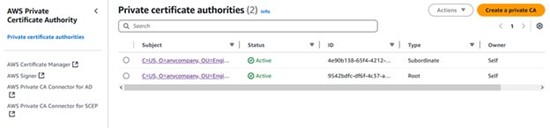
    Author photo: Ram Ramani

    Ram Ramani

    Ram is a Principal Security Solutions Architect at AWS with deep expertise in data protection and privacy. Ram is currently helping customers accelerate their Matter compliance needs using AWS services.

    Pravin Nair

    Pravin Nair

    Pravin is a seasoned Senior Security Solution Architect focused on data protection and privacy. Specializing in encryption, infrastructure security, and privacy, he assists customers in developing secure and scalable solutions that align with their business requirements. Pravin’s expertise helps to provide optimal data protection while addressing evolving security challenges.

    Lukas Rash

    Lukas Rash

    Lukas is a Software Engineer in the AWS Cryptography organization. He is passionate about building robust cloud services to help customers improve the security of their systems. He specializes in building software to help customers implement their public key infrastructures.

Top 2022 AWS data protection service and cryptography tool launches

Post Syndicated from Marta Taggart original https://aws.amazon.com/blogs/security/top-2022-aws-data-protection-service-and-cryptography-tool-launches/

Given the pace of Amazon Web Services (AWS) innovation, it can be challenging to stay up to date on the latest AWS service and feature launches. AWS provides services and tools to help you protect your data, accounts, and workloads from unauthorized access. AWS data protection services provide encryption capabilities, key management, and sensitive data discovery. Last year, we saw growth and evolution in AWS data protection services as we continue to give customers features and controls to help meet their needs. Protecting data in the AWS Cloud is a top priority because we know you trust us to help protect your most critical and sensitive asset: your data. This post will highlight some of the key AWS data protection launches in the last year that security professionals should be aware of.

AWS Key Management Service
Create and control keys to encrypt or digitally sign your data

In April, AWS Key Management Service (AWS KMS) launched hash-based message authentication code (HMAC) APIs. This feature introduced the ability to create AWS KMS keys that can be used to generate and verify HMACs. HMACs are a powerful cryptographic building block that incorporate symmetric key material within a hash function to create a unique keyed message authentication code. HMACs provide a fast way to tokenize or sign data such as web API requests, credit card numbers, bank routing information, or personally identifiable information (PII). This technology is used to verify the integrity and authenticity of data and communications. HMACs are often a higher performing alternative to asymmetric cryptographic methods like RSA or elliptic curve cryptography (ECC) and should be used when both message senders and recipients can use AWS KMS.

At AWS re:Invent in November, AWS KMS introduced the External Key Store (XKS), a new feature for customers who want to protect their data with encryption keys that are stored in an external key management system under their control. This capability brings new flexibility for customers to encrypt or decrypt data with cryptographic keys, independent authorization, and audit in an external key management system outside of AWS. XKS can help you address your compliance needs where encryption keys for regulated workloads must be outside AWS and solely under your control. To provide customers with a broad range of external key manager options, AWS KMS developed the XKS specification with feedback from leading key management and hardware security module (HSM) manufacturers as well as service providers that can help customers deploy and integrate XKS into their AWS projects.

AWS Nitro System
A combination of dedicated hardware and a lightweight hypervisor enabling faster innovation and enhanced security

In November, we published The Security Design of the AWS Nitro System whitepaper. The AWS Nitro System is a combination of purpose-built server designs, data processors, system management components, and specialized firmware that serves as the underlying virtualization technology that powers all Amazon Elastic Compute Cloud (Amazon EC2) instances launched since early 2018. This new whitepaper provides you with a detailed design document that covers the inner workings of the AWS Nitro System and how it is used to help secure your most critical workloads. The whitepaper discusses the security properties of the Nitro System, provides a deeper look into how it is designed to eliminate the possibility of AWS operator access to a customer’s EC2 instances, and describes its passive communications design and its change management process. Finally, the paper surveys important aspects of the overall system design of Amazon EC2 that provide mitigations against potential side-channel vulnerabilities that can exist in generic compute environments.

AWS Secrets Manager
Centrally manage the lifecycle of secrets

In February, AWS Secrets Manager added the ability to schedule secret rotations within specific time windows. Previously, Secrets Manager supported automated rotation of secrets within the last 24 hours of a specified rotation interval. This new feature added the ability to limit a given secret rotation to specific hours on specific days of a rotation interval. This helps you avoid having to choose between the convenience of managed rotations and the operational safety of application maintenance windows. In November, Secrets Manager also added the capability to rotate secrets as often as every four hours, while providing the same managed rotation experience.

In May, Secrets Manager started publishing secrets usage metrics to Amazon CloudWatch. With this feature, you have a streamlined way to view how many secrets you are using in Secrets Manager over time. You can also set alarms for an unexpected increase or decrease in number of secrets.

At the end of December, Secrets Manager added support for managed credential rotation for service-linked secrets. This feature helps eliminate the need for you to manage rotation Lambda functions and enables you to set up rotation without additional configuration. Amazon Relational Database Service (Amazon RDS) has integrated with this feature to streamline how you manage your master user password for your RDS database instances. Using this feature can improve your database’s security by preventing the RDS master user password from being visible during the database creation workflow. Amazon RDS fully manages the master user password’s lifecycle and stores it in Secrets Manager whenever your RDS database instances are created, modified, or restored. To learn more about how to use this feature, see Improve security of Amazon RDS master database credentials using AWS Secrets Manager.

AWS Private Certificate Authority
Create private certificates to identify resources and protect data

In September, AWS Private Certificate Authority (AWS Private CA) launched as a standalone service. AWS Private CA was previously a feature of AWS Certificate Manager (ACM). One goal of this launch was to help customers differentiate between ACM and AWS Private CA. ACM and AWS Private CA have distinct roles in the process of creating and managing the digital certificates used to identify resources and secure network communications over the internet, in the cloud, and on private networks. This launch coincided with the launch of an updated console for AWS Private CA, which includes accessibility improvements to enhance screen reader support and additional tab key navigation for people with motor impairment.

In October, AWS Private CA introduced a short-lived certificate mode, a lower-cost mode of AWS Private CA that is designed for issuing short-lived certificates. With this new mode, public key infrastructure (PKI) administrators, builders, and developers can save money when issuing certificates where a validity period of 7 days or fewer is desired. To learn more about how to use this feature, see How to use AWS Private Certificate Authority short-lived certificate mode.

Additionally, AWS Private CA supported the launches of certificate-based authentication with Amazon AppStream 2.0 and Amazon WorkSpaces to remove the logon prompt for the Active Directory domain password. AppStream 2.0 and WorkSpaces certificate-based authentication integrates with AWS Private CA to automatically issue short-lived certificates when users sign in to their sessions. When you configure your private CA as a third-party root CA in Active Directory or as a subordinate to your Active Directory Certificate Services enterprise CA, AppStream 2.0 or WorkSpaces with AWS Private CA can enable rapid deployment of end-user certificates to seamlessly authenticate users. To learn more about how to use this feature, see How to use AWS Private Certificate Authority short-lived certificate mode.

AWS Certificate Manager
Provision and manage SSL/TLS certificates with AWS services and connected resources

In early November, ACM launched the ability to request and use Elliptic Curve Digital Signature Algorithm (ECDSA) P-256 and P-384 TLS certificates to help secure your network traffic. You can use ACM to request ECDSA certificates and associate the certificates with AWS services like Application Load Balancer or Amazon CloudFront. Previously, you could only request certificates with an RSA 2048 key algorithm from ACM. Now, AWS customers who need to use TLS certificates with at least 120-bit security strength can use these ECDSA certificates to help meet their compliance needs. The ECDSA certificates have a higher security strength—128 bits for P-256 certificates and 192 bits for P-384 certificates—when compared to 112-bit RSA 2048 certificates that you can also issue from ACM. The smaller file footprint of ECDSA certificates makes them ideal for use cases with limited processing capacity, such as small Internet of Things (IoT) devices.

Amazon Macie
Discover and protect your sensitive data at scale

Amazon Macie introduced two major features at AWS re:Invent. The first is a new capability that allows for one-click, temporary retrieval of up to 10 samples of sensitive data found in Amazon Simple Storage Service (Amazon S3). With this new capability, you can more readily view and understand which contents of an S3 object were identified as sensitive, so you can review, validate, and quickly take action as needed without having to review every object that a Macie job returned. Sensitive data samples captured with this new capability are encrypted by using customer-managed AWS KMS keys and are temporarily viewable within the Amazon Macie console after retrieval.

Additionally, Amazon Macie introduced automated sensitive data discovery, a new feature that provides continual, cost-efficient, organization-wide visibility into where sensitive data resides across your Amazon S3 estate. With this capability, Macie automatically samples and analyzes objects across your S3 buckets, inspecting them for sensitive data such as personally identifiable information (PII) and financial data; builds an interactive data map of where your sensitive data in S3 resides across accounts; and provides a sensitivity score for each bucket. Macie uses multiple automated techniques, including resource clustering by attributes such as bucket name, file types, and prefixes, to minimize the data scanning needed to uncover sensitive data in your S3 buckets. This helps you continuously identify and remediate data security risks without manual configuration and lowers the cost to monitor for and respond to data security risks.

Support for new open source encryption libraries

In February, we announced the availability of s2n-quic, an open source Rust implementation of the QUIC protocol, in our AWS encryption open source libraries. QUIC is a transport layer network protocol used by many web services to provide lower latencies than classic TCP. AWS has long supported open source encryption libraries for network protocols; in 2015 we introduced s2n-tls as a library for implementing TLS over HTTP. The name s2n is short for signal to noise and is a nod to the act of encryption—disguising meaningful signals, like your critical data, as seemingly random noise. Similar to s2n-tls, s2n-quic is designed to be small and fast, with simplicity as a priority. It is written in Rust, so it has some of the benefits of that programming language, such as performance, threads, and memory safety.

Cryptographic computing for AWS Clean Rooms (preview)

At re:Invent, we also announced AWS Clean Rooms, currently in preview, which includes a cryptographic computing feature that allows you to run a subset of queries on encrypted data. Clean rooms help customers and their partners to match, analyze, and collaborate on their combined datasets—without sharing or revealing underlying data. If you have data handling policies that require encryption of sensitive data, you can pre-encrypt your data by using a common collaboration-specific encryption key so that data is encrypted even when queries are run. With cryptographic computing, data that is used in collaborative computations remains encrypted at rest, in transit, and in use (while being processed).

If you’re looking for more opportunities to learn about AWS security services, read our AWS re:Invent 2022 Security recap post or watch the Security, Identity, and Compliance playlist.

Looking ahead in 2023

With AWS, you control your data by using powerful AWS services and tools to determine where your data is stored, how it is secured, and who has access to it. In 2023, we will further the AWS Digital Sovereignty Pledge, our commitment to offering AWS customers the most advanced set of sovereignty controls and features available in the cloud.

You can join us at our security learning conference, AWS re:Inforce 2023, in Anaheim, CA, June 13–14, for the latest advancements in AWS security, compliance, identity, and privacy solutions.

Stay updated on launches by subscribing to the AWS What’s New RSS feed and reading the AWS Security Blog.

 
If you have feedback about this post, submit comments in the Comments section below. If you have questions about this post, contact AWS Support.

Want more AWS Security news? Follow us on Twitter.
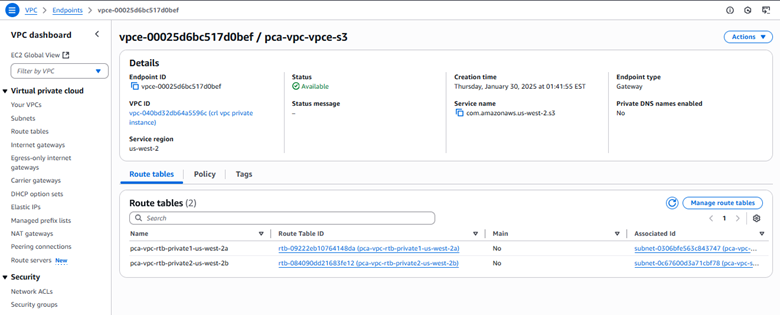
Author

Marta Taggart

Marta is a Seattle-native and Senior Product Marketing Manager in AWS Security Product Marketing, where she focuses on data protection services. Outside of work you’ll find her trying to convince Jack, her rescue dog, not to chase squirrels and crows (with limited success).