All posts by Diana Alvarado

Visualize AWS WAF logs with an Amazon CloudWatch dashboard

Post Syndicated from Diana Alvarado original https://aws.amazon.com/blogs/security/visualize-aws-waf-logs-with-an-amazon-cloudwatch-dashboard/

AWS WAF is a web application firewall service that helps you protect your applications from common exploits that could affect your application’s availability and your security posture. One of the most useful ways to detect and respond to malicious web activity is to collect and analyze AWS WAF logs. You can perform this task conveniently by sending your AWS WAF logs to Amazon CloudWatch Logs and visualizing them through an Amazon CloudWatch dashboard.

In this blog post, I’ll show you how to use Amazon CloudWatch to monitor and analyze AWS WAF activity using the options in CloudWatch metrics, Contributor Insights, and Logs Insights. I’ll also walk you through how to deploy this solution in your own AWS account by using an AWS CloudFormation template.

Prerequisites

This blog post builds on the concepts introduced in the blog post Analyzing AWS WAF Logs in Amazon CloudWatch Logs. There we introduced how to natively set up AWS WAF logging to Amazon CloudWatch logs, and discussed the basic options that are available for visualizing and analyzing the data provided in the logs.

The only AWS services that you need to turn on for this solution are Amazon CloudWatch and AWS WAF. The solution assumes that you’ve previously set up AWS WAF log delivery to Amazon CloudWatch Logs. If you have not done so, follow the instructions for AWS WAF logging destinations – CloudWatch Logs.

You will need to provide the following parameters for the CloudFormation template:

  • CloudWatch log group name for the AWS WAF logs
  • The AWS Region for the logs
  • The name of the AWS WAF web access control list (web ACL)

Solution overview

The architecture of the solution is outlined in Figure 1. The solution takes advantage of the native integration available between AWS WAF and CloudWatch, which simplifies the setup and management of this solution.
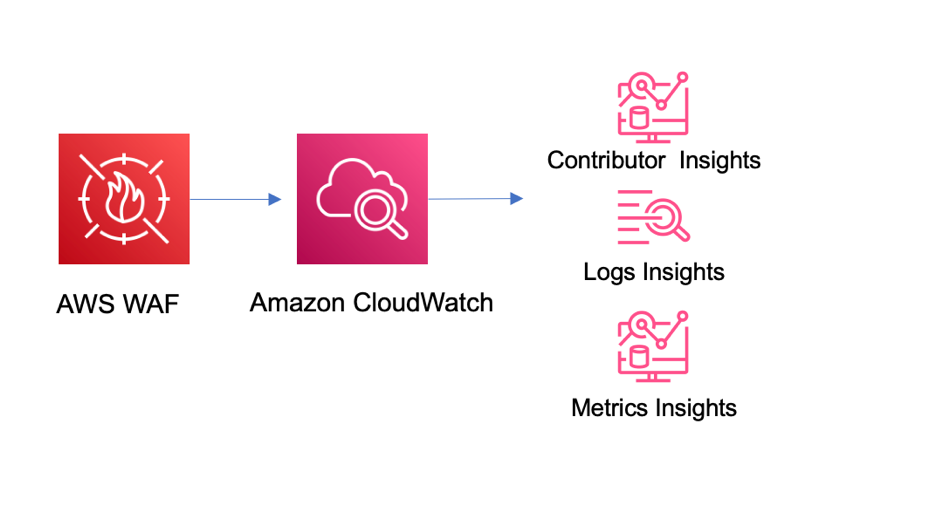
Figure 1: Solution architecture

Figure 1: Solution architecture

In the solution, the logs are sent to CloudWatch (when you enable log delivery). From there, they’re ready to be consumed by all the different service options that CloudWatch offers, including the ones that we’ll use in this solution: CloudWatch Logs Insights and Contributor Insights.

Deploy the solution

Choose the following Launch stack button to launch the CloudFormation stack in your account.

Launch Stack

You’ll be redirected to the CloudFormation service in the AWS US East (N. Virginia) Region, which is the default Region to deploy this solution, although this can vary depending on where your web ACL is located. You can change the Region as preferred. The template will spin up multiple cloud resources, such as the following:

  • CloudWatch Logs Insights queries
  • CloudWatch Contributor Insights visuals
  • CloudWatch dashboard

The solution is quickly deployed to your account and is ready to use in less than 30 minutes. You can use the solution when the status of the stack changes to CREATE_COMPLETE.

As a measure to control costs, you can also choose whether to create the Contributor Insights rules and enable them by default. For more information on costs, see the Cost considerations section later in this post.

Explore and validate the dashboard

When the CloudFormation stack is complete, you can choose the Output tab in the CloudFormation console and then choose the dashboard link. This will take you to the CloudWatch service in the AWS Management Console. The dashboard time range presents information for the last hour of activity by default, and can go up to one week, but keep in mind that Contributor Insights has a maximum time range of 24 hours. You can also select a different dashboard refresh interval from 10 seconds up to 15 minutes.

The dashboard provides the following information from CloudWatch.

Rule name Description
WAF_top_terminating_rules This rule shows the top rules where the requests are being terminated by AWS WAF. This can help you understand the main cause of blocked requests.
WAF_top_ips This rule shows the top source IPs for requests. This can help you understand if the traffic and activity that you see is spread across many IPs or concentrated in a small group of IPs.
WAF_top_countries This rule shows the main source countries for the IPs in the requests. This can help you visualize where the traffic is originating.
WAF_top_user_agents This rule shows the main user agents that are being used to generate the requests. This will help you isolate problematic devices or identify potential false positives.
WAF_top_uri This rule shows the main URIs in the requests that are being evaluated. This can help you identify if one specific path is the target of activity.
WAF_top_http This rule shows the HTTP methods used for the requests examined by AWS WAF. This can help you understand the pattern of behavior of the traffic.
WAF_top_referrer_hosts This rule shows the main referrer from which requests are being sent. This can help you identify incorrect or suspicious origins of requests based on the known application flow.
WAF_top_rate_rules This rule shows the main rate rules being applied to traffic. It helps understand volumetric activity identified by AWS WAF.
WAF_top_labels This rule shows the top labels found in logs. This can help you visualize the main rules that are matching on the requests evaluated by AWS WAF.

The dashboard also provides the following information from the default CloudWatch metrics sent by AWS WAF.

Rule name Description
AllowedvsBlockedRequests This metric shows the number of all blocked and allowed requests. This can help you understand the number of requests that AWS WAF is actively blocking.
Bot Requests vs non-Bot requests This visual shows the number of requests identified as bots versus non-bots (if you’re using AWS WAF Bot Control).
All Requests This metric shows the number of all requests, separated by bot and non-bot origin. This can help you understand all requests that AWS WAF is evaluating.
CountedRequests This metric shows the number of all counted requests. This can help you understand the requests that are matching a rule but not being blocked, and aid the decision of a configuration change during the testing phase.
CaptchaRequests This metric shows requests that go through the CAPTCHA rule.

Figure 2 shows an example of how the CloudWatch dashboard displays the data within this solution. You can rearrange and customize the elements within the dashboard as needed.

You can review each of the queries and rules deployed with this solution. You can also customize these baseline queries and rules to provide more detailed information or to add custom queries and rules to the solution code. For more information on how to build queries and use CloudWatch Logs and Contributor Insights, see the CloudWatch documentation.

Use the dashboard for monitoring

After you’ve set up the dashboard, you can monitor the activity of the sites that are protected by AWS WAF. If suspicious activity is reported, you can use the visuals to understand the traffic in more detail, and drive incident response actions as needed.

Let’s consider an example of how to use your new dashboard and its data to drive security operations decisions. Suppose that you have a website that sells custom clothing at a bargain price. It has a sign-up link to receive offers, and you’re getting reports of unusual activity by the application team. By looking at the metrics for the web ACL that protects the site, you can see the main country for source traffic and the contributing URIs, as shown in Figure 3. You can also see that most of the activity is being detected by rules that you have in place, so you can set the rules to block traffic, or if they are already blocking, you can just monitor the activity.

You can use the same visuals to decide whether an AWS WAF rule with high activity can be changed to autoblock suspicious web traffic without affecting valid customer traffic. By looking at the top terminating rules and cross-referencing information, such as source IPs, user agents, top URIs, and other request identifiers, you can understand the traffic pattern and activity of different applications and endpoints. From here, you can investigate further by using specific queries with CloudWatch Logs Insights.

Operational and security management with CloudWatch Logs Insights

You can use CloudWatch Logs Insights to interactively search and analyze log data in Amazon CloudWatch Logs using advanced queries to effectively investigate operational issues and security incidents.

Examine a bot reported as a false positive

You can use CloudWatch Logs Insights to identify requests that have specific labels to understand where the traffic is originating from based on source IP address and other essential event details. A simple example is investigating requests flagged as potential false positives.

Imagine that you have a reported false positive request that was flagged as a non-browser by AWS WAF Bot Control. You can run the non-browser user agent query that was created by the provided template on CloudWatch Logs Insights, as shown in the following example, and then verify the source IPs for the top hits for this rule group. Or you can look for a specific request that has been flagged as a false positive, in order to review the details and make adjustments as needed.

fields @timestamp, httpRequest.clientIp 
| filter @message like "awswaf:managed:aws:botcontrol:signal:non_browser_user_agent" 
| parse @message ""labels":[*]"as Labels 
| stats count(*) as requestCount by httpRequest.clientIP 
| display @timestamp,httpRequest.clientIp, httpRequest.uri,Labels 
| sort requestCount desc 
| limit 10

The non-browser user agent query also allows you confirm whether this request has other rule hits that were in count mode and were non-terminating; you can do this by examining the labels. If there are multiple rules matching the requests, that can be an indicator of suspicious activity.

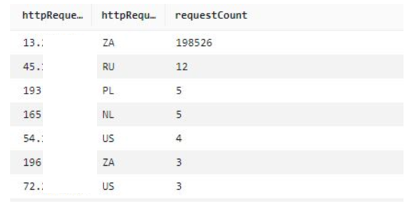
If you have a CAPTCHA challenge configured on the endpoint, you can also look at CAPTCHA responses. The CaptchaTokenqueryDefinition query provided in this solution uses a variation of the preceding format, and can display the main IPs from which bad tokens are being sent. An example query is shown following, along with the query results in Figure 4. If you have signals from non-browser user agents and CAPTCHA tokens missing, then that is a strong indicator of suspicious activity.
fields @timestamp, httpRequest.clientIp 
| filter captchaResponse.failureReason = "TOKEN_MISSING" 
| stats count(*) as requestCount by httpRequest.clientIp, httpRequest.country 
| sort requestCount desc 
| limit 10
Figure 4: Main IP addresses and number of counts for CAPTCHA responses

Figure 4: Main IP addresses and number of counts for CAPTCHA responses

This information can provide an indication of the main source of activity. You can then use other visuals, like top user agents or top referrers, to provide more context to the information and inform further actions, such as adding new rules to the AWS WAF configuration.

You can adapt the queries provided in the sample solution to other use cases by using the fields provided in the left-hand pane of CloudWatch Logs Insights.

Cost considerations

Configuring AWS WAF to send logs to Amazon CloudWatch logs doesn’t have an additional cost. The cost incurred is for the use of the CloudWatch features and services, such as log storage and retention, Contributor Insights rules enabled, Logs Insights queries run, matched log events, and CloudWatch dashboards. For detailed information on the pricing of these features, see the CloudWatch Logs pricing information. You can also get an estimate of potential costs by using the AWS pricing calculator for CloudWatch.

One way to help offset the cost of CloudWatch features and services is to restrict the use of the dashboard and enforce a log retention policy for AWS WAF that makes it cost effective. If you use the queries and monitoring only as-needed, this can also help reduce costs. By limiting the running of queries and the matched log events for the Contributor Insights rules, you can enable the rules only when you need them. AWS WAF also provides the option to filter the logs that are sent when logging is enabled. For more information, see AWS WAF log filtering.

Conclusion

In this post, you learned how to use a pre-built CloudWatch dashboard to monitor AWS WAF activity by using metrics and Contributor Insights rules. The dashboard can help you identify traffic patterns and activity, and you can use the sample Logs Insights queries to explore the log information in more detail and examine false positives and suspicious activity, for rule tuning.

For more information on AWS WAF and the features mentioned in this post, see the AWS WAF documentation.

If you have feedback about this post, submit comments in the Comments section below. If you have questions about this post, start a new thread on AWS WAF re:Post.

Want more AWS Security news? Follow us on Twitter.

Diana Alvarado

Diana Alvarado

Diana is Sr security solutions architect at AWS. She is passionate about helping customers solve difficult cloud challenges, she has a soft spot for all things logs.

Analyze Amazon Cognito advanced security intelligence to improve visibility and protection

Post Syndicated from Diana Alvarado original https://aws.amazon.com/blogs/security/analyze-amazon-cognito-advanced-security-intelligence-to-improve-visibility-and-protection/

As your organization looks to improve your security posture and practices, early detection and prevention of unauthorized activity quickly becomes one of your main priorities. The behaviors associated with unauthorized activity commonly follow patterns that you can analyze in order to create specific mitigations or feed data into your security monitoring systems.

This post shows you how you can analyze security intelligence from Amazon Cognito advanced security features logs by using AWS native services. You can use the intelligence data provided by the logs to increase your visibility into sign-in and sign-up activities from users, this can help you with monitoring, decision making, and to feed other security services in your organization, such as a web application firewall or security information and event management (SIEM) tool. The data can also enrich available security feeds like fraud detection systems, increasing protection for the workloads that you run on AWS.

Amazon Cognito advanced security features overview

Amazon Cognito provides authentication, authorization, and user management for your web and mobile apps. Your users can sign in to apps directly with a user name and password, or through a third party such as social providers or standard enterprise providers through SAML 2.0/OpenID Connect (OIDC). Amazon Cognito includes additional protections for users that you manage in Amazon Cognito user pools. In particular, Amazon Cognito can add risk-based adaptive authentication and also flag the use of compromised credentials. For more information, see Checking for compromised credentials in the Amazon Cognito Developer Guide.

With adaptive authentication, Amazon Cognito examines each user pool sign-in attempt and generates a risk score for how likely the sign-in request is from an unauthorized user. Amazon Cognito examines a number of factors, including whether the user has used the same device before or has signed in from the same location or IP address. A detected risk is rated as low, medium, or high, and you can determine what actions should be taken at each risk level. You can choose to allow or block the request, require a second authentication factor, or notify the user of the risk by email. Security teams and administrators can also submit feedback on the risk through the API, and users can submit feedback by using a link that is sent to the user’s email. This feedback can improve the risk calculation for future attempts.

To add advanced security features to your existing Amazon Cognito configuration, you can get started by using the steps for Adding advanced security to a user pool in the Amazon Cognito Developer Guide. Note that there is an additional charge for advanced security features, as described on our pricing page. These features are applicable only to native Amazon Cognito users; they aren’t applicable to federated users who sign in with an external provider.

Solution architecture

Figure 1: Solution architecture

Figure 1: Solution architecture

Figure 1 shows the high-level architecture for the advanced security solution. When an Amazon Cognito sign-in event is recorded by AWS CloudTrail, the solution uses an Amazon EventBridge rule to send the event to an Amazon Simple Queue Service (Amazon SQS) queue and batch it, to then be processed by an AWS Lambda function. The Lambda function uses the event information to pull the sign-in security information and send it as logs to an Amazon Simple Storage Service (Amazon S3) bucket and Amazon CloudWatch Logs.

Prerequisites and considerations for this solution

This solution assumes that you are using Amazon Cognito with advanced security features already enabled, the solution does not create a user pool and does not activate the advanced security features on an existing one.

The following list describes some limitations that you should be aware of for this solution:

  1. This solution does not apply to events in the hosted UI, but the same architecture can be adapted for that environment, with some changes to the events processor.
  2. The Amazon Cognito advanced security features support only native users. This solution is not applicable to federated users.
  3. The admin API used in this solution has a default rate limit of 30 requests per second (RPS). If you have a higher rate of authentication attempts, this API call might be throttled and you will need to implement a re-try pattern to confirm that your requests are processed.

Implement the solution

You can deploy the solution automatically by using the following AWS CloudFormation template.

Choose the following Launch Stack button to launch a CloudFormation stack in your account and deploy the solution.

Select this image to open a link that starts building the CloudFormation stack

You’ll be redirected to the CloudFormation service in the US East (N. Virginia) Region, which is the default AWS Region, to deploy this solution. You can change the Region to align it to where your Cognito User Pool is running.

This template will create multiple cloud resources including, but not limited to, the following:

  • An EventBridge rule for sending the Amazon Cognito events
  • An Amazon SQS queue for sending the events to Lambda
  • A Lambda function for getting the advanced security information based on the authentication events from CloudTrail
  • An S3 bucket to store the logs

In the wizard, you’ll be asked to modify or provide one parameter, the existing Cognito user pool ID. You can get this value from the Amazon Cognito console or the Cognito API.

Now, let’s break down each component of the solution in detail.

Sending the authentication events from CloudTrail to Lambda

Cognito advanced security features supports the CloudTrail events: SignUp, ConfirmSignUp, ForgotPassword, ResendConfirmationCode, InitiateAuth and RespondToAuthChallenge. This solution will focus on the sign-in event InitiateAuth as an example.

The solution creates an EventBridge rule that will run when an event is identified in CloudTrail and send the event to an SQS queue. This is useful so that events can be batched up and decoupled for Lambda to process.

The EventBridge rule uses Amazon SQS as a target. The queue is created by the solution and uses the default settings, with the exception that Receive message wait time is set to 20 seconds for long polling. For more information about long polling and how to manually set up an SQS queue, see Consuming messages using long polling in the Amazon SQS Developer Guide.

When the SQS queue receives the messages from EventBridge, these are sent to Lambda for processing. Let’s now focus on understanding how this information is processed by the Lambda function.

Using Lambda to process Amazon Cognito advanced security features information

In order to get the advanced security features evaluation information, you need authentication details that can only be obtained by using the Amazon Cognito identity provider (IdP) API call admin_list_user_auth_events. This API call requires a username to fetch all the authentication event details for a specific user. For security reasons, the username is not logged in CloudTrail and must be obtained by using other event information.

You can use the Lambda function in the sample solution to get this information. It’s composed of three main sequential actions:

  1. The Lambda function gets the sub identifiers from the authentication events recorded by CloudTrail.
  2. Each sub identifier is used to get the user name through an API call to list_users.
  3. 3. The sample function retrieves the last five authentication event details from advanced security features for each of these users by using the admin_list_user_auth_events API call. You can modify the function to retrieve a different number of events, or use other criteria such as a timestamp or a specific time period.

Getting the user name information from a CloudTrail event

The following sample authentication event shows a sub identifier in the CloudTrail event information, shown as sub under additionalEventData. With this sub identifier, you can use the ListUsers API call from the Cognito IdP SDK to get the user name details.

{
"eventVersion": "1.XX",
"userIdentity": {
"type": "Unknown",
"principalId": "Anonymous"
},
"eventTime": "2022-01-01T11:11:11Z",
"eventSource": "cognito-idp.amazonaws.com",
"eventName": "InitiateAuth",
"awsRegion": "us-east-1",
"sourceIPAddress": "xx.xx.xx.xx",
"userAgent": "Mozilla/5.0 (xxxx)",
"requestParameters": {
"authFlow": "USER_SRP_AUTH",
"authParameters": "HIDDEN_DUE_TO_SECURITY_REASONS",
"clientMetadata": {},
"clientId": "iiiiiiiii"
},
"responseElements": {
"challengeName": "PASSWORD_VERIFIER",
"challengeParameters": {
"SALT": "HIDDEN_DUE_TO_SECURITY_REASONS",
"SECRET_BLOCK": "HIDDEN_DUE_TO_SECURITY_REASONS",
"USER_ID_FOR_SRP": "HIDDEN_DUE_TO_SECURITY_REASONS",
"USERNAME": "HIDDEN_DUE_TO_SECURITY_REASONS",
"SRP_B": "HIDDEN_DUE_TO_SECURITY_REASONS"
}
},
"additionalEventData": {
"sub": "11110b4c-1f4264cd111"
},
"requestID": "xxxxxxxx",
"eventID": "xxxxxxxxxx",
"readOnly": false,
"eventType": "AwsApiCall",
"managementEvent": true,
"recipientAccountId": "xxxxxxxxxxxxx",
"eventCategory": "Management"
}

Listing authentication events information

After the Lambda function obtains the username, it can then use the Cognito IdP API call admin_list_user_auth_events to get the advanced security feature risk evaluation information for each of the authentication events for that user. Let’s look into the details of that evaluation.

The authentication event information from Amazon Cognito advanced security provides information for each of the categories evaluated and logs the results. Those results can then be used to decide whether the authentication attempt information is useful for the security team to be notified or take action. It’s recommended that you limit the number of events returned, in order to keep performance optimized.

The following sample event shows some of the risk information provided by advanced security features; the options for the response syntax can be found in the CognitoIdentityProvider API documentation.

}
]
at the bottom, so
"AuthEvents": [
{
"EventId": "1111111”,
"EventType": "SignIn",
"CreationDate": 111111.111,
"EventResponse": "Pass",
"EventRisk": {
"RiskDecision": "NoRisk",
"CompromisedCredentialsDetected": false
},
"ChallengeResponses": [
{
"ChallengeName": "Password",
"ChallengeResponse": "Success"
}
],
"EventContextData": {
"IpAddress": "72.xx.xx.xx",
"DeviceName": "Firefox xx
"City": "Axxx",
"Country": "United States"
}
}
]

The event information that is returned includes the details that are highlighted in this sample event, such as CompromisedCredentialsDetected, RiskDecision, and RiskLevel, which you can evaluate to decide whether the information can be used to enrich other security monitoring services.

Logging the authentication events information

You can use a Lambda extensions layer to send logs to an S3 bucket. Lambda still sends logs to Amazon CloudWatch Logs, but you can disable this activity by removing the required permissions to CloudWatch on the Lambda execution role. For more details on how to set this up, see Using AWS Lambda extensions to send logs to custom destinations.

Figure 2 shows an example of a log sent by Lambda. It includes execution information that is logged by the extension, as well as the information returned from the authentication evaluation by advanced security features.

Figure 2: Sample log information sent to S3

Figure 2: Sample log information sent to S3

Note that the detailed authentication information in the Lambda execution log is the same as the preceding sample event. You can further enhance the information provided by the Lambda function by modifying the function code and logging more information during the execution, or by filtering the logs and focusing only on high-risk or compromised login attempts.

After the logs are in the S3 bucket, different applications and tools can use this information to perform automated security actions and configuration updates or provide further visibility. You can query the data from Amazon S3 by using Amazon Athena, feed the data to other services such as Amazon Fraud Detector as described in this post, mine the data by using artificial intelligence/machine learning (AI/ML) managed tools like AWS Lookout for Metrics, or enhance visibility with AWS WAF.

Sample scenarios

You can start to gain insights into the security information provided by this solution in an existing environment by querying and visualizing the log data directly by using CloudWatch Logs Insights. For detailed information about how you can use CloudWatch Logs Insights with Lambda logs, see the blog post Operating Lambda: Using CloudWatch Logs Insights.

The CloudFormation template deploys the CloudWatch Logs Insights queries. You can view the queries for the sample solution in the Amazon CloudWatch console, under Queries.

To access the queries in the CloudWatch console

  1. In the CloudWatch console, under Logs, choose Insights.
  2. Choose Select log group(s). In the drop-drown list, select the Lambda log group.
  3. The query box should show the pre-created query. Choose Run query. You should then see the query results in the bottom-right panel.
  4. (Optional) Choose Add to dashboard to add the widget to a dashboard.

CloudWatch Logs Insights discovers the fields in the auth event log automatically. As shown in Figure 3, you can see the available fields in the right-hand side Discovered fields pane, which includes the Amazon Cognito information in the event.

Figure 3: The fields available in CloudWatch Logs Insights

Figure 3: The fields available in CloudWatch Logs Insights

The first query, shown in the following code snippet, will help you get a view of the number of requests per IP, where the advanced security features have determined the risk decision as Account Takeover and the CompromisedCredentialsDetected as true.

fields @message
| filter @message like /INFO/
| filter AuthEvents.0.EventType like 'SignIn'
| filter AuthEvents.0.EventRisk.RiskDecision like "AccountTakeover" and 
AuthEvents.0.EventRisk.CompromisedCredentialsDetected =! "false"
| stats count(*) as RequestsperIP by AuthEvents.2.EventContextData.IpAddress as IP
| sort desc

You can view the results of the query as a table or graph, as shown in Figure 4.

Figure 4: Sample query results for CompromisedCredentialsDetected

Figure 4: Sample query results for CompromisedCredentialsDetected

Using the same approach and the convenient access to the fields for query, you can explore another use case, using the following query, to view the number of requests per IP for each type of event (SignIn, SignUp, and forgot password) where the risk level was high.

fields @message
| filter @message like /INFO/
| filter AuthEvents.0.EventRisk.RiskLevel like "High"
| stats count(*) as RequestsperIP by AuthEvents.0.EventContextData.IpAddress as IP, 
AuthEvents.0.EventType as EventType
| sort desc

Figure 5 shows the results for this EventType query.

Figure 5: The sample results for the EventType query

Figure 5: The sample results for the EventType query

In the final sample scenario, you can look at event context data and query for the source of the events for which the risk level was high.

fields @message
| filter @message like /INFO/
| filter AuthEvents.0.EventRisk.RiskLevel like 'High'
| stats count(*) as RequestsperCountry by AuthEvents.0.EventContextData.Country as Country
| sort desc

Figure 6 shows the results for this RiskLevel query.

Figure 6: Sample results for the RiskLevel query

Figure 6: Sample results for the RiskLevel query

As you can see, there are many ways to mix and match the filters to extract deep insights, depending on your specific needs. You can use these examples as a base to build your own queries.

Conclusion

In this post, you learned how to use security intelligence information provided by Amazon Cognito through its advanced security features to improve your security posture and practices. You used an advanced security solution to retrieve valuable authentication information using CloudTrail logs as a source and a Lambda function to process the events, send this evaluation information in the form of a log to CloudWatch Logs and S3 for use as an additional security feed for wider organizational monitoring and visibility. In a set of sample use cases, you explored how to use CloudWatch Logs Insights to quickly and conveniently access this information, aggregate it, gain deep insights and use it to take action.

To learn more, see the blog post How to Use New Advanced Security Features for Amazon Cognito User Pools.

 
If you have feedback about this post, submit comments in the Comments section below.

Want more AWS Security news? Follow us on Twitter.

Diana Alvarado

Diana Alvarado

Diana is Sr security solutions architect at AWS. She is passionate about helping customers solve difficult cloud challenges, she has a soft spot for all things logs.