All posts by Joseph Keating

Build and Deploy Docker Images to AWS using EC2 Image Builder

Post Syndicated from Joseph Keating original https://aws.amazon.com/blogs/devops/build-and-deploy-docker-images-to-aws-using-ec2-image-builder/

The NFL, an AWS Professional Services partner, is collaborating with NFL’s Player Health and Safety team to build the Digital Athlete Program. The Digital Athlete Program is working to drive progress in the prevention, diagnosis, and treatment of injuries; enhance medical protocols; and further improve the way football is taught and played. The NFL, in conjunction with AWS Professional Services, delivered an EC2 Image Builder pipeline for automating the production of Docker images. Following similar practices from the Digital Athlete Program, this post demonstrates how to deploy an automated Image Builder pipeline.

“AWS Professional Services faced unique environment constraints, but was able to deliver a modular pipeline solution leveraging EC2 Image Builder. The framework serves as a foundation to create hardened images for future use cases. The team also provided documentation and knowledge transfer sessions to ensure our team was set up to successfully manage the solution.”—Joseph Steinke, Director, Data Solutions Architect, National Football League

A common scenario you may face is how to build Docker images that can be utilized throughout your organization. You may already have existing processes that you’re looking to modernize. You may be looking for a streamlined, managed approach so you can reduce the overhead of operating your own workflows. Additionally, if you’re new to containers, you may be seeking an end-to-end process you can use to deploy containerized workloads. With either case, there is need for a modern, streamlined approach to centralize the configuration and distribution of Docker images. This post demonstrates how to build a secure end-to-end workflow for building secure Docker images.

Image Builder now offers a managed service for building Docker images. With Image Builder, you can automatically produce new up-to-date container images and publish them to specified Amazon Elastic Container Registry (Amazon ECR) repositories after running stipulated tests. You don’t need to worry about the underlying infrastructure. Instead, you can focus simply on your container configuration and use the AWS tools to manage and distribute your images. In this post, we walk through the process of building a Docker image and deploying the image to Amazon ECR, share some security best practices, and demonstrate deploying a Docker image to Amazon Elastic Container Service (Amazon ECS). Additionally, we dive deep into building Docker images following modern principles.

The project we create in this post addresses a use case in which an organization needs an automated workflow for building, distributing, and deploying Docker images. With Image Builder, we build and deploy Docker images and test our image locally that we have created with our Image Builder pipeline.


Solution Overview

The following diagram illustrates our solution architecture.
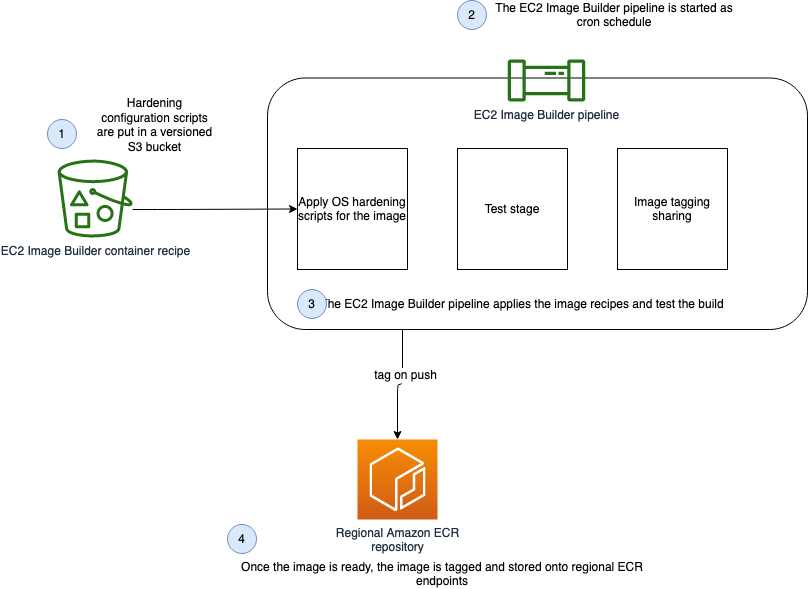
Show the architecture of the Docker EC2 Image Builder Pipeline

Figure: Show the architecture of the Docker EC2 Image Builder Pipeline


We configure the Image Builder pipeline with AWS CloudFormation. Then we use Amazon Simple Storage Service (Amazon S3) as our source for the pipeline. This means that when we want to update the pipeline with a new Dockerfile, we have to update the source S3 bucket. The pipeline assumes an AWS Identity and Access Management (IAM) role that we generate later in the post. When the pipeline is run, it pulls the latest Dockerfile configuration from Amazon S3, builds a Docker image, and deploys the image to Amazon ECR. Finally, we use AWS Copilot to deploy our Docker image to Amazon ECS. For more information about Copilot, see Applications.

The style in which the Dockerfile application code was written is a personal preference. For more information, see Best practices for writing Dockerfiles.


Overview of AWS services

For this post, we use the following services:

  • EC2 Image BuilderImage Builder is a fully managed AWS service that makes it easy to automate the creation, management, and deployment of customized, secure, and up-to-date server images that are pre-installed and pre-configured with software and settings to meet specific IT standards.
  • Amazon ECRAmazon ECR is an AWS managed container image registry service that is secure, scalable, and reliable.
  • CodeCommit – AWS CodeCommit is a fully-managed source control service that hosts secure Git-based repositories.
  • AWS KMS – Amazon Key Management Service (AWS KMS) is a fully managed service for creating and managing cryptographic keys. These keys are natively integrated with most AWS services. You use a KMS key in this post to encrypt resources.
  • Amazon S3Amazon Simple Storage Service (Amazon S3) is an object storage service utilized for storing and encrypting data. We use Amazon S3 to store our configuration files.
  • AWS CloudFormation – AWS CloudFormation allows you to use domain-specific languages or simple text files to model and provision, in an automated and secure manner, all the resources needed for your applications across all Regions and accounts. You can deploy AWS resources in a safe, repeatable manner, and automate the provisioning of infrastructure.


Prerequisites

To provision the pipeline deployment, you must have the following prerequisites:


CloudFormation templates

You use the following CloudFormation templates to deploy several resources:

  • vpc.yml – Contains all the core networking configuration. It deploys the VPC, two private subnets, two public subnets, and the route tables. The private subnets utilize a NAT gateway to communicate to the internet. The public subnets have full outbound access to the internet gateway.
  • kms.yml – Contains the AWS Key Management Service (AWS KMS) configuration that we use for encrypting resources. The KMS key policy is also configured in this template.
  • s3-iam-config.yml – Contains the S3 bucket and IAM roles we use with our Image Builder pipeline.
  • docker-image-builder.yml – Contains the configuration for the Image Builder pipeline that we use to build Docker images.


Docker Overview

Containerizing an application comes with many benefits. By containerizing an application, the application is decoupled from the underlying infrastructure, greater consistency is gained across environments, and the application can now be deployed in a loosely coupled microservice model. The lightweight nature of containers enables teams to spend less time configuring their application and more time building features that create value for their customers. To achieve these great benefits, you need reliable resources to centralize the creation and distribution of your container images. Additionally, you need to understand container fundamentals. Let’s start by reviewing a Docker base image.

In this post, we follow the multi-stage pattern for building our Docker image. With this approach, we can selectively copy artifacts from one phase to another. This allows you to remove anything not critical to the application’s function in the final image. Let’s walk through some of the logic we put into our Docker image to optimize performance and security.

Let’s begin by looking at line 15-25. Here, we are pulling down the latest amazon/aws-cli Docker image. We are leveraging this image so that we can utilize IAM credentials to clone our CodeCommit repository. In lines 15-24 we are installing and configuring our git configuration. Finally, in line 25 we are cloning our application code from our repository.

In this next section, we set environment variables, installing packages, unpack tar files, and set up a custom Java Runtime Environment (JRE). Amazon Corretto is a no-cost, multi-platform, production-ready distribution of the Open Java Development Kit (OpenJDK). One important distinction to make here is how we are utilizing RUN and ADD in the Dockerfile. By configuring our own custom JRE we can remove unnecessary modules from our image. One of our goals with building Docker images is to keep them lightweight, which is why we are taking the extra steps to ensure that we don’t add any unnecessary configuration.

Let’s take a look at the next section of the Dockerfile. Now that we have all the package that we require, we will create a working directory where we will install our demo app. After the application code is pulled down from CodeCommit, we use Maven to build our artifact.

In the following code snippet, we use FROM to begin a new stage in our build. Notice that we are using the same base as our first stage. If objects on the disk/filesystem in in the first stage stay the same, the previous stage cache can be reused. Using this pattern can greatly reduce build time.

Docker images have a single unique digest. This is a SHA-256 value and is known as the immutable identifier for the image. When changes are made to your image, through a Dockerfile update for example, a new image with a new immutable identifier is generated. The immutable identifier is pinned to prevent unexpected behaviors in code due to change or update. You can also prevent man-in-the-middle attacks by adopting this pattern. Additionally, using a SHA can mitigate the risk of having to rely on mutable tags that can be applied or changed to the wrong image by mistake. You can use the following command to check to ensure that no unintended changes occured.

docker images <input_container_image_id> --digests

Lastly, we configure our final stage, in which we create a user and group to manage our application inside the container. As this user, we copy the binaries created from our first stage. With this pattern, you can clearly see the benefit of using stages when building Docker images. Finally, we note the port that should be published with expose for the container and we define our Entrypoint, which is the instruction we use to run our container.


Deploying the CloudFormation templates

To deploy your templates, complete the following steps:

1. Create a directory where we store all of our demo code by running the following from your terminal:

mkdir awsblogrepo && cd awsblogrepo


2. Clone the source code repository found in the following location:

git clone https://github.com/aws-samples/build-and-deploy-docker-images-to-aws-using-ec2-image-builder.git

You now use the AWS CLI to deploy the CloudFormation templates. Make sure to leave the CloudFormation template names as written in this post.


3. Deploy the VPC CloudFormation template:

aws cloudformation create-stack \
--stack-name vpc-config \
--template-body file://templates/vpc.yml \
--parameters file://parameters/vpc-params.json  \
--capabilities CAPABILITY_IAM \
--region us-east-1

The output should look like the following code:

{
    "StackId": "arn:aws:cloudformation:us-east-1:123456789012:stack/vpc-config/12e90fe0-76c9-11eb-9284-12717722e021"
}


4. Open the parameters/kms-params.json file and update the UserARN parameter with your account ID:

[
  {
      "ParameterKey": "KeyName",
      "ParameterValue": "DemoKey"
  },
  {
    "ParameterKey": "UserARN",
    "ParameterValue": "arn:aws:iam::<input_your_account_id>:root"
  }
]


5. Deploy the KMS key CloudFormation template:

aws cloudformation create-stack \
--stack-name kms-config \
--template-body file://templates/kms.yml \
--parameters file://parameters/kms-params.json \
--capabilities CAPABILITY_IAM \
--region us-east-1

The output should look like the following:

{
    "StackId": "arn:aws:cloudformation:us-east-1:123456789012:stack/kms-config/66a663d0-777d-11eb-ad2b-0e84b19d341f"
}


6. Open the parameters/s3-iam-config.json file and update the DemoConfigS3BucketName parameter to a unique name of your choosing:

[
  {
    "ParameterKey" : "Environment",
    "ParameterValue" : "dev"
  },
  {
    "ParameterKey": "NetworkStackName",
    "ParameterValue" : "vpc-config"
  },
  {
    "ParameterKey" : "EC2InstanceRoleName",
    "ParameterValue" : "EC2InstanceRole"
  },
  {
    "ParameterKey" : "DemoConfigS3BucketName",
    "ParameterValue" : "<input_your_unique_bucket_name>"
  },
  {
    "ParameterKey" : "KMSStackName",
    "ParameterValue" : "kms-config"
  }
]


7. Deploy the IAM role configuration template:

aws cloudformation create-stack \
--stack-name s3-iam-config \
--template-body file://templates/s3-iam-config.yml \
--parameters file://parameters/s3-iam-config.json \
--capabilities CAPABILITY_NAMED_IAM \
--region us-east-1

The output should look like the following:

{
    "StackId": "arn:aws:cloudformation:us-east-1:123456789012:stack/s3-iam-config/8b69c270-7782-11eb-a85c-0ead09d00613"
}


8. Open the parameters/kms-params.json file:

[
  {
      "ParameterKey": "KeyName",
      "ParameterValue": "DemoKey"
  },
  {
    "ParameterKey": "UserARN",
    "ParameterValue": "arn:aws:iam::1234567891012:root"
  }
]


9. Add the following values as a comma-separated list to the UserARN parameter key. Make sure to provide your AWS account ID:

arn:aws:iam::<input_your_aws_account_id>:role/EC2ImageBuilderRole

When finished, the file should look similar to the following:

[
  {
      "ParameterKey": "KeyName",
      "ParameterValue": "DemoKey"
  },
  {
    "ParameterKey": "UserARN",
    "ParameterValue": "arn:aws:iam::123456789012:role/EC2ImageBuilderRole,arn:aws:iam::123456789012:root"
  }
]

Now that the AWS KMS parameter file has been updated, you update the AWS KMS CloudFormation stack.


10. Run the following command to update the kms-config stack:

aws cloudformation update-stack \
--stack-name kms-config \
--template-body file://templates/kms.yml \
--parameters file://parameters/kms-params.json \
--capabilities CAPABILITY_IAM \
--region us-east-1

The output should look like the following:

{
    "StackId": "arn:aws:cloudformation:us-east-1:123456789012:stack/kms-config/66a663d0-777d-11eb-ad2b-0e84b19d341f"
}


11. Open the parameters/docker-image-builder-params.json file and update the ImageBuilderBucketName parameter to the bucket name you generated earlier:

[
  {
    "ParameterKey": "Environment",
    "ParameterValue": "dev"
  },
  {
      "ParameterKey": "ImageBuilderBucketName",
      "ParameterValue": "<input_your_s3_bucket_name>"
  },
  {
      "ParameterKey": "NetworkStackName",
      "ParameterValue": "vpc-config"
  },
  {
      "ParameterKey": "KMSStackName",
      "ParameterValue": "kms-config"
  },
  {
      "ParameterKey": "S3ConfigStackName",
      "ParameterValue": "s3-iam-config"
  },
  {
      "ParameterKey": "ECRName",
      "ParameterValue": "demo-ecr"
  }
]


12. Run the following commands to upload the Dockerfile and component file to S3. Make sure to update the s3 bucket name with the name you generated earlier:

aws s3 cp java/Dockerfile s3://<input_your_bucket_name>/Dockerfile && \
aws s3 cp components/component.yml s3://<input_your_bucket_name>/component.yml

The output should look like the following:

upload: java/Dockerfile to s3://demo12345/Dockerfile
upload: components/component.yml to s3://demo12345/component.yml


13. Deploy the docker-image-builder.yml template:

aws cloudformation create-stack \
--stack-name docker-image-builder-config \
--template-body file://templates/docker-image-builder.yml \
--parameters file://parameters/docker-image-builder-params.json \
--capabilities CAPABILITY_NAMED_IAM \
--region us-east-1

The output should look like the following:

{
    "StackId": "arn:aws:cloudformation:us-east-1:123456789012:stack/docker-image-builder/24317190-76f4-11eb-b879-0afa5528cb21"
}


Configure the Repository

You use AWS CodeCommit as your source control repository. You now walk through the steps of deploying our CodeCommit repository:


1. On the CodeCommit console, choose Repositories.


2. Locate your repository and under Clone URL, choose HTTPS.
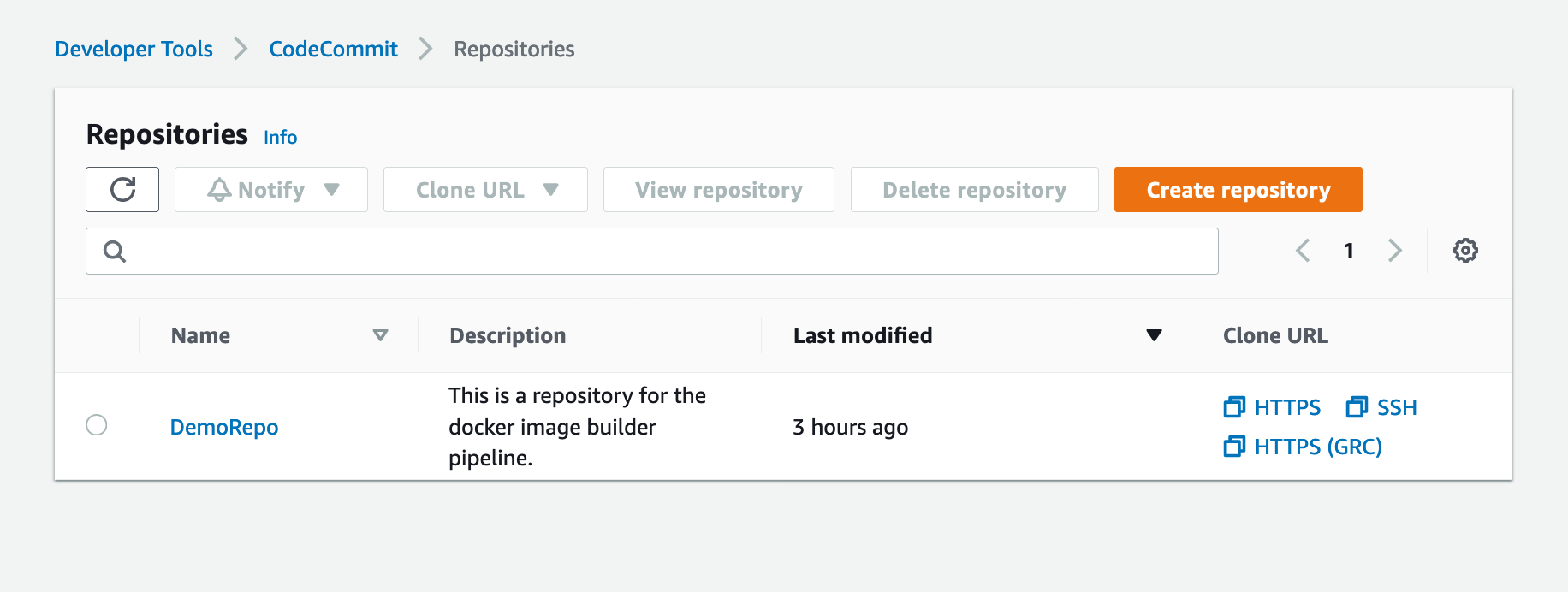
Shows DemoRepo CodeCommit Repository

Figure: Shows DemoRepo CodeCommit Repository

You clone this repository in the build directory you created when deploying the CloudFormation templates.


3. In your terminal, past the Git URL from the previous step and clone the repository:

git clone https://git-codecommit.us-east-1.amazonaws.com/v1/repos/DemoRepo


4. Now let’s create and push your main branch:

cd DemoRepo
git checkout -b main
touch initial.txt
git add . && git commit -m "Initial commit"
git push -u origin main


5. On the Repositories page of the CodeCommit console, choose DemoRepo.

The following screenshot shows that we have created our main branch and pushed our first commit to our repository.
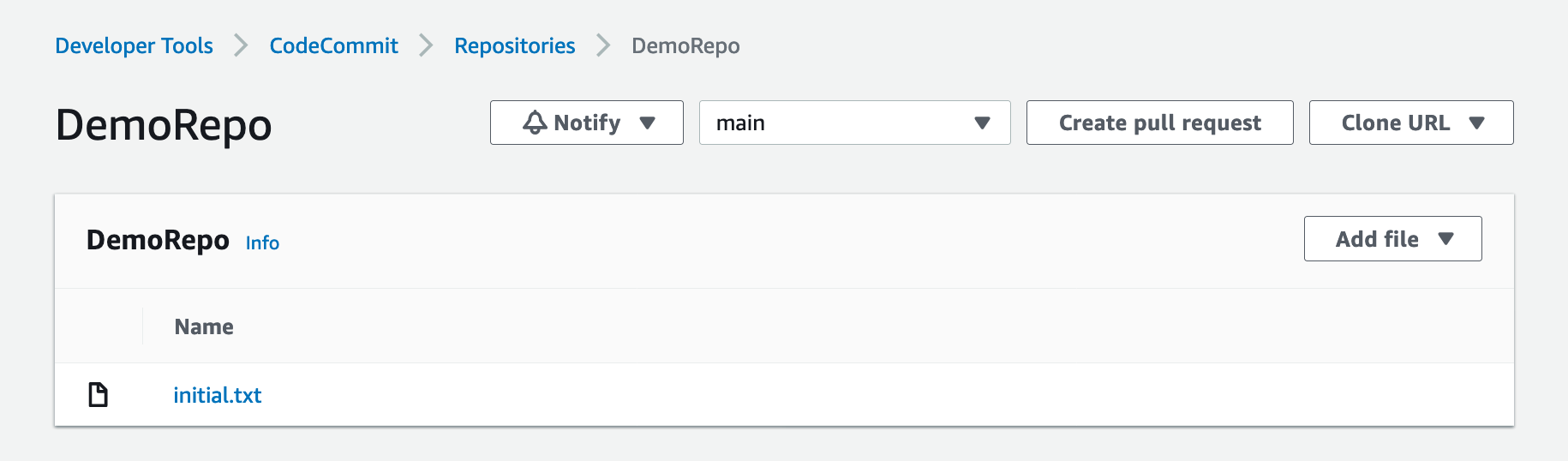
Shows the DemoRepo main branch

Figure: Shows the DemoRepo main branch


6. Back in your terminal, create a new feature branch:

git checkout -b feature/configure-repo


7. Create the build directories:

mkdir templates; \
mkdir parameters; \
mkdir java; \
mkdir components

You now copy over the configuration files from the cloned GitHub repository to our CodeCommit repository.


8. Run the following command from the awsblogrepo directory you created earlier:

cp -r build-and-deploy-docker-images-to-aws-using-ec2-image-builder/* DemoRepo/


9. Commit and push your changes:

git add . && git commit -m "Copying config files into source control." 
git push --set-upstream origin feature/configure-repo


10. On the CodeCommit console, navigate to DemoRepo.

Shows the DemoRepo CodeCommit Repository

Figure: Shows the DemoRepo CodeCommit Repository


11. In the navigation pane, under Repositories, choose Branches.
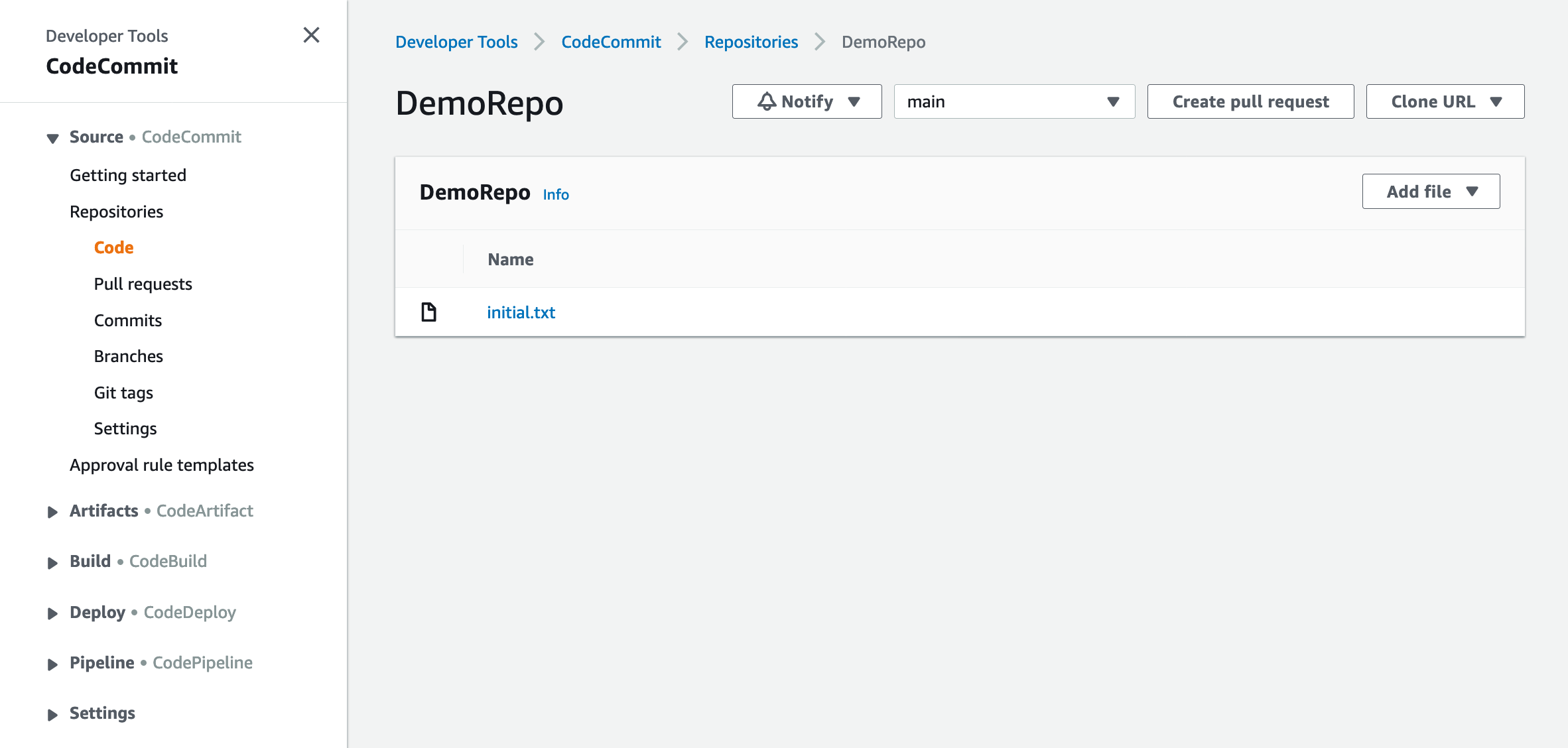
Shows the DemoRepo's code

Figure: Shows the DemoRepo’s code


12. Select the feature/configure-repo branch.
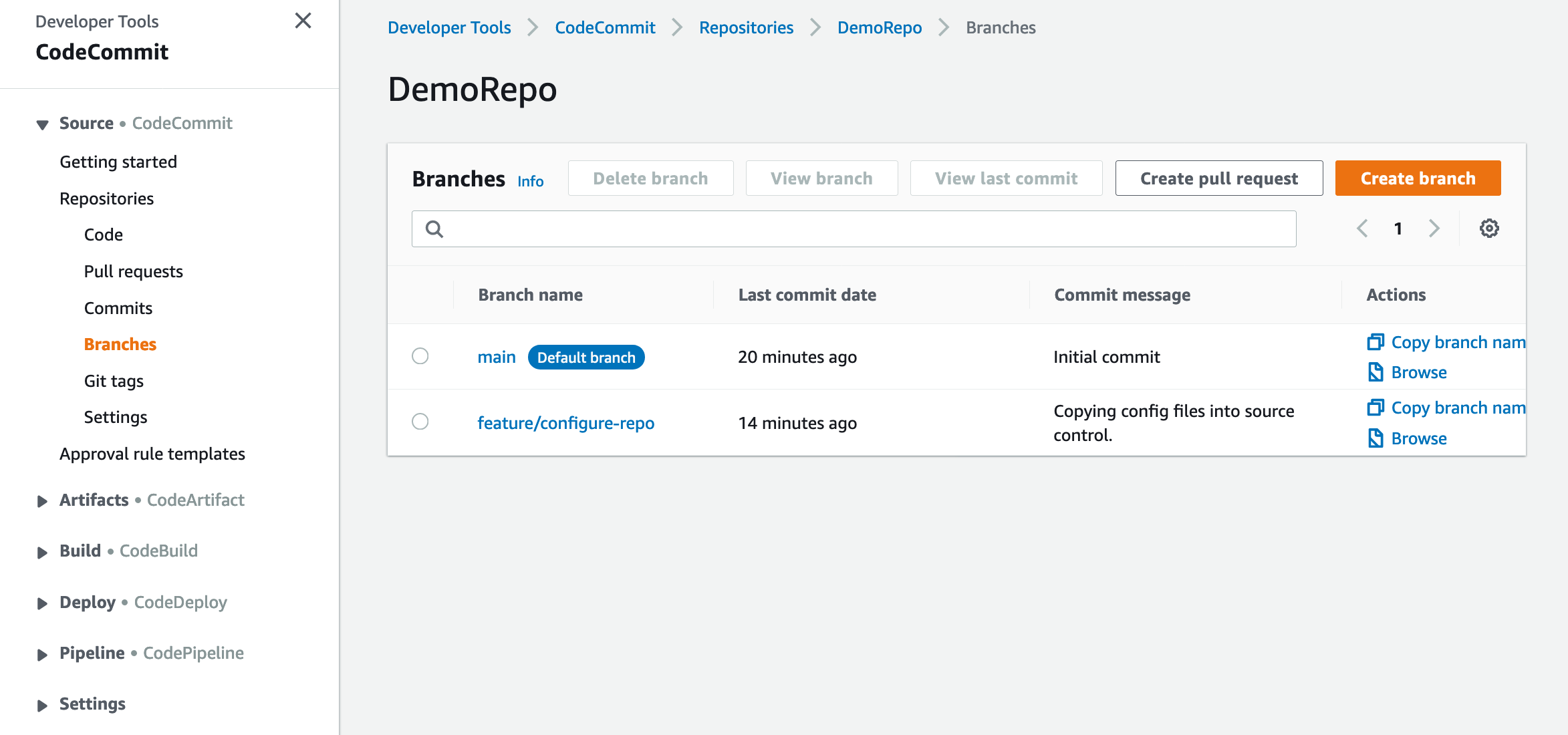
Shows the DemoRepo's branches

Figure: Shows the DemoRepo’s branches


13. Choose Create pull request.
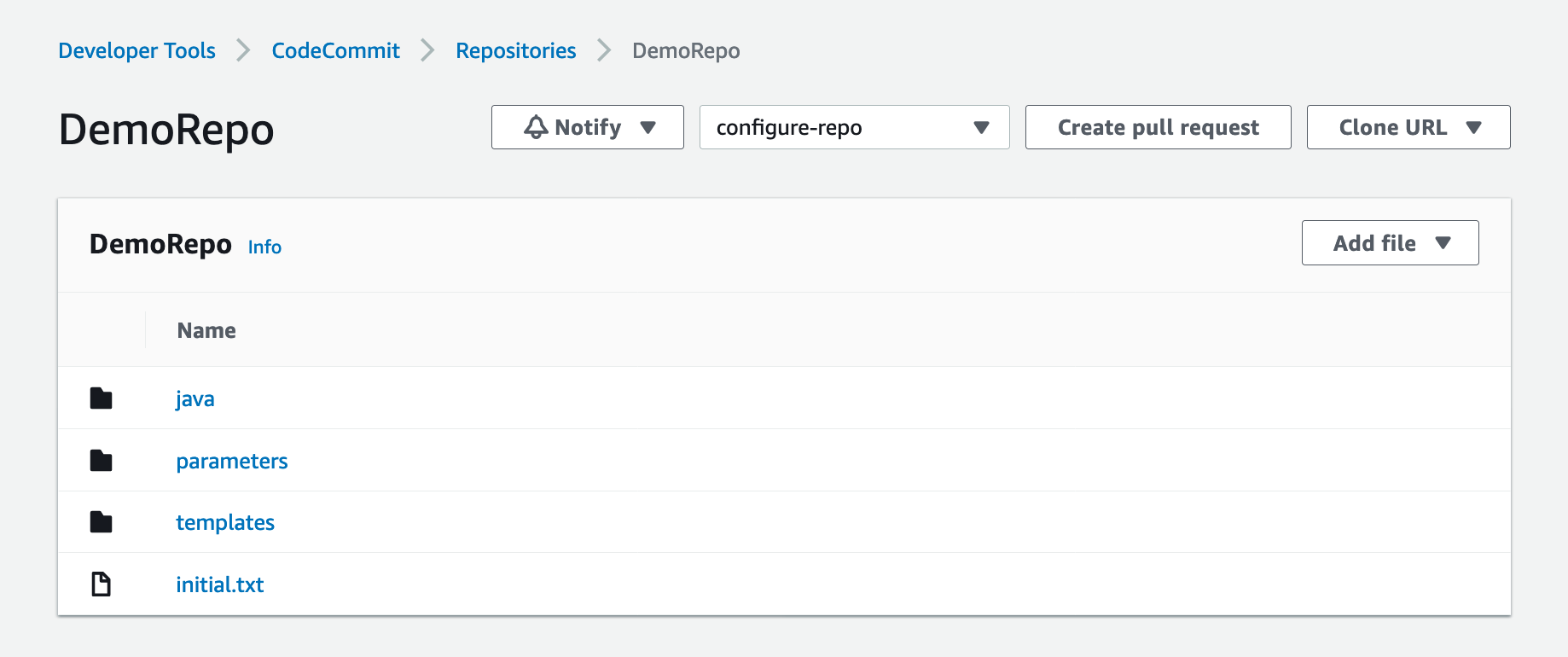
Shows the DemoRepo code

Figure: Shows the DemoRepo code


14. For Title, enter Repository Configuration.


15. For Description, enter a brief description.


16. Choose Create pull request.
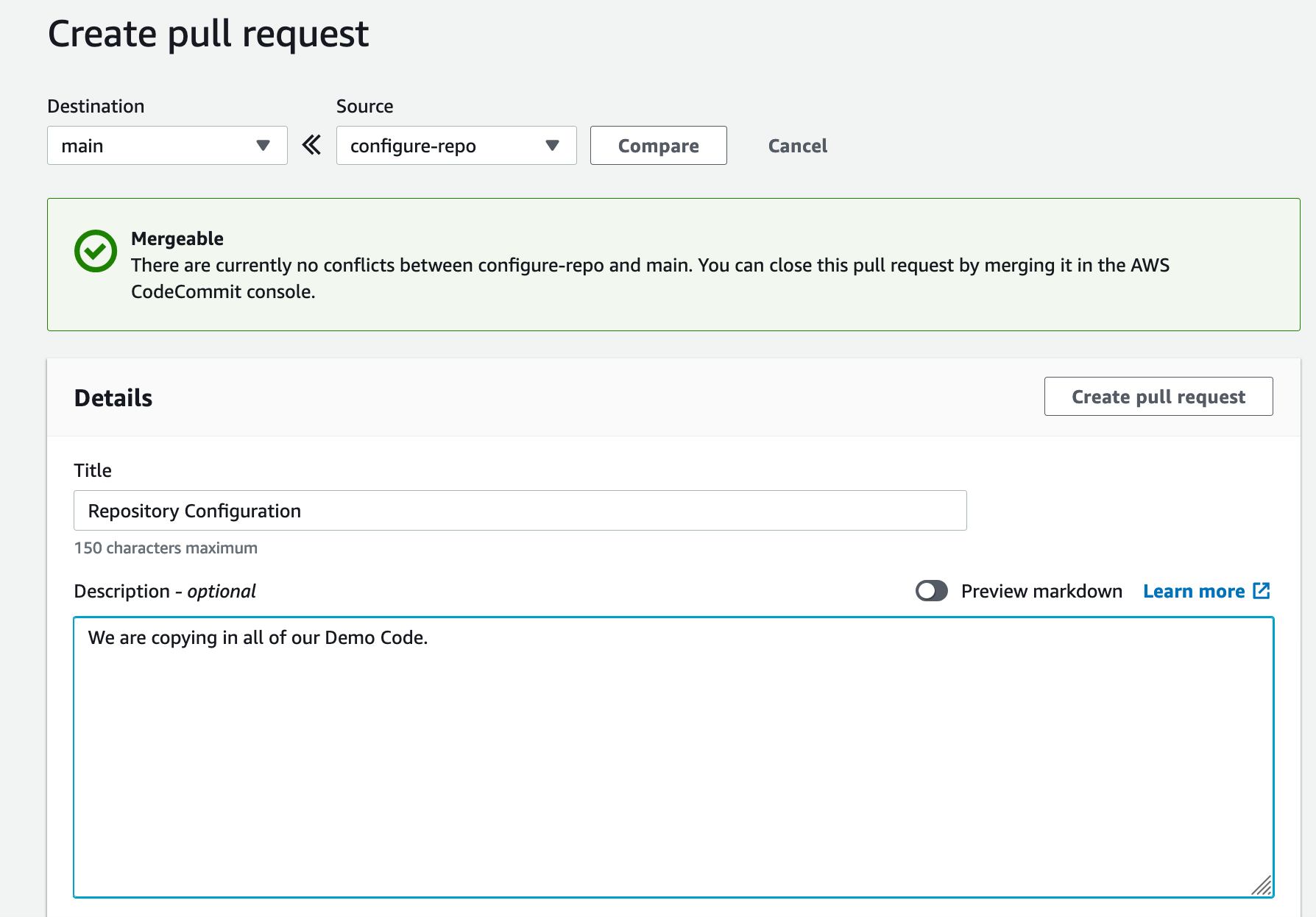
Shows a pull request for DemoRepo

Figure: Shows a pull request for DemoRepo


17. Choose Merge to merge the pull request.
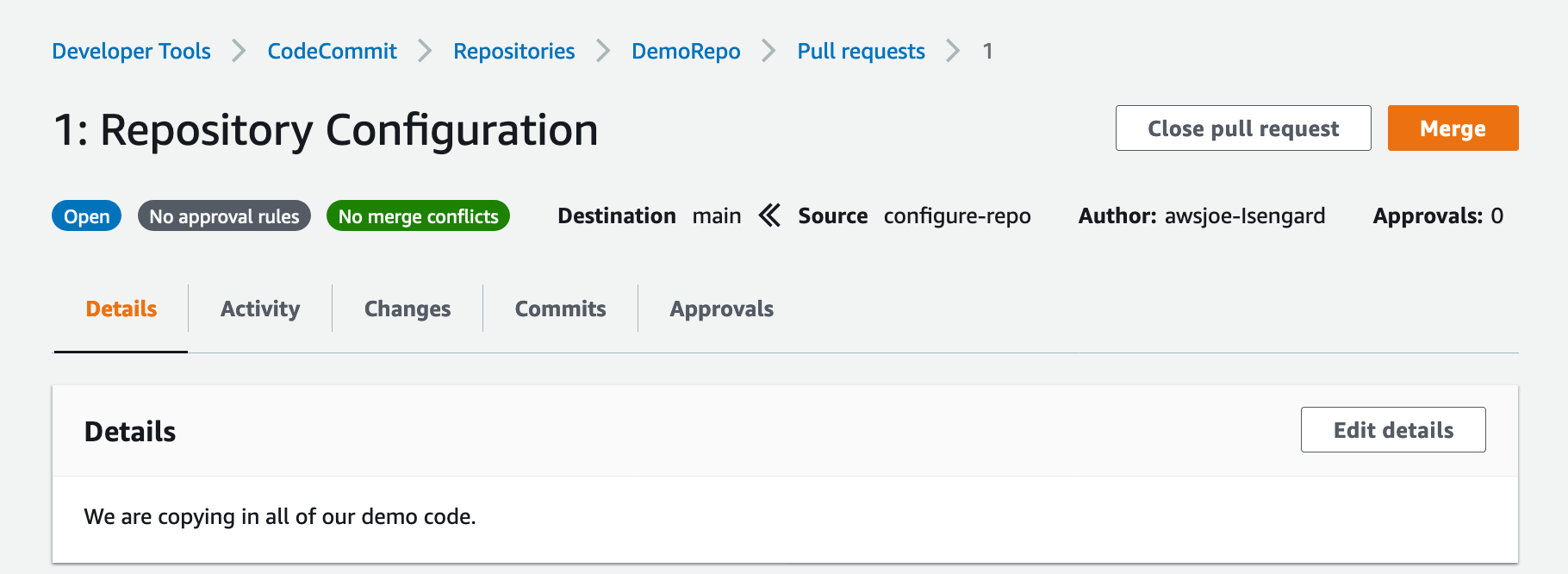
Shows merge for DemoRepo pull request

Figure: Shows merge for DemoRepo pull request

Now that you have all the code copied into your CodeCommit repository, you now build an image using the Image Builder pipeline.


EC2 Image Builder Deep Dive

With Image Builder, you can build and deploy Docker images to your AWS account. Let’s look at how your Image Builder pipeline is configured.

A recipe defines the source image to use as your starting point to create a new image, along with the set of components that you add to customize your image and verify that everything is working as expected. Take note of the ParentImage property. Here, you’re declaring that the parent image that your pipeline pulls from the latest Amazon Linux image. This enables organizations to define images that they have approved to be utilized downstream by development teams. Having better control over what Docker images development teams are using improves an organization security posture while enabling the developers to have the tools they need readily available. The DockerfileTemplateUri property refers to the location of the Dockerfile that your Image Builder pipeline is deploying. Take some time to review the configuration.


Run the Image Builder Pipeline

Now you build a Docker image by running the pipeline.

1. Update your account ID and run the following command:

aws imagebuilder start-image-pipeline-execution \
--image-pipeline-arn arn:aws:imagebuilder:us-east-1:<input_your_aws_account_id>:image-pipeline/docker-image-builder-config-docker-java-container

The output should look like the following:

{
    "requestId": "87931a2e-cd74-44e9-9be1-948fec0776aa",
    "clientToken": "e0f710be-0776-43ea-a6d7-c10137a554bf",
    "imageBuildVersionArn": "arn:aws:imagebuilder:us-east-1:123456789012:image/docker-image-builder-config-container-recipe/1.0.0/1"
}


2. On the Image Builder console, choose the docker-image-builder-config-docker-java-container pipeline.
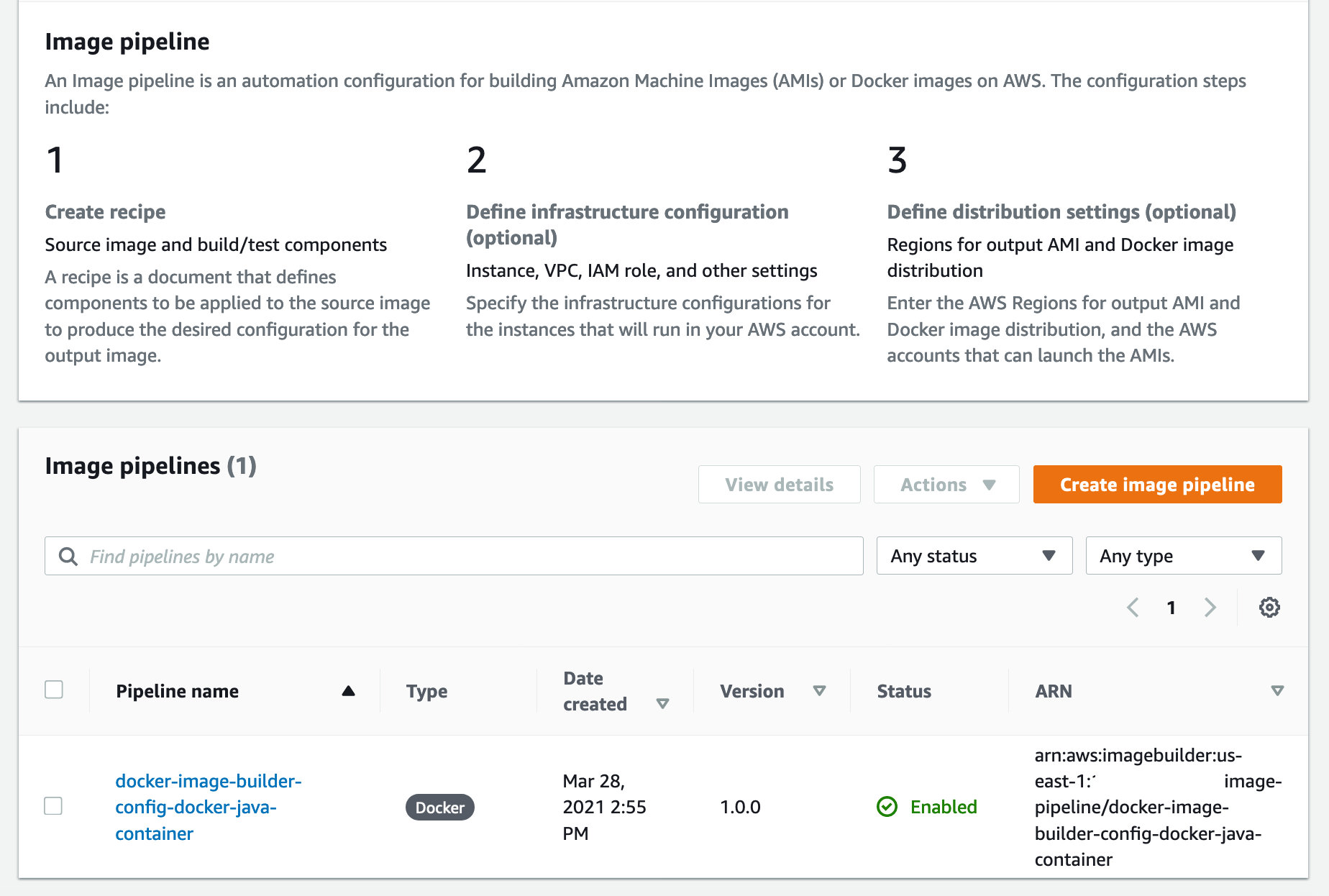
 Shows EC2 Image Builder Pipeline status

Figure: Shows EC2 Image Builder Pipeline status

At the bottom of the page, a new Docker image is building.


3. Wait until the image status becomes Available.
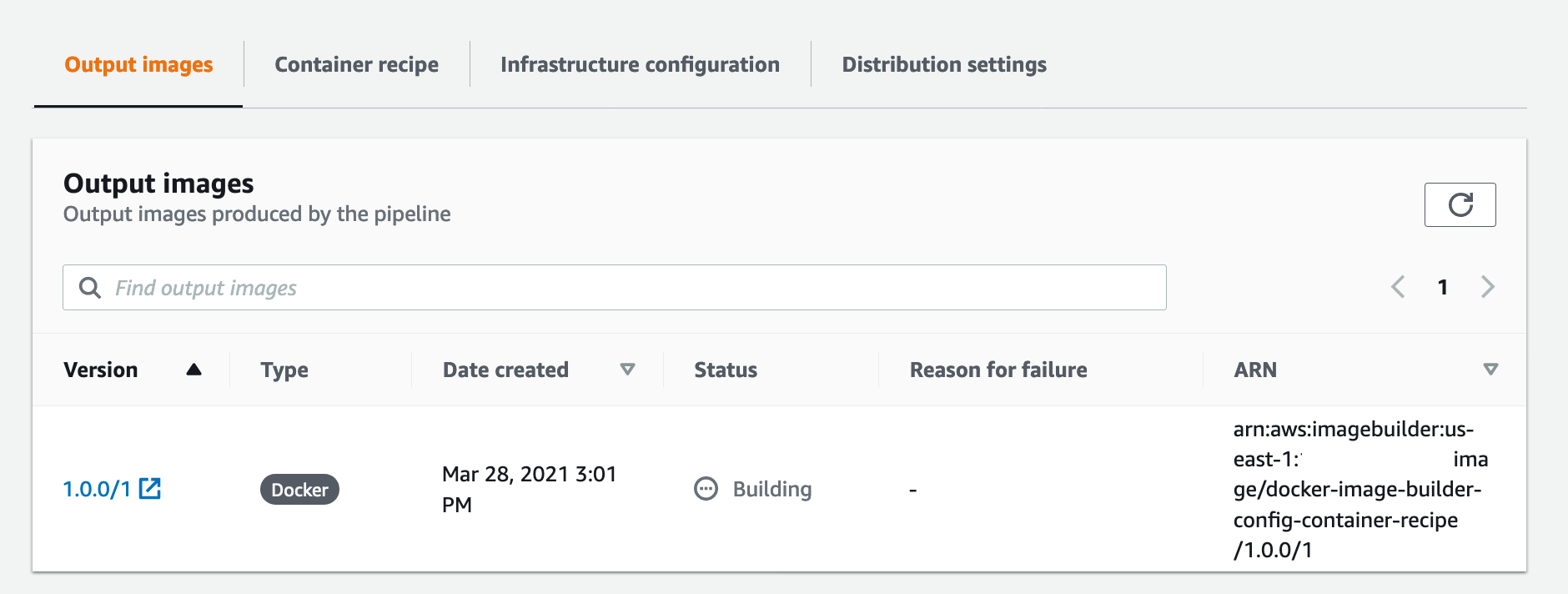
Shows docker image building in EC2 Image Builder console

Figure: Shows docker image building in EC2 Image Builder console


4. On the Amazon ECR console, open java-demo-ib.

The Docker image has been successfully created, tagged, and deployed to Amazon ECR from the Image Builder pipeline.
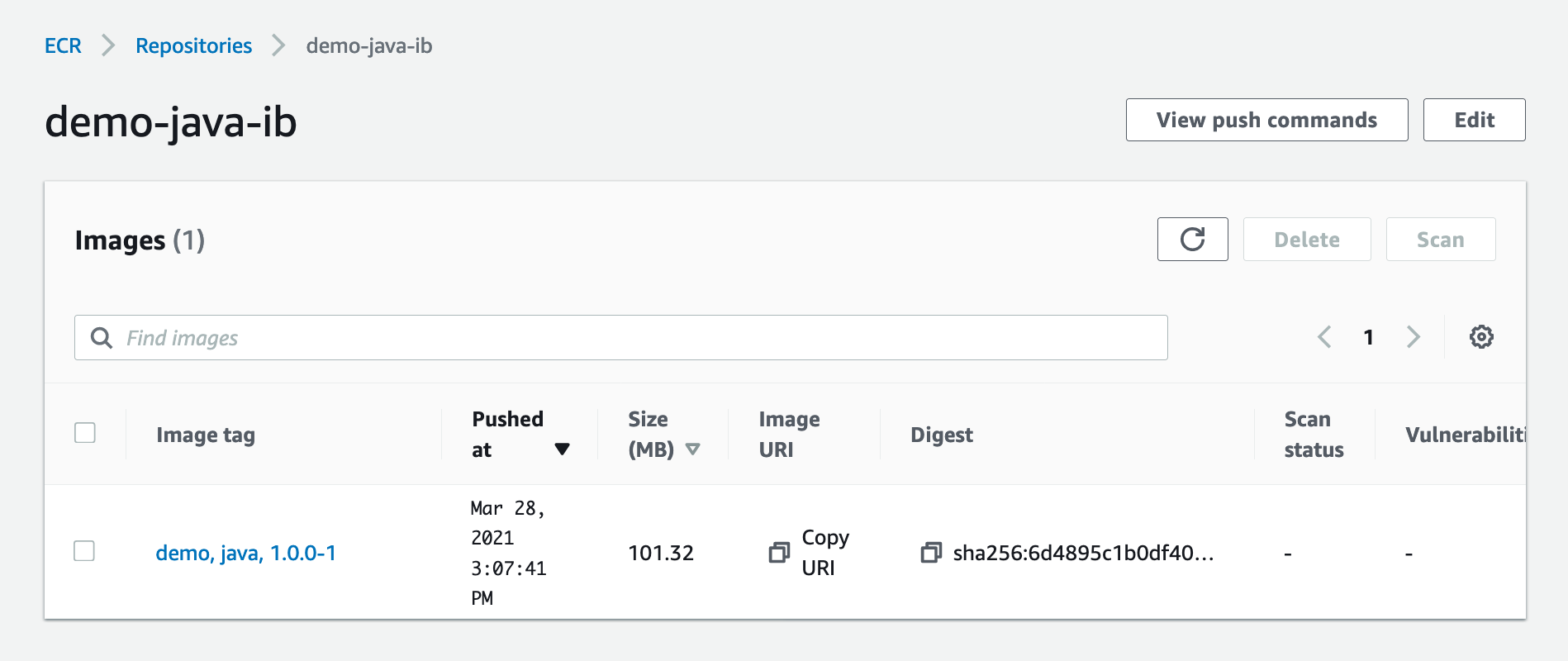
Shows demo-java-ib image in ECR

Figure: Shows demo-java-ib image in ECR


Test the Docker Image Locally

1. On the Amazon ECR console, open java-demo-ib.


2. Copy the image URI.

ECR Screenshot


3. Run the following commands to authenticate to your ECR repository:

aws ecr get-login-password --region us-east-1 | docker login --username AWS --password-stdin <input_your_account_id>.dkr.ecr.us-east-1.amazonaws.com


4. Run the following command in your terminal, and update the Amazon ECR URI with the content you copied from the previous step:

docker pull <input_ecr_image_uri>

You should see output similar to the following:

1.0.0-80: Pulling from demo-java-ib
596ba82af5aa: Pull complete 
6f476912a053: Pull complete 
3e7162a86ef8: Pull complete 
ec7d8bb8d044: Pull complete 
Digest: sha256:14668cda786aa496f406062ce07087d66a14a7022023091e9b953aae0bdf2634
Status: Downloaded newer image for 123456789012.dkr.ecr.us-east-1.amazonaws.com/demo-java-ib:1.0.0-1
123456789012.dkr.ecr.us-east-1.amazonaws.com/demo-java-ib:1.0.0-1


5. Run the following command from your terminal:

docker image ls

You should see output similar to the following:

REPOSITORY                                                  TAG        IMAGE ID       CREATED          SIZE
123456789012.dkr.ecr.us-east-1.amazonaws.com/demo-java-ib   1.0.0-1   ac75e982863c   34 minutes ago   47.3MB


6. Run the following command from your terminal using the IMAGE ID value from the previous output:

docker run -dp 8090:8090 --name java_hello_world -it <docker_image_id> sh

You should see an output similar to the following:

49ea3a278639252058b55ab80c71245d9f00a3e1933a8249d627ce18c3f59ab1


7. Test your container by running the following command:

curl localhost:8090

You should see an output similar to the following:

Hello World!


8. Now that you have verified that your container is working properly, you can stop your container. Run the following command from your terminal:

docker stop java_hello_world


Conclusion

In this article, we showed how to leverage AWS services to automate the creation, management, and distribution of Docker Images. We walked through how to configure EC2 Image Builder to create and distribute Docker images. Finally, we built a Docker image using our EC2 Image Builder pipeline and tested the image locally. Thank you for reading!


Joe Keating is a Modernization Architect in Professional Services at Amazon Web Services. He works with AWS customers to design and implement a variety of solutions in the AWS Cloud. Joe enjoys cooking with a glass or two of wine and achieving mediocrity on the golf course.


Virginia Chu is a Sr. Cloud Infrastructure Architect in Professional Services at Amazon Web Services. She works with enterprise-scale customers around the globe to design and implement a variety of solutions in the AWS Cloud.


BK works as a Senior Security Architect with AWS Professional Services. He love to solve security problems for his customers, and help them feel comfortable within AWS. Outside of work, BK loves to play computer games, and go on long drives.

Deploying CIS Level 1 hardened AMIs with Amazon EC2 Image Builder

Post Syndicated from Joseph Keating original https://aws.amazon.com/blogs/devops/deploying-cis-level-1-hardened-amis-with-amazon-ec2-image-builder/

The NFL, an AWS Professional Services partner, is collaborating with NFL’s Player Health and Safety team to build the Digital Athlete Program. The Digital Athlete Program is working to drive progress in the prevention, diagnosis, and treatment of injuries; enhance medical protocols; and further improve the way football is taught and played. The NFL, in conjunction with AWS Professional Services, delivered an Amazon EC2 Image Builder pipeline for automating the production of Amazon Machine Images (AMIs). Following similar practices from the Digital Athlete Program, this post demonstrates how to deploy an automated Image Builder pipeline.

“AWS Professional Services faced unique environment constraints, but was able to deliver a modular pipeline solution leveraging EC2 Image Builder. The framework serves as a foundation to create hardened images for future use cases. The team also provided documentation and knowledge transfer sessions to ensure our team was set up to successfully manage the solution.”

—Joseph Steinke, Director, Data Solutions Architect, National Football League

A common scenario AWS customers face is how to build processes that configure secure AWS resources that can be leveraged throughout the organization. You need to move fast in the cloud without compromising security best practices. Amazon Elastic Compute Cloud (Amazon EC2) allows you to deploy virtual machines in the AWS Cloud. EC2 AMIs provide the configuration utilized to launch an EC2 instance. You can use AMIs for several use cases, such as configuring applications, applying security policies, and configuring development environments. Developers and system administrators can deploy configuration AMIs to bring up EC2 resources that require little-to-no setup. Often times, multiple patterns are adopted for building and deploying AMIs. Because of this, you need the ability to create a centralized, automated pattern that can output secure, customizable AMIs.

In this post, we demonstrate how to create an automated process that builds and deploys Center for Internet Security (CIS) Level 1 hardened AMIs. The pattern that we deploy includes Image Builder, a CIS Level 1 hardened AMI, an application running on EC2 instances, and Amazon Inspector for security analysis. You deploy the AMI configured with the Image Builder pipeline to an application stack. The application stack consists of EC2 instances running Nginx. Lastly, we show you how to re-hydrate your application stack with a new AMI utilizing AWS CloudFormation and Amazon EC2 launch templates. You use Amazon Inspector to scan the EC2 instances launched from the Image Builder-generated AMI against the CIS Level 1 Benchmark.

After going through this exercise, you should understand how to build, manage, and deploy AMIs to an application stack. The infrastructure deployed with this pipeline includes a basic web application, but you can use this pattern to fit many needs. After running through this post, you should feel comfortable using this pattern to configure an AMI pipeline for your organization.

The project we create in this post addresses the following use case: you need a process for building and deploying CIS Level 1 hardened AMIs to an application stack running on Amazon EC2. In addition to demonstrating how to deploy the AMI pipeline, we also illustrate how to refresh a running application stack with a new AMI. You learn how to deploy this configuration with the AWS Command Line Interface (AWS CLI) and AWS CloudFormation.

AWS services used
Image Builder allows you to develop an automated workflow for creating AMIs to fit your organization’s needs. You can streamline the creation and distribution of secure images, automate your patching process, and define security and application configuration into custom AWS AMIs. In this post, you use the following AWS services to implement this solution:

  • AWS CloudFormation – AWS CloudFormation allows you to use domain-specific languages or simple text files to model and provision, in an automated and secure manner, all the resources needed for your applications across all Regions and accounts. You can deploy AWS resources in a safe, repeatable manner, and automate the provisioning of infrastructure.
  • AWS KMSAmazon Key Management Service (AWS KMS) is a fully managed service for creating and managing cryptographic keys. These keys are natively integrated with most AWS services. You use a KMS key in this post to encrypt resources.
  • Amazon S3Amazon Simple Storage Service (Amazon S3) is an object storage service utilized for storing and encrypting data. We use Amazon S3 to store our configuration files.
  • AWS Auto ScalingAWS Auto Scaling allows you to build scaling plans that automate how groups of different resources respond to changes in demand. You can optimize availability, costs, or a balance of both. We use Auto Scaling to manage Nginx on Amazon EC2.
  • Launch templatesLaunch templates contain configurations such as AMI ID, instance type, and security group. Launch templates enable you to store launch parameters so that they don’t have to be specified every time instances are launched.
  • Amazon Inspector – This automated security assessment service improves the security and compliance of applications deployed on AWS. Amazon Inspector automatically assesses applications for exposures, vulnerabilities, and deviations from best practices.

Architecture overview
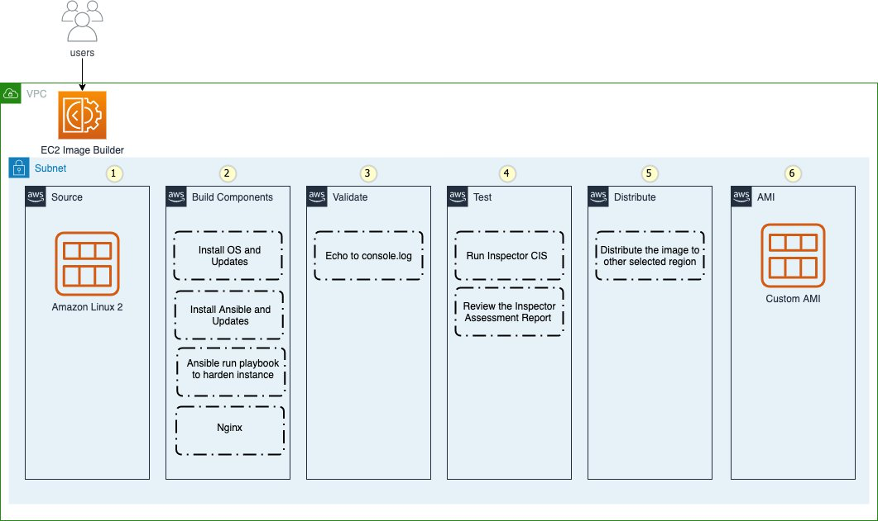
We use Ansible as a configuration management component alongside Image Builder. The CIS Ansible Playbook applies a Level 1 set of rules to the local host of which the AMI is provisioned on. For more information about the Ansible Playbook, see the GitHub repo. Image Builder offers AMIs with Security Technical Implementation Guides (STIG) levels low-high as part of its pipeline build.

The following diagram depicts the phases of the Image Builder pipeline for building a Nginx web server. The numbers 1–6 represent the order of when each phase runs in the build process:

  1. Source
  2. Build components
  3. Validate
  4. Test
  5. Distribute
  6. AMI

Figure: Shows the EC2 Image Builder steps

The workflow includes the following steps:

  1. Deploy the CloudFormation templates.
  2. The template creates an Image Builder pipeline.
  3. AWS Systems Manager completes the AMI build process.
  4. Amazon EC2 starts an instance to build the AMI.
  5. Systems Manager starts a test instance build after the first build is successful.
  6. The AMI starts provisioning.
  7. The Amazon Inspector CIS benchmark starts.

CloudFormation templates
You deploy the following CloudFormation templates. These CloudFormation templates have a great deal of configurations. They deploy the following resources:

  • vpc.yml – Contains all the core networking configuration. It deploys the VPC, two private subnets, two public subnets, and the route tables. The private subnets utilize a NAT gateway to communicate to the internet. The public subnets have full outbound access to the IGW.
  • kms.yml – Contains the AWS KMS configuration that we use for encrypting resources. The KMS key policy is also configured in this template.
  • s3-iam-config.yml – Contains the launch configuration and autoscaling groups for the initial Nginx launch. For updates and patching to Nginx, we use Image Builder to build those changes.
  • infrastructure-ssm-params.yml – Contains the Systems Manager parameter store configuration. The parameters are populated by using outputs from other CloudFormation templates.
  • nginx-config.yml – Contains the configuration for Nginx. Additionally, this template contains the network load balancer, target groups, security groups, and EC2 instance AWS Identity and Access Management (IAM) roles.
  • nginx-image-builder.yml – Contains the configuration for the Image Builder pipeline that we use to build AMIs.

Prerequisites
To follow the steps to provision the pipeline deployment, you must have the following prerequisites:

Deploying the CloudFormation templates
To deploy your templates, complete the following steps:

1. Clone the source code repository found in the following location:

git clone https://github.com/aws-samples/deploy-cis-level-1-hardened-ami-with-ec2-image-builder-pipeline.git

You now use the AWS CLI to deploy the CloudFormation templates. Make sure to leave the CloudFormation template names as we have written in this post.

2. Deploy the VPC CloudFormation template:

aws cloudformation create-stack \
--stack-name vpc-config \
--template-body file://Templates/vpc.yml \
--parameters file://Parameters/vpc-params.json  \
--capabilities CAPABILITY_IAM \
--region us-east-1

The output should look like the following code:

{

    "StackId": "arn:aws:cloudformation:us-east-1:123456789012:stack/vpc-config/7faaab30-247f-11eb-8712-0e65b6fb18f9"
}


3. Open the Parameters/kms-params.json file and update the UserARN parameter with your account ID:

[
  {
      "ParameterKey": "KeyName",
      "ParameterValue": "DemoKey"
  },
  {
    "ParameterKey": "UserARN",
    "ParameterValue": "arn:aws:iam::<input_your_account_id>:root"
  }
]


4. Deploy the KMS key CloudFormation template:

aws cloudformation create-stack \
--stack-name kms-config \
--template-body file://Templates/kms.yml \
--parameters file://Parameters/kms-params.json \
--capabilities CAPABILITY_IAM \
--region us-east-1

The output should look like the following:

{
"StackId": "arn:aws:cloudformation:us-east-1:123456789012:stack/kms-config/f65aca80-08ff-11eb-8795-12275bc6e1ef"
}


5. Open the Parameters/s3-iam-config.json file and update the DemoConfigS3BucketName parameter to a unique name of your choosing:

[
  {
    "ParameterKey" : "Environment",
    "ParameterValue" : "dev"
  },
  {
    "ParameterKey": "NetworkStackName",
    "ParameterValue" : "vpc-config"
  },
  {
    "ParameterKey" : "KMSStackName",
    "ParameterValue" : "kms-config"
  },
  {
    "ParameterKey": "DemoConfigS3BucketName",
    "ParameterValue" : "<input_your_unique_bucket_name>"
  },
  {
    "ParameterKey" : "EC2InstanceRoleName",
    "ParameterValue" : "EC2InstanceRole"
  }
]


6. Deploy the IAM role configuration template:

aws cloudformation create-stack \
--stack-name s3-iam-config \
--template-body file://Templates/s3-iam-config.yml \
--parameters file://Parameters/s3-iam-config.json \
--capabilities CAPABILITY_NAMED_IAM \
--region us-east-1

The output should look like the following:

{
"StackId": "arn:aws:cloudformation:us-east-1:123456789012:stack/s3-iam-config/9be9f990-0909-11eb-811c-0a78092beb51"
}


Configuring IAM roles and policies

This solution uses a couple of service-linked roles. Let’s generate these roles using the AWS CLI.


1. Run the following commands:

aws iam create-service-linked-role --aws-service-name autoscaling.amazonaws.com
aws iam create-service-linked-role --aws-service-name imagebuilder.amazonaws.com

If you see a message similar to following code, it means that you already have the service-linked role created in your account and you can move on to the next step:

An error occurred (InvalidInput) when calling the CreateServiceLinkedRole operation: Service role name AWSServiceRoleForImageBuilder has been taken in this account, please try a different suffix.

Now that you have generated the IAM roles used in this post, you add them to the KMS key policy. This allows the roles to encrypt and decrypt the KMS key.


2. Open the Parameters/kms-params.json file:

[
  {
      "ParameterKey": "KeyName",
      "ParameterValue": "DemoKey"
  },
  {
    "ParameterKey": "UserARN",
    "ParameterValue": "arn:aws:iam::12345678910:root"
  }
]


3. Add the following values as a comma-separated list to the UserARN parameter key:

arn:aws:iam::<input_your_aws_account_id>:role/EC2InstanceRole
arn:aws:iam::<input_your_aws_account_id>:role/EC2ImageBuilderRole
arn:aws:iam::<input_your_aws_account_id>:role/NginxS3PutLambdaRole
arn:aws:iam::<input_your_aws_account_id>:role/aws-service-role/imagebuilder.amazonaws.com/AWSServiceRoleForImageBuilder
arn:aws:iam::<input_your_aws_account_id>:role/aws-service-role/autoscaling.amazonaws.com/AWSServiceRoleForAutoScaling


When finished, the file should look similar to the following:

[
  {
      "ParameterKey": "KeyName",
      "ParameterValue": "DemoKey"
  },
  {
    "ParameterKey": "UserARN",
    "ParameterValue": "arn:aws:iam::123456789012:role/aws-service-role/autoscaling.amazonaws.com/AWSServiceRoleForAutoScaling,arn:aws:iam::<input_your_aws_account_id>:role/NginxS3PutLambdaRole,arn:aws:iam::123456789012:role/aws-service-role/imagebuilder.amazonaws.com/AWSServiceRoleForImageBuilder,arn:aws:iam::12345678910:role/EC2InstanceRole,arn:aws:iam::12345678910:role/EC2ImageBuilderRole,arn:aws:iam::12345678910:root"
  }
]

Updating the CloudFormation stack

Now that the AWS KMS parameter file has been updated, you update the AWS KMS CloudFormation stack.

1. Run the following command to update the kms-config stack:

aws cloudformation update-stack \
--stack-name kms-config \
--template-body file://Templates/kms.yml \
--parameters file://Parameters/kms-params.json \
--capabilities CAPABILITY_IAM \
--region us-east-1


The output should look like the following:

{
"StackId": "arn:aws:cloudformation:us-east-1:123456789012:stack/kms-config/6e84b750-0905-11eb-b543-0e4dccb471bf"
}


2. Open the AnsibleConfig/component-nginx.yml file and update the <input_s3_bucket_name> value with the bucket name you generated from the s3-iam-config stack:

# Copyright Amazon.com, Inc. or its affiliates. All Rights Reserved.
# SPDX-License-Identifier: MIT-0
name: 'Ansible Playbook Execution on Amazon Linux 2'
description: 'This is a sample component that demonstrates how to download and execute an Ansible playbook against Amazon Linux 2.'
schemaVersion: 1.0
constants:
  - s3bucket:
      type: string
      value: <input_s3_bucket_name>
phases:
  - name: build
    steps:
      - name: InstallAnsible
        action: ExecuteBash
        inputs:
          commands:
           - sudo amazon-linux-extras install -y ansible2
      - name: CreateDirectory
        action: ExecuteBash
        inputs:
          commands:
            - sudo mkdir -p /ansibleloc/roles
      - name: DownloadLinuxCis
        action: S3Download
        inputs:
          - source: 's3://{{ s3bucket }}/components/linux-cis.zip'
            destination: '/ansibleloc/linux-cis.zip'
      - name: UzipLinuxCis
        action: ExecuteBash
        inputs:
          commands:
            - unzip /ansibleloc/linux-cis.zip -d /ansibleloc/roles
            - echo "unzip linux-cis file"
      - name: DownloadCisPlaybook
        action: S3Download
        inputs:
          - source: 's3://{{ s3bucket }}/components/cis_playbook.yml'
            destination: '/ansibleloc/cis_playbook.yml'
      - name: InvokeCisAnsible
        action: ExecuteBinary
        inputs:
          path: ansible-playbook
          arguments:
            - '{{ build.DownloadCisPlaybook.inputs[0].destination }}'
            - '--tags=level1'
      - name: DeleteCisPlaybook
        action: ExecuteBash
        inputs:
          commands:
            - rm '{{ build.DownloadCisPlaybook.inputs[0].destination }}'
      - name: DownloadNginx
        action: S3Download
        inputs:
          - source: s3://{{ s3bucket }}/components/nginx.zip'
            destination: '/ansibleloc/nginx.zip'
      - name: UzipNginx
        action: ExecuteBash
        inputs:
          commands:
            - unzip /ansibleloc/nginx.zip -d /ansibleloc/roles
            - echo "unzip Nginx file"
      - name: DownloadNginxPlaybook
        action: S3Download
        inputs:
          - source: 's3://{{ s3bucket }}/components/nginx_playbook.yml'
            destination: '/ansibleloc/nginx_playbook.yml'
      - name: InvokeNginxAnsible
        action: ExecuteBinary
        inputs:
          path: ansible-playbook
          arguments:
            - '{{ build.DownloadNginxPlaybook.inputs[0].destination }}'
      - name: DeleteNginxPlaybook
        action: ExecuteBash
        inputs:
          commands:
            - rm '{{ build.DownloadNginxPlaybook.inputs[0].destination }}'

  - name: validate
    steps:
      - name: ValidateDebug
        action: ExecuteBash
        inputs:
          commands:
            - sudo echo "ValidateDebug section"

  - name: test
    steps:
      - name: TestDebug
        action: ExecuteBash
        inputs:
          commands:
            - sudo echo "TestDebug section"
      - name: Download_Inspector_Test
        action: S3Download
        inputs:
          - source: 's3://ec2imagebuilder-managed-resources-us-east-1-prod/components/inspector-test-linux/1.0.1/InspectorTest'
            destination: '/workdir/InspectorTest'
      - name: Set_Executable_Permissions
        action: ExecuteBash
        inputs:
          commands:
            - sudo chmod +x /workdir/InspectorTest
      - name: ExecuteInspectorAssessment
        action: ExecuteBinary
        inputs:
          path: '/workdir/InspectorTest'


Adding files to your S3 buckets

Now you assume a role you generated from one of the previous CloudFormation stacks. This allows you to add files to the encrypted S3 bucket.

1. Run the following command and make sure to update the role to use your AWS account ID number:

aws sts assume-role --role-arn "arn:aws:iam::<input_your_aws_account_id>:role/EC2ImageBuilderRole" --role-session-name AWSCLI-Session

You see an output similar to the following:

{
    "Credentials": {
        "AccessKeyId": "<AWS_ACCESS_KEY_ID>",
        "SecretAccessKey": "<AWS_SECRET_ACCESS_KEY_ID>",
        "SessionToken": "<AWS_SESSION_TOKEN>",
        "Expiration": "2020-11-20T02:54:17Z"
    },
    "AssumedRoleUser": {
        "AssumedRoleId": "ACPATGCCLSNJCNSJCEWZ:AWSCLI-Session",
        "Arn": "arn:aws:sts::123456789012:assumed-role/EC2ImageBuilderRole/AWSCLI-Session"
    }
}

You now assume the EC2ImageBuilderRole IAM role from the command line. This role allows you to create objects in the S3 bucket generated from the s3-iam-config stack. Because this bucket is encrypted with AWS KMS, any user or IAM role requires specific permissions to decrypt the key. You have already accounted for this in a previous step by adding the EC2ImageBuilderRole IAM role to the KMS key policy.


2. Create the following environment variable to use the EC2ImageBuilderRole role. Update the values with the output from the previous step:

export AWS_ACCESS_KEY_ID=AccessKeyId
export AWS_SECRET_ACCESS_KEY=SecretAccessKey
export AWS_SESSION_TOKEN=SessionToken


3. Check to make sure that you have actually assumed the role EC2ImageBuilderRole:

aws sts get-caller-identity

You should see an output similar to the following:

{
    "UserId": "AROATG5CKLSWENUYOF6A4:AWSCLI-Session",
    "Account": "123456789012",
    "Arn": "arn:aws:sts::123456789012:assumed-role/EC2ImageBuilderRole/AWSCLI-Session"
}


4. Create a folder inside of the encrypted S3 bucket generated in the s3-iam-config stack:

aws s3api put-object --bucket <input_your_bucket_name> --key components


5. Zip the configuration files that you use in the Image Builder pipeline process:

zip -r linux-cis.zip LinuxCis/
zip -r nginx.zip Nginx/


6. Upload the configuration files to S3 bucket. Update the bucket name with the S3 bucket name you generated in the s3-iam-config stack.

aws s3 cp linux-cis.zip s3://<input_your_bucket_name>/components/

aws s3 cp nginx.zip s3://<input_your_bucket_name>/components/

aws s3 cp AnsibleConfig/cis_playbook.yml s3://<input_your_bucket_name>/components/

aws s3 cp AnsibleConfig/nginx_playbook.yml s3://<input_your_bucket_name>/components/

aws s3 cp AnsibleConfig/component-nginx.yml s3://<input_your_bucket_name>/components/

Deploying your pipeline

You’re now ready to deploy your pipeline.

1. Switch back to the original IAM user profile you used before assuming the EC2ImageBuilderRole. For instructions, see How do I assume an IAM role using the AWS CLI?


2. Open the Parameters/nginx-image-builder-params.json file and update the ImageBuilderBucketName parameter with the S3 bucket name generated in the s3-iam-config stack:

[
  {
    "ParameterKey": "Environment",
    "ParameterValue": "dev"
  },
  {
    "ParameterKey": "ImageBuilderBucketName",
    "ParameterValue": "<input_your_bucket_name>"
  },
  {
    "ParameterKey": "NetworkStackName",
    "ParameterValue": "vpc-config"
  },
  {
    "ParameterKey": "KMSStackName",
    "ParameterValue": "kms-config"
  },
  {
    "ParameterKey": "S3ConfigStackName",
    "ParameterValue": "s3-iam-config"
  }
]


3. Deploy the nginx-image-builder.yml template:

aws cloudformation create-stack \
--stack-name cis-image-builder \
--template-body file://Templates/nginx-image-builder.yml \
--parameters file://Parameters/nginx-image-builder-params.json \
--capabilities CAPABILITY_NAMED_IAM \
--region us-east-1

The template takes around 35 minutes to complete. Deploying this template starts the Image Builder pipeline.


Monitoring the pipeline

You can get more details about the pipeline on the AWS Management Console.

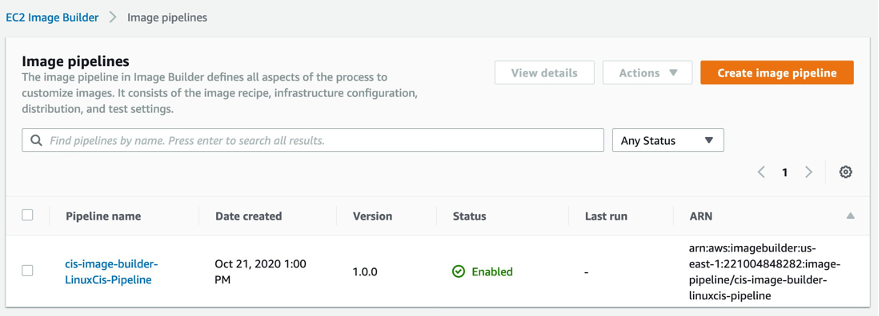
1. On the Image Builder console, choose Image pipelines to see the status of the pipeline.

Figure: Shows the EC2 Image Builder Pipeline status


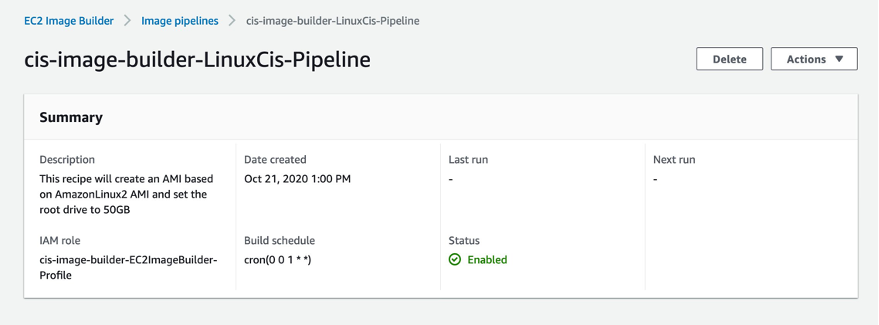
2. Choose the pipeline (for this post, cis-image-builder-LinuxCis-Pipeline)

On the pipeline details page, you can view more information and make updates to its configuration.

Figure: Shows the Image Builder Pipeline metadata

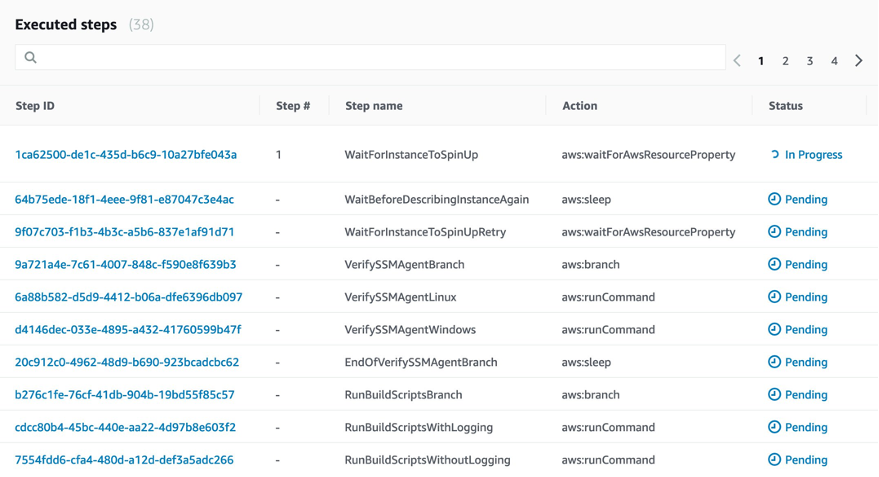
At this point, the Image Builder pipeline has started running the automation document in Systems Manager. Here you can monitor the progress of the AMI build.


3. On the Systems Manager console, choose Automation.


4. Choose the execution ID of the arn:aws:ssm:us-east-1:123456789012:document/ImageBuilderBuildImageDocument document.

Figure: Shows the Image Builder Pipeline Systems Manager Automation steps


5. Choose the step ID to see what is happening in each step.

At this point, the Image Builder pipeline is bringing up an Amazon Linux 2 EC2 instance. From there, we run Ansible playbooks that configure the security and application settings. The automation is pulling its configuration from the S3 bucket you deployed in a previous step. When the Ansible run is complete, the instance stops and an AMI is generated from this instance. When this is complete, a cleanup is initiated that ends the EC2 instance. The final result is a CIS Level 1 hardened Amazon Linux 2 AMI running Nginx.


Updating parameters

When the stack is complete, you retrieve some new parameter values.

1. On the Systems Manager console, choose Automation.


2. Choose the execution ID of the arn:aws:ssm:us-east-1:123456789012:document/ImageBuilderBuildImageDocument document.


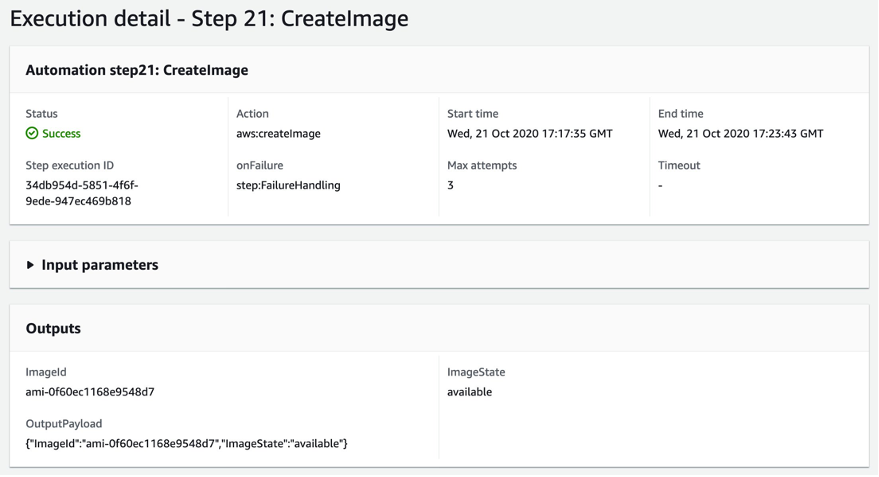
3. Choose step 21.

The following screenshot shows the output of this step.

Figure: Shows step of EC2 Image Builder Pipeline


4. Open the Parameters/nginx-config.json file and update the AmiId parameter with the AMI ID generated from the previous step:

[
  {
    "ParameterKey" : "Environment",
    "ParameterValue" : "dev"
  },
  {
    "ParameterKey": "NetworkStackName",
    "ParameterValue" : "vpc-config"
  },
  {
    "ParameterKey" : "S3ConfigStackName",
    "ParameterValue" : "s3-iam-config"
  },
  {
    "ParameterKey": "AmiId",
    "ParameterValue" : "<input_the_cis_hardened_ami_id>"
  },
  {
    "ParameterKey": "ApplicationName",
    "ParameterValue" : "Nginx"
  },
  {
    "ParameterKey": "NLBName",
    "ParameterValue" : "DemoALB"
  },
  {
    "ParameterKey": "TargetGroupName",
    "ParameterValue" : "DemoTG"
  }
]


5. Deploy the nginx-config.yml template:

aws cloudformation create-stack \
--stack-name nginx-config \
--template-body file://Templates/nginx-config.yml \
--parameters file://Parameters/nginx-config.json \
--capabilities CAPABILITY_NAMED_IAM \
--region us-east-1

The output should look like the following:

{
    "StackId": "arn:aws:cloudformation:us-east-1:123456789012:stack/nginx-config/fb2b0f30-24f6-11eb-ad7c-0a3238f55eb3"
}


6. Deploy the infrastructure-ssm-params.yml template:

aws cloudformation create-stack \
--stack-name ssm-params-config \
--template-body file://Templates/infrastructure-ssm-params.yml \
--parameters file://Parameters/infrastructure-ssm-parameters.json \
--capabilities CAPABILITY_NAMED_IAM \
--region us-east-1


Verifying Nginx is running

Let’s verify that our Nginx service is up and running properly. You use Session Manager to connect to a testing instance.

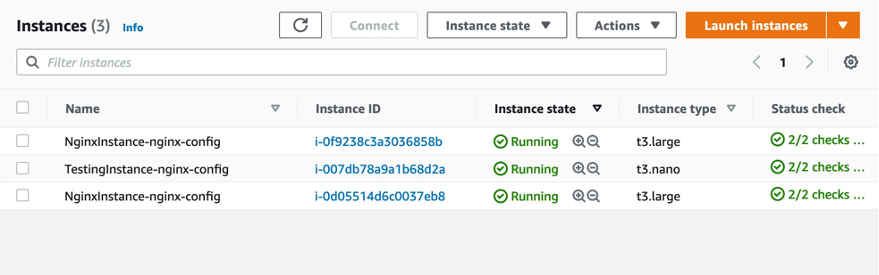
1. On the Amazon EC2 console, choose Instances.

You should see three instances, as in the following screenshot.

Figure: Shows the Nginx EC2 instances

You can connect to either one of the Nginx instances.


2. Select the testing instance.


3. On the Actions menu, choose Connect.


4. Choose Session Manager.


5. Choose Connect.

A terminal on the EC2 instance opens, similar to the following screenshot.

Figure: Shows the Session Manager terminal

6. Run the following command to ensure that Nginx is running properly:

curl localhost:8080

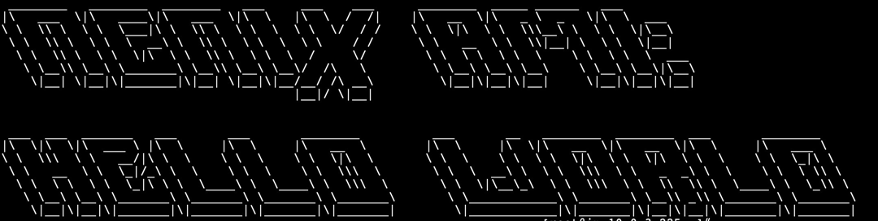
You should see an output similar to the following screenshot.

Figure: Shows Nginx output from terminal

Reviewing resources and configurations

Now that you have deployed the core services that for the solution, take some time to review the services that you have just deployed.


IAM roles

This project creates several IAM roles that are used to manage AWS resources. For example, EC2ImageBuilderRole is used to configure new AMIs with the Image Builder pipeline. This role contains only the permissions required to manage the Image Builder process. Adopting this pattern enforces the practice of least privilege. Additionally, many of the IAM polices attached to the IAM roles are restricted down to specific AWS resources. Let’s look at a couple of examples of managing IAM permissions with this project.


The following policy restricts Amazon S3 access to a specific S3 bucket. This makes sure that the role this policy is attached to can only access this specific S3 bucket. If this role needs to access any additional S3 buckets, the resource has to be explicitly added.

Policies:
  - PolicyName: GrantS3Read
    PolicyDocument:
      Statement:
        - Sid: GrantS3Read
          Effect: Allow
          Action:
            - s3:List*
            - s3:Get*
            - s3:Put*
          Resource: !Sub 'arn:aws:s3:::${S3Bucket}*'

Let’s look at the EC2ImageBuilderRole. A common scenario that occurs is when you need to assume a role locally in order to perform an action on a resource. In this case, because you’re using AWS KMS to encrypt the S3 bucket, you need to assume a role that has access to decrypt the KMS key so that artifacts can be uploaded to the S3 bucket. In the following AssumeRolePolicyDocument, we allow Amazon EC2 and Systems Manager services to be assumed by this role. Additionally, we allow IAM users to assume this role as well.

AssumeRolePolicyDocument:
  Version: 2012-10-17
  Statement:
    - Effect: Allow
      Principal:
        Service:
          - ec2.amazonaws.com
          - ssm.amazonaws.com
          - imagebuilder.amazonaws.com
        AWS: !Sub 'arn:aws:iam::${AWS::AccountId}:root'
      Action:
        - sts:AssumeRole

The principle !Sub 'arn:aws:iam::${AWS::AccountId}:root allows for any IAM user in this account to assume this role locally. Normally, this role should be scoped down to specific IAM users or roles. For the purpose of this post, we grant permissions to all users of the account.


Nginx configuration

The AMI built from the Image Builder pipeline contains all of the application and security configurations required to run Nginx as a web application. When an instance is launched from this AMI, no additional configuration is required.

We use Amazon EC2 launch templates to configure the application stack. The launch templates contain information such as the AMI ID, instance type, and security group. When a new AMI is provisioned, you simply update the launch template CloudFormation parameter with the new AMI and update the CloudFormation stack. From here, you can start an Auto Scaling group instance refresh to update the application stack to use the new AMI. The Auto Scaling group is updated with instances running on the updated AMI by bringing down one instance at a time and replacing it.


Amazon Inspector configuration

Amazon Inspector is an automated security assessment service that helps improve the security and compliance of applications deployed on AWS. With Amazon Inspector, assessments are generated for exposure, vulnerabilities, and deviations from best practices.

After performing an assessment, Amazon Inspector produces a detailed list of security findings prioritized by level of severity. These findings can be reviewed directly or as part of detailed assessment reports that are available via the Amazon Inspector console or API. We can use Amazon Inspector to assess our security posture against the CIS Level 1 standard that we use our Image Builder pipeline to provision. Let’s look at how we configure Amazon Inspector.

A resource group defines a set of tags that, when queried, identify the AWS resources that make up the assessment target. Any EC2 instance that is launched with the tag specified in the resource group is in scope for Amazon Inspector assessment runs. The following code shows our configuration:

ResourceGroup:
  Type: "AWS::Inspector::ResourceGroup"
  Properties:
    ResourceGroupTags:
      - Key: "ResourceGroup"
        Value: "Nginx"

AssessmentTarget:
  Type: AWS::Inspector::AssessmentTarget
  Properties:
    AssessmentTargetName : "NginxAssessmentTarget"
    ResourceGroupArn : !Ref ResourceGroup

In the following code, we specify the tag set in the resource group, which makes sure that when an instance is launched from this AMI, it’s under the scope of Amazon Inspector:

IBImage:
  Type: AWS::ImageBuilder::Image
  Properties:
    ImageRecipeArn: !Ref Recipe
    InfrastructureConfigurationArn: !Ref Infrastructure
    DistributionConfigurationArn: !Ref Distribution
    ImageTestsConfiguration:
      ImageTestsEnabled: false
      TimeoutMinutes: 60
    Tags:
      ResourceGroup: 'Nginx'


Building and deploying a new image with Amazon Inspector tests enabled

For this final portion of this post, we build and deploy a new AMI with an Amazon Inspector evaluation.

1. In your text editor, open Templates/nginx-image-builder.yml and update the pipeline and IBImage resource property ImageTestsEnabled to true.

The updated configuration should look like the following:

IBImage:
  Type: AWS::ImageBuilder::Image
  Properties:
    ImageRecipeArn: !Ref Recipe
    InfrastructureConfigurationArn: !Ref Infrastructure
    DistributionConfigurationArn: !Ref Distribution
    ImageTestsConfiguration:
      ImageTestsEnabled: true
      TimeoutMinutes: 60
    Tags:
      ResourceGroup: 'Nginx'


2. Update the stack with the new configuration:

aws cloudformation update-stack \
--stack-name cis-image-builder \
--template-body file://Templates/nginx-image-builder.yml \
--parameters file://Parameters/nginx-image-builder-params.json \
--capabilities CAPABILITY_NAMED_IAM \
--region us-east-1

This starts a new AMI build with an Amazon Inspector evaluation. The process can take up to 2 hours to complete.

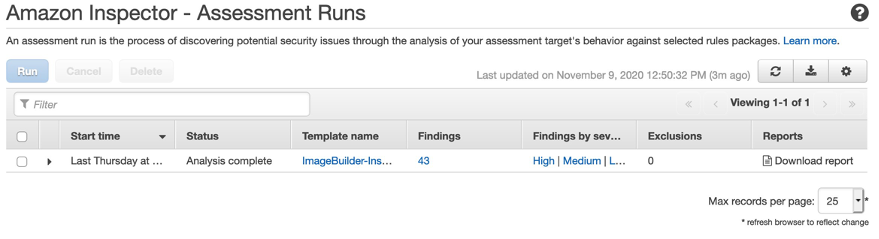
3. On the Amazon Inspector console, choose Assessment Runs.

Figure: Shows Amazon Inspector Assessment Run

4. Under Reports, choose Download report.

5. For Select report type, select Findings report.

6. For Select report format, select PDF.

7. Choose Generate report.

The following screenshot shows the findings report from the Amazon Inspector run.

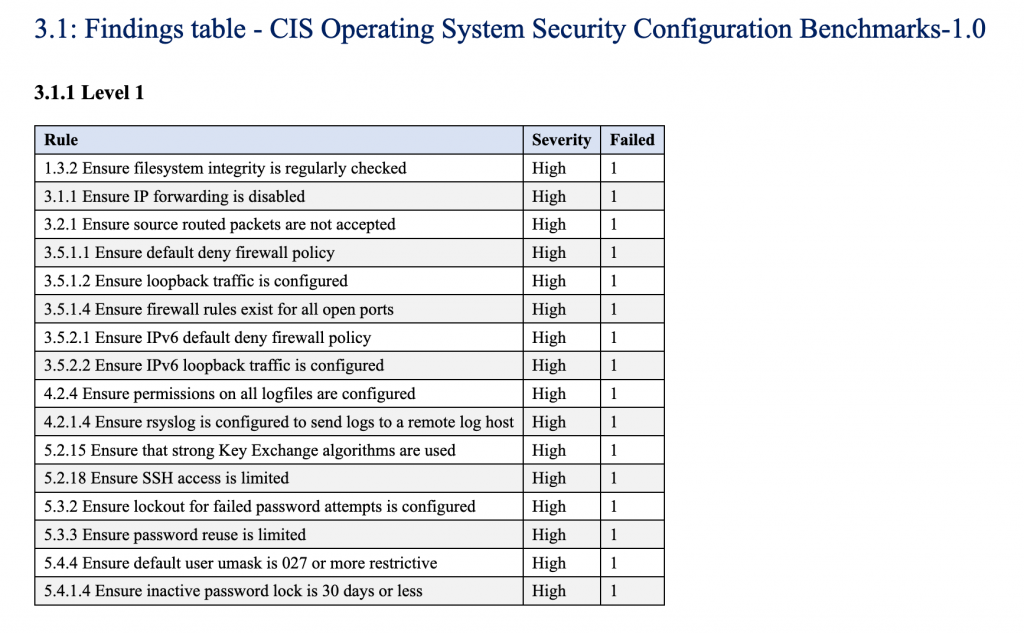
This report generates an assessment against the CIS Level 1 standard. Any policies that don’t comply with the CIS Level 1 standard are explicitly called out in this report.

Section 3.1 lists any failed policies.


Figure: Shows Inspector findings

These failures are detailed later in the report, along with suggestions for remediation.

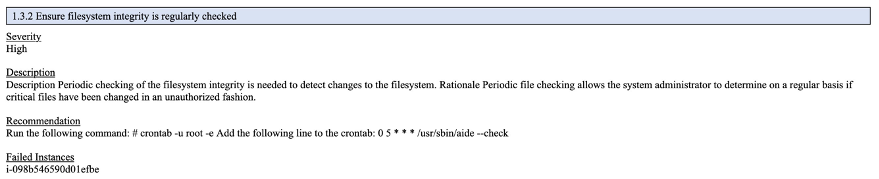
In section 4.1, locate the entry 1.3.2 Ensure filesystem integrity is regularly checked. This section shows the details of a failure from the Amazon Inspector findings report. You can also see suggestions on how to remediate the issue. Under Recommendation, the findings report suggests a specific command that you can use to remediate the issue.


Figure: Shows Inspector findings issue

You can use the Image Builder pipeline to simply update the Ansible playbooks with this setting, then run the Image Builder pipeline to build a new AMI, deploy the new AMI to an EC2 Instance, and run the Amazon Inspector report to ensure that the issue has been resolved. Finally, we can see the specific instances that have been assessed that have this issue.

Organizations often customize security settings based off of a given use case. Your organization may choose CIS Level 1 as a standard but elect to not apply all the recommendations. For example, you might choose to not use the FirewallD service on your Linux instances, because you feel that using Amazon EC2 security groups gives you enough networking security in place that you don’t need an additional firewall. Disabling FirewallD causes a high severity failure in the Amazon Inspector report. This is expected and can be ignored when evaluating the report.


Conclusion
In this post, we showed you how to use Image Builder to automate the creation of AMIs. Additionally, we also showed you how to use the AWS CLI to deploy CloudFormation stacks. Finally, we walked through how to evaluate resources against CIS Level 1 Standard using Amazon Inspector.


About the Authors


Joe Keating is a Modernization Architect in Professional Services at Amazon Web Services. He works with AWS customers to design and implement a variety of solutions in the AWS Cloud. Joe enjoys cooking with a glass or two of wine and achieving mediocrity on the golf course.


Virginia Chu is a Sr. Cloud Infrastructure Architect in Professional Services at Amazon Web Services. She works with enterprise-scale customers around the globe to design and implement a variety of solutions in the AWS Cloud.