NAB Show 2026 wrapped up last week in Las Vegas, and we left with something special in hand: the NAB Show Product of the Year Award in the Cloud Computing and Storage category—this time for Backblaze B2 Neo.
It’s a meaningful recognition, and one that reflects where we see the media and AI infrastructure market heading. Here’s a look at what the recognition means, and why B2 Neo matters.
What this recognition means
Winning the NAB Product of the Year Award reflects something we genuinely believe: that storage infrastructure is a foundational capability for modern media and AI platforms, not an afterthought or a separate vendor relationship to manage.
The NAB Show brings together the best of the media and entertainment industry, and having B2 Neo recognized in this context—among platforms solving real, production-scale problems across streaming, OTT, AI-driven media processing, and large-scale content delivery—is meaningful validation that the approach resonates.
B2 Neo launched in February 2026 and is already supporting production workloads including AI training pipelines, high-performance computing environments, and large-scale media delivery. The response from platform providers has reinforced what we know: organizations want to offer integrated, high-performance storage without building it from scratch, and they want the economics to make sense.
What is B2 Neo?
B2 Neo is a high-performance, S3-compatible cloud object storage solution purpose-built for platforms running data-intensive media and AI workloads. But describing it simply as “cloud storage” undersells the point.
The key distinction: B2 Neo is a white-label service. Rather than selling storage directly to end users, B2 Neo enables platform providers—like media workflow vendors—to offer fully integrated storage under their own brand. Partners launch their own storage service with custom endpoints, pricing, and user experiences, without having to build or operate the underlying infrastructure themselves.
The result is that platforms can go from “we don’t offer storage” to “we have a native, high-performance storage tier” in weeks rather than years, with none of the capital investment or engineering overhead that building it in-house would require.
Why it was built
The problem B2 Neo addresses has been growing for years, but it’s become acute as streaming, OTT, and AI-driven media workflows scale up.
Compute has gotten fast, distributed, and relatively affordable. GPU clusters, edge networks, and CDNs can all handle increasingly complex workloads. But storage has often lagged behind—fragmented across providers, expensive to move data in and out of, and either too costly or too operationally burdensome to build in-house.
The consequence is real: GPU clusters sit idle waiting on data. Streaming pipelines bottleneck on access speeds. Media organizations duplicate content across storage systems because no single layer integrates cleanly into the rest of the stack.
B2 Neo was designed to remove that bottleneck. It delivers up to 1Tbps of throughput to ensure that compute resources—GPU clusters, streaming systems, edge delivery networks—are never waiting on storage. It combines that performance with Backblaze’s 17+ years of operational experience at exabyte scale, and wraps it in an API-first architecture that plugs directly into partner platforms.
How it works
From a technical standpoint, B2 Neo delivers high aggregate throughput using cost-efficient, disk-based infrastructure with strategically deployed flash layers—a write-through cache design that captures the performance benefits of flash without the cost and scalability limitations that come with an all-flash architecture at the multi-petabyte scale that media and AI workloads require.
For workloads where throughput matters as much as latency—moving large video files, training AI models, serving content at scale—this approach is particularly effective. It allows platforms to maintain a centralized data repository and efficiently deliver data to compute providers, edge networks, and CDNs without duplicating data across storage systems.
API-driven provisioning lets partners programmatically create and manage storage accounts, permissions, and billing within their existing systems. Whether a partner is running an OTT platform, a media asset management system, or an AI training pipeline, B2 Neo integrates as a native extension of that environment rather than an external dependency to work around.
Included egress and free API calls round out the picture, eliminating the usage-based fees that typically make storage decisions financially complicated.
What’s next
This is a product that will keep evolving alongside the media and AI infrastructure landscape. We’re working closely with early partners to expand B2 Neo’s capabilities—performance, integration depth, provisioning flexibility—and we’ll have more to share as those conversations develop.
If you’re building or operating a platform that would benefit from embedded, high-performance storage, we’d love to talk. Reach out to our team to learn more about what a B2 Neo partnership looks like.
Modern media workflows don’t run on storage alone. They run on ecosystems—tightly integrated stacks of tools that ingest, process, analyze, move, review, and distribute content at scale. The companies we partner with aren’t just integrating with Backblaze; they’re building on it to solve real, specific problems that media teams face every day: archives that are impossible to search, file transfers that collapse over distance, review cycles that slow production to a crawl, compliance workflows that can’t keep up with library growth.
At NAB Show 2026, we’re bringing ten of those partners into booth N1259 to share what they’ve built. But the stories they’re telling aren’t just for Las Vegas—they’re for any media team trying to understand what a modern, cost-efficient, deeply integrated workflow actually looks like in practice.
Here’s a look at each partner, the problem they solve, and why it matters.
Imaginario AI: From Archive to Action
Presenter: Jose Puga, CEO and Co-Founder, Imaginario AI
Most video archives are passive. Content sits in storage, cataloged by someone who had time to do it years ago, effectively invisible to the people who could use it today. Imaginario AI flips that model.
Jose Puga’s session, “From Archive to Action: How AI Is Turning Your Video Library Into a Revenue Engine,” frames the shift from passive storage and cataloging to intelligent systems that actively surface, repurpose, and monetize content. The talk covers how marketing teams can accelerate campaigns, post-production teams can shortcut assembly, and compliance workflows can move from reactive to automated.
Imaginario is a multimodal video agentic platform that understands video in a human-like way—recognizing sounds, speech, and visual scenes without requiring time-based metadata. The platform is trusted by Warner Bros. Discovery, Sony Music, and Universal Pictures, and has won back-to-back IBC Best of Show honors in 2024 and 2025.
The Backblaze integration means content stays where it lives—no migration, no friction. As Jose puts it: “Backblaze provides our clients a scalable, reliable cloud layer that eliminates the friction of manual data transfers. Our native integration saves video teams dozens of hours by keeping content on Backblaze while unlocking high-speed AI analysis, retrieval, and repurposing in media and entertainment.”
Suite Studios: S3 Native File Streaming
Presenter: Jay Maxwell, Co-Founder & CPO, Suite Studios
Remote and distributed production teams have wrestled with the same problem for years: How do you collaborate on large media files when your team is spread across the globe? Suite’s answer is S3 Native File Streaming on Backblaze B2. The stack makes working with cloud object storage all-around easier, enabling teams to read and write data as standard objects without copying, syncing, or transferring.
Jay Maxwell’s session explores how global teams can instantly access and collaborate on large media files from anywhere—eliminating delays and accelerating production timelines. No syncing, no waiting, no workarounds. Just files that behave the way you need them to, wherever your team happens to be.
TwelveLabs: Unlocking Archive Value with Video AI
Presenter: Jordan Woods, Senior Solutions Architect, TwelveLabs
There’s a pattern across media organizations of all sizes: years of valuable archived content sitting effectively invisible because manual cataloging doesn’t scale. TwelveLabs makes that content searchable and monetizable.
Jordan Woods’ session, “Unlocking Archive Value with TwelveLabs Video Intelligence,” shows how pairing Backblaze’s cost-efficient storage with TwelveLabs’ video AI gives organizations a practical path to turn dormant archives into searchable, monetizable assets.
As Danny Nicolopoulos, Head of Strategic Partnerships at TwelveLabs, explains: “Media companies are sitting on years of valuable archived content that’s effectively invisible because manual cataloging doesn’t scale. Pairing Backblaze’s cost-efficient storage with TwelveLabs’ video AI gives organizations a practical path to turn those dormant archives into searchable, monetizable assets.”
Tillered: Full Speed Cloud Storage Over Any Distance
Presenters: Davey Goode, Founder & Stephen Ceci, Commercial Lead, Tillered
Physics is an undefeated opponent. Move data over long distances and throughput drops—no matter how fast your storage is or how much bandwidth you have. Tillered is built to remove that distance penalty.
The session, “Backblaze B2 Accelerate with Tillered: Full Speed Cloud Storage Over Any Distance,” demonstrates how the B2 Accelerate product brings Tillered’s acceleration technology to Backblaze B2, with transfers up to 34x faster as a result. No simulations—just live transfers with real results, showing what it looks like when enterprises can move data across any distance without adding bandwidth or changing workflows.
Davey Goode founded Tillered after repeatedly running into the same issue building large-scale connectivity infrastructure: No matter how much bandwidth was available, performance collapsed over distance. This session is the solution he built.
Telestream UP.Review: Decide Faster
Presenter: Sebastian Manemann, Senior Director of Product Management, Telestream
Capture, storage, and distribution have gotten faster. Review hasn’t kept up. Proxies, downloads, duplicated files—the approval workflow often undoes the speed gains made everywhere else in the pipeline.
Sebastian Manemann’s session, “Decide Faster: Real-Time Review, QC, and Delivery with Telestream UP.Review and Backblaze B2,” demos how Telestream UP.Review enables real-time, high-resolution playback and QC directly on media stored in Backblaze B2 without moving or duplicating files.
By keeping content in Backblaze as the central storage layer, teams can review instantly, validate quality, and move to delivery faster—all while maintaining a single source of truth across the workflow. As Sebastian frames it: “When you eliminate duplication and review directly from storage, you don’t just move faster—you operate smarter.”
Qencode + Sardius: A Multi-Vendor M&E Workflow in Practice
Presenters: Murad Mordukhay, CEO, Qencode, and Jason Shore & Ari Burt, Sardius Media
This one is different from the others—it’s not a product demo; it’s a case study. Sardius Media rebuilt their media pipeline around a race model: Multiple storage providers write in parallel, and the fastest result wins.
The session breaks down how Backblaze wins approximately 80% of those races, with Qencode orchestrating the encoding layer across the pipeline. It covers what the production data actually shows, and what Sardius would do differently if they were designing the workflow from scratch today.
Qencode uses machine learning to reduce file sizes by an average of 60% without sacrificing quality. Their CEO, Murad Mordukhay, sums up the partnership plainly: “The best partnerships are when two companies solve different halves of the same problem. Backblaze handles storage with the kind of reliability and transparency that perfectly aligns with how we think about transcoding. No surprises, no lock-in, just infrastructure that earns trust by performing every single day.”
Media workflows break down not just because of bad tools, but because of coordination failures between good ones. Files don’t sync. Teams duplicate work. Availability lags behind where content actually needs to be.
Christoph Jurkuhn’s session, “The Hidden Layer: Orchestrating Media Across the Stack with HiScale and Backblaze,” shows in a live demo how HiScale orchestrates media movement across distributed environments while Backblaze B2 provides the durable, scalable storage layer underneath. Files move, sync, and become available across teams and tools without delays, duplication, or manual intervention.
“Backblaze is built for straightforward, cost-efficient storage and HiScale builds on top of that to orchestrate and process your media. It’s a natural fit for modern media workflows.”
Iconik: Control Your Content
Presenter: Jeremy Strootman, Media Workflow Consultant, Iconik
At a certain scale, the problem isn’t creating content; it’s controlling it. Files get lost, search slows to a crawl, and archives become liabilities instead of assets.
Jeremy Strootman’s session, “Control Your Content: Turning Media Chaos into Operational Advantage,” demos how Iconik and Backblaze B2 give teams operational control over their media: making content instantly searchable, accessible, and reusable across the entire workflow.
With a foundational background in storage and archiving, Jeremy has spent over two decades helping content creators maximize efficiency and productivity across the entire media lifecycle, from ingest to archive. His perspective: “Backblaze gives us the scalable foundation; Iconik gives teams control over how that content is actually used.”
ToolsOnAir: Modern Broadcast Workflows on Backblaze
Presenter: Peter Steiner, Chief Business Officer, ToolsOnAir
Peter Steiner’s session, “Record, Store, Play: Modern Broadcast Workflows on Backblaze,” brings ToolsOnAir’s deep broadcast expertise to bear on what it looks like to build a complete ingest-to-playout workflow with Backblaze B2 as the storage foundation.
ToolsOnAir has been building Apple-based broadcast solutions for over a decade, with deployments across broadcast, ingest, and storage workflows worldwide. This session is for anyone running live or near-live operations who wants to understand what a modern, cloud-native broadcast stack actually looks like in practice.
The final session tackles a problem that’s only growing: As video libraries scale into the billions of assets, compliance workflows built for smaller operations don’t hold.
Ethan Steininger’s session, “What You Miss Can Cost You: AI-Powered Media Compliance at Scale on Mixpeek and Backblaze B2,” shows how Mixpeek’s multimodal AI infrastructure platform transforms unstructured content—video, images, audio, and documents—into searchable, programmable assets through a unified API.
Before founding Mixpeek, Ethan led search at MongoDB, and today Mixpeek powers enterprise workflows across media, adtech, healthcare, and brand safety, with core technology spanning feature extraction, multimodal retrieval, and a custom-built distributed vector store engineered for billion-scale workloads.
The Bigger Picture
Ten companies, one through-line: storage that integrates cleanly across the entire media stack changes what’s possible. As I put it in my article for Post Perspective:
What we are seeing is a broader realization that infrastructure decisions directly shape how teams build and operate. When pricing models penalize access or iteration, teams naturally limit how often they experiment or how much data they retain. That has a direct impact on product velocity and long-term value creation.
Backblaze didn’t have to react to this shift; it’s how we have always approached the market. Our cost model removes barriers like egress and transaction fees so teams can operate freely. That allows media organizations to focus on where value is actually created—whether that is content, audience engagement, or new AI-driven capabilities—while still maintaining craft excellence.
When your foundation is cost-efficient, S3-compatible, and built for reliability at scale, every tool in the ecosystem above it gets to do its best work. That’s what we mean when we talk about “building the future of media workflows”—not just that Backblaze stores your files, but that it enables the ecosystem built on top of it.
Join Us at NAB Show 2026
We’d love to show you around. Whether you want to catch one of the in-booth presentations, sit down for a workflow consultation, or talk through your specific storage and integration challenges, our team will be on-site all week.
Industry research consistently shows that archiving and preservation remain the largest drivers of storage demand in media and entertainment workflows. As of 2024, archiving—including both new and historical assets—accounts for the majority of digital storage capacity.
This reflects an ongoing reality: Every production adds new terabytes of content, and studios/vendors are responsible for keeping it safe and usable long-term. And, for many M&E teams, traditional LTO tape libraries represent a cumbersome way to manage vast (and growing) archives.
Increasingly, the decision is less whether to adopt cloud, and more how to use it responsibly. For some, that means hybrid systems that balance performance and scalability. For others, particularly smaller studios, cloud may become the backbone of both active and deep archives.
Free ebook: Why Media Workflows Are Embracing Cloud Storage—On Their Own Terms
Cloud media workflows are quick to promise a solution, but it’s more important for you to learn how to navigate. Read our ebook on how to use the cloud to best serve you and your team.
Why archiving dominates conversations—and what makes it so complex
Long-term preservation isn’t a “set-and-forget” task—technology evolves, file formats age, and migration becomes as essential as storage itself. Meanwhile, the shift to 4K, 8K, HDR, and immersive content means productions routinely generate petabytes of material.
The challenge isn’t just volume, but ensuring ongoing integrity, accessibility, and migration compatibility over decades. That makes both current trends in file creation and future-proofing archives an active task.
While the challenge can look different to different types of M&E teams, there are benefits for all of them:
For editors and post-production teams, active archives keep high-resolution footage readily available, eliminating the frustration of digging through cold storage when a quick edit or repurposing request comes in.
For media asset managers, they transform archives into searchable, metadata-rich repositories that reduce retrieval time and prevent costly duplication of content.
For executives and producers, active archives protect past investments by making legacy assets easily accessible for remonetization in new markets, remasters, and marketing campaigns.
For IT and workflow engineers, they provide automated tiering and integration across on-prem and cloud systems, ensuring scalable performance without ballooning infrastructure costs.
Still, a recent NAB survey showed that archive capacity remains a challenge for 85% of respondents. Searchability is another weak spot, with some teams still relying on spreadsheets.
Why cloud adoption has been cautious
Although cloud storage offers flexibility, adoption in the M&E industry has been measured. Common concerns include:
High egress costs: Many providers charge significant fees for retrieving archived data. For media workflows that often involve moving large files in and out of storage, these costs can add up quickly.
Performance concerns: Latency and bandwidth limitations can disrupt workflows, especially in post-production environments that rely on fast access to high-resolution files.
Unpredictable workflows: Unlike enterprise archives where files may be rarely accessed, media archives are often “active.” Teams may suddenly need terabytes of content for a remastering project or marketing campaign. Cloud pricing models built around cold storage don’t always align well with this reality.
Trust and security: Especially in the early years of cloud, concerns around data sovereignty, intellectual property protection, and compliance slowed adoption. While cloud providers have strengthened their credentials in these areas, trust remains a consideration.
Established investments in on-prem: Many organizations already have significant capital invested in tape libraries, network attached storage (NAS), storage area network (SAN) systems, or colocation setups, making the shift to cloud a long-term transition rather than an overnight change.
How the cloud can help
The shift from “traditional” production to newer technologies in content filming and creation—including both hardware and software tools—leaves many M&E teams with several, competing demands for their tech stacks. Cloud workflows can offer significant benefits for scalability, searchability, and budget management.
Elastic capacity
Cloud removes the need for large upfront capital investments and scales as archives grow. For organizations with fluctuating storage needs, this flexibility is particularly valuable.
Cost-tiering options
Cloud services now offer multiple archival tiers—from “hot” to “deep archive”—allowing teams to balance cost with access needs. Combined with lifecycle management policies, this helps align budgets with actual usage.
Hybrid approaches
The most common strategy today is hybrid: keeping frequently accessed assets on-premises or in private cloud, while offloading less active content to public cloud. Surveys show hybrid adoption has grown significantly in the last five years, with expectations that it will continue to rise.
Collaboration and accessibility
For global teams, cloud improves accessibility. Editors, producers, and marketing teams in different regions can access the same archival assets without relying on physical transfers, VPNs, or duplicated storage.
AI-enabled metadata
Cloud platforms also support AI and ML services that enrich metadata. This transforms archives from passive repositories into searchable, discoverable libraries—unlocking new value from existing content.
The future of media archiving is in the cloud
The move to cloud is gradual, shaped by cost, performance, and workflow realities. Yet the volume and importance of archives—and cloud-based workflows—continue to grow. When paired with thoughtful strategies, cloud storage offers a flexible way to manage that growth while unlocking new creative value.
By designing storage approaches that balance innovation with practicality, M&E teams can ensure archives remain accessible, secure, and ready to support the next generation of storytelling.
Media asset management systems (MAM) have become a standard tool in the tech stack of many media organizations. MAM systems have evolved from basic file storage to sophisticated platforms with advanced organization features, increasing efficiency, collaboration, and distribution speeds.
In this post, I’ll explain some media asset management basics and introduce five key plays you can put into practice to get the most out of your assets, including how to move them into a MAM system or migrate from an older system to a new one.
Why do you need a MAM system?
As a media professional, I’ve come across some, let’s say, creative file naming conventions in my day. While it’s hilarious, “Episode6-Final-final-v2.3_OH_YEAH_THIS_IS_DEFINITELY_THE_FINAL_ONE_2_LOL.mp4” isn’t going to be the easiest thing to find years later when you’re searching through hundreds of files for the (for real) final one.
Whether you make videos, images, or music, the more you produce, the more difficult those assets become to manage, organize, find, and protect. Managing files by carefully placing them in specific folders and implementing more logical naming conventions can only get you so far. At some point, as the scale of your business grows, you’ll find your current way of organizing and searching for assets can’t keep up. That’s where media asset management systems come in.
MAM systems explained: Key concepts
Before you start building a playbook to get the most from your creative assets, let’s review a few key concepts.
Assets and metadata
Asset: A rich media file with intrinsic metadata.
An asset is simply a file that is the result of your creative operation. Most often, it is a rich media file like an image or a video. Typically, these files are captured or created in a raw state, then your creative team adds value to that raw asset by editing it and creating a finished story that in turn, becomes another asset to manage.
Metadata: Information about a file, either embedded within the file itself or associated with the file by another system, typically a MAM application.
Any given file carries information about itself that can be understood by your laptop or workstation’s operating system. Some of these seem obvious, like the name of the file, how much storage space it occupies, when it was first created, and when it was last modified. These would all be helpful ways to try to find one particular file you are looking for among thousands just using the tools available in your OS’s file manager.
File metadata: Information about a file specifically pertaining to the technical attributes of the file.
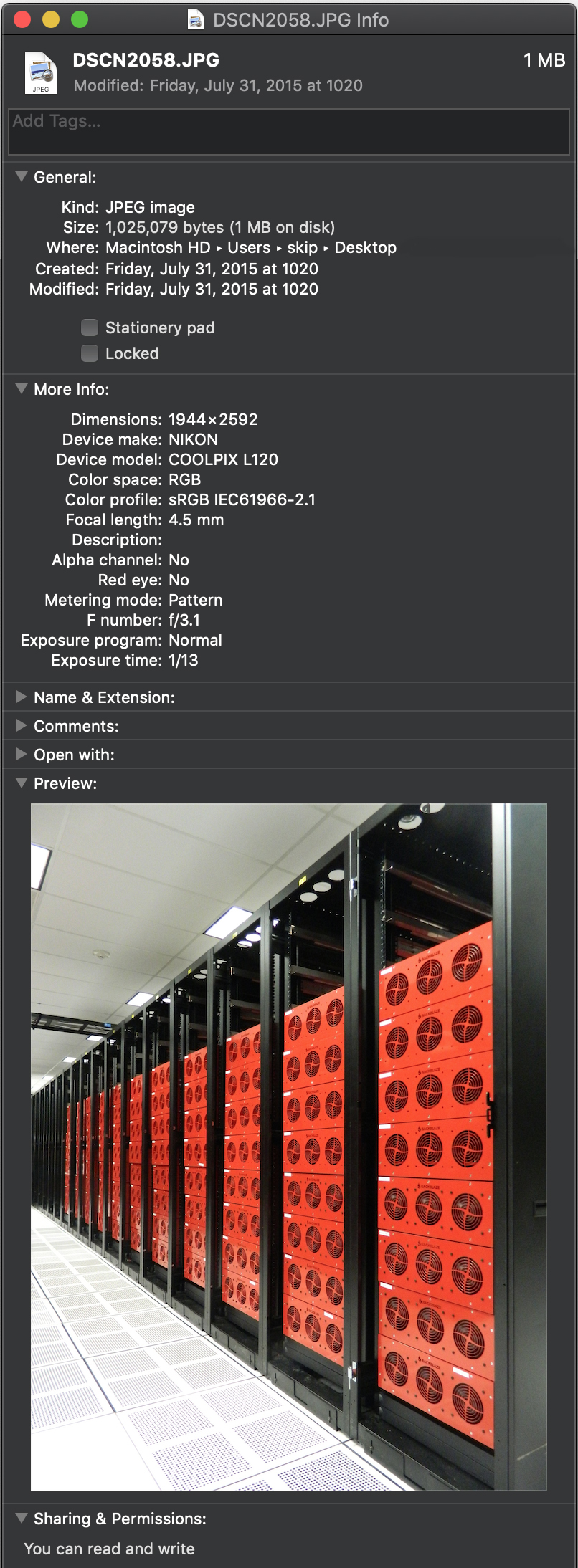
There’s usually another level of metadata embedded in media files that is not so obvious but potentially enormously useful: Metadata embedded in the file when it’s created by a camera, film scanner, or output by a program.
An example of metadata embedded in a rich media file.
For example, this image taken in Backblaze’s data center carries all kinds of interesting information. When I inspect the file, I can see a wealth of information. I now know the image’s dimensions and when the image was taken, as well as exactly what kind of camera took this picture and the lens settings that were used.
As you can see, this metadata could be very useful if you want to find all images taken on that day, or even images taken with that same camera, focal length, F-stop, or exposure.
Going through files one at a time to find the one you need is incredibly inefficient. Yet that’s how things still work in many creative environments—an ad hoc system of folders plus the memory of whoever’s been with the team longest. Files are often kept on the same storage used for production or even on an external hard drive.
Teams quickly outgrow that system when they find themselves juggling multiple hard drives or they run out of space on production storage. Worst of all, assets kept on a single hard drive are vulnerable to disk damage or to being accidentally copied or overwritten. Even if standard protocol is a redundant backup process, natural disasters can become a serious threat depending on the location of the physical tapes or drives.
Why your assets need to be managed
To meet this challenge, creative teams have often turned to MAMs. A MAM automatically extracts all of the assets’ inherent metadata, helps move files to protected storage, and makes them instantly available to MAM users. As time has gone on, we’ve seen MAM systems be powerfully enhanced by AI. In a way, these MAMs become a private media search engine where any file attribute can be a search query to instantly uncover the needed files in even the largest media asset libraries.
Beyond that, asset management systems are rapidly becoming highly effective collaboration and workflow tools. For example, tagging a series of files as Field Interviews — April 2019, or flagging an edited piece of content as HOLD — do not show customer can be very useful indeed.
Inner workings of a media asset manager
When you add files into an asset management system, the application inspects each file, extracting every available bit of information about the file, noting the file’s location on storage, and often creating a proxy version of the file that is easier to present to users.
To keep track of this information, asset manager applications employ a database and keep information about your files in it. This way, when you’re searching for a particular set of files among your entire asset library, you can simply make a query of your asset manager’s database in an instant rather than rifling through your entire asset library storage system. The application takes the results of that database query and retrieves the files you need.
A MAM Case Study: Complex Networks
Complex Networks was running out of space. Whenever local shared storage filled up, they had to pull assets off to give everybody enough room to continue working. They moved all of their assets to iconik media asset management software and backed them all up to the Backblaze B2 Cloud Storage. They’re now free to focus on what they do best—making culture-defining content—rather than spending time searching for assets.
Asset migration playbook
Whether you need to move from a file and folder based system to a new asset manager, or have been using an older system and want to move to a new one without losing all of the metadata that you have painstakingly developed, a sound playbook for migrating your assets can help guide you. Below we’ll explain five plays you can use to approach your asset management journey:
Play 1: Protecting assets saved in a folder hierarchy without an asset management system
In this scenario, your assets are in a set of files and folders, and you aren’t ready to implement your asset management system yet.
The first consideration is for the safety of the assets—backup and archive. Files on a single hard drive are vulnerable, so if you are not ready to choose an asset manager your first priority should be to get those files into a secure cloud storage service like Backblaze B2.
Then, when you have chosen an asset management system, you can simply point the system at your cloud-based asset storage to extract the metadata out of the files and populate the asset information in your asset manager.
How to run it:
Get assets archived or moved to cloud storage.
Choose your asset management system.
Ingest assets directly from your cloud storage.
Play 2: Moving assets saved in a folder hierarchy into your asset management system and archiving in cloud storage
In this scenario, you’ve chosen your asset management system, and need to get your local assets in files and folders ingested and protected in the most efficient way possible.
You’ll ingest all of your files into your asset manager from local storage, then back them up to cloud storage. Once your asset manager has been configured with your cloud storage credentials, it can automatically move a copy of local files to the cloud for you. Later, when you have confirmed that the file has been copied to the cloud, you can safely delete the local copy.
How to run it:
Ingest assets from local storage directly into your asset manager system.
From within your asset manager system archive a copy of files to your cloud storage.
Once safely archived, the local copy can be deleted.
Play 3: Getting a lot of assets on local storage into your asset management system and backing up to cloud storage
If you have a lot of content, more than say, 20TB, you will want to use a rapid ingest service similar to the Backblaze Fireball system. You copy the files to the Backblaze Fireball, Backblaze puts them directly into your asset management bucket, and the asset manager is then updated with the file’s new location in your Backblaze B2 account.
This can be a manual process, or can be done with scripting to make the process faster.
How to run it:
Ingest assets from local storage directly into your asset manager system.
Archive your local assets to Fireball (up to 90TB at a time).
Once the files have been uploaded by Backblaze, relink the new location of the cloud copy in your asset management system.
Play 4: Moving from one asset manager system to another without losing metadata
In this scenario you have an existing asset management system and need to move to a new one as efficiently as possible. You want to take advantage of your new system’s features and safeguard in cloud storage in a way that does not impact your existing production.
Some asset management systems will allow you to export the database contents in a format that can be imported by a new system. Some older systems may not have that feature and will require the expertise of a database expert to manually extract the metadata. Either way, you can expect to need to map the fields from the old system to the fields in the new system.
Making a copy of your old database is a must. Don’t work on the primary copy, and be sure to conduct tests on small groups of files as you’re migrating from the older system to the new. You need to ensure that the metadata is correct in the new system, with special attention that the actual file location is mapped properly. It’s wise to keep the old system up and running for a while before completely phasing it out.
How to run it:
Export the database from the old system.
Import the records into the new system.
Ensure that the metadata is correct in the new system and file locations are working properly.
Make archive copies of your files to cloud storage.
Once the new system has been running through a few production cycles, it’s safe to power down the old system.
Play 5: Moving quickly from a MAM on local storage to a cloud-based system
In this variation of Play 4, you can move content to object storage with a rapid ingest service like Backblaze Fireball at the same time that you migrate to a cloud-based system. This step will benefit from scripting to create records in your new system with all of your metadata, then relink with the actual file location in your cloud storage all in one pass.
You should test that your asset management system can recognize a file already in the system without creating a duplicate copy of the file. This is done differently by each asset management system.
How to run it:
Export the database from the old system.
Import the records into the new system while creating placeholder records with the metadata only.
Archive your local assets to the Backblaze Fireball (up to 90TB at a time).
Once the files have been uploaded by Backblaze, relink the cloud based location to the asset record.
Bonus play: Using cloud storage to scale a media heavy workload
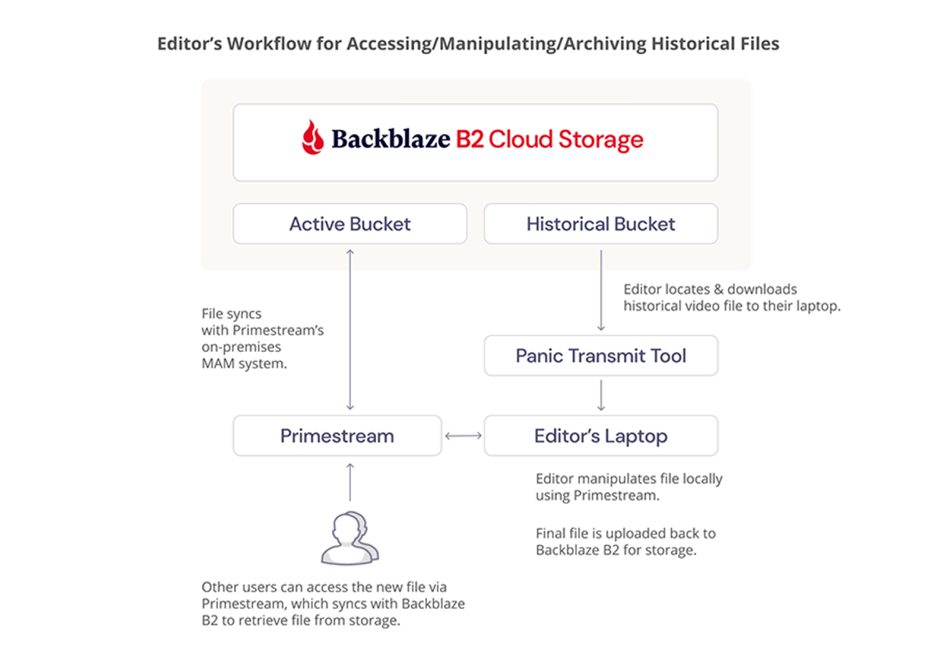
Fortune Media’s tech stack was expensive, difficult to use, and not 100% reliable. They migrated over 300TB of data, mainly video files, to Backblaze B2 Cloud Storage, which integrated with their preferred MAM system, Primestream Xchange, removing the need for archiving middleware and simplifying the tech stack.
Wrapping up
Every creative environment is different, but all need the same thing: to be able to find assets fast and organize content to enhance productivity and rest easy knowing that content is safe.
With these plays, you can take that step and be ready for any future production challenges and opportunities.
To provide the best experiences, we use technologies like cookies to store and/or access device information. Consenting to these technologies will allow us to process data such as browsing behavior or unique IDs on this site. Not consenting or withdrawing consent, may adversely affect certain features and functions.
Functional
Always active
The technical storage or access is strictly necessary for the legitimate purpose of enabling the use of a specific service explicitly requested by the subscriber or user, or for the sole purpose of carrying out the transmission of a communication over an electronic communications network.
Preferences
The technical storage or access is necessary for the legitimate purpose of storing preferences that are not requested by the subscriber or user.
Statistics
The technical storage or access that is used exclusively for statistical purposes.The technical storage or access that is used exclusively for anonymous statistical purposes. Without a subpoena, voluntary compliance on the part of your Internet Service Provider, or additional records from a third party, information stored or retrieved for this purpose alone cannot usually be used to identify you.
Marketing
The technical storage or access is required to create user profiles to send advertising, or to track the user on a website or across several websites for similar marketing purposes.