All posts by M Mehrtens

Use Amazon Kinesis Data Streams to deliver real-time data to Amazon OpenSearch Service domains with Amazon OpenSearch Ingestion

Post Syndicated from M Mehrtens original https://aws.amazon.com/blogs/big-data/use-amazon-kinesis-data-streams-to-deliver-real-time-data-to-amazon-opensearch-service-domains-with-amazon-opensearch-ingestion/

In this post, we show how to use Amazon Kinesis Data Streams to buffer and aggregate real-time streaming data for delivery into Amazon OpenSearch Service domains and collections using Amazon OpenSearch Ingestion. You can use this approach for a variety of use cases, from real-time log analytics to integrating application messaging data for real-time search. In this post, we focus on the use case for centralizing log aggregation for an organization that has a compliance need to archive and retain its log data.

Kinesis Data Streams is a fully managed, serverless data streaming service that stores and ingests various streaming data in real time at any scale. For log analytics use cases, Kinesis Data Streams enhances log aggregation by decoupling producer and consumer applications, and providing a resilient, scalable buffer to capture and serve log data. This decoupling provides advantages over traditional architectures. As log producers scale up and down, Kinesis Data Streams can be scaled dynamically to persistently buffer log data. This prevents load changes from impacting an OpenSearch Service domain, and provides a resilient store of log data for consumption. It also allows for multiple consumers to process log data in real time, providing a persistent store of real-time data for applications to consume. This allows the log analytics pipeline to meet Well-Architected best practices for resilience (REL04-BP02) and cost (COST09-BP02).

OpenSearch Ingestion is a serverless pipeline that provides powerful tools for extracting, transforming, and loading data into an OpenSearch Service domain. OpenSearch Ingestion integrates with many AWS services, and provides ready-made blueprints to accelerate ingesting data for a variety of analytics use cases into OpenSearch Service domains. When paired with Kinesis Data Streams, OpenSearch Ingestion allows for sophisticated real-time analytics of data, and helps reduce the undifferentiated heavy lifting of creating a real-time search and analytics architecture.

Solution overview

In this solution, we consider a common use case for centralized log aggregation for an organization. Organizations might consider a centralized log aggregation approach for a variety of reasons. Many organizations have compliance and governance requirements that have stipulations for what data needs to be logged, and how long log data must be retained and remain searchable for investigations. Other organizations seek to consolidate application and security operations, and provide common observability toolsets and capabilities across their teams.

To meet such requirements, you need to collect data from log sources (producers) in a scalable, resilient, and cost-effective manner. Log sources may vary between application and infrastructure use cases and configurations, as illustrated in the following table.

Log Producer Example Example Producer Log Configuration
Application Logs AWS Lambda Amazon CloudWatch Logs
Application Agents FluentBit Amazon OpenSearch Ingestion
AWS Service Logs Amazon Web Application Firewall Amazon S3

The following diagram illustrates an example architecture.

You can use Kinesis Data Streams for a variety of these use cases. You can configure Amazon CloudWatch logs to send data to Kinesis Data Streams using a subscription filter (see Real-time processing of log data with subscriptions). If you send data with Kinesis Data Streams for analytics use cases, you can use OpenSearch Ingestion to create a scalable, extensible pipeline to consume your streaming data and write it to OpenSearch Service indexes. Kinesis Data Streams provides a buffer that can support multiple consumers, configurable retention, and built-in integration with a variety of AWS services. For other use cases where data is stored in Amazon Simple Storage Service (Amazon S3), or where an agent writes data such as FluentBit, an agent can write data directly to OpenSearch Ingestion without an intermediate buffer thanks to OpenSearch Ingestion’s built-in persistent buffers and automatic scaling.

Standardizing logging approaches reduces development and operational overhead for organizations. For example, you might standardize on all applications logging to CloudWatch logs when feasible, and also handle Amazon S3 logs where CloudWatch logs are unsupported. This reduces the number of use cases that a centralized team needs to handle in their log aggregation approach, and reduces the complexity of the log aggregation solution. For more sophisticated development teams, you might standardize on using FluentBit agents to write data directly to OpenSearch Ingestion to lower cost when log data doesn’t need to be stored in CloudWatch.

This solution focuses on using CloudWatch logs as a data source for log aggregation. For the Amazon S3 log use case, see Using an OpenSearch Ingestion pipeline with Amazon S3. For agent-based solutions, see the agent-specific documentation for integration with OpenSearch Ingestion, such as Using an OpenSearch Ingestion pipeline with Fluent Bit.

Prerequisites

Several key pieces of infrastructure used in this solution are required to ingest data into OpenSearch Service with OpenSearch Ingestion:

  • A Kinesis data stream to aggregate the log data from CloudWatch
  • An OpenSearch domain to store the log data

When creating the Kinesis data stream, we recommend starting with On-Demand mode. This will allow Kinesis Data Streams to automatically scale the number of shards needed for your log throughput. After you identify the steady state workload for your log aggregation use case, we recommend moving to Provisioned mode, using the number of shards identified in On-Demand mode. This can help you optimize long-term cost for high-throughput use cases.

In general, we recommend using one Kinesis data stream for your log aggregation workload. OpenSearch Ingestion supports up to 96 OCUs per pipeline, and 24,000 characters per pipeline definition file (see OpenSearch Ingestion quotas). This means that each pipeline can support a Kinesis data stream with up to 96 shards, because each OCU processes one shard. Using one Kinesis data stream simplifies the overall process to aggregate log data into OpenSearch Service, and simplifies the process for creating and managing subscription filters for log groups.

Depending on the scale of your log workloads, and the complexity of your OpenSearch Ingestion pipeline logic, you may consider more Kinesis data streams for your use case. For example, you may consider one stream for each major log type in your production workload. Having log data for different use cases separated into different streams can help reduce the operational complexity of managing OpenSearch Ingestion pipelines, and allows you to scale and deploy changes to each log use case separately when required.

To create a Kinesis Data Stream, see Create a data stream.

To create an OpenSearch domain, see Creating and managing Amazon OpenSearch domains.

Configure log subscription filters

You can implement CloudWatch log group subscription filters at the account level or log group level. In both cases, we recommend creating a subscription filter with a random distribution method to make sure log data is evenly distributed across Kinesis data stream shards.

Account-level subscription filters are applied to all log groups in an account, and can be used to subscribe all log data to a single destination. This works well if you want to store all your log data in OpenSearch Service using Kinesis Data Streams. There is a limit of one account-level subscription filter per account. Using Kinesis Data Streams as the destination also allows you to have multiple log consumers to process the account log data when relevant. To create an account-level subscription filter, see Account-level subscription filters.

Log group-level subscription filters are applied on each log group. This approach works well if you want to store a subset of your log data in OpenSearch Service using Kinesis Data Streams, and if you want to use multiple different data streams to store and process multiple log types. There is a limit of two log group-level subscription filters per log group. To create a log group-level subscription filter, see Log group-level subscription filters.

After you create your subscription filter, verify that log data is being sent to your Kinesis data stream. On the Kinesis Data Streams console, choose the link for your stream name.

Choose a shard with Starting position set as Trim horizon, and choose Get records.

You should see records with a unique Partition key column value and binary Data column. This is because CloudWatch sends data in .gzip format to compress log data.

Configure an OpenSearch Ingestion pipeline

Now that you have a Kinesis data stream and CloudWatch subscription filters to send data to the data stream, you can configure your OpenSearch Ingestion pipeline to process your log data. To begin, you create an AWS Identity and Access Management (IAM) role that allows read access to the Kinesis data stream and read/write access to the OpenSearch domain. To create your pipeline, your manager role that is used to create the pipeline will require iam:PassRole permissions to the pipeline role created in this step.

  1. Create an IAM role with the following permissions to read from your Kinesis data stream and access your OpenSearch domain:
    {
        "Version": "2012-10-17",
        "Statement": [
            {
                "Sid": "allowReadFromStream",
                "Effect": "Allow",
                "Action": [
                    "kinesis:DescribeStream",
                    "kinesis:DescribeStreamConsumer",
                    "kinesis:DescribeStreamSummary",
                    "kinesis:GetRecords",
                    "kinesis:GetShardIterator",
                    "kinesis:ListShards",
                    "kinesis:ListStreams",
                    "kinesis:ListStreamConsumers",
                    "kinesis:RegisterStreamConsumer",
                    "kinesis:SubscribeToShard"
                ],
                "Resource": [
                    "arn:aws:kinesis:{{region}}:{{account-id}}:stream/{{stream-name}}"
                ]
            },
            {
                "Sid": "allowAccessToOS",
                "Effect": "Allow",
                "Action": [
                    "es:DescribeDomain",
                    "es:ESHttp*"
                ],
                "Resource": [
                    "arn:aws:es:{region}:{account-id}:domain/{domain-name}",
                    "arn:aws:es:{region}:{account-id}:domain/{domain-name}/*"
                ]
            }
        ]
    }

  2. Give your role a trust policy that allows access from osis-pipelines.amazonaws.com:
    {
        "Version": "2012-10-17",
        "Statement": [
            {
                "Sid": "",
                "Effect": "Allow",
                "Principal": {
                    "Service": [
                        "osis-pipelines.amazonaws.com"
                    ]
                },
                "Action": "sts:AssumeRole",
                "Condition": {
                    "StringEquals": {
                        "aws:SourceAccount": "{account-id}"
                    },
                    "ArnLike": {
                        "aws:SourceArn": "arn:aws:osis:{region}:{account-id}:pipeline/*"
                    }
                }
            }
        ]
    }

For a pipeline to write data to a domain, the domain must have a domain-level access policy that allows the pipeline role to access it, and if your domain uses fine-grained access control, then the IAM role needs to be mapped to a backend role in the OpenSearch Service security plugin that allows access to create and write to indexes.

  1. After you create your pipeline role, on the OpenSearch Service console, choose Pipelines under Ingestion in the navigation pane.
  2. Choose Create pipeline.
  3. Search for Kinesis in the blueprints, select the Kinesis Data Streams blueprint, and choose Select blueprint.
  4. Under Pipeline settings, enter a name for your pipeline, and set Max capacity for the pipeline to be equal to the number of shards in your Kinesis data stream.

If you’re using On-Demand mode for the data stream, choose a capacity equal to the current number of shards in the stream. This use case doesn’t require a persistent buffer, because Kinesis Data Streams provides a persistent buffer for the log data, and OpenSearch Ingestion tracks its position in the Kinesis data stream over time, preventing data loss on restarts.

  1. Under Pipeline configuration, update the pipeline source settings to use your Kinesis data stream name and pipeline IAM role Amazon Resource Name (ARN).

For full configuration information, see . For most configurations, you can use the default values. By default, the pipeline will write batches of 100 documents every 1 second, and will subscribe to the Kinesis data stream from the latest position in the stream using enhanced fan-out, checkpointing its position in the stream every 2 minutes. You can adjust this behavior as desired to tune how frequently the consumer checkpoints, where it begins in the stream, and use polling to reduce costs from enhanced fan-out.

  source:
    kinesis-data-streams:
      acknowledgments: true
      codec:
        # JSON codec supports parsing nested CloudWatch events into
        # individual log entries that will be written as documents to
        # OpenSearch
        json:
          key_name: "logEvents"
          # These keys contain the metadata sent by CloudWatch Subscription Filters
          # in addition to the individual log events:
          # https://docs.aws.amazon.com/AmazonCloudWatch/latest/logs/SubscriptionFilters.html#DestinationKinesisExample
          include_keys: ['owner', 'logGroup', 'logStream' ]
      streams:
        # Update to use your Kinesis Stream name used in your Subscription Filters:
        - stream_name: "KINESIS_STREAM_NAME"
          # Can customize initial position if you don't want OSI to consume the entire stream:
          initial_position: "EARLIEST"
          # Compression will always be gzip for CloudWatch, but will vary for other sources:
          compression: "gzip"
      aws:
        # Provide the Role ARN with access to KDS. This role should have a trust relationship with osis-pipelines.amazonaws.com
        # This must be the same role used below in the Sink configuration.
        sts_role_arn: "PIPELINE_ROLE_ARN"
        # Provide the region of the Data Stream.
        region: "REGION"
  1. Update the pipeline sink settings to include your OpenSearch domain endpoint URL and pipeline IAM role ARN.

The IAM role ARN must be the same for both the OpenSearch Servicer sink definition and the Kinesis Data Streams source definition. You can control what data gets indexed in different indexes using the index definition in the sink. For example, you can use metadata about the Kinesis data stream name to index by data stream (${getMetadata("kinesis_stream_name")), or you can use document fields to index data depending on the CloudWatch log group or other document data (${path/to/field/in/document}). In this example, we use three document-level fields (data_stream.type, data_stream.dataset, and data_stream.namespace) to index our documents, and create these fields in our pipeline processor logic in the next section:

  sink:
    - opensearch:
        # Provide an AWS OpenSearch Service domain endpoint
        hosts: [ "OPENSEARCH_ENDPOINT" ]
        # Route log data to different target indexes depending on the log context:
        index: "ss4o_${data_stream/type}-${data_stream/dataset}-${data_stream/namespace}"
        aws:
          # Provide a Role ARN with access to the domain. This role should have a trust relationship with osis-pipelines.amazonaws.com
          # This role must be the same as the role used above for Kinesis.
          sts_role_arn: "PIPELINE_ROLE_ARN"
          # Provide the region of the domain.
          region: "REGION"
          # Enable the 'serverless' flag if the sink is an Amazon OpenSearch Serverless collection
          serverless: false

Finally, you can update the pipeline configuration to include processor definitions to transform your log data before writing documents to the OpenSearch domain. For example, this use case adopts Simple Schema for Observability (SS4O) and uses the OpenSearch Ingestion pipeline to create the desired schema for SS4O. This includes adding common fields to associate metadata with the indexed documents, as well as parsing the log data to make data more searchable. This use case also uses the log group name to identify different log types as datasets, and uses this information to write documents to different indexes depending on their use cases.

  1. Rename the CloudWatch event timestamp to mark the observed timestamp when the log was generated using the rename_keys processor, and add the current timestamp as the processed timestamp when OpenSearch Ingestion handled the record using the date processor:
      #  Processor logic is used to change how log data is parsed for OpenSearch.
      processor:
        - rename_keys:
            entries:
            # Include CloudWatch timestamp as the observation timestamp - the time the log
            # was generated and sent to CloudWatch:
            - from_key: "timestamp"
              to_key: "observed_timestamp"
        - date:
            # Include the current timestamp that OSI processed the log event:
            from_time_received: true
            destination: "processed_timestamp"

  2. Use the add_entries processor to include metadata about the processed document, including the log group, log stream, account ID, AWS Region, Kinesis data stream information, and dataset metadata:
        - add_entries:
            entries:
            # Support SS4O common log fields (https://opensearch.org/docs/latest/observing-your-data/ss4o/)
            - key: "cloud/provider"
              value: "aws"
            - key: "cloud/account/id"
              format: "${owner}"
            - key: "cloud/region"
              value: "us-west-2"
            - key: "aws/cloudwatch/log_group"
              format: "${logGroup}"
            - key: "aws/cloudwatch/log_stream"
              format: "${logStream}"
            # Include default values for the data_stream:
            - key: "data_stream/namespace"
              value: "default"
            - key: "data_stream/type"
              value: "logs"
            - key: "data_stream/dataset"
              value: "general"
            # Include metadata about the source Kinesis message that contained this log event:
            - key: "aws/kinesis/stream_name"
              value_expression: "getMetadata(\"stream_name\")"
            - key: "aws/kinesis/partition_key"
              value_expression: "getMetadata(\"partition_key\")"
            - key: "aws/kinesis/sequence_number"
              value_expression: "getMetadata(\"sequence_number\")"
            - key: "aws/kinesis/sub_sequence_number"
              value_expression: "getMetadata(\"sub_sequence_number\")"

  3. Use conditional expression syntax to update the data_stream.dataset fields depending on the log source, to control what index the document is written to, and use the delete_entries processor to delete the original CloudWatch document fields that were renamed:
        - add_entries:
            entries:
            # Update the data_stream fields based on the log event context - in this case
            # classifying the log events by their source (CloudTrail or Lambda).
            # Additional logic could be added to classify the logs by business or application context:
            - key: "data_stream/dataset"
              value: "cloudtrail"
              add_when: "contains(/logGroup, \"cloudtrail\") or contains(/logGroup, \"CloudTrail\")"
              overwrite_if_key_exists: true
            - key: "data_stream/dataset"
              value: "lambda"
              add_when: "contains(/logGroup, \"/aws/lambda/\")"
              overwrite_if_key_exists: true
            - key: "data_stream/dataset"
              value: "apache"
              add_when: "contains(/logGroup, \"/apache/\")"
              overwrite_if_key_exists: true
        # Remove the default CloudWatch fields, as we re-mapped them to SS4O fields:
        - delete_entries:
            with_keys:
              - "logGroup"
              - "logStream"
              - "owner"

  4. Parse the log message fields to allow structured and JSON data to be more searchable in the OpenSearch indexes using the grok and parse_json

Grok processors use pattern matching to parse data from structured text fields. For examples of built-in Grok patterns, see java-grok patterns and dataprepper grok patterns.

    # Use Grok parser to parse non-JSON apache logs
    - grok:
        grok_when: "/data_stream/dataset == \"apache\""
        match:
          message: ['%{COMMONAPACHELOG_DATATYPED}']
        target_key: "http"
    # Attempt to parse the log data as JSON to support field-level searches in the OpenSearch index:
    - parse_json:
        # Parse root message object into aws.cloudtrail to match SS4O standard for SS4O logs
        source: "message"
        destination: "aws/cloudtrail"
        parse_when: "/data_stream/dataset == \"cloudtrail\""
        tags_on_failure: ["json_parse_fail"]
    - parse_json:
        # Parse root message object as JSON when possible for Lambda function logs - can also set up Grok support
        # for Lambda function logs to capture non-JSON logging function data as searchable fields
        source: "message"
        destination: "aws/lambda"
        parse_when: "/data_stream/dataset == \"lambda\""
        tags_on_failure: ["json_parse_fail"]
    - parse_json:
        # Parse root message object as JSON when possible for general logs
        source: "message"
        destination: "body"
        parse_when: "/data_stream/dataset == \"general\""
        tags_on_failure: ["json_parse_fail"]

When it’s all put together, your pipeline configuration will look like the following code:

version: "2"
kinesis-pipeline:
  source:
    kinesis-data-streams:
      acknowledgments: true
      codec:
        # JSON codec supports parsing nested CloudWatch events into
        # individual log entries that will be written as documents to
        # OpenSearch
        json:
          key_name: "logEvents"
          # These keys contain the metadata sent by CloudWatch Subscription Filters
          # in addition to the individual log events:
          # https://docs.aws.amazon.com/AmazonCloudWatch/latest/logs/SubscriptionFilters.html#DestinationKinesisExample
          include_keys: ['owner', 'logGroup', 'logStream' ]
      streams:
        # Update to use your Kinesis Stream name used in your Subscription Filters:
        - stream_name: "KINESIS_STREAM_NAME"
          # Can customize initial position if you don't want OSI to consume the entire stream:
          initial_position: "EARLIEST"
          # Compression will always be gzip for CloudWatch, but will vary for other sources:
          compression: "gzip"
      aws:
        # Provide the Role ARN with access to KDS. This role should have a trust relationship with osis-pipelines.amazonaws.com
        # This must be the same role used below in the Sink configuration.
        sts_role_arn: "PIPELINE_ROLE_ARN"
        # Provide the region of the Data Stream.
        region: "REGION"
        
  #  Processor logic is used to change how log data is parsed for OpenSearch.
  processor:
    - rename_keys:
        entries:
        # Include CloudWatch timestamp as the observation timestamp - the time the log
        # was generated and sent to CloudWatch:
        - from_key: "timestamp"
          to_key: "observed_timestamp"
    - date:
        # Include the current timestamp that OSI processed the log event:
        from_time_received: true
        destination: "processed_timestamp"
    - add_entries:
        entries:
        # Support SS4O common log fields (https://opensearch.org/docs/latest/observing-your-data/ss4o/)
        - key: "cloud/provider"
          value: "aws"
        - key: "cloud/account/id"
          format: "${owner}"
        - key: "cloud/region"
          value: "us-west-2"
        - key: "aws/cloudwatch/log_group"
          format: "${logGroup}"
        - key: "aws/cloudwatch/log_stream"
          format: "${logStream}"
        # Include default values for the data_stream:
        - key: "data_stream/namespace"
          value: "default"
        - key: "data_stream/type"
          value: "logs"
        - key: "data_stream/dataset"
          value: "general"
        # Include metadata about the source Kinesis message that contained this log event:
        - key: "aws/kinesis/stream_name"
          value_expression: "getMetadata(\"stream_name\")"
        - key: "aws/kinesis/partition_key"
          value_expression: "getMetadata(\"partition_key\")"
        - key: "aws/kinesis/sequence_number"
          value_expression: "getMetadata(\"sequence_number\")"
        - key: "aws/kinesis/sub_sequence_number"
          value_expression: "getMetadata(\"sub_sequence_number\")"
    - add_entries:
        entries:
        # Update the data_stream fields based on the log event context - in this case
        # classifying the log events by their source (CloudTrail or Lambda).
        # Additional logic could be added to classify the logs by business or application context:
        - key: "data_stream/dataset"
          value: "cloudtrail"
          add_when: "contains(/logGroup, \"cloudtrail\") or contains(/logGroup, \"CloudTrail\")"
          overwrite_if_key_exists: true
        - key: "data_stream/dataset"
          value: "lambda"
          add_when: "contains(/logGroup, \"/aws/lambda/\")"
          overwrite_if_key_exists: true
        - key: "data_stream/dataset"
          value: "apache"
          add_when: "contains(/logGroup, \"/apache/\")"
          overwrite_if_key_exists: true
    # Remove the default CloudWatch fields, as we re-mapped them to SS4O fields:
    - delete_entries:
        with_keys:
          - "logGroup"
          - "logStream"
          - "owner"
    # Use Grok parser to parse non-JSON apache logs
    - grok:
        grok_when: "/data_stream/dataset == \"apache\""
        match:
          message: ['%{COMMONAPACHELOG_DATATYPED}']
        target_key: "http"
    # Attempt to parse the log data as JSON to support field-level searches in the OpenSearch index:
    - parse_json:
        # Parse root message object into aws.cloudtrail to match SS4O standard for SS4O logs
        source: "message"
        destination: "aws/cloudtrail"
        parse_when: "/data_stream/dataset == \"cloudtrail\""
        tags_on_failure: ["json_parse_fail"]
    - parse_json:
        # Parse root message object as JSON when possible for Lambda function logs - can also set up Grok support
        # for Lambda function logs to capture non-JSON logging function data as searchable fields
        source: "message"
        destination: "aws/lambda"
        parse_when: "/data_stream/dataset == \"lambda\""
        tags_on_failure: ["json_parse_fail"]
    - parse_json:
        # Parse root message object as JSON when possible for general logs
        source: "message"
        destination: "body"
        parse_when: "/data_stream/dataset == \"general\""
        tags_on_failure: ["json_parse_fail"]

  sink:
    - opensearch:
        # Provide an AWS OpenSearch Service domain endpoint
        hosts: [ "OPENSEARCH_ENDPOINT" ]
        # Route log data to different target indexes depending on the log context:
        index: "ss4o_${data_stream/type}-${data_stream/dataset}-${data_stream/namespace}"
        aws:
          # Provide a Role ARN with access to the domain. This role should have a trust relationship with osis-pipelines.amazonaws.com
          # This role must be the same as the role used above for Kinesis.
          sts_role_arn: "PIPELINE_ROLE_ARN"
          # Provide the region of the domain.
          region: "REGION"
          # Enable the 'serverless' flag if the sink is an Amazon OpenSearch Serverless collection
          serverless: false
  1. When your configuration is complete, choose Validate pipeline to check your pipeline syntax for errors.
  2. In the Pipeline role section, optionally enter a suffix to create a unique service role that will be used to start your pipeline run.
  3. In the Network section, select VPC access.

For a Kinesis Data Streams source, you don’t need to select a virtual private cloud (VPC), subnets, or security groups. OpenSearch Ingestion only requires these attributes for HTTP data sources that are located within a VPC. For Kinesis Data Streams, OpenSearch Ingestion uses AWS PrivateLink to read from Kinesis Data Streams and write to OpenSearch domains or serverless collections.

  1. Optionally, enable CloudWatch logging for your pipeline.
  2. Choose Next to review and create your pipeline.

If you’re using account-level subscription filters for CloudWatch logs in the account where OpenSearch Ingestion is running, this log group should be excluded from the account-level subscription. This is because OpenSearch Ingestion pipeline logs could cause a recursive loop with the subscription filter that could lead to high volumes of log data ingestion and cost.

  1. In the Review and create section, choose Create pipeline.

When your pipeline enters the Active state, you’ll see logs begin to populate in your OpenSearch domain or serverless collection.

Monitor the solution

To maintain the health of the log ingestion pipeline, there are several key areas to monitor:

  • Kinesis Data Streams metrics – You should monitor the following metrics:
    • FailedRecords – Indicates an issue in CloudWatch subscription filters writing to the Kinesis data stream. Reach out to AWS Support if this metric stays at a non-zero level for a sustained period.
    • ThrottledRecords – Indicates your Kinesis data stream needs more shards to accommodate the log volume from CloudWatch.
    • ReadProvisionedThroughputExceeded – Indicates your Kinesis data stream has more consumers consuming read throughput than supplied by the shard limits, and you may need to move to an enhanced fan-out consumer strategy.
    • WriteProvisionedThroughputExceeded – Indicates your Kinesis data stream needs more shards to accommodate the log volume from CloudWatch, or that your log volume is being unevenly distributed to your shards. Make sure the subscription filter distribution strategy is set to random, and consider enabling enhanced shard-level monitoring on the data stream to identify hot shards.
    • RateExceeded – Indicates that a consumer is incorrectly configured for the stream, and there may be an issue in your OpenSearch Ingestion pipeline causing it to subscribe too often. Investigate your consumer strategy for the Kinesis data stream.
    • MillisBehindLatest – Indicates the enhanced fan-out consumer isn’t keeping up with the load in the data stream. Investigate the OpenSearch Ingestion pipeline OCU configuration and make sure there are sufficient OCUs to accommodate the Kinesis data stream shards.
    • IteratorAgeMilliseconds – Indicates the polling consumer isn’t keeping up with the load in the data stream. Investigate the OpenSearch Ingestion pipeline OCU configuration and make sure there are sufficient OCUs to accommodate the Kinesis data stream shards, and investigate the polling strategy for the consumer.
  • CloudWatch subscription filter metrics – You should monitor the following metrics:
    • DeliveryErrors – Indicates an issue in CloudWatch subscription filter delivering data to the Kinesis data stream. Investigate data stream metrics.
    • DeliveryThrottling – Indicates insufficient capacity in the Kinesis data stream. Investigate data stream metrics.
  • OpenSearch Ingestion metrics – For recommended monitoring for OpenSearch Ingestion, see Recommended CloudWatch alarms.
  • OpenSearch Service metrics – For recommended monitoring for OpenSearch Service, see Recommended CloudWatch alarms for Amazon OpenSearch Service.

Clean up

Make sure you clean up unwanted AWS resources created while following this post in order to prevent additional billing for these resources. Follow these steps to clean up your AWS account:

  1. Delete your Kinesis data stream.
  2. Delete your OpenSearch Service domain.
  3. Use the DeleteAccountPolicy API to remove your account-level CloudWatch subscription filter.
  4. Delete your log group-level CloudWatch subscription filter:
    1. On the CloudWatch console, select the desired log group.
    2. On the Actions menu, choose Subscription Filters and Delete all subscription filter(s).
  5. Delete the OpenSearch Ingestion pipeline.

Conclusion

In this post, you learned how to create a serverless ingestion pipeline to deliver CloudWatch logs in real time to an OpenSearch domain or serverless collection using OpenSearch Ingestion. You can use this approach for a variety of real-time data ingestion use cases, and add it to existing workloads that use Kinesis Data Streams for real-time data analytics.

For other use cases for OpenSearch Ingestion and Kinesis Data Streams, consider the following:

To continue improving your log analytics use cases in OpenSearch, consider using some of the pre-built dashboards available in Integrations in OpenSearch Dashboards.


About the authors

M Mehrtens has been working in distributed systems engineering throughout their career, working as a Software Engineer, Architect, and Data Engineer. In the past, M has supported and built systems to process terrabytes of streaming data at low latency, run enterprise Machine Learning pipelines, and created systems to share data across teams seamlessly with varying data toolsets and software stacks. At AWS, they are a Sr. Solutions Architect supporting US Federal Financial customers.

Arjun Nambiar is a Product Manager with Amazon OpenSearch Service. He focuses on ingestion technologies that enable ingesting data from a wide variety of sources into Amazon OpenSearch Service at scale. Arjun is interested in large-scale distributed systems and cloud-centered technologies, and is based out of Seattle, Washington.

Muthu Pitchaimani is a Search Specialist with Amazon OpenSearch Service. He builds large-scale search applications and solutions. Muthu is interested in the topics of networking and security, and is based out of Austin, Texas.

Non-JSON ingestion using Amazon Kinesis Data Streams, Amazon MSK, and Amazon Redshift Streaming Ingestion

Post Syndicated from M Mehrtens original https://aws.amazon.com/blogs/big-data/non-json-ingestion-using-amazon-kinesis-data-streams-amazon-msk-and-amazon-redshift-streaming-ingestion/

Organizations are grappling with the ever-expanding spectrum of data formats in today’s data-driven landscape. From Avro’s binary serialization to the efficient and compact structure of Protobuf, the landscape of data formats has expanded far beyond the traditional realms of CSV and JSON. As organizations strive to derive insights from these diverse data streams, the challenge lies in seamlessly integrating them into a scalable solution.

In this post, we dive into Amazon Redshift Streaming Ingestion to ingest, process, and analyze non-JSON data formats. Amazon Redshift Streaming Ingestion allows you to connect to Amazon Kinesis Data Streams and Amazon Managed Streaming for Apache Kafka (Amazon MSK) directly through materialized views, in real time and without the complexity associated with staging the data in Amazon Simple Storage Service (Amazon S3) and loading it into the cluster. These materialized views not only provide a landing zone for streaming data, but also offer the flexibility of incorporating SQL transforms and blending into your extract, load, and transform (ELT) pipeline for enhanced processing. For a deeper exploration on configuring and using streaming ingestion in Amazon Redshift, refer to Real-time analytics with Amazon Redshift streaming ingestion.

JSON data in Amazon Redshift

Amazon Redshift enables storage, processing, and analytics on JSON data through the SUPER data type, PartiQL language, materialized views, and data lake queries. The base construct to access streaming data in Amazon Redshift provides metadata from the source stream (attributes like stream timestamp, sequence numbers, refresh timestamp, and more) and the raw binary data from the stream itself. For streams that contain the raw binary data encoded in JSON format, Amazon Redshift provides a variety of tools for parsing and managing the data. For more information about the metadata of each stream format, refer to Getting started with streaming ingestion from Amazon Kinesis Data Streams and Getting started with streaming ingestion from Amazon Managed Streaming for Apache Kafka.

At the most basic level, Amazon Redshift allows parsing the raw data into distinct columns. The JSON_EXTRACT_PATH_TEXT and JSON_EXTRACT_ARRAY_ELEMENT_TEXT functions enable the extraction of specific details from JSON objects and arrays, transforming them into separate columns for analysis. When the structure of the JSON documents and specific reporting requirements are defined, these methods allow for pre-computing a materialized view with the exact structure needed for reporting, with improved compression and sorting for analytics.

In addition to this approach, the Amazon Redshift JSON functions allow storing and analyzing the JSON data in its original state using the adaptable SUPER data type. The function JSON_PARSE allows you to extract the binary data in the stream and convert it into the SUPER data type. With the SUPER data type and PartiQL language, Amazon Redshift extends its capabilities for semi-structured data analysis. It uses the SUPER data type for JSON data storage, offering schema flexibility within a column. For more information on using the SUPER data type, refer to Ingesting and querying semistructured data in Amazon Redshift. This dynamic capability simplifies data ingestion, storage, transformation, and analysis of semi-structured data, enriching insights from diverse sources within the Redshift environment.

Streaming data formats

Organizations using alternative serialization formats must explore different deserialization methods. In the next section, we dive into the optimal approach for deserialization. In this section, we take a closer look at the diverse formats and strategies organizations use to effectively manage their data. This understanding is key in determining the data parsing approach in Amazon Redshift.

Many organizations use a format other than JSON for their streaming use cases. JSON is a self-describing serialization format, where the schema of the data is stored alongside the actual data itself. This makes JSON flexible for applications, but this approach can lead to increased data transmission between applications due to the additional data contained in the JSON keys and syntax. Organizations seeking to optimize their serialization and deserialization performance, and their network communication between applications, may opt to use a format like Avro, Protobuf, or even a custom proprietary format to serialize application data into binary format in an optimized way. This provides the advantage of an efficient serialization where only the message values are packed into a binary message. However, this requires the consumer of the data to know what schema and protocol was used to serialize the data to deserialize the message. There are several ways that organizations can solve this problem, as illustrated in the following figure.

Visualization of different binary message serialization approaches

Embedded schema

In an embedded schema approach, the data format itself contains the schema information alongside the actual data. This means that when a message is serialized, it includes both the schema definition and the data values. This allows anyone receiving the message to directly interpret and understand its structure without needing to refer to an external source for schema information. Formats like JSON, MessagePack, and YAML are examples of embedded schema formats. When you receive a message in this format, you can immediately parse it and access the data with no additional steps.

Assumed schema

In an assumed schema approach, the message serialization contains only the data values, and there is no schema information included. To interpret the data correctly, the receiving application needs to have prior knowledge of the schema that was used to serialize the message. This is typically achieved by associating the schema with some identifier or context, like a stream name. When the receiving application reads a message, it uses this context to retrieve the corresponding schema and then decodes the binary data accordingly. This approach requires an additional step of schema retrieval and decoding based on context. This generally requires setting up a mapping in-code or in an external database so that consumers can dynamically retrieve the schemas based on stream metadata (such as the AWS Glue Schema Registry).

One drawback of this approach is in tracking schema versions. Although consumers can identify the relevant schema from the stream name, they can’t identify the particular version of the schema that was used. Producers need to ensure that they are making backward-compatible changes to schemas to ensure consumers aren’t disrupted when using a different schema version.

Embedded schema ID

In this case, the producer continues to serialize the data in binary format (like Avro or Protobuf), similar to the assumed schema approach. However, an additional step is involved: the producer adds a schema ID at the beginning of the message header. When a consumer processes the message, it starts by extracting the schema ID from the header. With this schema ID, the consumer then fetches the corresponding schema from a registry. Using the retrieved schema, the consumer can effectively parse the rest of the message. For example, the AWS Glue Schema Registry provides Java SDK SerDe libraries, which can natively serialize and deserialize messages in a stream using embedded schema IDs. Refer to How the schema registry works for more information about using the registry.

The usage of an external schema registry is common in streaming applications because it provides a number of benefits to consumers and developers. This registry contains all the message schemas for the applications and associates them with a unique identifier to facilitate schema retrieval. In addition, the registry may provide other functionalities like schema version change handling and documentation to facilitate application development.

The embedded schema ID in the message payload can contain version information, ensuring publishers and consumers are always using the same schema version to manage data. When schema version information isn’t available, schema registries can help enforce producers making backward-compatible changes to avoid causing issues in consumers. This helps decouple producers and consumers, provides schema validation at both the publisher and consumer stage, and allows for more flexibility in stream usage to allow for a variety of application requirements. Messages can be published with one schema per stream, or with multiple schemas inside a single stream, allowing consumers to dynamically interpret messages as they arrive.

For a deeper dive into the benefits of a schema registry, refer to Validate streaming data over Amazon MSK using schemas in cross-account AWS Glue Schema Registry.

Schema in file

For batch processing use cases, applications may embed the schema used to serialize the data into the data file itself to facilitate data consumption. This is an extension of the embedded schema approach but is less costly because the data file is generally larger, so the schema accounts for a proportionally smaller amount of the overall data. In this case, the consumers can process the data directly without additional logic. Amazon Redshift supports loading Avro data that has been serialized in this manner using the COPY command.

Convert non-JSON data to JSON

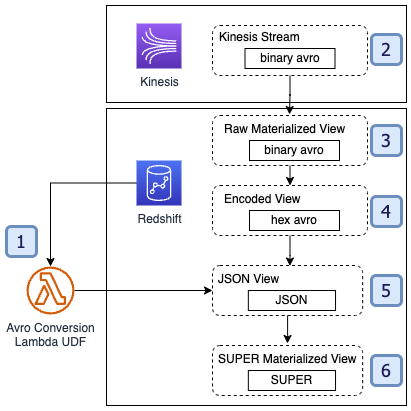
Organizations aiming to use non-JSON serialization formats need to develop an external method for parsing their messages outside of Amazon Redshift. We recommend using an AWS Lambda-based external user-defined function (UDF) for this process. Using an external Lambda UDF allows organizations to define arbitrary deserialization logic to support any message format, including embedded schema, assumed schema, and embedded schema ID approaches. Although Amazon Redshift supports defining Python UDFs natively, which may be a viable alternative for some use cases, we demonstrate the Lambda UDF approach in this post to cover more complex scenarios. For examples of Amazon Redshift UDFs, refer to AWS Samples on GitHub.

The basic architecture for this solution is as follows.

See the following code:

-- Step 1
CREATE OR REPLACE EXTERNAL FUNCTION fn_lambda_decode_avro_binary(varchar)
RETURNS varchar IMMUTABLE LAMBDA 'redshift-avro-udf';

-- Step 2
CREATE EXTERNAL SCHEMA kds FROM KINESIS

-- Step 3
CREATE MATERIALIZED VIEW {name} AUTO REFRESH YES AS
SELECT
    -- Step 4
   t.kinesis_data AS binary_avro,
   to_hex(binary_avro) AS hex_avro,
   -- Step 5
   fn_lambda_decode_avro_binary('{stream-name}', hex_avro) AS json_string,
   -- Step 6
   JSON_PARSE(json_string) AS super_data,
   t.sequence_number,
   t.refresh_time,
   t.approximate_arrival_timestamp,
   t.shard_id
FROM kds.{stream_name} AS t

Let’s explore each step in more detail.

Create the Lambda UDF

The overall goal is to develop a method that can accept the raw data as input and produce JSON-encoded data as an output. This aligns with the Amazon Redshift ability to natively process JSON into the SUPER data type. The specifics of the function depend on the serialization and streaming approach. For example, using the assumed schema approach with Avro format, your Lambda function may complete the following steps:

  1. Take in the stream name and hexadecimal-encoded data as inputs.
  2. Use the stream name to perform a lookup to identify the schema for the given stream name.
  3. Decode the hexadecimal data into binary format.
  4. Use the schema to deserialize the binary data into readable format.
  5. Re-serialize the data into JSON format.

The f_glue_schema_registry_avro_to_json AWS samples example illustrates the process of decoding Avro using the assumed schema approach using the AWS Glue Schema Registry in a Lambda UDF to retrieve and use Avro schemas by stream name. For other approaches (such as embedded schema ID), you should author your Lambda function to handle deserialization as defined by your serialization process and schema registry implementation. If your application depends on an external schema registry or table lookup to process the message schema, we recommend that you implement caching for schema lookups to help reduce the load on the external systems and reduce the average Lambda function invocation duration.

When creating the Lambda function, make sure you accommodate the Amazon Redshift input event format and ensure compliance with the expected Amazon Redshift event output format. For details, refer to Creating a scalar Lambda UDF.

After you create and test the Lambda function, you can define it as a UDF in Amazon Redshift. For effective integration within Amazon Redshift, designate this Lambda function UDF as IMMUTABLE. This classification supports incremental materialized view updates. This treats the Lambda function as idempotent and minimizes the Lambda function costs for the solution, because a message doesn’t need to be processed if it has been processed before.

Configure the baseline Kinesis data stream

Regardless of your messaging format or approach (embedded schema, assumed schema, and embedded schema ID), you begin with setting up the external schema for streaming ingestion from your messaging source into Amazon Redshift. For more information, refer to Streaming ingestion.

CREATE EXTERNAL SCHEMA kds FROM KINESIS

IAM_ROLE 'arn:aws:iam::0123456789:role/redshift-streaming-role';

Create the raw materialized view

Next, you define your raw materialized view. This view contains the raw message data from the streaming source in Amazon Redshift VARBYTE format.

Convert the VARBYTE data to VARCHAR format

External Lambda function UDFs don’t support VARBYTE as an input data type. Therefore, you must convert the raw VARBYTE data from the stream into VARCHAR format to pass to the Lambda function. The best way to do this in Amazon Redshift is using the TO_HEX built-in method. This converts the binary data into hexadecimal-encoded character data, which can be sent to the Lambda UDF.

Invoke the Lambda function to retrieve JSON data

After the UDF has been defined, we can invoke the UDF to convert our hexadecimal-encoded data into JSON-encoded VARCHAR data.

Use the JSON_PARSE method to convert the JSON data to SUPER data type

Finally, we can use the Amazon Redshift native JSON parsing methods like JSON_PARSE, JSON_EXTRACT_PATH_TEXT, and more to parse the JSON data into a format that we can use for analytics.

Considerations

Consider the following when using this strategy:

  • Cost – Amazon Redshift invokes the Lambda function in batches to improve scalability and reduce the overall number of Lambda invocations. The cost of this solution depends on the number of messages in your stream, the frequency of the refresh, and the invocation time required to process the messages in a batch from Amazon Redshift. Using the IMMUTABLE UDF type in Amazon Redshift can also help minimize costs by utilizing the incremental refresh strategy for the materialized view.
  • Permissions and network access – The AWS Identity and Access Management (IAM) role used for the Amazon Redshift UDF must have permissions to invoke the Lambda function, and you must deploy the Lambda function such that it has access to invoke its external dependencies (for example, you may need to deploy it in a VPC to access private resources like a schema registry).
  • Monitoring – Use Lambda function logging and metrics to identify errors in deserialization, connection to the schema registry, and data processing. For details on monitoring the UDF Lambda function, refer to Embedding metrics within logs and Monitoring and troubleshooting Lambda functions.

Conclusion

In this post, we dove into different data formats and ingestion methods for a streaming use case. By exploring strategies for handling non-JSON data formats, we examined the use of Amazon Redshift streaming to seamlessly ingest, process, and analyze these formats in near-real time using materialized views.

Furthermore, we navigated through schema-per-stream, embedded schema, assumed schema, and embedded schema ID approaches, highlighting their merits and considerations. To bridge the gap between non-JSON formats and Amazon Redshift, we explored the creation of Lambda UDFs for data parsing and conversion. This approach offers a comprehensive means to integrate diverse data streams into Amazon Redshift for subsequent analysis.

As you navigate the ever-evolving landscape of data formats and analytics, we hope this exploration provides valuable guidance to derive meaningful insights from your data streams. We welcome any thoughts or questions in the comments section.


About the Authors

M Mehrtens has been working in distributed systems engineering throughout their career, working as a Software Engineer, Architect, and Data Engineer. In the past, M has supported and built systems to process terrabytes of streaming data at low latency, run enterprise Machine Learning pipelines, and created systems to share data across teams seamlessly with varying data toolsets and software stacks. At AWS, they are a Sr. Solutions Architect supporting US Federal Financial customers.

Sindhu Achuthan is a Sr. Solutions Architect with Federal Financials at AWS. She works with customers to provide architectural guidance on analytics solutions using AWS Glue, Amazon EMR, Amazon Kinesis, and other services. Outside of work, she loves DIYs, to go on long trails, and yoga.