All posts by Suthan Phillips

Reduce EMR HBase upgrade downtime with the EMR read-replica prewarm feature

Post Syndicated from Suthan Phillips original https://aws.amazon.com/blogs/big-data/reduce-emr-hbase-upgrade-downtime-with-the-emr-read-replica-prewarm-feature/

HBase clusters on Amazon Simple Storage Service (Amazon S3) need regular upgrades for new features, security patches, and performance improvements. In this post, we introduce the EMR read-replica prewarm feature in Amazon EMR and show you how to use it to minimize HBase upgrade downtime from hours to minutes using blue-green deployments. This approach works well for single-cluster deployments where minimizing service interruption during infrastructure changes is important.

Understanding HBase operational challenges

HBase cluster upgrades have required complete cluster shutdowns, resulting in extended downtime while regions initialize and RegionServers come online. Version upgrades require a complete cluster switchover, with time-consuming steps that include loading and verifying region metadata, performing HFile checks, and confirming proper region assignment across RegionServers. During this critical period—which can extend to hours depending on cluster size and data volume—your applications are completely unavailable.

The challenge doesn’t stop at version upgrades. You must regularly apply security patches and kernel updates to maintain compliance. For Amazon EMR 7.0 and later clusters running on Amazon Linux 2023, instances don’t automatically install security updates after launch; they remain at the patch level from cluster creation time. AWS recommends periodically recreating clusters with newer AMIs, requiring the same hard cutover and downtime risks as a full version upgrade. Similarly, when you need to use different instance types, traditional approaches mean taking your cluster offline.

Solution overview

Amazon EMR 7.12 introduces read-replica prewarm, a new feature that tackles these challenges. This feature lets you make infrastructure changes to Apache HBase on Amazon S3 at scale while reducing downtime risk and maintaining data consistency.

With read-replica prewarm, you can prepare and validate your changes in a read-replica cluster before promoting it to active status, cutting service interruption from hours to minutes. You will learn how to prepare your read-replica cluster with the target version, execute cutover procedures that minimize downtime, and verify successful migration before completing the switchover.

Read-replica prewarm architecture

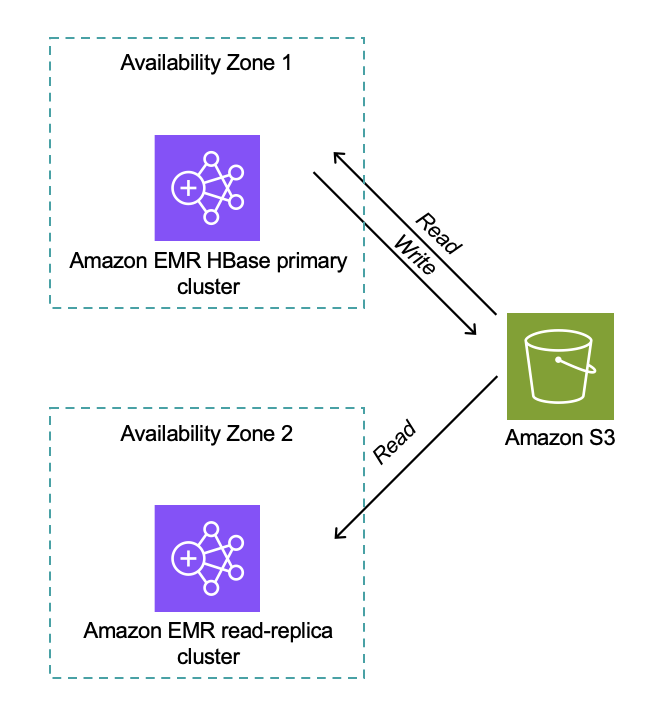
The following diagram shows the architecture and workflow. Both primary and read-replica clusters interact with the same Amazon S3 storage, accessing the same S3 bucket and root directory.

Amazon EMR HBase architecture diagram showing primary cluster in Availability Zone 1 with read/write access to Amazon S3, and read-replica cluster in Availability Zone 2 with read access to S3.

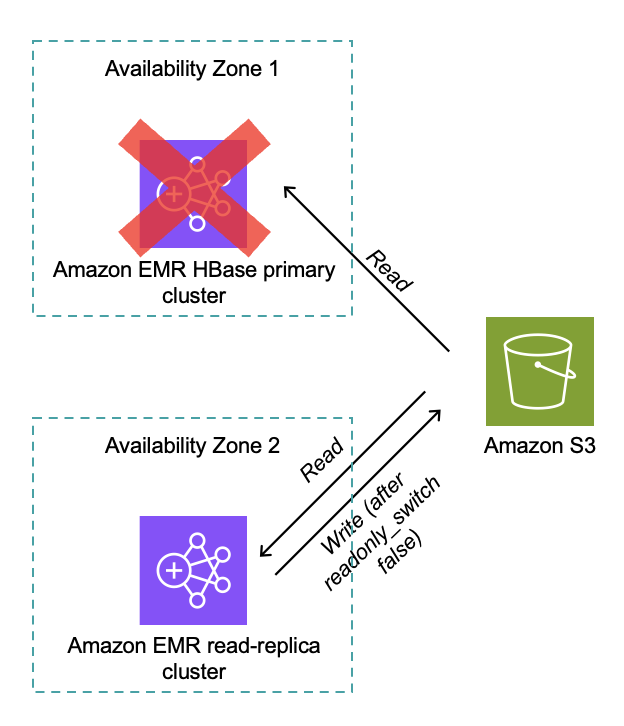
Distributed locking confirms only one HBase cluster can write at a time (for clusters version 7.12.0 and later). The read-replica cluster performs full HBase region initialization without time pressure, and after promotion, the read replica becomes the active writer as shown in the following diagram.

Amazon EMR HBase failover scenario showing primary cluster unavailable in Availability Zone 1, with read-replica cluster in Availability Zone 2 promoted to handle read and write operations after failover.

Implementation steps HBase cluster upgrade

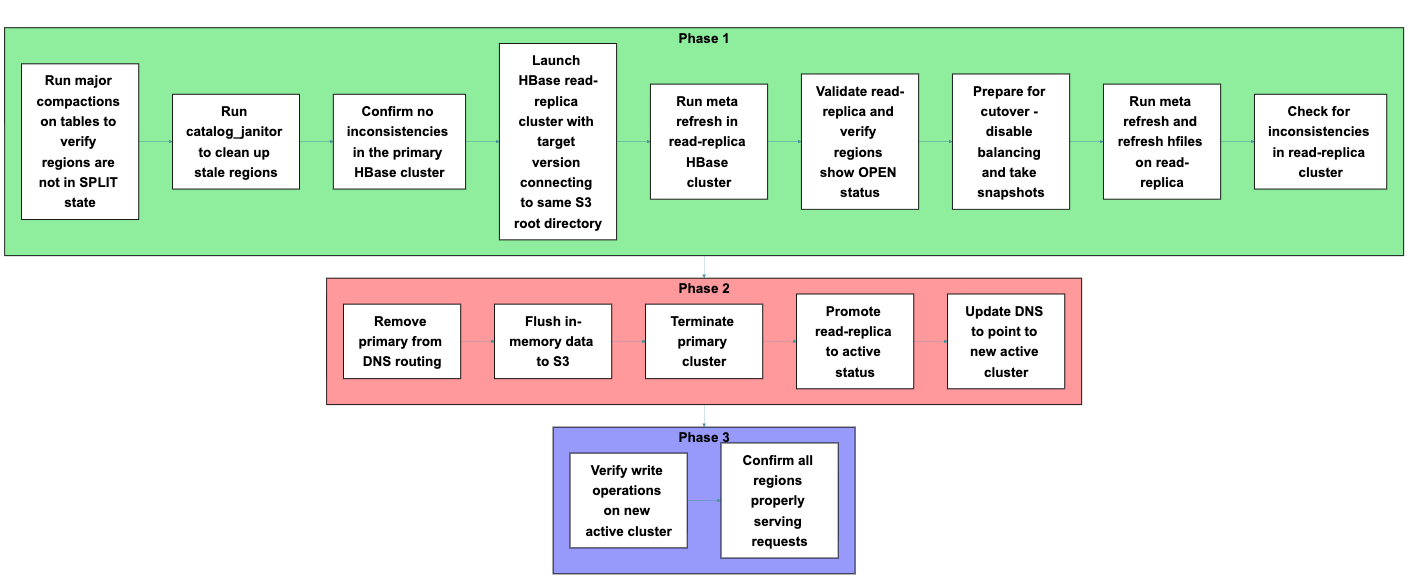
Now that you understand how read-replica prewarm works and the architecture behind it, let’s put this knowledge into practice. You will follow a process that consists of three main phases: preparation, cutover, and verification. Each phase includes specific steps, shown in the following figure, that you will execute in sequence to complete the migration.

Process flow diagram showing three-phase HBase cluster migration: Phase 1 preparation and validation, Phase 2 cutover and DNS update, Phase 3 post-migration verification.

Phase 1: Preparation

Before starting the migration, prepare both your primary cluster and launch a new read-replica cluster. Each step in this phase builds toward confirming that your new cluster can properly access and serve your existing data.

  1. Run major compactions on tables to verify regions are not in SPLIT state
    Run major compactions to consolidate data files and verify regions are not in SPLIT state. Split regions can cause assignment conflicts during migration, so resolving them at the start helps maintain cluster stability throughout the transition.

    echo “major_compact 'tablename'” | hbase shell

  2. Run catalog_janitor to clean up stale regions
    Execute the catalog_janitor process (HBase’s built-in maintenance tool) to remove stale region references from the metadata. Cleaning up these references prevents confusion during region assignment in the read-replica cluster.

    echo “catalogjanitor_run” | hbase shell

  3. Confirm no inconsistencies in the primary HBase cluster
    Verify cluster integrity before migration:

    sudo -u hbase hbase hbck > hbck_report.txt

    Running the HBase Consistency Check tool version 2 (HBCK2) performs a diagnostic scan that identifies and reports problems in metadata, regions, and table states, confirming your cluster is ready for migration.

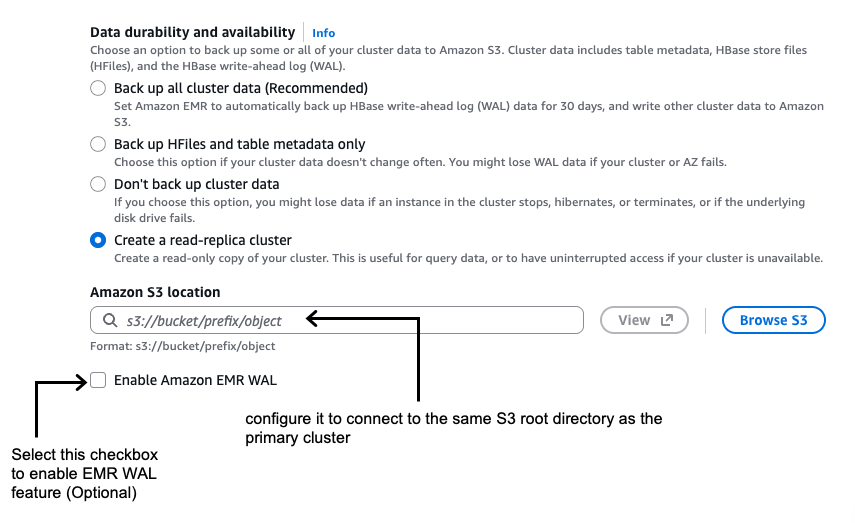
  4. Launch HBase read-replica cluster with the target version connecting to the same HBase root directory in Amazon S3 as the primary cluster
    Launch a new HBase cluster with the target version and configure it to connect to the same S3 root directory as the primary cluster. Confirm that read-only mode is enabled by default as shown in the following screenshot.

    AWS console screenshot showing Amazon EMR data durability and availability configuration options, with "Create a read-replica cluster" option selected and S3 location settings.

    If you are using AWS Command Line Interface (AWS CLI), you can enable the read replica while launching the Amazon EMR HBase on the Amazon S3 cluster by setting the hbase.emr.readreplica.enabled.v2 parameter to true in the HBase classification as shown in the following example:

    {
        "Classification": "hbase",
        "Properties": {
          "hbase.emr.readreplica.enabled.v2": "true",
          "hbase.emr.storageMode": "s3"
        }
    }

  5. Run meta refresh in this read-replica HBase cluster
    echo "refresh_meta" | hbase shell

    You’re creating a parallel environment with the new version that can access existing data without modification risk, allowing validation before committing to the upgrade.

  6. Validate the read-replica and verify that regions show OPEN status and are properly assigned:
    Execute sample read operations against your key tables to confirm the read replica can access your data correctly. In the HBase Master UI, verify that regions show OPEN status and are properly assigned to RegionServers. You should also confirm that the total data size matches your previous cluster to verify complete data visibility.
  7. Prepare for cutover on primary cluster
    Disable balancing and compactions on the primary cluster:

    echo "balance_switch false" | hbase shell
    echo "compaction_switch false" | hbase shell

    Preventing background operations from changing data layout or triggering region movements maintains a consistent state during the migration window.

    Take snapshots of your tables for rollback capability:

    # For each table
    echo "snapshot 'table_name', 'table_name_pre_migration_$(date +%Y%m%d)'" | hbase shell
    # For system tables
    echo "snapshot 'hbase:meta', 'meta_pre_migration_$(date +%Y%m%d)'" | hbase shell
    echo "snapshot 'hbase:namespace', 'namespace_pre_migration_$(date +%Y%m%d)'" | hbase shell

    These snapshots enable point-in-time recovery if you discover issues after migration.

  8. Run meta refresh and refresh hfiles on the read replica:
    echo "refresh_meta" | hbase shell
    hbase org.apache.hadoop.hbase.client.example.RefreshHFilesClient "table_name'"

    Refreshing confirms the read replica has the most current region assignments, table structure, and HFile references before taking over production traffic.

  9. Check for inconsistencies in the read-replica cluster
    Run the HBCK2 tool on the read-replica cluster to identify potential issues:

    sudo -u hbase hbase hbck > hbck_report.txt

    When a read replica is created, both the primary and replica clusters show metadata inconsistencies referencing each other’s meta folders: “There is a hole in the region chain”. The primary cluster complains about meta_<read-replica-cluster-id>, while the read replica complains about the primary’s meta folder. This inconsistency doesn’t impact cluster operations but shows up in hbck reports. For a clean hbck report after switching to the read replica and terminating the primary cluster, manually delete the old primary’s meta folder from Amazon S3 after taking a backup of it.

    Additionally, check the HBase Master UI to visually confirm cluster health. Verifying the read-replica cluster has a clean, consistent state before promotion prevents potential data access issues after cutover.

Phase 2: Cutover

Perform the actual migration by shutting down the primary cluster and promoting the read replica. The steps in this phase minimize the window when your cluster is unavailable to applications.

  1. Remove the primary cluster from DNS routing
    Update DNS entries to direct traffic away from the primary cluster, preventing new requests from reaching it during shutdown.
  2. Flush in-memory data to Amazon S3
    Flush in-memory data to confirm durability in Amazon S3:

    # Flush application data  
    echo "flush 'usertable'" | hbase shell
    # Flush system tables
    echo "flush 'hbase:meta'" | hbase shell
    echo "flush 'hbase:namespace'" | hbase shell

    Flushing forces data still in memory (in MemStores, HBase’s write cache) to be written to persistent storage (Amazon S3), preventing data loss during the transition between clusters.

  3. Terminate the primary cluster
    Terminate the primary cluster after confirming the data is persisted to Amazon S3. This step releases resources and eliminates the possibility of split-brain scenarios where both clusters might accept writes to the same dataset.
  4. Promote the read replica to active status
    Convert the read replica to read-write mode:

    echo "readonly_switch false" | hbase shell  
    echo "readonly_state" | hbase shell  # Verify the switch was successful

    The promotion process automatically refreshes meta and HFiles, capturing final changes from the flush operations and confirming complete data visibility.

    When you promote the cluster, it transitions from read-only to read-write mode, allowing it to accept application write operations and fully replace the old cluster’s functionality.

  5. Update DNS to point to the new active cluster
    Update DNS entries to direct traffic to the new active cluster. Routing client traffic to the new cluster restores service availability and completes the migration from the application perspective.

Phase 3: Validation

With your new cluster now active, you’re ready to verify that everything is working correctly before declaring the migration complete.

Execute test write operations to confirm the cluster accepts writes properly. Check the HBase Master UI to verify regions are serving both read and write requests without errors. At this point, your migration to the new Amazon EMR release is complete, and your applications can connect to the new cluster and resume normal read-write operations.

Key benefits

The read-replica prewarm approach delivers several important advantages over traditional HBase upgrade methods. Most notably, you can reduce service interruption from hours to minutes by preparing your new cluster in parallel with your running production environment.

Before committing to the upgrade, you can thoroughly test that data is readable and accessible in the new version. The system loads and assigns regions before activation, eliminating the lengthy startup time that traditionally causes extended downtime. This pre-warming process means your new cluster is ready to serve traffic immediately upon promotion.

You also gain the ability to validate multiple aspects of your deployment before cutover, including data integrity, read performance, cluster stability, and configuration correctness. This validation happens while your production cluster continues serving traffic, reducing the risk of discovering issues during your maintenance window.

For testing and validation workflows, you can run parallel testing environment by creating multiple HBase read replicas. However, you should verify that only one HBase cluster remains in read-write mode to the Amazon S3 data store to prevent data corruption and consistency issues.

Rollback procedures

Always thoroughly test your HBase rollback procedures before implementing upgrades in production environments.

When rolling back HBase clusters in Amazon EMR, you have two primary options.

  • Option 1 involves launching a new cluster with the previous HBase version that points to the same Amazon S3 data location as the upgraded cluster. This approach is straightforward to implement, preserves data written before and after the upgrade attempt, and offers faster recovery with no additional storage requirements. However, it risks encountering data compatibility issues if the upgrade modified data formats or metadata structures, potentially leading to unexpected behavior.
  • Option 2 takes a more cautious approach by launching a new cluster with the previous HBase version and restoring from snapshots taken before the upgrade. This method guarantees a return to a known, consistent state, eliminates version compatibility risks, and provides complete isolation from corruption introduced during the upgrade process. The tradeoff is that data written after the snapshot was taken will be lost, and the restoration process requires more time and planning.

For production environments where data integrity is paramount, the snapshot-based approach (option 2) is generally preferred despite the potential for some data loss.

Considerations

  • Store file tracking migration: Migrating from Amazon EMR 7.3 (or earlier) requires disabling and dropping the hbase:storefile table on the primary cluster, then flushing metadata. When launching the new read-replica cluster, configure the DefaultStoreFileTracker implementation using the hbase.store.file-tracker.impl property. When operational, run change_sft commands to switch tables to FILE tracking method, providing seamless data file access during migration.
  • Multi-AZ deployments: Consider network latency and Amazon S3 access patterns when deploying read replicas across Availability Zones. Cross-AZ data transfer might impact read latency for the read-replica cluster.
  • Cost impact: Running parallel clusters during migration incurs additional infrastructure costs until the primary cluster is terminated.
  • Disabled tables: The disabled state of tables in the primary cluster is a cluster-specific administrative property that isn’t propagated to the read-replica cluster. If you want them disabled in the read replica, you must explicitly disable them.
  • Amazon EMR 5.x cluster upgrade: Direct upgrade from Amazon EMR 5.x to Amazon EMR 7.x using this feature isn’t supported because of the major HBase version change from 1.x to 2.x. For upgrading from Amazon EMR 5.x to Amazon EMR 7.x, follow the steps in our best practices: AWS EMR Best Practices – HBase Migration

Conclusion

In this post, we showed you how the read-replica prewarm feature of Amazon EMR 7.12 improves HBase cluster operations by minimizing the hard cutover constraints that make infrastructure changes challenging. This feature gives you a consistent blue-green deployment pattern that reduces risk and downtime for version upgrades and security patches.

When you can thoroughly validate changes before committing to them and reduce service interruption from hours to minutes, you can maintain HBase infrastructure more confidently and efficiently. You can now take a more proactive approach to cluster maintenance, security compliance, and performance optimization with greater confidence in your operational processes.

To learn more about Amazon EMR and HBase on Amazon S3, visit the Amazon EMR documentation. To get started with read replicas, see the HBase on Amazon S3 guide .


About the authors

Suthan Phillips

Suthan Phillips

Suthan is a Senior Analytics Architect at AWS, where he helps customers design and optimize scalable, high-performance data solutions that drive business insights. He combines architectural guidance on system design and scalability with best practices to provide efficient, secure implementation across data processing and experience layers. Outside of work, Suthan enjoys swimming, hiking, and exploring the Pacific Northwest.

Ramesh Kandasamy

Ramesh Kandasamy

Ramesh is an Engineering Manager at Amazon EMR. He is a long tenured Amazonian dedicated to solve distributed systems problems.

Mehul Gulati

Mehul Gulati

Mehul is a Software Development Engineer for Amazon EMR at Amazon Web Services. His expertise spans big data systems including HBase, Hive, Tez, and distributed storage solutions. His customer obsession and focus on reliability helps Amazon EMR deliver reliable and efficient big data processing capabilities to customers.

Enhancing data durability in Amazon EMR HBase on Amazon S3 with the Amazon EMR WAL feature

Post Syndicated from Suthan Phillips original https://aws.amazon.com/blogs/big-data/enhancing-data-durability-in-amazon-emr-hbase-on-amazon-s3-with-the-amazon-emr-wal-feature/

Apache HBase, an open source NoSQL database, enables quick access to massive datasets. Amazon EMR, from version 5.2.0, lets you use HBase on Amazon Simple Storage Service (Amazon S3). This combines HBase’s speed with the durability advantages of Amazon S3. Also, it helps achieve the data lake architecture benefits such as the ability to scale storage and compute requirements separately. We see our customers choosing Amazon S3 over Hadoop Distributed File Systems (HDFS) when they want to achieve greater durability, availability, and simplified storage management. Amazon EMR continually improves HBase on Amazon S3, focusing on performance, availability, and reliability.

Despite these durability benefits of HBase on Amazon S3 architecture, a critical concern remains regarding data recovery when the Write-Ahead Log (WAL) is lost. Within the EMR framework, HBase data attains durability when it’s flushed, or written, to Amazon S3. This flushing process is triggered by reaching specific size and time thresholds or through manual initiation. Until data is successfully flushed to S3, it persists within the WAL, which is stored in HDFS. In this post, we dive deep into the new Amazon EMR WAL feature to help you understand how it works, how it enhances durability, and why it’s needed. We explore several scenarios that are well-suited for this feature.

HBase WAL overview

Each RegionServer in HBase is responsible for managing data from multiple tables. These tables are horizontally partitioned into regions, where each region represents a contiguous range of row keys. A RegionServer can host multiple such regions, potentially from different tables. At the RegionServer level, there is a single, shared WAL that records all write operations across all regions and tables in a sequential, append-only manner. This shared WAL makes sure durability is maintained by persisting each mutation before applying it to in-memory structures, enabling recovery in case of unexpected failures. Within each region, the memory structure of the MemStore is further divided by column families, which are the fundamental units of physical storage and I/O in HBase. Each column family maintains:

  • Its own MemStore, which holds recently written data in memory for fast access and buffering before it flushes to disk.
  • A set of HFiles, which are immutable data files stored on HDFS (or Amazon S3 in HBase on S3 mode) that hold the persistent, flushed data.

Although all column families within a region are served by the same RegionServer process, they operate independently in terms of memory buffering, flushing, and compaction. However, they still share the same WAL and RegionServer-level resources, which introduces a degree of coordination, hence they operate semi-independently within the broader region context. This architecture is shown in the following diagram.

Architecture diagram of HBase Region Server showing WAL, two regions with in-memory Memstores and persistent HFiles

Understanding the HBase write process: WAL, MemStore, and HFiles

The HBase write path initiates when a client issues a write request, typically through an RPC call directed to the appropriate RegionServer that hosts the target region. Upon receiving the request, the RegionServer identifies the correct HBase region based on the row key and forwards the KeyValue pair accordingly. The write operation follows a two-step process. First, the data is appended to the WAL, which promotes durability by recording every change before it’s committed to memory. The WAL resides on HDFS by default and exists independently on each RegionServer. Its primary purpose is to provide a recovery mechanism in the event of a failure, particularly for edits that have not yet been flushed to disk. When the WAL append is successful, the data is written to the MemStore, an in-memory store for each column family within the region. The MemStore accumulates updates until it reaches a predefined size threshold, controlled by the hbase.hregion.memstore.flush.size parameter (default is 128 MB). When this threshold is exceeded, a flush is triggered.Flushing is handled asynchronously by a background thread in the RegionServer. The thread writes the contents of the MemStore to a new HFile, which is then persisted to long-term storage. In Amazon EMR, the location of this HFile depends on the deployment mode: for HBase on Amazon S3, HFiles are stored in Amazon S3, but for HBase on HDFS, they’re stored in HDFS.This workflow is shown in the following diagram.

HBase write process workflow showing data path through WAL, Memstore, and HFile with AWS services

A region server serves multiple regions, and they all share a common WAL. The WAL records all data changes, storing them in local HDFS. Puts and deletes are initially logged to the WAL by the region server before being recorded in the MemStore for the affected store. Scan and get operations in HBase don’t require the use of the WAL. In the event of a region server crash or unavailability before MemStore flushing, the WAL is crucial for replaying data changes, which promotes data integrity. Because this log by default resides on a replicated filesystem, it enables an alternate server to access and replay the log, requiring nothing from the physically failed server for a complete recovery. When a RegionServer fails abruptly, HBase initiates an automated recovery process orchestrated by the HMaster. First, the ZooKeeper session timeout detects the RegionServer failure, notifying the HMaster. The HMaster then identifies all regions previously hosted on the failed RegionServer and marks them as unassigned. The WAL files from the failed RegionServer are split by region, and these split WAL files are distributed to the new RegionServers that will host the reassigned regions. Each new RegionServer replays its assigned WAL segments to recover the MemStore state that existed before the failure, preventing data loss. When WAL replay is complete, the regions become operational on their new RegionServers, and the recovery process concludes.

HBase recovery workflow from RegionServer failure through WAL splitting to regions online

The effectiveness of the HDFS WAL model relies on the successful completion of the write request in the WAL and the subsequent data replication in HDFS. In cases where some nodes are terminated, HDFS can still recover from the WAL files, allowing HBase to autonomously heal by replaying data from the WALs and rebalancing the regions. However, if all CORE nodes are simultaneously terminated, achieving complete cluster recovery is a challenge because the data to replay from the WAL is lost. The issue arises when WALs are lost due to CORE node shutdown (for example, all three replicas of a file block). In this scenario, HBase enters a loop attempting to replay data from the WALs. Unfortunately, the absence of available blocks in this case causes the HBase server crash procedure to fail and retry indefinitely.

Amazon EMR WAL

To address the mentioned challenge of HDFS WAL and to provide data durability in HBase, Amazon EMR introduces a new EMR WAL feature starting from versions emr-7.0 and emr-6.15. This feature facilitates the recovery of data that hasn’t been flushed to Amazon S3 (HFile). Using this feature provides thorough backup for your HBase clusters. Behind the scenes, the RegionServer writes WAL data to EMR WAL, which is a service outside the EMR cluster. With this feature enabled, concerns about loss of WAL data in HDFS are alleviated. Also, in the event of cluster or Availability Zone failure issues, you can create a new cluster, directing it to the same Amazon S3 root directory and EMR WAL workspace. This enables the automatic recovery of data in the WAL in the order of minutes. Recovery of unflushed data is supported for a duration of 30 days, after which remaining unflushed data is deleted. This workflow is shown in the following diagram.

Detailed sequence diagram of HBase write operations with EMR WAL service integration and S3 storage

Key benefits

Upon enabling EMR WAL, the WALs are located external to the EMR cluster. The key benefits are:

  • High availability – You can remain confident about data integrity even in the face of Availability Zone failures. Their HFiles are stored in Amazon S3, and the WALs are externally stored in EMR WAL. This setup enables cluster recovery and WAL replay in the same or a different Availability Zone within the region. However, for true high availability with zero downtime, relying solely on EMR WAL is not sufficient because recovery still involves brief interruptions. To provide seamless failover and uninterrupted service, HBase replication across multiple Availability Zones is essential along with EMR WAL, providing robust zero-downtime high availability.
  • Data durability improvement – Customers no longer need to concern themselves with potential data loss in scenarios involving WAL data corruption in HDFS or the removal of all replicas in HDFS due to instance terminations.

The following flow diagram compares the sequence of events with and without EMR WAL enabled.

HBase write process and failure recovery workflow with EMR WAL and S3 integration

Key EMR WAL features

In this section, we explore the key enhancements introduced in the EMR WAL service across recent Amazon EMR versions. From grouping multiple HBase regions into a single EMR WAL to advanced configuration options, these new capabilities address specific usage scenarios.

Grouping multiple HBase regions into a single Amazon EMR WAL

In Amazon EMR versions up to 7.2, a separate EMR WAL is created for each region, which can become expensive due to the EMR-WAL-WALHours pricing model, especially when the HBase cluster contains many regions. To address this, starting from Amazon EMR 7.3, we introduced the EMR WAL grouping feature, which enables consolidating multiple HBase regions per EMR WAL, offering significant cost savings (over 99% cost savings in our sample evaluation) and improved operational efficiency. By default, each HBase RegionServer has two Amazon EMR WALs. If you have many regions per RegionServer and want to increase throughput, you can customize the number of WALs per RegionServer by configuring the hbase.wal.regiongrouping.numgroups property. For instance, to set 10 EMR WALs per HBase RegionServer, you can use the following configuration:

[
  {
    "Classification": "hbase-site",
    "Properties": {
      "hbase.wal.regiongrouping.numgroups": "10"
    }
  }
]

The two HBase system tables hbase:meta and hbase:master (masterstore) don’t participate in the WAL grouping mechanisms.

In a performance test using m5.8xlarge instances with 1,000 regions per RegionServer, we observed a significant increase in throughput as the number of WALs grew from 1 to 20 per RegionServer (from 1,570 to 3,384 operations per sec). This led to a 54% improvement in average latency (from 40.5 ms to 18.8 ms) and a 72% reduction in 95th percentile latency (from 231 ms to 64 ms). However, beyond 20 WALs, we noted diminishing returns, with only slight performance improvements between 20 and 50 WALs, and average latency stabilized around 18.7ms. Based on these results, we recommend maintaining a lower region density (around 10 regions per WAL) for optimal performance. Nonetheless, it’s crucial to fine-tune this configuration according to your specific workload characteristics and performance requirements and conduct tests in your lower environment to validate the best setup.

Configurable maximum record size in EMR WAL

Until Amazon EMR version 7.4, the EMR WAL had a record size limit of 4 MB, which was insufficient for some customers. Starting from EMR 7.5, the maximum record size in EMR WAL is configurable through the emr.wal.max.payload.size property. The default value is set to 1 GB. The following is an example of how to set the maximum record size to 2 GB:

[
  {
    "Classification": "hbase-site",
    "Properties": {
      "emr.wal.max.payload.size": "2147483648"
    }
  }
]

AWS PrivateLink support

EMR WAL supports AWS PrivateLink, if you want to keep your connection within the AWS network. To set it up, create a virtual private cloud (VPC) endpoint using the AWS Management Console or AWS Command Line Interface (AWS CLI) and select the service labeled com.amazonaws.region.emrwal.prod. Make sure your VPC endpoint uses the same security groups as the EMR cluster. You have two DNS configuration options: enabling private DNS, which uses the standard endpoint format and automatically routes traffic privately, or using the provided VPC endpoint-specific DNS name for more explicit control. Regardless of the DNS option chosen, both methods mean that traffic remains within the AWS network, enhancing security. To implement this in the EMR cluster, update your cluster configuration to use the PrivateLink endpoint, as shown in the following code sample (for private DNS):

[
    {
        "Classification": "hbase-site",
        "Properties": {
            "emr.wal.client.endpoint": "https://prod.emrwal.region.amazonaws.com"
        }
    }
]

For more details, refer to Access Amazon EMR WAL through AWS PrivateLink in the Amazon EMR documentation.

Encryption options for WAL in Amazon EMR

Amazon EMR automatically encrypts data in transit in the EMR WAL service. You can enable server-side encryption (SSE) for WAL (data at rest) with two key management options:

  • SSE-EMR-WAL: Amazon EMR manages the encryption keys
  • SSE-KMS-WAL: You use an AWS Key Management Service (AWS KMS) key for encryption policies

EMR WAL cross-cluster replication

From EMR 7.5, EMR WAL supports cross-cluster replay, allowing clusters in an active-passive HBase replication setup to use EMR WAL.

For more details on the setup, refer to EMR WAL cross-cluster replication in the Amazon EMR documentation.

EMR WAL enhancement: Minimizing CPU load from HBase sync threads

Starting from EMR 7.9, we’ve implemented code optimizations in EMR WAL to address the high CPU utilization caused by sync threads used by HBase processes to write WAL edits, leading to improved CPU efficiency.

Sample use cases benefitting from this feature

Based on our customer interactions and feedback, this feature can help in the following scenarios.

Continuity during service disruptions

If your business demands disaster recovery with no data loss for an HBase on an S3 cluster due to unexpected service disruptions, such as an Availability Zone failure, the newly introduced feature means you don’t have to rely on a persistent event store solution using Amazon Managed Streaming for Apache Kafka (Amazon MSK) or Amazon Kinesis. Without EMR WAL, you had to set up a complex event-streaming pipeline to retain the most recently ingested data and enable replay from the point of failure. This new feature eliminates that dependency by storing Hbase WALs in the EMR WAL service.

Note: During an Availability Zone (AZ) failure or service-level issue, make sure to fully terminate the original Hbase cluster before launching a new one that points to the same S3 root directory. Running two active Hbase clusters that access the same S3 root can lead to data corruption.

Upgrading to the latest EMR releases or cluster rotations

Without EMR WAL, moving to the latest EMR version or managing cluster rotations with HBase on Amazon S3 necessitated manual interruptions for data flushing to S3. With the new feature, the requirement for data flushing is eliminated. However, during cluster termination and the subsequent launch of a new HBase cluster, there is an inevitable service downtime, during which data producers or ingestion pipelines must handle write disruptions or buffer incoming data until the system is fully restored. Also, the downstream services should account for temporary unavailability, which can be mitigated using a read replica cluster.

Overcoming HDFS challenges during HBase auto scaling

Without EMR WAL feature, having HDFS for your WAL files was a requirement. When implementing custom auto scaling for your HBase clusters, it sometimes resulted in WAL data corruption due to issues linked to HDFS. This is because, to prevent data loss, data blocks had to be moved to different HDFS nodes when one HDFS node was being decommissioned. When nodes continued to be terminated swiftly during scale-down process without allowing sufficient time for graceful decommissioning, it could result in WAL data corruption issues, primarily attributed to missing blocks.

Addressing HDFS disk space issues due to old WALs

When a WAL file is no longer required for recovery, indicating that HBase has made sure all data within the WAL file has been flushed, it’s transferred to the oldWALs folder for archival purposes. The log remains in this location until all other references to the WAL file are completed. In HBase use cases with high write activity, some customers have expressed concerns about the oldWALs directory (/usr/hbase/oldWALs) expanding and occupying excessive disk space and eventually causing disk space issues. With the complete relocation of these WALs to an external EMR WAL service, you will no longer encounter this issue.

Assessing HBase in Amazon EMR clusters with and without EMR WAL for fault tolerance

We conducted a data durability test employing two scripts. The first was for installing YCSB, creating a pre-split table, and loading 8 million records on the master node. The second was for terminating a core node every 90 seconds after a 3-minute wait, totaling five terminations. Two EMR clusters with eight core nodes each were created, one configured with EMR WAL enabled and the other as a standard EMR HBase cluster with the WAL stored in HDFS. After completion of EMR steps, a count was run on the HBase table. In the EMR cluster with EMR WAL enabled, all records were successfully inserted without corruption. In the cluster not using EMR WALs, regions in HBase remained “OPENING” if the node hosting the meta was terminated. For other core node terminations, inserts failed, resulting in a lower record count during validation.

Understanding when EMR WAL read charges apply in HBase

In HBase, standard table read operations such as Get and Scan don’t access WALs. Therefore, EMR WAL read (GiB) charges are only incurred during operations that involve reading from WALs, such as:

  • Restoring data from EMR WALs in a newly launched cluster
  • Replaying WALs to recover data on a crashed RegionServer
  • Performing HBase replication, which involves reading WALs to replicate data across clusters

In a normal scenario, you’re billed only for the following two components related to EMR WAL usage:

  • EMR-WAL-WALHours – Represents the hourly cost of WAL storage, calculated based on the number of WALs maintained. You can use the EMRWALCount metric in Amazon CloudWatch to monitor the number of WALs and track associated usage over time.
  • EMR-WAL-WriteRequestGiB – This reflects the volume of data written to the WAL service, charged by the amount of data written in GiB.

For further details on pricing, refer to Amazon EMR pricing and Amazon EMR Release Guide.

To monitor and analyze EMR WAL related costs in the AWS Cost and Usage Reports (CUR), look under product_servicecode = ‘ElasticMapReduce’, where you’ll find the following product_usagetype entries associated with WAL usage:

  • USE1-EMR-WAL-ReadRequestGiB
  • USE1-EMR-WAL-WALHours
  • USE1-EMR-WAL-WriteRequestGiB

The prefix USE1 indicates the Region (in this case, us-east-1) and will vary depending on where your EMR cluster is deployed.

Summary

This new EMR WAL feature allows you to improve durability of your Amazon EMR HBase on S3 clusters, addressing critical workload scenarios by eliminating the need for streaming solutions for Availability Zone level service disruptions, streamlining processes for upgrading or rotating clusters, preventing data corruption during HBase auto scaling or node termination events, and resolving disk space issues associated with old WALs. Because many of the EMR WAL features are added on the latest releases of Amazon EMR, we recommend that customers use Amazon EMR version 7.9 or later to fully benefit from these improvements.


About the authors

Suthan Phillips is a Senior Analytics Architect at AWS, where he helps customers design and optimize scalable, high-performance data solutions that drive business insights. He combines architectural guidance on system design and scalability with best practices to ensure efficient, secure implementation across data processing and experience layers. Outside of work, Suthan enjoys swimming, hiking and exploring the Pacific Northwest.
Build your Apache Hudi data lake on AWS using Amazon EMR – Part 1

Post Syndicated from Suthan Phillips original https://aws.amazon.com/blogs/big-data/part-1-build-your-apache-hudi-data-lake-on-aws-using-amazon-emr/

Apache Hudi is an open-source transactional data lake framework that greatly simplifies incremental data processing and data pipeline development. It does this by bringing core warehouse and database functionality directly to a data lake on Amazon Simple Storage Service (Amazon S3) or Apache HDFS. Hudi provides table management, instantaneous views, efficient upserts/deletes, advanced indexes, streaming ingestion services, data and file layout optimizations (through clustering and compaction), and concurrency control, all while keeping your data in open-source file formats such as Apache Parquet and Apache Avro. Furthermore, Apache Hudi is integrated with open-source big data analytics frameworks, such as Apache Spark, Apache Hive, Apache Flink, Presto, and Trino.

In this post, we cover best practices when building Hudi data lakes on AWS using Amazon EMR. This post assumes that you have the understanding of Hudi data layout, file layout, and table and query types. The configuration and features can change with new Hudi versions; the concept of this post applies to Hudi versions of 0.11.0 (Amazon EMR release 6.7), 0.11.1 (Amazon EMR release 6.8) and 0.12.1 (Amazon EMR release 6.9).

Specify the table type: Copy on Write Vs. Merge on Read

When we write data into Hudi, we have the option to specify the table type: Copy on Write (CoW) or Merge on Read (MoR). This decision has to be made at the initial setup, and the table type can’t be changed after the table has been created. These two table types offer different trade-offs between ingest and query performance, and the data files are stored differently based on the chosen table type. If you don’t specify it, the default storage type CoW is used.

The following table summarizes the feature comparison of the two storage types.

CoW MoR
Data is stored in base files (columnar Parquet format). Data is stored as a combination of base files (columnar Parquet format) and log files with incremental changes (row-based Avro format).
COMMIT: Each new write creates a new version of the base files, which contain merged records from older base files and newer incoming records. Each write adds a commit action to the timeline, and each write atomically adds a commit action to the timeline, guaranteeing a write (and all its changes) entirely succeed or get entirely rolled back. DELTA_COMMIT: Each new write creates incremental log files for updates, which are associated with the base Parquet files. For inserts, it creates a new version of the base file similar to CoW. Each write adds a delta commit action to the timeline.
Write
In case of updates, write latency is higher than MoR due to the merge cost because it needs to rewrite the entire affected Parquet files with the merged updates. Additionally, writing in the columnar Parquet format (for CoW updates) is more latent in comparison to the row-based Avro format (for MoR updates). No merge cost for updates during write time, and the write operation is faster because it just appends the data changes to the new log file corresponding to the base file each time.
Compaction isn’t needed because all data is directly written to Parquet files. Compaction is required to merge the base and log files to create a new version of the base file.
Higher write amplification because new versions of base files are created for every write. Write cost will be O(number of files in storage modified by the write). Lower write amplification because updates go to log files. Write cost will be O(1) for update-only datasets and can get higher when there are new inserts.
Read
CoW table supports snapshot query and incremental queries.

MoR offers two ways to query the same underlying storage: ReadOptimized tables and Near-Realtime tables (snapshot queries).

ReadOptimized tables support read-optimized queries, and Near-Realtime tables support snapshot queries and incremental queries.

Read-optimized queries aren’t applicable for CoW because data is already merged to base files while writing. Read-optimized queries show the latest compacted data, which doesn’t include the freshest updates in the not yet compacted log files.
Snapshot queries have no merge cost during read. Snapshot queries merge data while reading if not compacted and therefore can be slower than CoW while querying the latest data.

CoW is the default storage type and is preferred for simple read-heavy use cases. Use cases with the following characteristics are recommended for CoW:

  • Tables with a lower ingestion rate and use cases without real-time ingestion
  • Use cases requiring the freshest data with minimal read latency because merging cost is taken care of at the write phase
  • Append-only workloads where existing data is immutable

MoR is recommended for tables with write-heavy and update-heavy use cases. Use cases with the following characteristics are recommended for MoR:

  • Faster ingestion requirements and real-time ingestion use cases.
  • Varying or bursty write patterns (for example, ingesting bulk random deletes in an upstream database) due to the zero-merge cost for updates during write time
  • Streaming use cases
  • Mix of downstream consumers, where some are looking for fresher data by paying some additional read cost, and others need faster reads with some trade-off in data freshness

For streaming use cases demanding strict ingestion performance with MoR tables, we suggest running the table services (for example, compaction and cleaning) asynchronously, which is discussed in the upcoming Part 3 of this series.

For more details on table types and use cases, refer to How do I choose a storage type for my workload?

Select the record key, key generator, preCombine field, and record payload

This section discusses the basic configurations for the record key, key generator, preCombine field, and record payload.

Record key

Every record in Hudi is uniquely identified by a Hoodie key (similar to primary keys in databases), which is usually a pair of record key and partition path. With Hoodie keys, you can enable efficient updates and deletes on records, as well as avoid duplicate records. Hudi partitions have multiple file groups, and each file group is identified by a file ID. Hudi maps Hoodie keys to file IDs, using an indexing mechanism.

A record key that you select from your data can be unique within a partition or across partitions. If the selected record key is unique within a partition, it can be uniquely identified in the Hudi dataset using the combination of the record key and partition path. You can also combine multiple fields from your dataset into a compound record key. Record keys cannot be null.

Key generator

Key generators are different implementations to generate record keys and partition paths based on the values specified for these fields in the Hudi configuration. The right key generator has to be configured depending on the type of key (simple or composite key) and the column data type used in the record key and partition path columns (for example, TimestampBasedKeyGenerator is used for timestamp data type partition path). Hudi provides several key generators out of the box, which you can specify in your job using the following configuration.

Configuration Parameter Description Value
hoodie.datasource.write.keygenerator.class Key generator class, which generates the record key and partition path Default value is SimpleKeyGenerator

The following table describes the different types of key generators in Hudi.

Key Generators Use-case
SimpleKeyGenerator Use this key generator if your record key refers to a single column by name and similarly your partition path also refers to a single column by name.
ComplexKeyGenerator Use this key generator when record key and partition paths comprise multiple columns. Columns are expected to be comma-separated in the config value (for example, "hoodie.datasource.write.recordkey.field" : “col1,col4”).
GlobalDeleteKeyGenerator

Use this key generator when you can’t determine the partition of incoming records to be deleted and need to delete only based on record key. This key generator ignores the partition path while generating keys to uniquely identify Hudi records.

When using this key generator, set the config hoodie.[bloom|simple|hbase].index.update.partition.path to false in order to avoid redundant data written to the storage.

NonPartitionedKeyGenerator Use this key generator for non-partitioned datasets because it returns an empty partition for all records.
TimestampBasedKeyGenerator Use this key generator for a timestamp data type partition path. With this key generator, the partition path column values are interpreted as timestamps. The record key is the same as before, which is a single column converted to string. If using TimestampBasedKeyGenerator, a few more configs need to be set.
CustomKeyGenerator Use this key generator to take advantage of the benefits of SimpleKeyGenerator, ComplexKeyGenerator, and TimestampBasedKeyGenerator all at the same time. With this you can configure record key and partition paths as a single field or a combination of fields. This is helpful if you want to generate nested partitions with each partition key of different types (for example, field_3:simple,field_5:timestamp). For more information, refer to CustomKeyGenerator.

The key generator class can be automatically inferred by Hudi if the specified record key and partition path require a SimpleKeyGenerator or ComplexKeyGenerator, depending on whether there are single or multiple record key or partition path columns. For all other cases, you need to specify the key generator.

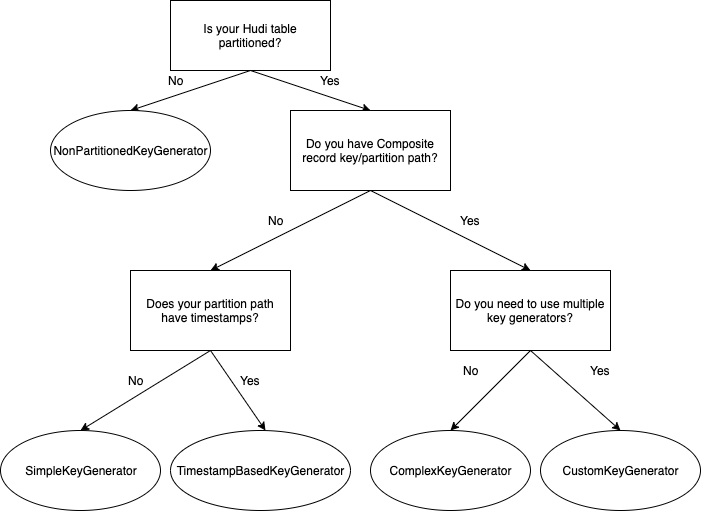
The following flow chart explains how to select the right key generator for your use case.

PreCombine field

This is a mandatory field that Hudi uses to deduplicate the records within the same batch before writing them. When two records have the same record key, they go through the preCombine process, and the record with the largest value for the preCombine key is picked by default. This behavior can be customized through custom implementation of the Hudi payload class, which we describe in the next section.

The following table summarizes the configurations related to preCombine.

Configuration Parameter Description Value
hoodie.datasource.write.precombine.field The field used in preCombining before the actual write. It helps select the latest record whenever there are multiple updates to the same record in a single incoming data batch.

The default value is ts. You can configure it to any column in your dataset that you want Hudi to use to deduplicate the records whenever there are multiple records with the same record key in the same batch. Currently, you can only pick one field as the preCombine field.

Select a column with the timestamp data type or any column that can determine which record holds the latest version, like a monotonically increasing number.

hoodie.combine.before.upsert During upsert, this configuration controls whether deduplication should be done for the incoming batch before ingesting into Hudi. This is applicable only for upsert operations. The default value is true. We recommend keeping it at the default to avoid duplicates.
hoodie.combine.before.delete Same as the preceding config, but applicable only for delete operations. The default value is true. We recommend keeping it at the default to avoid duplicates.
hoodie.combine.before.insert When inserted records share the same key, the configuration controls whether they should be first combined (deduplicated) before writing to storage. The default value is false. We recommend setting it to true if the incoming inserts or bulk inserts can have duplicates.

Record payload

Record payload defines how to merge new incoming records against old stored records for upserts.

The default OverwriteWithLatestAvroPayload payload class always overwrites the stored record with the latest incoming record. This works fine for batch jobs and most use cases. But let’s say you have a streaming job and want to prevent the late-arriving data from overwriting the latest record in storage. You need to use a different payload class implementation (DefaultHoodieRecordPayload) to determine the latest record in storage based on an ordering field, which you provide.

For example, in the following example, Commit 1 has HoodieKey 1, Val 1, preCombine10, and in-flight Commit 2 has HoodieKey 1, Val 2, preCombine 5.

If using the default OverwriteWithLatestAvroPayload, the Val 2 version of the record will be the final version of the record in storage (Amazon S3) because it’s the latest version of the record.

If using DefaultHoodieRecordPayload, it will honor Val 1 because the Val 2’s record version has a lower preCombine value (preCombine 5) compared to Val 1’s record version, while merging multiple versions of the record.

You can select a payload class while writing to the Hudi table using the configuration hoodie.datasource.write.payload.class.

Some useful in-built payload class implementations are described in the following table.

Payload Class Description
OverwriteWithLatestAvroPayload (org.apache.hudi.common.model.OverwriteWithLatestAvroPayload) Chooses the latest incoming record to overwrite any previous version of the records. Default payload class.
DefaultHoodieRecordPayload (org.apache.hudi.common.model.DefaultHoodieRecordPayload) Uses hoodie.payload.ordering.field to determine the final record version while writing to storage.
EmptyHoodieRecordPayload (org.apache.hudi.common.model.EmptyHoodieRecordPayload) Use this as payload class to delete all the records in the dataset.
AWSDmsAvroPayload (org.apache.hudi.common.model.AWSDmsAvroPayload) Use this as payload class if AWS DMS is used as source. It provides support for seamlessly applying changes captured via AWS DMS. This payload implementation performs insert, delete, and update operations on the Hudi table based on the operation type for the CDC record obtained from AWS DMS.

Partitioning

Partitioning is the physical organization of files within a table. They act as virtual columns and can impact the max parallelism we can use on writing.

Extremely fine-grained partitioning (for example, over 20,000 partitions) can create excessive overhead for the Spark engine managing all the small tasks, and can degrade query performance by reducing file sizes. Also, an overly coarse-grained partition strategy, without clustering and data skipping, can negatively impact both read and upsert performance with the need to scan more files in each partition.

Right partitioning helps improve read performance by reducing the amount of data scanned per query. It also improves upsert performance by limiting the number of files scanned to find the file group in which a specific record exists during ingest. A column frequently used in query filters would be a good candidate for partitioning.

For large-scale use cases with evolving query patterns, we suggest coarse-grained partitioning (such as date), while using fine-grained data layout optimization techniques (clustering) within each partition. This opens the possibility of data layout evolution.

By default, Hudi creates the partition folders with just the partition values. We recommend using Hive style partitioning, in which the name of the partition columns is prefixed to the partition values in the path (for example, year=2022/month=07 as opposed to 2022/07). This enables better integration with Hive metastores, such as using msck repair to fix partition paths.

To support Apache Hive style partitions in Hudi, we have to enable it in the config hoodie.datasource.write.hive_style_partitioning.

The following table summarizes the key configurations related to Hudi partitioning.

Configuration Parameter Description Value
hoodie.datasource.write.partitionpath.field Partition path field. This is a required configuration that you need to pass while writing the Hudi dataset. There is no default value set for this. Set it to the column that you have determined for partitioning the data. We recommend that it doesn’t cause extremely fine-grained partitions.
hoodie.datasource.write.hive_style_partitioning Determines whether to use Hive style partitioning. If set to true, the names of partition folders follow <partition_column_name>=<partition_value> format. Default value is false. Set it to true to use Hive style partitioning.
hoodie.datasource.write.partitionpath.urlencode Indicates if we should URL encode the partition path value before creating the folder structure. Default value is false. Set it to true if you want to URL encode the partition path value. For example, if you’re using the data format “yyyy-MM-dd HH:mm:ss“, the URL encode needs to be set to true because it will result in an invalid path due to :.

Note that if the data isn’t partitioned, you need to specifically use NonPartitionedKeyGenerator for the record key, which is explained in the previous section. Additionally, Hudi doesn’t allow partition columns to be changed or evolved.

Choose the right index

After we select the storage type in Hudi and determine the record key and partition path, we need to choose the right index for upsert performance. Apache Hudi employs an index to locate the file group that an update/delete belongs to. This enables efficient upsert and delete operations and enforces uniqueness based on the record keys.

Global index vs. non-global index

When picking the right indexing strategy, the first decision is whether to use a global (table level) or non-global (partition level) index. The main difference between global vs. non-global indexes is the scope of key uniqueness constraints. Global indexes enforce uniqueness of the keys across all partitions of a table. The non-global index implementations enforce this constraint only within a specific partition. Global indexes offer stronger uniqueness guarantees, but they come with a higher update/delete cost, for example global deletes with just the record key need to scan the entire dataset. HBase indexes are an exception here, but come with an operational overhead.

For large-scale global index use cases, use an HBase index or record-level index (available in Hudi 0.13) because for all other global indexes, the update/delete cost grows with the size of the table, O(size of the table).

When using a global index, be aware of the configuration hoodie[bloom|simple|hbase].index.update.partition.path, which is already set to true by default. For existing records getting upserted to a new partition, enabling this configuration will help delete the old record in the old partition and insert it in the new partition.

Hudi index options

After picking the scope of the index, the next step is to decide which indexing option best fits your workload. The following table explains the indexing options available in Hudi as of 0.11.0.

Indexing Option How It Works Characteristic Scope
Simple Index Performs a join of the incoming upsert/delete records against keys extracted from the involved partition in case of non-global datasets and the entire dataset in case of global or non-partitioned datasets. Easiest to configure. Suitable for basic use cases like small tables with evenly spread updates. Even for larger tables where updates are very random to all partitions, a simple index is the right choice because it directly joins with interested fields from every data file without any initial pruning, as compared to Bloom, which in the case of random upserts adds additional overhead and doesn’t give enough pruning benefits because the Bloom filters could indicate true positive for most of the files and end up comparing ranges and filters against all these files. Global/Non-global
Bloom Index (default index in EMR Hudi) Employs Bloom filters built out of the record keys, optionally also pruning candidate files using record key ranges. Bloom filter is stored in the data file footer while writing the data.

More efficient filter compared to simple index for use cases like late-arriving updates to fact tables and deduplication in event tables with ordered record keys such as timestamp. Hudi implements a dynamic Bloom filter mechanism to reduce false positives provided by Bloom filters.

In general, the probability of false positives increases with the number of records in a given file. Check the Hudi FAQ for Bloom filter configuration best practices.

Global/Non-global
Bucket Index It distributes records to buckets using a hash function based on the record keys or subset of it. It uses the same hash function to determine which file group to match with incoming records. New indexing option since hudi 0.11.0. Simple to configure. It has better upsert throughput performance compared to the Bloom filter. As of Hudi 0.11.1, only fixed bucket number is supported. This will no longer be an issue with the upcoming consistent hashing bucket index feature, which can dynamically change bucket numbers. Non-global
HBase Index The index mapping is managed in an external HBase table. Best lookup time, especially for large numbers of partitions and files. It comes with additional operational overhead because you need to manage an external HBase table. Global

Use cases suitable for simple index

Simple indexes are most suitable for workloads with evenly spread updates over partitions and files on small tables, and also for larger tables with dimension kind of workloads because updates are random to all partitions. A common example is a CDC pipeline for a dimension table. In this case, updates end up touching a large number of files and partitions. Therefore, a join with no other pruning is most efficient.

Use cases suitable for Bloom index

Bloom indexes are suitable for most production workloads with uneven update distribution across partitions. For workloads with most updates to recent data like fact tables, Bloom filter rightly fits the bill. It can be clickstream data collected from an ecommerce site, bank transactions in a FinTech application, or CDC logs for a fact table.

When using a Bloom index, be aware of the following configurations:

  • hoodie.bloom.index.use.metadata – By default, it is set to false. When this flag is on, the Hudi writer gets the index metadata information from the metadata table and doesn’t need to open Parquet file footers to get the Bloom filters and stats. You prune out the files by just using the metadata table and therefore have improved performance for larger tables.
  • hoodie.bloom.index.prune.by.rangesEnable or disable range pruning based on use case. By default, it’s already set to true. When this flag is on, range information from files is used to speed up index lookups. This is helpful if the selected record key is monotonously increasing. You can set any record key to be monotonically increasing by adding a timestamp prefix. If the record key is completely random and has no natural ordering (such as UUIDs), it’s better to turn this off, because range pruning will only add extra overhead to the index lookup.

Use cases suitable for bucket index

Bucket indexes are suitable for upsert use cases on huge datasets with a large number of file groups within partitions, relatively even data distribution across partitions, and can achieve relatively even data distribution on the bucket hash field column. It can have better upsert performance in these cases due to no index lookup involved as file groups are located based on a hashing mechanism, which is very fast. This is totally different from both simple and Bloom indexes, where an explicit index lookup step is involved during write. The buckets here has one-one mapping with the hudi file group and since the total number of buckets (defined by hoodie.bucket.index.num.buckets(default – 4)) is fixed here, it can potentially lead to skewed data (data distributed unevenly across buckets) and scalability (buckets can grow over time) issues over time. These issues will be addressed in the upcoming consistent hashing bucket index, which is going to be a special type of bucket index.

Use cases suitable for HBase index

HBase indexes are suitable for use cases where ingestion performance can’t be met using the other index types. These are mostly use cases with global indexes and large numbers of files and partitions. HBase indexes provide the best lookup time but come with large operational overheads if you’re already using HBase for other workloads.

For more information on choosing the right index and indexing strategies for common use cases, refer to Employing the right indexes for fast updates, deletes in Apache Hudi. As you have already seen, Hudi index performance depends heavily on the actual workload. We encourage you to evaluate different indexes for your workload and choose the one which is best suited for your use case.

Migration guidance

With Apache Hudi growing in popularity, one of the fundamental challenges is to efficiently migrate existing datasets to Apache Hudi. Apache Hudi maintains record-level metadata to perform core operations such as upserts and incremental pulls. To take advantage of Hudi’s upsert and incremental processing support, you need to add Hudi record-level metadata to your original dataset.

Using bulk_insert

The recommended way for data migration to Hudi is to perform a full rewrite using bulk_insert. There is no look-up for existing records in bulk_insert and writer optimizations like small file handling. Performing a one-time full rewrite is a good opportunity to write your data in Hudi format with all the metadata and indexes generated and also potentially control file size and sort data by record keys.

You can set the sort mode in a bulk_insert operation using the configuration hoodie.bulkinsert.sort.mode. bulk_insert offers the following sort modes to configure.

Sort Modes Description
NONE No sorting is done to the records. You can get the fastest performance (comparable to writing parquet files with spark) for initial load with this mode.
GLOBAL_SORT Use this to sort records globally across Spark partitions. It is less performant in initial load than other modes as it repartitions data by partition path and sorts it by record key within each partition. This helps in controlling the number of files generated in the target thereby controlling the target file size. Also, the generated target files will not have overlapping min-max values for record keys which will further help speed up index look-ups during upserts/deletes by pruning out files based on record key ranges in bloom index.
PARTITION_SORT Use this to sort records within Spark partitions. It is more performant for initial load than Global_Sort and if your Spark partitions in the data frame are already fairly mapped to the Hudi partitions (dataframe is already repartitioned by partition column), using this mode would be preferred as you can obtain records sorted by record key within each partition.

We recommend to use Global_Sort mode if you can handle the one-time cost. The default sort mode is changed from Global_Sort to None from EMR 6.9 (Hudi 0.12.1). During bulk_insert with Global_Sort, two configurations control the sizes of target files generated by Hudi.

Configuration Parameter Description Value
hoodie.bulkinsert.shuffle.parallelism The number of files generated from the bulk insert is determined by this configuration. The higher the parallelism, the more Spark tasks processing the data. Default value is 200. To control file size and achieve maximum performance (more parallelism), we recommend setting this to a value such that the files generated are equal to the hoodie.parquet.max.file.size. If you make parallelism really high, the max file size can’t be honored because the Spark tasks are working on smaller amounts of data.
hoodie.parquet.max.file.size Target size for Parquet files produced by Hudi write phases. Default value is 120 MB. If the Spark partitions generated with hoodie.bulkinsert.shuffle.parallelism are larger than this size, it splits it and generates multiple files to not exceed the max file size.

Let’s say we have a 100 GB Parquet source dataset and we’re bulk inserting with Global_Sort into a partitioned Hudi table with 10 evenly distributed Hudi partitions. We want to have the preferred target file size of 120 MB (default value for hoodie.parquet.max.file.size). The Hudi bulk insert shuffle parallelism should be calculated as follows:

  • The total data size in MB is 100 * 1024 = 102400 MB
  • hoodie.bulkinsert.shuffle.parallelism should be set to 102400/120 = ~854

Please note that in reality even with Global_Sort, each spark partition can be mapped to more than one hudi partition and this calculation should only be used as a rough estimate and can potentially end up with more files than the parallelism specified.

Using bootstrapping

For customers operating at scale on hundreds of terabytes or petabytes of data, migrating your datasets to start using Apache Hudi can be time-consuming. Apache Hudi provides a feature called bootstrap to help with this challenge.

The bootstrap operation contains two modes: METADATA_ONLY and FULL_RECORD.

FULL_RECORD is the same as full rewrite, where the original data is copied and rewritten with the metadata as Hudi files.

The METADATA_ONLY mode is the key to accelerating the migration progress. The conceptual idea is to decouple the record-level metadata from the actual data by writing only the metadata columns in the Hudi files generated while the data isn’t copied over and stays in its original location. This significantly reduces the amount of data written, thereby improving the time to migrate and get started with Hudi. However, this comes at the expense of read performance, which involves the overhead merging Hudi files and original data files to get the complete record. Therefore, you may not want to use it for frequently queried partitions.

You can pick and choose these modes at partition level. One common strategy is to tier your data. Use FULL_RECORD mode for a small set of hot partitions, which are accessed frequently, and METADATA_ONLY for a larger set of cold partitions.

Consider the following:

Catalog sync

Hudi supports syncing Hudi table partitions and columns to a catalog. On AWS, you can either use the AWS Glue Data Catalog or Hive metastore as the metadata store for your Hudi tables. To register and synchronize the metadata with your regular write pipeline, you need to either enable hive sync or run the hive_sync_tool or AwsGlueCatalogSyncTool command line utility.

We recommend enabling the hive sync feature with your regular write pipeline to make sure the catalog is up to date. If you don’t expect a new partition to be added or the schema changed as part of each batch, then we recommend enabling hoodie.datasource.meta_sync.condition.sync as well so that it allows Hudi to determine if hive sync is necessary for the job.

If you have frequent ingestion jobs and need to maximize ingestion performance, you can disable hive sync and run the hive_sync_tool asynchronously.

If you have the timestamp data type in your Hudi data, we recommend setting hoodie.datasource.hive_sync.support_timestamp to true to convert the int64 (timestamp_micros) to the hive type timestamp. Otherwise, you will see the values in bigint while querying data.

The following table summarizes the configurations related to hive_sync.

Configuration Parameter Description Value
hoodie.datasource.hive_sync.enable To register or sync the table to a Hive metastore or the AWS Glue Data Catalog. Default value is false. We recommend setting the value to true to make sure the catalog is up to date, and it needs to be enabled in every single write to avoid an out-of-sync metastore.
hoodie.datasource.hive_sync.mode This configuration sets the mode for HiveSynctool to connect to the Hive metastore server. For more information, refer to Sync modes. Valid values are hms, jdbc, and hiveql. If the mode isn’t specified, it defaults to jdbc. Hms and jdbc both talk to the underlying thrift server, but jdbc needs a separate jdbc driver. We recommend setting it to ‘hms’, which uses the Hive metastore client to sync Hudi tables using thrift APIs directly. This helps when using the AWS Glue Data Catalog because you don’t need to install Hive as an application on the EMR cluster (because it doesn’t need the server).
hoodie.datasource.hive_sync.database Name of the destination database that we should sync the Hudi table to. Default value is default. Set this to the database name of your catalog.
hoodie.datasource.hive_sync.table Name of the destination table that we should sync the Hudi table to. In Amazon EMR, the value is inferred from the Hudi table name. You can set this config if you need a different table name.
hoodie.datasource.hive_sync.support_timestamp To convert logical type TIMESTAMP_MICROS as hive type timestamp. Default value is false. Set it to true to convert to hive type timestamp.
hoodie.datasource.meta_sync.condition.sync If true, only sync on conditions like schema change or partition change. Default value is false.

Writing and reading Hudi datasets, and its integration with other AWS services

There are different ways you can write the data to Hudi using Amazon EMR, as explained in the following table.

Hudi Write Options Description
Spark DataSource

You can use this option to do upsert, insert, or bulk insert for the write operation.

Refer to Work with a Hudi dataset for an example of how to write data using DataSourceWrite.

Spark SQL You can easily write data to Hudi with SQL statements. It eliminates the need to write Scala or PySpark code and adopt a low-code paradigm.
Flink SQL, Flink DataStream API If you’re using Flink for real-time streaming ingestion, you can use the high-level Flink SQL or Flink DataStream API to write the data to Hudi.
DeltaStreamer DeltaStreamer is a self-managed tool that supports standard data sources like Apache Kafka, Amazon S3 events, DFS, AWS DMS, JDBC, and SQL sources, built-in checkpoint management, schema validations, as well as lightweight transformations. It can also operate in a continuous mode, in which a single self-contained Spark job can pull data from source, write it out to Hudi tables, and asynchronously perform cleaning, clustering, compactions, and catalog syncing, relying on Spark’s job pools for resource management. It’s easy to use and we recommend using it for all the streaming and ingestion use cases where a low-code approach is preferred. For more information, refer to Streaming Ingestion.
Spark structured streaming For use cases that require complex data transformations of the source data frame written in Spark DataFrame APIs or advanced SQL, we recommend the structured streaming sink. The streaming source can be used to obtain change feeds out of Hudi tables for streaming or incremental processing use cases.
Kafka Connect Sink If you standardize on the Apache Kafka Connect framework for your ingestion needs, you can also use the Hudi Connect Sink.

Refer to the following support matrix for query support on specific query engines. The following table explains the different options to read the Hudi dataset using Amazon EMR.

Hudi Read options Description
Spark DataSource You can read Hudi datasets directly from Amazon S3 using this option. The tables don’t need to be registered with Hive metastore or the AWS Glue Data Catalog for this option. You can use this option if your use case doesn’t require a metadata catalog. Refer to Work with a Hudi dataset for example of how to read data using DataSourceReadOptions.
Spark SQL You can query Hudi tables with DML/DDL statements. The tables need to be registered with Hive metastore or the AWS Glue Data Catalog for this option.
Flink SQL After the Flink Hudi tables have been registered to the Flink catalog, they can be queried using the Flink SQL.
PrestoDB/Trino The tables need to be registered with Hive metastore or the AWS Glue Data Catalog for this option. This engine is preferred for interactive queries. There is a new Trino connector in upcoming Hudi 0.13, and we recommend reading datasets through this connector when using Trino for performance benefits.
Hive The tables need to be registered with Hive metastore or the AWS Glue Data Catalog for this option.

Apache Hudi is well integrated with AWS services, and these integrations work when AWS Glue Data Catalog is used, with the exception of Athena, where you can also use a data source connector to an external Hive metastore. The following table summarizes the service integrations.

AWS Service Description
Amazon Athena

You can use Athena for a serverless option to query a Hudi dataset on Amazon S3. Currently, it supports snapshot queries and read-optimized queries, but not incremental queries.

For more details, refer to Using Athena to query Apache Hudi datasets.

Amazon Redshift Spectrum

You can use Amazon Redshift Spectrum to run analytic queries against tables in your Amazon S3 data lake with Hudi format.

Currently, it supports only CoW tables. For more details, refer to Creating external tables for data managed in Apache Hudi.

AWS Lake Formation AWS Lake Formation is used to secure data lakes and define fine-grained access control on the database and table level. Hudi is not currently supported with Amazon EMR Lake Formation integration.
AWS DMS You can use AWS DMS to ingest data from upstream relational databases to your S3 data lakes into an Hudi dataset. For more details, refer to Apply record level changes from relational databases to Amazon S3 data lake using Apache Hudi on Amazon EMR and AWS Database Migration Service.

Conclusion

This post covered best practices for configuring Apache Hudi data lakes using Amazon EMR. We discussed the key configurations in migrating your existing dataset to Hudi and shared guidance on how to determine the right options for different use cases when setting up Hudi tables.

The upcoming Part 2 of this series focuses on optimizations that can be done on this setup, along with monitoring using Amazon CloudWatch.


About the Authors

Suthan Phillips is a Big Data Architect for Amazon EMR at AWS. He works with customers to provide best practice and technical guidance and helps them achieve highly scalable, reliable and secure solutions for complex applications on Amazon EMR. In his spare time, he enjoys hiking and exploring the Pacific Northwest.

Dylan Qu is an AWS solutions architect responsible for providing architectural guidance across the full AWS stack with a focus on Data Analytics, AI/ML and DevOps.

Up to 15 times improvement in Hive write performance with the Amazon EMR Hive zero-rename feature

Post Syndicated from Suthan Phillips original https://aws.amazon.com/blogs/big-data/up-to-15-times-improvement-in-hive-write-performance-with-the-amazon-emr-hive-zero-rename-feature/

Our customers use Apache Hive on Amazon EMR for large-scale data analytics and extract, transform, and load (ETL) jobs. Amazon EMR Hive uses Apache Tez as the default job execution engine, which creates Directed Acyclic Graphs (DAGs) to process data. Each DAG can contain multiple vertices from which tasks are created to run the application in parallel. Their final output is written to Amazon Simple Storage Service (Amazon S3).

Hive initially writes data to staging directories and then move it to the final location after a series of rename operations. This design of Hive renames supports task failure recovery, such as rescheduling the failed task with another attempt, running speculative execution, and recovering from a failed job attempt. These move and rename operations don’t have a significant performance impact in HDFS because it’s only a metadata operation when compared to Amazon S3 where the performance can degrade significantly based on the number of files written.

This post discusses the new optimized committer for Hive in Amazon EMR and also highlights its impressive performance by running a TPCx-BB performance benchmark and comparing it with the Hive default commit logic.

How Hive commit logic works

By default, Apache Hive manages the task and job commit phase and doesn’t have support for pluggable Hadoop output committers, which you can use to customize Hive’s file commit behavior.

In its current state, the rename operation with Hive-managed and external tables happens in three places:

  • Task commit – The output of task attempts is stored in its own staging directory. In the task commit phase, they’re renamed and moved to a task-specific staging directory.
  • Job commit – In this phase, the final output is generated from the output of all committed tasks of a job attempt. Task-specific staging directories are renamed and moved to the job commit staging directory.
  • Move task – The job commit staging directory is renamed or moved to the final table directory.

The impact of these rename operations is more significant on Hive jobs writing a large number of files.

Hive EMRFS S3-optimized committer

To mitigate the slowdown in write performance due to renames, we added support for output committers in Hive. We developed a new output committer, the Hive EMRFS S3-optimized committer, to avoid Hive rename operations. This committer directly writes the data to the output location, and the file commit happens only at the end of the job to ensure that it is resilient to job failures.

It modifies the default Hive file naming convention from <task_id>_<attempt_id>_<copy_n> to <task_id>_<attempt_id>_<copy_n>-<query_id>. For example, after an insert query in a Hive table, the output file is generated as 000000_0-hadoop_20210714130459_ba7c23ec-5695-4947-9d98-8a40ef759222-1 instead of 000000_0, where the suffix is the combination of user_name, timestamp, and UUID, which forms the query ID.

Performance evaluation

We ran the TPCx-BB Express Benchmark tests with and without the new committer and evaluated the write performance improvement.

The following graph shows performance improvement measured as total runtime of the queries. With the new committer, the runtime is better(lower).

This optimization is for Hive writes and hence the majority of improvement occurred in the load test, which is the writing phase of the benchmark. We observed an approximate 15-times reduction in runtime. However, we didn’t see much improvement in the power test and throughput test because each query is just writing a single file to the final table.

The benchmark used in this post is derived from the industry-standard TPCx-BB benchmark, and has the following characteristics:

  • The schema and data are used unmodified from TPCx-BB.
  • The scale factor used is 1000.
  • The queries are used unmodified from TPCx-BB.
  • The suite has three tests: the load test is the process of building of test database and is write heavy; the power test determines the maximum speed the system takes to run all the queries; and the Throughput test runs the queries in concurrent streams. The run elapsed times are used as the primary metric.
  • The power tests and throughput tests include 25 out of 30 queries. The five queries for machine learning workloads were excluded.

Note that this is derived from the TPCx-BB benchmark, and as such is not comparable to published TPCx-BB results, as the results of our tests do not comply with the specification.

Understanding performance impact with different data sizes and number of files

To benchmark the performance impact with variable data sizes and number of files, we also evaluated the following INSERT OVERWRITE query over the store_sales table from the TPC-DS dataset with additional variations, such as size of data (1 GB, 5 GB, 10 GB, 25 GB, 50 GB, 100 GB), number of files, and number of partitions:

SET partitions=100.0
SET files_per_partition=10;

CREATE TABLE store_sales_simple_test
(ss_sold_time_sk int, ss_item_sk int, ss_customer_sk int,
ss_cdemo_sk int, ss_hdemo_sk int, ss_addr_sk int,
ss_store_sk int, ss_promo_sk int, ss_ticket_number bigint,
ss_quantity int, ss_wholesale_cost decimal(7,2),
ss_list_price decimal(7,2), ss_sales_price decimal(7,2),
ss_ext_discount_amt decimal(7,2),
ss_ext_sales_price decimal(7,2),
ss_ext_wholesale_cost decimal(7,2),
ss_ext_list_price decimal(7,2), ss_ext_tax decimal(7,2),
ss_coupon_amt decimal(7,2), ss_net_paid decimal(7,2),
ss_net_paid_inc_tax decimal(7,2),
ss_net_profit decimal(7,2), ss_sold_date_sk int)
PARTITIONED BY (part_key int)
STORED AS ORC
LOCATION 's3://<bucket>/<table_location>';

Insert overwrite table store_sales_simple_test
select * , FLOOR(RAND()*${partitions}) as part_key
from store_sales distribute by part_key, FLOOR(RAND()*${files_per_partition});

The results show that the number of files written is the critical factor for performance improvement when using this new committer in comparison to the default Hive commit logic.

In the following graph, the y-axis denotes the speedup (total time taken with rename / total time taken by query with committer), and the x-axis denotes the data size.

Enabling the feature

To enable Amazon EMR Hive to use HiveEMRFSOptimizedCommitter to commit data as the default for all Hive-managed and external tables, use the following hive-site configuration starting with EMR 6.5.0 or EMR 5.34.0 clusters:

[
  {
    "classification": "hive-site",
    "properties": {
      "hive.blobstore.use.output-committer": "true"
    }
  }
]

The new committer is not compatible with the hive.exec.parallel=true setting. Be sure to not enable both settings at the same time in Amazon EMR 6.5.0. In future EMR releases, parallel execution will automatically be disabled when the new Hive committer is used.

Limitations

This committer will not be used and default Hive commit logic will be applied in the following scenarios:

  • When merge small files (hive.merge.tezfiles) is enabled
  • When using Hive ACID tables
  • When partitions are distributed across file systems such as HDFS and Amazon S3

Summary

The Hive EMRFS S3-optimized committer improves write performance compared to the default Hive commit logic, eliminating Amazon S3 renames. You can use this feature starting with Amazon EMR 6.5.0 and Amazon EMR 5.34.0.

Stay tuned for additional updates on new features and further improvements in Apache Hive on Amazon EMR.


About the Authors

Suthan Phillips works with customers to provide them architectural guidance and helps them achieve performance enhancements for complex applications on Amazon EMR. In his spare time, he enjoys hiking and exploring the Pacific Northwest.

Aditya Shah is a Software Development Engineer at AWS. He is interested in Databases and Data warehouse engines and has worked on distributed filesystem, ACID compliance and metadata management of Apache Hive. When not thinking about data, he is browsing pages of internet to sate his appetite for random trivia and is a movie geek at heart.

Syed Shameerur Rahman is a software development engineer at Amazon EMR. He is interested in highly scalable, distributed computing. He is an active contributor of open source projects like Apache Hive, Apache Tez, Apache ORC and has contributed important features and optimizations. During his free time, he enjoys exploring new places and food.

Amazon EMR supports Apache Hive ACID transactions

Post Syndicated from Suthan Phillips original https://aws.amazon.com/blogs/big-data/amazon-emr-supports-apache-hive-acid-transactions/

Apache Hive is an open-source data warehouse package that runs on top of an Apache Hadoop cluster. You can use Hive for batch processing and large-scale data analysis. Hive uses Hive Query Language (HiveQL), which is similar to SQL.

ACID (atomicity, consistency, isolation, and durability) properties make sure that the transactions in a database are atomic, consistent, isolated, and reliable.

Amazon EMR 6.1.0 adds support for Hive ACID transactions so it complies with the ACID properties of a database. With this feature, you can run INSERT, UPDATE, DELETE, and MERGE operations in Hive managed tables with data in Amazon Simple Storage Service (Amazon S3). This is a key feature for use cases like streaming ingestion, data restatement, bulk updates using MERGE, and slowly changing dimensions.

This post demonstrates how to enable Hive ACID transactions in Amazon EMR, how to create a Hive transactional table, how it can achieve atomic and isolated operations, and the concepts, best practices, and limitations of using Hive ACID in Amazon EMR.

Enabling Hive ACID in Amazon EMR

To enable Hive ACID as the default for all Hive managed tables in an EMR 6.1.0 cluster, use the following hive-site configuration:

[
   {
      "classification": "hive-site",
      "properties": {
         "hive.support.concurrency": "true",
         "hive.exec.dynamic.partition.mode": "nonstrict",
         "hive.txn.manager": "org.apache.hadoop.hive.ql.lockmgr.DbTxnManager"
      }
   }
]

For the complete list of configuration parameters related to Hive ACID and descriptions of the preceding parameters, see Hive Transactions.

Hive ACID use case

In this section, we explain the Hive ACID transactions with a straightforward use case in Amazon EMR.

Enter the following Hive command in the master node of an EMR cluster (6.1.0 release) and replace <s3-bucket-name> with the bucket name in your account:

hive --hivevar location=<s3-bucket-name> -f s3://aws-bigdata-blog/artifacts/hive-acid-blog/hive_acid_example.hql 

After Hive ACID is enabled on an Amazon EMR cluster, you can run the CREATE TABLE DDLs for Hive transaction tables.

To define a Hive table as transactional, set the table property transactional=true.

The following CREATE TABLE DDL is used in the script that creates a Hive transaction table acid_tbl:

CREATE TABLE acid_tbl (key INT, value STRING, action STRING)
PARTITIONED BY (trans_date DATE)
CLUSTERED BY (key) INTO 3 BUCKETS
STORED AS ORC
LOCATION 's3://${hivevar:location}/acid_tbl' 
TBLPROPERTIES ('transactional'='true');

This script generates three partitions in the provided Amazon S3 path. See the following screenshot.

The first partition, trans_date=2020-08-01, has the data generated as a result of sample INSERT, UPDATE, DELETE, and MERGE statements. We use the second and third partitions when explaining minor and major compactions later in this post.

ACID is achieved in Apache Hive using three types of files: base, delta, and delete_delta. Edits are written in delta and delete_delta files.

The base file is created by the Insert Overwrite Table query or as the result of major compaction over a partition, where all the files are consolidated into a single base_<write id> file, where the write ID is allocated by the Hive transaction manager for every write. This helps achieve isolation of Hive write queries and enables them to run in parallel.

The INSERT operation creates a new delta_<write id>_<write id> directory.

The DELETE operation creates a new delete_delta_<write id>_<write id> directory.

To support deletes, a unique row__id is added to each row on writes. When a DELETE statement runs, the corresponding row__id gets added to the delete_delta_<write id>_<write id> directory, which should be ignored on reads. See the following screenshot.

The UPDATE operation creates a new delta_<write id>_<write id> directory and a delete<write id>_<write id> directory.

The following screenshot shows the second partition in Amazon S3, trans_date=2020-08-02.

A Hive transaction provides snapshot isolation for reads. When an application or query reads the transaction table, it opens all the files of a partition/bucket and returns the records from the last transaction committed.

Hive compactions

With the previously mentioned logic for Hive writes on a transactional table, many small delta and delete_delta files are created, which could adversely impact read performance over time because each read over a particular partition has to open all the files (including delete_delta) to eliminate the deleted rows.

This brings the need for a compaction logic for Hive transactions. In the following sections, we use the same use case to explain minor and major compactions in Hive.

Minor compaction

A minor compaction merges all the delta and delete_delta files within a partition or bucket to a single delta_<start write id>_<end write id> and delete_delta_<start write id>_<end write id> file.

We can trigger the minor compaction manually for the second partition (trans_date=2020-08-02) in Amazon S3 with the following code:

ALTER TABLE acid_tbl PARTITION (trans_date='2020-08-02') COMPACT 'minor';

If you check the same second partition in Amazon S3, after a minor compaction, it looks like the following screenshot.

You can see all the delta and delete_delta files from write ID 0000005–0000009 merged to single delta and delete_delta files, respectively.

Major compaction

A major compaction merges the base, delta, and delete_delta files within a partition or bucket to a single base_<latest write id>. Here the deleted data gets cleaned.

A major compaction is automatically triggered in the third partition (trans_date='2020-08-03') because the default Amazon EMR compaction threshold is met, as described in the next section. See the following screenshot.

To check the progress of compactions, enter the following command:

hive> show compactions;

The following screenshot shows the output.

Compaction in Amazon EMR

Compaction is enabled by default in Amazon EMR 6.1.0. The following property determines the number of concurrent compaction tasks:

  • hive.compactor.worker.threads – Number of worker threads to run in the instance. The default is 1 or vCores/8, whichever is greater.

Automatic compaction is triggered in Amazon EMR 6.1.0 based on the following configuration parameters:

  • hive.compactor.check.interval – Time period in seconds to check if any partition requires compaction. The default is 300 seconds.
  • hive.compactor.delta.num.threshold – Triggers minor compaction when the total number of delta files is greater than this value. The default is 10.
  • hive.compactor.delta.pct.threshold – Triggers major compaction when the total size of delta files is greater than this percentage size of base file. The default is 0.1, or 10%.

Best practices

The following are some best practices when using this feature:

  • Use an external Hive metastore for Hive ACID tables – Our customers use EMR clusters for compute purposes and Amazon S3 as storage for cost-optimization. With this architecture, you can stop the EMR cluster when the Hive jobs are complete. However, if you use a local Hive metastore, the metadata is lost upon stopping the cluster, and the corresponding data in Amazon S3 becomes unusable. To persist the metastore, we strongly recommend using an external Hive metastore like an Amazon RDS for MySQL instance or Amazon Aurora. Also, if you need multiple EMR clusters running ACID transactions (read or write) on the same Hive table, you need to use an external Hive metastore.
  • Use ORC format – Use ORC format to get full ACID support for INSERT, UPDATE, DELETE, and MERGE statements.
  • Partition your data – This technique helps improve performance for large datasets.
  • Enable an EMRFS consistent view if using Amazon S3 as storage – Because you have frequent movement of files in Amazon S3, we recommend using an EMRFS consistent view to mitigate the issues related to the eventual consistency nature of Amazon S3.
  • Use Hive authorization – Because Hive transactional tables are Hive managed tables, to prevent users from deleting data in Amazon S3, we suggest implementing Hive authorization with required privileges for each user.

Limitations

Keep in mind the following limitations of this feature:

  • The AWS Glue Data Catalog doesn’t support Hive ACID transactions.
  • Hive external tables don’t support Hive ACID transactions.
  • Bucketing is optional in Hive 3, but in Amazon EMR 6.1.0 (as of this writing), if the table is partitioned, it needs to be bucketed. You can mitigate this issue in Amazon EMR 6.1.0 using the following bootstrap action:
    --bootstrap-actions '[{"Path":"s3://aws-bigdata-blog/artifacts/hive-acid-blog/make_bucketing_optional_for_hive_acid_EMR_6_1.sh","Name":"Set bucketing as optional for Hive ACID"}]'

Conclusion

This post introduced the Hive ACID feature in EMR 6.1.0 clusters, explained how it works and its concepts with a straightforward use case, described the default behavior of Hive ACID on Amazon EMR, and offered some best practices. Stay tuned for additional updates on new features and further improvements in Apache Hive on Amazon EMR.


About the Authors

Suthan Phillips is a big data architect at AWS. He works with customers to provide them architectural guidance and helps them achieve performance enhancements for complex applications on Amazon EMR. In his spare time, he enjoys hiking and exploring the Pacific Northwest.


Chao Gao is a Software Development Engineer at Amazon EMR. He mainly works on Apache Hive project at EMR, and has some in-depth knowledge of distributed database and database internals. In his spare time, he enjoys making roadtrips, visiting all the national parks and traveling around the world.