All posts by Vishal Jakharia

Adding threat detection to custom authentication flow with Amazon Cognito advanced security features

Post Syndicated from Vishal Jakharia original https://aws.amazon.com/blogs/security/adding-threat-detection-to-custom-authentication-flow-with-amazon-cognito-advanced-security-features/

Recently, passwordless authentication has gained popularity compared to traditional password-based authentication methods. Application owners can add user management to their applications while offloading most of the security heavy-lifting to Amazon Cognito. You can use Amazon Cognito to customize user authentication flow by implementing passwordless authentication. Amazon Cognito enhances the security posture of your applications because it handles the storage and management of user information securely. Additionally, Amazon Cognito provides secure authentication flow and verifiable tokens.

This post explores how you can use the advanced security features of Amazon Cognito to add threat detection to your passwordless authentication custom authentication flow, further strengthening your defenses against account takeover risks.

Overview

Amazon Cognito is a customer identity and access management (CIAM) service that streamlines the process of building secure, scalable, and user-friendly authentication solutions. With Amazon Cognito, you can integrate user sign-up, sign-in, and access control functionalities into your web and mobile applications. One of the key features of Amazon Cognito is that it supports custom authentication flow, which you can use to implement passwordless authentication for your users or you can require users to solve a CAPTCHA or answer a security question before being allowed to authenticate.

Custom authentication flows, such as passwordless authentication, offer an improved user experience while enhancing security by using strong custom factors. In addition, it is recommended to implement additional measures to detect and mitigate potential risks. Amazon Cognito advanced security provides a suite of powerful features designed to detect risks and allows you to take action to protect your user accounts.

For more information on the features offered by Amazon Cognito advanced security, see User pool advanced security features.

By combining passwordless authentication with Amazon Cognito advanced security features, you can enhance your application’s overall security posture while providing a seamless and user-friendly authentication experience to your users.

Advanced security support for custom authentication flow

Amazon Cognito advanced security now supports custom authentication flows to provide additional threat detection, including passwordless authentication. You can improve the security of applications that use custom authentication factors by enabling risk detection and adaptive authentication.

The custom authentication flow triggers three AWS Lambda functions, as shown in Figure 1.

Figure 1: Custom authentication flow

Figure 1: Custom authentication flow

The custom authentication flow depicted in Figure 1 includes the following steps:

  1. A user initiates authentication from the custom sign-in page, which sends the authentication request to the Amazon Cognito user pool.
  2. The user pool calls the Define Auth Challenge Lambda function. This function determines which custom challenge needs to be created. At the end, it reports back to Amazon Cognito to issue a token if authentication is successful. The function is invoked at the start of the custom authentication flow and after each completion of the Verify Auth Challenge Response Lambda trigger.
  3. The user pool calls the Create Auth Challenge Lambda function. This function is invoked to create a unique challenge for the user based on the instruction of the Define Auth Challenge Lambda trigger.
  4. The user responds to the challenge with their answer, which is sent by making a RespondToAuthChallenge API call to the Amazon Cognito user pool.
  5. The user pool calls the Verify Auth Challenge Response Lambda function with the response from the user. The function determines if the answer is correct.
  6. The user pool then calls the Define Auth Challenge Lambda function. This function verifies that the challenge has been successfully answered and that no further challenge is needed. It includes issueTokens: true in its response to the user pool.
  7. When advanced security is enabled, Amazon Cognito performs risk analysis on the authentication request. If a risk is detected, it’s mitigated as configured in advanced security. The user pool now considers the user to be authenticated and sends the user a valid JSON Web Token (JWT) (in response to step 4, the authentication challenge).

How to configure advanced security for custom authentication flow

In this section, you set up a custom passwordless authentication flow and then add advanced security features (ASF) to protect your existing authentication flow.

Configure advanced security features

  1. Start by implementing passwordless authentication with Amazon Cognito and WebAuthn.
  2. After setting up passwordless authentication, go to the AWS Management Console for Amazon Cognito and configure advanced security features for your passwordless authentication flow.
  3. Navigate to the user pool that has been created for the passwordless authentication solution.
  4. Choose the Advanced Security tab and choose Activate.
  5. In the Included features and initial states pop-up, you’ll see the Threat protection for standard authentication and Threat protection for custom authentication have already been included in Audit-only mode, choose Activate.

    Note: It’s recommended to run advanced security features in audit only mode initially to evaluate risk patterns and decide the appropriate settings for each risk level.

    Figure 2: Activate advanced security features

    Figure 2: Activate advanced security features

  6. To set up full function mode and enforcement for Threat protection for custom authentication, choose Set up full-function mode.
    Figure 3: Activate threat protection for custom authentication flow

    Figure 3: Activate threat protection for custom authentication flow

  7. For Custom authentication enforcement mode, you can select:
    • No enforcement – Amazon Cognito doesn’t gather metrics on detected risks or automatically take preventive actions.
    • Audit-only – Amazon Cognito gathers metrics on detected risks, but doesn’t take automatic action.
    • Full-function – Amazon Cognito automatically takes preventive actions in response to different levels of risk that you configure for your user pool.

    Select Full-function.

    Figure 4: Configure enforcement level

    Figure 4: Configure enforcement level

  8. You can choose either Cognito defaults or Custom to respond to each level of risk when Amazon Cognito detects potential malicious activity.
    1. Cognito defaults will block sign-in attempts for low, medium, and high risks.
      Figure 5: Adaptive authentication configuration

      Figure 5: Adaptive authentication configuration

    2. If you choose Custom, you can customize the risk configuration for each risk level.
      • Allow – Sign-in attempts will be allowed without additional authentication factors.
      • Optional MFA – Amazon Cognito will send a multi-factor authentication (MFA) challenge to the user if the user is eligible for MFA. A user is eligible for MFA if:
        1. They have configured an authenticator app and TOTP MFA is enabled for the user pool.
        2. They have a phone number or email address, and SMS or email message MFA is enabled for the user pool.

        If the user is eligible for MFA, they must respond correctly to the MFA challenge. If the user is not eligible for MFA, Cognito will allow sign-in without additional authentication factors.

      • Require MFA – Amazon Cognito will send an MFA challenge to the user if the user is eligible for MFA. If the user is eligible for MFA, they must respond correctly to the MFA challenge. If the user is not eligible for MFA, Cognito will block the sign-in attempt.
      • Block – Cognito blocks future sign-in attempts.
  9. You can notify users when adaptive authentication detects potentially suspicious activity using a customized email message. This notification is sent to users to confirm their activity, and Amazon Cognito uses the user’s response to learn their behavior patterns over time. By customizing the notification message, you can provide a better user experience and make sure communication regarding the security measure is clear to your users.
    Figure 6: Adaptive authentication message template

    Figure 6: Adaptive authentication message template

  10. Review the threat protection configuration.
    Figure 7: Custom auth flow threat protection configuration

    Figure 7: Custom auth flow threat protection configuration

Test the configuration

To test the configuration, sign in from multiple devices and locations. Amazon Cognito will calculate risk and take action based on your configuration. After you’ve signed in multiple times through different devices, you can view the User event history.

  1. In the Amazon Cognito console, go to the user pool and search for the user you signed in as.
  2. Select the user name and navigate to User event history.
Figure 8: User event history

Figure 8: User event history

You can see the user event history with the risk levels and actions taken by Amazon Cognito as shown in Figure 8. In the figure, Amazon Cognito advanced security has detected a high-risk event and has blocked the sign-in attempt.

Amazon Cognito will associate a risk level with each sign-in attempt and based on your adaptive configuration; it will either allow the sign in, request an MFA response, or block the request.

Note: Populating UserContextData in the request is important to the functionality of the risk engine. Some SDKs, such as AWS Amplify, will populate this object by default, but in custom code, you need to make sure userContextData is calculated and populated correctly in relevant events. See Adding user device and session data to API requests for more information about populating userContextData.

Additionally, you can export user authentication event history to Amazon CloudWatch, a Amazon Data Firehose stream, or an Amazon Simple Storage Service (Amazon S3) bucket for further analysis of the security event.

Conclusion

In this post, you learned how to enable threat detection for a custom authentication flow such as passwordless authentication in Amazon Cognito. Threat detection helps you to monitor user activity and enhances security measures even when your users sign in through a custom authentication flow.

If you have feedback about this post, submit comments in the Comments section below.
Vishal Jakharia

Vishal Jakharia

Vishal is a Cloud Support Engineer based in New Jersey, USA. He’s an Amazon Cognito subject matter expert who loves to work with customers and provide them solutions for implementing secure authentication and authorization. He helps customers migrate and build secure scalable architecture on the AWS Cloud.

Varun Sharma

Varun is a Senior AWS Cloud Security Engineer who wears his security cape proudly. With a knack for unravelling the mysteries of Amazon Cognito and IAM, Varun is a go-to subject matter expert for these services. When he’s not busy securing the cloud, you’ll find him in the world of security penetration testing. And when the pixels are at rest, Varun switches gears to capture the beauty of nature through the lens of his camera.

How to set up SAML federation in Amazon Cognito using IdP-initiated single sign-on, request signing, and encrypted assertions

Post Syndicated from Vishal Jakharia original https://aws.amazon.com/blogs/security/how-to-set-up-saml-federation-in-amazon-cognito-using-idp-initiated-single-sign-on-request-signing-and-encrypted-assertions/

When an identity provider (IdP) serves multiple service providers (SPs), IdP-initiated single sign-on provides a consistent sign-in experience that allows users to start the authentication process from one centralized portal or dashboard. It helps administrators have more control over the authentication process and simplifies the management.

However, when you support IdP-initiated authentication, the SP (Amazon Cognito in this case) can’t verify that it has solicited the SAML response that it receives from IdP because there is no SAML request initiated from the SP. To accept unsolicited SAML assertions in your user pool, you must consider its effect on your app security. Although your user pool can’t verify an IdP-initiated sign-in session, Amazon Cognito validates your request parameters and SAML assertions.

Amazon Cognito has recently enhanced support for the SAML 2.0 protocol by adding support to IdP-initiated single sign-on (SSO), SAML request signing and accepting encrypted SAML responses.

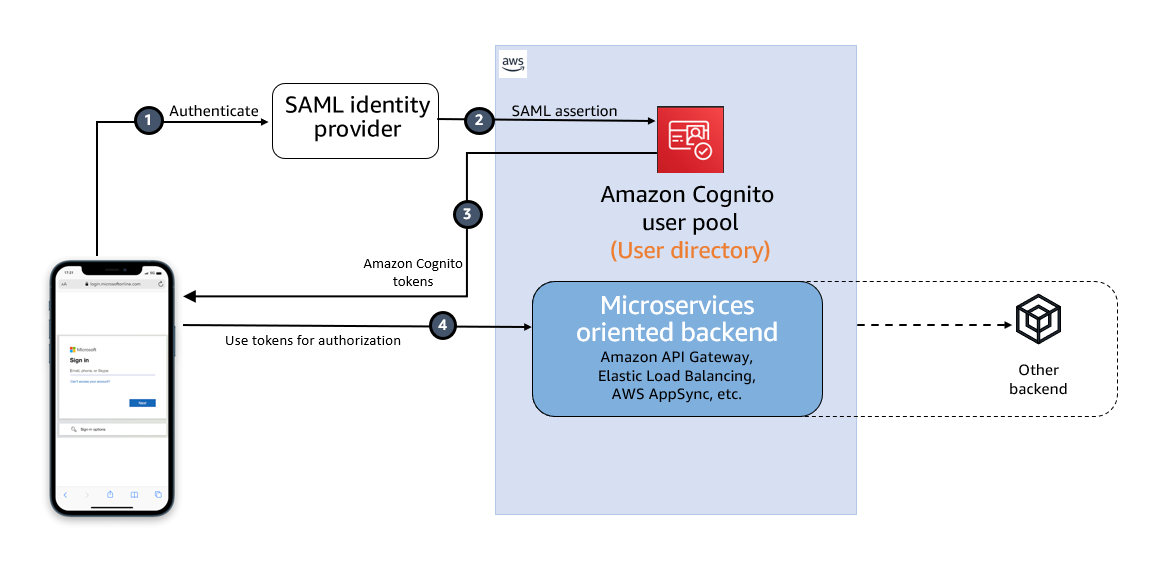
Amazon Cognito acts as the SP representing your application and generates a token after federation that can be used by the application to access protected backends. The SAML provider acts as an IdP, where the user identities and credentials are stored, and is responsible for authenticating the user.

This post describes the steps to integrate a SAML IdP, Microsoft Entra ID, with an Amazon Cognito user pool and use SAML IdP-initiated SSO flow. It also describes steps to enable signing authentication requests and accepting encrypted SAML responses.

IdP-initiated authentication flow using SAML federation

Figure 1: High-level diagram for SAML IdP-initiated authentication flow in a web or mobile app

Figure 1: High-level diagram for SAML IdP-initiated authentication flow in a web or mobile app

As shown in Figure 1, the high-level flow diagram of an application with federated authentication typically involves the following steps:

  1. An enterprise user opens their SSO portal and signs in. This usually opens a portal with several applications that the user has access to. When the user selects an Amazon Cognito protected application from their SSO portal, an IdP-initiated SSO flow is initiated.
  2. When the user launches an application from the SSO portal, Entra ID sends a SAML assertion to the Cognito endpoint to federate the user.
  3. Amazon Cognito validates the SAML assertion and creates the user in Cognito if this is first-time federation for the user or updates the user’s record if user has signed in before from this IdP. Cognito then generates an authorization code and redirects the user to the application URL with this authorization code. The application exchanges the authorization code for tokens from the Cognito token endpoint.
  4. After the application has tokens, it uses them to authorize access within the application stack as needed.

The SAML response contains claims or assertions that contain user-specific data. The SAML response is transferred over HTTPS to protect confidentiality of the data, but you can also enable encryption to further protect the confidentiality of transferred user information. This enables trusted parties who have the decryption key to decrypt the data. It protects the confidentiality of the data after it’s received by the SP.

Setting up SAML federation between Amazon Cognito and Entra ID

To set up SAML federation and use IdP-initiated SSO, you will complete the following steps:

  1. Create an Amazon Cognito user pool.
  2. Create an app client in the Cognito user pool.
  3. Add Cognito as an enterprise application in Entra ID.
  4. Add Entra ID as the SAML IdP and enable IdP-initiated SSO in Cognito.
  5. Add the newly created SAML IdP to your user pool app client.
  6. Enable encrypting the SAML response.
  7. Add RelayState in Entra ID SAML SSO.

Prerequisites

To implement the solution, you must have the necessary permissions to perform these tasks in Azure portal and in your AWS account.

Step 1: Create an Amazon Cognito user pool

Create a new user pool in Amazon Cognito with the default settings. Make a note of the user pool ID, for example, us-east-1_abcd1234. You will need this value for the next steps.

Add a domain name to user pool

The Cognito user pool’s hosted UI can be used as the OAuth 2.0 authorization server with a customizable web interface for sign-up and sign-in. Cognito OAuth 2.0 endpoints are accessible from a domain name that must be added to the user pool. There are two options for adding a domain name to a user pool. You can either use a Cognito domain or a domain name that you own. This solution uses a Cognito domain, which will look like the following:

https://<yourDomainPrefix>.auth.<aws-region>.amazoncognito.com

To add a domain name to a user pool:

  1. In the AWS Management Console for Amazon Cognito, navigate to the App integration tab for your user pool.
  2. On the right side of the pane, choose Actions and select Create Cognito domain.

    Figure 2: Create a Cognito domain

    Figure 2: Create a Cognito domain

  3. Enter an available domain prefix (for example example-corp-prd) to use with the Cognito domain.

    Figure 3: Add a domain prefix

    Figure 3: Add a domain prefix

  4. Choose Create Cognito domain.

Step 2: Create an app client in the Cognito user pool

Before you can use Amazon Cognito in your web application, you must register your app with Amazon Cognito as an app client. The IdP-initiated SAML flow can’t be enabled on one app client with the other SP-initiated authentication SAML IdPs or social IdPs. IdP-initiated SAML introduces additional risks that other SSO providers aren’t subject to. For example, it’s not possible to add a state parameter, which is usually used for cross-site request forgery (CSRF) mitigation. Because of this, you can’t add IdPs that aren’t SAML, including the user pool itself, to an app client that uses a SAML provider with IdP-initiated SSO.

To create an app client:

  1. In the Amazon Cognito console, navigate to the App integration tab for the same user pool and locate App clients. Choose Create an app client.
  2. Select an Application type. For this example, create a public client.
  3. Enter an App client name.
  4. Choose Don’t generate client secret.
  5. Keep the rest of the settings as default.
  6. Under Hosted UI settings, add Allowed callback URLs for your app client. This is where you will be directed after authentication.
  7. Choose Authorization code grant for OAuth 2.0 grant types.
  8. You can keep the remaining configuration as default and choose Create app client.

After the app client is successfully created, capture the app client ID from the App integration tab of the user pool.

Prepare information for the Entra ID setup

Prepare the Identifier (Entity ID) and Reply URL, which are required to add Amazon Cognito as an enterprise application in Entra ID (Step 3).

Create values for Identifier (Entity ID) and Reply URL according to the following formats:

For Identifier (Entity ID), the format is:
urn:amazon:cognito:sp:<yourUserPoolID>

For example: urn:amazon:cognito:sp:us-east-1_abcd1234

For Reply URL, the format is:
https://<yourDomainPrefix>.auth.<aws-region>.amazoncognito.com/saml2/idpresponse

For example: https://example-corp-prd.auth.us-east-1.amazoncognito.com/saml2/idpresponse

The reply URL is the endpoint where Entra ID will send the SAML assertion to Amazon Cognito during user authentication.

For more information, see Adding SAML identity providers to a user pool.

Step 3: Add Amazon Cognito as an enterprise application in Entra ID

With the user pool and app client created and the information for Entra ID prepared, you can add Amazon Cognito as an application in Entra ID. To complete this step, you will add Cognito as an enterprise application and set up SSO.

To add Cognito as an enterprise application

  1. Sign in to the Azure portal.
  2. In the search box, search for the service Microsoft Entra ID.
  3. In the left sidebar, select Enterprise applications.
  4. Choose New application.
  5. On the Browse Microsoft Entra Gallery page, choose Create your own application.

    Figure 4: Create an application in Entra ID

    Figure 4: Create an application in Entra ID

  6. Under What’s the name of your app?, enter a name for your application and select Integrate any other application you don’t find in the gallery (Non-gallery), as shown in Figure 4. Choose Create.
  7. It will take few seconds for the application to be created in Entra ID, and then you should be redirected to the Overview page for the newly added application.

To set up SSO using SAML:

  1. On the Getting started page, in the Set up single sign on tile, choose Get started, as shown in Figure 5.

    Figure 5: Choose Set up single sign-on in Getting Started

    Figure 5: Choose Set up single sign-on in Getting Started

  2. On the next screen, select SAML.
  3. In the middle pane under Set up Single Sign-On with SAML, in the Basic SAML Configuration section, choose the edit icon.
  4. In the right pane under Basic SAML Configuration, replace the default Identifier ID (Entity ID) with the identifier (entity ID) you created in Step 2. Replace Reply URL (Assertion Consumer Service URL) with the reply URL you created in Step 2.

    Figure 6: Add the identifier (entity ID) and reply URL

    Figure 6: Add the identifier (entity ID) and reply URL

  5. Now go to Attributes & Claims and note the claims, as shown in Figure 7. You’ll need these when creating attribute mapping in Amazon Cognito.

    Figure 7: Entra ID Attributes & Claims

    Figure 7: Entra ID Attributes & Claims

  6. Scroll down to the SAML Certificates section and copy the App Federation Metadata Url by choosing the copy into clipboard icon. Make a note of this URL to use in the next step.

    Figure 8: Copy SAML metadata URL from Entra ID

    Figure 8: Copy SAML metadata URL from Entra ID

Step 4: Add Entra ID as SAML IdP in Amazon Cognito

In this step, you’ll add Entra ID as a SAML IdP to your user pool and download the signing and encryption certificates.

To add the SAML IdP:

  1. In the Amazon Cognito console, navigate to the Sign-in experience tab of the same user pool. Locate Federated identity provider sign-in and choose Add an Identity provider.
  2. Choose a SAML IdP.
  3. Enter a Provider name, for example, EntraID.
  4. Under IdP-initiated SAML sign-in, choose Accept SP-initiated and IdP-initiated SAML assertions.
  5. Under Metadata document source, enter the metadata document endpoint URL you captured in Step 3.
  6. (Optional) Under SAML signing and encryption, select Require encrypted SAML assertion from this provider.

    Enable Required encrypted SAML assertion from this provider only if you can turn on token encryption in the Entra ID application. See Step 6.

  7. Under Map attributes between your SAML provider and your user pool to map SAML provider attributes to the user profile in your user pool. Include your user pool required attributes in your attribute map.

    For example, when you choose User pool attribute email, enter the SAML attribute name as it appears in the SAML assertion from your IdP. In our case it will be http://schemas.xmlsoap.org/ws/2005/05/identity/claims/emailaddress.

    Figure 9: Enter the SAML attribute name

    Figure 9: Enter the SAML attribute name

  8. Choose Add identity provider.

After the IdP has been created, you can navigate to the recently added EntraID IdP in the user pool for downloading the SAML signing and encryption certificate. These certificates must be imported into the Entra ID enterprise application.

To download the certificates

  1. To download the SAML signing certificate, Choose View signing certificate and Download as .crt
  2. To download the SAML encryption certificate, Choose View encryption certificate and Download as .crt.

Step 5: Add the newly created SAML IdP to your user pool app client

Before you can use Amazon Cognito in your web application, you must add the SAML IdP created in Step 4 to your app client.

To add the SAML IdP:

  1. In the Amazon Cognito console, navigate to the App integration tab for the same user pool and locate App clients.
  2. Choose the app client you created in Step 2.
  3. Locate the Hosted UI section and choose Edit.
  4. Under Identity providers, select the identity provider you created in Step 4 and choose Save changes.

    Figure 10: Enabling the Entra ID SAML identity provider in the Cognito app client

    Figure 10: Enabling the Entra ID SAML identity provider in the Cognito app client

At this stage, the Amazon Cognito OAuth 2.0 server is up and running and the web interface is accessible and ready to use. You can access the Cognito hosted UI from your app client using the Cognito console to test it further.

Step 6: Enable encrypting the SAML response in EntraID

For additional security and privacy of user data, enable encrypting the SAML response. Amazon Cognito and your IdP can establish confidentiality in SAML responses when users sign in and sign out. Cognito assigns a public-private RSA key pair and a certificate to each external SAML provider that you configure in your user pool. You will use the SAML encryption certificate downloaded in step 4.

To enable encrypting the SAML response:

  1. Navigate to your Enterprise application in Entra ID and in the left menu, under Security, select Token encryption.
  2. Import the SAML encryption certificate you have already downloaded in step 4.

    Figure 11: Import the Cognito encryption certificate to Entra ID

    Figure 11: Import the Cognito encryption certificate to Entra ID

  3. After the certificate is imported, it’s inactive by default. To activate it, right-click on the certificate and select Activate token encryption certificate. This enables the encrypted SAML response.

    Figure 12: Activate the token encryption certificate in Entra ID

    Figure 12: Activate the token encryption certificate in Entra ID

Step 7: Add RelayState in Entra ID SAML SSO

A RelayState parameter is required when using SAML IdP-initiated authentication flow. Set this up in Entra ID for the Amazon Cognito user pool and the enabled app client ID.

To add RelayState in Entra ID SAML SSO:

  1. Sign in to the Azure portal and open the enterprise application created in Step 3.
  2. In the left sidebar, choose Single sign-on.
  3. In the middle pane under Set up Single Sign-On with SAML, in the Basic SAML Configuration section, choose the edit icon.
  4. In the right pane under Basic SAML Configuration, apply the value as the format below to the Relay State (Optional) field.
    identity_provider=<IDProviderName>&client_id=<ClientId>&redirect_uri=<callbackURL>&response_type=code&scope=openid+email+phone

    1. Replace <IDProviderName> with the name you previously used for ID provider.
    2. Replace <ClientId> with the app client’s ClientID created in Step 2.
    3. Replace <ecallbackURL> with the URL of your web application that will receive the authorization code. It must be an HTTPS endpoint, except for in a local development environment where you can use http://localhost:PORT_NUMBER.

    For example:

    identity_provider=EntraID&client_id=abcd1234567&redirect_uri=https://example.com&response_type=code&scope=openid+email+phone

    Figure 13: Set RelayState in Entra ID single sign-on

    Figure 13: Set RelayState in Entra ID single sign-on

Test the IdP-initiated flow

Next, do a quick test to check if everything is configured properly.

  1. Sign in to the Azure portal and open the Enterprise application created in Step 3.
  2. In the left sidebar, choose Users and groups.
  3. On the right side, choose Add user/group. This will show the Add Assignment page.
  4. From the left side of the page, choose None Selected .
  5. Select a user from the right of the screen and follow the prompt to assign the user for this application.
  6. Once the user is assigned successfully, open https://www.microsoft365.com/apps and sign in as the assigned user.
  7. After you are signed in, choose the application icon registered as the IdP-initiated SSO.

    Figure 14: Testing IdP-initiated SSO from an Office 365 application

    Figure 14: Testing IdP-initiated SSO from an Office 365 application

  8. The application will start the IdP-initiated authentication flow and the user will be redirected to the application as a signed-in user.

Signing an authentication request in case of SP-initiated flow

The preceding authentication flow that you tested uses IdP-initiated SSO. If you’re using an SP-initiated flow, you can enable signing of the SAML request that is sent from the SP (Amazon Cognito) to the IdP (Entra ID) for additional security and integrity of communication between them.

You can enable the authentication request signing in Cognito while creating the IdP or by updating your existing IdP.

To enable signing of the SAML request:

  1. In the Amazon Cognito console, when you create or edit your SAML identity provider, under SAML signing and encryption, select the box Sign SAML requests to this provider and choose Save changes.

    Figure 15: Enabling signing SAML request

    Figure 15: Enabling signing SAML request

  2. Sign in to the Azure portal and access your Entra ID enterprise application. Go to Set up single sign on and edit Verification certificates (optional).
  3. Select the checkbox Require verification certificates and upload the Cognito user pool SAML signing certificate already downloaded in Step 4 with a .cer file extension. You must convert the .crt file to a .cer file because Entra ID requires a verification certificate in a .cer extension.

To convert the .crt certificate extension to .cer:

  1. Right-click the .crt file and choose Open.
  2. Navigate to the Details tab.
  3. Select Copy to File… and choose Next.
  4. Select Base-64 encoded X.509 (.CER) and choose Next.
  5. Give your export file a name (for example, Entra ID.cer) and choose Save.
  6. Choose Next.
  7. Confirm the details and choose Finish.

Test the SP-initiated flow

Next, do a quick test to check if everything is configured properly.

  1. In the Amazon Cognito console, navigate to the App integration tab for the same user pool and locate App clients.
  2. Choose the app client you created in Step 2.
  3. Locate the Hosted UI section and choose View Hosted UI.
  4. From the hosted UI, authenticate yourself using Entra ID as the identity provider.
  5. After authentication is completed successfully, you will be redirected to the callback URL you configured in your app client with the authorization code.

If you capture the SAML request, you will see that Amazon Cognito is sending a cryptographic signature with the signing certificate in the SAML request to the IdP, and the IdP will match the cryptographic signature with the uploaded certificate to ensure the integrity of the request.

Conclusion

In this post, you learned the benefits of using IdP-initiated single sign-on. It helps centralize administration and lowers dependency on service provider applications. Also, you learned how to integrate an Amazon Cognito user pool with Microsoft Entra ID as an external SAML IdP using IdP-initiated SSO so your users can use their corporate ID to sign in to web or mobile applications. Also, you learned about how to enable signed authentication requests when using an SP-initiated flow and encrypting SAML responses for additional security between Cognito and the SAML IdP.

 
If you have feedback about this post, submit comments in the Comments section below. If you have questions about this post, contact AWS Support.

Want more AWS Security news? Follow us on Twitter.

Vishal Jakharia

Vishal Jakharia

Vishal is a cloud support engineer based in New Jersey, USA. He is an Amazon Cognito subject matter expert who loves to work with customers and provide them solutions for implementing authentication and authorization. He helps customers migrate and build secure scalable architecture on the AWS Cloud.

Yungang Wu

Yungang Wu

Yungang is a senior cloud support engineer who specializes in the Amazon Cognito service. He helps AWS customers troubleshoot issues and suggests well-designed application authentication and authorization implementations.