Post Syndicated from Yogi Barot original https://aws.amazon.com/blogs/architecture/extend-sql-server-dr-using-log-shipping-for-sql-server-fci-with-amazon-fsx-for-windows-configuration/
This week for Women’s History Month, we’re continuing to feature female authors. We’re showcasing women in the tech industry who are building, creating, and, above all, inspiring, empowering, and encouraging everyone—especially women and girls—in tech.
Companies choosing to rehost their on-premises SQL Server workloads to AWS can face challenges with setting up their disaster recovery (DR) strategy. Solutions such as Always On can be a more expensive, complex configuration across Regions. It can cause latency issues when synchronously replicating data cross-Region. Snapshots have additional overhead and may breach their stringent recovery point objective/recovery time objective (RPO/RTO) requirements.
A log shipping solution can take advantage of cross-Region replication of data using Amazon FSx for Windows File Server. It has less maintenance overhead, doesn’t introduce latency, and meets RPO/RTO requirements. A multi-Region architecture for Microsoft SQL Server is often adopted for SQL Server deployments for business continuity (disaster recovery) and improved latency (for a geographically distributed customer base).
This blog post explores SQL Server DR architecture using SQL Server failover cluster with Amazon FSx for Windows File Server for the primary site and secondary DR site. We describe how to set up a multi-Region DR using log shipping. We’ll explain the architecture patterns so you can follow along and effectively design a highly available SQL Server deployment that spans two or more AWS Regions.
Here are some advantages of using log shipping versus Always On distributed availability group DR setup.
- Log shipping works with SQL Server Standard edition
- It lowers total cost of ownership (TCO) as you only need one SQL Server Standard edition license at the primary/DR site
- It’s straightforward to configure
- There’s no need for clustering setup at the OS level
- It supports all SQL Server versions. You don’t need the SQL Server version to be the same for source and destination instances.
Log shipping DR solution for SQL Server FCI with Amazon FSx
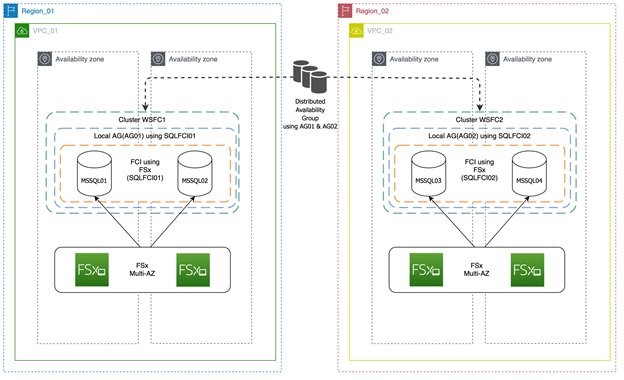
The architecture diagram in Figure 1 depicts SQL Server failover cluster instance (FCI) using Amazon FSx as storage (multiple Availability Zones) in Region 1. It uses a standalone or a similar setup on Region 2. It uses a log shipping feature for replication and DR. This will also serve as the reference architecture for our solution.

Figure 1. Log shipping DR solution for SQL Server FCI with Amazon FSx
Figure 1 shows an SQL cluster in Region 1 and standalone SQL cluster in Region 2. The primary cluster in Region 1 is initially configured with SQL Server failover cluster instance (FCI) using Amazon FSx for its shared storage. Region 2 can have a standalone Amazon EC2 server with SQL Server and Amazon Elastic Block Store (EBS) as storage. Or it can have an identical configuration to Region 1, but with different hostnames, and an SQL network name (SQLFCI02) to avoid possible collisions.
You can build the VPC peering or AWS Transit Gateway to have seamless connectivity between the two Regions for the opened ports (SQL Server, SMB for file share, and others.)
With Amazon FSx, you get a fully managed and shared file storage solution, that automatically replicates the underlying storage synchronously across multiple Availability Zones. Amazon FSx provides high availability with automatic failure detection and automatic failover if there are any hardware or storage issues. The service fully supports continuously available shares, a feature that permits SQL Server uninterrupted access to shared file data.
There is an asynchronous replication setup from Region 1 to Region 2 using the log shipping feature. In this type of configuration, Microsoft SQL Server log shipping replicates databases using transaction logs. This ensures that a physically replicated warm standby database is an exact binary replica of the primary database. This is referred to as physical replication.
Log shipping can be configured with two available modes. These are related to the state of the secondary log-shipped SQL Server database.
- Standby mode. The database is available for querying. Users cannot access the database while restore is going on. But once restore is completed, users can access it in read-only mode.
- Restore mode. The database is not accessible for users.
In this solution, you configure a warm standby SQL Server database on an EC2 instance designated in SQL FCI using Amazon FSx as shared storage. You can send transaction log backups asynchronously between your primary Region database and the warm standby server in the other Region. The transaction log backups are then applied to the warm standby database sequentially. When all the logs have been applied, you can perform a manual failover and point the application to the secondary Region. We recommend running the primary and secondary database instances in separate Availability Zones, and configuring a monitor instance to track all the details of log shipping.
Prerequisites
- Configure two SQL Server clusters with FCI in Region 1 and Region 2, or have SQL Server cluster on Region 1 and Amazon EC2 with SQL Server with EBS on Region 2. Learn more about how to set up SQL Server FCI with Amazon FSx.
- Configure VPC peering or Transit Gateway for the VPCs (where the SQL Server clusters reside).
- VPC peering – Learn more about setting up Inter-Region VPC Peering.
- Transit gateway – Similar to VPC peering. Learn how to Use an AWS Transit Gateway to Simplify Your Network Architecture and Scaling VPN throughput using AWS Transit Gateway.
- Configure networking and security to work across the peering connection or Transit Gateway.
- Verify that Amazon FSx and SQL connectivity is seamless across both Regions. For example, we should be able to connect Amazon FSx and SQL Server remotely from one Region to the other. Confirm that security group rules are in place. Learn more about FSx for Windows File Server.
- SQL Server shouldn’t be running in Express edition as log shipping supports all editions except Express edition.
- Give shared folders on primary and secondary Regions appropriate permissions so the network path is accessible across Regions.
- The databases for log shipping must be in FULL recovery mode. Learn more about log shipping.
Walkthrough steps to set up DR for SQL Server FCI
Following are the steps required to configure SQL Server DR using SQL Server failover cluster. Amazon FSx for Windows File Server is used for the primary site and secondary DR site. We also demonstrate how to set up a multi-Region log shipping.
Assumed variables
Region_01:
WSFC Cluster Name: SQLCluster1
FCI Virtual Network Name: SQLFCI01
Region_02:
Amazon EC2 Name: EC2SQL2
Make sure to configure network connectivity between your clusters. In this solution, we are using two VPCs in two separate Regions.
-
- VPC peering is configured to enable network traffic on both VPCs.
- The domain controller (AWS Managed Microsoft AD) on both VPCs are configured with conditional forwarding. This enables DNS resolution between the two VPCs.
- Configure SQL FCI setup using Amazon FSx as shared storage on Region_01.
- Configure SQL standalone instance on Region_02 with EBS volume as storage.
- Create an Amazon FSx in the primary Region with AWS managed Active Directory, or on-premises Active Directory connected with trust relation or AD Connector.
- Create a SQL Server service account with proper permissions to be able to set up transaction log settings.
- Configure VPC peering between the primary and DR/secondary Region.
- Join the domain to the Active Directory network for both primary and secondary servers in primary Region.
- Mount Amazon FSx on primary and secondary server and allow shared permissions, so SQL Server is able to access the folder. Use Amazon FSx for storing transaction log backups and EBS for storing transaction logs on the secondary Region.
- Set up log shipping from the primary server SQL Server FCI01 to the secondary SQL Server EC2SQL2 with the standby option enabled. This way the databases can be in read on the secondary SQL Server.
- In case of disaster, follow the FAILOVER and FAILBACK steps in the next sections. Learn more by reading Change Roles Between Primary and Secondary Log Shipping Servers.
Failover steps
In case of disaster at primary Region node SQLFCI01, log shipping acts as DR solution. Following, we show the steps to bring the databases online on EC2SQL02. Once SQLFCI01 is back, Use the following steps if DR drill checks to failover. In a real disaster, follow the process from Step 3 onwards.
1. Stop all activities on SQLFCI01 databases involved in log shipping jobs on SQLFCI01 and EC2SQL02. Confirm if any process is running by using the following query:
Use master
Go
select * from sysprocesses where dbid = DB_ID('DatabaseName')
2. Take full backup on SQLFCI01 as rollback option.
BACKUP DATABASE [DatabaseName]
TO DISK = N'Provide Drive details'
WITH COMPRESSION
GO
3. Take last tail transaction log backup if we have access to SQL Server. Otherwise, check the last available transaction log stored in EC2SQL02 and restore it with RECOVERY to bring the databases online on EC2SQL02.
RESTORE LOG [DatabaseName] FROM DISK = N'Provide path of last tlog'
WITH FILE = 1, RECOVERY, NOUNLOAD, STATS = 10
GO
4. Redirect the application connections to EC2SQL02.
Failback methods
1. Native backup/restore or rollback strategy
- Take full backup from EC2SQL02 and copy to the SQLFCI01.
- RESTORE the full backup on SQLFCI01.
- Reconfigure log shipping between SQLFCI01 and EC2SQL02.
2. Reverse log shipping
In case of DR drills or business continuity and disaster recovery (BCDR) activities, we can set up reverse log shipping to reduce the time taken to failover. It doesn’t require reinitializing the database with a full backup if performed carefully. It is crucial to preserve the log sequence number (LSN) chain. Perform the final log backup using the NORECOVERY option. Backing up the log with this option puts the database in a state where log backups can be restored. It ensures that the database’s LSN chain doesn’t deviate. This procedure helps reduce downtime to bring back SQLFCI01.
- STOP all activities on SQLFCI01 databases involved in log shipping jobs on SQLFCI01 and EC2SQL02.
- TAKE Tlog backup of SQLFCI01 with NORECOVERY option.
BACKUP LOG [DatabaseName]
TO DISK = 'BackupFilePathname'
WITH NORECOVERY;
- RESTORE transaction log backup on EC2SQL02 with NORECOVERY.
- Reconfigure log shipping and reenable the jobs back.
- Reconfigure the application connections to SQLFCI01.
Conclusion
A multi-Region strategy for your mission-critical SQL Server deployments is key for business continuity and disaster recovery. This blog post shows how to achieve that using log shipping for SQL Server FCI deployment. Setting up DR using log shipping can help you save costs and meet your business requirements.
To learn more, check out Simplify your Microsoft SQL Server high availability deployments using Amazon FSx for Windows File Server.
More posts for Women’s History Month!
- Celebrate International Women’s Day all week with the Architecture Blog
- Deploying service-mesh-based architectures using AWS App Mesh and Amazon ECS from Kesha Williams, an AWS Hero and award-winning software engineer.
- Tools for Cloud Architects from the Let’s Architect! team and live Twitter chat
- A collection of several blog posts written and co-authored by women SAs
- A post on Women at AWS – Diverse backgrounds make great solutions architects