Tag Archives: Amazon FSx for Windows File Server

Welcome to AWS Storage Day 2023

Post Syndicated from Veliswa Boya original https://aws.amazon.com/blogs/aws/welcome-to-aws-storage-day-2023/

Welcome to the fifth annual AWS Storage Day! This virtual event is happening today starting at 9:00 AM Pacific Time (12:00 PM Eastern Time) and is available for you to watch on the AWS On Air Twitch channel. The first AWS Storage Day was hosted in 2019, and this event has grown into an innovation day that we look forward to delivering to you every year. In last year’s Storage Day post, I wrote about the constant innovations in AWS Storage aimed at helping you put your data to work while keeping it secure and protected. This year, Storage Day is focused on storage for AI/ML, data protection and resiliency, and the benefits of moving to the cloud.

AWS Storage Day Key Themes
When it comes to storage for AI/ML, data volumes are increasing at an unprecedented rate, exploding from terabytes to petabytes and even to exabytes. With a modern data architecture on AWS, you can rapidly build scalable data lakes, use a broad and deep collection of purpose-built data services, scale your systems at a low cost without compromising performance, share data across organizational boundaries, and manage compliance, security, and governance, allowing you to make decisions with speed and agility at scale.
To train machine learning models and build Generative AI applications, you must have the right data strategy in place. So, I’m happy to see that, among the list of sessions to look forward to at the live event, the Optimize generative AI and ML with AWS Infrastructure session will discuss how you can transform your data into meaningful insights.

Whether you’re just getting started with the cloud, planning to migrate applications to AWS, or already building applications on AWS, we have resources to help you protect your data and meet your business continuity objectives. Our data protection and resiliency features and solutions can help you meet your business continuity goals and deliver disaster recovery during data loss events, across recovery point and time objectives (RPO and RTO). With the unprecedented data growth happening in the world today, determining where your data is stored, how it’s secured, and who has access to it is a higher priority than ever. Be sure to join the Protect data in AWS amid a rapidly evolving cyber landscape session to learn more.

When moving data to the cloud, you need to understand where you’re moving it for different use cases, the types of data you’re moving, and the network resources available, among other considerations. There are many reasons to move to the cloud, recently, Enterprise Strategy Group (ESG) validated that organizations reduced compute, networking, and storage costs by up to 66 percent by migrating on-premises workloads to AWS Cloud infrastructure. ESG confirmed that migrating on-premises workloads to AWS provides organizations with reduced costs, increased performance, improved operational efficiency, faster time to value, and improved business agility.
We have a number of sessions that discuss how to move to the cloud, based on your use case. I’m most looking forward to the Hybrid cloud storage and edge compute: AWS, where you need it session, which will discuss considerations for workloads that can’t fully move to the cloud.

Tune in to learn from experts about new announcements, leadership insights, and educational content related to the broad portfolio of AWS Storage services and features that address all these themes and more. Today, we have announcements related to Amazon Simple Storage Service (Amazon S3), Amazon FSx for Windows File Server, Amazon Elastic File System (Amazon EFS), Amazon FSx for OpenZFS, and more.

Let’s get into it.

15 Years of Amazon EBS
Not long ago, I was reading Jeff Barr’s post titled 15 Years of AWS Blogging! In this post, Jeff mentioned a few posts he wrote for the earliest AWS services and features. Amazon Elastic Block Store (Amazon EBS) is on this list as a service that simplifies the use of Amazon EC2.

Well, it’s been 15 years since the launch of Amazon EBS was announced, and today we celebrate 15 years of this service. If you were one of the original users who put Amazon EBS to good use and provided us with the very helpful feedback that helped us invent and simplify, iterate and improve, I’m sure you can’t believe how time flies. Today, Amazon EBS handles more than 100 trillion I/O operations daily, and over 390 million EBS volumes are created every day.

If you’re new to Amazon EBS, join us for a fireside chat with Matt Garman, Senior Vice President, Sales, Marketing, and Global Services at AWS, and learn the strategy and customer challenges behind the launch of the service in 2008. You’ll also hear from long-term EBS customer, Stripe, about its growth with EBS since Stripe was launched 12 years ago.

Amazon EBS has continuously improved its scalability and performance to support more customer workloads as the direct storage attachment for Amazon EC2 instances. With the launch of Amazon EC2 M7i instances, powered by custom 4th Generation Intel Xeon Scalable processors, on August 2, you can attach up to 128 Amazon EBS volumes, an increase from 28 on a previous generation M6i instance. The higher number of volume attachments means you can increase storage density per instance and improve resource utilization, reducing total compute cost.

You can host up to 127 containers per instance for larger database applications and scale them more cost effectively before needing to provision more instances and only pay for resources you need. With a higher number of volume attachments, you can fully utilize the memory and vCPU available on these powerful M7i instances as your database storage footprint grows. EBS is also increasing the number of multi-volume snapshots you can create, for up to 128 EBS volumes attached to an instance, enabling you to create crash-consistent backups of all volumes attached to an instance.

Join the 15 years of innovations with Amazon EBS session for a discussion about how the original vision for Amazon EBS has evolved to meet your growing demands for cloud infrastructure.

Mountpoint for Amazon S3
Now generally available, Mountpoint for Amazon S3 is a new open source file client that delivers high throughput access, lowering compute costs for data lakes on Amazon S3. Mountpoint for Amazon S3 is a file client that translates local file system API calls to S3 object API calls. Using Mountpoint for Amazon S3, you can mount an Amazon S3 bucket as a local file system on your compute instance, to access your objects through a file interface with the elastic storage and throughput of Amazon S3. Mountpoint for Amazon S3 supports sequential and random read operations on existing files, and sequential write operations for creating new files.

The Deep dive and demo of Mountpoint for Amazon S3 session demonstrates how to use the file client to access objects in Amazon S3 using file APIs, making it easier to store data at scale and maximize the value of your data with analytics and machine learning workloads. Read this blog post to learn more about Mountpoint for Amazon S3 and how to get started, including a demo.

Put Cold Storage to Work Faster with Amazon S3 Glacier Flexible Retrieval
Amazon S3 Glacier Flexible Retrieval improves data restore time by up to 85 percent, at no additional cost. Faster data restores automatically apply to the Standard retrieval tier when using Amazon S3 Batch Operations. These restores begin to return objects within minutes, so you can process restored data faster. Processing restored data in parallel with ongoing restores helps you accelerate data workflows and quickly respond to business needs. Now, whether you’re transcoding media, restoring operational backups, training machine learning models, or analyzing historical data, you can speed up your data restores from archive.

Coupled with the S3 Glacier improvements to restore throughput by up to 10 times for millions of objects announced in 2022, S3 Glacier data restores of all sizes now benefit from both faster starts and shorter completion times.

Join the Maximize the value of cold data with Amazon S3 Glacier session to learn how Amazon S3 Glacier is helping organizations of all sizes and from all industries transform their data archiving to unlock business value, increase agility, and save on storage costs. Read this blog post to learn more about the Amazon S3 Glacier Flexible Retrieval performance improvements and follow step-by-step guidance on how to get started with faster standard retrievals from S3 Glacier Flexible Retrieval.

Supporting a Broad Spectrum of File Workloads
To serve a broad spectrum of use cases that rely on file systems, we offer a portfolio of file system services, each targeting a different set of needs. Amazon EFS is a serverless file system built to deliver an elastic experience for sharing data across compute resources. Amazon FSx makes it easier and cost-effective for you to launch, run, and scale feature-rich, high-performance file systems in the cloud, enabling you to move to the cloud with no changes to your code, processes, or how you manage your data.

Power ML research and big data analytics with Amazon EFS
Amazon EFS offers serverless and fully scalable file storage, designed for high scalability in both storage capacity and throughput performance. Just last week, we announced enhanced support for faster read and write IOPS, making it easier to power more demanding workloads. We’ve improved the performance capabilities of Amazon EFS by adding support for up to 55,000 read IOPS and up to 25,000 write IOPS per file system. These performance enhancements help you to run more demanding workflows, such as machine learning (ML) research with KubeFlow, financial simulations with IBM Symphony, and big data processing with Domino Data Lab, Hadoop, and Spark.

Join the Build and run analytics and SaaS applications at scale session to hear how recent Amazon EFS performance improvements can help power more workloads.

Multi-AZ file systems on Amazon FSx for OpenZFS
You can now use a multi-AZ deployment option when creating file systems on Amazon FSx for OpenZFS, making it easier to deploy file storage that spans multiple AWS Availability Zones to provide multi-AZ resilience for business-critical workloads. With this launch, you can take advantage of the power, agility, and simplicity of Amazon FSx for OpenZFS for a broader set of workloads, including business-critical workloads like database, line-of-business, and web-serving applications that require highly available shared storage that spans multiple AZs.

The new multi-AZ file systems are designed to deliver high levels of performance to serve a broad variety of workloads, including performance-intensive workloads such as financial services analytics, media and entertainment workflows, semiconductor chip design, and game development and streaming, up to 21 GB per second of throughput and over 1 million IOPS for frequently accessed cached data, and up to 10 GB per second and 350,000 IOPS for data accessed from persistent disk storage.

Join the Migrate NAS to AWS to reduce TCO and gain agility session to learn more about multi-AZs with Amazon FSx for OpenZFS.

New, Higher Throughput Capacity Levels on Amazon FSx for Windows File Server
Performance improvements for Amazon FSx for Windows File Server help you accelerate time-to-results for performance-intensive workloads such as SQL Server databases, media processing, cloud video editing, and virtual desktop infrastructure (VDI).

We’re adding four new, higher throughput capacity levels to increase the maximum I/O available up to 12 GB per second from the previous I/O of 2 GB per second. These throughput improvements come with correspondingly higher levels of disk IOPS, designed to deliver an increase up to 350,000 IOPS.

In addition, by using FSx for Windows File Server, you can provision IOPS higher than the default 3 IOPS per GiB for your SSD file system. This allows you to scale SSD IOPS independently from storage capacity, allowing you to optimize costs for performance-sensitive workloads.

Join the Migrate NAS to AWS to reduce TCO and gain agility session to learn more about the performance improvements for Amazon FSx for Windows File Server.

Logically Air-Gapped Vault for AWS Backup
AWS Backup is a fully managed, policy-based data protection solution that enables customers to centralize and automate backup restores across 19 AWS services (spanning compute, storage, and databases) and third-party applications such as VMware Cloud on AWS and on-premises, as well as SAP HANA on Amazon EC2.

Today, we’re announcing the preview of logically air-gapped vault as a new type of AWS Backup Vault that acts as an additional layer of protection to mitigate against malware events. With logically air-gapped vault, customers can recover their application data through a different trusted account.

Join the Deep dive on data recovery for ransomware events session to learn more about logically air-gapped vault for AWS Backup.

Copy Data to and from Other Clouds with AWS DataSync
AWS DataSync is an online data movement and discovery service that simplifies data migration and helps you quickly, easily, and securely transfer your file or object data to, from, and between AWS storage services. In addition to support of data migration to and from AWS storage services, DataSync supports copying to and from other clouds such as Google Cloud Storage, Azure Files, and Azure Blob Storage. Using DataSync, you can move your object data at scale between Amazon S3 compatible storage on other clouds and AWS storage services such as Amazon S3. We’re now expanding the support of DataSync for copying data to and from other clouds to include DigitalOcean Spaces, Wasabi Cloud Storage, Backblaze B2 Cloud Storage, Cloudflare R2 Storage, and Oracle Cloud Storage.

Join the Identify and accelerate data migrations at scale session to learn more about this expanded support for DataSync.

Join Us Online
Join us today for the AWS Storage Day virtual event on the AWS On Air channel on Twitch. The event will be live starting at 9:00 AM Pacific Time (12:00 PM Eastern Time) on August 9. All sessions will be available on demand approximately two days after Storage Day.

We look forward to seeing you on Twitch!

– Veliswa 

Extend SQL Server DR using log shipping for SQL Server FCI with Amazon FSx for Windows configuration

Post Syndicated from Yogi Barot original https://aws.amazon.com/blogs/architecture/extend-sql-server-dr-using-log-shipping-for-sql-server-fci-with-amazon-fsx-for-windows-configuration/

This week for Women’s History Month, we’re continuing to feature female authors. We’re showcasing women in the tech industry who are building, creating, and, above all, inspiring, empowering, and encouraging everyone—especially women and girls—in tech.


Companies choosing to rehost their on-premises SQL Server workloads to AWS can face challenges with setting up their disaster recovery (DR) strategy. Solutions such as Always On can be a more expensive, complex configuration across Regions. It can cause latency issues when synchronously replicating data cross-Region. Snapshots have additional overhead and may breach their stringent recovery point objective/recovery time objective (RPO/RTO) requirements.

A log shipping solution can take advantage of cross-Region replication of data using Amazon FSx for Windows File Server. It has less maintenance overhead, doesn’t introduce latency, and meets RPO/RTO requirements. A multi-Region architecture for Microsoft SQL Server is often adopted for SQL Server deployments for business continuity (disaster recovery) and improved latency (for a geographically distributed customer base).

This blog post explores SQL Server DR architecture using SQL Server failover cluster with Amazon FSx for Windows File Server for the primary site and secondary DR site. We describe how to set up a multi-Region DR using log shipping. We’ll explain the architecture patterns so you can follow along and effectively design a highly available SQL Server deployment that spans two or more AWS Regions.

Here are some advantages of using log shipping versus Always On distributed availability group DR setup.

  • Log shipping works with SQL Server Standard edition
  • It lowers total cost of ownership (TCO) as you only need one SQL Server Standard edition license at the primary/DR site
  • It’s straightforward to configure
  • There’s no need for clustering setup at the OS level
  • It supports all SQL Server versions. You don’t need the SQL Server version to be the same for source and destination instances.

Log shipping DR solution for SQL Server FCI with Amazon FSx

The architecture diagram in Figure 1 depicts SQL Server failover cluster instance (FCI) using Amazon FSx as storage (multiple Availability Zones) in Region 1. It uses a standalone or a similar setup on Region 2. It uses a log shipping feature for replication and DR. This will also serve as the reference architecture for our solution.

Log shipping DR solution for SQL Server FCI with Amazon FSx

Figure 1. Log shipping DR solution for SQL Server FCI with Amazon FSx

Figure 1 shows an SQL cluster in Region 1 and standalone SQL cluster in Region 2. The primary cluster in Region 1 is initially configured with SQL Server failover cluster instance (FCI) using Amazon FSx for its shared storage. Region 2 can have a standalone Amazon EC2 server with SQL Server and Amazon Elastic Block Store (EBS) as storage. Or it can have an identical configuration to Region 1, but with different hostnames, and an SQL network name (SQLFCI02) to avoid possible collisions.

You can build the VPC peering or AWS Transit Gateway to have seamless connectivity between the two Regions for the opened ports (SQL Server, SMB for file share, and others.)

With Amazon FSx, you get a fully managed and shared file storage solution, that automatically replicates the underlying storage synchronously across multiple Availability Zones. Amazon FSx provides high availability with automatic failure detection and automatic failover if there are any hardware or storage issues. The service fully supports continuously available shares, a feature that permits SQL Server uninterrupted access to shared file data.

There is an asynchronous replication setup from Region 1 to Region 2 using the log shipping feature. In this type of configuration, Microsoft SQL Server log shipping replicates databases using transaction logs. This ensures that a physically replicated warm standby database is an exact binary replica of the primary database. This is referred to as physical replication.

Log shipping can be configured with two available modes. These are related to the state of the secondary log-shipped SQL Server database.

  • Standby mode. The database is available for querying. Users cannot access the database while restore is going on. But once restore is completed, users can access it in read-only mode.
  • Restore mode. The database is not accessible for users.

In this solution, you configure a warm standby SQL Server database on an EC2 instance designated in SQL FCI using Amazon FSx as shared storage. You can send transaction log backups asynchronously between your primary Region database and the warm standby server in the other Region. The transaction log backups are then applied to the warm standby database sequentially. When all the logs have been applied, you can perform a manual failover and point the application to the secondary Region. We recommend running the primary and secondary database instances in separate Availability Zones, and configuring a monitor instance to track all the details of log shipping.

Prerequisites

Walkthrough steps to set up DR for SQL Server FCI

Following are the steps required to configure SQL Server DR using SQL Server failover cluster. Amazon FSx for Windows File Server is used for the primary site and secondary DR site. We also demonstrate how to set up a multi-Region log shipping.

Assumed variables

Region_01:
WSFC Cluster Name: SQLCluster1
FCI Virtual Network Name: SQLFCI01
Region_02:
Amazon EC2 Name: EC2SQL2

Make sure to configure network connectivity between your clusters. In this solution, we are using two VPCs in two separate Regions.

    • VPC peering is configured to enable network traffic on both VPCs.
    • The domain controller (AWS Managed Microsoft AD) on both VPCs are configured with conditional forwarding. This enables DNS resolution between the two VPCs.
  1. Configure SQL FCI setup using Amazon FSx as shared storage on Region_01.
  2. Configure SQL standalone instance on Region_02 with EBS volume as storage.
  3. Create an Amazon FSx in the primary Region with AWS managed Active Directory, or on-premises Active Directory connected with trust relation or AD Connector.
  4. Create a SQL Server service account with proper permissions to be able to set up transaction log settings.
  5. Configure VPC peering between the primary and DR/secondary Region.
  6. Join the domain to the Active Directory network for both primary and secondary servers in primary Region.
  7. Mount Amazon FSx on primary and secondary server and allow shared permissions, so SQL Server is able to access the folder. Use Amazon FSx for storing transaction log backups and EBS for storing transaction logs on the secondary Region.
  8. Set up log shipping from the primary server SQL Server FCI01 to the secondary SQL Server EC2SQL2 with the standby option enabled. This way the databases can be in read on the secondary SQL Server.
  9. In case of disaster, follow the FAILOVER and FAILBACK steps in the next sections. Learn more by reading Change Roles Between Primary and Secondary Log Shipping Servers.

Failover steps

In case of disaster at primary Region node SQLFCI01, log shipping acts as DR solution. Following, we show the steps to bring the databases online on EC2SQL02. Once SQLFCI01 is back, Use the following steps if DR drill checks to failover. In a real disaster, follow the process from Step 3 onwards.

1. Stop all activities on SQLFCI01 databases involved in log shipping jobs on SQLFCI01 and EC2SQL02. Confirm if any process is running by using the following query:

Use master
Go
select * from sysprocesses where dbid = DB_ID('DatabaseName')

2. Take full backup on SQLFCI01 as rollback option.

BACKUP DATABASE [DatabaseName]
TO  DISK = N'Provide Drive details'
WITH COMPRESSION
GO

3. Take last tail transaction log backup if we have access to SQL Server. Otherwise, check the last available transaction log stored in EC2SQL02 and restore it with RECOVERY to bring the databases online on EC2SQL02.

RESTORE LOG [DatabaseName] FROM  DISK = N'Provide path of last tlog'
WITH  FILE = 1,  RECOVERY,  NOUNLOAD,  STATS = 10
GO

4. Redirect the application connections to EC2SQL02.

Failback methods

1. Native backup/restore or rollback strategy

  • Take full backup from EC2SQL02 and copy to the SQLFCI01.
  • RESTORE the full backup on SQLFCI01.
  • Reconfigure log shipping between SQLFCI01 and EC2SQL02.

2.    Reverse log shipping

In case of DR drills or business continuity and disaster recovery (BCDR) activities, we can set up reverse log shipping to reduce the time taken to failover. It doesn’t require reinitializing the database with a full backup if performed carefully. It is crucial to preserve the log sequence number (LSN) chain. Perform the final log backup using the NORECOVERY option. Backing up the log with this option puts the database in a state where log backups can be restored. It ensures that the database’s LSN chain doesn’t deviate. This procedure helps reduce downtime to bring back SQLFCI01.

  • STOP all activities on SQLFCI01 databases involved in log shipping jobs on SQLFCI01 and EC2SQL02.
  • TAKE Tlog backup of SQLFCI01 with NORECOVERY option.

BACKUP LOG [DatabaseName]
TO DISK = 'BackupFilePathname'
WITH NORECOVERY;

  • RESTORE transaction log backup on EC2SQL02 with NORECOVERY.
  • Reconfigure log shipping and reenable the jobs back.
  • Reconfigure the application connections to SQLFCI01.

Conclusion

A multi-Region strategy for your mission-critical SQL Server deployments is key for business continuity and disaster recovery. This blog post shows how to achieve that using log shipping for SQL Server FCI deployment. Setting up DR using log shipping can help you save costs and meet your business requirements.

To learn more, check out Simplify your Microsoft SQL Server high availability deployments using Amazon FSx for Windows File Server.

More posts for Women’s History Month!

Other ways to participate

Field Notes: Building a Multi-Region Architecture for SQL Server using FCI and Distributed Availability Groups

Post Syndicated from Yogi Barot original https://aws.amazon.com/blogs/architecture/field-notes-building-a-multi-region-architecture-for-sql-server-using-fci-and-distributed-availability-groups/

A multiple-Region architecture for Microsoft SQL Server is often a topic of interest that comes up when working with our customers. The main reasons customers adopt a multiple-Region architecture approach for SQL Server deployments are:

  • Business continuity and disaster recovery (DR)
  • Geographically distributed customer base, and improved latency for end users

We will explain the architecture patterns that you can follow to effectively design a highly available SQL Server deployment, which spans two or more AWS Regions. You will also learn how to use the multiple-Region approach to scale out the read workloads, and improve the latency for your globally distributed end users.

This blog post explores SQL Server DR architecture using SQL Server Failover Cluster with Amazon FSx for Windows File Server, for primary site and secondary DR site, and describes how to set up a multiple-Region Always On distributed availability group.

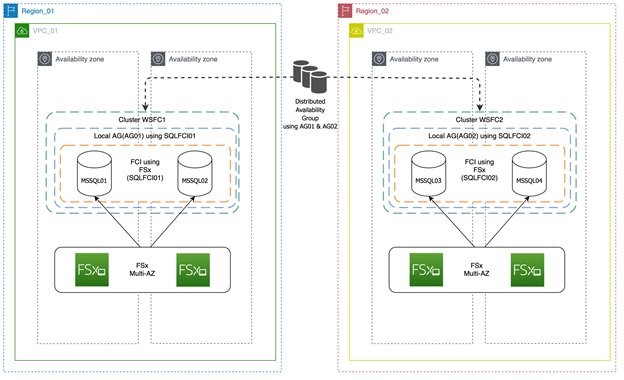
Architecture overview

The architecture diagram in Figure 1 depicts two SQL Server clusters (multiple Availability Zones) in two separate Regions, and uses distributed availability group for replication and DR. This will also serve as the reference architecture for this solution.

Figure 1. Two SQL Server clusters (multiple Availability Zones) in two separate Regions

Figure 1. Two SQL Server clusters (multiple Availability Zones) in two separate Regions

In Figure 1, there are two separate clusters in different Regions. The primary cluster in Region_01 is initially configured with SQL Server Failover Cluster Instance (FCI) using Amazon FSx for its shared storage. Always On is enabled on both nodes, and is configured to use FCI SQL Network Name (SQLFCI01) as the single replica for local Availability Group (AG01). Region_02 has an identical configuration to Region_01, but with different hostnames, listeners, and SQL Network Name to avoid possible collisions.

Highlighted in Figure 1, the Always On distributed availability group is then configured to use both listener endpoints (AG01 and AG02). Depending on what type of authentication infrastructure you have, you can either use certificates (no domain and trust dependency), or just AWS Directory Service for Microsoft Active Directory authentication to build the local mirroring endpoint that will be used by the distributed availability group.

With Amazon FSx, you get a fully managed shared file storage solution, that automatically replicates the underlying storage synchronously across multiple Availability Zones. Amazon FSx provides high availability with automatic failure detection, and automatic failover if there are any hardware or storage issues. The service fully supports continuously available shares, a feature that allows SQL Server uninterrupted access to shared file data.

There is an asynchronous replication setup using a distributed availability group from Region A to Region B. In this type of configuration, because there is only one availability group replica, it also serves as the forwarder for the local FCI cluster. The concept of a forwarder is new, and it’s one of the core functionalities for the distributed availability group. Because Windows Failover Cluster1 and Windows Failover Cluster2 are standalone and independent clusters, don’t need to open a large set of ports, thus minimizing security risk.

In this solution, because FCI is our primary high availability solution, users and applications should then connect through FCI SQL Server Network Name with the latest supported drivers and key parameters (such as, MultiSubNetFailover=True – if supported) to facilitate the failover and make sure that the applications seamlessly connect to the new replica without any errors or timeouts.

Prerequisites

Walkthrough

Following are the steps required to configure SQL Server DR using SQL Server Failover Cluster with Amazon FSx for Windows File Server for primary site and secondary DR site. We also show how to set up a multiple-Region Always On distributed availability group.

Assumed Variables

Region_01:

WSFC Cluster Name: SQLCluster1
FCI Virtual Network Name: SQLFCI01
Local Availability Group: SQLAG01

Region_02:

WSFC Cluster Name: SQLCluster2
FCI Virtual Network Name: SQLFCI02
Local Availability Group: SQLAG02

  • Make sure to configure network connectivity between your clusters. In this solution, we are using two VPCs in two separate Regions.
    • VPC peering is configured to enable network traffic on both VPCs.
    • The domain controller (AWS Managed Microsoft AD) on both VPCs are configured with forest trust and conditional forwarding (this enables DNS resolution between the two VPCs).
  • Create a local availability group, using FCI SQL Network Name as the replica. Because we will be setting up a domain-independent distributed availability group between the two clusters, we will be setting up certificates to authenticate between the two separate clusters.
  1. Create master key and endpoint for SQLCluster1

use master
CREATE MASTER KEY ENCRYPTION BY PASSWORD = '<password>'
GO
CREATE CERTIFICATE [SQLAG01-Cert]
with SUBJECT = 'SQLAG01 Endpoint Cert'
GO
 
BACKUP CERTIFICATE [SQLAG01-Cert]
TO FILE = N'\\<FileShare>\SQLAG01-Cert.crt'
GO
 
CREATE ENDPOINT [SQLAG01-Endpoint]
STATE = STARTED
AS TCP
(
LISTENER_PORT = 5022
)
FOR DATABASE_MIRRORING
(
AUTHENTICATION = CERTIFICATE [SQLAG01-Cert],
ROLE = ALL,
ENCRYPTION = REQUIRED ALGORITHM AES
)
GO
  1. Create master key and endpoint for SQLCluster2

use master
CREATE MASTER KEY ENCRYPTION BY PASSWORD = '<password>'
GO
CREATE CERTIFICATE [SQLAG02-Cert]
with SUBJECT = 'SQLAG02 Endpoint Cert'
GO
 
BACKUP CERTIFICATE [SQLAG02-Cert]
TO FILE = N'\\<Fileshare>\SQLAG02-Cert.crt'
GO
 
CREATE ENDPOINT [SQLAG02-Endpoint]
STATE = STARTED
AS TCP
(
LISTENER_PORT = 5022
)
FOR DATABASE_MIRRORING
(
AUTHENTICATION = CERTIFICATE [SQLAG02-Cert],
ROLE = ALL,
ENCRYPTION = REQUIRED ALGORITHM AES
)
GO
    • Make sure to place all exported certificates in a location that you can easily access from each FCI instance.
    • Create a SQL Server login and user in the master database on each FCI instance.
  1. Create database login in SQLCluster1

use master
CREATE LOGIN [SQLAG02_DAG] WITH PASSWORD = '<password>'
GO
CREATE USER [SQLAG02_DAG] FOR LOGIN [SQLAG02_DAG] 
GO
CREATE CERTIFICATE [SQLAG02-Cert]
AUTHORIZATION [SQLAG02_DAG]
FROM FILE = N'\\<Fileshare>\SQLAG02-Cert.crt'
GO
  1. Create database login in SQLCluster2

use master
CREATE LOGIN [SQLAG01_DAG] WITH PASSWORD = '<password>'
GO
CREATE USER [SQLAG01_DAG] FOR LOGIN [SQLAG01_DAG] 
GO
CREATE CERTIFICATE [SQLAG01-Cert]
AUTHORIZATION [SQLAG01_DAG]
FROM FILE = N'\\<Fileshare>\SQLAG01-Cert.crt'
GO
    • Now grant the newly created user endpoint access to the local mirroring endpoint in each FCI instance.
  1. Grant permission on endpoint – SQLCluster1

GRANT CONNECT ON ENDPOINT::[SQLAG01-Endpoint] TO [SQLAG02_DAG]
GO
  1. Grant permission on endpoint – SQLCluster2

GRANT CONNECT ON ENDPOINT::[SQLAG02-Endpoint] TO [SQLAG01_DAG]
GO
  1. Create distributed Always On availability group on SQLCluster1

Next, create the distributed availability group on the primary cluster.

CREATE AVAILABILITY GROUP [SQLFCIDAG]  
   WITH (DISTRIBUTED)   
   AVAILABILITY GROUP ON  
    'SQLAG01' WITH    
        (   
            LISTENER_URL = 'tcp://SQLFCI01.DEMOSQL.COM:5022',    
            AVAILABILITY_MODE = ASYNCHRONOUS_COMMIT,   
            FAILOVER_MODE = MANUAL,   
            SEEDING_MODE = AUTOMATIC
        ),   
    'SQLAG02' WITH    
        (   
            LISTENER_URL = 'tcp://SQLFCI02.SQLDEMO.COM:5022',   
            AVAILABILITY_MODE = ASYNCHRONOUS_COMMIT,   
            FAILOVER_MODE = MANUAL,   
            SEEDING_MODE = AUTOMATIC
      );   
    • Note that we are using the SQL Network Name of the FCI cluster as our listener URL.
    • Now, join our secondary WSFC FCI cluster to the distributed availability group.
  1. Join secondary cluster on SQLCluster2 to distributed availability group

ALTER AVAILABILITY GROUP [SQLFCIDAG]   
   JOIN   
   AVAILABILITY GROUP ON  
      'SQLAG01' WITH    
      (   
         LISTENER_URL = 'tcp://SQLFCI01.DEMOSQL.COM:5022',    
         AVAILABILITY_MODE = ASYNCHRONOUS_COMMIT,   
         FAILOVER_MODE = MANUAL,   
         SEEDING_MODE = AUTOMATIC   
      ),   
      'SQLAG02' WITH    
      (   
         LISTENER_URL = 'tcp://SQLFCI02.SQLDEMO.COM:5022',   
         AVAILABILITY_MODE = ASYNCHRONOUS_COMMIT,   
         FAILOVER_MODE = MANUAL,   
         SEEDING_MODE = AUTOMATIC   
      );    
GO  
    • After you run the join script, you should be able to see the database from the primary FCI cluster’s local availability group populate the secondary FCI cluster.
    • To do a distributed availability group failover, it is best practice to synchronize both clusters first.
  1. Synchronize primary cluster

ALTER AVAILABILITY GROUP [SQLFCIDAG] 
 MODIFY AVAILABILITY GROUP ON 
 'SQLAG01' 
WITH 
( 
AVAILABILITY_MODE = SYNCHRONOUS_COMMIT 
), 
'SQLAG02'
WITH
( 
AVAILABILITY_MODE = SYNCHRONOUS_COMMIT 
);
    • You can verify synchronization lag and verify state displays as “SYNCHRONIZED”:
SELECT ag.name
       , drs.database_id
       , db_name(drs.database_id) as database_name
       , drs.group_id
       , drs.replica_id
       , drs.synchronization_state_desc
       , drs.last_hardened_lsn  
FROM sys.dm_hadr_database_replica_states drs 
INNER JOIN sys.availability_groups ag on drs.group_id = ag.group_id;
  1. Perform failover at primary cluster

    After everything is ready, perform failover by first changing the DAG role on the global primary.

ALTER AVAILABILITY GROUP [SQLFCIDAG] SET (ROLE = SECONDARY);
  1. Perform failover at secondary cluster

After which, initiate the actual failover by running this script on the secondary cluster.

ALTER AVAILABILITY GROUP [SQLFCIDAG] FORCE_FAILOVER_ALLOW_DATA_LOSS;
  1. Change sync mode on primary and secondary clusters

    Then make sure to change Sync mode on both clusters back to Asynchronous:

 ALTER AVAILABILITY GROUP [SQLFCIDAG] 
 MODIFY AVAILABILITY GROUP ON 
'SQLAG01' 
WITH 
( 
AVAILABILITY_MODE = ASYNCHRONOUS_COMMIT 
), 
'SQLAG02'
WITH
( 
AVAILABILITY_MODE = ASYNCHRONOUS_COMMIT 
);

Conclusion

A multiple-Region strategy for your mission critical SQL Server deployments is key for business continuity and disaster recovery. This blog post focused on how to achieve that optimally by using distributed availability groups. You also learned about other benefits such as read scale outs by using distributed availability groups.

To learn more, check out Simplify your Microsoft SQL Server high availability deployments using Amazon FSx for Windows File Server.

Field Notes provides hands-on technical guidance from AWS Solutions Architects, consultants, and technical account managers, based on their experiences in the field solving real-world business problems for customers.