Tag Archives: Amazon FSx

Amazon FSx for OpenZFS now supports Amazon S3 access without any data movement

Post Syndicated from Elizabeth Fuentes original https://aws.amazon.com/blogs/aws/amazon-fsx-for-openzfs-now-supports-amazon-s3-access-without-any-data-movement/

Starting today, you can attach Amazon S3 Access Points to your Amazon FSx for OpenZFS file systems to access your file data as if it were in Amazon Simple Storage Service (Amazon S3). With this new capability, your data in FSx for OpenZFS is accessible for use with a broad range of Amazon Web Services (AWS) services and applications for artificial intelligence, machine learning (ML), and analytics that work with S3. Your file data continues to reside in your FSx for OpenZFS file system.

Organizations store hundreds of exabytes of file data on premises and want to move this data to AWS for greater agility, reliability, security, scalability, and reduced costs. Once their file data is in AWS, organizations often want to do even more with it. For example, they want to use their enterprise data to augment generative AI applications and build and train machine learning models with the broad spectrum of AWS generative AI and machine learning services. They also want the flexibility to use their file data with new AWS applications. However, many AWS data analytics services and applications are built to work with data stored in Amazon S3 as data lakes. After migration, they can use tools that work with Amazon S3 as their data source. Previously, this required data pipelines to copy data between Amazon FSx for OpenZFS file systems and Amazon S3 buckets.

Amazon S3 Access Points attached to FSx for OpenZFS file systems remove data movement and copying requirements by maintaining unified access through both file protocols and Amazon S3 API operations. You can read and write file data using S3 object operations including GetObject, PutObject, and ListObjectsV2. You can attach hundreds of access points to a file system, with each S3 access point configured with application-specific permissions. These access points support the same granular permissions controls as S3 access points that attach to S3 buckets, including AWS Identity and Access Management (IAM) access point policies, Block Public Access, and network origin controls such as restricting access to your Virtual Private Cloud (VPC). Because your data continues to reside in your FSx for OpenZFS file system, you continue to access your data using Network File System (NFS) and benefit from existing data management capabilities.

You can use your file data in Amazon FSx for OpenZFS file systems to power generative AI applications with Amazon Bedrock for Retrieval Augmented Generation (RAG) workflows, train ML models with Amazon SageMaker, and run analytics or business intelligence (BI) with Amazon Athena and AWS Glue as if the data were in S3, using the S3 API. You can also generate insights using open source tools such as Apache Spark and Apache Hive, without moving or refactoring your data.

To get started
You can create and attach an S3 Access Point to your Amazon FSx for OpenZFS file system using the Amazon FSx console, the AWS Command Line Interface (AWS CLI), or the AWS SDK.

To start, you can follow the steps in the Amazon FSx for OpenZFS file system documentation page to create the file system, then, using the Amazon FSx console, go to Actions and select Create S3 access point. Leave the standard configuration and then create.

To monitor the creation progress, you can go to the Amazon FSx console.

Once available, choose the name of the new S3 access point and review the access point summary. This summary includes an automatically generated alias that works anywhere you would normally use S3 bucket names.

Using the bucket-style alias, you can access the FSx data directly through S3 API operations.

  • List objects using the ListObjectsV2 API

  • Get files using the GetObject API

  • Write data using the PutObject API

The data continues to be accessible via NFS.

Beyond accessing your FSx data through the S3 API, you can work with your data using the broad range of AI, ML, and analytics services that work with data in S3. For example, I built an Amazon Bedrock Knowledge Base using PDFs containing airline customer service information from my travel support application repository, WhatsApp-Powered RAG Travel Support Agent: Elevating Customer Experience with PostgreSQL Knowledge Retrieval, as the data source.

To create the Amazon Bedrock Knowledge Base, I followed the connection steps in Connect to Amazon S3 for your knowledge base user guide. I chose Amazon S3 as the data source, entered my S3 access point alias as the S3 source, then configured and created the knowledge base.

Once the knowledge base is synchronized, I can see all documents and the Document source as S3.

Finally, I ran queries against the knowledge base and verified that it successfully used the file data from my Amazon FSx for OpenZFS file system to provide contextual answers, demonstrating seamless integration without data movement.

Things to know
Integration and access control – Amazon S3 Access Points for Amazon FSx for OpenZFS file systems support standard S3 API operations (such as GetObject, ListObjectsV2, PutObject) through the S3 endpoint, with granular access controls through AWS Identity and Access Management (IAM) permissions and file system user authentication. Your S3 Access Point includes an automatically generated access point alias for data access using S3 bucket names, and public access is blocked by default for Amazon FSx resources.

Data management – Your data stays in your Amazon FSx for OpenZFS file system while becoming accessible as if it were in Amazon S3, eliminating the need for data movement or copies, with file data remaining accessible through NFS file protocols.

Performance – Amazon S3 Access Points for Amazon FSx for OpenZFS file systems deliver first-byte latency in the tens of milliseconds range, consistent with S3 bucket access. Performance scales with your Amazon FSx file system’s provisioned throughput, with maximum throughput determined by your underlying FSx file system configuration.

Pricing – You’re billed by Amazon S3 for the requests and data transfer costs through your S3 Access Point, in addition to your standard Amazon FSx charges. Learn more on the Amazon FSx for OpenZFS pricing page.

You can get started today using the Amazon FSx console, AWS CLI, or AWS SDK to attach Amazon S3 Access Points to your Amazon FSx for OpenZFS file systems. The feature is available in the following AWS Regions: US East (N. Virginia, Ohio), US West (Oregon), Europe (Frankfurt, Ireland, Stockholm), and Asia Pacific (Hong Kong, Singapore, Sydney, Tokyo).

— Eli

Amazon FSx for Lustre increases throughput to GPU instances by up to 12x

Post Syndicated from Danilo Poccia original https://aws.amazon.com/blogs/aws/amazon-fsx-for-lustre-unlocks-full-network-bandwidth-and-gpu-performance/

Today, we are announcing support for Elastic Fabric Adapter (EFA) and NVIDIA GPUDirect Storage (GDS) on Amazon FSx for Lustre. EFA is a network interface for Amazon EC2 instances that makes it possible to run applications requiring high levels of inter-node communications at scale. GDS is a technology that creates a direct data path between local or remote storage and GPU memory. With these enhancements, Amazon FSx for Lustre with EFA/GDS support provides up to 12 times higher (up to 1200 Gbps) per-client throughput compared to the previous FSx for Lustre version.

You can use FSx for Lustre to build and run the most performance demanding applications, such as deep learning training, drug discovery, financial modeling, and autonomous vehicle development. As datasets grow and new technologies emerge, you can adopt increasingly powerful GPU and HPC instances such as Amazon EC2 P5, Trn1, and Hpc7a. Until now, when accessing FSx for Lustre file systems, the use of traditional TCP networking limited throughput to 100 Gbps for individual client instances. This adoption is driving the need for FSx for Lustre file systems to provide the performance necessary to optimally utilize the increasing network bandwidth of these cutting-edge EC2 instances when accessing large datasets.

With EFA and GDS support in FSx for Lustre, you can now achieve up to 1,200 Gbps throughput per client instance (twelve times more throughput than previously) when using P5 GPU instances and NVIDIA CUDA in your applications.

With this new capability, you can fully utilize the network bandwidth of the most powerful compute instances and accelerate your machine learning (ML) and HPC workloads. EFA enhances performance by bypassing the operating system and using the AWS Scalable Reliable Datagram (SRD) protocol to optimize data transfer. GDS further improves performance by enabling direct data transfer between the file system and GPU memory, bypassing the CPU and eliminating redundant memory copies.

Let’s see how this works in practice.

Creating an Amazon FSx for Lustre file system with EFA enabled
To get started, in the Amazon FSx console, I choose Create file system and then Amazon FSx for Lustre.

I enter a name for the file system. In the Deployment and storage type section, I select Persistent, SSD and the new with EFA enabled option. I select 1000 MB/s/TiB in the Throughput per unit of storage section. With these settings, I enter 4.8 TiB for Storage capacity, which is the minimum supported with these settings.

Console screenshot.

For networking, I use the default virtual private cloud (VPC) and an EFA-enabled security group. I leave all other options to their default values.

Console screenshot.

I review all the options and proceed to create the file system. After a few minutes, the file system is ready to be used.

Mounting an Amazon FSx for Lustre file system with EFA enabled from an Amazon EC2 instance
In the Amazon EC2 console, I choose Launch instance, enter a name for the instance, and select the Ubuntu Amazon Machine Image (AMI). For Instance type, I select trn1.32xlarge.

Console screenshot.

In Network settings, I edit the default settings and select the same subnet used by the FSx Lustre file system. In Firewall (security groups), I select three existing security groups: the EFA-enabled security group used by the FSx for Lustre file system, the default security group, and a security group that provides Secure Shell (SSH) access.

Console screenshot.

In Advanced network configuration, I select ENA and EFA as Interface type. Without this setting, the instance would use traditional TCP networking and the connection with the FSx for Lustre file system would still be limited to 100 Gbps in throughput.

Console screenshot.

To have more throughput, I can add more EFA network interfaces, depending on the instance type.

I launch the instance and, when the instance is ready, I connect using EC2 Instance Connect and follow the instructions for installing the Lustre client in the FSx for Lustre User Guide and configuring EFA clients.

Then, I follow the instructions for mounting an FSx for Lustre file system from an EC2 instance.

I create a folder to use as mount point:

sudo mkdir -p /fsx

I select the file system in the FSx console and lookup the DNS name and Mount name. Using these values, I mount the file system:

sudo mount -t lustre -o relatime,flock file_system_dns_name@tcp:/mountname /fsx

EFA is automatically used when you access an EFA-enabled file system from client instances that support EFA and are using Lustre version 2.15 or higher.

Things to know
EFA and GDS support is available today with no additional cost on new Amazon FSx for Lustre file systems in all AWS Regions where persistent 2 is offered. FSx for Lustre automatically uses EFA when customers access an EFA-enabled file system from client instances that support EFA, without requiring any additional configuration. For a list of EC2 client instances that support EFA, see supported instance types in the Amazon EC2 User Guide. This network specifications table describes network bandwidths and EFA support for instance types in the accelerated computing category.

To use EFA-enabled instances with FSx for Lustre file systems, you must use Lustre 2.15 clients on Ubuntu 22.04 with kernel 6.8 or higher.

Note that your client instances and your file systems must be located in the same subnet within your Amazon Virtual Private Cloud (Amazon VPC) connection.

GDS is automatically supported on EFA-enabled file systems. To use GDS with your FSx for Lustre file systems, you need the NVIDIA Compute Unified Device Architecture (CUDA) package, the open source NVIDIA driver, and the NVIDIA GPUDirect Storage Driver installed on your client instance. These packages come preinstalled on the AWS Deep Learning AMI. You can then use your CUDA-enabled application to use GPUDirect storage for data transfer between your file system and GPUs.

When planning your deployment, note that EFA-enabled file systems have larger minimum storage capacity increments than file systems that are not EFA-enabled. For instance, if you choose the 1,000 MB/s/TiB throughput tier, the minimum storage capacity for EFA-enabled file systems starts at 4.8 TiB as compared to 1.2TB for FSx for Lustre file systems not enabling EFA. If you’re looking to migrate your existing workloads, you can use AWS DataSync to move your data from an existing file system to a new one that supports EFA and GDS.

For maximum flexibility, FSx for Lustre maintains compatibility with both EFA and non-EFA workloads. When accessing an EFA-enabled file system, traffic from non-EFA client instances automatically flows over traditional TCP/IP networking using Elastic Network Adapter (ENA), allowing seamless access for all workloads without any additional configuration.

To learn more about EFA and GDS support on FSx for Lustre, including detailed setup instructions and best practices, visit the Amazon FSx for Lustre documentation. Get started today and experience the fastest storage performance available for your GPU instances in the cloud.

Danilo

Update 11/27: post updated to reflect 12x throughput

Welcome to AWS Storage Day 2023

Post Syndicated from Veliswa Boya original https://aws.amazon.com/blogs/aws/welcome-to-aws-storage-day-2023/

Welcome to the fifth annual AWS Storage Day! This virtual event is happening today starting at 9:00 AM Pacific Time (12:00 PM Eastern Time) and is available for you to watch on the AWS On Air Twitch channel. The first AWS Storage Day was hosted in 2019, and this event has grown into an innovation day that we look forward to delivering to you every year. In last year’s Storage Day post, I wrote about the constant innovations in AWS Storage aimed at helping you put your data to work while keeping it secure and protected. This year, Storage Day is focused on storage for AI/ML, data protection and resiliency, and the benefits of moving to the cloud.

AWS Storage Day Key Themes
When it comes to storage for AI/ML, data volumes are increasing at an unprecedented rate, exploding from terabytes to petabytes and even to exabytes. With a modern data architecture on AWS, you can rapidly build scalable data lakes, use a broad and deep collection of purpose-built data services, scale your systems at a low cost without compromising performance, share data across organizational boundaries, and manage compliance, security, and governance, allowing you to make decisions with speed and agility at scale.
To train machine learning models and build Generative AI applications, you must have the right data strategy in place. So, I’m happy to see that, among the list of sessions to look forward to at the live event, the Optimize generative AI and ML with AWS Infrastructure session will discuss how you can transform your data into meaningful insights.

Whether you’re just getting started with the cloud, planning to migrate applications to AWS, or already building applications on AWS, we have resources to help you protect your data and meet your business continuity objectives. Our data protection and resiliency features and solutions can help you meet your business continuity goals and deliver disaster recovery during data loss events, across recovery point and time objectives (RPO and RTO). With the unprecedented data growth happening in the world today, determining where your data is stored, how it’s secured, and who has access to it is a higher priority than ever. Be sure to join the Protect data in AWS amid a rapidly evolving cyber landscape session to learn more.

When moving data to the cloud, you need to understand where you’re moving it for different use cases, the types of data you’re moving, and the network resources available, among other considerations. There are many reasons to move to the cloud, recently, Enterprise Strategy Group (ESG) validated that organizations reduced compute, networking, and storage costs by up to 66 percent by migrating on-premises workloads to AWS Cloud infrastructure. ESG confirmed that migrating on-premises workloads to AWS provides organizations with reduced costs, increased performance, improved operational efficiency, faster time to value, and improved business agility.
We have a number of sessions that discuss how to move to the cloud, based on your use case. I’m most looking forward to the Hybrid cloud storage and edge compute: AWS, where you need it session, which will discuss considerations for workloads that can’t fully move to the cloud.

Tune in to learn from experts about new announcements, leadership insights, and educational content related to the broad portfolio of AWS Storage services and features that address all these themes and more. Today, we have announcements related to Amazon Simple Storage Service (Amazon S3), Amazon FSx for Windows File Server, Amazon Elastic File System (Amazon EFS), Amazon FSx for OpenZFS, and more.

Let’s get into it.

15 Years of Amazon EBS
Not long ago, I was reading Jeff Barr’s post titled 15 Years of AWS Blogging! In this post, Jeff mentioned a few posts he wrote for the earliest AWS services and features. Amazon Elastic Block Store (Amazon EBS) is on this list as a service that simplifies the use of Amazon EC2.

Well, it’s been 15 years since the launch of Amazon EBS was announced, and today we celebrate 15 years of this service. If you were one of the original users who put Amazon EBS to good use and provided us with the very helpful feedback that helped us invent and simplify, iterate and improve, I’m sure you can’t believe how time flies. Today, Amazon EBS handles more than 100 trillion I/O operations daily, and over 390 million EBS volumes are created every day.

If you’re new to Amazon EBS, join us for a fireside chat with Matt Garman, Senior Vice President, Sales, Marketing, and Global Services at AWS, and learn the strategy and customer challenges behind the launch of the service in 2008. You’ll also hear from long-term EBS customer, Stripe, about its growth with EBS since Stripe was launched 12 years ago.

Amazon EBS has continuously improved its scalability and performance to support more customer workloads as the direct storage attachment for Amazon EC2 instances. With the launch of Amazon EC2 M7i instances, powered by custom 4th Generation Intel Xeon Scalable processors, on August 2, you can attach up to 128 Amazon EBS volumes, an increase from 28 on a previous generation M6i instance. The higher number of volume attachments means you can increase storage density per instance and improve resource utilization, reducing total compute cost.

You can host up to 127 containers per instance for larger database applications and scale them more cost effectively before needing to provision more instances and only pay for resources you need. With a higher number of volume attachments, you can fully utilize the memory and vCPU available on these powerful M7i instances as your database storage footprint grows. EBS is also increasing the number of multi-volume snapshots you can create, for up to 128 EBS volumes attached to an instance, enabling you to create crash-consistent backups of all volumes attached to an instance.

Join the 15 years of innovations with Amazon EBS session for a discussion about how the original vision for Amazon EBS has evolved to meet your growing demands for cloud infrastructure.

Mountpoint for Amazon S3
Now generally available, Mountpoint for Amazon S3 is a new open source file client that delivers high throughput access, lowering compute costs for data lakes on Amazon S3. Mountpoint for Amazon S3 is a file client that translates local file system API calls to S3 object API calls. Using Mountpoint for Amazon S3, you can mount an Amazon S3 bucket as a local file system on your compute instance, to access your objects through a file interface with the elastic storage and throughput of Amazon S3. Mountpoint for Amazon S3 supports sequential and random read operations on existing files, and sequential write operations for creating new files.

The Deep dive and demo of Mountpoint for Amazon S3 session demonstrates how to use the file client to access objects in Amazon S3 using file APIs, making it easier to store data at scale and maximize the value of your data with analytics and machine learning workloads. Read this blog post to learn more about Mountpoint for Amazon S3 and how to get started, including a demo.

Put Cold Storage to Work Faster with Amazon S3 Glacier Flexible Retrieval
Amazon S3 Glacier Flexible Retrieval improves data restore time by up to 85 percent, at no additional cost. Faster data restores automatically apply to the Standard retrieval tier when using Amazon S3 Batch Operations. These restores begin to return objects within minutes, so you can process restored data faster. Processing restored data in parallel with ongoing restores helps you accelerate data workflows and quickly respond to business needs. Now, whether you’re transcoding media, restoring operational backups, training machine learning models, or analyzing historical data, you can speed up your data restores from archive.

Coupled with the S3 Glacier improvements to restore throughput by up to 10 times for millions of objects announced in 2022, S3 Glacier data restores of all sizes now benefit from both faster starts and shorter completion times.

Join the Maximize the value of cold data with Amazon S3 Glacier session to learn how Amazon S3 Glacier is helping organizations of all sizes and from all industries transform their data archiving to unlock business value, increase agility, and save on storage costs. Read this blog post to learn more about the Amazon S3 Glacier Flexible Retrieval performance improvements and follow step-by-step guidance on how to get started with faster standard retrievals from S3 Glacier Flexible Retrieval.

Supporting a Broad Spectrum of File Workloads
To serve a broad spectrum of use cases that rely on file systems, we offer a portfolio of file system services, each targeting a different set of needs. Amazon EFS is a serverless file system built to deliver an elastic experience for sharing data across compute resources. Amazon FSx makes it easier and cost-effective for you to launch, run, and scale feature-rich, high-performance file systems in the cloud, enabling you to move to the cloud with no changes to your code, processes, or how you manage your data.

Power ML research and big data analytics with Amazon EFS
Amazon EFS offers serverless and fully scalable file storage, designed for high scalability in both storage capacity and throughput performance. Just last week, we announced enhanced support for faster read and write IOPS, making it easier to power more demanding workloads. We’ve improved the performance capabilities of Amazon EFS by adding support for up to 55,000 read IOPS and up to 25,000 write IOPS per file system. These performance enhancements help you to run more demanding workflows, such as machine learning (ML) research with KubeFlow, financial simulations with IBM Symphony, and big data processing with Domino Data Lab, Hadoop, and Spark.

Join the Build and run analytics and SaaS applications at scale session to hear how recent Amazon EFS performance improvements can help power more workloads.

Multi-AZ file systems on Amazon FSx for OpenZFS
You can now use a multi-AZ deployment option when creating file systems on Amazon FSx for OpenZFS, making it easier to deploy file storage that spans multiple AWS Availability Zones to provide multi-AZ resilience for business-critical workloads. With this launch, you can take advantage of the power, agility, and simplicity of Amazon FSx for OpenZFS for a broader set of workloads, including business-critical workloads like database, line-of-business, and web-serving applications that require highly available shared storage that spans multiple AZs.

The new multi-AZ file systems are designed to deliver high levels of performance to serve a broad variety of workloads, including performance-intensive workloads such as financial services analytics, media and entertainment workflows, semiconductor chip design, and game development and streaming, up to 21 GB per second of throughput and over 1 million IOPS for frequently accessed cached data, and up to 10 GB per second and 350,000 IOPS for data accessed from persistent disk storage.

Join the Migrate NAS to AWS to reduce TCO and gain agility session to learn more about multi-AZs with Amazon FSx for OpenZFS.

New, Higher Throughput Capacity Levels on Amazon FSx for Windows File Server
Performance improvements for Amazon FSx for Windows File Server help you accelerate time-to-results for performance-intensive workloads such as SQL Server databases, media processing, cloud video editing, and virtual desktop infrastructure (VDI).

We’re adding four new, higher throughput capacity levels to increase the maximum I/O available up to 12 GB per second from the previous I/O of 2 GB per second. These throughput improvements come with correspondingly higher levels of disk IOPS, designed to deliver an increase up to 350,000 IOPS.

In addition, by using FSx for Windows File Server, you can provision IOPS higher than the default 3 IOPS per GiB for your SSD file system. This allows you to scale SSD IOPS independently from storage capacity, allowing you to optimize costs for performance-sensitive workloads.

Join the Migrate NAS to AWS to reduce TCO and gain agility session to learn more about the performance improvements for Amazon FSx for Windows File Server.

Logically Air-Gapped Vault for AWS Backup
AWS Backup is a fully managed, policy-based data protection solution that enables customers to centralize and automate backup restores across 19 AWS services (spanning compute, storage, and databases) and third-party applications such as VMware Cloud on AWS and on-premises, as well as SAP HANA on Amazon EC2.

Today, we’re announcing the preview of logically air-gapped vault as a new type of AWS Backup Vault that acts as an additional layer of protection to mitigate against malware events. With logically air-gapped vault, customers can recover their application data through a different trusted account.

Join the Deep dive on data recovery for ransomware events session to learn more about logically air-gapped vault for AWS Backup.

Copy Data to and from Other Clouds with AWS DataSync
AWS DataSync is an online data movement and discovery service that simplifies data migration and helps you quickly, easily, and securely transfer your file or object data to, from, and between AWS storage services. In addition to support of data migration to and from AWS storage services, DataSync supports copying to and from other clouds such as Google Cloud Storage, Azure Files, and Azure Blob Storage. Using DataSync, you can move your object data at scale between Amazon S3 compatible storage on other clouds and AWS storage services such as Amazon S3. We’re now expanding the support of DataSync for copying data to and from other clouds to include DigitalOcean Spaces, Wasabi Cloud Storage, Backblaze B2 Cloud Storage, Cloudflare R2 Storage, and Oracle Cloud Storage.

Join the Identify and accelerate data migrations at scale session to learn more about this expanded support for DataSync.

Join Us Online
Join us today for the AWS Storage Day virtual event on the AWS On Air channel on Twitch. The event will be live starting at 9:00 AM Pacific Time (12:00 PM Eastern Time) on August 9. All sessions will be available on demand approximately two days after Storage Day.

We look forward to seeing you on Twitch!

– Veliswa 

Deploying low-latency hybrid cloud storage on AWS Local Zones using AWS Storage Gateway

Post Syndicated from maceneff original https://aws.amazon.com/blogs/compute/deploying-low-latency-hybrid-cloud-storage-on-aws-local-zones-using-aws-storage-gateway/

This blog post is written by Ruchi Nigam, Senior Cloud Support Engineer and Sumit Menaria, Senior Hybrid SA.

AWS Local Zones are a type of infrastructure deployment that places compute, storage, database, and other select AWS services close to large population and industry centers. With Local Zones close to large population centers in metro areas, customers can achieve the low latency required for use cases like video analytics, online gaming, virtual workstations, live streaming, remote healthcare, and augmented and virtual reality. They can also help customers operating in regulated sectors like healthcare, financial services, mining and resources, and public sector that might have preferences or requirements to keep data within a geographic boundary. In addition to low-latency and residency benefits, Local Zones can help organizations migrate additional workloads to AWS, supporting a hybrid cloud migration strategy and simplifying IT operations.

Your hybrid cloud migration strategy may involve storage requirements for data coming in from various on-premises sources, file sharing within the organization or backup on-premises files. These storage requirements can be met by using Amazon FSx for a feature-rich, high performance file system. You can deploy your workload in the nearest Local Zones and use Amazon FSx in the parent AWS Region for a cost-effective solution with four widely-used file systems: NetApp ONTAP, OpenZFS, Windows File Server, and Lustre.

If your workloads need low-latency access to your storage solution and operate in locations which are not close to an AWS Region, then you can consider AWS Storage Gateway as a set of hybrid cloud storage services to get access to virtually unlimited cloud storage in the region. There are options to deploy Storage Gateway directly in your on-premises environment as a virtual machine (VM) (VMware ESXi, Microsoft Hyper-V, Linux KVM) or as a pre-configured standalone hardware appliance. But you can also deploy it on an Amazon Elastic Compute Cloud (Amazon EC2) instance in Local Zones or the Region, depending where your data sources and users are. Deploying Storage Gateway on Amazon EC2 in Local Zones provides low latency access via local cache for your applications while taking away the undifferentiated heavy lifting of management of the power, space, and hardware for deploying it in the on-premises environment. Before choosing an appropriate location, you must note any data residency requirements with which you must comply. There may be situations where the Local Zone’s parent Region is in the same country. However, it is recommended to work with your compliance and security teams for confirmation, as the objects are stored in the Amazon S3 service in the Region.

Depending on your use cases you can choose among four different deployment options: Amazon S3 File Gateway, Amazon FSx File Gateway , Tape Gateway, and Volume Gateway.

Name

Interface

Use Case

S3 File Gateway

NFS, SMB

Allow on-premises or EC2 instances to store files as objects in Amazon S3 and access them via NFS or SMB mount points

Volume Gateway Stored Mode

iSCSI

Asynchronous replication of on-premises data to Amazon S3

Volume Gateway Cached Mode

iSCSI

Primary data stored in Amazon S3 with frequently accessed data cached locally on-premises

Tape Gateway

ISCSI

Replace on-premises physical tapes with AWS-backed virtual tapes. Provides virtual media changer and tape drives to use with existing backup applications

FSx File Gateway

SMB

Low-latency, efficient connection for remote users when moving on-premises Windows file systems into the cloud.

We expand on how you can deploy Amazon S3 File Gateway in a Local Zones specific setup. However, a similar approach can be used for other deployment options.

Amazon S3 File Gateway on Local Zones

Amazon S3 File Gateway provides a seamless way to connect to the cloud to store application data files and backup images as durable objects in Amazon S3 cloud storage. Amazon S3 File Gateway supports a file interface into Amazon S3 and combines a service and a virtual software appliance. The gateway offers Server Message Block (SMB) or Network File System (NFS)-based access to data in Amazon S3 with local caching. This can be used for both on-premises and data-intensive Amazon EC2-based applications in Local Zones that require file protocol access to Amazon S3 object storage.

Architecture

Amazon S3 File Gateway on Local Zones architecture setup

In the previous architecture, Client connects to the Storage Gateway EC2 instance over a private/public connection. Storage Gateway EC2 instance can access the S3 bucket in the Region via the Storage Gateway service endpoint. The File Share associated with the Storage Gateway presents the S3 bucket as a locally mounted drive for the client to use.

There are few things we must note while deploying file gateway on Amazon EC2 in a Local Zone.

  • Since there are selected EC2 instance types available in the Local Zones, identify the instance types available in your desired Local Zone and select the appropriate one which meets the file gateway requirements from a memory perspective.

For example, to list the EC2 instance types offered in the ‘us-east-1-bos-la’ Availability Zone (AZ), use the following command:

aws ec2 describe-instance-type-offerings —location-type
"availability-zone" —filters Name=location,Values=us-east-1-bos-
1a —region us-east-1
  • Choose a supported instance type and EBS volumes in the Local Zone.
  • Add another 150GiB storage apart from the root volume for cache storage.
  • Review and make sure that the Security Group has correct firewall ports open – SMB/NFS ports, HTTP port (for activation) are open in ingress.
  • For activation, if you must access the Storage Gateway over the Public network, then you must assign a Public IP address to the EC2 instance. If you plan to use an Elastic IP address, then make sure that you select the network-border group specific to the Local Zone.
  • For private connectivity, you can use an AWS Direct Connect connection at the supported Local Zones and also enable VPC endpoint for connectivity between Storage Gateway and service endpoints.

Setting up Amazon S3 File Gateway

1.      Navigate to the Storage Gateway console and select the Create Gateway button. In the Gateway options, select the Gateway type as Amazon S3 File Gateway.

Step-1 Select the Gateway type

2.      Under Platform options, select Amazon EC2 and select the option to Customize your settings.

Step-2 Platform options and customize settings

Then, select the Launch instance button and complete launching the EC2 instance to be used as the Storage Gateway. Navigating to the launch instance wizard picks up the verified file gateway Amazon Machine Image (AMI) available in the Region. However, you can also find the AMI using the following AWS Command Line Interface (AWS CLI) command:

aws --region us-east-1 ssm get-parameter --name
/aws/service/storagegateway/ami/FILE_S3/latest

3.      After launching the EC2 instance, check Confirm set up gateway and select Next.

Step-3 Confirm set up gateway

4.      Under Gateway connection options, choose the IP address radio button and enter the Public IP of the EC2 instance launched in Step 2.

Step-4 Gateway connection options

5.      For the Storage Gateway Service endpoint connection, you can create a VPC endpoint for Storage Gateway and specify the VPC endpoint ID from the dropdown selections for a private connection between the gateway and AWS Storage Services. Alternatively, you can choose the Publicly accessible option.

Step-5 Service endpoint connection options

6.      Review and activate the storage gateway.

Step-6 Review and activate

7.      Once the gateway is activated, you can allocate cache storage from the local disks. It is recommended to only use Amazon Elastic Block Store (Amazon EBS) volumes for the gateway storage.

Step-7 Configure cache storage

Once the gateway is configured, the next steps show how to create a file share that can be accessed using the NFS or the SMB protocol.

8.      A File Gateway can host multiple NFS and SMB file shares. For this example, we configure the NFS file share type. You can also select the corresponding S3 bucket in the Region which is going to be used for storing the data.

Step 7 - Create file share

Once the file share is created, you can see the list of mount commands to be used on different clients.

Example mount commands for different clients

On a Linux Client, use the following steps to mount the previously created NFS file share. Make sure you replace the IP address, S3 bucket name, and mount path with names specific to your configuration.

sudo mount -t nfs -o nolock,hard 10.0.32.151:/my-s3-bucket /my-
mount-path

You can verify that the file share has been mounted by running the following command:

$ df -TH
Filesystem Type Size Used Avail Use% Mounted on
devtmpfs devtmpfs 497M 0 497M 0% /dev
tmpfs tmpfs 506M 476k 506M 1% /run
tmpfs tmpfs 506M 0 506M 0% /sys/fs/cgroup
/dev/xvda1 xfs 8.6G 7.3G 1.4G 85% /
10.0.32.151:/my-s3-bucket nfs4 9.3E 0 9.3E 0% /your-mount-path
tmpfs tmpfs 102M 0 102M 0% /run/user/0
tmpfs tmpfs 102M 0 102M 0% /run/user/1000

Now you can also list the S3 objects as files on the locally mounted drive.

Terminal output listing files on Storage Gateway

For reference, here are the objects stored in the S3 bucket in the Region.

Objects stored in S3 bucket in the Region

To see a recently added object in the S3 bucket, select Refresh cache under the Actions options of the file share.

Depending on the client location, performance for access to the cached files is better as compared to direct access to the files in the parent Region. The clients can be either in your on-premises and accessed via Direct Connect to the Local Zone, or workload within the Local Zone, which can mount the file gateway for local access from the VPC.

Furthermore, you can look at Amazon S3 File Gateway performance for clients to select the appropriate EC2 instance type and EBS volume size and monitor Cache hit, Read/Write Time, and other performance metrics of the storage gateway by using CloudWatch Metrics.

Cleaning Up

  1. Unmount the File Gateway from the local machine: unmount /your-mount-path
  2. Delete the Storage Gateway from the Storage Gateway console
  3. Delete the VPC Endpoint created for Storage Gateway service
  4. Delete the EC2 instance from the Amazon EC2 console
  5. Delete the files added to the S3 bucket from the Amazon S3 console

Conclusion

By deploying Amazon Storage Gateway on Local Zones, you can utilize the scalability, security, and cost-effectiveness of the AWS cloud, and simultaneously provide low-latency and high-performance access for on-premises applications and users. This can accelerate the migration your storage workloads to cloud while providing your users with low latency access via Local Zones in a truly hybrid manner. Read more about AWS Storage Gateway and AWS Local Zones in their respective documentation.

AWS Week in Review – December 12, 2022

Post Syndicated from Marcia Villalba original https://aws.amazon.com/blogs/aws/aws-week-in-review-december-12-2022/

This post is part of our Week in Review series. Check back each week for a quick roundup of interesting news and announcements from AWS!

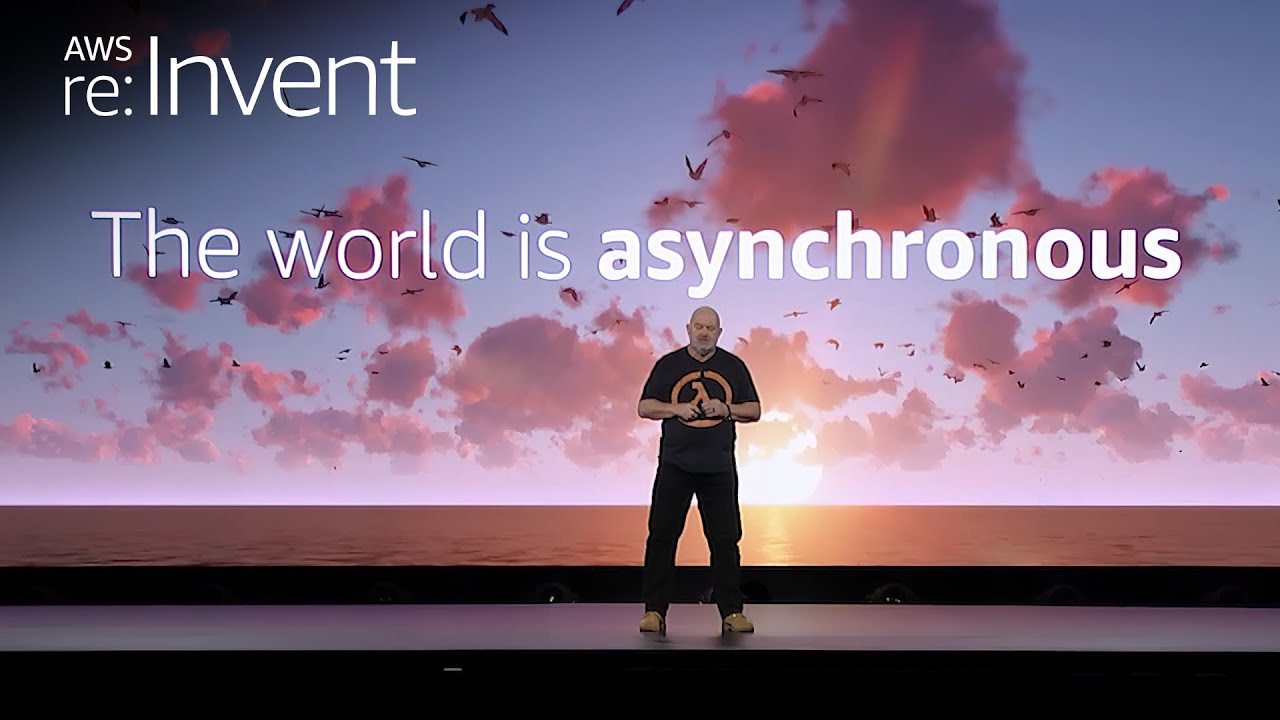
The world is asynchronous, is what Werner Vogels, Amazon CTO, reminded us during his keynote last week at AWS re:Invent. At the beginning of the keynote, he showed us how weird a synchronous world would be and how everything in nature is asynchronous. One example of an event-driven application he showcased during his keynote is Serverlesspresso, a project my team has been working on for the last year. And last week, we announced Serverlesspresso extensions, a new program that lets you contribute to Serverlesspresso and learn how event-driven applications can be extended.

Last Week’s Launches
Here are some launches that got my attention during the previous week.

Amazon SageMaker Studio now supports fine-grained data access control with AWS LakeFormation when accessing data through Amazon EMR. Now, when you connect to EMR clusters to SageMaker Studio notebooks, you can choose what runtime IAM role you want to connect with, and the notebooks will only access data and resources permitted by the attached runtime role.

Amazon Lex has now added support for Arabic, Cantonese, Norwegian, Swedish, Polish, and Finnish. This opens new possibilities to create chat bots and conversational experiences in more languages.

Amazon RDS Proxy now supports creating proxies in Amazon Aurora Global Database primary and secondary Regions. Now, building multi-Region applications with Amazon Aurora is simpler. RDS proxy sits between your application and the database pool and shares established database connections.

Amazon FSx for NetApp ONTAP launched many new features. First, it added the support for Nitro-based encryption of data in transit. It also extended NVMe read cache support to Single-AZ file systems. And it added four new features to ease the use of the service: easily assign a snapshot policy to your volumes, easily create data protection volumes, configure volumes so their tags are automatically copied to the backups, and finally, add or remove VPC route tables for your existing Multi-AZ file systems.

I would also like to mention two launches that happened before re:Invent but were not covered on the News Blog:

Amazon EventBridge Scheduler is a new capability from Amazon EventBridge that allows you to create, run, and manage scheduled tasks at scale. Using this new capability, you can schedule one-time or recurrent tasks across 270 AWS services.

AWS IoT RoboRunner is now generally available. Last year at re:Invent Channy wrote a blog post introducing the preview for this service. IoT RoboRunner is a robotic service that makes it easier to build and deploy applications for fleets of robots working seamlessly together.

For a full list of AWS announcements, be sure to keep an eye on the What’s New at AWS page.

Other AWS News
Some other updates and news that you may have missed:

I would like to recommend this really interesting Amazon Science article about federated learning. This is a framework that allows edge devices to work together to train a global model while keeping customers’ data on-device.

Podcast Charlas Técnicas de AWS – If you understand Spanish, this podcast is for you. Podcast Charlas Técnicas is one of the official AWS podcasts in Spanish, and every other week there is a new episode. Today the final episode for season three launched, and in it, we discussed many of the re:Invent launches. You can listen to all the episodes directly from your favorite podcast app or at AWS Podcasts en español.

AWS open-source news and updates–This is a newsletter curated by my colleague Ricardo to bring you the latest open-source projects, posts, events, and more.

Upcoming AWS Events
Check your calendars and sign up for these AWS events:

AWS Resiliency Hub Activation Day is a half-day technical virtual session to deep dive into the features and functionality of Resiliency Hub. You can register for free here.

AWS re:Invent recaps in your area. During the re:Invent week, we had lots of new announcements, and in the next weeks you can find in your area a recap of all these launches. All the events will be posted on this site, so check it regularly to find an event nearby.

AWS re:Invent keynotes, leadership sessions, and breakout sessions are available on demand. I recommend that you check the playlists and find the talks about your favorite topics in one collection.

That’s all for this week. Check back next Monday for another Week in Review!

— Marcia

AWS Week in Review – September 5, 2022

Post Syndicated from Danilo Poccia original https://aws.amazon.com/blogs/aws/aws-week-in-review-september-5-2022/

This post is part of our Week in Review series. Check back each week for a quick roundup of interesting news and announcements from AWS!

As a new week begins, let’s quickly look back at the most significant AWS news from the previous seven days.

Last Week’s Launches
Here are the launches that got my attention last week:

AWS announces open-sourced credentials-fetcher to simplify Microsoft AD access from Linux containers. You can find more in the What’s New post.

AWS Step Functions now has 14 new intrinsic functions that help you process data more efficiently and make it easier to perform data processing tasks such as array manipulation, JSON object manipulation, and math functions within your workflows without having to invoke downstream services or add Task states.

AWS SAM CLI esbuild support is now generally available. You can now use esbuild in the SAM CLI build workflow for your JavaScript applications.

Amazon QuickSight launches a new user interface for dataset management that replaces the existing popup dialog modal with a full-page experience, providing a clearer breakdown of dataset management categories.

AWS GameKit adds Unity support. With this release for Unity, you can integrate cloud-based game features into Win64, MacOS, Android, or iOS games from both the Unreal and Unity engines with just a few clicks.

AWS and VMware announce VMware Cloud on AWS integration with Amazon FSx for NetApp ONTAP. Read more in Veliswa‘s blog post.

The AWS Region in the United Arab Emirates (UAE) is now open. More info in Marcia‘s blog post.

View of Abu Dhabi in the United Arab Emirates

For a full list of AWS announcements, be sure to keep an eye on the What’s New at AWS page.

Other AWS News
A few more blog posts you might have missed:

Easy analytics and cost-optimization with Amazon Redshift Serverless – Four different use cases of Redshift Serverless are discussed in this post.

Building cost-effective AWS Step Functions workflows – In this blog post, Ben explains the difference between Standard and Express Workflows, including costs, migrating from Standard to Express, and some interesting ways of using both together.

How to subscribe to the new Security Hub Announcements topic for Amazon SNS – You can now receive updates about new Security Hub services and features, newly supported standards and controls, and other Security Hub changes.

Deploying AWS Lambda functions using AWS Controllers for Kubernetes (ACK) – With the ACK service controller for AWS Lambda, you can provision and manage Lambda functions with kubectl and custom resources.

For AWS open-source news and updates, here’s the latest newsletter curated by Ricardo to bring you the most recent updates on open-source projects, posts, events, and more.

Upcoming AWS Events
Depending on where you are on this planet, there are many opportunities to meet and learn:

AWS Summits – Come together to connect, collaborate, and learn about AWS. Registration is open for the following in-person AWS Summits: Ottawa (September 8), New Delhi (September 9), Mexico City (September 21–22), Bogotá (October 4), and Singapore (October 6).

AWS Community DaysAWS Community Day events are community-led conferences to share and learn with one another. In September, the AWS community in the US will run events in the Bay Area, California (September 9) and Arlington, Virginia (September 30). In Europe, Community Day events will be held in October. Join us in Amersfoort, Netherlands (October 3), Warsaw, Poland (October 14), and Dresden, Germany (October 19).

That’s all from me for this week. Come back next Monday for another Week in Review!

Danilo

Running hybrid Active Directory service with AWS Managed Microsoft Active Directory

Post Syndicated from Lewis Tang original https://aws.amazon.com/blogs/architecture/running-hybrid-active-directory-service-with-aws-managed-microsoft-active-directory/

Enterprise customers often need to architect a hybrid Active Directory solution to support running applications in the existing on-premises corporate data centers and AWS cloud. There are many reasons for this, such as maintaining the integration with on-premises legacy applications, keeping the control of infrastructure resources, and meeting with specific industry compliance requirements.

To extend on-premises Active Directory environments to AWS, some customers choose to deploy Active Directory service on self-managed Amazon Elastic Compute Cloud (EC2) instances after setting up connectivity for both environments. This setup works fine, but it also presents management and operations challenges when it comes to EC2 instance operation management, Windows operating system, and Active Directory service patching and backup. This is where AWS Directory Service for Microsoft Active Directory (AWS Managed Microsoft AD) helps.

Benefits of using AWS Managed Microsoft AD

With AWS Managed Microsoft AD, you can launch an AWS-managed directory in the cloud, leveraging the scalability and high availability of an enterprise directory service while adding seamless integration into other AWS services.

In addition, you can still access AWS Managed Microsoft AD using existing administrative tools and techniques, such as delegating administrative permissions to select groups in your organization. The full list of permissions that can be delegated is described in the AWS Directory Service Administration Guide.

Active Directory service design consideration with a single AWS account

Single region

A single AWS account is where the journey begins: a simple use case might be when you need to deploy a new solution in the cloud from scratch (Figure 1).

A single AWS account and single-region model

Figure 1. A single AWS account and single-region model

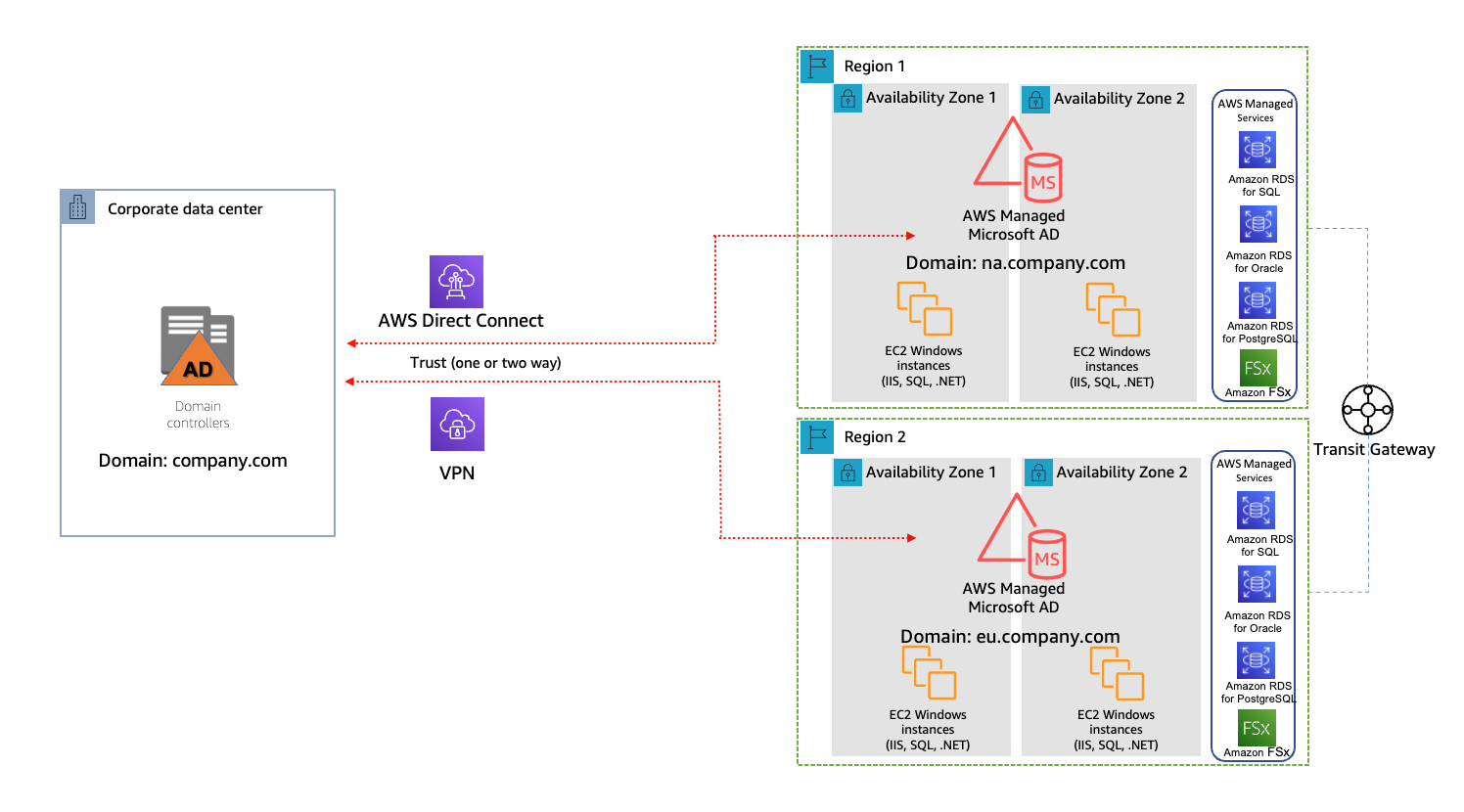
In a single AWS account and single-region model, the on-premises Active Directory has “company.com” domain configured in the on-premises data center. AWS Managed Microsoft AD is set up across two availability zones in the AWS region for high availability. It has a single domain, “na.company.com”, configured. The on-premises Active Directory is configured to trust the AWS Managed Microsoft AD with network connectivity via AWS Direct Connect or VPN. Applications that are Active-Directory–aware and run on EC2 instances have joined na.company.com domain, as do the selected AWS managed services (for example, Amazon Relational Database Service for SQL server).

Multi-region

As your cloud footprint expands to more AWS regions, you have two options also to expand AWS Managed Microsoft AD, depending on which edition of AWS Managed Microsoft AD is used (Figure 2):

  1. With AWS Managed Microsoft AD Enterprise Edition, you can turn on the multi-region replication feature to configure automatically inter-regional networking connectivity, deploy domain controllers, and replicate all the Active Directory data across multiple regions. This ensures that Active-Directory–aware workloads residing in those regions can connect to and use AWS Managed Microsoft AD with low latency and high performance.
  2. With AWS Managed Microsoft AD Standard Edition, you will need to add a domain by creating independent AWS Managed Microsoft AD directories per-region. In Figure 2, “eu.company.com” domain is added, and AWS Transit Gateway routes traffic among Active-Directory–aware applications within two AWS regions. The on-premises Active Directory is configured to trust the AWS Managed Microsoft AD, either by Direct Connect or VPN.
A single AWS account and multi-region model

Figure 2. A single AWS account and multi-region model

Active Directory Service Design consideration with multiple AWS accounts

Large organizations use multiple AWS accounts for administrative delegation and billing purposes. This is commonly implemented through AWS Control Tower service or AWS Control Tower landing zone solution.

Single region

You can share a single AWS Managed Microsoft AD with multiple AWS accounts within one AWS region. This capability makes it simpler and more cost-effective to manage Active-Directory–aware workloads from a single directory across accounts and Amazon Virtual Private Cloud (VPC). This option also allows you seamlessly join your EC2 instances for Windows to AWS Managed Microsoft AD.

As a best practice, place AWS Managed Microsoft AD in a separate AWS account, with limited administrator access but sharing the service with other AWS accounts. After sharing the service and configuring routing, Active Directory aware applications, such as Microsoft SharePoint, can seamlessly join Active Directory Domain Services and maintain control of all administrative tasks. Find more details on sharing AWS Managed Microsoft AD in the Share your AWS Managed AD directory tutorial.

Multi-region

With multiple AWS Accounts and multiple–AWS-regions model, we recommend using AWS Managed Microsoft AD Enterprise Edition. In Figure 3, AWS Managed Microsoft AD Enterprise Edition supports automating multi-region replication in all AWS regions where AWS Managed Microsoft AD is available. In AWS Managed Microsoft AD multi-region replication, Active-Directory–aware applications use the local directory for high performance but remain multi-region for high resiliency.

Multiple AWS accounts and multi-region model

Figure 3. Multiple AWS accounts and multi-region model

Domain Name System resolution design

To enable Active-Directory–aware applications communicate between your on-premises data centers and the AWS cloud, a reliable solution for Domain Name System (DNS) resolution is needed. You can set the Amazon VPC Dynamic Host Configuration Protocol (DHCP) option sets to either AWS Managed Microsoft AD or on-premises Active Directory; then, assign it to each VPC in which the required Active-Directory–aware applications reside. The full list of options working with DHCP option sets is described in Amazon Virtual Private Cloud User Guide.

The benefit of configuring DHCP option sets is to allow any EC2 instances in that VPC to resolve their domain names by pointing to the specified domain and DNS servers. This prevents the need for manual configuration of DNS on EC2 instances. However, because DHCP option sets cannot be shared across AWS accounts, this requires a DHCP option sets also to be created in additional accounts.

DHCP option sets

Figure 4. DHCP option sets

An alternative option is creating an Amazon Route 53 Resolver. This allows customers to leverage Amazon-provided DNS and Route 53 Resolver endpoints to forward a DNS query to the on-premises Active Directory or AWS Managed Microsoft AD. This is ideal for multi-account setups and customers desiring hub/spoke DNS management.

This alternative solution replaces the need to create and manage EC2 instances running as DNS forwarders with a managed and scalable solution, as Route 53 Resolver forwarding rules can be shared with other AWS accounts. Figure 5 demonstrates a Route 53 resolver forwarding a DNS query to on-premises Active Directory.

Route 53 Resolver

Figure 5. Route 53 Resolver

Conclusion

In this post, we described the benefits of using AWS Managed Microsoft AD to integrate with on-premises Active Directory. We also discussed a range of design considerations to explore when architecting hybrid Active Directory service with AWS Managed Microsoft AD. Different design scenarios were reviewed, from a single AWS account and region, to multiple AWS accounts and multi-regions. We have also discussed choosing between the Amazon VPC DHCP option sets and Route 53 Resolver for DNS resolution.

Further reading

Extend SQL Server DR using log shipping for SQL Server FCI with Amazon FSx for Windows configuration

Post Syndicated from Yogi Barot original https://aws.amazon.com/blogs/architecture/extend-sql-server-dr-using-log-shipping-for-sql-server-fci-with-amazon-fsx-for-windows-configuration/

This week for Women’s History Month, we’re continuing to feature female authors. We’re showcasing women in the tech industry who are building, creating, and, above all, inspiring, empowering, and encouraging everyone—especially women and girls—in tech.


Companies choosing to rehost their on-premises SQL Server workloads to AWS can face challenges with setting up their disaster recovery (DR) strategy. Solutions such as Always On can be a more expensive, complex configuration across Regions. It can cause latency issues when synchronously replicating data cross-Region. Snapshots have additional overhead and may breach their stringent recovery point objective/recovery time objective (RPO/RTO) requirements.

A log shipping solution can take advantage of cross-Region replication of data using Amazon FSx for Windows File Server. It has less maintenance overhead, doesn’t introduce latency, and meets RPO/RTO requirements. A multi-Region architecture for Microsoft SQL Server is often adopted for SQL Server deployments for business continuity (disaster recovery) and improved latency (for a geographically distributed customer base).

This blog post explores SQL Server DR architecture using SQL Server failover cluster with Amazon FSx for Windows File Server for the primary site and secondary DR site. We describe how to set up a multi-Region DR using log shipping. We’ll explain the architecture patterns so you can follow along and effectively design a highly available SQL Server deployment that spans two or more AWS Regions.

Here are some advantages of using log shipping versus Always On distributed availability group DR setup.

  • Log shipping works with SQL Server Standard edition
  • It lowers total cost of ownership (TCO) as you only need one SQL Server Standard edition license at the primary/DR site
  • It’s straightforward to configure
  • There’s no need for clustering setup at the OS level
  • It supports all SQL Server versions. You don’t need the SQL Server version to be the same for source and destination instances.

Log shipping DR solution for SQL Server FCI with Amazon FSx

The architecture diagram in Figure 1 depicts SQL Server failover cluster instance (FCI) using Amazon FSx as storage (multiple Availability Zones) in Region 1. It uses a standalone or a similar setup on Region 2. It uses a log shipping feature for replication and DR. This will also serve as the reference architecture for our solution.

Log shipping DR solution for SQL Server FCI with Amazon FSx

Figure 1. Log shipping DR solution for SQL Server FCI with Amazon FSx

Figure 1 shows an SQL cluster in Region 1 and standalone SQL cluster in Region 2. The primary cluster in Region 1 is initially configured with SQL Server failover cluster instance (FCI) using Amazon FSx for its shared storage. Region 2 can have a standalone Amazon EC2 server with SQL Server and Amazon Elastic Block Store (EBS) as storage. Or it can have an identical configuration to Region 1, but with different hostnames, and an SQL network name (SQLFCI02) to avoid possible collisions.

You can build the VPC peering or AWS Transit Gateway to have seamless connectivity between the two Regions for the opened ports (SQL Server, SMB for file share, and others.)

With Amazon FSx, you get a fully managed and shared file storage solution, that automatically replicates the underlying storage synchronously across multiple Availability Zones. Amazon FSx provides high availability with automatic failure detection and automatic failover if there are any hardware or storage issues. The service fully supports continuously available shares, a feature that permits SQL Server uninterrupted access to shared file data.

There is an asynchronous replication setup from Region 1 to Region 2 using the log shipping feature. In this type of configuration, Microsoft SQL Server log shipping replicates databases using transaction logs. This ensures that a physically replicated warm standby database is an exact binary replica of the primary database. This is referred to as physical replication.

Log shipping can be configured with two available modes. These are related to the state of the secondary log-shipped SQL Server database.

  • Standby mode. The database is available for querying. Users cannot access the database while restore is going on. But once restore is completed, users can access it in read-only mode.
  • Restore mode. The database is not accessible for users.

In this solution, you configure a warm standby SQL Server database on an EC2 instance designated in SQL FCI using Amazon FSx as shared storage. You can send transaction log backups asynchronously between your primary Region database and the warm standby server in the other Region. The transaction log backups are then applied to the warm standby database sequentially. When all the logs have been applied, you can perform a manual failover and point the application to the secondary Region. We recommend running the primary and secondary database instances in separate Availability Zones, and configuring a monitor instance to track all the details of log shipping.

Prerequisites

Walkthrough steps to set up DR for SQL Server FCI

Following are the steps required to configure SQL Server DR using SQL Server failover cluster. Amazon FSx for Windows File Server is used for the primary site and secondary DR site. We also demonstrate how to set up a multi-Region log shipping.

Assumed variables

Region_01:
WSFC Cluster Name: SQLCluster1
FCI Virtual Network Name: SQLFCI01
Region_02:
Amazon EC2 Name: EC2SQL2

Make sure to configure network connectivity between your clusters. In this solution, we are using two VPCs in two separate Regions.

    • VPC peering is configured to enable network traffic on both VPCs.
    • The domain controller (AWS Managed Microsoft AD) on both VPCs are configured with conditional forwarding. This enables DNS resolution between the two VPCs.
  1. Configure SQL FCI setup using Amazon FSx as shared storage on Region_01.
  2. Configure SQL standalone instance on Region_02 with EBS volume as storage.
  3. Create an Amazon FSx in the primary Region with AWS managed Active Directory, or on-premises Active Directory connected with trust relation or AD Connector.
  4. Create a SQL Server service account with proper permissions to be able to set up transaction log settings.
  5. Configure VPC peering between the primary and DR/secondary Region.
  6. Join the domain to the Active Directory network for both primary and secondary servers in primary Region.
  7. Mount Amazon FSx on primary and secondary server and allow shared permissions, so SQL Server is able to access the folder. Use Amazon FSx for storing transaction log backups and EBS for storing transaction logs on the secondary Region.
  8. Set up log shipping from the primary server SQL Server FCI01 to the secondary SQL Server EC2SQL2 with the standby option enabled. This way the databases can be in read on the secondary SQL Server.
  9. In case of disaster, follow the FAILOVER and FAILBACK steps in the next sections. Learn more by reading Change Roles Between Primary and Secondary Log Shipping Servers.

Failover steps

In case of disaster at primary Region node SQLFCI01, log shipping acts as DR solution. Following, we show the steps to bring the databases online on EC2SQL02. Once SQLFCI01 is back, Use the following steps if DR drill checks to failover. In a real disaster, follow the process from Step 3 onwards.

1. Stop all activities on SQLFCI01 databases involved in log shipping jobs on SQLFCI01 and EC2SQL02. Confirm if any process is running by using the following query:

Use master
Go
select * from sysprocesses where dbid = DB_ID('DatabaseName')

2. Take full backup on SQLFCI01 as rollback option.

BACKUP DATABASE [DatabaseName]
TO  DISK = N'Provide Drive details'
WITH COMPRESSION
GO

3. Take last tail transaction log backup if we have access to SQL Server. Otherwise, check the last available transaction log stored in EC2SQL02 and restore it with RECOVERY to bring the databases online on EC2SQL02.

RESTORE LOG [DatabaseName] FROM  DISK = N'Provide path of last tlog'
WITH  FILE = 1,  RECOVERY,  NOUNLOAD,  STATS = 10
GO

4. Redirect the application connections to EC2SQL02.

Failback methods

1. Native backup/restore or rollback strategy

  • Take full backup from EC2SQL02 and copy to the SQLFCI01.
  • RESTORE the full backup on SQLFCI01.
  • Reconfigure log shipping between SQLFCI01 and EC2SQL02.

2.    Reverse log shipping

In case of DR drills or business continuity and disaster recovery (BCDR) activities, we can set up reverse log shipping to reduce the time taken to failover. It doesn’t require reinitializing the database with a full backup if performed carefully. It is crucial to preserve the log sequence number (LSN) chain. Perform the final log backup using the NORECOVERY option. Backing up the log with this option puts the database in a state where log backups can be restored. It ensures that the database’s LSN chain doesn’t deviate. This procedure helps reduce downtime to bring back SQLFCI01.

  • STOP all activities on SQLFCI01 databases involved in log shipping jobs on SQLFCI01 and EC2SQL02.
  • TAKE Tlog backup of SQLFCI01 with NORECOVERY option.

BACKUP LOG [DatabaseName]
TO DISK = 'BackupFilePathname'
WITH NORECOVERY;

  • RESTORE transaction log backup on EC2SQL02 with NORECOVERY.
  • Reconfigure log shipping and reenable the jobs back.
  • Reconfigure the application connections to SQLFCI01.

Conclusion

A multi-Region strategy for your mission-critical SQL Server deployments is key for business continuity and disaster recovery. This blog post shows how to achieve that using log shipping for SQL Server FCI deployment. Setting up DR using log shipping can help you save costs and meet your business requirements.

To learn more, check out Simplify your Microsoft SQL Server high availability deployments using Amazon FSx for Windows File Server.

More posts for Women’s History Month!

Other ways to participate

Welcome to AWS Storage Day 2021

Post Syndicated from Marcia Villalba original https://aws.amazon.com/blogs/aws/welcome-to-aws-storage-day-2021/

Welcome to the third annual AWS Storage Day 2021! During Storage Day 2020 and the first-ever Storage Day 2019 we made many impactful announcements for our customers and this year will be no different. The one-day, free AWS Storage Day 2021 virtual event will be hosted on the AWS channel on Twitch. You’ll hear from experts about announcements, leadership insights, and educational content related to AWS Storage services.

AWS Storage DayThe first part of the day is the leadership track. Wayne Duso, VP of Storage, Edge, and Data Governance, will be presenting a live keynote. He’ll share information about what’s new in AWS Cloud Storage and how these services can help businesses increase agility and accelerate innovation. The keynote will be followed by live interviews with the AWS Storage leadership team, including Mai-Lan Tomsen Bukovec, VP of AWS Block and Object Storage.

The second part of the day is a technical track in which you’ll learn more about Amazon Simple Storage Service (Amazon S3), Amazon Elastic Block Store (EBS), Amazon Elastic File System (Amazon EFS), AWS Backup, Cloud Data Migration, AWS Transfer Family and Amazon FSx.

To register for the event, visit the AWS Storage Day 2021 event page.

Now as Jeff Barr likes to say, let’s get into the announcements.

Amazon FSx for NetApp ONTAP
Today, we are pleased to announce Amazon FSx for NetApp ONTAP, a new storage service that allows you to launch and run fully managed NetApp ONTAP file systems in the cloud. Amazon FSx for NetApp ONTAP joins Amazon FSx for Lustre and Amazon FSx for Windows File Server as the newest file system offered by Amazon FSx.

Amazon FSx for NetApp ONTAP provides the full ONTAP experience with capabilities and APIs that make it easy to run applications that rely on NetApp or network-attached storage (NAS) appliances on AWS without changing your application code or how you manage your data. To learn more, read New – Amazon FSx for NetApp ONTAP.

Amazon S3
Amazon S3 Multi-Region Access Points is a new S3 feature that allows you to define global endpoints that span buckets in multiple AWS Regions. Using this feature, you can now build multi-region applications without adding complexity to your applications, with the same system architecture as if you were using a single AWS Region.

S3 Multi-Region Access Points is built on top of AWS Global Accelerator and routes S3 requests over the global AWS network. S3 Multi-Region Access Points dynamically routes your requests to the lowest latency copy of your data, so the upload and download performance can increase by 60 percent. It’s a great solution for applications that rely on reading files from S3 and also for applications like autonomous vehicles that need to write a lot of data to S3. To learn more about this new launch, read How to Accelerate Performance and Availability of Multi-Region Applications with Amazon S3 Multi-Region Access Points.

Creating a multi-region access point

There’s also great news about the Amazon S3 Intelligent-Tiering storage class! The conditions of usage have been updated. There is no longer a minimum storage duration for all objects stored in S3 Intelligent-Tiering, and monitoring and automation charges for objects smaller than 128 KB have been removed. Smaller objects (128 KB or less) are not eligible for auto-tiering when stored in S3 Intelligent-Tiering. Now that there is no monitoring and automation charge for small objects and no minimum storage duration, you can use the S3 Intelligent-Tiering storage class by default for all your workloads with unknown or changing access patterns. To learn more about this announcement, read Amazon S3 Intelligent-Tiering – Improved Cost Optimizations for Short-Lived and Small Objects.

Amazon EFS
Amazon EFS Intelligent Tiering is a new capability that makes it easier to optimize costs for shared file storage when access patterns change. When you enable Amazon EFS Intelligent-Tiering, it will store the files in the appropriate storage class at the right time. For example, if you have a file that is not used for a period of time, EFS Intelligent-Tiering will move the file to the Infrequent Access (IA) storage class. If the file is accessed again, Intelligent-Tiering will automatically move it back to the Standard storage class.

To get started with Intelligent-Tiering, enable lifecycle management in a new or existing file system and choose a lifecycle policy to automatically transition files between different storage classes. Amazon EFS Intelligent-Tiering is perfect for workloads with changing or unknown access patterns, such as machine learning inference and training, analytics, content management and media assets. To learn more about this launch, read Amazon EFS Intelligent-Tiering Optimizes Costs for Workloads with Changing Access Patterns.

AWS Backup
AWS Backup Audit Manager allows you to simplify data governance and compliance management of your backups across supported AWS services. It provides customizable controls and parameters, like backup frequency or retention period. You can also audit your backups to see if they satisfy your organizational and regulatory requirements. If one of your monitored backups drifts from your predefined parameters, AWS Backup Audit Manager will let you know so you can take corrective action. This new feature also enables you to generate reports to share with auditors and regulators. To learn more, read How to Monitor, Evaluate, and Demonstrate Backup Compliance with AWS Backup Audit Manager.

Amazon EBS
Amazon EBS direct APIs now support creating 64 TB EBS Snapshots directly from any block storage data, including on-premises. This was increased from 16 TB to 64 TB, allowing customers to create the largest snapshots and recover them to Amazon EBS io2 Block Express Volumes. To learn more, read Amazon EBS direct API documentation.

AWS Transfer Family
AWS Transfer Family Managed Workflows is a new feature that allows you to reduce the manual tasks of preprocessing your data. Managed Workflows does a lot of the heavy lifting for you, like setting up the infrastructure to run your code upon file arrival, continuously monitoring for errors, and verifying that all the changes to the data are logged. Managed Workflows helps you handle error scenarios so that failsafe modes trigger when needed.

AWS Transfer Family Managed Workflows allows you to configure all the necessary tasks at once so that tasks can automatically run in the background. Managed Workflows is available today in the AWS Transfer Family Management Console. To learn more, read Transfer Family FAQ.

Storage Day 2021 Join us online for more!
Don’t forget to register and join us for the AWS Storage Day 2021 virtual event. The event will be live at 8:30 AM Pacific Time (11:30 AM Eastern Time) on September 2. The event will immediately re-stream for the Asia-Pacific audience with live Q&A moderators on Friday, September 3, at 8:30 AM Singapore Time. All sessions will be available on demand next week.

We look forward to seeing you there!

Marcia

Augmenting VMware Cloud on AWS Workloads with Native AWS services

Post Syndicated from Talha Kalim original https://aws.amazon.com/blogs/architecture/augmenting-vmware-cloud-on-aws-workloads-with-native-aws-services/

VMware Cloud on AWS allows you to quickly migrate VMware workloads to a VMware-managed Software-Defined Data Center (SDDC) running in the AWS Cloud and extend your on-premises data centers without replatforming or refactoring applications.

You can use native AWS services with Virtual Machines (VMs) in the SDDC, to reduce operational overhead and lower your Total Cost of Ownership (TCO) while increasing your workload’s agility and scalability.

This post covers patterns for connectivity between native AWS services and VMware workloads. We also explore common integrations, including using AWS Cloud storage from an SDDC, securing VM workloads using AWS networking services, and using AWS databases and analytics services with workloads running in the SDDC.

Networking between SDDC and native AWS services

Establishing robust network connectivity with VMware Cloud SDDC VMs is critical to successfully integrating AWS services. This section shows you different options to connect the VMware SDDC with your native AWS account.

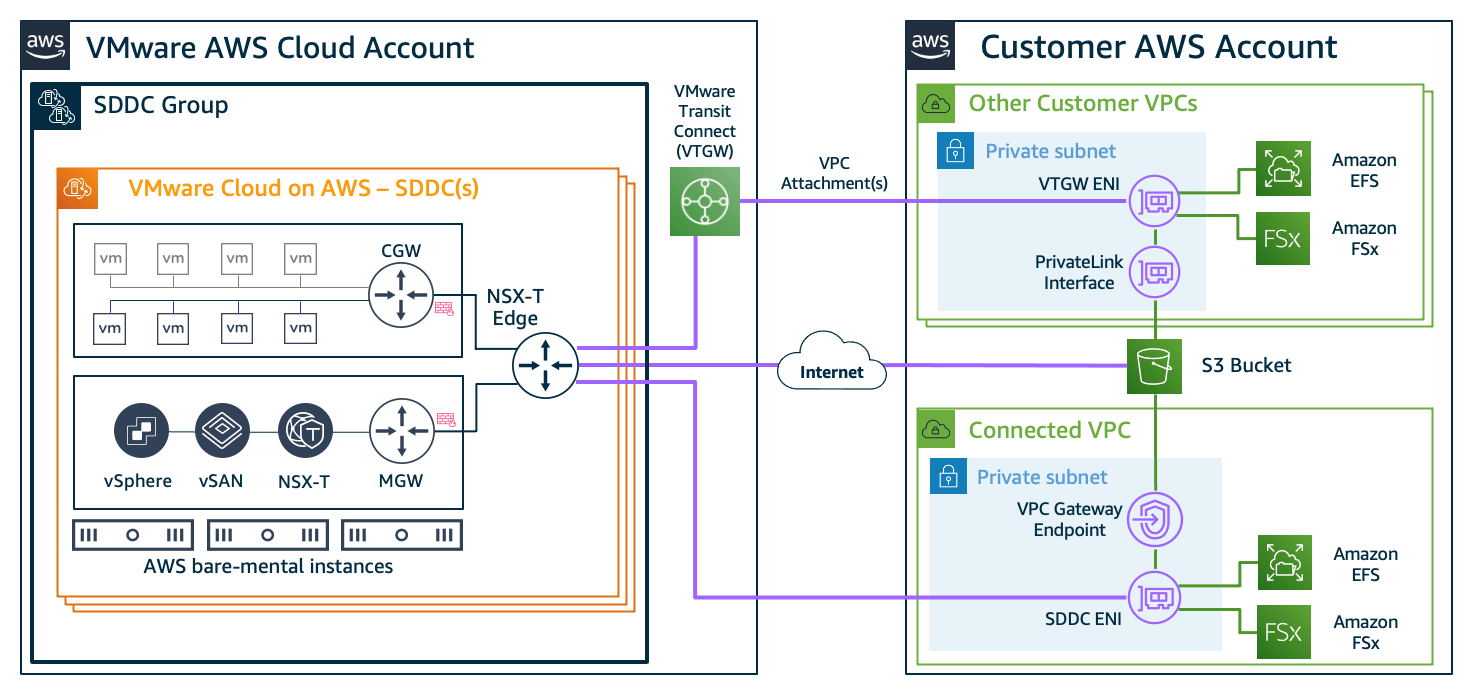
The simplest way to get started is to use AWS services in the connected Amazon Virtual Private Cloud (VPC) that is selected during the SDDC deployment process. Figure 1 shows this connectivity, which is automatically configured and available once the SDDC is deployed.

Figure 1. SDDC to Customer Account VPC connectivity configured at deployment

Figure 1. SDDC to Customer Account VPC connectivity configured at deployment

The SDDC Elastic Network Interface (ENI) allows you to connect to native AWS services within the connected VPC, but it doesn’t provide transitive routing beyond the connected VPC. For example, it will not connect the SDDC to other VPCs and the internet.

If you’re looking to connect to native AWS services in multiple accounts and VPCs in the same AWS Region, you have two connectivity options. These are explained in the following sections.

Attaching VPCs to VMware Transit Connect

When you need high-throughput connectivity in a multi-VPC environment, use VMware Transit Connect (VTGW), as shown in Figure 2.

Figure 2. Multi-account VPC connectivity through VMware Transit Connect VPC attachments

Figure 2. Multi-account VPC connectivity through VMware Transit Connect VPC attachments

VTGW uses a VMware-managed AWS Transit Gateway to interconnect SDDCs within an SDDC group. It also allows you to attach your VPCs in the same Region to the VTGW by providing connectivity to any SDDC within the SDDC group.

Connecting through an AWS Transit Gateway

To connect to your VPCs through an existing Transit Gateway in your account, use IPsec virtual private network (VPN) connections from the SDDC with Border Gateway Protocol (BGP)-based routing, as shown in Figure 3. Multiple IPsec tunnels to the Transit Gateway use equal-cost multi-path routing, which increases bandwidth by load-balancing traffic.

Figure 3. Multi-account VPC connectivity through an AWS Transit Gateway

Figure 3. Multi-account VPC connectivity through an AWS Transit Gateway

For scalable, high throughput connectivity to an existing Transit Gateway, connect to the SDDC via a Transit VPC that is attached to the VTGW, as shown in Figure 3. You must manually configure the routes between the VPCs and SDDC for this architecture.

In the following sections, we’ll show you how to use some of these connectivity options for common native AWS services integrations with VMware SDDC workloads.

Reducing TCO with Amazon EFS, Amazon FSx, and Amazon S3

As you are sizing your VMware Cloud on AWS SDDC, consider using AWS Cloud storage for VMs that provide files services or require object storage. Migrating these workloads to cloud storage like Amazon Simple Storage Service (Amazon S3), Amazon Elastic File System (Amazon EFS), or Amazon FSx can reduce your overall TCO through optimized SDDC sizing.

Additionally, you can reduce the undifferentiated heavy lifting involved with deploying and managing complex architectures for file services in VM disks. Figure 4 shows how these services integrate with VMs in the SDDC.

Figure 4. Connectivity examples for AWS Cloud storage services

Figure 4. Connectivity examples for AWS Cloud storage services

We recommend connecting to your S3 buckets via the VPC gateway endpoint in the connected VPC. This is a more cost-effective approach because it avoids the data processing costs associated with a VTGW and AWS PrivateLink for Amazon S3.

Similarly, the recommended approach for Amazon EFS and Amazon FSx is to deploy the services in the connected VPC for VM access through the SDDC elastic network interface. You can also connect to existing Amazon EFS and Amazon FSx file shares in other accounts and VPCs using a VTGW, but consider the data transfer costs first.

Integrating AWS networking and content delivery services

Using various AWS networking and content delivery services with VMware Cloud on AWS workloads will provide robust traffic management, security, and fast content delivery. Figure 5 shows how AWS networking and content delivery services integrate with workloads running on VMs.

Figure 5. Connectivity examples for AWS networking and content delivery services

Figure 5. Connectivity examples for AWS networking and content delivery services

Deploy Elastic Load Balancing (ELB) services in a VPC subnet that has network reachability to the SDDC VMs. This includes the connected VPC over the SDDC elastic network interface, a VPC attached via VTGW, and VPCs attached to a Transit Gateway connected to the SDDC.

VTGW connectivity should be used when the design requires using existing networking services in other VPCs. For example, if you have a dedicated internet ingress/egress VPC. An internal ELB can also be used for load-balancing traffic between services running in SDDC VMs and services running within AWS VPCs.

Use Amazon CloudFront, a global content delivery service, to integrate with load balancers, S3 buckets for static content, or directly with publicly accessible SDDC VMs. Additionally, use Amazon Route 53 to provide public and private DNS services for VMware Cloud on AWS. Deploy services such as AWS WAF and AWS Shield to provide comprehensive network security for VMware workloads in the SDDC.

Integrating with AWS database and analytics services

Data is one the most valuable assets in an organization, and databases are often the most demanding and critical workloads running in on-premises VMware environments.

A common customer pattern to reduce TCO for storage-heavy or memory-intensive databases is to use purpose-built Databases on AWS like Amazon Relational Database Service (RDS). Amazon RDS lets you migrate on-premises relational databases to the cloud and integrate it with SDDC VMs. Using AWS databases also reduces operational overhead you may incur with tasks associated with managing availability, scalability, and disaster recovery (DR).

With AWS Analytics services integrations, you can take advantage of the close proximity of data within VMware Cloud on AWS data stores to gain meaningful insights from your business data. For example, you can use Amazon Redshift to create a data warehouse to run analytics at scale on relational data from transactional systems, operational databases, and line-of-business applications running within the SDDC.

Figure 6 shows integration options for AWS databases and analytics services with VMware Cloud on AWS VMs.

Figure 6. Connectivity examples for AWS Database and Analytics services

Figure 6. Connectivity examples for AWS Database and Analytics services

We recommend deploying and consuming database services in the connected VPC. If you have existing databases in other accounts or VPCs that require integration with VMware VMs, connect them using the VTGW.

Analytics services can involve ingesting large amounts of data from various sources, including from VMs within the SDDC, creating a significant amount of data traffic. In such scenarios, we recommend using the SDDC connected VPC to deploy any required interface endpoints for analytics services to achieve a cost-effective architecture.

Summary

VMware Cloud on AWS is one of the fastest ways to migrate on-premises VMware workloads to the cloud. In this blog post, we provided different architecture options for connecting the SDDC to native AWS services. This lets you evaluate your requirements to select the most cost-effective option for your workload.

The example integrations covered in this post are common AWS service integrations, including storage, network, and databases. They are a great starting point, but the possibilities are endless. Integrating services like Amazon Machine Learning (Amazon ML), and Serverless on AWS allows you to deliver innovative services to your users, often without having to re-factor existing application backends running on VMware Cloud on AWS.

Additional Resources

If you need to integrate VMware Cloud on AWS with an AWS service, explore the following resources and reach out to us at AWS.