Tag Archives: AWS Data Pipeline

Migrate workloads from AWS Data Pipeline

Post Syndicated from Noritaka Sekiyama original https://aws.amazon.com/blogs/big-data/migrate-workloads-from-aws-data-pipeline/

AWS Data Pipeline helps customers automate the movement and transformation of data. With Data Pipeline, customers can define data-driven workflows, so that tasks can be dependent on the successful completion of previous tasks. Launched in 2012, Data Pipeline predates several popular Amazon Web Services (AWS) offerings for orchestrating data pipelines such as AWS Glue, AWS Step Functions, and Amazon Managed Workflows for Apache Airflow (Amazon MWAA).

Data Pipeline has been a foundational service for getting customer off the ground for their extract, transform, load (ETL) and infra provisioning use cases. Some customers want a deeper level of control and specificity than possible using Data Pipeline. With the recent advancements in the data industry, customers are looking for a more feature-rich platform to modernize their data pipelines to get them ready for data and machine learning (ML) innovation. This post explains how to migrate from Data Pipeline to alternate AWS services to serve the growing needs of data practitioners. The option you choose depends on your current workload on Data Pipeline. You can migrate typical use cases of Data Pipeline to AWS Glue, Step Functions, or Amazon MWAA.

Note that you will need to modify the configurations and code in the examples provided in this post based on your requirements. Before starting any production workloads after migration, you need to test your new workflows to ensure no disruption to production systems.

Migrating workloads to AWS Glue

AWS Glue is a serverless data integration service that helps analytics users to discover, prepare, move, and integrate data from multiple sources. It includes tooling for authoring, running jobs, and orchestrating workflows. With AWS Glue, you can discover and connect to hundreds of different data sources and manage your data in a centralized data catalog. You can visually create, run, and monitor ETL pipelines to load data into your data lakes. Also, you can immediately search and query cataloged data using Amazon Athena, Amazon EMR, and Amazon Redshift Spectrum.

We recommend migrating your Data Pipeline workload to AWS Glue when:

  • You’re looking for a serverless data integration service that supports various data sources, authoring interfaces including visual editors and notebooks, and advanced data management capabilities such as data quality and sensitive data detection.
  • Your workload can be migrated to AWS Glue workflows, jobs (in Python or Apache Spark) and crawlers (for example, your existing pipeline is built on top of Apache Spark).
  • You need a single platform that can handle all aspects of your data pipeline, including ingestion, processing, transfer, integrity testing, and quality checks.
  • Your existing pipeline was created from a pre-defined template on the AWS Management Console for Data Pipeline, such as exporting a DynamoDB table to Amazon S3, or importing DynamoDB backup data from S3, and you’re looking for the same template.
  • Your workload doesn’t depend on a specific Hadoop ecosystem application such as Apache Hive.
  • Your workload doesn’t require orchestrating on-premises servers, user-managed Amazon Elastic Compute Cloude (Amazon EC2) instances, or a user-managed Amazon EMR cluster.

Example: Migrate EmrActivity on EmrCluster to export DynamoDB tables to S3

One of the most common workloads on Data Pipeline is to backup Amazon DynamoDB tables to Amazon Simple Storage Service (Amazon S3). Data Pipeline has a pre-defined template named Export DynamoDB table to S3 to export DynamoDB table data to a given S3 bucket.

The template uses EmrActivity (named TableBackupActivity) which runs on EmrCluster (named EmrClusterForBackup) and backs up data on DynamoDBDataNode to S3DataNode.

You can migrate these pipelines to AWS Glue because it natively supports reading from DynamoDB.

To define an AWS Glue job for the preceding use case:

  1. Open the AWS Glue console.
  2. Choose ETL jobs.
  3. Choose Visual ETL.
  4. For Sources, select Amazon DynamoDB.
  5. On the node Data source - DynamoDB, for DynamoDB source, select Choose the DynamoDB table directly, then select your source DynamoDB table from the menu.
  6. For Connection options, enter s3.bucket and dynamodb.s3.prefix.
  7. Choose + (plus) to add a new node.
  8. For Targets, select Amazon S3.
  9. On the node Data target - S3 bucket, for Format, select your preferred format, for example, Parquet.
  10. For S3 Target location, enter your destination S3 path.
  11. On Job details tab, select IAM role. In case you do not have the IAM role, follow Configuring IAM permissions for AWS Glue.
  12. Choose Save and Run.

Your AWS Glue job has been successfully created and started.

You might notice that there is no property to manage read I/O rate. It’s because the default DynamoDB reader used in Glue Studio does not scan the source DynamoDB table. Instead it uses DynamoDB export.

Example: Migrate EmrActivity on EmrCluster to import DynamoDB from S3

Another common workload on Data Pipeline is to restore DynamoDB tables using backup data on Amazon S3. Data Pipeline has a pre-defined template named Import DynamoDB backup data from S3 to import DynamoDB table data from a given S3 bucket.

The template uses EmrActivity (named TableLoadActivity) which runs on EmrCluster (named EmrClusterForLoad) and loads data from S3DataNode to DynamoDBDataNode.

You can migrate these pipelines to AWS Glue because it natively supports writing to DynamoDB.

Prerequisites are to create a destination DynamoDB table and catalog it on Glue Data Catalog using Glue crawler, Glue console, or the API.

  1. Open the AWS Glue console.
  2. Choose ETL jobs.
  3. Choose Visual ETL.
  4. For Sources, select Amazon S3.
  5. On the node Data source - S3 bucket, for S3 URL, enter your S3 path.
  6. Choose + (plus) to add a new node.
  7. For Targets, select AWS Glue Data Catalog.
  8. On the node Data target - Data Catalog, for Database, select your destination database on Data Catalog.
  9. For Table, select your destination table on Data Catalog.
  10. On Job details tab, select IAM role. In case you do not have the IAM role, follow Configuring IAM permissions for AWS Glue.
  11. Choose Save and Run.

Your AWS Glue job has been successfully created and started.

Migrating workloads to Step Functions

AWS Step Functions is a serverless orchestration service that lets you build workflows for your business-critical applications. With Step Functions, you use a visual editor to build workflows and integrate directly with over 11,000 actions for over 250 AWS services, including AWS Lambda, Amazon EMR, DynamoDB, and more. You can use Step Functions for orchestrating data processing pipelines, handling errors, and working with the throttling limits on the underlying AWS services. You can create workflows that process and publish machine learning models, orchestrate micro-services, as well as control AWS services, such as AWS Glue, to create ETL workflows. You also can create long-running, automated workflows for applications that require human interaction.

We recommend migrating your Data Pipeline workload to Step Functions when:

  • You’re looking for a serverless, highly available workflow orchestration service.
  • You’re looking for a cost-effective solution that charges at single-task granularity.
  • Your workloads are orchestrating tasks for multiple AWS services, such as Amazon EMR, AWS Lambda, AWS Glue, or DynamoDB.
  • You’re looking for a low-code solution that comes with a drag-and-drop visual designer for workflow creation and doesn’t require learning new programming concepts.
  • You’re looking for a service that provides integrations with over 250 AWS services covering over 11,000 actions out-of-the-box, as well as allowing integrations with custom non-AWS services and activities.
  • Both Data Pipeline and Step Functions use JSON format to define workflows. This allows you to store your workflows in source control, manage versions, control access, and automate with continuous integration and development (CI/CD). Step Functions use a syntax called Amazon State Language, which is fully based on JSON and allows a seamless transition between the textual and visual representations of the workflow.
  • Your workload requires orchestrating on-premises servers, user-managed EC2 instances, or a user-managed EMR cluster.

With Step Functions, you can choose the same version of Amazon EMR that you’re currently using in Data Pipeline.

For migrating activities on Data Pipeline managed resources, you can use AWS SDK service integration on Step Functions to automate resource provisioning and cleaning up. For migrating activities on on-premises servers, user-managed EC2 instances, or a user-managed EMR cluster, you can install an SSM agent to the instance. You can initiate the command through the AWS Systems Manager Run Command from Step Functions. You can also initiate the state machine from the schedule defined in Amazon EventBridge.

Example: Migrate HadoopActivity on EmrCluster

To migrate HadoopActivity on EmrCluster on Data Pipeline to Step Functions:

  1. Open the AWS Step Functions console.
  2. Choose State machines.
  3. Choose Create state machine.
  4. In the Choose a template wizard, search for emr, select Manage an EMR job, and choose Select.
  1. For Choose how to use this template, select Build on it.
  2. Choose Use template.
  1. For Create an EMR cluster state, configure API Parameters based on the EMR release label, EMR capacity, IAM role, and so on based on the existing EmrClusternode configuration on Data Pipeline.
  1. For Run first step state, configure API Parameters based on the JAR file and arguments based on the existing HadoopActivity node configuration on Data Pipeline.
  2. If you have further activities configured on the existing HadoopActivity, repeat step 8.
  3. Choose Create.

Your state machine has been successfully configured. Learn more in Manage an Amazon EMR Job.

Migrating workloads to Amazon MWAA

Amazon MWAA is a managed orchestration service for Apache Airflow that lets you use the Apache Airflow platform to set up and operate end-to-end data pipelines in the cloud at scale. Apache Airflow is an open-source tool used to programmatically author, schedule, and monitor sequences of processes and tasks referred to as workflows. Apache Airflow brings in new concepts like executors, pools, and SLAs that provide you with superior data orchestration capabilities. With Amazon MWAA, you can use Airflow and Python programming language to create workflows without having to manage the underlying infrastructure for scalability, availability, and security. Amazon MWAA automatically scales its workflow runtime capacity to meet your needs and is integrated with AWS security services to help provide you with fast and secure access to your data.

We recommend migrating your Data Pipeline workloads to Amazon MWAA when:

  • You’re looking for a managed, highly available service to orchestrate workflows written in Python.
  • You want to transition to a fully managed, widely adopted open source technology—Apache Airflow—for maximum portability.
  • You require a single platform that can handle all aspects of your data pipeline, including ingestion, processing, transfer, integrity testing, and quality checks.
  • You’re looking for a service designed for data pipeline orchestration with features such as rich UI for observability, restarts for failed workflows, backfills, retries for tasks, and lineage support with OpenLineage.
  • You’re looking for a service that comes with more than 1,000 pre-built operators and sensors, covering AWS as well as non-AWS services.
  • Your workload requires orchestrating on-premises servers, user-managed EC2 instances, or a user-managed EMR cluster.

Amazon MWAA workflows are defined as directed acyclic graphs (DAGs) using Python, so you can also treat them as source code. Airflow’s extensible Python framework enables you to build workflows connecting with virtually any technology. It comes with a rich user interface for viewing and monitoring workflows and can be easily integrated with version control systems to automate the CI/CD process. With Amazon MWAA, you can choose the same version of Amazon EMR that you’re currently using in Data Pipeline.

Example: Migrate HadoopActivity on EmrCluster

Complete the following steps in case you do not have existing MWAA environments:

  1. Create an AWS CloudFormation template on your computer by copying the template from the quick start guide into a local text file.
  2. On the CloudFormation console, choose Stacks in the navigation pane.
  3. Choose Create stack with the option With new resources (standard).
  4. Choose Upload a template file and select the local template file.
  5. Choose Next.
  6. Complete the setup steps, entering a name for the environment, and leave the rest of the parameters as default.
  7. On the last step, acknowledge that resources will be created and choose Submit.

The creation can take 20–30 minutes, until the status of the stack changes to CREATE_COMPLETE. The resource that will take the most time is the Airflow environment. While it’s being created, you can continue with the following steps, until you’re required to open the Airflow UI.

An Airflow workflow is based on a DAG, which is defined by a Python file that programmatically specifies the different tasks involved and its interdependencies. Complete the following scripts to create the DAG:

  1. Create a local file named emr_dag.py using a text editor with following snippets, and configure the EMR related parameters based on the existing Data Pipeline definition:
    from airflow import DAG
    from airflow.providers.amazon.aws.operators.emr import (
        EmrCreateJobFlowOperator,
        EmrAddStepsOperator,
    )
    from airflow.providers.amazon.aws.sensors.emr import EmrStepSensor
    from airflow.utils.dates import days_ago
    from datetime import timedelta
    import os
    DAG_ID = os.path.basename(__file__).replace(".py", "")
    SPARK_STEPS = [
        {
            'Name': 'calculate_pi',
            'ActionOnFailure': 'CONTINUE',
            'HadoopJarStep': {
                'Jar': 'command-runner.jar',
                'Args': ['spark-example', 'SparkPi', '10'],
            },
        }
    ]
    JOB_FLOW_OVERRIDES = {
        'Name': 'my-demo-cluster',
        'ReleaseLabel': 'emr-6.1.0',
        'Applications': [
            {
                'Name': 'Spark'
            },
        ],
        'Instances': {
            'InstanceGroups': [
                {
                    'Name': "Master nodes",
                    'Market': 'ON_DEMAND',
                    'InstanceRole': 'MASTER',
                    'InstanceType': 'm5.xlarge',
                    'InstanceCount': 1,
                },
                {
                    'Name': "Slave nodes",
                    'Market': 'ON_DEMAND',
                    'InstanceRole': 'CORE',
                    'InstanceType': 'm5.xlarge',
                    'InstanceCount': 2,
                }
            ],
            'KeepJobFlowAliveWhenNoSteps': False,
            'TerminationProtected': False,
        },
        'VisibleToAllUsers': True,
        'JobFlowRole': 'EMR_EC2_DefaultRole',
        'ServiceRole': 'EMR_DefaultRole'
    }
    with DAG(
        dag_id=DAG_ID,
        start_date=days_ago(1),
        schedule_interval='@once',
        dagrun_timeout=timedelta(hours=2),
        catchup=False,
        tags=['emr'],
    ) as dag:
        cluster_creator = EmrCreateJobFlowOperator(
            task_id='create_job_flow',
            job_flow_overrides=JOB_FLOW_OVERRIDES,
            aws_conn_id='aws_default',
        )
        step_adder = EmrAddStepsOperator(
            task_id='add_steps',
            job_flow_id=cluster_creator.output,
            aws_conn_id='aws_default',
            steps=SPARK_STEPS,
        )
        step_checker = EmrStepSensor(
            task_id='watch_step',
            job_flow_id=cluster_creator.output,
            step_id="{{ task_instance.xcom_pull(task_ids='add_steps')[0] }}",
            aws_conn_id='aws_default',
        )
        cluster_creator >> step_adder >> step_checker

Defining the schedule in Amazon MWAA is as simple as updating the schedule_interval parameter for the DAG. For example, to run the DAG daily, set schedule_interval='@daily'.

Now, you create a workflow that invokes the Amazon EMR step you just created:

  1. On the Amazon S3 console, locate the bucket created by the CloudFormation template, which will have a name starting with the name of the stack followed by -environmentbucket- (for example, myairflowstack-environmentbucket-ap1qks3nvvr4).
  2. Inside that bucket, create a folder called dags, and inside that folder, upload the DAG file emr_dag.py that you created in the previous section.
  3. On the Amazon MWAA console, navigate to the environment you deployed with the CloudFormation stack.

If the status is not yet Available, wait until it reaches that state. It shouldn’t take longer than 30 minutes after you deployed the CloudFormation stack.

  1. Choose the environment link on the table to see the environment details.

It’s configured to pick up DAGs from the bucket and folder you used in the previous steps. Airflow will monitor that folder for changes.

  1. Choose Open Airflow UI to open a new tab accessing the Airflow UI, using the integrated IAM security to sign you in.

If there are issues with the DAG file you created, it will display an error on top of the page indicating the lines affected. In that case, review the steps and upload again. After a few seconds, it will parse it and update or remove the error banner.

Clean up

After you migrate your existing Data Pipeline workload and verify that the migration was successful, delete your pipelines in Data Pipeline to stop further runs and billing.

Conclusion

In this blog post, we outlined a few alternate AWS services for migrating your existing Data Pipeline workloads. You can migrate to AWS Glue to run and orchestrate Apache Spark applications, AWS Step Functions to orchestrate workflows involving various other AWS services, or Amazon MWAA to help manage workflow orchestration using Apache Airflow. By migrating, you will be able to run your workloads with a broader range of data integration functionalities. If you have additional questions, post in the comments or read about migration examples in our documentation.


About the authors

Noritaka Sekiyama is a Principal Big Data Architect on the AWS Glue team and AWS Data Pipeline team. He is responsible for building software artifacts to help customers. In his spare time, he enjoys cycling with his road bike.

Vaibhav Porwal is a Senior Software Development Engineer on the AWS Glue and AWS Data Pipeline team. He is working on solving problems in orchestration space by building low cost, repeatable, scalable workflow systems that enables customers to create their ETL pipelines seamlessly.

Sriram Ramarathnam is a Software Development Manager on the AWS Glue and AWS Data Pipeline team. His team works on solving challenging distributed systems problems for data integration across AWS serverless and serverfull compute offerings.

Matt Su is a Senior Product Manager on the AWS Glue team and AWS Data Pipeline team. He enjoys helping customers uncover insights and make better decisions using their data with AWS Analytics services. In his spare time, he enjoys skiing and gardening.

Build the next generation, cross-account, event-driven data pipeline orchestration product

Post Syndicated from Maria Guerra original https://aws.amazon.com/blogs/big-data/build-the-next-generation-cross-account-event-driven-data-pipeline-orchestration-product/

This is a guest post by Mehdi Bendriss, Mohamad Shaker, and Arvid Reiche from Scout24.

At Scout24 SE, we love data pipelines, with over 700 pipelines running daily in production, spread across over 100 AWS accounts. As we democratize data and our data platform tooling, each team can create, maintain, and run their own data pipelines in their own AWS account. This freedom and flexibility is required to build scalable organizations. However, it’s full of pitfalls. With no rules in place, chaos is inevitable.

We took a long road to get here. We’ve been developing our own custom data platform since 2015, developing most tools ourselves. Since 2016, we have our self-developed legacy data pipeline orchestration tool.

The motivation to invest a year of work into a new solution was driven by two factors:

  • Lack of transparency on data lineage, especially dependency and availability of data
  • Little room to implement governance

As a technical platform, our target user base for our tooling includes data engineers, data analysts, data scientists, and software engineers. We share the vision that anyone with relevant business context and minimal technical skills can create, deploy, and maintain a data pipeline.

In this context, in 2015 we created the predecessor of our new tool, which allows users to describe their pipeline in a YAML file as a list of steps. It worked well for a while, but we faced many problems along the way, notably:

  • Our product didn’t support pipelines to be triggered by the status of other pipelines, but based on the presence of _SUCCESS files in Amazon Simple Storage Service (Amazon S3). Here we relied on periodic pulls. In complex organizations, data jobs often have strong dependencies to other work streams.
  • Given the previous point, most pipelines could only be scheduled based on a rough estimate of when their parent pipelines might finish. This led to cascaded failures when the parents failed or didn’t finish on time.
  • When a pipeline fails and gets fixed, then manually redeployed, all its dependent pipelines must be rerun manually. This means that the data producer bears the responsibility of notifying every single team downstream.

Having data and tooling democratized without the ability to provide insights into which jobs, data, and dependencies exist diminishes synergies within the company, leading to silos and problems in resource allocation. It became clear that we needed a successor for this product that would give more flexibility to the end-user, less computing costs, and no infrastructure management overhead.

In this post, we describe, through a hypothetical case study, the constraints under which the new solution should perform, the end-user experience, and the detailed architecture of the solution.

Case study

Our case study looks at the following teams:

  • The core-data-availability team has a data pipeline named listings that runs every day at 3:00 AM on the AWS account Account A, and produces on Amazon S3 an aggregate of the listings events published on the platform on the previous day.
  • The search team has a data pipeline named searches that runs every day at 5:00 AM on the AWS account Account B, and exports to Amazon S3 the list of search events that happened on the previous day.
  • The rent-journey team wants to measure a metric referred to as X; they create a pipeline named pipeline-X that runs daily on the AWS account Account C, and relies on the data of both previous pipelines. pipeline-X should only run daily, and only after both the listings and searches pipelines succeed.

User experience

We provide users with a CLI tool that we call DataMario (relating to its predecessor DataWario), and which allows users to do the following:

  • Set up their AWS account with the necessary infrastructure needed to run our solution
  • Bootstrap and manage their data pipeline projects (creating, deploying, deleting, and so on)

When creating a new project with the CLI, we generate (and require) every project to have a pipeline.yaml file. This file describes the pipeline steps and the way they should be triggered, alerting, type of instances and clusters in which the pipeline will be running, and more.

In addition to the pipeline.yaml file, we allow advanced users with very niche and custom needs to create their pipeline definition entirely using a TypeScript API we provide them, which allows them to use the whole collection of constructs in the AWS Cloud Development Kit (AWS CDK) library.

For the sake of simplicity, we focus on the triggering of pipelines and the alerting in this post, along with the definition of pipelines through pipeline.yaml.

The listings and searches pipelines are triggered as per a scheduling rule, which the team defines in the pipeline.yaml file as follows:

trigger: 
    schedule: 
        hour: 3

pipeline-x is triggered depending on the success of both the listings and searches pipelines. The team defines this dependency relationship in the project’s pipeline.yaml file as follows:

trigger: 
    executions: 
        allOf: 
            - name: listings 
              account: Account_A_ID 
              status: 
                  - SUCCESS 
            - name: searches 
              account: Account_B_ID 
              status: 
                  - SUCCESS

The executions block can define a complex set of relationships by combining the allOf and anyOf blocks, along with a logical operator operator: OR / AND, which allows mixing the allOf and anyOf blocks. We focus on the most basic use case in this post.

Accounts setup

To support alerting, logging, and dependencies management, our solution has components that must be pre-deployed in two types of accounts:

  • A central AWS account – This is managed by the Data Platform team and contains the following:
    • A central data pipeline Amazon EventBridge bus receiving all the run status changes of AWS Step Functions workflows running in user accounts
    • An AWS Lambda function logging the Step Functions workflow run changes in an Amazon DynamoDB table to verify if any downstream pipelines should be triggered based on the current event and previous run status changes log
    • A Slack alerting service to send alerts to the Slack channels specified by users
    • A trigger management service that broadcasts triggering events to the downstream buses in the user accounts
  • All AWS user accounts using the service – These accounts contain the following:
    • A data pipeline EventBridge bus that receives Step Functions workflow run status changes forwarded from the central EventBridge bus
    • An S3 bucket to store data pipelines artifacts, along their logs
    • Resources needed to run Amazon EMR clusters, like security groups, AWS Identity and Access Management (IAM) roles, and more

With the provided CLI, users can set up their account by running the following code:

$ dpc setup-user-account

Solution overview

The following diagram illustrates the architecture of the cross-account, event-driven pipeline orchestration product.

In this post, we refer to the different colored and numbered squares to reference a component in the architecture diagram. For example, the green square with label 3 refers to the EventBridge bus default component.

Deployment flow

This section is illustrated with the orange squares in the architecture diagram.

A user can create a project consisting of a data pipeline or more using our CLI tool as follows:

$ dpc create-project -n 'project-name'

The created project contains several components that allow the user to create and deploy data pipelines, which are defined in .yaml files (as explained earlier in the User experience section).

The workflow of deploying a data pipeline such as listings in Account A is as follows:

  • Deploy listings by running the command dpc deploy in the root folder of the project. An AWS CDK stack with all required resources is automatically generated.
  • The previous stack is deployed as an AWS CloudFormation template.
  • The stack uses custom resources to perform some actions, such as storing information needed for alerting and pipeline dependency management.
  • Two Lambda functions are triggered, one to store the mapping pipeline-X/slack-channels used for alerting in a DynamoDB table, and another one to store the mapping between the deployed pipeline and its triggers (other pipelines that should result in triggering the current one).
  • To decouple alerting and dependency management services from the other components of the solution, we use Amazon API Gateway for two components:
    • The Slack API.
    • The dependency management API.
  • All calls for both APIs are traced in Amazon CloudWatch log groups and two Lambda functions:
    • The Slack channel publisher Lambda function, used to store the mapping pipeline_name/slack_channels in a DynamoDB table.
    • The dependencies publisher Lambda function, used to store the pipelines dependencies (the mapping pipeline_name/parents) in a DynamoDB table.

Pipeline trigger flow

This is an event-driven mechanism that ensures that data pipelines are triggered as requested by the user, either following a schedule or a list of fulfilled upstream conditions, such as a group of pipelines succeeding or failing.

This flow relies heavily on EventBridge buses and rules, specifically two types of rules:

  • Scheduling rules.
  • Step Functions event-based rules, with a payload matching the set of statuses of all the parents of a given pipeline. The rules indicate for which set of statuses all the parents of pipeline-X should be triggered.

Scheduling

This section is illustrated with the black squares in the architecture diagram.

The listings pipeline running on Account A is set to run every day at 3:00 AM. The deployment of this pipeline creates an EventBridge rule and a Step Functions workflow for running the pipeline:

  • The EventBridge rule is of type schedule and is created on the default bus (this is the EventBridge bus responsible for listening to native AWS events—this distinction is important to avoid confusion when introducing the other buses). This rule has two main components:
    • A cron-like notation to describe the frequency at which it runs: 0 3 * * ? *.
    • The target, which is the Step Functions workflow describing the workflow of the listings pipeline.
  • The listings Step Function workflow describes and runs immediately when the rule gets triggered. (The same happens to the searches pipeline.)

Each user account has a default EventBridge bus, which listens to the default AWS events (such as the run of any Lambda function) and scheduled rules.

Dependency management

This section is illustrated with the green squares in the architecture diagram. The current flow starts after the Step Functions workflow (black square 2) starts, as explained in the previous section.

As a reminder, pipeline-X is triggered when both the listings and searches pipelines are successful. We focus on the listings pipeline for this post, but the same applies to the searches pipeline.

The overall idea is to notify all downstream pipelines that depend on it, in every AWS account, passing by and going through the central orchestration account, of the change of status of the listings pipeline.

It’s then logical that the following flow gets triggered multiple times per pipeline (Step Functions workflow) run as its status changes from RUNNING to either SUCCEEDED, FAILED, TIMED_OUT, or ABORTED. The reason being that there could be pipelines downstream potentially listening on any of those status change events. The steps are as follows:

  • The event of the Step Functions workflow starting is listened to by the default bus of Account A.
  • The rule export-events-to-central-bus, which specifically listens to the Step Function workflow run status change events, is then triggered.
  • The rule forwards the event to the central bus on the central account.
  • The event is then caught by the rule trigger-events-manager.
  • This rule triggers a Lambda function.
  • The function gets the list of all children pipelines that depend on the current run status of listings.
  • The current run is inserted in the run log Amazon Relational Database Service (Amazon RDS) table, following the schema sfn-listings, time (timestamp), status (SUCCEEDED, FAILED, and so on). You can query the run log RDS table to evaluate the running preconditions of all children pipelines and get all those that qualify for triggering.
  • A triggering event is broadcast in the central bus for each of those eligible children.
  • Those events get broadcast to all accounts through the export rules—including Account C, which is of interest in our case.
  • The default EventBridge bus on Account C receives the broadcasted event.
  • The EventBridge rule gets triggered if the event content matches the expected payload of the rule (notably that both pipelines have a SUCCEEDED status).
  • If the payload is valid, the rule triggers the Step Functions workflow pipeline-X and triggers the workflow to provision resources (which we discuss later in this post).

Alerting

This section is illustrated with the gray squares in the architecture diagram.

Many teams handle alerting differently across the organization, such as Slack alerting messages, email alerts, and OpsGenie alerts.

We decided to allow users to choose their preferred methods of alerting, giving them the flexibility to choose what kind of alerts to receive:

  • At the step level – Tracking the entire run of the pipeline
  • At the pipeline level – When it fails, or when it finishes with a SUCCESS or FAILED status

During the deployment of the pipeline, a new Amazon Simple Notification Service (Amazon SNS) topic gets created with the subscriptions matching the targets specified by the user (URL for OpsGenie, Lambda for Slack or email).

The following code is an example of what it looks like in the user’s pipeline.yaml:

notifications:
    type: FULL_EXECUTION
    targets:
        - channel: SLACK
          addresses:
               - data-pipeline-alerts
        - channel: EMAIL
          addresses:
               - [email protected]

The alerting flow includes the following steps:

  1. As the pipeline (Step Functions workflow) starts (black square 2 in the diagram), the run gets logged into CloudWatch Logs in a log group corresponding to the name of the pipeline (for example, listings).
  2. Depending on the user preference, all the run steps or events may get logged or not thanks to a subscription filter whose target is the execution-tracker-lambda Lambda function. The function gets called anytime a new event gets published in CloudWatch.
  3. This Lambda function parses and formats the message, then publishes it to the SNS topic.
  4. For the email and OpsGenie flows, the flow stops here. For posting the alert message on Slack, the Slack API caller Lambda function gets called with the formatted event payload.
  5. The function then publishes the message to the /messages endpoint of the Slack API Gateway.
  6. The Lambda function behind this endpoint runs, and posts the message in the corresponding Slack channel and under the right Slack thread (if applicable).
  7. The function retrieves the secret Slack REST API key from AWS Secrets Manager.
  8. It retrieves the Slack channels in which the alert should be posted.
  9. It retrieves the root message of the run, if any, so that subsequent messages get posted under the current run thread on Slack.
  10. It posts the message on Slack.
  11. If this is the first message for this run, it stores the mapping with the DB schema execution/slack_message_id to initiate a thread for future messages related to the same run.

Resource provisioning

This section is illustrated with the light blue squares in the architecture diagram.

To run a data pipeline, we need to provision an EMR cluster, which in turn requires some information like Hive metastore credentials, as shown in the workflow. The workflow steps are as follows:

  • Trigger the Step Functions workflow listings on schedule.
  • Run the listings workflow.
  • Provision an EMR cluster.
  • Use a custom resource to decrypt the Hive metastore password to be used in Spark jobs relying on central Hive tables or views.

End-user experience

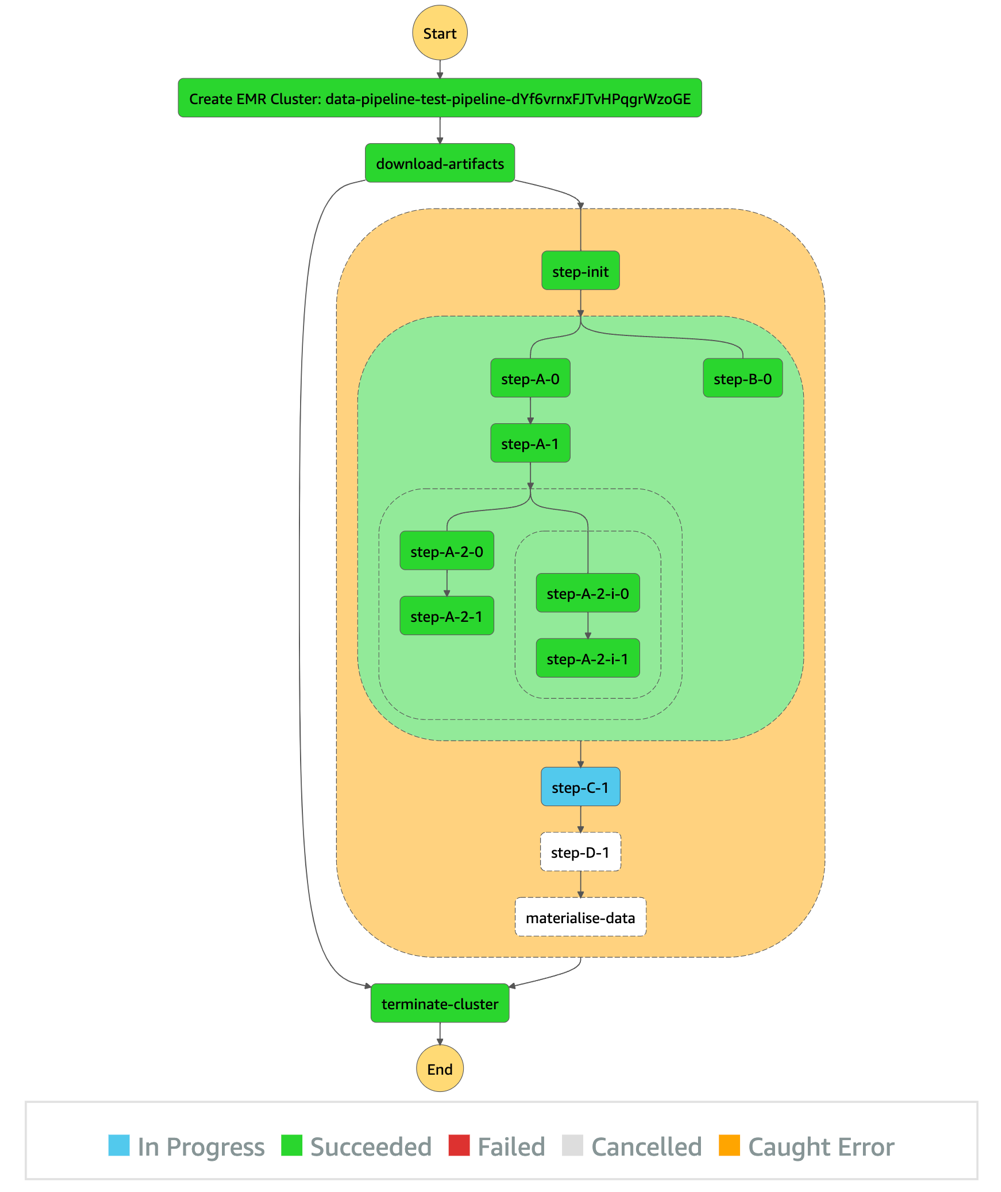
After all preconditions are fulfilled (both the listings and searches pipelines succeeded), the pipeline-X workflow runs as shown in the following diagram.

As shown in the diagram, the pipeline description (as a sequence of steps) defined by the user in the pipeline.yaml is represented by the orange block.

The steps before and after this orange section are automatically generated by our product, so users don’t have to take care of provisioning and freeing compute resources. In short, the CLI tool we provide our users synthesizes the user’s pipeline definition in the pipeline.yaml and generates the corresponding DAG.

Additional considerations and next steps

We tried to stay consistent and stick to one programming language for the creation of this product. We chose TypeScript, which played well with AWS CDK, the infrastructure as code (IaC) framework that we used to build the infrastructure of the product.

Similarly, we chose TypeScript for building the business logic of our Lambda functions, and of the CLI tool (using Oclif) we provide for our users.

As demonstrated in this post, EventBridge is a powerful service for event-driven architectures, and it plays a central and important role in our products. As for its limitations, we found that pairing Lambda and EventBridge could fulfill all our current needs and granted a high level of customization that allowed us to be creative in the features we wanted to serve our users.

Needless to say, we plan to keep developing the product, and have a multitude of ideas, notably:

  • Extend the list of core resources on which workloads run (currently only Amazon EMR) by adding other compute services, such Amazon Elastic Compute Cloud (Amazon EC2)
  • Use the Constructs Hub to allow users in the organization to develop custom steps to be used in all data pipelines (we currently only offer Spark and shell steps, which suffice in most cases)
  • Use the stored metadata regarding pipeline dependencies for data lineage, to have an overview of the overall health of the data pipelines in the organization, and more

Conclusion

This architecture and product brought many benefits. It allows us to:

  • Have a more robust and clear dependency management of data pipelines at Scout24.
  • Save on compute costs by avoiding scheduling pipelines based approximately on when its predecessors are usually triggered. By shifting to an event-driven paradigm, no pipeline gets started unless all its prerequisites are fulfilled.
  • Track our pipelines granularly and in real time on a step level.
  • Provide more flexible and alternative business logic by exposing multiple event types that downstream pipelines can listen to. For example, a fallback downstream pipeline might be run in case of a parent pipeline failure.
  • Reduce the cross-team communication overhead in case of failures or stopped runs by increasing the transparency of the whole pipelines’ dependency landscape.
  • Avoid manually restarting pipelines after an upstream pipeline is fixed.
  • Have an overview of all jobs that run.
  • Support the creation of a performance culture characterized by accountability.

We have big plans for this product. We will use DataMario to implement granular data lineage, observability, and governance. It’s a key piece of infrastructure in our strategy to scale data engineering and analytics at Scout24.

We will make DataMario open source towards the end of 2022. This is in line with our strategy to promote our approach to a solution on a self-built, scalable data platform. And with our next steps, we hope to extend this list of benefits and ease the pain in other companies solving similar challenges.

Thank you for reading.


About the authors

Mehdi Bendriss is a Senior Data / Data Platform Engineer, MSc in Computer Science and over 9 years of experience in software, ML, and data and data platform engineering, designing and building large-scale data and data platform products.

Mohamad Shaker is a Senior Data / Data Platform Engineer, with over 9 years of experience in software and data engineering, designing and building large-scale data and data platform products that enable users to access, explore, and utilize their data to build great data products.

Arvid Reiche is a Data Platform Leader, with over 9 years of experience in data, building a data platform that scales and serves the needs of the users.

Marco Salazar is a Solutions Architect working with Digital Native customers in the DACH region with over 5 years of experience building and delivering end-to-end, high-impact, cloud native solutions on AWS for Enterprise and Sports customers across EMEA. He currently focuses on enabling customers to define technology strategies on AWS for the short- and long-term that allow them achieve their desired business objectives, specializing on Data and Analytics engagements. In his free time, Marco enjoys building side-projects involving mobile/web apps, microcontrollers & IoT, and most recently wearable technologies.