Projects and technologies come and go, and with each new tool comes new workflow changes. But changing the way you move media around can be tough. Maybe you’ve always done things a certain way, and using a new tool feels like too much of a learning curve especially when you’re pressed for time. But the way you’ve always done things isn’t always the best, easiest, or fastest way. Sometimes you need to change the status quo to level up your media operations.
As a freelance editor, I worked on a recent project that presented some challenges that demanded new approaches to media storage challenges you might also be facing. I solved them with the cloud—but not an all-in-one cloud. My solution was a mix of cloud tools, including Adobe Premiere Pro, which gives me customization and flexibility—the best of all worlds in media workflows.
Right Opportunity at the Right Time
Last year I had the opportunity to serve as a digital imaging technician (DIT) on the set of an indie film titled “Vengeance” produced by Falcon Pictures. The role of a DIT can vary. In many instances you’re simply a data wrangler making backups of the data being shot. In others, you work in the color space of the project creating color corrected dailies on set. For “Vengeance”, I was mostly data wrangling.
“Vengeance” was an 11-day shoot in the mountains of Northern California near Bass Lake. While the rest of the crew spent their days hiking around with equipment, I was stationed back at home base with my DIT cart. With a lot of free time, I found myself logging data as it came in. Logging clip names soon turned into organizing bins and prepping the project for editing. And, while I was not the editor on the project, I was happy to help edit while I was on set.
The Challenge
A few months after my work as DIT ended, it became clear that “Vengeance” needed a boost in post-production. The editing was a bit stuck—they had no assistant editor to complete logging and to sound sync all the footage. So, I was asked to help out. The only problem: I needed to be able to share my work with another editor who lived 45 miles away.
Editing “Vengeance” in Adobe Premiere Pro.
Evaluating the World of Workflows and Cloud Tools
So we began to evaluate a few different solutions. It was clear that Adobe Premiere Pro would be used, but data storage was still a big question. We debated a few methods for sharing media:
The traditional route: Sharing a studio. With the other editor 45 miles away, commuting and scheduling time with each other was going to be cumbersome.
Email: We could email project files back and forth as we worked, but how would we keep track of versioning? Project bloat was a big concern.
Sharing a shuttle drive. Or what I’m calling “Sneakernet 2.0.” This is a popular method, but far from efficient.
Google Drive or Dropbox: Another popular option, but also one that comes with costs and service limitations like rate limiting.
None of these options were great, so we went back to the drawing board.
The Solution: A Hybrid Workflow Designed for Our Needs
To come to a final decision for this workflow, we made a list of our needs:
The ability to share a Premiere Pro project file for updates.
The ability to share media for the project.
No exchanging external hard drives.
No driving (a car).
Changes need to be real time.
Based on those needs, here’s where we landed.
Sharing Project Files
Adobe recently released a new update to its Team Projects features within Premiere Pro. Team Projects allows you to host a Premiere Pro project in the Adobe cloud and share it with other Adobe Creative Cloud users. This gave us the flexibility to share a single project and share updates in real time. This means no emailing of project files, versioning issues, or bloated files. That left the issues of the media. How do we share media?
Sharing Media Files
You may think that it would be obvious to share files in the Adobe Creative Cloud where you get 100GB free. And while 100GB may be enough storage for .psd and .ai files, 100GB is nothing for video, especially when we are talking about RED (.r3d) files which start off as approximately 4GB chunks and can quickly add up to terabytes of footage.
So we put everything in a Backblaze B2 Bucket. All the .r3d source files went directly from my Synology network attached storage (NAS) into a Backblaze B2 Bucket using the Synology Cloud Sync tool. In addition to the source files, I used Adobe Media Encoder to generate proxy files of all the .r3d files. This folder of proxy files also synced with Backblaze automatically.
Making Changes in Real Time
What was great about this solution is that all of the uploading is done automatically via a seamless Backblaze + Synology integration, and the Premiere Pro Team Project had a slew of publish functions perfect for real-time updates. And because the project files and proxies are stored in the cloud, I could get to them from several computers. I spent time at my desktop PC logging and syncing footage, but was also able to move to my couch and do the same from my MacBook Pro. I never had to move hard drives around, copy projects files, or worry about version control.
The other editor was able to connect to my Backblaze B2 Bucket using Cyberduck, a cloud storage browser for Mac. Using Cyberduck, he was able to pull down all the proxy files I created and share any files that he created. So, we were synced for the entire duration of the project.
Once the technology was configured, I was able to finish logging for “Vengeance”, sync all the sound, build out stringouts and assemblies, and even a rough cut of every scene for the entire movie, giving the post-production process the boost it needed.
The Power of Centralized Storage for Media Workflows
Technology is constantly evolving, and, in most circumstances, technology makes how we work a lot easier. For years filmmakers have worked on projects by physically moving our source material, whether it was on film reels, tapes, or hard drives. The cloud changed all that.
The key to getting “Vengeance” through post-production was our centralized approach to file management. Files existed in Backblaze already, we simply brought Premiere Pro to the data rather than moving the huge amount of files to Premiere Pro via the Creative Cloud.
The mix of technologies lets us create a customized flow that works for us. Creative Cloud had the benefit of providing a project sharing mechanism, and Backblaze provided a method of sharing media (Synology and Cyberduck) regardless of the tooling each editor had.
Once we hit picture lock, the centralized files will serve as a distribution point for VFX, color, and sound, making turnover a breeze. It can even be used as a distribution hub—check out how American Public Television uses Backblaze to distribute their finished assets.
Centralizing in the cloud not only made it easy for me to work from home, it allowed us to collaborate on a project with ease eliminating the overhead of driving, shuttle drive delivery (Sneakernet 2.0), and version control. The best part? A workflow like this is affordable for any size production and can be set up in minutes.
Have you recently moved to a cloud workflow? Let us know what you’re using and how it went in the comments.
Whether you’re protecting your business against drive failures or optimizing performance, choosing the right RAID level for your NAS is important for data safety and efficiency. A simple question inspired this blog: At what size of RAID should you have a two-drive tolerance instead of one for your NAS device? The answer isn’t complex per se, but there were enough “if/thens” that we thought it warranted a bit more explanation.
So today, I’m explaining everything you need to know to choose the right RAID level for your needs, including their benefits, drawbacks, and different use cases.
Refresher: What’s NAS? What Is RAID?
NAS stands for network attached storage. It is an excellent solution for organizations and users that require shared access to large amounts of data. NAS provides cost-effective, centralized storage that can be accessed by multiple users, from different locations, simultaneously. However, as the amount of data stored on NAS devices grows, the risk of data loss also increases.
This is where RAID levels come into play. RAID stands for redundant array of independent disks (or “inexpensive disks” depending on who you ask). It’s crucial for NAS users to understand the different RAID levels so they can effectively protect data while ensuring optimal performance of their NAS system.
Both NAS devices and RAID are disk arrays. That is, they are a set of several hard disk drives (HDDs) and/or solid state drives (SSDs) that store large amounts of data, orchestrating the drives to work as one unit. The biggest difference is that NAS is configured to work over your network. That means that it’s easy to configure your NAS device to support RAID levels—you’re combining the RAID’s data storage strategy and the NAS’s user-friendly network capabilities to get the best of both worlds.
This combination allows NAS users to implement RAID types that align with their needs, whether for data redundancy, increased write performance, or a balance of both. With proper configuration, a NAS device equipped with RAID provides both flexibility and enhanced data protection.
What Is RAID Storage?
RAID was first introduced by researchers at the University of California, Berkeley in the late 1980s. The original paper, “A Case for Redundant Arrays of Inexpensive Disks (RAID)”, was authored by David Patterson, Garth A. Gibson, and Randy Katz, where they introduced the concept of combining multiple smaller disks into a single larger disk array for improved performance and data redundancy.
They also argued that the top-performing mainframe disk drives of the time could be beaten on performance by an array of the inexpensive drives. Since then, RAID has become a widely used data storage technology in the data storage industry, and many different levels of RAID levels evolved over time.
RAID storage is now utilized in systems ranging from NAS devices to enterprise-grade data centers, offering configurations that balance write performance, data protection, and fault tolerance. This flexibility makes RAID an important part of storage architectures, helping businesses and individuals store and protect their data blocks efficiently.
Different Types of RAID Storage Techniques
Before we learn more about the different types of RAID levels, it’s important to understand the different types of RAID storage techniques so that you will have a better understanding of how RAID levels work.
There are essentially three types of RAID storage techniques—striping, mirroring, and parity. Depending on the level, RAID systems combine these methods in different ways to achieve varying balances of performance, redundancy, and storage efficiency.
Striping
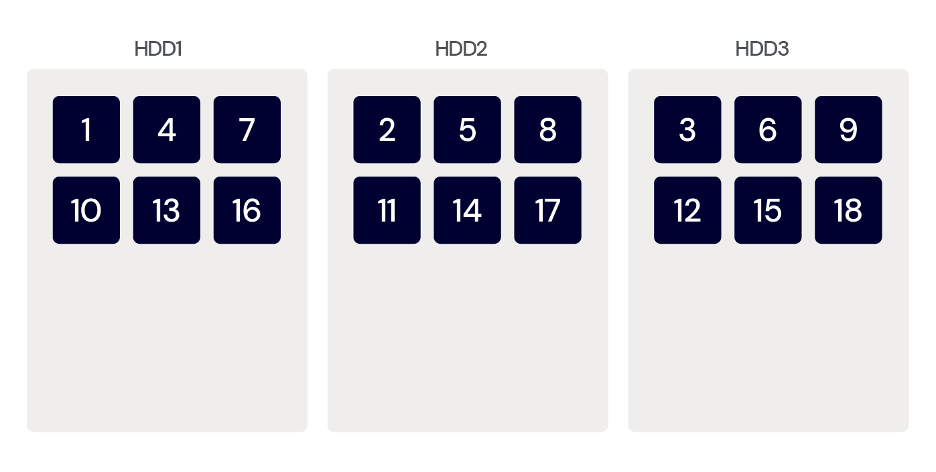
Striping distributes your data over multiple drives. If you use a NAS device, striping spreads the blocks that comprise your files across the available hard drives simultaneously. This allows you to create one large drive, giving you faster read and write access since data can be stored and retrieved concurrently from multiple disks. However, striping doesn’t provide any redundancy whatsoever, and it’s typically found in systems where performance is prioritized over data redundancy. If a single drive fails in the storage array, all data on the device can be lost. Striping is usually used in combination with other techniques, as we’ll explore below.
Striping
Mirroring
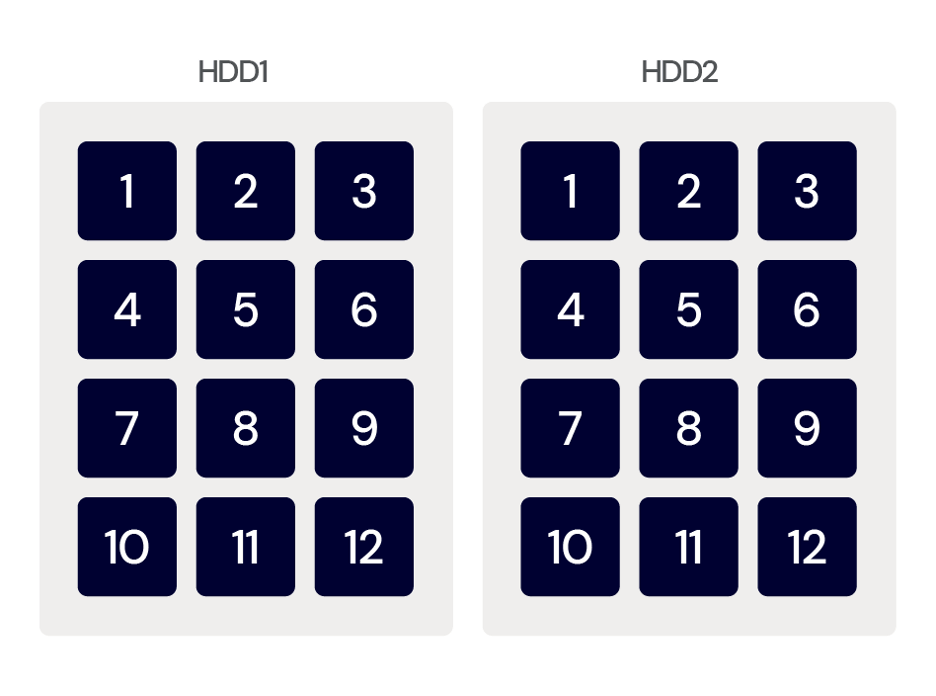
As the name suggests, mirroring makes a copy of your data. Data is written simultaneously to two disks, thereby providing redundancy by having two copies of the data. Even if one disk fails, your data can still be accessed from the other disk.
Mirroring
There’s also a performance benefit here for reading data—you can request blocks concurrently from the drives (e.g. you can request block 1 from HDD1 at the same time as block 2 from HDD2). The disadvantage is that mirroring requires twice as many disks for the same total storage capacity. Mirroring is typically used in RAID levels such as RAID 1 and RAID 10.
Parity
Parity is all about error detection and correction. The system creates an error correction code (ECC) and stores the code along with the data on the disk. This code allows the RAID controller to detect and correct errors that may occur during data transmission or storage, thereby reducing the risk of data corruption or data loss due to disk failure. If a drive fails, you can install a new drive and the NAS device will restore your files based on the previously created ECC.
Parity is commonly used in RAID 5 and RAID 6, and the latter uses double parity, meaning that two sets of parity data are stored for additional protection.
Parity
What Is RAID Fault Tolerance?
In addition to the different RAID storage techniques, the other essential factor to consider before choosing a RAID level is RAID fault tolerance.” RAID fault tolerance refers to the ability of a RAID configuration to continue functioning even in the event of a hard disk failure.
In other words, fault tolerance gives you an idea of how many drives you can afford to lose in a RAID level configuration, but continue to access or re-create the data.
Different RAID levels offer varying degrees of fault tolerance and redundancy, and it’s essential to understand the trade-offs in storage capacity, performance, and cost as we’ll cover next.
What Are the Different RAID Levels?
RAID levels are standardized by the Storage Networking Industry Association (SNIA) and are assigned a number based on how they affect data storage and redundancy.
While RAID levels evolved over time, the standard RAID levels available today are RAID 0, RAID 1, RAID 5, RAID 6, and RAID 10. In addition to RAID configurations, non-RAID drive architectures also exist like JBOD, which we’ll explain first.
Now that you understand the basics of RAID storage, let’s take a look at the different RAID level configurations for NAS devices, including their benefits, use cases, and degree of fault tolerance.
JBOD: Simple Arrangement, Data Written Across All Drives
JBOD, also referred to as “Just a Bunch of Disks” or “Just a Bunch of Drives”, is a storage configuration where multiple drives are combined as one logical volume. In JBOD, data is written in a sequential way, across all drives without any RAID configuration. This approach allows for flexible and efficient storage utilization, but it does not provide any data redundancy or fault tolerance.
JBOD: Just a bunch of disks.
JBOD has no fault tolerance to speak of. On the plus side, it’s the simplest storage arrangement, and all disks are available for use. But, there’s no data redundancy and no performance improvements.
RAID 0: Striping, Data Evenly Distributed Over All Disks
RAID 0, also referred to as a “stripe set” or “striped volume”, stores the data evenly across all disks. Blocks of data are written to each disk in the array in turn, resulting in faster read and write speeds. However, RAID 0 doesn’t provide fault tolerance or redundancy. The failure of one drive can cause the entire storage array to fail, resulting in total loss of data.
RAID 0 also has no fault tolerance. There are some pros: it’s easy to implement, you get faster read/write speeds, and it’s cost effective. But there’s no data redundancy and an increased risk of data loss.
RAID 0 is typically used in scenarios where speed is critical but data safety isn’t a priority, such as video editing or temporary storage of unimportant files.
RAID 0: Data evenly distributed across two drives.
Raid 0: The Math
We can do a quick calculation to illustrate how RAID 0, in fact, increases the chance of losing data. To keep the math easy, we’ll assume an annual failure rate (AFR) of 1%. This means that, out of a sample of 100 drives, we’d expect one of them to fail in the next year; that is, the probability of a given drive failing in the next year is 0.01.
Now, the chance of the entire RAID array failing–its AFR–is the chance that any of the disks fail. The way to calculate this is to recognize that the probability of the array surviving the year is simply the product of the probability of each drive surviving the year. Note: we’ll be rounding all results in this article to two significant figures.
Multiply the possibility of one drive failing by the number of drives you have. In this example, there are two.
0.99 x 0.99 = 0.98
Subtract that result from one to calculate the percentage. So, the AFR is:
1 – 0.98 = 0.02, or 2%
So the two-drive RAID array is twice as likely to fail as a single disk.
For larger arrays, the risk increases exponentially as the number of drives increases, which makes RAID 0 unsuitable for critical or long-term data storage.
RAID 1: Mirroring, Exact Copy of Data on Two or More Disks
RAID 1 uses disk mirroring to create an exact copy of a set of data on two or more disks to protect data from disk failure. The data is written to two or more disks simultaneously, resulting in disks that are identical copies of each other. If one disk fails, the data is still available on the other disk(s). The array can be repaired by installing a replacement disk and copying all the data from the remaining drive to the replacement. However, there is still a small chance that the remaining disk will fail before the copy is complete.
RAID 1 has a fault tolerance of one drive. Advantages include data redundancy and improved read performance. Disadvantages include reduced storage capacity compared to disk potential. It also requires twice as many disks as RAID 0.
RAID 1: Exact copy of data on two or more disks.
RAID 1: The Math
To calculate the AFR for a RAID 1 array, we need to take into account the time needed to repair the array—that is, to copy all of the data from the remaining good drive to the replacement. This can vary widely depending on the drive capacity, write speed, and whether the array is in use while it is being repaired.
For simplicity, let’s assume that it takes a day to repair the array, leaving you with a single drive. The chance that the remaining good drive will fail during that day is simply (1/365) x AFR:
(1/365) x 0.01 = 0.000027
Now, the probability that the entire array will fail is the probability that one drive will fail and also the remaining good drive fail during that one-day repair period:
0.01 x 0.000027 = 0.00000027
Since there are two drives, and so two possible ways for this to happen, we need to combine the probabilities as we did in the RAID 0 case:
1 – (1 – 0.00000027) x 2 = 0.00000055 = 0.000055%
That’s a tiny fraction of the AFR for a single disk—out of two million RAID arrays, we’d expect just one of them to fail over the course of a year, as opposed to 20,000 out of a population of two million single disks.
This calculation highlights how RAID 1 dramatically reduces the likelihood of data loss, making it a safer option than RAID 0 for critical data storage.
When AFRs are this small, we often flip the numbers around and talk about reliability in terms of “number of nines.” Reliability is the probability that a device will survive the year. Then, we just count the nines after the decimal point, disregarding the remaining figures. Our single drive has reliability a of 0.99, or two nines, and the RAID 0 array has just a single nine with a reliability of 0.98.
The reliability of this two-drive RAID 1 array, given our assumption that it will take a day to repair the array, is:
1 – 0.00000055 = 0.99999945
Counting the nines, we’d also call this six nines.
RAID 5: Striping and Parity With Error Correction
RAID 5 uses a combination of disk striping and parity to distribute data evenly across multiple disks, along with creating an error correction code. Parity, the error correction information, is calculated and stored in one block per stripe set. This way, even if there is a disk failure, the data can be reconstructed using error correction.
RAID 5 also has a fault tolerance of one drive. On the plus side, you get data redundancy and improved performance. It’s a cost-effective solution for those who need redundancy and performance. On the minus side, you only get limited fault tolerance: RAID 5 can only tolerate one disk failure. If two disks fail, data will be lost.
RAID 5 is well-suited for environments like web hosting or file servers where storage efficiency and reliability are critical but not at the cost of excessive redundancy.
RAID 5: Striping and parity distributed across disks.
RAID 5: The Math
Let’s do the math. The array fails when one disk fails, and any of the remaining disks fail during the repair period. A RAID 5 array requires a minimum of three disks. We’ll use the same numbers for AFR and repair time as we did previously.
We’ve already calculated the probability that either disk fails during the repair time as 0.000027.
And, given that there are three ways that this can happen, the AFR for the three-drive RAID array is:
1 – (1 – 0.000027)3 = 0.000082 = 0.0082%
To calculate the durability, we’d perform the same operation as previous sections (1 – AFR), which gives us four nines. That’s much better durability than a single drive, but much worse than a two-drive RAID 1 array. We’d expect 164 of two million three-drive RAID 5 arrays to fail. The tradeoff is in cost-efficiency—67% of the three-drive RAID 5 array’s disk space is available for data, compared with just 50% of the RAID 1 array’s disk space.
Increasing the number of drives to four increases the available space to 75%, but, since the array is now vulnerable to any of the three remaining drives failing, it also increases the AFR, to 0.033%, or just one nine.
RAID 6: Striping and Dual Parity With Error Correction
RAID 6 uses disk striping with dual parity. As with RAID 5, blocks of data are written to each disk in turn, but RAID 6 includes two parity blocks in each stripe set. This provides additional data protection compared to RAID 5, and a RAID 6 array can withstand two drive failures and continue to function.
With RAID 6, you get a fault tolerance of two drives. Advantages include higher data protection and improved performance. Disadvantages include reduced write speed. Due to dual parity, write transactions are slow. It also takes longer to repair the array because of its complex structure.
RAID 6 is ideal for large-scale environments like enterprise data centers where drive failures are more likely, and downtime is unacceptable.
RAID 6: Striping and dual parity with error correction.
RAID 6: The Math
The calculation for a four-drive RAID 6 array is similar to the four-drive RAID 5 case, but this time, we can calculate the probability that any two of the remaining three drives fail during the repair. First, the probability that a given pair of drives fail is:
(1/365) x (1/365) = 0.0000075
There are three ways this can happen, so the probability that any two drives fail is:
1 – (1 – 0.0000075)3 = 0.000022
So the probability of a particular drive failing, then a further two of the remaining three failing during the repair is:
0.01 * 0.000022 = 0.00000022
There are four ways that this can happen, so the AFR for a four-drive RAID array is therefore:
1 – (1 – 0.000000075)4 = 0.0000009, or 0.00009%
Subtracting our result from one, we calculate six nines of durability. We’d expect just two drives out of approximately two million to fail within a year. It’s not surprising that the AFR is similar to RAID 1, since, with a four-drive RAID 6 array, 50% of the storage is available for data.
As with RAID 5, we can increase the number of drives in the array, with a corresponding increase in the AFR. A five-drive RAID 6 array allows use of 60% of the storage, with an AFR of 0.00011%, or five nines; two of our approximately two million drives would fail.
RAID 1+0: Striping and Mirroring for Protection and Performance
RAID 1+0, also known as RAID 10, is a combination of RAID 0 and RAID 1, in which it combines both striping and mirroring to provide enhanced data protection and improved performance. In RAID 1+0, data is striped across multiple mirrored pairs of disks. This means that if one disk fails, the other disk on the mirrored pair can still provide access to the data.
RAID 1+0 requires a minimum of four disks, of which two will be used for striping and two for mirroring, allowing you to combine the speed of RAID 0 with the dependable data protection of RAID 1. It can tolerate multiple disk failures as long as they are not in the same mirrored pair of disks.
With RAID 1+0, you get a fault tolerance of one drive per mirrored set. This gives you high data protection and improved performance over RAID 1 or RAID 5. However, it comes at a higher cost as it requires more disks for data redundancy. Your storage capacity is also reduced (only 50% of the total disk space is usable).
RAID 10: Striping and mirroring for protection and performance.
The below table shows a quick summary of the different RAID levels, their storage methods, and their fault tolerance levels.
RAID Level
Storage Method
Fault Tolerance
Advantages
Disadvantages
JBOD
Just a bunch of disks
None
Simplest storage arrangement.
All disks are available for use.
No data redundancy.
No performance improvements.
RAID 0
Block-level striping
None
Easy to implement.
Faster read and write speeds.
Cost-effective.
No data redundancy.
Increased risk of data loss.
RAID 1
Mirroring
One drive
Data redundancy.
Improved read performance.
Reduced storage capacity compared to disk potential.
Requires twice as many disks.
RAID 5
Block-level striping with distributed parity
One drive
Data redundancy.
Improved performance.
Cost-effective for those who need redundancy and performance.
Limited fault tolerance.
RAID 6
Block-level striping with dual distributed parity
Two drives
Higher data protection.
Improved performance.
Reduced write speed: Due to dual parity, write transactions are slow.
Repairing the array takes longer because of its complex structure.
RAID 1+0
Block-level striping with mirroring
One drive per mirrored set
High data protection.
Improved performance over RAID 1 and RAID 5.
Higher cost, as it requires more disks for data redundancy.
Reduced storage capacity.
How Many Parity Disks Do I Need?
We’ve limited ourselves to the standard RAID levels in this article. It’s not uncommon for NAS vendors to offer proprietary RAID configurations offering features such as the ability to combine different sizes of disks into a single array, but the calculation usually comes down to fault tolerance, which is the same as the number of parity drives in the array.
The common case of a four-drive NAS device, assuming a per-drive AFR of 1% and a repair time of one day:
RAID Level
Storage Method
Fault Tolerance Level
Notes
RAID 2
Bit-level striping, variable number of dedicated parity disks
Variable
More complex than RAID 5 and 6 with negligible gains.
RAID 3
Byte-level striping, dedicated parity drive
One drive
Again, more complex than RAID 5 and 6 with no real benefit.
RAID 4
Block-level striping, dedicated parity drive
One drive
The dedicated parity drive is a bottleneck for writing data, and there is no benefit over RAID 5.
RAID 5, dedicating a single disk to parity, is a good compromise between space efficiency and reliability. Its AFR of 0.033% equates to an approximately one in 3000 chance of failure per year. If you prefer longer odds, then you can move to mirroring or two parity drives, giving you odds of between one in one million and one in three million.
A note on our assumptions: In our calculations, we assume that it will take one day to repair the array in case of disk failure. So, as soon as the disk fails, the clock is ticking! If you have to go buy a disk, or wait for an online order to arrive, that repair time increases, with a corresponding increase in the chances of another disk failing during the repair. A common approach is to buy a NAS device that has space for a “hot spare”, so that the replacement drive is always ready for action. If the NAS device detects a drive failure, it can immediately bring the hot spare online and start the repair process, minimizing the chances of a second, catastrophic, failure.
Even the Highest RAID Level Still Leaves You Vulnerable
Like we said, answering the question “What RAID level do you need?” isn’t super complex, but there are a lot of if/thens. Now, you should have a good understanding of the different RAID levels, the fault tolerance they provide, and their pros and cons. But, even with the highest RAID level, your data could still be vulnerable.
While different RAID levels offer different levels of data redundancy, they are not enough to provide complete data protection for NAS devices. RAID provides protection against physical disk failures by storing multiple copies of NAS data on different disks to achieve fault tolerance objectives. However, it does not protect against the broader range of events that could result in data loss, including natural disasters, theft, or ransomware attacks. Neither does RAID protect against user error. If you inadvertently delete an important file from your NAS device, it’s gone from that array, no matter how parity disks you have.
Of course, that assumes you have no backup files. To ensure complete NAS data protection, it’s important to implement additional measures for a complete backup strategy, such as off-site cloud backup—not that we’re biased or anything. Cloud storage solutions are an effective tool to protect your NAS data with a secure, off-site cloud backup, ensuring your data is secured against various data loss threats or other events that could affect the physical location of the NAS.
At the end of the day, taking a multi-layered approach is the safest way to protect your data. RAID is an important component to achieve data redundancy, but additional measures should also be taken for increased cyber resilience.
We’d love to hear from you about any additional measures you’re taking to protect your NAS data besides RAID. Share your thoughts and experiences in the comments below.
With recent reports showing the global NAS market size is projected to grow from $26 billion to $82.9 billion in 2030, it’s clear that NAS isn’t going anywhere. So, let’s talk about how to choose an enterprise-level NAS solution.
What Is an Enterprise NAS?
Enterprise NAS is a large-scale data storage system that is connected to a local network to provide data storage and access to the organization. It’s designed for large-scale business environments that require high-capacity storage, superior performance, and advanced data management capabilities.
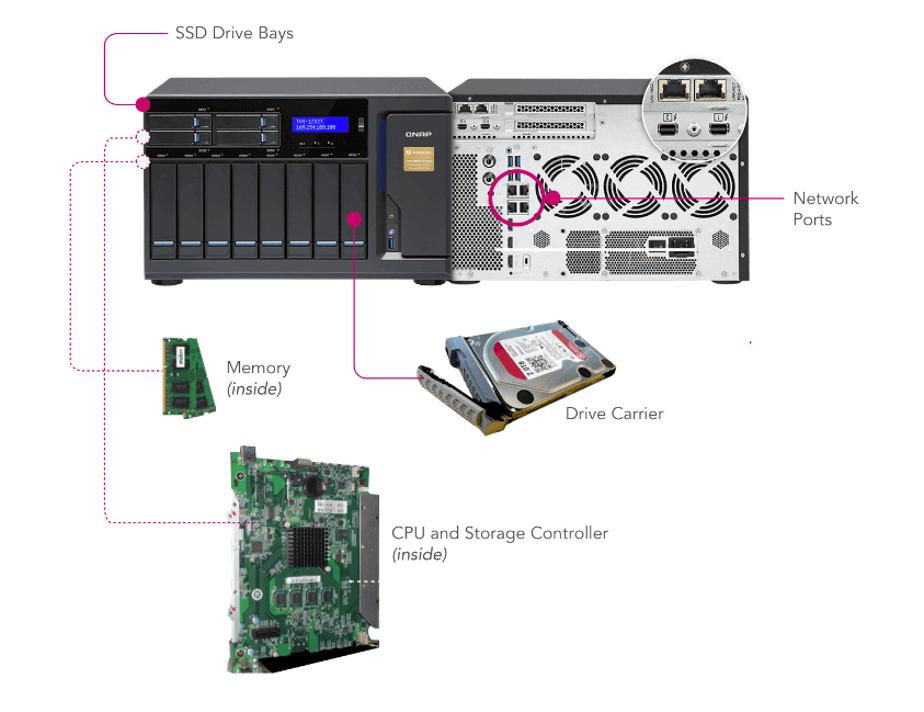
Compared with home-use NAS devices, enterprise NAS devices often come with superior hardware specifications, including powerful processors, large amounts of memory (RAM), and numerous drive bays to accommodate vast amounts of data.
How Do Enterprises Use NAS Devices?
Enterprises use NAS devices for a wide range of use cases and applications:
File storage and sharing: NAS devices provide a centralized platform for storing and sharing files across a network. This fosters collaboration, as employees can easily access shared files regardless of their physical location.
Data protection: With built-in redundancy features, NAS devices offer robust data protection. This ensures data remains safe and accessible even in the event of a disk failure.
Disaster recovery: Snapshot and replication features allow for quick restoration of data minimizing downtime and data loss from hardware failures, cyberattacks, or natural disasters. However, it’s important to note that NAS devices alone don’t provide this protection—they’re subject to the same vulnerabilities as all on-premises devices. Rather, this benefit comes from a NAS setup that tiers to the cloud.
Hosting business applications: Businesses can also use NAS devices to host business applications. Much the same as how you would use a server, since these devices can handle high volumes of data traffic and support multiple connections, they are well suited for running enterprise-level applications that require high availability and performance.
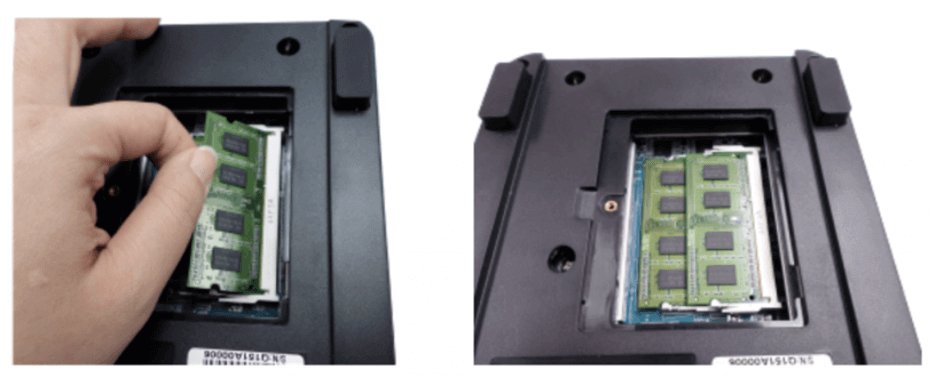
Running virtual machines (VMs): Virtualization software providers, like VMware, support running their products on NAS. With proper configuration, including potentially adding RAM to your device, you can easily spin up virtual machines using NAS.
Using NAS as a file server: NAS devices can function as dedicated file servers, offering high-performance, stable environments, which are useful for businesses with large user bases requiring concurrent access to shared files.
Archiving: Long-term storage and archiving is another key application of NAS devices in the enterprise. There are benefits to having archival data on-premises. It can reduce recovery times in case you need to restore from backups.
Enterprise NAS vs. Server Area Networks (SAN)
As you’re choosing how to create an enterprise-level storage system, it’s important to know the differences between NAS and SAN. The short answer: From the perspective of the user, there’s not much difference. From the perspective of the person managing the system, SAN setups are more complex and have more customization options, particularly in your network connections.
However, NAS companies have done an excellent job of adding functionality to NAS devices, making those features easily manageable. Since they’re less complex, they may be easier for your internal IT team to manage—and that can translate to OpEx savings and more time for your IT team to stay on top of challenges in an ever-changing tech landscape.
What Is the Difference Between Entry-Level, Mid-Market, and Enterprise NAS Devices?
NAS devices can be grouped into three major categories based on factors such as storage capacity, performance, and scalability. The following table provides a side-by-side comparison of the key features and differences between entry-level, mid-market, and enterprise NAS devices.
Feature
Entry-Level NAS
Mid-Market NAS
Enterprise NAS
Storage Capacity
Up to a few terabytes.
Can range from a few terabytes to tens of terabytes.
Usually hundreds of terabytes or more, scalable to meet enterprise needs.
Performance
Adequate for home use and basic file sharing.
Enhanced performance for small to medium businesses with higher data traffic.
High-performance systems designed to handle heavy workloads and concurrent access.
Reliability & Redundancy
Basic redundancy usually with RAID 1 or RAID 5 options.
More advanced redundancy options, including multiple RAID configurations.
Highly reliable with advanced redundancy features (RAID, replication, etc.).
Scalability
Limited scalability.
Moderate scalability, depending on model.
Highly scalable with clustering options.
Advanced Features
Basic features like media streaming, remote access, and basic data redundancy.
More advanced features like virtualization, data encryption, access control, and snapshot capability.
Enterprise-grade features like high-speed data transfers, advanced backup and disaster recovery options, deduplication, encryption, and virtualization support.
How Do I Choose an Enterprise NAS Device?
Now that you understand the difference between the different types of NAS devices and their respective features, it’s crucial to understand your specific business needs before choosing an enterprise NAS device. There are several aspects to consider, so let’s take them one by one.
1. Storage Capacity
One of the first things to consider is the amount of storage your enterprise requires. This isn’t just about your current needs, but also about the projected growth of your data over time. In a NAS system, storage is defined by the number of drives, the total amount of shared volume they create, and their striping scheme. A striping scheme defines where data is stored and what kinds of redundancies it has, and is also known as RAID levels that are usually defined like so: RAID 0, 1 5, 6, etc.
There are a few ways to add storage to a NAS device.
You can add drives to your NAS unit if you originally provisioned one with extra bays. This is most applicable to entry-level units.
You can purchase another NAS device and network it with your first device. On the enterprise level, you’ll likely have a more complex architecture of connected NAS devices acting as clusters or nodes on your network.
Finally, cloud-connected NAS devices mean that you can provision both primary and backup data to the cloud, so your setup is infinitely scalable. This means you can also nimbly add more storage on a short time frame—no need to wait for hardware upgrades (though you may still want to make upgrades in the longer term).
2. Data Access Speeds
The speed at which data can be accessed from your NAS device is another crucial factor. NAS devices are built to be directly connected to your local area network (LAN) and usually require a direct ethernet connection. An entry-level NAS system will have a gigabit ethernet connection (1GigE), and is suitable for entry-level or home NAS users.
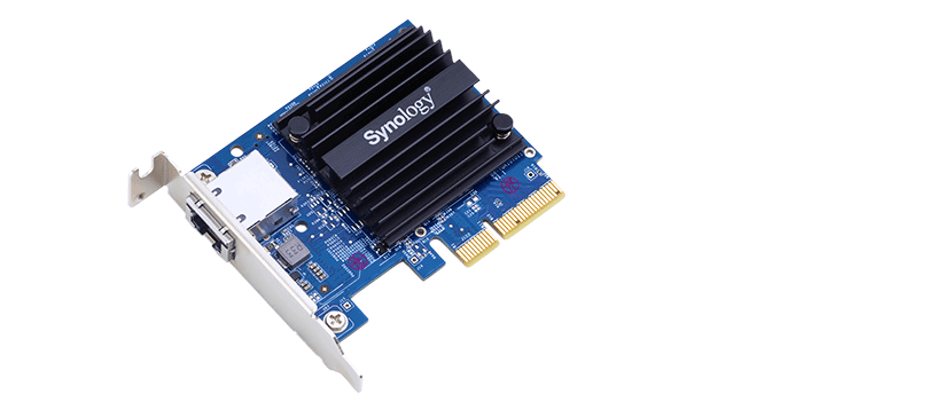
But for enterprises that want to provide frequent and intensive data access to a large number of users, NAS vendors offer higher capacity ethernet connections on their systems. Some vendors offer 2.5 Gb/s or 5 Gb/s connections on their systems, but they usually require that you get a compatible network switch, USB adapters, or expansion cards. Still other NAS systems provide the option of Thunderbolt connections in addition to ethernet connections to provide higher bandwidth—up to 40GigE—and are good for systems that need to edit large files directly on the NAS.
3. Scalability
As your business grows, your data needs will likely increase. Therefore, it’s essential that your NAS device has the ability to grow with your business. You may not know exactly how much data you’ll need in a year or five, but you can certainly make an estimate based on your product roadmap, current rate of growth, and so on. And, we put together this handy NAS Buyer’s Guide so you can compare that potential growth to existing NAS features.
With any good backup strategy, you’ll want to set up recurring and automatic backups of all your systems. Also, in complex environments like a business, backups are just as much about data management—that is, knowing where all your data is stored (the shared file system vs. employee workstations vs. the cloud) and how to back it up effectively.
Enterprise NAS devices provide advanced data protection and backup features to protect NAS data against data loss and enhance accessibility. These include advanced RAID configurations (i.e. on what server and how redundant your data storage is), automated backup features, cloud storage integrations, enterprise grade encryption features, advanced backup and disaster recovery options, data deduplication, encryption, and virtualization support, etc.
Other features to look for can include snapshot technology, which allows capturing the state of the system at different points in time, and replication features which enable copying of data from one NAS device to another for redundancy.
5. Evaluating Total Cost of Ownership
When evaluating an investment in an enterprise NAS device, it’s important to not limit your focus on the initial purchase price of the NAS device itself. Keep in mind that with a NAS device, you’ll need to purchase hard drives (HDDs) or solid-state drives (SSDs) (and possibly other devices) to complete your setup.
Depending on the kind of data durability you want to create, the storage hardware cost can add up if you’re aiming for high capacity storage with advanced RAID configurations. Also, make sure to take into account energy consumption, software licenses, labor and IT costs, and maintenance costs.
6. Vendor Support and Warranty
One of the often ignored and underestimated parts of selecting an enterprise NAS device is the support and warranty provided by the NAS vendors. Enterprise NAS devices are complex pieces of technology. NAS devices, in general, are designed to be user-friendly, but once you’re networking NAS devices on the enterprise level, things get more complex.
When you encounter an issue, addressing the challenges as quickly as possible can mean the difference between prolonged downtime and quick resolution. Of course, this means having in-house IT support, but it’s also absolutely critical to choose an enterprise NAS vendor that provides robust support and a good warranty to ensure the resilience and longevity of your enterprise NAS solution.
Level Up: Connect Your Enterprise NAS to the Cloud
Okay, so you’ve chosen your enterprise NAS and devised your on-site, connected NAS solution. In industry parlance, what you’ve essentially done is to create a private cloud: storage dedicated solely to your organization, but accessible from anywhere. But, if you only have on-site storage, your data is vulnerable to theft, natural disasters, fire, and so on; and, as we mentioned above, you always want to have multiple copies of your data with at least one copy stored off-site.
The easiest way to achieve this is to connect your NAS to a public cloud service provider (CSP) like Backblaze. Make sure that you take into account the location of the CSP’s data centers to ensure that you have adequate geographic separation between your data. And, once connected to a CSP, you can take advantage of services like cloud replication to create yet another redundant copy of your data automatically.
Beyond backups, data storage on your NAS vs. in the cloud can have performance (speed) differences. This has implications on both your internal workflows and your external workflows. Take the use case of a media and entertainment company: when you’re editing files, you’re typically working with large, raw files that take time to transmit. That means that on-site storage can be faster for your team. But, teams have become more remote, and you might be using freelancers.
The great news is that most NAS devices have data management and syncing features, as noted above. A NAS hybrid cloud setup lets your employees or freelancers access remotely. They can access data via cloud storage, and your NAS client takes care of making sure all versions are up-to-date.
Once you have your business’ hybrid cloud setup, then you’ve opened up several opportunities to enhance how you store, manage, and use your data.
Store your data closer to delivery endpoints for faster speeds. If you’re creating, editing, or delivering large files like you would in the media and entertainment industry, the physical location of your data makes a difference to how fast you can deliver it to the end user. Depending on where your endpoints are located and what region you choose, using cloud storage as an active archive allows you to store data closer to delivery endpoints for fast access.
Integrate your NAS device with software as a service (SaaS) tools. In our SaaS landscape, all of our programs are internet-connected, and all of them need to be connected to storage. Many of these tools have their own clouds (like Google Drive or Adobe Creative Cloud) that you can bypass by connecting your own cloud storage account. Your NAS client then has excellent sync tools to keep your files updated as necessary, and, since that file is on your network instead of the tool’s cloud, it will be protected by your backup rules.
Actively strengthen your backups. We’ve talked about the need for geographic separation, and storing in the cloud is the easiest way to do this. (People used to ship tape backups back in the distant past of the 1990s and early 2000s.) You can also set up different rules for your different files. Your primary storage obviously needs to be modifiable, but you can use tools like Object Lock to set immutable rules on your backups as well.
Scale your storage flexibly. One of the biggest challenges of on-site storage is that adding more storage means buying more drives—it’s not an instant solution—and you’re more vulnerable to fluctuations in the supply chain. (Remember the Thailand Drive Crisis?) While you want to plan for future storage needs, cloud storage lets you add more storage immediately should you have unexpected needs.
Sum Up and Get Started
As you can see, having a clear understanding of your business needs is crucial before you build your storage strategy. Choosing an enterprise NAS is not only about getting a device that works now, but one that will continue to serve your business efficiently as your organization grows and evolves. A well thought-out enterprise NAS selection can boost your data management, provide robust data protection, and support your business’s growth goals.
If you have any questions or thoughts, please feel free to share them in the comments.
In today’s fast-paced media landscape, efficient collaboration is essential for success. With teams managing large files between geographically dispersed team members on tight deadlines, the need for a robust, flexible storage solution has never been greater. Hybrid cloud storage addresses this need by combining the power of on-premises solutions, like network attached storage (NAS) devices, with cloud storage, creating an ideal setup for enhanced productivity and seamless collaboration.
In this post, I’ll walk you through some approaches for optimizing media workflows using hybrid cloud storage. You’ll learn how to unlock fast local storage, easy file sharing and collaboration, and enhanced data protection, which are all essential components for success in the media and entertainment industry.
Plus, we’ll share specific media workflows for different types of collaboration scenarios and practical steps you can take to get started with your hybrid cloud approach today using Synology NAS and Backblaze B2 Cloud Storage as an example.
Common Challenges for Media Teams
Before we explore a hybrid cloud approach that combines NAS devices with cloud storage, let’s first take a look at some of the common challenges media teams face, including:
Data storage and accessibility.
File sharing and collaboration.
Security and data protection.
Data Storage and Accessibility Challenges
It’s no secret that recent data growth has been exponential. This is no different for media files. Cameras are creating larger and higher-quality files. There are more projects to shoot and edit. And editors and team members require immediate access to those files due to the high demand for fresh content.
File Sharing and Collaboration Challenges
Back in 2020, everyone was forced to go remote and the workforce changed. Now you can hire freelancers and vendors from around the world. This means you have to share assets with external contributors, and, in the past, this used to exclusively mean shipping hard drives to said vendors (and sometimes, it can still be necessary). Different contractors, freelancers, and consultants may use different tools and different processes.
Security and Data Protection Challenges
Data security poses unique challenges for media teams due to the industry’s specific requirements including managing large files, storing data on physical devices, and working with remote teams and external stakeholders. The need to protect sensitive information and intellectual property from data breaches, accidental deletions, and device failures adds complexity to data protection initiatives.
How Does Hybrid Cloud Help Media Teams Solve These Challenges?
As a quick reminder, the hybrid cloud refers to a computing environment that combines the use of both private cloud and public cloud resources to achieve the benefits of each platform.
A private cloud is a dedicated and secure cloud infrastructure designed exclusively for a single tenant or organization. It offers a wide range of benefits to users. With NAS devices, organizations can enjoy centralized storage, ensuring all files are accessible in one location. Additionally, it offers fast local access to files that helps streamline workflows and productivity.
The public cloud, on the other hand, is a shared cloud infrastructure provided by cloud storage companies like Backblaze. With public cloud, organizations can scale their infrastructure up or down as needed without the up-front capital costs associated with traditional on-premises infrastructure.
By combining cloud storage with NAS, media teams can create a hybrid cloud solution that offers the best of both worlds. Private local storage on NAS offers fast access to large files while the public cloud securely stores those files in remote servers and keeps them accessible at a reasonable price.
How To Get Started With A Hybrid Cloud Approach
If you’d like to get started with a hybrid cloud approach, using NAS on-premises is an easy entry point. Here are a few tips to help you choose the right NAS device for your data storage and collaboration needs.
Storage Requirements: Begin by assessing your data volume and growth rate to determine how much storage capacity you’ll need. This will help you decide the number of drives required to support your data growth.
Compute Power: Evaluate the NAS device’s processor, controller, and memory to ensure it can handle the workloads and deliver the performance you need for running applications and accessing and sharing files.
Network Infrastructure: Consider the network bandwidth, speed, and port support offered by the NAS device. A device with faster network connectivity will improve data transfer rates, while multiple ports can facilitate the connection of additional devices.
Data Collaboration: Determine your requirements for remote access, sync direction, and security needs. Look for a NAS device that provides secure remote access options, and supports the desired sync direction (one-way or two-way) while offering data protection features such as encryption, user authentication, and access controls.
By carefully reviewing these factors, you can choose a NAS device that meets your storage, performance, network, and security needs. If you’d like additional help choosing the right NAS device, download our complete NAS Buyer’s Guide.
Real-World Examples: Using Synology NAS + Backblaze B2
Let’s explore a hybrid cloud use case. To discuss specific media workflows for different types of collaboration scenarios, we’re going to use Synology NAS as the private cloud and Backblaze B2 Cloud Storage as the public cloud as examples in the rest of this article.
Scenario 1: Working With Distributed Teams Across Locations
In the first scenario, let’s assume your organization has two different locations with your teams working from both locations. Your video editors work in one office, while a separate editorial team responsible for final reviews operates from the second location.
To facilitate seamless collaboration, you can install a Synology NAS device at both locations and connect them to Backblaze B2 using Cloud Sync.
Here’s a video guide that demonstrates how to synchronize Synology NAS to Backblaze B2 using cloud sync.
This hybrid cloud setup allows for fast local access, easy file sharing, and real-time synchronization between the two locations, ensuring that any changes made at one site are automatically updated in the cloud and mirrored at the other site.
Scenario 2: Working With Distributed Teams
In this second scenario, you have teams working on your projects from different regions, let’s say the U.S. and Europe. Downloading files from different parts of the world can be time-consuming, causing delays and impacting productivity. To solve this, you can use Backblaze B2 Cloud Replication. This allows you to replicate your data automatically from your source bucket (U.S. West) to a destination bucket (EU Central).
Source files can be uploaded into B2 Bucket on the U.S. West region. These files are then replicated to the EU Central region so you can move data closer to your team in Europe for faster access. Vendors and teams in Europe can configure their Synology NAS devices with Cloud Sync to automatically sync with the replicated files in the EU Central data center.
Scenario 3: Working With Freelancers
In both scenarios discussed so far, file exchanges can occur between different companies or within the same company across various regions of the world. However, not everyone has access to these resources. Freelancers make up a huge part of the media and entertainment workforce, and not every one of them has a Synology NAS device.
But that’s not a problem!
In this case, you can still use a Synology NAS to upload your project files and sync them with your Backblaze B2 Bucket. Instead of syncing to another NAS or replicating to a different region, freelancers can access the files in your Backblaze B2 Bucket using third-party tools like Cyberduck.
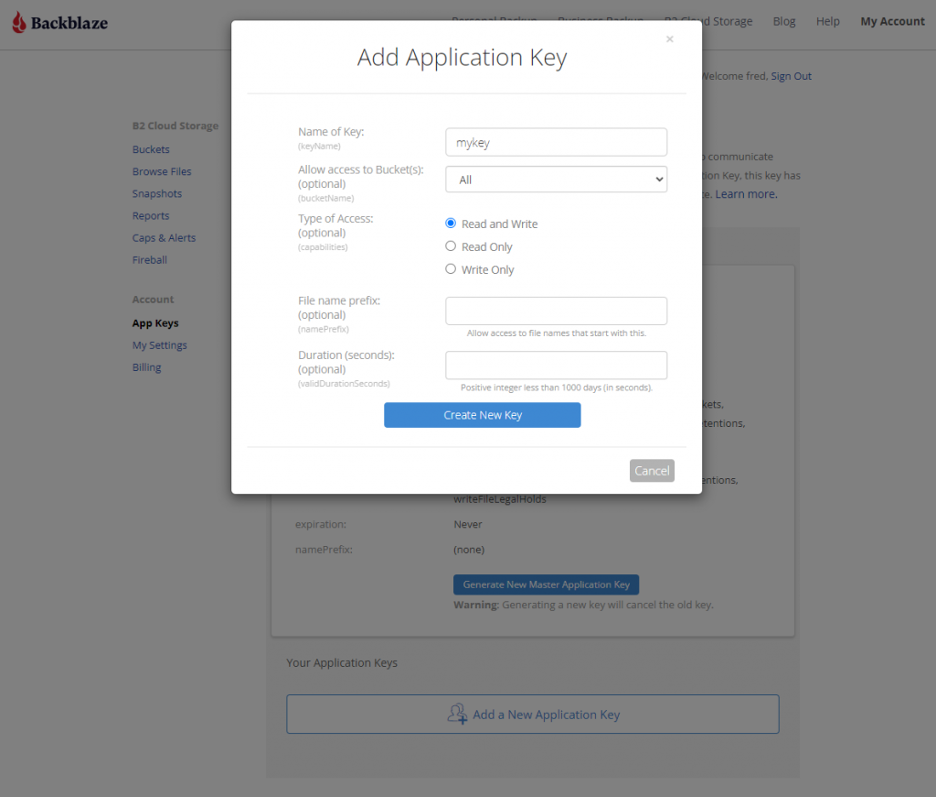
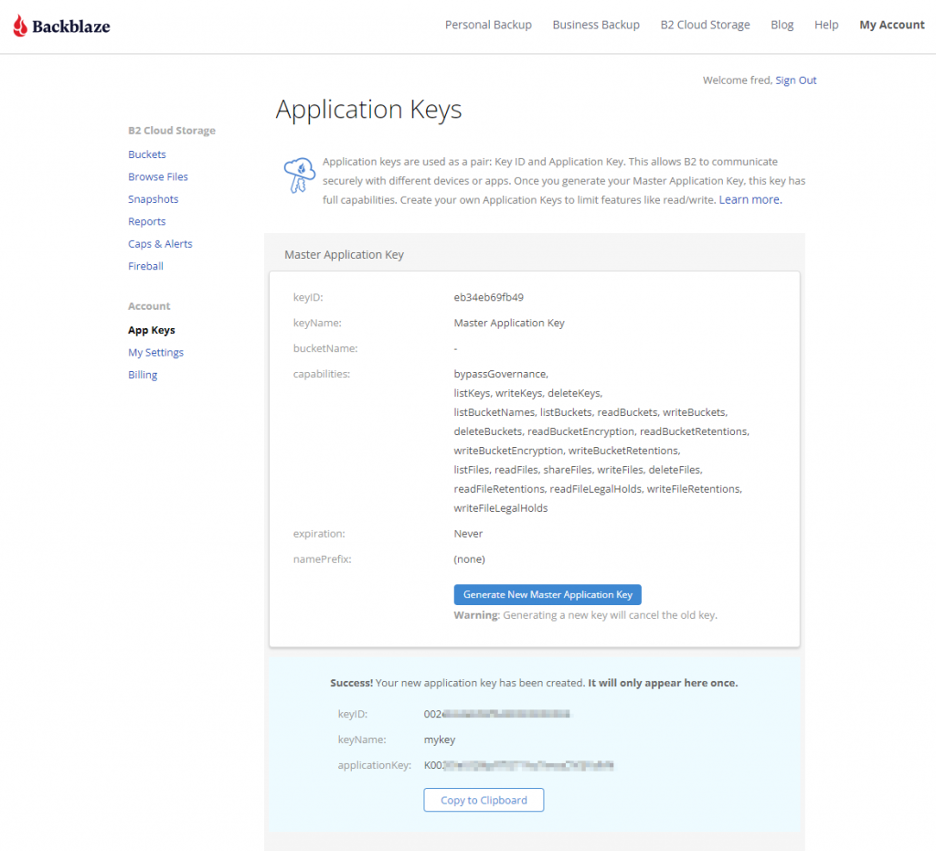
This approach allows anyone with an internet connection and the appropriate access keys to access the required files instantly without needing to have a NAS device.
Scenario 4: Working With Vendors
In this final scenario, which is similar to the first one, you collaborate with another company or vendor located elsewhere instead of working with your internal team. Both parties can install their own Synology NAS device at their respective locations, ensuring centralized access, fast local access, and easy file sharing and collaboration.
The two NAS devices are then connected to a Backblaze B2 Bucket using Cloud Sync, allowing for seamless synchronization of files and data between the two companies.
Whenever changes are made to files by one company, the updated files are automatically synced to Backblaze B2 and subsequently to the other company’s Synology NAS device. This real-time synchronization ensures that both companies have access to the latest versions of the files, allowing for increased efficiency and collaboration.
Making Hybrid Cloud Work for Your Production Team
As you can see, there are several different ways you can move your media files around and get them in the hands of the right people—be it another one of your offices, vendors, or freelancers. The four scenarios discussed here are just a few common media workflows. You may or may not have the same scenario. Regardless, a hybrid cloud approach provides you with all the tools you need to customize your workflow to best suit your media collaboration needs.
In addition to Synology NAS, Backblaze B2 Cloud Storage integrates seamlessly with other NAS devices such as Asustor, Ctera, Dell Isilon, iOsafe, Morro Data, OWC JellyFish, Panzura, QNAP, TrueNAS, and more. Regardless of which NAS device you use, getting started with a hybrid cloud approach is simple and straightforward with Backblaze B2.
Hybrid Cloud Unlocks Collaboration and Productivity for Media Teams
Easing collaboration and boosting productivity in today’s fast-paced digital landscape is vital for media teams. By leveraging a hybrid cloud storage solution that combines the power of NAS devices with the flexibility of cloud storage, organizations can create an efficient, scalable, and secure solution for managing their media assets.
This approach not only addresses storage capacity and accessibility challenges, but also simplifies file sharing and collaboration, while ensuring data protection and security. Whether you’re working within your team from different locations, collaborating with external partners, or freelancers, a hybrid cloud solution offers a seamless, cost-effective, and high-performance solution to optimize your media workflows and enhance productivity in the ever-evolving world of media and entertainment.
We’d love to hear about other different media workflow scenarios. Share with us how you collaborate with your media teams and vendors in the comments below.
This post is the second in a two-part series about sharing practical NAS tips and tricks to help readers with their own home or office NAS setups. Check out Part One where Backblazer Vinodh Subramanian walks through how he set up a NAS system at home to manage files and back up devices. And read on to learn how Backblazer James Flores uses a NAS to manage media files as a professional filmmaker.
The modern computer has been in existence for decades. As hardware and software have advanced, 5MB of data has gone from taking up a room and weighing a literal ton to being orders of magnitude more compact than what you would find on a typical smartphone. No matter how much storage there is, though, we—I know I am not alone—have been generating content to fill the space. Industry experts say that we reached 64.2 zettabytes of data created, captured, copied, and consumed globally in 2020, and we’re set to reach more than 180 zettabytes in 2025. And a lot of that is media—from .mp3s and .jpgs to .movs, we all have a stock pile of files sitting somewhere.
If you’re creating content you probably have this problem to the 10th power. I started out creating content by editing videos in high school, and my content collection has only grown from there. After a while, the mix of physical media formats had amassed into a giant box stuffed with VHS tapes, DVCPRO tapes, Mini DVs, DVDs, CD-ROMs, flash drives, external hard disk drives (HDDs), internal laptop HDDs, an Apple TimeCapsule, SD cards, and, more recently, USB 3.0 hard drives. Needless to say, it’s unruly at best, and a huge data loss event waiting to happen at worst.
Today, I’m walking through how I solved a problem most of us face: running into the limits of storage.
The Origin Story
My collection of media started because of video editing. Then, when I embarked on an IT career, the amount of data I was responsible for only grew, and my new position came with the (justifiable) paranoia of data loss. In the corporate setting, a network attached storage device (NAS) quickly became the norm—a huge central repository of data accessible to any one on the network and part of the domain.
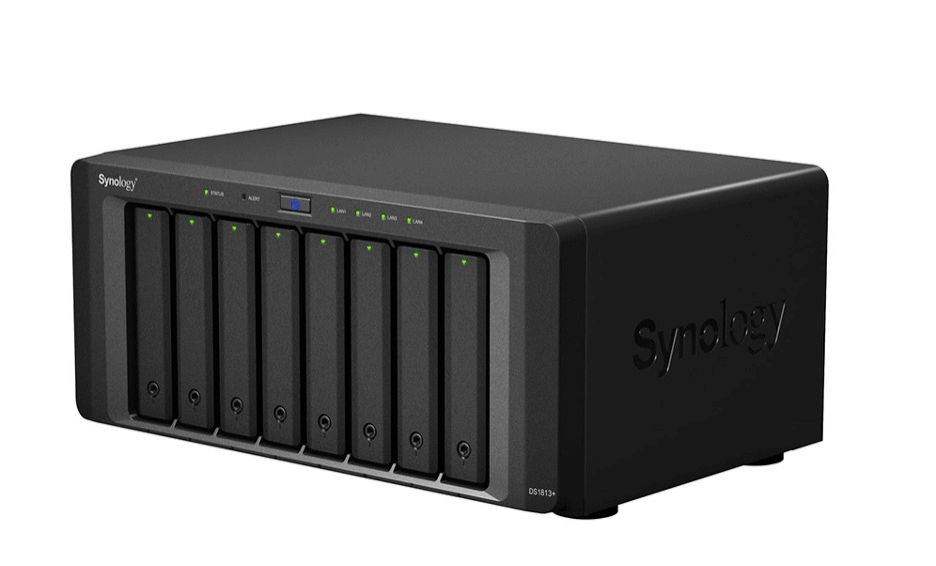
A Synology NAS.
Meanwhile in 2018, I returned to creating content again in full swing. What started with small webinar edits on a Macbook Air quickly turned into scripted productions complete with custom graphics and 4K raw footage. And thus the data bloat continued.
But this time (informed by my IT background), the solution was easy. Instead of burning data to several DVDs and keeping them in a shoebox, I used larger volume storage like hard drives (HDDs) and NAS devices. After all, HDDs are cheap and relatively reliable.
And, I had long since learned that a good backup strategy is key. Thus, I embarked on making my backup plan an extension of my data management plan.
The Plan
The plan was simple. I wanted to have a 4TB NAS to use as a backup location and to extend my internal storage in case I needed to. After all, my internal drive was 7TB—who’s going to use more than that? (I thought at the time, unable to see my own future.) Setting up NAS is relatively simple: it replicated a standard IT setup, with a switch, a static IP address, and some cables.
But first, I needed hardwired network access in my office which is far away from my router. As anyone who works with media knows, accessing a lot of large files over wifi just isn’t fun. Luckily my house was pre-wired with CAT5—CAT5 cables that were terminated as phone lines. (Who uses a landline these days?) After terminating the cables with CAT5E adapters, installing a small 10-port patch panel and a new switch, I had a small network where my entire office was hardwired to my router/modem.
As far as the NAS goes, I chose a Synology DS214+, a simple two-bay NAS. After all, I didn’t expect to really use it all. I worked primarily off of my internal storage, then files were archived to this Synology device. I could easily move them back and forth between my primary and secondary storage because I’d created my internal network, and life was good.
Data Bloat Strikes Again
Fast forward to 2023. Now, I’m creating content routinely for two different companies, going to film school, and flexing my freelance editing skills on indie films. Even with the extra storage I’d built in for myself, I am at capacity yet again. Not only have I filled up Plan A on my internal drive, but now my Plan B NAS is nearing capacity. And, where are those backups being stored? My on-prem-only solution wasn’t cutting it.
This wasn’t me—but I get it.
Okay, New Plan
So what’s next?
Since I’m already set up for it, there’s a good argument to expand the NAS. But is that really scalable? In an office full of film equipment, a desk, a lightboard, and who knows what else in the future, do I really need another piece of equipment that will run all day?
Like all things tech, the answer is in the cloud. Synology’s NAS was already set up for cloud-based workflows, which meant that I got the best of both worlds: the speed of on-prem and the flexibility of the cloud.
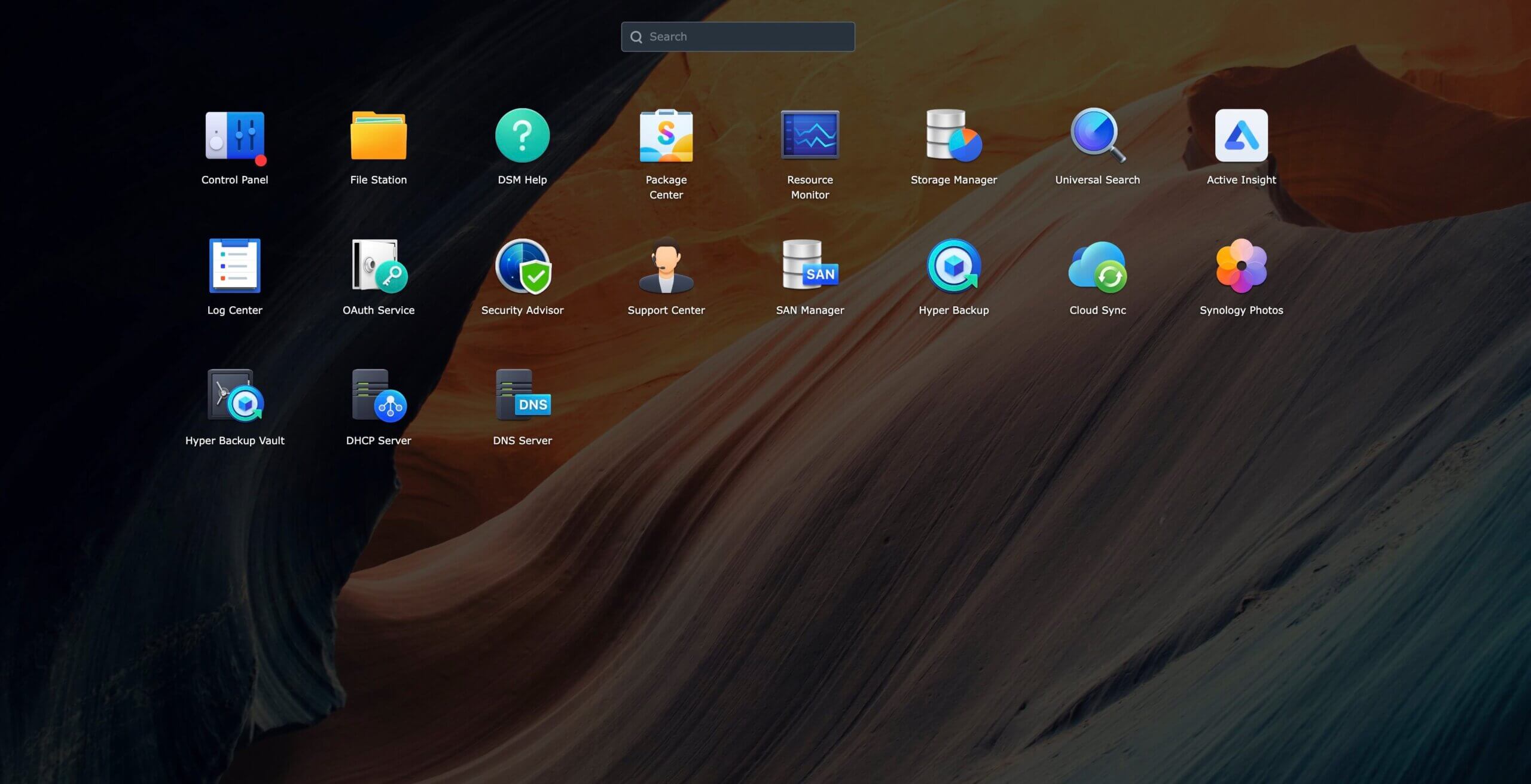
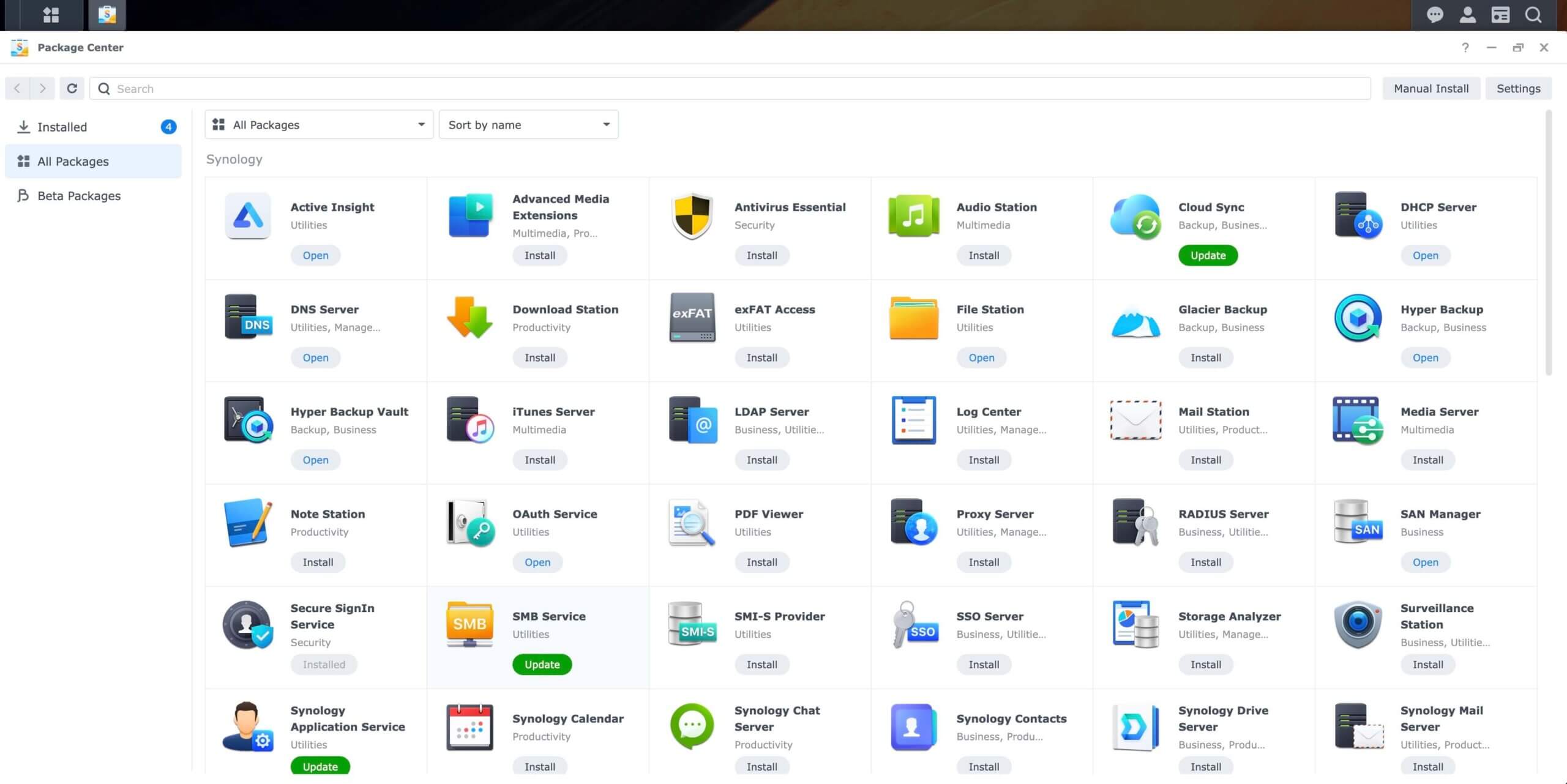
Synology has its own marketplace with add-on packages which are essentially apps that let you add functionality to your device. Using their Cloud Sync app, you can sync an entire folder on your NAS to a cloud object storage provider. For me that means: Instead of buying another NAS device (hardware I have to maintain) or some other type of external storage (USB drives, LTO tapes), I purchase cloud storage, set up Cloud Sync to automatically sync data to Backblaze B2 Cloud Storage, and my data is set. It’s accessible from anywhere, I can easily create off-site backups, and I am not adding hardware to my jam-packed office.
I Need a Hero
This is great for my home office and the small projects I do in my spare time but how is this simple setup being used to modernize media workflows?
A big sticking point for media folks is what we talked about before—that large files can take up too much bandwidth to work well on wifi. However, as the cloud has become more accessible to all, there are many products today on the market designed to solve that problem for media teams specifically.
Up Amongst the Clouds
One problem though: Many of these tools push their own cloud storage. You could opt to play cloud storage hopscotch: sign up for the free tier of Google Drive, drag and drop files (and hope the browser keeps the connection going), hit capacity, then jump to the next cloud storage provider’s free tier and fill that up. With free accounts across the internet, all of the sudden you have your files stored all over the place, and you may not even remember where they all are. So, instead of my cardboard box full of various types of media, we end up with media in silos across different cloud providers.
And you can’t forget the cost. Cloud storage used to be all about the big guys. Beyond the free tiers, pricing was designed for big business, and many cloud storage providers have tiered pricing based on your usage, charges for downloads, throttled speeds, and so on. But, the cost of storage per GB has only decreased over the years, so (in theory), the cost of cloud storage should have gone down. (And I can’t resist a shameless plug here: At Backblaze, storage is ⅕ the cost of other cloud providers.)
It should be news to no one that COVID changed a lot in the media and entertainment industry, bringing remote work to our front door, and readily-available cloud products are powering those remote workflows. However, when you’re storing in each individual tool, it’s like when you have a USB drive over here, and an external hard drive over there.
As the media tech stack has evolved, a few things have changed. You have more options when it comes to choosing your cloud storage provider. And, cloud storage providers have made it a priority for tools to talk to each other through APIs. Here’s a good example: now that my media files are synced to and backed up with Synology and Backblaze, they are also readily accessible for other applications to use. This could be direct access to my Backblaze storage with a nonlinear editing system (NLE) or any modern workflow automation tool. Storing files in the cloud is only an entry point for a whole host of other cloud workflow hacks that can make your life immensely easier.
These days, you can essentially “bring your own storage” (BYOS, let’s make it a thing). Now, the storage is the foundation of how I can work with other tools, and it all happens invisibly and easily. I go about my normal tasks, and my files follow me.
With many tools, it’s as simple as pointing your storage to Backblaze. When that’s not an option, that’s when you get into why APIs matter, a story for another day (or another blog post). Basically, with the right storage, you can write your own rules that your tools + storage execute, which means that things like this LucidLink, iconik, and Backblaze workflow are incredibly easy.
Headline: Cloud Saves the (Media) World
So that’s the tale of how and why I set up my home NAS, and how that’s naturally led me to cloud storage. The “how” has gotten easier over the years. It’s still important to have a hard-wired internet connection for my NAS device, but now that you can sync to the cloud and point your other tools to use those synced files, you have the best of both worlds: a hybrid cloud workflow that gives you maximum speed with the ability to grow your storage as you need to.
Are you using NAS to manage your media at home or for a creative team? We’d love to hear more about your setup and how it’s working for you.
Network attached storage (NAS) devices offer centralized data storage solutions, enabling users to easily protect and access their data locally. You can think of a NAS device as a powerful computer that doesn’t have a display or keyboard. NAS can function as extended hard disks, virtual file cabinets, or centralized storage systems depending on individual needs. While NAS devices provide local data protection, a hybrid setup with cloud storage offers off-site protection by storing files on geographically remote servers.
This blog is the first in a two part series that will focus on home NAS setups, exploring how two Backblazers set up their NAS devices and connected them to the cloud. We’ll aim to present actionable setup tips and explain what each of our data storage needs are so that you can create your own NAS setup strategy.
I’m Vinodh, your first user. In this post, I will walk you through how I use a Synology Single-Bay NAS device and Backblaze B2 Cloud Storage.
Why Did I Need a NAS Device At My Home?
Before I share my NAS setup, let’s take a look at some of the reasons why I needed a NAS device to begin with. Knowing that will give you a better understanding of what I’m trying to accomplish with NAS.
My work at Backblaze involves guiding customers through all things NAS and cloud storage. I use a single-bay NAS device to understand its features and performance. I also create demos, test use cases, and develop marketing materials and back them up on my NAS and in the cloud to achieve the requirements of a 3-2-1 backup strategy. That strategy recommends that you have three copies of data stored in two different locations with one copy off-site.
Additionally, I use my NAS setup to off-load the (stunning!) photos and videos from my wife’s and my iPhones to free up space and protect them safely in the cloud. Lastly, I’d also like to mention that I work remotely and collaborate with people as part of my regular work, but today we’re going to talk about how I back up my files using a hybrid cloud storage setup that combines Synology NAS and Backblaze B2. Combining NAS and cloud storage is a great backup and storage solution for both business and personal use, providing a layer of protection in the event of hardware failures, accidental deletions, natural disasters, or ransomware attacks.
Now that you understand a little bit about me and what I’m trying to accomplish with my NAS device, let’s jump into my setup.
What Do I Need From My NAS Device?
Needless to say, there are multiple ways to set up a NAS device. But, the most common setup is for backing up your local devices (computer, phones, etc.) to your NAS device. A basic setup like this, with a few computers and devices backing up to the same NAS device, protects data in that you have a second copy of your data stored locally. However, the data can still be lost if there is hardware failure, theft, fire, or any other unexpected event that poses a threat to your home. This means that your backup strategy needs something more in order to truly protect your data.
Off-site protection with cloud storage solves this problem. So, when I planned my NAS setup, I wanted to make sure I had a NAS device that integrates well with a cloud storage provider to achieve a 3-2-1 backup strategy.
Now that we’ve talked about my underlying data protection strategy, here are the devices and tools I used to create a complete 3-2-1 NAS backup setup at my home:
Devices with data:
MacBook Pro–1
iPhone–2
Storage products:
Synology Device–1
Seagate 4TB internal hard disk drive–1
Backblaze B2 Cloud Storage
Applications:
Synology Hyper Backup
Synology Photos
What Did I Want to Back Up on My NAS Device?
My MacBook Pro is where I create test use cases, demos, and all the files I need to do my job, such as blog posts, briefs, presentation decks, ebooks, battle cards, and so on. In addition to creating files, I also download webinars, infographics, industry reports, video guides, and any other information that I find useful to support our sales and marketing efforts. As I mentioned previously, I want to protect this business data both locally (for quick access) and in the cloud (for off-site protection). This way, I can not only secure the files, but also remotely collaborate with people from different locations so everyone can access, review, and edit the files simultaneously to ensure timely and consistent messaging.
Meanwhile, my wife and I each have an iPhone 12 with 128GB storage space. Clearly, a total of 256GB is not enough for us—it only takes six to nine months for us to run out of storage on our devices. Once in a while, I clean up the storage space to make sure my phone runs at optimal speed by removing any duplicate or unwanted photos or movies. However, my wife doesn’t like to delete anything as she often wants to look back and remember that one time we went to that one place with those friends. But, she has hundreds of pictures of that one place with those friends. As a result, our iPhone family usage is almost always at capacity.
Our shared storage.
As you can see, being able to off-load pictures and movies from our phones to a local device would give us quick access, protect our memories in the cloud, and free up our iPhone storage.
How I Set Up My NAS Device
To accomplish all that, I set up a Synology Single-Bay NAS Diskstation (Model: DS118) which is powered by a 64-bit quad-core processor and 1GB DDR4 memory. As we discussed above, a NAS device is basically a computer without a display and keyboard.
Unboxing my Synology NAS.
Most NAS devices are diskless, meaning we’d need to buy hard disk drives (HDD) and install them on the NAS device. Also, it is important to note that NAS devices work differently than a typical computer. A NAS device is always running even if you turn off your computer or laptop. A regular hard disk drive may not support this operating pressure. Therefore, it’s essential that we get NAS drives that are suitable for NAS devices. For my NAS device, I got a 4TB HDD from Seagate. You can look up compatible drives on Synology’s compatibility list. When you buy your NAS, the manufacturer should give you a list of which hard drives are compatible, and you can always check out Drive Stats if you want to read up on how long drives last.
A 4TB Seagate HDD.
After getting the NAS device and HDD, the next item I wanted to figure out is where to keep it. NAS devices typically plug into routers rather than desktops or laptops. With help from my internet service provider, I was able to connect all rooms in our house with an ethernet connection that’s attached to the router. For now, I set up the NAS device in my home office on a spare desk connected to the router via an RJ45 cable.
My Synology NAS in its new home with an Ethernet connection.
In addition to protecting data locally on the NAS device, I also use B2 Cloud Storage for off-site protection. Every NAS has its own software that helps you set up how your backups occur from your personal devices to your NAS, and that software will also have a way to back up to the cloud. On a Synology NAS, that software is called Hyper Backup, and we’ll talk a little bit more about it below.
How I Back Up My Computer to My NAS Device
The above diagram shows how I use a hybrid setup using Synology NAS and B2 Cloud Storage to protect data locally and off-site.
First, I use Synology File Station to upload critical business data to the NAS device. After I configure B2 Cloud Storage with Hyper Backup, all files uploaded to the NAS device automatically get uploaded and stored in B2 Cloud Storage.
Getting set up with B2 Cloud Storage is a simple process. Check out this video demonstration that shows how to get your NAS data to B2 Cloud Storage in 10 minutes or less.
How I Back Up iPhone Photos and Videos to My NAS Device
That takes care of our computer backups. Now on to photo storage. To off-load photos and movies and create more storage space on my phone, I installed the application “Synology Photos” on my and my wife’s iPhones. Now, whenever we take a picture or shoot a movie on our phones, the Synology Photos application automatically stores a copy of the files to the NAS device. And, the Hyper Backup application then copies those photos and movies to B2 Cloud Storage automatically.
This setup has enabled us to not worry about storage space on our phones. Even if we delete those pictures and movies, we can still access them quickly via the NAS device over our local area network (LAN). But most importantly, a copy of those memories is protected off-site in the cloud, and I can access that cloud storage copy easily from anywhere in the world.
Lessons Learned: What I’d Do Differently The Next Time
So, what can you take from my experience setting up a NAS device at home? I learned a few things along the way that you might find useful. Here is my advice if I were to do things differently the second time around:
Number of bays: I opted for a single bay NAS device for my home setup. After using the device for about three months now, I realize how much space it saved on my MacBook and iPhones. If I were to do it again, I’d choose a NAS device with four or more bays for increased storage options.
Check for Ethernet connectivity: Not all rooms in my house were wired for Ethernet connectivity, and I did not realize that until I started setting up the NAS device. I needed to get in touch with my internet service provider to provide Ethernet connectivity in all rooms—which delayed the setup by two weeks. If you’re looking to set up a NAS device at home, ensure the desired location in your home has an Ethernet connection.
Location: I initially wanted to set up my NAS device in the laundry room. However, I realized NAS devices require a space that is well ventilated with minimum exposure to heat, dust, or moisture. Therefore, I’d chosen to set up the NAS device at my office room instead. Consider factors like ventilation, accessibility, and dust exposure of the location for the longevity and performance of your NAS device.
So, whether you are a home user who wants additional storage, a small business owner who wants to create a centralized file storage system, or an IT admin for a mid-size or enterprise organization who wants to securely protect your critical business data both on-premises and off-site storage, the use of a NAS device along with cloud storage provides the protection you need to secure your data.
What’s Next: Looking Forward to Part Two
In part one of this series, we’ve learned how setting up a NAS device at home and connecting it to the cloud can effectively back up and protect critical business data and personal files while accomplishing a 3-2-1 backup strategy. Stay tuned for part two, where James Flores will share with us how he utilizes a hybrid NAS and cloud storage solution to back up, work on, and share media files with users from different locations. In the meantime, we’d love to hear about your experience setting up and using NAS devices with cloud storage. Please share your comments and thoughts below.
Network attached storage (NAS) devices are a popular solution for data storage, sharing files for remote collaboration purposes, syncing files that are part of a workflow, and more. QNAP, one of the leading NAS manufacturers, makes it incredibly easy to backup and/or sync your business or personal data for these purposes with the inclusion of its application, Hybrid Backup Sync (HBS). HBS consolidates backup, restoration, and synchronization functions into a single application.
Protecting your data with a NAS is a great first step, but you shouldn’t stop there. NAS devices are still vulnerable to any kind of on-premises disaster like fires, floods, and tornados. They’re also not safe from ransomware attacks that might hit your network. To truly protect your data, it’s important to back up or sync to an off-site cloud storage destination like Backblaze B2 Cloud Storage. Backblaze B2 offers a geographically distanced location for your data for $5/TB per month, and you can also embed it into your NAS-based workflows to streamline access across multiple locations.
Read on for more information on whether you should use backup or sync for your purposes and how to connect your QNAP NAS to Backblaze B2 step-by-step. We’ve even provided videos that show you just how easy it is—it typically takes less than 15 minutes!
Should I Back Up or Sync?
It’s easy to confuse backup and sync. They’re essentially both making a copy of your data, but they have different use cases. It’s important to understand the difference so you’re getting the right protection and accessibility for your data.
Check out the table below. You’ll see that backup is best for being able to recover from a data disaster, including the ability to access previous versions of data. However, if you’re just looking for a mirror copy of your data, sync functionality is all you need. Sync is also useful as part of remote workflows: you can sync your data between your QNAP and Backblaze B2, and then remote workers can pull down the most up-to-date files from the B2 cloud.
Because Hybrid Backup Sync provides both functions in one application, you should first identify which feature you truly need. The setup process is similar, but you will need to take different steps to configure backup vs. sync in HBS.
How to Set Up Your Backblaze B2 Account
Now that you’ve determined whether you want to back up or sync your data, it’s time to create your Backblaze B2 Cloud Storage account to securely protect your on-premises data.
If you already have a B2 Cloud Storage account, feel free to skip ahead. Otherwise, you can sign up for an account and get started with 10GB of free storage to test it out.
Ready to get started? You can follow along with the directions in this blog or take a look at our video guides. Greg Hamer, Senior Technical Evangelist, demonstrates how to get your data into B2 Cloud Storage in under 15 minutes using HBS for either backup or sync.
Video: Back Up QNAP to Backblaze B2 Cloud Storage with QNAP Hybrid Backup Sync
Video: Sync QNAP to Backblaze B2 Cloud Storage with QNAP Hybrid Backup Sync
How to Set Up a Bucket, Application Key ID, and Application Key
Once you’ve signed up for a Backblaze B2 Account, you’ll need to create a bucket, Application Key ID, and Application Key. This may sound like a lot, but all you need are a few clicks, a couple names, and less than a minute!
On the Buckets page of your account, click the Create a Bucket button.
Give your bucket a name and enable encryption for added security.
Click the Create a Bucket button and you should see your new bucket on the Buckets page.
Navigate to the App Keys page of your account and click Add a New Application Key.
Name your Application Key and click the Create New Key button. Make sure that your key has both read and write permissions (the default option).
Your Application Key ID and Application Key will appear on your App Keys page. Important: Make sure to copy these somewhere secure as the Application Key will not appear again!
How to Set Up QNAP’s Hybrid Backup Sync to Work With B2 Cloud Storage
To set up your QNAP with Backblaze B2 sync support, you’ll need access to your B2 Cloud Storage account. You’ll also need your B2 Cloud Storage account ID, Application Key, and bucket name—all of which are available after you log in to your Backblaze account. Finally, you’ll need the Hybrid Backup Sync application installed in QTS. You’ll need QTS 4.3.3 or later and Hybrid Backup Sync v2.1.170615 or later.
To configure a backup or sync job, simply follow the rest of the steps in this integration guide or reference the videos posted above. Once you follow the rest of the configuration steps, you’ll have a set-it-and-forget-it solution in place.
What Can You Do With Backblaze B2 and QNAP Hybrid Backup Sync?
With QNAP’s Hybrid Backup Sync software, you can easily back up and sync data to the cloud. Here’s some more information on what you can do to make the most of your setup.
Hybrid Backup Sync 3.0
QNAP and Backblaze B2 users can take advantage of Hybrid Backup Sync, as explained above. Hybrid Backup Sync is a powerful tool that provides true backup capability with features like version control, client-side encryption, and block-level deduplication. QNAP’s operating system, QTS, continues to deliver innovation and add thrilling new features. The ability to preview backed up files using the QuDedup Extract Tool, a feature first released in QTS 4.4.1, allowed QNAP users to save on bandwidth costs.
You can download the latest QTS update here and Hybrid Backup Sync is available in the App Center on your QNAP device.
Hybrid Mount and VJBOD Cloud
The Hybrid Mount and VJBOD Cloud apps allow QNAP users to designate a drive in their system to function as a cache while accessing B2 Cloud Storage. This allows users to interact with Backblaze B2 just like you would a folder on your QNAP device while using Backblaze B2 as an active storage location.
Hybrid Mount and VJBOD Cloud are both included in the QTS 4.4.1 versions and higher, and function as a storage gateway on a file-based or block-based level, respectively. Hybrid Mount enables Backblaze B2 to be used as a file server and is ideal for online collaboration and file-level data analysis. VJBOD Cloud is ideal for a large number of small files or singular massively large files (think databases!) since it’s able to update and change files on a block-level basis. Both apps offer the ability to connect to B2 Cloud Storage via popular protocols to fit any environment, including server message block (SMB), Apple Filing Protocol (AFP), network file sharing (NFS), file transfer protocol (FTP), and WebDAV.
QuDedup
QuDedup introduces client-side deduplication to the QNAP ecosystem. This helps users at all levels save on space on their NAS by avoiding redundant copies in storage. Backblaze B2 users have something to look forward to as well since these savings carry over to cloud storage via the HBS 3.0 update.
Why Backblaze B2?
QNAP continues to innovate and unlock the potential of B2 Cloud Storage in the NAS ecosystem. If you haven’t given B2 Cloud Storage a try yet, now is the time. You can get started with Backblaze B2 and your QNAP NAS right now, and make sure your NAS is synced securely and automatically to the cloud.
You’ve added a Synology Network Attached Storage (NAS) Device to your tech stack, but you may be wondering how to protect your files from ransomware, natural disasters, or accidental deletion. Saving your data to cloud storage can help protect you from the painful consequences of data loss. But now you may be wondering whether to backup or sync your data to the cloud. The answer to that question will largely depend on your own individual needs. If you are looking to keep an additional copy of your regularly changing data at an off-premise location to maintain the 3-2-1 backup strategy, then backing up your data to the cloud is the way to go.
If, however, you need your files in a place where everyone in the organization can access them at any moment, where edits to any files can be shown across all devices in real time or you need up-to-the-minute versions of your files off-site, then syncing your files to the cloud will be sufficient.
Your Synology NAS has applications for either backup—Hyper Backup—or sync—Cloud Sync—which we will explain in greater detail below. Understanding the distinction between the two functions is an important part of setting your tech stack up for success. And setting your tech stack up to connect to Backblaze B2 Cloud Storage, gives you greater security, accessibility and off-site peace of mind at a fifth of the cost of other cloud providers.
Read on to learn the differences between backup and sync, how they work with your Synology NAS, and how to connect your NAS to Backblaze B2.
Backup vs. Sync
As mentioned before, understanding the difference between backup and sync is a crucial step in determining how you will pair your NAS with an offsite cloud storage solution like Backblaze B2. As such, it may help you to have a full understanding of the difference between the two.
A backup lets you create copies of files and other digital assets, which are then sent from a NAS to another device or an off-site storage location such as a public cloud. Allowing for either incremental or full backups of the contents of your NAS on a customized schedule, this method allows you to retain a copy of the most recent version of a file, while also being able to retain previous versions. This can also be an effective strategy to combat malware or ransomware, as you can simply delete infected files and restore from a clean backup. In addition, maintaining storage off-site protects your data from any natural disasters that might befall your immediate vicinity.
By contrast, a sync strategy consists of one or more devices working in unison, updating files in the same way across each device and/or a cloud storage location. The benefits of syncing files come from the ability to instantly see updates on files and provide easy access to changes in files to people across your organization. If you connect your NAS to Backblaze B2, you can easily access and download files anywhere you are through native applications or another Backblaze partner integration like Veeam, Iconik, and Cyberduck. The drawback of syncing is that it does not offer effective protections against accidental deletions, unauthorized access or malware.
There are essentially two different ways to sync your files: one-way or two-way. In a one-way sync, when a file from Location A changes, the same file at Location B is updated; however, if something on the file changes in Location B, the file in Location A will not be updated. On the other hand, in a two-way sync, regardless of where the file changes, the other location will automatically update to mirror the other. And in most cases, this means the entire file will be re-uploaded.
It is not uncommon for an organization to use both backup and sync strategies simultaneously, relying on one over the other as needs change. Thankfully, Synology has two relevant proprietary applications that serve the various needs of backing up and syncing data which can be seen in the table below. Whether you plan to utilize the backup and sync features Synology offers via Hyper Backup and Cloud Sync, securing your files to the cloud will help you create an effective 3-2-1 Backup Strategy, protecting your digital assets. Now we’ll take a closer look at how you can connect your Synology NAS to Backblaze B2 Cloud Storage.
Setting Up Your B2 Cloud Storage Account
Regardless of whether you use Hyper Backup or Cloud Sync, you can get set up in minutes with B2 Cloud Storage. You can follow along with the directions in this blog or take a look at our video guides. Pat Patterson, Chief Technical Evangelist, demonstrates how to get your data into B2 Cloud Storage in under 10 minutes using either Hyper Backup or Cloud Sync.
Here’s a video tutorial for Hyper Backup:
And here’s one for Cloud Sync:
The first step is to create a Backblaze B2 Cloud Storage account so your data has a location to be securely stored. You can sign up for an account and get started with 10GB of storage for free.
We’ll continue to show the steps after you’ve signed up for a Backblaze B2 Account in order to access your new bucket, Application Key ID, and Application Key. This will only take a few clicks, a couple names, and less than a minute.
On the Buckets page of your account, click the Create a Bucket button.
Give your bucket a name and enable encryption for added security.
Click the Create a Bucket button and you should see your new Bucket on the Buckets page.
Navigate to the App Keys page of your account and click the Add a New Application Key button.
Name your Application Key and click the Create New Key button—make sure that your key has both Read and Write permissions (the default option).
Your Application Key ID and Application Key will appear on your App Keys page. Make sure to copy these somewhere secure as the Application Key will not appear again!
Backing Up or Syncing Your Synology to Backblaze B2
By now you have created the location for your data to be either backed up or synced to and obtained your Application Key.
If you want to backup your data, then follow this integration guide or the video mentioned above that takes you step-by-step on how you can use Hyper Backup to backup your data from your Synology to B2 Cloud Storage.
If syncing your data is what you need, then follow this integration guide or the video mentioned above that takes you through how you can use Cloud Sync to sync your data from your Synology to B2 Cloud Storage.
Once you have built the connection between your Synology to B2 Cloud Storage either through Hyper Backup or Cloud Sync (or both!), you can begin backing up or syncing your data for greater protection and accessibility no matter the location.
Summary
Creating and implementing an effective backup strategy, sync strategy or hybrid of the two can be an effective way to protect your data. A thorough understanding of the benefits, drawbacks and strategies involved, and the ways your Synology NAS can utilize both Hyper Backup and Cloud Sync, will hopefully get you on your way to securing your data.
At a fifth of the price of competitors, with setup that takes less than 10 minutes, Backblaze B2 Cloud Storage is a great complement to your Synology NAS.
As network attached storage (NAS) devices have become more advanced, NAS have large storage capacities, include advanced features for virtualization and application hosting, and are one of the more scalable and cost-effective storage options for businesses of all sizes and in a variety of industries.
NAS devices are popular for many types of workflows, including media, enterprise, and backup and archive. Whether you’re a long-time user or first-time buyer, the number of choices and features NAS systems offer today are overwhelming, especially when you’re trying to buy something that will work now and in the future.
This post aims to make your process a little easier. The following content will help you:
Review the benefits of a NAS system.
Navigate the options you’ll need to choose from.
Understand the reason to pair your NAS with cloud storage.
How Can NAS Benefit Your Business?
There are multiple benefits that a NAS system can provide to users on your network, but we’ll recap a few of the key advantages here.
More Storage: It’s a tad obvious, but the primary benefit of a NAS system is that it will provide a significant addition to your storage capacity if you’re relying on workstations and hard drives. NAS systems create a single storage volume from several drives (often arranged in a RAID scheme).
Data Redundancy: Many NAS systems are equipped with RAID (Redundant Array of Independent Disks) configurations, which provide redundancy. This means that even if one or more hard drives fail, the data remains accessible and the system continues to function. While RAID provides protection against physical disk failures, it does not protect against the broader range of events that could result in data loss, including natural disasters, theft, or ransomware attacks. Learn more about RAID configurations in our NAS RAID guide.
Security and Speed: Beyond protection from drive failure, NAS also provides security for your data from outside actors as it is only accessible on your local office network and to user accounts which you can control. Not only that, but it generally works as fast as your local office network speeds. And, there are several ways to optimize NAS performance over time, which gives them a longer shelf life than other types of hardware.
Better Data Management Tools. Fully automated backups, deduplication, compression, and encryption are just a handful of the functions you can put to work on a NAS system—all of which make your data storage more efficient and secure. You can also configure sync workflows to ease collaboration for your team, enable services to manage your users and groups with directory services, and even add services like photo or media management.
If this all sounds useful for your business, read on to learn more about bringing these benefits in-house.
The Network Attached Storage (NAS) Buyer’s Guide
How do you evaluate the differences between different NAS vendors? Or even within a single company’s product line? We’re here to help. This tour of the major components of a NAS system will help you to develop a list for the sizing and features of a system that will fit your needs.
Choosing a NAS: The Components
How your NAS performs is dictated by the components that make up the system, and capability of future upgrades. Let’s walk through the different options.
NAS Storage Capacity: How Many Bays Do You Need?
One of the first ways to distinguish between different NAS systems is the number of drive bays a given system offers, as this determines how many disks the system can hold. Generally speaking, the larger the number of drive bays, the more storage you can provide to your users and the more flexibility you have around protecting your data from disk failure.
In a NAS system, storage is defined by the number of drives, the shared volume they create, and their striping scheme (e.g. RAID 0, 1, 5, 6, etc.). For example, a single drive gives no additional performance or protection.
Two (or more) drives allow the option of simple mirroring. Mirroring is also referred to as RAID 1, when one volume is built from two drives, allowing for the failure of one of those drives without data loss.
Mirroring: Data is written simultaneously to two disks, providing redundancy by having two copies of the data. But, mirroring also requires twice as many disks for the same total storage capacity.
Mirroring: Data is written simultaneously to two disks, providing redundancy by having two copies of the data. But, mirroring also requires twice as many disks for the same total storage capacity.
Mirroring: Data is written simultaneously to two disks, providing redundancy by having two copies of the data. But, mirroring also requires twice as many disks for the same total storage capacity.
More than two drives also allow for striping—referred to as RAID 0—when one volume is “stretched” across two drives, making a single, larger drive that also gives some performance improvement, but increases risk because the loss of one drive means that the entire volume will be unavailable.
Striping distributes your data over multiple drives. However, striping doesn’t provide any redundancy, and usually is used in combination with other storage techniques.
Striping distributes your data over multiple drives. However, striping doesn’t provide any redundancy, and usually is used in combination with other storage techniques.
Striping distributes your data over multiple drives. However, striping doesn’t provide any redundancy, and usually is used in combination with other storage techniques.
Refresher: How Does RAID Work Again?
A redundant array of independent disks, or RAID, combines multiple hard drives into one or more storage volumes. RAID distributes data and parity (drive recovery information) across the drives in different ways, and each layout provides different degrees of data protection. Learn more about different RAID levels and how to choose the right RAID level in our NAS RAID guide.
Three drives are the minimum for RAID 5, which can survive the loss of one drive, though four drives are a more common NAS system configuration. Five drives allow for RAID 6, which can survive the loss of two drives. Six to eight drives are very common NAS configurations that allow more storage, space, performance, and even drive sparing—the ability to designate a stand-by drive to immediately rebuild a failed drive.
Many believe that, if you’re in the market for a NAS system with multiple bays, you should opt for capacity that allows for RAID 6 if possible. RAID 6 can survive the loss of two drives, and delivers performance nearly equal to RAID 5 with better protection.
It’s understandable to think, “Why do I need to prepare in case two drives fail?” Well, when a drive fails and you replace it with a fresh drive, the rebuilding process to restore that drive’s data and parity information can take a long time. Though it’s rare, it’s possible to have another drive fail during the rebuilding process. In that scenario, if you have RAID 6, you’re likely going to be okay. On the other hand, if you have RAID 5, you may have just lost data.
NAS Drives: Should I Buy a NAS that Includes Drives?
Buyer’s Note: Some systems are sold without drives. Should you buy NAS with or without drives? That decision usually boils down to the size and type of drives you’d like to have.
When buying a NAS system with drives provided:
The drives are usually covered by the manufacturer’s warranty as part of the complete system.
The drives are typically bought directly from the manufacturer’s supply chain and shipped directly from the hard drive manufacturer.
If you choose to buy drives separately from your NAS:
The drives may be a mix of drive production runs, and have been in the supply chain longer. Match the drive capacities and models for the most predictable performance across the RAID volume.
Choose drives rated for NAS systems—NAS vendors publish lists of supported drive types. Here’s a list from QNAP, for example.
Check the warranty and return procedures, and if you are moving a collection of older drives into your NAS, you may also consider how much of the warranty has already run out.
Buyer Takeaway: Choose a system that can support RAID 5 or RAID 6 to allow a combination of more storage space, performance, and drive failure protection. But be sure to check whether the NAS system is sold with or without drives.
Choosing the Right Drive for Your NAS: Hard Disk Drives (HDD) vs. Solid State Drives (SSD)
While most default to using HDDs in NAS drive bays, as NAS have gotten more advanced and the prices of SSDs have dropped, many NAS are compatible with SSDs as well. Some models, like the Synology DiskStation DS923+ can even support both HDDs and SSDs in the same NAS device, giving you maximum flexibility to manage your data.
There are benefits to each drive type, and which one you’d choose depends on your standard workflows. Here’s a breakdown of when you’d choose an HDD vs. an SSD for your NAS device:
Feature
HDD
SSD
Cost per Gigabyte
Lower
Higher
Capacity
Higher (up to 20TB+ per drive)
Lower (typically up to 8TB per drive)
Speed
Slower read/write speeds
Faster read/write speeds
Durability (Moving Parts)
Less durable due to spinning disks
More durable from a hardware perspective; however, limited write cycles can decrease longevity
Noise Level
Can generate noticeable noise due to spinning disks
Silent operation
Power Consumption
(Idle) 2–5 watts
(Active) 2–6 watts
(Idle) 0.5–1 watt
(Active) 2–3 watts
Ideal Use Cases
– Bulk data storage (e.g., media, library, backups)
– Archival storage
– Applications with frequent data access
– Performance-critical applications (e.g., video editing, databases)
– Frequently accessed files
– Applications requiring fast loading times
For cost-effective bulk storage and archival needs, HDDs are the clear choice. Their high capacity per gigabyte makes them ideal for storing large media files, backups, and infrequently accessed data. On the other hand, if you prioritize speed and performance for applications like video editing, databases, or frequently accessed files, SSDs are a better option. They offer significantly faster read/write speeds, resulting in quicker loading times and a smoother overall user experience.
And, you can always have your cake and eat it, too. A hybrid approach lets you leverage the strengths of both technologies: HDDs for bulk storage and SSDs for performance-critical tasks. As we mentioned above, some devices support both drive types, or you can create separate storage and processing pools within your storage architecture.
Buyer takeaway: Ultimately, choosing the right option comes down to budget and use case.
Selecting Drive Capacity for NAS: What Size of Drives Should You Buy?
You can quickly estimate how much storage you’ll need by adding up the hard drives and external drives of all the systems you’ll be backing up in your office, adding the amount of shared storage you’ll want to provide to your users, and factor in any growing demand you project for shared storage.
If you have any historical data under management from previous years, you can calculate a simple growth rate. Generally, plan for systems that are two to four times your current data capacity. For example, if your total storage needs (including hard drives, external drives, and shared storage) amount to 20TB, double that to 40TB to account for growth. Then, divide by a common hard drive size, such as 10TB, indicating that you’ll need at least a four-bay NAS system. With that in mind, you can start shopping for four bay systems and larger.
Formula 1:
((Number of NAS Users x Hard Drive Size ) + Shared Storage) * Growth Factor = NAS Storage Needed
Example: There are six users in an office that will each be backing up their 2TB workstations and laptops. The team will want to use another 6TB of shared storage for documents, images, and videos for everyone to use. Multiplied times a growth factor of two, you’d start shopping for NAS systems that offer at least 36TB of storage.
Example: Continuing the example above, when looking for a new NAS system using 12TB drives, accounting for two additional drives for RAID 6, you’d look for NAS systems that can support five or more drive bays of 12TB hard drives.
(( 36TB / 12TB ) + 2 additional drives ) = 5 drive bays and up
If your budget allows, opting for larger drives and more drive bays will give you more storage overhead that you’ll surely grow into over time. Factor in, however, that if you go too big, you’re paying for unused storage space for a longer period of time. And if you use GAAP accounting, you’ll need to capitalize that investment over the same time window as a smaller NAS system which will hit your bottom line on an annual basis. This is the classic CapEx vs. Opex dilemma you can learn more about here.
If your cash budget is tight you can always purchase a NAS system with more bays but smaller drives, which will significantly reduce your upfront pricing. You can then replace those drives in the future with larger ones when you need them. Hard drive prices generally fall over time, so they will likely be less expensive in the future. You’ll end up purchasing two sets of drives over time, which will be less cash-intensive at the outset, but likely more expensive in the long run.
Similarly, you can partially fill the drive bays. If you want to get an eight bay system, but only have the budget for six drives, just add the other drives later. One of the best parts of NAS systems is the flexibility they allow you for right-sizing your shared storage approach.
Buyer Takeaway: Estimate how much storage you’ll need, add the amount of shared storage you’ll want to provide to your users, and factor in growing demand for shared storage—then balance long term growth potential against cash flow.
Processor, Controllers, and Memory: What Performance Levels Do You Require?
Is it better to have big onboard processors or controllers? Smaller, embedded chips common in smaller NAS systems provide basic functionality, but might bog down when serving many users or crunching through deduplication and encryption tasks, which are options with many backup solutions. Larger NAS systems typically stored in IT data center racks usually offer multiple storage controllers that can deliver the fastest performance and even failover capability.
Processor: Provides compute power for the system operation, services, and applications.
Controller: Manages the storage volume presentation and health.
Memory: Improves speed of applications and file serving performance.
ARM and Intel Atom chips are suitable for basic systems. For more demanding tasks such as encryption, deduplication, and running on-board applications, processors such as the Intel Corei3 and Corei5 remain reliable options. Additionally, the latest intel Corei7 and i9 processors offer even greater performance for these tasks. Many rack-mounted NAS systems feature Intel Xeon or AMD EPYC server-class processors, providing robust capabilities for enterprise level storage solutions.
So if you’re just looking for basic storage expansion, the entry-level systems with more modest, basic chips will likely suit you just fine. If deduplication, encryption, sync, and other functions many NAS systems offer as optional tools are part of your future workflow, this is one area where you shouldn’t cut corners.
Adding memory modules to your NAS can be a simple performance upgrade.
Adding memory modules to your NAS can be a simple performance upgrade.
Adding memory modules to your NAS can be a simple performance upgrade.
If you have the option to expand the system memory, this can be an easy performance upgrade. Generally, the higher the ratio of memory to drives will benefit the performance of reading and writing to disk and the speed of on-board applications.
Buyer Takeaway: Entry-level NAS systems provide good basic functionality, but you should ensure your components are up to the challenge if you plan to make heavy use of deduplication, encryption, compression, and other functions.
Network and Connections: What Capacity for Speed Do You Need?
A basic NAS typically includes a Gigabit Ethernet connection (1GigE), which provides a throughput of 1 Gb/s, equivalent to 125 MB/s from your storage system. This bandwidth is usually sufficient for serving a few users. However, with increasing data demands, many modern NAS systems now come with built-in 2.5GigE or even 10GigE connections, offering higher throughput to support more users and faster data access. Additionally, most systems include expansion ports, allowing you to upgrade to 10GigE or higher network cards as your needs grow.
An example of a small 10GigE add-in card that can boost your NAS network performance.
An example of a small 10GigE add-in card that can boost your NAS network performance.
An example of a small 10GigE add-in card that can boost your NAS network performance.
While modern NAS systems offer 2.5 Gb/s, 5 Gb/s, or even 10Gb/s connections on their systems for significantly better performance than 1GigE connections, you’d require a compatible network switch, and possibly, USB adapters or expansion cards for every system that will connect to that NAS via the switch. If your office is already wired for 10GigE, make sure your NAS is also 10GigE. Otherwise, the more network ports in the back of the system, the better. If you aren’t ready to get a 10GigE capable system now, but you think you might be in the future, select a system that has expansion capability.
Some systems provide another option of Thunderbolt connections in addition to Ethernet connections. These allow laptops and workstations with Thunderbolt ports to directly connect to the NAS and offer much higher bandwidth—up to 40GigE (5 GB/s)—and are good for systems that need to edit large files directly on the NAS, such as is often the case in video editing. If you’ll be directly connecting systems that need the fastest possible speeds, select a system with Thunderbolt ports, one per Thunderbolt-connected user.
Some NAS systems offer not only multiple network ports, but faster connections as well, such as Thunderbolt.
Some NAS systems offer not only multiple network ports, but faster connections as well, such as Thunderbolt.
Some NAS systems offer not only multiple network ports, but faster connections as well, such as Thunderbolt.
Buyer Takeaway: It’s best to have more network ports in the back of your system. Or, select a system with network expansion card capability.
Caching and Hybrid Drive Features: How Fast Do You Need to Serve Files?
Many of the higher-end NAS systems can complement standard 3.5” hard drives with higher performing, smaller form factor SSD or M.2 drives. These smaller, faster drives can dramatically improve the NAS file serving performance by caching files in most recent, or most frequently requested files. By combining these different types of drives, the NAS can deliver both improved file serving performance, and large capacity.
As the number of users you support in each office grows, these capabilities will become more important as a relatively simple way to boost performance. Like we mentioned earlier, you can purchase a system with these slots unpopulated and add them in later.
Buyer Takeaway: Combine different types of drives, like smaller form factor SSD or M.2 storage with 3.5” hard drives to gain improved file serving performance.
Operating System: What Kind of Management Features Do You Require?
The NAS operating systems of the major vendors generally provide the same services in an operating system (OS)-like interface delivered via an on-board web server. By simply typing in your NAS’s IP address, you can sign in and manage your system’s settings, create and manage the storage volumes, set up groups of users on your network who have access, configure and monitor backup and sync tasks, and more.
Synology Diskstation Manager
Synology Diskstation Manager
Synology Diskstation Manager
If there are specific user management features in your IT environment that you need, or want to test how the NAS OS works, you can test them by spinning up a demonstration virtual machine offered by some NAS vendors. You can test service configuration and get a feel for the interface and tools, but obviously as a virtual environment you won’t be able to manage hardware directly. Here are some options:
Buyer Takeaway: The on-board NAS OS looks similar to a Mac or PC OS to make it easy to navigate system setup and maintenance and allows you to manage settings, storage, and tasks.
Solutions: What Added Services Do You Require?
While the onboard processor and memory on your NAS are primarily for file service, backup, and sync tasks, you can also install other solutions directly onto it. For instance, QNAP and Synology—two popular NAS providers—have app stores accessible from their management software where you can select applications to download and install on your NAS. You might be interested in a backup and sync solution such as Archiware, or integrating with CMS solutions like Joomla or WordPress.
Synology add-on packages.
Synology add-on packages.
Synology add-on packages.
However, beyond backup solutions, you’d benefit from installing mission-critical apps onto a dedicated system rather than on your NAS. For a small number of users, running applications directly on the NAS can be a good temporary use or a pathway to testing something out. But if the application becomes very busy, it could impact the other services of the NAS. Big picture, native apps on your NAS can be useful, but don’t overdo it.
Buyer Takeaway: The main backup and sync apps from the major NAS vendors are excellent—give them a good test drive, but know that there are many excellent backup and sync solutions available as well.
Why Adding Cloud Storage to Your NAS Offers Additional Benefits
When you pair cloud storage with your NAS, you gain access to features that complement the security of your data and your ability to share files both locally and remotely.
To start with, cloud storage provides off-site backup protection. This aligns your NAS setup with the industry standard for data protection: a 3-2-1 backup strategy—which ensures that you have three copies of your data, the source data and two backups. One backup copy is stored on your NAS, and the second backup copy is stored off-site, such as in the cloud. And in the event of data loss, you can restore your systems directly from the cloud even if all the systems in your office are knocked out or destroyed.
While data sent to the cloud is encrypted in-flight via SSL, you can also encrypt your backups so that they are only openable with your team’s encryption key. The cloud can also give you advanced storage options for your backup files like WORM (Write Once, Read Many) or immutability—making your data immutable for a defined period of time—or set custom data lifecycle rules at the bucket level to help match your ideal backup workflow.
Additionally, cloud storage provides valuable access to your data and documents from your NAS through sync capabilities. In case anyone on your team needs to access a file when they are away from the office, or as is more common now, in case your entire team is working from home, they’ll be able to access the files that have been synced to the cloud through your NAS’s secure sync program. You can even sync across multiple locations using the cloud as a two-way sync to quickly replicate data across locations. For employees collaborating across great distances, this helps to ensure they’re not waiting on the internet to deliver critical files—they’re already on-site. The only caveat: It’s important to remember that sync is not backup and to incorporate that into your overall data management strategy.
Refresher: What’s the Difference Between Cloud Sync, Cloud Backup, and Cloud Storage?
Sync services allow multiple users across multiple devices to access the same file. Backup stores a copy of those files somewhere remote from your work environment, oftentimes in an off-site server like cloud storage. While they serve different purposes, they can work well together when properly coordinated. You can read more about the differences in this blog post.
Ready to Set Up Your NAS with Cloud Storage?
To summarize, here are a few things to remember when shopping for a NAS system:
Consider how much storage you’ll need for both local backup and for shared user storage.
Look for a system with three to five drive bays at minimum.
Check that the NAS system is sold with drives—if not, you’ll have to source enough of the same size drives.
Opt for a system that lets you upgrade the memory and network options.
Choose a system that meets your needs today; you can always upgrade in the future.
Coupled with cloud storage like Backblaze B2 Cloud Storage, which works with a wide range of NAS systems including Synology, QNAP, TrueNAS, OWC Jellyfish, and more, you gain necessary backup protection and restoration from the cloud, as well as the capability to sync across locations.
Have more questions about NAS features or how to implement a NAS system in your environment? Ask away in the comments.
To provide the best experiences, we use technologies like cookies to store and/or access device information. Consenting to these technologies will allow us to process data such as browsing behavior or unique IDs on this site. Not consenting or withdrawing consent, may adversely affect certain features and functions.
Functional
Always active
The technical storage or access is strictly necessary for the legitimate purpose of enabling the use of a specific service explicitly requested by the subscriber or user, or for the sole purpose of carrying out the transmission of a communication over an electronic communications network.
Preferences
The technical storage or access is necessary for the legitimate purpose of storing preferences that are not requested by the subscriber or user.
Statistics
The technical storage or access that is used exclusively for statistical purposes.The technical storage or access that is used exclusively for anonymous statistical purposes. Without a subpoena, voluntary compliance on the part of your Internet Service Provider, or additional records from a third party, information stored or retrieved for this purpose alone cannot usually be used to identify you.
Marketing
The technical storage or access is required to create user profiles to send advertising, or to track the user on a website or across several websites for similar marketing purposes.


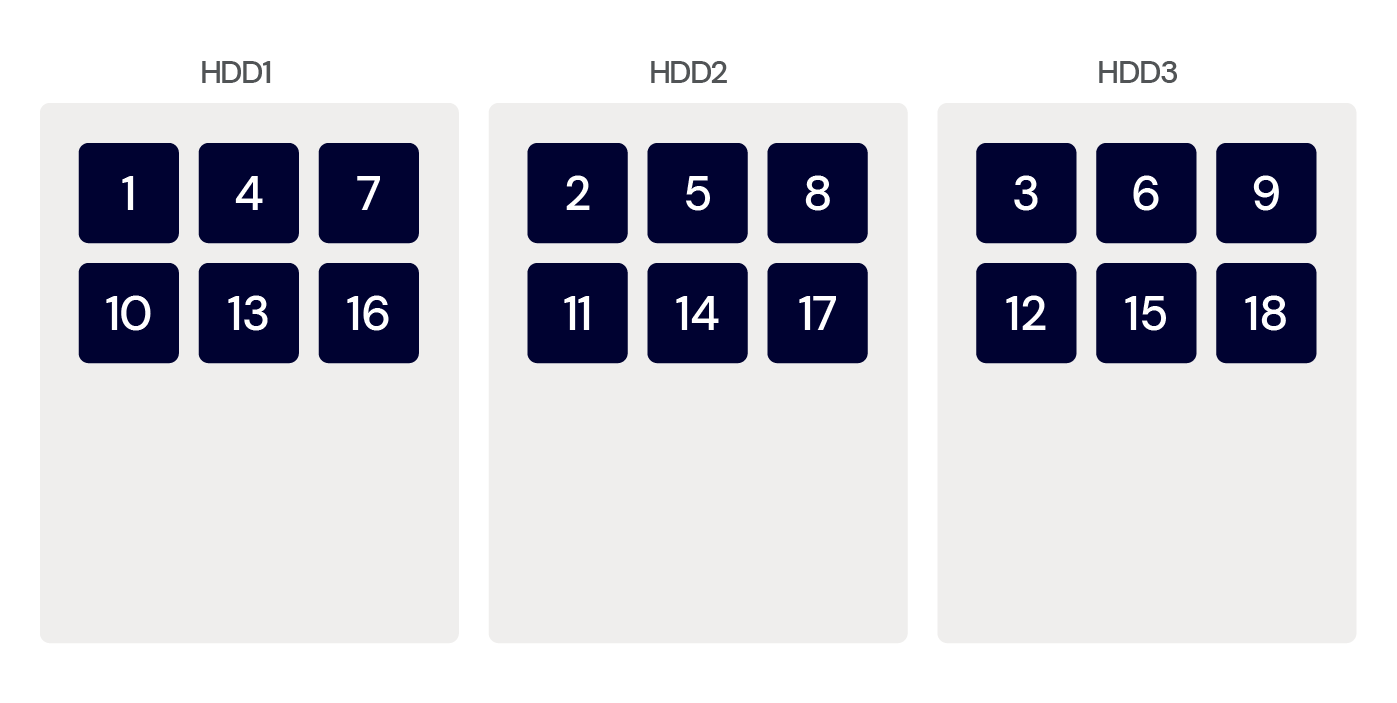
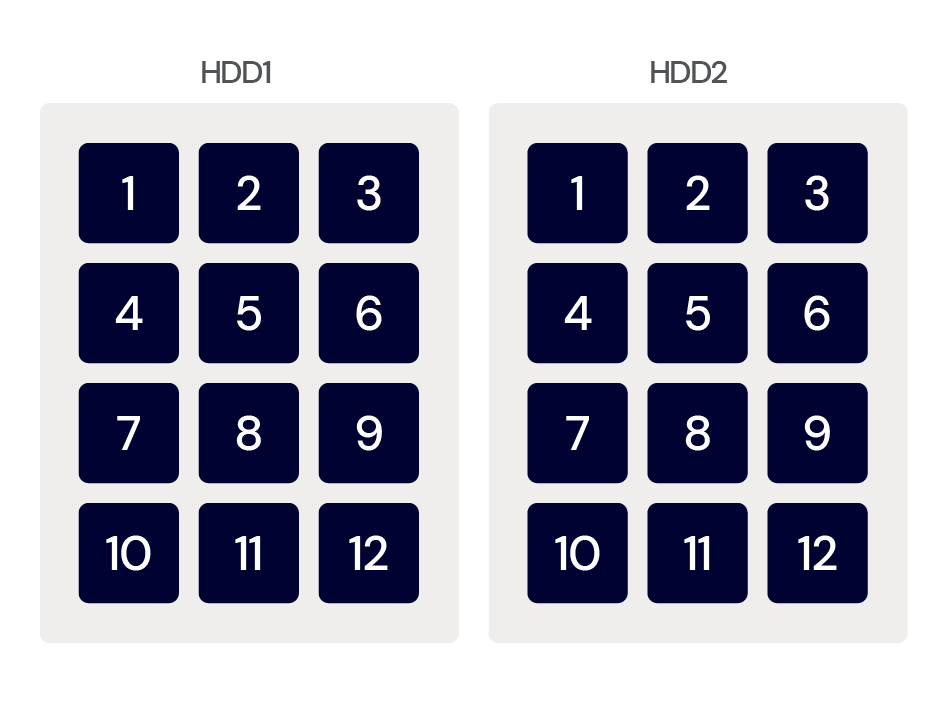
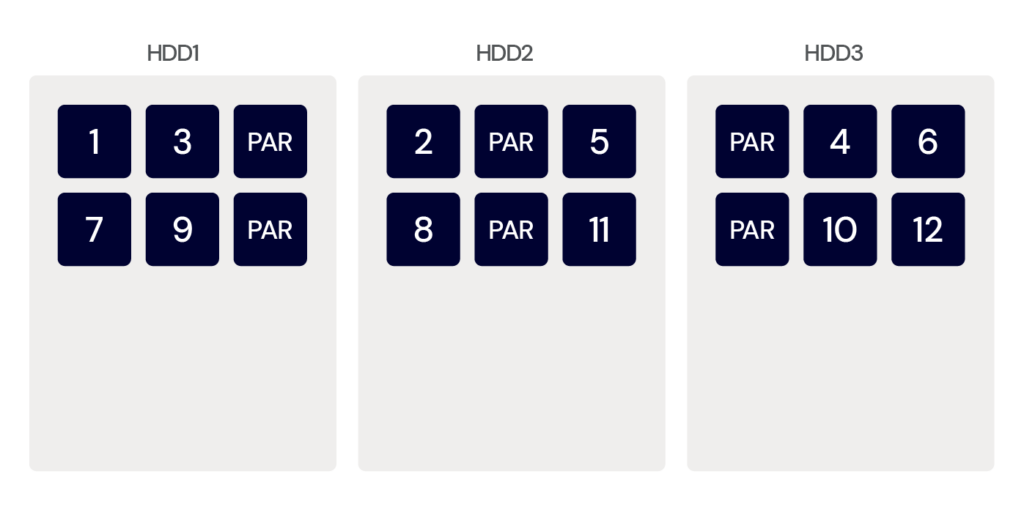
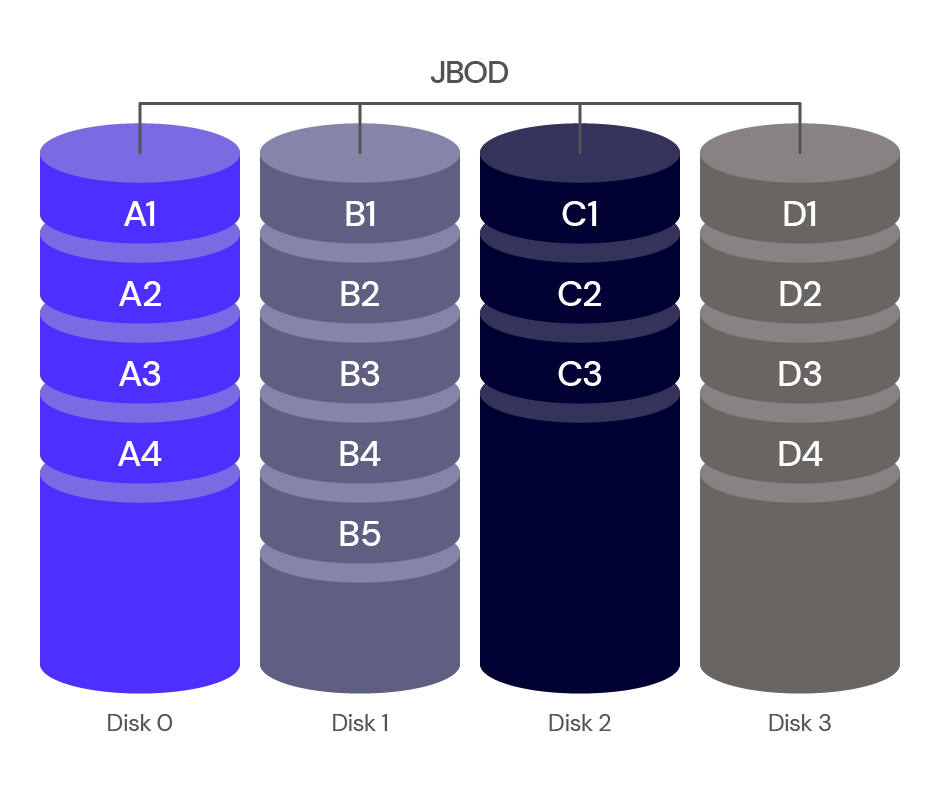
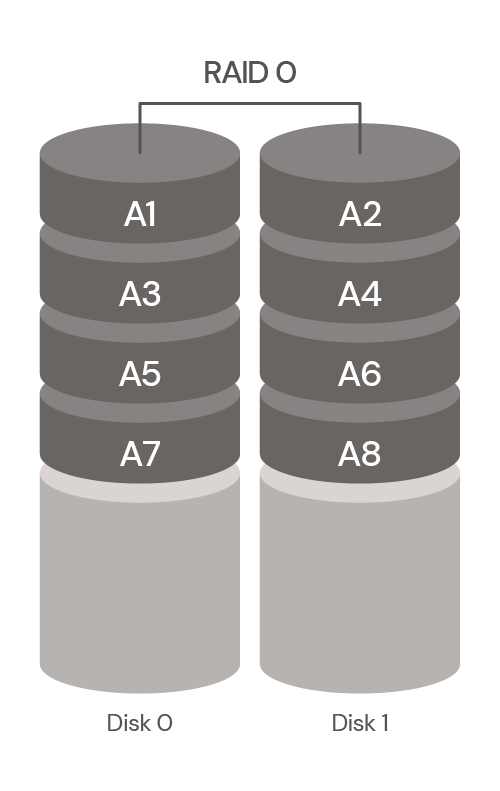
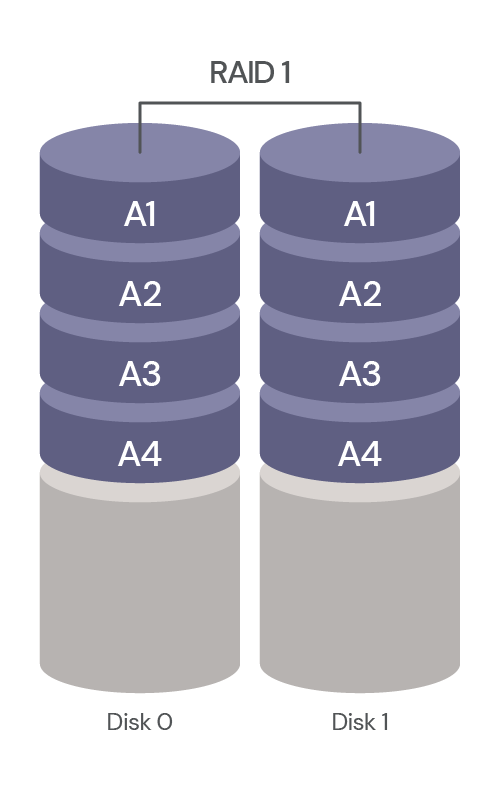
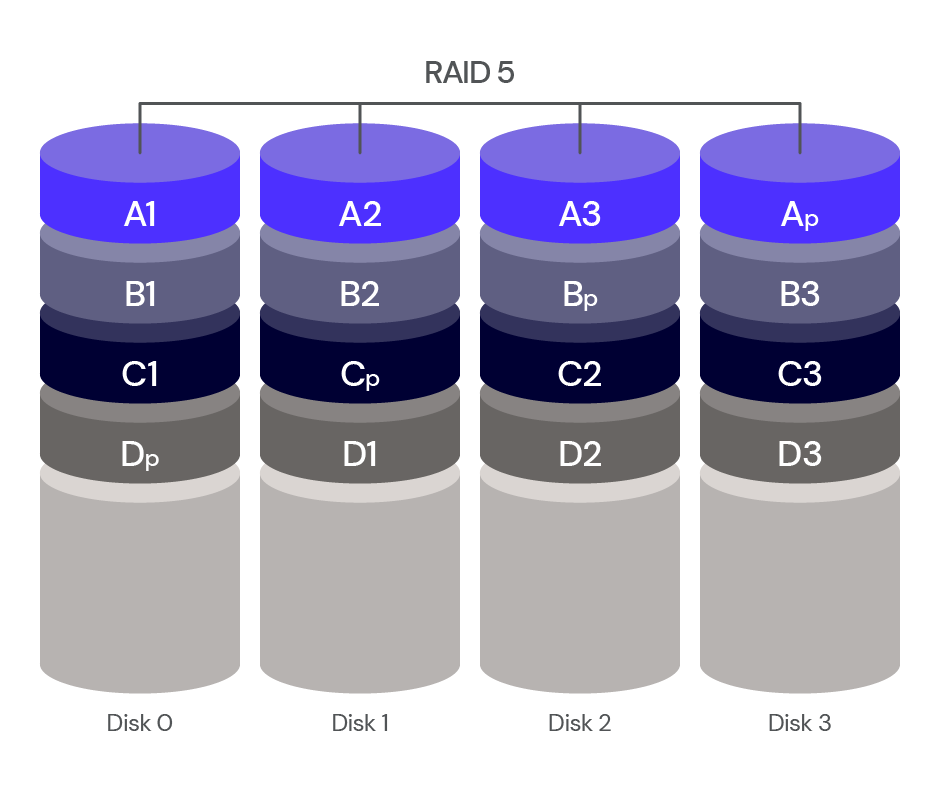
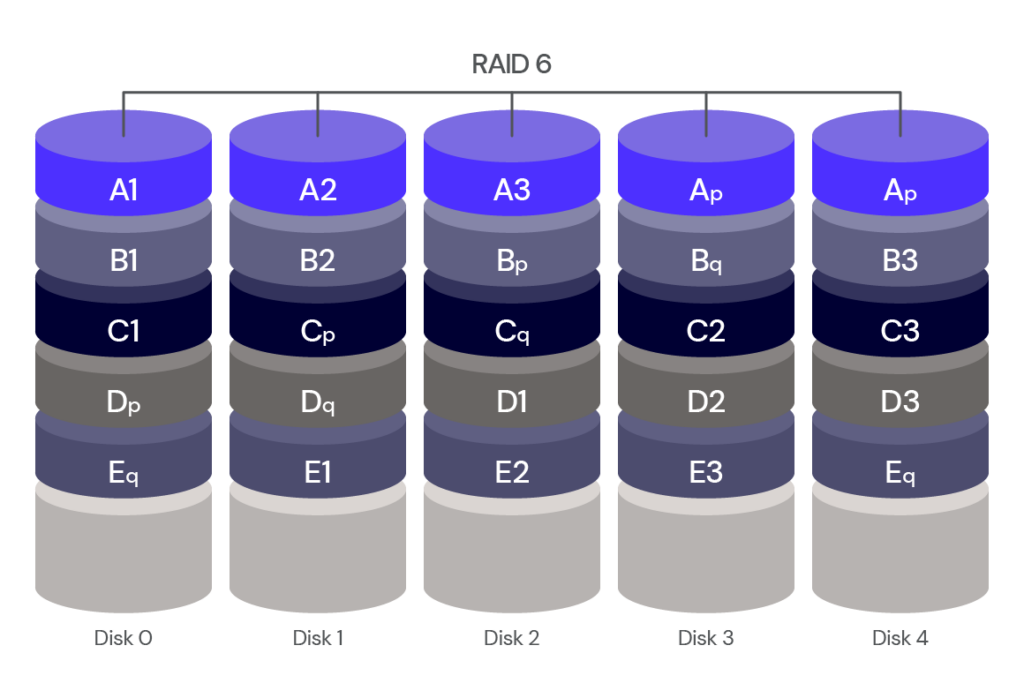
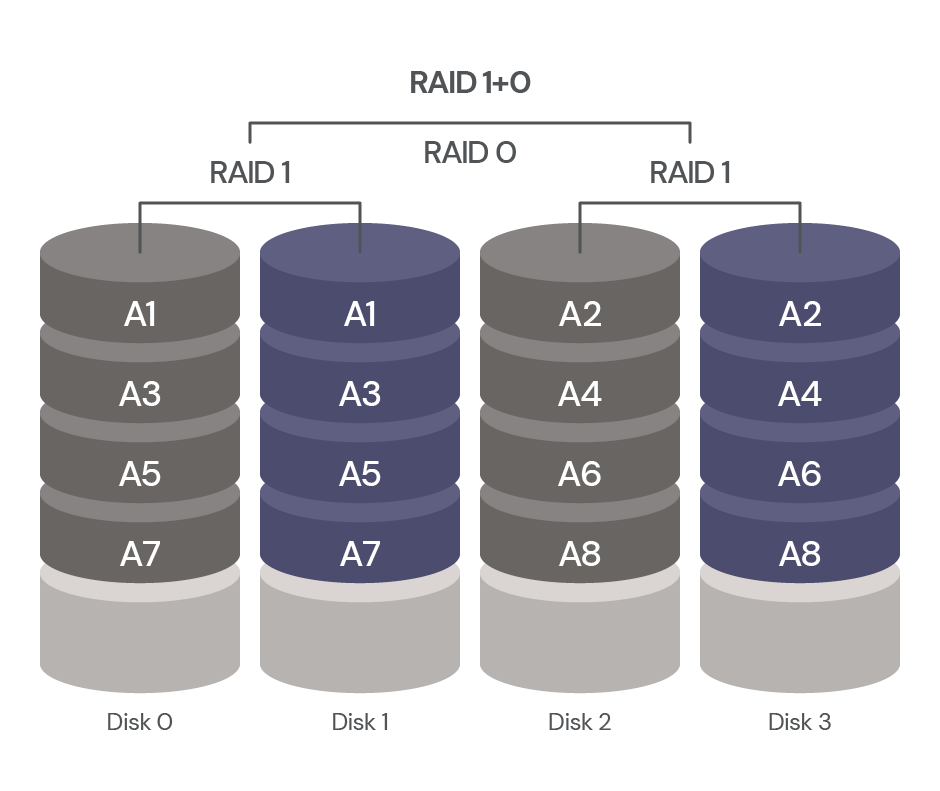
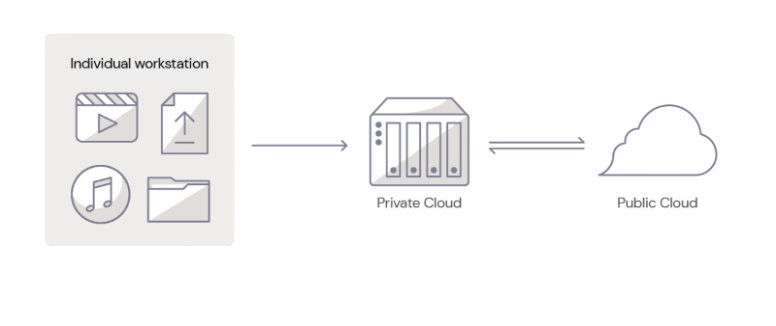

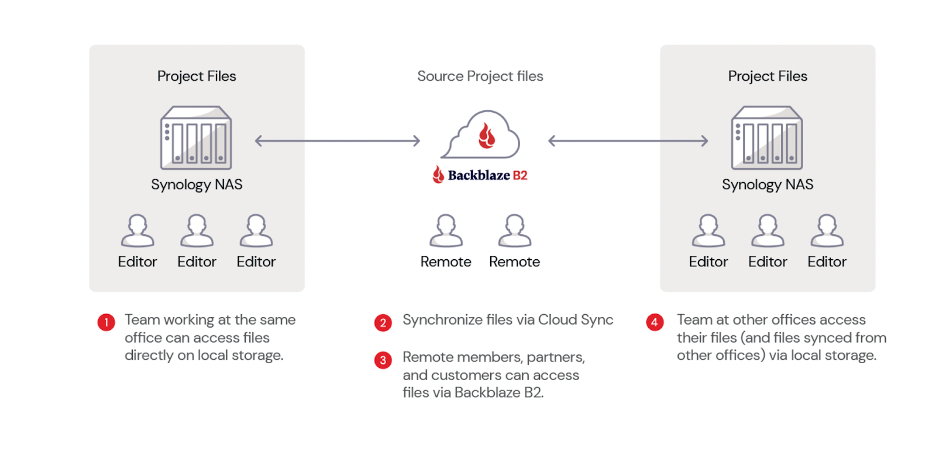
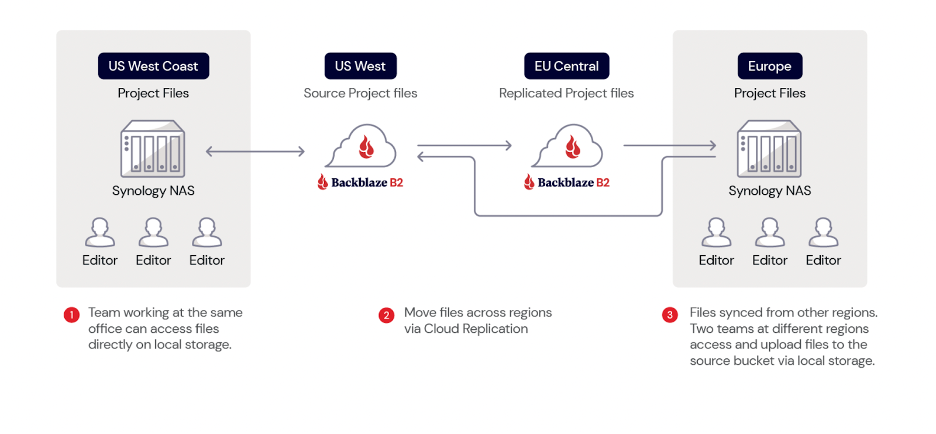
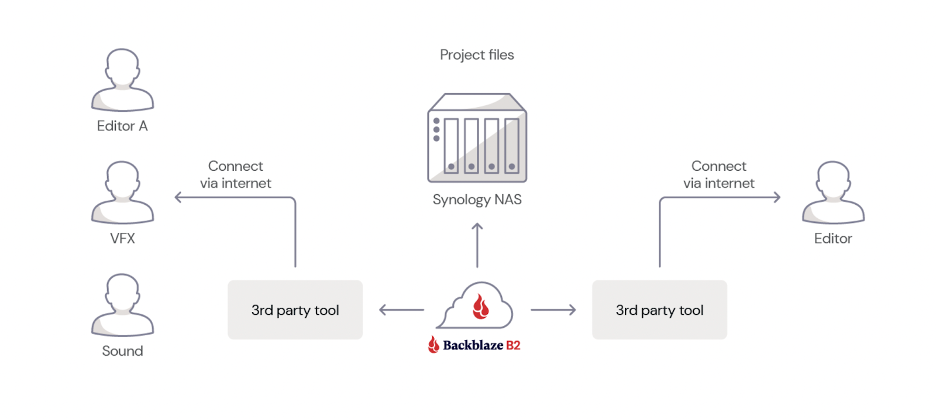
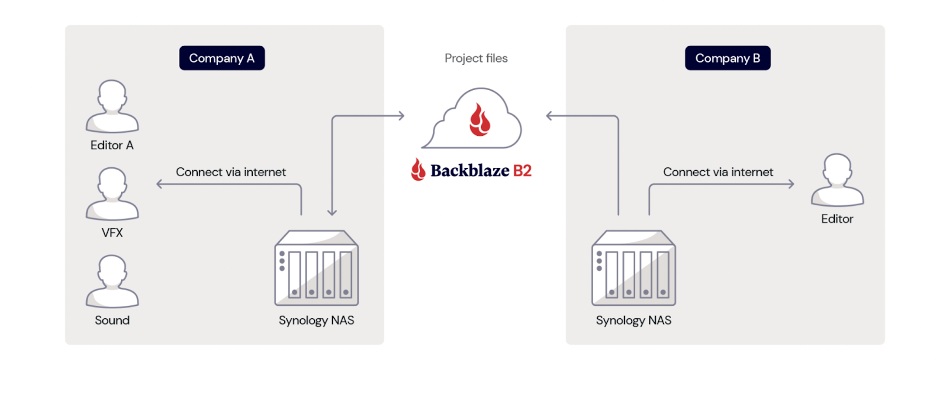
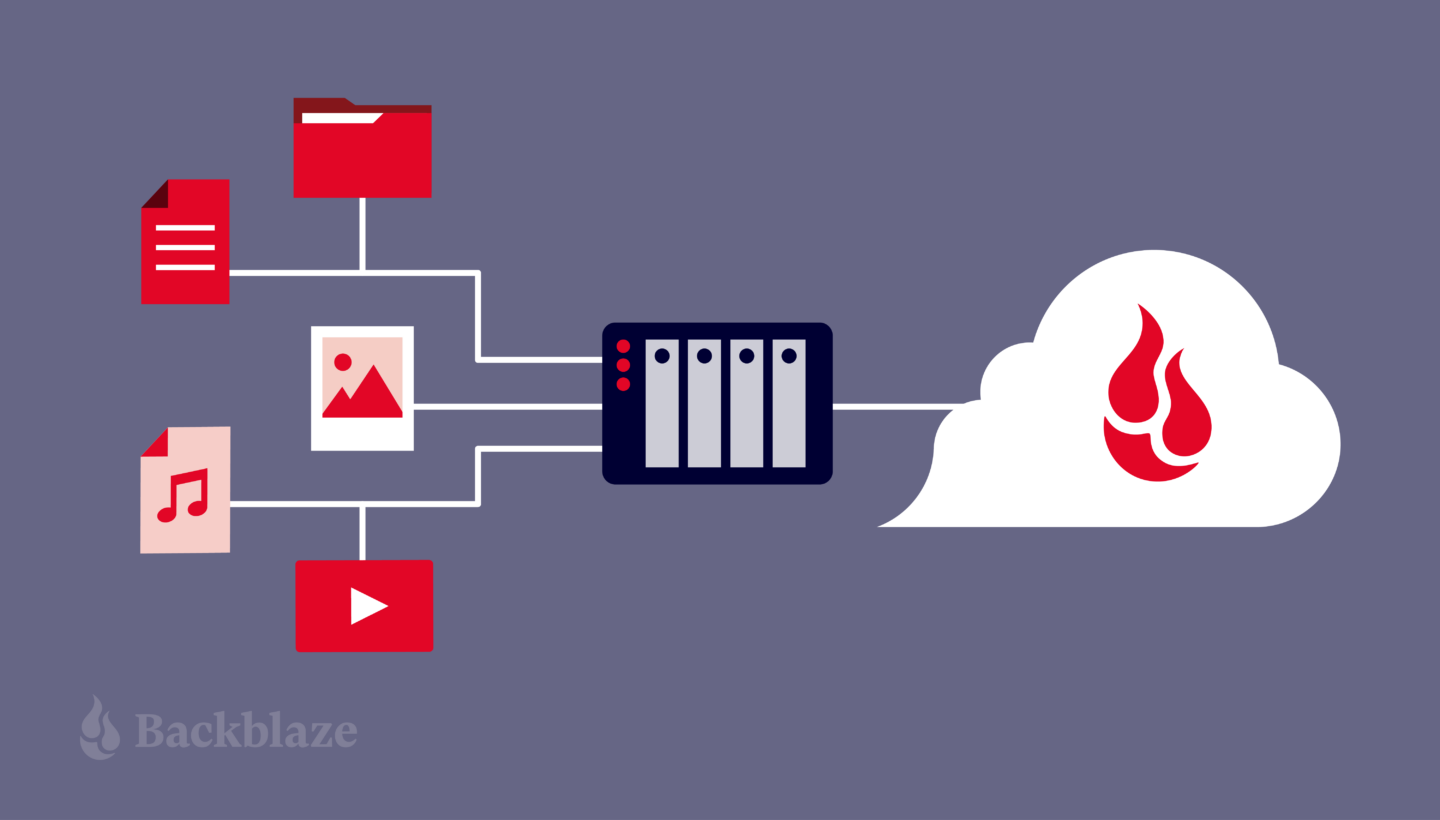
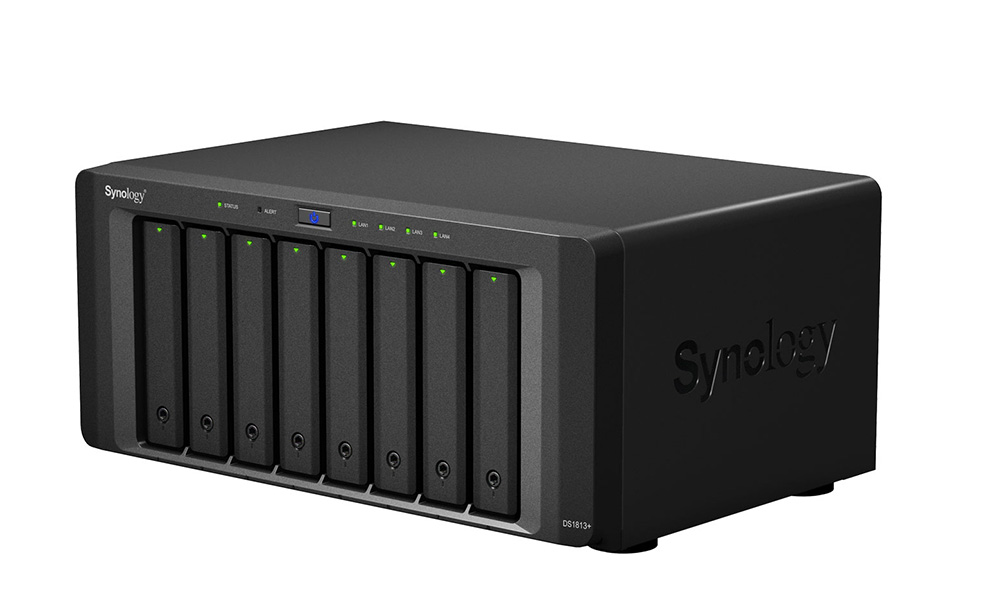
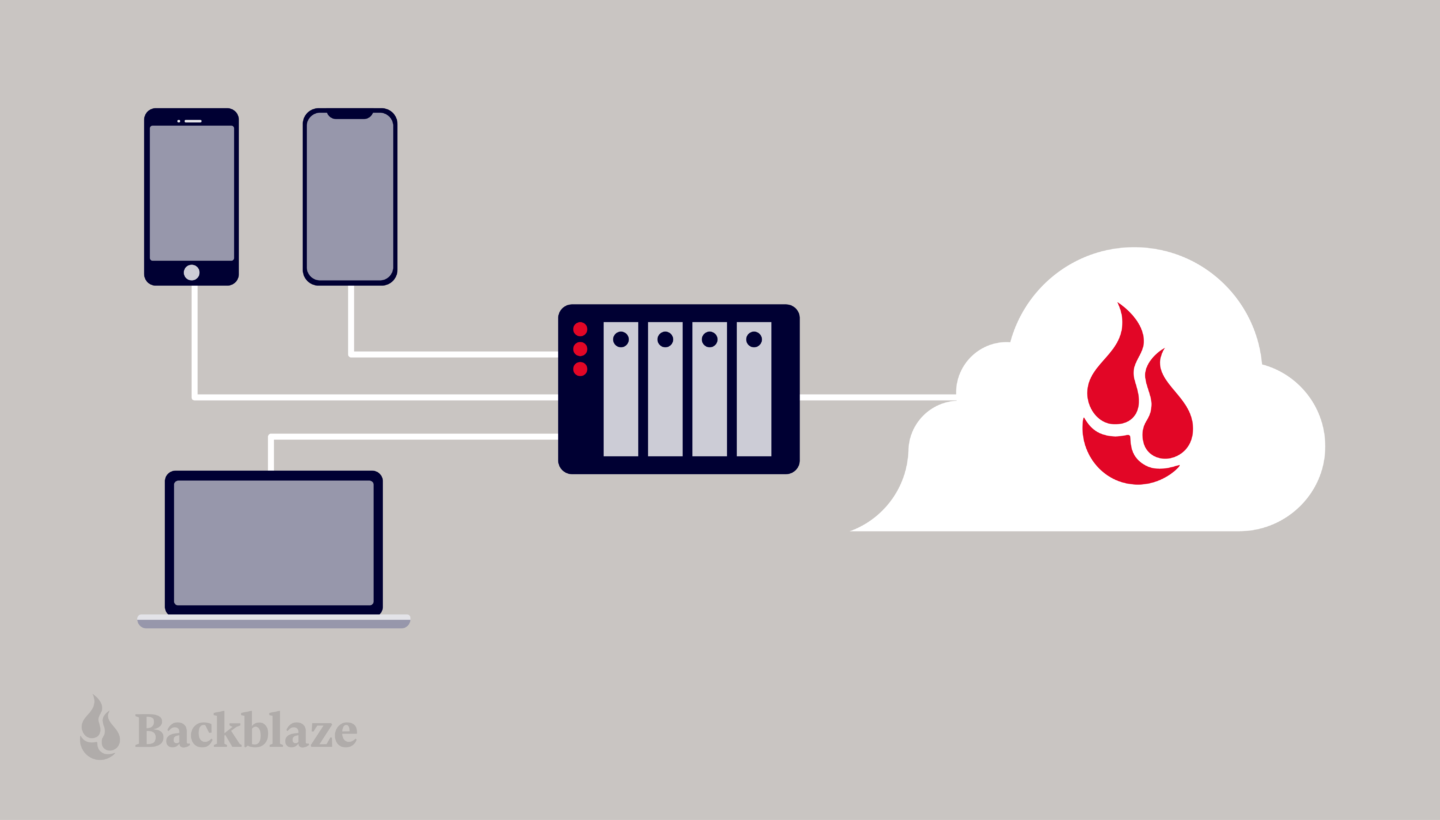
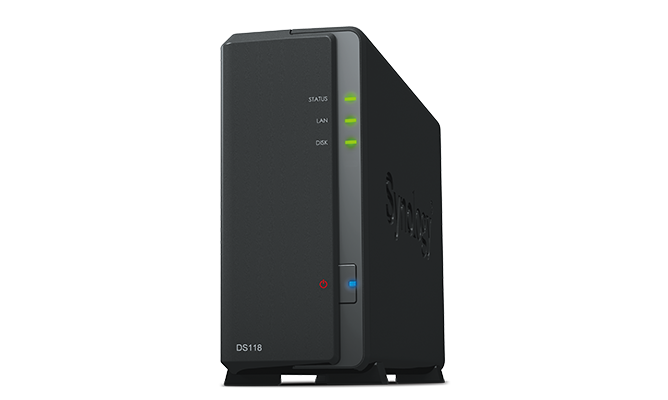
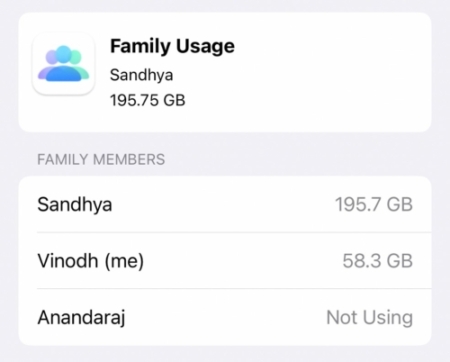
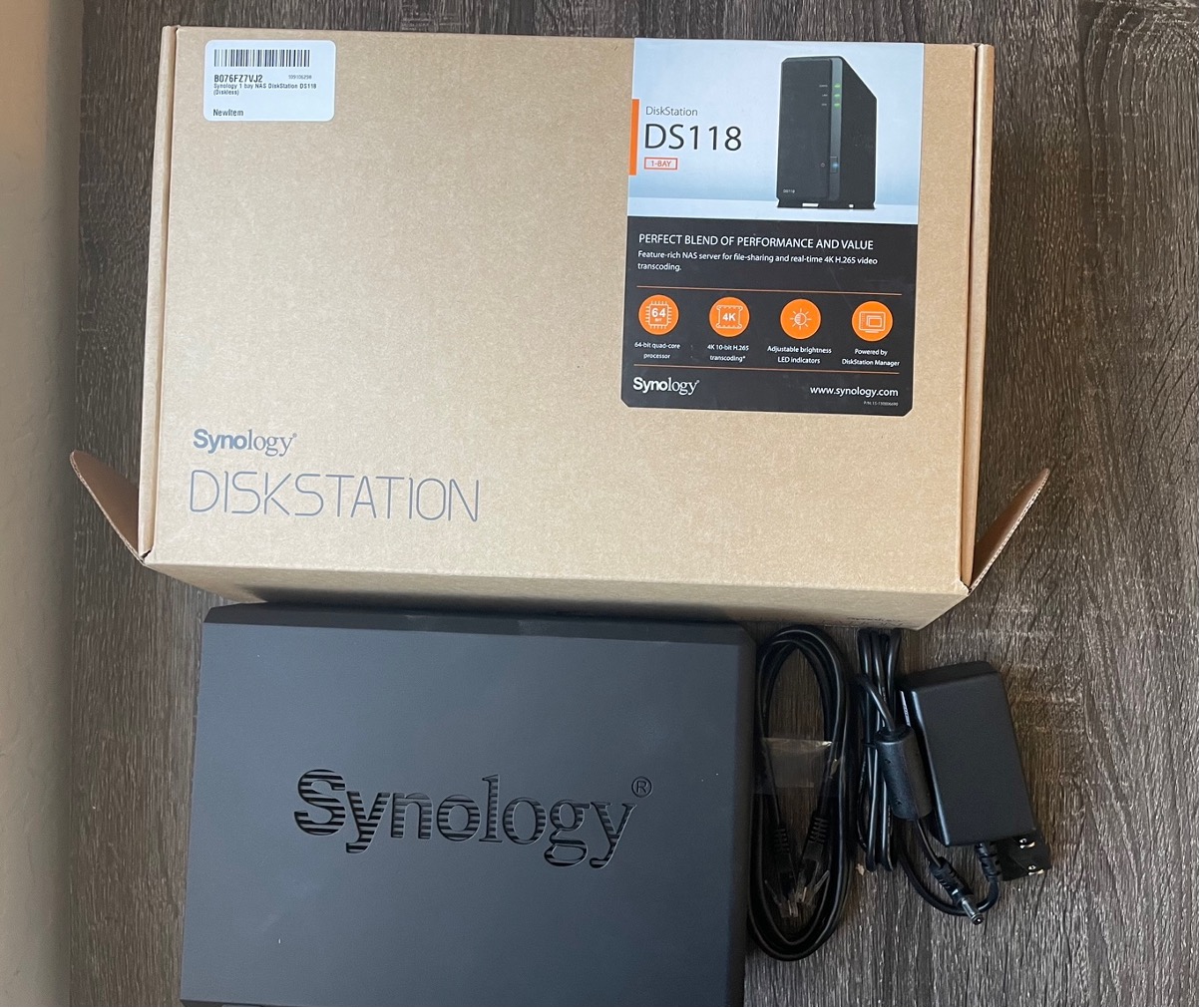
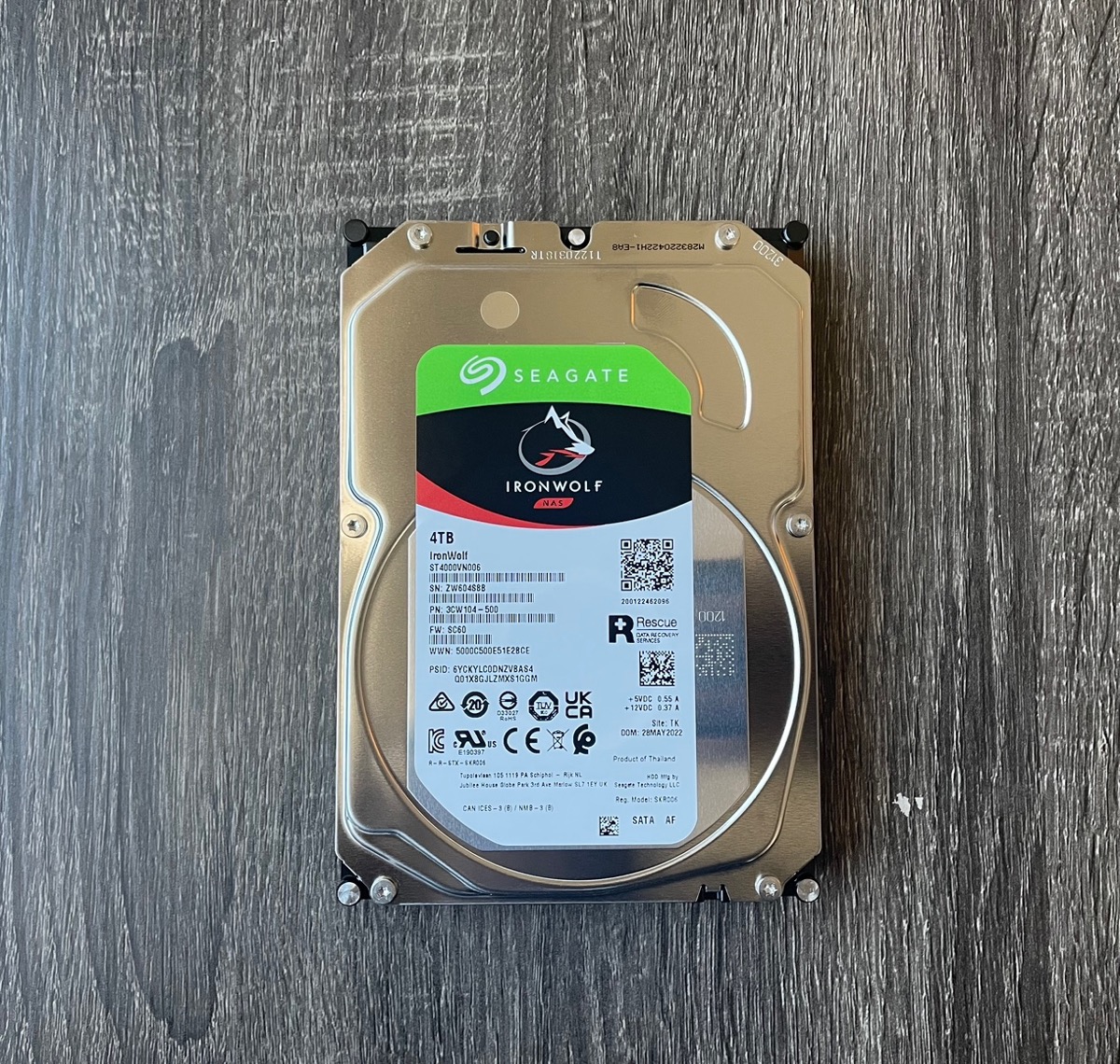
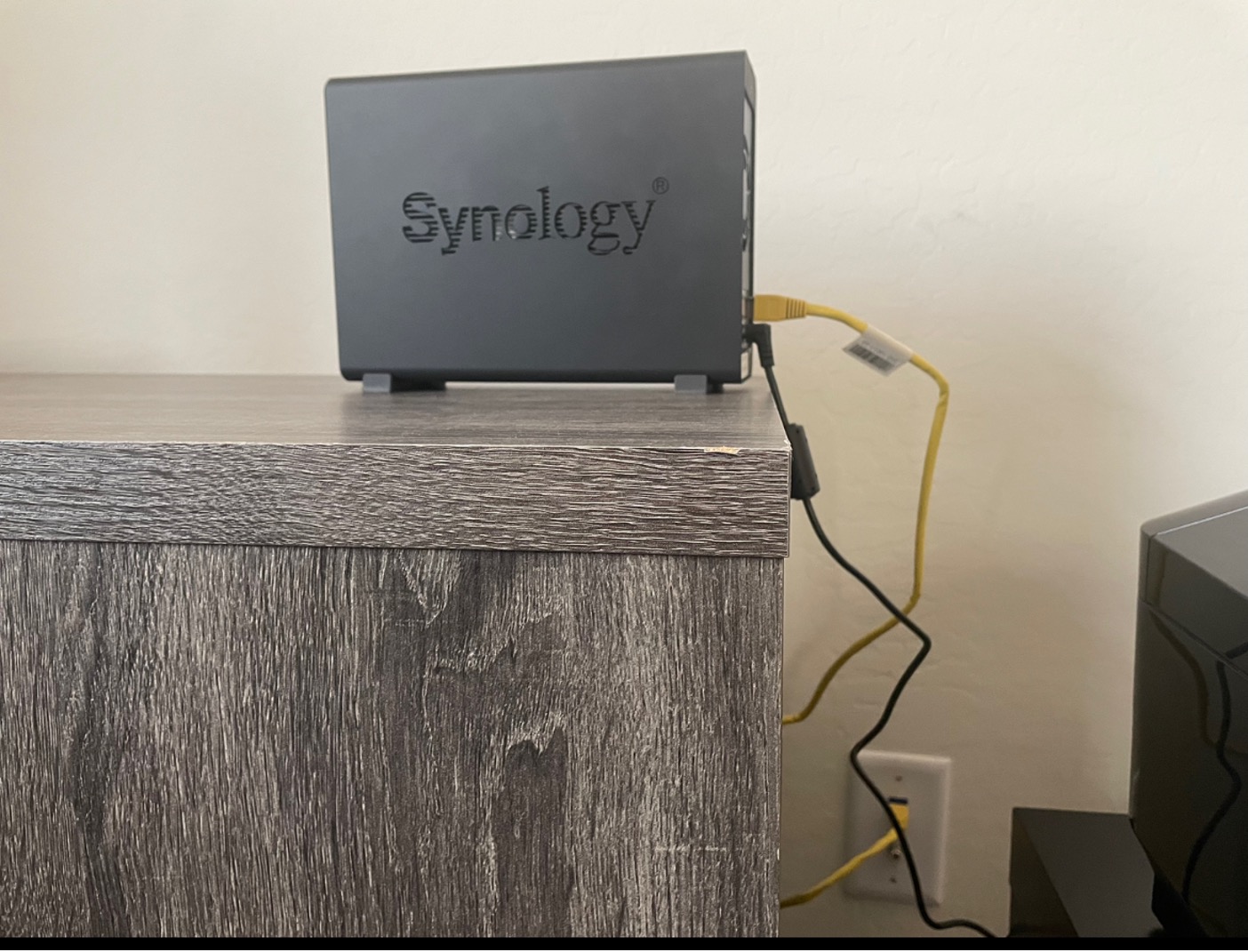
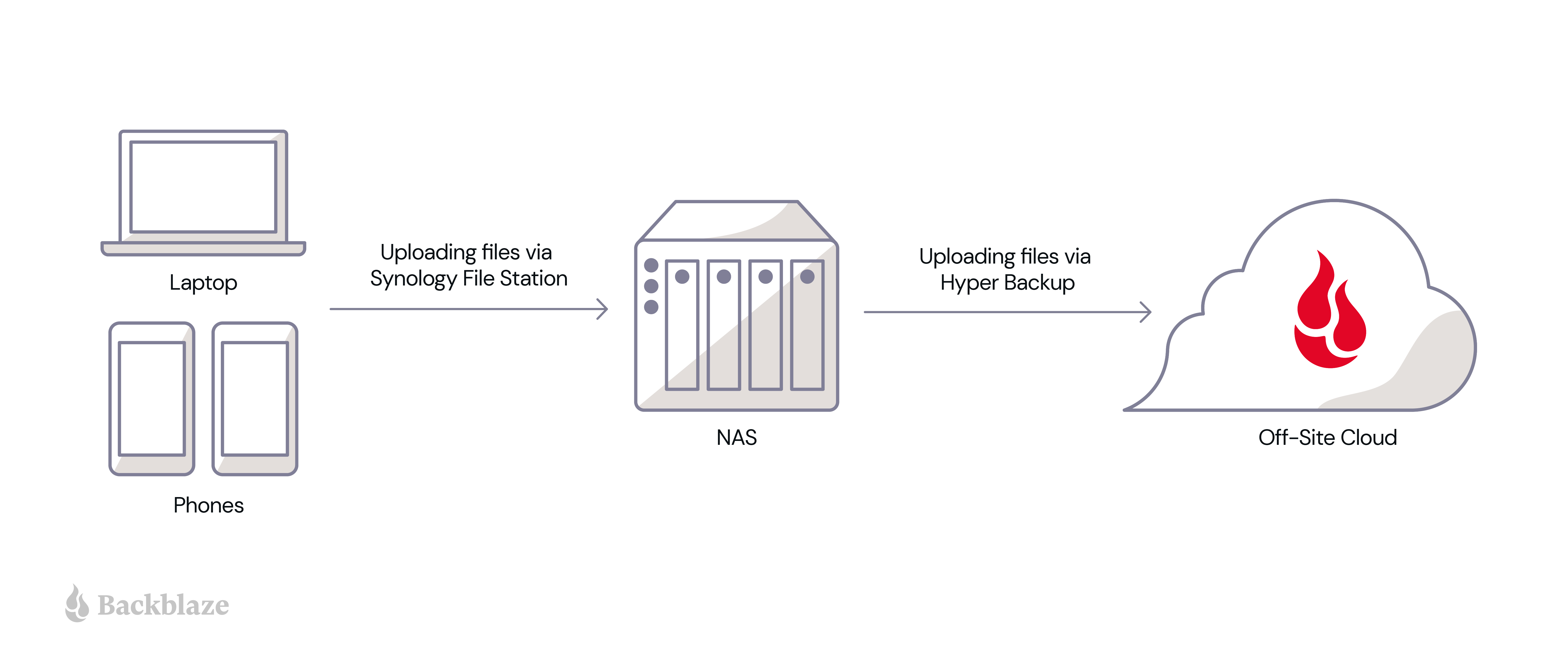

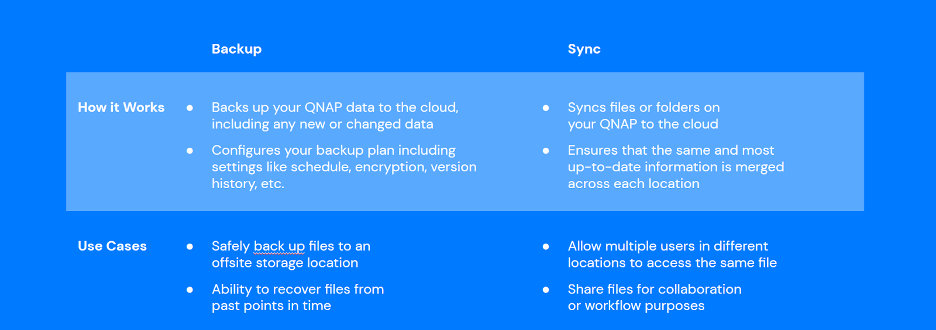
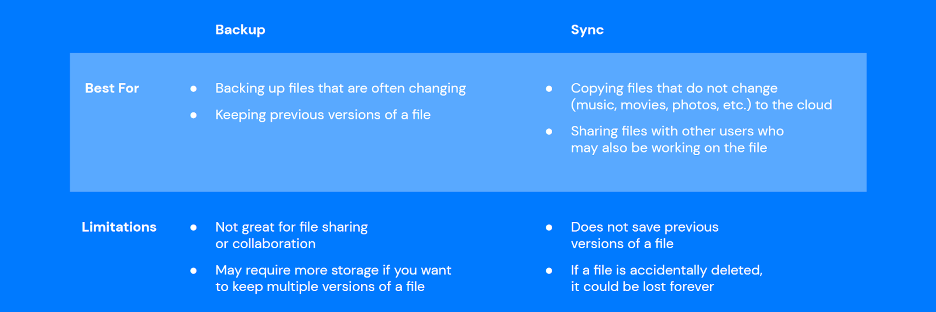
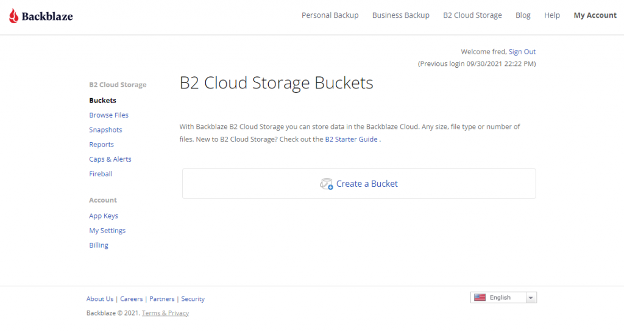
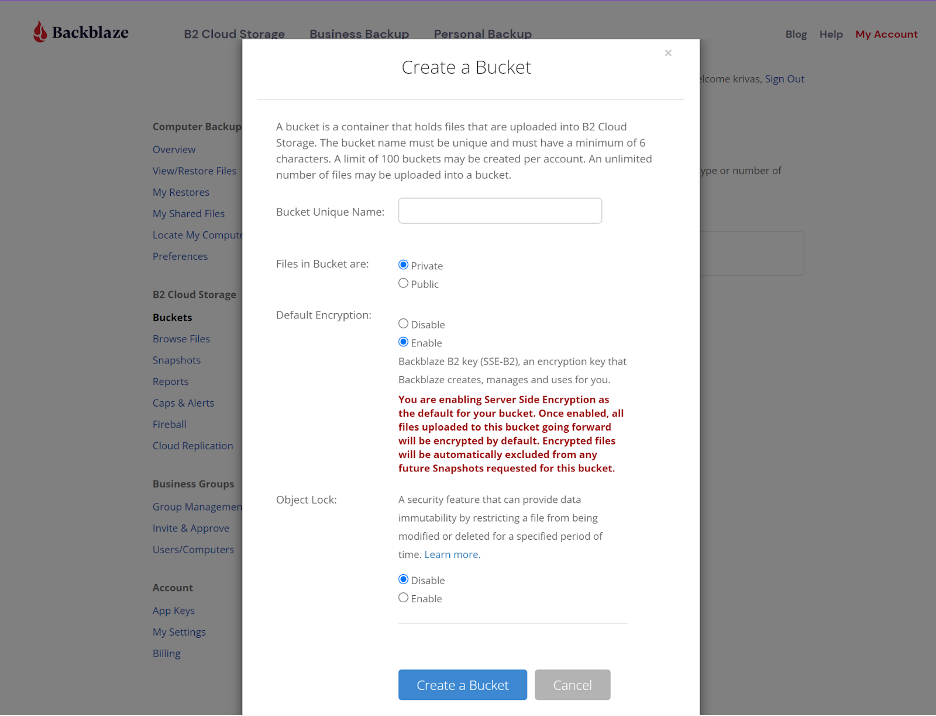
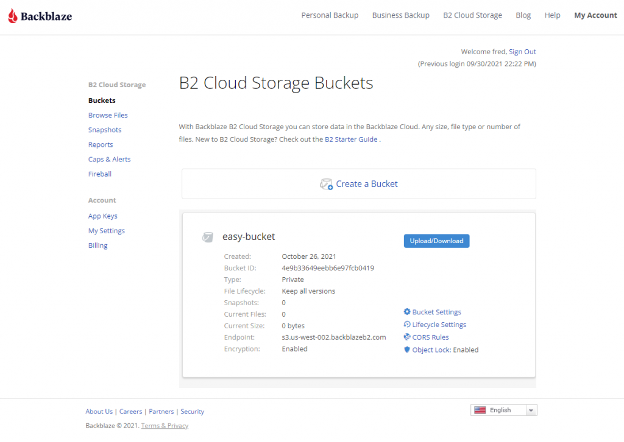
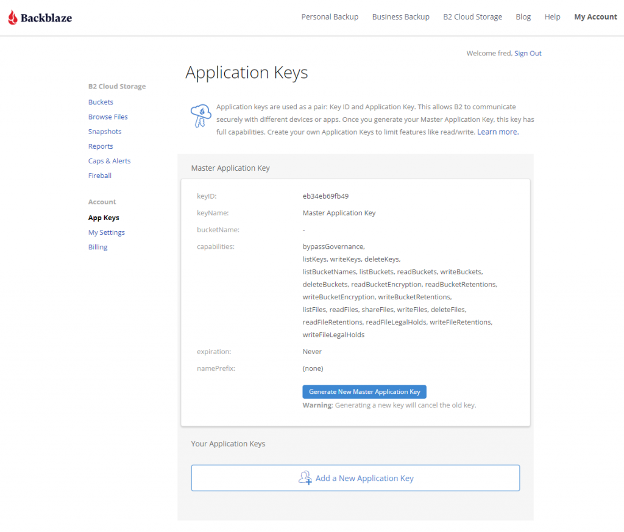
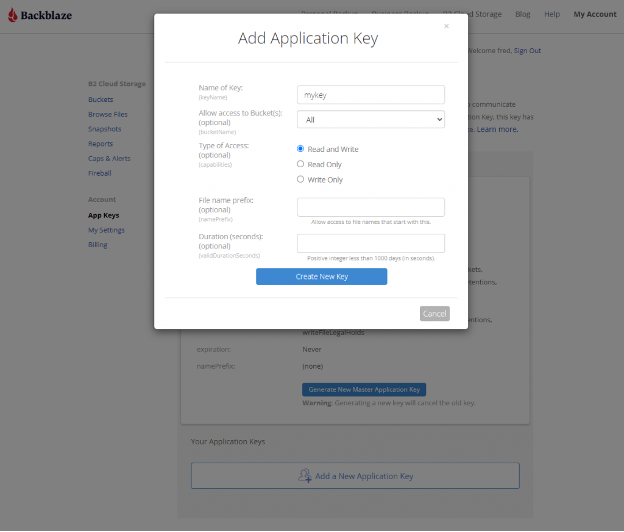
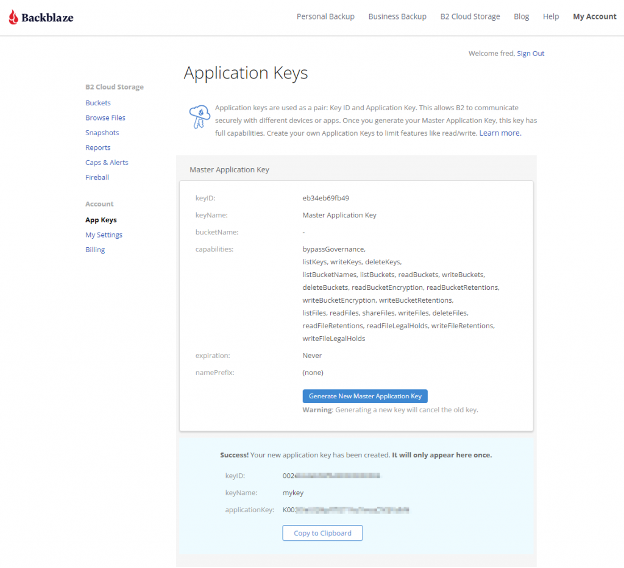
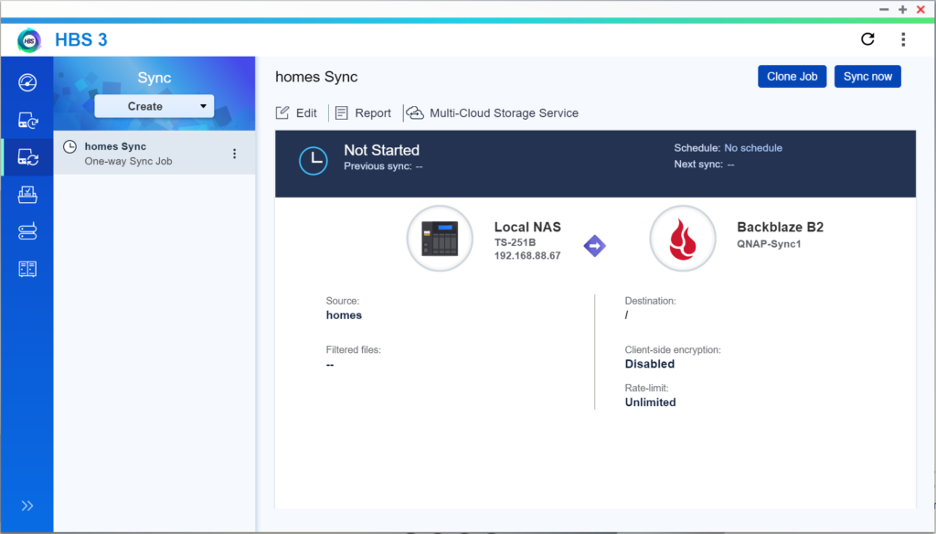
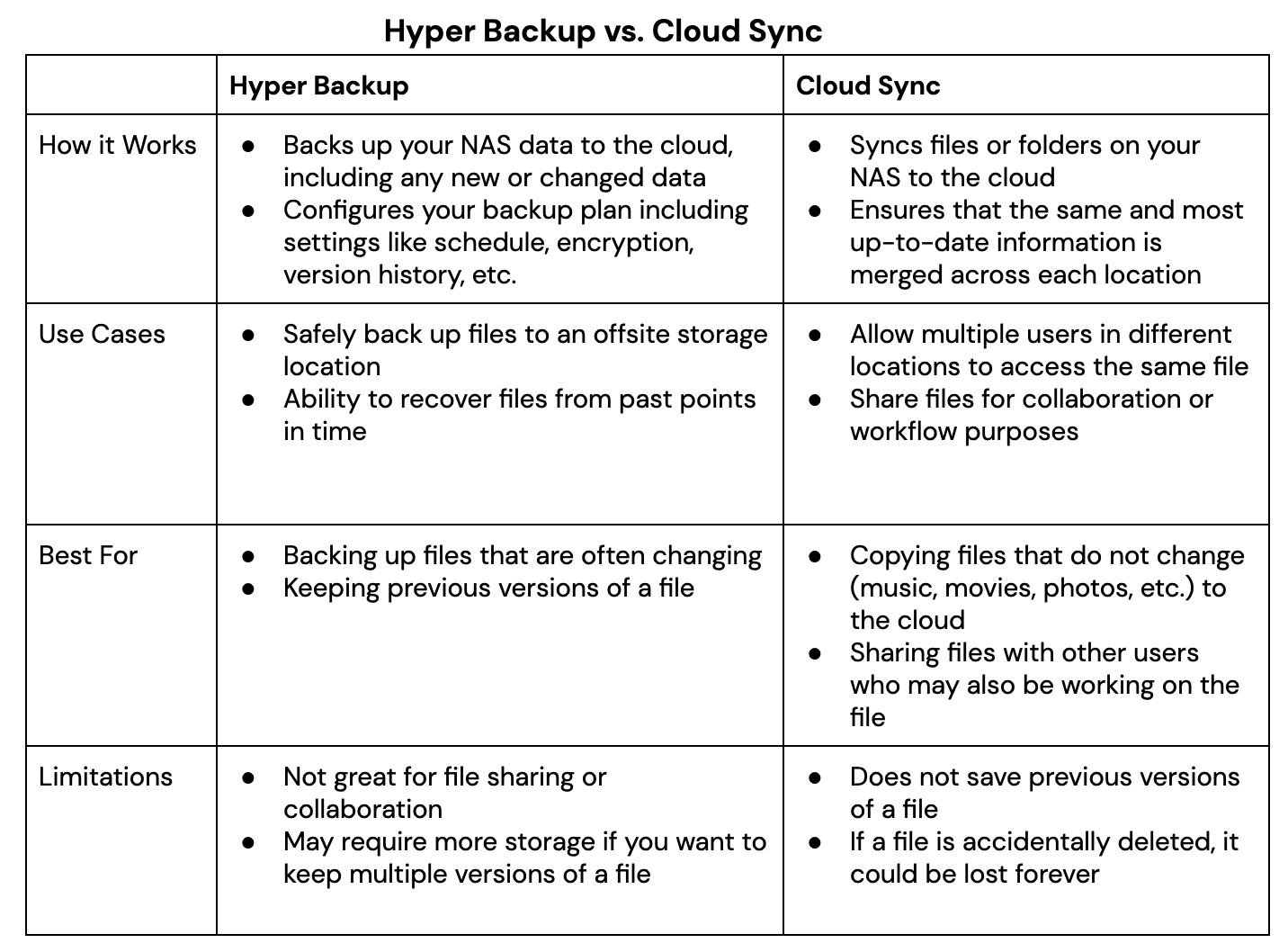 Whether you plan to utilize the backup and sync features Synology offers via Hyper Backup and Cloud Sync, securing your files to the cloud will help you create an effective