Tag Archives: Backing Up

Why Your Computer Backup Strategy Determines Whether You Pay the Ransom

Post Syndicated from Kari Wilson original https://www.backblaze.com/blog/why-your-computer-backup-strategy-determines-whether-you-pay-the-ransom/
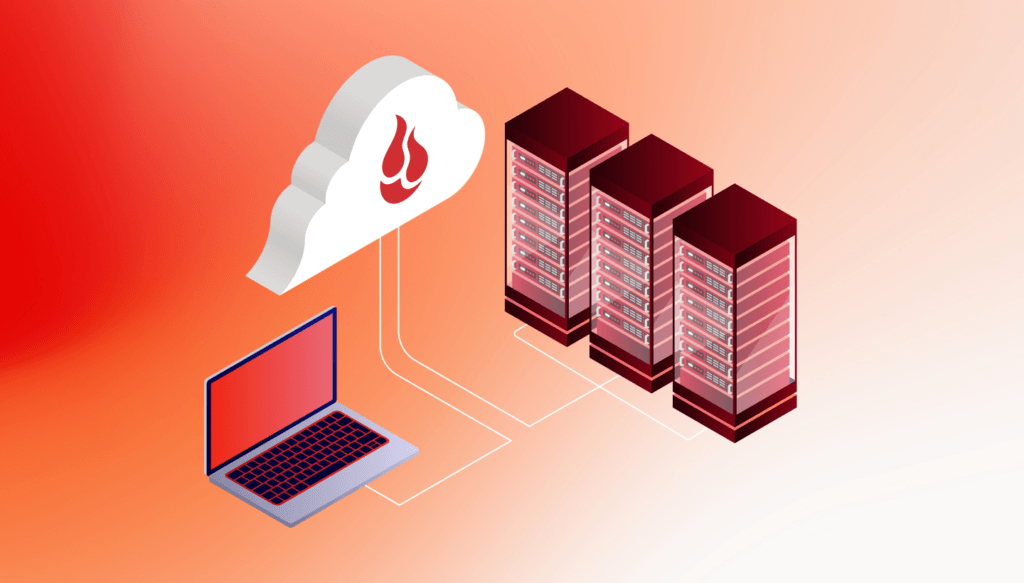
An illustration of a laptop connected to a cloud and a datacenter stack.

Most IT teams feel ready for a ransomware attack. Almost none of them actually are.

A Veeam survey of more than 900 senior IT, security, and risk leaders found that 90% are confident they can recover from a cyber incident. But among organizations hit by ransomware that affected their operations or data, only 28% fully recovered it, and 44% got back less than three-quarters. 

That gap is really a gap in backup architecture, not incident response. Ransomware recovery doesn’t come down to how good your plan looks on paper. It comes down to whether your computer backup was built to survive the attack in the first place, and that’s a question worth asking about your endpoints specifically, not just your servers or your cloud storage.

Ransomware goes after your backup before it goes after you

Attackers know backups are the way out, so they target them directly. Veeam’s own data protection research puts the number at 96% of ransomware attacks specifically going after backup repositories, and most of those attempts succeed. A backup that anyone, including an attacker with stolen credentials, can delete or shorten the retention on isn’t a recovery plan. It’s a second target.

This is why deleted file retention and restore permissions matter more than almost anything else here. If a device gets wiped, or an attacker with admin-level access tries to clear out backup history, that data needs to stay recoverable regardless. Backblaze Computer Backup keeps a full year of version history and deleted file retention, and restore and deletion permissions sit with IT centrally, not open at the device level for anyone to touch.

Plenty of legacy endpoint backup tools technically support long retention windows too. The gap can show up at restore time, with heavier clients and more complicated restores. A feature on a spec sheet and a restore that works under pressure are two different things. 

If you don’t know who can delete backup history or shorten retention on your current setup, find that out now. Not during an incident.

How far back does your version history actually go?

Ransomware doesn’t always announce itself right away. Some strains sit quietly on a network for weeks, copying and encrypting slowly, before anyone notices. By the time you catch it, your “recent” backup might already be infected.

This is where version history does the real work. If your backup only keeps a few days of history, and the infection has been running for two weeks, you don’t have a clean version to restore to. You have a slightly newer copy of the same problem. This is a common gap with the cloud sync tools plenty of businesses lean on instead of real backup: sync tools keep limited version history that varies by plan, which is fine for undoing an accidental edit and not much else. 

One IT director put it plainly when comparing what he had before to what he has now: a full year of version history against a prior vendor’s three-day maximum. His point was simple. The extra retention is what actually lets you go back far enough to find a version worth restoring.

Short retention windows often get sold as a way to keep storage costs down. In practice, they’re one of the more common reasons recovery fails. You don’t find out your version history was too short until you need a version that isn’t there anymore.

Why legal hold has to be part of this conversation

A ransomware incident often triggers more than a technical response. Insurance claims, regulatory questions, sometimes litigation. All of that requires you to preserve data exactly as it was, separate from your normal backup retention rules.

That’s what legal hold is for (available with Computer Backup with Enterprise Controls). It preserves a device’s backed up data beyond your standard retention window. It’s a different function from version history. Version history lets you go back in time. Legal hold freezes a specific point and keeps it there.

The mistake we see most often: IT and legal never talked about this until the middle of an actual incident. By then, you’re improvising a process that should’ve been decided in advance. Decide in advance when a hold would be triggered, and who in IT and legal makes that call. 

Endpoints are where recovery actually happens

Company-wide backup policy is one thing. Restoring 40, 100, or 300 individual laptops without your entire IT team dropping everything else is a different problem.

This is where a lot of recovery plans fall apart. They’re written at the policy level and never tested at the device level, and a heavier, more complex client makes that worse under pressure. A few things worth knowing before you’re in the middle of it:

  • Can you restore a single file without pulling down an entire device image?
  • Can you restore an entire device to a new machine if the original is unusable?
  • Who has permission to approve and run a restore, and is that list accurate right now?
  • For a mass-restore situation across dozens of devices, does your vendor offer any option beyond restoring one machine at a time, like a physical drive shipped with the data preloaded?

These aren’t edge cases. They’re the actual mechanics of recovery, and they’re worth walking through before an attack, not during one.

What recovery looks like at different scales 

Here’s roughly what recovery timelines look like in practice, depending on scope:

  • A single file or folder: depends on whether your version history goes back far enough to find a clean copy.
  • A single device: depends on the size of the data, your bandwidth, and whether restore access is already sorted out.
  • A full fleet, dozens to hundreds of devices: this is where things slow down. Restoring machine by machine can take days. Some vendors, including Backblaze, can ship a physical drive preloaded with your data to cut that down significantly. 

Only 9% of IT teams describe restoring from backup as “very easy,” according to Backblaze’s State of the Backup Report. Most people find out how hard restoring actually is right when they need it to work.

If you don’t know how you’d handle each of these, that’s worth working out before an incident. 

How to pressure test your recovery plan 

Everything above is a checklist. Here’s the part that separates a real recovery plan from a hopeful one: walk through a restore on paper, from start to finish, for one real laptop.

Name the device, the person who approves the restore, the person who runs it, and where the data goes. Write down each step and where it could stall. 

A vendor’s feature list can tell you whether version history, deleted file retention, legal hold, and endpoint-level restore are technically available. It can’t tell you whether your team knows how to use them under pressure. Walking through the steps, and testing with your vendor’s team in a proof of concept, is how you find the gaps. 

Where this leaves your computer backup strategy

Paying a ransom was never a guaranteed fix, and the odds haven’t gotten better. What has changed is how much control you actually have over the outcome, and that control lives almost entirely in your backup architecture, not your incident response plan.

This is also where a lot of endpoint backup tools quietly stop being enough. Some keep only a short version history, like many sync tools. Others price by storage, so a ransomware-driven spike in data or a slow migration off a legacy tool turns into an unplanned bill on top of an already bad week. And a fair number were built for Windows first and adapted for Mac later, which shows up as friction the moment you’re deploying or restoring across a Mac-heavy fleet.

Backblaze Computer Backup with Enterprise Control is built around the specific gaps this post walks through: a full year of version history and deleted file retention, Legal Hold to preserve data beyond standard retention, and restores managed by IT from the admin console. It’s native to Mac and Windows and deploys through Jamf, Iru (formerly Kandji), and Addigy. Pricing is flat per device with no per-GB surprises. None of it replaces good security practices. But it goes a long way toward deciding whether ransomware turns into a bad week or a bad year. 

If you haven’t walked through your restore process recently, start there. Pick one machine and map it out this week.

Want to go through it with us? Talk to our team.

The post Why Your Computer Backup Strategy Determines Whether You Pay the Ransom appeared first on Backblaze Blog | Cloud Storage & Cloud Backup
What IT Teams Get Wrong About Immutable Backups and Object Lock

Post Syndicated from Kari Wilson original https://www.backblaze.com/blog/what-it-teams-get-wrong-about-immutable-backups-and-object-lock/

An illustration of laptops and security badges

If you’ve spent any time configuring immutable backups, you’ve probably hit at least one of these moments: you thought the data was protected, something went wrong, and the protection wasn’t quite what you expected. Object lock is one of the most misunderstood features in cloud storage, and the gap between “I enabled it” and “it’s actually working correctly” is where most mistakes live.

This is a collection of the real issues that come up in technical conversations with IT administrators and system architects, the kind of problems that surface after the documentation has been read but before the configuration is fully trusted.

Locked Up: Inside a Real LockBit Ransomware Attack

Join Zach Lewis—CIO/CISO at the University of Health Sciences & Pharmacy and author of Locked Up—for a candid fireside chat on what really happens during a modern ransomware attack.

The Difference Between Immutability and Encryption

These two features often get lumped together as “data security,” but they protect against completely different threats.

Encryption protects people from seeing your data. Object lock protects people from deleting it. An encrypted backup that an attacker can wipe is not a recovery option. An immutable backup that an attacker can read in plaintext is still a usable recovery point.

Both matter. They serve different functions. Treating them as interchangeable is how organizations end up with gaps in one direction or the other.

Immutable Does Not Mean Inaccessible

This one causes real hesitation when IT teams are evaluating immutability for production backup workflows. The concern is that locking data will make it unavailable for restores.

It won’t.

Immutable data is fully readable and downloadable throughout the immutability period. You can restore from it, access individual files, and upload new versions alongside the protected ones. The only thing object lock prevents is modification and deletion before the immutability period expires. That’s the whole point.

The Bucket Creation Problem

With Backblaze B2, object lock can be enabled at bucket creation or added to an existing bucket later. Once enabled, it cannot be turned off, so the change is permanent in that direction.

That said, enabling object lock on an existing bucket does not retroactively protect the files already in it. Only files uploaded or copied into the bucket after object lock is enabled are eligible to be locked. Files that were there before are unaffected.

The practical implication: if you’re adding object lock to a bucket with existing backups, don’t assume those older files are now protected. They aren’t. New backups written after the change will be, but anything already sitting in the bucket requires individual lock settings to be applied manually.

Who Actually Configures the Retention Period

There’s a common assumption that immutability is configured at the bucket level. For many backup applications, that’s only half the picture.

When you’re using Veeam or similar enterprise tools, the backup application manages object lock on a per-file basis. The bucket needs to have object lock enabled as a capability, but the application controls which files get locked and for how long. Think of the bucket setting as opening the door; the backup software decides what walks through it.

This means both sides need to be configured. Object lock enabled on the bucket, and immutability enabled within the backup application. One without the other does nothing.

Retention Period vs. Immutability Period

These are separate settings that operate independently.

A four-year retention policy means your backup application keeps the data for four years. A 14-day immutability period means files cannot be deleted or modified for 14 days after they’re written. Once the 14 days expire, the object lock is released. The file is still there, governed by your retention policy, but it’s no longer immutable.

The two settings don’t need to match. A typical setup runs a long retention policy with a shorter immutability window. The immutability window covers the period when ransomware or a malicious actor is most likely to attempt deletion. Once that window passes, normal retention rules apply.

How Long Should the Immutability Period Be?

The most common recommendation is 7 to 14 days, with 14 days being a reasonable default for most environments.

The logic is straightforward: if ransomware or an attack hits your environment, you’re going to know within hours, maybe a couple of days. The immutability period doesn’t need to cover months of potential compromise. It needs to cover the window between when an attack occurs and when you detect and respond to it.

For most organizations, 14 days is more than sufficient. Security teams that have tested their incident response workflows often find 7 days works fine. The point is aligning the period with your detection capability, not maximizing it arbitrarily.

There’s also a cost angle that’s easy to miss. Every time backup software writes or renews an object lock, it makes a PUT-class API call to update the retention metadata on that object. On AWS S3, those calls are billed as standard PUT requests at $0.005 per 1,000. In large environments with frequent backup jobs, those transaction fees accumulate. Backblaze B2 doesn’t charge for PUT requests, so lock writes and renewals are included with your storage. In practice, this means shorter immutability windows don’t carry a cost penalty on B2, and there’s no incentive to minimize lock renewals to reduce your API bill.

Veeam Quietly Extends Your Immutability Period

If you configure a 7-day immutability period in Veeam and then check the actual lock expiration dates in your bucket, don’t be surprised to see files locked through day 10, 14, or even 17. Veeam adds extra days to the immutability period beyond whatever you configure.

This is intentional behavior. Veeam is protecting against the scenario where a file is written late in a backup job, and a retention cleanup operation would otherwise try to delete it before the immutability period has fully elapsed. The extra days create buffer.

The practical implication is storage capacity planning. If you’re budgeting for 7 days of immutable storage, you may actually need to account for closer to 14 days of data that can’t be deleted at any given time. Plan for that variance.

Don’t Set Bucket Lifecycle Rules When Using Backup Software

Bucket-level lifecycle rules that automatically delete data based on age or other criteria will conflict with how backup applications manage their own data lifecycle.

When you let Veeam or another application handle your backup chain, that application tracks which files are active, which are expired, and when each should be removed. If you set a bucket lifecycle rule that deletes files after 30 days, and your backup application is still referencing a file that’s 32 days old, you’ve broken the chain.

The right approach is to leave bucket lifecycle rules alone and let the backup software handle all data management. If your backup application is working correctly, there’s no need for bucket-level deletion rules. If something isn’t working correctly, a lifecycle rule will compound the problem.

Not All Backup Software Supports Object Lock

Consumer sync tools and basic file backup applications generally don’t support immutable backups. When they encounter an immutable object, the write operation to delete or modify it will fail, which breaks the backup job.

Enterprise backup applications like Veeam and Commvault have native support for object lock. They know how to write immutability flags, manage retention periods, and handle the S3 API calls correctly.

If your current backup tool isn’t on the enterprise list, check the documentation before assuming immutability will work. A backup chain that fails silently because of incompatible object lock handling isn’t protecting anything.

Can You Change the Immutability Period After Setting It?

You can extend it. You cannot shorten it.

Once an object is locked with a specific expiration date, that date can only move forward. This is a deliberate design constraint: the whole value of immutability is that it can’t be weakened retroactively. If a compromised account or a bad actor could shorten or remove the lock, the protection would be meaningless.

The same principle applies to governance mode versus compliance mode configurations. Compliance mode makes data deletion impossible even for account administrators during the retention period. Governance mode allows certain privileged users to modify the lock. For serious ransomware protection, compliance mode is generally the stronger choice.

What Happens If Someone Deletes the Account?

This is the limit of what object lock protects against, and it’s worth understanding clearly.

Object lock prevents any individual from deleting immutable objects within your account. Even an administrator with full permissions cannot delete a locked object before its retention period expires.

However, if someone with account-level access deletes the entire account, that protection doesn’t save the data. This applies to every cloud storage provider, not just Backblaze. It’s not a gap in object lock, it’s a different attack surface entirely.

The mitigation here is account security: two-factor authentication, limited administrative privileges, and monitoring for unusual account activity. Object lock and account security work together. Neither one makes the other redundant.

Does Immutability Cost Extra?

With Backblaze B2, no. Immutability is included as part of the standard storage subscription.

This is worth noting because some storage providers charge separately for object lock API calls, including the PUT requests that renew or write lock metadata. Those transaction fees can add up significantly in environments with high file counts or frequent lock renewals. With B2, you pay for the storage you use, including any additional storage consumed by data that can’t be deleted during its immutability period. The feature itself has no surcharge.

Versioning and Storage Costs

If you enable versioning alongside immutability, all versions of a file count toward your storage usage, not just the current one. If a file has been modified 50 times and you’re storing 50 versions, you’re paying for all 50 regardless of how many of them are currently immutable.

This is consistent across cloud storage providers and is the tradeoff for having granular recovery options. The right versioning configuration depends on your recovery objectives and your budget. Keeping every version indefinitely is rarely necessary. Most backup applications give you control over how many versions to retain, and that setting directly affects your storage costs.

What to Do Before You Deploy

A few things worth confirming before putting object lock into production:

  • First, verify that your backup application has native object lock support and that you’ve enabled immutability within the application settings, not just at the bucket level.
  • Second, create your bucket with object lock enabled even if you’re not planning to use it on day one. You can’t go back and enable it later.
  • Third, skip bucket lifecycle rules if your backup software is managing the data lifecycle. Let the application do its job.
  • Fourth, account for Veeam’s extra days when planning storage capacity. The actual locked window will be longer than what you configure.
  • Fifth, review your immutability period in the context of your incident detection capability. A 30-day immutability window isn’t more secure than a 14-day window if your security team can detect an incident within 48 hours.

Object lock is one of the more reliable tools available for protecting backup data against ransomware. It does what it claims. The configurations above are where implementations go wrong, and most of them are easy to get right once you know where to look.

The post What IT Teams Get Wrong About Immutable Backups and Object Lock appeared first on Backblaze Blog | Cloud Storage & Cloud Backup
Zero-Touch or It Doesn’t Scale: The New Standard for Mac Fleet Backup

Post Syndicated from Kari Wilson original https://www.backblaze.com/blog/zero-touch-or-it-doesnt-scale-the-new-standard-for-mac-fleet-backup/

A decorative image showing a server, a NAS, and a computer.

Ask any IT director managing a Mac fleet above 50 devices what they need from a backup tool and you’ll hear the same answer before you finish the question. Silent install. Jamf deployment. No prompts. No user interaction. The requirement has been on every evaluation checklist for years, but something has shifted: IT teams have stopped treating it as a preference and started treating it as a filter. Either a tool deploys cleanly through their MDM or it doesn’t make the shortlist. Full stop.

This isn’t pickiness. It’s the only logical position for teams managing hundreds of machines with two or three people.

The Adaptation Problem

Most backup software was built for Windows. The Mac client came later, ported and adapted to work. That history shows up in ways that don’t matter much in a consumer context but matter enormously in a managed fleet.

Mac IT teams running Jamf Pro, Kandji, or Addigy have built their entire operating model around scripted automation. They don’t log into machines. A new hire’s laptop is enrolled, configured, and production-ready before the person sits down. Software appears on machines through policy, not support tickets. 

When backup software was designed for a world where someone clicks through an installer, it fights that model at every step. Permission dialogs surface on end user screens. Enrollment fails to register under the provisioned account. The agent installs but doesn’t actually start backing up. Each of these is a support ticket at minimum and an unprotected machine at worst. The IT team ends up owning a third-party deployment problem indefinitely, patching around a script that should have worked out of the box. That’s where Windows-first adaptation gets you. 

The Mac backup market has also thinned out in ways that matter. Several vendors that once had credible Mac products have wound down, been acquired, or shifted focus to enterprise platforms where Mac support is a checkbox rather than a priority. Teams that built workflows around those products are now evaluating replacements, often under time pressure, and finding that the field of tools that actually understand Mac MDM is narrower than it looks. 

What Silent Actually Means

“Silent install” appears in the marketing materials of practically every backup vendor. It means different things to different people.

For most Mac admins, truly silent means the agent installs, configures itself, handles all required system permissions through MDM profiles, registers under the correct provisioned user, and starts backing up, without a single prompt appearing on the end user’s screen and without any post-install action required from IT. Nobody knows it happened. Nobody has to do anything.

The gap between that definition and what some vendors deliver is where fleet coverage breaks down. Full disk access approvals that surface as user-facing dialogs. Kernel extension prompts that require user confirmation. Background item notifications that confuse employees and generate help desk calls. Each of these seems minor in isolation. Across a 300-machine fleet during a busy onboarding week, they add up to a coverage gap you won’t discover until someone needs a restore.

When it works correctly, employees never know it’s there. Nobody files a ticket about it. Nobody asks IT what the new icon is. That’s the bar.

Backblaze Computer Backup deploys silently through Jamf Pro, Kandji, Addigy, and other MDM platforms via CLI scripts. Pre-built deployment scripts are available on GitHub. Full disk access and system permissions are configured through MDM profiles pushed alongside the agent, with no end user interaction required and no post-install steps for IT. For most Jamf environments, the pre-built script requires nothing more than editing a few variables before it’s ready to push.

There’s also a pricing angle here that doesn’t come up enough: backup tools that require manual or user-assisted enrollment tend to leave machines uncovered. Machines that aren’t backed up still cost money in the per-seat model. You’re paying for protection that isn’t running. With flat per-device pricing and no storage-based overages, there’s no financial incentive to under-enroll, but the only way to ensure complete enrollment is deployment that doesn’t depend on human action.

When Coverage Gaps Cost Real Money

The efficiency argument for zero-touch deployment is intuitive. The cost argument is less obvious until something goes wrong.

A firmware bug bricks five machines. A designer spills coffee on their laptop two days before a pitch. A ransomware event starts encrypting files on devices that weren’t fully enrolled because someone skipped the setup step during a chaotic onboarding month. In every case, the recovery outcome depends on one thing: whether that specific machine was actually backed up.

Professional data recovery for a single device can run anywhere from $1,500 to $5,000 for physical damage scenarios, and that’s before factoring in downtime. For an organization that hits two or three incidents in a year, that’s real budget, often more than the cost of backing up the entire fleet. The backup subscription would have cost a fraction of that, but only if the machines were enrolled. That’s the variable zero-touch controls. 

It’s also worth noting what happens to data when employees leave. Organizations with any compliance exposure, and that’s most of them, need endpoint data preserved at offboarding, not just when hardware fails. A deployment model that requires user action to complete enrollment is also a model where departing employees can have gaps in their backup history, exactly when you need it most. Legal Hold is part of the picture here: knowing you can freeze and preserve a former employee’s data only matters if their machine was backed up in the first place.

How Torcon Protects Data Wherever Work Happens

From unreliable jobsite Wi-Fi to laptops damaged by bulldozers, Torcon’s IT team faces some unusual backup challenges. See how Backblaze Computer Backup protects employees across 20–40 active construction sites—and has supported more than 100 successful recoveries.

A single-office organization can paper over a bad deployment model with physical presence. Somebody can walk the floor during an onboarding week and catch machines that didn’t enroll. Distributed teams don’t have that option.

If a new hire in Buenos Aires starts on Monday, nobody from IT is walking to their desk on Tuesday to finish a backup enrollment. The same is true for remote employees across time zones, contractors working from client sites, or a newly acquired office that runs through a separate MDM instance. The tool has to work identically everywhere without requiring a different procedure for each location.

This is where the single-account, multi-group model matters. Backblaze Computer Backup lets distributed organizations manage devices across regions under one account, with separate groups reflecting different offices, compliance zones, or MDM environments. Data residency requirements, increasingly common for organizations with EU presence, can be addressed by running region-specific accounts while maintaining unified admin visibility. The deployment script doesn’t change based on geography. The admin experience doesn’t change based on which MDM platform enrolled the device.

The Evaluation Question Nobody Asks First

Most backup evaluations start with features or pricing. That’s backwards for Mac fleets.

The right first question is: show me the deployment documentation. Ask whether the install is truly silent or requires any user-facing steps. Ask what happens when the script runs on a machine that’s already enrolled. Ask whether the same approach works across different MDM platforms. Ask for a reference from a customer running a comparable fleet size.

If a vendor built their product for Mac fleet management, those answers come quickly and confidently. If they built for Windows and adapted, the answers tend to involve workarounds, known issues, or a suggestion to open a support ticket.

Zero-touch Mac backup deployment isn’t a differentiator anymore. It’s the entrance fee. Any tool that can’t clear that bar is asking you to manage a backup system on top of managing your fleet, and that’s not a trade-off a lean IT team can afford.

See how Backblaze deploys across Mac fleets through Jamf, Kandji, and Addigy.

Backblaze Computer Backup with Enterprise Control supports silent deployment through Jamf Pro, Kandji, Addigy, Microsoft Intune, and other MDM platforms via CLI scripts. Pre-built deployment scripts are available on GitHub.

The post Zero-Touch or It Doesn’t Scale: The New Standard for Mac Fleet Backup appeared first on Backblaze Blog | Cloud Storage & Cloud Backup
Code42 Is Shutting Down. Is CrashPlan the Safe Choice, or Just the Convenient One?

Post Syndicated from Kari Wilson original https://www.backblaze.com/blog/code42-is-shutting-down-is-crashplan-the-safe-choice-or-just-the-convenient-one/

A gradient with logos for Code42 and Crashplan

Your Code42 renewal notice showed up with different news this year. New sales stopped at the end of 2025. Support ends at the end of 2026. After that, your backup archives get deleted.

So you start looking for a replacement, and the first name that comes up is CrashPlan.

Makes sense. Same lineage. Familiar interface. Probably assumes it’s the safe, low-effort choice, since it’s basically still Code42, right?

Not quite. And that assumption is worth slowing down on before it makes the decision for you.

CrashPlan and Code42 stopped being the same company in 2022

Code42 didn’t rebrand into CrashPlan. It sold it.

In 2022, Code42 spun off its backup business to Mill Point Capital, a private equity firm, and kept the name Code42 for what remained: Incydr, its insider risk and data loss prevention product. The backup product you knew went with the spinoff and became CrashPlan Group, a separate company under separate ownership with its own board, its own P&L, and its own reasons for making decisions.

Code42 itself was later acquired by Mimecast, which is why the backup add-on still bundled with Incydr is now the thing getting discontinued.

Two different companies. Two different endings. One of them just happens to still have “Code42” written all over your IT team’s institutional memory.

Why that matters more than it sounds like it should

If CrashPlan were still part of Code42, you could reasonably treat this as an internal product transition. A new plan, maybe a new UI, but the same company standing behind the decision.

It isn’t that. CrashPlan is a separate company that stands to gain from every Code42 customer who defaults to them without comparing alternatives. That’s not a knock on CrashPlan. It’s just how the incentive is built. A company selling you the “next step” isn’t the same thing as a neutral party recommending your best option.

Which is exactly why CrashPlan has built migration tooling specifically aimed at capturing displaced Code42 customers. It’s a smart move on their part. It’s also a reason to look closer, not a reason to skip the evaluation.

The 5TB cap nobody’s mentioning

Here’s something worth checking before you assume CrashPlan is a like-for-like replacement: some of its plans now cap storage at 5TB.

If you were on Code42 for straightforward, unlimited endpoint backup, that’s a meaningful change, not a rounding error. Plenty of IT teams don’t find out about a storage ceiling until they hit it, usually mid-migration, usually at the worst possible time to discover a gap.

Ask directly. Get the number in writing. Don’t assume “backup” means the same thing across two different companies just because one of them used to own the other.

“Enterprise data resilience” is not the same pitch as “backup”

CrashPlan has also been repositioning its messaging, moving from straightforward backup language toward broader “enterprise data resilience” positioning.

That’s not necessarily bad. It might be exactly what some organizations need. But it’s a different product story than the one you signed up for with Code42, and different stories tend to come with different pricing, different complexity, and different things bundled in whether you asked for them or not.

If what you actually need is dependable endpoint backup, a platform that’s busy becoming something bigger isn’t automatically the simpler choice. Sometimes it’s the more expensive one wearing a more ambitious name.

The question worth asking before you default to anything

Not just about CrashPlan. About whatever you’re evaluating next.

Who owns this company, and what are they optimizing for? What happens to my data and my pricing if this company gets acquired, repositioned, or sunset the way Code42’s backup product just was? Is this the vendor I’m choosing on the merits, or the one I’m choosing because switching again sounds exhausting?

That last one is real, and nobody should pretend it isn’t. Migration fatigue is a legitimate reason people make worse decisions than they would otherwise. It’s also exactly the moment worth a second look, not a shortcut.

What we’d suggest instead

Compare CrashPlan against your actual requirements, not against the assumption that it’s the default successor. Ask about storage limits in writing. Ask what “enterprise data resilience” costs versus what plain backup used to cost. And give yourself enough runway to compare more than one option, because a rushed decision made under a vendor’s deadline is usually the vendor’s deadline working exactly as intended.

If you want a second option in that comparison, we put together a migration guide that walks through what a Code42 replacement looks like on Backblaze specifically, including a realistic week-by-week timeline that doesn’t leave you without protected data at any point in the switch. Backblaze Computer Backup runs a lightweight native client and deploys silently through the MDM tools most IT teams already use, so the evaluation itself is quick even if the decision takes longer. It’s not the only option out there. It’s just one worth putting next to the others before you pick anything.

Migrating off Code42 and want to see how the timeline actually works? Talk to our team about what it would take to move your environment to Backblaze.

The post Code42 Is Shutting Down. Is CrashPlan the Safe Choice, or Just the Convenient One? appeared first on Backblaze Blog | Cloud Storage & Cloud Backup

Jamf Administrators: Your Backup Deployment Just Got Simpler

Post Syndicated from Kari Wilson original https://www.backblaze.com/blog/jamf-administrators-your-backup-deployment-just-got-simpler/

A decorative image showing computer and user icons.

If you’re running a Mac fleet, Jamf is often where everything starts. It handles provisioning, policies, app installs——the orchestration that keeps your fleet sane. But backup is the thing that doesn’t fit. Jamf gives you control over every Mac, but it doesn’t protect the data on them. Backblaze closes that gap without changing how your team works.

Webinar: Building a Complete Mac Protection Strategy

Join Solution Engineers from Jamf and Backblaze for a practical discussion on building a complete Mac protection strategy.
Claim My Seat

The device ownership problem 

Either you know who owns every device upfront (rare), or you don’t (common). Most teams end up doing some mix: devices that came pre-assigned, devices still waiting for user mapping, devices that migrated between teams. You write a script to fix it, then another to catch the next variation. Three months later, you’re not sure if every device is actually backed up or just supposed to be.

The new solution: Two ways to match devices to users. Pick the one that matches your reality.

This update solves the core friction: you don’t have to choose one deployment model anymore.

Method 1: Fixed email (for controlled environments) If you already know who owns each device at install time, for example, if you have clean HR data synced to Jamf, you can pass the user email directly during deployment. The installer uses it to set up the account automatically. No guessing, no drift.

Method 2: Dynamic user detection (for real-world environments) If you don’t have clean data upfront (e.g. when new devices arrive, get imaged, and wait for assignment) the installer waits until a user logs in. Once a user signs in, Backblaze can automatically associate the device with the appropriate user account based on the deployment configuration and identity information available on the device. This reduces the need for manual user assignment and helps prevent devices from being left unprotected. 

Or mix them: some devices get email, others get dynamic detection. The system can now handle both in the same deployment.

What this means for your workflow

You push the Backblaze installer through a Jamf policy, same as any other app. Set your preferred method (fixed or dynamic) once at the group level, then let it run. Devices show up in the Backblaze console under the right user, with the right backup scope, no extra steps.

When something does need adjustment—a device moved teams, a user credential changed—you handle it the same way you’d handle any other Jamf-managed app. Script it, reconfigure it, whatever your existing process is. Backup can now follow the same deployment and management workflows your team already uses for other Jamf-managed applications.

Fewer things that can go wrong means less time managing edge cases

The friction point used to be this: you’d deploy backup, then spend the next week chasing down why a handful of devices aren’t appearing correctly. Someone’s account didn’t match. A device landed in the wrong group. Now you’re writing workarounds.

With two deployment methods that actually handle different scenarios instead of forcing everything into one model. The new deployment options reduce common onboarding issues that often require follow-up troubleshooting. Fewer edge cases means fewer scripts to maintain, fewer devices to manually fix, fewer things to check on at 3am.

It still runs the same way once it’s installed

Nothing else about Backblaze changes. It backs up user data automatically, without caps or limits. Pricing stays flat per device. Restore works the same way. This update is purely about getting it deployed cleanly—the actual backup part just keeps working.

How to start

Pick a small group of devices. Deploy through Jamf. Watch what happens for a week. You’ll see pretty quickly whether the user-matching is working and whether this fits your environment.

How to install Backblaze silently with Jamf Pro for Mac

Learn more about Backblaze + Jamf

The post Jamf Administrators: Your Backup Deployment Just Got Simpler appeared first on Backblaze Blog | Cloud Storage & Cloud Backup
Advanced Installer and Backblaze Command Line Interface (CLI): More Control for IT

Post Syndicated from Natasha Rabinov original https://www.backblaze.com/blog/advanced-installer-and-backblaze-command-line-interface-cli-more-control-for-it/

A decorative image showing a cloud, a computer, and other digital elements.

Backblaze Computer Backup is designed to be simple: install it, and it runs in the background protecting data. For many businesses, that’s enough. 

But, IT teams managing large deployments asked for more control over how backup is configured across their environments. We are now introducing two new tools built specifically for that need: Advanced Installer and the Backblaze Command Line Interface, bzcli.

What it does

The Advanced Installer gives IT teams a way to preconfigure and lock down certain client settings during rollout. That means when Backblaze is installed on an employee’s machine, it already has the company’s preferred settings in place—no need for end users to make adjustments.

Admins can:

  • Lock schedules so backups always run at the right time.
  • Manage exclusions centrally, avoiding the risk of someone skipping important folders.
  • Control security preferences to keep things consistent across the organization.
  • Suppress non-essential desktop notifications.

Instead of configuring machines individually or correcting settings after deployment, IT teams can define standards once and apply them consistently.

For organizations that frequently onboard employees, manage distributed teams, or provide backup as part of a managed service, this reduces variability and support overhead.

The Advanced Installer integrates with common deployment tools such as Jamf, Kandji, Addigy and other MDM/RMM platforms.

Bzcli: Remote configuration and reporting for RMM environments

In addition to the Advanced Installer, Backblaze Computer Backup will have access to bzcli, a new command-line interface designed for enterprise IT teams using RMM and MDM platforms.

Until now, Backblaze’s command-line support focused primarily on installation. Once deployed, there wasn’t a structured way for administrators to modify configuration settings or retrieve information remotely through automation tools. Bzcli addresses that gap.

Configure after installation

With bzcli, administrators can update client configuration settings after deployment using a structured JSON input file.

It supports the same settings available through the Advanced Installer and Preferences interface, including:

  • Backup schedules
  • Exclusions
  • Network controls
  • Security-related preferences
  • Notification behavior

This allows IT teams to adjust policies centrally without requiring user interaction.

Designed for automation

Bzcli uses a command-based structure (for example, bzcli configure and bzcli report) with clear flags and predictable output. It’s designed to work cleanly within scripts and automation workflows.
The tool is cross-platform and included as part of the standard client installation on both Mac and Windows. It is intended to support environments using tools such as Jamf, Kandji, Addigy, and Microsoft Intune.

Why it matters

As organizations grow, consistency becomes more important. Backup policies need to be enforced reliably. Configuration drift creates risk. Unnecessary notifications create noise.

Advanced Installer and bzcli are designed to reduce that friction.

IT teams can define standards once, apply them consistently, and adjust them when needed, without manual intervention on individual machines.

For teams responsible for protecting company data across large environments, that added control makes deployment more predictable and ongoing management simpler.

Get started with a free 14-day trial of Backblaze Computer Backup today. Or, contact our Sales team to talk about your enterprise deployment today. 

The post Advanced Installer and Backblaze Command Line Interface (CLI): More Control for IT appeared first on Backblaze Blog | Cloud Storage & Cloud Backup

Holiday Gift Guide 2025

Post Syndicated from Yev original https://www.backblaze.com/blog/holiday-gift-guide-2025/

An illustration of a gift box.

It’s that time of year again where the holidays are barreling towards us at an incredible rate. With so many cyber sales and new things hitting the market, it’s the most wonderful time of year to read gift guides. To help, I’ve asked my fine companions at Backblaze to list out some of their favorite gift ideas for this year, and I’ve compiled them for you here. Enjoy the suggestions, and my rambling commentary!

Couch Cady

The couch outside of my office and the recliner are where I spend the majority of my at-home time. What better way to keep your drinks, snacks, and second screens handy than this caddy?

Cereal Cup

Have you ever put cereal and milk into a yeti mug and drank it after everything’s turned into a sugary mush? Me neither, but now you don’t have to—this cup allows you to maintain two great tastes that taste great together, but without them having to touch until you’re ready!

Slow Cooker Seasoning Blends

For the chef in your life—or for the aspiring chef that never quite understood what the word “seasoning” meant—this is a great seasoning blend. Let’s face it, if you’re eating their food, it’s a gift for you too!

Schmidt Brothers Stainless Steel 10-Piece Knife Block Set

Another one for the chef’s in your life. This knife block bundle looks good, by all accounts feels good, and also cuts good—which is great. By the way, does anyone in your life use pairing knives? It’s something I’m just now getting the hang of…fun!

Timeless Six Wine Exploration Bundle

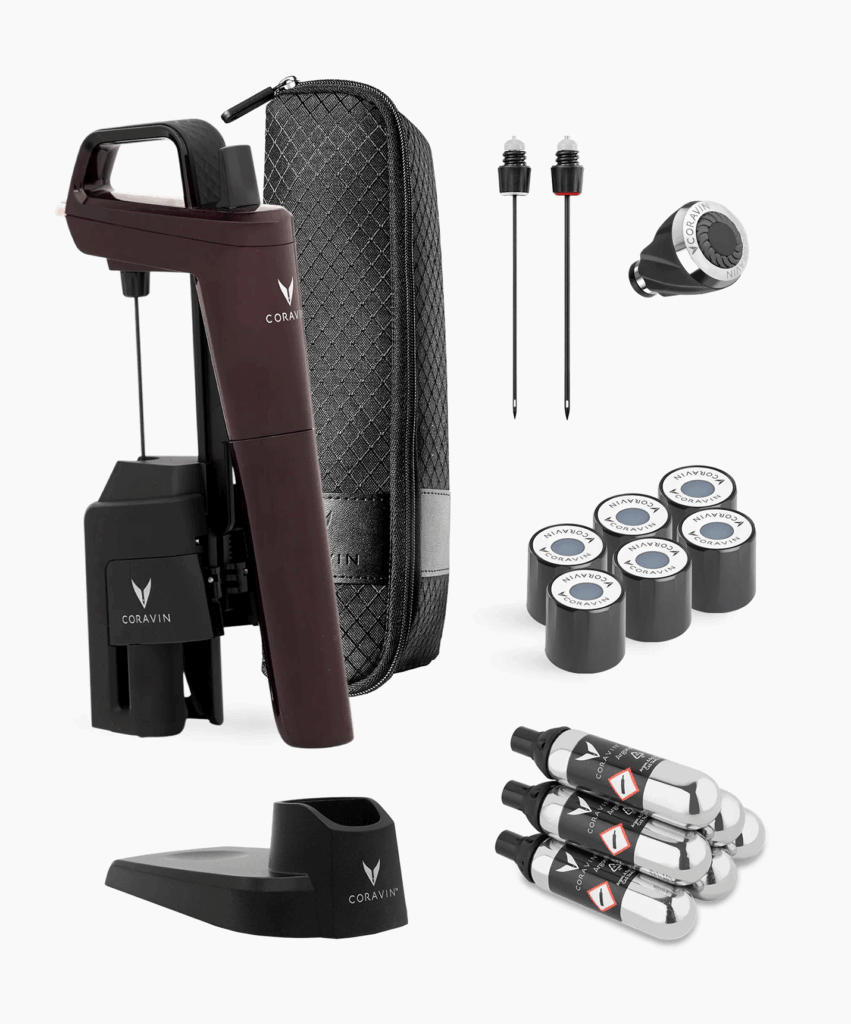
I have this, I use this, and I love this. It’s likely been in gift-guides of yesteryear but it’s just that good. Whether you’re a single human like me who doesn’t want to open a whole bottle and just wants a glass from time to time, or you’re an aficionado wanting to taste his bottles before opening them for a fancy dinner, this pumps inert argon gas into your wine bottles without having to open the cork. Great stuff.

Graze olive oil in glass bottles

Popularized by Tiktok videos, this olive oil stands up to the hype and adds a good amount of actual flavor to your dishes. Whether you’re drizzling or frying, it’s a good recommendation!

Sustainably Raised Meat (for cooks or people who BBQ)

And speaking of frying, Butcherbox allows you to order sustainability sourced meats and have them delivered right to your door. It might be too late if you’re looking for a Thanksgiving bird, but you might need a few steaks eventually!

Terra Kaffe Demi automatic espresso machine

Espresso. Some pronounce it with an “x.” And while it does give you a caffeine boost in a hurry, there’s nothing express about it…except for getting a machine like this that can really speed up and boost your home coffee consumption.

Fancy Onsen Towels

Soft, cuddly, and rapidly drying—these towels are a treat. I got to use one a few months ago while visiting a friend of mine and I still think about them, seriously! It might actually be time to rotate my towels and these are at the top of the list.

Cordless Cleaning and Scrubbing Brush

Cleaning yourself with onsen towels is great, but what about cleaning the actual shower or bath? These allow you to get all the nooks and crannies between the tiles, and because they’re cordless you can also use them on your car rims. Do you ever wash those? You should!

Guardian Kids Bike and Guardian Adult Bike

What’s one of my top-10 favorite things? Assembling Ikea furniture while listening to music. But I also enjoy biking! This combines both as the adult and children bikes are shipped to you and you get to assemble them at home before taking them on the road! It keeps costs low, and satisfaction high!

Oura Ring 4

I have been wearing fitness trackers for a very long time, from smartwatches to fitbits to step-counters, and this is my favorite one so far! I love that I can quickly charge it every 4-5 days and it gives me great insights into activity and sleep, without having to wear something bulky to bed.

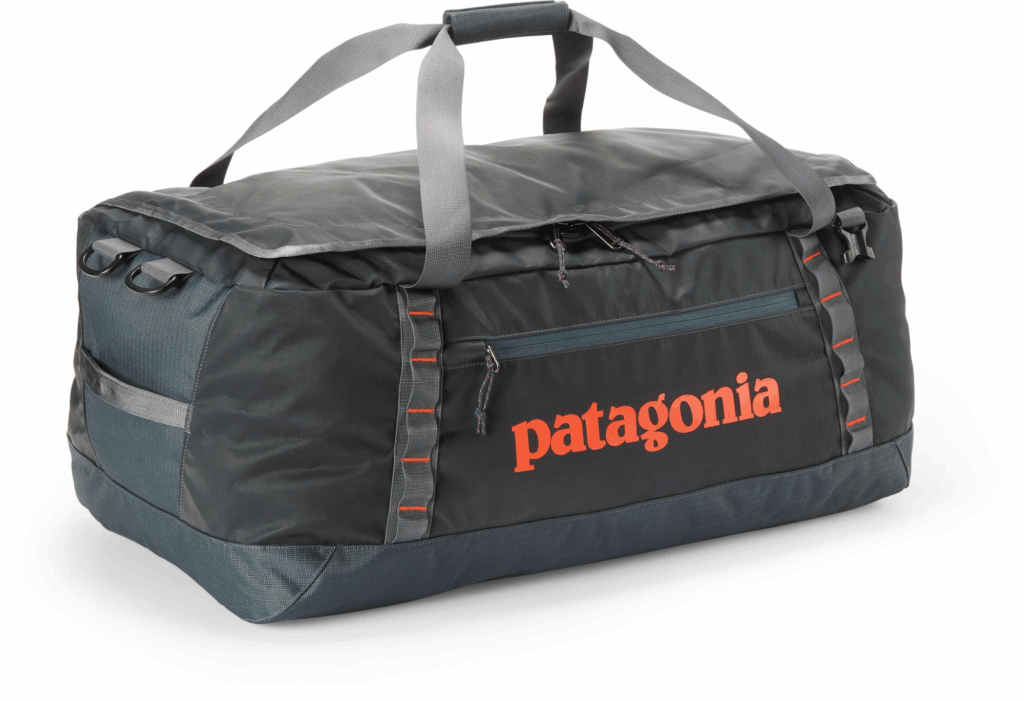
Patagonia Black Hole Duffel

I am often envious of people who travel with duffel bags because of all the stuff you can fit into them. I still use my old-timey rollaboard, but I do have one of these that I throw in the car with me when I hit the ski slopes. These are great, come with backpack straps, and also have a lot of clips where you can hook carabineers up to (which is a great way to bring shoes you don’t want to pack).

Bev Ledge

Airplanes have come a long way but unless you’re sitting in your own personal pod up front (must be nice), there never seems to be enough room for all your stuff! This ledge fits neatly onto your window sill and allows for you to get a little more utility out of your surroundings! Just…don’t get an aisle seat.

Trtl Travel Pillow

As the Wu-Tang Clan once sang, “protect ya neck.” This travel pillow helps do just that when you’re on the go. No one likes falling asleep on a plane and waking up to a stiff neck—this helps!

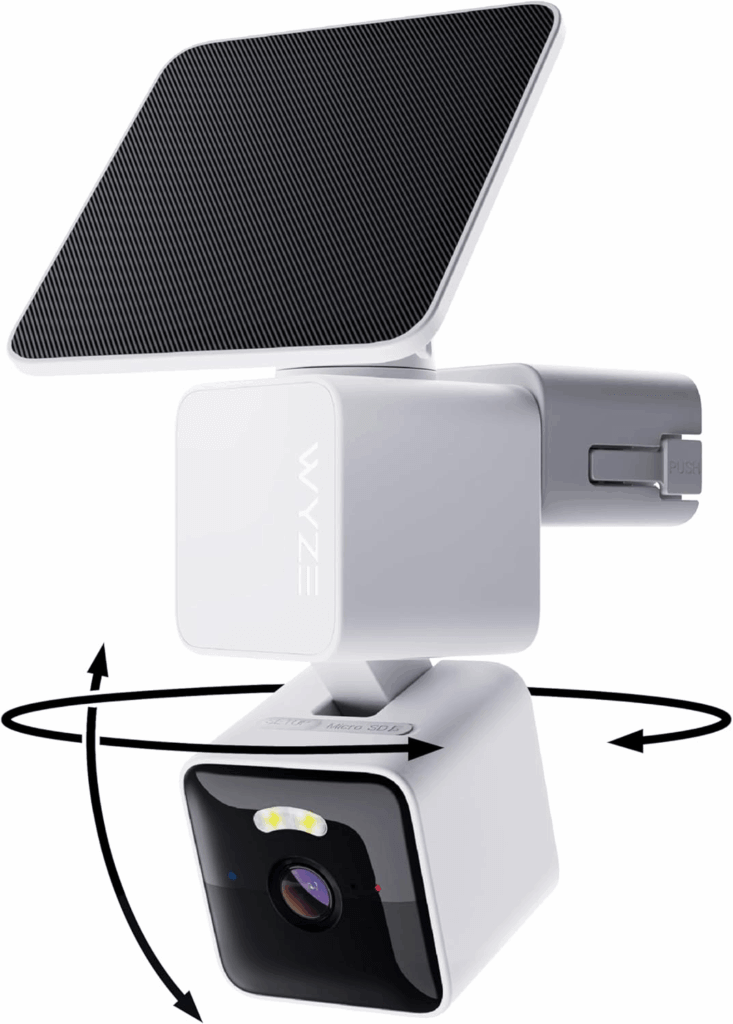
Wyze Solar Cam Pan

These are great for monitoring the outside of your home, but the real killer app comes from using the indoor ones as baby monitors. Seriously, my family has been using them for years in the kiddos’ rooms, and not only is the quality much better than a standard baby monitor, but the recording features make for some really cute videos, and there’s no range restrictions. It’s a win-win-win.

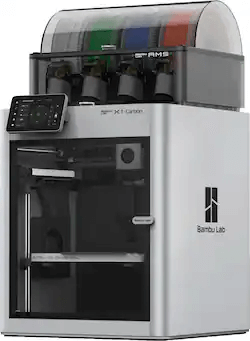
Bambu Lab X1C 3D Printer

3D printing has become very mainstream over the last few years, and this at-home unit with space for multiple filaments makes it incredibly easy to create your favorite designs.

Kindle

Books. You know them, you love them, you should probably read one of my favorites from the last 10 years (The 7 ½ Deaths of Evelyn Hardcastle) and any of the Kindles should help you do just that! I’m a book on tape guy now because I tend to walk a lot (and if you have Audible I highly recommend the Dungeon Crawler Carl series), but if you enjoy holding something in your hands, the paper white Kindles are fantastic.

Classic Diablo (or any “good old game” from GOG”)

Classic games are classic for a reason! The recommendation from our org was for Diablo on Good Old Games, but there are a ton of classics there to choose from. One of my favorite series: Quest for Glory. Version 4 my favorite as it dives into Eastern European folktale lore!

Voice Activated Transformer Robots

Transformers have always been popular, and these voice-activated robots are what I dreamed of when I was a kiddo. Now that I’m no longer a kiddo, I still kind of want one, because watching toys “build themselves” gives me real Toy Story vibes.

K-pop Demon Hunters Wooble kit

K-Pop Demon Hunters took the world by storm, and now you can turn it into a crafting activity for you or your kiddos! Wobbles are little crochet kits, and come with everything you need to make something cute and squishy, right at home!

Retroid Pocket G2

This little gaming handheld allows you to emulate the games of your youth. Whether you liked playing the Sega Game Gear or the Game Boy, you can get all your favorites in one place with these on-the-go systems.

Moondrop Space Travel Headphones

On the go or on the couch, good headphones are paramount. These are relatively shallow and offer noise cancelling technology to keep the outside world out while you’re listening to tunes, audiobooks, or podcasts!

Give the gift of Backblaze

An image of a gift box with the words "Give Backblaze Backup" overlaid

Of course you can always give the gift of Computer Backup. It makes a great gift and helps keep the data of your family and friends safe and sound. Peace of mind is a great gift.

Something you’ve had on your mind didn’t make our list? Tell us in the comments—we love hearing what people are excited about!

The post Holiday Gift Guide 2025 appeared first on Backblaze Blog | Cloud Storage & Cloud Backup

How Backblaze Computer Backup and Jamf Pro Extension Attributes Enhance the Customer Experience

Post Syndicated from Mark McLaughlin original https://www.backblaze.com/blog/how-backblaze-computer-backup-and-jamf-pro-extension-attributes-enhance-the-customer-experience/

A decorative image showing computer and user icons.

At Backblaze, we’ve always believed that data protection should be easy, reliable, and seamless. Our Computer Backup product has long provided individuals and organizations with unlimited, automatic, and affordable cloud backup. But for IT admins managing fleets of devices, visibility and control are just as critical as the backup itself.

That’s where our integration with Jamf Pro comes in. By developing extension attributes that surface key information about Backblaze Computer Backup directly into Jamf Pro, we’ve made it simpler than ever for admins to monitor and manage backup health across their organization.

Why extension attributes matter

Jamf Pro is the industry standard for managing Apple devices, giving IT teams centralized oversight and policy enforcement across Macs, iPhones, and iPads. Extension attributes allow admins to collect custom data points beyond Jamf’s built-in inventory. By plugging Backblaze-specific attributes into Jamf, organizations gain real-time insight into the backup status of every managed Mac—without jumping between multiple dashboards.

This alignment reduces blind spots, helps meet compliance requirements, and, most importantly, gives peace of mind that critical company data is safe.

The four key extension attributes

We’ve developed four extension attributes that bring actionable backup insights into Jamf Pro:

1. Backup selected

This attribute shows whether Backblaze Computer Backup is enabled on a device. IT admins can quickly confirm if backups are actively running, ensuring no endpoint is left unprotected.

2. Backup size

Data size matters—not just for storage costs, but for understanding the scope of protection. This attribute reports the total size of the data being backed up, helping teams gauge usage and anticipate trends.

3. Last backup date

Knowing when a device last backed up is critical to risk management. This attribute ensures admins can spot machines that haven’t backed up recently and take proactive steps before a potential data loss occurs.

4. Safety frozen status

Backblaze’s Safety Freeze feature protects users from data loss by preventing accidental or malicious changes to a backup. By surfacing this status in Jamf, admins gain visibility into whether a device’s backup is frozen and can act accordingly.

Benefits for IT teams and end users

By combining Backblaze’s reliable backup with Jamf’s centralized management, organizations gain:

  • Proactive risk management: Spotting gaps in backup coverage before they become crises.
  • Streamlined compliance: Meeting audit requirements with centralized backup data reporting.
  • Operational efficiency: Saving IT teams from switching between tools and reducing the need for manual checks.
  • Automatic, seamless backups: Employees know their data is being protected without interruptions or extra effort.

Looking ahead

The development of these Jamf Pro extension attributes is part of our broader mission to empower IT teams with tools that reduce friction and strengthen resilience. As remote and hybrid work environments continue to expand, seamless integrations like these will only become more valuable.

At Backblaze, we’re proud to provide more than just a backup service—we’re delivering visibility, control, and confidence.

Want to try it yourself? Get started today and see how these Jamf Pro extension attributes can make managing backups as simple as possible.

The post How Backblaze Computer Backup and Jamf Pro Extension Attributes Enhance the Customer Experience appeared first on Backblaze Blog | Cloud Storage & Cloud Backup

Legal Hold Is Here: Protect Your Business When It Matters Most

Post Syndicated from Natasha Rabinov original https://www.backblaze.com/blog/legal-hold-is-here-protect-your-business-when-it-matters-most/

A decorative image showing several lock icons.

Whether you’re navigating HR issues, facing down litigation, or ensuring operational readiness in the face of uncertainty, you need to be ready to preserve your data. When the stakes are high, Legal Hold, a new feature in Backblaze Computer Backup with Enterprise Control, can help you stay ready.

Available today, Legal Hold gives administrators the power to preserve every version of a user’s backup with a single click. No extra hardware, no new software—all at the same flat-rate pricing of Backblaze Computer Backup with Enterprise Control.

Let’s dig into what Legal Hold is, its importance, and how Backblaze implements it to meet enterprise needs.

What is Legal Hold?

A legal hold, also known as a litigation hold, is a process that organizations use to preserve electronically stored information (ESI) when they face actual or anticipated litigation, audits, or investigations. It ensures that relevant data—such as emails, documents, and file backups—is not deleted, altered, or lost. Once enabled, Backblaze Computer Backup’s Legal Hold feature will preserve a user’s entire backup, including every historical version captured, with a single click. 

A legal hold is typically triggered when an organization becomes aware of a legal claim or regulatory inquiry. Once in place, normal data retention policies are suspended for any affected data, ensuring it remains available for legal review.

How Backblaze Legal Hold helps you stay protected

At Backblaze, we’ve designed our Legal Hold for Computer Backup feature to be powerful, simple, and reliable. Here’s how it works:

  • Instant activation: Instantly activate Legal Hold in the Enterprise Control console without additional hardware or software.
  • Automated data preservation: Apply a Legal Hold to any user’s backup directly from your admin console. The backups are preserved in a fixed state, meaning no files can be altered or deleted—even by retention policies.
  • Remote and silent enforcement: Legal Holds are applied remotely without disrupting the user’s work, alerting the users, or requiring their involvement. It runs silently in the background without downtime, throttling, or notifications.
  • Retention beyond the device: Even if the original device is lost, stolen, or wiped, all held data remains safely stored in Backblaze.
  • Secure by default: Encryption at rest and in transit with optional private key encryption available keeps data safe.

Why Legal Hold matters in 2025

In today’s landscape, Legal Hold isn’t just a “nice to have.” It’s a must-have for almost every organization:

  • Rising litigation and audits: Businesses face more legal scrutiny than ever—whether it’s an employee dispute, intellectual property (IP) protection, or a customer complaint.
  • Remote and hybrid workforces: With data scattered across devices and locations, you need a solution that protects endpoint backups no matter where the user is.
  • Cybersecurity incidents and data loss: Legal Hold ensures that even during a ransomware attack or internal breach, copies of critical data are preserved for investigation or recovery.
  • Cloud-first operations: Legal Hold needs to work where your data lives—securely in the cloud, always ready when you are.

Ready when you need it most

Now, any business using Backblaze Computer Backup with Enterprise Control can implement Legal Hold in just a few clicks—making it easier than ever to stay compliant, reduce legal risk, and prepare for the unexpected.

Already a customer? You can start using Legal Hold today. See our docs article or log in to your admin console. 

Not yet on Backblaze? Reach out to our Sales team to start a free 15-day trial.

The post Legal Hold Is Here: Protect Your Business When It Matters Most appeared first on Backblaze Blog | Cloud Storage & Cloud Backup

Backblaze + Kandji: Native Mac Backup with Integrated Endpoint Management 

Post Syndicated from Natasha Rabinov original https://www.backblaze.com/blog/backblaze-kandji-native-mac-backup-with-integrated-endpoint-management/

A decorative image showing the Backblaze and Kandji logos.

Mac admins have always understood the value of prioritizing Mac-native software to ensure performance and compatibility across their environments. With an integrated approach to data protection and device management from Backblaze and Kandji,  you can now eliminate manual installations and deploy Backblaze with zero-touch across your entire Mac fleet, ensuring critical data is protected.

Simplifying Mac backup for remote and on-site IT teams

Whether your team is in the office or scattered across the globe, Backblaze’s cloud-based solution ensures your data is accessible and easily managed from anywhere.  

Backblaze and Kandji’s solutions have already proven their value in Apple-focused IT environments. 

Companies like Foojee, a managed IT provider specializing in Apple devices, rely on Kandji to deploy and manage those devices and Backblaze to protect their data. “We are always looking at best-of-breed apps for our customers, and we have never felt more proud of our product offering,” said Lucas Acosta, CEO of Foojee. “The three biggest benefits we have realized from Backblaze and Kandji are our time savings on our Help Desk, the increased security, and the increased reliability.”

This partnership builds on that success, enabling organizations to:

  • Deploy Backblaze effortlessly with Kandji: Automate installation and configuration of Backblaze on managed devices with Kandji’s workflows.
  • Enhance data security: Keep critical data protected with Backblaze’s secure, cloud-based backup service.
  • Scale with ease: Both platforms support organizations of any size, from startups to enterprises.
  • Reduce IT overhead: Streamline both device management and data protection with a unified platform.

Join the conversation

Interested in learning more? Join us on LinkedIn Live! Tune in for an in-depth discussion on how Backblaze and Kandji are helping organizations simplify and secure their Mac device management and data protection. Don’t miss out—save your spot today.

Get started

Interested in getting started? Contact our Sales team today to explore how Backblaze and Kandji can streamline your device management and data protection.

The post Backblaze + Kandji: Native Mac Backup with Integrated Endpoint Management  appeared first on Backblaze Blog | Cloud Storage & Cloud Backup

Holiday Gift Guide 2024

Post Syndicated from Yev original https://www.backblaze.com/blog/holiday-gift-guide-2024/

A decorative image showing a gift floating in the ether, waiting to be given.

Ah, the holidays. They can be both fun and stressful for many of us—not least because we have to make so many decisions around gift giving. The plethora of cyber sales and new products on the market make this a great time to try out new products yourself or buy some for the loved people in your lives. To that end, I’ve followed tradition and asked some of my fellow Backblazers to submit their gift ideas for this year and we’ve compiled them into this 2024 gift giving list!

Reading, (w)righting, (a)rithmatic

Kindle Paperwhite

A product image of the Kindle Paperwhite.

For the reader in your life, the Kindle Paperwhite is a great way to keep reading regardless of the conditions. It uses e-ink technology to avoid glare and allows for reading in both high and low light conditions!

ReMarkable Paper Pro

A product image of the ReMarkable Paper Pro.

This is one of the coolest devices out there, and I can personally say that I desperately want someone to gift me one (although it’s a bit on the pricey side, so I get it). This uses similar e-ink technology as the Paperwhite and allows you to take notes using your own handwriting—which (at least in my case when I write in cursive) helps me remember things!

Tekfun LCD Writing and Doodle Tablet

A product image of a Tekfun LCD Writing and Doodle Tablet.

Mixing writing and artistry, this doodle tablet is great for kiddos that are with you in a restaurant or long-haul flight. In fact, I just bought one of these for my nephew!

Klein Bottle

A product image of a Klein bottle.

Some people are math people. I don’t get it, but this Klein Bottle is basically an inside joke to math nerds (something about Möbius loops) and can serve as a lovely table prop for the math lover in your life.

Sounds good!

HyperX Cloud Alpha Wireless Gaming Headset

A product image of the HyperX Cloud Alpha wireless gaming headset.

For the gamer in your life, these are some of the best headphones on the market. They’re wireless, they sound great, and the microphone picks up all of the positive (I’m sure) feedback for teammates.

Apple AirPods 4

A product image of the Apple AirPods 4.

The latest and greatest from Apple. These come with a new chip that helps with transparency mode so you can cross the street with confidence.

Google Pixel Buds Pro 2

A product image of the Pixel Buds Pro 2.

If you’re an Android user (raises hand) you may want something built for your phone and the latest Pro version of the Pixel Buds are here for you. These come with little nubs for snug fit, meaning you can run or lift or meander without worrying that your tiny buds will fall out.

Experiences

Sur La Table Cooking Classes

A screenshot form the Sur La Table website that features their holiday cooking classes.

Who doesn’t want to impress loved ones with delicious dishes? If you have a Sur La Table near you, these are great.

Airbnb Experiences

An image showing the AirBnB experiences logo as well as some images from destinations.

If you’re a fan of traveling you’ve likely stayed at an AirBnB. But even if you’re more of a homebase person, their Experiences tab is worth checking out. From cooking to glass blowing to cow cuddle therapy (yes, that’s a thing).

Odds and ends

theFube Fidget Cube

A product image of theFube Fidget Cube.

I have one of these in my car and, let me tell you, as a person who used to bite their nails out of boredom (gross, I know), it helps keep my mind and compulsions at bay! Highly recommend.

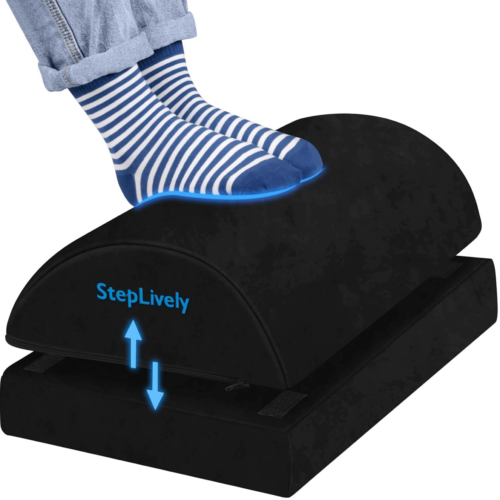
Under Desk Foot Rest

A product image of an under desk foot rest.

Many of us spend our day sitting, sometimes standing at a desk. Even when you’re sitting, though, ergonomics are a big deal and having an adjustable foot rest can help you get into a position that feels solid and sustainable for long stretches of time. I recommend getting up and stretching every now and again, but if you’re like me and have a bad back, these are great.

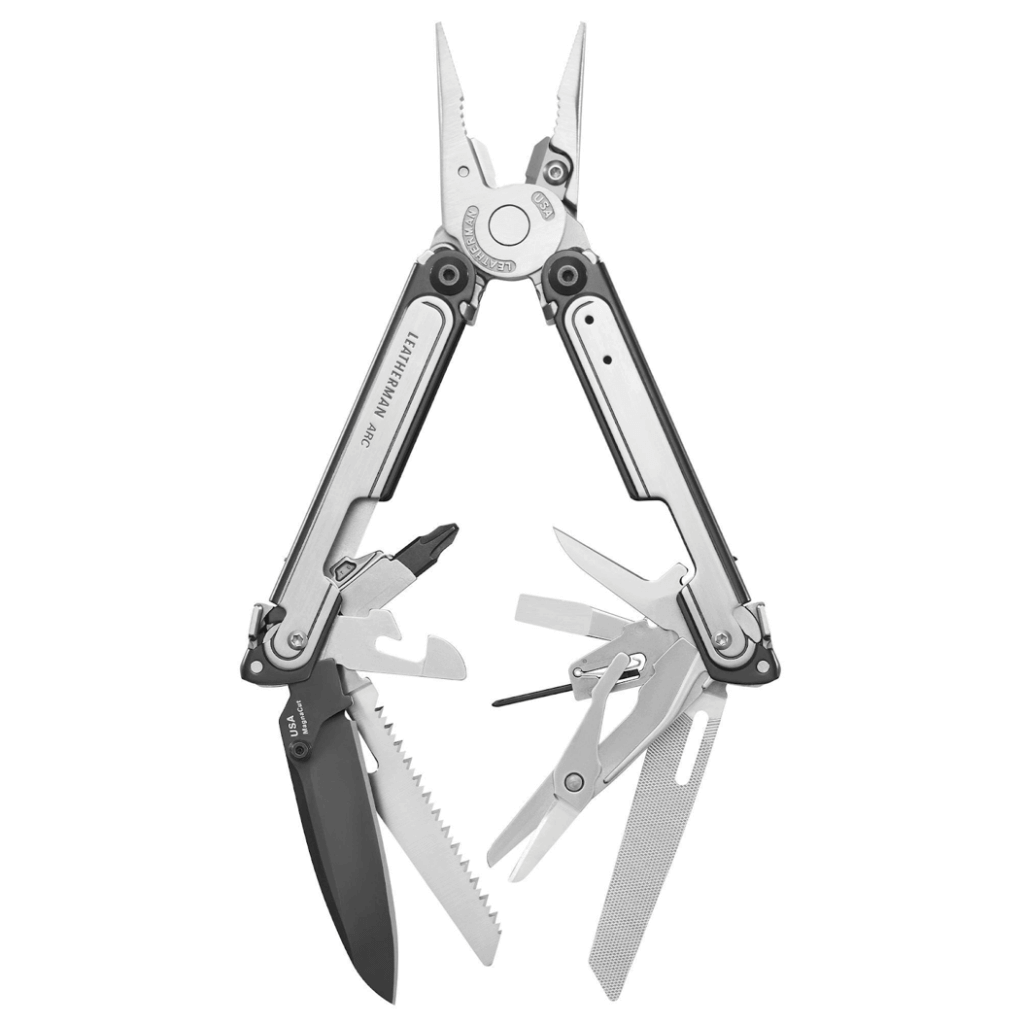
Leatherman ARC

A product image of a Leatherman Arc.

Whether you’re outdoors or indoors, sometimes you need to cut or saw or screw or open or pry or file something, and for that, these Leatherman tools cannot be beaten.

Give the gift of Backblaze

And, of course, we’d be remiss if we didn’t remind you that Backblaze Computer Backup makes a great gift. Help your family and friends experience the sweet, sweet peace of mind that comes from a good backup strategy and make sure they never lose a file again. Bonus: you don’t even have to go to the store to get it.

A decorative showing a gift covered in Backblaze logos.

Go forth and gift!

We hope this guide sparked some ideas and simplified some choices. We love hearing about what folks are excited about, so feel free to give us some more good options in the comments below.

The post Holiday Gift Guide 2024 appeared first on Backblaze Blog | Cloud Storage & Cloud Backup
Mastering Mac MDM: Best Practices for Managing Your macOS Fleet

Post Syndicated from Natasha Rabinov original https://www.backblaze.com/blog/mastering-mac-mdm-best-practices-for-managing-your-macos-fleet/

Mac usage has steadily increased in recent years, particularly in business. In the fourth quarter of 2023, Apple shipped 16.1 percent of all personal computer units in the United States, per Gartner. Moreover, IDC anticipates the number of Macs sold to business users worldwide will increase by 20% between 2023 and 2024. IDC also reports that 76% of IT decision makers believe Macs are more secure than other computers.

With this surge of Macs in the workplace and increased focus on security, IT administrators increasingly require mobile device management (MDM) to protect, secure, and manage these remote devices.

Today, we’re digging into all things Mac MDM, including best practices for implementing MDM in your enterprise and why it’s so important to seek out Mac-native tools to do so.

What is mobile device management (MDM)?

MDM enables you to securely manage and control Apple devices—such as iPhones, iPads, Macs, and Apple TVs—remotely. With MDM, IT administrators can configure devices, deploy apps, enforce security policies, manage updates, and track device inventory all from a centralized platform. For IT teams, the main purpose of MDM is to improve their management and control over their fleet of devices, especially devices that aren’t on-premises like those for remote workers.

How MDM works in practice

  1. Device enrollment: A device is enrolled via automated device enrollment (ADE), a third-party MDM tool like Jamf, Kandji, or Munki, manual setup, QR code, or a URL.
  2. Device configuration: MDM pushes settings (Wi-Fi, VPN, email), security policies (passcode, encryption), and apps to the device.
  3. Ongoing management: MDM continuously monitors the device’s compliance with organizational policies and can enforce restrictions or trigger actions (like updating software, changing user permissions, etc.) when needed.
  4. Device retirement: When a device is retired or a user leaves, the MDM can deprovision the device, sometimes wiping or restoring it to factory settings.

MDM solutions provide a centralized, scalable, and secure way to manage devices in an enterprise setting. This ensures consistency, enhances security, and simplifies IT administration.

What are some advantages of MDM for Macs?

Using MDM for Macs in an enterprise environment offers several advantages, particularly in terms of security, efficiency, and scalability. Here are some key benefits:

  1. Enhanced security: Mac MDM tools frequently make use of the built-in Apple management framework, and one of the most significant benefits of MDMs are their robust security features. With features such as location tracking, remote data wiping, encryption enforcement, and strong authentication methods, MDM solutions protect businesses from cyber threats and unauthorized access. They allow you to enforce security settings like passcodes, encryption (FileVault), and password complexity requirements across all Macs. They also allow you to implement web security policies, blocking access to harmful sites, restricting app installations, controlling software updates, and preventing malicious downloads.
  2. Centralized device management: You can automate enrollment and configure devices remotely, setting up Wi-Fi, VPN, email, and other necessary system preferences without user intervention. This functionality enables touchless deployment, allowing you to ship laptops directly to employees and enroll them remotely, without your IT team ever having to touch the machine. Mac admins can also assign custom configuration profiles to different user groups (e.g., for different departments), allowing flexible yet consistent policy enforcement.
  3. Self-service: As you scale, it becomes increasingly important to limit rights on employee machines, depending on the department and the level of access they need. With MDM, you can populate a self-service portal where employees can access the software they need to do their jobs, including licensed and paid apps. 
  4. Streamlined app deployment and management: You can easily deploy apps from the Mac App Store or distribute custom internal apps, and then centralize automatic updates for those applications.
  5. Efficient patch and update management: MDMs can schedule and enforce macOS updates, reducing vulnerabilities by ensuring all devices are running the latest versions. Automated and remote updates reduce the need for manual interventions and device downtime.
  6. Bring Your Own Device (BYOD) support: MDM supports BYOD environments by providing a separation between personal and work data on the same machine, making it flexible for both company-owned and personal devices.

Challenges with Mac MDM

One of the challenges of managing Apple devices at scale is keeping the Mac operating system (macOS) updated across your fleet of machines. Apple has made changes to how that works over the years. As a Mac admin in a corporate environment, you have to balance conflicting demands—you need to make sure your fleet of machines is up to date and in compliance, but you also need to do so in a way that isn’t disruptive to end users, minimizes downtime, and avoids sudden unexpected reboots. 

To answer this challenge, the open-source community has come together with solutions. Third-party, open source scripting can be leveraged within your MDM to allow you more flexibility and control over macOS updates, allowing you to expand user options for updates while at the same time setting deadlines for those updates to happen.

Another challenge of using MDM solutions is navigating the increasingly restrictive permissions introduced by Apple. Starting with macOS 10.14 and in updates since then, Apple added security to parts of the computer it considers sensitive or critical. While these restrictions enhance user privacy and security, they can limit IT administrators’ control over devices. Applications that require sensitive access to these parts of the system, like backup clients or anti-virus software, now require additional permissions. 

Silently installing these types of apps now requires an additional component, a custom policy configuration that grants full disk access. This will be different depending on the MDM you’re using, but Jamf, for example, offers the Privacy Preferences Policy Control (PPPC) Utility to help you create configuration profiles. 

Best practices for Mac MDM

Managing Macs in an enterprise environment can be a complex task that can have a big impact. One of the biggest benefits of MDM is reducing IT workload. Centralized and automated management reduces the time and effort needed to configure and manage each Mac manually, allowing you to focus on more strategic tasks. 

But, effective MDM requires some other building blocks to be in place before you can realize all of those advantages. Here are some best practices for Mac MDM:

  1. Choose the right MDM solution
  • Find the right partner: Integrate with an MDM solution like Jamf, Kandji, or Munki for streamlined device enrollment and management.
  • Update processes: Ensure that the MDM solution supports both Apple’s Device Enrollment Program (DEP) and Volume Purchase Program (VPP) to automate setup and app deployment, and ensure all devices are enrolled in the MDM system as soon as they are set up.
  1. Enforce security policies
  • Passcode and encryption: Ensure all devices require strong passcodes and are encrypted with FileVault (for Mac) and native iOS encryption.
  • Multi-factor authentication (MFA): Enforce MFA for accessing corporate services and apps.
  • Remote lock/wipe: Enable the ability to lock or wipe devices remotely in case of theft or loss.
  1. App management
  • Volume purchasing: Use Apple’s VPP to distribute apps and content centrally.
  • App whitelisting and blacklisting: Control which apps users can install on their devices, blocking potentially harmful or non-compliant apps.
  • App updates: Automate app updates to ensure security patches and features are deployed quickly.
  1. User and group profiles
  • User profiles: Use custom profiles to set different policies for various roles within the organization (e.g., executives, developers, sales).
  • Configuration profiles: Set up policies for Wi-Fi, VPN, email, and other settings automatically based on user or group membership.
  1. Data protection
  • Content filtering: Implement web content filtering and secure browsing rules.
  • Data loss prevention (DLP): Apply DLP policies to prevent sensitive corporate data from being shared through unapproved channels.
  • Backup solutions: Ensure regular, automated backups using a true backup solution like Backblaze Computer Backup versus a sync service.
  1. Patch management
  • Automatic updates: Automate macOS updates and ensure compliance with the latest patches and versions.
  • Version control: Use MDM to control which versions of macOS and iOS are allowed in the organization to prevent untested or unsupported versions from being installed.
  1. Monitor device compliance
  • Compliance uniformity: Set compliance rules for security (e.g., passcode policies, encryption) and regularly monitor devices for adherence.
  • Compliance monitoring: Use reporting and analytics tools built into your MDM solution to track compliance, app usage, and device health.

By following these best practices, you can efficiently manage and secure Mac devices within your organization while minimizing risks and ensuring a seamless experience for employees.

The importance of Mac-native apps

Mac-native apps provide a seamless and optimized experience that takes full advantage of the macOS ecosystem. Native apps are specifically designed to integrate with macOS, ensuring smoother performance, faster responsiveness, and a more intuitive user experience compared to non-native or cross-platform applications. 

This integration often means that the apps are more efficient, utilize fewer system resources, and can easily interface with built-in macOS features such as Spotlight, Siri, and Notification Center. For IT administrators managing multiple Macs, the consistency of Mac-native apps helps minimize compatibility issues and ensures a uniform experience across all devices.

In addition, Mac-native apps typically offer better security and reliability, which is crucial for IT administrators overseeing corporate environments. Apple has a strict set of guidelines for app development, especially for apps available through the App Store. These guidelines emphasize security practices such as sandboxing, code-signing, and integration with macOS security features like Gatekeeper and XProtect. 

This gives IT administrators confidence that Mac-native apps are less likely to pose security risks, reducing the chances of malware or vulnerabilities being introduced into the organization’s systems. Moreover, since native apps are built to work within Apple’s framework, they are generally more stable, reducing the risk of crashes or bugs that could disrupt workflows.

Furthermore, Mac-native apps support better integration with management and automation tools that are vital for IT administrators. These apps can be more easily deployed, managed, and updated through Apple MDMs. 

Finally, native apps can often integrate with Apple’s scripting languages and automation tools like AppleScript and Automator, providing IT teams with more powerful options for customizing workflows, optimizing processes, and enhancing productivity across the organization. This level of control is essential for IT administrators looking to streamline their management tasks and ensure a high level of efficiency.

Having MDMs built native for Macs is critical for the success of IT management. That holds true for all software running on Macs, including backup software like Backblaze Computer Backup—you have to update permissions less frequently, you have access to more robust build possibilities, and it runs seamlessly in the background.

Are you using a Mac MDM tool?

Do you have a favorite MDM tool? Let us know in the comments. We love to hear how they’re working for you.

The post Mastering Mac MDM: Best Practices for Managing Your macOS Fleet appeared first on Backblaze Blog | Cloud Storage & Cloud Backup

How to Future-Proof Your Archives: File Formats That Stand the Test of Time

Post Syndicated from Stephanie Doyle original https://www.backblaze.com/blog/how-to-future-proof-your-archives-file-formats-that-stand-the-test-of-time/

A decorative image showing a vault door with a series of 0s and 1s behind it.

You may have heard us talk about backup a time or two, and hopefully our love has been clear. So, when Wired gave us a shoutout in their recent, astute article about archiving, allow us to say we were flattered. 

As both a tribute and a collaboration, we’re happy to build on their article’s premise about choosing the correct file type for archiving purposes, and we’ll highlight a few tools to help you protect your files in the long term. 

Wired reports: Archived files are especially vulnerable to changing file types

Archives are distinct from backups and have their own demands. Backups are intended to give you the ability to restore files or your whole environment—they need to be both in step with your current environment and flexible enough to respond to both a point in time restore of your whole system or a single file, depending on what you need. Archiving, on the other hand, is about preservation when you can’t depend on the continuity of devices or digital tools—those tools might look quite different (or not exist at all!) down the line. That said, backups are also an essential building block of digital archives. 

Making something last long-term takes more work than you’d think. And, interestingly, digital archiving suffers from the opposite problem of “traditional” archiving. Whereas with books, magazines, and other paper-based media, you want to touch them as little as possible, with digital archives, you actually need to do some active maintenance to make sure you’re converting files to accessible formats that you can open well into the future. 

Here’s an expert from the Wired report telling us about just one part of the practical concerns of digital archiving: 

“Twenty years, in the digital realm, is ancient,” says Lance Stuchell, director of digital preservation services at the University of Michigan. His team is frequently tasked with recovering digital files from old computers and storage mediums. “We have a lab that can deal with old media—floppy drives, CDs, older computers. We can get that off of those types of media and move it into our preservation system while ensuring we don’t mess it up while we’re doing it.”

Wired goes on to report that the problem isn’t just having the correct device, but actually having the correct file type. Their biggest takeaways for making sure your files hold up over time? 

  1. Use open source file types. 
  2. If you’re storing media, store files uncompressed. 
  3. Back up absolutely everything. 

Check out the rest of the article for details—it’s worth a read. And, thanks for the shoutout as a good option for folks looking to back up, Wired. 

Some tools for converting files

So, now that you’re all geared up to get your archive in order, here are some free, open source tools that will help you convert your files. One note when you’re using open source (and we’re big fans) is to make sure you’re using a tool you trust. And, some tools, especially web-based tools, may collect user data or can expose sensitive information. 

With that in mind, here are a few to get you started: 

  • LibreOffice: The successor to OpenOffice, LibreOffice is a well-respected open source alternative to Microsoft Office and supports several open source and older document file formats.
  • Pandoc: Pandoc calls itself the Swiss army knife of file converters for markup formats, which includes documents, HTML formats, spreadsheets, and more. It’s got a very helpful list of file formats and indicates whether they can convert from/to each of them. 
  • ImageMagick: ImageMagick can certainly convert your files, and it’s also beloved because it can edit files, including support for scripting and automation. But, for our purposes, it converts image formats and has continuous support from the open source community. 
  • FFmpeg: FFmpeg is a community supported audio and video tool. 
  • VLC media player: Another audio and video tool that supports conversion.

Keep in mind that while we’re recommending many of these for conversion purposes, many are actually fully-fledged programs with some very cool features—and, some can even replace traditional paid tool options, if you’re the budget-conscious type.  

Archiving hardware of the future

Standard tech right now for storing archived files is on hard disk drives (HDDs) or solid state drives (SSDs), and you’ll even find DVDs that can keep your data stored for 1,000 years or more. All storage media types are known to degrade over time—when you’re storing long-term, you can’t just leave your drive disconnected from power forever, for instance. 

That said, developing storage media types, while not as common, offer some interesting (if not yet widely practical) options. If you’re willing to drop some cash, DNA (yes, the biological kind) or ceramic might be for you. And, if you want to get super sci-fi with it, PhysicsWorld has reported on the “Superman memory crystal” that could keep data intact for millions of years. 

Build your archive for alien circumstances

When we ambitiously sent out messages to the (potential) sentient life in the universe almost 50 years ago, on golden records no less, we apparently thought it was enough to also include a phonograph needle and some symbolic instructions on how to play the record. In practice, we sent a message with no guarantees that someone could decode and play it. 

That may be fine for our space-age time capsule, but for our everyday archives, we do want to do our best to make sure we’re able to open them in the future. While we can’t anticipate where technology will be in 20, 40, or 100 years, we can follow digital archiving best practices to give future generations the best chance of opening files. At least they’ll likely share a language with us, as opposed to our alien friends.

The post How to Future-Proof Your Archives: File Formats That Stand the Test of Time appeared first on Backblaze Blog | Cloud Storage & Cloud Backup

What Do Teachers, Parents, and Students Have in Common? The Need to Back Up

Post Syndicated from Yev original https://www.backblaze.com/blog/what-do-teachers-parents-and-students-have-in-common-the-need-to-back-up/

Our world has moved more online, and blackboards have taken a backseat to laptops in classrooms and lecture halls alike. From homework to lesson planning and grading, to communicating with students and parents, educators and students rely heavily on their computers and sync drives like Google Drive, Dropbox, or OneDrive. And, when it comes to digital resources, there’s always a risk of data loss, which, when it strikes, can wipe out hours or days of work. 

This is where backup solutions come into play. In this blog post, we will explore the benefits of computer backup for both students and educators, highlight the importance of choosing an affordable and reliable backup solution, and give you some talking points to help others in your educational community understand the importance of backing up.

Risks of data loss

Data loss can happen for a variety of reasons, including hardware failure, accidental deletion, theft, or cyber attacks. 

Imagine this scenario: You’ve spent hours building a detailed lesson plan, preparing engaging multimedia presentations, and grading student assignments. Suddenly, your computer crashes, and you can’t get it to turn back on. Or, you lose your USB drive that has years of work, including lesson plans. Both situations are not great and the result is that all of your hard work is gone in an instant. 

Data loss is an issue for anyone, but for educators, the consequences can affect not only your work but also your students’ learning experience. And the same scenario is true for students—working on a research project last minute only to have a blue screen of death five minutes before the deadline can be a frustrating turn of events—and one that affects your grade long-term. 

The 3-2-1 backup rule

The good news about avoiding data loss is that there are some established best practices that can give you a great place to start. The most fundamental of these, the 3-2-1 backup rule, says you should have three copies of your data on two types of storage media with one copy stored off-site. 

Sync is not backup

Sync services like Google Drive, OneDrive, and Dropbox are great, but they are not the same thing as a true backup. Sync drives are designed to keep all versions consistent with each other, which makes them vulnerable to things like accidental deletion and ransomware attacks. While some may have limited version history or “backup,” those features are typically for a limited amount of time (i.e., 30 days), or are lacking in some of the key areas that schools need to maintain compliance with data protection standards. 

Cloud backup services are using a different tool for a different job—you want your synced files to change, whereas you want your backup to be a fixed point in time you can restore if you need to. That’s not to say that you won’t have your backup files constantly up-to-date, like you do with an automatic backup solution, just that you’ll be able to restore a file, or all of your files, to whatever time you choose. 

And, if you think the difference is just splitting hairs, studies show that 58% of organizations that experienced data loss last year had some amount of unrecovered data. And, in that same pool of survey takers, 84% of organizations were relying on cloud sync services. 

Benefits of backing up

  1. Protection against data loss: The primary benefit of a backup solution is the protection it offers against data loss. By regularly backing up your files, you can ensure that your important documents are safe and can be restored quickly in case of any mishap, or even if you forget your laptop at home.
  2. Enhanced productivity: With a reliable backup system in place, you can focus on what you’re working on without worrying about it getting lost. This peace of mind allows you to work more efficiently and creatively, knowing that your files are secure.
  3. Compliance and accountability: While not at the top of many student’s minds, many educators know that educational institutions have policies and regulations regarding data storage and protection. Having a robust backup solution helps teachers, professors, and the organizations they work for stay compliant with these regulations.
  4. Cost savings: Investing in a backup solution can save you money in the long run. Data recovery services can be expensive after the fact, and the time lost in trying to recreate lost work can be even more costly. An affordable backup solution provides a safety net that prevents these potential expenses.

Students: Back up your data regularly

Often, students are given space on cloud drives or required to submit assignments through learning management systems like Blackboard. But, even with cloud drives, many tools don’t account for adequate backups. When it comes down to it, students are responsible for turning in their work on time. 

Getting a backup in place protects you and all the effort you’re putting into your coursework, and you can try it for free to see if it’s right for you. 

Educators and faculty members often drive change

Collaboration is one of the hallmarks of an educational environment, and educators and students are often just as responsible for driving change as administrators are. Whatever role you take in your educational community, there are many ways you can make to help others understand why backup is so crucial, and how to choose the tool that’s right for you. 

Choosing an affordable and reliable backup solution

When selecting a backup solution, affordability and reliability are key factors to consider. Here are some decision criteria you can share with others to help in choosing a backup solution:

  • Assess your needs. Determine the amount of data you need to back up and how frequently it changes. This will help you choose a solution that meets your specific requirements without overpaying for unnecessary features.
  • Cloud vs. local backup. Cloud-based backups offer the advantage of remote access and easy storage to a geographically separate location, while local backups (such as external hard drives) can provide faster recovery times. Both methods have a place in a solid 3-2-1 backup strategy. 
  • Ease of use. Look for a backup solution that is user-friendly and doesn’t require extensive technical knowledge. The easier it is to use, the more likely you are to maintain regular backups.
  • Security features. Ensure that the backup solution you choose has robust security features, such as encryption, to protect your data from unauthorized access and cyber threats.
  • Cost-effective plans. Many backup service providers offer tiered pricing plans based on storage needs and features, or are based on the number of devices you need protected.  Backblaze Computer Backup, for example, starts at $9 per computer per month for unlimited backup, with discounts for one year or two year plans. 

Share resources to facilitate discussion

If you don’t have a robust backup strategy in place through your IT department or district, send them this article or this Texas A&M case study and recommend that they get started with a backup strategy.

Save your data (and yourself!): Think about backups ahead of time

Remember, regardless of how you’re creating data, the question isn’t if you will experience data loss, but when. Be prepared and make backup a priority—if not in your organization, then definitely in your personal tech choices.

The post What Do Teachers, Parents, and Students Have in Common? The Need to Back Up appeared first on Backblaze Blog | Cloud Storage & Cloud Backup

Why We Use Native Code in Backblaze Computer Backup

Post Syndicated from Natasha Rabinov original https://www.backblaze.com/blog/why-we-use-native-code-in-backblaze-computer-backup/

A decorative image showing icons of file types superimposed over a cloud.

There’s a lot that goes into building a user-friendly, robust backup utility. When Backblaze set out to create one back in 2007, our goal was to make sure that users of all skill levels would have automatic, nearly continuous backups that could be restored on command. There were plenty of design decisions to be made, and one of the biggest was whether to implement our client in native code. 

You might have seen us talk about this on our website and elsewhere, and we felt it was high time to dive into what that decision meant for our development, how it affected the way the Backblaze client works, and why we think it was an important decision and inflection point for Backblaze Computer Backup and our customers. 

What is native code?

Each kind of computer central processing unit (CPU), such as Intel/AMD or Apple Silicon, has its own “machine language,” which is the set of instructions the CPU can understand and follow. These instructions are encoded in binary, and aren’t something people can read or write without great effort. When folks talk about using native code, they’re typically talking about a computer program that’s written in machine language, so a computer’s CPU can “natively” understand what the program needs the CPU to do.  

Compiled languages

To use a compiled language, developers write instructions into source code that’s easy for humans to read and edit. Then, they use a program aptly called a compiler to convert the source code into machine language for a particular kind of CPU. Examples of compiled languages are assembly (ASM), C, C++, Rust, Go, Swift, and Haskell.

Interpreted languages

Like with compiled languages, developers write programs in interpreted languages by writing instructions into source code files. But instead of converting those instructions into machine language, another program called an interpreter reads the source code and follows the instructions it contains without converting them to machine language. Common interpreted languages are things like Python, Ruby, BASIC, and PHP. 

There is a bit of a slippery slope between a compiled vs. interpreted language. For example, some modern Java implementations mix an interpreter and a compiler. But, the difference when it comes to programming is about picking a language that’s suitable to a task’s requirements. 

When and how do you use which type of code language(s)?

Well, pretty much anything anyone does on computers these days will take a combination of code languages. In some ways, the whole challenge of working with computers is bridging how humans communicate vs. how computers can process things. 

If you were using a metaphor for the above, a compiled code language would represent someone who was raised to natively speak two languages, and could fluently curse in both languages. 

By contrast, interpreted language is like this: You’ve moved to a country where you’re not fluent in the language, but someone needs a thorough dressing-down. An interpreted language would let you write in your native language, take your words and literally translate the idiom you were intending to use—then the computer would take your literal translation, and, executing the program, would be supplied with a dictionary to then give you an effective, similarly meaningful, insult. If you didn’t have your translator, your attempt at offense (in this metaphor, a program!), would likely fail because no one can understand you. 

To wit: While they mean similar things, “when pigs fly,” and “quand les poules auront des dents,” do not literally translate. 

What are the benefits of using native code in a backup application?

Using native code in a backup application is, in our opinion, better for several reasons.

Permissions

When you’re writing in native code, you’re plugging in your program at a lower level than most applications. That gives you access to the kinds of APIs the native operating system (OS) uses. Because you’re in that level of integration with the operating system, it means that users have to update permissions less frequently, have access to more robust build possibilities for your client, and their backup client can seamlessly run in the background.   

Efficiency: Build once, run everywhere

By building our backup client lower in the chain of command, so to speak, it allows us to use the same work for different situations, and there are some interpreted languages that have been built for this purpose, like Java VM. Using those solutions, however, would sacrifice some of the other benefits we’re outlining in this article. 

Being fully in control of our common code, we can do this without interpreted language and still have the other advantages listed here. So, we can use the same base code for both our Mac and Windows clients, but then add modifications to the code on top of each to refine the clients. There may be slight differences between the operating system (OS) environments, but coding at the level of a compiled language like C++ means that we can adjust for those differences effectively.

Performance

Running native code typically results in better performance. That’s because there are fewer steps (for your computer) between understanding a program and running a program.

Backup programs run all the time in the background, and have to keep track of a lot of information. Backblaze’s native code does that using half to a tenth of the computing resources that a backup program written in an interpreted language would use. So, Backblaze won’t slow down or interrupt the other activities you’re doing with your computer.

Reducing software bloat and size of software

Also, since you don’t have to install interpreters (you know, your insult dictionary), native code applications are usually leaner and more performant on the system. 

Eliminating risky third-party dependencies

Since they’re software, computer language interpreters have bugs and get new features, so they’re frequently updated. Sometimes an updated interpreter won’t run programs written for an older version of the language, or will cause a program to behave differently in an unexpected (read: “buggy”) way. Also, vendors have even changed licensing terms and started charging money for interpreters that had been free. Backblaze’s native code doesn’t have those problems.

Platform-standard user interface

Operating system vendors like Microsoft and Apple strongly encourage developers to write programs that use a platform-standard user interface “look-and-feel.” Programs that do that help users feel comfortable, minimize surprises, and support accessibility features like text-to-speech.

The most effective way to ensure a program’s user interface matches a platform’s standard look-and-feel is to use features built into the operating system, and those are typically only available to native code like Backblaze’s client.

What are the challenges of using native code in a backup application?

Nothing is perfect. What are the downsides to this approach?

Industry preference moving towards interpreted language/web apps

Has anyone else noticed that the world of development has changed recently? (No need to qualify that statement—it will be true tomorrow, tomorrow, and tomorrow again.) 

As with any industry, tech’s (and developers’) favorite strategies for creating things and solving problems have changed over time. 

There are various players in this space, including platforms (Mac, Windows, Linux), software (Adobe, Office), applications (Slack, the latest mobile game, your headphone utility client), and frankly, many things that skirt the boundaries of the above buckets. Executing any program, and particularly third-party applications, is a negotiation between operating systems’ publishers and the program/application’s developers. 

Over time, those who sell computers and manage OSes have grown to prefer the lightweight development of application ecosystems. It lets them have more control over their platforms, and it gives developers a shorter time to deployment—as long as they play within the sandbox the OS has made available. OS publishers are attempting to anticipate the needs of program and app developers, but there are some types of utilities—and backup is one of them—that justifiably break standard rules. Giving access to all your files by default, for example, isn’t something you’d do for a social media application. However, in order to get a full and complete backup, a program does justifiably require that level of access. 

Limited dev libraries

Given the preference of developers to move to web applications and interpreted languages (for good reason in some cases), many OSes are releasing less detailed support and/or technical documentation for some of their deeper-level tools. If you’re implementing in native code in today’s environment, you need both historical knowledge and ingenuity in house. Which leads us to our next point…

Expertise

We’re on board with the evolution of development—innovation is at the heart of our company—but for aspects of our backup client, we need developers with a deep understanding of compiled code languages and our supported ecosystems. And luckily, in any sufficiently large tech company, you’ll find folks specializing in different code languages and parts of the tech stack. That means we can spend more time nurturing and developing our internal talent rather than seeking it externally. 

Hybrid approaches?

Hey, we’ve spent a whole article telling you why native code matters. But, many folks agree that the future requires a hybrid approach, largely because of that gray area between compiled and interpreted languages we mentioned above. You can certainly see that in our style as well—our Mac client uses a combination of Objective C, SwiftUI and C++, for example. 

The now and future Backblaze

The core functionality of our client depends on native code for very good design reasons, and they’re ultimately all about making things easier for our end users. 

Overall, our design ideas are all centered on what it means to use Backblaze every day, regardless of an end user’s skill level. We want things to be simpler, and sometimes the questions we need to answer (how do I make sure the Backblaze client backs everything up?) are actually a tad more complicated upfront (the Backblaze client needs system permissions—and that means implementing it in native code), in that they require forethought and an investment of time and resources. But, we also prioritize the kind of thinking we can use over and over—so, even if we spend a little more time building native code, it’s an investment that has longevity. Put another way: Build once, run everywhere. 

The post Why We Use Native Code in Backblaze Computer Backup appeared first on Backblaze Blog | Cloud Storage & Cloud Backup

2024 State of the Backup: Survey Says Security Incidents and Data Loss on the Rise

Post Syndicated from Yev original https://backblaze.com/blog/2024-state-of-the-backup-security-incidents-and-data-loss-on-the-rise/

A decorative image showing several icons that represent graphs, charts, and stats.

June is Backup Awareness Month, and every year, we work with the Harris Poll to survey the state of computer backups in the U.S. It’s our 16th year running, and this year, we expanded our lens and created a new survey focused on analyzing the state of backups among businesses, providing critical insights into organizational backup strategies and challenges. 

And as in previous years, our consumer backup survey provides a comprehensive summary which reflects trends and changes over nearly two decades. The combination of these two audience surveys provides a more complete picture for the state of backups in the U.S. Let’s start with our new survey data.

Spotlight: Business Backup Is Coming Up Short

Our inaugural Business Backup Survey included 300 IT decision makers across the U.S. Part of what we wanted to learn was: 

With all of the different ways IT professionals have to protect their user’s data, how are they choosing to back up and are backup solutions even working? 

We can infer the answers to those questions by looking at the tools organizations use to back up their data, the frequency of data recoveries, and how successful or not those recoveries were.

What Tools Do Organizations Use to Back Up Their Data?

One of the most striking findings from the poll is that a significant majority (84%) of IT decision makers say their organizations utilize cloud drive services, which rely on syncing data to the cloud, for off-site data backup. You may have heard us say this before—sync is not backup. 

What’s Wrong with Cloud Drives and Sync Services?

Cloud drives allow for file storage and sharing but may not protect against file corruption or accidental deletion. Sync services automatically update files across multiple devices, meaning that any changes or deletions are replicated everywhere, which can lead to unintended data loss. While some cloud drives have added minimal backup capabilities (i.e., 30 days of version history or similar), they are often lacking in key areas that are necessary for business continuity or compliance standards. 

Cloud backup solutions, on the other hand, are designed to systematically and securely back up data, offering robust protection against loss, corruption, and security breaches. This makes cloud backup a better choice, particularly for addressing security concerns and ensuring the integrity and availability of critical data.

How Often Do Organizations Need to Restore Data?

39% of IT decision-makers report that their organizations need to restore data from backups at least once a month, with special requests for archived or deleted data (62%), backup software failure (54%), hard drive failure (52%), and cyber attacks (49%) reported as some of the top reasons. This frequent need for data recovery underscores the persistent vulnerabilities IT professionals face.

Are Data Recoveries Successful?

Not only do many organizations need to restore on a regular basis, but the survey also shows that among those that experienced data loss, only 42% were able to recover all of their data when they perform a restore. That leaves 58% with some amount of unrecovered data. 

Are Backups Working?

The data shows a sizable gap between the use of backup services and the effectiveness of data restoration. Although a significant percentage of organizations indicate they’re using what they would consider a cloud backup solution (the shortcomings of cloud drives and cloud sync services aside), only 42% of those that experienced data loss were able to restore all their data. This discrepancy highlights the risks associated with inadequate backup measures and the potential for data loss, which can have serious repercussions for businesses.

Only 42% of organizations that experienced data loss were able to restore all their data.

There are all sorts of ways businesses need to slice their data management strategy in order to make sure all data is backed up. This includes data type (e.g., files vs. system information), frequency with which the data is updated or changed, retention requirements for compliance, and more. There are often reasons that businesses will employ different backup frequency or strategies for different file types—file-based versus block-level incremental backups, for example. However, incomplete backups can lead to situations where only parts of the data can be restored, disrupting business operations and resulting in downtime as efforts are made to recover or reconstruct lost data. 

The importance of creating an end-to-end data backup plan, as well as choosing the right tools that provide comprehensive coverage, may be highlighted only at the moment of failure. As it stands, the Harris Poll data suggests that the limitations of cloud sync and cloud drive tools are leaving gaps in data protection and disaster recovery strategies.

This is further validated by the features IT decision makers report as being absolutely essential/very important in selecting backup tools, including security (97%), bandwidth and memory capacity (87%), a variety of features (79%), ease of operations and customizable elements (83% each). These rigorous requirements suggest that many existing solutions may fall short of meeting the comprehensive needs of modern businesses, and/or that the complex mix of tools may be contributing to blind spots in an overall data management strategy, only exposed at the point of recovery.  

How To Close the Gap?

These insights underscore the need for innovative and robust backup solutions that address evolving business requirements. As the volume of data continues to grow and cyber threats become increasingly sophisticated, the demand for reliable, secure, and user-friendly backup systems will only heighten. Given the challenges many businesses face in fully recovering their data, there’s an opportunity to promote education and awareness regarding the importance of refreshing backup strategies and utilizing suitable backup tools.

Consumer Backup Practices: Less Than 1 in 5 Are Certain of Their Backups

The consumer portion of the 2024 Backup Awareness Survey seeks to understand a simple question we’ve asked year after year: How often do you back up all of the data on your computer? We also look at who backs up the most and the reasons people cite for needing to restore data, and we compare those trends over time. Let’s dig in to the results. 

How Often Do People Back Up?

This year’s survey reveals that fewer than 1 in 5 Americans (15%) feel absolutely certain that their most important files are securely backed up. This is despite 84% of Americans who own a computer stating that they’ve backed up all their data and 45% performing backups at least once a month.

The survey also highlights the predominance of cloud solutions among backup methods. 63% of individuals who back up their data use a cloud-based system as their primary method. However, only 11% utilize dedicated cloud backup services, indicating a preference towards cloud drives (39%) and sync services (13%). As we noted above, cloud drives and sync services are fundamentally different from cloud backup solutions and can create gaps in a robust 3-2-1 backup strategy. 

Who Is Best at Backing Up?

Every year, we highlight which demographic is the best at backing up their data, and in 2024, men (73% vs. 66% of women) and younger adults ages 18–54 (76% vs. just 61% of those ages 55+) take the lead backing up at least once a year. 

The Reasons for Restores

The survey also found that 74% of Americans who own a computer have accidentally deleted important data (a 5.7% increase from 2023), and 57% have experienced a security incident on their computer.

Trends Over Time

For those interested in the data over time, let’s travel back and see how this year’s data compares to previous years. The first graph is one of our favorites. Since 2023, daily backups have dipped by 1%, while weekly and monthly backups have remained steady, which is encouraging. Additionally, there is a slight, but not statistically significant, increase of 1% in yearly and more-than-yearly backups. Notably, the percentage of people who have never backed up their data has decreased by 2%. 

For all the table enthusiasts, you’ll appreciate this detailed view showcasing how 2024 compares with previous years. We love to see Never down to an all-time low, although Daily took a slight dip. 

If you’re a visual person who appreciates vibrant pie charts for easier data digestion, here are pie charts comparing data from 2008 to 2024:

Within each population (business and consumer), the most striking data points are around the differences between backup and sync. Both consumers and businesses are leveraging cloud drive and sync services for ease of use, but that has not translated to successful data recoveries. With ransomware attacks on the rise, now more than ever, it’s essential to have a strong backup strategy. 

Still, we’ve come a long way since 2008, and the consumer data shows positive change over time around backup awareness and tool adoption. Going forward, we’ll be interested to see how the business audience data changes over time. See below for our full testing methodology, and, as always, drop us a line in the comment section if you have any questions or insights.

Consumer Survey Method:

This survey was conducted online within the United States by The Harris Poll on behalf of Backblaze from April 25-29, 2024, among 2,058 adults ages 18 and older, among whom 1,877 own a computer. The sampling precision of Harris online polls is measured by using a Bayesian credible interval.  For this study, the sample data is accurate to within +/- 2.5 percentage points using a 95% confidence level.

Prior year’s surveys were conducted online by The Harris Poll on behalf of Backblaze among U.S. adults ages 18+ who own a computer in April 25–27, 2023 (n=1,857) May 19–23, 2022 (n=1,861); May 12–14, 2021 (n=1,870); June 1–3, 2020 (n=1,913); June 6–10, 2019 (n=1,858); June 5–7, 2018 (n=1,871); May 19–23, 2017 (n=1,954); May 13–17, 2016 (n=1,920); May 15–19, 2015 (n=2,009); June 2-4, 2014 (n=1,991); June 13–17, 2013 (n=1,952); May 31–June 4, 2012 (n=2,176); June 28–30, 2011 (n=2,209); June 3–7, 2010 (n=2,051); May 13–14, 2009 (n=2,154); and May 27–29, 2008 (n=2,723).

Business Backup Survey Method:

This survey was conducted online within the United States by The Harris Poll on behalf of Backblaze from April 30 – May 8, 2024, among 300 IT Decision Makers. The sampling precision of Harris online polls is measured by using a Bayesian credible interval.  For this study, the sample data is accurate to within +/- 5.7 percentage points using a 95% confidence level.

For complete survey methodologies, including weighting variables and subgroup sample sizes, please contact Backblaze.

The post 2024 State of the Backup: Survey Says Security Incidents and Data Loss on the Rise appeared first on Backblaze Blog | Cloud Storage & Cloud Backup

Do I Need a Continuous Backup Solution?

Post Syndicated from Stephanie Doyle original https://backblaze.com/blog/do-i-need-a-continuous-backup-solution/

A decorative image showing a calendar displaying a cloud with arrows in a circular pattern, plus several devices around the calendar.

Most IT administrators and businesses know that you need to employ a 3-2-1 backup solution to meet minimum backup durability requirements, though many folks are of the opinion that that methodology is just table stakes these days. Once you get into the variety of ways you can ensure reliable, robust backups, you learn about strategies like 3-2-1-1-0, bare metal recovery, cyber resilience, and more. 

Which method your business ultimately ascribes to depends on your risk tolerance—but no business wants to experience the costs associated with extended downtime. In a world where the threat of ransomware is not an “if”, but a “when,” and disaster recovery is front-of-mind for businesses of all sizes, getting granular with your backup and recovery options is key. That brings us to today’s topic: continuous backup solutions, aka continuous data protection (CDP).

What Is Continuous Data Protection (CDP)?

A continuous data protection solution is an automated data backup method that keeps track of changes to your files and backs them up constantly. This is different from traditional backups that copy your data at set intervals. While you can set the interval that you’d want to have your data backup (e.g., daily, weekly, monthly), you’d still be relying on a systemic approach, and would have data loss exposure correlating to the duration you set. What if you had a day of particularly high volume of new data? What if you’re dealing with sensitive customer information that your business needs to show an accurate audit trail for? 

Quick Refresher: The 3-2-1 Backup Strategy

The 3-2-1 backup solution calls for three copies of your data, to be stored on two different media types, with one copy off-site (and preferably geographically separate from your primary data storage region).

Continuous backup solutions work by tracking every change to your data in real time, then they asynchronously create a second copy of those changes. Compare this with traditional backups, where data is written to a destination, then a copy (often, a snapshot) of the data is made to be distributed to other backup locations. With a continuous backup solution, you can reduce your recovery point objection (RPO)—that is, the point in time from which you can recover your data—to near zero. And, because your continuous backups typically have to be stored in more accessible storage tiers, you can reduce your recovery time object (RTO) as well. 

Here are some of the key qualities of a continuous backup solution: 

  • Automatic backups. With continuous backup, you don’t need to remember to manually back up your data. The system continuously monitors your files for changes and backs them up automatically.
  • Real-time or frequent backups. Continuous backup solutions can back up your data in real-time, or at least very frequently. This means you’ll always have a very recent copy of your data available in case of data loss.
  • Restore to any point in time. Because continuous backups keep track of all the changes made to your files, you can restore your data to any point in time, not just the last time a full backup was run.

Benefits of Continuous Backup Solutions

There are several advantages to using a continuous backup solution:

  • Reduced risk of data loss. You’re less likely to lose data due to hardware failure, software corruption, ransomware attacks, or accidental deletion.
  • Faster recovery times. If you do lose data, you can restore it from a recent backup much faster than you could with a traditional backup system, especially those that rely on hardware (air gaps) or cold storage for archival storage. 
  • Improved business continuity. Continuous backup can help businesses keep running smoothly even if they experience a data loss event.
  • User-friendly for diverse levels of tech proficiency. Within a business, there are always going to be folks who are more or less proficient with technology. When you have an automatic backup utility that runs in the background—particularly one with advanced central administrative controls like Backblaze Business Backup with Enterprise Control—you aren’t relying on employees’ tech proficiency (or memory) to create backups.

Continuous Backup vs. Near Continuous Backup Solutions

True CDP solutions run at the level where you’re writing changes to your file—according to the patent, at the basic input/output system (BIOS) of the computer such that normal operations are unaffected. In a practical sense, that means you’re nearly always using virtual machines. 

There are several near-continuous backup solutions, however, that back up in intervals of one hour or less and leverage a high-availability system. For transparency’s sake, it’s worth noting that Backblaze Computer Backup is a near continuous backup using native code over Java to reduce impact on your computer’s operations—see our documentation for more.

Downsides of Continuous Backup Solutions

There are some challenges to consider when implementing a continuous backup solution:

  • Cost: Continuous backup solutions can be more expensive than traditional backup solutions. As time has gone on, there are more solutions available—which has led to more competitive pricing—but it is still a factor to consider. 
  • Storage requirements: Continuous backup can generate a lot of data. If you’re provisioning storage yourself, you’ll need to make sure you have enough to accommodate the backups. If you’re considering using a cloud backup utility, make sure you look into unlimited backups. Many common backup utilities create pricing tiers that take into account the volume of data a user generates and stores.
  • System resources and compatibility: Solutions can use up system resources, which could slow down your computer or server. For example, many utilities use Java instead of native code, which can noticeably slow down your devices. 

What’s the Diff: Continuous Backup vs. Synced Cloud Drive

Because a continuous backup solution updates backups in near real-time, it can be confused with cloud sync services. You may have heard us say it before—sync is not backup. The main difference between a continuous backup service and a synced cloud drive boils down to their purpose:

Continuous Backup Service: This prioritizes data protection and recovery. It constantly monitors your files for changes and backs them up frequently, often in real-time. You can restore your data to any specific point in time, making it ideal for disaster recovery or retrieving accidentally deleted files.

Synced Cloud Drive: This focuses on accessibility and collaboration. It keeps a mirrored copy of your designated folders across multiple devices. Any edits you make on one device are reflected in the cloud storage and on all other connected devices. This is great for working on the same files from different locations and keeping everyone, well, in sync.

While some cloud drives have introduced a backup or version history function, they are often limited in scope and subject to the shared responsibility model. Both undermine a true backup strategy, especially if your business has cyber insurance or compliance standards to meet.  

Here’s a table summarizing the key differences:

Feature Continuous Backup Service Synced Cloud Drive
Main Purpose Data protection and recovery Accessibility and collaboration
Backup Frequency Continuous or very frequent User-defined, automatic at intervals, often limited
Version Control Supports restoring to any point in time May or may not have version history
Focus Protecting against data loss Sharing and working on files across devices
Ideal Use Case Disaster recovery; accidental deletion recovery; ransomware protection Remote work; team collaboration

In short:

  • Use a continuous backup service if you’re worried about losing important data due to hardware failure, software corruption, or accidental deletion.
  • Use a synced cloud drive if you want to access and edit your files from anywhere and keep them updated across all your devices.

Some services might offer both features, but it’s important to understand which functionality takes priority. And, if in doubt—use both. 

Conclusion

Backups continue to be one of the cornerstones of any business’ ransomware protection strategy. As you’re considering what kind of backup you need, consider how much your business needs a granular, point-in-time recovery option to maintain business continuity. As always, you should balance functionality with costs, and the needs of your particular business. But, given the relative affordability of backup tools—and the amount they can save you in the event of a data disaster—solutions like continuous backup are worth considering for businesses of all sizes.

The post Do I Need a Continuous Backup Solution? appeared first on Backblaze Blog | Cloud Storage & Cloud Backup

In Honor of May the Fourth, Let’s Talk About the Internet in Space

Post Syndicated from Stephanie Doyle original https://backblaze.com/blog/in-honor-of-may-the-fourth-lets-talk-about-the-internet-in-space/

A decorative image showing a satellite and the Backblaze logo on a cloud in space.

It is time, once again, to celebrate the things that bring us together as tech and sci-fi lovers of the world. Today, to mark the upcoming high holiday, May the Fourth, we’re bridging our current reality to that time long ago in a galaxy far, far away by discussing the important issues: How in the world are we expected to survive in space without good internet? 

Maybe it’s just me, but it seems absurd that the Death Star blueprints had to be literally carried off a spaceship on what’s essentially an external hard drive when the Jedi Council (RIP) could make perfect holographic representations of themselves from across the galaxy. Sure, you can argue that making an off-site copy and sneaking it out was the most covert way to go about it, but didn’t some of those characters in Rogue One die next to a giant antenna? One powerful enough that it controlled traffic into and out of the planet? Why did they have to transmit the plans to the closest battleship when, in theory, they could have sent them anywhere? 

Never fear folks, we are here with what we think, based on a fair amount of research and our own humble opinions, are the answers. The truth is that current and future space internet still requires a good bit of hardware and networking. Let’s talk about where we’re at today, where we could be in the near future, and why the Rebel Scum may have, in fact, needed to run faster than Darth Vader, sacrificing all those lives, to get the Death Star schematics out of the sector.

How Do We Currently Move Data Through Space?

The internet, as we know and love it, is largely a function of hardware. To simplify things to their most base definition, the internet is a network of all the networks on the planet. Key word there, folks: planet. We use fiber optic cables to connect things on our terrestrial plane. What happens when we want to take things to space? 

We have a variety of telecommunications operations that allow us to move data through space, but they’re nowhere near as fast as our fiber-optic cables, especially with recent advancements in fiber transmission. To make our space communications that fast, we’d need analogous hardware and/or scientific advancements in some very cool research areas. 

For today’s conversation, here are the basics: when you transmit data (via any medium, not just through space), you convert it to a format computers can read, namely 0s and 1s. Typically we represent those values by moderating or fluctuating different types of electromagnetic waves. Currently the most prevalent form of data transmission in space is radio, and lasers are a developing, but usable technology.

An image from the European Southern Observatory showing lasers guiding a high-powered telescope.
Frickin’ lasers. Source. 

Our Earth-based organizations move data through space both near and far using different networks of satellites and listening technology. Both use a satellite system called the Tracking and Data Relay Satellite (TRDS), which orbits Earth at a far enough range that relay points are nearly always visible to spacecraft like the International Space Station (ISS).

As you get further out into deep space, you can beam your signal directly to Earth—you just have a smaller window of time where orbits are aligned to make that possible. In that case, rovers stationed on other planets might co-opt other orbiters to relay signals back to Earth. The only problem there is that those orbiters typically have a scientific mission of their own, which means that the relay orbiter has to make a choice about what traffic is prioritized. These things also signal what space internet could be in the future: a network of relay satellites that transfer data planet to planet.  

And, while networking on Earth is designed for and assumes real-time responses, scientists are working on Delay-Tolerant Networking (DTN) which is designed to handle significant delays and optimize routing based on that information. It’s not yet mainstream, but DTN has been successfully demonstrated on several missions, including on NASA’s Curiosity mission and the European Space Agency (ESA) Rosetta comet mission. 

Yeah, But What Does Star Wars Use?

We see a couple of types of communications networks in the Star Wars films, and more in the non-canonical expanded universe: 

  • Holonet: This is a galaxy-wide communication network mentioned in the films. It’s likely a complex system of satellites, relays, and subspace transceivers that facilitate rapid data transfer. This is similar to what we’re using and building today. 
  • Subspace: While primarily used for faster-than-light travel, subspace might also be used for transmitting information. Subspace is a fictional realm that allows hyperspace travel, and it’s possible that communication signals could piggyback on this network for faster travel times. 
  • Hyperspace Communication Droids: Legends lore (non-canon Star Wars material) mentions these specialized droids that could transmit messages via hyperspace, achieving near-instantaneous communication.

Since the last two depend on the fictional subspace zone, we’re really just considering the Holonet today. And, that works largely like our current technology, though they obviously have more satellites and relays to work with. That’s good news for our little thought experiment—we can look at file transmission times on our current Mars missions to get some analogous numbers.

Mars Transmission Times & File Sizes

Okay folks, now that the science is out of the way, let’s get down to brass tacks. Why was it possibly faster to move the Death Star plans via external storage than just transmitting them out once the planetary shields had been lifted? That answer depends on transmission times and file size. I’ll talk about transmission times first. 

The current technology we use to communicate with Mars has a few different transmission times we can work with: 

  • Radio, low-gain antenna: Up to a few kilobits per second (kbps)
  • Radio, high-gain antenna: Up to several megabits per second (Mpbs)
  • Laser, standard communications systems: Up to 10 gigabits per second (Gbps)
  • Laser, advanced systems under development: In development, but 10s of Gbps 

For our purposes, let’s go ahead and choose two and use a 10GB file as an example. The basic transmission time formula is: 

Transmission time = file size / data rate

Assuming radio waves and a high-gain antenna:

Transmission time = (10GB * 8 bits) / (1Mbps) = 80,000 seconds, or about 22 hours

Assuming laser communications with a standard system:

Transmission time = (10GB * 8 bits) / (10Gbps) = 8 seconds

So, How Big Were the Death Star Files?

We have two main canonical sources of truth we can use to infer the file size of the Death Star schematics: A New Hope and Rogue One: A Star Wars Story. (The plans were discussed in the Clone Wars, but not in detail.) Full disclosure: I used AI tools to assist with our file size estimations. 

A New Hope

In the OG, we get a glimpse of the plans the rebels have smuggled out as they plan to attack the Death Star, and we can use these to make some assumptions about file size. Interestingly, these plans were actually created for the movie by a few scientists at NASA’s Jet Propulsion Labs (JPL), and they were originally credited in the film.

As easy as shooting womp rats.

Factors to consider about file size:

  • Visual Complexity: The schematics we see on the holographic projectors show detailed technical diagrams with various sections, labels, and annotations.
  • Color Depth: While the movie doesn’t definitively show color, for the sake of estimation, let’s assume the plans are grayscale (requiring 1 byte per pixel).
  • Resolution: Estimating the exact resolution from the movie is difficult. However, considering the detail visible on screen and the technology of the time (1977), a conservative guess might be a resolution similar to standard definition video (around 480p).

Calculating File Size—A Conservative Estimate

The formula for calculating file size per image is:

File size per image = Width x Height x Color Depth

Let’s assume the Death Star plans are displayed on a holographic projector with a resolution of 640 x 480 pixels (a common standard definition resolution). If they are grayscale images, they would require 1 byte per pixel for color depth, so:

640 pixels * 480 pixels * 1 byte/pixel = 307,200 bytes per image

However, the plans likely consist of multiple schematics and blueprints. In the movie, we see various sections and scrolling text, suggesting a considerable amount of information.

The formula for calculating total file size is:

Total file size = File size per image * Number of images

Let’s assume the Death Star plans consist of a total of 100 grayscale images (a very rough estimate), so:

Total file size = 307,200 bytes/image * 100 images Total file size = 30,720,000 bytes

1MB is equal to 1,048,576 bytes, so that’s 29.3MB (30,720,000 bytes / 1,048,576 bytes/MB).

Remember, this is a very rough estimate.

The actual file size could be much larger or smaller depending on factors like:

  • Compression: The Death Star technology might utilize advanced data compression techniques, significantly reducing the file size.
  • Vector Graphics: If the plans are stored as vector graphics (scalable images), the file size would be smaller compared to bitmaps (storing pixel information).
  • Additional Data: The data card might contain additional information beyond visual schematics, like text descriptions, material specifications, etc., which could increase the file size.

Taking everything into account, a reasonable guess for the Death Star plans file size in Star Wars: A New Hope could be in the ballpark of 20 to 50 megabytes. This is enough to hold a significant amount of technical data but still fit on a reasonably sized data card for the time period the movie depicts (1977).

Rogue One

In Rogue One, we don’t actually see the plans in detail like we do in A New Hope, but we do have a short clip showing digital blueprints. Based on what we can glean from that and other newer, canonical sources, which employ 3D holograms, here’s a revised estimate for the Death Star schematics file size:

Factors to consider about file size:

  • Data Complexity: Rogue One reveals plans that include detailed schematics, technical readouts, and potentially 3D models. These elements significantly increase the file size compared to our previous estimate based on static images.
  • 3D Model Complexity: The size of 3D models depends on the level of detail. High-resolution models with intricate textures would require more data than simpler ones.
  • Data Hierarchy: The plans likely involve a layered structure, with overviews and deep dives into specific sections. This adds to the overall file size.
  • Compression: The presence of data compression is unknown. Compression algorithms can significantly reduce file size, but the effectiveness depends on the data type.
Gotta love a data center.

Estimated Range:

Given these factors, here’s a possible range for the Death Star schematics:

  • Low-End Estimate (100s of GB):
    • Moderately complex 3D models.
    • Some level of data compression.
    • Focus on essential schematics and technical data.
  • High-End Estimate (Low Single-Digit TB):
    • Highly detailed 3D models encompassing the entire Death Star.
    • Limited or no data compression.
    • Extensive data beyond core schematics, including maintenance procedures, weapon system details, etc.

Final Call?

Sure, we don’t know if data storage techniques are different in the Star Wars universe, and sure, the difference between technology in 1977 vs. 2016 gives sci-fi writers are a lot more to work with, but considering the complexity of the Death Star and the variety of data hinted at in Rogue One, the schematics file size likely falls somewhere between hundreds of gigabytes to a low single-digit terabyte. Frankly, despite the New Hope plans being our original introduction to the universe, this range is more realistic for a project of such immense scale. 

Of course, with a file size in the 100s of GBs or low TBs, it makes a lot more sense why the Rebels didn’t attempt to transmit the files much, much further away. We know from the movie that the Death Star plans were on a relatively isolated planet in an Imperial-controlled quadrant, and who knows how large quadrants are. 

For the sake of argument, let’s say the Death Star schematics were 1TB and there’s a safe planet at the equivalent distance of Mars. Transmitting the files via radio with a high-gain antenna would take about 2330 hours, and transmitting via laser would take 217 hours. 

With that in mind, even though it’s pretty old school, it was probably faster to put the files on a drive on a spaceship, and then have that spaceship get those files where they needed to go (you know, not accounting for misadventures). 

Always Have a Backup: Is a Droid the Safest Way to Transmit Files?

The most confusing part of this whole discussion is why, once they were past the “Darth Vader is attempting to murder us” part, they didn’t make several copies of the data and distribute it to various, separate entities. The urgency of the mad rush of Luke trying to reach the Rebels is compelling and all, but also an excellent reason you should always have a geographically separated backup. R2-D2’s badassery notwithstanding, the fate of the universe should have some redundancy.

If It Works, It Works

Hey, in the end, we really can’t complain. Luke got the files to Leia; Leia goes on to be instrumental in the Rebel victories against not one, but two Death Stars, and we all just had to endure the dark times of the prequels before we got the compelling story of Rogue One. Cheers, Star Wars fans, and May the Fourth be with you.

The post In Honor of May the Fourth, Let’s Talk About the Internet in Space appeared first on Backblaze Blog | Cloud Storage & Cloud Backup

7 Data Dilemmas + 5 Backup Strategies for World Backup Day 2024
Post Syndicated from Yev original https://backblazeprod.wpenginepowered.com/blog/7-data-dilemmas-5-backup-strategies-for-world-backup-day-2024/

A decorative image showing the World Backup Day logo and the Backblaze logo on the cloud.
Everyone’s favorite holiday is fast approaching. That’s right: World Backup Day is just around the corner on March 31 (if you’re new to celebrating). Many moons ago, we got together with some like-minded champions of the backup lifestyle to encourage people to protect their data, and World Backup Day was born. In the past we’ve shared internal metrics on backup trends, advice for talking to your family about backups, and learnings from our yearly backup poll (stay tuned in June for more of those!).


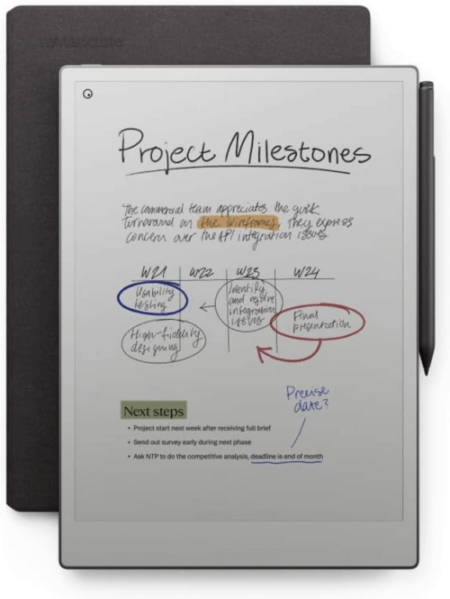
This year to mark the occasion, we’re revisiting some tales of bullets dodged and backup victories. You’ll find no scary monsters here—no, these tales end happily. We like to call them ReStories—heartwarming sagas of folks who found a data lifeline. And we’re throwing in some tips and tricks to help you protect your data, too. 
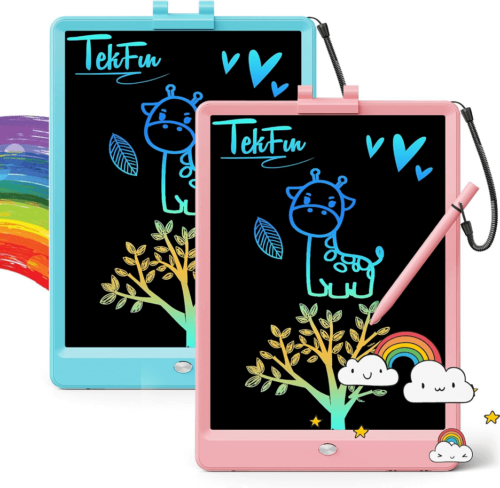
Let’s take a walk down ReStory lane.

Rising From the Ashes of the Marshall Fire Crisis

In 2021, the Marshall Fire left many in despair, but for Christopher G., it was a test of foresight. “A lifetime of memories were kept in my data, and years before this I decided to get a permanent backup solution,” Christopher shared. When disaster struck, Christopher lost his data—including his on-site backup copies—but he remembered he had an off-site backup stored in the cloud with Backblaze. He initiated a restore, and we sent hard drives with everything he needed to get his precious memories back. 

Tip 1: Mitigate Risks With 3-2-1 Backups

Christopher’s story is a powerful testament to being prepared with a 3-2-1 backup strategy, which means keeping three copies of your data on two different media with one stored off-site (and preferably in the cloud). When two copies of his data were wiped out by the Marshall fire, he could rely on his third copy to restore all of the data, including years of photos and important documents.

School District Protects Data for 23,000 Students

Bethel School District had 200 servers and 125TB of data backed up by Rubrik, a backup software provider, to Amazon S3, but high costs were straining their budget—so much so that they had to shorten needed retention periods. They moved their backup copies from Amazon S3 to Backblaze B2, resulting in savings of 75%, which allowed them the budget flexibility to reinstate longer retention times and better protect their data from the threat of ransomware.

It was really a couple clicks, about five minutes worth of work, and we were pointed to Backblaze.

—Patrick Emerick, Senior Systems Engineer, Bethel School District

Tip 2: Plan for a Ransomware Attack Before It Happens

Ransomware attacks specifically targeting school districts and universities are on the rise—79% of institutions reported they were hit with ransomware in the past year. A ransomware attack is not a matter of if, but when, and that’s true whether you’re a school, university, business, or just someone who has data they care about. Take a cue from Bethel School District and take proactive measures to protect your business data from ransomware, like establishing retention periods that allow you to recover adequately in the event of an attack.

Backing Up Years of Research

The Caesar Kleberg Wildlife Research Institute at Texas A&M–Kingsville needed an endpoint backup solution to protect data on researchers’ laptops in the field and on-site, knowing researchers in the field don’t always follow protocols to the letter when it comes to saving their data. The Institute’s IT manager implemented Backblaze Computer Backup which gave him the ability to remotely manage faculty and staff backups. And he knows that, with no added fees, recoveries won’t be cost prohibitive.

Tip 3: Manage Backups Centrally

Whether you’re a remote employee or managing them, it can help to have tools like silent install, fine-grained access permissions, and management controls (at Backblaze, you can access all of these via Enterprise Control for Computer Backup). That way you can stay focused on what matters most instead of updating backup clients and fiddling with settings. Plus, you don’t have to worry about backups being accidentally deleted or tampered with. 

Glenda B.’s Emotional Rescue: 20 Years of Memories Reclaimed

Losing decades of family photos can be devastating, a sentiment echoed by Glenda B.: “Several years ago my photos were all inexplicably deleted from my computer—20 years of family photos gone in an instant!” Some of them were on iCloud, but there were years of older photos that were only stored on her computer. Fortunately, she had very recently installed Backblaze Computer Backup, so all of her photos were safely backed up in the cloud. Glenda initiated a restore with Backblaze, restoring her files and her invaluable memories. 

Tip 4: Sync Is Not Backup

If you’re like Glenda, your digital life is probably scattered across your computer, external hard drives, and multiple sync services from iCloud to Google Drive. Glenda’s story is an important lesson that sync is not backup. Sync services are great for sharing data and accessing it on multiple devices, but that doesn’t help you when you lose data that’s only stored on your computer or when you accidentally delete a file and don’t realize it. One of the drawbacks of using sync services as a backup is that data outside those services is vulnerable. And the fix for that vulnerability is to use a true backup service to protect all of your data. 

What Happens When One-Third of Your Employees’ Machines Crash?

BELAY Solutions is a staffing company that connects organizations with virtual assistants, bookkeepers, website specialists, and social media managers. While performing scheduled system updates across BELAY’s fleet of Macs, nearly a third of the company’s machines crashed. After shipping out replacement laptops, the IT team empowered BELAY employees to use Backblaze Business Backup to recover their own data independently in a matter of minutes.

Our work is very time intensive, so our team can’t be offline for long—you always need reliable technical assets to support virtual assistants in the field.

—Cam Cox, IT Systems Administrator, BELAY Solutions

AJ’s Tech Misadventure: Averting a Digital Disaster

Upgrading your computer’s operating system is routine until it results in an accidental wipeout, as AJ found out. “In summer 2020, I accidentally wiped my external hard drive while downloading a copy of Windows 10,” he recounts. But thanks to Backblaze, AJ could redownload everything, salvaging irreplaceable files. 

Rob D.’s Professional Life: Recovering Years of Work

For Rob D., a graphic designer, losing years of work to a computer crash was catastrophic. He woke up to the “dreaded blue screen of death” and despite efforts, only scattered metadata could be salvaged. But, Backblaze came to the rescue. “As a graphic designer, YEARS of design projects were gone in a flash. Clients…were not too pleased…Enter Backblaze,” Rob said. With a new hard drive filled with his backed up data, he experienced immense relief. “Can’t quite describe the feeling of relief I felt at that moment knowing that I was going to be ok. THANK YOU Backblaze!! I’m a customer for life!”

Tip 5: Reduce Downtime With Self-Serve Backup Solutions

Even tech savvy folks like AJ, Rob D., and the staff at BELAY solutions can get flustered when they suddenly lose their data or ability to work, so an easy restore process everyone can use themselves no matter their level of IT knowledge is essential for those high-stress situations. BELAY initially chose Backblaze for its simplicity and ease of use. “I’ve been able to help someone get their data back within five minutes. I don’t think that ever would have happened using our previous tool,” said Cam Cox, IT Systems Administrator. And, Backblaze user AJ relayed that having Backblaze was “worth every penny for the rapid restore process.”

Take the World Backup Day Pledge This Year

As we celebrate World Backup Day, let’s take a moment to recognize the critical role that data backup plays in safeguarding our digital assets against unforeseen threats. Whether you’re a business owner, an IT director, or an individual user, investing in robust backup solutions is an investment in resilience and peace of mind. By embracing proactive measures and leveraging technology to fortify our defenses, we can navigate the complexities of the digital age with confidence and resilience. We encourage you to take the World Backup Day pledge, feel free to reach out to us on socials, and check back in June to see the newest results of our yearly backup survey.

The post 7 Data Dilemmas + 5 Backup Strategies for World Backup Day 2024 appeared first on Backblaze Blog | Cloud Storage & Cloud Backup.

Data Storage Beyond the Hardware: 4 Surprising Questions

Post Syndicated from Stephanie Doyle original https://www.backblaze.com/blog/data-storage-beyond-the-hardware-4-surprising-questions/

A decorative image showing a several types of data storage medium, like a floppy disk, a USB stick, a CD, and the cloud.

We’ve gathered you together here today to address some of weirdest questions (and answers) about everyone’s favorite topic: data storage. 

From the outside looking in, it’s easy to think it’s a subject that is as dry as Ben Stein in “Ferris Beuller’s Day Off”. But, given that everyday functions are increasingly moving to the internet, data storage is, in some ways, the secret backbone of modern society. 

Today it’s estimated that there are over 8,000 data centers (DCs) in the world, built on a variety of storage media, connected to various networks, consuming vast amounts of power, and taking up valuable real estate. Plus, the drive technology itself brings together engineering foci affected by (driving?) everything from clean room technology to DNA research. 

Fertile ground for strange, surprising questions, certainly. So, without further ado, here are some of our favorite questions about data storage. 

1. Does a Hard Drive Weigh More When It’s Full?

Short answer: for all practical purposes, no. Long answer: technically yes, but it’s such a miniscule amount that you wouldn’t be able to measure it. Shout out to David Zaslavsky for doing all the math, and here’s the summary. 

As Einstein famously hypothesized, e = mc2. If it’s been a while since you took physics, that formula defined is that energy is equal to mass multiplied by the speed of light squared. Since energy is defined by mass, then, we can infer that energy has a weight, even if it’s negligible. 

Now, hard drives record data by magnetizing a thin film of ferromagnetic material. Basically, you’re forcing the atoms in a magnetic field to align in a different direction. And, since magnetic fields have differing amounts of energy depending on whether they’re aligned or antialigned, technically the weight does change. According to David’s math, it’d be approximately 10-14 g for a 1TB hard drive. 

2. How Loud Is the Cloud?

In the past, we’ve talked about how heavy the Backblaze Storage Cloud is, and we’ve spent some ink on how loud a Backblaze DC is. All that noise comes from a combination of factors, largely cooling systems. Back in 2017, we measured our DCs at approximately 78dB, but other sources report that DCs can reach up to 96dB. 

When you’re talking about building your own storage, my favorite research data point was one Reddit user’s opinion:

A screenshot of a comment from Reddit user EpicEpyc that says:

I think a good rule of thumb will be "if you care about noise, don't get rackmount equipment" go a with a used workstation from your favorite brand and your ears will thank you

But, it’s still worth investing in ways to reduce the noise—if not for worker safety, then to reduce the environmental impact of DCs, including noise pollution. There are a wealth of studies out there connecting noise pollution to cardiovascular disease, hypertension, high stress levels, sleep disturbance, and good ol’ hearing loss in humans. In our animal friends, noise pollution can disrupt predator/prey detection and avoidance, echolocation, and interfere with reproduction and navigation. 

The good news is that there are technologies to keep data centers (relatively) quiet when they become disruptive to communities.  

3. How Long Does Data Stay Where You Stored It?

As much as we love old-school media here at Backblaze, we’re keeping this conversation to digital storage—so let’s chat about how long your data storage will retain your media, unplugged, in ideal environmental conditions. 

We like the way Enterprise Storage Forum put it: “Storage experts know that there are two kinds of drive in this world—those that have already failed, and those that will fail sooner or later.” Their article encompasses a pretty solid table of how long (traditional) storage media lasts.

A table that compares types of drive and how long they will last. 

Hard disk drives: 4-7 years 
Solid state drives: 5-10 years
Flash drives: 10 years average use

However, with new technologies—and their consumer applications—emerging, we might see a challenge to the data storage throne. The Institute of Physics reports that data written to a glass memory crystal could remain intact for a million years, a product they’ve dubbed the “Superman crystal.” So, look out for lasers altering the optical properties of quartz at the nanoscale. (That was just too cool not to say.)

4. What’s the Most Expensive Data Center Site?

And why? 

One thing we know from the Network Engineering team at Backblaze is that optimizing your connectivity (getting your data from point A to point B) to the strongest networks is no simple feat. Take this back to the real world: when you’re talking about what the internet truly is, you’re just connecting one computer to every other computer, and there are, in fact, cables involved. 

The hardware infrastructure combines with population dispersion in murky ways. We’ll go ahead and admit that’s out of scope for this article. But, working backwards from the below image, let’s just say that where there are more data centers, it’s likely there are more network exchanges. 

An infographic depicting data center concentration on a global map.
Source.

From an operational standpoint, you’d likely assume it’s a bad choice to have your data center in the middle of the most expensive real estate and power infrastructures in the world, but there are tangible benefits to joining up all those networks at a central hub and to putting them in or near population centers. We call those spaces carrier hotels. 

Here’s the best definition we found: 

There is no industry standard definition of a carrier hotel versus merely a data center with a meet-me room (MMR). But, generally, the term is reserved for the facilities where metro fiber carriers meet long-haul carriers—and the number of network providers numbers in the dozens.
—Data Center Dynamics

Some sources go so far as to say that carrier hotels have to be in cities by definition. Either way, the result is that carrier hotels sit on some of the most expensive real estate in the world. Citing DGTL Infra from April 2023, here are the top 25 U.S. carrier hotels: 

A chart showing the top 25 carrier hotels in the United States and their locations.

Let’s take #12 on this list, the NYC listing. According to PropertyShark, it’s worth $1.15 billion. With a b. That’s before you even get to the tech inside the building. 

If you’re so inclined, flex those internet research skills and look up some of the other property values on the list. Some of them are a bit hard to find, and there are other interesting tidbits along the way. (And tell us what you find in the comments, of course.)

Bonus Question: Is It Over Already?

Look, do I want it to be over? No, never. But, the amount of weird and wonderful data storage questions that I could include in this article is infinite. Here’s a shortlist that other folks from Backblaze suggested: 

  • How broken is too broken when it comes to restoring files from a hard drive? (This is a whole article in and of itself.)
  • When I send an email, how does it get to where it goes? (Check out Backblaze CEO Gleb Budman’s Bookblaze recommendation if you’re curious.) 
  • What happens to storage drives when we’re done with them? What does recycling look like? 

So, the real question is, what do you want to know? Sound off in the comments—we’ll do our best to research and answer.

The post Data Storage Beyond the Hardware: 4 Surprising Questions appeared first on Backblaze Blog | Cloud Storage & Cloud Backup.