Tag Archives: Oracle

Picking Servers CPUs for Databases in 2025 is Still Complex

Post Syndicated from Patrick Kennedy original https://www.servethehome.com/picking-servers-cpus-for-databases-in-2025-is-still-complex-amd-oracle-microsoft/

Picking CPUs for databases is still a topic of great complexity in 2025 with CPU vendors making different chips catering to database licenses

The post Picking Servers CPUs for Databases in 2025 is Still Complex appeared first on ServeTheHome.

How to migrate your Amazon EC2 Oracle Transparent Data Encryption database encryption keystore to AWS CloudHSM

Post Syndicated from Bhushan Bhale original https://aws.amazon.com/blogs/security/how-to-migrate-your-ec2-oracle-transparent-data-encryption-tde-database-encryption-wallet-to-cloudhsm/

July 30, 2025: This post has been republished to migrate the Amazon EC2 Oracle Transparent Data Encryption database encryption keystore to AWS CloudHSM using AWS CloudHSM Client SDK 5.


Encrypting databases is crucial for protecting sensitive data, helping you to be aligned with security regulations and safeguarding against data loss. Oracle Transparent Data Encryption (TDE) is a feature that you can use to encrypt data at rest within an Oracle database. TDE uses envelope encryption. Envelope encryption is when the encryption key used to encrypt the tables of your database is encrypted by a primary key that resides either in a software keystore or on a hardware keystore, such as a hardware security module (HSM). This primary key is non-exportable by design to protect the confidentiality and integrity of your database operation. This gives you a more granular encryption scheme on your data. Hence, TDE for Oracle is a common use case for HSM devices such as AWS CloudHSM.

Oracle TDE supports keystores to securely store the TDE primary encryption keys. You can use either the TDE wallet (software keystore) or external key managers such as an HSM device. In this solution, we show you how to migrate a TDE keystore for an Oracle 19c database installed on Amazon Elastic Compute Cloud (Amazon EC2) from a software-based TDE wallet to AWS CloudHSM.

Using an external key manager, such as CloudHSM, offers several benefits over keeping keys on the Oracle wallet on the host:

  • Enhanced security: CloudHSM provides FIPS 140 validated hardware security, keeping the encryption key in a tamper-resistant module.
  • Centralized key management: CloudHSM supports centralized management of encryption keys, making it straightforward to rotate, back up, and audit keys.
  • Compliance: Your regulatory requirements may include encryption, and using CloudHSM can help you meet these compliance needs.

When you move from one type of keystore to another, new TDE primary keys are created inside the new keystore. To make sure that you have access to backups that rely on your past encryption keys, consider leaving the keystore running for your normal recovery window period or copying existing keys to the new keystore with exact key labels. Being able to access prior primary keys will help avoid data re-encryption.

You can use TDE to encrypt data online or offline. Encrypting TDE tablespace online minimizes disruption to database operations; however, it requires twice the storage space as the tablespace being encrypted, because the encryption process happens on a copy of the original tablespace.

Solution overview

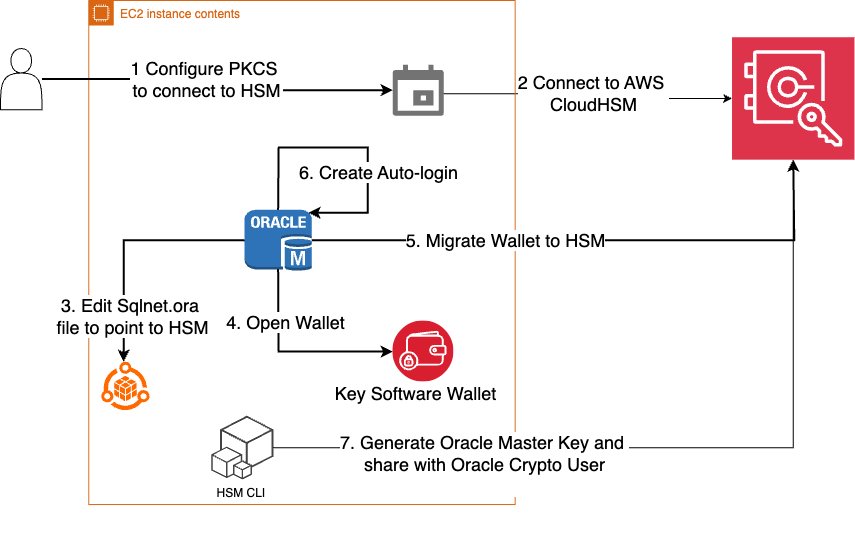
In this solution, you migrate a TDE keystore for an Oracle 19c database from a software-based TDE wallet to CloudHSM, using the steps shown in Figure 1. Start by moving the current encryption keystore, which is your original TDE wallet, to a software wallet. This is done by replacing the PKCS#11 provider of your original HSM with the CloudHSM PKCS#11 software library (steps 1–2), next you reverse migrate to a local wallet (steps 3–5). The third step is to switch the encryption wallet for your database to your CloudHSM cluster (steps 6 and 7). After this process is complete, your database will automatically re-encrypt the data keys using the new primary key.

Figure 1: Steps to migrate your EC2 Oracle TDE database encryption wallet to CloudHSM

Figure 1: Steps to migrate your EC2 Oracle TDE database encryption wallet to CloudHSM

Note: The following instructions were tested using Oracle version 19c.

Prerequisites

You must have the following prerequisites in place to complete the solution in this post.

  • AWS CloudHSM cluster: You need to have a CloudHSM cluster set up and configured with an admin EC2 instance for interacting with CloudHSM following steps and best practices covered in Getting started with AWS CloudHSM.
  • Oracle database: Make sure that your Oracle database is up and running. This post assumes that you have an Oracle Database 19c database running on an EC2 Linux instance and there is network connectivity set up to CloudHSM as explained in this Configure the Client Amazon EC2 instance security groups for AWS CloudHSM.

Migrate an Oracle database keystore to a CloudHSM external keystore

As the first step in the migration, you need to migrate your Oracle database keystore to a CloudHSM external keystore. You do this by installing the CloudHSM client and the PKCS#11 library and then configuring the PKCS#11 library to connect to the HSM cluster.

Install the CloudHSM client:

  1. Install the latest CloudHSM client software on your EC2 instance.
  2. Configure the client to connect to HSMs in your cluster. For Linux EC2, use the following command:
    sudo /opt/cloudhsm/bin/configure-cli -a <The ENI IPv4 / IPv6 addresses of the HSM>
    

  3. Copy the CloudHSM issuing certificate created when you initialized the cluster (customerCA.crt) to the /opt/cloudhsm/etc folder. For more information, see Activate the cluster in AWS CloudHSM.
  4. Validate connectivity to the CloudHSM cluster.
    /opt/cloudhsm/bin/cloudhsm-cli interactive
    

  5. Sign in to the cluster as admin and create a crypto user (e.g. hsm-crypto-user) and assign it the role crypto-user.
    aws-cloudhsm > login --username hsm-crypto-user --role admin
    aws-cloudhsm > user create --username hsm-crypto-user --role crypto-user
    

  6. Sign in as hsm-crypto-user and validate the configuration


Install the PKCS#11 Library

  1. Install the PKCS #11 library for AWS CloudHSM Client SDK 5.
  2. Configure Oracle to use the PKCS library:
    1. Copy the PKCS#11 library to the appropriate Oracle folder. Typically, this is:
           cp /opt/cloudhsm/libcloudhsm_pkcs11.so /opt/oracle/extapi/[32,64]/hsm/aws/{VERSION}/libcloudhsm_pkcs11.so
      

    2. Make sure that the folder /opt/oracle has the correct ownership, usually oracle:dba as owner:group.

Configure PKCS#11 library to connect to the HSM cluster

Use the following commands:

  1. sudo /opt/cloudhsm/bin/configure-pkcs11 -a <HSM IP addresses>
  2. sudo /opt/cloudhsm/bin/configure-pkcs11 --hsm-ca-cert <customerCA certificate file>

Configure the Oracle wallet location

In this section, you configure Oracle to point to CloudHSM using the sqlnet.ora file.

To configure the Oracle wallet location:

  1. Edit the sqlnet.ora parameter ENCRYPTION_WALLET_LOCATION to point to the HSM:
    ENCRYPTION_WALLET_LOCATION=
      (SOURCE=(METHOD=HSM)
      )
    

  2. Verify that the WALLET_ROOT parameter is pointing to the current file-based TDE wallet location. This parameter defines the location where the TDE wallet (and other related files) will be stored. You can set it to an existing directory, preferably one in your $ORACLE_BASE or $ORACLE_HOME directory, but other locations are also possible.
    show parameter wallet_root
    show parameter tde_configuration
    

  3. Use the following commands to set WALLET_ROOT if it hasn’t already been set.
    ALTER SYSTEM SET WALLET_ROOT = '/u01/app/oracle/admin/orcl/wallet' SCOPE=BOTH SID='*';
    ALTER SYSTEM SET TDE_CONFIGURATION=“KEYSTORE_CONFIGURATION=FILE” SCOPE=BOTH SID=“*”
    

Note:

  • In Oracle Database 19c and later, the ENCRYPTION_WALLET_LOCATION. parameter in sqlnet.ora is deprecated in favor of using WALLET_ROOT and TDE_CONFIGURATION.
  • You can also use the V$ENCRYPTION_WALLET view to check the current keystore location and status.

Point the Oracle database to use a local file-based keystore and CloudHSM

The KEYSTORE_CONFIGURATION attribute within TDE_CONFIGURATION determines the keystore type.

To point the Oracle database:

  1. Use the following code to point the database to the local keystore and CloudHSM.
    ALTER SYSTEM SET TDE_CONFIGURATION="KEYSTORE_CONFIGURATION=HSM|FILE" SCOPE = BOTH SID = '*'; 
    

  2. Restart the database to have consistent results.

Verify that the keystore file-based wallet is open

To proceed with encryption key migration, you need to check the current keystore status and make sure that the file-based wallet is open.

To verify that the wallet is open:

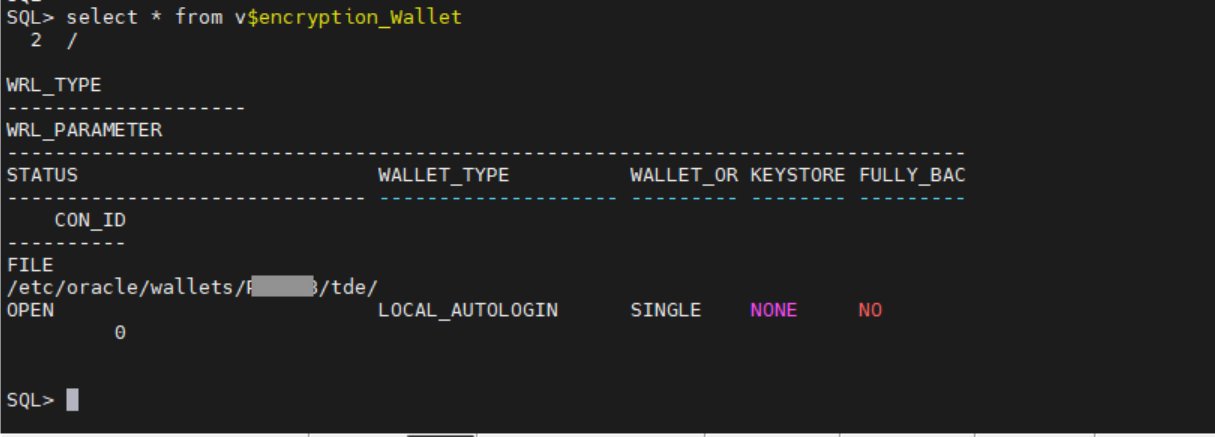
  1. Check to see if the file-based wallet is open.
    Select * from V$encryption_wallet;
    

    Figure 2: Verify that the wallet status is OPEN

    Figure 2: Verify that the wallet status is OPEN

  2. If the wallet status is not OPEN, use the following command to open it:
      ALTER SYSTEM SET ENCRYPTION WALLET OPEN IDENTIFIED BY "wallet_password";
    

Migrate the encryption key to CloudHSM

Use the ADMINISTER KEY MANAGEMENT SET ENCRYPTION KEY command to initiate the TDE primary encryption key migration.

To migrate the encryption key:

  • Use the following command to migrate the encryption key:
    ADMINISTER KEY MANAGEMENT SET ENCRYPTION KEY IDENTIFIED BY "hsm-crypto-user:password" MIGRATE USING "wallet-password" WITH BACKUP USING 'backup_tag';
    

The parameters used to migrate the encryption key are:

  • SET ENCRYPTION KEY: Specifies that the command is related to the TDE primary encryption key
  • IDENTIFIED BY: Specifies the details for migrating the keystore, including the external keystore user and password
  • MIGRATE USING: Specifies the password for the file-based wallet containing the primary encryption key
  • WITH BACKUP: Creates a backup of the keystore before the migration

Verify that the migration is complete

At this point, the migration from Oracle to Cloud HSM should be complete. Use the following steps to verify it.

To verify the migration:

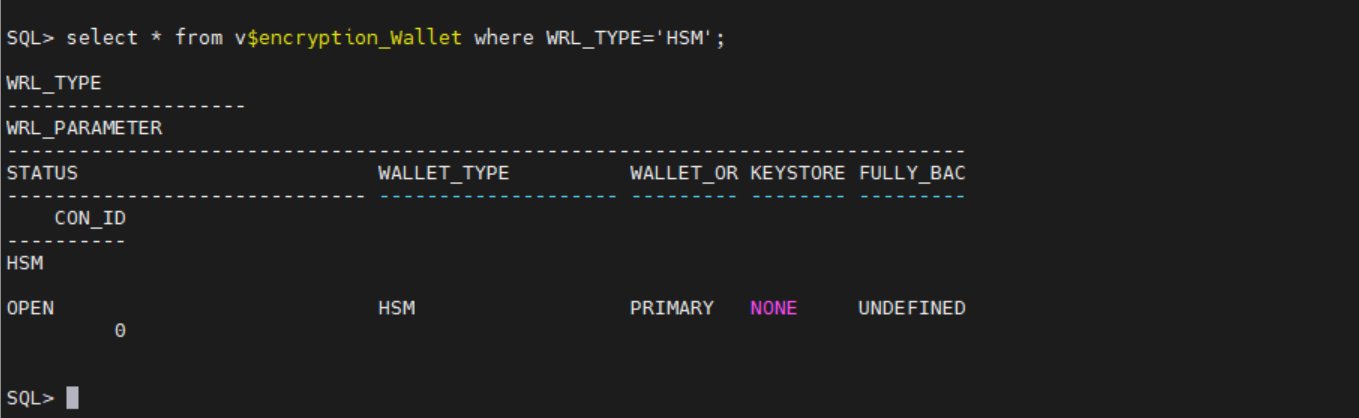
  1. Check the wallet status again. If the migration was successful, the WALLET_TYPE will be HSM and the WALLET_OR will be PRIMARY.
    Select * from V$encryption_wallet;
    

    Figure 3: Verify that WALLET_TYPE and WALLET_OR are correct

    Figure 3: Verify that WALLET_TYPE and WALLET_OR are correct

  2. In the wallet is not open, use:
    SQL>administer key management set keystore open identified by "hsm-crypto-user:password"
    

  3. Verify that the database can access encrypted data without issues, confirming that the migration was successful.

Setup auto-login

Create auto-login to open the wallet during database restarts to connect to AWS CloudHSM.

To set up auto_login:

  1. Create a new file-based keystore with the same username and password as the CloudHSM crypto user.
    ADMINISTER KEY MANAGEMENT CREATE KEYSTORE '/etc/oracle/wallets/<path>/tde' IDENTIFIED BY "hsm-crypto-user:password";
    

  2. Add the CloudHSM crypto user password to a keystore (TDE wallet).
    ADMINISTER KEY MANAGEMENT ADD SECRET 'hsm-crypto-user:password' FOR CLIENT 'HSM_PASSWORD' TO KEYSTORE '/etc/oracle/wallets/<path>/tde' IDENTIFIED BY "hsm-crypto-user:password" WITH BACKUP;
    

  3. The following command creates a new auto-login keystore. This is useful for scenarios where the keystore needs to be accessed without human intervention.
    ADMINISTER KEY MANAGEMENT CREATE AUTO_LOGIN KEYSTORE FROM KEYSTORE '/etc/oracle/wallets/<path>/tde' IDENTIFIED BY "<hsm-crypto-user:password>";
    

  4. Open the newly created file based keystore.
    ADMINISTER KEY MANAGEMENT SET KEYSTORE OPEN IDENTIFIED BY "<hsm-crypto-user:password>" 
    

Key rotation

Key rotation helps you to adhere to security best practices by providing several data security benefits. Regular rotation of TDE keys reduces the window of opportunity for a bad actor who might have obtained a key, thereby minimizing the impact of a potential breach.

Many established security frameworks and compliance standards—such as PCI DSS and HIPAA—recommend or require regular key rotation to maintain the integrity and confidentiality of encrypted data. By making sure that keys aren’t used indefinitely, you can help reduce the risk of exposure or compromise, which reinforces overall security.

Encryption algorithms can become less secure over time because of advancements in computing power or newly discovered vulnerabilities. By rotating keys regularly, you can transition to stronger encrypting methods as needed, and so improve protection against emerging risks.

When to rotate TDE keys

The frequency of key rotation depends on several factors, including organizational policies, regulatory requirements, and the sensitivity of the data being protected. Here are some common practices:

  • Annually: Many organizations rotate TDE keys once a year to align with common compliance requirements.
  • Quarterly: For higher-security environments or more sensitive data, rotating keys every quarter can provide an additional layer of security.
  • If keys are compromised or suspected to be compromised: If you believe a key to be compromised, rotating that key as soon as possible is recommended to reduce the impact window.

Oracle TDE primary key rotation with an HSM key

In this section, you choose a 32-bit hex value to use as a prefix when generating a key, then use that key to update the Oracle database to use the new primary key.

  1. Sign in to the database instance as a user who has the ADMINISTER KEY MANAGEMENT or SYSKM privilege and execute following command:
    ADMINISTER KEY MANAGEMENT SET ENCRYPTION KEY IDENTIFIED BY "<hsm-crypto-user:password>"
    

  2. Decide on a 32-bit hex value pattern to be used. We used 15A5142C9E2D3C2F18FD435814257DFD in this example.
  3. Add the prefix ORACLE.TDE.HSM.MK to the hex pattern.
    ORACLE.TDE.HSM.MK.0615A5142C9E2D3C2F18FD435814257DFD
    

  4. Sign in to CloudHSM and generate a key using the label generated in the previous step.
    key generate-symmetric aes --label 'ORACLE.TDE.HSM.MK.0615A5142C9E2D3C2F18FD435814257DFD' --key-length-bytes 32 —attributes encrypt=true decrypt=true“
    

  5. Share the key with the Oracle hsm-crypto-user in case the original key was generated through another user.
     key share --filter attr.label=""ORACLE.TDE.HSM.MK.0615A5142C9E2D3C2F18FD435814257DFD"" attr.class=secret-key --username hsm_crypto_user --role crypto-user
    

  6. Update the Oracle database to use the new primary TDE key.
    ADMINISTER KEY MANAGEMENT USE KEY '0615A5142C9E2D3C2F18FD435814257DFD' FORCE KEYSTORE IDENTIFIED BY "hsm-crypto-user:password"
    

By following these guidelines, you can enhance the security of your encrypted data, align with regulatory requirements, and maintain robust key management practices.

Conclusion

In this post, we’ve shown you the importance of Transparent Data Encryption (TDE) and the benefits of using an external key manager such as AWS CloudHSM for storing TDE encryption keys. We’ve discussed the benefits of TDE compared to encrypting underlying storage and why using an external key manager is superior to keeping keys on the Oracle wallet on the host. Following these guidelines can help you enhance the security of your encrypted data, align with regulatory requirements, and maintain robust key management practices.

The key takeaways from this post are:

  • TDE offers granular encryption, compliance benefits, and robust key management.
  • External key managers provide enhanced security, centralized management, improved auditability and scalability.
  • Regular rotation of TDE keys is crucial for maintaining security, aligning with regulations, and following recommended practices in key management.

To start securing your Oracle databases with TDE and AWS CloudHSM, visit the AWS Management Console. Follow the steps outlined in this guide to migrate your TDE encryption keystore to AWS CloudHSM and begin rotating your keys regularly to enhance your data security posture. By taking these actions, you can make sure that your sensitive data remains protected, your organization remains aligned with regulations, and you are following the best practices in data encryption and key management.

For more information, see:

If you have feedback about this post, submit comments in the Comments section below.

Bhushan Bhale

Bhushan Bhale

Bhushan is a Senior ISV Solutions Architect at AWS based in Denver, CO with more than 20 years of experience in the technology, telecommunications, and start-up industry. He is a member of the AWS Security TFC with a focus on Data Privacy and Security.

Sudeesh Veettil

Sudeesh Veettil

Sudeesh is a Senior Technical Account Manager at AWS based in the Dallas, TX area, with over 20 years of experience in the technology industry. He specializes in helping customers design, build, and operate secure, resilient, and efficient solutions on AWS.

2025 ZettaFLOPS Scale Compute as Oracle Looks to Operate Hundreds of Thousands of NVIDIA GPUs

Post Syndicated from Cliff Robinson original https://www.servethehome.com/2025-zettaflops-scale-compute-as-oracle-looks-to-operate-hundreds-of-thousands-of-nvidia-gpus/

Oracle is looking to deploy hundreds of thousands of NVIDIA GPUs as it scales its AI infrastructure to a ZettaFLOPS scale in 2025

The post 2025 ZettaFLOPS Scale Compute as Oracle Looks to Operate Hundreds of Thousands of NVIDIA GPUs appeared first on ServeTheHome.

Agentless Oracle database monitoring with ODBC

Post Syndicated from Aigars Kadiķis original https://blog.zabbix.com/agentless-oracle-database-monitoring-with-odbc/15589/

Did you know that Zabbix has an out-of-the-box template for collecting Oracle database metrics? With this template, we can collect data like database, tablespace, ASM, and many other metrics agentlessly, by using ODBC. This blog post will guide you on how to set up ODBC monitoring for Oracle 11.2, 12.1, 18.5, or 19.2 database servers. This post can serve as the perfect set of guidelines for deploying Oracle database monitoring in your environment.

Download Instant client and SQLPlus

The provided commands apply for the following operating systems: CentOS 8, Oracle Linux 8, or Rocky Linux.

First we have to download the following packages:
oracle-instantclient19.12-basic-19.12.0.0.0-1.x86_64.rpm
oracle-instantclient19.12-sqlplus-19.12.0.0.0-1.x86_64.rpm
oracle-instantclient19.12-odbc-19.12.0.0.0-1.x86_64.rpm

Here we are downloading

Oracle instant client – required, to establish connectivity to an Oracle database
SQLPlus  – A tool that we can use to test the connectivity to an Oracle database
Oracle ODBC package – contains the required ODBC drivers and configuration scripts to enable ODBC connectivity to an Oracle database

Upload the packages to the Zabbix server (or proxy, if you wish to monitor your Oracle DB on a proxy) and place it in:

/tmp/oracle-instantclient19.12-basic-19.12.0.0.0-1.x86_64.rpm
/tmp/oracle-instantclient19.12-sqlplus-19.12.0.0.0-1.x86_64.rpm
/tmp/oracle-instantclient19.12-odbc-19.12.0.0.0-1.x86_64.rpm

Solve OS dependencies

Install ‘libaio’ and ‘libnsl’ library:

dnf -y install libaio-devel libnsl

Otherwise, we will receive errors:

# rpm -ivh /tmp/oracle-instantclient19.12-basic-19.12.0.0.0-1.x86_64.rpm
error: Failed dependencies:
        libaio is needed by oracle-instantclient19.12-basic-19.12.0.0.0-1.x86_64
        libnsl.so.1()(64bit) is needed by oracle-instantclient19.12-basic-19.12.0.0.0-1.x86_64
# rpm -ivh /tmp/oracle-instantclient19.12-basic-19.12.0.0.0-1.x86_64.rpm
error: Failed dependencies:
        libnsl.so.1()(64bit) is needed by oracle-instantclient19.12-basic-19.12.0.0.0-1.x86_64

Check if Oracle components have been previously deployed on the system. The commands below should provide an empty output:

rpm -qa | grep oracle
ldconfig -p | grep oracle

Install Oracle Instant Client

rpm -ivh /tmp/oracle-instantclient19.12-basic-19.12.0.0.0-1.x86_64.rpm

Make sure that the package ‘oracle-instantclient19.12-basic-19.12.0.0.0-1.x86_64’ is installed:

rpm -qa | grep oracle

LD config

The official Oracle template page at git.zabbix.com talks about the method to configure Oracle ENV Usage for the service. For this version 19.12 of instant client, it is NOT REQUIRED to create a ‘/etc/sysconfig/zabbix-server’ file with content:

export ORACLE_HOME=/usr/lib/oracle/19.12/client64
export PATH=$PATH:$ORACLE_HOME/bin
export LD_LIBRARY_PATH=$ORACLE_HOME/lib:/usr/lib64:/usr/lib:$ORACLE_HOME/bin
export TNS_ADMIN=$ORACLE_HOME/network/admin

While we did install the rpm package, the Oracle 19.12 client package did auto-configure LD path at the global level – it means every user on the system can use the Oracle instant client. We can see the LD path have been configured under:

cat /etc/ld.so.conf.d/oracle-instantclient.conf

This will print:

/usr/lib/oracle/19.12/client64/lib

To ensure that the required Oracle libraries are recognized by the OS, we can run:

ldconfig -p | grep oracle

It should print:

liboramysql19.so (libc6,x86-64) => /usr/lib/oracle/19.12/client64/lib/liboramysql19.so
libocijdbc19.so (libc6,x86-64) => /usr/lib/oracle/19.12/client64/lib/libocijdbc19.so
libociei.so (libc6,x86-64) => /usr/lib/oracle/19.12/client64/lib/libociei.so
libocci.so.19.1 (libc6,x86-64) => /usr/lib/oracle/19.12/client64/lib/libocci.so.19.1
libnnz19.so (libc6,x86-64) => /usr/lib/oracle/19.12/client64/lib/libnnz19.so
libmql1.so (libc6,x86-64) => /usr/lib/oracle/19.12/client64/lib/libmql1.so
libipc1.so (libc6,x86-64) => /usr/lib/oracle/19.12/client64/lib/libipc1.so
libclntshcore.so.19.1 (libc6,x86-64) => /usr/lib/oracle/19.12/client64/lib/libclntshcore.so.19.1
libclntshcore.so (libc6,x86-64) => /usr/lib/oracle/19.12/client64/lib/libclntshcore.so
libclntsh.so.19.1 (libc6,x86-64) => /usr/lib/oracle/19.12/client64/lib/libclntsh.so.19.1
libclntsh.so (libc6,x86-64) => /usr/lib/oracle/19.12/client64/lib/libclntsh.so

Note: If for some reason the ldconfig command shows links to other dynamic libraries – that’s when we might have to create a separate ENV file for Zabbix server/Proxy, which would link the Zabbix application to the correct dynamic libraries, as per the example at the start of this section.

Check if the Oracle service port is reachable

To save us some headache down the line, let’s first check the network connectivity to our Oracle database host. Let’s check if we can reach the default Oracle port at the network level. In this example, we will try to connect to the default Oracle database port, 1521. Depending on which port your Oracle database is listening for connections, adjust accordingly,. Make sure the output says ‘Connected to 10.1.10.15:1521’:

nc -zv 10.1.10.15 1521

Test connection with SQLPlus

We can simulate the connection to the Oracle database before moving on with the ODBC configuration. Make sure that the Oracle username and password used in the command are correct. For this task, we will first need to install the SQLPlus package.:

rpm -ivh /tmp/oracle-instantclient19.12-sqlplus-19.12.0.0.0-1.x86_64.rpm

To simulate the connection, we can use a one-liner command. In the example command I’m using the username ‘system’ together with the password ‘oracle’ to reach out to the Oracle database server ‘10.1.10.15’ via port ‘1521’ and connect to the service name ‘xe’:

sqlplus64 'system/oracle@(DESCRIPTION=(ADDRESS_LIST=(ADDRESS=(PROTOCOL=TCP)(HOST=10.1.10.15)(PORT=1521)))(CONNECT_DATA=(SERVER=DEDICATED)(SERVICE_NAME=xe)))'

In the output we can see: we are using the 19.12 client to connect to 11.2 server:

SQL*Plus: Release 19.0.0.0.0 - Production on Mon Sep 6 13:47:36 2021
Version 19.12.0.0.0
Copyright (c) 1982, 2021, Oracle.  All rights reserved.
Connected to:
Oracle Database 11g Express Edition Release 11.2.0.2.0 - 64bit Production

Note: This gives us an extra hint regarding the Oracle instant client – newer versions of the client are backwards compatible with the older versions of the Oracle database server. Though this doesn’t apply to every version of Oracle client/server, please check the Oracle instant client documentation first.

ODBC connector

When it comes to configuring ODBC, let’s first install the ODBC driver manager

dnf -y install unixODBC

Now we can see that we have two new files –  ‘/etc/odbc.ini’ (possibly empty) and ‘/etc/odbcinst.ini’.

The file ‘/etc/odbcinst.ini’ describes driver relation. Currently, when we ‘grep’ the keyword ‘oracle’ there is no oracle relation installed, the output is empty when we run:

grep -i oracle /etc/odbcinst.ini

Our next step is to Install Oracle ODBC driver package:

rpm -ivh /tmp/oracle-instantclient19.12-odbc-19.12.0.0.0-1.x86_64.rpm

The ‘oracle-instantclient*-odbc’ package contains a script that will update the ‘/etc/odbcinst.ini’ configuration automatically:

cd /usr/lib/oracle/19.12/client64/bin
./odbc_update_ini.sh / /usr/lib/oracle/19.12/client64/lib

It will print:

 *** ODBCINI environment variable not set,defaulting it to HOME directory!

Now when we print the file on the screen:

cat /etc/odbcinst.ini

We will see that there is the Oracle 19 ODBC driver section added at the end of the file::

[Oracle 19 ODBC driver]
Description     = Oracle ODBC driver for Oracle 19
Driver          = /usr/lib/oracle/19.12/client64/lib/libsqora.so.19.1
Setup           =
FileUsage       =
CPTimeout       =
CPReuse         =

It’s important to check if there are no errors produced in the output when executing the ‘ldd’ command. This ensures that the dependencies are satisfied and accessible and there are no conflicts with the library versioning:

ldd /usr/lib/oracle/19.12/client64/lib/libsqora.so.19.1

It will print something similar like:

linux-vdso.so.1 (0x00007fff121b5000)
libdl.so.2 => /lib64/libdl.so.2 (0x00007fb18601c000)
libm.so.6 => /lib64/libm.so.6 (0x00007fb185c9a000)
libpthread.so.0 => /lib64/libpthread.so.0 (0x00007fb185a7a000)
libnsl.so.1 => /lib64/libnsl.so.1 (0x00007fb185861000)
librt.so.1 => /lib64/librt.so.1 (0x00007fb185659000)
libaio.so.1 => /lib64/libaio.so.1 (0x00007fb185456000)
libresolv.so.2 => /lib64/libresolv.so.2 (0x00007fb18523f000)
libclntsh.so.19.1 => /usr/lib/oracle/19.12/client64/lib/libclntsh.so.19.1 (0x00007fb1810e6000)
libclntshcore.so.19.1 => /usr/lib/oracle/19.12/client64/lib/libclntshcore.so.19.1 (0x00007fb180b42000)
libodbcinst.so.2 => /lib64/libodbcinst.so.2 (0x00007fb18092c000)
libc.so.6 => /lib64/libc.so.6 (0x00007fb180567000)
/lib64/ld-linux-x86-64.so.2 (0x00007fb1864da000)
libnnz19.so => /usr/lib/oracle/19.12/client64/lib/libnnz19.so (0x00007fb17fdba000)
libltdl.so.7 => /lib64/libltdl.so.7 (0x00007fb17fbb0000)

When we executed the ‘odbc_update_ini.sh’ script, a new DSN (data source name) file was made in ‘/root/.odbc.ini’. This is a sample configuration ODBC configuration file which describes what settings this version of ODBC driver supports.

Let’s move this configuration file from the user directories to a location accessible system-wide:

cat /root/.odbc.ini | sudo tee -a /etc/odbc.ini

And remove the file from the user directory completely:

rm /root/.odbc.ini

This way, every user in the system will use only this one ODBC configuration file.

We can now alter the existing configuration – /etc/odbc.ini. I’m highlighting things that have been changed from the defaults:

[Oracle11g]
AggregateSQLType = FLOAT
Application Attributes = T
Attributes = W
BatchAutocommitMode = IfAllSuccessful
BindAsFLOAT = F
CacheBufferSize = 20
CloseCursor = F
DisableDPM = F
DisableMTS = T
DisableRULEHint = T
Driver = Oracle 19 ODBC driver
DSN = Oracle11g
EXECSchemaOpt =
EXECSyntax = T
Failover = T
FailoverDelay = 10
FailoverRetryCount = 10
FetchBufferSize = 64000
ForceWCHAR = F
LobPrefetchSize = 8192
Lobs = T
Longs = T
MaxLargeData = 0
MaxTokenSize = 8192
MetadataIdDefault = F
QueryTimeout = T
ResultSets = T
ServerName = //10.1.10.15:1521/xe
SQLGetData extensions = F
SQLTranslateErrors = F
StatementCache = F
Translation DLL =
Translation Option = 0
UseOCIDescribeAny = F
UserID = system
Password = oracle

DNS – Data source name. Should match the section name in brackets, e.g.:[Oracle11g]
ServerName – Oracle server address
UserID – Oracle user name
Password – Oracle user password

To test the connection from the command line, let’s use the isql command-line tool which should simulate the ODBC connection akin to what the Zabbix is doing when gathering metrics:

isql -v Oracle11g

The isql command in this example picks up the ODBC settings (Username, Password, Server address) from the odbc.ini file. All we have to do is reference the particular DSN – Oracle11g

On the other hand, if we do not prefer to keep the password on the filesystem (/etc/odbc.ini), we can erase the lines ‘UserID’ and ‘Password’. Then we can test the ODBC connection with:

isql -v Oracle11g 'system' 'oracle'

In case of a successful connection it should print:

+---------------------------------------+
| Connected!                            |
|                                       |
| sql-statement                         |
| help [tablename]                      |
| quit                                  |
|                                       |
+---------------------------------------+
SQL>

And that’s it for the ODBC configuration! Now we should be able to apply the Oracle by ODBC template in Zabbix

Don’t forget that we also need to provide the necessary Oracle credentials to start collecting Oracle database metrics:

The lessons learned in this blog post can be easily applied to ODBC monitoring and troubleshooting in general, not just Oracle. If you’re having any issues or wish to share your experience with ODBC or Oracle database monitoring – feel free to leave us a comment!