Tag Archives: Snowflake

Unlock scalable analytics with a secure connectivity pattern in AWS Glue to read from or write to Snowflake

Post Syndicated from Caio Montovani original https://aws.amazon.com/blogs/big-data/unlock-scalable-analytics-with-a-secure-connectivity-pattern-in-aws-glue-to-read-from-or-write-to-snowflake/

In today’s data-driven world, the ability to seamlessly integrate and utilize diverse data sources is critical for gaining actionable insights and driving innovation. As organizations increasingly rely on data stored across various platforms, such as Snowflake, Amazon Simple Storage Service (Amazon S3), and various software as a service (SaaS) applications, the challenge of bringing these disparate data sources together has never been more pressing.

AWS Glue is a robust data integration service that facilitates the consolidation of data from different origins, empowering businesses to use the full potential of their data assets. By using AWS Glue to integrate data from Snowflake, Amazon S3, and SaaS applications, organizations can unlock new opportunities in generative artificial intelligence (AI), machine learning (ML), business intelligence (BI), and self-service analytics or feed data to underlying applications.

In this post, we explore how AWS Glue can serve as the data integration service to bring the data from Snowflake for your data integration strategy, enabling you to harness the power of your data ecosystem and drive meaningful outcomes across various use cases.

Use case

Consider a large ecommerce company that relies heavily on data-driven insights to optimize its operations, marketing strategies, and customer experiences. The company stores vast amounts of transactional data, customer information, and product catalogs in Snowflake. However, they also generate and collect data from various other sources, such as web logs stored in Amazon S3, social media platforms, and third-party data providers. To gain a comprehensive understanding of their business and make informed decisions, the company needs to integrate and analyze data from all these sources seamlessly.

One crucial business requirement for the ecommerce company is to generate a Pricing Summary Report that provides a detailed analysis of pricing and discounting strategies. This report is essential for understanding revenue streams, identifying opportunities for optimization, and making data-driven decisions regarding pricing and promotions. After the Pricing Summary Report is generated and stored in Amazon S3, the company can use AWS analytics services to generate interactive BI dashboards and run one-time queries on the report. This allows business analysts and decision-makers to gain valuable insights, visualize key metrics, and explore the data in depth, enabling informed decision-making and strategic planning for pricing and promotional strategies.

Solution overview

The following architecture diagram illustrates a secure and efficient solution of integrating Snowflake data with Amazon S3, using the native Snowflake connector in AWS Glue. This setup uses AWS PrivateLink to provide secure connectivity between AWS services across different virtual private clouds (VPCs), eliminating the need to expose data to the public internet, which is a critical need for organizations.

BDB-4354-architecture

The following are the key components and steps in the integration process:

  1. Establish a secure, private connection between your AWS account and your Snowflake account using PrivateLink. This involves creating VPC endpoints in both the AWS and Snowflake VPCs, making sure data transfer remains within the AWS network.
  2. Use Amazon Route 53 to create a private hosted zone that resolves the Snowflake endpoint within your VPC. This allows AWS Glue jobs to connect to Snowflake using a private DNS name, maintaining the security and integrity of the data transfer.
  3. Create an AWS Glue job to handle the extract, transform, and load (ETL) process on data from Snowflake to Amazon S3. The AWS Glue job uses the secure connection established by the VPC endpoints to access Snowflake data. Snowflake credentials are securely stored in AWS Secrets Manager. The AWS Glue job retrieves these credentials at runtime to authenticate and connect to Snowflake, providing secure access management. A VPC endpoint enables you to securely communicate with this service without traversing the public internet, enhancing security and performance.
  4. Store the extracted and transformed data in Amazon S3. Organize the data into appropriate structures, such as partitioned folders, to optimize query performance and data management. We use a VPC endpoint enabled to securely communicate with this service without traversing the public internet, enhancing security and performance. We also use Amazon S3 to store AWS Glue scripts, logs, and temporary data generated during the ETL process.

This approach offers the following benefits:

  • Enhanced security – By using PrivateLink and VPC endpoints, data transfer between Snowflake and Amazon S3 is secured within the AWS network, reducing exposure to potential security threats.
  • Efficient data integration – AWS Glue simplifies the ETL process, providing a scalable and flexible solution for data integration between Snowflake and Amazon S3.
  • Cost-effectiveness – Using Amazon S3 for data storage, combined with the AWS Glue pay-as-you-go pricing model, helps optimize costs associated with data management and integration.
  • Scalability and flexibility – The architecture supports scalable data transfers and can be extended to integrate additional data sources and destinations as needed.

By following this architecture and taking advantage of the capabilities of AWS Glue, PrivateLink, and associated AWS services, organizations can achieve a robust, secure, and efficient data integration solution, enabling them to harness the full potential of their Snowflake and Amazon S3 data for advanced analytics and BI.

Prerequisites

Complete the following prerequisites before setting up the solution:

  1. Verify that you have access to AWS account with the necessary permissions to provision resources in services such as Route 53, Amazon S3, AWS Glue, Secrets Manager, and Amazon Virtual Private Cloud (Amazon VPC) using AWS CloudFormation, which lets you model, provision, and manage AWS and third-party resources by treating infrastructure as code.
  2. Confirm that you have access to Snowflake hosted in AWS with required permissions to run the steps to configure PrivateLink. Refer to Enabling AWS PrivateLink in the Snowflake documentation to verify the steps, required access level, and service level to set the configurations. After you enable PrivateLink, save the value of the following parameters provided by Snowflake to use in the next step in this post:
    1. privatelink-vpce-id
    2. privatelink-account-url
    3. privatelink_ocsp-url
    4. regionless-snowsight-privatelink-url
  3. Make sure you have a Snowflake user snowflakeUser and password snowflakePassword with required permissions to read from and write to Snowflake. The user and password are used in the AWS Glue connection to authenticate within Snowflake.
  4. If your Snowflake user doesn’t have a default warehouse set, you will need a warehouse name. We use snowflakeWarehouse as a placeholder for the warehouse name; replace it with your actual warehouse name.
  5. If you’re new to Snowflake, consider completing the Snowflake in 20 Minutes By the end of the tutorial, you should know how to create required Snowflake objects, including warehouses, databases, and tables for storing and querying data.

Create resources with AWS CloudFormation

This post includes a CloudFormation template for a quick setup of the base resources. You can review and customize it to suit your needs if needed. The CloudFormation template generates the following resources:

To create your resources, complete the following steps:

  1. Sign in to the AWS CloudFormation console.
  2. Choose Launch Stack to launch the CloudFormation stack.
  3. Provide the CloudFormation stack parameters:
    1. For PrivateLinkAccountURL, enter the value of the parameter privatelink-account-url obtained in the prerequisites.
    2. For PrivateLinkOcspURL, enter the value of the parameter privatelink_ocsp-url obtained in the prerequisites.
    3. For PrivateLinkVpceId, enter the value of the parameter privatelink-vpce-id obtained in the prerequisites.
    4. For PrivateSubnet1CIDR, enter the IP addresses for your private subnet 1.
    5. For PrivateSubnet2CIDR, enter the IP addresses for your private subnet 2.
    6. For PrivateSubnet3CIDR, enter the IP addresses for your private subnet 3.
    7. For PublicSubnet1CIDR, enter the IP addresses for your public subnet 1.
    8. For RegionlessSnowsightPrivateLinkURL, enter the value of the parameter regionless-snowsight-privatelink-url obtained in the prerequisites.
    9. For VpcCIDR, enter the IP addresses for your VPC.
  4. Choose Next.
  5. Select I acknowledge that AWS CloudFormation might create IAM resources.
  6. Choose Submit and wait for the stack creation step to complete.

After the CloudFormation stack is successfully created, you can see all the resources created on the Resources tab.

Navigate to the Outputs tab to see the outputs provided by CloudFormation stack. Save the value of the outputs GlueSecurityGroupId, VpcId, and PrivateSubnet1Id to use in the next step in this post.

BDB-4354-cfn-output

Update the Secrets Manager secret with Snowflake credentials for the AWS Glue connection

To update the Secrets Manager secret with user snowflakeUser, password snowflakePassword, and warehouse snowflakeWarehouse that you will use in the AWS Glue connection to establish a connection to Snowflake, complete the following steps:

  1. On the Secrets Manager console, choose Secrets in the navigation pane.
  2. Open the secret blog-glue-snowflake-credentials.
  3. Under Secret value, choose Retrieve secret value.

BDB-4354-secrets-manager

  1. Choose Edit.
  2. Enter the user snowflakeUser, password snowflakePassword, and warehouse snowflakeWarehouse for the keys sfUser, sfPassword, and sfWarehouse, respectively.
  3. Choose Save.

Create the AWS Glue connection for Snowflake

An AWS Glue connection is an AWS Glue Data Catalog object that stores login credentials, URI strings, VPC information, and more for a particular data store. AWS Glue crawlers, jobs, and development endpoints use connections in order to access certain types of data stores. To create an AWS Glue connection to Snowflake, complete the following steps:

  1. On the AWS Glue console, in the navigation pane, under Data catalog, choose Connections.
  2. Choose Create connection.
  3. For Data sources, search for and select Snowflake.
  4. Choose Next.

BDB-4354-sf-data-source

  1. For Snowflake URL, enter https://<privatelink-account-url>.

To obtain the Snowflake PrivateLink account URL, refer to parameters obtained in the prerequisites.

  1. For AWS Secret, choose the secret blog-glue-snowflake-credentials.
  2. For VPC, choose the VpcId value obtained from the CloudFormation stack output.
  3. For Subnet, choose the PrivateSubnet1Id value obtained from the CloudFormation stack output.
  4. For Security groups, choose the GlueSecurityGroupId value obtained from the CloudFormation stack output.
  5. Choose Next.

BDB-4354-sf-connection-setup

  1. In the Connection Properties section, for Name, enter glue-snowflake-connection.
  2. Choose Next.

BDB-4354-sf-connection-properties

  1. Choose Create connection.

Create an AWS Glue job

You’re now ready to define the AWS Glue job using the Snowflake connection. To create an AWS Glue job to read from Snowflake, complete the following steps:

  1. On the AWS Glue console, under ETL jobs in the navigation pane, choose Visual ETL.

BDB-4354-glue-studio

  1. Choose the Job details tab.
  2. For Name, enter a name, for example, Pricing Summary Report Job.
  3. For Description, enter a meaningful description for the job.
  4. For IAM Role, choose the role that has access to the target S3 location where the job is writing to and the source location from where it’s loading the Snowflake data and also to run the AWS Glue job. You can find this role in your CloudFormation stack output, named blog-glue-snowflake-GlueServiceRole-*.
  5. Use the default options for Type, Glue version, Language, Worker type, Number of workers, Number of retries, and Job timeout.
  6. For Job bookmark, choose Disable.
  7. Choose Save to save the job.

BDB-4354-glue-job-details

  1. On the Visual tab, choose Add nodes.

  1. For Sources, choose Snowflake.

  1. Choose Data source – Snowflake in the AWS Glue Studio canvas.
  2. For Name, enter Snowflake_Pricing_Summary.
  3. For Snowflake connection, choose glue-snowflake-connection.
  4. For Snowflake source, select Enter a custom query.
  5. For Database, enter snowflake_sample_data.
  6. For Snowflake query, add the following Snowflake query:
SELECT l_returnflag
    , l_linestatus
    , Sum(l_quantity) AS sum_qty
    , Sum(l_extendedprice) AS sum_base_price
    , Sum(l_extendedprice * (1 - l_discount)) AS sum_disc_price
    , Sum(l_extendedprice * (1 - l_discount) * (1 + l_tax)) AS sum_charge
    , Avg(l_quantity) AS avg_qty
    , Avg(l_extendedprice) AS avg_price
    , Avg(l_discount) AS avg_disc
    , Count(*) AS count_order
FROM tpch_sf1.lineitem
WHERE l_shipdate <= Dateadd(day, - 90, To_date('1998-12-01'))
GROUP BY l_returnflag
    , l_linestatus
ORDER BY l_returnflag
    , l_linestatus;

The Pricing Summary Report provides a summary pricing report for all line items shipped as of a given date. The date is within 60–120 days of the greatest ship date contained in the database. The query lists totals for extended price, discounted extended price, discounted extended price plus tax, average quantity, average extended price, and average discount. These aggregates are grouped by RETURNFLAG and LINESTATUS, and listed in ascending order of RETURNFLAG and LINESTATUS. A count of the number of line items in each group is included.

  1. For Custom Snowflake properties, specify Key as sfSchema and Value as tpch_sf1.
  2. Choose Save.

BDB-4354-glue-source-setup

Next, you add the destination as an S3 bucket.

  1. On the Visual tab, choose Add nodes.
  2. For Targets, choose Amazon S3.

  1. Choose Data target – S3 bucket in the AWS Glue Studio canvas.
  2. For Name, enter S3_Pricing_Summary.
  3. For Node parents, select Snowflake_Pricing_Summary.
  4. For Format, select Parquet.
  5. For S3 Target Location, enter s3://<YourBucketName>/pricing_summary_report/ (use the name of your bucket).
  6. For Data Catalog update options, select Create a table in the Data Catalog and on subsequent runs, update the schema and add new partitions.
  7. For Database, choose db_blog_glue_snowflake.
  8. For Table name, enter tb_pricing_summary.
  9. Choose Save.
  10. Choose Run to run the job, and monitor its status on the Runs tab.

You successfully completed the steps to create an AWS Glue job that reads data from Snowflake and loads the results into an S3 bucket using a secure connectivity pattern. Eventually, if you want to transform the data before loading it into Amazon S3, you can use AWS Glue transformations available in AWS Glue Studio. Using AWS Glue transformations is crucial when creating an AWS Glue job because they enable efficient data cleansing, enrichment, and restructuring, making sure the data is in the desired format and quality for downstream processes. Refer to Editing AWS Glue managed data transform nodes for more information.

Validate the results

After the job is complete, you can validate the output of the ETL job run in Athena, a serverless interactive analytics service. To validate the output, complete the following steps:

  1. On the Athena console, choose Launch Query Editor.
  2. For Workgroup, choose blog-workgroup.
  3. If the message “All queries run in the Workgroup, blog-workgroup, will use the following settings:” is displayed, choose Acknowledge.
  4. For Database, choose db_blog_glue_snowflake.
  5. For Query, enter the following statement:
SELECT l_returnflag
    , l_linestatus
    , sum_qty
    , sum_base_price
FROM db_blog_glue_snowflake.tb_pricing_summary
  1. Choose Run.

You have successfully validated your data for the AWS Glue job Pricing Summary Report Job.

Clean up

To clean up your resources, complete the following tasks:

  1. Delete the AWS Glue job Pricing Summary Report Job.
  2. Delete the AWS Glue connection glue-snowflake-connection.
  3. Stop any AWS Glue interactive sessions.
  4. Delete content from the S3 bucket blog-glue-snowflake-*.
  5. Delete the CloudFormation stack blog-glue-snowflake.

Conclusion

Using the native Snowflake connector in AWS Glue provides an efficient and secure way to integrate data from Snowflake into your data pipelines on AWS. By following the steps outlined in this post, you can establish a private connectivity channel between AWS Glue and your Snowflake using PrivateLink, Amazon VPC, security groups, and Secrets Manager.

This architecture allows you to read data from and write data to Snowflake tables directly from AWS Glue jobs running on Spark. The secure connectivity pattern prevents data transfers over the public internet, enhancing data privacy and security.

Combining AWS data integration services like AWS Glue with data platforms like Snowflake allows you to build scalable, secure data lakes and pipelines to power analytics, BI, data science, and ML use cases.

In summary, the native Snowflake connector and private connectivity model outlined here provide a performant, secure way to include Snowflake data in AWS big data workflows. This unlocks scalable analytics while maintaining data governance, compliance, and access control. For more information on AWS Glue, visit AWS Glue.


About the Authors

Caio Sgaraboto Montovani is a Sr. Specialist Solutions Architect, Data Lake and AI/ML within AWS Professional Services, developing scalable solutions according customer needs. His vast experience has helped customers in different industries such as life sciences and healthcare, retail, banking, and aviation build solutions in data analytics, machine learning, and generative AI. He is passionate about rock and roll and cooking, and loves to spend time with his family.

Kartikay Khator is a Solutions Architect within Global Life Sciences at AWS, where he dedicates his efforts to developing innovative and scalable solutions that cater to the evolving needs of customers. His expertise lies in harnessing the capabilities of AWS analytics services. Extending beyond his professional pursuits, he finds joy and fulfillment in the world of running and hiking. Having already completed two marathons, he is currently preparing for his next marathon challenge.

Navnit Shukla, an AWS Specialist Solution Architect specializing in Analytics, is passionate about helping clients uncover valuable insights from their data. Leveraging his expertise, he develops inventive solutions that empower businesses to make informed, data-driven decisions. Notably, Navnit is the accomplished author of the book “Data Wrangling on AWS,” showcasing his expertise in the field.

BDB-4354-awskamenKamen Sharlandjiev is a Sr. Big Data and ETL Solutions Architect, Amazon MWAA and AWS Glue ETL expert. He’s on a mission to make life easier for customers who are facing complex data integration and orchestration challenges. His secret weapon? Fully managed AWS services that can get the job done with minimal effort. Follow Kamen on LinkedIn to keep up to date with the latest Amazon MWAA and AWS Glue features and news!

Bosco Albuquerque is a Sr. Partner Solutions Architect at AWS and has over 20 years of experience working with database and analytics products from enterprise database vendors and cloud providers. He has helped technology companies design and implement data analytics solutions and products.

Synchronize your Salesforce and Snowflake data to speed up your time to insight with Amazon AppFlow

Post Syndicated from Ramesh Ranganathan original https://aws.amazon.com/blogs/big-data/synchronize-your-salesforce-and-snowflake-data-to-speed-up-your-time-to-insight-with-amazon-appflow/

This post was co-written with Amit Shah, Principal Consultant at Atos.

Customers across industries seek meaningful insights from the data captured in their Customer Relationship Management (CRM) systems. To achieve this, they combine their CRM data with a wealth of information already available in their data warehouse, enterprise systems, or other software as a service (SaaS) applications. One widely used approach is getting the CRM data into your data warehouse and keeping it up to date through frequent data synchronization.

Integrating third-party SaaS applications is often complicated and requires significant effort and development. Developers need to understand the application APIs, write implementation and test code, and maintain the code for future API changes. Amazon AppFlow, which is a low-code/no-code AWS service, addresses this challenge.

Amazon AppFlow is a fully managed integration service that enables you to securely transfer data between SaaS applications, like Salesforce, SAP, Zendesk, Slack, and ServiceNow, and AWS services like Amazon Simple Storage Service (Amazon S3) and Amazon Redshift in just a few clicks. With Amazon AppFlow, you can run data flows at enterprise scale at the frequency you choose—on a schedule, in response to a business event, or on demand.

In this post, we focus on synchronizing your data from Salesforce to Snowflake (on AWS) without writing code. This post walks you through the steps to set up a data flow to address full and incremental data load using an example use case.

Solution overview

Our use case involves the synchronization of the Account object from Salesforce into Snowflake. In this architecture, you use Amazon AppFlow to filter and transfer the data to your Snowflake data warehouse.

You can configure Amazon AppFlow to run your data ingestion in three different ways:

  • On-demand – You can manually run the flow through the AWS Management Console, API, or SDK call.
  • Event-driven – Amazon AppFlow can subscribe and listen to change data capture (CDC) events from the source SaaS application.
  • Scheduled – Amazon AppFlow can run schedule-triggered flows based on a pre-defined schedule rule. With scheduled flows, you can choose either full or incremental data transfer:
    • With full transfer, Amazon AppFlow transfers a snapshot of all records at the time of the flow run from the source to the destination.
    • With incremental transfer, Amazon AppFlow transfers only the records that have been added or changed since the last successful flow run. To determine the incremental delta of your data, AppFlow requires you to specify a source timestamp field to instruct how Amazon AppFlow identifies new or updated records.

We use the on-demand trigger for the initial load of data from Salesforce to Snowflake, because it helps you pull all the records, irrespective of their creation. To then synchronize data periodically with Snowflake, after we run the on-demand trigger, we configure a scheduled trigger with incremental transfer. With this approach, Amazon AppFlow pulls the records based on a chosen timestamp field from the Salesforce Account object periodically, based on the time interval specified in the flow.

The Account_Staging table is created in Snowflake to act as a temporary storage that can be used to identify the data change events. Then the permanent table (Account) is updated from the staging table by running a SQL stored procedure that contains the incremental update logic. The following figure depicts the various components of the architecture and the data flow from the source to the target.

The data flow contains the following steps:

  1. First, the flow is run with on-demand and full transfer mode to load the full data into Snowflake.
  2. The Amazon AppFlow Salesforce connector pulls the data from Salesforce and stores it in the Account Data S3 bucket in CSV format.
  3. The Amazon AppFlow Snowflake connector loads the data into the Account_Staging table.
  4. A scheduled task, running at regular intervals in Snowflake, triggers a stored procedure.
  5. The stored procedure starts an atomic transaction that loads the data into the Account table and then deletes the data from the Account_Staging table.
  6. After the initial data is loaded, you update the flow to capture incremental updates from Salesforce. The flow trigger configuration is changed to scheduled, to capture data changes in Salesforce. This enables Snowflake to get all updates, deletes, and inserts in Salesforce at configured intervals.
  7. The flow uses the configured LastModifiedDate field to determine incremental changes.
  8. Steps 3, 4, and 5 are run again to load the incremental updates into the Snowflake Accounts table.

Prerequisites

To get started, you need the following prerequisites:

  • A Salesforce user account with sufficient privileges to install connected apps. Amazon AppFlow uses a connected app to communicate with Salesforce APIs. If you don’t have a Salesforce account, you can sign up for a developer account.
  • A Snowflake account with sufficient permissions to create and configure the integration, external stage, table, stored procedures, and tasks.
  • An AWS account with access to AWS Identity and Access Management (IAM), Amazon AppFlow, and Amazon S3.

Set up Snowflake configuration and Amazon S3 data

Complete the following steps to configure Snowflake and set up your data in Amazon S3:

  1. Create two S3 buckets in your AWS account: one for holding the data coming from Salesforce, and another for holding error records.

A best practice when creating your S3 bucket is to make sure you block public access to the bucket to ensure your data is not accessible by unauthorized users.

  1. Create an IAM policy named snowflake-access that allows listing the bucket contents and reading S3 objects inside the bucket.

Follow the instructions for steps 1 and 2 in Configuring a Snowflake Storage Integration to Access Amazon S3 to create an IAM policy and role. Replace the placeholders with your S3 bucket names.

  1. Log in to your Snowflake account and create a new warehouse called SALESFORCE and database called SALESTEST.
  2. Specify the format in which data will be available in Amazon S3 for Snowflake to load (for this post, CSV):
USE DATABASE SALESTEST;
CREATE or REPLACE file format my_csv_format
type = csv
field_delimiter = ','
Y skip_header = 1
null_if = ('NULL', 'null')
empty_field_as_null = true
compression = gzip;
  1. Amazon AppFlow uses the Snowflake COPY command to move data using an S3 bucket. To configure this integration, follow steps 3–6 in Configuring a Snowflake Storage Integration to Access Amazon S3.

These steps create a storage integration with your S3 bucket, update IAM roles with Snowflake account and user details, and creates an external stage.

This completes the setup in Snowflake. In the next section, you create the required objects in Snowflake.

Create schemas and procedures in Snowflake

In your Snowflake account, complete the following steps to create the tables, stored procedures, and tasks for implementing the use case:

  1. In your Snowflake account, open a worksheet and run the following DDL scripts to create the Account and Account_staging tables:
CREATE or REPLACE TABLE ACCOUNT_STAGING (
ACCOUNT_NUMBER STRING NOT NULL,
ACCOUNT_NAME STRING,
ACCOUNT_TYPE STRING,
ANNUAL_REVENUE NUMBER,
ACTIVE BOOLEAN NOT NULL,
DELETED BOOLEAN,
LAST_MODIFIED_DATE STRING,
primary key (ACCOUNT_NUMBER)
);

CREATE or REPLACE TABLE ACCOUNT (
ACCOUNT_NUMBER STRING NOT NULL,
ACCOUNT_NAME STRING,
ACCOUNT_TYPE STRING,
ANNUAL_REVENUE NUMBER,
ACTIVE BOOLEAN NOT NULL,
LAST_MODIFIED_DATE STRING,
primary key (ACCOUNT_NUMBER)
);
  1. Create a stored procedure in Snowflake to load data from staging to the Account table:
CREATE or REPLACE procedure sp_account_load( )
returns varchar not null
language sql
as
$$
begin
Begin transaction;
merge into ACCOUNT using ACCOUNT_STAGING
on ACCOUNT.ACCOUNT_NUMBER = ACCOUNT_STAGING.ACCOUNT_NUMBER
when matched AND ACCOUNT_STAGING.DELETED=TRUE then delete
when matched then UPDATE SET
ACCOUNT.ACCOUNT_NAME = ACCOUNT_STAGING.ACCOUNT_NAME,
ACCOUNT.ACCOUNT_TYPE = ACCOUNT_STAGING.ACCOUNT_TYPE,
ACCOUNT.ANNUAL_REVENUE = ACCOUNT_STAGING.ANNUAL_REVENUE,
ACCOUNT.ACTIVE = ACCOUNT_STAGING.ACTIVE,
ACCOUNT.LAST_MODIFIED_DATE = ACCOUNT_STAGING.LAST_MODIFIED_DATE
when NOT matched then
INSERT (
ACCOUNT.ACCOUNT_NUMBER,
ACCOUNT.ACCOUNT_NAME,
ACCOUNT.ACCOUNT_TYPE,
ACCOUNT.ANNUAL_REVENUE,
ACCOUNT.ACTIVE,
ACCOUNT.LAST_MODIFIED_DATE
)
values(
ACCOUNT_STAGING.ACCOUNT_NUMBER,
ACCOUNT_STAGING.ACCOUNT_NAME,
ACCOUNT_STAGING.ACCOUNT_TYPE,
ACCOUNT_STAGING.ANNUAL_REVENUE,
ACCOUNT_STAGING.ACTIVE,
ACCOUNT_STAGING.LAST_MODIFIED_DATE
) ;

Delete from ACCOUNT_STAGING;
Commit;
end;
$$
;

This stored procedure determines whether the data contains new records that need to be inserted or existing records that need to be updated or deleted. After a successful run, the stored procedure clears any data from your staging table.

  1. Create a task in Snowflake to trigger the stored procedure. Make sure that the time interval for this task is more than the time interval configured in Amazon AppFlow for pulling the incremental changes from Salesforce. The time interval should be sufficient for data to be processed.
CREATE OR REPLACE TASK TASK_ACCOUNT_LOAD
WAREHOUSE = SALESFORCE
SCHEDULE = 'USING CRON 5 * * * * America/Los_Angeles'
AS
call sp_account_load();
  1. Provide the required permissions to run the task and resume the task:
show tasks;
  • As soon as task is created it will be suspended state so needs to resume it manually first time
ALTER TASK TASK_ACCOUNT_LOAD RESUME;
  • If the role which is assigned to us doesn’t have proper access to resume/execute task needs to grant execute task privilege to that role
GRANT EXECUTE TASK, EXECUTE MANAGED TASK ON ACCOUNT TO ROLE SYSADMIN;

This completes the Snowflake part of configuration and setup.

Create a Salesforce connection

First, let’s create a Salesforce connection that can be used by AppFlow to authenticate and pull records from your Salesforce instance. On the AWS console, make sure you are in the same Region where your Snowflake instance is running.

  1. On the Amazon AppFlow console, choose Connections in the navigation pane.
  2. From the list of connectors, select Salesforce.
  3. Choose Create connection.
  4. For Connection name, enter a name of your choice (for example, Salesforce-blog).
  5. Leave the rest of the fields as default and choose Continue.
  6. You’re redirected to a sign-in page, where you need to log in to your Salesforce instance.
  7. After you allow Amazon AppFlow access to your Salesforce account, your connection is successfully created.
           

 Create a Snowflake connection

Complete the following steps to create your Snowflake connection:

  1. On the Connections menu, choose Snowflake.
  2. Choose Create connection.
  3. Provide information for the Warehouse, Stage name, and Bucket details fields.
  4. Enter your credential details.

  1. For Region, choose the same Region where Snowflake is running.
  2. For Connection name, name your connection Snowflake-blog.
  3. Leave the rest of the fields as default and choose Connect.

Create a flow in Amazon AppFlow

Now you create a flow in Amazon AppFlow to load the data from Salesforce to Snowflake. Complete the following steps:

  1. On the Amazon AppFlow console, choose Flows in the navigation pane.
  2. Choose Create flow.
  3. On the Specify flow details page, enter a name for the flow (for example, AccountData-SalesforceToSnowflake).
  4. Optionally, provide a description for the flow and tags.
  5. Choose Next.

  1. On the Configure flow page, for Source name¸ choose Salesforce.
  2. Choose the Salesforce connection we created in the previous step (Salesforce-blog).
  3. For Choose Salesforce object, choose Account.
  4. For Destination name, choose Snowflake.
  5. Choose the newly created Snowflake connection.
  6. For Choose Snowflake object, choose the staging table you created earlier (SALESTEST.PUBLIC. ACCOUNT_STAGING).

  1. In the Error handling section, provide your error S3 bucket.
  2. For Choose how to trigger the flow¸ select Run on demand.
  3. Choose Next.

  1. Select Manually map fields to map the fields between your source and destination.
  2. Choose the fields Account Number, Account Name, Account Type, Annual Revenue, Active, Deleted, and Last Modified Date.

  1. Map each source field to its corresponding destination field.
  2. Under Additional settings, leave the Import deleted records unchecked (default setting).

  1. In the Validations section, add validations for the data you’re pulling from Salesforce.

Because the schema for the Account_Staging table in Snowflake database has a NOT NULL constraint for the fields Account_Number and Active, records containing a null value for these fields should be ignored.

  1. Choose Add Validation to configure validations for these fields.
  2. Choose Next.

  1. Leave everything else as default, proceed to the final page, and choose Create Flow.
  2. After the flow is created, choose Run flow.

When the flow run completes successfully, it will bring all records into your Snowflake staging table.

Verify data in Snowflake

The data will be loaded into the Account_staging table. To verify that data is loaded in Snowflake, complete the following steps:

  1. Validate the number of records by querying the ACCOUNT_STAGING table in Snowflake.
  2. Wait for your Snowflake task to run based on the configured schedule.
  3. Verify that all the data is transferred to the ACCOUNT table and the ACCOUNT_STAGING table is truncated.

Configure an incremental data load from Salesforce

Now let’s configure an incremental data load from Salesforce:

  1. On the Amazon AppFlow console, select your flow, and choose Edit.
  2. Go to the Edit configuration step and change to Run flow on schedule.
  3. Set the flow to run every 5 minutes, and provide a start date of Today, with a start time in the future.
  4. Choose Incremental transfer and choose the LastModifiedDate field.
  5. Choose Next.
  6. In the Additional settings section, select Import deleted records.

This ensures that deleted records from the source are also ingested.

  1. Choose Save and then choose Activate flow.

Now your flow is configured to capture all incremental changes.

Test the solution

Log in to your Salesforce account, and edit any record in the Account object.

Within 5 minutes or less, a scheduled flow will pick up your change and write the changed record into your Snowflake staging table and trigger the synchronization process.

You can see the details of the run, including number of records transferred, on the Run History tab of your flow.

Clean up

Clean up the resources in your AWS account by completing the following steps:

  1. On the Amazon AppFlow console, choose Flows in the navigation pane.
  2. From the list of flows, select the flow AccountData-SalesforceToSnowflakeand delete it.
  3. Enter delete to delete the flow.
  4. Choose Connections in the navigation pane.
  5. Choose Salesforce from the list of connectors, select Salesforce-blog, and delete it.
  6. Enter delete to delete the connector.
  7. On the Connections page, choose Snowflake from the list of connectors, select Snowflake-blog, and delete it.
  8. Enter delete to delete the connector.
  9. On the IAM console, choose Roles in the navigation page, then select the role you created for Snowflake and delete it.
  10. Choose Policies in the navigation pane, select the policy you created for Snowflake, and delete it.
  11. On the Amazon S3 console, search for the data bucket you created, choose Empty to delete the objects, then delete the bucket.
  12. Search for the error bucket you created, choose Empty to delete the objects, then delete the bucket.
  13. Clean up resources in your Snowflake account:
  • Delete the task TASK_ACCOUNT_LOAD:
ALTER TASK TASK_ACCOUNT_LOAD SUSPEND;
DROP TASK TASK_ACCOUNT_LOAD;
  • Delete the stored procedure sp_account_load:
DROP procedure sp_account_load();
  • Delete the tables ACCOUNT_STAGING and ACCOUNT:
DROP TABLE ACCOUNT_STAGING;
DROP TABLE ACCOUNT;

Conclusion

In this post, we walked you through how to integrate and synchronize your data from Salesforce to Snowflake using Amazon AppFlow. This demonstrates how you can set up your ETL jobs without having to learn new programming languages by using Amazon AppFlow and your familiar SQL language. This is a proof of concept, but you can try to handle edge cases like failure of Snowflake tasks or understand how incremental transfer works by making multiple changes to a Salesforce record within the scheduled time interval.

For more information on Amazon AppFlow, visit Amazon AppFlow.


About the authors

Ramesh Ranganathan is a Senior Partner Solution Architect at AWS. He works with AWS customers and partners to provide guidance on enterprise cloud adoption, application modernization and cloud native development. He is passionate about technology and enjoys experimenting with AWS Serverless services.

Kamen Sharlandjiev is an Analytics Specialist Solutions Architect and Amazon AppFlow expert. He’s on a mission to make life easier for customers who are facing complex data integration challenges. His secret weapon? Fully managed, low-code AWS services that can get the job done with minimal effort and no coding.

Amit Shah is a cloud based modern data architecture expert and currently leading AWS Data Analytics practice in Atos. Based in Pune in India, he has 20+ years of experience in data strategy, architecture, design and development. He is on a mission to help organization become data-driven.

Announcing AWS Glue crawler support for Snowflake

Post Syndicated from Leonardo Gomez original https://aws.amazon.com/blogs/big-data/announcing-aws-glue-crawler-support-for-snowflake/

For data lake customers who need to discover petabytes of data, AWS Glue crawlers are a popular way to scan data in the background, so you can focus on using the data to make better intelligent decisions. You may also have data in data warehouses such as Snowflake and want the ability to discover the data in the warehouse and combine with data from data lakes to derive insights. AWS Glue crawlers now support Snowflake, making it easier for you to understand updates to Snowflake schema and extract meaningful insights.

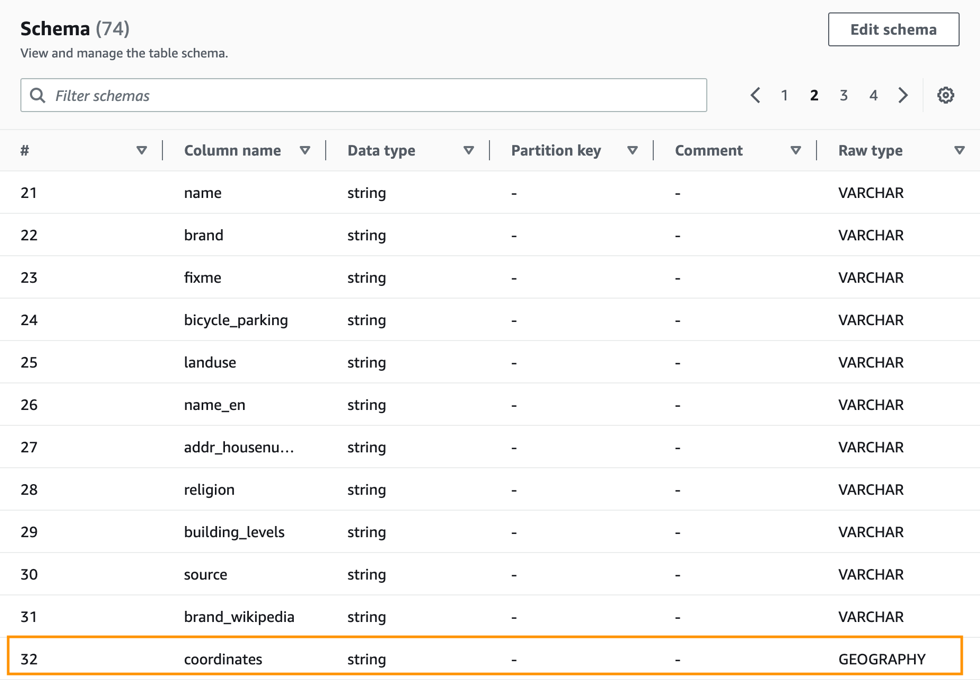
To crawl a Snowflake database, you can create and schedule an AWS Glue crawler with an JDBC URL with credential information from AWS Secrets Manager. A configuration option allows you to specify if you want the crawler to crawl the entire database or limit the tables by including the schema or table path and exclude patterns to reduce crawl time. With each run of the crawler, the crawler inspects and catalogs information, such as updates or deletes to Snowflake tables, external tables, views, and materialized views in the AWS Glue Data Catalog. For Snowflake columns with non-Hive compatible types, such as geography or geometry, the crawler extracts that information as a raw data type and makes it available in the Data Catalog.

In this post, we set up an AWS Glue crawler to crawl the OpenStreetMap geospatial dataset, which is freely available through Snowflake Marketplace. This dataset includes all of the OpenStreetMap location data for New York. OpenStreetMap maintains data about businesses, roads, trails, cafes, railway stations, and much more, from all over the world.

Overview of solution

Snowflake is a cloud data platform that provides data solutions from data warehousing to data science. Snowflake Computing is an AWS Advanced Technology Partner with AWS Competencies in Data & Analytics, Machine Learning, and Retail, as well as an AWS service validation for AWS PrivateLink.

In this solution, we use a sample use case involving points of interest in New York City, based on the following Snowflake quick start. Follow sections 1 and 2 to get access to sample geospatial data from Snowflake Marketplace. We show how to interpret the geography data type and understand the different formats. We use the AWS Glue crawler to crawl this OpenStreetMap geospatial dataset and make it available in the Data Catalog with the geography data type maintained where appropriate.

Prerequisites

To follow along, you need the following:

  • An AWS account.
  • An AWS Identity and Access Management (IAM) user with access to the following services:
  • An IAM role with access to run AWS Glue crawlers.
  • If the AWS account you use to follow this post uses AWS Lake Formation to manage permissions on the AWS Glue Data Catalog, make sure that you log in as a user with access to create databases and tables. For more information, refer to Implicit Lake Formation permissions.
  • A Snowflake Enterprise Edition account with permission to create storage integrations, ideally in the AWS us-east-1 Region or closest available trial Region, like us-east-2. If necessary, you can subscribe to a Snowflake trial account on AWS Marketplace.
    • On the Marketplace listing page, choose Continue to Subscribe, and then choose Accept Terms. You’re redirected to the Snowflake website to begin using the software. To complete your registration, choose Set Up Your Account.
    • If you’re new to Snowflake, consider completing the Snowflake in 20 Minutes tutorial. By the end of the tutorial, you should know how to create required Snowflake objects, including warehouses, databases, and tables for storing and querying data.
  • A Snowflake worksheet (query editor) and associated access to a Snowflake virtual warehouse (compute) and database (storage).
  • Access to an existing Snowflake account with the ACCOUNTADMIN role or the IMPORT SHARE privilege.

Create an AWS Glue connection to Snowflake

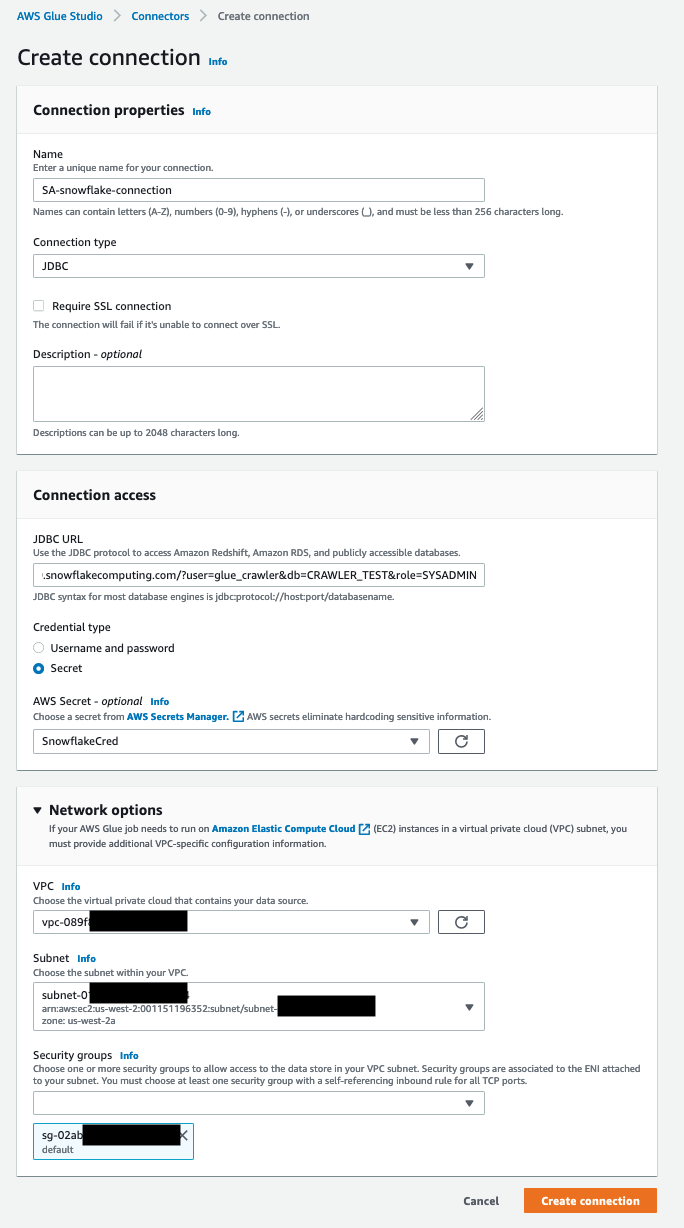
For this post, an AWS Glue connection to your Snowflake cluster is necessary. For more details about how to create it, follow the steps in Performing data transformations using Snowflake and AWS Glue. The following screenshot shows the configuration used to create a connection to the Snowflake cluster for this post.
configuration used to create a connection to the Snowflake cluster for this post.

Create an AWS Glue crawler

To create your crawler, complete the following steps:

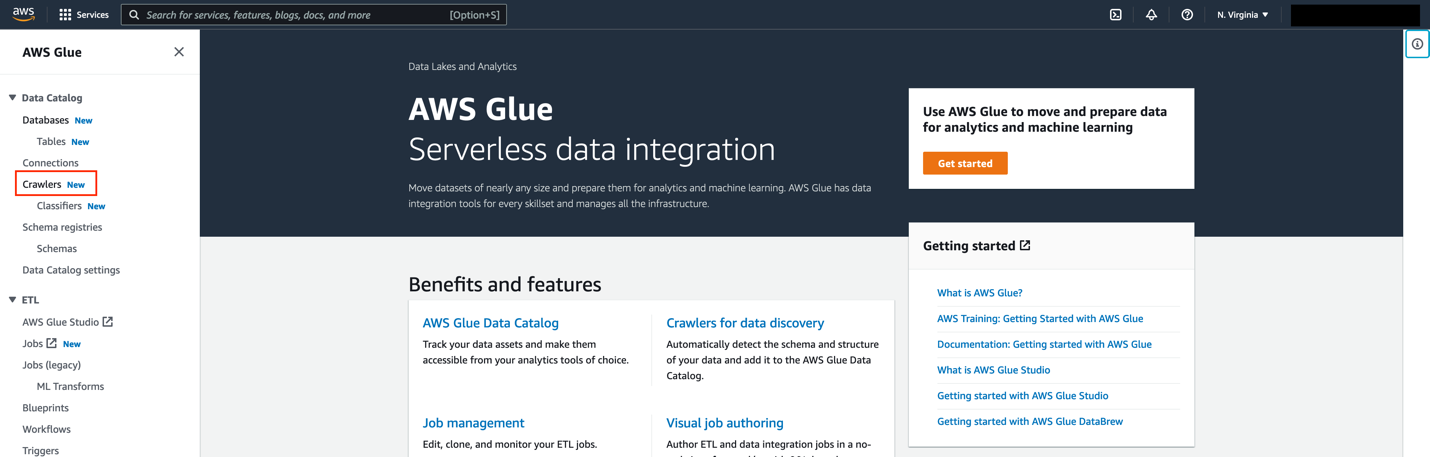
  1. On the AWS Glue console, choose Crawlers in the navigation pane.
    1. On the AWS Glue console, choose Crawlers in the navigation pane.
  2. Choose Create crawler.
    Choose Create crawler.
  3. For Name, enter a name (for example, glue-blog-snowflake-crawler).
  4. Choose Next.
    Choose Next
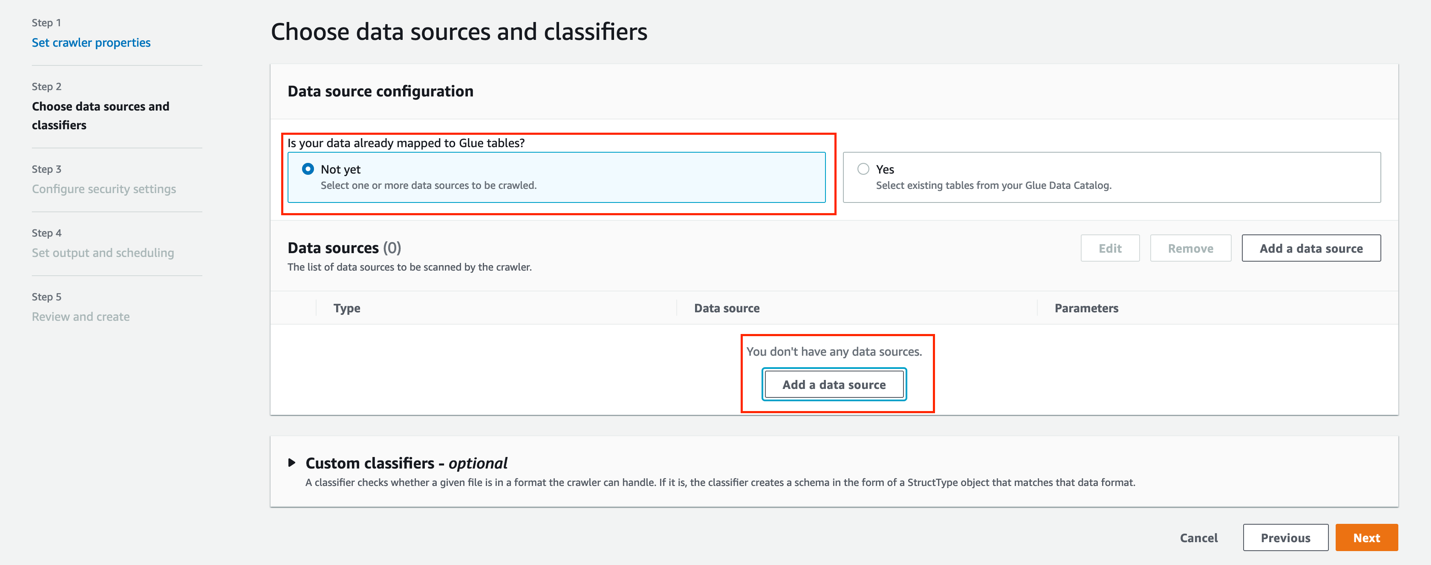
  5. For Is your data already mapped to Glue tables, select Not yet.
  6. In the Data sources section, choose Add a data source.
    6. In the Data sources section, choose Add a data source.

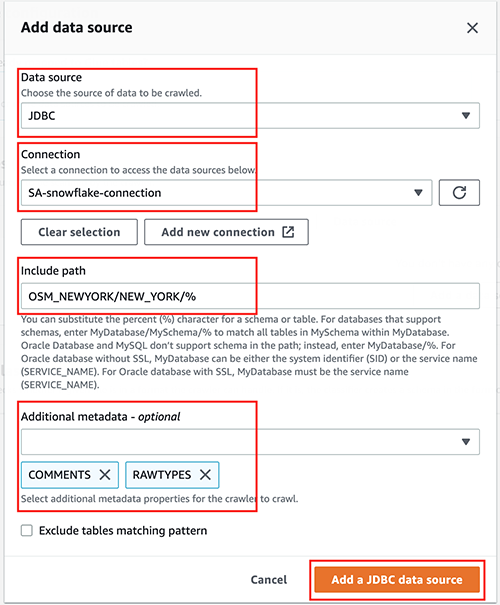
For this post, you use a JDBC dataset as a source.

  1. For Data source, choose JDBC.
  2. For Connection, select the connection that you created earlier (for this post, SA-snowflake-connection).
  3. For Include path, enter the path to the Snowflake database you created as a prerequisite (OSM_NEWYORK/NEW_YORK/%).
  4. For Additional metadata, choose COMMENTS and RAWTYPE.

This allows the crawler to harvest metadata related to comments and raw types like geospatial columns.

  1. Choose Add a JDBC data source.
  1. Choose Next.
    Choose Next
  2. For Existing IAM role¸ choose the role you created as a prerequisite (for this post, we use AWSGlueServiceRole-DefualtRole).
  3. Choose Next.
    Choose Next

Now let’s create an AWS Glue database.

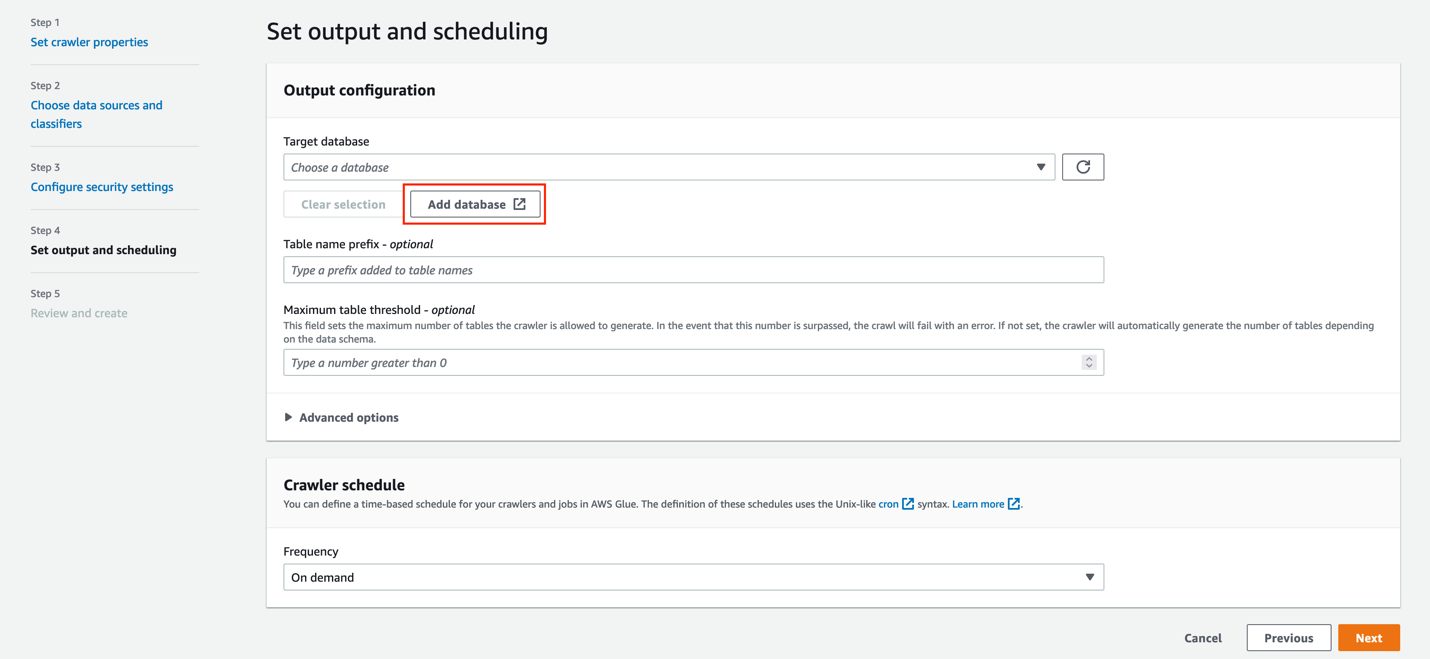
  1. Under Target database, choose Add database.
    Under Target database, choose Add database.
  2. For Name, enter gluesnowdb.
  3. Choose Create database.
    Choose Create database.
  4. On the Set output and scheduling page, for Target database, choose the database you just created (gluesnowdb).
  5. For Table name prefix, enter blog_.
  6. For Frequency, choose On demand.
  7. Choose Next.
    Choose Next.
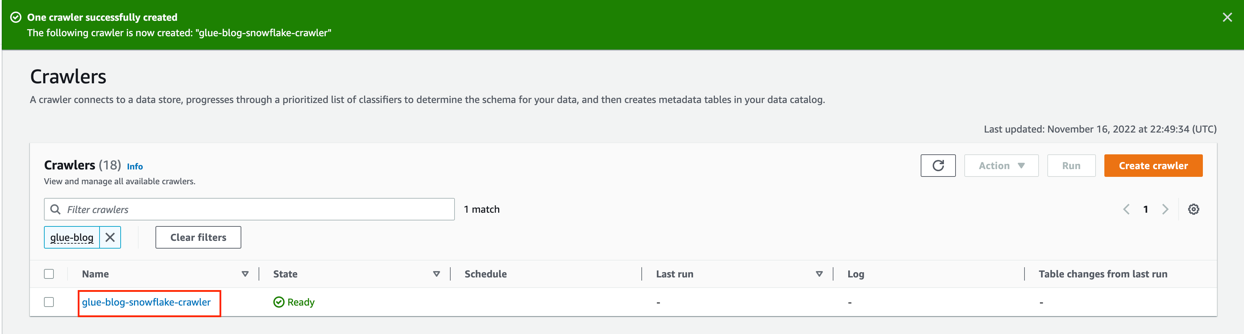
  8. Review the configuration and choose Create crawler.
    Review the configuration and choose Create crawler.

Run the AWS Glue crawler

To run the crawler, complete the following steps:

  1. On the AWS Glue console, choose Crawlers in the navigation pane.
  2. Choose the crawler you created.
    Choose the crawler you created.
  3. Choose Run crawler.
    Choose Run crawler

On the Crawler runs tab, you can see the current run of the crawler.

  1. Wait until the crawler run is complete.

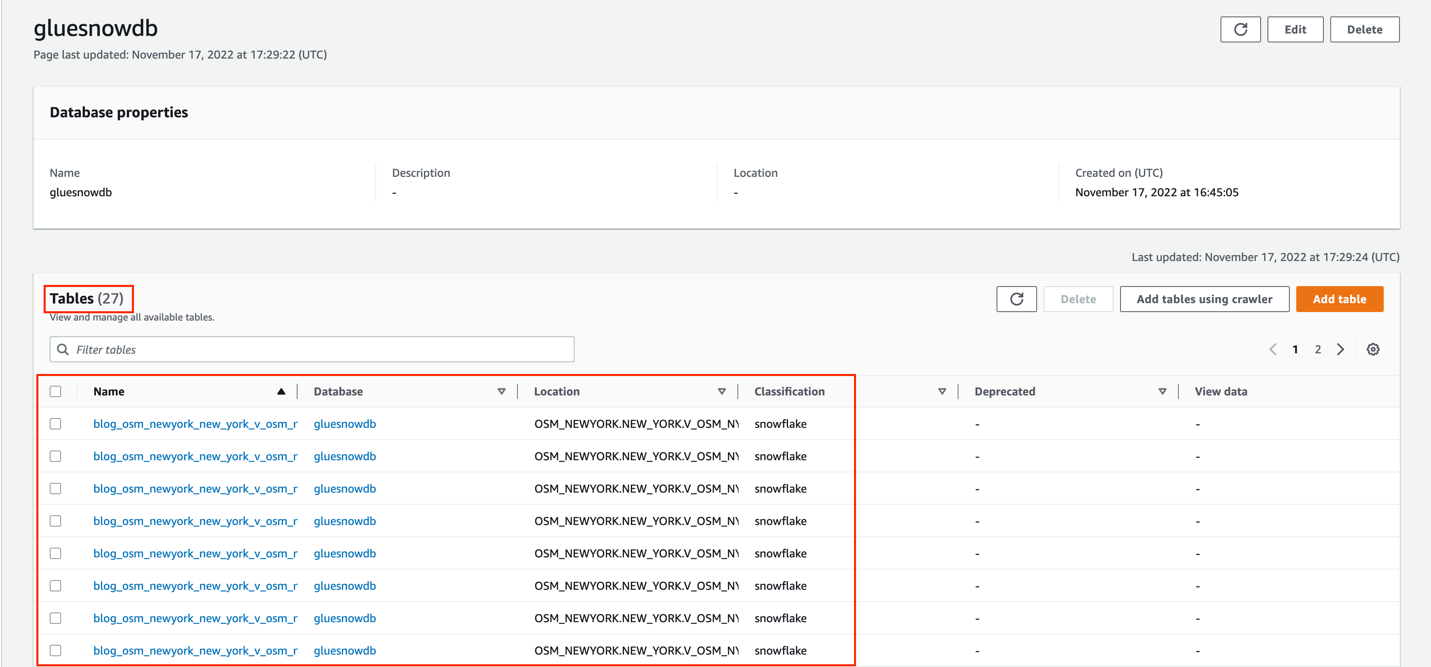
As shown in the following screenshot, 27 tables were added.

Now let’s see how these tables look in the AWS Glue Data Catalog.

Explore the AWS Glue tables

Let’s explore the tables created by the crawler.

  1. On the AWS Glue console, chose Databases in the navigation pane.
    On the AWS Glue console, chose Databases in the navigation pane.
  2. Search for and choose the gluesnowdb database.
    Search for and choose the gluesnowdb database.

Now you can see the list of the tables created by the crawler.

  1. Choose the blog_osm_newyork_new_york_v_osm_ny_amenity table.
    3. Choose the blog_osm_newyork_new_york_v_osm_ny_amenity table.

In the Schema section, you can see that the raw type was also harvested from the source Snowflake database.

  1. Choose the Advanced properties tab.
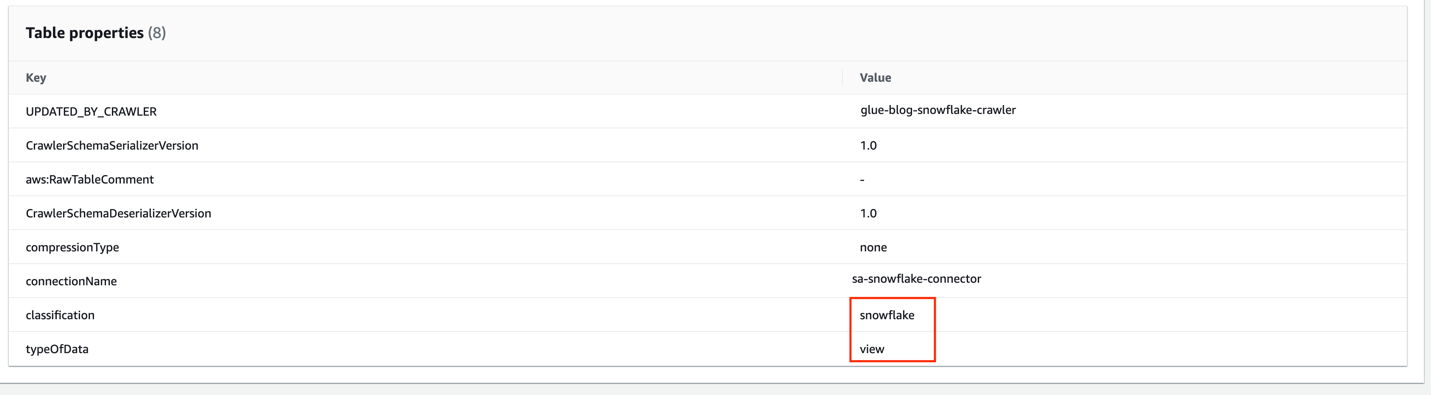
  2. In the Table properties section, you can see that the classification is snowflake and the typeOfData is view.
    5. In the Table properties section, you can see that the classification is snowflake and the typeOfData is view.

Clean up

To avoid incurring future charges, and to clean up unused roles and policies, delete the resources you created: the CloudFormation stack, S3 bucket, AWS Glue crawler, AWS Glue database, and AWS Glue table.

Conclusion

AWS Glue crawlers now support Snowflake tables, views, and materialized views. Offering more options to integrate Snowflake databases to your AWS Glue Data Catalog. You can use AWS Glue crawlers to discover Snowflake datasets, extract schema information, and populate the Data Catalog.

In this post, we provided a procedure to set up AWS Glue crawlers to discover Snowflake tables, which reduces the time and cost needed to incrementally process Snowflake table data updates in the Data Catalog. To learn more about this feature, refer to the docs.

Special thanks to everyone who contributed to this crawler feature launch: Theo Xu, Hunny Vankawala, and Jessica Cheng.

Happy crawling!

Attribution

OpenStreetMap data by OpenStreetMap Foundation is licensed under Open Data Commons Open Database License (ODbL)


About the authors

Leonardo Gómez is a Senior Analytics Specialist Solutions Architect at AWS. Based in Toronto, Canada, he has over a decade of experience in data management, helping customers around the globe address their business and technical needs.

Bosco Albuquerque is a Sr. Partner Solutions Architect at AWS and has over 20 years of experience working with database and analytics products from enterprise database vendors and cloud providers. He has helped technology companies design and implement data analytics solutions and products.

Sandeep Adwankar is a Senior Technical Product Manager at AWS. Based in the California Bay Area, he works with customers around the globe to translate business and technical requirements into products that enable customers to improve how they manage, secure, and access data.