Tag Archives: webmonitoring

Monitoring Website Changes with Zabbix Browser Item

Post Syndicated from Adi Rusmanto original https://blog.zabbix.com/monitoring-website-changes-with-zabbix-browser-item/31684/

In today’s digital era, information is an asset and most of it is obtained from websites. The ability to automatically monitor website content changes has become a crucial competitive advantage, as even small changes on a website can affect business strategies, security postures, and data-driven decision-making. Accordingly, Zabbix 7.0 saw the introduction of a new feature called Browser Item, which allowed users to perform advanced website monitoring using a browser.

The Browser Item feature includes the ability to:

● Capture screenshots of the current website state
● Measure website performance and availability metrics
● Extract and analyze data from web pages
● Generate automatic alerts based on detected changes or errors

This means Zabbix is no longer limited to traditional IT infrastructure monitoring. It can now also serve as a tool for monitoring strategic external information.

Key use cases for website change monitoring with Zabbix

The Zabbix Browser Item opens up many valuable use cases for organizations that want to proactively track website changes. Below are some key examples:

Monitoring release notes

Tracking vendor release notes is essential for IT teams. With Zabbix, we can automatically detect new releases, extract relevant information, and notify the appropriate team members so they can respond faster.

Tracking security advisories

Security advisories are critical for maintaining a strong security posture. By monitoring websites that publish vulnerability information using Zabbix, security teams can be promptly alerted about new threats and take timely actions to reduce risks.

Monitoring competitor websites

In a competitive market, staying informed about competitor activities is vital. Zabbix allows users to monitor competitor websites for pricing updates, new product offerings, marketing campaigns, or news announcements, while providing valuable business intelligence to support strategic decisions.

Monitoring tender announcements

Zabbix can also monitor websites for new tender announcements from government portals or business partners, ensuring our organization stays aware of the latest business opportunities.

Ensuring internal website integrity

Beyond external sites, we can also use the Browser Item to ensure the integrity and availability of our own websites. It helps detect unexpected content changes, broken links, or performance degradation that may affect the user experience or signal potential issues. Proactive monitoring helps maintain a high-quality user experience and protect our brand reputation.

Getting started with website change monitoring in Zabbix

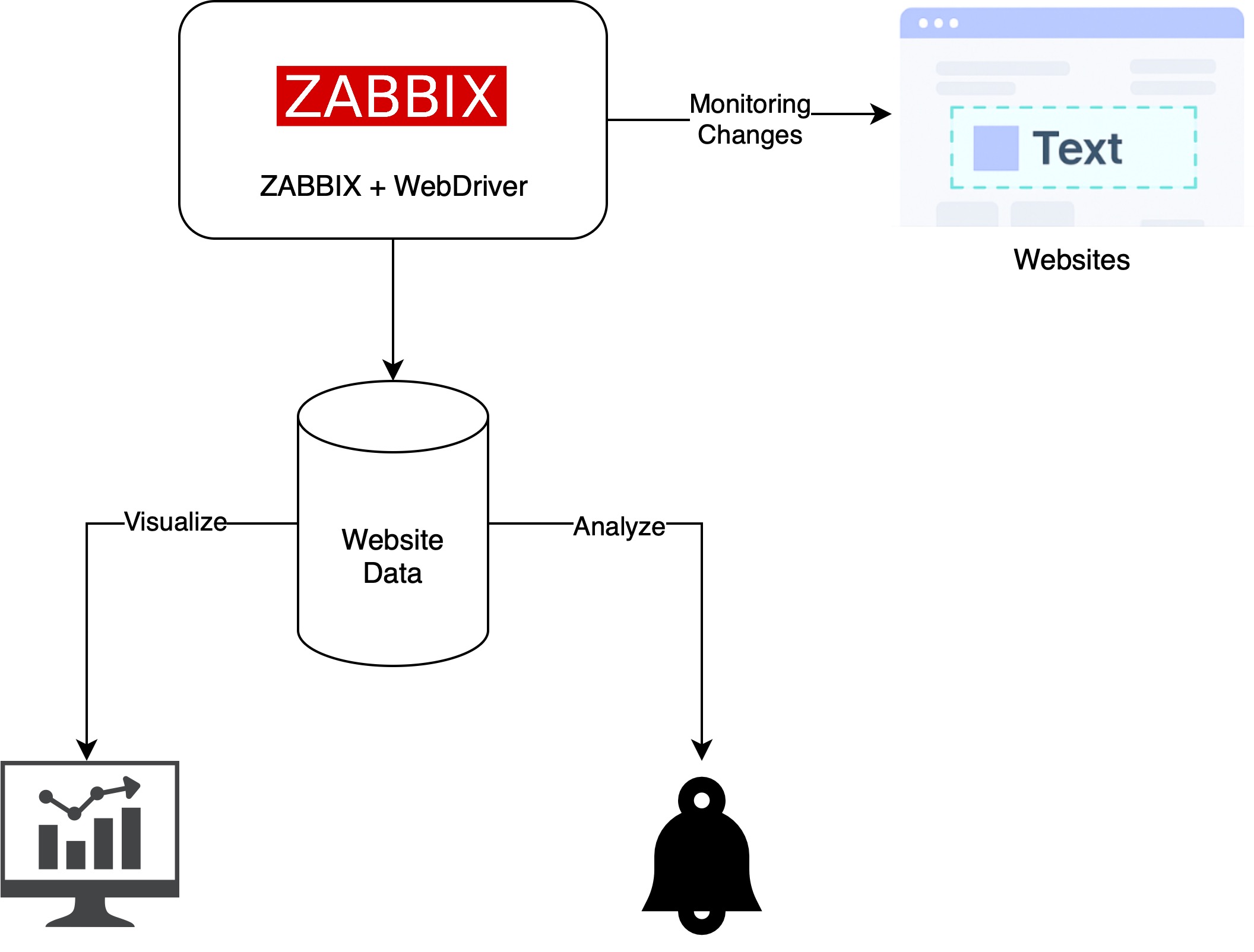
Solution overview architecture

This diagram shows how Zabbix uses a WebDriver to capture and analyze website content.
The collected data is stored in Zabbix for visualization and alerts when changes are
detected.

Step-by-step configuration

In this example, we’ll monitor changes on the Nginx Security Advisories webpage.

Step 1: Prepare the Web Driver

Zabbix requires a Web Driver to perform browser-based monitoring. One commonly used option is Selenium, which can be deployed using the following Docker image:

https://hub.docker.com/r/selenium/standalone-chrome

Step 2: Configure WebDriverURL on Zabbix server or proxy

Update the WebDriverURL parameter in your Zabbix Server or Zabbix Proxy configuration to point to the Selenium service you deployed.

Step 3: Create a Browser Item in Zabbix

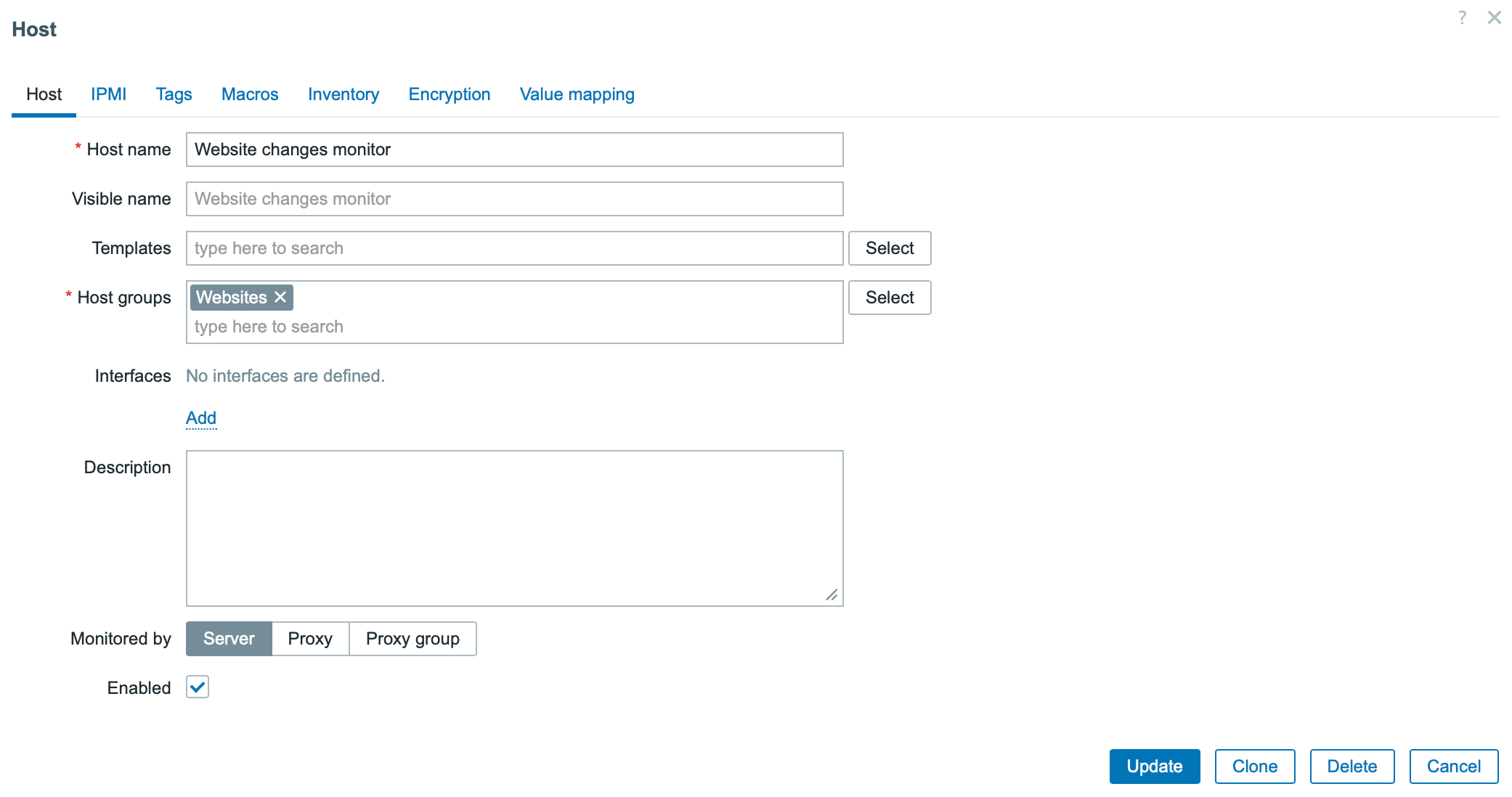
1. Create a host if it doesn’t already exist.

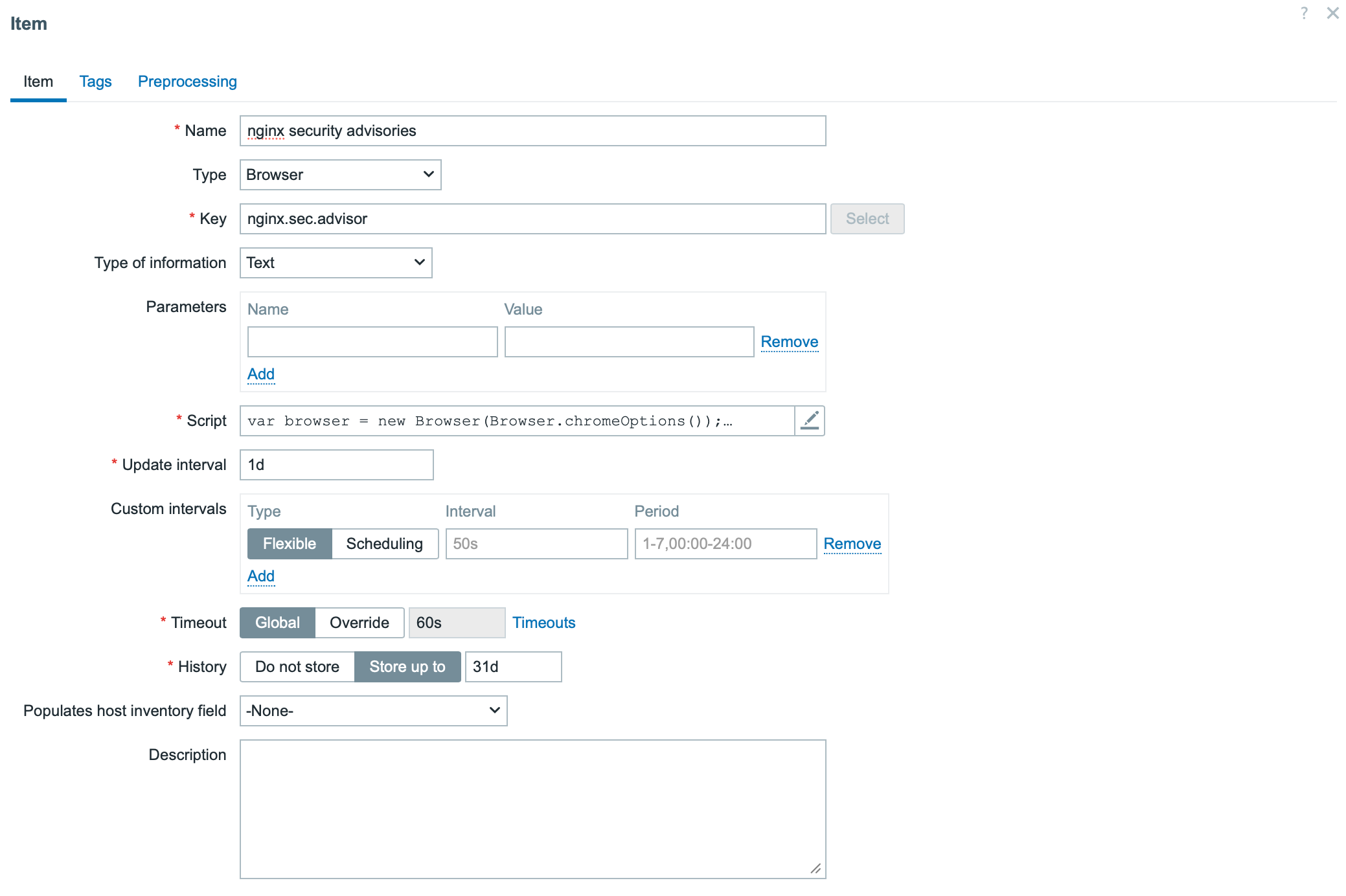
2. Add a new item with the following settings:

  • Type: Browser
  • Type of information: Text

The key part is the script section. Below is the example script.

The script uses two methods:

  • browser.navigate method defines the URL to be monitored
  • browser.findElements method specifies the page section where changes should be detected

Note: The StartBrowserPollers parameter must be enabled on the Zabbix server or proxy configuration for browser items to work. It is enabled by default with the value StartBrowserPollers=1.

Step 4: Create dependent items

The Browser Item produces a JSON result containing website data. This item serves as the master item for dependent items such as:

  • Extracting the latest security advisories
  • Capturing a website screenshot

Step 5: Create a trigger for change alerts

Create a trigger that compares the current and previous values of the “latest security advisories” item. If any change is detected, Zabbix will automatically send an alert notifying your team of the update.

Step 6: Display data on the dashboard

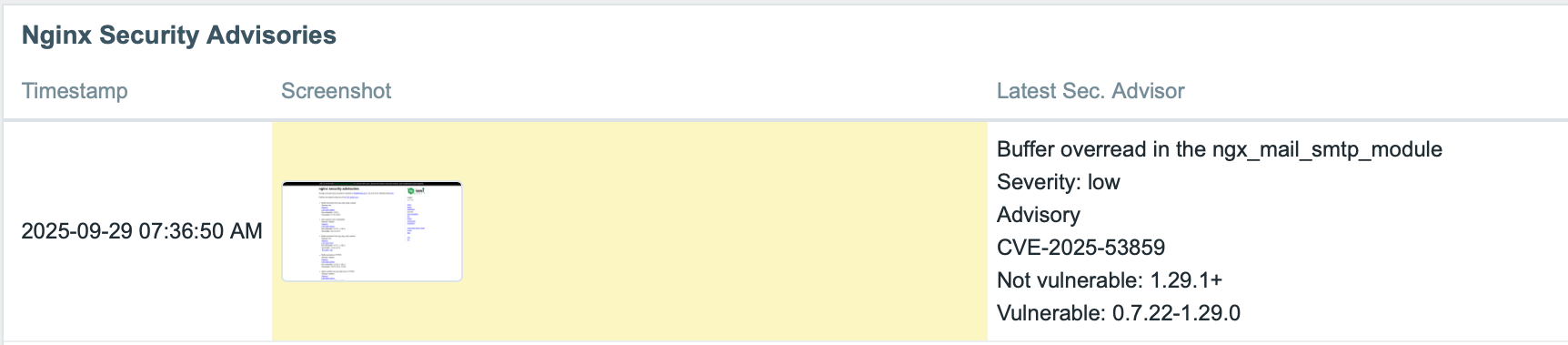
To visualize the monitored data, we can use the Item History widget on a Zabbix dashboard to show both the latest security advisories and the corresponding screenshot, for example.

Conclusion

The Browser Item feature in Zabbix 7.0 elevates website monitoring beyond simple availability checks. It enables comprehensive monitoring of website changes, unlocking a variety of use cases such as tracking release notes, security advisories, competitor activity, and more.

If you’re interested in implementing this capability, feel free to contact us. Bangunindo is a Zabbix Premium Partner in Indonesia, ready to help you design, implement, and optimize your Zabbix monitoring solution to fit your specific needs.

The post Monitoring Website Changes with Zabbix Browser Item appeared first on Zabbix Blog.

Monitoring a Starlink Dish with Zabbix

Post Syndicated from Alexander Petrov-Gavrilov original https://blog.zabbix.com/monitoring-a-starlink-dish-with-zabbix/31543/

Did you realize that you can monitor a Starlink dish using just Zabbix? The idea (or rather the need) to use Starlink came to me almost as soon as I moved to a fairly rural area. Local internet providers have not yet “provided” fiberoptic or stable mobile connectivity to places like this, and while searching for a solution I accidentally discovered that Starlink was already providing service to some local companies. As I later found out, they also offered service in my area for residential customers.

To make a long story short, since internet access is crucial in the IT field, I decided to acquire and then monitor my very own Starlink dish. At first, this proved challenging because regular user data access is quite limited. However, thanks to Zabbix browser monitoring, I managed to solve it fairly easily. In this post I will share my solution with you, including the template.

Monitoring configuration

First, you need to make sure you have Zabbix installed (either a Zabbix proxy or server) on the same network that the Starlink dish and router are on. The next step is to configure Zabbix for browser monitoring.

WebDriver installation
# podman run --name webdriver -d \
-p 4444:4444 \ 
-p 7900:7900 \
--shm-size="2g" \
--restart=always -d docker.io/selenium/standalone-chrome:latest

Port 4444 will be the port on which the WebDriver will be listening, and port 7900 will be used by NoVNC, which allows us to observe browser behavior in case a browser with a GUI is used.

Zabbix server/proxy configuration

After WebDriver is installed, we need to set up the communication between Zabbix and the driver. This can be done by editing the Zabbix server/proxy configuration file and updating the following parameters:

### Option: WebDriverURL 
# WebDriver interface HTTP[S] URL. For example http://localhost:4444 used with 
# Selenium WebDriver standalone server. 
# 
# WebDriverURL= 
WebDriverURL=http://localhost:4444 
### Option: StartBrowserPollers 
# Number of pre-forked instances of browser item pollers. 
# 
# Range: 0-1000 
# StartBrowserPollers=1 
StartBrowserPollers=5

With the configuration parameters in place, restart the Zabbix server/proxy to apply the changes:

systemctl restart zabbix-server
Creating a host

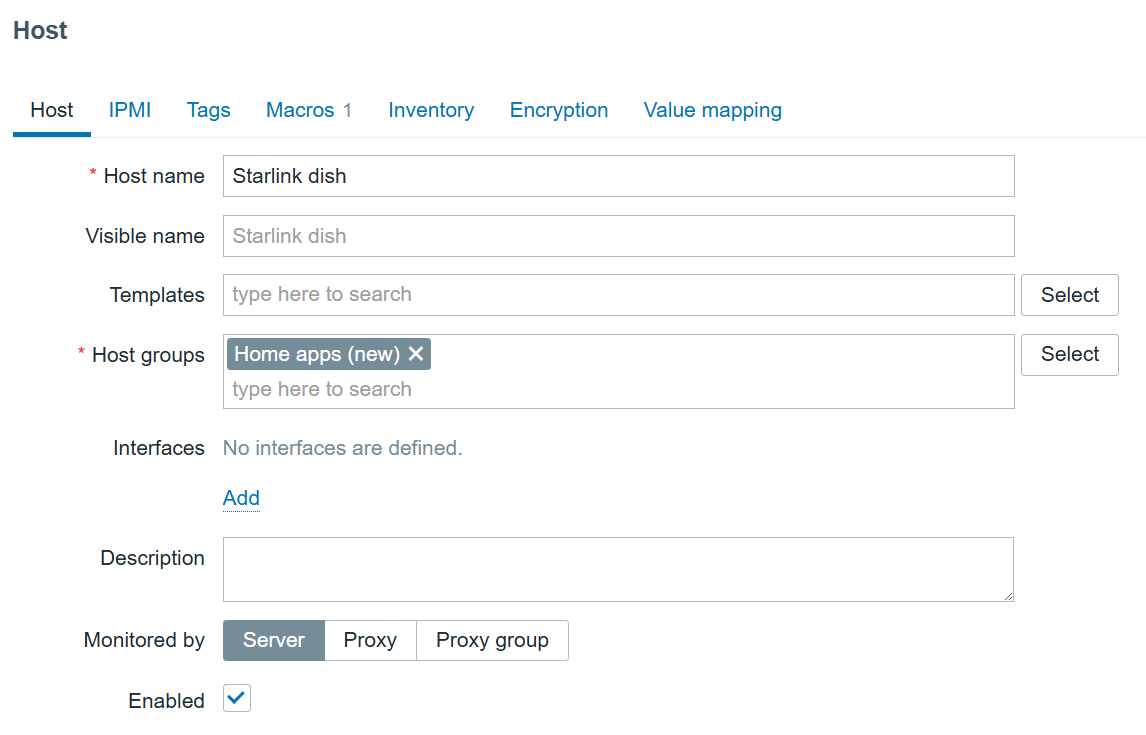
First, we need to navigate to the “Data collection” > “Hosts” section and create a host that represents our Starlink dish. The host in my example will look like this:

Starlink dish host
Starlink dish host

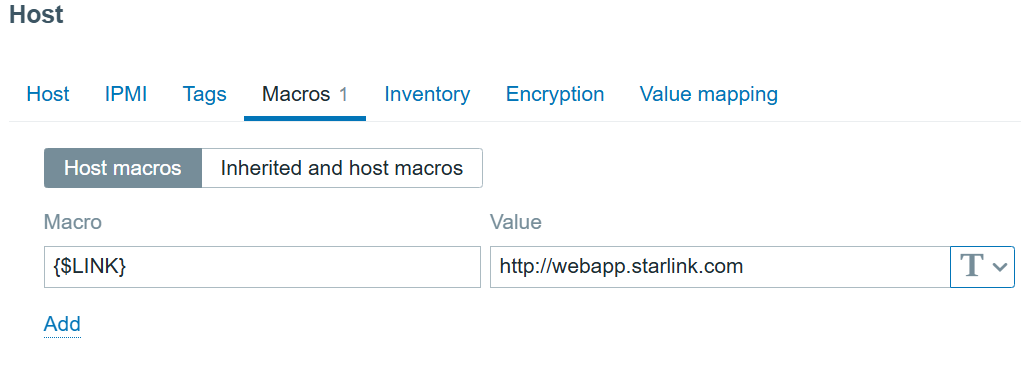
The host also has a user macro:

{$LINK} with value: http://webapp.starlink.com to point to the correct Starlink dish web app:

Link macro
Link macro
Creating a browser item

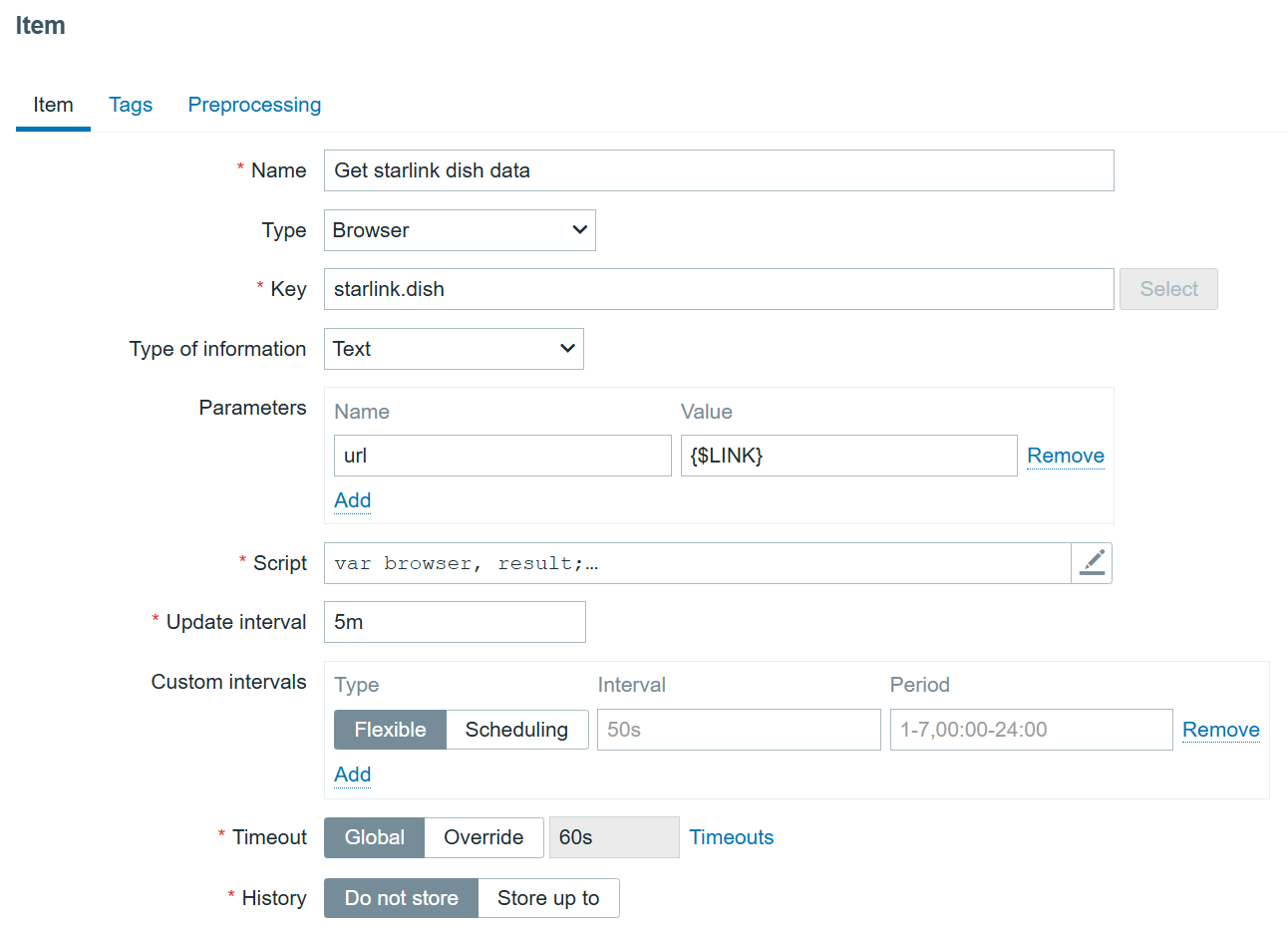
We will now configure our browser item to collect and monitor the list of metrics exposed in the Starlink browser app:

Starlink browser item

We are using the bare minimum here, so make sure the update intervals are as frequent as you need. However, I would not recommend updating it more frequently than every 5 minutes. It’s also not a good idea to store the history, since it is already stored trough dependent items.

The most important part of the item is the script itself:

var browser, result;
var opts = Browser.chromeOptions();

opts.capabilities.alwaysMatch['goog:chromeOptions'].args = [];
browser = new Browser(opts);
browser.setScreenSize(Number(1980), Number(1020));

try {
    var params = JSON.parse(value);
    browser.navigate(params.url);

 // Wait for the dish to report status
    Zabbix.sleep(2000);

    // Find the JSON text element(s)
    var jsonElements = browser.findElements("xpath", "//div[@id='root']/div[@class='App']/div[@class='Main']/div[2]/div[@class='Section'][2]/pre[@class='Json-Format']/div[@class='Json-Text']");
    var extractedData = [];

    for (var i = 0; i < jsonElements.length; i++) {
        var text = jsonElements[i].getText();

        // Try parsing JSON
        try {
            extractedData.push(JSON.parse(text));
        } catch (e) {
            // If not valid JSON, include raw text instead
            extractedData.push({ raw: text, error: "Invalid JSON format" });
        }
    }

    // Collect result 
    result = browser.getResult();

    // Replace with parsed JSON data
    result.extractedJsonData = extractedData.length === 1 ? extractedData[0] : extractedData;

}
catch (err) {
    if (!(err instanceof BrowserError)) {
        browser.setError(err.message);
    }
    result = browser.getResult();
}
finally {
    // Return a clean JSON object
    return JSON.stringify(result.extractedJsonData);
}

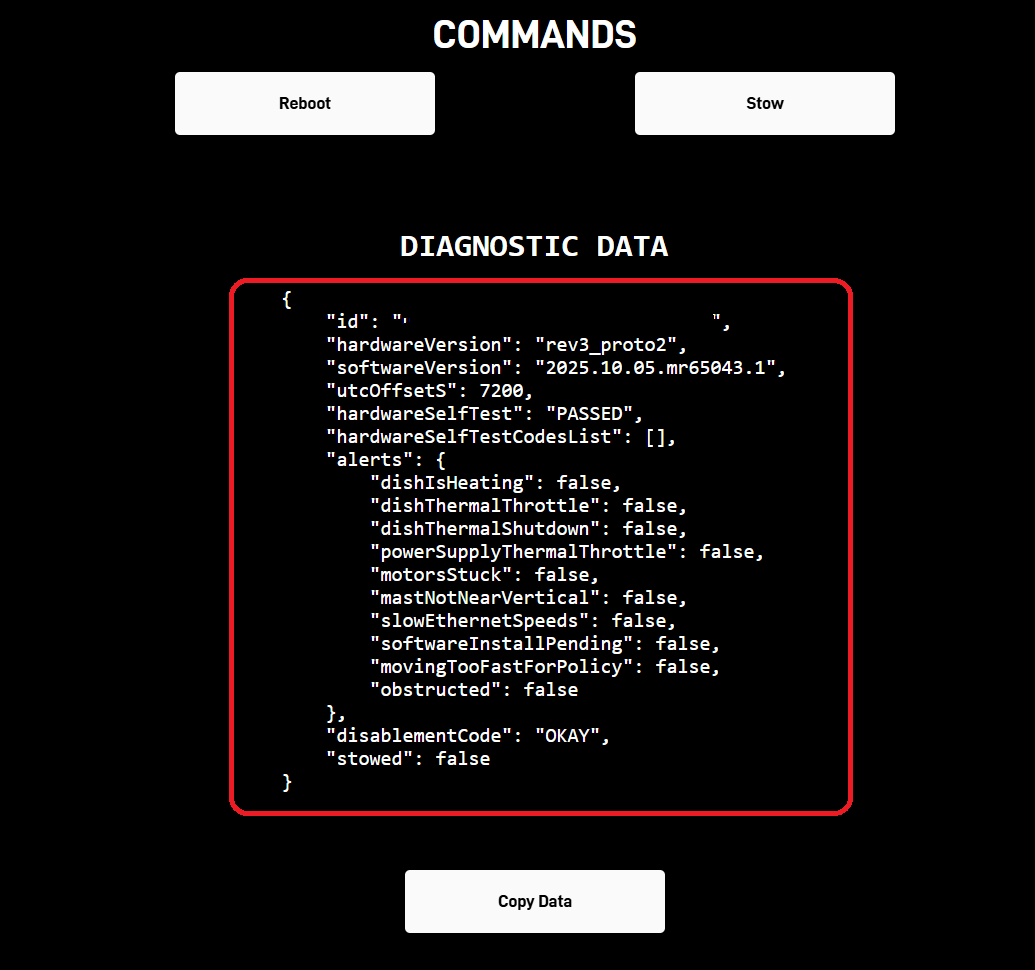
So what does this script do? It opens the Starlink web app, waits for the Starlink dish to output all the status data, and, after a bit of parsing, returns the data highlighted in the screenshot:

Starlink dish diagnostic data

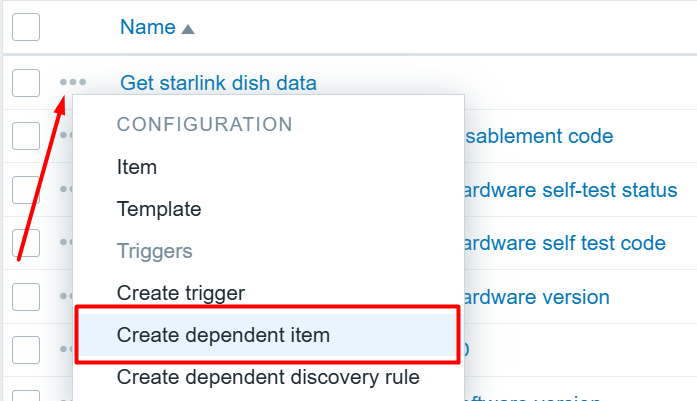
Now we can click on the three dots on the left of our newly created item in the items page and proceed to create dependent items for each value we are interested in!

Creating dependent items

Now we just click here:

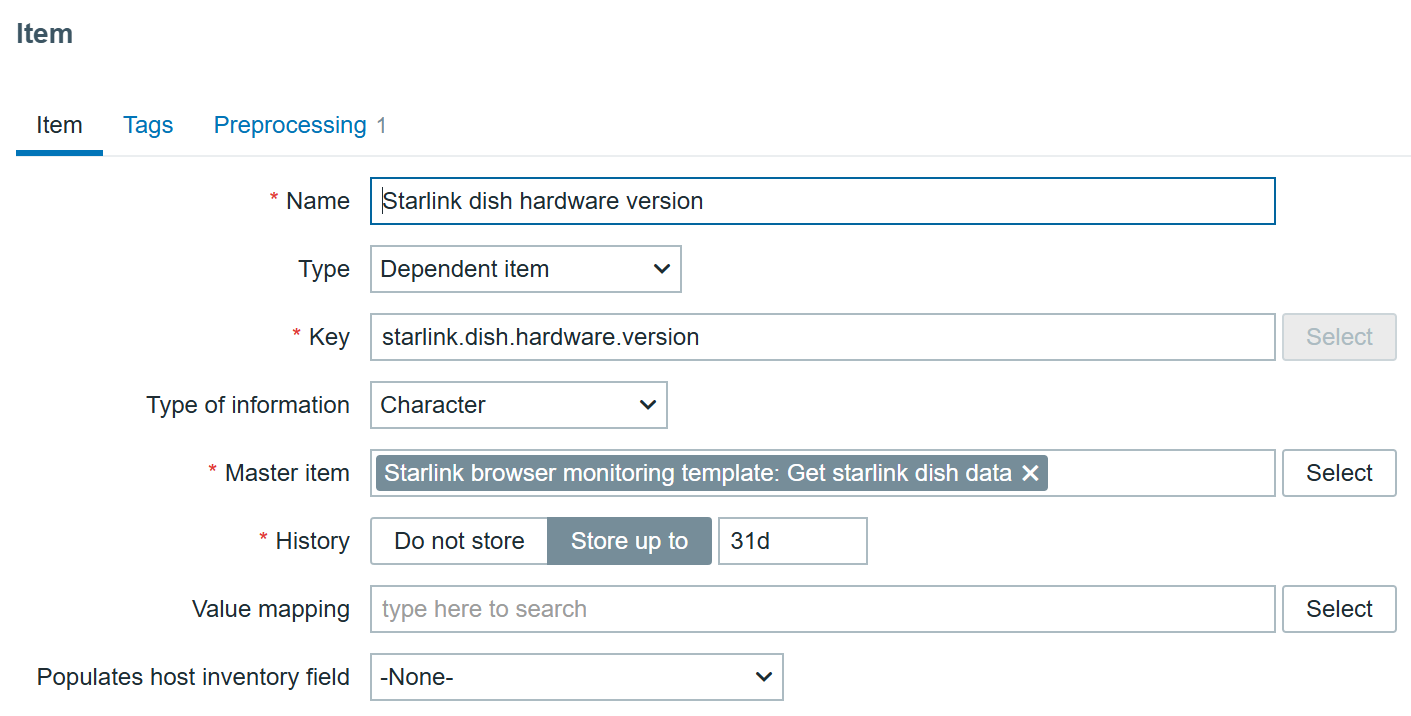
As an example, to create an item that monitors the hardware version we can create an item like this:

Hardware version dependent item

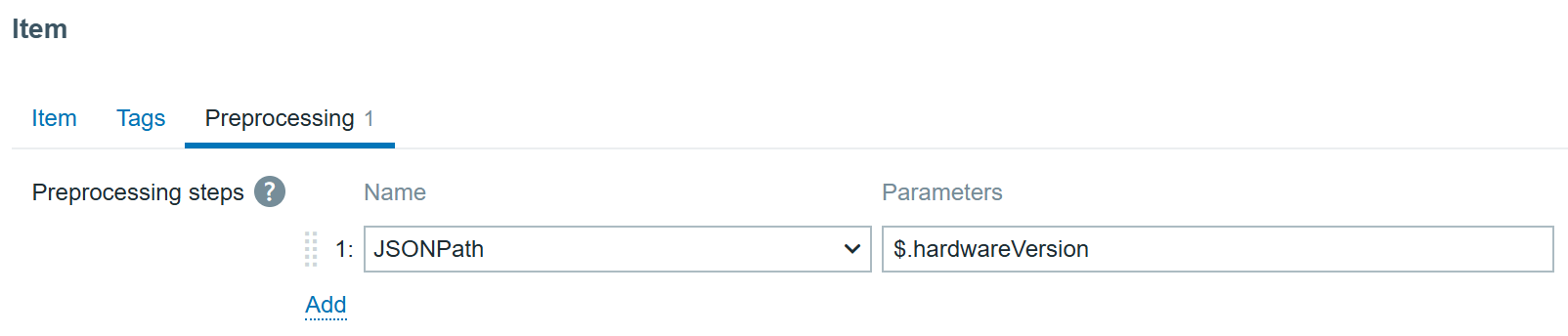
With JSONPath preprocessing:

Hardware version item preprocessing

In the end we get the data in Zabbix:

Starlink dish hardware version

All other items (except alerts) will follow the same logic – just update the item name, key, and JSONPath in preprocessing to extract the required values.

Creating dependent LLD item prototypes

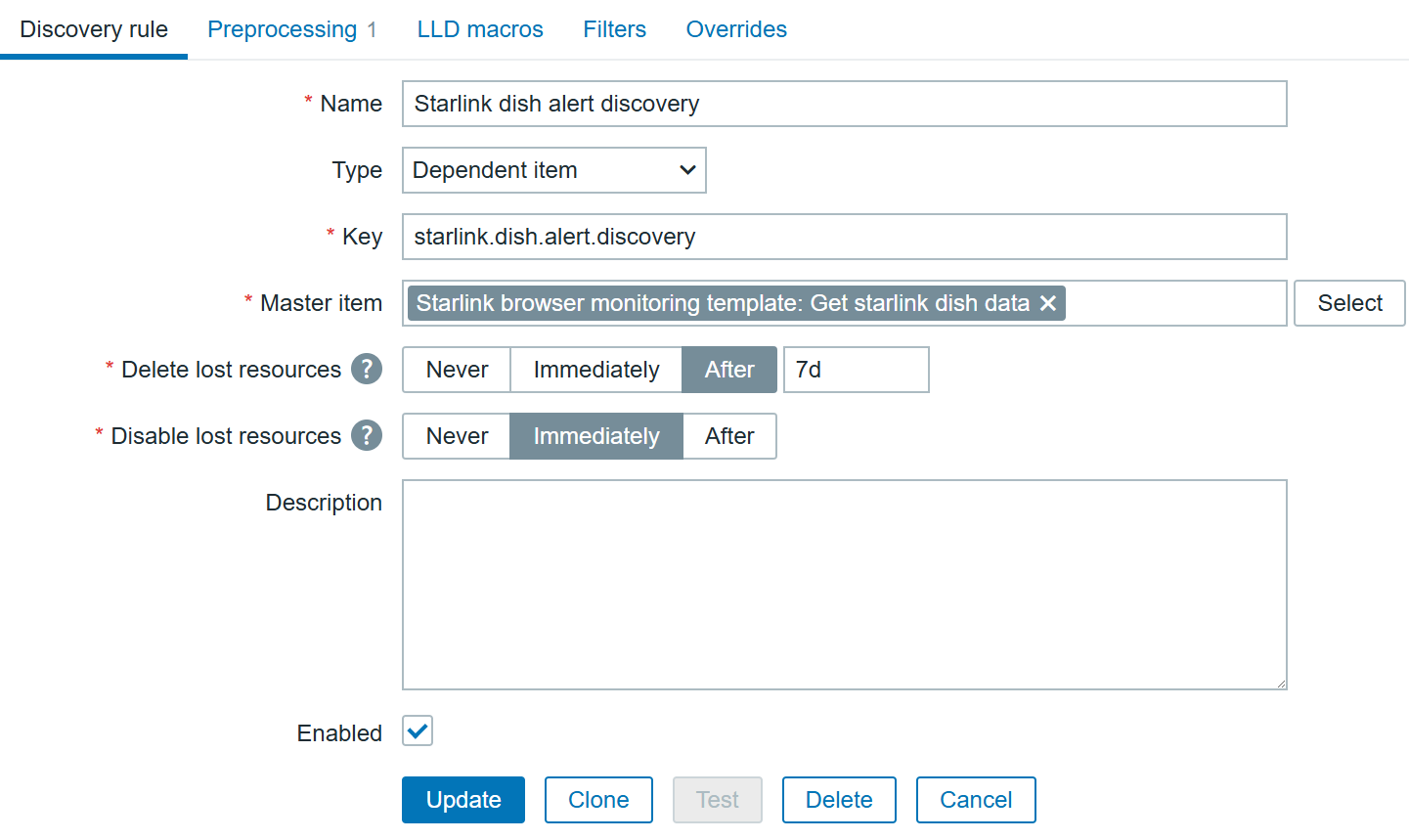
To automate the alerts items creation, we can create a dependent discovery rule. In the “Discovery” section, create a new discovery rule:

Starlink dish alerts discovery

With preprocessing using Java Script:

var data = JSON.parse(value);
var alerts = data.alerts;
var lld = [];

for (var key in alerts) {
    if (alerts.hasOwnProperty(key)) {
        lld.push({
            "{#ALERT}": key
        });
    }
}

return JSON.stringify({ data: lld });

This will provide us with following JSON data:

{
  "data": [
    {
      "{#ALERT}": "dishIsHeating"
    },
    {
      "{#ALERT}": "dishThermalThrottle"
    },
    {
      "{#ALERT}": "dishThermalShutdown"
    },
    {
      "{#ALERT}": "powerSupplyThermalThrottle"
    },
    {
      "{#ALERT}": "motorsStuck"
    },
    {
      "{#ALERT}": "mastNotNearVertical"
    },
    {
      "{#ALERT}": "slowEthernetSpeeds"
    },
    {
      "{#ALERT}": "softwareInstallPending"
    },
    {
      "{#ALERT}": "movingTooFastForPolicy"
    },
    {
      "{#ALERT}": "obstructed"
    }
  ]
}

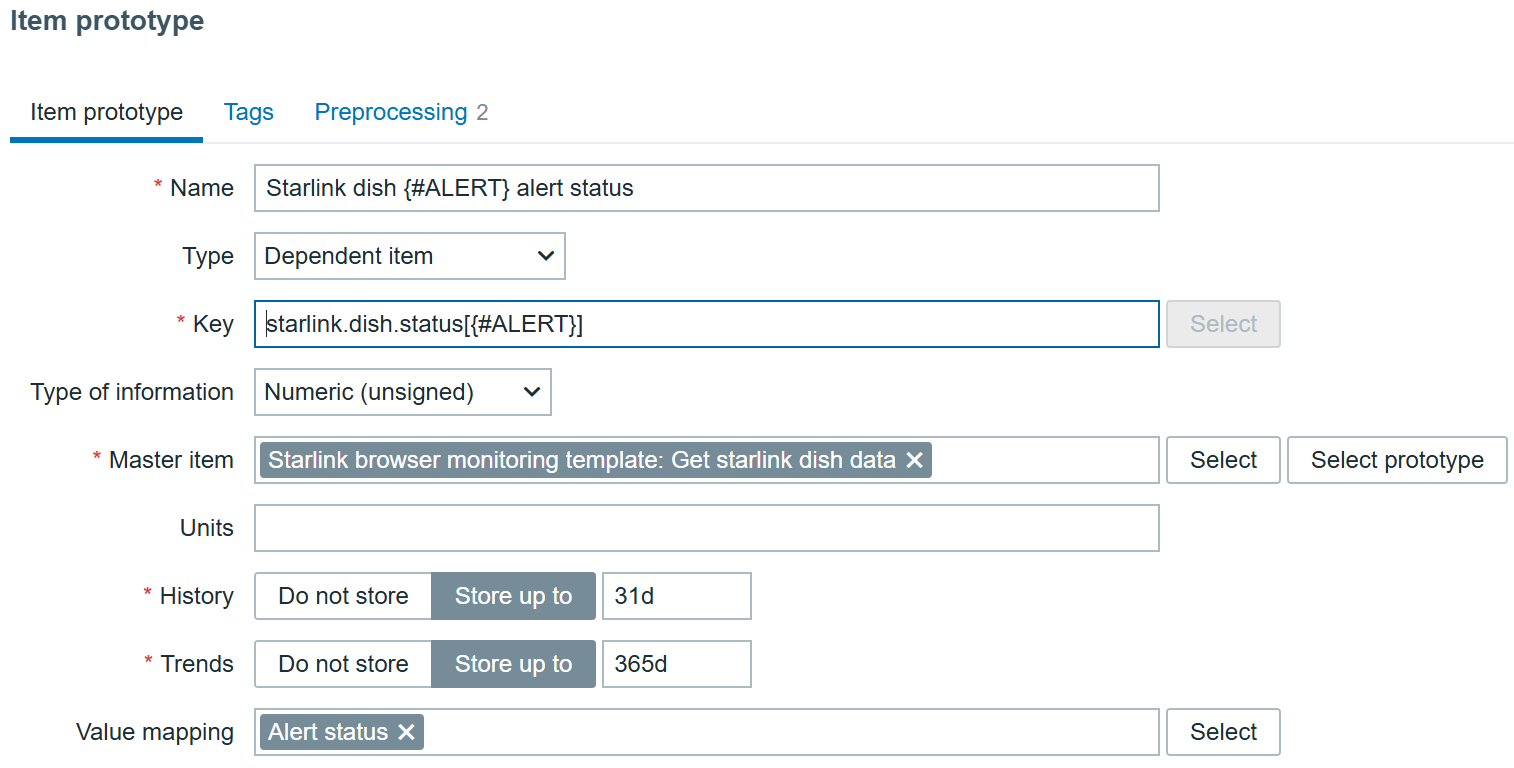
All that’s left ‘to do is to create a dependent item prototype:

Starlink dish alert prototype

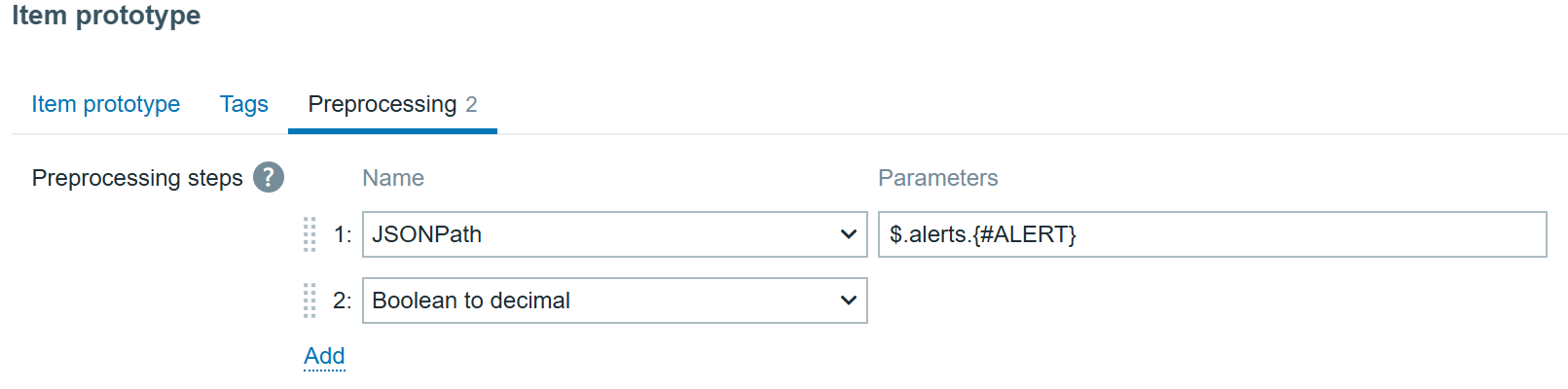
With preprocessing, of course:

JSONPath will transform to extract each specific alert and “Boolean to Decimal” will save us some space in the database by tranforming true/false booleans to digits.

Result

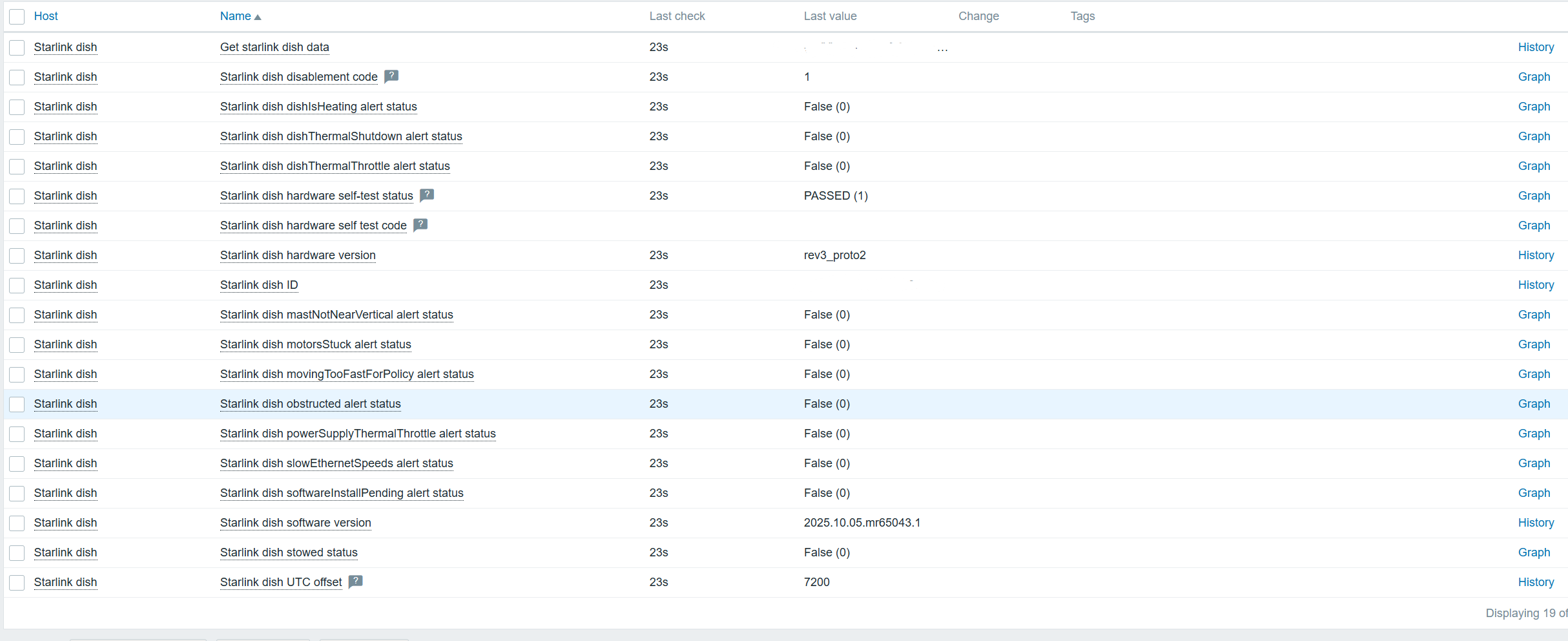
In the end, we can monitor all the data:

Starlink dish latest data

Even more data can be collected using exporters – if you are willing to do a bit of extra configuration, of course! Let me know if you are interested, and I will show you a completely different approach with a template.

Before I forget, the template used in this tutorial can be found  here.

The post Monitoring a Starlink Dish with Zabbix appeared first on Zabbix Blog.
What is Network Monitoring? Everything You Need to Know

Post Syndicated from Michael Kammer original https://blog.zabbix.com/what-is-network-monitoring-everything-you-need-to-know/26539/

Your company’s network is the glue that bonds your enterprise together. The technology of networking is growing more stable and reliable all the time, but it doesn’t mean you can leave your network unattended – quality network monitoring is an absolute must-have.

What are network monitoring systems?

At its most basic, network monitoring is a critical IT process where all networking components (as well as key performance indicators like network hardware CPU utilization and network bandwidth) are continuously and proactively monitored to improve performance, eliminate bottlenecks, and prevent network congestion and downtime.

Put more simply, it’s the act of keeping an eye on all the connected elements that are relevant to your business. That means all your hardware and software resources, including routers, switches, firewalls, servers, PCs, printers, phones, and tablets.

A network monitoring system is a set of software tools that lets you program this action. It allows you to constantly monitor your network infrastructure by doing systematic tests to look for issues and notifying you if any are found. A good system makes monitoring your network easy by:

  • Allowing you to see all information in dashboards
  • Generating reports on demand
  • Sending alerts
  • Displaying the monitoring data you need in easy-to-read graphs

What are some key benefits of network monitoring?

A quality network monitoring solution allows you to:

Benchmark standard performance

Monitoring gives you the visibility to benchmark your network’s everyday performance. It also makes it easy to spot any fluctuations in performance, which in turn allows you to identify any unwanted changes.

Effectively allocate resources

IT teams need a clear understanding of the source of problems. They also need the ability to minimize tedious troubleshooting and put in place proactive measures to stay ahead of IT outages. To use a plumbing analogy, monitoring lets them fix cracks before a leak happens.

Identify security threats

Preventing security breaches is a major challenge for any organization. As attacks become increasingly more sophisticated and difficult to trace, detecting and mitigating any form of network threat before it escalates is critical. Network monitoring makes it easier to protect data and systems by providing early warning of any suspicious anomalies.

Manage a changing IT environment

New technologies like internet-enabled sensors, wireless devices, and cloud technologies make it harder for IT teams to track performance fluctuations or suspicious activity. A network monitoring solution can:

  • Give IT teams a comprehensive inventory of wired and wireless devices
  • Make it easy to analyze long-term trends
  • Help you get the most out of your available assets

Proactively detect and resolve issues before they affect users

Monitoring a network closely allows an organization to quickly resolve issues and prevent major disruptions. This means fewer interruptions to operations and better utilization of IT resources.

Deploy new technology and system upgrades successfully

Thanks to monitoring, IT teams can learn how equipment has performed over time and use trend analysis to see whether current technology can scale to meet business needs. This can:

  • Give a clear picture of whether a network is able to support the launch of a new technology
  • Mitigate any risks associated with a major change
  • Easily demonstrate ROI by providing comprehensive metrics

What are some different types of network monitoring?

Different types of monitoring exist depending on what exactly needs to be monitored. Some of the most common include fault monitoring, log monitoring, network performance monitoring, configuration monitoring, and availability monitoring.

Fault monitoring

As the name suggests, fault monitoring involves finding and reporting faults in a computer network. It is crucial for maintaining uninterrupted network uptime and is essential to keeping all programs and services running smoothly.

Log monitoring

Resources such as servers, applications, and websites continuously generate logs, which can:

  • Provide valuable insights into user activity
  • Help a business comply with regulations
  • Promptly resolve incidents
  • Boost network security

Network performance monitoring (NPM)

NPM tracks monitoring parameters like latency, network traffic, bandwidth usage, and throughput, with the goal of optimizing user experience. NPM tools provide valuable information that can be used to minimize downtime and troubleshoot network issues.

Configuration monitoring

Monitoring network configuration involves keeping track of the software and firmware in use on the network and making sure that any inconsistencies are identified and addressed. This prevents any gaps in visibility or security.

Network availability monitoring

Availability monitoring is the monitoring of all IT infrastructure to determine the uptime of devices. By consistently monitoring devices and servers, organizations can receive alerts when there is a network crash or when a device becomes unavailable. ICMP, SNMP, and Syslogs are the most commonly used availability monitoring techniques.

How does it work?

Network monitoring uses multiple techniques to test the availability and functionality of a network. Here are a few of the most common techniques used to collect data for monitoring software:

Ping

A ping is the simplest technique that monitoring software uses to test hosts within a network. The monitoring system sends out a signal and records:

  • Whether the signal was received,
  • How long it took the host to receive the signal
  • Whether any signal data was lost

That data is then used to determine:

  • Whether the host is active
  • How efficient the host is
  • The transmission time and packet loss experienced when communicating with the host
  • Any other vital information

Simple network management protocol (SNMP)

SNMP is the most widely used protocol for modern network management systems. It uses monitoring software to monitor individual devices in a network. In this system, each monitored device has SNMP agent monitoring software that sends information about the device’s performance to the monitoring solution, which collects this information in a database and then analyzes it for errors.

Syslog

Syslog is an automated messaging system that sends messages when an event affects a network device. Technicians can set up devices to send out messages when the device encounters an error, shuts down unexpectedly, encounters a configuration failure, and more. These messages often contain information that can be used for system management as well as security systems.

Scripts

Scripts are simple programs that collect basic information and instruct the network to perform an action within certain conditions. They can fill gaps in monitoring software functionality, performing scheduled tasks such as resetting and reconfiguring a public access computer every night.

Scripts can also be used to collect data, sending out an alert if results don’t fall within certain thresholds. Network managers will usually set these thresholds, programming the network software to send out an alert if data indicates issues, including:

  • Slow throughput
  • High error rates
  • Unavailable devices
  • Slower-than-usual response times

How can businesses benefit from network monitoring?

Here are 5 ways that quality network monitoring can benefit any business:

Increased reliability

The main function of any monitoring solution is to show whether a device is working or not. A proactive approach to maintaining a healthy network will keep tech support requests and downtime to an absolute minimum.

Improved visibility

Having complete visibility of all your hardware and software assets allows you to easily monitor the health of your network. Monitoring tracks the data moving along cables and through servers, switches, connections, and routers. In the event of a problem, your IT team can identify the root cause and fix the issue quickly.

Enhanced performance

Network monitoring software lets you know which parts of your network are being properly used, overused, or underused. You can also uncover unnecessary costs that can be eliminated or identify a network component that needs upgrading.

Stricter compliance

Today’s IT teams need to meet strict regulatory and protection standards in increasingly complex networks. The latest compliance guidelines recommend actively watching for changes in normal system behavior and unusual data flow. The data provided by monitoring tools makes it easy to assess your entire system and deliver a service that meets all required standards.

Greater profitability

Network monitoring makes businesses more productive by saving network management time and lowering operating costs. If your team is aware of current and impending issues, you can reduce downtime and increase productivity and efficiency.

The Zabbix advantage

At Zabbix, we’ve perfected an enterprise IT infrastructure monitoring software that can deploy anywhere and monitor any device, system, or app in any environment while providing comprehensive data protection, easy integration, and unlimited visualization options.

You can also count on complete transparency, a predictable release cycle, a vibrant and active user community, and an outstanding user experience.

Everything we do scales easily, so we’re able to grow right along with you. What’s more, we offer a comprehensive range of professional services, including implementation, integration, custom development, consulting services, technical support, and a full suite of training programs.

The best part? Because Zabbix is open-source, it’s not just affordable – it’s free. Get in touch with us to find out more and get started on the path to maximum network efficiency today.

FAQ

What is an example of basic network monitoring?

An example of basic network monitoring is a network engineer collecting real-time data from a data center and setting up alerts when a problem (such as a device failure, a temperature spike, a power outage, or a network capacity issue) appears.

What is network monitoring used for?

Network monitoring can:

• Determine whether a network is running optimally in real time
• Proactively identify deficiencies and optimize efficiency
• Catch and repair problems before they impact operations
• Reduce downtime and make sure employees have access to the resources they need
• Boost the availability of APIs and webpages
• Optimize network performance and availability

What is the most popular network monitoring program?

Some of the most popular network monitoring programs available on the market include:

• Zabbix
• SolarWinds Network Performance Monitor
• Auvik
• Datadog
• ManageEngine OpManager
• Site24x7
• Checkmk
• Progress WhatsUp Gold
• Microsoft Resource Monitor
• Wireshark
• Nagios
• Ntop
• Cacti
• FreeNATS
• Icinga

What are the key steps in network monitoring?

A network monitoring process includes all phases involved in executing efficient network monitoring. These phases include:

  • Locating all key network components
  • Actively monitoring the components
  • Creating alerts for component health and metrics
  • Making a plan for managing issues
  • Analyzing generated reports
  • Adjusting the process as necessary

The post What is Network Monitoring? Everything You Need to Know appeared first on Zabbix Blog.