All posts by Arthi Jaganathan

Transforming Maya’s API management with Amazon API Gateway

Post Syndicated from Arthi Jaganathan original https://aws.amazon.com/blogs/architecture/transforming-mayas-api-management-with-amazon-api-gateway/

In this post, you will learn how Amazon Web Services (AWS) customer, Maya, the Philippines’ leading fintech company and digital bank, built an API management platform to address the growing complexities of managing multiple APIs hosted on Amazon API Gateway. API Gateway is a fully managed service that you can use to create RESTful and WebSocket APIs.

At Maya, different teams build APIs to expose their services to merchants. As the number of applications grew, the overhead of managing APIs increased. An API platform is a set of tools to simplify and standardize across API management concerns such as security, governance, automated deployments, observability, and integrations with multiple AWS accounts. This frees up application teams to focus on features while offloading management concerns to the API platform.

Initial state

Prior to implementing the API platform, Maya used a decentralized API management approach, which created significant challenges. Individual teams operated independent API gateways, resulting in fragmented infrastructure, leading to several issues:

  1. Lack of standardization: Implementing consistent API standards across the organization proved difficult. Each team maintained its own configurations and practices, leading to inconsistencies in security and documentation.
  2. Security posture maintenance: While Maya maintained a strong security posture, doing so across the numerous independent gateways was unsustainable. The overhead of applying consistent security policies and updates across all gateways was becoming increasingly burdensome.
  3. Inconsistent operational visibility: Observability wasn’t inherently limited, rather inconsistently applied. Having multiple, different gateways makes it challenging to enforce a unified observability strategy and correlate data across the entire API ecosystem.

Solution overview

To address these challenges, Maya implemented an API platform, code-named Unified API Gateway. This centralized API management helps enforce consistent standards and improve overall security and observability. The following image illustrates the architecture of the Unified API Gateway and how it integrates with backend services managed and owned by different teams across different AWS accounts.

Enterprise-level AWS architecture diagram showing secured API gateway with multi-account EKS service distribution

API Platform Architecture

Maya chose to host all APIs in a central API account to centralize governance. This is managed by a dedicated shared services cloud team. Amazon CloudFront with AWS WAF and AWS Shield Advanced integration provides perimeter security. An AWS Lambda authorizer provides application security by managing authentication, authorization, and session management. This mitigates against the OWASP top 10 API security risks.

Integration to backend services is configured through API Gateway private integration and AWS Transit Gateway. In a decentralized API deployment strategy where APIs are co-hosted with the service in the respective AWS account, the integration will be simpler because you won’t need cross-account network connectivity. You will still benefit from the API management techniques covered in this post.

Standardization through structured service on-boarding

OpenAPI Specification (OAS) provides a structured definition for APIs. As shown in the following figure, service teams define the API OAS specification. This is embedded in Terraform infrastructure-as-code template for API Gateway. These are checked into source code repository and deployed using GitLab CI.

End-to-end API infrastructure pipeline showing specification integration through GitLab CI to AWS API Gateway

API Gateway Infrastructure-as-code (IaC) Pipeline

A configuration file used as a Terraform template supplies parameters for components of the solution such as backend integration, Lambda authorizer details, and additional headers for auditing. The following OAS snippets demonstrate this.

  1. Integration with the backend service
    x-amazon-apigateway-integration:
       type: "http_proxy"
       connectionId: "${vpc_link_id}"
       httpMethod: "GET"
       uri: "http://$${stageVariables.url}:11620/v1/api/endpoint/{id}" # double $ is not a typo
  2. Adding headers to the request
    x-amazon-apigateway-integration:
       type: "http_proxy"
       connectionId: "${vpc_link_id}"
       httpMethod: "GET"
       uri: "http://$${stageVariables.url}:11620/v1/api/endpoint/{id}"
       requestParameters:
          integration.request.header.x-requesting-service-id: "'api-gw'"
          integration.request.header.x-org-customer-id: "context.authorizer.x-org-customer-id"
  3. Security definition
    securitySchemes:
       lambda-authorizer:
          type: "${authorizer_type}"  
          name: "${authorizer_name}"
          x-amazon-apigateway-authtype: "custom"
          x-amazon-apigateway-authorizer:
             type: "request"
             authorizerUri: "${authorizer_uri}"
             authorizerCredentials: "${authorizer_credentials}"
             identitySource: "${authorizer_identity_source}"

API Gateway supports most of the OpenAPI 2.0 specification and the OpenAPI 3.0 specification but there are a few exceptions. Maya uses a custom plugin in the pipeline to enforce necessary limiting rules to help ensure compatibility with API Gateway.

To simplify deployment for development teams, a custom Terraform module abstracts away the API Gateway implementation details.

module "test-microservice-api-gateway" {
  # module version parameters
  source = "gitlabinstance.com/platform-engineering/apigw-terraform-module/aws"
  version = "1.2.7"

  # module deployed infrastructure parameters
  api_name = var.api_name
  api_mapping_path = var.api_mapping_path
  environment = var.environment
  aws_region = var.aws_region
  account_id = var.account_id
  tags = var.tags
  domain_name = var.domain_name
  stage_name = var.stage_name

  oas_path = var.oas_path # this value is populated via environment variable in Gitlab CI/CD

  providers = {
     aws = aws.apigw
  }
  authorizer_credentials = var.authorizer_credentials
  authorizer_uri = var.authorizer_uri
  vpc_link_id = var.vpc_link_id
  endpoint_url = var.endpoint_url
}

To use multi-level prefixes for custom domains with REST API Gateway, you need the Terraform module for API Gateway v2.

resource "aws_api_gateway_rest_api" "apigw" {
   name = "${var.environment}-${var.api_name}"
   body = templatefile(
     local.oasFilePath,
     {
       vpc_link_id = var.vpc_link_id
       authorizer_uri = var.authorizer_uri
       authorizer_credentials = var.authorizer_credentials
     }
  )
  description = "API Gateway for ${var.api_name}"
  endpoint_configuration {
    types = ["REGIONAL"]
  }

   # Default endpoint needs to be disabled if CloudFront is used as entry point to API Gateway
  disable_execute_api_endpoint = true
  tags = local.tags
  }

  # Use apigatewayv2 in order to have multi level base path ex. /v1/service_name
  resource "aws_apigatewayv2_api_mapping" "this" {
     domain_name = var.domain_name
    api_id = aws_api_gateway_rest_api.apigw.id
    stage = aws_api_gateway_stage.apigw.stage_name
    api_mapping_key = var.api_mapping_path
  }

Simplify API security with automation

Maya’s Unified API Gateway implements a robust, multi-layered security strategy. This approach helps ensure comprehensive protection from external threats and enforces stringent access control policies.

AWS WAF inspects and filters incoming traffic to protect against common web exploits, including OWASP Top 10, such as SQL injection and cross-site scripting attacks. A combination of custom and managed rule sets blocks malicious requests and enforces security policies. AWS Shield Advanced mitigates distributed denial of service (DDoS) attacks and provides 24/7 access to the AWS Shield Response Team (SRT) for expert support during attack events. This helps ensure high availability and resiliency.

API Gateway is integrated with a Lambda authorizer for authentication and authorization. The custom function implements fine-grained access control based on several factors such as identity, roles, and scopes.

To help ensure the consistency and integrity of the API configurations, all updates and deployments are strictly managed through an automated infrastructure-as-code (IaC) pipeline. This helps eliminate the risk of unauthorized or accidental manual changes to the API Gateway and any underlying infrastructure. The IaC pipeline makes sure that all API configurations, including security settings, are deployed through a controlled and auditable process. This prevents configuration drift and makes sure that security policies are consistently applied across all APIs. This also means that all changes are subject to code reviews and version control, adding another layer of security and traceability.

End-to-end visibility with observability

Maya’s Unified API Gateway prioritizes comprehensive observability to proactively monitor API performance, identify potential issues, and provide a seamless user experience. It uses a combination of AWS services and integrated tools to achieve this.

Amazon CloudWatch is used to monitor key performance metrics, including latency, error rates, and requests counts. CloudWatch provides real-time insights into the health and performance of APIs. Alerts on P95 and P99 values help identify and address performance bottlenecks, ensuring responsiveness.

CloudWatch metrics are streamed to Dynatrace, an application performance monitoring (APM) tool. The centralized view helps correlate data from various sources, create custom dashboards, and configure intelligent alerts based on predefined thresholds.

To help ensure complete visibility into API activity, the Lambda authorizer and API Gateway access logs are centralized in Splunk. This provides a comprehensive audit trail to track authentication and authorization events, identify security incidents, and troubleshoot API requests. Headers generated after authentication and authorization are done are passed down to the backend services for proper log correlation.

Future roadmap

The Unified API Gateway will continue to evolve to meet the growing needs of the organization and its partners and customers. The following are the key future enhancements that will further streamline API management, improve the developer experience, and enhance security.

  1. Integration with the internal developer portal: This will provide a self-service UI for bootstrapping new APIs from scratch and further empower developers. This will also simplify documentation and discovery by cataloging all APIs
  2. A modular, extension-based design for enhanced processing: This will introduce custom processing of requests in-line in the gateway account before integrating with backend services. Examples include digital signature verification, message transformation, and custom business logic. A modular design will offer a flexible and scalable way to enhance the functionality of Maya’s APIs without modifying backend services.
  3. Bring your own (BYO) authorizer: Support a wider range of identity providers and authentication protocols, providing greater flexibility and control over API access.
  4. Centralizing schema validation: Moving schema validation to API Gateway to bring consistency and improve the robustness and security of APIs by preventing malformed or malicious requests from being processed.
  5. API monetization: Create new revenue streams by adding support for usage-based billing, tiered pricing, and subscription models.

Conclusion

This post has described the creation of Maya’s robust API management and governance solution, using a combination of native AWS services and powerful partner tools such as Terraform and Dynatrace. We’ve demonstrated how this Unified API Gateway has streamlined and automated core API processes, transforming Maya’s previously fragmented infrastructure into a secure and observable ecosystem. By establishing clear guardrails, the API solution team empowers developers to rapidly deploy APIs while maintaining consistent standards.

With the recent implementation of this solution across more teams, Maya is focused on defining and tracking key performance indicators (KPIs). We anticipate measuring critical metrics such as API onboarding efficiency, developer experience, API latency, and security incident rates. These insights will serve as a foundation for continuous improvement and optimization, ensuring the solution’s sustained effectiveness and evolution.

Visit the API platform guidance on Serverlessland to learn more about building API platforms. See the API Gateway pattern collection to learn more about designing REST API integrations on AWS.
About the Authors

Field Notes: Three Steps to Port Your Containerized Application to AWS Lambda

Post Syndicated from Arthi Jaganathan original https://aws.amazon.com/blogs/architecture/field-notes-three-steps-to-port-your-containerized-application-to-aws-lambda/

AWS Lambda support for container images allows porting containerized web applications to run in a serverless environment. This gives you automatic scaling, built-in high availability, and a pay-for-value billing model so you don’t pay for over-provisioned resources. If you are currently using containers, container image support for AWS Lambda means you can use these benefits without additional upfront engineering efforts to adopt new tooling or development workflows. You can continue to use your team’s familiarity with containers while gaining the benefits from the operational simplicity and cost effectiveness of Serverless computing.

This blog post describes the steps to take a containerized web application and run it on Lambda with only minor changes to the development, packaging, and deployment process. We use Ruby, as an example, but the steps are the same for any programming language.

Overview of solution

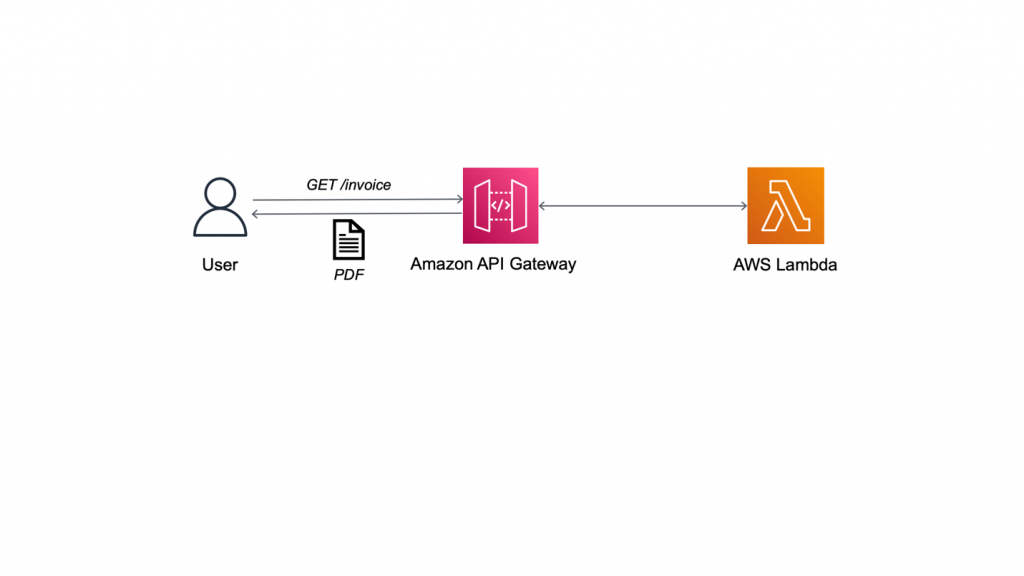
The following sample application is a containerized web service that generates PDF invoices. We will migrate this application to run the business logic in a Lambda function, and use Amazon API Gateway to provide a Serverless RESTful web API. API Gateway is a managed service to create and run API operations at scale.

Figure 1: Generating PDF invoice with Lambda

Figure 1: Generating PDF invoice with Lambda

Walkthrough

In this blog post, you will learn how to port the containerized web application to run in a serverless environment using Lambda.

At a high level, you are going to:

  1. Get the containerized application running locally for testing
  2. Port the application to run on Lambda
    1. Create a Lambda function handler
    2. Modify the container image for Lambda
    3. Test the containerized Lambda function locally
  3. Deploy and test on Amazon Web Services (AWS)

Prerequisites

For this walkthrough, you need the following:

1. Get the containerized application running locally for testing

The sample code for this application is available on GitHub. Clone the repository to follow along.

```bash

git clone https://github.com/aws-samples/aws-lambda-containerized-custom-runtime-blog.git

```

1.1. Build the Docker image

Review the Dockerfile in the root of the cloned repository. The Dockerfile uses Bitnami’s Ruby 3.0 image from the Amazon ECR Public Gallery as the base. It follows security best practices by running the application as a non-root user and exposes the invoice generator service on port 4567. Open your terminal and navigate to the folder where you cloned the GitHub repository. Build the Docker image using the following command.

```bash
docker build -t ruby-invoice-generator .
```

1.2 Test locally

Run the application locally using the Docker run command.

```bash
docker run -p 4567:4567 ruby-invoice-generator
```

In a real-world scenario, the order and customer details for the invoice would be passed as POST request body or GET request query string parameters. To keep things simple, we are randomly selecting from a few hard coded values inside lib/utils.rb. Open another terminal, and test invoice creation using the following command.

```bash
curl "http://localhost:4567/invoice" \
  --output invoice.pdf \
  --header 'Accept: application/pdf'
```

This command creates the file invoice.pdf in the folder where you ran the curl command. You can also test the URL directly in a browser. Press Ctrl+C to stop the container. At this point, we know our application works and we are ready to port it to run on Lambda as a container.

2. Port the application to run on Lambda

There is no change to the Lambda operational model and request plane. This means the function handler is still the entry point to application logic when you package a Lambda function as a container image. Also, by moving our business logic to a Lambda function, we get to separate out two concerns and replace the web server code from the container image with an HTTP API powered by API Gateway. You can focus on the business logic in the container with API Gateway acting as a proxy to route requests.

2.1. Create the Lambda function handler

The code for our Lambda function is defined in function.rb, and the handler function from that file will be described shortly. The main difference to note between the original Sintra-powered code and our Lambda handler version is the need to base64 encode the PDF. This is a requirement for returning binary media from API Gateway Lambda proxy integration. API Gateway will automatically decode this to return the PDF file to the client.

```ruby

def self.process(event:, context:)

  self.logger.debug(JSON.generate(event))

  invoice_pdf = Base64.encode64(Invoice.new.generate)

  { 'headers' => { 'Content-Type': 'application/pdf' },

    'statusCode' => 200,

    'body' => invoice_pdf,

    'isBase64Encoded' => true

  }

end

```

If you need a reminder on the basics of Lambda function handlers, review the documentation on writing a Lambda handler in Ruby. This completes the new addition to the development workflow—creating a Lambda function handler as the wrapper for the business logic.

2.2 Modify the container image for Lambda

AWS provides open source base images for Lambda. At this time, these base images are only available for Ruby runtime versions 2.5 and 2.7. But, you can bring any version of your preferred runtime (Ruby 3.0 in this case) by packaging it with your Docker image. We will use Bitnami’s Ruby 3.0 image from the Amazon ECR Public Gallery as the base. Amazon ECR is a fully managed container registry, and it is important to note that Lambda only supports running container images that are stored in Amazon ECR; you can’t upload an arbitrary container image to Lambda directly.

Because the function handler is the entry point to business logic, the Dockerfile CMD must be set to the function handler instead of starting the web server. In our case, because we are using our own base image to bring a custom runtime, there is an additional change we must make. Custom images need the runtime interface client to manage the interaction between the Lambda service and our function’s code.

The runtime interface client is an open-source lightweight interface that receives requests from Lambda, passes the requests to the function handler, and returns the runtime results back to the Lambda service. The following are the relevant changes to the Dockerfile.

```bash

ENTRYPOINT ["aws_lambda_ric"]

CMD [ "function.Billing::InvoiceGenerator.process" ]

```

The Docker command that is implemented when the container runs is: aws_lambda_ric function.Billing::InvoiceGenerator.process.

Refer to Dockerfile.lambda in the cloned repository for the complete code. This image follows best practices for optimizing Lambda container images by using a multi-stage build. The final image uses  tag named 3.0-prod as its base. This does not include development dependencies and helps keep the image size down. Create the Lambda-compatible container image using the following command.

```bash

docker build -f Dockerfile.lambda -t lambda-ruby-invoice-generator .

```

This concludes changes to the Dockerfile. We have introduced a new dependency on the runtime interface client and used it as our container’s entrypoint.

2.3. Test the containerized Lambda function locally

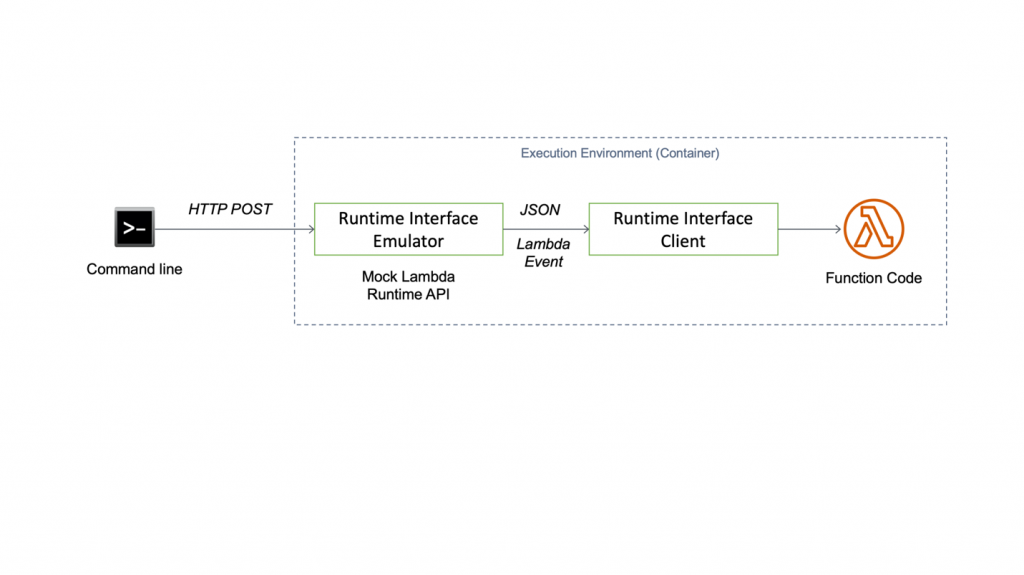
The runtime interface client expects requests from the Lambda Runtime API. But when we test on our local development workstation, we don’t run the Lambda service. So, we need a way to proxy the Runtime API for local testing. Because local testing is an integral part of most development workflows, AWS provides the Lambda runtime interface emulator. The emulator is a lightweight web server running on port 8080 that converts HTTP requests to Lambda-compatible JSON events. The flow for local testing is shown in Figure 2.

Figure 2: Testing the Lambda container image locally

Figure 2: Testing the Lambda container image locally

When we want to perform local testing, the runtime interface emulator becomes the entrypoint. Consequently, the Docker command that is executed when the container runs locally is: aws-lambda-rie aws_lambda_ric function.Billing::InvoiceGenerator.process.

You can package the emulator with the image. The Lambda container image support launch blog documents steps for this approach. However, to keep the image as slim as possible, we recommend that you install it locally, and mount it while running the container instead. Here is the installation command for Linux platforms.

``` bash

mkdir -p
~/.aws-lambda-rie && curl -Lo ~/.aws-lambda-rie/aws-lambda-rie
https://github.com/aws/aws-lambda-runtime-interface-emulator/releases/latest/download/aws-lambda-rie
&& chmod +x ~/.aws-lambda-rie/aws-lambda-rie

```

Use the Docker run command with the appropriate overrides to entrypoint and cmd to start the Lambda container. The emulator is mapped to local port 9000.

```bash

docker run \

  -v ~/.aws-lambda-rie:/aws-lambda \

  -p 9000:8080 \

  -e LOG_LEVEL=DEBUG \

  --entrypoint /aws-lambda/aws-lambda-rie \

  lambda-ruby-invoice-generator \

  /opt/bitnami/ruby/bin/aws_lambda_ric function.Billing::InvoiceGenerator.process

```

Open another terminal and run the curl command below to simulate a Lambda request.

```bash

curl -XPOST "http://localhost:9000/2015-03-31/functions/function/invocations" -d '{}'

```
You will see a JSON output with the base64 encoded value of the invoice for body and isBase64Encoded property set to true. After Lambda is integrated with API Gateway, the API endpoint uses the flag to decode the text before returning the response to the caller. The client will receive the decoded PDF invoice. Push Ctrl+C to stop the container. This concludes changes to the local testing workflow.

3. Deploy and test on AWS

The final step is to deploy the invoice generator service. Set your AWS Region and AWS Account ID as environment variables.

```bash

export AWS_REGION=Region

export AWS_ACCOUNT_ID=account

```

3.1. Push the Docker image to Amazon ECR

Create an Amazon ECR repository for the image.

```bash

ECR_REPOSITORY=`aws ecr create-repository \

  --region $AWS_REGION \

  --repository-name lambda-ruby-invoice-generator \

  --tags Key=Project,Value=lambda-ruby-invoice-generator-blog \

  --query "repository.repositoryName" \

  --output text`

```

Login to Amazon ECR, and push the container image to the newly-created repository.

```bash

aws ecr get-login-password \

  --region $AWS_REGION | docker login \

  --username AWS \

  --password-stdin $AWS_ACCOUNT_ID.dkr.ecr.$AWS_REGION.amazonaws.com


docker tag \

  lambda-ruby-invoice-generator:latest \

  $AWS_ACCOUNT_ID.dkr.ecr.$AWS_REGION.amazonaws.com/$ECR_REPOSITORY:latest


docker push

$AWS_ACCOUNT_ID.dkr.ecr.$AWS_REGION.amazonaws.com/$ECR_REPOSITORY:latest

```

3.2. Create the Lambda function

After the push succeeds, you can create the Lambda function. You need to create a Lambda execution role first and attach the managed IAM policy named AWSLambdaBasicExecutionRole. This gives the function access to Amazon CloudWatch for logging and monitoring.

```bash

LAMBDA_ROLE=`aws iam create-role \

  --region $AWS_REGION \

  --role-name ruby-invoice-generator-lambda-role \

  --assume-role-policy-document file://lambda-role-trust-policy.json \

  --tags Key=Project,Value=lambda-ruby-invoice-generator-blog \

  --query "Role.Arn" \

  --output text`


aws iam attach-role-policy \

  --region $AWS_REGION \

  --role-name ruby-invoice-generator-lambda-role \

  --policy-arn arn:aws:iam::aws:policy/service-role/AWSLambdaBasicExecutionRole


LAMBDA_ARN=`aws lambda create-function \

  --region $AWS_REGION \

  --function-name ruby-invoice-generator \

  --description "[AWS Blog] Lambda Ruby Invoice Generator" \

  --role $LAMBDA_ROLE \

  --package-type Image \

  --code ImageUri=$AWS_ACCOUNT_ID.dkr.ecr.$AWS_REGION.amazonaws.com/$ECR_REPOSITORY:latest \

  --timeout 15 \

  --memory-size 256 \

  --tags Project=lambda-ruby-invoice-generator-blog \

  --query "FunctionArn" \
  --output text`
```

Wait for the function to be ready. Use the following command to verify that the function state is set to Active.

```bash

aws lambda get-function \

  --region $AWS_REGION \

  --function-name ruby-invoice-generator \

  --query "Configuration.State"

```

3.3. Integrate with API Gateway

API Gateway offers two option to create RESTful APIs: HTTP and REST. We will use HTTP API because it offers lower cost and latency when compared to REST API. REST API provides additional features that we don’t need for this demo.

```bash

aws apigatewayv2 create-api \

  --region $AWS_REGION \

  --name invoice-generator-api \

  --protocol-type HTTP \

  --target $LAMBDA_ARN \

  --route-key "GET /invoice" \

  --tags Key=Project,Value=lambda-ruby-invoice-generator-blog \

  --query "{ApiEndpoint: ApiEndpoint, ApiId: ApiId}" \

  --output json

```

Record the ApiEndpoint and ApiId from the earlier command, and substitute them for the placeholders in the following command. You need to update the Lambda resource policy to allow HTTP API to invoke it.

```bash

export API_ENDPOINT="<ApiEndpoint>"

export API_ID="<ApiId>"


aws lambda add-permission \

  --region $AWS_REGION \

  --statement-id invoice-generator-api \

  --action lambda:InvokeFunction \

  --function-name $LAMBDA_ARN \

  --principal apigateway.amazonaws.com \

  --source-arn "arn:aws:execute-api:$AWS_REGION:$AWS_ACCOUNT_ID:$API_ID/*/*/invoice"

```

3.4. Verify the AWS deployment

Use the curl command to generate a PDF invoice.

```bash

curl "$API_ENDPOINT/invoice" \
  --output lambda-invoice.pdf \
  --header 'Accept: application/pdf'

```

This creates the file lambda-invoice.pdf in the local folder. You can also test directly from a browser.

This concludes the final step for porting the containerized invoice web service to Lambda. This deployment workflow is very similar to any other containerized application where you first build the image and then create or update your application to the new image as part of deployment. Only the actual deploy command has changed because we are deploying to Lambda instead of a container platform.

Cleaning up

To avoid incurring future charges, delete the resources. Follow cleanup instructions in the README file on the GitHub repo.

Conclusion

In this blog post, we learned how to port an existing containerized application to Lambda with only minor changes to development, packaging, and testing workflows. For teams with limited time, this accelerates the adoption of Serverless by using container domain knowledge and promoting reuse of existing tooling. We also saw how you can easily bring your own runtime by packaging it in your image and how you can simplify your application by eliminating the web application framework.

For more Serverless learning resources, visit https://serverlessland.com.


Field Notes provides hands-on technical guidance from AWS Solutions Architects, consultants, and technical account managers, based on their experiences in the field solving real-world business problems for customers.