All posts by Molly Clancy

Cloud Storage Pricing: What You Need to Know

Post Syndicated from Molly Clancy original https://www.backblaze.com/blog/cloud-storage-pricing-what-you-need-to-know/
Between tech layoffs and recession fears, economic uncertainty is at a high. If you’re battening down the hatches for whatever comes next, you might be taking a closer look at your cloud spend. Even before the bear market, 59% of cloud decision makers named “optimizing existing use of cloud (cost savings)” as their top cloud initiative of 2022 according to the Flexera State of the Cloud report.

Cloud storage is one piece of your cloud infrastructure puzzle, but it’s one where some simple considerations can save you anywhere from 25% up to 80%. As such, understanding cloud storage pricing is critical when you are comparing different solutions. When you understand pricing, you can better decide which provider is right for your organization.

In this post, we won’t look at 1:1 comparisons of cloud storage pricing, but you can check out a price calculator here. Instead, you will learn tips to help you make a good cloud storage decision for your organization.

Evaluating Your Cloud Storage? Gather These Facts

Looking at the pricing options of different cloud providers only makes sense when you know your needs. Use the following considerations to clarify your storage needs to approach a cloud decision thoughtfully:

  1. How do you plan to use cloud storage?
  2. How much does cloud storage cost?
  3. What features are offered?

1. How Do You Plan to Use Cloud Storage?

Some popular use cases for cloud storage include:

  • Backup and archive.
  • Origin storage.
  • Migrating away from LTO/tape.
  • Managing a media workflow.

Backup and Archive

Maintaining data backups helps make your company more resilient. You can more easily recover from a disaster and keep serving customers. The cloud provides a reliable, off-site place to keep backups of your company workstations, servers, NAS devices, and Kubernetes environments.

Case Study: Famed Photographer Stores a Lifetime of Work

Photographer Steve McCurry, renowned for his 1984 photo of the “Afghan Girl” which has been on the cover of National Geographic several times, backed up his life’s work in the cloud when his team didn’t want to take chances with his irreplaceable archives.

Origin Storage

If you run a website, video streaming service, or online gaming community, you can use the cloud to serve as your origin store where you keep content to be served out to your users.

Case Study: Serving 1M+ Websites From Cloud Storage

Big Cartel hosts more than one million e-commerce websites. To increase resilience, the company recently started using a second cloud provider. By adopting a multi-cloud infrastructure, the business now has lower costs and less risk of failure.

Migrating Away From LTO/Tape

Managing a tape library can be time-consuming and comes with high CapEx spending. With inflation, replacing tapes costs more, shipping tapes off-site costs more, and physical storage space costs more. The cloud provides an affordable alternative to storing data on tape where you pass the decreased margins off to a cloud provider—they have to worry about provisioning enough physical storage devices and space while you pay as you go.

Managing Media Workflow

Your department or organization may need to work with large media files to create movies or digital videos. Cloud storage provides an alternative to provisioning huge on-premises servers to handle large files.

Case Study: Using the Cloud to Store Media

Hagerty Insurance stored a huge library of video assets on an aging server that couldn’t keep up. They implemented a hybrid cloud solution for cloud backup and sync, saving the team over 200 hours per year searching for files and waiting for their slow server to respond.

2. How Much Does Cloud Storage Cost?

Cloud storage costs are calculated in a variety of different ways. Before considering any specific vendors, knowing the most common options, variables, and fees is helpful, including:

  • Flat or single-tier pricing vs. tiered pricing.
  • Hot vs. cold storage.
  • Storage location.
  • Minimum retention periods.
  • Egress fees.

Flat or Single-tier Pricing vs. Tiered Pricing

A flat or single-tier pricing approach charges the user based on the storage volume, and cost is typically expressed per gigabyte stored. There is only one tier, making budgeting and planning for cloud expenses simple.

On the other hand, some cloud storage services use a tiered storage pricing model. For example, a provider may have a small business pricing tier and an enterprise tier. Note that different pricing tiers may include different services and features. Today, your business might use an entry-level pricing tier but need to move to a higher-priced tier as you produce more data.

Hot vs. Cold Storage

Hot storage is helpful for data that needs to be accessible immediately (e.g., last month’s customer records). By contrast, cold storage is helpful for data that does not need to be accessed quickly (e.g., tax records from five years ago). For more insight on hot vs. cold storage, check out our post: “What’s the Diff: Hot and Cold Data Storage.” Generally speaking, cold storage is the cheapest, but that low price comes at the cost of speed. For data that needs to be accessed frequently or even for data where you’re not sure how often you need access, hot storage is better.

Storage Location

Some organizations need their cloud storage to be located in the same country or region due to regulations or just preference. But some storage vendors charge different prices to store data in different regions. Keeping data in a specific location may impact cloud storage prices.

Minimum Retention Periods

Most folks think of “retention” as a good thing, but some storage vendors enforce minimum retention periods that essentially impose penalties for deleting your data. Some vendors enforce minimum retention periods of 30, 60, or even 90 days. Deleting your data could cost you a lot, especially if you have a backup approach where you retire older backups before the retention period ends.

Egress Fees

Cloud companies charge egress fees when customers want to move their data out of the provider’s platform. These fees can be egregiously high, making it expensive for customers to use multi-cloud infrastructures and therefore locking customers into their services.

3. What Additional Features Are Offered?

While price is likely one of your biggest considerations, choosing a cloud storage provider solely based on price can lead to disappointment. There are specific cloud storage features that can make a big difference in your productivity, security, and convenience. Keep these features and capabilities in mind when comparing different cloud storage solutions.

Security Features

You may be placing highly sensitive data like financial records and customer service data in the cloud, so features like server-side encryption could be important. In addition, you might look for a provider that offers Object Lock so you can protect data using a Write Once, Read Many (WORM) model.

Data Speed

Find out how quickly the cloud storage provider can provide data regarding upload and download speed. Keep in mind that the speed of your internet connection also impacts how fast you can access data. Data speed is critically important in several industries, including media and live streaming.

Customer Support

If your company has a data storage problem outside of regular business hours, customer support becomes critically important. What level of support can you expect from the provider? Do they offer expanded support tiers?

Partner Integrations

Partner integrations make it easier to manage your data. Check if the cloud storage provider has integrations with services you already use.

The Next Step in Choosing Cloud Storage

Understanding cloud storage pricing requires a holistic view. First, you need to understand your organization’s data needs. Second, it is wise to understand the typical cloud storage pricing models commonly used in the industry. Finally, cloud storage pricing needs to be understood in the context of features like security, integrations, and customer service. Once you consider these steps, you can approach a decision to switch cloud providers or optimize your cloud spend more rigorously and methodically.

The post Cloud Storage Pricing: What You Need to Know appeared first on Backblaze Blog | Cloud Storage & Cloud Backup.

Fortune Favors the Backup: How One Media Brand Protected High-profile Video Footage

Post Syndicated from Molly Clancy original https://www.backblaze.com/blog/fortune-favors-the-backup-how-one-media-brand-protected-high-profile-video-footage/

Leading business media brand, Fortune, has amassed hundreds of thousands of hours of footage capturing conference recordings, executive interviews, panel discussions, and more showcasing some of the world’s most high-profile business leaders over the years. It’s the jewel in their content crown, and there are no second chances when it comes to capturing those moments. If any of those videos were to be lost or damaged, they’d be gone forever, with potential financial consequences to boot.

At the same time, Fortune’s distributed team of video editors needs regular and reliable access to that footage for use on the company’s sites, social media channels, and third-party web properties. So when Fortune divested from their parent company Meredith Corporation in 2018, revising its tech infrastructure was a priority.

Becoming an independent enterprise gave Fortune the freedom to escape legacy limitations and pop the cork on bottlenecks that were slowing productivity and raking up expenses. But their first attempt at a solution was expensive, unreliable, and difficult to use—until they migrated to Backblaze B2 Cloud Storage. Jeff Billark, Head of IT Infrastructure for Fortune Media Group, shared how it all went down.

Not Quite Camera-ready: An Overly Complex Tech Stack

Working with systems integrator CHESA, Fortune used a physical storage device to seed data to the cloud. They then built a tech stack that included:

  • An on-premises server housing Primestream Xchange media asset management (MAM) software for editing, tagging, and categorization.
  • Archive management software to handle backups and long-term archiving.
  • Cold object storage from one of the diversified cloud providers to hold backups and archive data.

But it didn’t take long for the gears to gum up. The MAM system couldn’t process the huge quantity of data in the archive they’d seeded to the cloud, so unprocessed footage stayed buried in cold storage. To access a video, Fortune editors had to work with the IT department to find the file, thaw it, and save it somewhere accessible. And the archiving software wasn’t reliable or robust enough to handle Fortune’s file volume; it indicated that video files had been archived without ever actually writing them to the cloud.

Time for a Close-up: Simplifying the Archive Process

If they hadn’t identified the issue quickly, Fortune could have lost 100TB of active project data. That’s when CHESA suggested Fortune simplify its tech stack by migrating from the diversified cloud provider to Backblaze B2. Two key tools allowed Fortune to eliminate archiving middleware by making the move:

  1. Thanks to Primestream’s new Backblaze data connector, Backblaze integrated seamlessly with the MAM system, allowing them to write files directly to the cloud.
  2. They implemented Panic’s Transmit tool to allow editors to access the archives themselves.

Backblaze’s Universal Data Migration program sealed the deal by eliminating the transfer and egress fees typically associated with a major data migration. Fortune transferred over 300TB of data in less than a week with zero downtime, business disruption, or egress costs.

For Fortune, the most important benefits of migrating to Backblaze B2 were:

  • Increasing reliability around both archiving and downloading video files.
  • Minimizing need for IT support with a system that’s easy to use and manage.
  • Unlocking self-service options within a modern digital tech experience.

“Backblaze really speeds up the archive process because data no longer has to be broken up into virtual tape blocks and sequences. It can flow directly into Backblaze B2.”
—Jeff Billark, Head of IT Infrastructure, Fortune Media Group

Unlocking Hundreds of Thousands of Hours of Searchable, Accessible Footage

Fortune’s video editing team now has access to two Backblaze B2 buckets that they can access without any additional IT support:

Bucket #1: 100TB of active video projects.
When any of the team’s video editors needs to find and manipulate footage that’s already been ingested into Primestream, it’s easy to locate the right file and kick off a streamlined workflow that leads to polished, new video content.

Bucket #2: 300TB of historical video files.
Using Panic’s Transmit tool, editors sync data between their Mac laptops and Backblaze B2 and can easily search historical footage that has not yet been ingested into Primestream. Once files have been ingested and manipulated, editors can upload the results back to Bucket #1 for sharing, collaboration, and storage purposes.

With Backblaze B2, Fortune’s approach to file management is simple and reliable. The risk of archiving failures and lost files is greatly reduced, and self-service workflows empower editors to collaborate and be productive without IT interruptions. Fortune also reduced storage and egress costs by about two-thirds, all while accelerating its content pipeline and maximizing the potential of its huge and powerful video archive.

“Backblaze is so simple to use, our editors can manage the entire file transfer and archiving process themselves.”
—Jeff Billark, Head of IT Infrastructure, Fortune Media Group

The post Fortune Favors the Backup: How One Media Brand Protected High-profile Video Footage appeared first on Backblaze Blog | Cloud Storage & Cloud Backup.

“We Were Stoked”: Santa Cruz Skateboards on Cloud Storage That Just Works

Post Syndicated from Molly Clancy original https://www.backblaze.com/blog/we-were-stoked-santa-cruz-skateboards-on-cloud-storage-that-just-works/

For a lot of us here at Backblaze, skateboarding culture permeated our most formative years. That’s why we were excited to hear from the folks at Santa Cruz Skateboards about how they use Backblaze B2 Cloud Storage to protect decades of skateboarding history. The company is the pinnacle of cool for millennials of a certain age, and, let’s face it, anyone not living under a rock since the mid-70s.

We got the chance to talk shop with Randall Vevea, Information Technology Specialist for Santa Cruz Skateboards, and he shared how they:

  • Implemented a cloud disaster recovery strategy to protect decades of data in a tsunami risk zone.
  • Created an automated production and VM backup solution using rclone.
  • Backed up more data affordably and efficiently in truly accessible storage.

Read on to learn how they did it.

Professional skater Fabiana Delfino.

Santa Cruz Skateboards: The Origin Story

It’s 1973 in sunny Santa Cruz, California. Three local guys—Richard Novak, Doug Haut, and Jay Shuirman—are selling raw fiberglass to the folks that make surfboards, boats, and race car parts. On a surf trip in Hawaii, the trio gets a request to throw together some skateboards. They make 500 and sell out immediately. Twice. Just like that, Santa Cruz Skateboards is born.
 
Fast forward to today, and Santa Cruz Skateboards is considered the backbone of skateboarding. For over five decades, the company has been putting out a steady stream of skateboards, apparel, accessories, and so much more, all emblazoned with the kinds of memorable art that have shaped skate culture.
 
Their video archives trace the evolution of skateboarding, following big name players, introducing rising stars, and documenting the events and competitions that connect the skate community all over the world, and it all needs to be protected, accessible, and organized.

A Little Storm Surge Can’t Stop Santa Cruz Skateboards

Randall estimates that the company stores about 40 terabytes of data just in art and media assets alone. Those files form an important historical archive, but the creative team is also constantly referencing and updating existing art—losing it isn’t an option. But potential data loss situations abound, particularly in the weather-prone area of Santa Cruz Harbor.

In January 2022, an underwater volcanic eruption off the coast of Tonga caused a tsunami that flooded Santa Cruz to the tune of $6 million in damage to the harbor. Businesses in the area are used to living with tsunami advisories (there was another scare just two years ago), but that doesn’t make dealing with the damage any easier. “The tsunami lit a fire under us to make sure that in the event that something were to go wrong here, we had our data somewhere else,” Randall said.

On top of weather threats, the pandemic forced Santa Cruz Skateboards to transition from a physical, on-premises setup to a more virtualized infrastructure that could support remote work. That transition was one of the main reasons Santa Cruz Skateboards started looking for a cloud data storage solution; it’s not just easier to back up that virtual machine data, but also to spin up those machines on a hypervisor in the event that something does go wrong.

Professional skater Justin Sommer.

Dropping in on a Major Bummer Called AWS Glacier

Before Randall joined Santa Cruz Skateboards, the company had been using AWS Glacier, a cold storage solution. “When I came on, Glacier was not in a working state,” Randall recalled. Data had been uploaded, but wasn’t syncing. “I’m not an AWS expert—I feel like you could go to school for four years and never learn all the inner workings of AWS. We needed a solution that we could implement quickly and without the hassle,” he said.

Glacier posed the problems above and beyond that heavy lift, including:

  • Changes to the AWS architecture made Santa Cruz Skateboards’ data inaccessible.
  • Requests to download data timed out due to cold storage delays.
  • Endless support emails failed to answer questions or give Randall access to the data trapped in AWS’ black box.

“We were in a situation where we were paying AWS for nothing, basically,” Randall remembered. “I started looking around for different solutions and everywhere I turned, Backblaze was the answer.” Assuming it would take a long time, Randall started small with an FTP server and a local file server. Within two days, all that data was fully backed up. Impressed with those results, he contacted Backblaze for a more thorough introduction. “We were super stoked on something that just worked. I was able to deliver that to our executives and say look, our data is in Backblaze now. We don’t have to worry about this anymore,” Randall said.

“I feel like you could go to school for four years and never learn all the inner workings of AWS. We were in a situation where we were paying AWS for nothing, basically.”
—Randall Vevea, Information Technology Specialist, Santa Cruz Skateboards

Backups Are Like Helmets—They Let You Do the Big Things Better

When a project that Randall had expected to take three or four months was completed in one, Randall started to ask, “What else can we put in Backblaze?” They ended up expanding their scope considerably, including:

  • Decades of art, image, and video files.
  • Mission critical business files.
  • Virtual machine backups.
  • OneDrive backups.

All told, that amounted to about 60TB of data all managed by a small IT team supporting about 150 employees company-wide. In order to return his valuable time and attention to critical everyday IT tasks—everything from fixing printers to preventing ransomware attacks—Randall needed to find a backup solution that could run reliably in the background without much manual input or upkeep, and Backblaze delivered.

Today, Santa Cruz Skateboards uses two network attached storage devices that clone each other and both back up to the cloud using rclone, an open-source command line program that people use to manage or migrate content. Rclone is also able to handle the company’s complex file names with characters in foreign scripts, like files with names written in Chinese, for example, which solved Randall’s worry about mismatched data as the creative team pulls down files to work with art and other visual assets. He set up a Linux box as a backup manager, which he uses to run rclone cronjobs weekly. By the time Randall shows up to work on Monday mornings, the sync is complete.

With Backups Out of the Way, Santa Cruz Lives to Shred Another Day

“I like the fact that I don’t have to think about backups on a day-to-day basis.”
—Randall Vevea, Information Technology Specialist, Santa Cruz Skateboards

Now, all Randall has to do is check the logs to make sure everything is working as it should. With the backup process automated, there’s a long list of projects that the IT team can devote their time to.

Since making the move to Backblaze B2, Santa Cruz Skateboards is spending less to back up more data. “We have a lot more data in Backblaze than we ever thought we would have in AWS,” Randall said. “As far as cost savings, I think we’re spending about the same amount to store more data that we can actually access.”

The company’s creative team relies on the art and media assets that are now stored and always available in Backblaze B2. Now it’s easy to find and download the specific files should they need to restore them. Meanwhile, the IT team is relieved not to have to navigate AWS’ giant dashboards and complex issues of hot and cold storage with the Glacier service.

Santa Cruz Skateboards had been feeling like a small fish in the huge AWS pond, using a product that amounted to a single cog in a complex machine. Instead of having to divert his attention to research every time questions arise, Randall feels confident that he can rely on Backblaze to get his questions answered right away. “Personally, it’s a big lift off my shoulders,” he said. “Our data’s safe and sound and is getting backed up regularly, and I’m happy with that. I think everybody else is pretty happy with that, too.”

The Santa Cruz Skateboards team.

Is disaster recovery on your to-do list? Learn about our backup and archive solutions to safeguard your data against threats like natural disasters and ransomware.

The post “We Were Stoked”: Santa Cruz Skateboards on Cloud Storage That Just Works appeared first on Backblaze Blog | Cloud Storage & Cloud Backup.
How a National Nonprofit Protects Field Staff Workstations

Post Syndicated from Molly Clancy original https://www.backblaze.com/blog/how-a-national-nonprofit-protects-field-staff-workstations/

Image credits below: Mason Cummings, The Wilderness Society.

Saving the environment is one of the most noble tasks anyone can undertake, but the thing about the environment is that it’s notoriously rough on laptops.

For the staff of The Wilderness Society, saving wild places means trekking out into said wild with boots firmly on the ground. Whether that means shutting down copper mines that would have otherwise devastated nearby waterways or helping create public transportation routes out to public lands, The Wilderness Society is a group constantly on the move. That doesn’t leave a lot of time for dealing with backups, particularly in the geographically far-flung areas in which The Wilderness Society researchers find themselves.

Data saved on staff laptops was regularly at risk, and The Wilderness Society needed a way to protect that data from threats both natural and otherwise. Director of Information Technology, Kristin Iden, shared how she:

  • Protected essential workstation data with cloud backups.
  • Achieved a security stance that aligns with cyber insurance policies.
  • Eased the administrative burden on an IT team of two that serves more than 160 staff around the country.
Otero Mesa, New Mexico.
The Wilderness Society: A Force for Change

Since 1935, The Wilderness Society has led the effort to permanently protect 109 million acres of wilderness in 44 states. They have been at the forefront of nearly every major public lands victory. Initiatives include climate change solutions, land and water conservation, and community-led conservation.

How Workstation Backups Protect Data From Disasters

The urgency to put a solid workstation backup plan in place hit home for Kristin when her laptop was destroyed by a lightning strike. And yes, she’s aware of the irony. The IT director, one of the few who isn’t dragging their laptop across creation, is the one who lost data to natural disaster.

The Wilderness Society’s researchers find themselves all over the world as part of their mission to protect the environment. There are 14 offices from coast to coast, from Hallowell, Maine to Anchorage, Alaska. According to Kristin, “drop and destroy” events are not uncommon out in the field, whether it’s a laptop taking an accidental trip down a mountainside or into the waters of the Arctic Circle.

Add to that, as a nonprofit organization, The Wilderness Society always has to look at the bottom line. Their funding comes entirely from donors and sponsors, gifted with a purpose, and as much of it should go toward the mission as possible. In fact, Kristin had originally sought out a backup solution solely for executives as a way to save budget, but Backblaze’s affordability made it a no-brainer to extend backups out into the field.

“If somebody in the Arctic Circle drops and breaks their laptop, now I can get them back up and running within a couple of days. ”
—Kristin Iden, Director of Information Technology, The Wilderness Society

Arctic National Wildlife Refuge, Alaska.

How to Back Up Field Staff Workstations

Kristin started with a beta test group of around 10% of the users, making sure to include a mix of field researchers, administrative workers, and executives. One important group to include in this mix was the handful of workers in truly remote regions of the country that have metered bandwidth. This obviously made regular backups difficult, but Kristin found a workaround by having them run the backup during weekly office visits.

The two members of the IT department are the sole administrators on the roughly 160 machines throughout the organization, an 80/20 mix of PC and Mac users. As such, they were able to roll out installation of Backblaze through Microsoft Intune, a mass deployment tool. The initial beta test went off without a hitch, and they took a phased approach to the remaining rollout—Backblaze was installed across the entire organization in groups of 30.

Pisgah National Forest, North Carolina.

Lightweight Backup Client Provides Peace of Mind

Kristin knew there was simply no way to prevent the inevitable destruction of user laptops out in the field. By focusing her efforts on finding the right backup solution, she was able to easily roll out to the entire organization a solution that protected their data from the rigors of nature.

Of paramount importance was simplifying the entire process for the users. They are, after all, doing the truly critical work of protecting the environment. Whether that means surveying wildlife in their native environment or working with lawmakers to craft bills that preserve nature, Kristin wanted their focus on the mission and not on their machine. With a lightweight client that doesn’t bog down machines and reliable backups she can use to provision new machines and recover data, Backblaze gave her that turnkey solution, and the peace of mind that followed.

“Admin tasks like backups are a time suck when you’re a two-person team minding 160 people running around the country trying to make sure the forests stay up. I don’t have time to babysit something constantly. With Backblaze, it just does its thing, and it lets me know when something’s not working. That’s exactly what I want out of every tool I use—just work, tell me when it isn’t, and make it easy to fix it. Backblaze just works everywhere we need it to.”
—Kristin Iden, Director of Information Technology, The Wilderness Society

Looking for a backup solution for your nonprofit organization or dispersed field staff? Learn more about Backblaze Business Backup for workstations.

The post How a National Nonprofit Protects Field Staff Workstations appeared first on Backblaze Blog | Cloud Storage & Cloud Backup.

Ransomware Takeaways From Q1 2022

Post Syndicated from Molly Clancy original https://www.backblaze.com/blog/ransomware-takeaways-from-q1-2022/

The impact of the war in Ukraine is evolving in real time, particularly when it comes to the ransomware landscape. Needless to say, it dominated the ransomware conversation throughout Q1 2022. This quarter, we’re digging into some of the consequences from the invasion and what it means for you in addition to a few broader domestic developments.

Why? Staying up to date on ransomware trends can help you prepare your security infrastructure in the short and long term to protect your valuable data. In this series, we share five key takeaways based on what we saw over the previous quarter. Here’s what we observed in Q1 2022.

This post is a part of our ongoing series on ransomware. Take a look at our other posts for more information on how businesses can defend themselves against a ransomware attack, and more.

➔ Download The Complete Guide to Ransomware E-book

1. Sanctions and International Attention May Have Depressed Some Ransomware Activity

Following the ground invasion, ransomware attacks seemed to go eerily quiet especially when government officials predicted cyberattacks could be a key tactic. That’s not to say attacks weren’t being carried out without being reported, but the radio silence was notable enough that a few media outlets wondered why.

International attention may be one reason—cybercriminals tend to be wary of the spotlight. Having the world’s eyes on a region where much cybercrime originates seems to have pushed cybercriminals into the shadows. The sanctions imposed on Russia have made it more difficult for cybercrime syndicates based in the country to receive, convert, and disperse payment from victims. The war also may have caused some chaos within ransomware syndicates and fomented fears that cyberinsurers would not pay for claims. As a result, we’ve seen a slowing of ransomware incidents in the first quarter, but that may not last.

Key Takeaway: While ransomware attacks may be down short-term, no one should be lulled into thinking the threat is gone, especially with government agencies on high alert and warnings from the highest levels that businesses should still be on guard.

2. Long-term Socioeconomic Impacts Could Trigger a New Wave of Cybercrime

As part of their ongoing analysis, cyber security consultants Coveware, illustrated how the socioeconomic precarity caused by sanctions could lead to a larger number of people turning to cybercrime as a way to support themselves. In their reporting, they analyzed the number of trained cyber security professionals who they’d expect to be out of work given Russia’s rising unemployment rate in order to estimate a pool of potential new ransomware operators. To double the number of individuals currently acting as ransomware operators, they found that only 7% of the newly unemployed workforce would have to convert to cybercrime.

They note, however, that it remains to be seen what impact a larger labor pool would have since new entrants looking for fast cash may not be as willing to put in the time and effort to carry out big game tactics that typified the first half of 2021. As such, Coveware would expect to see an increase in attacks on small to medium-sized enterprises (which already make up the largest portion of ransomware victims today) and a decline in ransom demands with new operators hoping to make paying up more attractive for victims.

Key Takeaway: If the threat materializes, new entrants to the ransomware game are likely to try to fly under the radar, which means we would expect to see a larger number of small to medium-sized businesses targeted with ransoms that won’t make headlines, but that nonetheless hurt the businesses affected.

3. One Ransomware Operator Paid the Price for Russian Allegiance; Others Declared Neutrality

In February, ransomware group Conti declared their support for Russian actions and threatened to retaliate against Western entities targeting Russian infrastructure. But Conti appears to have miscalculated the loyalty of its affiliates, many of whom are likely pro-Ukraine. The declaration backfired when one of their affiliates leaked chat logs following the announcement. Shortly after, LockBit, another prolific ransomware group, took a cue from Conti’s blunder, declaring neutrality and swearing off any attacks against Russia’s many enemies. Their reasoning? Surprisingly inclusive for an organized crime syndicate:

“Our community consists of many nationalities of the world, most of our pentesters are from the CIS including Russians and Ukrainians, but we also have Americans, Englishmen, Chinese, French, Arabs, Jews, and many others in our team… We are all simple and peaceful people, we are all Earthlings.”

As we know, the ransomware economy is a wide, interconnected network of actors with varying political allegiances. The actions of LockBit may assuage some fears that Russia would be able to weaponize the cybercrime groups that have been allowed to operate with impunity within its borders, but that’s no reason to rest easy.

Key Takeaway: LockBit’s actions and words reinforce the one thing we know for sure about cybercriminals: Despite varying political allegiances, they’re unified by money and they will come after it if it’s easy for the taking.

4. CISA Reports the Globalized Threat of Ransomware Increased in 2021

The U.S. Cybersecurity and Infrastructure Security Agency (CISA) released a statement in March summarizing the trends they saw throughout 2021. They outlined a number of tactics that we saw throughout the year as well, including:

  • Targeting attacks on holidays and weekends.
  • Targeting managed service providers.
  • Targeting backups stored in on-premises devices and in the cloud.

Among others, these tactics pose a threat to critical infrastructure, healthcare, financial institutions, education, businesses, and nonprofits globally.

Key Takeaway: The advisory outlines 18 mitigation strategies businesses and organizations can take to protect themselves from ransomware, including some of the top strategies as we see it: protecting cloud storage by backing up to multiple locations, requiring MFA for access, and encrypting data in the cloud.

5. Russia Could Use Ransomware to Offset Sanctions

Despite our first observation that ransomware attacks slowed somewhat early in the quarter, the Financial Crimes Enforcement Network (FinCEN) issued an alert in March that Russia may employ state-sponsored actors to evade sanctions and bring in cryptocurrency by ramping up attacks. They warned financial institutions, specifically, to be vigilant against these threats to help thwart attempts by state-sponsored Russian actors to extort ransomware payments.

The warnings follow an increase in phishing and distributed denial-of-service (DDoS) attacks that have persisted throughout the year and increased toward the end of February into March as reported by Google’s Threat Analysis Group. In reports from ThreatPost covering the alert as well as Google’s observations, cybersecurity experts seemed doubtful that ransomware payouts would make much of a dent in alleviating the sanctions, and noted that opportunities to use ransomware were more likely on an individual level.

Key Takeaway: The warnings serve as a reminder that both individual actors and state-sponsored entities have ransomware tools at their disposal to use as a means to retaliate against sanctions or simply support themselves, and that the best course of action is to shore up defenses before the anticipated threats materialize.

What This All Means for You

The changing political landscape will continue to shape the ransomware economy in new and unexpected ways. Being better prepared to avoid or mitigate the effects of ransomware makes more and more sense when you can’t be sure what to expect. Ransomware protection doesn’t have to be costly or confusing. Check out our ransomware protection solutions to get started.

The post Ransomware Takeaways From Q1 2022 appeared first on Backblaze Blog | Cloud Storage & Cloud Backup.

Backup Solutions for Medical Offices

Post Syndicated from Molly Clancy original https://www.backblaze.com/blog/backup-solutions-for-medical-offices/

If you are responsible for the day-to-day maintenance of a medical office’s IT systems, including data backups, your job has never been more important. Since offices started shifting to electronic health records, managing IT systems for medical practices has presented a unique set of challenges—the amount of data you have to manage has grown, data is subject to HIPAA regulations, and recently, your data became even more of a target for cybercriminals as they zeroed in on health facilities over the course of the COVID-19 pandemic.

In 2020, 560 healthcare facilities were affected by ransomware according to a report by Emsisoft, a cybersecurity firm. Medical offices manage high volumes of personally identifiable information like social security numbers and patient data, and, as IT managers of medical offices can probably attest, they may not have the resources to afford dedicated cybersecurity staff, making them attractive to cybercriminals looking for vulnerable targets.

But, HIPAA requirements and cybersecurity aren’t the only reason to back up your medical practice’s data—your data is one of your most important assets and making sure it’s safe and accessible keeps your practice running smoothly.

Whether you outsource some of your IT tasks, like backups, to a managed service provider (MSP) or you manage everything in house with network attached storage (NAS) or other hardware, understanding backup best practices and the different cloud options available can help you make the best decisions to protect your important data.

In this guide for backing up medical offices, learn more about:

  • Records retention.
  • Backup strategies.
  • Backing up NAS devices.
  • Working with MSPs.

How Long Should a Medical Office Keep Records?

One of the first pieces of the puzzle to understand when planning your data backup strategy is how long you’ll need to keep medical records and the regulatory requirements that govern retention.

Unfortunately, there’s no standard timeline, and there are a lot of factors to consider. Each state has different rules and statute limitations. Some federal regulations apply as well. And different patients will fall under different guidelines—namely, you’ll probably want to retain records longer for minors. The easiest answer is to retain records for as long as the strictest rule applies.

Start to develop your retention policy by checking the state and federal regulations that may apply to your practice. The American Health Information Management Association provides a comprehensive guide on all of the state, federal, accreditation agency, and other regulations that apply to retention requirements here.

With all of these moving parts and an ever-growing data set, managing data storage for medical offices within budget can be a notorious balancing act. But, today, affordable cloud storage is making it easier for medical practices to establish much simpler and more robust retention strategies rather than fine-tuning and calibrating their strategies to manage data with limited on-premises resources.

What Is the HIPAA Regulation for Storage of Medical Records?

A common misconception is that HIPAA stipulates retention requirements for medical records. HIPAA does not govern how long medical records must be retained, but it does govern how long HIPAA-related documentation must be retained. Any HIPAA-related documentation, including things like policies, procedures, authorization forms, etc., must be retained for six years according to guidance in HIPAA policy § 164.316(b)(2)(i) on time limits. Some states may have longer or shorter retention periods. If your state’s period is shorter, HIPAA supersedes state regulations.

How Long Does a Medical Office Need to Keep Insurance EOBs?

Explanations of benefits, or EOBs, are documents from insurance providers that explain the amounts insurance providers will pay for services. Retention periods for these documents vary by state as well. Additionally, insurance providers may stipulate how long records must be kept.

The 3-2-1 Backup Strategy

If understanding how long you need to keep records is the first step in structuring your medical practice’s backup plan, the second is understanding what a good backup strategy looks like.

The 3-2-1 backup strategy is a tried and true method for protecting data. It means keeping at least three copies of your data on two different media (i.e. devices) with at least one off-site, generally in the cloud. For a medical office, we can use a simple X-ray file as an example. That file should live on two different devices on-premises, let’s say a machine reserved for storing X-rays which backs up to a NAS device. That’s two copies. If you then back up your NAS device to cloud storage, that’s your third, off-site copy.

The Benefits of Backing Up Your Medical Office

You might wonder why you need three copies. There are some compelling benefits that make a strong case for using a 3-2-1 strategy rather than hoping for the best with fewer copies of your data.

  1. Fast access to files. When you accidentally delete a file, you can restore it quickly from either your on-site or cloud backup. And if you need a file while you’re away from your desk, you can simply log in to your cloud backup and access it immediately.
  2. Quick recoveries from computer crashes. Keeping one copy on-site means you can quickly restore files if one of your machines crashes. You can start up another computer and get immediate access, or you can restore all of the files to a replacement computer.
  3. Reliable recoveries from damage and disaster. Floods, fires, and other disasters do happen. With a copy off-site, your data is one less thing you have to worry about in that unfortunate event. You can access your files remotely if needed and restore them completely when you are able.
  4. Safe recoveries from ransomware attacks. Keeping an off-site copy in the cloud, especially if you take advantage of features like Object Lock, can better prepare you to recover from a ransomware attack.
  5. Compliance with regulatory requirements. As mentioned above, medical practices are subject to retention regulations. Using a cloud backup solution that offers AES encryption helps your practice achieve compliance.

What Are the HIPAA Regulations for Backups and Disaster Recovery?

The HIPAA Security Final Rule, which went into full effect in 2005, and the HITECH Act of 2009 outline specific requirements for how medical practices protect the privacy and security of patient information. The HIPAA text that applies to backups and disaster recovery can be found here and the HITECH Act can be found here. There are three main requirements:

  1. Medical offices must have a data backup plan. The rule states that you must “maintain retrievable exact copies of electronic protected health information.”
  2. Data at rest must be encrypted.
  3. Medical offices must have a disaster recovery plan where data can be restored in a loss event.

You also need to document these procedures and test them regularly. Cloud backups help you achieve compliance with HIPAA and HITECH by keeping a copy of your data off-site while still retrievable.

Using NAS for Medical Offices

Many medical offices rely on NAS to manage their data on-site. NAS is essentially a computer connected to a network that provides file-based data storage services to other devices on the network. The primary strength of NAS is how simple it is to set up and deploy.

NAS is frequently the next step up for a small practice that is using external hard drives or direct attached storage, which can be especially vulnerable to drive failure. Moving up to NAS offers medical offices and independent practitioners a number of benefits, including:

  • The ability to share files locally and remotely.
  • 24/7 file availability.
  • Data redundancy.
  • Integrations with cloud storage that provides a location for necessary, automatic data backups.

If you’re interested in upgrading to NAS, check out our Complete NAS Guide for advice on provisioning the right NAS for your needs and getting the most out of it after you buy it.

➔ Download Our Complete NAS Guide

Hybrid Cloud Strategy for Medical Practices: NAS + Cloud Storage

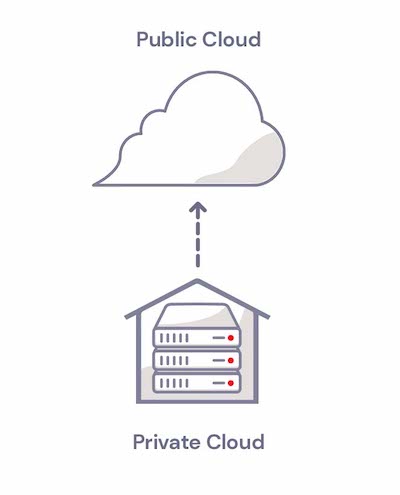
Most NAS devices come with cloud storage integrations that enable businesses to adopt a hybrid cloud strategy for their data. A hybrid cloud strategy uses a private cloud and public cloud in combination. To expand on that a bit, a hybrid cloud refers to a cloud environment made up of a mixture of typically on-premises, private cloud resources combined with third-party public cloud resources that use some kind of orchestration between them. In this case, your NAS device serves as the on-premises private cloud, as it’s dedicated to only you or your practice, and then you connect it to the public cloud.

Some cloud providers are already integrated with NAS systems. (Backblaze B2 Cloud Storage is integrated with NAS systems from Synology and QNAP, for example.) Check if your preferred NAS system is already integrated with a cloud storage provider to ensure setting up cloud backup, storage, and sync is as easy as possible.

Your NAS should come with a built-in backup manager, like Hyper Backup from Synology or Hybrid Backup Sync from QNAP. Once you download and install the appropriate backup manager app, you can configure it to send backups to your preferred cloud provider. You can also fine-tune the behavior of the backup jobs, including what gets backed up and how often.
Now, you can send backups to the cloud as a third, off-site backup and use your cloud instance to access files anywhere in the world with an internet connection.

Using an MSP for Medical Practices

Many medical practices choose to outsource some or all IT services to an MSP. Making the decision of whether or not to hire an MSP will depend on your individual circumstances and comfort level. Either way, coming to the conversation with an understanding of your backup needs and the cloud backup landscape can help.

When seeking out an MSP, make sure to ask about the cloud provider they’re using and how they charge for storage and data transfer. And if you’re not using an MSP, compare costs from different cloud providers to make sure you’re getting the most for your investment in backing up your data.

Cloud Storage and Your Medical Practice

Whether you’re managing your data infrastructure in house with NAS or other hardware, or you’re planning to outsource your IT needs to an MSP, cloud storage should be part of your backup strategy. To recap, having a third copy of your data off-site in the cloud gives you a number of benefits, including:

  • Fast access to your files.
  • Quick recoveries from computer crashes.
  • Reliable recoveries from natural disasters and theft.
  • Protection from ransomware.
  • Compliance with HIPAA requirements and other federal and state regulations.

Have questions about choosing a cloud storage provider to back up your medical practice? Let us know in the comments. Ready to get started? Click here to get your first 10GB free with Backblaze B2.

The post Backup Solutions for Medical Offices appeared first on Backblaze Blog | Cloud Storage & Cloud Backup.

How to Scale a Storage-heavy Startup

Post Syndicated from Molly Clancy original https://www.backblaze.com/blog/how-to-scale-a-storage-heavy-startup/

No developer likes to feel stuck with a cloud vendor, especially when you’re paying for the trap. Being locked in because the expense of moving is prohibitive or the risk of service disruption is too great can be singularly frustrating. Unfortunately, Gavin Wade, Founder and CEO of CloudSpot, found himself in exactly that position.

Gavin shared how he restructured his cloud architecture (containing more than 700TB of images under management), enabling him to:

  • Cut storage costs in half.
  • Slow the rate at which storage costs compound by half.
  • Cut data transfer costs by 90%.
  • Lower breakeven customer volume.
  • Increase margins.
What Is CloudSpot?

CloudSpot is a software as a service (SaaS) business platform based in Irvine, CA that makes professional photographers’ lives easier. The CloudSpot app allows photographers to deliver images digitally to clients in beautiful galleries through a seamless system.

Amazon Web Services gave CloudSpot free credits for storage. When those credits ran out, CloudSpot would have happily left to avoid escalating storage costs but felt trapped by high egress fees.

“We had a few internal conversations where we concluded that we were stuck with Amazon. That’s never a good feeling in business.”
—Gavin Wade, Founder & CEO, CloudSpot

How CloudSpot Solved for Escalating Storage Costs

In the short term, CloudSpot’s development team, led by their vice president of engineering, took a few key steps to manage costs:

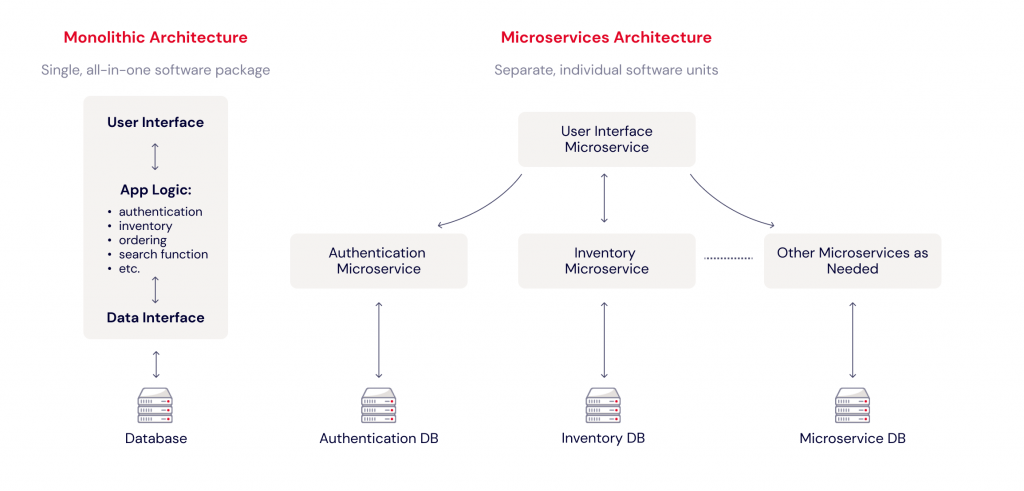
  1. They untangled their monolithic system into a cluster of microservices.
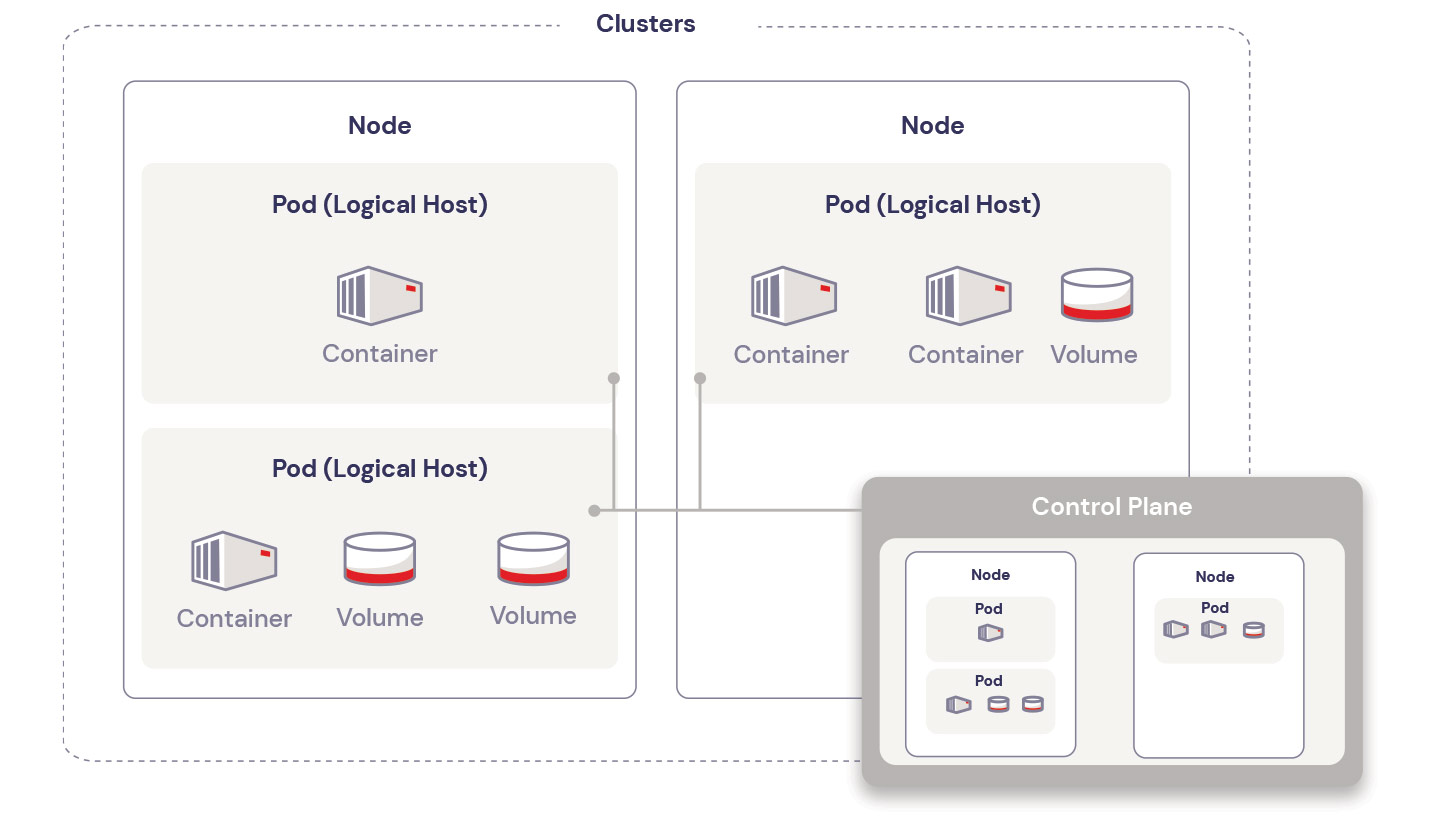
  2. They moved to a Kubernetes environment where images upload directly to storage, then CloudSpot’s microservices retroactively query the data they need.

The transition to microservices made their infrastructure more nimble, but Gavin still had to reluctantly cut key promotional offers like free migration for prospective customers in order to maintain margins.

When Cost-cutting Measures Still Don’t Suffice

Even after optimizing workflows, storage costs continued to snowball. Namely:

  • The service grew—customers were uploading five times the previous year’s volume.
  • Gavin wanted to position the company for triple-digit growth in the upcoming year.

They decided to move their production data to Backblaze B2 Cloud Storage. The potential ROI of switching to Backblaze B2 was too substantial to ignore for a data-heavy startup, and Backblaze’s Cloud to Cloud Migration service allowed them to move 700TB of data in one day with zero transfer fees.

Migrating Storage Clouds Without Service Disruption

CloudSpot’s data is accessed frequently, and the CloudSpot development team had to make sure customers saw no disruptions. To do so, they supported both environments—on Amazon S3 and Backblaze B2—simultaneously for one week to ensure everything was working. Then, they disabled uploads to Amazon S3 and redirected new uploads to Backblaze B2.

“It was like changing the tires on a car while it’s flying down the road at 100 mph,” but a change that resulted in no loss of operational efficiency, speed, or reliability.
—Gavin Wade, Founder & CEO, CloudSpot

Cloud to Cloud Migration Is Not Out of Reach

Like many developers, Gavin thought he was trapped in a walled garden with Amazon S3. Improving CloudSpot’s workflows unlocked the switch to Backblaze B2, enabling CloudSpot to:

  • Structure workflows using best-of-breed providers.
  • Reintroduce free migration.
  • Grow margins.
  • Demonstrate savvy decision-making to future investors.

“Software margins are expected to be high. If you can take a big cut of that, it allows you to scale more rapidly. It just makes our story so much better, especially as a SaaS business looking to scale, grow, and raise capital.”
—Gavin Wade, Founder & CEO, CloudSpot

Unlocking Capacity to Scale With Backblaze B2

Read more about how CloudSpot overcame vendor lock-in to realize exponential growth, and check out our Cloud to Cloud Migration offer and partners—we’ll pay for your data transfer if you need to move more than 10TB out of Amazon.

The post How to Scale a Storage-heavy Startup appeared first on Backblaze Blog | Cloud Storage & Cloud Backup.

How Multi-cloud Backups Outage-proof Data

Post Syndicated from Molly Clancy original https://www.backblaze.com/blog/how-multi-cloud-backups-outage-proof-data/

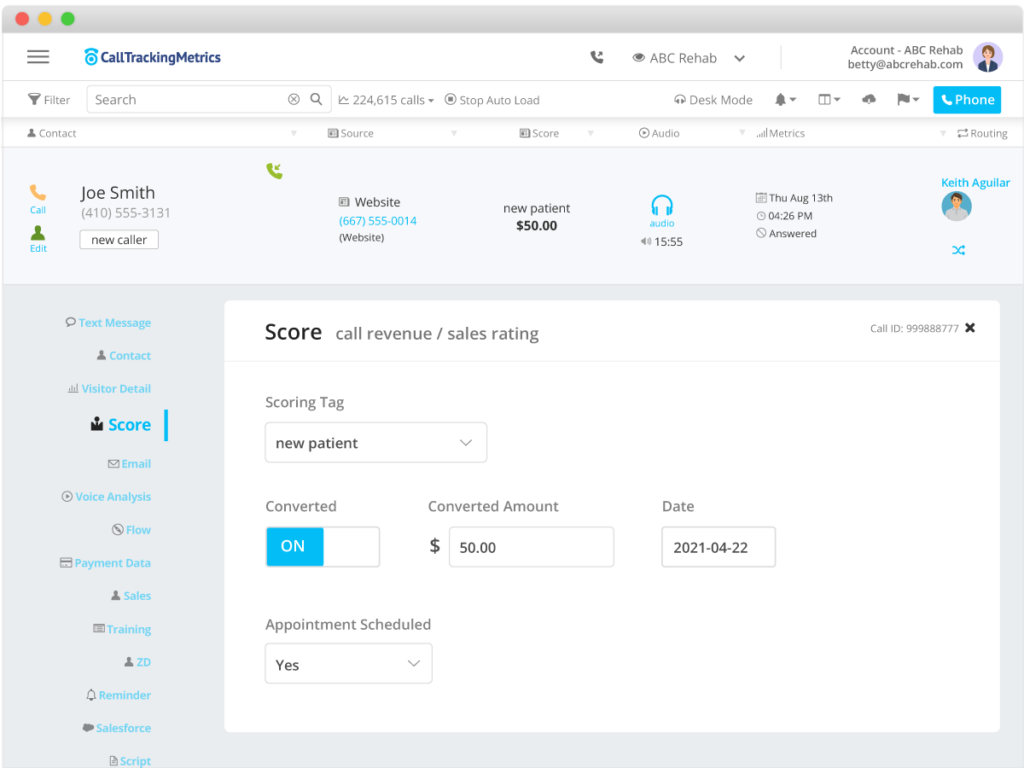
Bob Graw, Director of IT for CallTrackingMetrics, a leading marketing automation platform, put words to a concern that’s increasingly troubling for businesses of all sizes: “If the data center gets wiped out, what happens to our business?”

Lately, high profile cloud outages happen at a regular clip, and the only thing you can count on is that systems will fail at some point. Savvy IT leaders work from that assumption regardless of their primary cloud provider, because they know redundant fail-safes should always be part of your plan.

Bob shared how CallTrackingMetrics outage-proofed their data by establishing a vendor-independent, multi-cloud system. Read on to learn how they did it.

About CallTrackingMetrics

CallTrackingMetrics is a conversation analytics platform that enables marketers to drive data-backed advertising strategies, track every conversion, and optimize ad spend. Customers can discover which marketing campaigns are generating leads and conversions, and use that data to automate lead flows and create better buyer experiences—across all communication channels. More than 100,000 users around the globe trust CallTrackingMetrics to align their sales and marketing teams around every customer touchpoint.

CallTrackingMetrics has been recognized in Inc. Magazine’s 5000™ list of fastest-growing private companies and best places to work, and as a leader on G2 and Gartner for call tracking and marketing attribution software.

Multi-cloud Storage Protects Data From Disasters

As CallTrackingMetrics’ data grew over the years, so did their data backups. They stored more than a petabyte of backups with one vendor. It was a strategy they grew less comfortable with over time. Their concerns included:

  • Operating with a single point of failure.
  • Becoming locked in with one vendor.
  • Maintaining compliance with data regulations.
  • Diversifying their storage infrastructure within budget.
CallTrackingMetrics generates 3TB of backups daily from the volume of data gathered through their platform.

Multi-cloud Solves for a Single Point of Failure

Bob had thought about diversifying CallTrackingMetrics’ storage infrastructure for years, and as outages continued apace, he decided to pull the trigger. He sought out an additional storage vendor where CallTrackingMetrics could store a redundant copy of their backups for disaster recovery and business continuity. “You should always have at least two viable, ready to go backups. It costs real money, but if you can’t come back to life in a disaster scenario, it is basically game over,” Bob explained.

They planned to mirror data from their diversified cloud provider in Backblaze B2, creating a robust multi-cloud strategy. With data backups in two places, they would be better protected from outages and disasters.

“We trust the Backblaze technology. I’d be very surprised if I ever lost data with Backblaze.”
—Bob Graw, Senior Software Engineer, CallTrackingMetrics

Multi-cloud Solves for Vendor Lock-in

Diversifying storage providers came with the added benefit of solving for vendor lock-in. “We did not want to be stuck with one cloud provider forever,” Bob said. Addressing storage was only one part of that strategy, though. They also intentionally avoided using specific services from their diversified cloud vendor like elastic search and databases to keep their data portable. That way, “We could really take our system to anybody that provides compute or storage, and we would be fine,” Bob said.

Solving for Compliance

Some of CallTrackingMetrics’ clients work in highly regulated industries, so compliance with regulations like HIPAA and GDPR was important for them to maintain when searching for a new storage provider. Those regulations stipulate how data is stored, the security protocols in place to protect data, and data retention requirements. “We feel like Backblaze is very secure, and we rely on Backblaze being secure so that our backups are safe and we stay compliant,” Bob said.

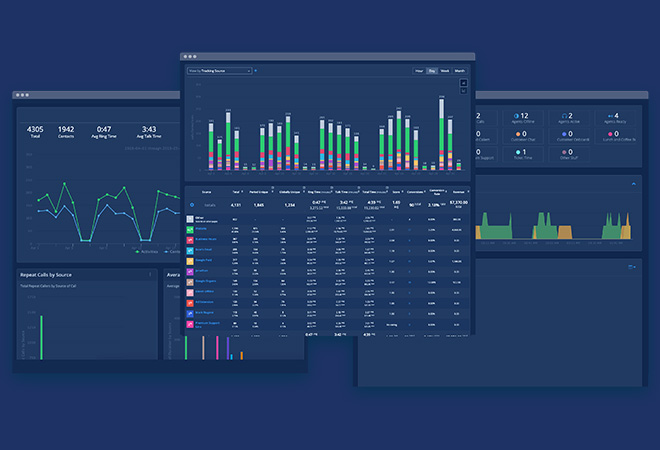
CallTrackingMetrics’ analytics console.

Solving for Budget Concerns

Bob and CallTrackingMetrics Founder, Todd Fisher, had both used Backblaze Personal Backup for years, so that familiarity opened the door. But the Backblaze Cloud to Cloud Migration service sealed the deal. Due to high data transfer fees, “Getting out of our previous provider isn’t cheap,” Bob said. But with data transfer fees covered through the Cloud to Cloud Migration service, they addressed one of their primary concerns—staying within budget. On top of an easy migration, after making the switch, Bob saw an immediate 50% savings on his storage bill thanks to Backblaze’s affordable, single-tier pricing.

“With Backblaze, the benefits are threefold: We like the cost savings, we like that our eggs aren’t all in one basket, and Backblaze is super simple to use.”
—Bob Graw, Senior Software Engineer, CallTrackingMetrics

Cloud Storage Helps Leading Marketing Platform Level Up

Now that CallTrackingMetrics has a multi-cloud system to protect their data from outages, they can focus on solving for the next challenge—getting better visibility into their overall cloud usage. With the savings they recouped from moving backups to Backblaze B2, Bob was able to invest in Lacework, software that helps with automation to protect their multi-cloud environment.

Thinking about going multi-cloud but worried about the cost of transferring your data? Check out our Cloud to Cloud Migration service and get started today—the first 10GB are free.

“Backblaze is our ultimate security blanket. We know our big pile of data is safe and sound.”
—Bob Graw, Senior Software Engineer, CallTrackingMetrics

The post How Multi-cloud Backups Outage-proof Data appeared first on Backblaze Blog | Cloud Storage & Cloud Backup.
How to Run VFX Workflows in the Cloud

Post Syndicated from Molly Clancy original https://www.backblaze.com/blog/how-to-run-vfx-workflows-in-the-cloud/

An hour from Queens. An hour from Jersey. Two hours from Staten Island. That’s how long it would take Molecule VFX IT staff to travel from their homes to the closet in Manhattan that housed the team’s LTO device. All those hours, just to spend five minutes switching out one tape.

It was a huge waste of time, not to mention subway fares. The hassle of tape wasn’t the only reason Molecule decided to make their production workflows fully cloud-based, but the IT team certainly doesn’t mind skipping that trip these days.

Moving production entirely to the cloud allowed Molecule to unlock the value of their artists’ time as well as the IT staff to support them, and save money in the process. If your media team has been contemplating a fully cloud-based workflow, read on to learn how Molecule did it—including how they managed to maintain the ability to move data from the cloud back to tape on demand without maintaining on-premises tape infrastructure.

About Molecule VFX

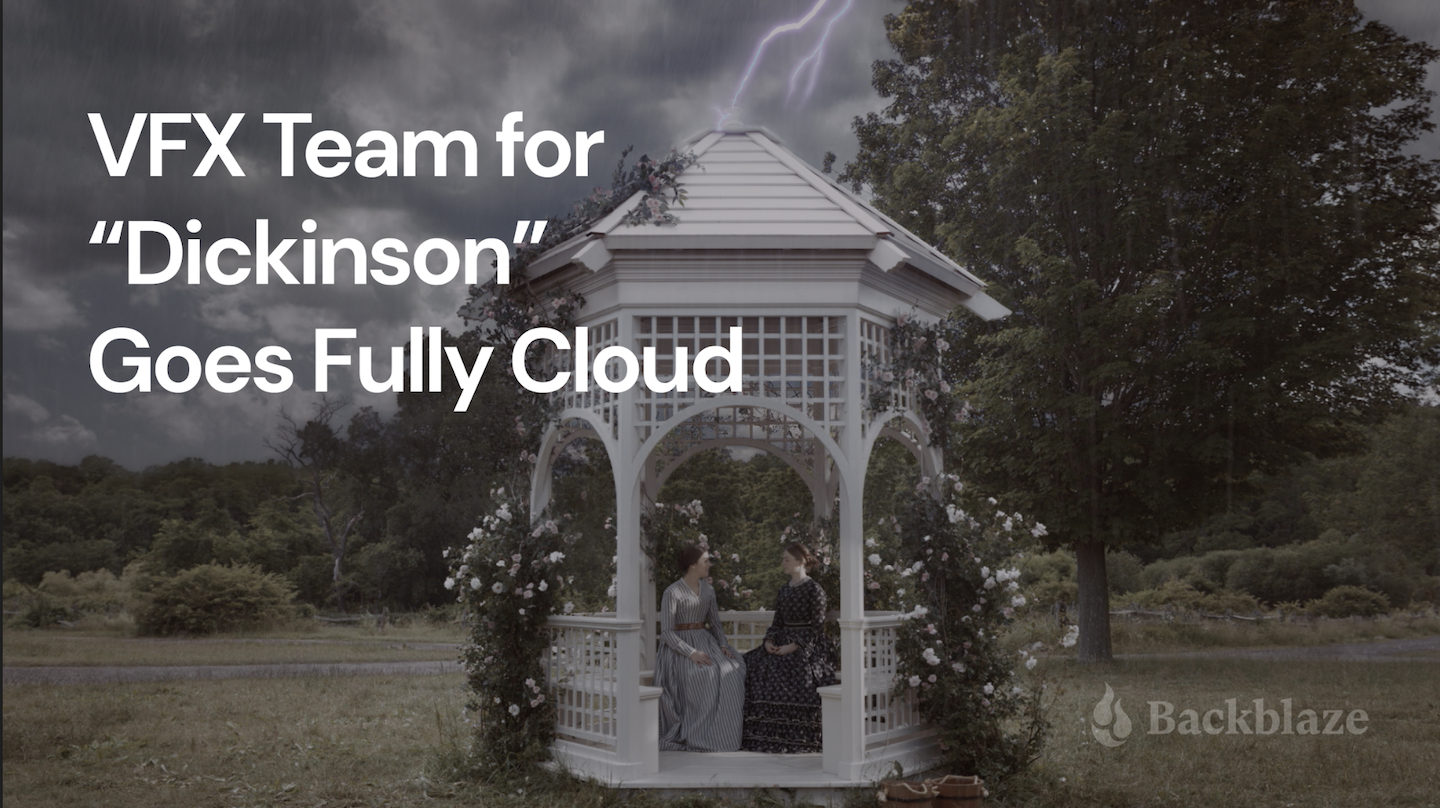
Molecule VFX is a visual effects studio based in New York and Los Angeles that provides the elemental building blocks to tell a customer’s story. They have been servicing episodic television and feature films, like the Apple TV series, “Dickinson,” and the Hulu series, “Only Murders in the Building,” since 2005.

Molecule’s Case for the Cloud

Visual effects artists want to be able to hop into a new script, work on it, render it, review it, QC it, and call it done. Their work is the most valuable element of the business. Anything that gets in the way of that or slows down the workflow directly impacts the company’s success, and an on-premises system was doing exactly that.

  • With IT staff working from home, LTO maintenance tied them up for hours—time that could have been spent helping Molecule’s visual effects artists create.
  • Beyond tape, the team managed a whole system of machines, networks, and switches. Day-to-day issues could knock out the company’s ability to get work done for entire days.

They knew moving to the cloud would optimize staff time and mitigate those outages, but it didn’t happen overnight. Because much of their business already happens in the digital workspace, Molecule had been slowly moving to the cloud over the past few years. The shift to remote work due to the COVID-19 pandemic accelerated their transition.

Work from the Amazon Original Movie, “Bliss,” featuring Owen Wilson.

Strategies for Moving VFX Workflows to the Cloud

Molecule’s Full Stack Software Architect, Ben Zenker, explained their approach. Through the process, he identified a few key strategies that made the transition a success, including:

  • Taking a phased approach while deciding between hybrid and fully cloud-based workflows.
  • Reading the fine print when comparing providers.
  • Rolling their own solutions where possible.
  • Thoroughly testing workflows.
  • Repurposing on-premises infrastructure.

1. Take a Phased Approach

Early in the transition, the Molecule team was still using the tape system and an on-premises Isilon server for some workloads. Because they were still deciding if they were going to have a hybrid system or go fully cloud, they took an ad hoc approach to identifying what data was going to be in Backblaze B2 Cloud Storage and what production infrastructure was going to be in CoreWeave, a cloud compute partner that specializes in VFX workloads. Ben explained, “Once we decided definitively we wanted to be fully in the cloud, connecting CoreWeave and Backblaze was simple—if it was on CoreWeave, it was getting backed up in Backblaze B2 nightly.”

2. Read the Fine Print

The team planned to sync incremental backups to the cloud every night. That meant their data would change every day as staff deleted or updated files. They figured out early on that retention minimums were a non-starter. Some cloud providers charge for deleted data for 30, 60, or even 90 days, meaning Molecule would be forced to pay for storage on data they had deleted months ago. But not all cloud providers are transparent about their retention policies. Molecule took the time to track down these policies and compare costs.

“Backblaze was the only service that met our business requirements without a retention minimum.”
—Ben Zenker, Full Stack Software Architect, Molecule VFX

3. Roll Your Own Solutions Where Possible

The team creates a lot of their own web tools to interact with other technology, so it was a relatively easy lift to set up rclone commands to run syncs of their production data nightly to Backblaze B2. Using rclone, they also built a variable price reporting tool so that higher ups could easily price out different projects and catch potential problems like a runaway render.

“There are hundreds of options that you can pass into rclone, so configuring it involved some trial and error. Thankfully it’s open-source, and Backblaze has documentation. I made some small tweaks and additions to the tool myself to make it work better for us.”
—Ben Zenker, Full Stack Software Architect, Molecule VFX

4. Test and Test Again

In reflecting on the testing phase they went through, Ben acknowledges he could have been more liberal. He noted, “I went into it a little cautious because I didn’t want to end up incurring big charges for a test, but Backblaze has all sorts of safeguards in place. You can set price limits and caps, which was great for the testing period.”

5. Repurpose On-premises Infrastructure

The on-premises Isilon server and the physical tape system are no longer part of the active project workflow. They still utilized those devices to host some core services for a time—a firewall, authentication, and a VPN that some members used. In the end, they decided to fully retire all on-premises infrastructure, but repurposing the on-premises infrastructure allowed them to maximize its useful life.

But What If Clients Demand Tape?

While Molecule is more than happy to have modernized their workflows in the cloud, there are still some clients—and major clients at that—who require that contractors save final projects on tape for long-term storage. It no longer made sense to have staff trained on how to use the LTO system, so when a customer asked for a tape copy, they reached out to Backblaze for advice.

They needed a turnkey solution that they didn’t have to manage, and they definitely didn’t want to have to resort to reinvesting and managing tape hardware. Backblaze partner, TapeArk, fit the bill. TapeArk typically helps clients get data off of tape and into the cloud, but in this case they reversed the process. Molecule sent them a secure token to the exact piece of data they needed. TapeArk managed the download, put it on tape, and shipped it to the client.

If Molecule needs to send tape copies to clients in the future, they have an easy, hands-off solution and they don’t have to maintain an LTO system for infrequent use. Ben was grateful for the partnership and easy solution.

Work from the Apple TV series, “Dickinson,” featuring Hailee Steinfeld.

Cloud Workflows Free Up a Month of Time

Now that the staff no longer has to manage an LTO tape system, the team has recouped at least 30 payroll days a year that can be dedicated to supporting artists. Ben noted that with the workflows in the cloud, the nature of the IT workload has changed, and the team definitely appreciates having that time back to respond to changing demands.

Ready to move your VFX workflows to the cloud? Start testing today with 10GB of data storage free from Backblaze B2.

The post How to Run VFX Workflows in the Cloud appeared first on Backblaze Blog | Cloud Storage & Cloud Backup.

What Is Private Cloud Storage?

Post Syndicated from Molly Clancy original https://www.backblaze.com/blog/what-is-private-cloud-storage/

No matter what business you’re in, you’re in the data business. Your files are the backbone of your entire operation and losing access to them would be a disaster. As such, it’s perfectly understandable if you’re a little protective of these all-important 1s and 0s. As you begin your search for a data storage solution, understanding some cloud basics can help you make the best decision, and one option that may cross your desk is the private cloud.

What Is the Private Cloud?

A private cloud is essentially storage dedicated solely to your organization, but accessible from anywhere. While you can outsource the physical infrastructure of this private cloud to a data center, you do have the option to keep it on-premises. It is a costlier solution than typical public cloud storage, but the trade-off is a higher level of security and control over your data.

Refresher: What Is the Public Cloud?

By contrast, a public cloud storage service would be open to many different organizations or tenants. In a public cloud, tenants share the same physical hardware resources as other tenants, and their individual instances are virtually separated so that one tenant can’t access another’s data. Public clouds typically don’t involve on-premises hardware as everything is managed by the public cloud provider in a data center.

Public and Private Clouds: By the Numbers

In 2020, spending on cloud services grew significantly: Public cloud spending reached $14 billion, and private cloud spending reached $5 billion, according to an IDC study. IDC also found that “on-premises private clouds” make up nearly two-thirds (i.e., 64%) of private cloud spending.

According to the Flexera 2021 State of the Cloud Report, 97% of respondents used a public cloud and 80% of respondents used a private cloud. As you can see, there is plenty of overlap. Using a public cloud versus a private cloud is not an either/or decision—78% of respondents use both public and private clouds in a hybrid cloud solution.

Advantages and Disadvantages of Private Clouds

Both the private cloud and the public cloud have their advantages. Benefits of the public cloud include low cost and a higher adoption rate than the private cloud. Therefore, a public cloud can be cheaper to run and it can be easier to find employees who know how to use the public cloud. The high adoption rate also means it is easier to find third-party consultants and experts to provide help when you need it. On the other hand, a private cloud offers advantages such as faster access to data when using on-premises infrastructure and more control over security.

Private Cloud: Use Cases

To better understand how private cloud services can be beneficial, let’s take a closer look at use cases. There are a few reasons organizations are investing time and resources into private cloud deployments:

  • Regulatory compliance. Some industries face high demand for security. For example, financial services and health care organizations frequently handle highly sensitive data. As a result, these organizations may find that the greater security safeguards available through a private cloud may be a good fit. Further, Gartner points out that the U.S. government is starting to increase its adoption of private cloud services. If your organization operates in a highly regulated industry with significant IT security or privacy protection requirements, using a private cloud may make sense. Finally, government contractors may be expected to use the private cloud to give their government clients extra peace of mind regarding security.
  • Meeting high-performance requirements. In some situations, a private cloud may provide access to faster IT services. For instance, an on-premises private cloud may serve data to local users much faster than a private cloud located thousands of miles away. A large organization that needs to work with large volumes of data like video files and big data analytics may find private cloud services a good fit. If a company sees a competitive opportunity in speed (e.g., high-frequency trading in financial services), then a private cloud could be an attractive option.
  • Specific hardware requirements. In a public cloud environment, the end user generally has limited input regarding specific hardware. By contrast, a company willing to pay for a private cloud service will have more control over specific hardware investments.

Public vs. Private: Why Not Both?

Using both private and public clouds simultaneously is called a hybrid cloud solution, and it may be the best way to balance your security needs against your budget constraints to optimize your storage infrastructure. You can use an on-premises private cloud for sensitive files or larger files that will be accessed on a daily basis, while maintaining public cloud storage space for archives or files that need to be accessed remotely by outside vendors or clients. The reduced cost of public cloud storage gives you greater flexibility in tweaking your private vs. public cloud needs to fit your budget.

Managing a Private Cloud Effectively

Using private cloud data storage services has the potential to offer greater security. If your cloud portfolio includes the private cloud, use the following tips to get the most from those services.

  • Manage the scalability limitations of the private cloud. In contrast to a public cloud service, you may find it more difficult or time-consuming to scale up and scale down private cloud services. This challenge can be mitigated in a few ways. For instance, you could pursue a hybrid cloud approach using the private cloud for smaller amounts of highly sensitive data and put the bulk of your corporate data in a public cloud.
  • Enhance your cost management process. A private cloud service comes with higher up-front costs and maintenance costs. And, in a public cloud, your costs can vary based on the amount of storage you’re using at any given time. With a private cloud, once you’ve made that capital expenditure, whether on-premises or off, the capacity is already paid for. However, it requires very accurate assessments of future needs to predict any further spending on capacity. If you run out of space, you’re facing another capital investment.
  • Managing maintenance risk. Compared to a public cloud deployment, private cloud storage can be relatively complex to manage. If upkeep slips, you may start to suffer increasing security risks and lost performance.
  • Challenge customization requests. The ability to customize a private cloud is a double-edged sword. The flexibility is attractive for departments with unusual requirements. On the other hand, each private cloud customization request may involve additional fees and security complexities. Therefore, it may be wise to challenge requests for cloud customization and see if business users can achieve their goals with minimal customization.

Are You Using a Private Cloud?

We’re all in the data business, but nobody knows your business like you. Ultimately, the decision to balance data security against financial concerns will come down to your individual needs and budgetary realities. But for those files that require an extra layer of security, whether it’s for regulatory or operational reasons, a private cloud solution gives you control over your data that is worth the added expense.

Are you using a public cloud, a private cloud, or both? Let us know in the comments.

The post What Is Private Cloud Storage? appeared first on Backblaze Blog | Cloud Storage & Cloud Backup.

Backup Solutions for Dentist Offices

Post Syndicated from Molly Clancy original https://www.backblaze.com/blog/backup-solutions-for-dentist-offices/

On top of providing excellent care to patients, dental practices today are tasked with the care of ever more complex IT solutions. Complying with regulations like HIPAA, protecting patient health records, and managing stores of data from X-rays to insurance information are among the demands that dental practices have to meet.

Whether you outsource these tasks to a managed service provider (MSP) or you manage your data infrastructure in house with network attached storage (NAS) or other hardware, understanding backup best practices and the different options available to help you manage your practice’s data is important for your continued success.

Keeping your data safe and accessible doesn’t have to be complicated or expensive. In this post, learn more about records retention for dental offices and how you can implement some simple strategies to keep data safe and protected, including 3-2-1 backups, common NAS devices, and insight from an MSP that specializes in IT services specifical for dental practices.

How Long Should a Dental Office Keep Records?

When thinking about backup and data storage solutions for your dental practice, it helps to first have a good understanding of the records retention requirements for dental offices. The best way to understand how long a dental office should keep records is to check with your state board of dentistry. Regulations on records retention vary by state and by patient type.

Retaining records for at least five to seven years is good practice, but some states will require longer retention periods of up to 10 years. Specific types of patients, including minors, may have different retention periods.

Regardless of your state regulations, records must be kept for five years for patients who receive Medicare or Medicaid. If your state regulations are less than five years, plan to retain records longer for these patients.

Finally, it’s good practice to keep all records for patients with whom you’re involved in any kind of legal dispute until the dispute is settled.

What Is the HIPAA Regulation for Storage of Dental Records?

HIPAA does not govern how long medical or dental records must be retained, but it does govern how long HIPAA-related documentation must be retained. Any HIPAA-related documentation, including things like policies, procedures, authorization forms, etc., must be retained for six years according to guidance in HIPAA policy § 164.316(b)(2)(i) on time limits. Some states may have longer or shorter retention periods. If shorter, HIPAA supersedes state regulations.

How Long Does a Dental Office Need to Keep Insurance EOBs?

Explanations of benefits or EOBs are documents from insurance providers that explain the amounts insurance will pay for services. Retention periods for these documents vary by state as well, so check with your state dental board to see how long you should keep them. Additionally, insurance providers may stipulate how long records must be kept. As a general rule of thumb, the longer retention period supersedes others. The best advice—err on the side of caution and keep records for the longest retention period required by either state or federal law. Fortunately, cloud storage provides you with a simple, affordable way to ensure your retention periods meet or exceed requirements.

3-2-1 Backup Strategy

Understanding how long you need to keep records is the first step in structuring your dental practice’s backup plan. The second is understanding what a good backup strategy looks like. The 3-2-1 backup strategy is a tried and true method for protecting data. It means keeping at least three copies of your data on two different media (i.e. devices) with at least one off-site, generally in the cloud. For a dental practice, we can use a simple X-ray file as an example. That file should live on two different devices on-premises, let’s say a machine reserved for storing X-rays which backs up to a NAS device. That’s two copies. If you then back your NAS device up to cloud storage, that’s your third, off-site copy.

The Benefits of Backing Up Your Dental Practice

Why do you need that many copies, you might ask. There are some tried and true benefits that make a strong case for using a 3-2-1 strategy rather than hoping for the best with fewer copies of your data.

  1. Fast access to files. When you accidentally delete a file, you can restore it quickly from either your on-site or cloud backup. And if you need a file while you’re away from your desk, you can simply log in to your cloud backup and access it immediately.
  2. Quick recoveries from computer crashes. Keeping one copy on-site means you can quickly restore files if one of your machines crashes. You can start up another computer and get immediate access, or you can restore all of the files to a replacement computer.
  3. Reliable recoveries from damage and disaster. Floods, fires, and other disasters do happen. With a copy off-site, your data is one less thing you have to worry about in that unfortunate event. You can access your files remotely if needed and restore them completely when you are able.
  4. Safe recoveries from ransomware attacks. After hearing about so many major ransomware attacks in the news this past year, you might be surprised to know that most attacks are carried out on small to medium-sized businesses. Keeping an off-site copy in the cloud, especially if you take advantage of features like Object Lock, can better prepare you to recover from a ransomware attack.
  5. Compliance with regulatory requirements. As mentioned above, dental practices are subject to retention regulations. Using a cloud backup solution that offers AES encryption helps your practice achieve compliance.

Using NAS for Dental Practices

NAS is essentially a computer connected to a network that provides file-based data storage services to other devices on the network. The primary strength of NAS is how simple it is to set up and deploy.

NAS is frequently the next step up for a small business that is using external hard drives or direct attached storage, which can be especially vulnerable to drive failure. Moving up to NAS offers businesses like dental practices a number of benefits, including:

  • The ability to share files locally and remotely.
  • 24/7 file availability.
  • Data redundancy.
  • Integrations with cloud storage that provides a location for necessary automatic data backups.

If you’re interested in upgrading to NAS, check out our Complete NAS Guide for advice on provisioning the right NAS for your needs and getting the most out of it after you buy it.

➔ Download Our Complete NAS Guide

Hybrid Cloud Strategy for Dental Practices: NAS + Cloud Storage

Most NAS devices come with cloud storage integrations that enable businesses to adopt a hybrid cloud strategy for their data. A hybrid cloud strategy uses a private cloud and public cloud in combination. To expand on that a bit, a hybrid cloud refers to a cloud environment made up of a mixture of typically on-premises, private cloud resources combined with third-party public cloud resources that use some kind of orchestration between them. In this case, your NAS device serves as the on-premises private cloud, as it’s dedicated to only you or your organization, and then you connect it to the public cloud.

Some cloud providers are already integrated with NAS systems. (Backblaze B2 Cloud Storage is integrated with NAS systems from Synology and QNAP, for example.) Check if your preferred NAS system is already integrated with a cloud storage provider to ensure setting up cloud backup, storage, and sync is as easy as possible.

Your NAS should come with a built-in backup manager, like Hyper Backup from Synology or Hybrid Backup Sync from QNAP. Once you download and install the appropriate backup manager app, you can configure it to send backups to your preferred cloud provider. You can also fine-tune the behavior of the backup jobs, including what gets backed up and how often.

Now, you can send backups to the cloud as a third, off-site backup and use your cloud instance to access files anywhere in the world with an internet connection.

Using an MSP for Dental Practices

Many dental practices choose to outsource some or all IT services to an MSP. Making the decision of whether or not to hire an MSP will depend on your individual circumstances and comfort level. Either way, coming to the conversation with an understanding of your backup needs and the cloud backup landscape can help.

Nate Smith, Technical Project Manager at DTC, is responsible for backing up 6,000+ endpoints on 500+ servers at more than 450 dental and doctor’s offices in the mid-Atlantic region. He explained that, due to the sheer number of objects most dentists need to restore (e.g., hundreds of thousands of X-rays), the cost of certain cloud providers can be prohibitive. “If you need something and you need it fast, Amazon Glacier will hit you hard,” he said, referring to the service’s warming fees and retrieval costs.

When seeking out an MSP, make sure to ask about the cloud provider they’re using and how they charge for storage and data transfer. And if you’re not using an MSP, compare costs from different cloud providers to make sure you’re getting the most for your investment in backing up your data.

Cloud Storage and Your Dental Practice

Whether you’re managing your data infrastructure in house with NAS or other hardware, or you’re planning to outsource your IT needs to an MSP, cloud storage should be part of your backup strategy. To recap, having a third copy of your data off-site in the cloud gives you a number of benefits, including:

  • Fast access to your files.
  • Quick recoveries from computer crashes.
  • Reliable recoveries from natural disasters and theft.
  • Protection from ransomware.
  • Compliance with regulatory requirements.

Have questions about choosing a cloud storage provider to back up your dental practice? Let us know in the comments. Ready to get started? Click here to get your first 10GB free with Backblaze B2.

The post Backup Solutions for Dentist Offices appeared first on Backblaze Blog | Cloud Storage & Cloud Backup.

Five Ways to Use Object Lock Immutability

Post Syndicated from Molly Clancy original https://www.backblaze.com/blog/five-ways-to-use-object-lock-immutability/

If you want to understand how Object Lock immutability works, think of a valuable necklace sitting behind a window. If someone really wants that necklace, they will find a way to break that window. Reinforce the glass, add a silent alarm, none of it will change the fact that thieves can find a way.

With Object Lock immutability, there is no window. Instead, picture a fully realistic holographic representation of the necklace. You can still see your necklace, you can still enjoy its sparkle, but nothing anyone does to that hologram can alter the actual physical necklace.

Object Lock immutability works in a similar fashion, at least metaphorically speaking. (Object Lock doesn’t create a facsimile, per se, but it does protect objects from being manipulated, copied, encrypted, changed, or deleted for as long as the lock is set.) And it protects something far more valuable than some trinket: It protects your data.

In this post, learn about five different ways you can use Object Lock as well as some tips for using Object Lock effectively.

What Is Object Lock Immutability?

In functional programming, immutability is a characteristic of an object whose state cannot be changed after it has been created. Conversely, mutable objects are variable. But what does all that mean when it comes to Object Lock? By creating a model in which an individual object (i.e., a unit of data that contains all of the bytes that constitute what you would typically think of as a “file”) remains static and unchangeable, Object Lock immutability prevents important files from being deleted, corrupted, or otherwise damaged. Your files can, however, be freely accessed, giving you free rein to view important documents. This Write Once, Read Many (WORM) model is the cornerstone of Object Lock immutability.

Those of us above a certain age may recall the days when data was regularly transferred via floppy disc. Back in those dark days of dial-up, there was a simple plastic switch on each floppy disc that marked the disc as read-only or read-and-write. If the switch was flipped, the data on the disc could be read or transferred at will, but it was a one-way street. You were unable to alter the original data stored on the disc.

Object Lock Immutability serves the same function as that plastic switch, only it operates entirely within the code of your storage software. You can view, share, and open files at will. But the contents of that file cannot be changed.

Object Lock Immutability Use Cases

With the right approach, Object Lock immutability can be used to solve a few problems, including:

  • Aiding recovery from ransomware attacks.
  • Migrating from an LTO tape system.
  • Supporting records retention requirements.
  • Protecting your company during lawsuits.
  • Enhancing version control during software development.

Aid Recovery From Ransomware Attacks

Ransomware attacks are a major challenge for many businesses. In our research on the true cost of ransomware, we found that the cost of these incidents can exceed $1 million! That’s the bad news.

The good news is advanced planning can make it easier to recover from attacks. Specifically, preserving data backups with Object Lock is a helpful way to speed up your recovery from ransomware attacks. For example, you might decide to make daily backups of your most critical files and retain those backups for three months. In this case, you would have plenty of options for how to recover from an attack.

To achieve consistent security protection, we recommend integrating Object Lock into your IT security policy. For further guidance on how to do this, see our post, “How to Add Object Lock to Your IT Security Policy.”

Migrating From an LTO Tape System

Until recently, the most common way to protect data from being overwritten, corrupted, or deleted was by creating an “air gap” by way of LTO tapes. Under this system, sensitive files would be backed up to a tape and then physically removed from the drive. This created an effective shield of literal, physical air around the data by removing it entirely from your network, but it came at a cost.

Tape systems require an up-front investment and require ongoing maintenance, management, and eventual replacement. With Object Lock immutability as part of your cloud backup solution, the entire process of creating an air gap happens virtually, saving time and money while accomplishing the same goal. You can calculate the savings between cloud storage and tape yourself.

Support Records Retention Requirements

Your company probably has a variety of records retention requirements to fulfill. For example, the finance department likely has to retain records in case you are audited by tax authorities. In addition, your contracts with customers may expect you to retain records for a specific project for a set period. Once you determine which records need to be retained, Object Lock can preserve the records so they cannot be modified or deleted for the required duration. Object Lock means accidental deletion of records is much less likely.

Protect the Company’s Interests During Lawsuits

Lawsuits and disputes are a fact of life in today’s environment, but there are steps you can take to reduce the impact and expense associated with them.

By applying Object Lock, your company will be better able to navigate the challenges of a lawsuit. You can focus on the substance of the dispute rather than spending endless hours answering questions about your data integrity.

Enhance Version Control During Software Development

New versions of files are created on a nearly constant basis during software development projects. Some software projects release new versions every day or every week. With many different software versions on your plate, there is a risk your team might get disorganized. Now, imagine if a new release of your software ends up having a serious security or performance flaw. In that case, rolling back to the previous version may save a tremendous amount of time and energy.

By using Object Lock on previous versions of your software, you can have confidence in your ability to access previous versions. For companies that produce custom software for clients, enhancing version control through Object Lock may be helpful for other reasons. In the event of a problem, a client might ask for access to earlier versions of the software. Preserving earlier versions of your software development with Object Lock makes it easier to respond to such requests.

Tips for Using Object Lock Immutability Effectively

As with any technology, achieving optimal results from Object Lock requires a thoughtful, guided approach. From a technical standpoint, there is no limit to how much data you can protect with Object Lock. However, excessive use of Object Lock may consume a significant amount of your data storage resources, negating any time and cost savings you’ve achieved.

Altering the amount of time an object is placed in Object Lock is just one way to ensure you’re getting the most out of this technology. Others include:

  • Reviewing Older Object Lock Files: You might find that you rarely need to access Object Lock-protected data that is older than six months. Obviously, this amount of time will vary greatly depending on your needs, but it’s important to make sure you’re not spending resources protecting files that don’t need the extra protection. Depending on what you find, you may want to adjust guidance to employees accordingly.
  • Ensuring Consistency: To achieve more consistent usage of Object Lock immutability, start by clarifying your expectations in a company policy. This could be as simple as a checklist document explaining when and how to use Object Lock or an appendix to your IT security policy. In addition, ask managers to periodically review (e.g., every six months) how Object Lock is used in their departments and provide feedback to employees as needed.

As a concept, Object Lock immutability is fairly easy to understand and even easier to use in protecting your vital data from incursion, corruption or deletion. Beyond simply protecting valuable data from cyber threats, it can create a clear timeline in case of litigation or simplify complicated development projects. By understanding how this tool works and how best to use it, you can secure your data, increase your efficiency, and improve the operation of your cloud storage.

The post Five Ways to Use Object Lock Immutability appeared first on Backblaze Blog | Cloud Storage & Cloud Backup.
What Is the Public Cloud?

Post Syndicated from Molly Clancy original https://www.backblaze.com/blog/what-is-the-public-cloud/

The wonderful thing about technology is that it’s always changing. This, of course, is also the frustrating thing about technology. We think we understand it, or at least have a basic grasp of it, and then the rules get completely rewritten. What seemed simple and straightforward is suddenly a morass of technical terms and jargon. Such is the case with cloud concepts.

If you’re looking for a data storage solution, it’s sometimes helpful to revisit the fundamentals to ensure you find the solution that works best for you. Today, we’re sharing a few helpful guidelines to cut through any confusion around the public cloud, including how it’s different from a private cloud, when it makes sense to use one or both, and how to go about choosing a cloud provider.

What Is the Public Cloud?

Essentially, public cloud storage operates like a self-storage unit, only one that holds your personal files instead of old lamps that you’re sure you’re going to donate or part with in a garage sale someday. The difference being (apart, obviously, from cloud storage being virtual) that cloud storage lets you pay as you go, so you only pay for the amount of storage you need.

In researching public cloud storage, you may come across other data storage terms such as “private cloud” and “on-premises.” We’ll briefly define these terms to help you navigate the options available to you.

  • Private cloud. As the name implies, a private cloud is similar to a public cloud, but specifically designed for a single user or business. Think of a private cloud like one of those restaurant booths that’s permanently reserved for a VIP—no other customer can use that space. As a result, private cloud services can be more expensive than public clouds. Private clouds are typically, but not always, on-premises. Some companies choose to outsource their private cloud infrastructure to a data center, but the key defining factor is that the servers and network are dedicated to one company or “tenant” rather than shared with other tenants as in a public cloud.
  • On-premises data storage. Before cloud services were created, many organizations stored their data in corporate data centers built on location or “on-premises.” Since these facilities are owned and controlled by the company that built them, they offer a very high level of security. On-premises data storage is also sometimes referred to as a private cloud, but private clouds don’t necessarily have to be on-premises anymore—they can be anywhere as long as they’re dedicated to one tenant.

There are several advantages to using a public cloud service for data storage. You generally only pay for the storage you use. Unlike an on-premises data center, there are usually no significant up-front costs to purchase hardware and plan for ongoing administration. In addition, a public cloud data storage solution does not take up physical space in your office.

Private Cloud vs. Public Cloud: When Does It Make Sense to Use Them?

To help you decide between public vs. private cloud data storage, let’s recap the critical differences first. A public cloud service is usually open to any customer, while a private cloud is dedicated to select users. In addition, a private cloud service is usually operated on-premises.

There are three significant differences between private cloud and public cloud.

  • Tenancy. A private cloud is dedicated to one tenant whereas a public cloud is open to many tenants. In a public cloud, tenants share the same physical hardware resources as other tenants, and their individual instances are virtually separated so that one tenant can’t access another’s data.
  • Approach to security. A private cloud is dedicated exclusively to your needs. You own and manage it. As such, you have more control over the physical security of your servers as well as your private networks. In a public cloud, you trust the provider to handle some of the security for you.
  • Affordability. A public cloud service is defined to achieve mass economies of scale in order to offer affordable prices. A private cloud requires up-front investment in hardware and networking equipment and ongoing maintenance and upgrade costs.

Ultimately, it comes down to the solution that best fits your company’s needs for privacy and security balanced against your budgetary constraints. The benefit of a private cloud is more important in some industries than others. For example, in instances where there might be national security concerns—like national defense or government contractors—or a greater need for privacy like healthcare or financial services, a firm may opt to use a private cloud service located on-site for certain sensitive data.

Sometimes, however, your needs will extend beyond simply using either a private or a public cloud service. When that happens, you need a hybrid cloud.

Hybrid Cloud: When Does It Make Sense to Use Both?

As we noted, depending on your data storage needs and industry, you may decide to use a mix of public cloud and private cloud providers, otherwise known as a hybrid cloud. For example, in data-heavy industries like media and entertainment, a hybrid cloud approach offers a powerful solution. Using a hybrid solution means staff have fast access to large files for day-to-day work on a private, on-premises cloud, combined with scalable, affordable storage in a public cloud for archives and remote collaboration. Similarly, in industries that handle sensitive data, a private cloud could be used to have more control over security, while less sensitive data could be stored in a more affordable public cloud.

Using a combination of public cloud and private cloud data storage gives you the best of both worlds. Private, on-premises storage provides greater ease of access to files and enhanced security, but with the financial trade-off of fixed costs for maintenance and IT assistance. Public storage is more affordable and makes sharing files with outside vendors, subcontractors, and clients simpler.

How to Compare Public Cloud Providers

If you’ve decided a public cloud or a hybrid cloud approach is right for you, your next step is choosing a cloud provider as your trusted partner. As you evaluate different cloud providers, it is helpful to use some standard criteria to measure each provider. Use the following points of comparison to inform your selection process.

  • Ease of use. As with most technology, the more customization you need, the less user-friendly your cloud storage is generally going to be. The end goal of cloud storage is to make your life easier, and if you’re having to stack new skill sets just to make it work, then you’ve officially moved beyond “easy.”
  • Customer support. The insufferable thing about tech headaches is that they have no respect for your schedule. As such, it’s important to check the support package offered by the provider. How easy is it to reach an actual person, not a bot or autoresponder? Will they be able to respond to issues that may arise from your particular setup? The wrong answer could be costly.
  • Data egress. Check the costs and speed of data egress if and when you need to pull all of your data out from the cloud provider. You don’t want to feel locked into a cloud provider because they charge high data transfer fees.
  • Pricing tiers. There is no one-size-fits-all solution when it comes to cloud storage, so make sure you’re not throwing money out the window. Or, into the cloud. Double check that you won’t get locked into a price structure that charges for storage you don’t need. Keep an eye out for things like minimum retention requirements where you’re essentially charged for deleted data for a period of time after you delete it.
  • Security. Lost or compromised data goes far beyond a mere inconvenience. In the worst-case scenario, it can represent a serious security breach and possible legal issue. Some cloud providers offer more security features than others. For example, check if the provider offers Object Lock, a feature that prevents data from being modified, copied, encrypted, changed, or deleted during a set period of time. If a bad actor somehow got access to your account, they wouldn’t be able to tamper with your data. (Even you can’t modify it before the lock period ends!)

Assess Public Cloud Storage for Your Organization

Cloud computing has had a transformative impact on the way we do business. Between the cost savings and the flexibility it gives us in handling our data, it can play a tremendous role in your company’s growth. Now that you’ve learned the basics of public cloud data storage and how it can potentially impact your business, you can make a more informed decision about how you set up your infrastructure and manage your company’s important data.

Are you using a private cloud, a public cloud, or some combination of the two? Let us know in the comments. We’d love to hear how it’s going.

The post What Is the Public Cloud? appeared first on Backblaze Blog | Cloud Storage & Cloud Backup.

Getting the Most Out of Your NAS

Post Syndicated from Molly Clancy original https://www.backblaze.com/blog/getting-the-most-out-of-your-nas/

Who has the original copy of that report on their machine? Which hard drive has the footage from that shoot a few years ago? Are those photos from our vacation on the laptop, the external hard drive, or the sync service? If you’ve ever asked yourself a question like these, you have felt the pain of digital scatter. In today’s world, with as many devices as we use, it’s almost unavoidable.

Almost. When you start to feel the pain of digital scatter, either at work or at home, take it as a sign that it’s time to look into upgrading your data storage systems. One of the best ways to do that is investing in a NAS device.

As you start exploring more sophisticated data storage options than juggling external drives or managing sync services, understanding what you can do with a NAS system can help your decision making. This post explains what NAS is and all the different ways you can use NAS to supercharge your business or home office setup.

What Is NAS?

Network attached storage, or NAS, is a computer connected to a network that provides file-based data storage services to other devices on the network. It’s primarily used to expand storage capacity and enable file sharing across an organization or across devices in a home.

The primary strength of NAS is how simple it is to set up and deploy. NAS volumes appear to the user as network mounted volumes. The files to be served are typically contained on one or more hard drives in the system, often arranged in a RAID scheme. Generally, the more drive bays available within the NAS, the larger and more flexible storage options you have. The device itself is a network node—much like computers and other TCP/IP devices, all of which maintain their own IP address—and the NAS file service uses the Ethernet network to send and receive files.

NAS devices offer an easy way for multiple users in diverse locations to access data, which is valuable when users are collaborating on projects or sharing information. NAS provides good access controls and security to support collaboration, while also enabling someone who is not an IT professional to administer and manage access to the data via an onboard web server. It also offers good fundamental data resiliency through the use of redundant data structures—often RAID—making multiple drives appear like a single, large volume that can tolerate failure of a few of its individual drives.

How Does RAID Work?
A redundant array of independent disks, or RAID, combines multiple hard drives into one or more storage volumes. RAID distributes data and parity (drive recovery information) across the drives in different ways, and each layout provides different degrees of data protection.

Getting the Most Out of Your NAS: NAS Use Cases

The first two NAS use cases are fairly straightforward. They are exactly what NAS was built for:

  1. File storage and file sharing: NAS is ideal for centralizing data storage for your home or business and making files available to multiple users. The primary benefits of a NAS system are the added storage capacity and file sharing compared to relying on workstations and hard drives.
  2. Local backups and data protection: NAS can serve as a storage repository for local backups of machines on your network. Most NAS systems have built-in software where you can configure automatic backups, including what you back up and when. Furthermore, the RAID configuration in a NAS system ensures that the data you store can survive the failure of one or more of its hard drives. Hard drives fail. NAS helps to make that statement of fact less scary.

But that’s not all NAS can do. With large storage capacity and a whole host of add-ons, NAS offers a lot of versatility. Here are a few additional use cases that you can take advantage of.

Host Business Applications on NAS

Small to medium-sized businesses find NAS useful for running shared business applications like customer relationship management software, human resources management software, messaging, and even office suites. Compared to expensive, server-based versions of these applications, companies can install and run open-source versions quickly and easily on NAS. Some NAS devices may have these features built in or available on a proprietary app store.

Create a Private Cloud With NAS

Most NAS devices give you the ability to access your data over the public internet in addition to accessing it through your private network, essentially functioning as a cloud service. If a NAS device manufacturer doesn’t already have a cloud application built in, there are a number of open-source cloud applications like Nextcloud or ownCloud.

Use NAS to Run Virtual Machines

Virtualization software providers, like VMware, support running their products on NAS. With proper configuration, including potentially adding RAM to your device, you can easily spin up virtual machines using NAS.

Develop and Test Applications on NAS

Many NAS devices offer developer packages, including apps for different programming languages and tools like Docker and Git Server. With these add-ons, you can turn your NAS into your own private lab for developing and testing applications before moving them to a server for production.

Use NAS as a File Server

Although a NAS device is usually not designed to be a general-purpose server (it’s underpowered compared to a file server and comes with less robust access management capabilities), NAS vendors and third parties are increasingly offering other software to provide server-like functionality. For home use or for a small team, higher-end NAS devices can function as a file server.

Manage Security Cameras on NAS

Apps like Synology’s Surveillance Station allow you to set up a security camera system yourself using IP cameras rather than paying for a more expensive enterprise or home system. With a large storage capacity, NAS is perfect for storing large amounts of video footage.

Stream Media With NAS

NAS is a great place to store large media files, and apps like Plex allow you to stream directly to a device or smart TV in your home or business. You can consolidate video or audio files from your devices into one place and stream them anywhere.

Ready to Get Started With NAS?

Understanding the many use cases can help you see where NAS might fit into your business or make file sharing at home easier. There are many ways to make your NAS device work for you and ensure you get the most out of it in the process.

Do you have more questions about shopping for or buying a NAS? Check out our Complete NAS Guide. It provides comprehensive information on NAS and what it can do for your business, how to evaluate and purchase a NAS system, and how to deploy your NAS.

The post Getting the Most Out of Your NAS appeared first on Backblaze Blog | Cloud Storage & Cloud Backup.
Testing Your Ransomware Readiness

Post Syndicated from Molly Clancy original https://www.backblaze.com/blog/testing-your-ransomware-readiness/

Every eleven seconds. That’s how frequently ransomware attacks were predicted to happen this year according to Cybersecurity Ventures. And if U.S. Treasury predictions are correct, the payouts from those attacks will exceed a billion dollars by the end of the year.

Despite taking steps to be better prepared, many companies still end up paying ransoms because the cost of extended downtime to restore from backups with limited resources exceeds the ransom demand. Even then, assuming the decryption key even works, there’s no reason to assume threat actors won’t make additional modifications, leave backdoors they can exploit again, or use exfiltrated data against you.

But, you don’t have to let that be your story. Today, we’re explaining the reasons for testing your security stance, different testing strategies and best practices including penetration testing and recovery testing, and steps you can take to develop a testing protocol.

Ransomware is on the rise. Level up your security practices along with it.

First, Implement a Strong Backup Practice

Backups are a critical piece of your ransomware defense strategy. Before thinking about testing, take the time to shore up your ransomware defenses by implementing at least a 3-2-1 backup strategy, if not a more comprehensive strategy like 3-2-1-1-0 or 4-3-2.

If you’re unfamiliar with these strategies, they advise keeping at least three copies of your data on two different media with at least one off-site. Strategies like 3-2-1-1-0 and 4-3-2 go a step further, advising you to keep a copy offline or protected by Object Lock, ensure your data has zero errors, and/or keeping additional backup copies for good measure.

Ransomware Readiness Resources

The National Cybersecurity Center of Excellence (NCCoE), a part of the National Institute of Standards and Technology (NIST), publishes a set of guidelines that support the development of secure information systems. These controls cover operational, technical, and management practices for information security teams, including:

What Is the National Cybersecurity Center of Excellence?

NCCoE is a collaboration between industry organizations, government agencies, and academic institutions that work together to address the most important cybersecurity challenges facing businesses today. NCCoE develops modular, adaptable example cybersecurity solutions that demonstrate how to apply standards and best practices using commercially available technology.

The Cybersecurity and Infrastructure Agency (CISA) also offers a module, the Cybersecurity Evaluation Tool, that guides network administrators through a process to evaluate the cybersecurity practices on their networks. When it comes to evaluating your cybersecurity defensive stance, these resources are a good place to start.

Why Test Your Ransomware Defenses?

Weathering a ransomware incident depends on how prepared you are before the attack. First, by establishing a solid backup strategy. Second, by analyzing your vulnerabilities in a penetration test. And third, by testing recovery procedures to prepare and familiarize your team with your defense systems and your recovery plans. While there are many, the biggest reasons for testing your ransomware defenses include:

  1. Shifting threats: Cybersecurity threats are always evolving and changing. Regularly evaluating potential vulnerabilities and testing your recovery practices prepares you for unforeseen situations.
  2. Compliance: Companies in certain industries are required to show proof of vulnerability assessments and recovery testing in order to comply with regulations.
  3. Creating a culture of preparedness: Familiarizing your staff with testing and recovery procedures better prepares them if the real thing happens. In the moment, they’ll know exactly what to do.
  4. Prioritizing budgets: Identifying threats and potential vulnerabilities helps your team prioritize spending around the most mission critical efforts to protect your company.

Maybe your backup system is functioning well, but the effort to test recovery scenarios or analyze your environment for vulnerabilities is lower priority than day-to-day demands. Or maybe you’ve looked into vulnerability testing or recovery planning, but it’s out of scope for your organization—you may not need enterprise-scale solutions.

Either way, if you need any more justification to implement a vulnerability testing program or recovery solution, look no further than the many companies scrambling to respond to the Log4j vulnerability. A security engineer from a major software company explained it well in a WIRED article, “Security-mature organizations will start trying to assess their exposure within hours of an exploit like this, but some organizations will take a few weeks, and some will never look at it.” Any amount of time you can spend on preparation brings you that much closer to security maturity.

Testing Your Cybersecurity Readiness

Two security practices that security-mature organizations regularly undertake include penetration testing and disaster recovery testing. When thinking about your overall cybersecurity readiness, it helps to have an understanding of these key practices.

What Is Penetration Testing?

Penetration testing or pen testing is a broad term that covers many different levels of testing from phishing assessments, to vulnerability identification, to full on adversarial hacking simulations. Most organizations will choose to work with an outside consultant to conduct penetration testing and will scope out the depth and breadth of the testing procedures. Ideally, you want to work with someone with little or no knowledge of your systems so they can uncover vulnerabilities you might not see.

Those vulnerabilities are the output of a pen test, and they help organizations identify and prioritize steps to address in order to implement security upgrades.

What Is Disaster Recovery Testing?

Disaster recovery testing involves going through a simulated recovery scenario to make sure you can recover quickly and completely from backups. In the event of a ransomware attack or identification of a breach, the last thing you want is chaos. Regularly testing your recovery protocols helps you and your team build familiarity with the procedures. If you ever are attacked by ransomware, you’ll be much more comfortable knowing exactly what to do to bring your systems safely back up.

Disaster Recovery With a Single Command

If you’re using Veeam to manage backups, you can use Backblaze Instant Recovery in Any Cloud to quickly recover your systems without the overhead of an enterprise-scale solution. Instant Recovery in Any Cloud is an infrastructure as code package that makes ransomware recovery into a VMware/Hyper-V based cloud easy to plan and execute. Read more here.

The Testing Process

Whether you’re approaching a pen test or a recovery test, the overall steps in the process are generally similar:

  1. Design test objectives: Testing consumes time and resources, so it is essential to be thoughtful about what exactly you decide to test. If you are new to cybersecurity testing, you might find it helpful to start by running a simple small-scale test. At a minimum, define the business function you’re testing, the test duration, test method, the test objective, and any secondary objectives.
  2. Execute the test: Make early decisions about execution, including when you’ll conduct the test, if the test will interrupt production, and whether you’ll make employees aware of the test. There are pros and cons to most execution methods, so it really depends on your overall objectives.
  3. Analyze test results: When analyzing test results, identify both technical issues and business impacts. Did the process substantially disrupt production resulting in extensive downtime? How can you work to minimize that business impact?
  4. Implement continuous improvements: If you find gaps in your process during testing, celebrate that fact. You now know where you need to boost defenses or strengthen your recovery protocol before a real attack comes along. Generally speaking, focus your continuous improvement efforts on two principles: impact and likelihood. For example, a vulnerability capable of taking your payment system offline would have a high impact. If that vulnerability is also highly likely, addressing this issue may be a top priority.
  5. Schedule the next test: In IT security, there is no such thing as “done” because threats are constantly evolving. Tomorrow’s threats may require different safeguards. That’s why experts advise conducting annual testing of cybersecurity programs and recovery procedures as a starting point.

You Can Reduce Your Security Risk

By using regular testing and continuous improvement, you can reduce the likelihood of a severe IT security incident. Of course, there are other ways you can enhance your safeguards. If you’re looking for more detailed information on ransomware and how to protect data, identify threats, and recover from an attack, download our Complete Guide to Ransomware.

The post Testing Your Ransomware Readiness appeared first on Backblaze Blog | Cloud Storage & Cloud Backup.

NAS and the Hybrid Cloud

Post Syndicated from Molly Clancy original https://www.backblaze.com/blog/nas-and-the-hybrid-cloud/

illustration of a NAS device and cloud storage

Upgrading to network attached storage (NAS) can be a game changer for your business. When you invest in NAS, you get easier collaboration, faster restores, 24/7 file availability, and added redundancy. But you can get an even bigger return on your investment by pairing it with cloud storage. When you combine NAS with a trusted cloud storage provider in a hybrid cloud strategy, you gain access to features that complement the security of your data and your ability to share files both locally and remotely.

In this post, we’ll look at how you can achieve a hybrid cloud strategy with NAS and cloud storage.

What Is Hybrid Cloud?

A hybrid cloud strategy uses a private cloud and public cloud in combination. To expand on that a bit, we can say that the hybrid cloud refers to a cloud environment made up of a mixture of typically on-premises, private cloud resources combined with third-party public cloud resources that use some kind of orchestration between them. A private cloud doesn’t necessarily need to live on-premises—some companies rent space in a data center to host the infrastructure for their private cloud—the important defining factor is that a private cloud is dedicated to only one “tenant” or organization.

illustration of hybrid cloud - private cloud sending data to public cloud
A hybrid cloud strategy combines a private cloud with a public cloud.

In this case, your NAS device serves as the on-premises private cloud, as it’s dedicated to only you or your organization, and then you connect it to the public cloud.

What Are the Benefits of Hybrid Cloud?

A hybrid cloud model offers a number of benefits, including:

  • Off-site backup protection.
  • Added security features.
  • Remote sync capabilities.
  • Flexibility and cost savings.

Hybrid Cloud Benefit 1: Off-site Backup Protection

To start with, cloud storage provides off-site backup protection. This aligns your NAS setup with the industry standard for data protection: a 3-2-1 backup strategy—which ensures that you have three copies of your data on two different media (read: devices) with one stored off-site. When using NAS and the cloud in a hybrid strategy, you have three copies of your data—the source data and two backups. One of those backups lives on your NAS and one is stored off-site in the cloud. In the event of data loss, you can restore your systems directly from the cloud even if all the systems in your office are knocked out or destroyed.

Hybrid Cloud Benefit 2: Added Security Features

Data sent to the cloud is encrypted in-flight via SSL, and you can also encrypt your backups so that they are only openable with your team’s encryption key. The cloud can also give you advanced storage options for your backup files, like Object Lock. Object Lock allows you to store data using a Write Once, Read Many (WORM) model. Once you set Object Lock and the retention timeframe, your data stored with Object Lock is unchangeable for a defined period of time. You can also set custom data lifecycle rules at the bucket level to help match your ideal backup workflow.

Hybrid Cloud Benefit 3: Remote Sync Capabilities

Cloud storage provides valuable access to your data and documents from your NAS through sync capabilities. In case anyone on your team needs to access a file when they are away from the office, or as is more common now, when your entire team is working from home, they’ll be able to access the files that have been synced to the cloud through your NAS’s secure sync program. You can even sync across multiple locations using the cloud as a two-way sync to quickly replicate data across locations. For employees collaborating remotely, this helps to ensure they’re not waiting on the internet to deliver critical files: They’re already on-site.

What’s the Difference Between Cloud Sync, Cloud Backup, and Cloud Storage?

Sync services allow multiple users across multiple devices to access the same file. Backup stores a copy of those files somewhere remote from your work environment, usually in an off-site server—like cloud storage. It’s important to know that a “sync” is not a backup, but they can work well together when properly coordinated.

Hybrid Cloud Benefit 4: Flexibility and Cost Savings

Additionally, two of the biggest advantages of the hybrid cloud are flexibility and cost savings. Provisioning an additional device to store backups and physically separating it from your production data is time consuming and costly. The cloud eliminates the need to provision and maintain additional hardware while keeping your data protected with a 3-2-1 strategy, and it can be scaled up or down flexibly as needed.

With NAS on-site for fast, local access combined with the cloud for off-site backups and storage of less frequently used files, you get the best of both worlds.

How to Set Up a Hybrid Cloud With NAS

Some cloud providers are already integrated with NAS systems. (Backblaze B2 Cloud Storage is integrated with NAS systems from Synology and QNAP, for example.) Check if your preferred NAS system is already integrated with a cloud storage provider to ensure setting up cloud backup, storage, and sync is as easy as possible.

Your NAS should come with a built-in backup manager, like Hyper Backup from Synology or Hybrid Backup Sync from QNAP. Once you download and install the appropriate backup manager app, you can configure it to send backups to your preferred cloud provider. You can also fine-tune the behavior of the backup jobs, including what gets backed up and how often.

Now, you can send backups to the cloud as a third, off-site backup and use your cloud instance to access files anywhere in the world with an internet connection.

Wondering If NAS Is Right for You?

Our Complete NAS Guide provides comprehensive information on NAS and what it can do for your business, how to evaluate and purchase a NAS system, and how to deploy your NAS. Download the guide today for more on all things NAS.

The post NAS and the Hybrid Cloud appeared first on Backblaze Blog | Cloud Storage & Cloud Backup.
Will Containers Replace Virtual Machines?

Post Syndicated from Molly Clancy original https://www.backblaze.com/blog/will-containers-replace-virtual-machines/

Virtualization fundamentally changed the way the data center operates, and it wasn’t all that long ago. VMware released the ESX Server 1.5, its first hypervisor and arguably launched mainstream adoption of VMs in the enterprise, in 2002. To this elder millennial, it feels like just yesterday(ish).

The technology revolutionized infrastructure utilization—you could run multiple operating systems on the same hardware, maximizing your hardware resources. Then, containers—VMs’ younger, sleeker Gen Z cousin—came on the scene in a big way with Docker’s release in 2013, arguably the product that spurred mainstream adoption of containers. Containers allow multiple, isolated applications to share the same operating system kernel.

While they work differently, the two technologies share enough similarities that it begs the question—will containers replace virtual machines?

Today, we’re weighing in on the debate.

VMs vs. Containers: A Recap

VMs are software-defined computers. They run atop hypervisor software that allows multiple operating systems to share the same underlying physical hardware and operate in isolation from each other. The hypervisor virtualizes the underlying hardware, and each VM runs its own operating system (OS).

Before VMs, a single server could only support a single OS. If you wanted to run business applications with different OS requirements on the same server, or you wanted to run those applications without them interfering with each other, well, you couldn’t. Each business application you wanted to run—say, email or your CRM—had to have its own (usually over-provisioned, underutilized) set of hardware. After VMs, a single server could host multiple operating systems and run multiple applications. They drastically reduced the amount companies had to spend on hardware and hardware management.

Containers are also software-defined computing instances, but they run atop a shared, host OS. They package software into portable, executable units with all of the necessary dependencies to run anywhere—on a laptop, on a server, in the cloud, etc. The table below outlines the differences between VMs and containers.

VMs Containers
Heavyweight. Lightweight.
Limited performance. Native performance.
Each VM runs in its own OS. All containers share the host OS.
Hardware-level virtualization. OS virtualization.
Startup time in minutes. Startup time in milliseconds.
Allocates required memory. Requires less memory space.
Fully isolated and hence more secure. Process-level isolation, possibly less secure.

Without having to lug around all that OS code, containers are lighter weight (megabytes vs. VMs’ gigabytes) and start up faster than VMs. You can run two to three times as many applications on a single server with containers than you can with VMs.

Based on that alone, one could make the case that containers are the future and VMs are old news.

So, Will Containers Replace VMs?

The case seemed too easy, and we weren’t satisfied with basing a prediction on that alone. It’s just not that simple. To present a structured debate, we’ll look at the arguments for and against. In one corner: the case for VMs. In the other corner: the case for containers.

The Case for VMs

Even though containers are smaller and faster, it still might be a bridge too far to predict they’ll kill VMs forever. Here’s why:

  1. Familiarity and Maturity: While the tech industry is often fast to adopt the next, new thing, VMs are well-established in many organizations. Most businesses have entrenched processes, procedures, and teams in place to manage VM deployments, including backups and monitoring. “The way we’ve always done it” isn’t always the best reason to keep doing something, but there’s the “if it ain’t broke, don’t fix it” argument to contend with as well. If a monolithic application works well in a VM environment, there has to be a good reason to go through the effort of refactoring it to work in a container environment and sometimes, the effort isn’t worth the reward.
  2. Need for Full OS Capabilities: Using a VM with all OS services working together as one machine is sometimes preferable to a more orchestrated “Docker compose” or Kubernetes cluster with unnecessary complexity, especially for some complex applications.
  3. Heterogenous Environments: Need to run more than one OS? That’s what VMs are made for. Containers share the same OS kernel, and thus require a homogenous environment. There’s an argument to be made that enterprise data centers are moving toward more homogenous environments to standardize for more operational efficiency, but it hasn’t happened yet, broadly speaking. Many organizations still need to run more than one OS and will for the foreseeable future.
  4. Security: Container security is a flag that VM loyalists like to fly. The argument is that containers are more vulnerable because they share host OS resources whereas VMs include the OS within their virtual walls. If a container is attacked, it could infect other containers that share the host OS. If a VM is attacked, there’s an additional barrier between the VM, the host server, and other VMs on it.
  5. It’s Not an Either/or, But a Both/and: You can run containers on VMs, thus allowing companies with established VM procedures to adopt containers. They can take advantage of containers’ speed and agility without abandoning VMs wholesale.

The Case for Containers

But, containers have a lot of advantages in their favor. What makes them contenders to replace VMs? Here are a few counterpoints:

  1. Speed and Portability: Containers start up in just seconds compared to minutes for VMs, but the speed advantages containers bring go beyond start-up time. Because they solve the problem of environment consistency, developers spend far less time configuring environments and dealing with bugs. Container engines like Docker also have libraries of container images developers can use to speed up their work. And projects like the Open Container Initiative have been established to standards for containers, streamlining deployment.
  2. Scalability: With container orchestrators like Kubernetes or Cycle.io, containers scale automatically based on traffic demands. They can replicate container images when needed and spin them down when not. Containers’ small size and startup speed means they can scale faster than VMs.
  3. Modularity: Containers revolutionized application development such that applications could be developed as individual microservices loosely coupled together. This development approach enabled DevOps and Ci/CD practices, substantially speeding up application delivery. As one of our senior software engineers put it, the ability to lego-stack an entire environment is really powerful. Containers’ small size and portability mean applications can be built in small component parts and those parts can be stacked together to build a complete application.
  4. Ease of Updates: Updating and redeploying one small part of your application built as a microservice in a container is much easier to manage than a full-featured OS with update and downtime needs.
  5. OS Abstraction: Because containers abstract the operating system, they solve some virtualization problems more easily than VMs. Virtualization can be tricky in MacOS and M1 operating systems, and containers get virtual environments running easily on those operating systems.

The Last Word

Will containers replace VMs in development environments? They already have. But will containers replace VMs wholesale? We’d argue no.

Developers aren’t going back to building monolithic applications any time soon. Containers enable them to leave environment inconsistencies in the past and focus more on building code, creating better software, and creating it faster. With more pressure than ever to do just that, containers are firmly cemented as the dominant virtualization technology for developers.

But, it’s important to differentiate between containers as an application delivery mechanism versus an infrastructure mechanism. VMs are slower, less portable, and heavy, but they are still the go-to technology when it comes to provisioning infrastructure in an enterprise and running legacy, monolithic applications. For example, while containers have become the technology of choice in app development, it’s less likely that IT teams in other industries, say education, will be as interested in spending the time to refactor their custom-made student information system into a microservices architecture. Nor could they feasibly substitute containers for the thousands of VMs they assign to students.

Final answer? Both containers and VMs have a place in the modern data center.

Do you disagree? Have at it in the comments.

The post Will Containers Replace Virtual Machines? appeared first on Backblaze Blog | Cloud Storage & Cloud Backup.

What Are Microservices?

Post Syndicated from Molly Clancy original https://www.backblaze.com/blog/what-are-microservices/

Back in 2008, Netflix was facing scaling challenges: service outages, database corruption, a three-day lapse in DVD shipments. (Remember when Netflix still shipped DVDs?) Netflix solved these problems by refactoring their monolithic application to avoid the single points of failure that caused these issues. They implemented a microservices architecture before the term “microservices” even existed, making them pioneers in the field.

Today, almost all of the most popular applications—Uber, Amazon, Etsy—run in a microservices environment. If you’ve ever wondered what that means, you’re not alone. In this post, we’re digging into this popular method for developing web applications: the benefits, drawbacks, and considerations for choosing a cloud provider to support your microservices approach.

First, Some History: Monolithic Software Development

How would you develop a large, complex software system before the age of microservices? For developers who learned their craft in the dot com boom, it meant a large and complex development process, with tightly interlocking subsystems, a waterfall development model, and an extensive QA phase. Most of the code was built from scratch. There was a lot of focus on developing extremely reliable code, since it was very difficult and expensive to update products in the field. This is how software was developed for many years. The approach works, but it has some major issues. It’s slower, and it tends to produce complex software monoliths that are tough to maintain and upgrade.

What Are Microservices?

Current software engineering practices encourage a DevOps model using small, reusable units of functionality, or microservices. Microservices run essentially as a standalone process, carrying whatever information or intelligence they need to do their job. Their interfaces are limited and standardized to encourage reuse. This restricted access to internal logic very effectively implements the information-hiding practices that prevent other code from “peeking inside” your modules and making internal tweaks that destabilize your code. The result is (hopefully) an assortment of tools (databases, web servers, etc.) that can be snapped together like Legos™ to greatly reduce the development effort.

Microservices: Pros and Cons

This newer approach has many advantages:

  • It encourages and supports code reuse. Developers usually have access to an extensive library of microservices that can easily be plugged into their application.
  • It enforces logical module isolation to simplify the architecture and improve reliability. This makes initial design, implementation, product updates, enhancements, and bug fixes much easier and less error-prone.
  • It enables much more nimble development and delivery techniques, like DevOps and Agile. It’s much easier to add new functionality when you can just tweak a small piece of code (not worrying about potential invisible linkages to other modules), and then instantly push out an update to your users. You can improve your time to market by getting a “good enough” solution out there, and improve it to “ultimate” through ongoing updates.
  • It’s inherently scalable. By implementing microservices with containers, you can use an orchestration tool like Kubernetes or Cycle.io to handle scaling, failover, and load balancing. Each microservice component is independently scalable—if one part of your application experiences high load, it can respond to that demand without impacting other components.

However, like anything else, there are drawbacks. For one, moving from a monolithic architecture to a microservices architecture requires not just a change to the way your software is built but also the way your software team functions. And while a microservices architecture is more nimble, it also introduces complexity where none may have existed before in a monolithic deployment.

Microservices Use Cases

Microservices, and especially the containers and orchestration used to structure them, enable a number of different use cases that could benefit your organization, including:

  • Making a legacy application cloud-ready. If you want to modernize a legacy application and move it to the cloud, taking a microservices approach to your architecture is helpful. Refactoring a monolithic application and moving it to the cloud allows you to achieve the cost savings associated with the cloud’s pay-as-you-go model.
  • Cloud-native development. Similarly, if you want to take a cloud-first approach, it can help to start with a microservices architecture as it will serve you well later as your application scales.
  • Moving to DevOps. Microservices as an architectural model lend themselves to, and in many cases require, a change to a DevOps or Agile operational model. If you’re interested in moving from Waterfall to Agile development, microservices go hand in hand.
  • Running big data applications. Applications that ingest and process large amounts of data benefit from being broken down into microservices where each step in the data processing pipeline is handled independently.

When NOT to Use Microservices

The microservices model can introduce unnecessary complexity into an otherwise simple solution. If you have a simple or monolithic implementation and it’s meeting your needs just fine, then there is no need to throw it away and microservice-ize it. But if (when) it becomes difficult to update or maintain it, or when you’re planning new development, consider a more modular architecture for the new implementation.

Microservices + Cloud Storage: Considerations for Choosing a Cloud Provider

One impact of moving to a containerized, microservices model is the need for persistent storage. The state of a container can be lost at any time due to situations like hardware/software crashes or spinning down excess containers when load drops. The application running in the container should store its state in external (usually cloud) storage, and read the current state when it starts up.

Thus, administrators should carefully consider different providers before selecting one to trust with their data. Consider the following factors in an evaluation of any cloud provider:

  • Integrations/partner network: One of the risks of moving to the cloud is vendor lock-in. Avoid getting stuck in one cloud ecosystem by researching the providers’ partner network and integrations. Does the provider already work with software you have in place? Will it be easy to change vendors should you need to? Consider the provider’s egress fees both in general and between partners, especially if you have a high-bandwidth use case.
  • Interoperability and API compatibility: Similarly, make sure the cloud provider you’re considering favors an open ecosystem and offers APIs that are compatible with your architecture.
  • Security: What protections does the provider have against ransomware and other data corruption? Does the provider include features like Object Lock to make data immutable? Protection like this is recommended considering the rising threat of ransomware attacks.
  • Infrastructure as Code capability: Does the provider enable you to use infrastructure as code (IaC) to provision storage automatically? Using IaC to provision storage enables you to scale your storage without manually managing the process.
  • Pricing transparency: With varying data retention requirements, transparent pricing tiers will help you budget more easily. Understand how the provider prices their service including fees for things like egress, retention minimums, and other fine print. Look for backup providers that offer pricing compatible with your organization’s needs.

Are You Using Microservices?

Are you using microservices to build your applications? According to a TechRepublic survey, 73% of organizations have integrated microservices into their application architectures. If you’re one of them, we’d love to know how it’s going. Let us know in the comments.

The post What Are Microservices? appeared first on Backblaze Blog | Cloud Storage & Cloud Backup.
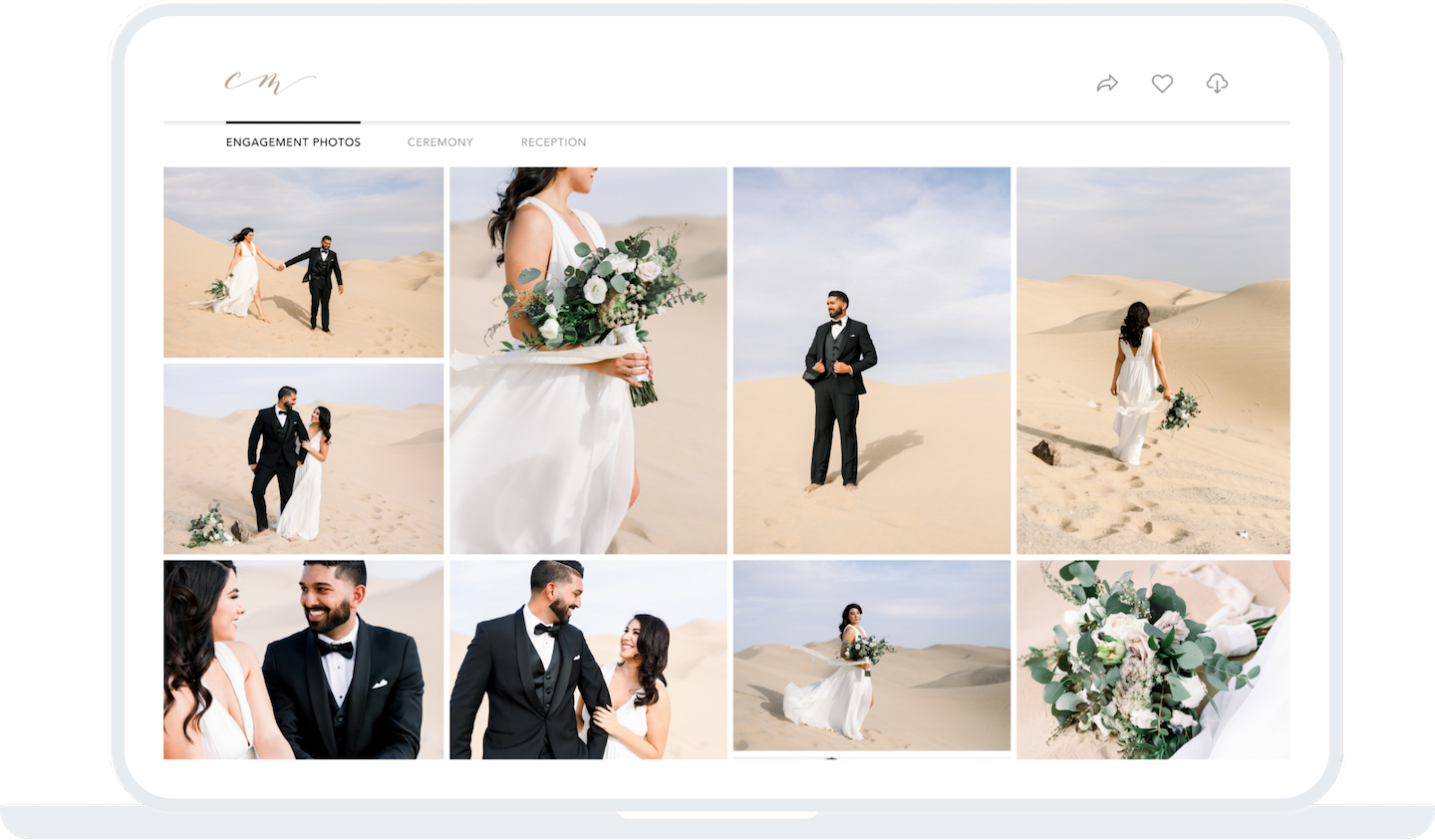
What Is Kubernetes?

Post Syndicated from Molly Clancy original https://www.backblaze.com/blog/what-is-kubernetes/

Do you remember when “Pokémon Go” came out in 2016? Suddenly it was everywhere. It was a world-wide obsession, with over 10 million downloads in its first week and 500 million downloads in six months. System load rapidly escalated to 50 times the anticipated demand. How could the game architecture support such out-of-control hypergrowth?

The answer: At release time, Pokémon Go was “The largest Kubernetes deployment on Google Container Engine.” Kubernetes is a container orchestration tool that manages resources for dynamic web-scale applications, like “Pokémon Go.”

In this post, we’ll take a look at what Kubernetes does, how it works, and how it could be applicable in your environment.

What Is Kubernetes?

You may be familiar with containers. They’re conceptually similar to lightweight virtual machines. Instead of simulating computer hardware and running an entire operating system (OS) on that simulated computer, the container runs applications under a parent OS with almost no overhead. Containers allow developers and system administrators to develop, test, and deploy software and applications much faster than VMs, and most applications today are built with them.

But what happens if one of your containers goes down, or your ecommerce store experiences high demand, or if you release a viral sensation like “Pokémon Go”? You don’t want your application to crash, and you definitely don’t want your store to go down during the Christmas crush. Unfortunately, containers don’t solve those problems. You could implement intelligence in your application to scale as needed, but that would make your application a lot more complex and expensive to implement. It would be simpler and faster if you could use a drop-in layer of management—a “fleet manager” of sorts—to coordinate your swarm of containers. That’s Kubernetes.

Kubernetes Architecture: How Does Kubernetes Work?

Kubernetes implements a fairly straightforward hierarchy of components and concepts:

  • Containers: Virtualized environments where the application code runs.
  • Pods: “Logical hosts” that contain and manage containers, and potentially local storage.
  • Nodes: The physical or virtual compute resources that run the container code.
  • Cluster: A grouping of one or more nodes.
  • Control Plane: Manages the worker nodes and Pods in the cluster.

You have a few options to run Kubernetes. The minikube utility launches and runs a small single-node cluster locally for testing purposes. And you can control Kubernetes with any of several control interfaces: the kubectl command provides a command-line interface, and library APIs and REST endpoints provide programmable interfaces.

What Does Kubernetes Do?

Modern web-based applications are commonly implemented with “microservices,” each of which embodies one part of the desired application behavior. Kubernetes distributes the microservices across Pods. Pods can be used two ways—to run a single container (the most common use case) or to run multiple containers (like a pod of peas or a pod of whales—a more advanced use case). Kubernetes operates on the Pods, which act as a sort of wrapper around the container(s) rather than the containers themselves. As the microservices run, Kubernetes is responsible for managing the application’s execution. Kubernetes “orchestrates” the Pods, including:

  • Autoscaling: As more users connect to the application’s website, Kubernetes can start up additional Pods to handle the load.
  • Self-healing: If the code in a Pod crashes, or if there is a hardware failure, Kubernetes will detect it and restart the code in a new Pod.
  • Parallel worker processes: Kubernetes distributes the Pods across multiple nodes to benefit from parallelism.
  • Load balancing: If one server gets overloaded, Kubernetes can balance the load by migrating Pods to other nodes.
  • Storage orchestration: Kubernetes lets you automatically mount persistent storage, say a local device or cloud-based object storage.

The beauty of this model is that the applications don’t have to know about the Kubernetes management. You don’t have to write load-balancing functionality into every application, or autoscaling, or other orchestration logic. The applications just run simplified microservices in a simple environment, and Kubernetes handles all the management complexity.

As an example: You write a small reusable application (say, a simple database) on a Debian Linux system. Then you could transfer that code to an Ubuntu system and run it, without any changes, in a Debian container. (Or, maybe you just download a database container from the Docker library.) Then you create a new application that calls the database application. When you wrote the original database on Debian, you might not have anticipated it would be used on an Ubuntu system. You might not have known that the database would be interacting with other application components. Fortunately, you didn’t have to anticipate the new usage paradigm. Kubernetes and containers isolate your code from the messy details.

Keep in mind, Kubernetes is not the only orchestration solution—there’s Docker Swarm, Hashicorp’s Nomad, and others. Cycle.io, for example, offers a simple container orchestration solution that focuses on ease for the most common container use cases.

Implementing Kubernetes: External Storage Required

Kubernetes spins up and spins down Pods as needed. Each Pod can host its own internal storage (as shown in the diagram above), but that’s not often used. A Pod might get discarded because the load has dropped, or the process crashed, or for other reasons. The Pods (and their enclosed containers and volumes) are ephemeral, meaning that their state is lost when they are destroyed. But most applications are stateful. They couldn’t function in a transitory environment like this. In order to work in a Kubernetes environment, the application must store its state information externally, outside the Pod. A new instance (a new Pod) must fetch the current state from the external storage when it starts up, and update the external storage as it executes.

You can specify the external storage when you create the Pod, essentially mounting the external volume in the container. The container running in the Pod accesses the external storage transparently, like any other local storage. Unlike local storage, though, cloud-based object storage is designed to scale almost infinitely right alongside your Kubernetes deployment. That’s what makes object storage an ideal match for applications running Kubernetes.

When you start up a Pod, you can specify the location of the external storage. Any container in the Pod can then access the external storage like any other mounted file system.

Kubernetes in Your Environment

While there’s no doubt a learning curve involved (Kubernetes has sometimes been described as “not for normal humans”), container orchestrators like Kubernetes, Cycle.io, and others can greatly simplify the management of your applications. If you use a microservice model, or if you work with similar cloud-based architectures, a container orchestrator can help you prepare for success from day one by setting your application up to scale seamlessly.

The post What Is Kubernetes? appeared first on Backblaze Blog | Cloud Storage & Cloud Backup.
What Are Software Containers?

Post Syndicated from Molly Clancy original https://www.backblaze.com/blog/what-are-containers/

A decorative image showing shipping containers in a lightbox.

You’re probably familiar with containers if you’re even remotely involved in software development or systems administration. In their 2023 survey, the Cloud Native Computing Foundation found that over 90% organizations use containers in production. Additionally, more than 90% of organizations that rely on cloud native practices for most or all of their application development and deployment also depend on containers. 

But, whether orchestrating containers is a regular part of your day-to-day life, or you are just trying to understand what an operating system kernel is, it helps to have an understanding of some container basics.

Today, we’re explaining what containers are, how they’re used, and how cloud storage fits into the container picture—all in one neat and tidy containerized blog post package. (And, yes, the kernel is important, so we’ll get to that, too).

What are containers?

Containers are packaged units of software that contain all of the dependencies (e.g. binaries, libraries, programming language versions, etc.) they need to run no matter where they live—on a laptop, in the cloud, or in an on-premises data center. That’s a fairly technical definition, so you might be wondering, “OK, but what are they really?”

The generally accepted definition of the term applies almost exactly to what the technology does.

A container, generally = a receptacle for holding goods; a portable compartment in which freight is placed (as on a train or ship) for convenience of movement.

A container in software development = a figurative “receptacle” for holding software. The second part of the definition applies even better—shipping containers are often used as a metaphor to describe what containers do. In shipping, instead of stacking goods in a jumbled pile, goods are packed into standard-sized containers that fit on whatever is hauling them—a ship, a train, or a trailer.

Likewise, instead of “shipping” an unwieldy mess of code, including the required operating system, containers package software into lightweight units that share the same operating system (OS) kernel and can run anywhere—on a laptop, on a server, in the cloud, etc.

What’s an OS kernel?

As promised, here’s where the OS kernel becomes important. The kernel is the core programming at the center of the OS that controls all other parts of the OS. The term makes sense if you consider the definition of “kernel” as “the central or essential part” as in “a kernel of truth.” (It also begs the question, “Why didn’t they just call it a colonel?” especially because it’s in charge of so many things… But that’s neither here nor there.) And now you know what an OS kernel does.

Compared to older virtualization technology, namely virtual machines which are measured in gigabytes, containers are only megabytes in size. That means you can run quite a few of them on a given computer or server much like you can stack many containers onto a ship.

Indeed, the founders of Docker, the software that sparked widespread container adoption, looked to the port of Oakland, California for inspiration. Former Docker CEO, Ben Golub, explained in an interview with InfoWorld, “We could see all the container ships coming into the port of Oakland, and we were talking about the value of the container in the world of shipping. The fact it was easier to ship a car from one side of the world than to take an app from one server to another, that seemed like a problem ripe for solving.” In fact, it’s right there in their logo.

And that is exactly what containers, mainly via Docker’s popularity, did—they solved the problem of environment inconsistency for developers. Before containers became widely used, moving software between environments meant things broke, a lot. If a developer wrote an app on their laptop, then moved it into a testing environment on a server, for example, everything had to be the same—same versions of the programming language, same permissions, same database access, etc. If not, you had a very sad app.

Virtualization 101

Containers work their magic by way of virtualization. Virtualization is the process of creating a simulated computing environment that’s abstracted from the physical computing hardware—essentially a computer-generated computer, also referred to as a software-defined computer.

The first virtualization technology to really take off was the virtual machine (VM). A VM sits atop a hypervisor—a lightweight software layer that allows multiple operating systems to run in tandem on the same hardware. VMs allow developers and system administrators to make the most of computing hardware. Before VMs, each application had to run on its own server, and it probably didn’t use the server’s full capacity. After VMs, you could use the same server to run multiple applications, increasing efficiency and lowering costs.

Containers vs. virtual machines

While VMs increase hardware efficiency, each VM requires its own OS and a virtualized copy of the underlying hardware. Because of this, VMs can take up a lot of system resources, and they’re slow to start up.

Containers, on the other hand, do not virtualize the hardware. Instead, they share the host operating system’s kernel, making them much smaller and faster than VMs. Want to know more? Check out our deep dive into the differences between VMs and containers.

chart of how Containers stack on a server

The benefits of containers

Containers allow developers and system administrators to develop, test, and deploy software and applications faster and more efficiently than older virtualization technologies like VMs. The benefits of containers include:

  1. Portability: Containers include all of the dependencies they need to run in any environment, provided that environment includes the appropriate OS. This reduces the errors and bugs that arise when moving applications between different environments, increasing portability.
  2. Size: Containers share OS resources and don’t include their own OS image, making them lightweight—megabytes compared to VMs’ gigabytes. As such, one machine or server can support many containers.
  3. Speed: Again, because they share OS resources and don’t include their own OS image, containers can be spun up in seconds compared to VMs which can take minutes to spin up.
  4. Resource efficiency: Similar to VMs, containers allow developers to make the best use of hardware and software resources.
  5. Isolation: Also similar to VMs, with containers, different applications or even component parts of a singular application can be isolated such that issues like excessive load or bugs on one don’t impact others.

Container use cases

Containers are nothing if not versatile, so they can be used for a wide variety of use cases. However, there are a few instances where containers are especially useful:

  1. Enabling microservices architectures: Before containers, applications were typically built as all-in-one units or “monoliths.” With their portability and small size, containers changed that, ushering in the era of microservices architecture. Applications could be broken down into their component “services,” and each of those services could be built in its own container and run independently of the other parts of the application. For example, the code for your application’s search bar can be built separately from the code for your application’s shopping cart, then loosely coupled to work as one application.
  2. Supporting modern development practices: Containers and the microservices architectures they enable paved the way for modern software development practices. With the ability to split applications into their component parts, each part could be developed, tested, and deployed independently. Thus, developers can build and deploy applications using modern development approaches like DevOps, continuous integration/continuous deployment (CI/CD), and agile development.
  3. Facilitating hybrid cloud and multi-cloud approaches: Because of their portability, containers enable developers to utilize hybrid cloud and/or multi-cloud approaches. Containers allow applications to move easily between environments—from on-premises to the cloud or between different clouds.
  4. Accelerating cloud migration or cloud-native development: Existing applications can be refactored using containers to make them easier to migrate to modern cloud environments. Containers also enable cloud-native development and deployment.

The role of software containers in AI application development

In addition to enabling microservices architectures and supporting modern development practices, containers play a role in AI application development. Their ability to provide consistent, reproducible environments makes them ideal for AI, where managing complex dependencies and ensuring uniform performance across different platforms are essential. 

AI projects often rely on specific versions of libraries, drivers, and runtimes, which can lead to compatibility issues and errors. Containers solve this problem by encapsulating all necessary dependencies, libraries, and runtime environments to provide a consistent and reproducible platform for AI development. This encapsulation ensures that AI models and applications run the same way, regardless of the underlying infrastructure and provides consistency from development through production. 

The portability of containers also offers advantages for deploying AI workloads across diverse environments. They can be easily moved between local development machines, on-premises servers, and cloud platforms without requiring code or configuration changes. This flexibility supports easy scalability of AI applications to meet changing demands—such as increased user loads or the need for more intensive data processing. 

Additionally, containers enable organizations to leverage the most cost effective and powerful computing resources available, whether it’s local hardware for testing and development or cloud-based GPU clusters for training large-scale models. This ability moves workloads efficiently across different environments and also supports hybrid and multi-cloud strategies to provide organizations with greater agility, while reducing costs and avoiding vendor lock-in.

Container tools

The two most widely recognized container tools are Docker and Kubernetes. They’re not the only options out there, but in their 2023 developer survey, Stack Overflow found that nearly 52% out of 90,000+ respondents use Docker and 19% use Kubernetes. But what do they do?

1. What is Docker?

Container technology had been around for a while in the form of Linux containers or LXC, but the widespread adoption of containers happened only in the past decade with the introduction of Docker.

Docker was launched in 2013 as a project to build single-application LXC containers, introducing several changes to LXC that make containers more portable and flexible to use. It later morphed into its own container runtime environment. At a high level, Docker is a Linux utility that can efficiently create, ship, and run containers.

Docker introduced more standardization to containers than previous technologies and focused on developers, specifically, making it the de facto standard in the developer world for application development.

2. What is Kubernetes?

As containerization took off, many early adopters found themselves facing a new problem: how to manage a whole bunch of containers. Enter: Kubernetes. Kubernetes is an open-source container orchestrator. It was developed at Google (deploying billions of containers per week is no small task) as a “minimum viable product” version of their original cluster orchestrator, ominously named Borg. Today, it is managed by the Cloud Native Computing Foundation, and it helps automate management of containers including provisioning, load balancing, basic health checks, and scheduling.

Kubernetes allows developers to describe the desired state of a container deployment using YAML files (YAML stands for Yet Another Markup Language, which is yet another winning tech acronym.). The YAML file uses declarative language to tell Kubernetes “this is what this container deployment should look like” and Kubernetes does all the grunt work of creating and maintaining that state.

Containers + storage: What you need to know

Containers are inherently ephemeral or stateless. They get spun up, and they do their thing. When they get spun down, any data that was created while they were running is destroyed with them. But most applications are stateful, and need data to live on even after a given container goes away.

Object storage is inherently scalable. It enables the storage of massive amounts of unstructured data while still maintaining easy data accessibility. For containerized applications that depend on data scalability and accessibility, it’s an ideal solution for keeping stateful data stateful.

There are three essential use cases where object storage works hand in hand with containerized applications:

  1. Backup and disaster recovery: Tools like Docker and Kubernetes enable easy replication of containers, but replication doesn’t replace traditional backup and disaster recovery just as sync services aren’t a good replacement for backing up the data on your laptop, for example. With object storage, you can replicate your entire environment and back it up to the cloud. There’s just one catch: some object storage providers have retention minimums, sometimes up to 90 days. If you’re experimenting and iterating on your container architecture, or if you use CI/CD methods, your environment is constantly changing. With retention minimums, that means you might be paying for previous iterations much longer than you want to. (Shameless plug: Backblaze B2 Cloud Storage is calculated hourly, with no minimum retention requirement.)
  2. Primary storage: You can use a cloud object storage repository to store your container images, then when you want to deploy them, you can pull them into the compute service of your choice.
  3. Origin storage: If you’re serving out high volumes of media, or even if you’re just hosting a simple website, object storage can serve as your origin store coupled with a CDN for serving out content globally. For example, CloudSpot, a SaaS platform that serves professional photographers, moved to a Kubernetes cluster environment and connected it to their origin store in Backblaze B2, where they now keep 120+ million files readily accessible for their customers.

Need object storage for your containerized application?

Now that you have a handle on what containers are and what they can do, you can make decisions about how to build your applications or structure your internal systems. Whether you’re contemplating moving your application to the cloud, adopting a hybrid or multi-cloud approach, or going completely cloud native, containers can help you get there. And with object storage, you have a data repository that can keep up with your containerized workloads.

Ready to connect your application to scalable, S3-compatible object storage? You can get started today for free.

The post What Are Software Containers? appeared first on Backblaze Blog | Cloud Storage & Cloud Backup