If you haven’t been able to keep pace with the AI news cycle, you’d be forgiven. I work at a tech company, and it’s felt like bailing water with a teacup over the past few weeks. But the term that keeps rising to the top of the flotsam in the boat is this: reasoning models. The regular ol’ models that power ChatGPT, Gemini, and Claude are cool and all, but reasoning models are what you should keep an eye on as an enterprise tech leader, specifically DeepSeek and OpenAI.
In the spirit of our AI 101 series, I’ll do my level best to recap the finer points and decode some of the more esoteric terms you’re likely to encounter (Like: WTH is a “mixture of experts”? That sounds like a party I want to be invited to, but will definitely skip at the last minute.)
The reasoning model releases: OpenAI o1-mini, DeepSeek R1, and OpenAI o3-mini
The last few weeks and months have seen a flurry of activity in the AI space, with reasoning models taking center stage. The TL/DR is that reasoning models are LLMs that can self-correct before delivering a response to a prompt, though their turn time is a little longer than your standard LLM.
Here are the releases that you should know about.
OpenAI o1-mini: September 12, 2024
It seems like a lifetime ago, but OpenAI released its o1-mini model back in September. o1-mini wasn’t the first reasoning model to go to market (models from Google, DeepMind, Anthropic, and Meta dabbled in reasoning for specific tasks). But, it was more cost-efficient at inference—80% cheaper than the o1-preview model. What you need to know:
Yes, o1-preview and o1-mini were released at the same time—it’s confusing. Without getting into the weeds, here’s the difference: pricing. o1-preview was the most expensive OpenAI model on offer at $15/1M input tokens and $60/1M output tokens versus mini’s $3/1M input and $12/1M output. (You can think of tokens as units of data, like a prompt or a response, that are processed by the ML model.)
o1-preview (the expensive one) was purported at the time to perform “similarly to PhD students on challenging benchmark tasks in physics, chemistry, and biology.”
o1-mini (the 80% cheaper one) was designed to be particularly well-suited for coding tasks.
DeepSeek R1: January 20, 2025
Unless you’ve been under a rock, you’ve heard about this one. DeepSeek rattled the AI industry and financial markets with its release of R1, challenging OpenAI’s models on performance, pricing, and open-source availability. (We love a good open-source release.) What you need to know:
DeepSeek R1 delivers comparable results to OpenAI’s o1 models, both preview and mini, on math and coding benchmarks, while being trained on fewer GPUs—orders of magnitude fewer. Best guess estimates put it at around 60,000 GPUs, while industry leaders like OpenAI and Anthropic exceed 500k each.
This makes R1 much cheaper at $0.14/1M input tokens and $2.19/1M output tokens.
These efficiency claims could have far-reaching impacts for enterprises looking to build AI at a fraction of the cost. (The DeepSeek platform page has been down since we tasked one of our favorite tech evangelists with testing it, but stay tuned for a deep dive on how it works.)
OpenAI o3-mini: January 31, 2025
OpenAI previewed o3 in December, and brought it to GA just 11 days after DeepSeek joined the party. What you need to know:
o3-mini is intended for programming and STEM use cases.
I’m admittedly cherry picking these releases a bit to keep things simple. Suffice it to say, there are a lot of models, even within OpenAI’s o-series, but these are the ones of note at least as it pertains to recent events.
What is reasoning anyway?
You might see reasoning described as “thinking” before it delivers an answer, but do not be fooled. AI cannot yet “think” or, to be fair, “reason” in the ways that we apply those terms to humans. To describe what they actually do, I need to use a word salad of jargon. I’m sorry—definitions follow. Reasoning models leverage chain-of-thought prompting to guide decision-making, incorporating self-improvement mechanisms and using test-time thinking to make real-time adjustments.
Chain-of-thought (CoT) prompting: Models break problems into logical steps (e.g., solving math problems via intermediate equations)
Self-improvement mechanisms: Techniques like the Self-Taught Reasoner (STaR) enable iterative refinement of reasoning through automated feedback loops.
Test-time thinking: Models can make decisions during deployment based on real-time inputs, rather than relying solely on pre-trained models or fixed strategies.
Here are a few more terms you might come across for good measure:
Inference compute: The computational power needed to run a reasoning model and generate predictions or outputs based on new data after the model has been trained.
Mixture of experts approach: Using multiple specialized models (“experts”) that handle different tasks, and applying a gating mechanism to select the most relevant expert to use to make predictions based on the input data. Of note: DeepSeek used this approach to create efficiencies.
Distillation: Using inputs and outputs from one model to train another model. Of note: OpenAI alleges this is how DeepSeek “stole” its IP.
This is all pretty cool, if linguistically painful, stuff, and it means that reasoning models are shifting perceptions of model capabilities. But they’re not without persistent challenges. Like other LLMs, they still struggle with complex reasoning failures, lack of training transparency, and cognitive biases.
Why should you care?
If the past two weeks (and, really, the past two years) are any indication, AI innovation will continue its blistering pace. Reasoning models, and LLMs in general, will become diverse and specialized for narrower tasks as the core technology is increasingly commoditized and cheapened. And, it’s worth noting that this is a totally normal—and expected—lifecycle when it comes to new technology.
What does it all mean for enterprises looking to build AI into their operations? Two key takeaways:
Don’t overcommit on any one toolset or investment: Test out OpenAI, DeepSeek, Gemini, Alibaba’s Qwen, and others. And, stay ahead of the changing landscape and new models—stay nimble, and keep experimenting.
Take care of your data: What makes these models valuable for your company isn’t so much their capabilities, but your data. You need to retain it in storage that’s reliable, easy to access, and doesn’t lock you out of AI experimentation with exorbitant egress fees.
Even as AI models get better, having those fundamentals in place can only help your business and set you up to better leverage AI when it’s right for your operations.
Editor’s Note: This post was originally published in 2016 and has since been updated in 2022 and 2023 with the latest information on RAM vs. storage.
Memory is a finite resource when it comes to both humans and computers—it’s one of the most common causes of computer issues. And if you’ve ever left the house without your keys, you know memory is one of the most common human problems, too.
If you’re unclear about the different types of memory in your computer, it makes pinpointing the cause of computer problems that much harder. You might hear folks use the terms memory and storage interchangeably, but there are some important differences. Understanding how both components work can help you understand what kind of computer you need, diagnose problems you’re having, and know when it’s time to consider upgrades.
The Difference Between RAM and Storage
Random access memory (RAM) and storage are both forms of computer memory, but they serve different functions.
What Is RAM?
RAM is volatile memory used by the computer’s processor to store and quickly access data that is actively being used or processed. Volatile memory maintains data only while the device is powered on. RAM takes the form of computer chips—integrated circuits—that are either soldered directly onto the main logic board of your computer or installed in memory modules that go in sockets on your computer’s logic board.
You can think of it like a desk—it’s where your computer gets work done. When you double-click on an app, open a document, or do much of anything, part of your “desk” is covered and can’t be used by anything else. As you open more files, it is like covering your desk with more and more items. Using a desk with a handful of files is easy, but a desk that is covered with a bunch of stuff gets difficult to use.
What Is Computer Storage?
On the other hand, storage is used for long-term data retention, like a hard disk drive (HDD) or solid state drive (SSD). Compared with RAM, this type of storage is non-volatile, which means it retains information even when a device is powered off. You can think of storage like a filing cabinet—a place next to your desk where you can retrieve information as needed.
RAM vs. Storage: How Do They Compare?
Speed and Performance
Two of the primary differences between RAM and storage are speed and performance. RAM is significantly faster than storage. Data stored in RAM can be written and accessed almost instantly, so it’s very fast—milliseconds fast. DDR4 RAM, one of the newer types of RAM technology, is capable of a peak transfer rate of 25.6GB/s! RAM has a very fast path to the computer’s central processing unit (CPU), the brain of the computer that does most of the work.
Storage, as it’s slower in comparison, is responsible for holding the operating system (OS), applications, and user data for the long term—it should still be fast, but it doesn’t need to be as fast as RAM.
That said, computer storage is getting faster thanks to the popularity of SSDs. SSDs are much faster than hard drives since they use integrated circuits instead of mechanical platters that have to be read sequentially, like HDDs. SSDs use a special type of memory circuitry called non-volatile RAM (NVRAM) to store data, so those shorter term memory access points stay in place even when the computer is turned off.
Even though SSDs are faster than HDDs, they’re still slower than RAM. There are two reasons for that difference in speed. First, the memory chips in SSDs are slower than those in RAM. Second, there is a bottleneck created by the interface that connects the storage device to the computer. RAM, in comparison, has a much faster interface.
Capacity and Size
RAM is typically smaller in capacity compared to storage. It is measured in gigabytes (GB) or terabytes (TB), whereas storage capacities can reach multiple terabytes or even petabytes. The smaller size of RAM is intentional, as it is designed to store only the data currently in use, ensuring quick access for the processor.
Volatility and Persistence
Another key difference is the volatility of RAM and the persistence of storage. RAM is volatile, meaning it loses its data when the power is turned off or the system is rebooted. This makes it ideal for quick data access and manipulation, but unsuitable for long-term storage. Storage is non-volatile or persistent, meaning it retains data even when the power is off, making it suitable for holding files, applications, and the operating system over extended periods.
How Much RAM Do I Have?
Understanding how much RAM you have might be one of your first steps for diagnosing computer performance issues.
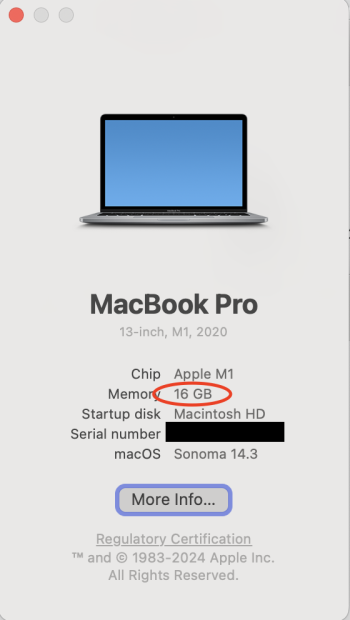
Use the following steps to confirm how much RAM your computer has installed. We’ll start with an Apple computer. Click on the Applemenu and then click About This Mac. In the screenshot below, we can see that the computer has 16GB of RAM.
How much RAM on macOS (Apple menu > About This Mac).
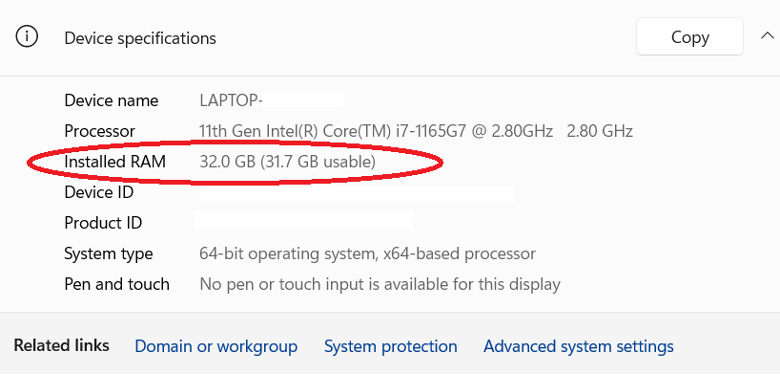
With a Windows 11 computer, use the following steps to see how much RAM you have installed. Open the Control Panel by clicking the Windows button and typing “control panel,” then click System and Security, and then click System. Look for the line “Installed RAM.” In the screenshot below, you can see that the computer has 32GB of RAM installed.
How much RAM on Windows 11 (Control Panel > System and Security > System).
How Much Computer Storage Do I Have?
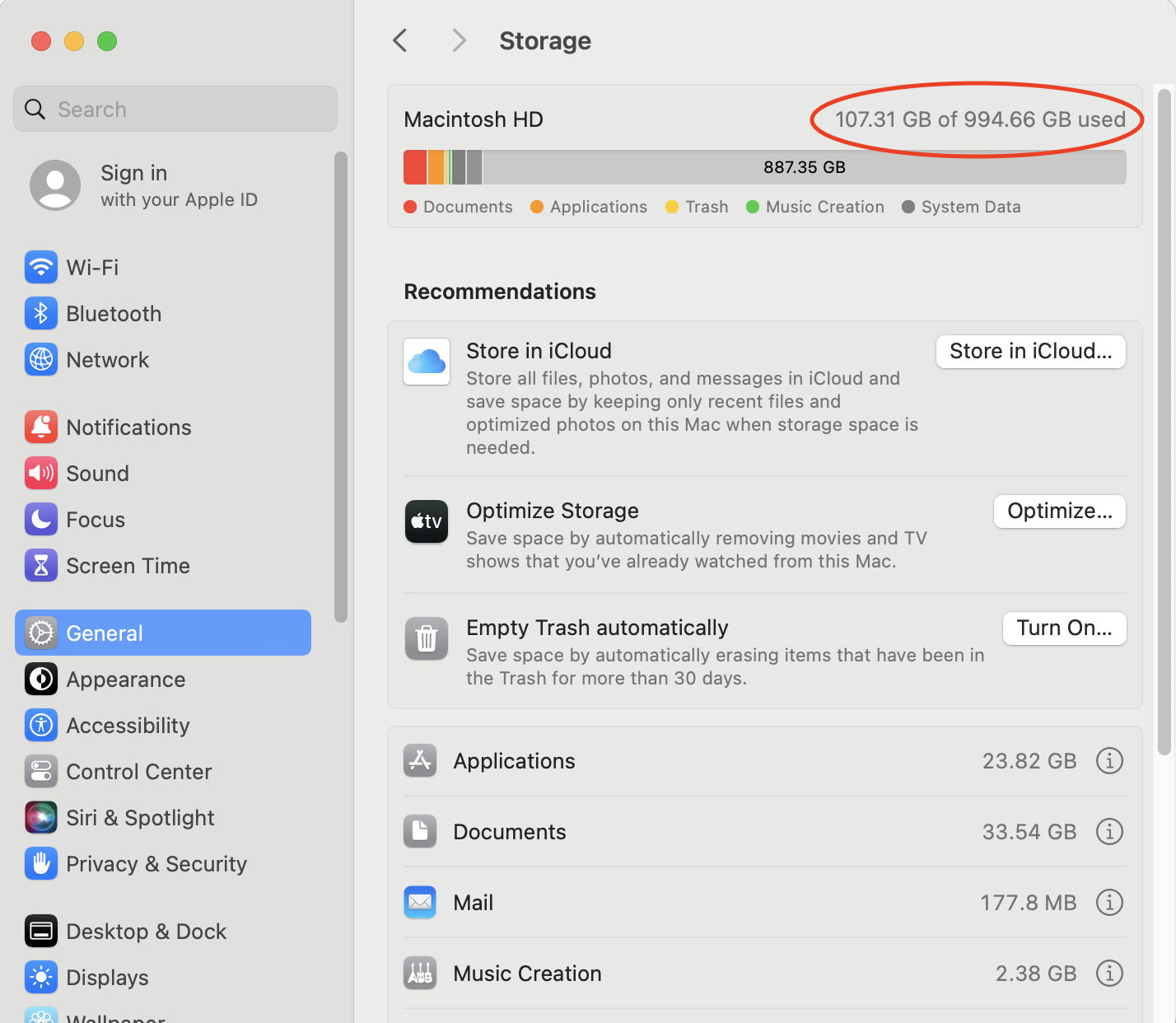
To view how much free storage space you have available on a Mac computer, use these steps. Click on the Apple menu, then System Settings, select General, and then open Storage. In the screenshot below, we’ve circled where your available storage is displayed.
Disk space on Mac OS (Apple Menu > System Settings > General > Storage).
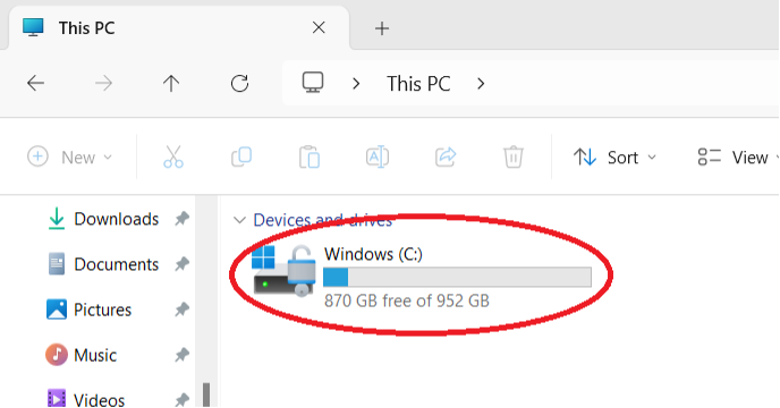
With a Windows 11 computer, it is also easy to view how much available storage space you have. Click the Windows button and type in “file explorer.” When File Explorer opens, click on This PC from the list of options in the left-hand pane. In the screenshot below, we’ve circled where your available storage is displayed (in this case, 200GB).
Disk Space on Windows 10 (File Explorer > This PC).
How RAM and Storage Affect Your Computer’s Performance
RAM
For most general-purpose uses of computers—email, writing documents, surfing the web, or watching Netflix—the RAM that comes with our computer is enough. If you own your computer for a long enough time, you might need to add a bit more to keep up with memory demands from newer apps and OSes. Specifically, more RAM makes it possible for you to use more apps, documents, and larger files at the same time.
People that work with very large files like large databases, videos, and images can benefit significantly from having more RAM. If you regularly use large files, it is worth checking to see if your computer’s RAM is upgradeable.
Adding More RAM to Your Computer
In some situations, adding more RAM is worth the expense. For example, editing videos and high-resolution images takes a lot of memory. In addition, high-end audio recording and editing as well as some scientific work require significant RAM.
However, not all computers allow you to upgrade RAM. For example, the Chromebook typically has a fixed amount of RAM, and you cannot install more. So, when you’re buying a new computer—particularly if you plan on using that computer for more than five years, make sure to 1) understand how much RAM your computer has, and, 2) if you can upgrade the computer’s RAM.
When your computer’s RAM is filled up, your computer has to get creative to keep working. Specifically, your computer starts to temporarily use your hard drive or SSD as “virtual memory.” If you have relatively fast storage like an SSD, virtual memory will be fast. On the other hand, using a traditional hard drive will be fairly slow.
Storage
Besides RAM, the most serious bottleneck to improving performance in your computer can be your storage. Even with plenty of RAM installed, computers need to read and write information from the storage system (i.e., the HDD or the SSD).
Hard drives come in different speeds and sizes. For laptops and desktops, the most common RPM rates are between 5400–7200RPM. In some cases, you might even decide to use a 10,000RPM drive. Faster drives cost more, are louder, have greater cooling needs, and use more power, but they may be a good option.
Today, SSDs are becoming increasingly popular for computer storage. This type of computer storage is popular because it is faster, cooler, and takes up less space than traditional hard drives. They’re also less susceptible to magnetic fields and physical jolts, which makes them great for laptops.
As a user’s disk storage needs increase, typically they will look to larger drives to store more data. The first step might be to replace an existing drive with a larger, faster drive. Or you might decide to install a second drive. One approach is to use different drives for different purposes. For example, use an SSD for the operating system, and then store your business videos on a larger SSD.
If more storage space is needed, you can also use an external drive, most often using USB or Thunderbolt to connect to the computer. This can be a single drive or multiple drives and might use a data storage virtualization technology such as RAID to protect the data.
If you have really large amounts of data, or simply wish to make it easy to share data with others in your location or elsewhere, you might consider network-attached storage (NAS). A NAS device can hold multiple drives, typically uses a data virtualization technology like RAID, and is accessible to anyone on your local network and—if you wish—on the internet, as well. NAS devices can offer a great deal of storage and other services that typically have been offered only by dedicated network servers in the past.
Back Up Early and Often
As a cloud storage company, we’d be remiss not to mention that you should back up your computer. No matter how you configure your computer’s storage, remember that technology can fail (we know a thing or two about that). You always want a backup so you can restore everything easily. The best backup strategy shouldn’t be dependent on any single device, either. Your backup strategy should always include three copies of your data on two different mediums with one off-site.
FAQs About Differences Between RAM and Storage
What is the difference between internal storage and RAM and internal storage?
Internal storage is a method of data storage that writes data to a disk, holding onto that data until it’s erased. Think of it as your computer’s brain. RAM is a method of communicating data between your device’s CPU and its internal storage. Think of it as your brain’s short-term memory and ability to multi-task. The data the RAM receives is volatile, so it will only last until it’s no longer needed, usually when you turn off the power or reset the computer.
Is it better to have more RAM or more storage?
If you’re looking for better PC performance, you can upgrade either RAM or storage for a boost in performance. More RAM will make it easier for your computer to perform multiple tasks at once, while upgrading your storage will improve battery life, make it faster to open applications and files, and give you more space for photos and applications. This is especially true if you’re switching your storage from a hard disk drive (HDD) to a solid state drive (SSD).
Does RAM give you more storage?
More RAM does not provide you with more free space. If your computer is giving you notifications that you’re getting close to running out of storage or you’ve already started having to delete files to make room for new ones, you should upgrade the internal storage, not the RAM.
Is memory and storage the same?
Memory and storage are also not the same thing, even though the words are often used interchangeably. Memory is another term for RAM.
Everyone has their arsenal of indispensable gadgets and apps they absolutely couldn’t live without, and we had a feeling the folks here at Backblaze would have a lot to say about the subject. We tapped the smart, savvy minds that keep our storage cloud up and running, and discovered a treasure trove of insights into the tech essentials that power their daily lives.
From budgeting apps to text editors to humble charging jacks, our staff share the tools they can’t live without. So, without further ado, let’s dig into the gear that keeps our collective gears turning:
As a Mac guy, I love my Airpod Pros and the way they work seamlessly with my iPhone, Macbook Pro, and iPad. But things get a little wonky when you try to use them outside of the Apple ecosystem. I tried many different wireless earbuds and settled on the Anker Soundcore Space A40 Earbuds. I’m a big fan of The Wirecutter by the New York Times (and they’re big fans of us) and they had these at the top of their list. I love the sound quality, noise canceling, and excellent battery life. My Airpod Pros are still my go to when I’m out of the house, but when I need a good headset at home for my PC and other non-Apple devices, these have become my go to earbuds.
You know what I hate? Getting my phone out at inopportune times. You know what I don’t mind so much? Glancing down at my Google Pixel Watch to see that the cold call I’m receiving is being answered by my phone’s call screening and I don’t have to pick it up. Whether it’s the first version or the second, I have grown accustomed to having something on my wrist that acts as an extension of my phone. True digital bliss.
I use my webcam a LOT: Zoom and Google Meet with coworkers, FaceTime with family and friends, webinars with the Backblaze community of developers and admins, and quick-start videos for the Backblaze YouTube channel. Ever since I got my PlexiCam Pro mount about a year ago, it’s been my secret weapon in every one of those interactions. It’s a transparent plexiglass webcam mount that hangs from the top edge of my monitor, allowing me to position my webcam in my eyeline, just above my focus. To anyone on the call, I appear to be looking directly into the camera.
At $85, it’s not cheap, but it’s well designed and constructed, and feels like it will last forever. Highly recommended for anyone who spends a lot of time flicking their eyes between the screen and the webcam!
Ah, the age old debate of Emacs versus Vim: the two most widely used editors for Linux operating systems. I solidly planted my flag on team Vim once I learned how to save and exit the program. 😉
I do aspire to one day having a computer that only runs Emacs because byte compiled Emacs is cool to me. Until I graduate to that level of wizardry, I stick to Neovim when I need to quickly edit something from a terminal or want to appear cool in front of my coworkers. I mostly use the Vim extension in Intellij for day-to-day modifying of code and configs. If you would like to also learn Vim, I really enjoyed playing through Vim Adventures, which is a free game that teaches you a lot of the shortcuts and movements in Vim.
Continuing the discussion in favor of Vim, specifically Neovim. You only have to learn the keybindings once. There is a fantastic set of plugins to customize it to your heart’s content—Visual Studio Code has VSCodeVim, Intellij has IdeaVim, for example. Then you don’t have to relearn keybindings while switching between languages, projects, and code.
Tmux the terminal multiplexer: like Vim, it may have a steep learning curve but once you learn it you can’t live without it. The tmux wiki has some great getting started guides. I strongly recommend remapping the leader key (mine is Caps + A, or Caps Lock + A on Windows keyboards). You can set up customized tmux scripts to re-create all your environments (one session for server code, another for a different codebase, another for your notes, and so on). Each session then has multiple windows which you can create, split, and close quickly, no need to leave your keyboard.
For web technologies, learn the toolset available in the browser developer tools. Remember to preserve logs filter to specific responses so you won’t be overwhelmed looking at messages.
Stepping away from the browser and back into the terminal, learn Curl and ag or rg. For every “old” unix command there’s likely a modern replacement that’s 100s of times faster with much more customization available.
But there’s always the middle ground for situations where you may need to initiate a complex series of browser–webapp interactions and you need to modify or test something quickly. To do this, learn how to use Burp. In the long run it’s well worth it. It makes it a breeze to modify data between the browser and your app.
Last tip: for native code, just learn how to use the debugger.
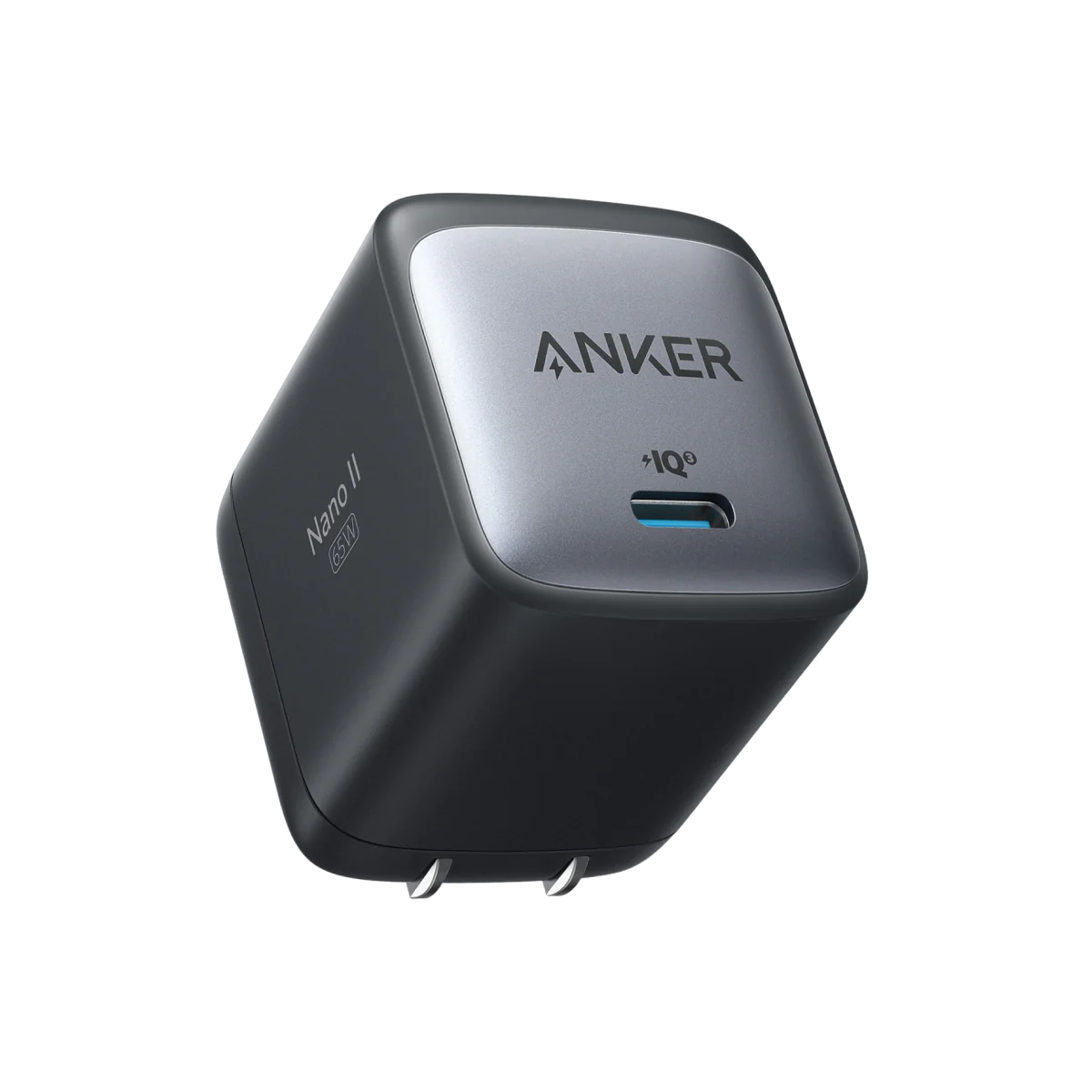
One power adapter to rule them all: the Anker 715 Charger (Nano II 65W). This one little power adapter can power my personal laptop, work laptop, headphones, and more. With one cable, one small charger cube, and a few small USB end adapters, I can charge everything.
A Roku. I use it at home for streaming apps, but I also carry one in my travel bag. There’s nothing worse than flipping through basic cable channels in a hotel when you’re traveling. Wait, yes there is—signing in to Netflix on the hotel TV and forgetting to sign out. If I travel with it, I just plug it in and I’m already signed in to all my apps.
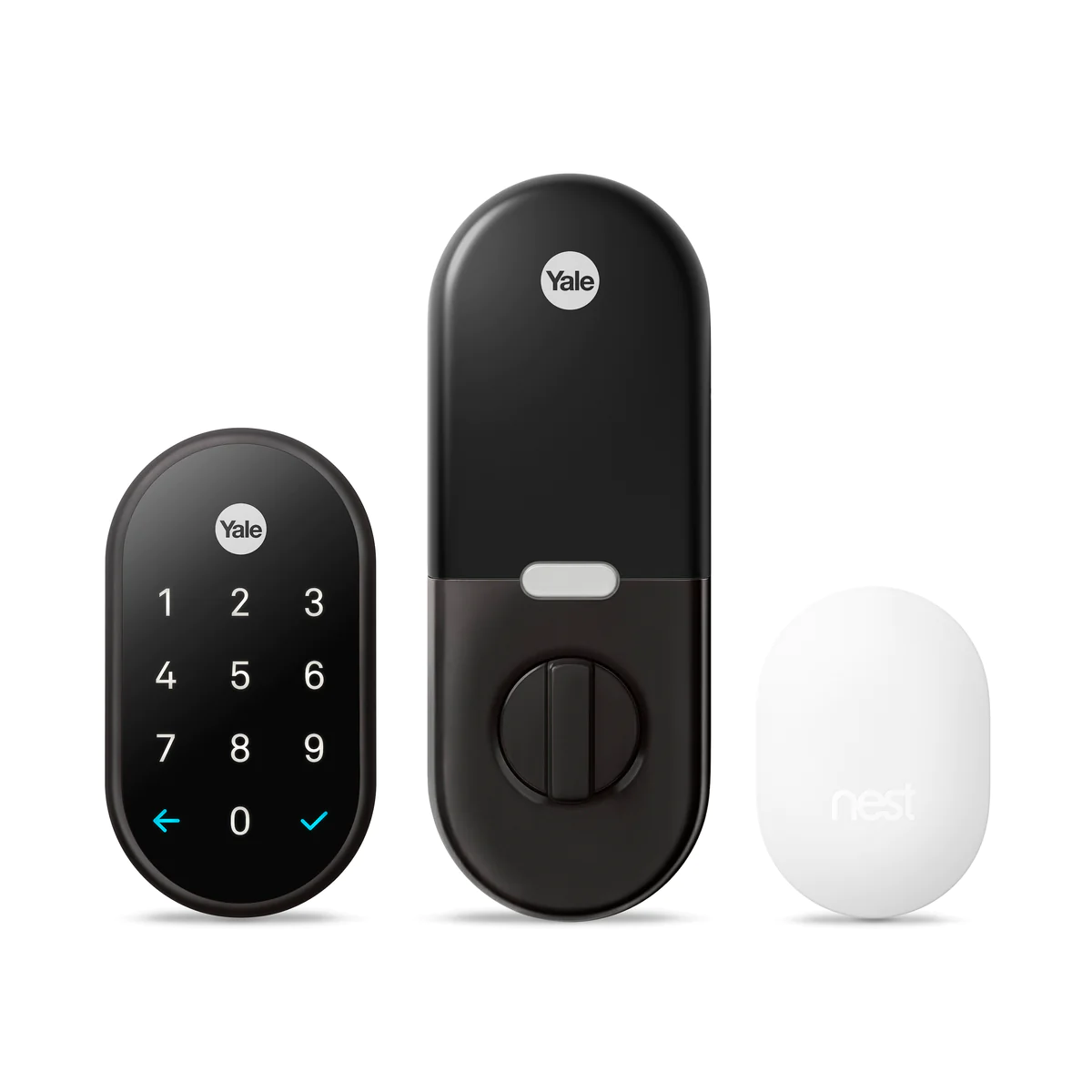
I got tired of locking myself out of my own house and forgetting who I gave spare keys to, so I really appreciate this Yale Lock with Nest Connect. It works with the Nest cameras that I mostly use to see whether the UPS or DoorDash delivery person has the nerve to ring my doorbell. (Drop it and run, people!)
It’s secure and easy-to-use; no more locking myself out of my own house in the middle of winter. I can give a code to a friend so they can feed my cats while I’m away, or create temporary passcodes so I don’t have to wait around for the cable guy.
I have a hard time turning my brain off at night, so I used to pop in earbuds to listen to something soothing (not comfortable at all!). Then I got this Cozyband as a gift and became 100% addicted to it. I CAN fall asleep without it, but I don’t do it willingly. It’s also good for working out if you hate sweaty earbuds slipping out all the time.
It gets cold in my home, and I don’t necessarily want to heat the whole place when it’s just me. A good old fashioned heated blanket does the trick. All the tech in the world won’t help you when you’re shivering.
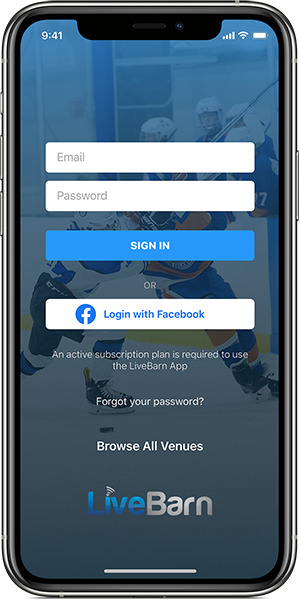
As a working mom with two boys, I am always on the go. Both of my boys are now playing for AAA travel teams. I try my best to keep up with all their games, and LiveBarn is how I stay connected to them. It allows me to pull up a live feed or on-demand video of the game. Last weekend was a great example: they were playing at two different rinks across town. I was able to pull up one game on LiveBarn on my phone, and watch both games literally at the same time. When my older son came home and asked me if I saw his goal, I was able to say, “I heard Coach yell, ‘Nice shot, Newy!’”
My life changed when I adopted a password manager years ago. Before I went back to full-time corporate life in 2020, I freelanced quite a bit—which means an endless series of logins and passwords, depending on how you’re engaging with your clients. And, while I enjoy making up 13–15 character passphrases with a mix of upper and lowercase letters, at least one symbol with some outlawed symbols (but different ones on each site), and then remembering which ones I’ve used for which accounts without reusing them… Oh wait, I actually really don’t like that. I’d rather have a password manager like Bitwarden that can generate passwords, follows me device to device, and allows me to enable biometric controls. And, spoiler alert for any of my family members who diligently read my work (I’m sure): This year the whole family is getting a subscription as a gift, and I can centrally manage it for my non-tech-inclined family members.
I’m not going into the story of how I got hooked on this app, but I will tell you that CENTR’s meal planning tool is a life saver. You can set a crazy variety of dietary needs, select your meals and portions for a week, and it spits out a perfectly organized shopping list. Then, when you want to make a meal, you just pop into the app and it tells you exactly how to look like you know what you’re doing in the kitchen. It’s sort of pricey, but the amount of money I save by not ordering in or wasting food that I bought without a plan more than makes up for it.
And, oh yeah, Chris Hemsworth is one of its founders.
Hoping on the app train here. The one I can’t live without is definitely YNAB. I’m trying to get better at budgeting ahead (and get my husband and I on the same page—haha!) and I like their philosophical approach to a typically boring subject.
I don’t have a favorite tech thing. I certainly use lots of them, but I would not be lost without them because I was raised without any of the current tech. I know how to tie my shoes without watching a Youtube video. Just sayin’.
But, you know, just in case.
Thanks, Andy
Leave it to Andy to send us off with a reminder to put the tech down sometimes, as we hope you all get a chance to do this holiday season. But, we also want to know: what’s the tech that you can’t live without? Let us know in the comments.
Two announcements had the Backblaze #social Slack channel blowing up this week, both related to “Storage Technologies of the Future.” The first reported “Video of Ceramic Storage System Surfaces Online” like some kind of UFO sighting. The second, somewhat more restrained announcement heralded the release of DNA storage cards available to the general public. Yep, you heard that right—coming to a Best Buy near you. (Not really. You absolutely have to special order these babies, but they ARE going to be for sale.)
We talked about DNA storage way back in 2015. It’s been nine years, so we thought it was high time to revisit the tech and dig into ceramics as well. (Pun intended.)
What Is DNA Storage?
The idea is elegant, really. What is DNA if not an organic, naturally occuring form of code?
DNA consists of four nucleotide bases: adenine (A), thymine (T), cytosine (C), and guanine (G).
In DNA storage, information is encoded into sequences of these nucleotide bases. For example, A and C might represent 0, while T and G represent 1. This encoding allows digital data, such as text, images, or other types of information, to be translated into DNA sequences. Cool!
The appeal of DNA as a storage medium lies in its density and stability, as well as its ability to store vast amounts of information in a very compact space. It also boasts remarkable durability, with the ability to preserve information for thousands of years under suitable conditions. I mean, leave it to Mother Nature to put our silly little hard drives to shame.
Back in 2015, we shared that the storage density of DNA was about 2.2 petabytes per gram. In 2017, a study out of Columbia University and the New York Genome Center put it at an incredible 215 petabytes per gram. For comparison’s sake, a WDC 22TB drive (WDC WUH722222ALE6L4) that we currently use in our data centers is 1.5 pounds or 680 grams, which nets out at 0.032TB/gram or 0.000032PB/gram.
Another major advantage is its sustainability. Estimated global data center electricity consumption in 2022 was 240–340 TWh1, or around 1–1.3% of global final electricity demand. Current data storage technology uses rare earth metals which are environmentally damaging to mine. Drives take up space, and they also create e-waste at the end of their lifecycle. It’s a challenge anyone who works in the data storage industry thinks about a lot.
DNA storage, on the other hand, requires less energy. A 2023 study found that data writing can be achieved in the DNA movable-type storage system under normal operating temperatures ranging from about 60–113°F and can be stored at room temperature. DNA molecules are also biodegradable and can be broken down naturally.
The DNA data-writing process is chemical-based, and actually not the most environmentally friendly, but the DNA storage cards developed by Biomemory use a proprietary biosourced writing process, which they call “a significant advancement over existing chemical or enzymatic synthesis technologies.” So, there might be some trade-offs, but we’ll know more as the technology evolves.
What’s the Catch?
Density? Check. Durability? Wow, yeah. Sustainability? You got it. But DNA storage is still a long way from sitting on your desk, storing your duplicate selfies. First, and we said this back in 2015 too, DNA takes a long time to read and write—DNA synthesis writes at a few hundred bytes per second. An average iPhone photo would take several hours to write to DNA. And to read it, you have to sequence the DNA—a time-intensive process. Both of those processes require specialized scientific equipment.
It’s also still too expensive. In 2015, we found a study that put 83 kilobytes of DNA storage at £1000 (about $1,500 U.S. dollars). In 2021, MIT estimated it would cost about $1 trillion to store one petabyte of data on DNA. For comparison, it costs $6,000 per month to store one petabyte in Backblaze B2 Cloud Storage ($6/TB/month). You could store that petabyte for a little over 13 million years before you’d hit $1 trillion.
Today, Biomemory’s DNA storage cards ring in at a cool €1000 (about $1,080 U.S. dollars). And they can hold a whopping one kilobyte of data or the equivalent of a short email. So, yeah …it’s ahh, gotten even more expensive for the commercial product.
The discrepancy between the MIT theoretical estimate and the cost of the Biomemory cards really speaks to the expense of bringing a technology like this to market. The theoretical cost per byte is a lot different than the operational cost, and the Biomemory cards are really meant to serve as proof of concept. All that said, as the technology improves, one can only hope that it becomes more cost-effective in the future. Folks are experimenting with different encoding schemes to make writing and reading more efficient, as one example of an advance that could start to tip the balance.
Finally, there’s just something a bit spooky about using synthetic DNA to store data. There’s a Black Mirror episode in there somewhere. Maybe one day we can upload kung fu skills directly into our brain domes and that would be cool, but for now, it’s still somewhat unsettling.
What Is Ceramic Storage?
Ceramic storage makes an old school approach new again, if you consider that the first stone tablets were kind of the precursor to today’s hard drives. Who’s up for storing some cuneiform?
Cerabyte, the company behind the “video that surfaced online,” is working on storage technology that uses ceramic and glass substrates in devices the size of a typical HDD that can store 10 petabytes of data. They use a glass base similar to Gorilla Glass by Corning topped with a layer of ceramic 300 micrometers thick that’s essentially etched with lasers. (Glass is used in many larger hard drives today, for what it’s worth. Hoya makes them, for example.) The startup debuted a fully operational prototype system using only commercial off-the-shelf equipment—pretty impressive.
The prototype consists of a single read-write rack and several library racks. When you want to write data, it moves one of the cartridges from the library to the read-write rack where it is opened to expose and stage the ceramic substrate. Two million laser beamlets then punch nanoscale ones and zeros into the surface. Once the data is written, the read-write arm verifies it on the return motion to its original position.
Cerabyte isn’t the only player in the game. Others like MDisc use similar technology. Currently, MDisc stores data on DVD-sized disks using a “rock-like” substrate. Several DVD player manufacturers have included the technology in players.
Similar to DNA storage, ceramic storage boasts much higher density than current data storage tech—terabytes per square centimeter versus an HDD’s 0.02TB per square centimeter. Also like DNA storage, it’s more environmentally friendly. Ceramic and glass can be stored within a wide temperature range between -460°F–570°F, and it’s a natural material that will last millennia and eventually decompose. It’s also incredibly durable: Cerabyte claims it will last 5000+ years, and with tons of clay pots still laying around from ancient times, that makes sense.
One advantage it has on DNA storage though is speed. One laser pulse writes up to 2,000,000 bits, so data can be written at GBps speeds.
What’s the Catch?
Ceramic also has density, sustainability, and speed to boot, but our biggest question is: who’s going to need that speed? There are only a handful of applications, like AI, that require that speed now. AI is certainly having a big moment, and it can only get bigger. So, presumably there’s a market, but only a small one that can justify the cost.
One other biggie, at least for a cloud storage provider like us, though not necessarily for consumers or other enterprise users: it’s a write-once model. Once it’s on there, it’s on there.
Finally, much like DNA tech, it’s probably (?) still too expensive to make it feasible for most data center applications. Cerabyte hasn’t released pricing yet. According to Blocks & Files, “The cost roadmap is expected to offer cost structures below projections of current commercial storage technologies.” But it’s still a big question mark.
Our Hot Take
Both of these technologies are really cool. They definitely got our storage geek brains fired up. But until they become scalable, operationally feasible, and cost-effective, you won’t see them in production—they’re still far enough out that they’re on the fiction end of the science fiction to science fact spectrum. And there are a couple roadblocks we see before they reach the ubiquity of your trusty hard drive.
The first is making both technologies operational, not just theoretical in a lab. We’ll know more about both Biomemory’s and Cerabyte’s technologies as they roll out these initial proof of concept cards and prototype machines. And both have plans, naturally, for scaling the technologies to the data center. Whether they can or not remains to be seen. Lots of technologies have come and gone, falling victim to the challenges of production, scaling, and cost.
The second is the attendant infrastructure needs. Getting 100x speed is great, if the device is right next to you. But we’ll need similar leaps in physical networking infrastructure to transfer the data anywhere else. Until that catches up, the tech remains lab-bound.
All that said, I still remember using floppy disks that held mere megabytes of data, and now you can put 20TB on a hard disk. So, I guess the question is, how long will it be before I can plug into the Matrix?
What better time for a reminder to back up your data than after a serious data loss event? If you are concerned about the safety of your Google Drive data after the reports of unexplained data loss by Google Drive users last week, then read on to learn how to download and back up your Google Drive.
More than one billion businesses and individuals use Google Drive according to, well, a quick search on Google. If most of those one billion people are like me, they save pretty much everything there.
Whether the data is professional or personal, the end result is a lot of important files that aren’t necessarily backed up anywhere. Maybe your school is closing your account and you need to move all of your data somewhere else. Maybe your account gets attacked by cybercriminals. Or maybe Google goes down or loses your data. In order to protect your important Google Drive files, you need to understand how to go about downloading and backing up your account.
In this post, you’ll learn some simple steps to achieve that, including how to download your Google Drive, how to back up your computer, and how to back up your Google Drive.
We’ve gathered a handful of guides to help you protect social content across many different platforms. We’re working on developing this list—please comment below if you’d like to see another platform covered.
Most people have multiple email accounts, so first it is important to make sure you are logged in to the correct Google Account before you start this process.
Once you’re signed in, you will want to go to Google Drive: drive.google.com. From there, you can download individual files if you don’t have that many or do a bulk download.
To download individual files:
Hold shift while you select all of your files.
Right click and select download.
To do a bulk download:
Go to your account at myaccount.google.com.
Go to Data & privacy.
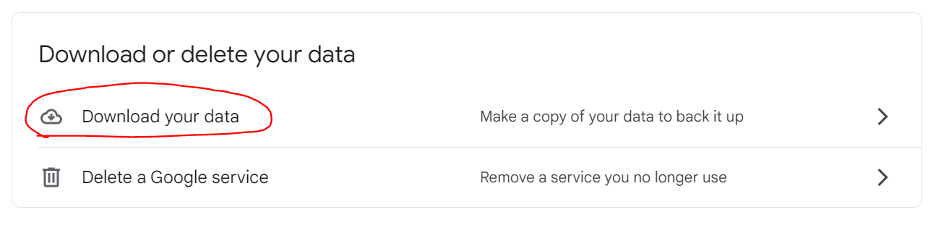
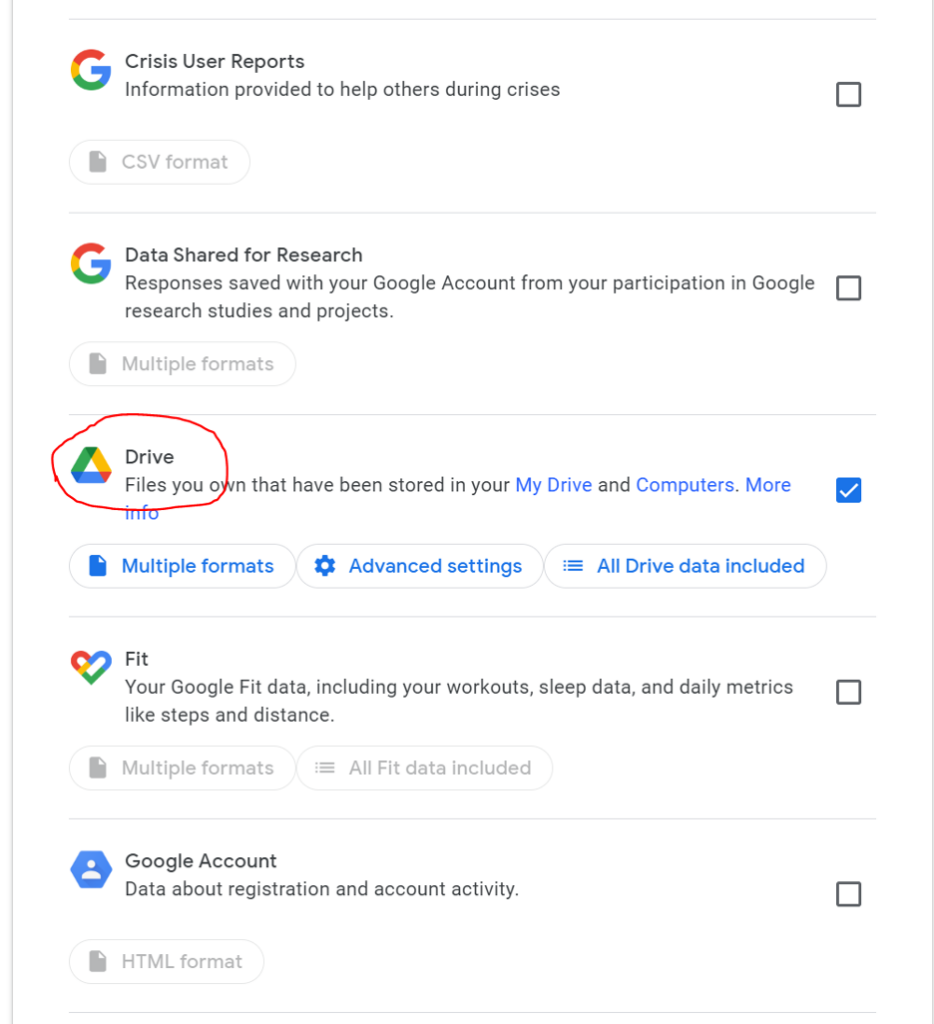
Scroll down to the section of the page titled “Download or delete your data” and click “Download your data.” This allows you to download all of the data in your Google account (not just Google Drive) via Google Takeout.
Select Google Drive (and whatever other services you might want to download data from).
You then have a few options to select:
Multiple formats: Here you can tell Google the formats of the files you want to download. For example, if you want to download documents as .docx files or as PDFs.
Advanced settings: Here you can tell Google to download additional data, including previous versions and the names of your folders.
All Drive data included: Here you can select all data, or deselect specific folders if you want to.
Scroll down to the bottom and click on Next Step.
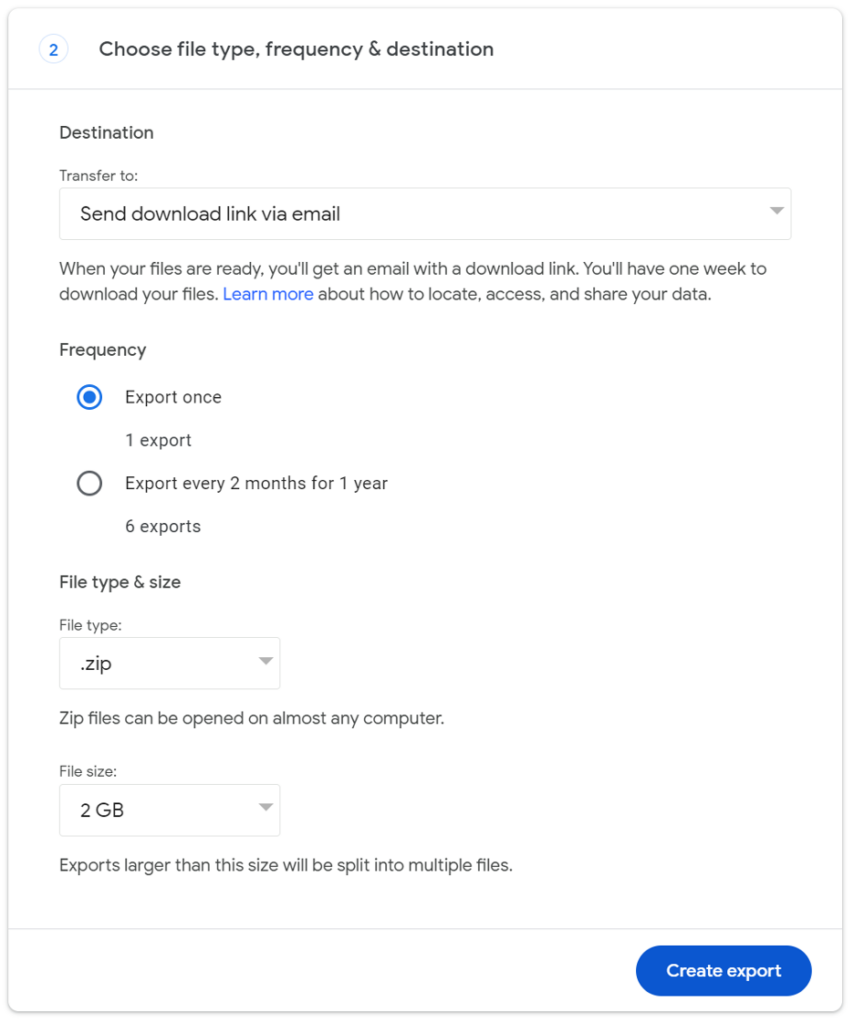
You’ll be prompted to specify your delivery method. Select Send download link via email.
You can then specify your frequency. You can select a single export or an export every two months for a year. For our purposes, you can select a single export. (We’ll talk about options for backing up your data more frequently later.)
Specify the file type and the file size you want to export.
You can choose to have these files sent as a .zip file or a .tgz (tar) file. The main difference between the two options is that a .zip file compresses every file independently in the archive, but a .tgz file compresses the archive as a whole.
The file size tells Google when to split your data into a separate file. Depending on the size of your data, Google may send you multiple emails with different sizes of files.
Click Create export.
When most people think about downloading the data they store in Google Drive, they’re thinking about the documents, photos, and other larger files they work with, but (as Google Takeout makes clear) you have a lot more data stored with Google outside of Drive.
Here’s why you might choose to export everything:
To have a copy of bookmarked websites.
To have a copy of emails that may contain files you’ve lost over time.
To have a copy of important voicemails from loved ones in Google’s Voice product that you want to keep forever.
Also, when you download all of your data it is a good reminder of what information Google has of yours.
After you click Create export, you’ll get an email in a few minutes, hours, or a couple of days, depending on the size of your data, informing you that your Google data is ready to download.
How to Back Up Your Computer
You now have your Google Drive data out of the Google Cloud and on your computer. Next, you’ll want to make sure it’s backed up. Your computer can fail just like Google, so simply downloading it isn’t enough. Protecting your newly downloaded Google data with a good cloud backup strategy should be the next thing you do.
Make sure to have at least three copies of your data: two local including one on your desktop and one on a different storage medium, like a hard drive. Then, you should have one off-site, and these days that means in the cloud.
Note that when we’re using the word “cloud” here, we specifically mean that you’re backing up to the cloud. Often using a “cloud drive” means that you’re syncing, and, as the current data loss snafu at Google shows, there’s a big difference between sync and backup.
How to Back Up Google Drive
Downloading your data once and backing it all up is a good step. But, you’re adding documents to Google Drive all the time, and downloading your data manually can get tedious if you want to make sure your work is consistently and reliably backed up.
Of course, as we noted above, you can set your Google Drive bulk download frequency to a regular cadence. You’d still have to manually download your data and add it to your computer’s local storage, then back it up using the same method you would for your computer data. If you’re using Backblaze Computer Backup, which automatically runs in the background on your computer, those files would be backed once they entered your local storage.
Still, that means that you have the possibility of losing files if your cadence isn’t frequent enough, and if you forget to manually download and replace those files sent to you in email, then you might run into trouble.
Alternatively, there are a few services that will back up your Google Drive data for you. With something like Movebot, you can set up your Google Drive to sync and back up to a cloud storage service like Backblaze B2. If you’re a little more tech savvy, you can also use rclone to do the same thing.
These tools are a bit more complex than using your Backblaze Computer Backup account, but you can configure these tools to back up your Google Drive at a frequency that makes sense for you to make sure new data is getting backed up as you add it.
Do you have any techniques on how you download your data from Google Drive or other Google products? Share them in the comments section below!
FAQ
How do I download individual files from Google?
You can simply select the files you want to download, right click, and select Download.
How do I download my entire Google Drive?
You can use Google Takeout to download your entire Google Drive as well as any data you have in other Google services. Go to your account, click on Data & privacy, and click on Download your data to get started.
How do I back up my Google data once I download it?
You can back up your Google Data once you’ve downloaded it to your computer by using a trusted cloud computer backup service. Make sure to follow a 3-2-1 backup strategy by keeping at least two backups in addition to your data in Google drive: one local, on your desktop or on a hard drive, and one in the cloud.
How do I back up my Google Drive?
There are many backup software services available to help you back up your Google drive data. With something like Movebot, you can set up your Google Drive to sync and back up to a cloud storage service like Backblaze B2. If you’re a little more tech savvy, you can also use rclone to do the same thing.
You can imagine data egress fees like tolls on a highway—your data is cruising along trying to get to its destination, but it has to pay a fee for the privilege of continuing its journey. If you have a lot of data moving across a cloud environment, or a lot of toll booths (multiple services) to pass through, those egress fees can add up quickly.
Data egress fees are charges you incur for moving data out of a cloud service provider’s network. These data transfer fees can be a big part of your cloud bill depending on how you use the cloud.
For example, sending data between availability zones or to an external location like a local server can significantly increase costs. And, they’re frequently a reason behind surprise AWS bills. So, let’s take a closer look at egress, egress fees, Backblaze’s smarter cloud storage pricing, and ways you can reduce or eliminate these fees.
What is data egress?
In computing generally, data egress refers to the transfer or movement of data from a specific location, such as a data center, private network, or virtual network, to an external location. In a cloud environment, egress typically happens whenever data flows out of the same data center, moves between availability zones, or transfers to another cloud region.
For example, data moving from one cloud provider to other cloud providers, or even across services within the same cloud, can incur data egress costs. These egress charges are determined by factors such as the egress pricing model of the provider and whether the transfer happens within the same region or across regions.
In the simplest terms, data egress is the outbound flow of data.
The fees, like these stairs, climb higher. Source.
While data ingress—the inbound flow of data—often incurs no cost, data transfer fees associated with egress can lead to significant network costs, especially in cases involving large-scale data traffic or vendor lock-in.
Egress vs. ingress: What’s the difference?
While egress pertains to data exiting a system, ingress refers to data entering a system. When you download something, you’re egressing data from a cloud service or data center. When you upload something, you’re ingressing data to that environment.
Unsurprisingly, most cloud storage providers do not charge you fees to ingress data—they want you to store your data on their platform, so why would they? However, you may see API transaction fees when you’re ingressing data, depending on the provider or the pricing tier.
Data egress costs can be significant, especially for data flowing between multiple services, moving out of the same data center, or crossing availability zones or cloud regions. These costs are often part of egress pricing strategies that, while designed to cover network costs, can discourage customers from extracting data or transferring it to other cloud providers. So, it’s worth spending some time to understand those nuances when you’re optimizing costs for complex workloads. And yes, we know that’s easier said than done.
Egress vs. download
You might hear egress referred to as download, and that’s not wrong, but there are some nuances. Egress applies not only to downloads, but also when you migrate data between cloud services, for example. (So, egress includes downloads, but it’s not limited to them.)
In the context of cloud service providers, the distinction between egress and download may not always be explicitly stated. Some providers classify data egress charges differently, depending on whether the data is leaving their cloud environment, moving to another cloud region, or crossing between availability zones.
The terminology and pricing structures vary, so review the specific service terms and egress pricing details provided by your platform. This is important when managing data transfer fees or mitigating associated costs.
How do egress fees work?
Data egress fees are charges incurred when data is transferred out of a cloud provider’s environment. These fees are often associated with cloud computing services, where users pay not only for the resources they consume within the cloud (such as storage and compute) but also for the data that is transferred from the cloud to external destinations.
There are a number of scenarios where a cloud provider typically charges for egress:
When you’re migrating data from one cloud to another.
When you’re downloading data from a cloud to a local repository.
When you move data between regions or zones with certain cloud providers.
When an application, end user, or content delivery network (CDN) requests data from your cloud storage bucket.
The fees can vary depending on the amount of data transferred, the destination of the data, and the cloud networking setup. For example, transferring data between regions within the same cloud provider’s network might incur lower fees than transferring data to the internet or a different cloud provider.
Data egress fees are an important consideration for organizations using cloud services, and they can impact the overall cost of hosting and managing data in the cloud. It’s important to know the pricing details related to data egress in the cloud provider’s pricing documentation, as these fees can contribute significantly to the total cost of using cloud services.d. It’s important to be aware of the pricing details related to data egress in the cloud provider’s pricing documentation, as these fees can contribute significantly to the total cost of using cloud services.
Why do cloud providers charge egress fees?
Both ingressing and egressing data incur costs for cloud providers. They have to build and maintain a robust cloud networking infrastructure to allow users to do that, including switches, routers, fiber cables, etc. They also have to have enough of that infrastructure on hand to meet customer demand, not to mention staff to deploy and maintain it.
However, most cloud providers don’t charge ingress fees, only egress fees. It would be hard to entice people to use your service if you charged them extra for uploading their data. But, once cloud providers have your data, they want you to keep it there. This pricing model creates an incentive for users to keep their cloud data within the provider’s environment, contributing to vendor lock-in.
Charging you to remove it is one way cloud providers like AWS, Google Cloud, and Microsoft Azure do that. These data egress costs can represent a significant portion of the total bill for organizations that rely heavily on data transfers across multiple services or cloud regions.
What are AWS’s egress fees?
AWS S3 gives customers 100GB of data transfer out to the internet free each month, with some caveats—that 100GB excludes data sAWS S3 gives customers 100GB of data transfer out to the internet free each month, with some caveats—that 100GB excludes data stored in China and GovCloud. After that, the published rates for U.S. regions for data transferred over the public internet are as follows as of the date of publication:
The first 10TB per month is $0.09 per GB.
The next 40TB per month is $0.085 per GB.
The next 100TB per month is $0.07 per GB.
Anything greater than 150TB per month is $0.05 per GB.
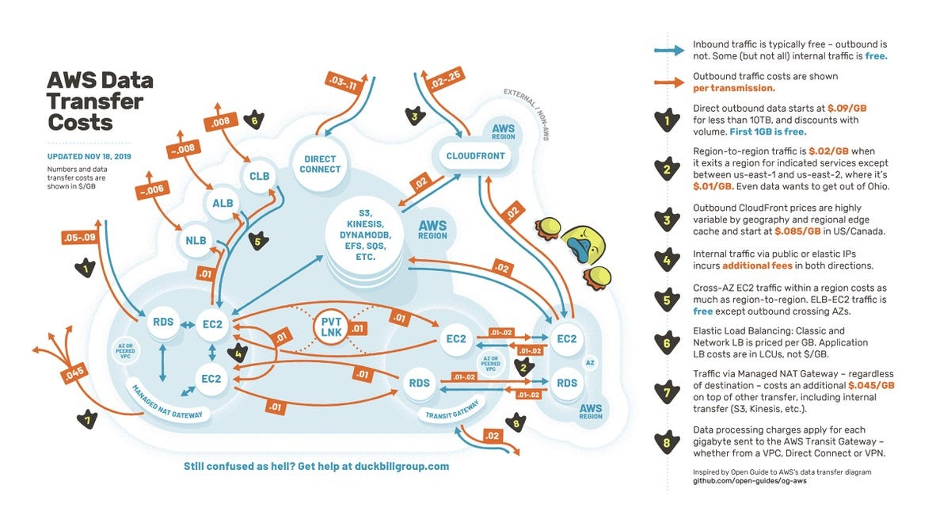
Additionally, AWS charges for data transfers between certain services and regions, which can complicate cost structures. For instance, data transfer between Availability Zones within the same AWS Region is charged at $0.01 per GB. Look at AWS’s detailed pricing documentation to understand these charges fully.
The following diagram illustrates the complexity of AWS’s data transfer pricing:
If you’re using cloud services, minimizing your egress fees is probably a high priority. Companies like the Duckbill Group (the creators of the diagram above) exist to help businesses manage their AWS bills. In fact, there’s a whole industry of consultants that focuses solely on reducing your AWS bills.
Aside from hiring a consultant to help you spend less, there are a few simple ways to lower your egress fees:
Use a content delivery network (CDN): If you’re hosting an application, using a CDN can lower your egress fees since a CDN will cache data on edge servers. That way, when a user sends a request for your data, it can pull it from the CDN server rather than your cloud storage provider where you would be charged egress.
Optimize data transfer protocols: Choose efficient data transfer protocols that minimize the amount of data transmitted. For example, consider using compression or delta encoding techniques to reduce the size of transferred files. Compressing data before transfer can reduce the volume of data sent over the network, leading to lower egress costs. However, the effectiveness of compression depends on the nature of the data.
Utilize cloud providers that focus on interoperability: Some cloud providers offer free data transfer with a range of other cloud partners.
Be aware of tiering: It may sound enticing to opt for a cold(er) storage tier to save on storage, but some of those tiers come with much higher egress fees.
Consolidate workloads in the same region: Minimize inter-region data transfers by keeping applications, services, and data storage within the same cloud region whenever possible. Transferring data between regions often incurs additional charges that can quickly add up.
Use point-to-point networking or directprivate connect: If your business frequently transfers large volumes of data, consider setting up a private network connection, like Megaport, PacketFabric, or Console Connect. These services provide dedicated bandwidth at a predictable cost, potentially lowering overall egress fees.
Plan data extractions strategically: Instead of frequent, small data extractions, batch your transfers into fewer, larger downloads. This can help you better manage costs by avoiding repeated charges for smaller-scale egress operations.
Monitor and analyze data flows: Use tools or dashboards to monitor data traffic within your cloud environment. Identifying patterns in data usage can help pinpoint unnecessary transfers or optimize workflows to limit costly egress activities.
How does Backblaze reduce egress fees?
There’s one more way you can drastically reduce egress, and we’ll just come right out and say it: Backblaze gives you free egress up to 3x the average monthly storage and unlimited free egress through a number of CDN and compute partners, including Fastly, Cloudflare, Bunny.net, and Vultr.
Why do we offer free egress? Supporting an open cloud environment is central to our mission, so we expanded free egress to all customers so they can move data when and where they prefer.
Cloud providers like AWS and others charge high egress fees that make it expensive for customers to use multi-cloud infrastructures and therefore lock in customers to their services. These walled gardens hamper innovation and long-term growth. By eliminating restrictive egress fees, we enable businesses to adopt multi-cloud strategies without the financial penalty of moving their data.
By partnering with leading CDN providers and compute platforms, we’ve built a system where you can move data seamlessly while enjoying cost savings that other providers don’t offer.
Free egress = A better, multi-cloud world
The bottom line: the high egress fees charged by hyperscalers like AWS, Google, and Microsoft are a direct impediment to a multi-cloud future driven by customer choice and industry need. And, a multi-cloud future is something we believe in. So go forth and build the multi-cloud future of your dreams, and leave worries about high egress fees in the past.
Editor’s note: This post has been updated since it was originally published in 2017.
The term hybrid cloud has been around for a while—we originally published this explainer in 2017. But time hasn’t necessarily made things clearer. Maybe you hear folks talk about your company’s hybrid cloud approach, but what does that really mean? If you’re confused about the hybrid cloud, you’re not alone.
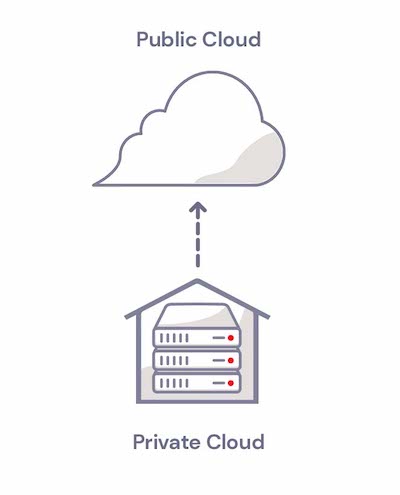
Hybrid cloud is a computing approach that uses both private and public cloud resources with some kind of orchestration between them. The term has been applied to a wide variety of IT solutions, so it’s no wonder the concept breeds confusion.
In this post, we’ll explain what a hybrid cloud is, how it can benefit your business, and how to choose a cloud storage provider for your hybrid cloud strategy.
What Is the Hybrid Cloud?
A hybrid cloud is an infrastructure approach that uses both private and public resources. Let’s first break down those key terms:
Public cloud: When you use a public cloud, you are storing your data in another company’s internet-accessible data center. A public cloud service allows anybody to sign up for an account, and share data center resources with other customers or tenants. Instead of worrying about the costs and complexity of operating an on-premises data center, a cloud storage user only needs to pay for the cloud storage they need.
Private cloud: In contrast, a private cloud is specifically designed for a single tenant. Think of a private cloud as a permanently reserved private dining room at a restaurant—no other customer can use that space. As a result, private cloud services can be more expensive than public clouds. Traditionally, private clouds typically lived on on-premises infrastructure, meaning they were built and maintained on company property. Now, private clouds can be maintained and managed on-premises by an organization or by a third party in a data center. The key defining factor is that the cloud is dedicated to a single tenant or organization.
Those terms are important to know to understand the hybrid cloud architecture approach. Hybrid clouds are defined by a combined management approach, which means there is some type of orchestration between the private and public environments that allows workloads and data to move between them in a flexible way as demands, needs, and costs change. This gives you flexibility when it comes to data deployment and usage.
In other words, if you have some IT resources on-premises that you are replicating or sharing with an external vendor—congratulations, you have a hybrid cloud!
Hybrid cloud refers to a computing architecture that is made up of both private cloud resources and public cloud resources with some kind of orchestration between them.
Hybrid Cloud Examples
Here are a few examples of how a hybrid cloud can be used:
As an active archive: You might establish a protocol that says all accounting files that have not been changed in the last year, for example, are automatically moved off-premises to cloud storage archive to save cost and reduce the amount of storage needed on-site. You can still access the files; they are just no longer stored on your local systems.
To meet compliance requirements: Let’s say some of your data is subject to strict data privacy requirements, but other data you manage isn’t as closely protected. You could keep highly regulated data on premises in a private cloud and the rest of your data in a public cloud.
To scale capacity: If you’re in an industry that experiences seasonal or frequent spikes like retail or ecommerce, these spikes can be handled by a public cloud which provides the elasticity to deal with times when your data needs exceed your on-premises capacity.
For digital transformation: A hybrid cloud lets you adopt cloud resources in a phased approach as you expand your cloud presence.
Hybrid Cloud vs. Multi-cloud: What’s the Diff?
You wouldn’t be the first person to think that the terms multi-cloud and hybrid cloud appear similar. Both of these approaches involve using multiple clouds. However, multi-cloud uses two clouds of the same type in combination (i.e., two or more public clouds) and hybrid cloud approaches combine a private cloud with a public cloud. One cloud approach is not necessarily better than the other—they simply serve different use cases.
For example, let’s say you’ve already invested in significant on-premises IT infrastructure, but you want to take advantage of the scalability of the cloud. A hybrid cloud solution may be a good fit for you.
Alternatively, a multi-cloud approach may work best for you if you are already in the cloud and want to mitigate the risk of a single cloud provider having outages or issues.
Hybrid Cloud Benefits
A hybrid cloud approach allows you to take advantage of the best elements of both private and public clouds. The primary benefits are flexibility, scalability, and cost savings.
Benefit 1: Flexibility and Scalability
One of the top benefits of the hybrid cloud is its flexibility. Managing IT infrastructure on-premises can be time consuming and expensive, and adding capacity requires advance planning, procurement, and upfront investment.
The public cloud is readily accessible and able to provide IT resources whenever needed on short notice. For example, the term “cloud bursting” refers to the on-demand and temporary use of the public cloud when demand exceeds resources available in the private cloud. A private cloud, on the other hand, provides the absolute fastest access speeds since it is generally located on-premises. (But cloud providers are catching up fast, for what it’s worth.) For data that is needed with the absolute lowest levels of latency, it may make sense for the organization to use a private cloud for current projects and store an active archive in a less expensive, public cloud.
Benefit 2: Cost Savings
Within the hybrid cloud framework, the public cloud segment offers cost-effective IT resources, eliminating the need for upfront capital expenses and associated labor costs. IT professionals gain the flexibility to optimize configurations, choose the most suitable service provider, and determine the optimal location for each workload. This strategic approach reduces costs by aligning resources with specific tasks. Furthermore, the ability to easily scale, redeploy, or downsize services enhances efficiency, curbing unnecessary expenses and contributing to overall cost savings.
Comparing Private vs. Hybrid Cloud Storage Costs
To understand the difference in storage costs between a purely on-premises solution and a hybrid cloud solution, we’ll present two scenarios. For each scenario, we’ll use data storage amounts of 100TB, 1PB, and 2PB. Each table is the same format, all we’ve done is change how the data is distributed: private (on-premises) or public (off-premises). We are using the costs for our own Backblaze B2 Cloud Storage in this example. The math can be adapted for any set of numbers you wish to use.
Scenario 1100% of data on-premises storage
Data Stored
Data Stored On-premises: 100%
100TB
1,000TB
2,000TB
On-premises cost range
Monthly Cost
Low — $12/TB/Month
$1,200
$12,000
$24,000
High — $20/TB/Month
$2,000
$20,000
$40,000
Scenario 220% of data on-premises with 80% public cloud storage (Backblaze B2)
Data Stored
Data Stored On-premises: 20%
20TB
200TB
400TB
Data Stored in the Cloud: 80%
80TB
800TB
1,600TB
On-premises cost range
Monthly Cost
Low — $12/TB/Month
$240
$2,400
$4,800
High — $20/TB/Month
$400
$4,000
$8,000
Public cloud cost range
Monthly Cost
Low — $6/TB/Month (Backblaze B2)
$480
$4,800
$9,600
High — $20/TB/Month
$1,600
$16,000
$32,000
On-premises + public cloud cost range
Monthly Cost
Low
$720
$7,200
$14,400
High
$2,000
$20,000
$40,000
As you can see, using a hybrid cloud solution and storing 80% of the data in the cloud with a provider like Backblaze B2 can result in significant savings over storing only on-premises.
Choosing a Cloud Storage Provider for Your Hybrid Cloud
Okay, so you understand the benefits of using a hybrid cloud approach, what next? Determining the right mix of cloud services may be intimidating because there are so many public cloud options available. Fortunately, there are a few decision factors you can use to simplify setting up your hybrid cloud solution. Here’s what to think about when choosing a public cloud storage provider:
Ease of use: Avoiding a steep learning curve can save you hours of work effort in managing your cloud deployments. By contrast, overly complicated pricing tiers or bells and whistles you don’t need can slow you down.
Data security controls: Compare how each cloud provider facilitates proper data controls. For example, take a look at features like authentication, Object Lock, and encryption.
Data egress fees: Some cloud providers charge additional fees for data egress (i.e., removing data from the cloud). These fees can make it more expensive to switch between providers. In addition to fees, check the data speeds offered by the provider.
Interoperability: Flexibility and interoperability are key reasons to use cloud services. Before signing up for a service, understand the provider’s integration ecosystem. A lack of needed integrations may place a greater burden on your team to keep the service running effectively.
Storage tiers: Some providers offer different storage tiers where you sacrifice access for lower costs. While the promise of inexpensive cold storage can be attractive, evaluate whether you can afford to wait hours or days to retrieve your data.
Pricing transparency: Pay careful attention to the cloud provider’s pricing model and tier options. Consider building a spreadsheet to compare a shortlist of cloud providers’ pricing models.
When Hybrid Cloud Might Not Always Be the Right Fit
The hybrid cloud may not always be the optimal solution, particularly for smaller organizations with limited IT budgets that might find a purely public cloud approach more cost-effective. The substantial setup and operational costs of private servers could be prohibitive.
A thorough understanding of workloads is crucial to effectively tailor the hybrid cloud, ensuring the right blend of private, public, and traditional IT resources for each application and maximizing the benefits of the hybrid cloud architecture.
So, Should You Go Hybrid?
Big picture, anything that helps you respond to IT demands quickly, easily, and affordably is a win. With a hybrid cloud, you can avoid some big up-front capital expenses for in-house IT infrastructure, making your CFO happy. Being able to quickly spin up IT resources as they’re needed will appeal to the CTO and VP of operations.
So, given all that, we’ve arrived at the bottom line and the question is, should you or your organization embrace hybrid cloud infrastructure?According to Flexera’s 2023 State of the Cloud report, 72% of enterprises utilize a hybrid cloud strategy. That indicates that the benefits of the hybrid cloud appeal to a broad range of companies.
If an organization approaches implementing a hybrid cloud solution with thoughtful planning and a structured approach, a hybrid cloud can deliver on-demand flexibility, empower legacy systems, and applications with new capabilities, and become a catalyst for digital transformation. The result can be an elastic and responsive infrastructure that has the ability to quickly adapt to changing demands of the business.
As data management professionals increasingly recognize the advantages of the hybrid cloud, we can expect more and more of them to embrace it as an essential part of their IT strategy.
Tell Us What You’re Doing With the Hybrid Cloud
Are you currently embracing the hybrid cloud, or are you still uncertain or hanging back because you’re satisfied with how things are currently? We’d love to hear your comments below on how you’re approaching your cloud architecture decisions.
FAQs About Hybrid Cloud
What exactly is a hybrid cloud?
Hybrid cloud is a computing approach that uses both private and public cloud resources with some kind of orchestration between them.
What is the difference between hybrid and multi-cloud?
Multi-cloud uses two clouds of the same type in combination (i.e., two or more public clouds) and hybrid cloud approaches combine a private cloud with a public cloud. One cloud approach is not necessarily better than the other—they simply serve different use cases.
What is a hybrid cloud architecture?
Hybrid cloud architecture is any kind of IT architecture that combines both the public and private clouds. Many organizations use this term to describe specific software products that provide solutions which combine the two types of clouds.
What are hybrid clouds used for?
Organizations will often use hybrid clouds to create redundancy and scalability for their computing workload. A hybrid cloud is a great way for a company to have extra fallback options to continue offering services even when they have higher than usual levels of traffic, and it can also help companies scale up their services over time as they need to offer more options.
Have you ever felt like you need a dictionary just to understand what tech-savvy folks are talking about? Well, you’re in luck, because we’re about to decode some of the most common jargon of the digital age, one acronym at a time. Welcome to the world of “as a Service” acronyms, where we take the humble alphabet and turn it into a digital buffet.
So, whether you’re SaaS-savvy or PaaS-puzzled, or just someone desperately searching for a little HaaS (Humor as a Service …yeah, we made that one up), you’ve come to the right place. Let’s take a big slurp from this alphabet soup of tech terms.
The One That Started It All: SaaS
SaaS stands for software as a service, and it’s the founding member of the “as a service” nomenclature. (Though, very confusingly, there’s also Sales as a Service—it’s just not shortened to SaaS. Usually.)
Imagine your software as a pizza delivery service. You don’t need to buy all the ingredients, knead the dough, and bake it yourself. Instead, you simply order a slice, and it magically appears on your table (a.k.a. screen). SaaS products are like that, but instead of pizza they serve up everything from messaging to video conferencing to email marketing to …well, really you name it. Which brings us to…
The Kind of Ironic One: XaaS
XaaS stands for, variously, “everything” or “anything” as a service. No one is really sure about the term’s provenance, but it’s a fair guess to say it came into existence when, well, everything started to become a service, probably sometime around the mid-2010s. The thinking is: if it exists in the digital realm, you can probably get it “as a service.”
The Hardware Related Ones: HaaS, IaaS, and PaaS
HaaS (Hardware as a Service): Instead of purchasing hardware yourself, like computers, servers, networking equipment, and other physical infrastructure components, with HaaS, you can lease or rent the equipment for a given period. It would be like renting a pizza kitchen to make your specialty pies specifically for your sister’s wedding or your grandma’s birthday.
IaaS (Infrastructure as a Service): Infrastructure as a service is kind of like hardware as a service, but it comes with some additional goodies thrown in. Instead of renting just the kitchen, you rent the whole restaurant, chair, tables, and servers (no pun intended) included. IaaS delivers virtualized computing resources, like virtual machines, storage (that’s us!), and networking, over the internet.
PaaS (Platform as a Service): Think of PaaS as a step even further than IaaS—you’re not just renting a pizza restaurant, you’re renting a test kitchen where you can develop your award-winning pie. PaaS provides developers the ability to build, manage, and deploy applications with services like development frameworks, databases, and infrastructure management. It’s the ultimate DIY platform for tech enthusiasts.
The Bad One: RaaS
RaaS stands for Ransomware as a Service, and this is one “as a service” variant you don’t want to mess with. Basically, cybercriminals can purchase ransomware just as easily as you would purchase any app on the app store (it’s probably more complicated than that, but you get the general gist). This makes it easy for even the least savvy cybercriminal to get into the ransomware game. Not great.
The Ones That Help With the Last One: BaaS and DRaaS
BaaS (Backup as a Service): Backup as a Service is a cloud-based data protection solution that allows individuals and organizations to back up their data to a remote cloud. (Hey! That’s us too!) Instead of managing on-premises backup infrastructure, users can securely store their data off-site, often on highly redundant and geographically distributed servers.
DRaaS (Disaster Recovery as a Service): DRaaS stands for disaster recovery as a service, and it’s the antidote to RaaS. Of course, you need good backups to begin with, but adding DRaaS allows businesses to ensure specific recovery time objectives (RTOs, FYI) so they can get back up and running in the event they’re attacked by ransomware or there’s a natural disaster at your primary storage location. DRaaS solutions used to be made almost exclusively with the large enterprise in mind, but today, it’s possible to architect a DRaaS solution for your business affordably and easily.
The Analytical One: DaaS
DaaS stands for data as a service, and it’s your data’s personal chauffeur. It fetches the information you need and serves it up on a silver platter. DaaS offers data on-demand, making structured data accessible to users over the internet. It simplifies data sharing and access, often in real-time, without the need for complex data management.
The Development-Focused Ones: CaaS, BaaS (again), and FaaS
CaaS (Containers as a Service): CaaS simplifies the deployment, scaling, and orchestration of containerized applications. It’s the tech version of a literal container ship. The individual containers “ship” individual pieces of software, and a CaaS tool helps carry all of those individual containers. Check out container management software Docker’s logo for a visualization:
It looks more like a whale carrying containers, which is far more adorable, in our opinion.
BaaS (Backend as a Service): It wouldn’t be the first time an acronym has two meanings. BaaS, in this context, provides a backend infrastructure for mobile and web app developers, offering services like databases, user authentication, and APIs.Imagine your own team of digital butlers tending to the back end of your apps. They handle all the behind-the-scenes stuff, so you can focus on making your app shine.
FaaS (Function as a Service): FaaS is a serverless computing model where developers focus on writing and deploying individual functions or code snippets. These functions run in response to specific events, promoting scalability and efficiency in application development. It’s like having a team of tiny, code-savvy robots doing your bidding.
Go Forth and Abbreviate
Now that you’ve sampled all of the flavors the vast “as a service” world has to offer, we hope you’ve gained a clearer understanding of these sometimes confounding terms. So whether you’re a business professional navigating the cloud or just curious about the tech world, you can wield these acronyms with confidence.
Did we miss any? I’m sure. Let us know in the comments.
This post was originally published in 2017 and updated in 2019 and 2023 to share the latest information on cloud storage tiering.
Temperature, specifically a range from cold to hot, is a common way to describe different levels of data storage. It’s possible these terms originated based on where data was historically stored. Hot data was stored close to the heat of the spinning drives and CPUs. Cold data was stored on drives or tape away from the warmer data center, likely tucked away on a shelf somewhere.
Today, they’re used to describe how easily you can access your data. Hot storage is for data you need fast or access frequently. Cold storage is typically used for data you rarely need. The terms are used by most data storage providers to describe their tiered storage plans. However, there are no industry standard definitions for what hot and cold mean, which makes comparing services across different storage providers challenging.
It’s a common misconception that hot storage means expensive storage and that cold storage means slower, less expensive storage. Today, we’ll explain why these terms may no longer be serving you when it comes to anticipating storage cost and performance.
Defining Hot Storage
Hot storage serves as the go-to destination for frequently accessed and mission-critical data that demands swift retrieval. Think of it as the fast lane of data storage, tailored for scenarios where time is of the essence. Industries relying on real-time data processing and rapid response times, such as video editing, web content, and application development, find hot storage to be indispensable.
To achieve the necessary rapid data access, hot storage is often housed in hybrid or tiered storage environments. The hotter the service, the more it embraces cutting-edge technologies, including the latest drives, fastest transport protocols, and geographical proximity to clients or multiple regions. However, the resource-intensive nature of hot storage warrants a premium, and leading cloud data storage providers like Microsoft’s Azure Hot Blobs and AWS S3 reflect this reality.
Data stored in the hottest tier might use solid-state drives (SSDs), which are optimized for lower latency and higher transactional rates compared to traditional hard drives. In other cases, hard disk drives are more suitable for environments where the drives are heavily accessed due to their higher durability standing up to intensive read/write cycles.
Regardless of the storage medium, hot data workloads necessitate fast and consistent response times, making them ideal for tasks like capturing telemetry data, messaging, and data transformation.
Defining Cold Storage
On the opposite end of the data storage spectrum lies cold storage, catering to information accessed infrequently and without the urgency of hot data. Cold storage houses data that might remain dormant for extended periods, months, years, decades, or maybe forever. Practical examples might include old projects or records mandated for financial, legal, HR, or other business record-keeping requirements.
Cold cloud storage systems prioritize durability and cost-effectiveness over real-time data manipulation capabilities. Services like Amazon Glacier and Google Coldline take this approach, offering slower retrieval and response times than their hot storage counterparts. Lower performing and less expensive storage environments, both on-premises and in the cloud, commonly host cold data.
Linear Tape Open (LTO or Tape) has historically been a popular storage medium for cold data, though manual retrieval from storage racks renders it relatively slow. To access data from LTO, the tapes must be physically retrieved from storage racks and mounted in a tape reading machine, making it one of the slowest, therefore coldest, methods of storing data.
While cold cloud storage systems generally boast lower overall costs than warm or hot storage, they may incur higher per-operation expenses. Accessing data from cold storage demands patience and thoughtful planning, as the response times are intentionally sluggish.
With the landscape of data storage continually evolving, the definition of cold storage has also expanded. In modern contexts, cold storage might describe completely offline data storage, wherein information resides outside the cloud and remains disconnected from any network. This isolation, also described as air gapped, is crucial for safeguarding sensitive data. However, today, data can be virtually air-gapped using technology like Object Lock.
Traditional Views of Cold and Hot Data Storage
Cold
Hot
Access Speed
Slow
Fast
Access Frequency
Seldom or Never
Frequent
Data Volume
Low
High
Storage Media
Slower drives, LTO, offline
Faster drives, durable drives, SSDs
Cost
Lower
Higher
What Is Hot Cloud Storage?
Today there are new players in data storage, who, through innovation and efficiency, are able to offer cloud storage at the cost of cold storage, but with the performance and availability of hot storage.
The concept of organizing data by temperature has long been employed by diversified cloud providers like Amazon, Microsoft, and Google to describe their tiered storage services and set pricing accordingly. But, today, in a cloud landscape defined by the open, multi-cloud internet, customers have come to realize the value and benefits they can get from moving away from those diversified providers.
A wave of independent cloud providers are disrupting the traditional notions of cloud storage temperatures, offering cloud storage that’s as cost-effective as cold storage, yet delivering the speed and availability associated with hot storage. If you’re familiar with Backblaze B2 Cloud Storage, you know where we’re going with this.
Backblaze B2 falls into this category. We can compete on price with LTO and other traditionally cold storage services, but can be used for applications that are usually reserved for hot storage, such as media management, workflow collaboration, websites, and data retrieval.
The newfound efficiency of this model has prompted customers to rethink their storage strategies, opting to migrate entirely from cumbersome cold storage and archival systems.
What Temperature Is Your Cloud Storage?
When it comes to choosing the right storage temperature for your cloud data, organizations must carefully consider their unique needs. Ensuring that storage costs align with actual requirements is key to maintaining a healthy bottom line. The ongoing evolution of cloud storage services, driven by efficiency, technology, and innovation, further amplifies the need for tailored storage solutions.
Still have questions that aren’t answered here? Join the discussion in the comments.
This post was originally published in 2018 and updated in 2021. We’re sharing an update to this post to provide the latest information on VMs and containers.
Both virtual machines (VMs) and containers help you optimize computer hardware and software resources via virtualization.
Containers have been around for a while, but their broad adoption over the past few years has fundamentally changed IT practices. On the other hand, VMs have enjoyed enduring popularity, maintaining their presence across data centers of various scales.
As you think about how to run services and build applications in the cloud, these virtualization techniques can help you do so faster and more efficiently. Today, we’re digging into how they work, how they compare to each other, and how to use them to drive your organization’s digital transformation.
First, the Basics: Some Definitions
What Is Virtualization?
Virtualization is the process of creating a virtual version or representation of computing resources like servers, storage devices, operating systems (OS), or networks that are abstracted from the physical computing hardware. This abstraction enables greater flexibility, scalability, and agility in managing and deploying computing resources. You can create multiple virtual computers from the hardware and software components of a single machine. You can think of it as essentially a computer-generated computer.
What Is a Hypervisor?
The software that enables the creation and management of virtual computing environments is called a hypervisor. It’s a lightweight software or firmware layer that sits between the physical hardware and the virtualized environments and allows multiple operating systems to run concurrently on a single physical machine. The hypervisor abstracts and partitions the underlying hardware resources, such as central processing units (CPUs), memory, storage, and networking, and allocates them to the virtual environments. You can think of the hypervisor as the middleman that pulls resources from the raw materials of your infrastructure and directs them to the various computing instances.
There are two types of hypervisors:
Type 1, bare-metal hypervisors, run directly on the hardware.
Type 2 hypervisors operate within a host operating system.
Hypervisors are fundamental to virtualization technology, enabling efficient utilization and management of computing resources.
VMs and Containers
What Are VMs?
The computer-generated computers that virtualization makes possible are known as virtual machines (VMs)—separate virtual computers running on one set of hardware or a pool of hardware. Each virtual machine acts as an isolated and self-contained environment, complete with its own virtual hardware components, including CPU, memory, storage, and network interfaces. The hypervisor allocates and manages resources, ensuring each VM has its fair share and preventing interference between them.
Each VM requires its own OS. Thus each VM can host a different OS, enabling diverse software environments and applications to exist without conflict on the same machine. VMs provide a level of isolation, ensuring that failures or issues within one VM do not impact others on the same hardware. They also enable efficient testing and development environments, as developers can create VM snapshots to capture specific system states for experimentation or rollbacks. VMs also offer the ability to easily migrate or clone instances, making it convenient to scale resources or create backups.
Since the advent of affordable virtualization technology and cloud computing services, IT departments large and small have embraced VMs as a way to lower costs and increase efficiencies.
VMs, however, can take up a lot of system resources. Each VM runs not just a full copy of an OS, but a virtual copy of all the hardware that the operating system needs to run. It’s why VMs are sometimes associated with the term “monolithic”—they’re single, all-in-one units commonly used to run applications built as single, large files. (The nickname, “monolithic,” will make a bit more sense after you learn more about containers below.) This quickly adds up to a lot of RAM and CPU cycles. They’re still economical compared to running separate actual computers, but for some use cases, particularly applications, it can be overkill, which led to the development of containers.
Benefits of VMs
All OS resources available to apps.
Well-established functionality.
Robust management tools.
Well-known security tools and controls.
The ability to run different OS on one physical machine.
Cost savings compared to running separate, physical machines.
With containers, instead of virtualizing an entire computer like a VM, just the OS is virtualized.
Containers sit on top of a physical server and its host OS—typically Linux or Windows. Each container shares the host OS kernel and, usually, the binaries and libraries, too, resulting in more efficient resource utilization. (See below for definitions if you’re not familiar with these terms.) Shared components are read-only.
Why are they more efficient? Sharing OS resources, such as libraries, significantly reduces the need to reproduce the operating system code—a server can run multiple workloads with a single operating system installation. That makes containers lightweight and portable—they are only megabytes in size and take just seconds to start. What this means in practice is you can put two to three times as many applications on a single server with containers than you can with a VM. Compared to containers, VMs take minutes to run and are an order of magnitude larger than an equivalent container, measured in gigabytes versus megabytes.
Container technology has existed for a long time, but the launch of Docker in 2013 made containers essentially industry standard for application and software development. Technologies like Docker or Kubernetes to create isolated environments for applications. And containers solve the problem of environment inconsistency—the old “works on my machine” problem often encountered in software development and deployment.
Developers generally write code locally, say on their laptop, then deploy that code on a server. Any differences between those environments—software versions, permissions, database access, etc.—leads to bugs. With containers, developers can create a portable, packaged unit that contains all of the dependencies needed for that unit to run in any environment whether it’s local, development, testing, or production. This portability is one of containers’ key advantages.
Containers also offer scalability, as multiple instances of a containerized application can be deployed and managed in parallel, allowing for efficient resource allocation and responsiveness to changing demand.
Microservices architectures for application development evolved out of this container boom. With containers, applications could be broken down into their smallest component parts or “services” that serve a single purpose, and those services could be developed and deployed independently of each other instead of in one monolithic unit.
For example, let’s say you have an app that allows customers to buy anything in the world. You might have a search bar, a shopping cart, a buy button, etc. Each of those “services” can exist in their own container, so that if, say, the search bar fails due to high load, it doesn’t bring the whole thing down. And that’s how you get your Prime Day deals today.
More Definitions: Binaries, Libraries, and Kernels
Binaries: In general, binaries are non-text files made up of ones and zeros that tell a processor how to execute a program.
Libraries: Libraries are sets of prewritten code that a program can use to do either common or specialized things. They allow developers to avoid rewriting the same code over and over.
Kernels: Kernels are the ringleaders of the OS. They’re the core programming at the center that controls all other parts of the operating system.
Container Tools
Linux Containers (LXC): Commonly known as LXC, these are the original Linux container technology. LXC is a Linux operating system-level virtualization method for running multiple isolated Linux systems on a single host.
Docker: Originally conceived as an initiative to develop LXC containers for individual applications, Docker revolutionized the container landscape by introducing significant enhancements to improve their portability and versatility. Gradually evolving into an independent container runtime environment, Docker emerged as a prominent Linux utility, enabling the seamless creation, transportation, and execution of containers with remarkable efficiency.
Kubernetes: Kubernetes, though not a container software in its essence, serves as a vital container orchestrator. In the realm of cloud-native architecture and microservices, where applications deploy numerous containers ranging from hundreds to thousands or even billions, Kubernetes plays a crucial role in automating the comprehensive management of these containers. While Kubernetes relies on complementary tools like Docker to function seamlessly, it’s such a big name in the container space it wouldn’t be a container post without mentioning it.
Benefits of Containers
Reduced IT management resources.
Faster spin ups.
Smaller size means one physical machine can host many containers.
Reduced and simplified security updates.
Less code to transfer, migrate, and upload workloads.
What’s the Diff: VMs vs. Containers
The virtual machine versus container debate gets at the heart of the debate between traditional IT architecture and contemporary DevOps practices.
VMs have been, and continue to be, tremendously popular and useful, but sadly for them, they now carry the term “monolithic” with them wherever they go like a 25-ton Stonehenge around the neck. Containers, meanwhile, pushed the old gods aside, bedecked in the glittering mantle of “microservices.” Cute.
To offer another quirky tech metaphor, VMs are to containers what glamping is to ultralight backpacking. Both equip you with everything you need to survive in the wilds of virtualization. Both are portable, but containers will get you farther, faster, if that’s your goal. And while VMs bring everything and the kitchen sink, containers leave the toothbrush at home to cut weight. To make a more direct comparison, we’ve consolidated the differences into a handy table:
VMs
Containers
Heavyweight.
Lightweight.
Limited performance.
Native performance.
Each VM runs in its own OS.
All containers share the host OS.
Hardware-level virtualization.
OS virtualization.
Startup time in minutes.
Startup time in milliseconds.
Allocates required memory.
Requires less memory space.
Fully isolated and hence more secure.
Process-level isolation, possibly less secure.
Uses for VMs vs. Uses for Containers
Both containers and VMs have benefits and drawbacks, and the ultimate decision will depend on your specific needs.
When it comes to selecting the appropriate technology for your workloads, virtual machines (VMs) excel in situations where applications demand complete access to the operating system’s resources and functionality. When you need to run multiple applications on servers, or have a wide variety of operating systems to manage, VMs are your best choice. If you have an existing monolithic application that you don’t plan to or need to refactor into microservices, VMs will continue to serve your use case well.
Containers are a better choice when your biggest priority is maximizing the number of applications or services running on a minimal number of servers and when you need maximum portability. If you are developing a new app and you want to use a microservices architecture for scalability and portability, containers are the way to go. Containers shine when it comes to cloud-native application development based on a microservices architecture.
You can also run containers on a virtual machine, making the question less of an either/or and more of an exercise in understanding which technology makes the most sense for your workloads.
In a nutshell:
VMs help companies make the most of their infrastructure resources by expanding the number of machines you can squeeze out of a finite amount of hardware and software.
Containers help companies make the most of the development resources by enabling microservices and DevOps practices.
Are You Using VMs, Containers, or Both?
If you are using VMs or containers, we’d love to hear from you about what you’re using and how you’re using them. Drop a note in the comments.
Cybersecurity is a major concern for individuals as well as small businesses, and there are several strategies bad actors use to exploit small businesses and their employees. In fact, around 60% of small businesses that experienced a data breach were forced to close their doors within six months of being hacked.
From monitoring your network endpoints to routinely educating your employees, there are several proactive steps you can take to protect against cyber attacks. In this article, we’ll share six cybersecurity protection strategies to help protect your small business.
1. Implement Layered Security
According to the FBI’s Internet Crime Report, the cost of cybercrimes to small businesses reached $2.4 billion in 2021. Yet, many small business owners believe they are not in danger of an attack. Robust and layered security allows small businesses to contend with the barrage of hackers after their information.
System Level Security. This is the security of the system you are using. For instance, many systems require a password to access their files.
Network Level Security. This layer is where the system connects to the internet. Typically, a firewall is used to filter network traffic and halt suspicious activity.
Application Level Security. Security is needed for any applications you choose to use to run your business, and should include safeguards for both the internal and the client side.
Transmission Level Security. Data when it travels from network to network also needs to be protected. Virtual private networks (VPNs) can be used to safeguard information.
As a business, you should always operate on the principle of least privilege. This ensures that access at each of these levels of security is limited to only those necessary to do the task at hand and reduces the potential for breaches. It also can “limit the blast radius” in the event of a breach.
The Human Element: Employee Training Is Your First Defense
The most common forms of cyberattack leverage social engineering, particularly in phishing attacks. This means that they target employees, often during busy times of the year, and attempt to gain their trust and get them to lower their guard. Training employees to spot potential phishing red flags—like incorrect domains, misspelling information, and falsely urgent requests—is a powerful tool in your arsenal.
Additionally, you’ll note that most of the things on this list just don’t work unless your employees understand how, why, and when to use them. In short, an educated staff is your best defense against cyberattacks.
2. Use Multi-Factor Authentication
Multi-factor authentication (MFA) has become increasingly common, and many organizations now require it. So what is it? Multi-factor authentication requires at least two different forms of user verification to access a program, system, or application. Generally, a user must input their password. Then, they will be prompted to enter a code they receive via email or text. Push notifications may substitute email or text codes, while biometrics like fingerprints can substitute a password.
The second step prevents unauthorized users from gaining entry even if login credentials have been compromised. Moreover, the code or push notification alerts the user of a potential breach—if you receive a notification when you did not initiate a login attempt, then you know your account has a vulnerability.
3. Make Sure Your Tech Stack Is Configured Properly
When systems are misconfigured, they are vulnerable. Some examples of misconfiguration are when passwords are left as their system default, software is outdated, or security settings are not properly enabled. As businesses scale and upgrade their tools, they naturally add more complexity to their tech stacks.
It’s important to run regular audits to make sure that IT best practices are being followed, and to make sure that all of your tools are working in harmony. (Bonus: regular audits of this type can result in OpEx savings since you may identify tools you no longer use in the process.)
4. Encrypt Your Data
Encryption uses an algorithm to apply a cipher to your data. The most commonly used algorithm is known as Advanced Encryption Standard (AES). AES can be used in authenticating website servers from both the server end and the client end, as well as to encrypt transferred files between users. This can also be extended to include digital documents, messaging histories, and so on. Using encryption is often necessary to meet compliance standards, some of which are stricter based on your or your customers’ geographic location or industry.
Once it’s encrypted properly, data can only be accessed with an encryption key. There are two main types of encryption key: symmetric (private) and asymmetric (public).
Symmetric (Private) Encryption Keys
In this model, you use one key to both encode and decode your data. This means that it’s particularly important to keep this key secret—if it were obtained by a bad actor, they could use it to decrypt your data.
Asymmetric (Public) Encryption Keys
Using this method, you use one key to encrypt your data and another to decrypt it. You then make the decryption key public. This is a widely-used method, and makes internet security protocols like SSL and HTTPS possible.
Server Side Encryption (SSE)
Some providers are now offering a service known as server side encryption (SSE). SSE encrypts your data as it is stored, so stolen data is unable to be read or viewed, and even your data storage provider doesn’t have access to sensitive client information. To make data even more secure when stored, you can also make it immutable by enabling Object Lock. This means you can set periods of time that the data cannot be changed—even by those who set the object lock rules.
Combined with SSE, you can see how it would be key to protecting against a ransomware attack: Cyberattackers may access data, but it would be difficult to decrypt with SSE, and with object lock, they wouldn’t be able to delete or modify data.
5. Have a Breach Plan
Unfortunately, as cybercrime has increased, breaches have become nearly inevitable. To mitigate damage, it is paramount to have a disaster recovery (DR) plan in place.
This plan starts with robust and layered security. For example, a cybercriminal may gain a user’s login information, but having MFA enabled would help ensure that they don’t gain access to the account. Or, if they do gain access to an account, by operating on the principle of least privilege, you have limited the amount of information the user can access or breach. Finally, if they do gain access to your data, SSE and Object Lock can prevent sensitive data from being read, modified, or deleted.
Hopefully, you’ve set things up so that you have all the protections you need in place before an attack, but once you’re or in the midst of an attack (or you’ve discovered a previous breach), it’s important that everyone knows what to do. Here are a few best practices to help you develop your DR plan:
Back Up Regularly and Test Your Backups
The most important thing to do is to make sure that you can reconstitute your data to continue business operations as normal—and that means that you have a solid backup plan in place, and that you’ve tested your backups and your DR plan ahead of time.
Establish Procedures for Immediate Action
First and foremost, employees should immediately inform IT of suspicious activity. The old adage “if you see something, say something,” very much applies to security. And, there should also be clear discovery and escalation procedures in effect to both evaluate and address the incident.
Change Credentials and Monitor Accounts
Next, it is crucial to change all passwords, and identify where and how the issue occurred. Each issue is unique, so this step takes careful information gathering. Having monitoring tools set up in advance of a breach will help you gain insight into what happened.
Support Employees
It may sound out of place to consider this, but given that employees are your first line of defense and the most targeted security vulnerability, there is a measurable impact from the stress of ransomware attacks. Once the dust has settled and your business is back online, good recovery includes both insightful and responsive training as well as employee support.
Is Cyber Insurance Worth It?
You may want to consider cyber insurance as you’re thinking through different disaster recovery scenarios. Cyber insurance is still a growing field, and it can cover things like your legal fees, business expenses related to recovery, and potential liability costs. Still, even the process of preparing your business for cyber insurance coverage can be beneficial to improving your business’ overall security procedures.
6. Use Trusted Services
Every business needs to rely on other businesses to operate smoothly, but it can also expose your business to risk if you don’t perform your due diligence. Whether it is a credit card processor, bank, supplier, or another support, you will need to select reliable, reputable, and businesses that also employ good security practices. Evaluating new tools should be a multi-faceted process that engages teams with different expertises, including the stakeholder teams, security, IT, finance, and anyone else who you deem appropriate.
And, remember that more tools are being created all the time! Often, they make things easier on employees while also solving security conundrums. Some good examples are single sign on (SSO) services, password management tools, specialized vendors that evaluate harmful links, automatic workstation backup that runs in the background, and more. Staying up-to-date on the new frontier of tools can solve long-standing problems in innovative ways.
Cybersecurity Is An Ongoing Process
The prevalence of cyber crime means it is not a matter of if a breach will happen, but when a breach will happen. These prevention measures can reduce your risk of becoming the victim of a successful attack, but you should still be prepared for when one occurs.
Bear in mind, cybersecurity is an ongoing process. Your strategies will need to be reviewed routinely, passwords need to be changed, and software and systems will need to be updated. Lastly, knowing what types of scams are prevalent and their signs will help keep you, your business, your employees, and your clients safe.
You know that sinking feeling you get in your stomach when you receive a hefty bill you weren’t expecting, especially when you then have to justify it to your finance team or face making cuts elsewhere to cover budget overrun? That is what some content delivery network (CDN) customers experience when they get slammed with bandwidth fees without warning. To avoid those painful conversations, it’s important to understand how bandwidth fees work. Knowing precisely what you are paying for and how you use the cloud service can help prevent eye-popping bills you weren’t prepared for.
A CDN can be an excellent way to speed up your website, improve performance, and boost SEO, but not all vendors are created equal—some charge significantly more for data transfer than others. As a leading provider of specialized cloud storage, Backblaze offers free egress to leading CDN providers like Fastly, bunny.net, and Cloudflare. Backblaze also offers tools for developers that help manage storage efficiently while integrating smoothly with CDN services.
So, let’s talk about bandwidth fees and how they work to help you decide which CDN provider is right for you.
What are CDN bandwidth fees?
Most CDN cloud services work like this: You can configure the CDN to pull data from one or more origins (such as a Backblaze B2 Cloud Storage Bucket) for free or for a flat fee, and then you’re charged fees for usage, namely when data is transferred when a user requests it.
These fees are known as bandwidth, download, or data transfer fees. (We’ll use these terms somewhat interchangeably.) Typically, storage providers also charge fees when data is retrieved by a CDN.
The fees aren’t a problem in and of themselves, but if you don’t have a good understanding of them, it could lead to unexpected costs.
For example, if you’re a game-sharing platform, and one of your games goes viral, bandwidth and egress fees can add up quickly. CDN providers usually charge in arrears, meaning they wait to see how much of the data was accessed each month, and then they apply their fees.
Some of the cost factors to consider include traffic spikes, regional distribution of your users (as some regions have higher transfer rates), and frequency of transferring large media files. Monitoring and managing data transfer fees can be challenging, especially during high-traffic events, as fees can quickly escalate without warning.
Although some CDN services offer calculation tools, these are estimates and may not always account for sudden increases in data transfer. It’s important to know exactly how these fees work so you can plan your workflows better and position your content strategically to reduce fees and increase cost efficiency.
How do CDN bandwidth fees work?
Data transfer occurs when data leaves the network. An example might be when your application server delivers an HTML page to the browser or your cloud object store serves an image via the CDN. Another example is when your data is moved to a different regional server within the CDN to make access faster for users in nearby locations.
Each instance where your data may be accessed or moved incurs a cost, and these fees can quickly add up. Typically, CDN vendors charge a fee per GB or TB up to a specific limit. Once you hit these thresholds, you may advance up another pricing tier or incur expensive overage charges. A busy month could cost you a mint, and traffic spikes for different reasons in different industries—like a Black Friday rush for an e-commerce site or around events like the Super Bowl for a sports betting site, for example.
Price comparison of bandwidth fees across CDN services
To get a better sense of how each CDN service charges for bandwidth, let’s explore the top providers and what they offer and charge. Each CDN varies in bandwidth fees, additional costs, and value-added features such as enhanced security and caching options.
As part of the Bandwidth Alliance and the CDN Alliance, some of these vendors have agreed to discount customer data transfer fees when transferring one or both ways between member companies. What’s more, Backblaze offers free egress with CDN partners Fastly, bunny.net, and Cloudflare, among other vendors, helping reduce costs for businesses with high data transfer fees.
When comparing CDNs, consider not only their per-GB costs but also factors like regional pricing variations, tiered pricing thresholds, and any add-ons for specific services like DDoS protection, web application firewalls (WAF), or dedicated support. These factors can significantly impact total costs, especially for businesses with varying traffic levels.
Note: Prices are as published by vendors as of 11/21/2024.
1. Fastly
Fastly offers edge caches to deliver content instantly around the globe. The company also offers SSL services for $20/per domain per month. They have various additional add-ons for things like web application firewalls (WAFs), managed rules, DDoS protection, and their Gold support.
Their CDN pricing offers flexibility through three main options:
Free Tier: This option provides up to $50 in monthly usage for any product (including CDN), with no request throttling and no cap on redirects or page rules.
Usage Tier: This option at $50 per month plus usage fees. It includes up to $100 in monthly CDN and Compute usage, with no cap on usage, five included TLS domains, mutual TLS, and SSO authentication.
Packages: Start at $1,500 per month and include various features, with tiers designed to support growing and large businesses needing predictable, scalable CDN services.
bunny.net labels itself as the world’s lightning-fast CDN service, with affordable region-based pricing. This makes them another strong alternative to AWS Cloudfront for companies with a limited budget. For the Standard Network (123 PoPs), rates start at $0.01/GB per month for North America and Europe, $0.045/GB for South America, $0.03/GB for Asia and Oceania, and $0.06/GB for the Middle East and Africa.
For businesses with higher bandwidth needs, the Volume Network offers a global rate of $0.005/GB up to 500TB, with tiered discounts available up to 2PB and beyond.
Cloudflare offers a limited free plan for hobbyists and individuals. They also have tiered pricing plans for businesses called Pro, Business, and Enterprise. Instead of charging bandwidth fees, Cloudflare opts for the monthly subscription model, which includes everything.
The Pro plan costs $20/month (for 100MB of upload). The Business plan is $200/month (for 200MB of upload). You must call to get pricing for the Enterprise plan (for 500MB of upload).
Cloudflare partners with Backblaze, and joint customers enjoy free egress between the two services. It also offers dozens of add-ons for load balancing, smart routing, security, serverless functions, etc. Each one costs extra per month.
4. AWS Cloudfront
AWS Cloudfront is Amazon’s CDN and is tightly integrated with its AWS services. The company offers tiered pricing based on bandwidth usage. The specifics are as follows for North America:
First 1TB of data transfer per month is free.
$0.085/GB for the next 9TB per month.
$0.080/GB for the next 40TB per month.
$0.060/GB for the next 100TB per month.
$0.040/GB for the next 350TB per month.
$0.030/GB for the next 524TB per month.
Their pricing extends up to 5PB per month, and there are different pricing breakdowns for different regions.
Amazon offers special discounts for high-data users and those customers who use AWS for their application storage. You can also purchase add-on products that work with the CDN for media streaming and security.
Sure it’s pretty. Until you know all those lights represent possible fees.
5. Google Cloud CDN
Google Cloud CDN offers fast and reliable content delivery services. However, Google charges bandwidth, cache egress fees, and for cache misses. Their pricing structure is as follows:
Cache Egress: $0.02–$0.20 per GB.
Cache Fill: $0.01–$0.04 per GB.
Cache Lookup Requests: $0.0075 per 10,000 requests.
Cache egress fees are priced per region, and in the U.S., they start at $0.08 for the first 10TB. Between 10–150TB costs $0.055, and beyond 500TB, you have to call for pricing.
Google charges $0.01 per GB for cache fill services.
6. Microsoft Azure
The Azure content delivery network is Microsoft’s offering that promises speed, reliability, and a high level of security.
Azure offers a limited free account for individuals to play around with. Depending on the zone, the price will vary for data transfer. For Zone One, which includes North America, Europe, Middle East, and Africa, pricing is as follows:
First 10TB: $0.158/GB per month.
Next 40TB: $0.14/GB per month.
Next 100TB: $0.121/GB per month.
Next 350TB: $0.102/GB per month.
Next 500TB: $0.093/GB per month.
Next 4,000TB: $0.084/GB per month.
Azure charges $.60 per 1,000,000,000 requests per month and $1 for rules per month. You can also purchase WAF services and other products for an additional monthly fee.
Comparing the CDNs
How to save on bandwidth fees
A CDN can significantly enhance the performance of your website or web application and is well worth the investment. However, finding ways to save on bandwidth fees pays dividends. Here are some strategies:
Look for Bandwidth Alliance partners. Many CDN providers, including those in the Bandwidth Alliance, offer discounted rates for bandwidth and egress fees when transferring data between member companies.
Choose affordable origin storage. Select origin storage that integrates seamlessly with your chosen CDN provider, reducing your data transfer costs. Backblaze B2, for example, offers completely free egress to partners like Fastly, bunny.net, and Cloudflare, and free egress up to 3x the amount you store for transfer to other services.
Optimize caching and edge settings. Fine-tuning caching rules to keep frequently accessed data at edge locations can reduce the amount of data transferred, helping to avoid unnecessary bandwidth fees.
Implement data compression. Compressing files, especially large media, reduces the data size served by the CDN, which in turn reduces bandwidth usage.
Minimize redirects and request loops. Reducing redirects and optimizing request loops helps keep data transfer low and avoids additional bandwidth fees.
Use tiered or reserved data transfer plans. Some CDNs offer reserved or tiered data transfer options that provide discounts on larger volumes; consider these if your data transfer needs are predictable and high.
CDN bandwidth refers to the amount of data that is transferred between a content delivery network (CDN) and its end-users. When a user accesses a website or service that uses a CDN, the data they request is delivered from servers closest to them, which speeds up delivery and reduces latency. The total amount of this data transfer over time is considered the CDN bandwidth, and it can significantly affect performance and costs depending on traffic levels.
2. What is a bandwidth fee?
A bandwidth fee is a charge imposed by a CDN provider based on the volume of data transferred from the CDN’s servers to end-users. CDNs use a pay-per-use model for bandwidth, meaning websites or services pay for each unit of data transferred, typically measured in gigabytes (GB) or terabytes (TB). High traffic volumes or large files (like videos) can quickly increase these fees, making it important to monitor and manage bandwidth usage.
3. How can I reduce CDN usage?
Reducing CDN fees involves optimizing data transfer and content delivery practices. A few effective strategies are to look for bandwidth alliance partners, choose affordable origin storage, optimize caching and edge settings, implement data compression, minimize redirects and request loops, and use tiered or reserved data transfer plans.
4. How do I monitor CDN bandwidth usage effectively?
Most CDN providers offer analytics and reporting tools to track bandwidth usage in real time. By regularly reviewing these reports, you can identify high-demand assets, monitor peak traffic times, and adjust your delivery strategy to minimize bandwidth fees.
It’s always been the case that specific industries are subject to their own security standards when it comes to protecting sensitive data. You’ve probably heard of the complex rules and regulations around personal health information and credit card data, for example. Law enforcement agencies do some of the most specialized work possible, so the entire world of criminal justice is subject to its own policies and procedures. Here’s what you need to know about Criminal Justice Information Services and the CJIS Security Policy.
The History of Criminal Justice Information Services
Criminal Justice Information Services (CJIS) is the largest division of the FBI. It was originally established in 1992 to give law enforcement agencies, national security teams, and the intelligence community shared access to a huge repository of highly sensitive data like fingerprints and active case reports. The CJIS Security Policy exists to safeguard that information by defining protocols for the entire data life cycle wherever it exists, both at rest and in transit. It’s easy to see how important it is for law enforcement agencies to need quick and secure access to this case critical data, but it’s also clear just how detrimental that data could be if it got into the wrong hands.
What Is Criminal Justice Information?
To get a better sense of the CJIS Security Policy and how it works, let’s start by looking at the data it covers. These are the five types of data that qualify as criminal justice information (CJI):
Biometric data: Data points that can be used to identify a unique individual, like fingerprints, palm prints, iris scans, and facial recognition data.
Identity history data: A text record of an individual’s civil or criminal history that can be tied to the biometric data that identifies them.
Biographic data: Information about individuals associated with a particular case, even without unique identifiers or biometric data attached.
Property data: Information about vehicles or physical property associated with a particular case and accompanied by personally identifiable information.
Case/Incident history: Data about the history of criminal incidents.
How Does CJIS Compliance Work?
The sensitivity of the types of data that qualify as CJI explains just how complicated the CJIS Security Policy is. To complicate matters further, CJIS (under the FBI and in turn the U.S. Department of Justice) issues regular updates to the Security Policy. The complexity inherent in the national policy, in combination with the pressure of keeping pace with constant changes, has meant that many law enforcement, national security, and intelligence agencies opt not to share data between agencies in lieu of taking the necessary steps to keep it safe in compliance with CJIS.
Each individual government agency is responsible for managing their own CJIS compliance. And the Security Policy applies to anyone interacting with that data, regardless of what system they use to do so or how they are associated with the agency that owns it. That means law enforcement representatives, lawyers, contractors, and private entities, for example, are all subject to the rules laid out in the CJIS Security Policy. What’s more, state governments and their respective CJIS Security Officers are responsible for managing the application of the Security Policy at the state level.
How To Achieve CJIS Compliance
Despite all this complexity, CJIS doesn’t issue any official compliance certifications. Instead, compliance with the Security Policy falls under the purview of each individual organization, agency, or government body. Having the right technical controls in place to satisfy all standardized areas of the policy—and managing those controls on an ongoing basis—is the best (and the only) way to achieve CJIS compliance. These are the 13 key areas listed in the Security Policy:
Area 1: Information Exchange Agreements
Before an agency or organization shares CJI with any other entity, both parties must establish and mutually sign a formal information exchange agreement to certify that everyone involved is in CJIS compliant.
Area 2: Awareness & Training
Any individuals interacting with CJI have to participate in annual specialized training about how they are expected to comply with the Security Policy.
Area 3: Incident Response
Every agency interacting with CJI must have an Incident Response Plan (IRP) in place to ensure their ability to identify security incidents when they occur. IRPs also outline plans to contain and remediate damage as quickly and efficiently as possible.
Area 4: Auditing & Accountability
Organizations have to monitor who accesses CJI, when they access it, and what they do with it. Establishing visibility into interactions like file access, login attempts, password changes, etc. helps dissuade bad actors from accessing data they shouldn’t and also gives agencies the forensic information they need to investigate incidents if breaches do occur.
Area 5: Access Control
Another way to ensure that only authorized users interact with CJI is to limit access based on specific attributes like job title, location, and IP address. Implementing role-based access controls helps limit the availability of CJI, so only the people who need to use that data can access it (and only when absolutely necessary).
Area 6: Identification & Authentication
Because of the rules around auditing & accountability and access control, the Security Policy also stipulates the importance of authenticating every user’s identity. CJIS’ identification & authentication rules include the use of multifactor authentication, regular password resets, and revoked credentials after five unsuccessful login attempts.
Area 7: Configuration Management
Only authorized users should be allowed to change the configuration of the systems that store CJI. This includes simple tasks like performing software updates, but it also extends to the hardware realm, for example when it comes to adding or removing devices from a network.
Area 8: Media Protection
Compliant agencies must establish policies to protect all forms of media, including putting procedures in place for the secure disposal of that media once it is no longer in use.
Area 9: Physical Protection
Any physical spaces (like on-premises server rooms, for example) should be locked, monitored by camera equipment, and equipped with alarms to prevent unauthorized access.
Area 10: System & Communications Protection
Cybersecurity best practices should be in place, including perimeter protection measures like Intrusion Prevention Systems, firewalls, and anti-virus solutions. In the category of encryption, FIPS 140-2 certification and a minimum of 128 bit strength are required.
Area 11: Formal Audits
Although the CJIS doesn’t issue compliance certifications, agencies still have to be available for formal audits by CJIS representatives (like the CJIS Audit Unit and the CJIS Systems Agency) at least once every three years.
Area 12: Personnel Security
Any personnel with access to CJI have to undergo a screening process and background checks (including fingerprinting) to ensure their fitness to handle sensitive data.
Area 13: Mobile Devices
In order to remain in compliance, organizations have to develop acceptable use policies that govern how mobile devices are used, how they connect to the internet, what applications they can have on them, and even what websites they can access. In this case, mobile devices include smartphones, tablets, and laptops that can access CJI. When representatives use mobile devices to access CJI, those devices (and that access) are subject to all the areas of the Security Policy.
How Backblaze Supports CJIS Compliance
For any organization to achieve CJIS compliance, any partner or vendor that accesses, interacts with, or stores their CJI also needs to comply with the same Security Policy standards. You guessed it: that means cloud storage providers too. It’s your job to ensure that your organization is CJIS-compliant before transmitting your data to any cloud storage provider. At Backblaze, we follow the same security standards outlined in the CJIS Security Policy so that you can trust that your CJI is protected and your agency is in compliance even while it’s being stored in Backblaze B2 Cloud Storage or via our Business Backup product.
Remember the story about the hare and the tortoise? Well, this is not that story, but we are comparing bunny.net with another global content delivery network (CDN) provider, AWS CloudFront, to see how the two stack up. When you think of rabbits, you automatically think of speed, but a CDN is not just about speed; sometimes, other factors “win the race.”
As a leading specialized cloud storage provider, we provide application storage that folks use with many of the top CDNs. Working with these vendors allows us deep insight into the features of each platform so we can share the information with you. Read on to get our take on these two leading CDNs.
What Is a CDN?
A CDN is a network of servers dispersed around the globe that host content closer to end users to speed up website performance. Let’s say you keep your website content on a server in New York City. If you use a CDN, when a user in Las Vegas calls up your website, the request can pull your content from a server in, say, Phoenix instead of going all the way to New York. This is known as caching. A CDN’s job is to reduce latency and improve the responsiveness of online content.
Join the Webinar
Tune in to our webinar on Tuesday, February 28, 2022 at 10:00 a.m. PT/1:00 p.m. ET to learn how you can leverage bunny.net’s CDN and Backblaze B2 to accelerate content delivery and scale media workflows with zero-cost egress.
CDN Use Cases
Before we compare these two CDNs, it’s important to understand how they might fit into your overall tech stack. Some common use cases for a CDN include:
Website Reliability: If your website server goes down and you have a CDN in place, the CDN can continue to serve up static content to your customers. Not only can a CDN speed up your website performance tremendously, but it can also keep your online presence up and running, keeping your customers happy.
App Optimization: Internet apps use a lot of dynamic content. A CDN can optimize that content and keep your apps running smoothly without any glitches, regardless of where in the world your users access them.
Streaming Video and Media: Streaming media is essential to keep customers engaged these days. Companies that offer high-resolution video services need to know that their customers won’t be bothered by buffering or slow speeds. A CDN can quickly solve this problem by hosting 8K videos and delivering reliable streams across the globe.
Scalability: Various times of the year are busier than others—think Black Friday. If you want the ultimate scalability, a CDN can help buffer the traffic coming into your website and ease the burden on the origin server.
Gaming: Video game fans know nothing is worse than having your favorite online duel lock up during gameplay. Video providers use CDNs to host high-resolution content, so all their games run flawlessly to keep players engaged. They also use CDN platforms to roll out new updates and security patches without any limits.
Images/E-Commerce: Online retailers typically host thousands of images for their products so you can see every color, angle, and option available. A CDN is an excellent way to instantly deliver crystal clear, high-quality images without any speed issues or quality degradation.
Improved Security: CDN services often come with beefed-up security protocols, including distributed denial-of-service (DDoS) prevention across the platform and detection of suspicious behavior on the network.
Speed Tests: How Fast Can You Go?
Speed tests are a valuable tool that businesses can use to gauge site performance, page load times, and customer experience. You can use dozens of free online speed tests to evaluate time to first byte (TTFB) and the number of requests (how many times the browser has to make the request before the page loads). Some speed tests show other more advanced metrics.
A CDN is one aspect that can affect speed and performance, but there are other factors at play as well. A speed test can help you identify bottlenecks and other issues.
Although bunny.net and AWS CloudFront provide CDN services, their features and technology work differently. You will want all of the details when deciding which CDN is right for your application.
bunny.net is a powerfully simple CDN that delivers content at lightning speeds across the globe. The service is scalable, affordable, and secure. They offer edge storage, optimization services, and DNS resources for small to large companies.
AWS CloudFront is a global CDN designed to work primarily with other AWS services. The service offers robust cloud-based resources for enterprise businesses.
Let’s compare all the features to get a good sense of how each CDN option stacks up. To best understand how the two CDNs compare, we’ll look at different aspects of each one so you can decide which option works best for you, including:
Network
Cache
Compression
DDoS Protection
Integrations
TLS Protocols
CORS Support
Signed Exchange Support
Pricing
Network
Distribution points are the number of servers within a CDN network. These points are distributed throughout the globe to reach users anywhere. When users request content through a website or app, the CDN connects them to the closest distribution point server to deliver the video, image, script, etc., as quickly as possible.
bunny.net
bunny.net has 114 global distribution points (also called points of presence or PoPs) in 113 cities and 77 countries. For high-bandwidth users, they also offer a separate, cost-optimized network of 10 PoPs. They don’t charge any request fees and offer multiple payment options.
AWS CloudFront
Currently, AWS CloudFront advertises that they have roughly 450 distribution points in 90 cities in 48 countries.
Our Take
While AWS CloudFront has many points in some major cities, bunny.net has a wider global distribution—AWS CloudFront covers 90 cities, and bunny.net covers 114. And bunny.net ranks first on CDNPerf, a third-party CDN performance analytics and comparison tool.
Cache
Caching files allows a CDN to serve up copies of your digital content from distribution points closer to end users, thus improving performance and reliability.
bunny.net
With their Origin Shield feature, when CDN nodes have a cache miss (meaning the content an end user wants isn’t at the node closest to them), the network directs the request to another node versus the origin. They offer Perma-Cache where you can permanently store your files at the edge for a 100% cache hit rate. They also recently introduced request coalescing, where requests by different users for the same file are combined into one request. Request coalescing works well for streaming content or large objects.
AWS CloudFront
AWS CloudFront uses caching to reduce the load of requests to your origin store. When a user visits your website, AWS CloudFront directs them to the closest edge cache so they can view content without any wait. You can configure AWS CloudFront’s cache settings using the backend interface.
Our Take
Caching is one of bunny.net’s strongest points of differentiation, primarily around static content. They also offer dynamic caching with one-click configuration by query string, cookie, and state cache as well as cache chunking for video delivery. With their Perma-Cache and request coalescing, their capabilities for dynamic caching are improving.
Compression
Compressing files makes them smaller, which saves space and makes them load faster. Many CDNs allow compression to maximize your server space and decrease page load times. The two services are on par with each other when it comes to compression.
bunny.net
The bunny.net system automatically optimizes/compresses images and minifies CSS and JavaScript files to improve performance. Images are compressed by roughly 80%, improving load times by up to 90%. bunny.net supports both .gzip and .br (Brotli) compression formats. The bunny.net optimizer can compress images and optimize files on the fly.
AWS CloudFront
AWS CloudFront allows you to compress certain file types automatically and use them as compressed objects. The service supports both .gzip and .br compression formats.
DDoS Protection
Distributed denial of service (DDoS) attacks can overwhelm a website or app with too much traffic causing it to crash and interrupting actual website traffic. CDNs can help prevent DDoS attacks.
bunny.net
bunny.net stops DDoS attacks via a layered DDoS protection system that stops both network and HTTP layer attacks. Additionally, a number of checks and balances—like download speed limits, connection counts for IP addresses, burst requests, and geoblocking—can be configured. You can hide IP addresses and use edge rules to block requests.
AWS CloudFront
AWS CloudFront uses security technology called AWS Shield designed to prevent DDoS and other types of attacks.
Our Take
As an independent, specialized CDN service, bunny.net has put most of their focus on being a standout when it comes to core CDN tasks like caching static content. That’s not to say that their security services are lacking, but just that their security capabilities are sufficient to meet most users’ needs. AWS Shield is a specialized DDoS protection software, so it is more robust. However, that robustness comes at an added cost.
Integrations
Integrations allow you to customize a product or service using add-ons or APIs to extend the original functionality. One popular tool we’ll highlight here is Terraform, a tool that allows you to provision infrastructure as code (IaC).
Terraform
HashiCorp’s Terraform is a third-party program that allows you to manage your CDN, store source code in repositories like GitHub, track each version, and even roll back to an older version if needed. You can use Terraform to configure bunny.net CDN pull zones only. You can use Terraform with AWS CloudFront by editing configuration files and installing Terraform on your local machine.
TLS Protocols
Transport Layer Security (TLS), formerly known as secure sockets layer (SSL), are encryption protocols used to protect website data. Whenever you see the lock sign on your internet browser, you are using a website that is protected by an TLS (HTTPS). Both services conform adequately to TLS standards.
bunny.net offers customers free TLS with its CDN service. They make setting it up a breeze (two clicks) in the backend of your account. You also have the option of installing your own SSL. They provide helpful step-by-step instructions on how to install it.
Because AWS CloudFront assigns a unique URL for your CDN content, you can use the default TLS certificate installed on the server or your own TLS. If you use your own, you should consult the explicit instructions for key length and install it correctly. You also have the option of using an Amazon TLS certificate.
CORS Support
Cross-origin resource sharing (CORS) is a service that allows your internet browser to deliver content from different sources seamlessly on a single webpage or app. Default security settings normally reject certain items if they come from a different origin and they may block the content. CORS is a security exception that allows you to host various types of content from other servers and deliver them to your users without any errors.
bunny.net and AWS CloudFront both offer customers CORS support through configurable CORS headers. Using CORS, you can host images, scripts, style sheets, and other content in different locations without any issues.
Signed Exchange Support
Signed exchange (SXG) is a service that allows search engines to find and serve cached pages to users in place of the original content. SXG speeds up performance and improves SEO in the process. The service uses cryptography to authenticate the origin of digital assets.
Both bunny.net and AWS CloudFront support SXG. bunny.net supports signed exchange through its token authentication system. The service allows you to enable, configure, and generate tokens and assign them an expiration date to stop working when you want.
AWS CloudFront supports SXG through its security settings. When configuring your settings, you can choose which cipher to use to verify the origin of the content.
Pricing
bunny.net
bunny.net offers simple, affordable, region-based pricing starting at $0.01/GB in the U.S. For high-bandwidth projects, their volume pricing starts at $0.005/GB for the first 500TB.
AWS CloudFront
AWS CloudFront offers a free plan, including 1TB of data transfer out, 10,000,000 HTTP or HTTPS requests, and 2,000,000 functions invocations each month.
AWS CloudFront’s paid service is tiered based on bandwidth usage. AWS CloudFront’s pricing starts at $0.085 per GB up to 10TB in North America. All told, there are seven pricing tiers from 10TB to >5PB. If you stay within the AWS ecosystem, data transfer is free from Amazon S3, their object storage service, however you’ll be charged to transfer data outside of AWS. Each tier is priced by location/country.
Our Take
bunny.net is probably one of the most cost effective CDNs on the market. For example, their traffic pricing for 5TB in Europe or North America is $50 compared to $425 with CloudFront. There are no request fees, you only pay for the bandwidth you actually use. All of their features are included without extra charges. And finally, egress is free between bunny.net and Backblaze B2, if you choose to pair the two services.
Our Final Take
bunny.net’s key advantages are its simplicity, pricing, and customer support. Many of the above features are configured in one-click, giving you advanced capabilities without the headache of trying to figure out complicated provisioning. Their pricing is straightforward and affordable. And, not for nothing, they also offer one-to-one, round-the-clock customer support. If it’s important to you to be able to speak with an expert when you need to, bunny.net is the better choice.
AWS CloudFront offers more robust features, like advanced security services, but those services come with a price tag and you’re on your own when it comes to setting them up properly. AWS also prefers customers to stay within the AWS ecosystem, so using any third-party services outside of AWS can be costly.
If you’re looking for an agnostic, specialized, affordable CDN, bunny.net would be a great fit. If you need more advanced features and have the time, know-how, and money to make them work for you, AWS CloudFront offers those.
As a leading specialized cloud platform for application storage, we work with a variety of content delivery network (CDN) providers. From this perch, we get to see the specifics on how each operates. Today, we’re sharing those learnings with you by comparing Fastly and AWS CloudFront to help you understand your options when it comes to choosing a CDN.
A Guide to CDNs
This article is the first in a series on all things CDN. We’ll cover how to decide which CDN is best for you, how to decipher pricing, and how to use a video CDN with cloud storage.
If there’s anything you’d like to hear more about when it comes to CDNs, let us know in the comments.
What Is a CDN?
If you run a website or a digital app, you need to ensure that you are delivering your content to your audience as quickly and efficiently as possible to beat out the competition. One way to do this is by using a CDN. A CDN caches all your digital assets like videos, images, scripts, style sheets, apps, etc. Then, whenever a user accesses your content, the CDN connects them with the closest server so that your items load quickly and without any issues. Many CDNs have servers around the globe to offer low-latency data access and drastically improve the responsiveness of your app through caching.
Before you choose a CDN, you need to consider your options. There are dozens of CDNs to choose from, and they all have benefits and drawbacks. Let’s compare Fastly with AWS CloudFront to see which works best for you.
CDN Use Cases
Before we compare these two CDNs, it’s important to understand how they might fit into your overall tech stack. Here are some everyday use cases for a CDN:
Websites: If you have a video- or image-heavy website, you will want to use a CDN to deliver all your content without any delays for your visitors.
Web Applications: A CDN can help optimize your dynamic content and allow your web apps to run flawlessly, regardless of where your users access them.
Streaming Video: Customers expect more from companies these days and will not put up with buffering or intermittent video streaming issues. If you host a video streaming service like Hulu, Netflix, Kanopy, or Amazon, a CDN can solve these problems. You can host high-resolution (8K) video on your CDN and then stream it to your users, offering them a smooth, gapless streaming experience.
Gaming: If you are a “Call of Duty” or “Halo” fan, you know that most video games use high-resolution images and video to provide the most immersive gaming experience possible. Video game providers use CDNs to ensure responsive gameplay without any blips. You can also use a CDN to streamline rolling out critical patches or updates to all your customers without any limits.
E-Commerce Applications: Online retailers typically use dozens of images to showcase their products. If you want to use high-quality images, your website could suffer slow page loads unless you use a CDN to deliver all your photos instantly without any wait.
Need for Speed (Test)
Website developers and owners use speed tests to gauge page load speeds and other aspects affecting the user experience. A CDN is one way to improve your website metrics. You can use various online speed tests that show details like load time, time to first byte (TTFB), and the number of requests (how many times the browser must make the request before the page loads).
A CDN can help improve performance quite a bit, but speed tests are dependent on many factors outside of a CDN. To find out exactly how well your site performs, there are dozens of reputable speed test tools online that you can use to evaluate your site, and then you can make improvements from there. Some of the most popular tools are:
Fastly, founded in 2011, has rapidly grown to be a competitive global edge cloud platform and CDN offering international customers a wide variety of products and services. The company’s flagship product is its CDN which offers nearly instant content delivery for companies like The New York Times, Reddit, and Pinterest.
AWS CloudFront is Amazon Web Service’s (AWS) CDN offering. It’s tightly integrated with other AWS products.
To best understand how the two CDNs compare, we’ll look at different aspects of each one so you can decide which option works best for you, including:
Network
Caching
DDoS Protection
Log streaming
Integrations
TLS Protocols
Pricing
Network
CDN networks are made up of distribution points, which are network connections (servers) that allow a CDN to deliver content instantly to users anywhere.
Fastly
Fastly’s network is built fundamentally differently than a legacy CDN. Rather than a wide-ranging network populated with many points of presence (PoPs), Fastly built a stronger network based on fewer, more powerful, and strategically placed PoPs. Fastly promises 233Tbps of connected global capacity with its system of PoPs (as of 9/30/2022).
AWS CloudFront
AWS CloudFront doesn’t share specific capacity figures in terms of terabits per second (Tbps). They keep that claim somewhat vague, advertising “hundreds of terabits of deployed capacity.” But they do advertise that they have roughly 450 distribution points in 90 cities in 48 countries.
Our Take
At first glance, it might seem like more PoPs means a faster, more robust network. Fastly uses a useful metaphor to explain why that’s not true. They compare legacy PoPs to convenience stores—they’re everywhere, but they’re small, meaning that the content your users are requesting may not be there when they need it. Fastly’s PoPs are more like supermarkets—you have a better chance of getting everything you need (your cached content) in one place. It only takes a few milliseconds to get to one of Fastly’s PoPs nowadays (as opposed to when legacy providers like AWS CloudFront built their networks), and there’s much more likelihood that the content you need is going to be housed in that PoP already, instead of needing to be called up from origin storage.
Caching
Caching reduces the number of direct requests to your origin server. A CDN acts as a middleman responding to requests for content on your behalf and directing users to edge caches nearest to the user. When a user calls up your website, the CDN serves up a cached version located on the server closest to them. This feature drastically improves the speed and performance of your website.
Fastly
Fastly uses a process of calculating the Time to Live (TTL) with its caching feature. TTL is the maximum time Fastly will use the content to answer requests before returning to your origin server. You can set various cache settings like purging objects, conditional caching, and assigning different TTLs for cached content through Fastly’s API.
Fastly shows its average cache hit ratio live on its website, which is over 91% at the time of publication. This is the ratio of how many content requests the CDN is able to fill from the cache versus the total number of requests.
Fastly also allows you to automatically compress some file types in gzip and then cache them. You can modify these settings from inside Fastly’s web interface. The service also includes support for Brotli data compression via general availability as of February 7, 2023.
AWS CloudFront
AWS CloudFront routes requests for your content to servers holding a cached version, lessening the burden on your origin container. When users visit your site, the CDN directs them to the closest edge cache for instantaneous page loads. You can change your cache settings in AWS CloudFront’s backend. AWS CloudFront supports compressed files and allows you to store and access gzip and Brotli compressed objects.
Our Take
Fastly does not charge a fee no matter how many times content is purged from the cache, while AWS CloudFront does. And, Fastly can invalidate content in 150 milliseconds, while AWS CloudFront can be 60–120 times slower. Both of these aspects make Fastly better with dynamic content that changes quickly for customers, such as news outlets, social media sites, and e-commerce sites.
DDoS Protection
Distributed denial of service (DDoS) attacks are a serious concern for website and web app owners. A typical attack can interrupt website traffic or crash it completely, making it impossible for your customers to reach you.
Fastly
Fastly relies on its 233Tbps+ (as of 9/30/2022) of globally-distributed network capacity to absorb any DDoS attacks, so they don’t affect customers’ origin content. They also use sophisticated filtering technology to remove malicious requests at the edge before they get close to your origin.
AWS CloudFront
AWS CloudFront is backed by comprehensive security technology designed to prevent DDoS and other types of attacks. Amazon calls its DDoS protection service AWS Shield.
Our Take
Fastly’s next gen web application firewall (WAF) actively filters the correct traffic. More than 90% of their customers use the WAF in active full blocking mode whereas across the industry, only 57% of customers use their WAF in full blocking mode. This means the Fastly WAF works as it should out of the box. Other WAFs require more fine-tuning and advanced rule setting to be as efficient as Fastly’s. Fastly’s WAF can also be deployed anywhere—at the edge, on-premises, or both—whereas most AWS instances are cloud hosted.
Log Streaming
Log streaming enables you to collect logs from your CDN and forward them to specific destinations. They help customers stay on top of up-to-date information about what’s happening within the CDN, including detecting security anomalies.
Fastly
Fastly allows for near real-time visibility into delivery performance with real-time logs. Logs can be sent to 29 endpoints, including popular third-party services like Datadog, Sumo Logic, Splunk, and others where they can be monitored.
AWS CloudFront
AWS CloudFront real-time logs are integrated with Amazon Kinesis Data Streams to enable delivery using Amazon Kinesis Data Firehose. Kinesis Data Firehose can then deliver logs to Amazon S3, Amazon Redshift, Amazon Elasticsearch Service, as well as service providers like Datadog, New Relic, and Splunk. AWS charges for real-time logs in addition to charging for Kinesis Data Streams.
Our Take
More visibility into your data is always better, and Fastly’s free real-time log streaming is the clear winner here with more choice of endpoints, allowing customers to use the specialized third-party services they prefer. AWS encourages staying within the AWS ecosystem and penalizes customers for not using AWS services, namely their S3 object storage.
Integrations
Integrations allow you to extend a product or service’s functionality through add-ons. With your CDN, you might want to enhance it with a different interface or add on new features the original doesn’t include. One popular tool we’ll highlight here is Terraform, a tool that allows you to provision infrastructure as code (IaC).
Terraform
Both Fastly and AWS CloudFront support Terraform. Fastly has detailed instructions on its website about how to set this up and configure it to work seamlessly with the service.
Amazon’s AWS CloudFront allows you to integrate with Terraform by installing the program on your local machine and configuring it within AWS CloudFront’s configuration files.
The Drawbacks of a Closed Ecosystem
It’s important to note that AWS CloudFront, as an AWS product, works best with other AWS products, and doesn’t exactly play nice with competitor products. As an independent cloud services provider, Fastly is vendor agnostic and works with many other cloud providers, including AWS’s other products and Backblaze.
TLS (Transport Layer Security) Protocols
TLS or transport layer security (formerly known as secure sockets layer (SSL)) is an encryption device used to protect website data. Whenever you see the lock sign on your internet browser, you are using a website that is protected by an TLS (HTTPS).
Fastly assigns a shared domain name to your CDN content. You can use the associated TLS certificate for free or bring your own TLS certificate and install it. Fastly offers detailed instructions and help guides so you can securely configure your content.
Amazon’s AWS CloudFront also assigns a unique URL for your CDN content. You can use an Amazon-issued certificate, the default TLS certificate installed on the server or use your own TLS. If you use your own TLS, you must follow the explicit instructions for key length and install it correctly on the server.
Pricing
Fastly
Fastly offers a free trial which includes $50 of traffic with pay-as-you-go bandwidth pricing after that. Bandwidth pricing is based on geographic location and starts at, for example, $0.12 per GB for the first 10TB for North America. The next 10TB is $0.08 per GB, and they charge $0.0075 per 10,000 requests. Fastly also offers tiered capacity-based pricing for edge cloud services, starting with its Essential product for small businesses, which includes 3TB of global delivery per month. Their Professional tier includes 10TB of global delivery per month, and their Enterprise tier is unlimited. They also offer add-on products for security and distributed applications.
AWS CloudFront
AWS CloudFront offers a free plan including 1TB of data transfer out, 10,000,000 HTTP or HTTPS requests, and 2,000,000 functions invocations each month. However, customers needing more than the basic plan will have to consider the tiered pricing based on bandwidth usage. AWS CloudFront’s pricing starts at $0.085 per GB up to 10TB in North America. All told, there are seven pricing tiers from 10TB to >5PB.
Our Take
When it comes to content delivery, AWS CloudFront can’t compete on cost. Not only that, but Fastly’s pay-as-you-go pricing model with only two tiers is simpler than AWS CloudFront’s pricing with seven tiers. As with many AWS products, complexity demands configuration and management time. Customers tend to spend less time getting Fastly to work the way they want it to. With AWS CloudFront, customers also run the risk of getting locked in to the AWS ecosystem.
Our Final Take
Between the two CDNs, Fastly is the better choice for customers that rely on managing and serving dynamic content without paying high fees to create personalized experiences for their end users. Fastly wins over AWS CloudFront on a few key points:
More price competitive for content delivery
Simpler pricing tiers
Vendor agnostic
Better caching
Easier image optimization
Real-time log streaming
More expensive, but better performing out-of-the-box WAF
Using a CDN with Cloud Storage
A CDN can greatly speed up your website load times, but there will still be times when a request will call the origin store. Having reliable and affordable origin storage is key when the cache doesn’t have the content stored. When you pair a CDN with origin storage in the cloud, you get the benefit of both scalability and speed.
Fact: Books are the best gifts to give friends and family this time of year. At least we think so here at Backblaze (second to the gift of Backblaze, of course). This post is your case in point—we got so many book recommendations when we put together our annual holiday gift guide that we thought they deserved their own post. So, we’re introducing the very first annual Bookblaze Book List.
For the readers in your lives, here’s a list of books that come highly recommended from the Backblaze team. (And it’s worth noting that we don’t get any affiliate or sponsorship income for these recommendations. They’re just the books our colleagues read and loved this year.) Let’s dive in.
“Inspired” presents a thoughtful deep dive and actionable steps for how anyone and everyone within an organization can operate to better serve customers with ever better products and services. The book was written in 2018 (I think) but remains a go-to for the customer-obsessed among us.
“Chaos” was printed back in 1987, but is still available on Amazon and some bookstores. Why is this my choice? I read the book hoping to understand the burgeoning field of chaos theory, the science of seeing patterns and order in the randomness of the everyday world we live in. The book was amazingly readable. The author takes a subject that could easily be three hundred pages of math, science, and history, swirling down a rabbit hole, and keeps the book approachable and within the grasp of the audience. It won’t change your world, but you’ll look at many things a little differently.
One of my favorite books of the last few years. This period piece murder mystery takes place in a Victorian house and from the perspectives of various house party guests. No spoilers!
I have not yet read a book by Taylor Jenkins Reid that I haven’t loved, but this one is top of the list for 2022. In “Seven Husbands,” Reid paints a picture of a complex and not immediately likable character living a fascinating life. Each chapter (read: husband) of Evelyn’s life marks a point in Evelyn’s evolution from ambitious starlet to mature grande dame who can (nearly) accept herself as she is. Modern themes of how we define family, love, and relationships intersect with this tale of old Hollywood.
For your friend patiently waiting for the TV adaptation of Taylor Jenkins Jones’ “Daisy Jones and the Six,” the book “The Final Revival of Opal & Nev” by Dawnie Walton is also based on faux music history and is, dare I say, even better. Follow Opal Jewel and Nev Charles, an Afropunk rock ’n’ roll duo who find fame and notoriety in the 1970’s after a tragic incident at a concert in 1973. The band splits, but a reunion concert is planned in 2026—which is when S. Sunny Shelton, a music editor at Aural Magazine, takes the chance to record interviews with the duo and those connected to them.
This book is perfect for anyone in your life that is looking for a book they will read and re-read again. This book is a historical fiction book about Elizabeth Zott who only ever wanted to be a scientist—but because she’s a woman in the 1960s, she has to go begging for beakers despite being the smartest researcher in the building. After reading 50 books this year, this one is by far my favorite, and I still quote Elizabeth Zott in my head. I love her (and her dog 6:30), and you will too.
Two time-traveling spies on opposite sides of a multiverse-spanning war make contact and begin to write letters to each other across time and space. Time travel, suspense, romance, and absolutely GORGEOUS writing—what more could you ask for?
Alan Moore and Dave Gibbons’s graphic novel “Watchmen” was a phenomenon, from its publication in the late 80s to the 2009 movie and 2019 spin-off TV series. I’d like to direct your attention, though, to Moore’s earlier work, specifically on the DC title, “Saga of the Swamp Thing,” available as a series of six trade paperbacks collecting over 40 issues of the monthly comic, originally published between 1984 and 1987. Nearly 40 years on, the story of the Swamp Thing’s discovery of his true nature and role in DC’s supernatural universe has lost none of its power. Not at all a kid’s comic book, Moore’s “Swamp Thing” paved the way for later generations of visual storytelling aimed at a mature audience.
I’m not usually one for memoirs; oftentimes they seem self-serving, or not relevant to larger stories. “Cost of Living” is very much the opposite of that. This book ruminates on the cost of medical debt in America from the perspective of someone struggling with it—while simultaneously working as a medical assistant and medical biller. It also touches on the variability in quality of mental health treatment, overmedication, the opioid epidemic, crazy families, and much more. Bonus: It’s a collection of essays, so you can digest it in big or small doses (if you’ll pardon the pun).
It turns out, when you have kids, you don’t read less, you just read a lot of the same books over and over again by popular demand of your child. During some stretches, my two year old and I read the same books 40 or 50 times in a single week. I’ve learned, quickly, to guide her toward books with beautiful sentences, because if I don’t I’ll be forced to suffer through the bad ones again and again…. and again. I’ll never tire of the sentences in this little beauty, though—and the illustrations are endlessly engaging for young eyes. “All the World” is a must have for parents. But I’ll warn you, it’s going to make you cry fairly regularly.
Do you need some more gosh dang vegetables in your life? Ever thought about giving an ever lovin’ vegan diet a try? This is the cookbook for you. Even if you’re just doing Meatless Mondays, you could always use a couple of freakin’ tasty vegan recipes, and this cookbook delivers those in spades. I’m a big fan of the coconut lime rice with red beans and mango. Holy shish kebabs, that’s good.
Happy Reading from Backblaze
Hopefully this book list sparks some inspiration for your holiday shopping list or your own 2023 reading list. What are you planning to read next year? Let us know in the comments.
2023 was a record-breaking year for ransomware, with threat actors targeting higher ed institutions, schools, governments, and hospitals, amongst other targets. And, a study by cybersecurity firm Sophos found that 94% of organizations hit by ransomware in the past year said that the cybercriminals attempted to compromise their backups during the attack.
If your backups are compromised, you lose one of the strongest cards in your hand when it comes to recovery. But with advances in backup protection like Object Lock, you can add one more layer of defense between cybercriminals and your business data.
In this post, we’ll explain:
What Object Lock is.
What Object Lock does.
Why you should use it.
When you should use it.
More On Protecting Your Business from Ransomware Attacks
This post is a part of our ongoing series on ransomware. Take a look at our other posts for more information on how businesses can defend themselves against a ransomware attack, the latest patterns in ransomware attacks, and more.
Object Lock is a powerful backup protection tool that prevents a file from being altered or deleted until a given date. When you set the lock, you can specify the length of time an object should be locked. Any attempts to manipulate, copy, encrypt, change, or delete the file will be rejected during that time. (NOTE: At Backblaze, the Object Lock feature was previously referred to as “File Lock,” and you may see the term from time to time in documentation. They are one and the same.)
Reminder: What Is an Object?
An object is a discrete unit of data that includes both the information itself—a file, image, video, or any other digital content—and its metadata. Objects are typically stored in object storage systems (hey, that’s us!), where each object is uniquely identified and accessed via a unique address.
What Does Object Lock Do?
Object Lock allows you to store data using a write once, read many (WORM) model. You write the data to a storage medium, then it can only be read after that for a defined period of time. No one can change it, including the data owner, the cloud provider storing the data, or whoever set the Object Lock.
Enabling Object Lock is a one-time operation. Once it is enabled on a bucket (either a new or existing bucket), you can assign Object Lock settings on specific files, but you can’t disable it. There are a two different Object Lock modes:
In compliance mode, not only can objects not be deleted or modified while the lock is in place, but the lock also cannot be removed, only extended.
In governance mode, the lock can be removed or overwritten via an API call with the appropriate application key.
What is Object Lock Legal Hold?
Object Lock Legal Hold is a feature that also prevents data from being changed or deleted, but the lock does not have a defined retention period—it can be turned on and off at any time.
A Deeper Dive
For more information on how compliance mode, governance mode, and Object Lock Legal Hold work, check out Digging Deeper into Object Lock or our Tech Docs. They’re both required reading if you want to avoid accidentally locking your data for 100 years, a very safe but impractical way to store your data. Remember, once you set a lock in compliance mode, even the cloud provider is unable to unlock or delete data in response to a support request.
What Is an Air Gap, and How Does Object Lock Provide One?
Object Lock creates a virtual air gap for your data. The term comes from the world of LTO tape. When backups are written to tape, the tapes are then physically removed from the network, creating a physical gap of air between backups and production systems. In the event of a ransomware attack, you can just pull the tapes from the previous day to restore systems.
Object Lock does the same thing, but it all happens in the cloud. Instead of physically isolating data, Object Lock virtually isolates the data.
What Is Immutable Data? Is It the Same as Object Lock?
In object storage, immutability is a characteristic of an object that cannot be modified or changed. It is different from Object Lock in that Object Lock is a function that allows you to create immutable or unchangeable objects. Immutability is the characteristic you want to achieve, and Object Lock is the way you achieve it.
How Does Object Lock Work with Veeam Ransomware Protection?
Veeam, a backup software provider, offers immutability as a feature to protect your data. The immutability feature in Veeam works hand in hand with the Object Lock functionality offered by cloud providers like Backblaze. If you’re using a cloud storage provider to store your Veeam backups and they support Object Lock (which we think all providers should, not that we’re biased), you can configure Veeam to save your backups to a storage bucket with Object Lock enabled. As a certified Veeam Ready-Object and Veeam Ready-Object with Immutability partner, utilizing this feature with Backblaze is as simple as checking a box in your settings (and in your Veeam settings too, of course).
For a step-by-step guide on how to back up Veeam to Backblaze B2 Cloud Storage with Object Lock functionality, check out the video below.
Does Object Lock Work with Other Integrations?
Object Lock works with many Backblaze B2 integrations in addition to Veeam, including MSP360, Commvault, Rubrik, and more. You can also enable Object Lock using the Backblaze S3 Compatible API, the B2 Native API, the Backblaze B2 SDKs, and the CLI.
Why Should You Use Object Lock?
With cyber threats becoming increasingly sophisticated, the ability to store data with immutability provides an essential layer of protection. Even if your system falls victim to an attack, the original data remains recoverable, minimizing the impact on business operations and reputation. Even you can’t edit or delete your data.
There’s no added cost to use Object Lock with Backblaze B2 beyond what you would pay to store the data anyway. (But other cloud providers charge for API calls related to Object Lock, so if you ever need to renew an Object Lock on a file, you may get charged for that call. Your Object Locks can renew fairly often based on the immutability settings in your software, so be sure to ask when comparing cloud storage providers).
Finally, data security experts strongly recommend using Object Lock to protect your critical backups. Not only is it recommended, but in some industries Object Lock is necessary to maintain data protection standards required by compliance agencies. One other thing to consider: Many companies are adopting cyber insurance, and often those companies require immutable backups for you to be fully covered.
The question really isn’t, “Why should you use Object Lock?” but rather “Why aren’t you using Object Lock?”
When Should You Use Object Lock?
The immutability achieved by Object Lock is useful for protecting against ransomware, but there are some additional use cases that make it valuable to businesses as well.
To Replace an LTO System:Most folks looking to migrate from tape are concerned about maintaining the security of the air gap that tape provides. With Object Lock you can create a backup that’s just as secure as air-gapped tape without the need for expensive physical infrastructure.
For Compliance: If you work in an industry subject to HIPAA, GDPR, or SEC Rule 17a-4 regulations or if you need to retain and protect data for legal reasons, Object Lock allows you to easily set appropriate retention periods for regulatory compliance.
For Data Governance and Auditability: Object Lock enables you to demonstrate data integrity and compliance with audit trails. This can be important for regulatory audits or internal investigations.
For Long-Term Data Preservation: For archival purposes or long-term storage, Object Lock ensures that data remains accessible and unaltered for extended periods, mitigating the risk of data loss from accidental deletion.
For Disaster Recovery and Business Continuity: The last thing you want to worry about in the event you are attacked by ransomware is whether your backups are safe. Being able to restore systems from backups stored with Object Lock can help you minimize downtime and interruptions, comply with cybersecurity insurance requirements, and achieve recovery time objectives easier.
Protecting Your Data with Object Lock
To summarize, here are a few key points to remember about Object Lock:
Object Lock creates a virtual air gap using a WORM model.
Data that is protected using Object Lock is immutable, meaning it’s unchangeable.
With Object Lock enabled, your data can’t be modified or deleted for the length of the lock.
Object Lock can be used to replace tapes, protect sensitive data, and defend against ransomware.
Ransomware attacks can be disruptive, but your story doesn’t have to end with you feeling forced into a ransom payment against your better judgment or facing extended downtime. As cybercriminals become bolder and more advanced, creating immutable, air-gapped backups using Object Lock functionality puts a manageable recovery in closer reach.
Have questions about Object Lock functionality and ransomware? Let us know in the comments.
The holiday season should be all about spending some much-needed time off with friends and family, not dealing with cyberattacks at work. But the holiday season is the most wonderful time of year for cybercriminals, too. Cyberattacks surge between Thanksgiving and New Year’s. Many businesses and workers may be too busy or distracted to check every security alert or look over every email for suspicious content.
All businesses should be aware of cybersecurity risks during the holiday season, but small and medium sized businesses face different challenges when it comes to cyberattacks compared with large enterprises. Small businesses (with fewer than 500 employees) comprise 99.9% of all businesses in the United States. And microbusinesses, or businesses with four or fewer employees, comprise 91%. Due to their staffing and budget constraints, it is likely they are more vulnerable to cyberattacks than larger organizations.
Let’s take a closer look at why the holidays are so dangerous when it comes to digital security, and how you can prepare your business for a holiday cyberattack and retain your holiday cheer.
Download our Ransomware Guide
There’s never been a better time to strengthen your ransomware defenses. Get our comprehensive guide to defending your business against ransomware this holiday season.
The Most Vulnerable Time of the Year
So, why do cybercriminals choose the holiday season to perform their most damaging attacks? Here are a few reasons:
1. Companies Are Short-Staffed
Many companies find themselves short-staffed during the peak of the holiday season. Between holiday travel, events, and obligations, it’s easier for things to fall through the cracks. No matter how much you plan to have a full staff, there will always be times when you wish you had more personnel. End-of-year planning, increased order volumes, more time spent performing customer service duties, and technology hiccups keep staff more than busy at this time of year. Not to mention that there’s an added burden on IT professionals during the holidays, who are busy trying to keep office networks and remote access safe and secure, responding to help tickets, and keeping an eye on increased anomalous activity.
2. Workers Are Distracted
When employees are spread thin and juggling numerous duties and holiday obligations, office duties often take a back seat. Employees are looking forward to the holidays just as much as you are, so you can imagine that they might be more inattentive than at less festive times of the year. Workers that are distracted from their normal cybersecurity awareness might miss a clue that an email is coming from an illegitimate source.
Cybersecurity activities include scanning for vulnerabilities, mitigating risks, and looking for bad actors moving through systems. Among the hustle and bustle of the holidays, it might seem like there is no time for cybersecurity, or that it can wait till next year. That’s exactly why cybercriminals will be waiting to launch their attack when you least expect it.
Just a little office gift wrapping.
3. Email Activity Increases
With so many “happy holidays” emails from vendors, internal employees, and even outside addresses, there are plenty of opportunities for a fraudster to plant a malicious link that goes unnoticed. If a worker falls for a scam on a company device, the entire company could be at risk for a malware attack.
Cybersecurity Risks During the Holiday Season
Ransomware is one of the most damaging threats to businesses of all kinds. Last year there was a 30% increase in ransomware attacks targeting companies during the holiday season. When a worker unknowingly clicks on a malicious link or accesses a hijacked website on a company device, the business may become infected with ransomware. Attackers can then hold the organization for ransom by threatening to leak information. The advice is generally to refuse to pay.
Whether your company is in finance, retail, logistics, or any other industry, the first step to getting prepared for the holiday season is to reevaluate your cybersecurity. Ensure that you are ready in case one of these cybersecurity risks hits you this year.
Phishing
Phishing is a popular attack vector that cybercriminals use to gain access to a company’s system. Phishing emails can be very convincing when they impersonate another organization or legitimate person to trick the receiver into divulging crucial login information.
While many people think they would be able to recognize a phishing email, they’re the entry point for 90% of data breaches. Plus, busy workers may not have the time to focus on the minute details of every message they receive this holiday season. Attackers will use that to their advantage.
A phishing email recently received by the author that came from a false sender address.
Distributed Denial of Service (DDoS) Attacks
Another serious threat to business during the holidays is a DDoS attack. This is an especially popular route for cyberattacks at this time of year. Why? Simply put: Because businesses are busy, and attackers are keen to take advantage of that distraction to launch an attack. Cybercriminals use DDoS attacks to overload business systems with so much traffic that none of your applications can function.
Compromised Passwords
The best way for a cybercriminal to gain access to your business websites, accounts, and other mission-critical apps is to obtain compromised credentials. There are many ways that fraudsters can attempt to steal company login credentials with minimal effort. In fact, there have been several well-publicized password-related breaches that made passwords available to anyone who cares to search for that information—people have even created APIs so that you can easily see if you’re affected by those breaches. We humans are also prone to reusing passwords. According to a 2022 report, employees admitted to reusing passwords across an average of 16 different workplace accounts.
Protect Your Business This Holiday Season
So, what can you do to minimize your risks as cybercriminals ramp up their attacks? Here are some tips to help protect your business this holiday season:
Ensure your anti-virus and/or anti-phishing software scans for vulnerabilities regularly.
Discuss phishing email best practices with your staff year-round, but especially during the holiday season.
Never click on suspicious links or download email attachments from unknown senders.
Turn on safe browsing capabilities in your browser.
Update your software and apply patches when they are released.
Use strong passwords, multi-factor authentication, and a secure password manager to generate and store secure passwords.
Even if you’ve done everything right, there is still a chance that you could be outsmarted by a cybercriminal this holiday season. Every business, no matter how big or small, needs to have an incident response plan in place to help staff identify the breach before it’s too late.
Don’t forget to include thorough training on the specific security protocols that workers need to follow in the event that a cyberattack does occur. If your business becomes the victim of a cyberattack, the sooner you can identify the breach, the better.
And just in case the worst happens, it’s smart to invest in a reliable backup solution. A decentralized approach to data security can help protect your business and safeguard your private information from anyone who wants to take advantage of your company. If your systems do go down and a cybercriminal locks you out of your business applications, you will still have your backup data, which means that you can restore your business data and resume business as usual with as little disruption as possible.
The holiday season is a money-maker for businesses and cybercriminals alike. Make sure that your company is protected so you can focus on the joy of the season instead of giving cybercriminals an easy payday.
To all of our readers: Happy Thanksgiving from all of us here at Backblaze! We’re taking some time to be with our families and friends, and we hope you are, too.
If your people are anything like ours, we imagine you might be getting asked to fix grandma’s antique desktop computer or explain what the deal is with TikTok to that one bookish friend. Maybe you’re one of those blended families who are still trying to figure out how to share your iPhone pictures with the Android users or vice-versa.
Never fear—we’ve compiled a list of posts that might come in handy when you’re called upon to be an unofficial IT admin to family or friends. Consider this your guide to being your family’s IT superhero. (Caution: If you do too good a job, they may will definitely keep coming to you).
Fortunately, unofficial IT admin is not a thankless job—prepare to have thanks showered upon you for making the internet work and quite possibly saving Thanksgiving. Don’t forget to set yourself up well for the future by referring them all to Backblaze Personal Backup. (Or, just gift it to them and then set it up, since you’re already helping.) Just make sure you get an extra serving of pumpkin pie out of the deal.
This post has been updated since it was originally published in 2017.
Programs, processes, and threads are all terms that relate to software execution, but you may not know what they really mean. Whether you’re a seasoned developer, an aspiring enthusiast, or you’re just wondering what you’re looking at when you open Task Manager on a PC or Activity Monitor on a Mac, learning these terms is essential for understanding how a computer works.
This post explains the technical concepts behind computer programs, processes, and threads to give you a better understanding of the functionality of your digital devices. With this knowledge, you can quickly diagnose problems and come up with solutions, like knowing if you need to install more memory for better performance. If you care about having a fast, efficient computer, it is worth taking the time to understand these key terms.
What Is a Computer Program?
A program is a sequence of coded commands that tells a computer to perform a given task. There are many types of programs, including programs built into the operating system (OS) and ones to complete specific tasks. Generally, task-specific programs are called applications (or apps). For example, you are probably reading this post using a web browser application like Google Chrome, Mozilla Firefox, or Apple Safari. Other common applications include email clients, word processors, and games.
The process of creating a computer program involves designing algorithms, writing code in a programming language, and then compiling or interpreting that code to transform it into machine-readable instructions that the computer can execute.
What Are Programming Languages?
Programming languages are the way that humans and computers talk to each other. They are formalized sets of rules and syntax.
C# example of program code.
Compiled vs. Interpreted Programs
Many programs are written in a compiled language and created using programming languages like C, C++, C#. The end result is a text file of code that is compiled into binary form in order to run on the computer (more on binary form in a few paragraphs). The text file speaks directly to your computer. While they’re typically fast, they are also fixed compared to interpreted programs. That has positives and negatives: you have more control over things like memory management, but you’re platform dependent and, if you have to change something in your code, it typically takes longer to build and test.
There is another kind of program called an interpreted program. They require an additional program to take your program instructions and translate that to code for your computer. Compared with compiled languages, these types of programs are platform-independent (you just have to find a different interpreter, instead of writing a whole new program) and they typically take up less space. Some of the most common interpreted programming languages are Python, PHP, JavaScript, and Ruby.
Ultimately, both kinds of programs are run and loaded into memory in binary form. Programs have to run in binary because your computer’s CPU understands only binary instructions.
What Is Binary Code?
Binary is the native language of computers. At their most basic level, computers use only two states of electrical current—on and off. The on state is represented by 1 and the off state is represented by 0. Binary is different from the number system—base 10—that we use in daily life. In base 10, each digit position can be anything from 0 to 9. In the binary system, also known as base 2, each position is either a 0 or a 1.
Perhaps you’ve heard the programmer’s joke, “There are only 10 types of people in the world, those who understand binary, and those who don’t.”
How Are Computer Programs Stored and Run?
Programs are typically stored on a disk or in nonvolatile memory in executable format. Let’s break that down to understand why.
In this context, we’ll talk about your computer having two types of memory: volatile and nonvolatile. Volatile memory is temporary and processes in real time. It’s faster, easily accessible, and increases the efficiency of your computer. However, it’s not permanent. When your computer turns off, this type of memory resets.
Nonvolatile memory, on the other hand, is permanent unless deleted. While it’s slower to access, it can store more information. So, that makes it a better place to store programs. A file in an executable format is simply one that runs a program. It can be run directly by your CPU (that’s your processor). Examples of these file types are .exe in Windows and .app in Mac.
What Resources Does a Program Need to Run?
Once a program has been loaded into memory in binary form, what happens next?
Your executing program needs resources from the OS and memory to run. Without these resources, you can’t use the program. Fortunately, your OS manages the work of allocating resources to your programs automatically. Whether you use Microsoft Windows, macOS, Linux, Android, or something else, your OS is always hard at work directing your computer’s resources needed to turn your program into a running process.
In addition to OS and memory resources, there are a few essential resources that every program needs.
Register. Think of a register as a holding pen that contains data that may be needed by a process like instructions, storage addresses, or other data.
Program counter. Also known as an instruction pointer, the program counter plays an organizational role. It keeps track of where a computer is in its program sequence.
Stack. A stack is a data structure that stores information about the active subroutines of a computer program. It is used as scratch space for the process. It is distinguished from dynamically allocated memory for the process that is known as the “heap.”
The main resources a program needs to run.
What Is a Computer Process?
When a program is loaded into memory along with all the resources it needs to operate, it is called a process. You might have multiple instances of a single program. In that situation, each instance of that running program is a process.
Each process has a separate memory address space. That separate memory address is helpful because it means that a process runs independently and is isolated from other processes. However, processes cannot directly access shared data in other processes. Switching from one process to another requires some amount of time (relatively speaking) for saving and loading registers, memory maps, and other resources.
Having independent processes matters for users because it means one process won’t corrupt or wreak havoc on other processes. If a single process has a problem, you can close that program and keep using your computer. Practically, that means you can end a malfunctioning program and keep working with minimal disruptions.
What Are Threads?
The final piece of the puzzle is threads. A thread is the unit of execution within a process.
A process can have anywhere from one thread to many.
When a process starts, it receives an assignment of memory and other computing resources. Each thread in the process shares that memory and resources. With single-threaded processes, the process contains one thread.
The difference between single thread and multi-thread processes.
In multi-threaded processes, the process contains more than one thread, and the process is accomplishing a number of things at the same time (to be more accurate, we should say “virtually” the same time—you can read more about that in the section below on concurrency).
Earlier, we talked about the stack and the heap, the two kinds of memory available to a thread or process. Distinguishing between these kinds of memory matters because each thread will have its own stack. However, all the threads in a process will share the heap.
Some people call threads lightweight processes because they have their own stack but can access shared data. Since threads share the same address space as the process and other threads within the process, it is easy to communicate between the threads. The disadvantage is that one malfunctioning thread in a process can impact the viability of the process itself.
How Threads and Processes Work Step By Step
Here’s what happens when you open an application on your computer.
The program starts out as a text file of programming code.
The program is compiled or interpreted into binary form.
The program is loaded into memory.
The program becomes one or more running processes. Processes are typically independent of one another.
Threads exist as the subset of a process.
Threads can communicate with each other more easily than processes can.
Threads are more vulnerable to problems caused by other threads in the same process.
Computer Process vs. Threads
Aspect
Processes
Threads
Definition
Independent programs with their own memory space.
Lightweight, smaller units of a process, share memory.
Creation Overhead
Higher overhead due to separate memory space.
Lower overhead as they share the same memory space.
Isolation
Processes are isolated from each other.
Threads share the same memory space.
Resource Allocation
Each process has its own set of system resources.
Threads share resources within the same process.
Independence
Processes are more independent of each other.
Threads are dependent on each other within a process.
Failure Impact
A failure in one process does not directly affect others.
A failure in one thread can affect others in the same process.
Sychronization
Less need from synchronization, as processes are isolated.
Requires careful synchronization due to shared resources.
Example Use Cases
Running multiple independent applications.
Multithreading within a single application for parallelism.
Memory Usage
Typically consumes more memory.
Consumes less memory compared to processes.
What About Concurrency and Parallelism?
A question you might ask is whether processes or threads can run at the same time. The answer is: it depends. In environments with multiple processors or CPU cores, simultaneous execution of multiple processes or threads is feasible. However, on a single processor system, true simultaneous execution isn’t possible. In these cases, a process scheduling algorithm is employed to share the CPU among running processes or threads, creating the illusion of parallel execution. Each task is allocated a “time slice,” and the swift switching between tasks occurs seamlessly, typically imperceptible to users. The terms “parallelism” (denoting genuine simultaneous execution) and “concurrency” (indicating the interleaving of processes over time to simulate simultaneous execution) distinguish between the two modes of operation, whether truly simultaneous or approximated.
How Google Chrome Uses Processes and Threads
To illustrate the impact of processes and threads, let’s consider a real-world example with a program that many of us use, Google Chrome.
When Google designed the Chrome browser, they faced several important decisions. For instance, how should Chrome handle the fact that many different tasks often happen at the same time when using a browser? Every browser window (or tab) may communicate with several servers on the internet to download audio, video, text, and other resources. In addition, many users have 10 to 20 browser tabs (or more…) open most of the time, and each of these tabs may perform multiple tasks.
Google had to decide how to handle all of these tasks. They chose to run each browser window in Chrome as a separate process rather than a thread or many threads. That approach brought several benefits.
Running each window as a process protects the overall application from bugs and glitches.
Isolating a JavaScript program in a process prevents it from using too much CPU time and memory and making the entire browser unresponsive.
That said, there is a trade-off cost to Google’s design decision. Starting a new process for each browser window has a higher fixed cost in memory and resources compared to using threads. They were betting that their approach would end up with less memory bloat overall.
Using processes instead of threads provides better memory usage when memory is low. In practice, an inactive browser window is treated as a lower priority. That means the operating system may swap it to disk when memory is needed for other processes. If the windows were threaded, it would be more difficult to allocate memory efficiently which ultimately leads to lost computer performance.
The screen capture below shows the Google Chrome processes running on a MacBook Air with many tabs open. You can see that some Chrome processes are using a fair amount of CPU time and resources (e.g., the one at the top is using 44 threads) while others are using fewer.
Mac Activity Monitor displaying Google Chrome threads.
The Activity Monitor on the Mac (or Task Manager in Windows) on your system can be a valuable ally in fine-tuning your computer or troubleshooting problems. If your computer is running slowly or a program or browser window isn’t responding for a while, you can check its status using the system monitor.
In some cases, you’ll see a process marked as “Not Responding.” Try quitting that process and see if your system runs better. If an application is a memory hog, you might consider choosing a different application that will accomplish the same task.
Made It This Far?
We hope this Tron-like dive into the fascinating world of computer programs, processes, and threads has cleared up some questions.
At the start, we promised clarity on using these terms to improve performance. You can use Activity Monitor on the Mac or Task Manager on Windows to close applications and processes that are malfunctioning. That’s beneficial because it means you can end a malfunctioning program without the hassle of turning off your computer.
Still have questions? We’d love to hear from you in the comments.
FAQ
1. What are computer programs?
Computer programs are sets of coded instructions written in programming languages to direct computers in performing specific tasks or functions. Ranging from simple scripts to complex applications, computer programs enable users to interact with and leverage the capabilities of computing devices.
2. What are computer processes?
Computer processes are instances of executing computer programs. They represent the active state of a running application or task. Each process operates independently, with its own memory space and system resources, ensuring isolation from other processes. Processes are managed by the operating system, and they facilitate multitasking and parallel execution.
3. What are computer threads?
Computer threads are smaller units within computer processes, enabling parallel execution of tasks. Threads share the same memory space and resources within a process, allowing for more efficient communication and coordination. Unlike processes, threads operate in a cooperative manner, sharing data and context, making them suitable for tasks requiring simultaneous execution.
4. What’s the difference between computer processes and threads?
Computer processes are independent program instances with their own memory space and resources, operating in isolation. In contrast, threads are smaller units within processes that share the same memory, making communication easier but requiring careful synchronization. Processes are more independent, while threads enable concurrent execution and resource sharing within a process. The choice depends on the application’s requirements, balancing isolation with the benefits of parallelism and resource efficiency.
5. What’s the difference between concurrency and parallel processing?
Concurrency involves the execution of multiple tasks during overlapping time periods, enhancing system responsiveness. It doesn’t necessarily imply true simultaneous execution but rather the interleaving of processes to create an appearance of parallelism. Parallel processing, on the other hand, refers to the simultaneous execution of multiple tasks using multiple processors or cores, achieving genuine parallelism. Concurrency emphasizes efficient task management, while parallel processing focuses on concurrent tasks executing simultaneously for improved performance in tasks that can be divided into independent subtasks.
To provide the best experiences, we use technologies like cookies to store and/or access device information. Consenting to these technologies will allow us to process data such as browsing behavior or unique IDs on this site. Not consenting or withdrawing consent, may adversely affect certain features and functions.
Functional
Always active
The technical storage or access is strictly necessary for the legitimate purpose of enabling the use of a specific service explicitly requested by the subscriber or user, or for the sole purpose of carrying out the transmission of a communication over an electronic communications network.
Preferences
The technical storage or access is necessary for the legitimate purpose of storing preferences that are not requested by the subscriber or user.
Statistics
The technical storage or access that is used exclusively for statistical purposes.The technical storage or access that is used exclusively for anonymous statistical purposes. Without a subpoena, voluntary compliance on the part of your Internet Service Provider, or additional records from a third party, information stored or retrieved for this purpose alone cannot usually be used to identify you.
Marketing
The technical storage or access is required to create user profiles to send advertising, or to track the user on a website or across several websites for similar marketing purposes.