All posts by Tahir Aziz

Enhance your security posture by storing Amazon Redshift admin credentials without human intervention using AWS Secrets Manager integration

Post Syndicated from Tahir Aziz original https://aws.amazon.com/blogs/big-data/enhance-your-security-posture-by-storing-amazon-redshift-admin-credentials-without-human-intervention-using-aws-secrets-manager-integration/

Amazon Redshift is a fully managed, petabyte-scale data warehouse service in the cloud. You can start with just a few hundred gigabytes of data and scale to a petabyte or more. Today, tens of thousands of AWS customers—from Fortune 500 companies, startups, and everything in between—use Amazon Redshift to run mission-critical business intelligence (BI) dashboards, analyze real-time streaming data, and run predictive analytics. With the constant increase in generated data, Amazon Redshift customers continue to achieve success in delivering better service to their end-users, improving their products, and running an efficient and effective business.

AWS Secrets Manager helps you manage, retrieve, and rotate database credentials, and natively supports storing database secrets for Amazon Relational Database Service (Amazon RDS), Amazon Aurora, Amazon Redshift, and Amazon DocumentDB (with MongoDB compatibility). We recommend you use Secrets Manager for storing Amazon Redshift user credentials because it allows you to configure safer secret rotation, customize fine-grained access control, and audit and monitor secrets centrally. You can natively use existing Secrets Manager secrets to access Amazon Redshift using the Amazon Redshift API and query editor.

Until now, you would have needed to configure your Amazon Redshift admin credentials in plaintext, or let Amazon Redshift generate credential for you. To store these credentials in Secrets Manager, you either needed to manually create a secret, or configure scripts with the credentials hardcoded or generated. Both options required a human to retrieve them. Amazon Redshift now allows you to create and store admin credentials automatically without a human needing to see the credentials. As part of this workflow, the admin credentials are configured to rotate every 30 days automatically. By reducing the need for humans to see the secret during configuration, you can increase the security posture of your Amazon Redshift data warehouse and improve the accuracy of your audit trails.

In this post, we show how to integrate Amazon Redshift admin credentials with Secrets Manager for both new and previously provisioned Redshift clusters and Amazon Redshift Serverless namespaces.

Prerequisites

Complete the following prerequisites before starting:

  1. Have admin privileges to create and manage Redshift Serverless namespaces or Redshift clusters.
  2. Have admin privileges to create and manage secrets in Secrets Manager.
  3. Optionally, have a Redshift Serverless namespace or a Redshift cluster to enable Secrets Manager integration.
  4. Optionally, have different AWS Key Management Service (AWS KMS) keys for credentials encryption with Secrets Manager.
  5. Have access to Amazon Redshift Query Editor v2.

Set up a new cluster using Secrets Manager

In this section, we provide steps to configure either a Redshift provisioned cluster or a Redshift Serverless workgroup with Secrets Manager.

Create a Redshift provisioned cluster

To get started using Secrets Manager with a new Redshift provisioned cluster, complete the following steps:

  1. On the Amazon Redshift console, choose Create cluster.
  2. Define the Cluster configuration and Sample data sections as needed.
  3. In the Database configurations section, specify your desired admin user name.
  4. To use Secrets Manager to automatically create and store your password, select Manage admin credentials in AWS Secrets Manager.
  5. You can also customize the encryption settings with your own AWS customer managed KMS key by creating a key or choosing an existing one. This is the key that is used to encrypt the secret in Secrets Manager. If you don’t select Customize encryption settings, an AWS managed key will be used as default.
  6. Provide the information in Cluster permissions and Additional configurations as appropriate and choose Create cluster.
  7. When the cluster is available, you can check the ARN of the secret containing the admin password on the Properties tab of the cluster in the Database configurations section.

Create a Redshift Serverless workgroup

To get started using Secrets Manager with Redshift Serverless, create a Redshift Serverless workgroup with the following steps:

  1. On the Amazon Redshift Serverless dashboard, choose Create workgroup.
  2. Define the Workgroup name, Capacity, and Network and security sections as appropriate and choose Next.
  3. Select Create a new namespace and provide a suitable name
  4. In the Database name and password section, select Customize admin user and credentials.
  5. Provide an admin user name.
  6. In the Admin password section, select Manage admin credentials in AWS Secrets Manager.
  7. You can also customize the encryption settings with your own AWS customer managed KMS key by creating a key or choosing an existing one. This is the key that is used to encrypt the secret in Secrets Manager. If you don’t select Customize encryption settings, an AWS managed key will be used as default.
  8. Provide the information in the Permissions and Encryption and security sections as appropriate and choose Next.
  9. Review the selected options and choose Create.
  10. When the status of the newly created workgroup and namespace is Available, choose the namespace.
  11. You can find the Secrets Manager ARN with admin credentials under General information.

Enable Secrets Manager for an existing Redshift cluster

In this section, we provide steps to enable Secrets Manager for an existing Redshift provisioned cluster or a Redshift Serverless namespace.

Configure an existing Redshift provisioned cluster

To enable Secrets Manager for an existing Redshift cluster, follow these steps:

  1. On the Amazon Redshift console, choose the cluster that you want to modify.
  2. On the Properties tab, choose Edit admin credentials.
  3. Select Manage admin credentials in AWS Secrets Manager.
  4. To use AWS KMS to encrypt the data, select Customize encryption options and either choose an existing KMS key or choose Create an AWS KMS key.
  5. Choose Save changes.
  6. When the cluster is available, you can check the ARN of the secret containing the admin password on the Properties tab of the cluster in the Database configurations section.

Configure an existing Redshift Serverless namespace

To enable Secrets Manager on an existing Amazon Redshift Serverless namespace, follow these steps:

  1. On the Amazon Redshift Serverless Dashboard, choose the namespace that you want to modify.
  2. On the Actions menu, choose Edit admin credentials.
  3. Select Customize admin user credentials.
  4. Select Manage admin credentials in AWS Secrets Manager.
  5. To use AWS KMS to encrypt the data, select Customize encryption settings and either choose an existing AWS KMS key or choose Create an AWS KMS key.
  6. Choose Save changes.
  7. When the namespace status is Available, you can see the Secrets Manager ARN under Admin password ARN in the General information section.

Manage secrets in Secrets Manager

To manage the admin credentials in Secrets Manager, follow these steps:

  1. On the Secrets Manager console, choose the secret that you want to modify.

Amazon Redshift creates the secret with rotation enabled by default and a rotation schedule of every 30 days.

  1. To view the admin credentials, choose Retrieve secret value.
  2. To change the secret rotation, choose Edit rotation.
  3. Define the new rotation frequency and choose Save.
  4. To rotate the secret immediately, choose Rotate secret immediately and choose Rotate.

Secrets Manager can be integrated with your application via the AWS SDK, which is available in Java, JavaScript, C#, Python3, Ruby, and Go. The supported language code snippet is available in the Sample code section.

  1. Choose the tab for your preferred language and use the code snippet provided in your application.

Restore a snapshot

New warehouses can be launched from both serverless and provisioned snapshots. You have the choice to configure the restored cluster to use Secrets Manager credentials, even if the source cluster didn’t use Secrets Manager, by following these steps:

  1. Navigate to either the Redshift snapshot dashboard for snapshots of provisioned clusters or the Redshift data backup dashboard for snapshots of serverless workgroups and choose the snapshot you’d like to restore from.
    On the provisioned snapshot dashboard, on the Restore snapshot menu, choose Restore to provisioned cluster or Restore to serverless namespace.

    On the serverless snapshot dashboard, on the Actions menu, under Restore serverless snapshot, choose Restore to provisioned cluster or Restore to serverless namespace.

    If you’re restoring to a serverless endpoint from either option, you will need to have the target serverless namespace configured in advance.
  1. If you’re restoring to a warehouse using a snapshot that doesn’t have Secrets Manager credentials configured, you can enable it in the Database configuration section of the snapshot restoration page by selecting Manage admin credentials in AWS Secrets Manager.
  2. You can also customize the encryption settings with your own AWS customer managed KMS key by creating a key or choosing an existing one. If you don’t select Customize encryption settings, an AWS managed key will be used as default.
  3. If the snapshot was taken from a cluster that was using Secrets Manager to manage its admin credentials and you’re restoring to a provisioned cluster, you can optionally choose to update the key used to encrypt credentials in Secrets Manager. Otherwise, if you’d like to use the same configuration as the source snapshot, you can choose the same key as before.
  4. After you configure all the necessary details, choose Restore cluster from snapshot/Save changes to launch your provisioned cluster, or choose Restore to write the snapshot data to the namespace.

Connect to Amazon Redshift via Query Editor v2 using Secrets Manager

To connect to Amazon Redshift using Query Editor v2, complete the following steps:

  1. On the Amazon Redshift console, choose the cluster that you want to connect to.
  2. On the Properties tab, locate the admin user and admin password ARN.
  3. Make a note of the ARN to be used in the later steps.
  4. At the top of the cluster details page, on the Query data menu, choose Query in query editor v2.
  5. Locate the Redshift cluster or Redshift Serverless workgroup you want to connect to and choose the options menu (three dots) next to its name, then choose Create connection.
  6. In the connection window, select AWS Secrets Manager.
  7. For Secret, choose the appropriate secret for your cluster.
  8. Choose Create connection.

Note that access to the secrets can be controlled by AWS Identity and Access Management (IAM) permissions.

The connection should be established to your cluster now and you will be able to see the database objects in your cluster as well as run queries against your cluster

Conclusion

In this post, we demonstrated how the Secrets Manager integration with Amazon Redshift has simplified storing admin credentials. It’s a simple-to-use feature that is available immediately and automates the important task of maintaining admin credentials and rotating them for your Redshift data warehouse. Try it out today and leave a comment if you have any questions or suggestions.


About the Authors

Tahir Aziz is an Analytics Solution Architect at AWS. He has worked with building data warehouses and big data solutions for over 15 years. He loves to help customers design end-to-end analytics solutions on AWS. Outside of work, he enjoys traveling and cooking.

Julia Beck is an Analytics Specialist Solutions Architect at AWS. She supports customers in validating analytics solutions by architecting proof of concept workloads designed to meet their specific needs.

Ekta Ahuja is a Senior Analytics Specialist Solutions Architect at AWS. She is passionate about helping customers build scalable and robust data and analytics solutions. Before AWS, she worked in several different data engineering and analytics roles. Outside of work, she enjoys baking, traveling, and board games.

Perform time series forecasting using Amazon Redshift ML and Amazon Forecast

Post Syndicated from Tahir Aziz original https://aws.amazon.com/blogs/big-data/perform-time-series-forecasting-using-amazon-redshift-ml-and-amazon-forecast/

Amazon Redshift is a fully managed, petabyte-scale data warehouse service in the cloud. Tens of thousands of customers use Amazon Redshift to process exabytes of data every day to power their analytics workloads.

Many businesses use different software tools to analyze historical data and past patterns to forecast future demand and trends to make more accurate financial, marketing, and operational decisions. Forecasting acts as a planning tool to help enterprises prepare for the uncertainty that can occur in the future.

Amazon Redshift ML makes it easy for data analysts and database developers to create, train, and apply machine learning (ML) models using familiar SQL commands in Amazon Redshift.

With Redshift ML, you can take advantage of Amazon SageMaker, a fully managed ML service, without learning new tools or languages. Simply use SQL statements to create and train SageMaker ML models using your Redshift data and then use these models to make predictions. For more information on how to use Redshift ML, refer to Create, train, and deploy machine learning models in Amazon Redshift using SQL with Amazon Redshift ML.

With Redshift ML, you can now use Amazon Forecast, an ML-based time series forecasting service, without learning any new tools or having to create pipelines to move your data. You can use SQL statements to create and train forecasting models from your time series data in Amazon Redshift and use these models to generate forecasts about revenue, inventory, resource usage, or demand forecasting in your queries and reports.

For example, businesses use forecasting to do the following:

  • Use resources more efficiently
  • Time the launch of new products or services
  • Estimate recurring costs
  • Predict future events like sales volumes and earnings

In this post, we demonstrate how you can create forecasting models using Redshift ML and generate future forecasts using simple SQL commands.

When you use forecasting in Amazon Redshift, Redshift ML uses Forecast to train the forecasting model and to generate forecasts. You pay only the associated Forecast costs. There are no additional costs associated with Amazon Redshift for creating or using Forecast models to generate predictions. View Amazon Forecast pricing for details.

Solution overview

Amazon Forecast is a fully managed time series forecasting service based on machine learning. Forecast uses different ML algorithms to perform complex ML tasks for your datasets. Using historical data, Forecast automatically trains multiple algorithms and produces a forecasting model, also known as a predictor. Amazon Redshift provides a simple SQL command to create forecasting models. It seamlessly integrates with Forecast to create a dataset, predictor, and forecast automatically without you worrying about any of these steps. Redshift ML supports target time series data and related time series data.

As the following diagram demonstrates, Amazon Redshift will call Forecast, and data needed for Forecast model creation and training will be pushed from Amazon Redshift to Forecast through Amazon Simple Storage Service (Amazon S3). When the model is ready, it can be accessed using SQL from within Amazon Redshift using any business intelligence (BI) tool. In our case, we use Amazon Redshift Query Editor v2.0 to create forecast tables and visualize the data.

To show this capability, we demonstrate two use cases:

  • Forecast electricity consumption by customer
  • Predict bike sharing rentals

What is time series data?

Time series data is any dataset that collects information at various time intervals. This data is distinct because it orders data points by time. Time series data is plottable on a line graph and such time series graphs are valuable tools for visualizing the data. Data scientists use them to identify forecasting data characteristics.

Time series forecasting is a data science technique that uses machine learning and other computer technologies to study past observations and predict future values of time series data.

Prerequisites

Complete the following prerequisites before starting:

  1. Make sure you have an Amazon Redshift Serverless endpoint or a Redshift cluster.
  2. Have access to Amazon Redshift Query Editor v2.
  3. On the Amazon S3 console, create an S3 bucket that Redshift ML uses for uploading the training data that Forecast uses to train the model.
  4. Create an AWS Identity and Access Management (IAM role). For more information, refer to Creating an IAM role as the default.

Although it’s easy to get started with AmazonS3FullAccess, AmazonForecastFullAccess, AmazonRedshiftAllCommandsFullAccess, and AmazonSageMakerFullAccess, we recommend using the minimal policy that we have provided (if you already have an existing IAM role, just add it to that role). If you need to use AWS Key Management Service (AWS KMS) or VPC routing, refer to Cluster and configure setup for Amazon Redshift ML administration.

To use Forecast, you need to have the AmazonForecastFullAccess policy. For more restrictive IAM permissions, you can use the following IAM policy:

{
    "Version": "2012-10-17",
    "Statement": [
        {
            "Sid": "VisualEditor0",
            "Effect": "Allow",
            "Action": [
                "forecast:DescribeDataset",
                "forecast:DescribeDatasetGroup",
                "forecast:DescribeAutoPredictor",
                "forecast:CreateDatasetImportJob",
                "forecast:CreateForecast",
                "forecast:DescribeForecast",
                "forecast:DescribeForecastExportJob",
                "forecast:CreateMonitor",
                "forecast:CreateForecastExportJob",
                "forecast:CreateAutoPredictor",
                "forecast:DescribeDatasetImportJob",
                "forecast:CreateDatasetGroup",
                "forecast:CreateDataset",
                "forecast:TagResource",
                "forecast:UpdateDatasetGroup"
            ],
            "Resource": "*"
        } ,
		{
			"Effect": "Allow",
			"Action": [
				"iam:PassRole"
			],
			"Resource":"arn:aws:iam::<aws_account_id>:role/service-role/<Amazon_Redshift_cluster_iam_role_name>"
		}
    ]
}

To allow Amazon Redshift and Forecast to assume the role to interact with other services, add the following trust policy to the IAM role:

{
  "Version": "2012-10-17",
  "Statement": [
    {
      "Effect": "Allow",
      "Principal": {
        "Service": [
          "redshift.amazonaws.com",
           "redshift-serverless.amazonaws.com",
           "forecast.amazonaws.com",
           "sagemaker.amazonaws.com" 
        ]
      },
      "Action": "sts:AssumeRole"
    }
  ]
}[

Use case 1: Forecast electricity consumption

In our first use case, we demonstrate forecasting electricity consumption for individual households. Predicting or forecasting usage could help utility companies better manage their resources and keep them ahead on planning the distribution and supply. Typically, utility companies use software tools to perform the forecasting and perform a lot of steps to create the forecasting data. We show you how to use the data in your Redshift data warehouse to perform predictive analysis or create forecasting models.

For this post, we use a modified version of the individual household electric power consumption dataset. For more information, see ElectricityLoadDiagrams20112014 Data Set (Dua, D. and Karra Taniskidou, E. (2017). UCI Machine Learning Repository [http://archive.ics.uci.edu/ml]. Irvine, CA: University of California, School of Information and Computer Science).

Prepare the data

Refer to the following notebook for the steps needed to create this use case.

Using Query Editor V2, connect to your cluster and open a new notebook.

The data contains measurements of electric power consumption in different households for the year 2014. We aggregated the usage data hourly. Each row represents the total electricity usage for a given household at an hourly granularity.

For our use case, we use a subset of the source data’s attributes:

  • Usage_datetime – Electricity usage time
  • Consumptioninkw – Hourly electricity consumption data in kW
  • Customer_id – Household customer ID

Create the table electricity_consumption and load data using the COPY command:

CREATE TABLE electricity_consumption
(usage_datetime timestamp, 
consumptioninkw float, 
customer_id varchar(24)
);

COPY electricity_consumption
FROM 's3://redshift-blogs/amazon-forecast-blog/electricityusagedata/electricityusagedata.csv'
IAM_ROLE default
REGION 'us-east-1' delimiter ',' IGNOREHEADER 1;

You can verify the dataset by running a SQL query on your table.

As you can notice, the dataset has electricity consumption in the target field (consumptioninkw) at hourly intervals for individual consumers (customer_id).

Create a forecasting model in Redshift ML

We use the Create Model command to create and train a forecast model. For our forecasting dataset, we use electricity consumption data within the FROM clause. See the following code:

CREATE MODEL forecast_electricity_consumption
FROM electricity_consumption 
TARGET consumptioninkw 
IAM_ROLE 'arn:aws:your-IAM-Role'
AUTO ON MODEL_TYPE FORECAST
SETTINGS (S3_BUCKET 'your-S3-bucket-name',
 HORIZON 24,
 FREQUENCY 'H',
 S3_GARBAGE_COLLECT OFF);

Here, the model name is forecast_electricity_consumption. We use the following settings to create the model:

  • Target – The name of the field for prediction.
  • HORIZON – The number of time steps in the future to forecast.
  • FREQUENCY – The forecast frequency, which should match the input frequency in our case (H meaning hourly). Other acceptable frequency values are Y | M | W | D | H | 30min | 15min | 10min | 5min | 1min. For more details, refer to CREATE MODEL with Forecast.

The Create Model command must include one VARCHAR (customer_id) and a timestamp dimension (usage_datetime). All other related time series feature data must be INT or FLOAT data types.

For the Redshift ML forecasting model, make sure that when you issue a CREATE MODEL statement, you specify MODEL_TYPE as FORECAST. When Redshift ML trains a model or predictor on Forecast, it has a fixed forecast, meaning there is not a physical model to compile and run. Therefore, an inference function is not needed for Forecast models. Instead, we show you how you can pull an exported forecast from the training output location in Amazon S3 into a table locally in your Redshift data warehouse.

When using Forecast, the create model command is run in synchronous mode. This means that after the command is run, it will take 10–15 minutes to set up the required Forecast artifacts. The model will then start training in asynchronous mode, meaning that the training is done behind the scenes by Forecast. You can check when the model training is complete by running the show model command:

SHOW MODEL forecast_electricity_consumption;

The following screenshot shows the results.

The model is trained and deployed when status is shown as READY. If you see TRAINING, that means the model is still training and you need to wait for it to complete.

Generate a forecast

After a model has finished training, you can run a simple create table as command to instantiate all the forecast results into a table. This command will get all the forecast results from the S3 bucket where Forecast exported them.

Create the table locally and load the data in the new table:

CREATE TABLE forecast_electricty_predictions AS SELECT FORECAST(forecast_electricity_consumption);

Here, FORECAST is a function that takes your model’s name as input.

Next, check the forecasted data for the next 24 hours:

Select * from forecast_electricity_predictions;

The following screenshot shows the results.

As shown in the preceding screenshot, our forecast is generated for 24 hours because the HORIZON and FREQUENCY parameters at the model creation and training time were defined as 24H, and that can’t change after the model is trained.

Use case 2: Predict bike sharing rentals

Redshift ML supports historical related time series (RTS) datasets. Historical RTS datasets contain data points up to the forecast horizon, and don’t contain any data points within the forecast horizon.

For this use case, we use a modified version of the Bike Sharing Dataset (Fanaee-T,Hadi. (2013). Bike Sharing Dataset. UCI Machine Learning Repository. https://doi.org/10.24432/C5W894).

Our time series dataset contains the event_timestamp and item_id dimensions. It also contains additional attributes, including season, holiday, temperature, and workingday. These features are RTS because they may impact the no_of_bikes_rented target attribute.

For this post, we only include the workingday feature as RTS to help forecast the no_of_bikes_rented target. Based on following chart, we can see a correlation where the number of bikes rented has a direct relationship with working day.

Prepare the data

Refer to the following notebook for the steps needed to create this use case.

Load the dataset into Amazon Redshift using the following SQL. You can use Query Editor v2 or your preferred SQL tool to run these commands.

To create the table, use the following commands:

create table bike_sampledata
(
event_timestamp timestamp,
season float , 
holiday float , 
workingday float , 
weather float , 
temperature float , 
atemperature float, 
humidity float , 
windspeed float , 
casual float , 
registered float , 
no_of_bikes_rented float,
item_id varchar(255)
);

To load data into Amazon Redshift, use the following COPY command:

copy bike_sampledata
from 's3://redshift-blogs/amazon-forecast-blog/bike-data/bike.csv'
IAM_ROLE default
format as csv
region 'us-east-1';

Create a model in Redshift ML using Forecast

For this example, we are not considering any other RTS features and the goal is to forecast the number of bike rentals for the next 24 hours by accounting for the working day only. You can perform analysis and include additional RTS features in the SELECT query as desired.

Run the following SQL command to create your model—note our target is no_of_bikes_rented, which contains the number of total rentals, and we use item_id, event_timestamp, and workingday as inputs from our training set:

CREATE MODEL forecast_bike_consumption 
FROM (
     select
     s.item_id , s.event_timestamp, s.no_of_bikes_rented, s.workingday
     from     
     bike_sampledata s
     )
TARGET no_of_bikes_rented
IAM_ROLE 'arn:aws:your-IAM-Role'
AUTO ON MODEL_TYPE FORECAST
OBJECTIVE 'AverageWeightedQuantileLoss'
SETTINGS (S3_BUCKET 'your-s3-bucket-name',
          HORIZON 24,
          FREQUENCY 'H',
          PERCENTILES '0.25,0.50,0.75,mean',
          S3_GARBAGE_COLLECT ON);

The Create Model command must include one VARCHAR (item_id) and a timestamp dimension (event_timestamp). All other RTS feature data must be INT or FLOAT data types.

The OBJECTIVE parameter specifies a metric to minimize or maximize the objective of a job. For more details, refer to AutoMLJobObjective.

As in the previous use case, the Create Model command will take 10–15 minutes to set up the required Forecast artifacts and then will start the training in asynchronous mode so model training is done behind the scenes by Forecast. You can check if the model is in the Ready state by running the show model command:

SHOW MODEL forecast_bike_consumption;

Generate predictions

After a model has finished training, you can run a Create table command to instantiate all the forecast results into a table. This command gets all the forecast results from the S3 bucket where Forecast exported them.

Create the table locally and load the data in the new table:

CREATE TABLE forecast_bike_consumption_results 
AS SELECT FORECAST(forecast_bike_consumption);

Run following SQL to inspect the generated forecast results:

select * from forecast_bike_consumption_results;

To visualize the data to help us understand it more, select Chart. For the X axis, choose the time attribute and for the Y axis, choose mean.

You can also visualize all the three forecasts together to understand the differences between them:

  1. Choose Trace and choose Time for the X axis and for p50 for the Y axis.
  2. Choose Trace again and choose Time for the X axis and p75 for the Y axis.
  3. Edit the chart title and legend and provide suitable labels.

Clean up

Complete the following steps to clean up your resources:

  1. Delete the Redshift Serverless workgroup or namespace you have for this post (this will also drop all the objects created).
  2. If you used an existing Redshift Serverless workgroup or namespace, use the following code to drop these objects:
    DROP TABLE forecast_electricty_predictions;
    DROP MODEL forecast_electricity_consumption;
    DROP TABLE electricity_consumption;
    DROP TABLE forecast_bike_consumption_results;
    DROP MODEL forecast_bike_consumption;
    DROP TABLE bike_sampledata;

Conclusion

Redshift ML makes it easy for users of all skill levels to use ML technology. With no prior ML knowledge, you can use Redshift ML to gain business insights for your data.

With Forecast, you can use time series data and related data to forecast different business outcomes using familiar Amazon Redshift SQL commands.

We encourage you to start using this amazing new feature and give us your feedback. For more details, refer to CREATE MODEL with Forecast.


About the authors

Tahir Aziz is an Analytics Solution Architect at AWS. He has worked with building data warehouses and big data solutions for over 15 years. He loves to help customers design end-to-end analytics solutions on AWS. Outside of work, he enjoys traveling and cooking.

Ahmed Shehata is a Senior Analytics Specialist Solutions Architect at AWS based on Toronto. He has more than two decades of experience helping customers modernize their data platforms, Ahmed is passionate about helping customers build efficient, performant and scalable Analytic solutions.

Nikos Koulouris is a Software Development Engineer at AWS. He received his PhD from University of California, San Diego and he has been working in the areas of databases and analytics.

Migrate from Google BigQuery to Amazon Redshift using AWS Glue and Custom Auto Loader Framework

Post Syndicated from Tahir Aziz original https://aws.amazon.com/blogs/big-data/migrate-from-google-bigquery-to-amazon-redshift-using-aws-glue-and-custom-auto-loader-framework/

Amazon Redshift is a widely used, fully managed, petabyte-scale cloud data warehouse. Tens of thousands of customers use Amazon Redshift to process exabytes of data every day to power their analytic workloads. Customers are looking for tools that make it easier to migrate from other data warehouses, such as Google BigQuery, to Amazon Redshift to take advantage of the service price-performance, ease of use, security, and reliability.

In this post, we show you how to use AWS native services to accelerate your migration from Google BigQuery to Amazon Redshift. We use AWS Glue, a fully managed, serverless, ETL (extract, transform, and load) service, and the Google BigQuery Connector for AWS Glue (for more information, refer to Migrating data from Google BigQuery to Amazon S3 using AWS Glue custom connectors). We also add automation and flexibility to simplify migration of multiple tables to Amazon Redshift using the Custom Auto Loader Framework.

Solution overview

The solution provides a scalable and managed data migration workflow to migrate data from Google BigQuery to Amazon Simple Storage Service (Amazon S3), and then from Amazon S3 to Amazon Redshift. This pre-built solution scales to load data in parallel using input parameters.

The following architecture diagram shows how the solution works. It starts with setting up the migration configuration to connect to Google BigQuery, then converts the database schemas, and finally migrates the data to Amazon Redshift.

Architecture diagram showing how the solution works. It starts with setting-up the migration configuration to connect to Google BigQuery, then convert the database schemas, and finally migrate the data to Amazon Redshift.

The workflow contains the following steps:

  1. A configuration file is uploaded to an S3 bucket you have chosen for this solution. This JSON file contains the migration metadata, namely the following:
    • A list of Google BigQuery projects and datasets.
    • A list of all tables to be migrated for each project and dataset pair.
  2. An Amazon EventBridge rule triggers an AWS Step Functions state machine to start migrating the tables.
  3. The Step Functions state machine iterates on the tables to be migrated and runs an AWS Glue Python shell job to extract the metadata from Google BigQuery and store it in an Amazon DynamoDB table used for tracking the tables’ migration status.
  4. The state machine iterates on the metadata from this DynamoDB table to run the table migration in parallel, based on the maximum number of migration jobs without incurring limits or quotas on Google BigQuery. It performs the following steps:
    • Runs the AWS Glue migration job for each table in parallel.
    • Tracks the run status in the DynamoDB table.
    • After the tables have been migrated, checks for errors and exits.
  5. The data exported from Google BigQuery is saved to Amazon S3. We use Amazon S3 (even though AWS Glue jobs can write directly to Amazon Redshift tables) for a few specific reasons:
    • We can decouple the data migration and the data load steps.
    • It offers more control on the load steps, with the ability to reload the data or pause the process.
    • It provides fine-grained monitoring of the Amazon Redshift load status.
  6. The Custom Auto Loader Framework automatically creates schemas and tables in the target database and continuously loads data from Amazon S3 to Amazon Redshift.

A few additional points to note:

  • If you have already created the target schema and tables in the Amazon Redshift database, you can configure the Custom Auto Loader Framework to not automatically detect and convert the schema.
  • If you want more control over converting the Google BigQuery schema, you can use the AWS Schema Conversion Tool (AWS SCT). For more information, refer to Migrate Google BigQuery to Amazon Redshift using AWS Schema Conversion tool (SCT).
  • As of this writing, neither the AWS SCT nor Custom Auto Loader Framework support the conversion of nested data types (record, array and struct). Amazon Redshift supports semistructured data using the Super data type, so if your table uses such complex data types, then you need to create the target tables manually.

To deploy the solution, there are two main steps:

  1. Deploy the solution stack using AWS CloudFormation.
  2. Deploy and configure Custom Auto Loader Framework to load files from Amazon S3 to Amazon Redshift.

Prerequisites

Before getting started, make sure you have the following:

In this example, we named the file bq-mig-config.json

    1. Configure your Google account.
    2. Create an IAM role for AWS Glue (and note down the name of the IAM role).
    3. Subscribe to and activate the Google BigQuery Connector for AWS Glue.

Deploy the solution using AWS CloudFormation

To deploy the solution stack using AWS CloudFormation, complete the following steps:

  1. Choose Launch Stack:

This template provisions the AWS resources in the us-east-1 Region. If you want to deploy to a different Region, download the template bigquery-cft.yaml and launch it manually: on the AWS CloudFormation console, choose Create stack with new resources and upload the template file you downloaded.

The list of provisioned resources is as follows:

    • An EventBridge rule to start the Step Functions state machine on the upload of the configuration file.
    • A Step Functions state machine that runs the migration logic. The following diagram illustrates the state machine.
      Diagram representing the state machine deployed by the solution stack.
    • An AWS Glue Python shell job used to extract the metadata from Google BigQuery. The metadata will be stored in an DynamoDB table, with a calculated attribute to prioritize the migration job. By default, the connector creates one partition per 400 MB in the table being read (before filtering). As of this writing, the Google BigQuery Storage API has a maximum quota for parallel read streams, so we set the limit for worker nodes for tables larger than 400 GB. We also calculate the max number of jobs that can run in parallel based on those values.
    • An AWS Glue ETL job used to extract the data from each Google BigQuery table and saves it in Amazon S3 in Parquet format.
    • A DynamoDB table (bq_to_s3_tracking) used to store the metadata for each table to be migrated (size of the table, S3 path used to store the migrated data, and the number of workers needed to migrate the table).
    • A DynamoDB table (bq_to_s3_maxstreams) used to store the maximum number of streams per state machine run. This helps us minimize job failures due to limits or quotas. Use the Cloud Formation template to customize the name of the DynamoDB table. The prefix for the DynamoDB table is bq_to_s3.
    • The IAM roles needed by the state machine and AWS Glue jobs.
  1. Choose Next.

Screen caption showing the AWS Cloudformation Create stack page.

  1. For Stack name, enter a name.
  2. For Parameters, enter the parameters listed in the following table, then choose Create.
CloudFormation Template Parameter Allowed Values Description
InputBucketName S3 bucket name

The S3 bucket where the AWS Glue job stores the migrated data.

The data will be actually stored in a folder named s3-redshift-loader-source, which is used by the Custom Auto Loader Framework.

InputConnectionName AWS Glue connection name, the default is glue-bq-connector-24 The name of the AWS Glue connection that is created using the Google BigQuery connector.
InputDynamoDBTablePrefix DynamoDB table name prefix, the default is bq_to_s3 The prefix that will be used when naming the two DynamoDB tables created by the solution.
InputGlueETLJob AWS Glue ETL job name, the default is bq-migration-ETL The name you want to give to the AWS Glue ETL job. The actual script is saved in the S3 path specified in the parameter InputGlueS3Path.
InputGlueMetaJob AWS Glue Python shell job name, the default is bq-get-metadata The name you want to give to AWS Glue Python shell job. The actual script is saved in the S3 path specified in the parameter InputGlueS3Path.
InputGlueS3Path S3 path, the default is s3://aws-glue-scripts-${AWS::Account}-${AWS::Region}/admin/ This is the S3 path in which the stack will copy the scripts for AWS Glue jobs. Remember to replace: ${AWS::Account} with the actual AWS account ID and ${AWS::Region} with the Region you plan to use, or provide your own bucket and prefix in a complete path.
InputMaxParallelism Number of parallel migration jobs to run, the default is 30 The maximum number of tables you want to migrate concurrently.
InputBQSecret AWS Secrets Manager secret name The name of the AWS Secrets Manager secret in which you stored the Google BigQuery credential.
InputBQProjectName Google BigQuery project name The name of your project in Google BigQuery in which you want to store temporary tables; you will need write permissions on the project.
StateMachineName

Step Functions state machine name, the default is

bq-to-s3-migration-state-machine

The name of the Step Functions state machine.
SourceS3BucketName S3 bucket name, the default is aws-blogs-artifacts-public

The S3 bucket where the artifacts for this post are stored.

Do not change the default.

Deploy and configure the Custom Auto Loader Framework to load files from Amazon S3 to Amazon Redshift

The Custom Auto Loader Framework utility makes data ingestion to Amazon Redshift simpler and automatically loads data files from Amazon S3 to Amazon Redshift. The files are mapped to the respective tables by simply dropping files into preconfigured locations on Amazon S3. For more details about the architecture and internal workflow, refer to Custom Auto Loader Framework.

To set up the Custom Auto Loader Framework, complete the following steps:

  1. Choose Launch Stack to deploy the CloudFormation stack in the us-east-1 Region:

  1. On the AWS CloudFormation console, choose Next.
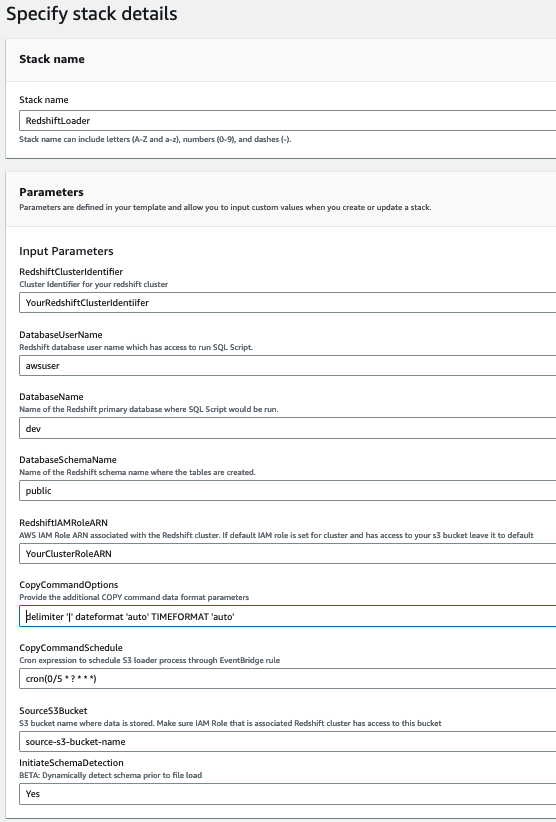
  2. Provide the following parameters to help ensure the successful creation of resources. Make sure you have collected these values beforehand.
Parameter Name Allowed Values Description
CopyCommandSchedule cron(0/5 * ? * * *) The EventBridge rules KickoffFileProcessingSchedule and QueueRSProcessingSchedule are triggered based on this schedule. The default is 5 minutes.
DatabaseName dev The Amazon Redshift database name.
DatabaseSchemaName public The Amazon Redshift schema name.
DatabaseUserName demo The Amazon Redshift user name who has access to run COPY commands on the Amazon Redshift database and schema.
RedshiftClusterIdentifier democluster The Amazon Redshift cluster name.
RedshiftIAMRoleARN arn:aws:iam::7000000000:role/RedshiftDemoRole The Amazon Redshift cluster attached role, which has access to the S3 bucket. This role is used in COPY commands.
SourceS3Bucket Your-bucket-name The S3 bucket where data is located. Use the same bucket you used to store the migrated data as indicated in the previous stack.
CopyCommandOptions delimiter '|' gzip

Provide the additional COPY command data format parameters as follows:

delimiter '|' dateformat 'auto' TIMEFORMAT 'auto'

InitiateSchemaDetection Yes The setting to dynamically detect the schema prior to file upload.

The following screenshot shows an example of our parameters.

Screen capture showing the stack detailes page with the input parameters filled with example values

  1. Choose Create.
  2. Monitor the progress of the Stack creation and wait until it is complete.
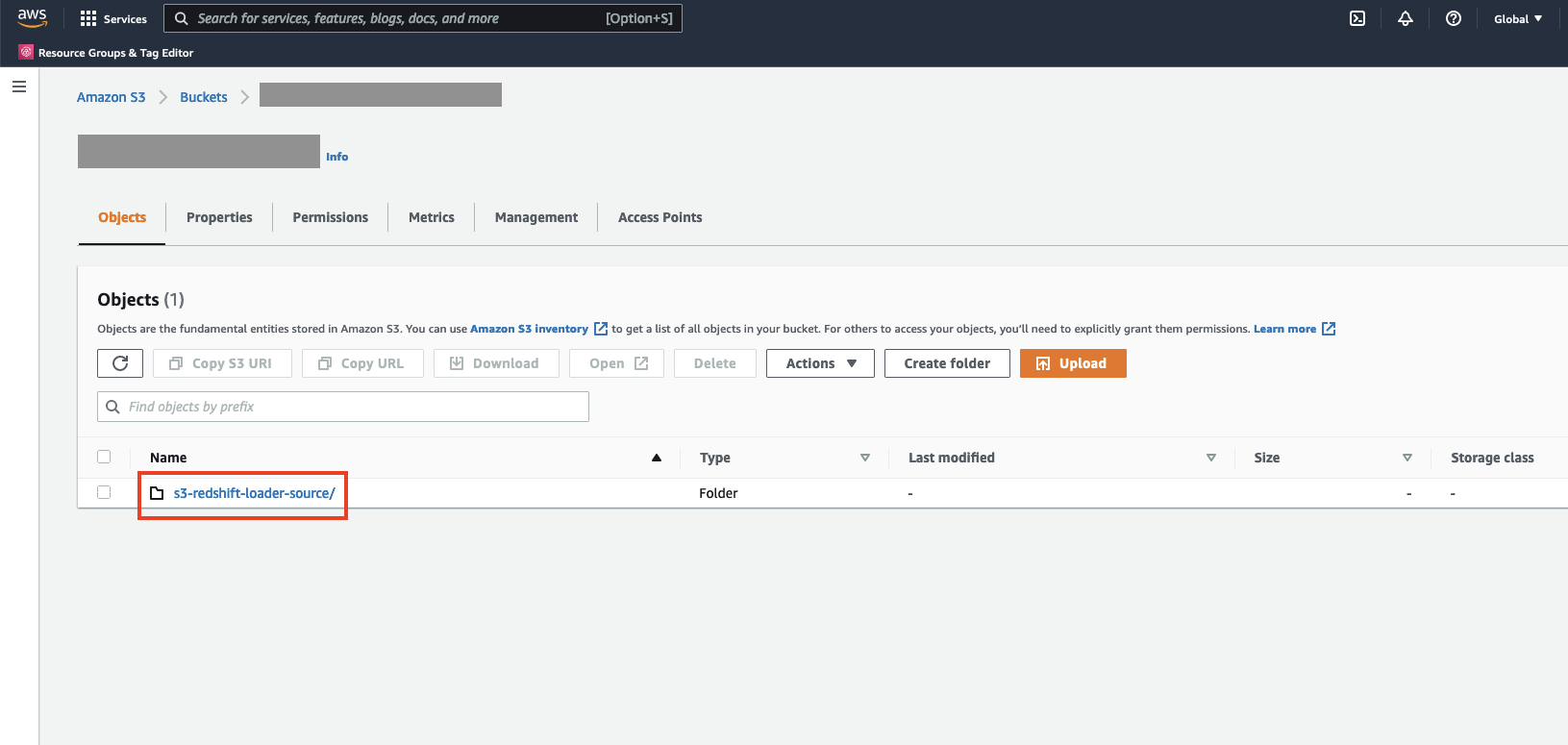
  3. To verify the Custom Auto Loader Framework configuration, log in to the Amazon S3 console and navigate to the S3 bucket you provided as a value to the SourceS3Bucket parameter.

You should see a new directory called s3-redshift-loader-source is created.

Screen caption of the Amazon S3 console showing the folder you should be able to see in your S3 bucket.

Test the solution

To test the solution, complete the following steps:

  1. Create the configuration file based on the prerequisites. You can also download the demo file.
  2. To set up the S3 bucket, on the Amazon S3 console, navigate to the folder bq-mig-config in the bucket you provided in the stack.
  3. Upload the config file into it.
  4. To enable EventBridge notifications to the bucket, open the bucket on the console and on the Properties tab, locate Event notifications.
  5. In the Amazon EventBridge section, choose Edit.
  6. Select On, then choose Save changes.

  1. On AWS Step Function console, monitor the run of the state machine.
  2. Monitor the status of the loads in Amazon Redshift. For instructions, refer to Viewing Current Loads.
  3. Open the Amazon Redshift Query Editor V2 and query your data.

Pricing considerations

You might have egress charges for migrating data out of Google BigQuery into Amazon S3. Review and calculate the cost for moving your data on your Google cloud billing console. As of this writing, AWS Glue 3.0 or later charges $0.44 per DPU-hour, billed per second, with a 1-minute minimum for Spark ETL jobs. For more information, see AWS Glue Pricing. With auto scaling enabled, AWS Glue automatically adds and removes workers from the cluster depending on the parallelism at each stage or microbatch of the job run.

Clean up

To avoid incurring future charges, clean up your resources:

  1. Delete the CloudFormation solution stack.
  2. Delete the CloudFormation Custom Auto Loader Framework stack.

Conclusion

In this post, we demonstrated how to build a scalable and automated data pipeline to migrate your data from Google BigQuery to Amazon Redshift. We also highlighted how the Custom Auto Loader framework can automate the schema detection, create tables for your S3 files, and continuously load the files into your Amazon Redshift warehouse. With this approach, you can automate the migration of entire projects (even multiple projects at the time) in Google BigQuery to Amazon Redshift. This helps improve data migration times into Amazon Redshift significantly through the automatic table migration parallelization.

The auto-copy feature in Amazon Redshift simplifies automatic data loading from Amazon S3 with a simple SQL command, users can easily automate data ingestion from Amazon S3 to Amazon Redshift using the Amazon Redshift auto-copy preview feature

For more information about the performance of the Google BigQuery Connector for AWS Glue, refer to Migrate terabytes of data quickly from Google Cloud to Amazon S3 with AWS Glue Connector for Google BigQuery and learn how to migrate a large amount of data (1.9 TB) into Amazon S3 quickly (about 8 minutes).

To learn more about AWS Glue ETL jobs, see Simplify data pipelines with AWS Glue automatic code generation and workflows and Making ETL easier with AWS Glue Studio.


About the Authors

Tahir Aziz is an Analytics Solution Architect at AWS. He has worked with building data warehouses and big data solutions for over 13 years. He loves to help customers design end-to-end analytics solutions on AWS. Outside of work, he enjoys traveling and cooking.

Ritesh Kumar Sinha is an Analytics Specialist Solutions Architect based out of San Francisco. He has helped customers build scalable data warehousing and big data solutions for over 16 years. He loves to design and build efficient end-to-end solutions on AWS. In his spare time, he loves reading, walking, and doing yoga.

Fabrizio Napolitano is a Principal Specialist Solutions Architect for DB and Analytics. He has worked in the analytics space for the last 20 years, and has recently and quite by surprise become a Hockey Dad after moving to Canada.

Manjula Nagineni is a Senior Solutions Architect with AWS based in New York. She works with major financial service institutions, architecting and modernizing their large-scale applications while adopting AWS Cloud services. She is passionate about designing big data workloads cloud-natively. She has over 20 years of IT experience in software development, analytics, and architecture across multiple domains such as finance, retail, and telecom.

Sohaib Katariwala is an Analytics Specialist Solutions Architect at AWS. He has over 12 years of experience helping organizations derive insights from their data.
Create cross-account, custom Amazon Managed Grafana dashboards for Amazon Redshift

Post Syndicated from Tahir Aziz original https://aws.amazon.com/blogs/big-data/create-cross-account-custom-amazon-managed-grafana-dashboards-for-amazon-redshift/

Amazon Managed Grafana recently announced a new data source plugin for Amazon Redshift, enabling you to query, visualize, and alert on your Amazon Redshift data from Amazon Managed Grafana workspaces. With the new Amazon Redshift data source, you can now create dashboards and alerts in your Amazon Managed Grafana workspaces to analyze your structured and semi-structured data across data warehouses, operational databases, and data lakes. The Amazon Redshift plugin also comes with default out-of-the-box dashboards that make it simple to get started monitoring the health and performance of your Amazon Redshift clusters.

In this post, we present a step-by-step tutorial to use the Amazon Redshift data source plugin to visualize metrics from your Amazon Redshift clusters hosted in different AWS accounts using AWS Single Sign-On (AWS SSO) as well as how to create custom dashboards visualizing data from Amazon Redshift system tables in Amazon Managed Grafana.

Solution overview

Let’s look at the AWS services that we use in our tutorial:

Amazon Managed Grafana is a fully managed service for open-source Grafana developed in collaboration with Grafana Labs. Grafana is a popular open-source analytics platform that enables you to query, visualize, alert on, and understand your operational metrics. You can create, explore, and share observability dashboards with your team, and spend less time managing your Grafana infrastructure and more time improving the health, performance, and availability of your applications. Amazon Managed Grafana natively integrates with AWS services (like Amazon Redshift) so you can securely add, query, visualize, and analyze operational and performance data across multiple accounts and Regions for the underlying AWS service.

Amazon Redshift is a fully managed, petabyte-scale data warehouse service in the cloud. You can start with just a few hundred gigabytes of data and scale to a petabyte or more. This enables you to use your data to acquire new insights for your business and customers. Today, tens of thousands of AWS customers from Fortune 500 companies, startups, and everything in between use Amazon Redshift to run mission-critical business intelligence (BI) dashboards, analyze real-time streaming data, and run predictive analytics jobs. With the constant increase in generated data, Amazon Redshift customers continue to achieve successes in delivering better service to their end-users, improving their products, and running an efficient and effective business.

AWS SSO is where you create or connect your workforce identities in AWS and manage access centrally across your AWS organization. You can choose to manage access just to your AWS accounts or cloud applications. You can create user identities directly in AWS SSO, or you can bring them from your Microsoft Active Directory or a standards-based identity provider, such as Okta Universal Directory or Azure AD. With AWS SSO, you get a unified administration experience to define, customize, and assign fine-grained access. Your workforce users get a user portal to access all their assigned AWS accounts, Amazon Elastic Compute Cloud (Amazon EC2) Windows instances, or cloud applications. AWS SSO can be flexibly configured to run alongside or replace AWS account access management via AWS Identity and Access Management (IAM).

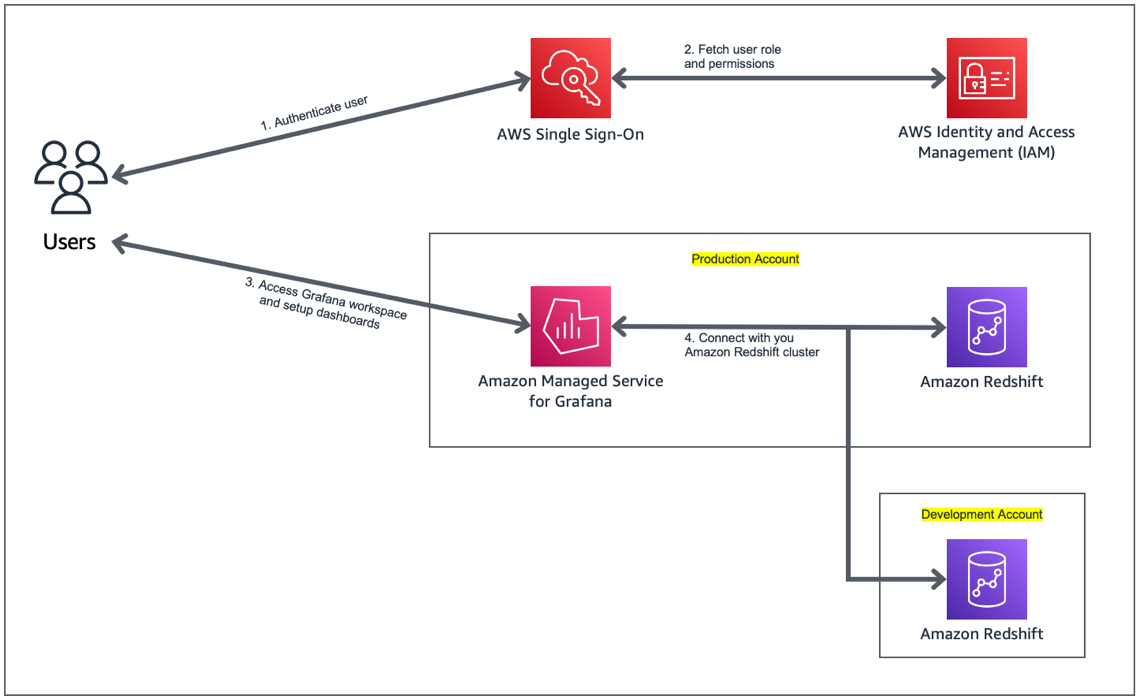
The following diagram illustrates the solution architecture.

The solution includes the following components:

  • Captured metrics from the Amazon Redshift clusters in the development and production AWS accounts.
  • Amazon Managed Grafana, with the Amazon Redshift data source plugin added to it. Amazon Managed Grafana communicates with the Amazon Redshift cluster via the Amazon Redshift Data Service API.
  • The Grafana web UI, with the Amazon Redshift dashboard using the Amazon Redshift cluster as the data source. The web UI communicates with Amazon Managed Grafana via an HTTP API.

We walk you through the following steps in this post:

  1. Create a user in AWS SSO for Amazon Managed Grafana workspace access.
  2. Configure an Amazon Managed Grafana workspace.
  3. Set up two Amazon Redshift clusters as the data sources in Grafana.
  4. Import the Amazon Redshift dashboard supplied with the data source.
  5. Create a custom Amazon Redshift dashboard to visualize metrics from the Amazon Redshift clusters.

Prerequisites

To follow along with this post, you should have the following prerequisites:

Set up AWS SSO

In this section, we set up AWS SSO and register users.

In addition to AWS SSO integration, Amazon Managed Grafana also supports direct SAML integration with SAML 2.0 identity providers.

  1. If you don’t have AWS SSO enabled, open the AWS SSO console and choose Enable AWS SSO.
  2. After AWS SSO is enabled, choose Users in the navigation pane.
  3. Choose Add user.
  4. Enter the user details and choose Next: Groups.
  5. Choose Add user.

Set up your Amazon Grafana workspace

In this section, we demonstrate how to set up a Grafana workspace using Amazon Managed Grafana. We set up authentication using AWS SSO, register data sources, and add administrative users for the workspace.

  1. On the Amazon Managed Grafana console, choose Create workspace.
  2. For Workspace name, enter a suitable name.
  3. Choose Next.
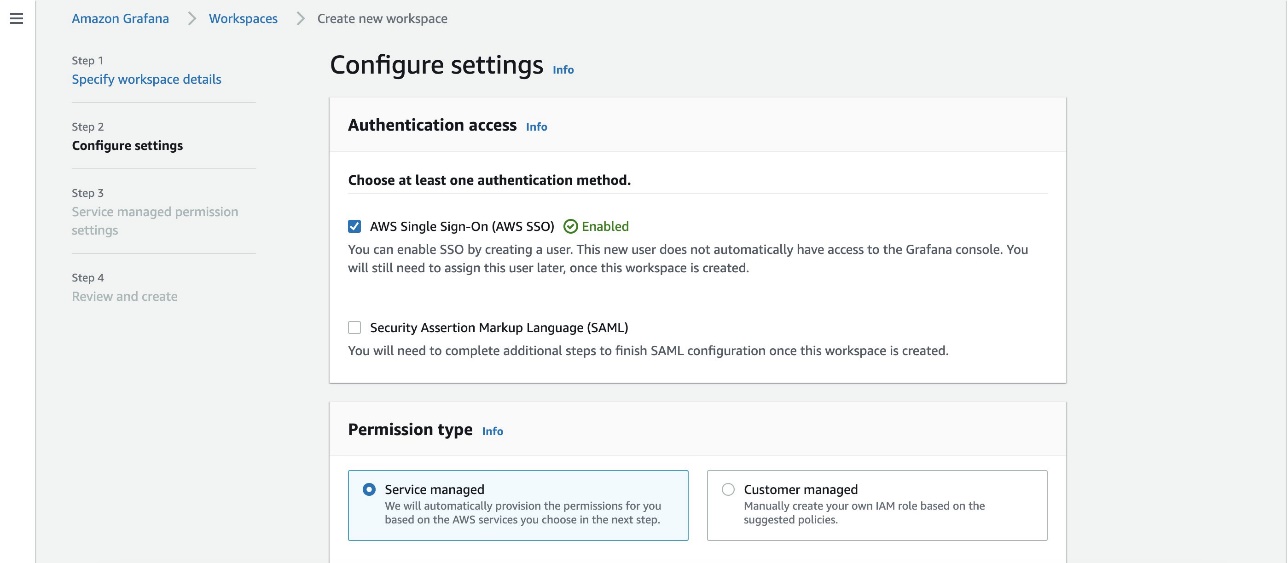
  4. For Authentication access, select AWS Single Sign-On.
  5. For Permission type, select Service managed.
  6. Choose Next.
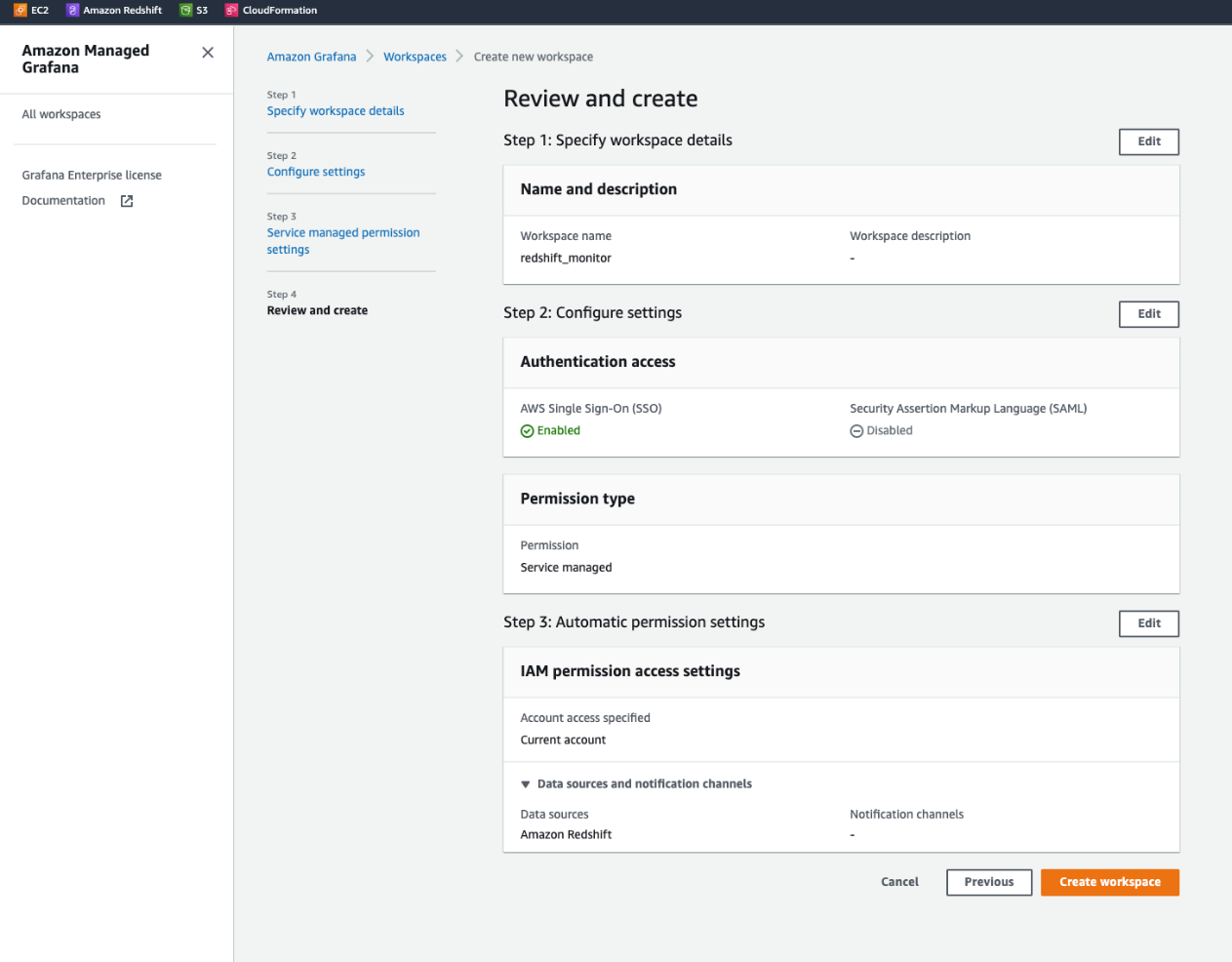
  7. Select Current account.
  8. For Data sources, select Amazon Redshift.
  9. Choose Next.
  10. Review the details and choose Create workspace.

    Now we assign a user to the workspace.
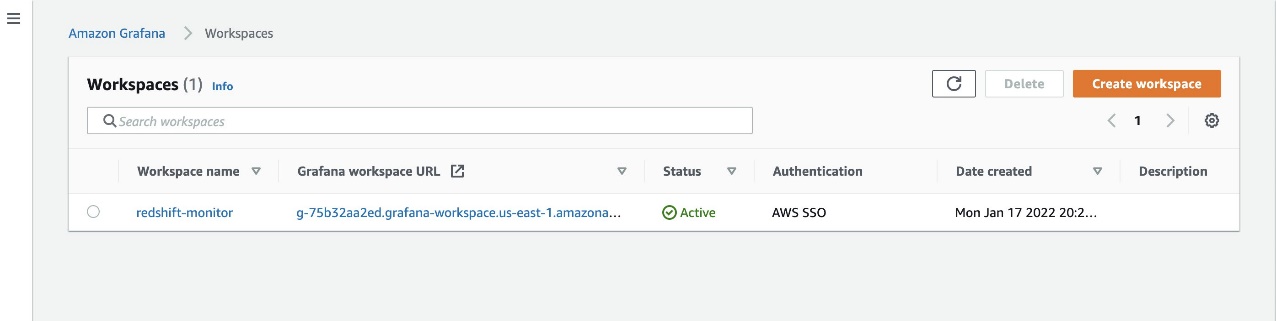
  11. On the Workspaces page, choose the workspace you created.
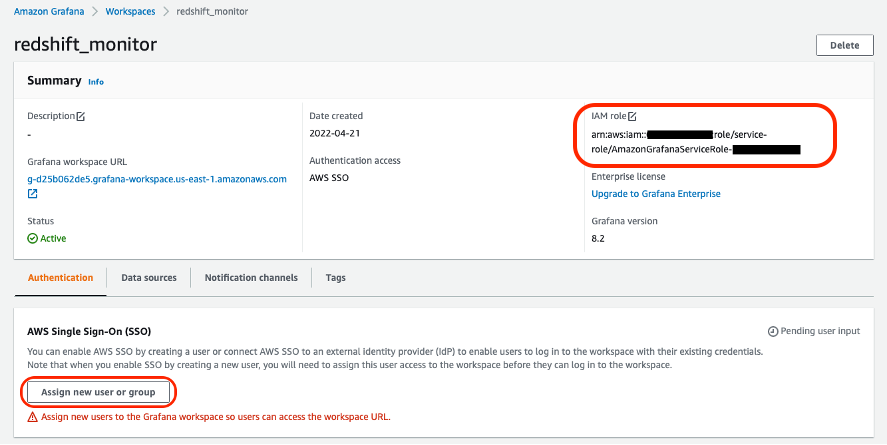
  12. Note the IAM role attached to your workspace.
  13. Choose Assign new user or group.
  14. Select the user to assign to the workspace.
  15. Choose Assign users and groups.

    For the purposes of this post, we need an admin user.
  16. To change the permissions of the user you just assigned, select the user name and choose Make admin.

For the cross-account setup, we use two Amazon Redshift clusters: production and development. In the next section, we configure IAM roles in both the production and development accounts so that the Grafana in the production account is able to connect to the Amazon Redshift clusters in the production account as well as in the development account.

Configure an IAM role for the development account

In this section, we set up the IAM role in the AWS account hosting the development environment. This role is assumed by the Amazon Managed Grafana service from the production AWS account to establish the connection between Amazon Managed Grafana and Amazon Redshift cluster in the development account.

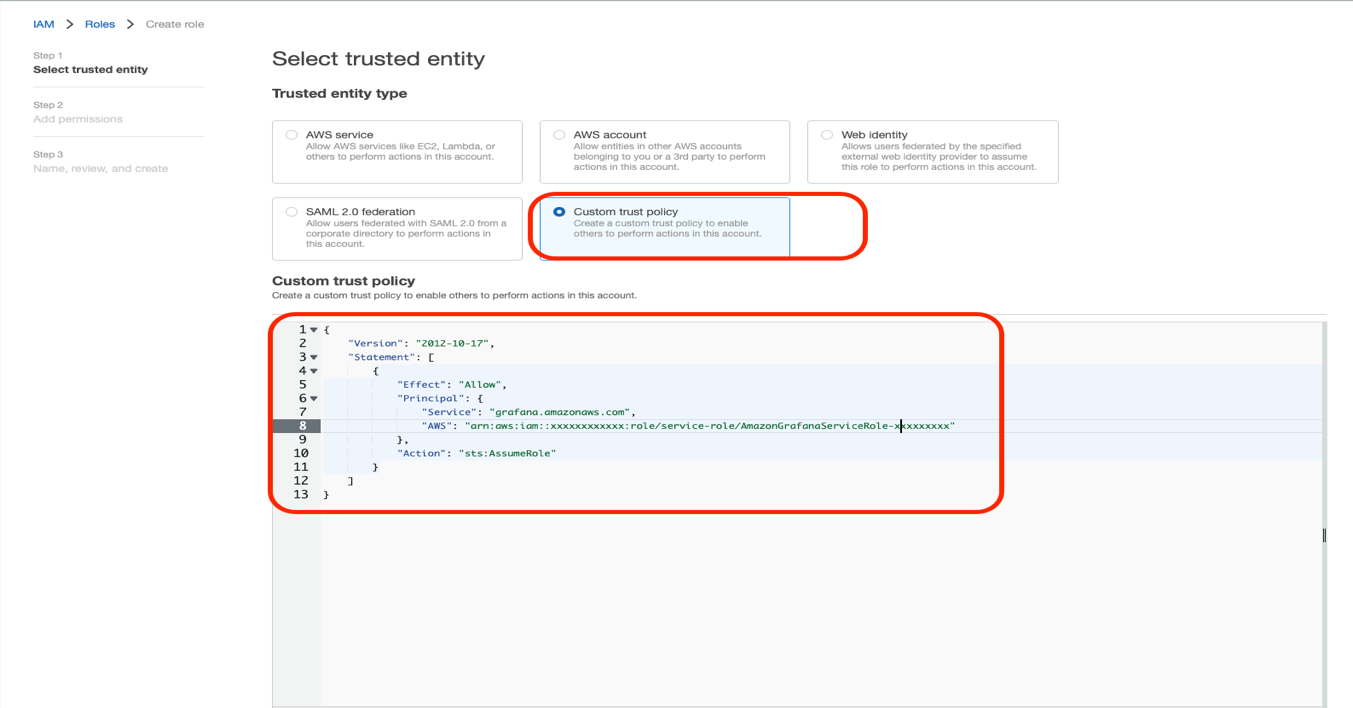
  1. On the IAM console, choose Roles in the navigation pane.
  2. Choose Create role.
  3. Select Custom trust policy.
  4. Use the following policy code (update the account number for your production account and the Grafana service role attached to the workspace):
    {
        "Version": "2012-10-17",
        "Statement": [
            {
                "Effect": "Allow",
                "Principal": {
                    "AWS": "arn:aws:iam::<production-account-number>:role/service-role/AmazonGrafanaServiceRole-xxxxxxxxxx",
                    "Service": "grafana.amazonaws.com"
                },
                "Action": "sts:AssumeRole"
            }
        ]
    }

  5. Choose Next.
  6. Attach the managed IAM policy AmazonGrafanaRedshiftAccess to this role. For instructions, refer to Modifying a role permissions policy (console).
  7. Provide a role name, description, and tags (optional), and create the role.

Configure an IAM role for the production account

Next, we configure the IAM role created by the Amazon Managed Grafana service in order to establish the connection between Amazon Managed Grafana and the Amazon Redshift cluster in the production account.

  1. On the IAM console, choose Roles in the navigation pane.
  2. Search for the AmazonGrafanaServiceRole-xxxxxxx role attached to your Grafana workspace.
  3. Create an inline IAM policy and attach it to this role with the following policy code:
    {
    	"Version": "2012-10-17",
    	"Statement": [{
    		"Sid": "VisualEditor0",
    		"Effect": "Allow",
    		"Action": [
    			"sts:AssumeRole"
    		],
    		"Resource":"arn:aws:iam::<dev-account-number>:role/<DevAccountRoleName>"
    	}]
    }

  4. Provide a role name, description, and tags (optional), and create the role.

Import the default dashboard

In this section, we connect to the Amazon Redshift clusters in the production and development accounts from the Amazon Managed Grafana console and import the default dashboard.

  1. On the Amazon Managed Grafana console, choose Workspaces in the navigation pane.
  2. Choose the workspace you just created (authenticate and sign in if needed).
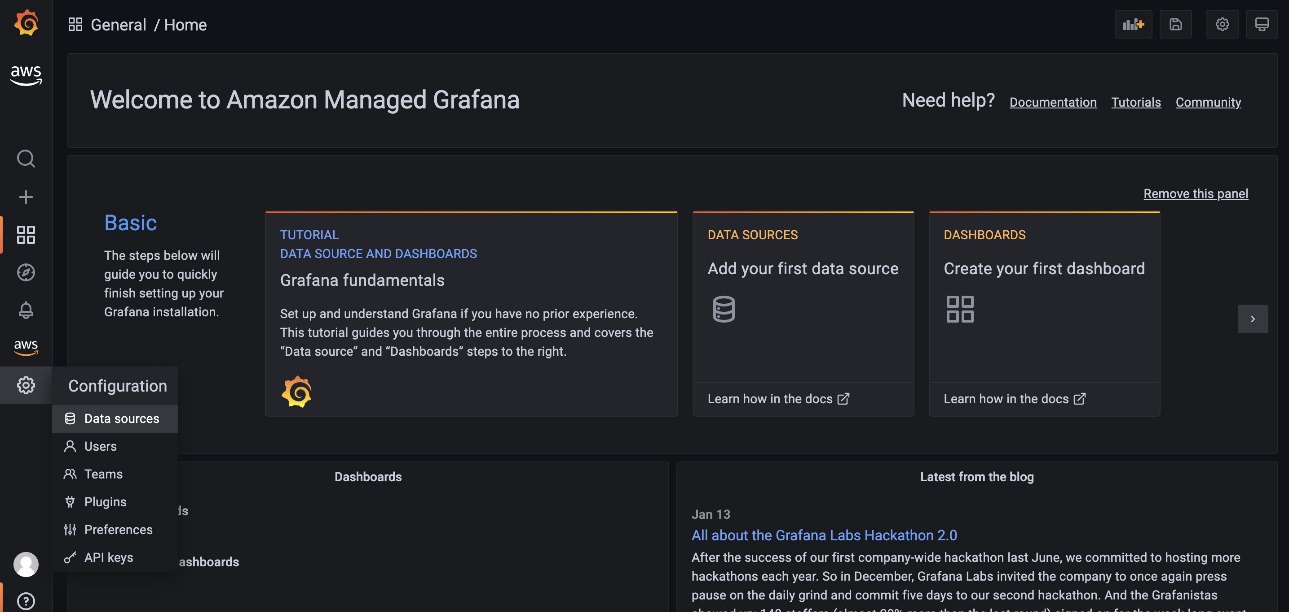
  3. In the navigation pane, choose Settings and on the Configuration menu, choose Data sources.
  4. Choose Add data source.
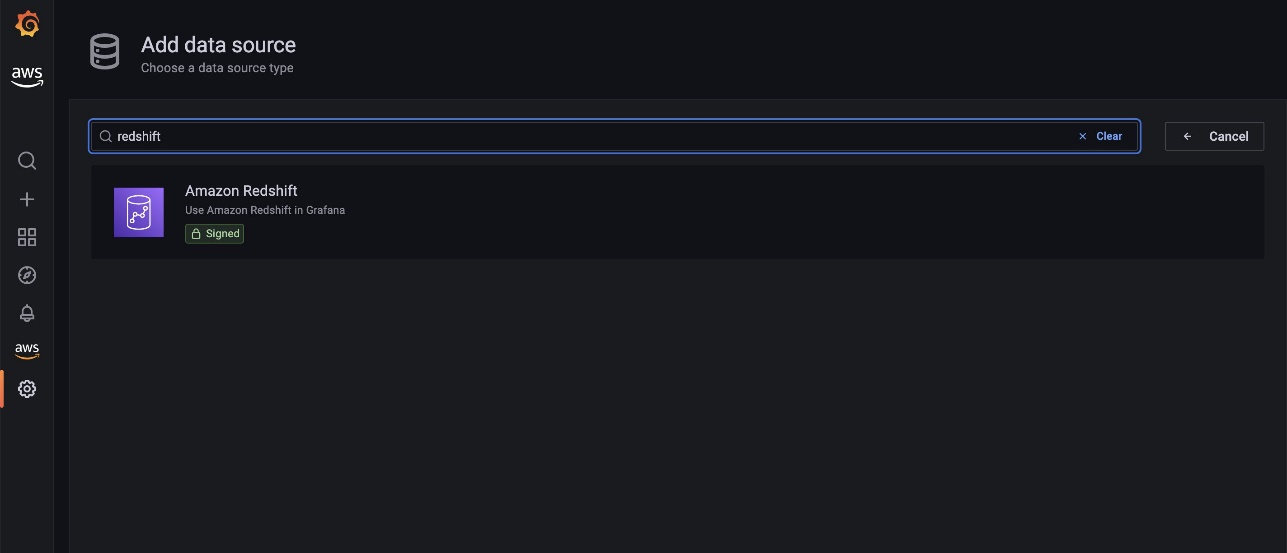
  5. Search for and choose Amazon Redshift.
  6. On the Settings tab, for Authentication provider, choose Workspace IAM role.
  7. For Default Region, choose us-east-1.
  8. Under Redshift Details, choose Temporary credentials.
  9. Enter the cluster identifier and database name for your Amazon Redshift cluster in the development account.
  10. For Database user, enter redshift_data_api_user.
  11. Choose Save & test.
    When the connection is successfully established, a message appears that the data source is working. You can now move on to the next step.
  12. Repeat these steps to add another data source to connect to the Amazon Redshift cluster in the development account.
  13. On the Settings tab, for Authentication provider, choose Workspace IAM role.
  14. Enter the workspace role as the ARN of the IAM role you created earlier (arn:aws:iam::dev-account-number:role/cross-account-role-name).
  15. For Default Region, choose us-east-1.
  16. Under Redshift Details, choose Temporary credentials.
  17. Enter the cluster identifier and database name for your Amazon Redshift cluster in the development account.
  18. For Database user, enter redshift_data_api_user.
  19. Choose Save & test.
    When the connection is successfully established, a message appears that the data source is working.
  20. On the Dashboards tab, choose Import next to Amazon Redshift.

On the dashboard page, you can change the data source between your production and development clusters on a drop-down menu.

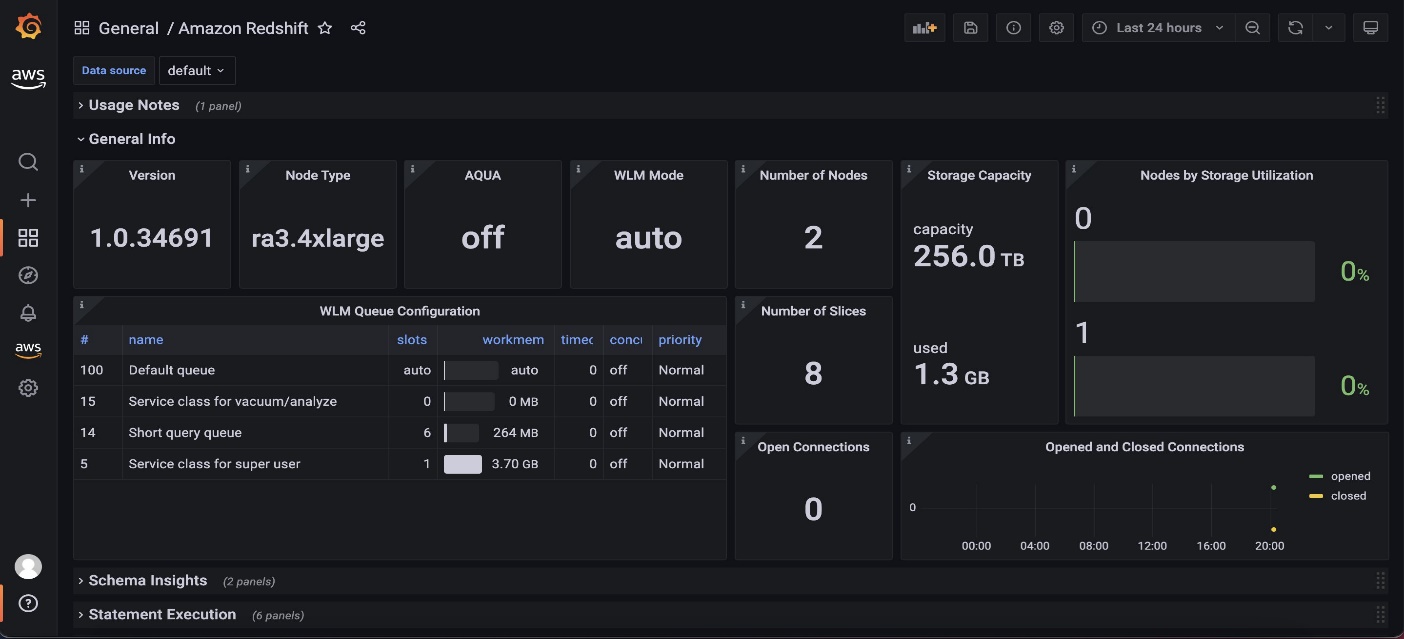
The default Amazon Redshift dashboard, as shown in the following screenshot, makes it easy to monitor the overall health of the cluster by showing different cluster metrics, like total storage capacity used, storage utilization per node, open and closed connections, WLM mode, AQUA status, and more.

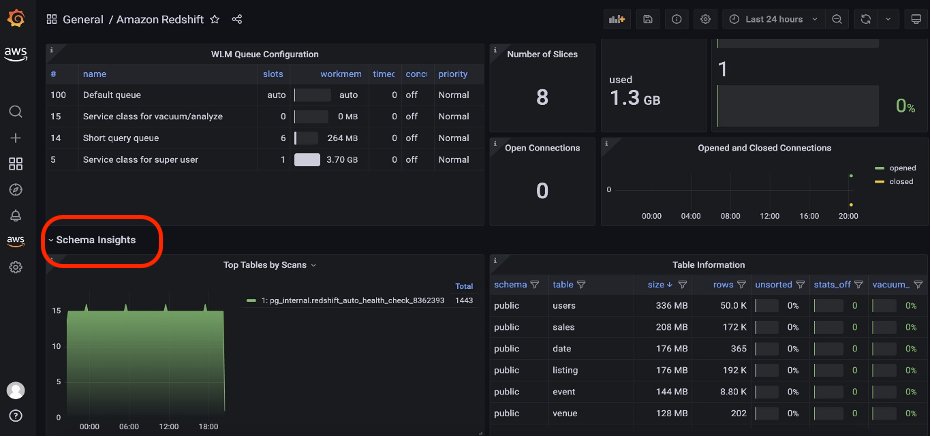
Additionally, the default dashboard displays several table-level metrics such as size of the tables, total number of rows, unsorted rows percentage, and more, in the Schema Insights section.

Add a custom dashboard for Amazon Redshift

The Amazon Redshift data source plugin allows you to query and visualize Amazon Redshift data metrics from within Amazon Managed Grafana. It’s preconfigured with general metrics. To add a custom metric from the Amazon Redshift cluster, complete the following steps:

  1. On the Amazon Managed Grafana console, choose All workspaces in the navigation pane.
  2. Choose the Grafana workspace URL for the workspace you want to modify.
  3. Choose Sign in with AWS SSO and provide your credentials.
  4. On the Amazon Managed Grafana workspace page, choose the plus sign and on the Create menu, choose Dashboard.
  5. Choose Add a new panel.
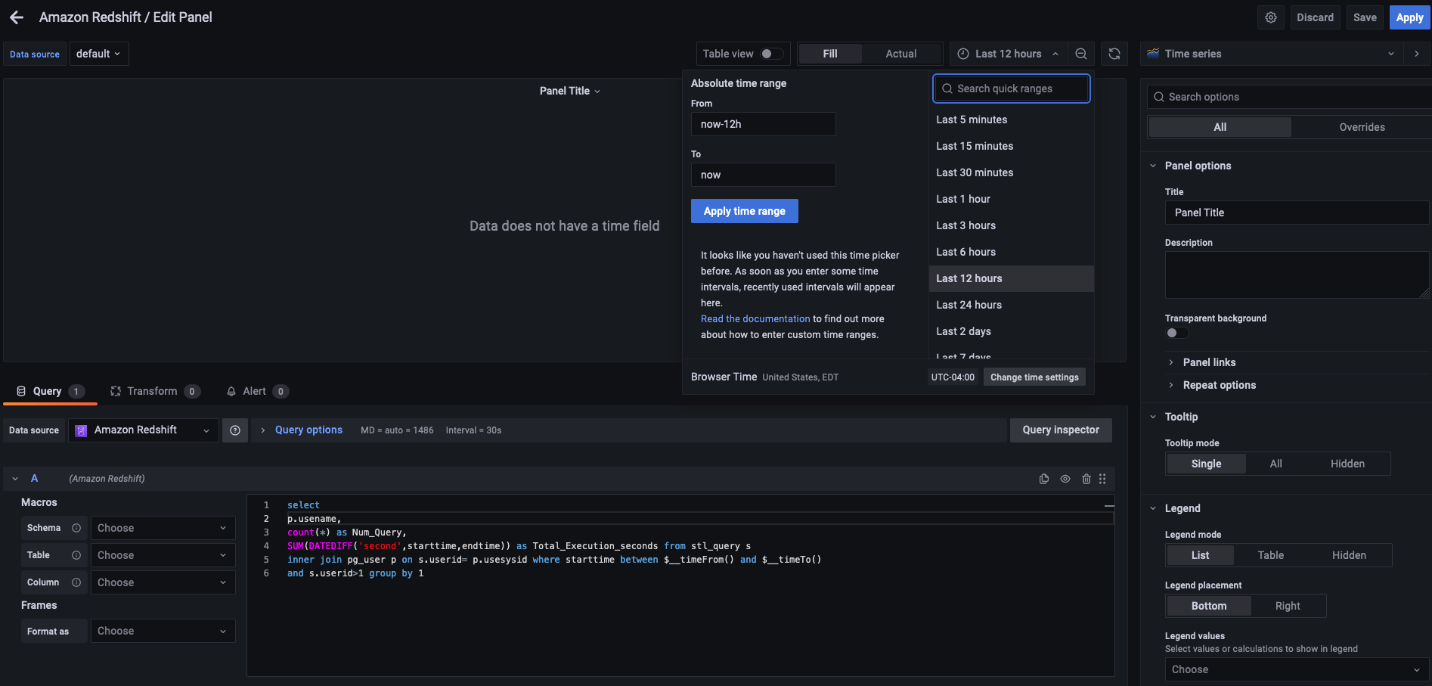
  6. Add the following custom SQL to get the data from the Amazon Redshift cluster:
    select 
    p.usename,
    count(*) as Num_Query,
    SUM(DATEDIFF('second',starttime,endtime)) as Total_Execution_seconds from stl_query s 
    inner join pg_user p on s.userid= p.usesysid where starttime between $__timeFrom() and $__timeTo()
    and s.userid>1 group by 1

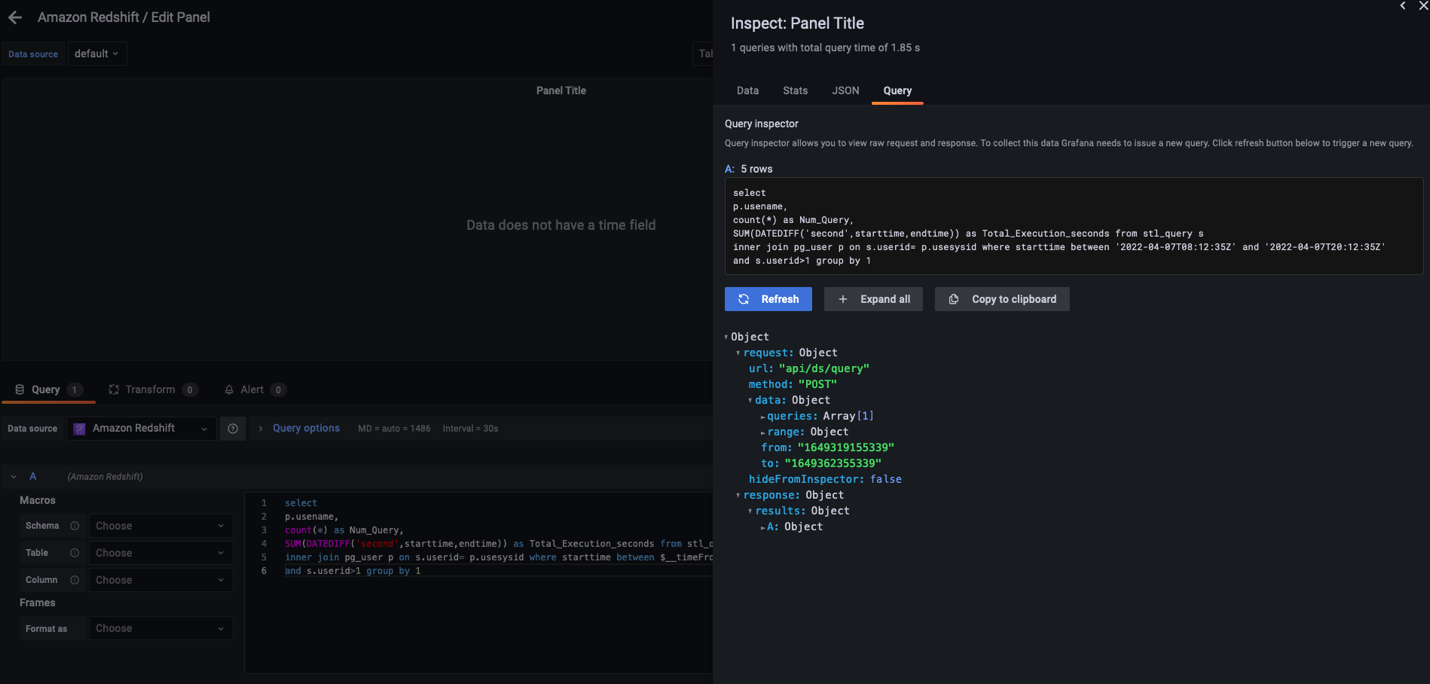
    For this post, we use the default settings, but you can control and link the time range using the $__timeFrom() and $__timeTo() macros; they’re bound with the time range control of your dashboard. For more information and details about the supported expressions, see Query Redshift data.

  7. To inspect the data, choose Query inspector to test the custom query outcome.
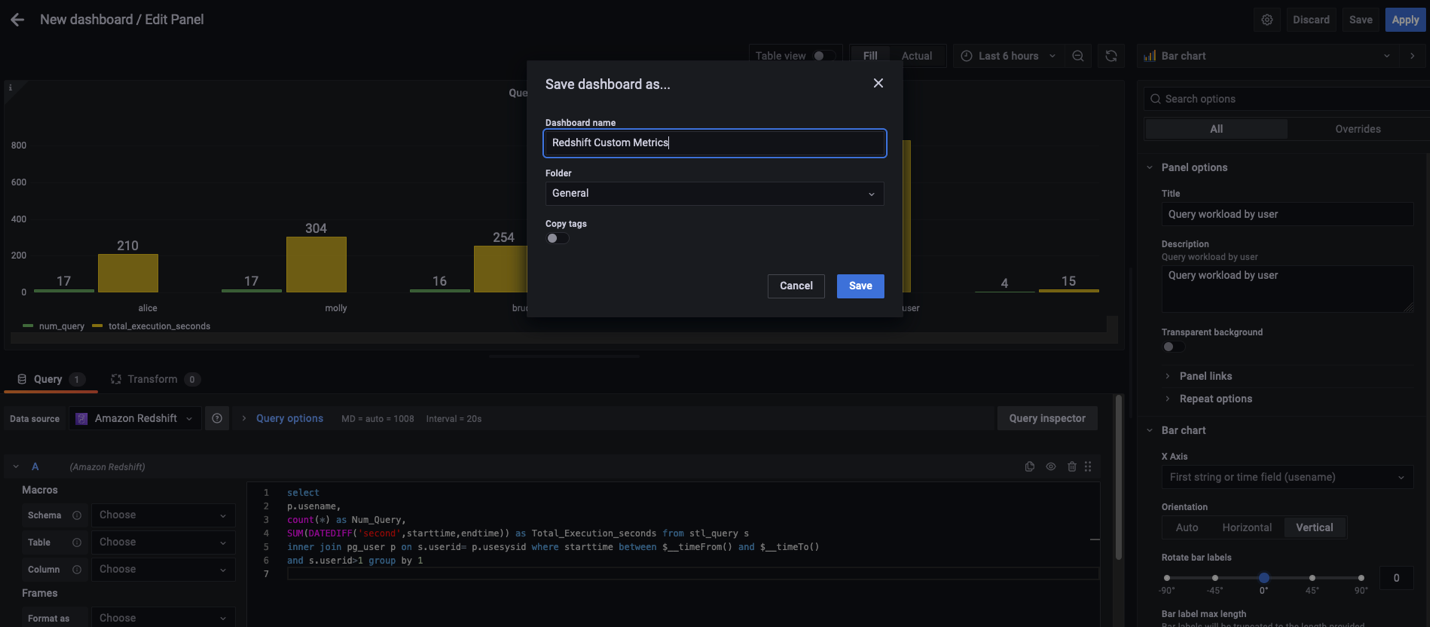
    Amazon Managed Grafana supports a variety of visualizations. For this post, we create a bar chart.
  8. On the Visualizations tab in the right pane, choose Bar chart.
  9. Enter a title and description for the custom chart, and leave all other properties as default.
    For more information about supported properties, see Visualizations.
  10. Choose Save.
  11. In the pop-up window, enter a dashboard name and choose Save.

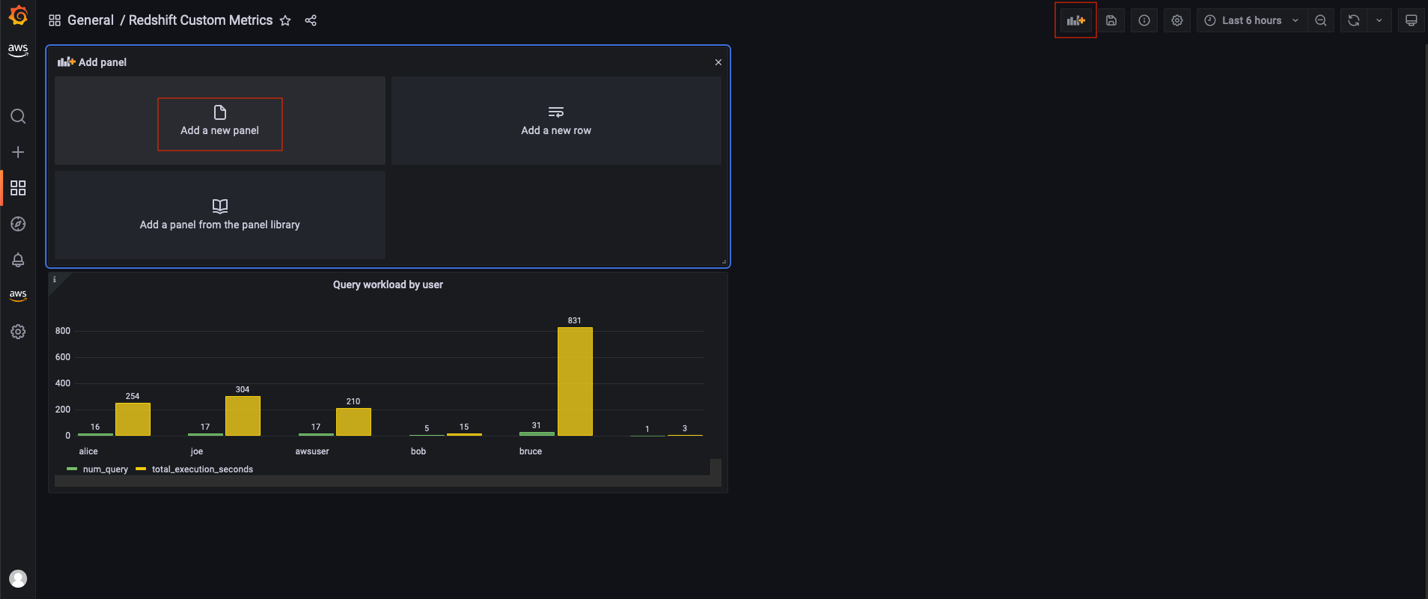
    A new dashboard is created with a custom metric.
  12. To add more metrics, choose the Add panel icon, choose Add a new panel, and repeat the previous steps.

Clean up

To avoid incurring future charges, complete the following steps:

  1. Delete the Amazon Managed Grafana workspace.
  2. If you created a new Amazon Redshift cluster for this demonstration, delete the cluster.

Conclusion

In this post, we demonstrated how to use AWS SSO and Amazon Managed Grafana to create an operational view to monitor the health and performance of Amazon Redshift clusters. We learned how to extend your default dashboard by adding custom and insightful dashboards to your Grafana workspace.

We look forward to hearing from you about your experience. If you have questions or suggestions, please leave a comment.


About the Authors

Tahir Aziz is an Analytics Solution Architect at AWS. He has worked with building data warehouses and big data solutions for over 13 years. He loves to help customers design end-to-end analytics solutions on AWS. Outside of work, he enjoys traveling and cooking.

Shawn Sachdev is a Sr. Analytics Specialist Solutions Architect at AWS. He works with customers and provides guidance to help them innovate and build well-architected and high-performance data warehouses and implement analytics at scale on the AWS platform. Before AWS, he worked in several analytics and system engineering roles. Outside of work, he loves watching sports, and is an avid foodie and craft beer enthusiast.

Ekta Ahuja is an Analytics Specialist Solutions Architect at AWS. She is passionate about helping customers build scalable and robust data and analytics solutions. Before AWS, she worked in several different data engineering and analytics roles. Outside of work, she enjoys baking, traveling, and board games.