All posts by Tarik Makota

Power data ingestion into Splunk using Amazon Data Firehose

Post Syndicated from Tarik Makota original https://aws.amazon.com/blogs/big-data/power-data-ingestion-into-splunk-using-amazon-data-firehose/

Last updated: December 17, 2025


Originally published: December 18, 2017

Amazon Data Firehose supports Splunk Enterprise and Splunk Cloud as a delivery destination. This native integration between Splunk Enterprise, Splunk Cloud, and Amazon Data Firehose is designed to make AWS data ingestion setup seamless, while offering a secure and fault-tolerant delivery mechanism. We want to enable customers to monitor and analyze machine data from any source and use it to deliver operational intelligence and optimize IT, security, and business performance.

With Amazon Data Firehose, customers can use a fully managed, reliable, and scalable data streaming solution to Splunk. In this post, we tell you a bit more about the Amazon Data Firehose and Splunk integration. We also show you how to ingest large amounts of data into Splunk using Amazon Data Firehose.

Push vs. Pull data ingestion

Presently, customers use a combination of two ingestion patterns, primarily based on data source and volume, in addition to existing company infrastructure and expertise:

  1. Pull-based approach: Using dedicated pollers running the popular Splunk Add-on for AWS to pull data from various AWS services such as Amazon CloudWatch or Amazon S3.
  2. Push-based approach: Streaming data directly from AWS to Splunk HTTP Event Collector (HEC) by using Amazon Data Firehose. Examples of applicable data sources include CloudWatch Logs and Amazon Kinesis Data Streams.

The pull-based approach offers data delivery guarantees such as retries and checkpointing out of the box. However, it requires more ops to manage and orchestrate the dedicated pollers, which are commonly running on Amazon EC2 instances. With this setup, you pay for the infrastructure even when it’s idle.

On the other hand, the push-based approach offers a low-latency scalable data pipeline made up of serverless resources like Amazon Data Firehose sending directly to Splunk indexers (by using Splunk HEC). This approach translates into lower operational complexity and cost. However, if you need guaranteed data delivery then you have to design your solution to handle issues such as a Splunk connection failure or Lambda execution failure. To do so, you might use, for example, AWS Lambda Dead Letter Queues.

How about getting the best of both worlds?

Let’s go over the new integration’s end-to-end solution and examine how Amazon Data Firehose and Splunk together expand the push-based approach into a native AWS solution for applicable data sources.
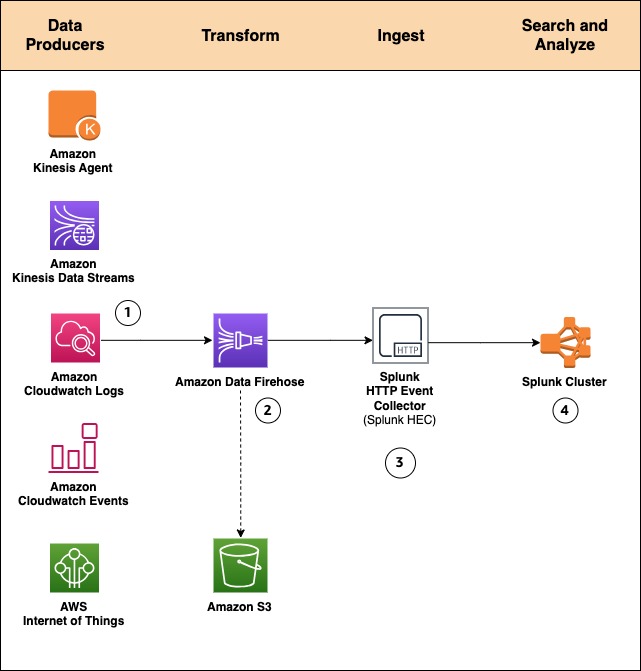
By using a managed service like Amazon Data Firehose for data ingestion into Splunk, we provide out-of-the-box reliability and scalability. One of the pain points of the old approach was the overhead of managing the data collection nodes (Splunk heavy forwarders). With the new Amazon Data Firehose to Splunk integration, there are no forwarders to manage or set up. Data producers (1) are configured through the AWS Management Console to drop data into Amazon Data Firehose.

You can also create your own data producers. For example, you can drop data into a Firehose delivery stream by using Amazon Kinesis Agent, or by using the Firehose API (PutRecord(), PutRecordBatch()), or by writing to a Kinesis Data Stream configured to be the data source of a Firehose delivery stream. For more details, refer to Sending Data to an Amazon Data Firehose Delivery Stream.

You might need to transform the data before it goes into Splunk for analysis. For example, you might want to enrich it or filter or anonymize sensitive data. You can do so using AWS Lambda and enabling data transformation in Amazon Data Firehose. In this scenario, Amazon Data Firehose is used to decompress the Amazon CloudWatch logs by enabling the feature.

Systems fail all the time. Let’s see how this integration handles outside failures to guarantee data durability. In cases when Amazon Data Firehose can’t deliver data to the Splunk Cluster, data is automatically backed up to an S3 bucket. You can configure this feature while creating the Firehose delivery stream (2). You can choose to back up all data or only the data that’s failed during delivery to Splunk.

In addition to using S3 for data backup, this Firehose integration with Splunk supports Splunk Indexer Acknowledgments to guarantee event delivery. This feature is configured on Splunk’s HTTP Event Collector (HEC) (3). It ensures that HEC returns an acknowledgment to Amazon Data Firehose only after data has been indexed and is available in the Splunk cluster (4).

Now let’s look at a hands-on exercise that shows how to forward VPC flow logs to Splunk.

How-to guide

To process VPC flow logs, we implement the following architecture.
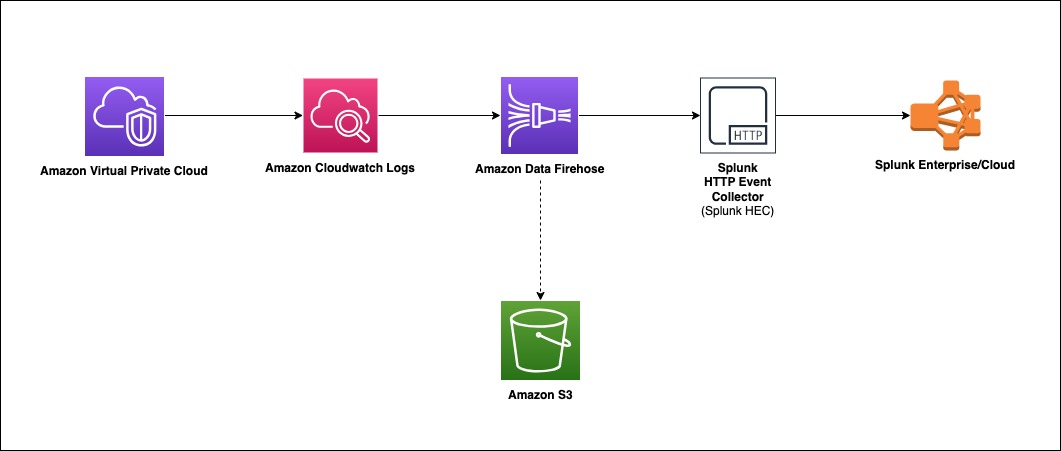
Amazon Virtual Private Cloud (Amazon VPC) delivers flow log files into an Amazon CloudWatch Logs group. Using a CloudWatch Logs subscription filter, we set up real-time delivery of CloudWatch Logs to an Amazon Data Firehose stream.

Data coming from CloudWatch Logs is compressed with gzip compression. To work with this compression, we will enable decompression for the Firehose stream. Firehose then delivers the raw logs to the Splunk Http Event Collector (HEC).

If delivery to the Splunk HEC fails, Firehose deposits the logs into an Amazon S3 bucket. You can then ingest the events from S3 using an alternate mechanism such as a Lambda function.

When data reaches Splunk (Enterprise or Cloud), Splunk parsing configurations (packaged in the Splunk Add-on for Amazon Data Firehose) extract and parse all fields. They make data ready for querying and visualization using Splunk Enterprise and Splunk Cloud.

Walkthrough

Install the Splunk Add-on for Amazon Data Firehose

The Splunk Add-on for Amazon Data Firehose enables Splunk (be it Splunk Enterprise, Splunk App for AWS, or Splunk Enterprise Security) to use data ingested from Amazon Data Firehose. Install the Add-on on all the indexers with an HTTP Event Collector (HEC). The Add-on is available for download from Splunkbase. For troubleshooting assistance, please refer to: AWS Data Firehose troubleshooting documentationSplunk’s official troubleshooting guide

HTTP Event Collector (HEC)

Before you can use Amazon Data Firehose to deliver data to Splunk, set up the Splunk HEC to receive the data. From Splunk web, go to the Setting menu, choose Data Inputs, and choose HTTP Event Collector. Choose Global Settings, ensure All tokens is enabled, and then choose Save. Then choose New Token to create a new HEC endpoint and token. When you create a new token, make sure that Enable indexer acknowledgment is checked.
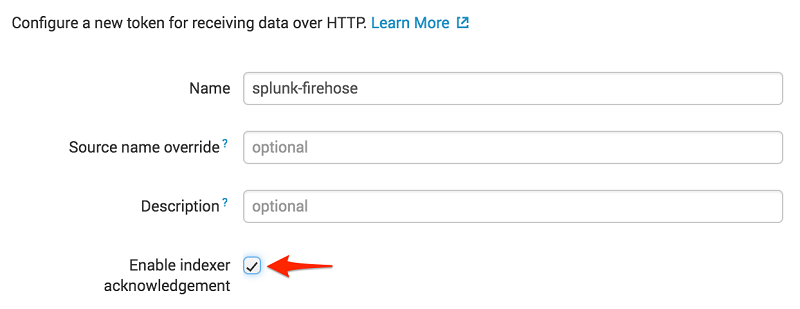
When prompted to select a source type, select aws:cloudwatchlogs:vpcflow

Create an S3 backsplash bucket

To provide for situations in which Amazon Data Firehose can’t deliver data to the Splunk Cluster, we use an S3 bucket to back up the data. You can configure this feature to back up all data or only the data that’s failed during delivery to Splunk.

Note: Bucket names are unique.

aws s3 create-bucket --bucket <your-s3-bucket-name> --create-bucket-configuration LocationConstraint=<your-region>

Create an Amazon Data Firehose delivery stream

On the AWS console, open the Amazon Data Firehose console, and choose Create Firehose Stream.

Select DirectPUT as the source and Splunk as the destination.
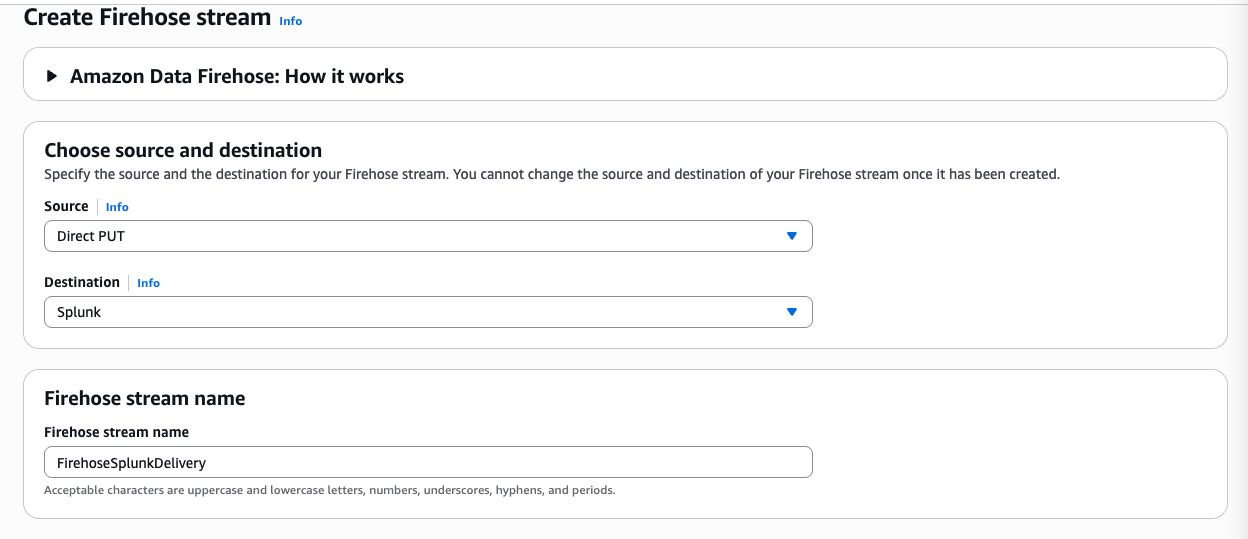
Create Firehose Stream

If you are using Firehose to deliver CloudWatch Logs and want to deliver decompressed data to your Firehose stream destination, use Firehose Data Format Conversion (Parquet, ORC) or Dynamic partitioning. You must enable decompression for your Firehose stream, check out Deliver decompressed Amazon CloudWatch Logs to Amazon S3 and Splunk using Amazon Data Firehose

Enter your Splunk HTTP Event Collector (HEC) information in destination settings
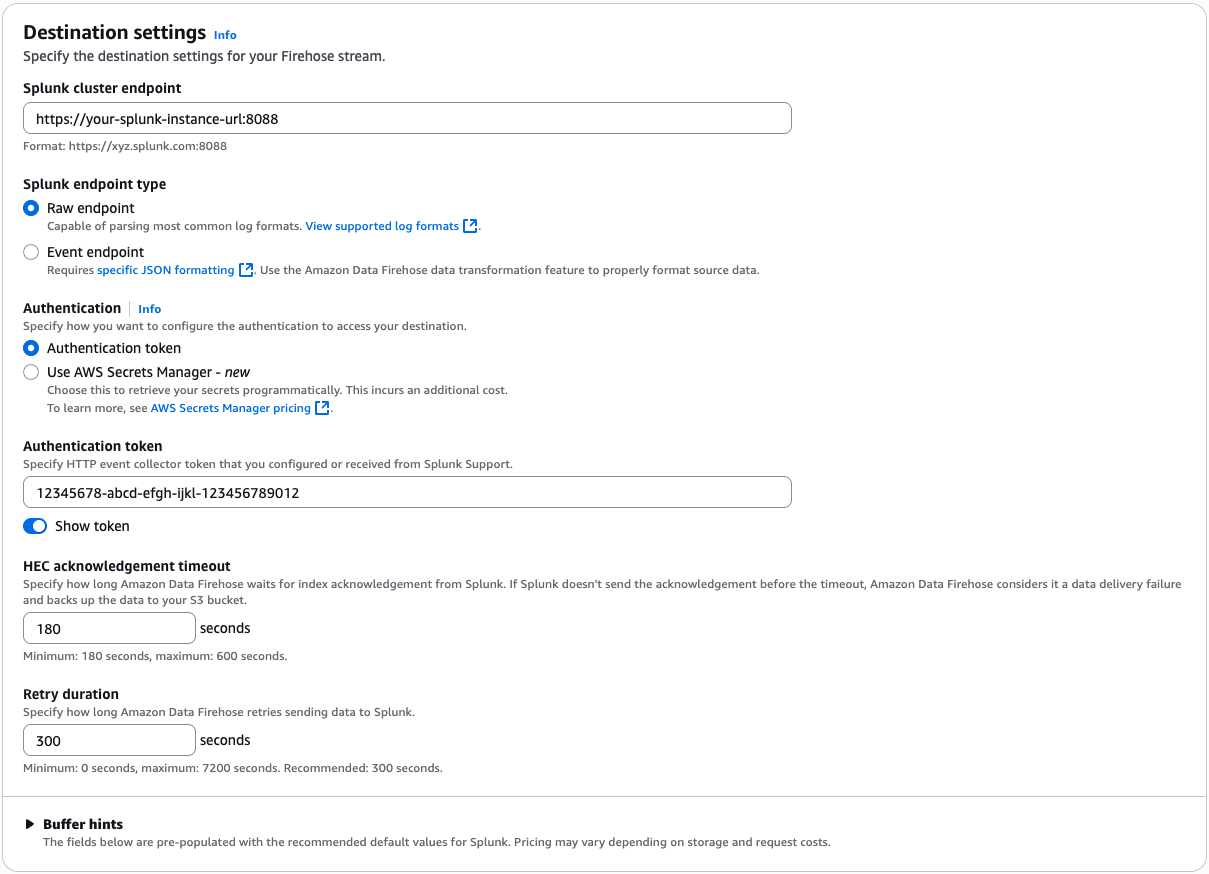
Firehose Destination setting

Note: Amazon Data Firehose requires the Splunk HTTP Event Collector (HEC) endpoint to be terminated with a valid CA-signed certificate matching the DNS hostname used to connect to your HEC endpoint. You receive delivery errors if you are using a self-signed certificate.

In this example, we only back up logs that fail during delivery.
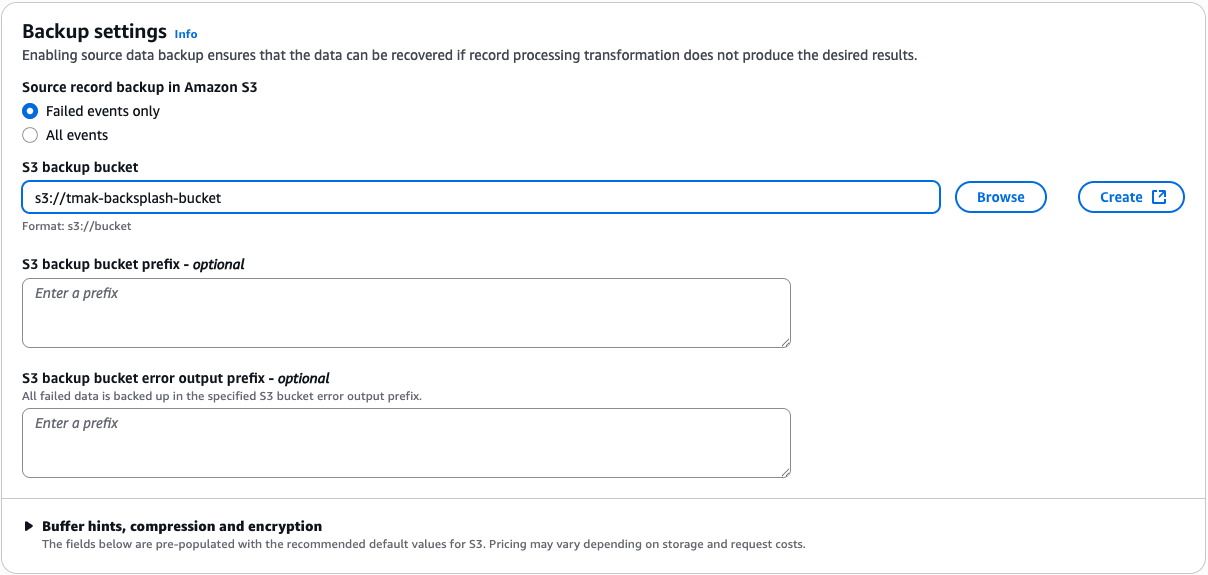
Backsplash S3 settings

To monitor your Firehose delivery stream, enable error logging. Doing this means that you can monitor record delivery errors. Create an IAM role for the Firehose stream by choosing Create new, or Choose existing IAM role.
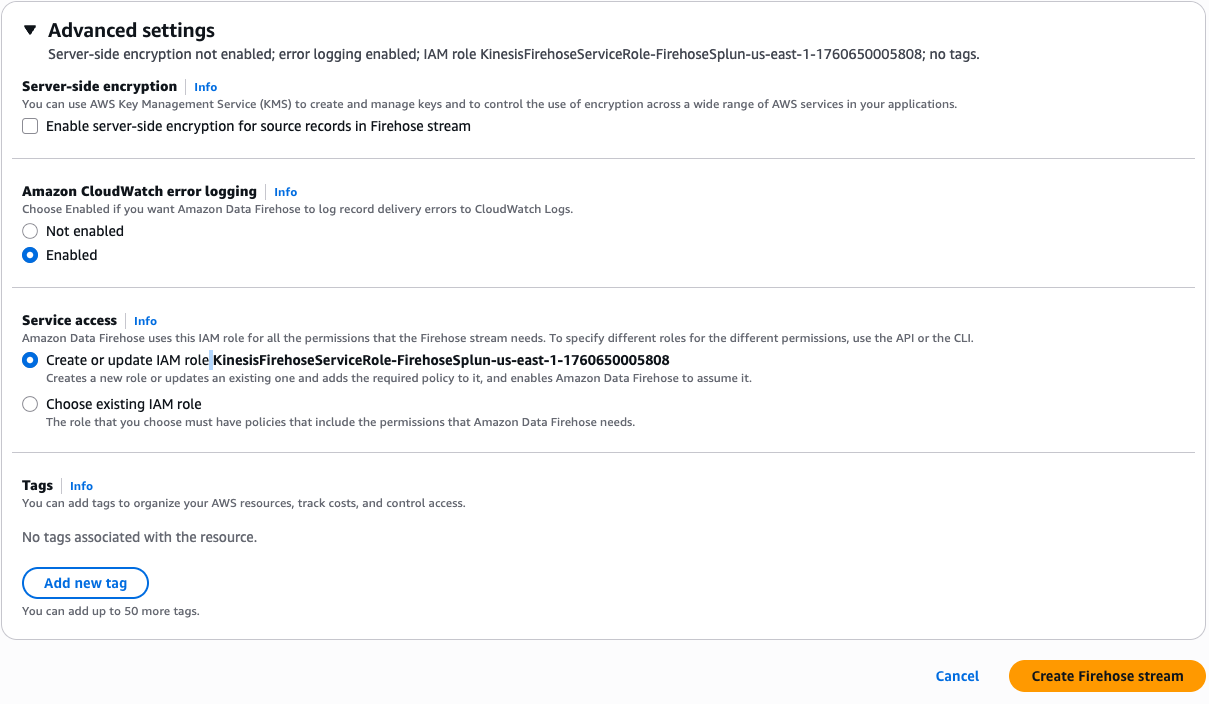
Advance settings for cloudwatch loggings

You now get a chance to review and adjust the Firehose stream settings. When you are satisfied, choose Create Firehose Stream.

Create a VPC Flow Log

To send events from Amazon VPC, you need to set up a VPC flow log. If you already have a VPC flow log you want to use, you can skip to the “Publish CloudWatch to Amazon Data Firehose” section.

On the AWS console, open the Amazon VPC service. Then choose VPC, and choose the VPC you want to send flow logs from. Choose Flow Logs, and then choose Create Flow Log. If you don’t have an IAM role that allows your VPC to publish logs to CloudWatch, choose Create and use a new service role.
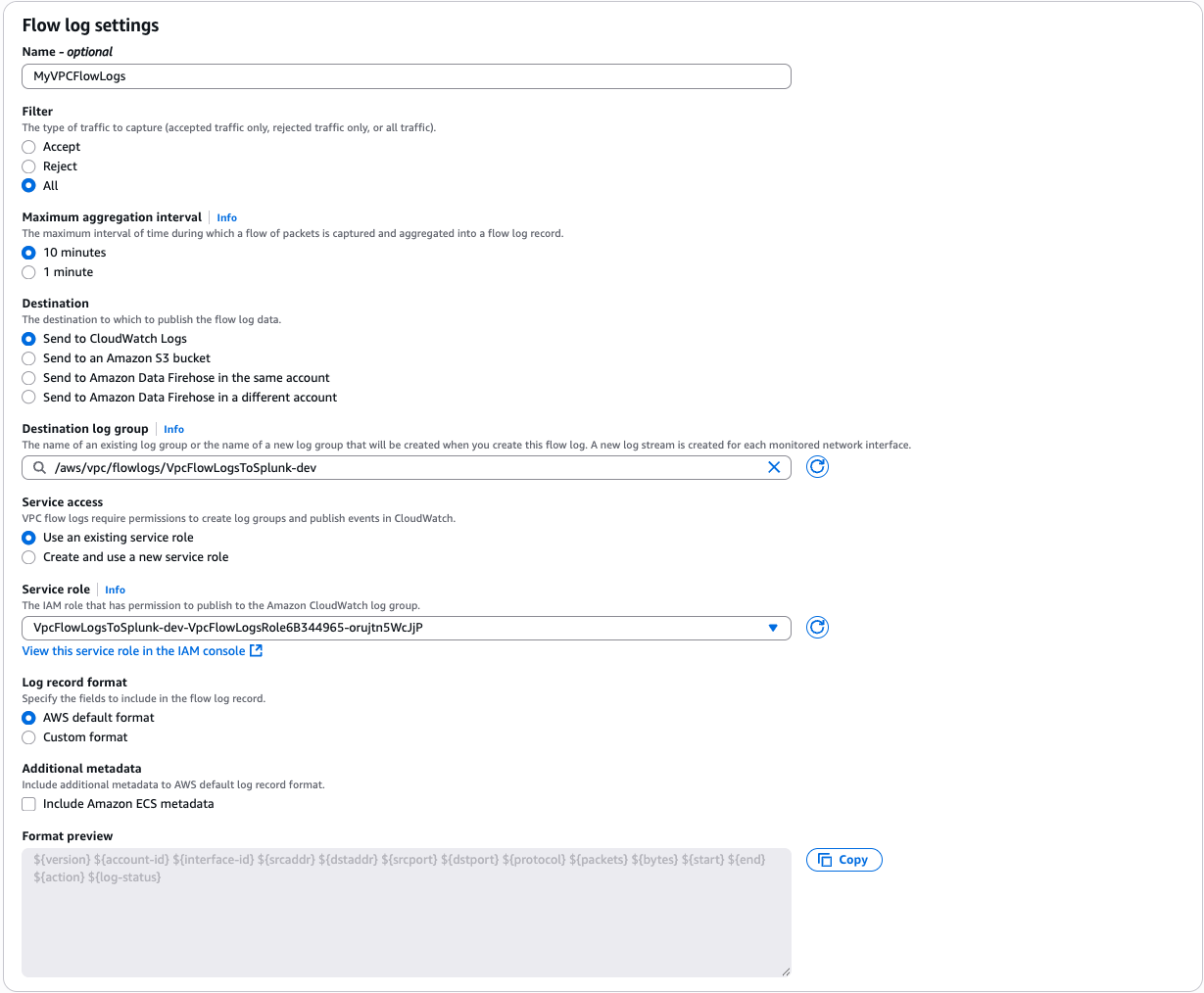
VPC Flow Logs Settings

Once active, your VPC flow log should look like the following.

Flow logs

Publish CloudWatch to Amazon Data Firehose

When you generate traffic to or from your VPC, the log group is created in Amazon CloudWatch. We create an IAM role to allow Cloudwatch to publish logs to the Amazon Data Firehose Stream.

To allow CloudWatch to publish to your Firehose stream, you need to give it permissions.

$ aws iam create-role --role-name CWLtoFirehoseRole --assume-role-policy-document file://TrustPolicyForCWLToFireHose.json


Here is the content for TrustPolicyForCWLToFireHose.json.

{
  "Statement": {
    "Effect": "Allow",
    "Principal": { "Service": "logs.us-east-1.amazonaws.com" },
    "Action": "sts:AssumeRole"
  }
}

Attach the policy to the newly created role.

$ aws iam put-role-policy 
    --role-name CWLtoFirehoseRole 
    --policy-name Permissions-Policy-For-CWL 
    --policy-document file://PermissionPolicyForCWLToFireHose.json

Here is the content for PermissionPolicyForCWLToFireHose.json.

{
    "Statement":[
      {
        "Effect":"Allow",
        "Action":["firehose:*"],
        "Resource":["arn:aws:firehose:us-east-1:YOUR-AWS-ACCT-NUM:deliverystream/FirehoseSplunkDeliveryStream"]
      },
      {
        "Effect":"Allow",
        "Action":["iam:PassRole"],
        "Resource":["arn:aws:iam::YOUR-AWS-ACCT-NUM:role/CWLtoFirehoseRole"]
      }
    ]
}

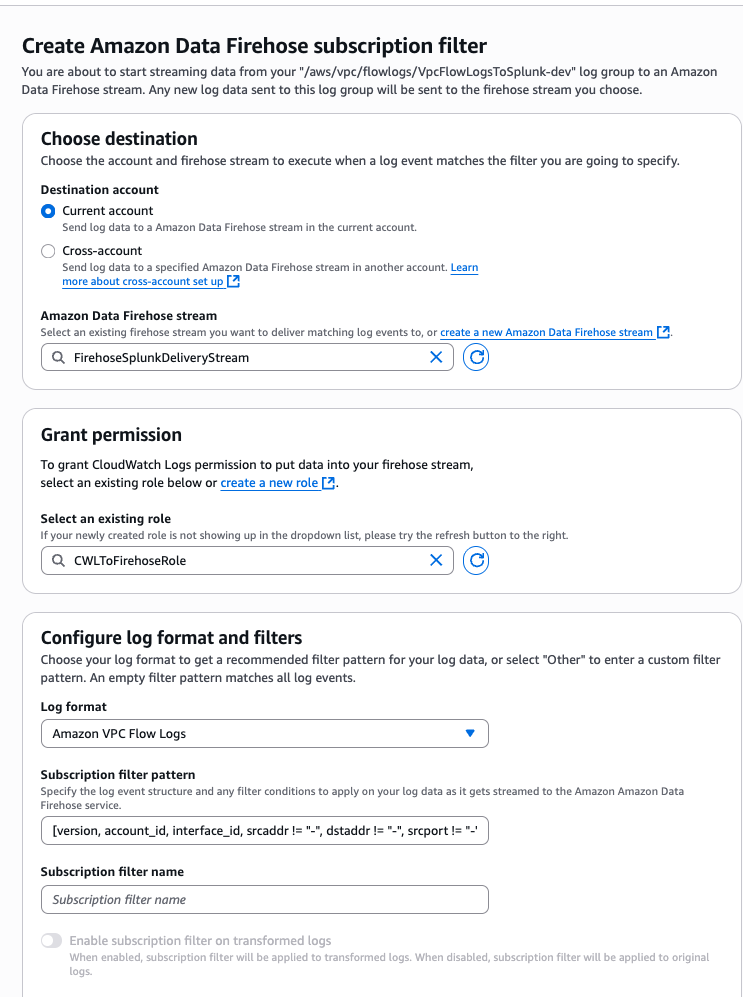
The new log group has no subscription filter, so set up a subscription filter. Setting this up establishes a real-time data feed from the log group to your Firehose delivery stream. Select the VPC flow log and choose Actions. Then choose Subscription filters followed by Create Amazon Data Firehose subscription filter.
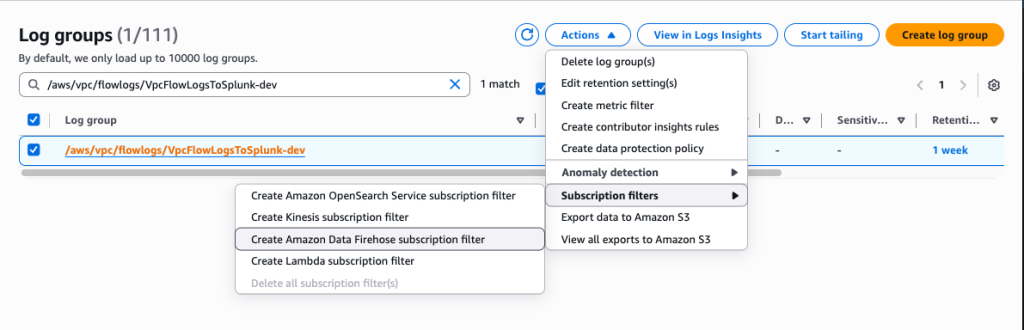
Subscription Filter option

Subscription filter details

When you run the AWS CLI command preceding, you don’t get any acknowledgment. To validate that your CloudWatch Log Group is subscribed to your Firehose stream, check the CloudWatch console.

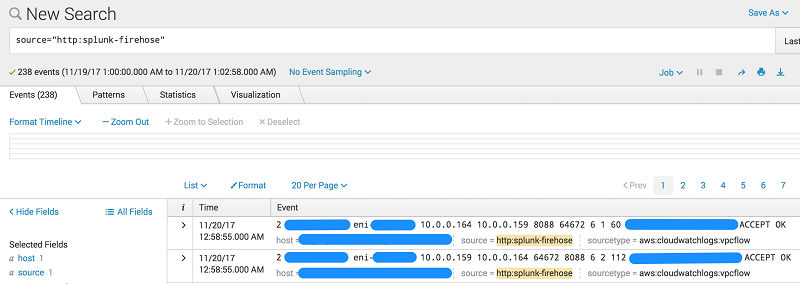
As soon as the subscription filter is created, the real-time log data from the log group goes into your Firehose delivery stream. Your stream then delivers it to your Splunk Enterprise or Splunk Cloud environment for querying and visualization. The screenshot following is from Splunk Enterprise.
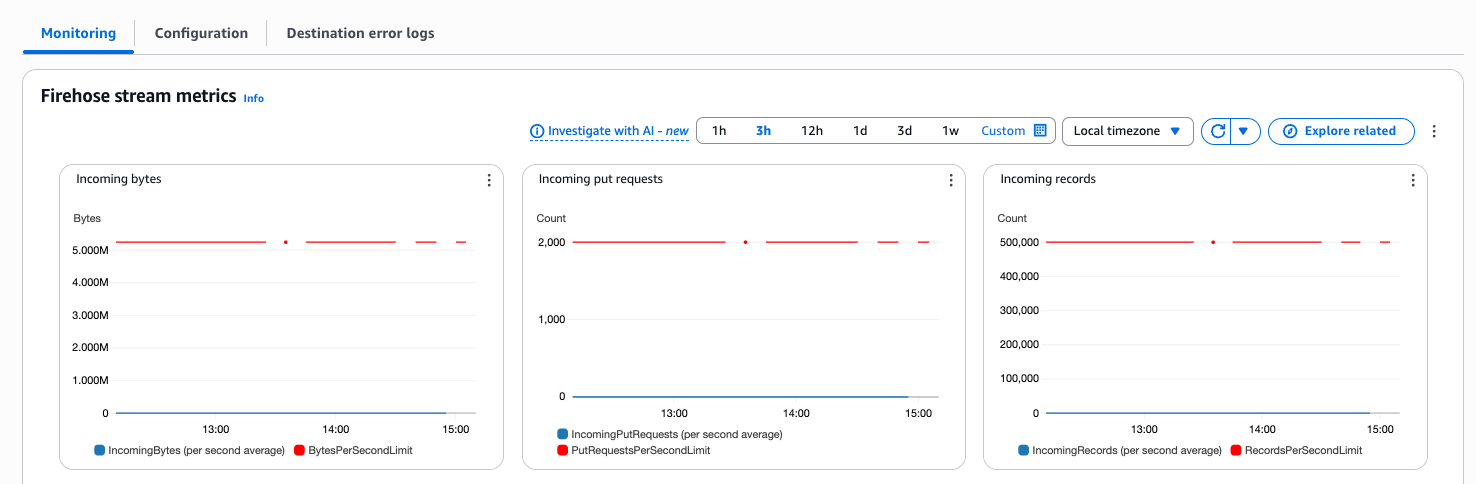
In addition, you can monitor and view metrics associated with your delivery stream using the AWS console.
Conclusion

Although our walkthrough uses VPC Flow Logs, the pattern can be used in many other scenarios. These include ingesting data from AWS IoT, other CloudWatch logs and events, Kinesis Streams or other data sources using the Kinesis Agent or Kinesis Producer Library. You may use a Lambda blueprint or disable record transformation entirely depending on your use case. For an additional use case using Amazon Data Firehose, check out This is My Architecture Video, which discusses how to securely centralize cross-account data analytics using Kinesis and Splunk.

If you found this post useful, be sure to check out Integrating Splunk with Amazon Kinesis Streams.


About the Authors

Tarik Makota

Tarik Makota

Tarik is a solutions architect with the Amazon Web Services Partner Network. He provides technical guidance, design advice and thought leadership to AWS’ most strategic software partners. His career includes work in an extremely broad software development and architecture roles across ERP, financial printing, benefit delivery and administration and financial services. He holds an M.S. in Software Development and Management from Rochester Institute of Technology.

Roy Arsan

Roy Arsan

Roy is a solutions architect in the Splunk Partner Integrations team. He has a background in product development, cloud architecture, and building consumer and enterprise cloud applications. More recently, he has architected Splunk solutions on major cloud providers, including an AWS Quick Start for Splunk that enables AWS users to easily deploy distributed Splunk Enterprise straight from their AWS console. He’s also the co-author of the AWS Lambda blueprints for Splunk. He holds an M.S. in Computer Science Engineering from the University of Michigan.

Yashika Jain

Yashika Jain

Yashika is a Senior Cloud Analytics Engineer at AWS, specializing in real-time analytics and event-driven architectures. She is committed to helping customers by providing deep technical guidance, driving best practices across real-time data platforms and solving complex issues related to their streaming data architectures.

Mitali Sheth

Mitali Sheth

Mitali is a Streaming Data Engineer in the AWS Professional Services team, specializing in real-time analytics and event-driven architectures for AWS’ most strategic software customers. More recently, she has focused on data governance with AWS Lake Formation, building reliable data pipelines with AWS Glue, and modernizing streaming infrastructure with Amazon MSK and Amazon Managed Flink for large-scale enterprise deployments. She holds an M.S. in Computer Science from the University of Florida.

Automate Amazon Connect Data Streaming using AWS CDK

Post Syndicated from Tarik Makota original https://aws.amazon.com/blogs/architecture/automate-amazon-connect-data-streaming-using-aws-cdk/

Many customers want to provision Amazon Web Services (AWS) cloud resources quickly and consistently with lifecycle management, by treating infrastructure as code (IaC). Commonly used services are AWS CloudFormation and HashiCorp Terraform. Currently, customers set up Amazon Connect data streaming manually, as the service is not available under CloudFormation resource types. Customers may want to extend it to retrieve real-time contact and agent data. Integration is done manually and can result in issues with IaC.

Amazon Connect contact trace records (CTRs) capture the events associated with a contact in the contact center. Amazon Connect agent event streams are Amazon Kinesis Data Streams that provide near real-time reporting of agent activity within the Amazon Connect instance. The events published to the stream include these contact control panel (CCP) events:

  • Agent login
  • Agent logout
  • Agent connects with a contact
  • Agent status change, such as to available to handle contacts, or on break, or at training.

In this blog post, we will show you how to automate Amazon Connect data streaming using AWS Cloud Development Kit (AWS CDK). AWS CDK is an open source software development framework to define your cloud application resources using familiar programming languages. We will create a custom CDK resource, which in turn uses Amazon Connect API. This can be used as a template to automate other parts of Amazon Connect, or for other AWS services that don’t expose its full functionality through CloudFormation.

Overview of Amazon Connect automation solution

Amazon Connect is an omnichannel cloud contact center that helps you provide superior customer service. We will stream Amazon Connect agent activity and contact trace records to Amazon Kinesis. We will assume that data will then be used by other services or third-party integrations for processing. Here are the high-level steps and AWS services that we are going use, see Figure 1:

  1. Amazon Connect: We will create an instance and enable data streaming
  2. Cloud Deployment Toolkit: We will create custom resource and orchestrate automation
  3. Amazon Kinesis Data Streams and Amazon Kinesis Data Firehose: To stream data out of Connect
  4. AWS Identity and Access Management (IAM): To govern access and permissible actions across all AWS services
  5. Third-party tool or Amazon S3: Used as a destination of Connect data via Amazon Kinesis data
Figure 1. Connect data streaming automation workflow

Figure 1. Connect data streaming automation workflow

Walkthrough and deployment tasks

Sample code for this solution is provided in this GitHub repo. The code is packaged as a CDK application, so the solution can be deployed in minutes. The deployment tasks are as follows:

  • Deploy the CDK app
  • Update Amazon Connect instance settings
  • Import the demo flow and data

Custom Resources enables you to write custom logic in your CloudFormation deployment. You implement the creation, update, and deletion logic to define the custom resource deployment.

CDK implements the AWSCustomResource, which is an AWS Lambda backed custom resource that uses the AWS SDK to provision your resources. This means that the CDK stack deploys a provisioning Lambda. Upon deployment, it calls the AWS SDK API operations that you defined for the resource lifecycle (create, update, and delete).

Prerequisites

For this walkthrough, you need the following prerequisites:

Deploy and verify

1. Deploy the CDK application.

The resources required for this demo are packaged as a CDK app. Before proceeding, confirm you have command line interface (CLI) access to the AWS account where you would like to deploy your solution.

  • Open a terminal window and clone the GitHub repository in a directory of your choice:
    git clone [email protected]:aws-samples/connect-cdk-blog
  • Navigate to the cdk-app directory and follow the deployment instructions. The default Region is usually us-east-1. If you would like to deploy in another Region, you can run:
    export AWS_DEFAULT_REGION=eu-central-1

2. Create the CloudFormation stack by initiating the following commands.

source .env/bin/activate
pip install -r requirements.txt
cdk synth
cdk bootstrap
cdk deploy  --parametersinstanceId={YOUR-AMAZON-CONNECT-INSTANCE-ID}

--parameters ctrStreamName={CTRStream}

--parameters agentStreamName={AgentStream}

Note: By default, the stack will create contact trace records stream [ctrStreamName] as a Kinesis Data Stream. If you want to use an Amazon Kinesis Data Firehose delivery stream instead, you can modify this behavior by going to cdk.json and adding “ctr_stream_type”: “KINESIS_FIREHOSE” as a parameter under “context.”

Once the status of CloudFormation stack is updated to CREATE_COMPLETE, the following resources are created:

  • Kinesis Data Stream
  • IAM roles
  • Lambda

3. Verify the integration.

  • Kinesis Data Streams are added to the Amazon Connect instance
Figure 2. Screenshot of Amazon Connect with Data Streaming enabled

Figure 2. Screenshot of Amazon Connect with Data Streaming enabled

Cleaning up

You can remove all resources provisioned for the CDK app by running the following command under connect-app directory:

cdk destroy

This will not remove your Amazon Connect instance. You can remove it by navigating to the AWS Management Console -> Services -> Amazon Connect. Find your Connect instance and click Delete.

Conclusion

In this blog, we demonstrated how to maintain Amazon Connect as Infrastructure as Code (IaC). Using a custom resource of AWS CDK, we have shown how to automate setting Amazon Kinesis Data Streams to Data Streaming in Amazon Connect. The same approach can be extended to automate setting other Amazon Connect properties such as Amazon Lex, AWS Lambda, Amazon Polly, and Customer Profiles. This approach will help you to integrate Amazon Connect with your Workflow Management Application in a faster and consistent manner, and reduce manual configuration.

For more information, refer to Enable Data Streaming for your instance.

Field Notes: How FactSet Uses ‘microAccounts’ to Reduce Developer Friction and Maintain Security at Scale

Post Syndicated from Tarik Makota original https://aws.amazon.com/blogs/architecture/field-notes-how-factset-uses-microaccounts-to-reduce-developer-friction-and-maintain-security-at-scale/

This is post was co-written by FactSet’s Cloud Infrastructure team, Gaurav Jain, Nathan Goodman, Geoff Wang, Daniel Cordes, Sunu Joseph and AWS Solution Architects, Amit Borulkar and Tarik Makota.

FactSet considers developer self-service and DevOps essential for realizing cloud benefits.  As part of their cloud adoption journey, they wanted developers to have a frictionless infrastructure provisioning experience while maintaining standardization and security of their cloud environment.  To achieve their objectives, they use what they refer to as a ‘microAccounts approach’. In their microAccount approach, each AWS account is allocated for one project and is owned by a single team.

In this blog, we describe how FactSet manages 1000+ AWS accounts at scale using the microAccounts approach. First, we cover the core concepts of their approach. Then we outline how they manage access and permissions. Finally, we show how they manage their networking implementation and how they use automation to manage their AWS Cloud infrastructure.

How FactSet started with AWS

They started their cloud adoption journey with what they now call a ‘macroAccounts’ approach. In the early days they would set up a handful of AWS accounts. These macroAccounts were then shared across several different application teams and projects.   They have hundreds of application teams along with thousands of developers and they quickly experienced the challenges of a macroAccounts approach. These include the following:

  1. AWS Identity and Access Management (IAM) policies and resource tagging were complex to design in order to maintain least privilege. For example, if a developer desired the ability to start/stop Amazon EC2 instances, they would need to ensure that they are limited to starting/stopping only their own instances.  This complexity kept increasing as developers wanted to automate their workflows using constructs such as AWS Lambda functions, and containers.
  2. They had difficulty in properly attributing cloud costs across departments.  More importantly they kept going back and forth on: how do we establish accountability and transparency around spends by groups, projects, or teams?
  3. It was difficult to track and manage impact of infrastructure change to FactSet applications. For example, how is maintenance off underlying security group or IAM policy affecting FactSet applications?
  4. Significant effort was required in managing service quotas and limits across various applications being under single AWS account.

FactSet’s solution – microAccounts

Recognizing the issues, they decided to take a different approach to AWS account management. Instead of creating a few shared macro-accounts, they decided to create one AWS account per project (microAccounts) with clearly defined ownership and product allocation.  An analogy might be that macro-accounts were like leaving the main door of a house open but locking individual closets and rooms to limit access. This is opposed to safeguarding the entry to the house but largely leaving individual closets and rooms open for the tenant to manage.

Benefits of microAccounts

They have been operating their AWS Cloud infrastructure using microAccounts for about two years now. Benefits of the microAccount approach include:

1.      Access & Permissions: By associating an account with a project they simplified which services are allowed, which resources that development team can access, and are able to ensure that those permissions cascade properly to underlying resources.  The following diagram shows their microAccount strategy.


Tagging versus microAccount strategy

Figure 1 – Tagging versus microAccount strategy

2.      Service Quotas & Limits: Given most service quotas are account specific, microAccounts allow their developers to plan limits based on their application needs.  In a shared account configuration, there was no mechanism to limit separate teams from using up a larger portion of the service quota, leaving other teams with less.  These limits extend beyond infrastructure provisioning to run time tasks like Lambda concurrency, API throttling limits on parameter store and more.

3.      AWS Service Permissions: microAccounts allowed FactSet to easily implement least privilege across services. By using IAM service control policies (SCPs) they limit what AWS services an account can access.  They start with a default set of services and based on business need we can grant a specific account access to other non-common services without having to worry about those services creeping into other use cases.  For example, they disable storage gateway by default, but can allow access for a specific account if needed.

4.      Blast Radius Containment:  microAccounts provides the ability to create safety boundaries. This is in the event of any stability and security issues, they stay isolated within that specific application (AWS account) and they don’t affect operations of other applications.

5.     Cost Attributions:  Clearly defined account ownership provides a simple and straightforward way to attribute costs to a specific team, project, or product.  They don’t have to enforce the tagging individual resources for cost purposes. AWS account acts like an application resource group so all resources in the account are implicitly tagged.

6.      Account Notifications & Operations:  Single threaded account ownership allows FactSet to automatically relay any required notification to right developers.  Moreover, given that account ownership is fundamental in defining who is allowed access to the account, there is a high level of confidence in the validity of this mapping as opposed to relying on just tagging.

7.      Account Standards & Extensions: we manage microAccounts through a CI/CD pipeline which allows us to standardize and extend without interruptions.  For example, all their microAccounts are provisioned with a standard AWS Key Management Service (AWS KMS) key, an AWS Backup Vault & policy, private Amazon Route 53 zone, AWS Systems Manager Parameter Store with network information for Terraform or AWS CloudFormation templates.

8.      Developer Experience: microAccount automation and guardrails allow developers to get started quickly instead of spending time debugging things like correct SCP/IAM permissions and more. Developers tend to work across multiple applications and their experience has improved as they have a standard set of expectations for their AWS environment. This is particularly useful as they move from application to application.

Access and permissions for microAccounts

FactSet creates every AWS account with a standard set of IAM roles and permissions. Furthermore, each account has its own SCP which defines the list of services allowed in the account.  Based on application needs, they can extend the permissions.  Interactive roles are mapped to an ActiveDirectory (AD) group, and membership of the AD group is managed by the development teams themselves.  Standard roles are:

  • DevOps Role – Interactive role used to provision and manage infrastructure.
  • Developer Role – Interactive role used to read/write data (and some infrastructure)
  • ReadOnly Role – Interactive role with read-only access to the account.  This can be granted to account supervisors, product developers, and other similar roles.
  • Support Roles – Interactive roles for certain admin teams to assist account owners if needed
  • ServiceExecutionRole – Role that can be attached to entities such as Lambda functions, CodeBuild, EC2 instances, and has similar permissions to a developer role.
IAM Role Privileges

Figure 2 – IAM Role Privileges

Networking for microAccounts

  • FactSet leverages AWS Resource Access Manager (RAM) to share appropriate subnets with each account.  Each microAccount provisioned has access to subnets by sing AWS Shared VPCs.  They create a single VPC per business unit per environment (Dev, Prod, UAT, and Shared Services) in each region.  RAM enabled them to easily and securely share AWS resources with any AWS account within their AWS Organization.  When an account is created they allocate appropriate subnets to that account.
  • They use AWS Transit Gateway to manage inter-VPC routing and communication across multiple VPCs in a region.  They didn’t want to limit our ability to scale up quickly.  AWS Transit Gateway is a single place to land their AWS Direct Connect circuits in each Region.  It provides them with a consolidated place to manage routing tables that propagated to each VPC when they are attached.


VPC Sharing for microAccounts

Figure 3 – VPC Sharing for microAccounts

Automation & Config Management for microAccounts

To create frictionless self-service cloud infrastructure early on, FactSet realized that automation is a must.  Their infrastructure automation uses source-control as a source of truth for defining each microAccount. This helps them ensure repeatable and standardized account provisioning process, as well as flexibility to adjust specific settings and permissions on per account needs.

Account provisioning flow

Figure 4 – Account provisioning flow

By default, their accounts are only enabled in a small set of Regions.  They control it via the following policy block.  If they add new Region(s), they would implement that change in source-control and automated enforcement checks would add it to SCP.

{
    "Sid": "DenyOtherRegions",
    "Effect": "Deny",
    "Action": "*",
    "Resource": "*",
    "Condition": {
        "StringNotEquals": {
            "aws:RequestedRegion": ["us-east-1","eu-west-2"]
        },
        "ForAllValues:StringNotLike": {
            "aws:PrincipalArn": [
                "arn:aws:iam::*:role/cloud-admin-role"
    }
}

Lessons Learned

During their journey to adopt microAccounts, FactSet came across some new challenges that are worth highlighting:

  1. IAM role creation: Their DevOps Role can create new IAM roles within the account.  To ensure that newly created role complies with least-privilege principles, they attach a standard permission boundary which limits its permissions to not extend beyond DevOps level.
  2. Account Deletion: While AWS provides APIs for account creation, currently there is no API to delete or rename an account.  This is not an issue since only a small percentage of accounts had to be deleted because of a cancelled project for example.
  3. Account Creation / Service Activation: Although automation is used to provision accounts it can still take time for all services in account to be fully activated.  Some services like Amazon EC2 have asynchronous processes to be activated in a new account.
  4. Account Email, Root Password, and MFA: Upon account creation, they don’t set up a root password or MFA.  That is only setup on the primary (master) account.  Given each account requires a unique email address, they leverage Amazon Simple Email Service (Amazon SES) to create a new email address with cloud administrator team as the recipients.  When they need to log in as root (very unusual), they go through the process of password reset before logging in.
  5. Service Control Policies: There were two primary challenges related to SCPs:
    • SCP is a property in the primary (master) account that is attached to a child microAccount.  However, they also wanted to manage SCP like any other account config and store it in source-control along with other account configuration.  This required IAM role used by our automation to have special permissions to be able to create/attach/detach SCPs in the primary (master) account.
    • There is a hard limit of 1000 SCPs in the primary (master) account.  If you have a SCP per account, this would limit you to 1000 microAccounts.  They solved this by re-using SCPs across accounts with same policies.  Content of a policy is hashed to create a unique SCP identifier, and accounts with same hashes are attached to same SCP.
  6. Sharing data (typically S3) across microAccounts: they leverage a concept of “trusted-accounts” to allow other accounts access to an account’s resources including S3 and KMS keys.
  7. It may feel like an anti-pattern to have resources with static costs like Application Load Balancers (ALB) and KMS for individual projects as opposed to a shared pool.  The list of resources with a base cost is small as most of the services are largely priced based on usage.  For FactSet, resource isolation is a key benefit of microAccounts, and therefore outweighs some of these added costs.
  8. Central Inventory & Logging: With 100s of accounts, it is worth investing in a more centralized inventory and AWS CloudTrail logs collection system.
  9. Costs, Reserved Instances (RI), and Savings Plans: FactSet found AWS Cost Explorer at the level of your primary (master) account to be a great tool for cost-transparency.  They leverage AWS Cost Explorer’s API to import that data into their internal cost transparency tools.  RIs and Savings Plans are managed centrally and leverage automatic sharing between accounts within the same master (primary) organization.

Conclusion

The microAccounts approach provides FactSet with the agility to operate according to specific needs of different teams and projects in the enterprise. They are currently deploying in twelve AWS Regions with automated AWS account provisioning happening in minutes and drift checks executing multiple times throughout the day. This frees up their developers to focus on solving business problems to maximize the benefits of cloud computing, so that their business can innovate and accelerate their clients’ digital transformations.

Their experience operating regulated infrastructure in the cloud demonstrated that microAccounts are pivotal for managing cloud at scale. With microAccounts they were able to accelerate projects onboarded to cloud by 5X, reduce number of IAM permission tickets by 10X, and experienced 3X fewer stability issues. We hope that this blog post provided useful insights to help determine if the microAccount strategy is a good fit for you.

In their own words, FactSet creates flexible, open data and software solutions for tens of thousands of investment professionals around the world, which provides instant access to financial data and analytics that investors use to make crucial decisions. At FactSet, we are always working to improve the value that our products provide.

Recommended Reading:

Defining an AWS Multi-Account Strategy for telecommunications companies

Why should I set up a multi-account AWS environment?

Field Notes provides hands-on technical guidance from AWS Solutions Architects, consultants, and technical account managers, based on their experiences in the field solving real-world business problems for customers.