Tag Archives: Amazon Connect

Field Notes: Improving Call Center Experiences with Iterative Bot Training Using Amazon Connect and Amazon Lex

Post Syndicated from Marius Cealera original https://aws.amazon.com/blogs/architecture/field-notes-improving-call-center-experiences-with-iterative-bot-training-using-amazon-connect-and-amazon-lex/

This post was co-written by Abdullah Sahin, senior technology architect at Accenture, and Muhammad Qasim, software engineer at Accenture. 

Organizations deploying call-center chat bots are interested in evolving their solutions continuously, in response to changing customer demands. When developing a smart chat bot, some requests can be predicted (for example following a new product launch or a new marketing campaign). There are however instances where this is not possible (following market shifts, natural disasters, etc.)

While voice and chat bots are becoming more and more ubiquitous, keeping the bots up-to-date with the ever-changing demands remains a challenge.  It is clear that a build>deploy>forget approach quickly leads to outdated AI that lacks the ability to adapt to dynamic customer requirements.

Call-center solutions which create ongoing feedback mechanisms between incoming calls or chat messages and the chatbot’s AI, allow for a programmatic approach to predicting and catering to a customer’s intent.

This is achieved by doing the following:

  • applying natural language processing (NLP) on conversation data
  • extracting relevant missed intents,
  • automating the bot update process
  • inserting human feedback at key stages in the process.

This post provides a technical overview of one of Accenture’s Advanced Customer Engagement (ACE+) solutions, explaining how it integrates multiple AWS services to continuously and quickly improve chatbots and stay ahead of customer demands.

Call center solution architects and administrators can use this architecture as a starting point for an iterative bot improvement solution. The goal is to lead to an increase in call deflection and drive better customer experiences.

Overview of Solution

The goal of the solution is to extract missed intents and utterances from a conversation and present them to the call center agent at the end of a conversation, as part of the after-work flow. A simple UI interface was designed for the agent to select the most relevant missed phrases and forward them to an Analytics/Operations Team for final approval.

Figure 1 – Architecture Diagram

Amazon Connect serves as the contact center platform and handles incoming calls, manages the IVR flows and the escalations to the human agent. Amazon Connect is also used to gather call metadata, call analytics and handle call center user management. It is the platform from which other AWS services are called: Amazon Lex, Amazon DynamoDB and AWS Lambda.

Lex is the AI service used to build the bot. Lambda serves as the main integration tool and is used to push bot transcripts to DynamoDB, deploy updates to Lex and to populate the agent dashboard which is used to flag relevant intents missed by the bot. A generic CRM app is used to integrate the agent client and provide a single, integrated, dashboard. For example, this addition to the agent’s UI, used to review intents, could be implemented as a custom page in Salesforce (Figure 2).

Figure 2 – Agent feedback dashboard in Salesforce. The section allows the agent to select parts of the conversation that should be captured as intents by the bot.

A separate, stand-alone, dashboard is used by an Analytics and Operations Team to approve the new intents, which triggers the bot update process.

Walkthrough

The typical use case for this solution (Figure 4) shows how missing intents in the bot configuration are captured from customer conversations. These intents are then validated and used to automatically build and deploy an updated version of a chatbot. During the process, the following steps are performed:

  1. Customer intents that were missed by the chatbot are automatically highlighted in the conversation
  2. The agent performs a review of the transcript and selects the missed intents that are relevant.
  3. The selected intents are sent to an Analytics/Ops Team for final approval.
  4. The operations team validates the new intents and starts the chatbot rebuild process.

Figure 3 – Use case: the bot is unable to resolve the first call (bottom flow). Post-call analysis results in a new version of the bot being built and deployed. The new bot is able to handle the issue in subsequent calls (top flow)

During the first call (bottom flow) the bot fails to fulfil the request and the customer is escalated to a Live Agent. The agent resolves the query and, post call, analyzes the transcript between the chatbot and the customer, identifies conversation parts that the chatbot should have understood and sends a ‘missed intent/utterance’ report to the Analytics/Ops Team. The team approves and triggers the process that updates the bot.

For the second call, the customer asks the same question. This time, the (trained) bot is able to answer the query and end the conversation.

Ideally, the post-call analysis should be performed, at least in part, by the agent handling the call. Involving the agent in the process is critical for delivering quality results. Any given conversation can have multiple missed intents, some of them irrelevant when looking to generalize a customer’s question.

A call center agent is in the best position to judge what is or is not useful and mark the missed intents to be used for bot training. This is the important logical triage step. Of course, this will result in the occasional increase in the average handling time (AHT). This should be seen as a time investment with the potential to reduce future call times and increase deflection rates.

One alternative to this setup would be to have a dedicated analytics team review the conversations, offloading this work from the agent. This approach avoids the increase in AHT, but also introduces delay and, possibly, inaccuracies in the feedback loop.

The approval from the Analytics/Ops Team is a sign off on the agent’s work and trigger for the bot building process.

Prerequisites

The following section focuses on the sequence required to programmatically update intents in existing Lex bots. It assumes a Connect instance is configured and a Lex bot is already integrated with it. Navigate to this page for more information on adding Lex to your Connect flows.

It also does not cover the CRM application, where the conversation transcript is displayed and presented to the agent for intent selection.  The implementation details can vary significantly depending on the CRM solution used. Conceptually, most solutions will follow the architecture presented in Figure1: store the conversation data in a database (DynamoDB here) and expose it through an (API Gateway here) to be consumed by the CRM application.

Lex bot update sequence

The core logic for updating the bot is contained in a Lambda function that triggers the Lex update. This adds new utterances to an existing bot, builds it and then publishes a new version of the bot. The Lambda function is associated with an API Gateway endpoint which is called with the following body:

{
	“intent”: “INTENT_NAME”,
	“utterances”: [“UTTERANCE_TO_ADD_1”, “UTTERANCE_TO_ADD_2” …]
}

Steps to follow:

  1. The intent information is fetched from Lex using the getIntent API
  2. The existing utterances are combined with the new utterances and deduplicated.
  3. The intent information is updated with the new utterances
  4. The updated intent information is passed to the putIntent API to update the Lex Intent
  5. The bot information is fetched from Lex using the getBot API
  6. The intent version present within the bot information is updated with the new intent

Figure 4 – Representation of Lex Update Sequence


7. The update bot information is passed to the putBot API to update Lex and the processBehavior is set to “BUILD” to trigger a build. The following code snippet shows how this would be done in JavaScript:

const updateBot = await lexModel
    .putBot({
        ...bot,
        processBehavior: "BUILD"
    })
    .promise()

9. The last step is to publish the bot, for this we fetch the bot alias information and then call the putBotAlias API.

const oldBotAlias = await lexModel
    .getBotAlias({
        name: config.botAlias,
        botName: updatedBot.name
    })
    .promise()

return lexModel
    .putBotAlias({
        name: config.botAlias,
        botName: updatedBot.name,
        botVersion: updatedBot.version,
        checksum: oldBotAlias.checksum,
}) 

Conclusion

In this post, we showed how a programmatic bot improvement process can be implemented around Amazon Lex and Amazon Connect.  Continuously improving call center bots is a fundamental requirement for increased customer satisfaction. The feedback loop, agent validation and automated bot deployment pipeline should be considered integral parts to any a chatbot implementation.

Finally, the concept of a feedback-loop is not specific to call-center chatbots. The idea of adding an iterative improvement process in the bot lifecycle can also be applied in other areas where chatbots are used.

Accelerating Innovation with the Accenture AWS Business Group (AABG)

By working with the Accenture AWS Business Group (AABG), you can learn from the resources, technical expertise, and industry knowledge of two leading innovators, helping you accelerate the pace of innovation to deliver disruptive products and services. The AABG helps customers ideate and innovate cloud solutions with customers through rapid prototype development.

Connect with our team at [email protected] to learn and accelerate how to use machine learning in your products and services.


Field Notes provides hands-on technical guidance from AWS Solutions Architects, consultants, and technical account managers, based on their experiences in the field solving real-world business problems for customers.


Abdullah Sahin

Abdullah Sahin

Abdullah Sahin is a senior technology architect at Accenture. He is leading a rapid prototyping team bringing the power of innovation on AWS to Accenture customers. He is a fan of CI/CD, containerization technologies and IoT.

Muhammad Qasim

Muhammad Qasin

Muhammad Qasim is a software engineer at Accenture and excels in development of voice bots using services such as Amazon Connect. In his spare time, he plays badminton and loves to go for a run.

Amazon Connect – Now Smarter and More Integrated With Third-Party Tools

Post Syndicated from Sébastien Stormacq original https://aws.amazon.com/blogs/aws/amazon-connect-smarter-and-more-integrated/

We launched Amazon Connect in 2017 and, since then, thousands of customers have created their own contact centers in the cloud. Amazon Connect makes it easy for non-technical customers to design interaction flows, manage agents, and track performance metrics.

For example, when I book a Best Western hotel room in Europe by phone, the call is managed by Amazon Connect. In the UK, the Post Office went from ideation to production rollout in just three weeks. In France, WebHelp, a global leader in Business Process Outsourcing, activated thousands of workstations and remote agents in just 72 hours.

Since I last blogged about Amazon Connect, the team has been continuously listening for your feedback and, today, I am happy to announce a new set of capabilities to make Amazon Connect smarter and more integrated with third-party tools.

We are using Machine Learning (ML) to make Amazon Connect smarter at analyzing conversations in real time, finding relevant information needed by contact center agents, and authenticating customers by the sound of their voice. The second set of capabilities makes Amazon Connect easier to integrate with third party tools or services to present unified customer profile information to contact center agents, and to make it easier to manage their tasks.

Let’s go into the details, one by one.

Contact Lens Real Time
Contact Lens for Amazon Connect is a set of machine learning (ML) capabilities allowing contact center supervisors to better understand the sentiment, trends, and compliance of customer conversations. It was first announced during re:Invent 2019 and available since July 2020. It allows to effectively train agents, replicate successful interactions, and to identify crucial company and product feedback.

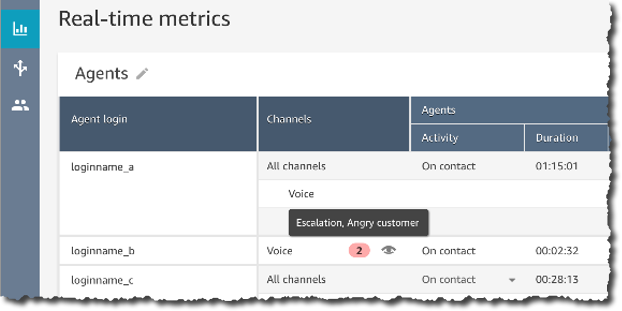
Starting today, you can get real-time insights into customer experience during the live calls, such as a customer expressing dissatisfaction. Customer experience analytics and alerts for live calls are delivered in Amazon Connect’s real-time metrics dashboard. It makes it easy for supervisors to identify when to listen-in on a critical call, and to provide guidance to the agent via chat, or have the agent transfer the call to them for assistance.

You, as the contact center manager, can define rules using specific terms such as “not happy,” “poor quality product,” and “cancel my subscription.” Contact Lens uses natural language processing (NLP) to perform intelligent matching to automatically detect variations of the spoken words even when the example phrases are limited.

Create Rules for real time analytics

Contact Lens analyzes in-progress calls in real time to detect when the rule criteria for a customer experience issue is met, and immediately creates an alert next to the live call in the Amazon Connect dashboard to notify supervisors of the situation.

Real Time alert based on rules

With this launch, we are adding 13 language variants to post-call analytics, in addition to the 5 already supported :English (United States), English (Great Britain), English (Australia), English (India), and Spanish (United States).

The new language variants for post-call analytics are: English (Ireland), English (Scotland), English (Wales), Spanish (Spain), French (Canada), French (France), Portuguese (Portugal), Portuguese (Brazil), German (Germany), German (Switzerland), Italian (Italy), Arabic (Gulf), and Hindi (India).

Contact Lens for Amazon Connect real-time is available in 4 language variants: English (United States), English (Great Britain), English (Australia), and Spanish (United States). More language variants will be added at later stage.

For more details visit this launch page.

Amazon Connect Wisdom (Preview)
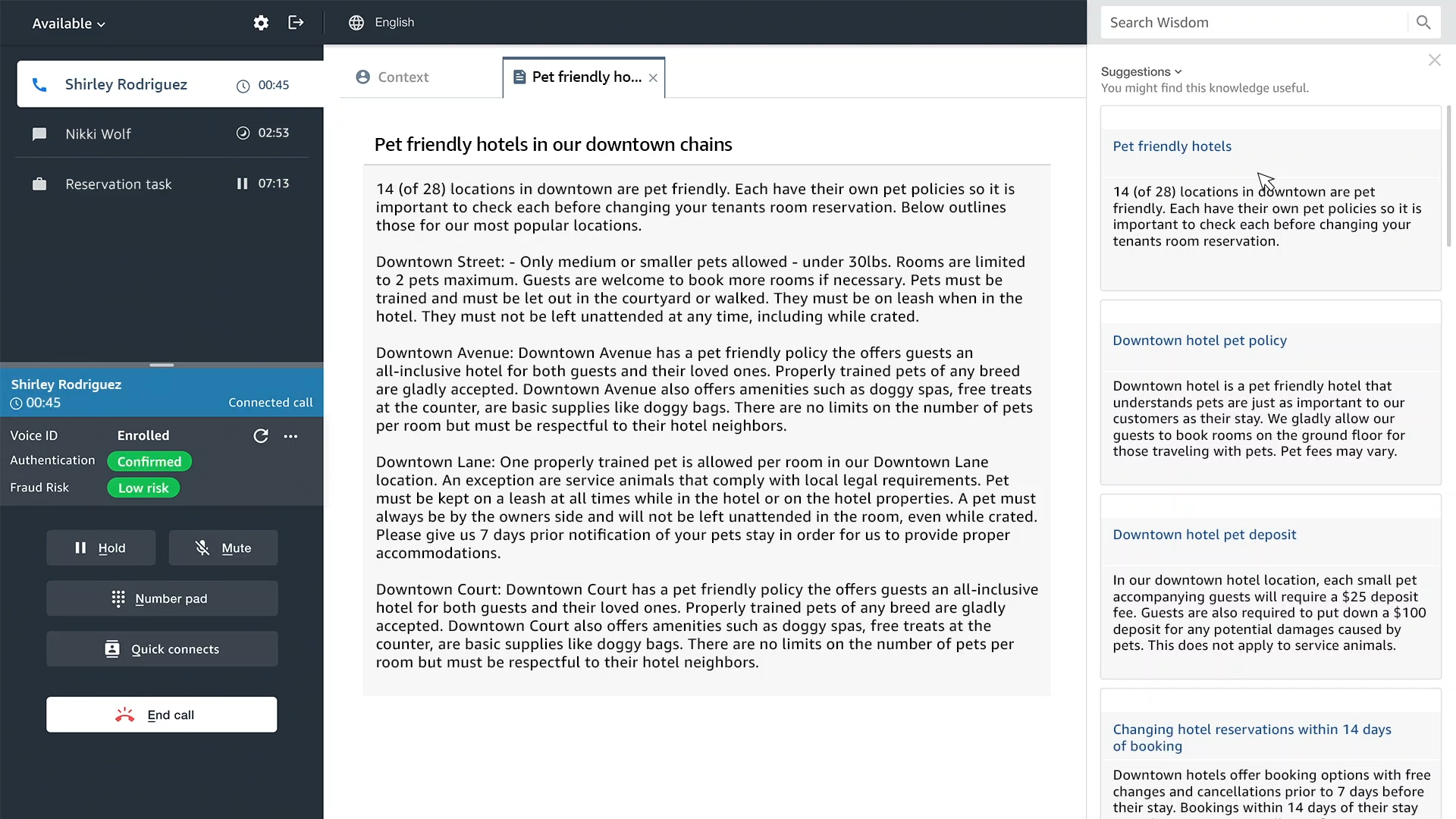
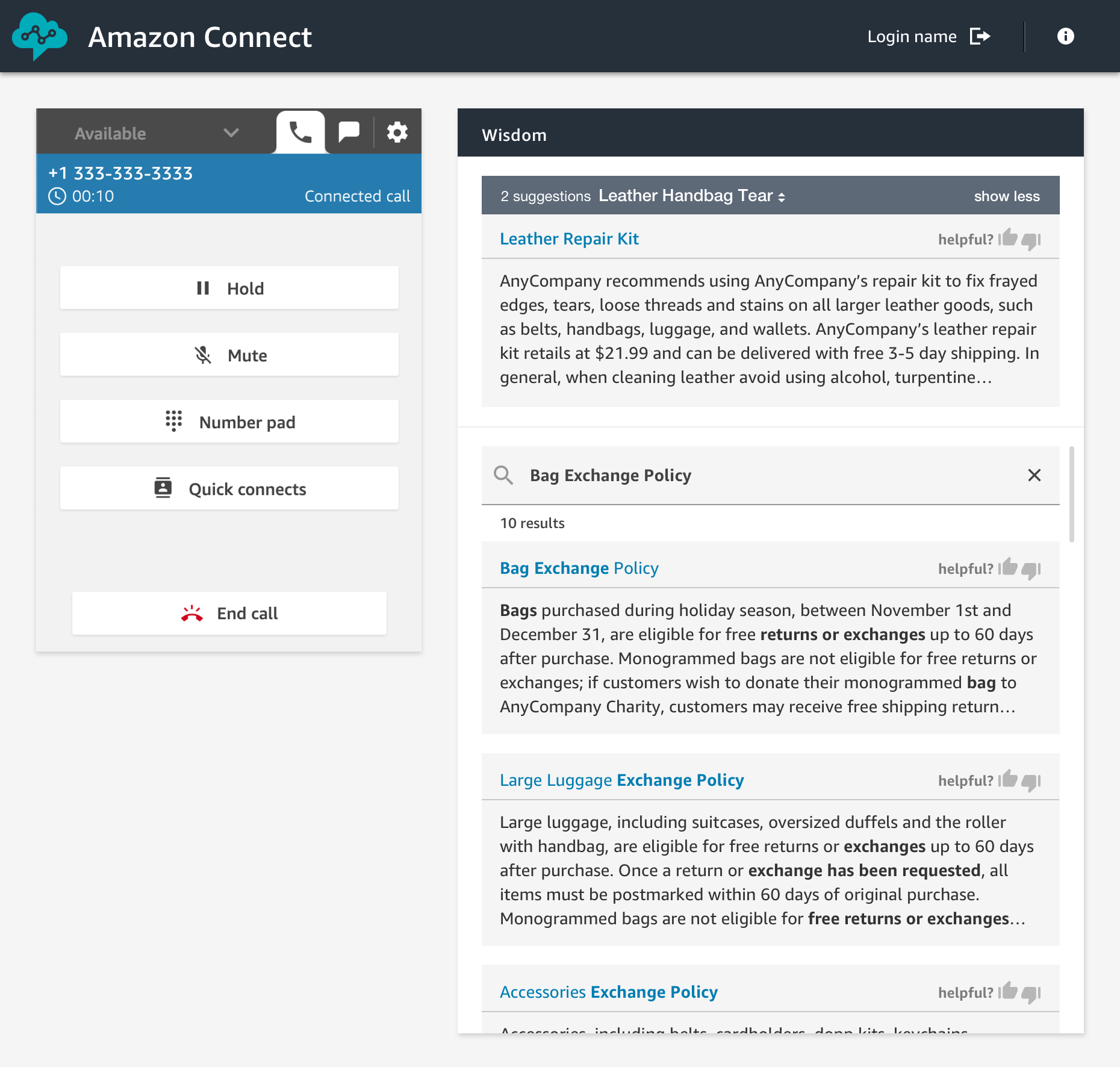
Wisdom provides built-in agent assistance capabilities in Amazon Connect, including machine learning (ML) powered search and real-time recommendations, to quickly enable agents with relevant information for resolving customer issues.

As an agent, I can type questions or phrases in the Wisdom search box, without guessing what keyword I should use. Wisdom understands what information I am searching for. It surfaces results in the agent’s preferred Amazon Connect application, the web-based one we do provide, or the ones you built.

Amazon Connect Wisdom search results

Wisdom comes with pre-built connectors to third-party knowledge repositories to provide most relevant results to agents. Wisdom includes connectors for Salesforce and ServiceNow during the preview, with more to come at launch.

Wisdom may use Contact Lens Real Time analytics to analyse the conversation in real-time. It detects the customer issue, finds related content in the connected repositories, and provides proactive recommendations to help the agent resolve it. For example, Wisdom can detect that a customer is talking about a problem with the handbag they bought last week, recommend an article that describes similar products defect, and provide instructions with a link to the order management application needed to initiate an exchange.

Wisdom is available in preview, you can signup today or visit the launch page.

Amazon Connect Voice ID (Preview)
Amazon Connect Voice ID provides real-time caller authentication which makes voice interactions in contact centers more secure and efficient.

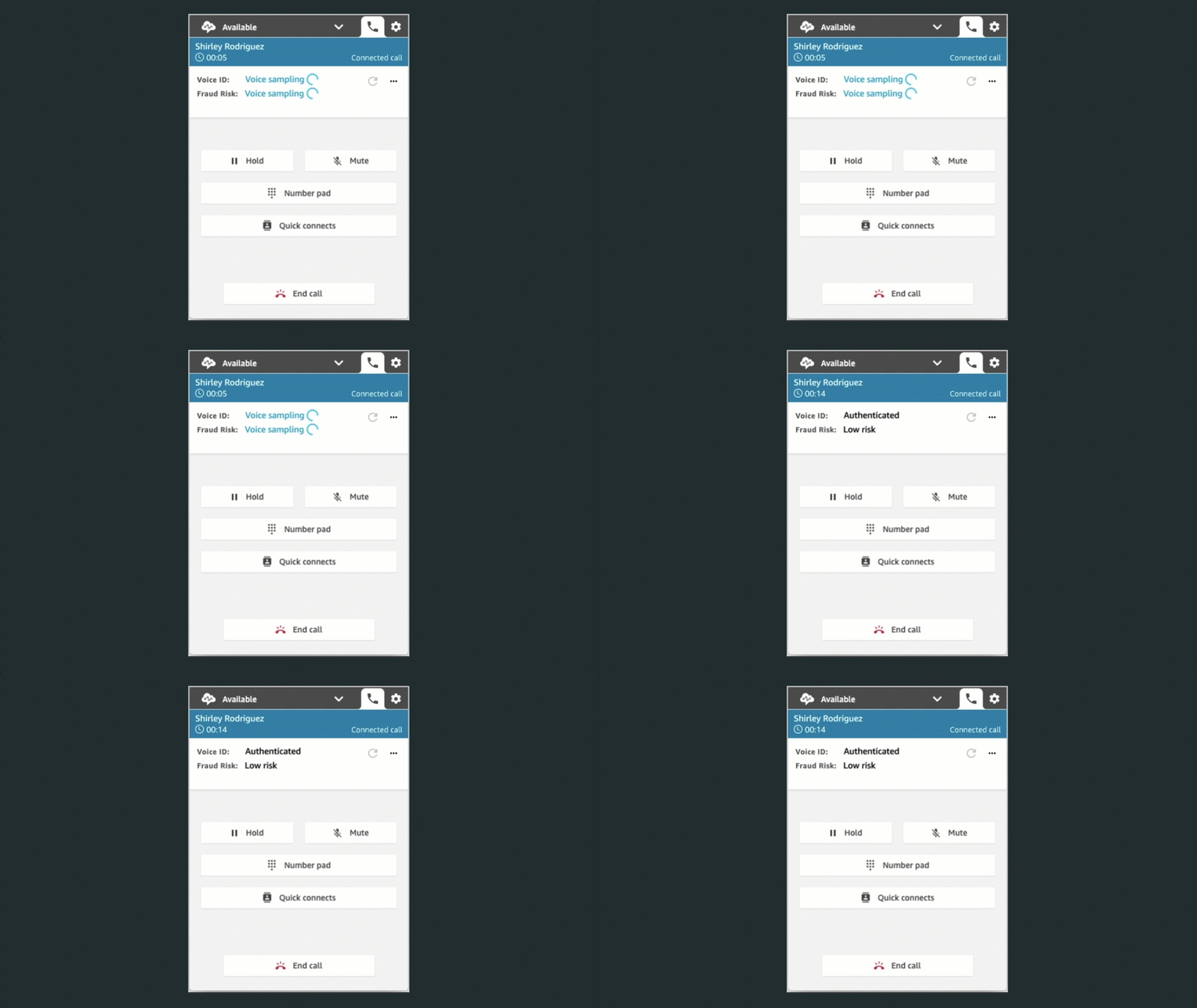
To effectively recognise me as “Sébastien”, Voice ID must learn how I am talking. This is the enrolment phase. Then it compares the sound of my voice with the one enrolled earlier. This is the verification phase.

To meet with personal data protection laws, contact center agents capture my consent to use Voice ID.

During the enrolment phase, Voice ID listens to the call until it has captured 30 seconds of my voice. Then it creates my voiceprint, which uniquely authenticates me. A voiceprint is a mathematical representation that captures unique aspects of an individual’s voice such as speech rhythm, pitch, intonation, and loudness. I do not need to say or repeat any specific phrases to let Voice ID create my voiceprint. Voice ID provides an API that can be used to opt-out a customer.

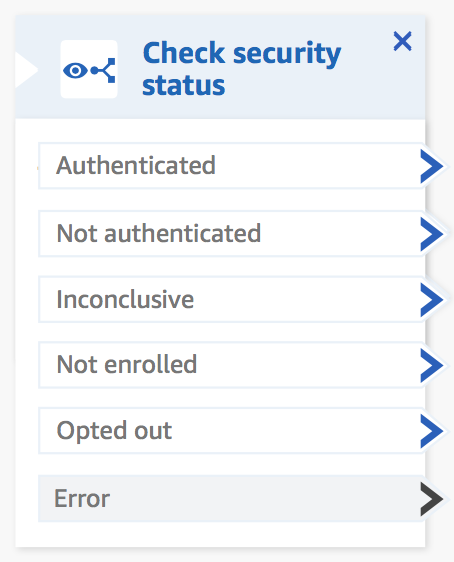
When I call back in, Voice ID just needs 10 seconds of my voice to authenticate me. My voice can be captured as part of a typical interaction with the Interactive Voice Response (IVR) happening at the start of the call, or when I first start to talk with the agent. For example when I am answering questions, such as “what’s your first and last name?” and “what are you calling about?”, Voice ID uses this audio to generate my voiceprint again. It compares it with the one enrolled earlier. Voice ID then generates an authentication score depending on the confidence of the match. Contact center managers can use this score to create policies in Amazon Connect to let agents see a real-time result (“authenticated” or “not authenticated”) in their web-based application. Agents can then decide to proceed with the call or ask for additional authentication credentials.

Amazon Connect Voice ID is available in preview. You can signup today or visit this launch page.

Amazon Connect Customer Profiles
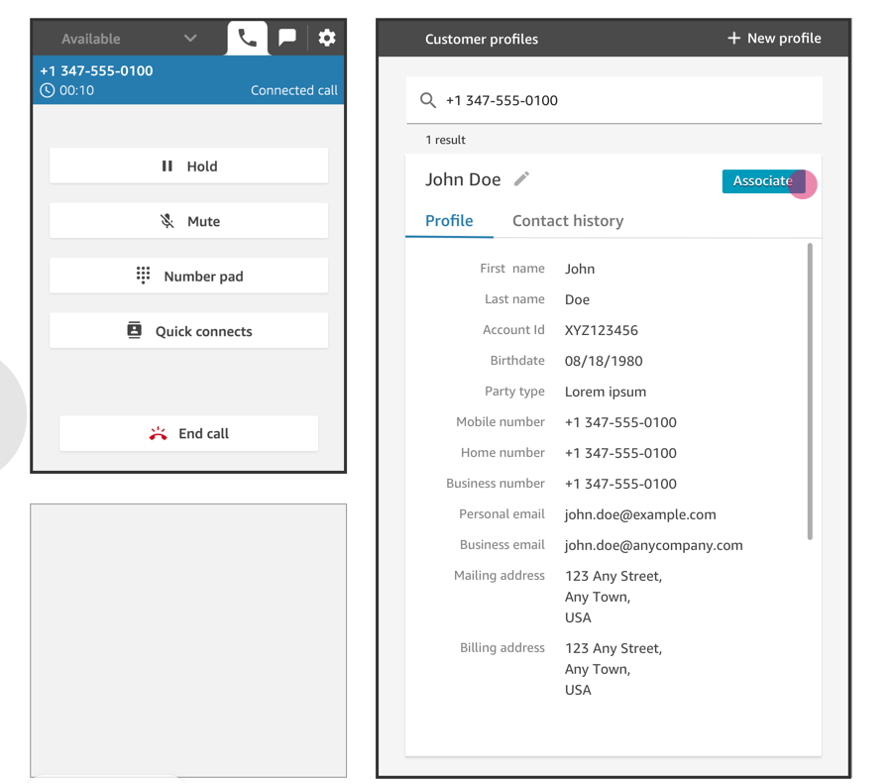
Customer Profiles is a unified profile for Amazon Connect that brings together customer information from disparate sources without having to build integrations or wrangle data.

Providing agents (or automatic IVR systems) with accurate and unified customer profile information at the right moment helps them to deliver better service to customers, and to resolve calls faster. Using Customer Profiles, agents must not navigate out of Amazon Connect, or switch between different applications to get the customer insights they need.

With just a few clicks, System Administrators can integrate customer profile data from applications like Salesforce, ServiceNow, Zendesk, and Marketo to build your own homegrown integration. Setting up connectors for Customer Profiles requires no programming or data integration expertise.

Once enabled, Customer Profiles automatically detects customer records from the applications. It matches and deduplicates them. This results in accurate and up-to-date profiles displayed to agents within their Connect web-based experience.

Amazon Connect Customer Profile

Learn more about Amazon Connect Customer Profile by visiting the launch page.

Amazon Connect Tasks
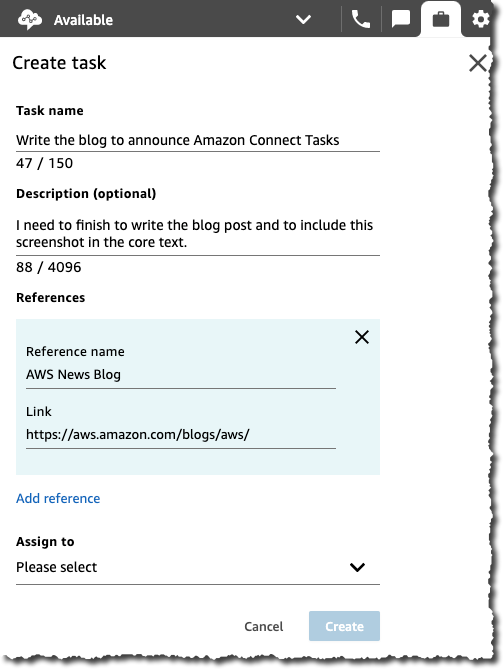
Amazon Connect Tasks makes it easy to automate, track, and manage contact center agent tasks. It provides a single place for contact center managers to prioritize, assign, and track customer service tasks across the disparate applications used by agents, so that they are focused on the highest priority work of any type.

Tasks can be sourced from third-party applications, such as a CRM solution, or to update a business-specific system. For example, you can programmatically create tasks for agents to follow-up on a customer case in a third party application like Salesforce, or complete an action item in a business-specific application, such as processing a claim in an insurance system. You can also automate tasks that dont require agent interaction, to ensure your agents spend more time focused on customers.

Using Amazon Connect tasks, agents no longer need to switch between applications to know what work should be completed, and with what priority. Agents can see all their assigned tasks right from the Amazon Connect contact control panel, the same web-based application they use to interact with customers over calls and chat. When a task is assigned, the agent receives a notification with the description of the task, and when required, links to any external applications needed to complete the action. Agents can also create tasks so that follow-up work is not forgotten, for example calling a customer back to provide a status update.

Amazon Connect Accept Tasks Amazon Connect View Task Create a task uisng Amazon Connect Tasks
Incoming Tasks Task Details Create a new Task

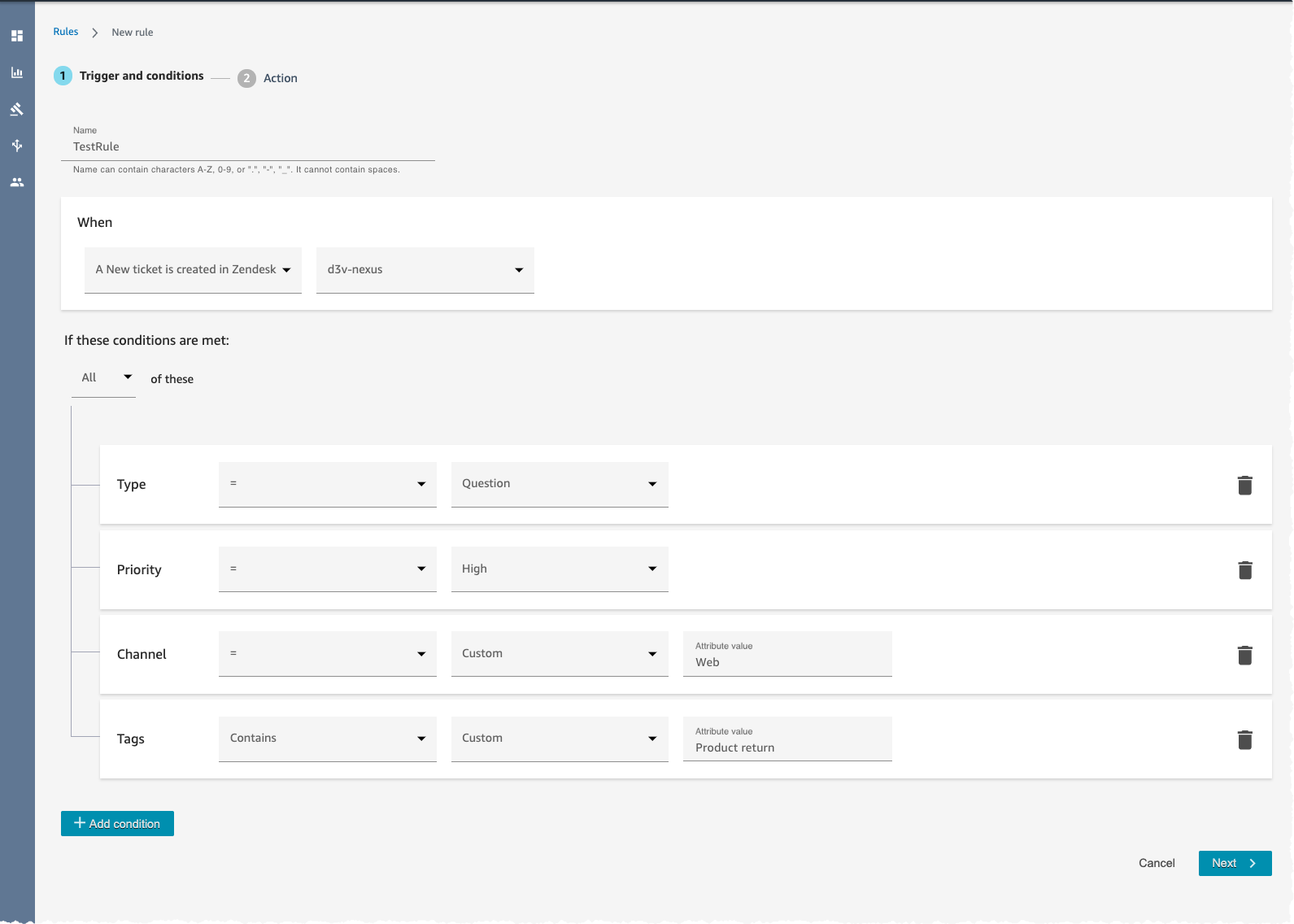
Amazon Connect Tasks provides pre-built connectors fo Salesforce and Zendesk. With just a few clicks, you can easily set up rules to automatically create tasks based on pre-defined conditions, as sown on the screenshot hereunder. It also provides an API to create tasks from any other application.

Amazon Connect Task Rules

Learn more about how to configure and to get started with Tasks by visiting the launch page.

Available Today
Three of these new capabilities are available today: Contact Lens Real Time, Customer Profiles, and Tasks. You must register to the preview program to test Wisdom and Voice ID.

Customer Profile and Tasks are available in all AWS Regions where Amazon Connect is available : US East (N. Virginia), US East (Ohio), US West (N. California), US West (Oregon), Asia Pacific (Sydney), Asia Pacific (Singapore), Asia Pacific (Tokyo), Europe (Frankfurt), and Europe (London). Contact Lens Real Time is available in US West (Oregon), US East (N. Virginia), and Asia Pacific (Sydney) at the moment. Wisdom is available in US East (N. Virginia) and US West (Oregon) during the preview, while Voice ID is available only in US West (Oregon) during the preview.

With Amazon Connect, you only pay for what you use. There are no required up-front payments, long-term commitments, or minimum monthly fees. The price metrics for these new capabilities are detailed on the Amazon Connect pricing page.

Should you need help adding Amazon Connect any of these capabilities to contact flows, please reach out to one of the dozens of Amazon Connect partners available worldwide.

— seb

Send voice appointment reminders using Amazon Pinpoint custom channels and Amazon Connect

Post Syndicated from Ryan Lowe original https://aws.amazon.com/blogs/messaging-and-targeting/send-voice-appointment-reminders-using-amazon-pinpoint-custom-channels-and-amazon-connect/

Introduction

In this post, we will walk through setting up an always-on appointment reminder campaign in Amazon Pinpoint. No-show rates are a constant challenge for service providers. Industries such as hospitality estimate 20% of diners miss reservations in big cities,1 while salons average five missed appointments per week.2 Professional services such as financial institutions and sales teams have similar challenges to ensure clients do not miss meetings. To these businesses, an appointment missed represents lost revenue. As a result, the no-show rate is a key metric to improve. An outbound voice message provides another way to reach customers versus emails or SMS, and voice reminders give customers the choice of channels based on personal preferences.

Overview

Amazon Pinpoint is a multichannel communications service enabling customers to send both promotional and transactional messages across email, SMS, push notifications, voice, and custom channels. Amazon Connect is an easy to use omnichannel cloud contact center that helps companies provide superior customer service at a lower cost.

There are benefits of using these services together. Amazon Pinpoint allows you to build a segment of users which can be used within a campaign. Amazon Connect can enable customers to send outbound voice messages at scale should your user audience be large and require a high number of transactions per second (TPS).

To use these services together, you setup custom channels in Amazon Pinpoint, which can be created via an AWS Lambda function. These functions enable you to call APIs to trigger message sends as part of Amazon Pinpoint campaigns. Amazon Pinpoint has developed a new AWS Lambda function which can be used to send outbound voice messages via Amazon Connect. This configuration allows you to define the voice message to be sent, define the segment of users you would like to target, and send voice messages at scale through Amazon Connect via the Amazon Pinpoint custom channel.

The audience for this solution are technical customers who are used to working with multiple AWS services and are familiar with AWS Lambda functions. The solution built relies on the Amazon Pinpoint custom channel feature and targeting, along with the Amazon Connect outbound voice API called via a prepared AWS Lambda function. Once completed, you will be able to create an evergreen campaign which will send outbound voice messages to your patients who have an appointment the following day.

The costs associated with this solution will be:

  1. Amazon Connect outbound voice calls per minute
  2. Amazon Connect claimed phone number(s)
  3. Amazon Pinpoint Monthly Targeted Audience (MTA) costs.

The costs for a outbound voice reminder system that sends 10k messages per day, with an average length of 20 seconds per call, to an total monthly audience of 300k, in the US are as follows. Note that prices with vary for other countries. Complete Amazon Connect outbound call pricing can be found here.

Solution

Prerequisites:

For this walkthrough the article assumes:

  • An AWS account
  • Basic understanding of IAM and privileges required to create the following; IAM identity provider, roles, policies, and users
  • Basic understanding of Amazon Pinpoint and how to create a project
  • Basic understanding of Amazon Connect and experience in creating contact flows. More information on setup of Amazon Connect can be found here.

Step 1: Create an Appointment Reminder custom event

The first step in setting up this solution is to create and report a custom event to Amazon Pinpoint. There are multiple ways to report events in your application. Ffor demonstration purposes, below are two example event calls using the AWS SDK for Python (Boto3) from inside an AWS Lambda Function.

It is important to note that the Amazon Pinpoint events API can also be used to update endpoints when the event gets registered. In the below example, the first API call will update the endpoint attributes AppointmentDate and AppointmentTime with the details of the upcoming appointment. These attributes will be used in the outgoing message to the end-user

Sample Event: Appointment Coming Up

import boto3

client = boto3.client('pinpoint')
app_id = '[PINPOINT_PROJECT_ID]'
endpoint_id = '[ENDPOINT_ID]'
address = '[PHONE_NUMBER]'

def lambda_handler(event, context):

client.put_events(
ApplicationId = applicationId,
EventsRequest={
'BatchItem': {
endpoint_id: {
'Endpoint': {
'ChannelType': 'CUSTOM',
'Address': address,
'Attributes': {
'AppointmentDate': ['December 15th, 2020'],
'AppointmentTime': ['2:15pm']
}
},
'Events':{
'appointment-event': {
'Attributes':{},
'EventType': 'AppointmentReminder',
'Timestamp': datetime.datetime.fromtimestamp(time.time()).isoformat()
}
}
}
}
}
)

NOTE: The following steps assume that the AppointmentReminder event is being reported to Amazon Pinpoint. If you are unable to integrate the above API call into your application, you can manually create an AWS Lambda function using a Python runtime with the above code to trigger sample events.

Step 2: Create an Amazon Connect contact flow for outbound calls

This article assumes that you have an Amazon Connect contact center already setup and working. In this step, we will set up our Amazon Connect contact flow to dial our recipients and play read the message before hanging up.

  1. Log in to your Amazon Connect instance using your access URL (https://<alias>.awsapps.com/connect/login).
    Note: Replace alias with your instance’s alias.
  2. In the left navigation bar, pause on Routing, and then choose Contact flows.
  3. Under Contact flows, choose a template, or choose Create contact flow to design a contact flow from scratch. For more information, see Create a New Contact Flow.
  4. Download the sample JSON contact flow configuration file Outbound_calling.json.
  5. Choose the dropdown menu under Save and choose Import flow (beta).
  6. Select the Outbound_calling.json file in the Import flow (beta) dialog and choose Save.
  7. Choose Save to open the Save flow dialog. Then choose Save to close the dialog.
  8. Choose Publish to open the Publish dialog. Then choose Publish to close the dialog.
  9. In the contact flow designer, expand Show additional flow information.
  10. Under ARN, copy the Amazon Resource Name (ARN) contact flow. It looks like the following:
    arn:aws:connect:region:123456789012:instance/[ConnectInstanceId]/contact-flow/[ConnectContactFlowId]Note the ConnectInstanceId and ConnectContactFlowId from the ARN, they will be used in the next step.
  11. In the left navigation bar, pause on Routing and then choose Queues.
  12. Choose the queue you wish to use for the outbound calls.
  13. In the Edit queue screen, expand Show additional queue information.
  14. Under ARN, copy the Amazon Resource Name (ARN) for the queue. It looks like the following:
    arn:aws:connect:region:123456789012:instance/[ConnectInstanceId]/contact-flow/[ConnectQueueId]Note the ConnectQueueId from the ARN. It will be used in the next step.

Step 3: Deploy and modify the Amazon Pinpoint to the Amazon Connect custom channel with AWS Lambda function

Next, we will need to deploy an Amazon Pinpoint custom channel. Custom channels in Amazon Pinpoint allow you to send messages through any service with an API, including Amazon Connect. The AWS Serverless Application Repository contains an open-sourced AWS Lambda function that we will use for our custom channel. After deploying the AWS Lambda function, we will customize it to match our requirements.

  1. Navigate to the AWS Lambda Console, then choose Create function.
  2. Under Create function, Choose Browser serverless app repository.
  3. Under Public applications, choose the checkbox next to Show apps that create custom IAM roles or resource policies and enter amazon-pinpoint-connect-channel in the search box.
  4. Choose the amazon-pinpoint-connect-channel card from the list and review the Application details.
  5. Under Application settings enter the details for ConnectContactFlowId, ConnectInstanceId, and ConnectQueueId from the previous step.
  6. After reviewing all the details, choose the checkbox next to I acknowledge that this app creates custom IAM roles and resource policies and choose Deploy.
  7. Wait a couple minutes for the application to deploy two AWS Lambda functions and an AWS Simple Queue Service queue.
  8. Under Resources, choose the PinpointConnectQueuerFunction resource to open the AWS Lambda function configuration. This is the AWS Lambda function that Amazon Pinpoint will call when the message is crafted.
  9. Under Function code, scroll down to line 31 and replace
    message = "Hello World! -Pinpoint Connect Channel"
    with
    message = "This is a reminder of your upcoming appointment on {0} at {1}".format(endpoint_profile["Attributes"]["AppointmentDate"][0], endpoint_profile["Attributes"]["AppointmentTime"][0])
  10. Choose Deploy.

Step 4: (Optional) Modify the custom channel AWS Lambda function to meet change the rate of outgoing calls

By default, the custom channel we deployed in the previous step will place outbound calls through Amazon Connect at a rate of 1 call every 3 seconds. This allows you to configure how many active outbound calls to avoid running into service limits. Review your current service limits in Amazon Connect for more details.

  1. Navigate to the AWS Lambda Console, then choose AmazonPinpointConnectChannel-backgroundprocessor function.
  2. Under Function code, scroll down to line 73 and replace the sleep timer, currently set with 3 seconds, with your requirements.
  3. Choose Deploy.

Step 5: Create a Pinpoint custom campaign with your lambda function and segment

  1. Create a CSV file to import endpoints with the attributes of AppointmentDate and AppointmentTime.
    Example:
    Id,Address,ChannelType,Attributes.AppointmentDate,Attributes.AppointmentTime
    1,+1[PHONE_NUMBER],SMS,November 30 2020,9:00am
    2,+1[PHONE_NUMBER2],SMS,November 30 2020,10:00am
  2. Navigate to the Amazon Pinpoint console.
  3. In the All Projects list, select your project.
  4. In the navigation pane, choose Segments.
  5. Choose Create a Segment.
  6. Choose Import a segment and upload your CSV file and choose Create segment.
  7. In the navigation pane, choose Campaigns.
  8. Choose Create campaign.
  9. In the Create a campaign wizard, enter a name for campaign name.
  10. Under Channel choose Custom.
  11. Choose Next.
  12. On the Choose a segment screen, choose the segment created above, and choose Next.
  13. On the Create your message screen, do the following:
    a) For Lambda function choose AmazonPinpointConnectChannel that we deployed in Step 3 above.
    b) For endpoint Options choose SMS.
    c) Choose Next.
  14. On the Choose when to send the campaign screen, do the following:
    a) Choose When an event occurs.
    b) Under Events, choose the AppointmentReminder event.
    c) Under campaign dates, choose a Start date and time and an End date and time to be used as the campaign’s duration.
  15. Choose Next.
  16. Review the campaign details and choose Launch campaign.

Cleanup:

To remove the two AWS Lambda functions and the Amazon Simple Queue Service queue provisioned in the steps above in order not to incur further charges, please follow these steps below.

  1. Navigate to the Amazon CloudFormation Console.
  2. Choose severlessrepo-amazon-pinpoint-connect-channel and choose Delete.
  3. Choose Delete stack in the delete confirmation window.


Next Steps:

You can continue to iterate on this experience using Amazon Pinpoint and Amazon Connect to create a custom user experience.

To learn more about these services, please visit the Amazon Pinpoint or Amazon Connect web pages.

(1) https://www.scisolutions.com/uploads/news/Missed-Appts-Cost-HMT-Article-042617.pdf

(2) https://blog.carbonfreedining.org/the-ultimate-guide-to-restaurant-no-shows