For schools and universities, data storage is paramount. Staff, administrators, and educators, not to mention students, need a secure place to store files. Add to that the legacy accounts of alumni storing irreplaceable files from their education, and you have a massive need for storage.
For a long time, Google was happy to oblige. In 2006, the company launched Google Apps for Education (later G Suite for Education; now Google Workplace for Education), offering free unlimited storage for qualifying schools and districts. But when they’d reached market penetration—somewhere in the neighborhood of 83% of school districts according to EdWeek Research Center—they ended the unlimited storage policy many schools had come to rely on.
If you already know about Google’s policy change and are looking for a solution to save your data and your budget, getting started with Backblaze B2 is easy. Otherwise, read on to learn more about the change, what it may mean for you in the long-term, and a Backblaze partnership with Carahsoft that eases purchasing through local, state, and federal buying programs.
Office Hours Are Over—Google Ends Unlimited Storage for Educational Institutions
Google’s policy change took effect in July 2022, and many schools and universities had to find alternative storage solutions or change their internal storage policies to stay within the new limits. Under the terms of the new policy, Google offers a baseline of 100TB of pooled storage shared across all users.
The policy shift was spurred, Google says, because “as we’ve grown to serve more schools and universities each year, storage consumption has also rapidly accelerated. Storage is not being consumed equitably across—nor within—institutions, and school leaders often don’t have the tools they need to manage this.”
For some school districts, colleges, and universities, this policy shift meant having to reach out to alumni with the request that they back up all their own data. It also hit some already-strapped IT budgets particularly hard. Estimates vary, but depending on the size of the school and their data needs, they could be looking at anywhere up to an extra $70,000 a year in storage costs.
That’s a non-negligible fee for a service that has become increasingly vital for schools. We’ve written about how important cloud storage is for schools, but it’s worth reiterating here.
School is in Session
Not only will a secure cloud storage solution help protect school districts from threats of ransomware, it can also help maintain predictable operating expenses and create opportunities for collaboration through remote learning. In cases like Kansas’ Pittsburg State University, it helped keep data safe from natural disasters that abound in places like Tornado Alley. Pittsburg State implemented Backblaze B2 as their off-site backup in the event of disaster and used Object Lock functionality to safeguard data from ransomware.
Photo Credit: Pittsburg State University
The academic world is still adjusting to Google’s policy change. Stories have emerged of schools simply dropping Google and being forced to move data out of thousands of alumni accounts. A quick-fix solution to avoid Google’s new fee structure, this strategy is being undertaken without a clear answer to the question of how alumni can access their own data after the move. After all, how up to date are those alumni email lists?
A Google Alternative for Schools
School districts, colleges, and universities need to find a new, budget-friendly way forward. If you’re still struggling to find an alternative storage solution now that the bell has rung and Google has dismissed its free storage, Backblaze can help you find a new home on the cloud.
Backblaze B2 offers schools unlimited, pay-as-you-go storage at a fraction of the price of Google, enabling you to continue offering students and alumni the storage space they’ve come to expect. For colleges, universities, and school districts not buying through government purchasing programs, you can sign up for Backblaze B2 directly. We offer 10TB of storage free so that you can see if it works for you, but if you want to do a larger or customized proof of concept, reach out to our Sales team.
Accessing Backblaze Through Your Local, State, or Federal Buying Program
As we revealed during this year’s Educause conference, Backblaze has recently rolled out a partnership with Carahsoft aimed squarely at budget-conscious educational institutions. The partnership brings Backblaze services to educational institutions with a capacity-based pricing model that’s a fraction of the price of traditional cloud providers like Google. And it can be purchased through local, state, or federal buying programs. If you buy IT services for your district through a distributor, this solution could work for you. Visit the partnership announcement to learn more.
Last week, we published Backblaze Drive Stats for Q3 2022, sharing the metrics we’ve gathered on our fleet of over 230,000 hard drives. In this blog post, I’ll explain how we’re now using the Trino open source SQL query engine in ensuring the integrity of Drive Stats data, and how we plan to use Trino in future to generate the Drive Stats result set for publication.
Converting Zipped CSV Files into Parquet
In his blog post Storing and Querying Analytical Data in Backblaze B2, my colleague Greg Hamer explained how we started using Trino to analyze Drive Stats data earlier this year. We quickly discovered that formatting the data set as Apache Parquet minimized the amount of data that Trino needed to download from Backblaze B2 Cloud Storage to process queries, resulting in a dramatic improvement in query performance over the original CSV-formatted data.
As Greg mentioned in the earlier post, Drive Stats data is published quarterly to Backblaze B2 as a single .zip file containing a CSV file for each day of the quarter. Each CSV file contains a record for each drive that was operational on that day (see this list of the fields in each record).
When Greg and I started working with the Parquet-formatted Drive Stats data, we took a simple, but somewhat inefficient, approach to converting the data from zipped CSV to Parquet:
Download the existing zip files to local storage.
Unzip them.
Run a Python script to read the CSV files and write Parquet-formatted data back to local storage.
Upload the Parquet files to Backblaze B2.
We were keen to automate this process, so we reworked the script to use the Python ZipFile module to read the zipped CSV data directly from its Backblaze B2 Bucket and write Parquet back to another bucket. We’ve shared the script in this GitHub gist.
After running the script, the drivestats table now contains data up until the end of Q3 2022:
trino:ds> SELECT DISTINCT year, month, day
FROM drivestats ORDER BY year DESC, month DESC, day DESC LIMIT 1;
year | month | day
------+-------+-----
2022 | 9 | 30
(1 row)
In the last article, we were working with data running until the end of Q1 2022. On March 31, 2022, the Drive Stats dataset comprised 296 million records, and there were 211,732 drives in operation. Let’s see what the current situation is:
trino:ds> SELECT COUNT(*) FROM drivestats;
_col0
-----------
346006813
(1 row)
trino:ds> SELECT COUNT(*) FROM drivestats
WHERE year = 2022 AND month = 9 AND day = 30;
_col0
--------
230897
(1 row)
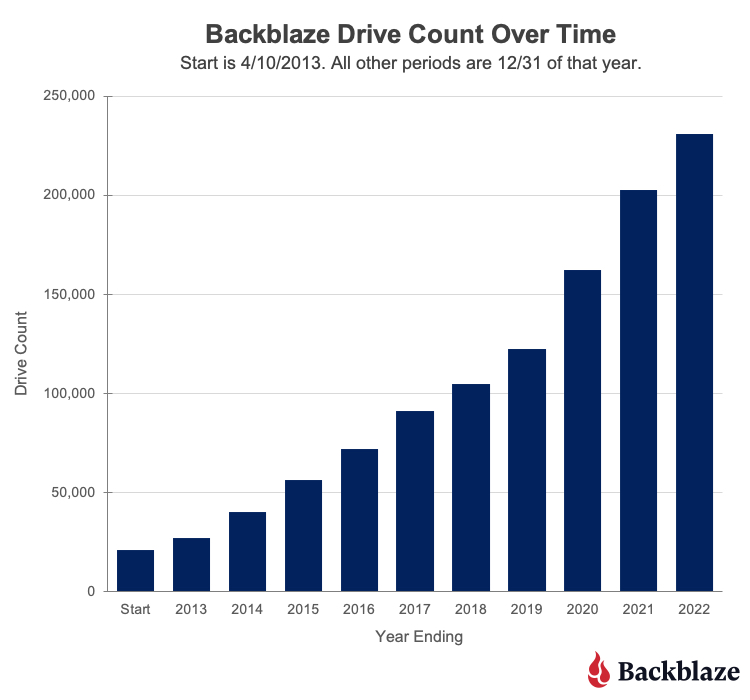
So, since the end of March, we’ve added 50 million rows to the dataset, and Backblaze is now spinning nearly 231,000 drives—over 19,000 more than at the end of March 2022. Put another way, we’ve added more than 100 drives per day to the Backblaze Cloud Storage Platform in the past six months. Finally, how many exabytes of raw data storage does Backblaze now manage?
trino:ds> SELECT ROUND(SUM(CAST(capacity_bytes AS bigint))/1e+18, 2)
FROM drivestats WHERE year = 2022 AND month = 9 AND day = 30;
_col0
-------
2.62
(1 row)
Will we cross the three exabyte mark this year? Stay tuned to find out.
Ensuring the Integrity of Drive Stats Data
As Andy Klein, the Drive Stats supremo, collates each quarter’s data, he looks for instances of healthy drives being removed and then returned to service. This can happen for a variety of operational reasons, but it shows up in the data as the drive having failed, then later revived. This subset of data shows the phenomenon:
trino:ds> SELECT year, month, day, failure FROM drivestats WHERE
serial_number = 'ZHZ4VLNV' AND year >= 2021 ORDER BY year, month,
day;
year | month | day | failure
------+-------+-----+---------
...
2021 | 12 | 26 | 0
2021 | 12 | 27 | 0
2021 | 12 | 28 | 0
2021 | 12 | 29 | 1
2022 | 1 | 3 | 0
2022 | 1 | 4 | 0
2022 | 1 | 5 | 0
...
This drive appears to have failed on Dec 29, 2021, but was returned to service on Jan 3, 2022.
Since these spurious “failures” would skew the reliability statistics, Andy searches for and removes them from each quarter’s data. However, even Andy can’t see into the future, so, when a drive is taken offline at the end of one quarter and then returned to service in the next quarter, as in the above case, there is a bit of a manual process to find anomalies and clean up past data.
With the entire dataset in a single location, we can now write a SQL query to find drives that were removed, then returned to service, no matter when it occurred. Let’s build that query up in stages.
We start by finding the serial numbers and failure dates for each drive failure:
trino:ds> SELECT serial_number, DATE(FORMAT('%04d-%02d-%02d', year,
month, day)) AS date
FROM drivestats
WHERE failure = 1;
serial_number | date
-----------------+------------
ZHZ3KMX4 | 2021-04-01
ZA12RBBM | 2021-04-01
S300Z52X | 2017-03-01
Z3051FWK | 2017-03-01
Z304JQAE | 2017-03-02
...
(17092 rows)
Now we find the most recent record for each drive:
trino:ds> SELECT serial_number, MAX(DATE(FORMAT('%04d-%02d-%02d',
year, month, day))) AS date
FROM drivestats
GROUP BY serial_number;
serial_number | date
------------------+------------
ZHZ65F2W | 2022-09-30
ZLW0GQ82 | 2022-09-30
ZLW0GQ86 | 2022-09-30
Z8A0A057F97G | 2022-09-30
ZHZ62XAR | 2022-09-30
...
(329908 rows)
We then join the two result sets to find spurious failures; that is, failures where the drive was later returned to service. Note the join condition—we select records whose serial numbers match and where the most recent record is later than the failure:
trino:ds> SELECT f.serial_number, f.failure_date
FROM (
SELECT serial_number, DATE(FORMAT('%04d-%02d-%02d', year, month,
day)) AS failure_date
FROM drivestats
WHERE failure = 1
) AS f
INNER JOIN (
SELECT serial_number, MAX(DATE(FORMAT('%04d-%02d-%02d', year,
month, day))) AS last_date
FROM drivestats
GROUP BY serial_number
) AS l
ON f.serial_number = l.serial_number AND l.last_date > f.failure_date;
serial_number | failure_date
-----------------+--------------
2003261ED34D | 2022-06-09
W300STQ5 | 2022-06-11
ZHZ61JMQ | 2022-06-17
ZHZ4VL2P | 2022-06-21
WD-WX31A2464044 | 2015-06-23
(864 rows)
As you can see, the current schema makes date comparisons a little awkward, pointing the way to optimizing the schema by adding a DATE-typed column to the existing year, month, and day. This kind of denormalization is common in analytical data.
Calculating the Quarterly Failure Rates
In calculating failure rates per drive model for each quarter, Andy loads the quarter’s data into MySQL and defines a set of views. We additionally define the current_quarter view to restrict the failure rate calculation to data in July, August, and September 2022:
CREATE VIEW current_quarter AS
SELECT * FROM drivestats
WHERE year = 2022 AND month in (7, 8, 9);
CREATE VIEW drive_days AS
SELECT model, COUNT(*) AS drive_days
FROM current_quarter
GROUP BY model;
CREATE VIEW failures AS
SELECT model, COUNT(*) AS failures
FROM current_quarter
WHERE failure = 1
GROUP BY model
UNION
SELECT DISTINCT(model), 0 AS failures
FROM current_quarter
WHERE model NOT IN
(
SELECT model
FROM current_quarter
WHERE failure = 1
GROUP BY model
);
CREATE VIEW failure_rates AS
SELECT drive_days.model AS model,
drive_days.drive_days AS drive_days,
failures.failures AS failures,
100.0 * (1.0 * failures) / (drive_days / 365.0) AS
annual_failure_rate
FROM drive_days, failures
WHERE drive_days.model = failures.model;
Running the above statements in Trino, then querying the failure_rates view, yields a superset of the data that we published in the Q3 2022 Drive Stats report. The difference is that this result set includes drives that Andy excludes from the Drive Stats report: SSD boot drives, drives that were used for testing purposes, and drive models which did not have at least 60 drives in service:
Now that we have shown that we can derive the required statistics by querying the Parquet-formatted data with Trino, we can streamline the Drive Stats process. Starting with the Q4 2022 report, rather than wrangling each quarter’s data with a mixture of tools on his laptop, Andy will use Trino to both clean up the raw data and produce the Drive Stats result set for publication.
Accessing the Drive Stats Parquet Dataset
When Greg and I started experimenting with Trino, our starting point was Brian Olsen’s Trino Getting Started GitHub repository, in particular, the Hive connector over MinIO file storage tutorial. Since MinIO and Backblaze B2 both have S3-compatible APIs, it was easy to adapt the tutorial’s configuration to target the Drive Stats data in Backblaze B2, and Brian was kind enough to accept my contribution of a new tutorial showing how to use the Hive connector over Backblaze B2 Cloud Storage. This tutorial will get you started using Trino with data stored in Backblaze B2 Buckets, and includes a section on accessing the Drive Stats dataset.
You might be interested to know that Backblaze is sponsoring this year’s Trino Summit, taking place virtually and in person in San Francisco, on November 10. Registration is free; if you do attend, come say hi to Greg and me at the Backblaze booth and see Trino in action, querying data stored in Backblaze B2.
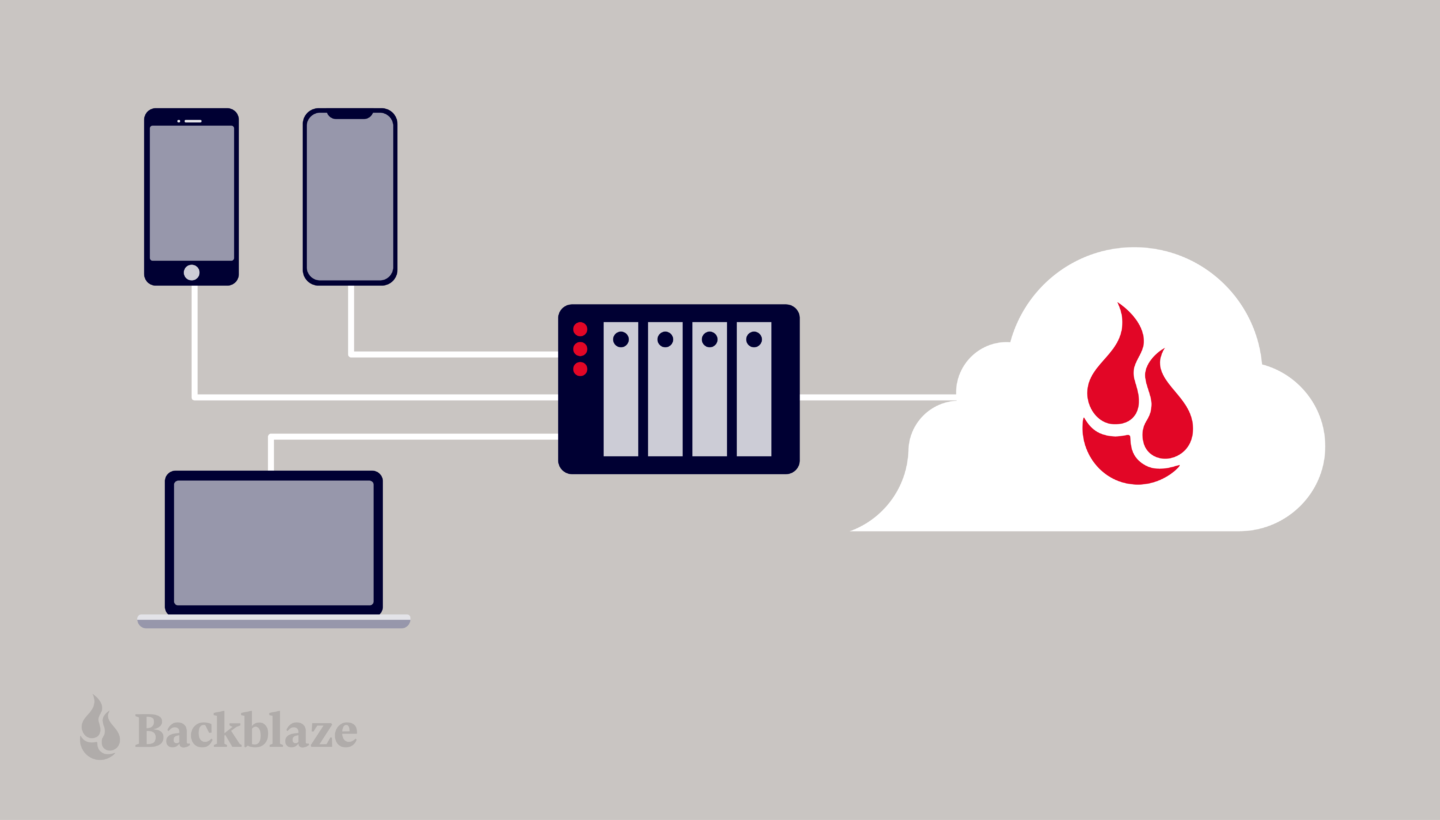
Network attached storage (NAS) devices are a popular solution for data storage, sharing files for remote collaboration purposes, syncing files that are part of a workflow, and more. QNAP, one of the leading NAS manufacturers, makes it incredibly easy to backup and/or sync your business or personal data for these purposes with the inclusion of its application, Hybrid Backup Sync (HBS). HBS consolidates backup, restoration, and synchronization functions into a single application.
Protecting your data with a NAS is a great first step, but you shouldn’t stop there. NAS devices are still vulnerable to any kind of on-premises disaster like fires, floods, and tornados. They’re also not safe from ransomware attacks that might hit your network. To truly protect your data, it’s important to back up or sync to an off-site cloud storage destination like Backblaze B2 Cloud Storage. Backblaze B2 offers a geographically distanced location for your data for $5/TB per month, and you can also embed it into your NAS-based workflows to streamline access across multiple locations.
Read on for more information on whether you should use backup or sync for your purposes and how to connect your QNAP NAS to Backblaze B2 step-by-step. We’ve even provided videos that show you just how easy it is—it typically takes less than 15 minutes!
Should I Back Up or Sync?
It’s easy to confuse backup and sync. They’re essentially both making a copy of your data, but they have different use cases. It’s important to understand the difference so you’re getting the right protection and accessibility for your data.
Check out the table below. You’ll see that backup is best for being able to recover from a data disaster, including the ability to access previous versions of data. However, if you’re just looking for a mirror copy of your data, sync functionality is all you need. Sync is also useful as part of remote workflows: you can sync your data between your QNAP and Backblaze B2, and then remote workers can pull down the most up-to-date files from the B2 cloud.
Because Hybrid Backup Sync provides both functions in one application, you should first identify which feature you truly need. The setup process is similar, but you will need to take different steps to configure backup vs. sync in HBS.
How to Set Up Your Backblaze B2 Account
Now that you’ve determined whether you want to back up or sync your data, it’s time to create your Backblaze B2 Cloud Storage account to securely protect your on-premises data.
If you already have a B2 Cloud Storage account, feel free to skip ahead. Otherwise, you can sign up for an account and get started with 10GB of free storage to test it out.
Ready to get started? You can follow along with the directions in this blog or take a look at our video guides. Greg Hamer, Senior Technical Evangelist, demonstrates how to get your data into B2 Cloud Storage in under 15 minutes using HBS for either backup or sync.
Video: Back Up QNAP to Backblaze B2 Cloud Storage with QNAP Hybrid Backup Sync
Video: Sync QNAP to Backblaze B2 Cloud Storage with QNAP Hybrid Backup Sync
How to Set Up a Bucket, Application Key ID, and Application Key
Once you’ve signed up for a Backblaze B2 Account, you’ll need to create a bucket, Application Key ID, and Application Key. This may sound like a lot, but all you need are a few clicks, a couple names, and less than a minute!
On the Buckets page of your account, click the Create a Bucket button.
Give your bucket a name and enable encryption for added security.
Click the Create a Bucket button and you should see your new bucket on the Buckets page.
Navigate to the App Keys page of your account and click Add a New Application Key.
Name your Application Key and click the Create New Key button. Make sure that your key has both read and write permissions (the default option).
Your Application Key ID and Application Key will appear on your App Keys page. Important: Make sure to copy these somewhere secure as the Application Key will not appear again!
How to Set Up QNAP’s Hybrid Backup Sync to Work With B2 Cloud Storage
To set up your QNAP with Backblaze B2 sync support, you’ll need access to your B2 Cloud Storage account. You’ll also need your B2 Cloud Storage account ID, Application Key, and bucket name—all of which are available after you log in to your Backblaze account. Finally, you’ll need the Hybrid Backup Sync application installed in QTS. You’ll need QTS 4.3.3 or later and Hybrid Backup Sync v2.1.170615 or later.
To configure a backup or sync job, simply follow the rest of the steps in this integration guide or reference the videos posted above. Once you follow the rest of the configuration steps, you’ll have a set-it-and-forget-it solution in place.
What Can You Do With Backblaze B2 and QNAP Hybrid Backup Sync?
With QNAP’s Hybrid Backup Sync software, you can easily back up and sync data to the cloud. Here’s some more information on what you can do to make the most of your setup.
Hybrid Backup Sync 3.0
QNAP and Backblaze B2 users can take advantage of Hybrid Backup Sync, as explained above. Hybrid Backup Sync is a powerful tool that provides true backup capability with features like version control, client-side encryption, and block-level deduplication. QNAP’s operating system, QTS, continues to deliver innovation and add thrilling new features. The ability to preview backed up files using the QuDedup Extract Tool, a feature first released in QTS 4.4.1, allowed QNAP users to save on bandwidth costs.
You can download the latest QTS update here and Hybrid Backup Sync is available in the App Center on your QNAP device.
Hybrid Mount and VJBOD Cloud
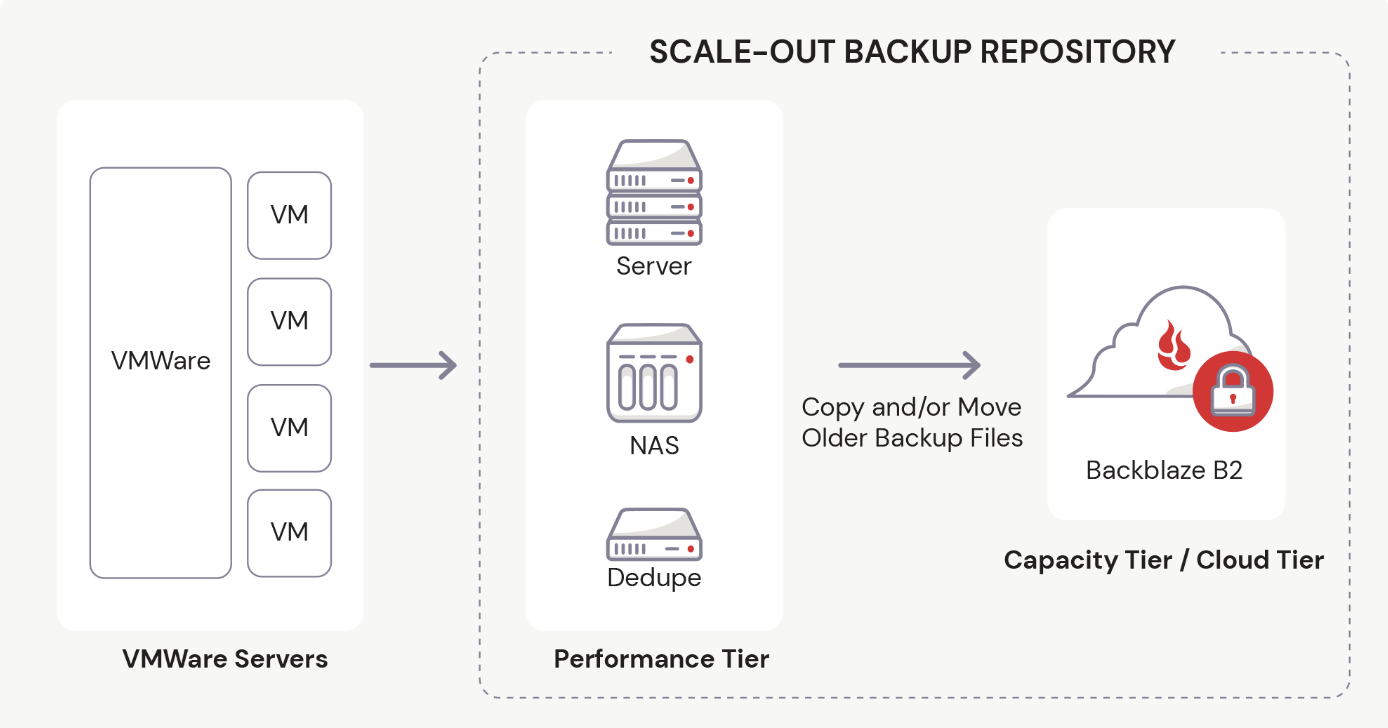
The Hybrid Mount and VJBOD Cloud apps allow QNAP users to designate a drive in their system to function as a cache while accessing B2 Cloud Storage. This allows users to interact with Backblaze B2 just like you would a folder on your QNAP device while using Backblaze B2 as an active storage location.
Hybrid Mount and VJBOD Cloud are both included in the QTS 4.4.1 versions and higher, and function as a storage gateway on a file-based or block-based level, respectively. Hybrid Mount enables Backblaze B2 to be used as a file server and is ideal for online collaboration and file-level data analysis. VJBOD Cloud is ideal for a large number of small files or singular massively large files (think databases!) since it’s able to update and change files on a block-level basis. Both apps offer the ability to connect to B2 Cloud Storage via popular protocols to fit any environment, including server message block (SMB), Apple Filing Protocol (AFP), network file sharing (NFS), file transfer protocol (FTP), and WebDAV.
QuDedup
QuDedup introduces client-side deduplication to the QNAP ecosystem. This helps users at all levels save on space on their NAS by avoiding redundant copies in storage. Backblaze B2 users have something to look forward to as well since these savings carry over to cloud storage via the HBS 3.0 update.
Why Backblaze B2?
QNAP continues to innovate and unlock the potential of B2 Cloud Storage in the NAS ecosystem. If you haven’t given B2 Cloud Storage a try yet, now is the time. You can get started with Backblaze B2 and your QNAP NAS right now, and make sure your NAS is synced securely and automatically to the cloud.
You’re probably familiar with containers if you’re even remotely involved in software development or systems administration. In their 2023 survey, the Cloud Native Computing Foundation found that over 90% organizations use containers in production. Additionally, more than 90% of organizations that rely on cloud native practices for most or all of their application development and deployment also depend on containers.
But, whether orchestrating containers is a regular part of your day-to-day life, or you are just trying to understand what an operating system kernel is, it helps to have an understanding of some container basics.
Today, we’re explaining what containers are, how they’re used, and how cloud storage fits into the container picture—all in one neat and tidy containerized blog post package. (And, yes, the kernel is important, so we’ll get to that, too).
What are containers?
Containers are packaged units of software that contain all of the dependencies (e.g. binaries, libraries, programming language versions, etc.) they need to run no matter where they live—on a laptop, in the cloud, or in an on-premises data center. That’s a fairly technical definition, so you might be wondering, “OK, but what are they really?”
The generally accepted definition of the term applies almost exactly to what the technology does.
A container, generally = a receptacle for holding goods; a portable compartment in which freight is placed (as on a train or ship) for convenience of movement.
A container in software development = a figurative “receptacle” for holding software. The second part of the definition applies even better—shipping containers are often used as a metaphor to describe what containers do. In shipping, instead of stacking goods in a jumbled pile, goods are packed into standard-sized containers that fit on whatever is hauling them—a ship, a train, or a trailer.
Likewise, instead of “shipping” an unwieldy mess of code, including the required operating system, containers package software into lightweight units that share the same operating system (OS) kernel and can run anywhere—on a laptop, on a server, in the cloud, etc.
What’s an OS kernel?
As promised, here’s where the OS kernel becomes important. The kernel is the core programming at the center of the OS that controls all other parts of the OS. The term makes sense if you consider the definition of “kernel” as “the central or essential part” as in “a kernel of truth.” (It also begs the question, “Why didn’t they just call it a colonel?” especially because it’s in charge of so many things… But that’s neither here nor there.) And now you know what an OS kernel does.
Compared to older virtualization technology, namely virtual machines which are measured in gigabytes, containers are only megabytes in size. That means you can run quite a few of them on a given computer or server much like you can stack many containers onto a ship.
Indeed, the founders of Docker, the software that sparked widespread container adoption, looked to the port of Oakland, California for inspiration. Former Docker CEO, Ben Golub, explained in an interview with InfoWorld, “We could see all the container ships coming into the port of Oakland, and we were talking about the value of the container in the world of shipping. The fact it was easier to ship a car from one side of the world than to take an app from one server to another, that seemed like a problem ripe for solving.” In fact, it’s right there in their logo.
And that is exactly what containers, mainly via Docker’s popularity, did—they solved the problem of environment inconsistency for developers. Before containers became widely used, moving software between environments meant things broke, a lot. If a developer wrote an app on their laptop, then moved it into a testing environment on a server, for example, everything had to be the same—same versions of the programming language, same permissions, same database access, etc. If not, you had a very sad app.
Virtualization 101
Containers work their magic by way of virtualization. Virtualization is the process of creating a simulated computing environment that’s abstracted from the physical computing hardware—essentially a computer-generated computer, also referred to as a software-defined computer.
The first virtualization technology to really take off was the virtual machine (VM). A VM sits atop a hypervisor—a lightweight software layer that allows multiple operating systems to run in tandem on the same hardware. VMs allow developers and system administrators to make the most of computing hardware. Before VMs, each application had to run on its own server, and it probably didn’t use the server’s full capacity. After VMs, you could use the same server to run multiple applications, increasing efficiency and lowering costs.
Containers vs. virtual machines
While VMs increase hardware efficiency, each VM requires its own OS and a virtualized copy of the underlying hardware. Because of this, VMs can take up a lot of system resources, and they’re slow to start up.
Containers, on the other hand, do not virtualize the hardware. Instead, they share the host operating system’s kernel, making them much smaller and faster than VMs. Want to know more? Check out our deep dive into the differences between VMs and containers.
The benefits of containers
Containers allow developers and system administrators to develop, test, and deploy software and applications faster and more efficiently than older virtualization technologies like VMs. The benefits of containers include:
Portability: Containers include all of the dependencies they need to run in any environment, provided that environment includes the appropriate OS. This reduces the errors and bugs that arise when moving applications between different environments, increasing portability.
Size: Containers share OS resources and don’t include their own OS image, making them lightweight—megabytes compared to VMs’ gigabytes. As such, one machine or server can support many containers.
Speed: Again, because they share OS resources and don’t include their own OS image, containers can be spun up in seconds compared to VMs which can take minutes to spin up.
Resource efficiency: Similar to VMs, containers allow developers to make the best use of hardware and software resources.
Isolation: Also similar to VMs, with containers, different applications or even component parts of a singular application can be isolated such that issues like excessive load or bugs on one don’t impact others.
Container use cases
Containers are nothing if not versatile, so they can be used for a wide variety of use cases. However, there are a few instances where containers are especially useful:
Enabling microservices architectures: Before containers, applications were typically built as all-in-one units or “monoliths.” With their portability and small size, containers changed that, ushering in the era of microservices architecture. Applications could be broken down into their component “services,” and each of those services could be built in its own container and run independently of the other parts of the application. For example, the code for your application’s search bar can be built separately from the code for your application’s shopping cart, then loosely coupled to work as one application.
Supporting modern development practices: Containers and the microservices architectures they enable paved the way for modern software development practices. With the ability to split applications into their component parts, each part could be developed, tested, and deployed independently. Thus, developers can build and deploy applications using modern development approaches like DevOps, continuous integration/continuous deployment (CI/CD), and agile development.
Facilitating hybrid cloud and multi-cloud approaches: Because of their portability, containers enable developers to utilize hybrid cloud and/or multi-cloud approaches. Containers allow applications to move easily between environments—from on-premises to the cloud or between different clouds.
Accelerating cloud migration or cloud-native development: Existing applications can be refactored using containers to make them easier to migrate to modern cloud environments. Containers also enable cloud-native development and deployment.
The role of software containers in AI application development
In addition to enabling microservices architectures and supporting modern development practices, containers play a role in AI application development. Their ability to provide consistent, reproducible environments makes them ideal for AI, where managing complex dependencies and ensuring uniform performance across different platforms are essential.
AI projects often rely on specific versions of libraries, drivers, and runtimes, which can lead to compatibility issues and errors. Containers solve this problem by encapsulating all necessary dependencies, libraries, and runtime environments to provide a consistent and reproducible platform for AI development. This encapsulation ensures that AI models and applications run the same way, regardless of the underlying infrastructure and provides consistency from development through production.
The portability of containers also offers advantages for deploying AI workloads across diverse environments. They can be easily moved between local development machines, on-premises servers, and cloud platforms without requiring code or configuration changes. This flexibility supports easy scalability of AI applications to meet changing demands—such as increased user loads or the need for more intensive data processing.
Additionally, containers enable organizations to leverage the most cost effective and powerful computing resources available, whether it’s local hardware for testing and development or cloud-based GPU clusters for training large-scale models. This ability moves workloads efficiently across different environments and also supports hybrid and multi-cloud strategies to provide organizations with greater agility, while reducing costs and avoiding vendor lock-in.
Container tools
The two most widely recognized container tools are Docker and Kubernetes. They’re not the only options out there, but in their 2023 developer survey, Stack Overflow found that nearly 52% out of 90,000+ respondents use Docker and 19% use Kubernetes. But what do they do?
1. What is Docker?
Container technology had been around for a while in the form of Linux containers or LXC, but the widespread adoption of containers happened only in the past decade with the introduction of Docker.
Docker was launched in 2013 as a project to build single-application LXC containers, introducing several changes to LXC that make containers more portable and flexible to use. It later morphed into its own container runtime environment. At a high level, Docker is a Linux utility that can efficiently create, ship, and run containers.
Docker introduced more standardization to containers than previous technologies and focused on developers, specifically, making it the de facto standard in the developer world for application development.
2. What is Kubernetes?
As containerization took off, many early adopters found themselves facing a new problem: how to manage a whole bunch of containers. Enter: Kubernetes. Kubernetes is an open-source container orchestrator. It was developed at Google (deploying billions of containers per week is no small task) as a “minimum viable product” version of their original cluster orchestrator, ominously named Borg. Today, it is managed by the Cloud Native Computing Foundation, and it helps automate management of containers including provisioning, load balancing, basic health checks, and scheduling.
Kubernetes allows developers to describe the desired state of a container deployment using YAML files (YAML stands for Yet Another Markup Language, which is yet another winning tech acronym.). The YAML file uses declarative language to tell Kubernetes “this is what this container deployment should look like” and Kubernetes does all the grunt work of creating and maintaining that state.
Containers + storage: What you need to know
Containers are inherently ephemeral or stateless. They get spun up, and they do their thing. When they get spun down, any data that was created while they were running is destroyed with them. But most applications are stateful, and need data to live on even after a given container goes away.
Object storage is inherently scalable. It enables the storage of massive amounts of unstructured data while still maintaining easy data accessibility. For containerized applications that depend on data scalability and accessibility, it’s an ideal solution for keeping stateful data stateful.
There are three essential use cases where object storage works hand in hand with containerized applications:
Backup and disaster recovery: Tools like Docker and Kubernetes enable easy replication of containers, but replication doesn’t replace traditional backup and disaster recovery just as sync services aren’t a good replacement for backing up the data on your laptop, for example. With object storage, you can replicate your entire environment and back it up to the cloud. There’s just one catch: some object storage providers have retention minimums, sometimes up to 90 days. If you’re experimenting and iterating on your container architecture, or if you use CI/CD methods, your environment is constantly changing. With retention minimums, that means you might be paying for previous iterations much longer than you want to. (Shameless plug: Backblaze B2 Cloud Storage is calculated hourly, with no minimum retention requirement.)
Primary storage: You can use a cloud object storage repository to store your container images, then when you want to deploy them, you can pull them into the compute service of your choice.
Origin storage: If you’re serving out high volumes of media, or even if you’re just hosting a simple website, object storage can serve as your origin store coupled with a CDN for serving out content globally. For example, CloudSpot, a SaaS platform that serves professional photographers, moved to a Kubernetes cluster environment and connected it to their origin store in Backblaze B2, where they now keep 120+ million files readily accessible for their customers.
Need object storage for your containerized application?
Now that you have a handle on what containers are and what they can do, you can make decisions about how to build your applications or structure your internal systems. Whether you’re contemplating moving your application to the cloud, adopting a hybrid or multi-cloud approach, or going completely cloud native, containers can help you get there. And with object storage, you have a data repository that can keep up with your containerized workloads.
Ready to connect your application to scalable, S3-compatible object storage? You can get started today for free.
Storage technology has certainly changed over time, with new storage mediums taking aim at what’s become the industry standard: the hard disk drive (HDD). Of all the challengers, solid state drives (SSDs) are the most widely-adopted and likely to take the top spot—they’re fast, quiet, and retain information when they’re powered off (so you can just pop open your laptop and get back in the groove).
Yes, they’re more expensive than traditional hard disk drives, but there’s value in their much faster read/write speeds, and they’re arguably more reliable depending on your use case in the long term. Even with those benefits, that’s not to say HDDs are obsolete, just that there is good reason to upgrade to SSDs in many cases. The decision from the judges: These two contenders get to share the spotlight, and you get to decide which drive works best for your needs.
Once you’ve made the decision to invest in an SSD, you’ll have to choose the form factor and possibly the interface. In this post we’ll cover some basics about SSDs that should help you choose which type of SSD is best for you, including:
What is an SSD?
What is a SATA SSD?
What is an M.2 SSD?
What is an MSATA SSD?
What is an U.2 SSD?
What is an NVMe SSD?
Which SSD is right for you?
A Brief Introduction to SSDs
SSDs are storage devices that use NAND-based flash memory to store data. They are now standard issue for most computers, as is the case across Apple’s line of Macs. Unlike traditional hard disk drives (HDDs), which store data on spinning disks, SSDs have no moving parts, which makes them faster, more reliable, and less prone to mechanical failures.
SSDs have become so common mainly because they are faster in terms of read/write speeds versus hard drives. This means that they can access and transfer data much more quickly. This makes them an ideal choice for use in high-performance computers, servers, and other devices that require fast data access and transfer speeds. They also use less power and are available at different form factors, such as 2.5” and M.2, so they can be used in a range of devices. You can read more about the difference between SSDs and HDDs in this post.
One downside of SSDs is that they tend to be more expensive than HDDs, especially when it comes to larger storage capacities. However, as the cost of flash memory continues to decrease, SSDs are becoming more affordable and accessible for everyday consumers. Comparatively speaking, they also have a more limited write cycle. While you usually don’t run into this limitation as a typical computer user, if you’re constantly saving large files like you would if you’re working with media files, for instance, it’s something to consider.
Additionally, it can be harder to tell when an SSD is failing (no spinning disks to whir furiously at you), which means you’ll want to make sure you’re effectively monitoring your drives and backing up.
What Is a SATA SSD?
A Serial Advanced Technology Attachment (SATA) is the standard storage interface used in many computers. A SATA SSD is an SSD equipped with a SATA interface to connect the storage device to a computer’s motherboard. The SATA SSD comes in the standard 2.5 inch form factor and has both power and data (SATA) connectors. If you buy an SSD external drive to connect to your PC, there will most likely be a SATA SSD inside.
Generally, the SATA SSD is the least expensive type of SSD, all other factors being equal. This makes a great choice to get an instant performance boost out of your HDD-based computer, or add an external drive that can read and write data more quickly.
One thing to know about external SSD drives is that they should not be disconnected from your computer and stored away for long periods of time. Anything over a year is too long, and as the drive gets older it needs to be plugged in even more often. If you do want to use your SSD for long-term archival storage and have it disconnected from your main devices (air gap, anyone?), then it’s a good idea to either store them with about 50% charge, or power on the SSD every few months to refresh the charge.
What Is an NVMe?
Non-Volatile Memory Express (NVMe) is a storage protocol that offers high-speed and efficient communication between a computer’s CPU and SSDs. Drives that use NVMe were introduced in 2013 to attach to the Peripheral Component Interconnect Express (PCIe) slot directly on a motherboard instead of using the traditional SATA interface typically used by HDDs and older SSDs. Unlike SATA, which was originally designed for slower HDDs, NVMe takes advantage of the low-latency and high-speed capabilities of SSDs. NVMe drives can usually deliver a sustained read-write speed of 4.0 GB/s in contrast with SATA SSDs that limit at 600 MB/s. Since NVMe SSDs can reach higher speeds and handle multiple data transfers simultaneously, it makes them ideal for gaming, high-resolution video editing, and applications that require high-performance storage, such as enterprise databases, virtualization, and data analytics.
Their high speeds come at a high cost, however: NVMe drives are some of the more expensive drives on the market.
To sum up our analysis on storage protocols in SSDs, here’s a handy chart:
Feature
SATA
NVMe
Interface
Serial Advancement Technology Attachment
Non-Volatile Memory Express
Bus
SATA bus
PCIe bus
Data Transfer Speeds
Slower (up to 600 MB/s)
Faster (typically 3000 MB/s and up to 7,500 MB/s)
Latency
Higher
Lower
Scalability
Limited
Scalable
What Are M.2 Drives?
M.2 drives, also known as Next Generation Form Factor (NGFF) drives, are a type of SSD that uses the M.2 interface to connect directly into a computer’s motherboard without the need for cables. M.2 is a form factor, which refers to the standard size of a component. So, while we’re comparing NVMe to SATA in storage protocol above, a direct comparison for the M.2 SSD is a traditional, 2.5 inch SSD.
M.2 SSDs are significantly smaller than traditional, 2.5 inch SSDs. Because they can use either SATA or NVMe to connect to the motherboard, they have the potential to be much faster when they’re utilizing the latter. They’re also more power-efficient than other types of SSDs, which improves battery life in portable devices. Because they take up less space while delivering all of the above, M.2 drives have become popular in gaming setups. (Game on, friends.)
Even at this smaller size, M.2 SSDs are able to hold as much data as other SSDs, ranging up to 8TB in storage size. But, while they can hold just as much data and are generally faster than other SSDs, they also come at a higher cost. As the old adage goes, you can only have two of the following things: cheap, fast, or good.
M.2 drives are easy to install, and they can be added to most modern motherboards that have an M.2 slot. If your motherboard does not have an M.2 slot, you may be able to use an M.2 drive by using an adapter card that fits into a PCIe slot. So, before you run out and buy an M.2 SSD, you’ll need to know which interface your computer will accept, M.2 SATA or M.2 PCIe.
What Are mSATA Drives?
mSATA, or mini-SATA, is basically a smaller version of the full-size SATA SSD that is designed for smaller form factor systems where space is limited. The mSATA form factor is compact like M.2, but they are not interchangeable. Currently, mSATA drives only support the SATA interface.
What Are U.2 Drives?
U.2 drives look like a 2.5” drive but are a bit thicker, and they use a different connector that sends data through a PCIe interface. The U.2 SSD was developed to enable the newer and faster NVMe-based PCIe SSDs to plug into the same drive backplane as older SAS and SATA drives. This allows the drives to be hot-swappable, an especially useful feature in enterprise server and storage systems.
Which SSD Is Best to Use?
There are a few factors to consider in choosing which drive is best for you. As you compare the different components of your build, consider your technical constraints, budget, capacity needs, and speed priority.
Technical Constraints
Check the capability of your system before choosing a drive, as some older devices don’t have the components needed for NVMe connections. Also, check that you have enough PCIe connections to support multiple PCIe devices. Not enough lanes, or only specific lanes, means you may have to choose a different drive or that only one of your lanes will be able to connect to the NVMe drive at full speed.
The same advice holds if you’re adding an SSD to your NAS array. Most newer models will be compatible with adding an SSD, but you should always double check your NAS specs before you commit to a purchase. And remember: even though SSDs offer many benefits, especially when you’re looking to add caching or using your NAS for media workflows, there are several use cases where you’d see minimal advantage compared with an HDD, such as if you want a NAS to store large amounts of infrequently accessed files (i.e. in backup/archive scenarios).
Budget
If you plan to be making a lot of large file transfers or want to have the highest speeds for gaming, then an NVMe SSD is what you want. Until recently SATA SSDs were much more affordable options compared with NVMe drives, but that is changing rapidly. For example, at the time of publication, a Samsung 1TB SATA SSD (870 EVO) retails for $990 on Amazon, while a Samsung 1TB NVMe drive (970 EVO) is listed for $150only $98 on sale on Amazon. That said, those 8TB NVMe drives we talked about are running about $850+, depending on the manufacturer.
Drive Capacity
SATA drives usually range from 500GB to 16TB in storage capacity. Most M.2 drives top out at 2TB, although some may be available at 4TB and 8TB models at much higher prices.
Drive Speed
When choosing the right drive for your setup, remember that SATA M.2 drives and 2.5 inch SSDs provide the same level of speed, so to gain a performance increase, you will have to opt for the NVMe-connected drives. While NVMe SSDs are going to be much faster than SATA drives, you may also need to upgrade your processor to keep up or you may experience worse performance. Finally, remember to check read and write speeds on a drive as some earlier generations of NVMe drives can have different speeds.
Whatever You Choose, Back It Up
Before choosing a new drive, remember to back up all of your data. Backing up is essential as every drive will eventually fail and need to be replaced. The basis of a solid backup plan requires three copies of your data: one on your device, one backup saved locally, and one stored off-site. Storing a copy of your data in the cloud ensures that you’re able to retrieve it if any data loss occurs on your device.
Interested in learning more about other drive types or best ways to optimize your setup? Let us know in the comments below.
FAQs about NVMe vs. M.2 drives
What is the difference between NVMe and M.2 drives?
NVMe and M.2 are often used interchangeably, but they refer to different aspects of storage technology. Non-Volatile Memory Express (NVMe) drives attach to the Peripheral Component Interconnect Express (PCIe) slot directly on a motherboard instead of using the traditional SATA interface, resulting in higher data transfer speeds. M.2, on the other hand, is a physical form factor or connector used for SSDs. M.2 drives can support various storage interfaces, including NVMe, SATA, and others, providing flexibility in terms of compatibility and speed.
Which is faster, NVMe or M.2 drives?
NVMe and M.2 drives are not directly comparable in terms of speed because they refer to different aspects of storage technology. NVMe (Non-Volatile Memory Express) is a storage protocol that provides high-speed communication between the computer’s CPU and SSDs. It is designed to take full advantage of the capabilities of SSDs and can offer significantly faster data transfer speeds compared to traditional interfaces like SATA.
M.2, on the other hand, refers to a physical form factor or connector used for storage devices, including SSDs. M.2 drives can support various interfaces, including NVMe, SATA, and others. The speed of an M.2 drive depends on the specific interface it uses. NVMe M.2 drives, which utilize the NVMe protocol, can provide faster speeds compared to M.2 drives that use the SATA interface.
In summary, NVMe is a storage protocol that can be implemented in various form factors, including M.2, and NVMe drives tend to offer faster speeds compared to M.2 drives that utilize the SATA interface.
Can NVMe be used in any M.2 slot?
NVMe drives can generally be used in M.2 slots, but it is important to ensure compatibility with the specific M.2 slot on your motherboard. M.2 slots can support different types of interfaces, including SATA and NVMe.
What are the advantages of NVMe in M.2 drives?
NVMe (Non-Volatile Memory Express) is a storage protocol that can be implemented through various form factors, one of which is M.2.
The main advantage of NVMe technology is its high-speed data transfer capabilities. Compared to traditional storage interfaces like SATA, NVMe provides significantly faster performance. It leverages the Peripheral Component Interconnect Express (PCIe) interface, allowing for direct communication between the CPU and the SSD. This results in reduced latency and improved overall system responsiveness.
M.2, on the other hand, is a physical form factor or connector that can support various interfaces, including SATA and NVMe. M.2 drives can accommodate NVMe SSDs, allowing them to take advantage of the faster speeds provided by the NVMe protocol. In addition to the ability to utilize a faster NVMe protocol, the advantages of an M.2 size are its small size and easy direct-to-motherboard installation.
Are NVMe drives more expensive than SATA drives?
Until recently SATA SSDs were much more affordable options compared with NVMe drives, but that is changing rapidly. For example, as of June 2023, a Samsung 1TB SATA SSD (870 EVO) retails for $90 on Amazon, while a Samsung 1TB NVMe drive (970 EVO) is listed for only $98 on sale on Amazon. Prices are now comparable.
Cloud technology has revolutionized IT operations over the past decade and a half. According to the Flexera 2024 State of the Cloud Report, 89% of respondents reported having a multi-cloud strategy in 2024, up slightly from 87% in 2023. Businesses are steadily relying on multi-cloud environments to enhance flexibility, optimize costs, and keep up with hardware improvements.
A multi-cloud approach leverages the strengths of multiple cloud providers to meet diverse business needs. Rather than relying on a single cloud provider or on-premises infrastructure, organizations distribute workloads across various platforms.
For those not yet utilizing a multi-cloud strategy or seeking to maximize their current approach, this guide explains the essentials of multi-cloud architecture. It covers the benefits of a multi-cloud environment, how to implement it effectively, and critical considerations to keep in mind for a successful deployment.
First, some multi-cloud history
The shift to multi-cloud infrastructure over the past decade and a half can be traced to two trends in the cloud computing landscape. First, AWS, Google, and Microsoft—otherwise known as the “Big Three” and sometimes called hyperscalers—are no longer the only options for IT departments looking to move to the cloud. Since AWS launched in 2006, specialized infrastructure as a service (IaaS) providers, such as CoreWeave, DigitalOcean, and, well, us, have emerged to challenge the Big Three, giving companies more options for cloud deployments. Many challengers focus on specialized cloud functions—CoreWeave, for example, is a primarily GPU provider, though it also has its own storage cloud—who enhance their core functionality with partnerships. (What we like to call the open cloud.)
Second, many companies spent the decade after AWS’s launch making the transition from on-premises to the cloud, and dealing with complicated and expensive hyperscaler pricing structures that were the only option at the time. Now, new companies are built to be cloud native and existing companies are poised to optimize their cloud deployments. They’ve crossed the hurdle of moving or connecting on-premises infrastructure to the cloud and can focus on how to architect their cloud environments to maximize the advantages of multi-cloud.
What is multi-cloud?
Nearly every software as a service (SaaS) platform is hosted in the cloud. So, if your company uses a tool like Microsoft 365 for Business or Google Workspace along with any other cloud service or platform, you’re technically operating in a multi-cloud environment. But, using more than one SaaS platform does not constitute a true multi-cloud strategy.
In the cloud services industry, when we talk about “multi-cloud,” we’re referring to the use of multiple public cloud platforms to build your company’s infrastructure. This includes all aspects of your tech stack such as storage, networking, computing power, and more.
Essentially, it means not putting all your eggs in one basket (or in one cloud provider like AWS, Google, or even on-premises infrastructure), but instead leveraging the strengths of different cloud providers to meet your specific needs.
Multi-cloud vs. hybrid cloud: what’s the diff?
To be more precise, multi-cloud refers to the use of more than one public cloud platform. This strategy allows businesses to leverage the unique strengths and services of different providers, optimizing for performance and cost.
On the other hand, a hybrid cloud combines a private cloud with a public cloud. A private cloud is typically hosted on-premises, but it can also be hosted in a colocation data center. The key difference between private and public clouds is that a private cloud’s infrastructure, hardware, and software are maintained and used exclusively by your business.
Things can get even more interesting when a company uses a private cloud along with multiple public clouds. This approach, known as a hybrid multi-cloud strategy, maximizes flexibility and resilience, though it can be complex to manage.
Did you know?
The International Data Corporation (IDC) is forecasting cloud infrastructure spending to jump to $129.9 billion in 2024. That’s up almost 20% compared to 2023.
How to implement multi-cloud: use cases
As multi-cloud deployments have become integral to operations, IT teams have incorporated them into an overall enterprise cloud strategy. And, as multi-cloud infrastructure has become more common, leading tools like Veeam, Commvault, Kubernetes, iconik, and rclone have been built to integrate with specific storage targets and complex storage infrastructure.
So, how do you actually use a multi-cloud strategy, and what is a multi-cloud strategy good for? Multi-cloud has a number of compelling use cases and rationales, including:
Disaster recovery
Failover
Cost optimization
Avoiding vendor lock-in
Data sovereignty
Access to specialized services
Disaster recovery
One of the key advantages of a multi-cloud environment is enhanced disaster recovery through redundancy. By leveraging multiple cloud providers, IT departments can easily implement the modern 3-2-1 backup strategy: three copies of data, stored on two different types of media, with one copy stored off-site or in the cloud. As cloud services have advanced, the primacy of on-premises backups has diminished, with data recovery from the cloud now almost as fast as from on-premises infrastructure and protected by regional separation in case of natural disaster.
Failover
Similarly, some cloud-native companies utilize multiple cloud providers to host mirrored copies of their active production data. If one of their public clouds suffers an outage, they have mechanisms in place to direct their applications to failover to a second public cloud.
E-commerce company, Big Cartel, pursued this strategy after AWS suffered a number of outages in past years that gave Big Cartel cause for concern. They host more than one million websites on behalf of their clients, and an outage would take them all down. “Having a single storage provider was a single point of failure that we grew less and less comfortable with over time,” Big Cartel Technical Director, Lee Jensen, acknowledged. Now, their data is stored in two public clouds—Amazon S3 and Backblaze B2 Cloud Storage. Their content delivery network (CDN), Fastly, preferentially pulls data from Backblaze B2 with Amazon S3 as failover.
Matter Matters: A Big Cartel customer site.
Cost optimization
Challenger companies can offer incentives that compete with the Big Three and pricing structures that suit specialized data use cases. For example, some cloud providers offer free egress but put limits on how much data can be downloaded, while others charge nominal egress fees, but don’t cap downloads. Or, you might see things like minimum storage duration fees, which means that you get charged for your data being stored even after deletion. Savvy companies employ multiple clouds for different types of data depending on how much data they have and how often it needs to be accessed.
simmer.io, a community site that makes sharing Unity WebGL games easy for indie game developers, would get hit with egress spikes from Amazon S3 whenever one of their hosted games went viral. The fees turned their success into a growth inhibitor. simmer.io mirrored their data to Backblaze B2 Cloud Storage and reduced egress to $0 as a result of the partnership between Backblaze and Cloudflare. They can grow their site without having to worry about increasing egress costs over time or usage spikes when games go viral, and they doubled redundancy in the process.
Dragon Spirit: A simmer.io hosted game.
Avoiding vendor lock-in
Many companies initially adopted one of the Big Three because they were the only game in town, but later felt restricted by their closed systems. Companies like Amazon and Google don’t play nice with each other and both seek to lock customers in with proprietary services. Adopting a multi-cloud infrastructure with interoperable providers gives these companies more negotiating power and control over their cloud deployments.
For example, Gideo, a connected TV app platform, initially used an all-in-one cloud provider for compute, storage, and content delivery, but felt they had no leverage to reduce their bills or improve the service they were receiving. They adopted a multi-cloud approach, building a tech stack with a mix of unconflicted partners where they no longer feel beholden to one provider.
Data sovereignty
Many countries, including those in the European Union (EU), have enacted stringent laws regulating where and how data can be stored, often referred to as data sovereignty or data residency requirements. These regulations ensure that sensitive data remains within specific geographical boundaries to protect privacy and maintain national security.
For companies subject to these data residency standards, employing a multi-cloud approach is a strategic way to meet regulatory requirements. By using multiple public cloud providers with diverse geographic footprints, organizations can store data in the required regions. This approach not only ensures compliance with local laws but also enhances data security and accessibility.
Access to specialized services
Organizations may use different cloud providers to access specialized or complimentary services. For example, a company may use a public cloud like DigitalOcean or Vultr for access to compute resources or bare metal servers, but store their data with a different, interoperable public cloud that specializes in storage (aka Backblaze!). Or, a company may use a cloud storage provider in combination with a cloud CDN to distribute content faster to end users.
The advantages of multi-cloud infrastructure
No matter the use case or rationale, companies achieve a number of advantages from deploying a multi-cloud infrastructure, including:
Better reliability and lower latency: In a failover scenario, if one cloud goes down, companies with a multi-cloud strategy have others to fall back on. If a company uses multiple clouds for data sovereignty or in combination with a CDN, they see reduced latency as their clouds are located closer to end users.
Redundancy: With data in multiple, isolated clouds, companies are better protected from threats. If cybercriminals are able to access one set of data, companies are more likely to recover if they can restore from a second cloud environment that operates on a separate network.
More freedom and flexibility: With a multi-cloud system, if something’s not working or if costs start to become unmanageable, companies have more leverage to influence changes and the ability to leave if another vendor offers better features or more affordable pricing. Businesses can also take advantage of industry partnerships to build flexible, cloud-agnostic tech stacks using best-of-breed providers.
Affordability: It may seem counterintuitive that using more clouds would cost less, but it’s true. Diversified cloud providers like AWS make their services hard to quit for a reason—when you can’t leave, they can charge you whatever they want. A multi-cloud system allows you to take advantage of competitive pricing among platforms.
Best-of-breed services: Adopting a multi-cloud strategy means you can work with providers who specialize in doing one thing really well, rather than trying to be everything to everyone. Cloud platforms specialize to offer customers top-of-the-line service, features, and support rather than providing a one-size-fits all solution.
The challenges of multi-cloud infrastructure
The advantages of a multi-cloud system have attracted an increasing number of companies, but it’s not without challenges. According to a 2024 IDC Tracker, managing costs is complex due to different pricing models and billing structures across cloud providers, necessitating real-time cost monitoring and predictive analytics from any cloud integration. Additionally, Gartner highlights the shortage of skilled professionals to manage multi-cloud environments, requiring continuous upskilling and training investments. Basically, a good IT team is worth its weight in… cloud storage savings.
Despite these challenges plus performance management, security concerns, compliance requirements, and others, multi-cloud strategies offer improved flexibility and resilience, making them a valuable approach for medium to large enterprises.
Overcome multi-cloud challenges with multi-cloud best practices.
Multi-cloud best practices
As you plan your multi-cloud strategy, keep the following considerations in mind:
Deployment strategies
Cost management
Data security
Governance
Multi-cloud deployment strategies
There are likely as many ways to deploy a multi-cloud strategy as there are companies using a multi-cloud strategy. But, they generally fall into two broader categories—redundant or distributed.
In a redundant deployment, data is mirrored in more than one cloud environment, for example, for failover or disaster recovery. Companies that use a multi-cloud approach rather than a hybrid approach to store backup data are using a redundant multi-cloud deployment strategy. Most IT teams looking to use a multi-cloud approach to back up company data or environments will fall into this category.
A distributed deployment model more often applies to software development teams. In a distributed deployment, different workloads, or different components of the same application are spread across multiple cloud computing environments based on the best fit. For example, a DevOps team might host their compute infrastructure in one public cloud and storage in another.
Your business requirements will dictate which type of deployment you should use. Knowing your deployment approach from the outset can help you pick providers with the right mix of services and billing structures for your multi-cloud strategy.
Multi-cloud cost management
Managing costs in a multi-cloud environment is a challenge that every company faces. Effective cost management requires robust monitoring tools to track cloud utilization and spending, providing visibility into usage and identifying areas for optimization. Choosing cloud providers with straightforward, transparent pricing is essential to avoid unexpected costs and simplify budgeting.
Multi-cloud data security
Security risks increase as your cloud environment becomes more complex. There are more attack targets, and you’ll want to plan security measures accordingly. To take advantage of multi-cloud benefits while reducing risk, follow multi-cloud security best practices:
Ensure you have controls in place for authentication across platforms. Your different cloud providers likely have different authentication protocols, and you need a framework and security protocols that work across providers. Hint: Use a password management tool or a single-sign on (SSO) login methods.
Train your team appropriately to identify cybersecurity risks.
Stay up-to-date on security patches. Each cloud provider will publish their own upgrades and patches. Make sure to automate upgrades as much as possible.
Consider using a tool like Object Lock to protect backups with immutability. Object Lock allows you to store objects using a write once, read many (WORM) model, meaning after it’s written, data cannot be modified or deleted for a defined period of time. Any attempts to manipulate, copy, encrypt, change, or delete the file will fail during that time. The files may be accessed, but no one can change them, including the file owner or whoever set the Object Lock.
Multi-cloud governance
As cloud adoption grows across your company, you’ll need to have clear protocols for how your infrastructure is managed. Consider creating standard operating procedures for cloud platform management and provisioning to avoid shadow IT proliferation, where teams may adopt tools (in the cloud or not) that IT has not approved and isn’t managing. And, set up policies for centralized security monitoring.
Ready for multi-cloud? Here are some migration strategies
If you’re ready to go multi-cloud, you’re probably wondering how to get your data from your on-premises infrastructure to the cloud or from one cloud to another. After choosing a provider that fits your needs, you can start planning your data migration. There are a range of tools for moving your data, but when it comes to moving between cloud services, a tool like our Universal Data Migration can help make things a lot easier and faster.
How Backblaze fits into a multi-cloud strategy
Backblaze B2 enhances versatile and secure backup solutions with features like Object Lock for immutable data storage and 3x free egress for when you need to recover data. In partnership with backup solutions like Veeam and disaster recovery services like Cloud Instant Backup Recovery, businesses can utilize Backblaze in a multi-cloud architecture to ensure continuous operation during ransomware attacks, hardware failures, or even force majeure. Backblaze also integrates into your multi-cloud tech stack so you can build applications and safeguard datasets on S3 compatible cloud object infrastructure with connected compute and integrated CDNs.
Have any more questions about multi-cloud or cloud migration? Let us know in the comments.
FAQs about multi-cloud architecture guide
What is multi-cloud storage?
Multi-cloud storage is a term for the use of multiple cloud providers within one organization. For example, if your organization uses one cloud storage provider for sensitive medical documents to comply with HIPAA and another cloud storage provider for non-sensitive day-to-day documents, you’re using multi-cloud storage.
What is the difference between multi-cloud and hybrid cloud?
Multi-cloud refers to the process of using multiple clouds within the same cloud storage system. Hybrid cloud, on the other hand, refers to using two different kinds of cloud storage systems—private clouds and public clouds. They are both options that can be incredibly beneficial for many people and organizations, but they’re different methods of approaching cloud storage.
When should I use multi-cloud?
Multi-cloud is a common cloud storage strategy, and most organizations should consider its value for their operations. Multi-cloud has a number of compelling use cases and rationales, including disaster recovery, failover, cost optimization, avoiding vendor lock-in, data sovereignty, and access to specialized services.
What are the benefits of multi-cloud?
Multi-cloud storage strategies offer many benefits depending on how you employ them. They provide more flexibility to meet or exceed regulatory and compliance requirements depending on your industry. They provide greater resilience and protection for your backup and recovery systems. And they provide you with greater flexibility to find the storage solutions that work best for your operations and your budget. Adding cloud providers can increase complexity in billing and administration, but properly managed, it provides your business the ability to better protect and use your data.
This article has been updated since it was originally published in 2021.
When we first published this article, a $70 million ransom demand was unprecedented. Today, demands have reached as high as $240 million, a sum that the Hive ransomware group opened negotiations with in an attack on MediaMarkt, Europe’s largest consumer electronics retailer.
But then, as now, the ransoms themselves are just a portion, and often a small portion, of the overall cost of ransomware. Ransomware attacks are crimes of opportunity, and there’s a lot more opportunity in the mid-market, where the odd $1 million demand doesn’t make headlines and the victims are less likely to be adequately prepared to recover. And, the cost of those recoveries is what we’ll get into today.
In this post, we’re breaking down the true cost of ransomware and the drivers of those costs.
Read More About Ransomware
This post is a part of our ongoing series on ransomware. Take a look at our other posts for more information on how businesses can defend themselves against a ransomware attack, important industry trends, and more.
Ransom Payments Are the First Line Item
The Sophos State of Ransomware 2023 report, a survey of 3,000 IT decision makers from mid-sized organizations in 14 countries, found the average ransom payment was $1.54 million. This is almost double the 2022 figure of $812,380, and almost 10 times the 2020 average of $170,404, when we last published this article. Coveware, a security consulting firm, found that the average ransom payment for Q2 2023 was $740,144, also representing a big spike over previous quarters. While the specific numbers vary depending on sampling, both reports point to ransoms going up and up.
Sophos found that the mean recovery cost excluding the ransom payment was $2.6 million when the targeted organization paid the ransom and got their data back. And, that cost was still $1.6 million when businesses used backups to restore data.
The cost of recovery comes from a wide range of factors, including:
Downtime.
People hours.
Investment in stronger cybersecurity protections.
Repeat attacks.
Higher insurance premiums.
Legal defense and settlements.
Lost reputation.
Lost business.
Downtime
When a company’s systems and data are compromised and operations come to a halt, the consequences are felt across the organization. Financially, downtime results in immediate revenue loss. And, productivity takes a significant hit as employees are unable to access critical resources, leading to missed deadlines and disrupted workflows. According to Coveware, the average downtime in Q2 2022 (the last quarter they collected data on downtime) amounted to over three weeks (24 days). And according to Sophos, 53% of survey respondents took more than one month to recover from the attack. This time should be factored in when calculating the true cost of ransomware.
People Hours
In the aftermath of a ransomware attack, a significant portion, if not all, of a company’s resources will be channeled towards the recovery process. The IT department will be at the forefront, working around the clock to restore systems to full functionality. The marketing and communications teams will shoulder the responsibility of managing crisis communications, while the finance team may find themselves in negotiations with the ransomware perpetrators. Meanwhile, human resources will be addressing employee inquiries and concerns stemming from the incident. Calculating the total hours spent on recovery may not be possible, but it’s a factor to consider in planning.
After recovery, the long term effects of a cybersecurity breach can still be felt in the workforce. In a study of the mental health impacts of cybersecurity on employees, Northwave found that physical and mental health symptoms were still existent up to a year after the cybersecurity attack, and affected both employee morale and business goals.
Investment in Stronger Cybersecurity Protections
It is highly probable that a company will allocate a greater portion of its budget towards bolstering its cybersecurity measures after being attacked by ransomware, and rightfully so. It’s a prudent and necessary response. As attacks continue to increase in frequency, cyber insurance providers will continue to tighten requirements for coverage. In order to maintain coverage, companies will need to bring systems up to speed.
Repeat Attacks
One of the cruel realities of being attacked by ransomware is that it makes businesses a target for repeat attacks. Unsurprisingly, cybercriminals don’t always keep their promises when companies pay ransoms. In fact, paying ransoms lets cybercriminals know you’re an easy future mark. They know you’re willing to pay.
Repeat attacks happen when the vulnerability that allowed cybercriminals access to systems remained susceptible to exploitation. Copycat ransomware operators can easily exploit vulnerabilities that go unaddressed even for a few days.
Higher Insurance Premiums
As more and more companies file claims for ransomware attacks and recoveries and ransom demands continue to increase, insurers are upping their premiums. In essence, insurers have been confronted with the stark reality that the financial toll exacted by ransomware incidents far exceeds what was once anticipated. In response to this growing financial strain, insurance providers are left with little choice but to raise their premiums. This uptick in premiums reflects the increasing risk landscape of the digital age, where the ever-evolving tactics and sophistication of cybercriminals necessitate a recalibration of risk assessment models and pricing structures within the insurance industry.
Legal Defense and Settlements
When attacks affect consumers or customers, victims can expect to hear from the lawyers. After a 2021 ransomware attack, payroll services provider UKG agreed to a $6 million settlement. And, big box stores like Target and Home Depot both paid settlements in the tens of millions of dollars following breaches. Even if your information security practices would hold up in court, for most companies, it’s cheaper to settle than to suffer a protracted legal battle.
Lost Reputation and Lost Business
When ransomware attacks make headlines and draw public attention, they can erode trust among customers, partners, and stakeholders. The perception that a company’s cybersecurity measures were insufficient to protect sensitive data and systems can lead to a loss of credibility. Customers may question the safety of their personal information.
Rebuilding a damaged reputation is a challenging and time-consuming process, requiring transparent communication, proactive security improvements, and a commitment to regaining trust. Ultimately, the impact of reputation loss goes beyond financial losses, as it can significantly affect an organization’s long-term viability and competitiveness in the market.
What You Can Do About It: Defending Against Ransomware
The business of ransomware is booming with no signs of slowing down, and the cost of recovery is enough to put some ill-prepared companies out of business. If it feels like the cost of a ransomware recovery is out of reach, that’s all the more reason to invest in harder security protocols and disaster recovery planning sooner rather than later.
For more information on the ransomware economy, the threat small to mid-sized businesses (SMBs) are facing, and steps you can take to protect your business, download The Complete Guide to Ransomware.
Cost of Ransomware FAQs
1. What is the highest ransomware ransom ever demanded?
Today, ransom demands have reached as high as $240 million, a sum demanded by the Hive ransomware group in an attack on MediaMarkt, Europe’s largest consumer electronics retailer.
2. What is the average ransom payment in 2023?
Average ransom payments vary depending on how reporting entities sample data. Some estimates put the average ransom payment in 2023 in the hundreds of thousands of dollars up to over half a million dollars.
3. How much does ransomware recovery cost?
Ransomware recovery can easily cost in the multiple millions of dollars. The cost of recovery comes from a wide range of factors, including downtime, people hours, investment in stronger cybersecurity protections, repeat attacks, higher insurance premiums, legal defense, lost reputation, and lost business.
4. How long does ransomware recovery take?
When a company’s systems and data are compromised, and operations come to a halt, the consequences are felt across the organization. Ransomware recovery can take anywhere from a few days, if you’re well prepared, or up to six months or longer.
This post was originally published on February 18, 2021 and has been updated to reflect the newest functionality releases for Backblaze Mobile users on both iOS and Android.
Ready to update now? Go to Google Play or the App Store to run updates or download the Backblaze app.
December 20, 2022: Mobile 6.0 Is Available
Today, we’re announcing the arrival of Backblaze Mobile 6.0 featuring an enhanced visual experience, authentication improvements, bug fixes, and many design updates. Check out the specifics below.
What’s New in Backblaze Mobile 6.0?
Backblaze Mobile 6.0 features an overhauled visual experience (so fresh, so clean!).
Before: Android login screen
After: Android login screen
The update also features authentication enhancements for both iOS and Android. We’ve made it easier to log in and opt to see your password in plain text as you enter it. We’ve also optimized the stability of our mobile login flow.
Before: iOS login screen
After: iOS login screen
iOS Updates
Design updates: Redesigned login and settings screens, updated icons, and improved upload/download progress animations.
Login updates: Email and password now appear on the same screen when logging in, and you can choose to see your password in plain text as you enter it.
Viewing and previewing files: You can now view downloaded files in full-screen mode on iPhones as well as iPads.
SwiftUI is here: Much of the iOS code has been migrated to use SwiftUI and The Composable Architecture.
Bug fixes and performance improvements: A lot has been tightened up under the hood, including fixing a file download timeout issue and progress messaging display issues.
Before
After
Android Updates
Design updates: A fresh UI and navigation experience comes courtesy of updated material libraries.
Navigation and controls: We’ve also advanced the Android navigation bar, scrollable header and footers, and updated gesture controls for a better Android experience. You can now also see the file path for any file uploaded to Computer Backup or B2 Cloud Storage files.
Edit mode and selection capabilities: Navigation and maneuvering inside of edit mode for files, buckets, folders, and downloads has also been improved. We’ve also added multiselection capabilities and swipe-to-delete functionality.
Before
After
Before
After
Backblaze Mobile 6.0 Available Now: Download Today
To get the latest and greatest Backblaze Mobile experience, update your apps or download them today on Google Play or the App Store.
March 28, 2022: Added Folder Creation
Backblaze Mobile users on iOS and Android devices can now create folders directly on their devices with our latest app update. The update is generally available the week of March 27, 2022 for both iOS and Android platforms.
The functionality expands on previous releases to allow users to more easily work from their mobile devices.
November 30, 2021: Added Bucket Creation and Bucket, Folder, and File Deletion
With this update, Backblaze Mobile users on iOS and Android devices can create buckets and delete buckets, folders, and files directly on their devices.
If you routinely work from your mobile device, this means you’ll be able to better manage your cloud storage while you’re away from your workstation. For media and entertainment pros who regularly shoot images and footage on powerful smart devices, for example, this functionality allows you to create buckets for new projects from the field. And if you need to delete a bucket, file, or folder, you can do that on the go, too. With this functionality at your fingertips, you can focus on shooting, producing, and doing more with ease rather than waiting until you’re back at your desktop or laptop to handle organizational tasks.
The update also included bug fixes and an upgrade to Android 11.
Older Releases
In case you missed the last few releases, Backblaze Mobile allows iOS and Android users to preview and download content through the app and upload files directly to Backblaze B2 Cloud Storage buckets.
To provide the best experiences, we use technologies like cookies to store and/or access device information. Consenting to these technologies will allow us to process data such as browsing behavior or unique IDs on this site. Not consenting or withdrawing consent, may adversely affect certain features and functions.
Functional
Always active
The technical storage or access is strictly necessary for the legitimate purpose of enabling the use of a specific service explicitly requested by the subscriber or user, or for the sole purpose of carrying out the transmission of a communication over an electronic communications network.
Preferences
The technical storage or access is necessary for the legitimate purpose of storing preferences that are not requested by the subscriber or user.
Statistics
The technical storage or access that is used exclusively for statistical purposes.The technical storage or access that is used exclusively for anonymous statistical purposes. Without a subpoena, voluntary compliance on the part of your Internet Service Provider, or additional records from a third party, information stored or retrieved for this purpose alone cannot usually be used to identify you.
Marketing
The technical storage or access is required to create user profiles to send advertising, or to track the user on a website or across several websites for similar marketing purposes.